1
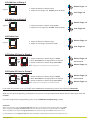
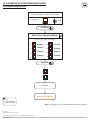
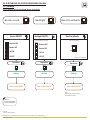
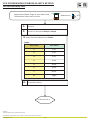
8.2 Add User In Group 1
Master Finger x 1
1. Swipe the Master or Admin Finger
2. Swipe the user finger min. 6 mes (un l Ok Beep)
Figure.1
User Finger x 6
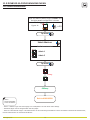
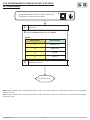
8.3 Add User In Group 2
Master Finger x 2
1. Swipe the Master or Admin Finger twice
2. Swipe the user finger min. 6 mes (un l Ok Beep)
Figure.2
User Finger x 6
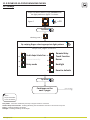
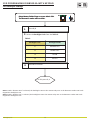
8.4 Delete User
Master Finger x 1
1. Swipe the Master or Admin Finger
2. Swipe the user finger (already enrolled)
Figure.1
User Finger x 1
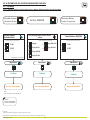
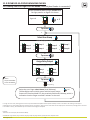
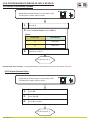
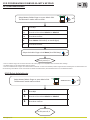
8.5 Delete All Users in Group 1
1. Swipe the Master or Admin finger 3 mes,
2. Wait 6 seconds for the light pa ern on figure.4
3. Swipe the Master or Admin finger once more
6 sec.
Figure.4
Note: All fingers that are enrolled in Group 1 will be deleted.
Master Finger x 3
wait 6 seconds
Master Finger x 1
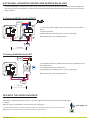
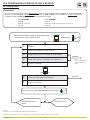
8.6 Delete All Users in Group 2
1. Swipe the Master or Admin finger 4 mes,
2. Wait 6 seconds for the light pa ern on figure.6
3. Swipe the Master or Admin finger once more
6 sec.
Figure.6
Note: All fingers that are enrolled in Group 2 will be deleted.
Master Finger x 4
wait 6 seconds
Master Finger x 1
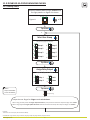
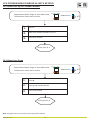
If you make any mistake or you just simply want to exit Quick Programming, wait for the meout of 10 seconds.
With this, the quick programming is completed. The system is now opera onal with default value for Door Open Time of 3
seconds.
For more comprehensive programming, refer to the “DINB100-SA Programming” sec on.
Important:
When using proximity reader for Finger Or/And Card Mode, first present the Card then swipe the finger min. 6 mes.
When using keypad for Finger Or/And Pin Code mode first enter the PIN Code, then swipe the finger min. 6 mes.
When using Mifare card reader for Finger On Card Mode first swipe the finger min. 6 mes, then present a Card.
For Fast Dele ng a user in Finger On Card mode swipe the Master or Admin finger then present an exis ng user card
www.xprgroup.com
7