Transcript
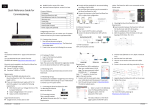
1 _EN_ Quick Installation Guide ZeverManager Scope of Delivery Component Quantity ZeverManager 1 Quick Installation Guide 1 Warranty Card 1 2-pole Plug 1 10-pole Plug 1 Wall Anchors and Bolts 2 Power Supply Unit 1 2 Registering a PV Plant With the Solarcloud, you can monitor your PV Plant online and view your PV Plant’s performance and data. 2.1 Creating a User Account 1. Start your web browser and go to http://solarcloud.zeversolar.com.The Solarcloud home page opens. 2. Create a user account by following the on-screen instructions. Notes: You can download the user manual from the ZEVERSOLAR website (http://www.zeversolar.com). If you cannot use our power supply, the power supply must satisfy the following requirements: EMC Directive and Low Voltage Directive of the European Parliament; Output voltage between 7.5 Vdc and 12 Vdc; Output current of at least 500 mA. Supported web browsers: Google Chrome, version 23.0 or later; Mozilla Firefox, version 3.6 or later; Microsoft Internet Explorer, version 8 or later. 2.2 Creating a PV Plant Login to the Solarcloud website; Select [Plant list]; Create a new PV Plant. Note: The serial number (SN) and the registration ID (RID) can be found on the ZeverManager’s product label. 2.3 Monitoring via a PC You can view power generation data and events in the Solarcloud. 2.4 Monitoring via mobile device Apps The Solarcloud App is available in Google Play and App Store. Install the Solarcloud app on your mobile device to monitor your PV Plant online. 3 Connecting the ZeverManager 3.1 Connecting Inverters Materials needed: Shielded Ethernet cable (CAT 5E or higher) Requirements: Comply with the standards for structured cabling according to EIA/TIA-568; ZEVERSOLAR 532-08084-01 No more than fifty inverters can be connected to the ZeverManager; Connect the inverters to the ZeverManager in a daisy chain configuration. 4 Mounting the ZeverManager ZeverManager must be installed indoors. 1. Select a suitable place for mounting. 2. Mark the positions of the drill holes on the wall (spacing of drill holes: 188.5mm). 3.2 Ethernet Connection Ensure your router's DHCP function is activated; Connect the ZeverManager to the router. 3.3 DO. and DI. port Please refer to the user manual for information on how to use digital output port (D0.) and digital input port (DI.), 3.4 LED The NET port has a status indicator. The LED on the left flashes green when data is being transmitted and the LED on the right flashes yellow when the ZeverManager is connected to the LAN router.The front panel of the ZeverManager also has LED status indicators. LED Status Explanation Glowing green ZeverManager is supplied with voltage Off ZeverManager isn’t supplied with voltage Flashing red ZeverManager is sending active power commands to the inverter Flashing green ZeverManager is sending reactive power commands to the inverter Flashing Green ZeverManager is sending data to the inverter Flashing red ZeverManager is receiving data from the inverter 3. Drill the holes (diameter: 6 mm, depth: at least 30 mm). 4. Remove dust from drill holes. 5. Hammer screw anchors into holes with rubber mallet 6. Insert the screws until they protrude by 5 mm. 7. Hang the ZeverManager on the screws. 8. Tighten the screws. For more information, please go to http://www.zeversolar.com.. V150504