1
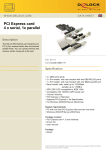
2-Serial/1-Parallel Port PCI Adapter
User Manual
Ver. 2.00
All brand names and trademarks are properties of their
Respective owners.
Mar/07
1
MN2000000080
Features and Benefits
Features
z
Supports Standard Parallel Port(SPP), Enhanced
Parallel
Port(EPP)
&
Enhanced
Capability
Port(ECP)
z
Parallel data transfer rate up to 1.5MB/Sec
z
Supports 2 x 16550 Fast UART serial Ports
z
Serial data transfer rate up to 115200bps
z
Easy Plug and Play
z
Automatically selects IRQ & I/O address
z
Supports Windows® 2000, XP, Server 2003, Vista
Bus
z
PCI 2.1 32bit, 33MHz
Connectors
z
2 x DB9 male serial connectors
z
1 x DB25 female parallel connector
Package Contents
z
1 x 2-Serial/1-Parallel Port PCI Adapter
z
1 x Bracket with two DB9 male serial ports
z
1 x Driver CD
Mar/07
z
2
1 x User Manual
MN2000000080
System Requirements
z
Windows® 2000/XP/Server 2003/Vista
z
Available PCI slot
Hardware Installation
1.
Turn Off the power to your computer.
2.
Unplug the power cord and remove your computer’s cover.
3.
Remove the slot bracket from an available PCI slot.
4.
To install the card, carefully align the card’s bus connector with
the selected PCI slot on the motherboard. Push the board down
firmly.
5.
Replace the slot bracket’s holding screw to secure the card.
6.
Replace the computer cover and reconnect the power cord.
Driver Installation
Please make sure the board is installed before proceeding with driver
installation.
For Windows® 2000
1.
At the Found New Hardware Wizard, click Next.
2.
Select
Mar/07
Search
for
a
suitable
3
driver
for
my
device
MN2000000080
(recommended), and click Next.
3.
Check Specify a location, uncheck the other boxes, then click
Next.
4.
Insert the Driver CD, type in D:\PCI_IO\nm9xxx\2000, then
click OK. (Change D: to match your CD-ROM driver letter)
5.
Click Next and Finish.
6.
Restart Windows to complete the installation.
For Windows® XP
1.
At the Found New Hardware Wizard, select Install from a list
or specific location (Advanced), then click Next.
2.
Insert the Driver CD, check Include this location in the search,
uncheck the other box, type in D:\PCI_IO\nm9xxx\XP, then
click OK. (Change D: to match your CD-ROM drive letter)
3.
If the Hardware Installation window pops up, click Continue
Anyway, then Finish. Our driver has been thoroughly tested for
stability and compatibility.
4.
Repeat steps 1-3 three more times.
5.
Restart Windows to complete the installation.
Mar/07
4
MN2000000080
For Windows® Server 2003
1.
At the Found New Hardware Wizard, select Install from a list
or specific location (Advanced), then click Next.
2.
Insert the Driver CD, check Include this location in the search,
uncheck the other box, type in D:\PCI_IO\nm9xxx\2003, then
click OK. (Change D: to match your CD-ROM drive letter)
3.
If the Hardware Installation window pops up, click Continue
Anyway, then Finish. Our driver has been thoroughly tested for
stability and compatibility.
4.
Repeat steps 1-3 three more times.
5.
Restart Windows to complete the installation.
For Windows® Vista
1.
At the Found New Hardware Wizard, select Locate and install
driver software (recommended).
2.
Click on I don’t have the disc. Show me other options.
3.
Select the option Browse my computer for driver software
(advanced).
4.
Insert the driver CD, check Include subfolders, type in
D:\PCI_IO\nm9xxx\Vista32, then click Next. (Change D: to
match your CD-ROM drive letter)
Mar/07
5
MN2000000080
5.
If the system prompts the user informing the drivers are not
signed, select the option Install this driver software anyway.
6.
Click on Close to complete the driver installation.
To Verify Windows® Driver Installation
1.
Right click My Computer, then click Manage. Click Device
Manager.
2.
Click on the +(plus sign) in front of Ports(COM & LPT), two
MosChip PCI Serial Port … and one MosChip PCI Parallel
Port … should be displayed.
3.
Double click Multifunction adapters, MosChip PCI Multi-I/O
Controller should be displayed.
Change COM Port Address
Some serial devices need a specific COM port in order to work. If your
serial devices works properly, do not change this settings.
For Windows® 2000/XP/Server 20003/Vista Installation
1.
From the Device Manager window double click Ports(COM &
LPT), then double click the MosChip PCI Serial Port you want
to change.
2.
Mar/07
Click Settings tab and click Advanced.
6
MN2000000080
3.
Click the down arrow that is next to the COM Port Number box,
select a COM port that is not in use, then click OK.
4.
Click OK, then close Device Manager to save the changes.
Follow steps 1-4 again to change the other one serial port if
needed.
Change Parallel Port Address
Some parallel devices need a specific parallel port in order to work. If
your parallel devices works properly, do not change this settings.
For Windows® 2000/XP/Server 20003/Vista Installation
1.
From the Device Manager window double click Ports(COM &
LPT), then double click the MosChip PCI Parallel Port …
2.
Click Port Settings tab.
3.
At the LPT Port Number box, click the down arrow and select
an LPT port that is not in use.
4.
Mar/07
Click OK, then close Device Manager to save the changes.
7
MN2000000080