1
5
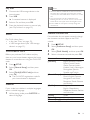
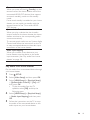
• To play all discs irrespective of the
rating, select level 8.
Use the Numeric buttons to enter the
password.
Lock disc
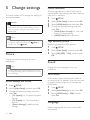
To restrict access to discs that are not encoded
with ratings and parental control, lock the disc
manually. You can lock upto 20 discs on your
home theater.
1
2
3
4
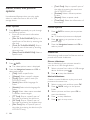
While playing a disc, press
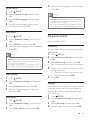
Sleep timer
Set timers to switch the home theater to
standby after a specified time.
1
2
3
4
SETUP.
Select [Sleep Timer], and then press OK.
Select the duration of the sleep timer.
»» The sleep timer can be set up to 60
minutes. If the sleep timer is set to
[Off], it switches off.
Select [Disc Lock] > [Lock], and then
press OK.
»» A message prompts you to enter the
password.
Screen saver
Enter the password with the Numeric
buttons.
»» The disc is locked.
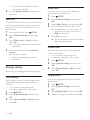
Auto standby
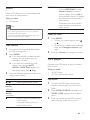
When playing a disc or a USB storage device,
automatically switch your home theater to
standby if:
• it is in pause or stop mode, and
• no button is pressed for 30 minutes.
Press
SETUP.
Select [General Setup], and then press
OK.
Select [Auto Standby] > [On], and then
press OK.
EN
Press OK to activate.
»» The home theater switches to standby
after the specified time.
Automatically switch your home theater to
screen saver mode if:
• it is in pause or stop mode, and
• no button is pressed for 10 minutes.
1
2
3
Save energy by changing the following settings.
21
Select [General Setup], and then press
OK.
5
Energy saving
3
SETUP.
Select [General Setup], and then press
OK.
• To play the locked disc, enter the
password.
1
2
Press
Press
SETUP.
Select [General Setup], and then press
OK.
Select [Screen Saver] > [On], and then
press OK.
Display panel
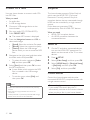
Change the brightness of the home theater
display panel.
1
2
3
4
Press
SETUP.
Select [General Setup], and then press
OK.
Select [Display Dim], and then press OK.
Select the brightness, and then press OK.