1
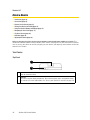
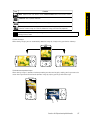
Icon
Function
Experiencing Multimedia
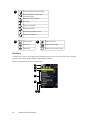
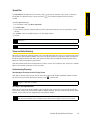
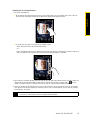
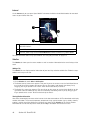
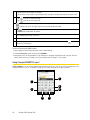
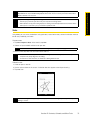
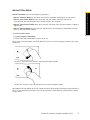
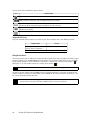
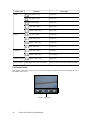
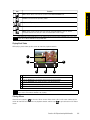
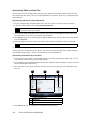
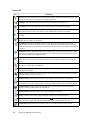
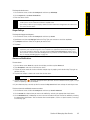
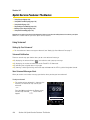
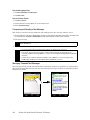
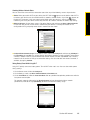
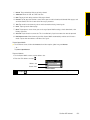
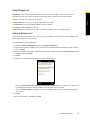
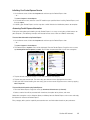
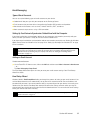
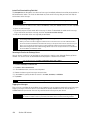
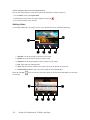
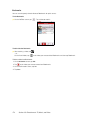
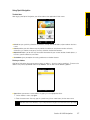
Back. Return to the live camera screen.
View. View the captured image or video in the Album program.
Delete. Delete the captured image or video.
Send. Send the captured image or video via email.
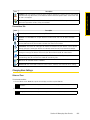
Assign to Contact. After capturing in Contacts Picture mode, tap this
icon to assign the photo to a selected contact.
Advanced Options
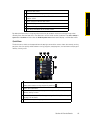
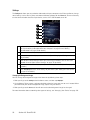
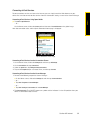
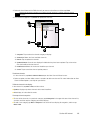
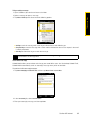
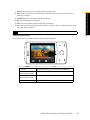
Advanced options let you adjust options for your selected capture mode and set camera preferences.
Access the advanced options by tapping Advanced on the Menu Panel.
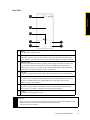
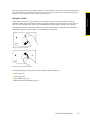
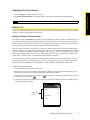
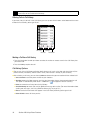
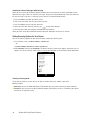
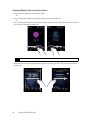
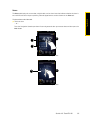
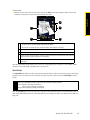
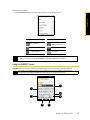
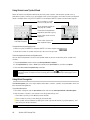
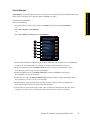
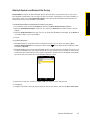
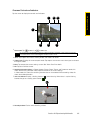
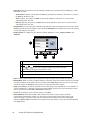
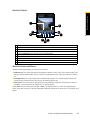
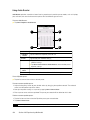
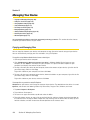
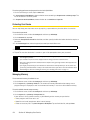
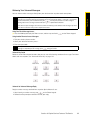
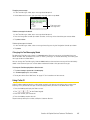
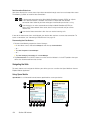
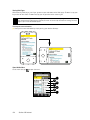
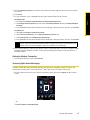
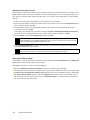
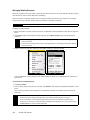
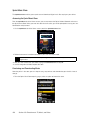
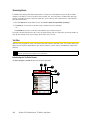
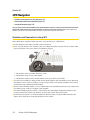
Navigating the Advanced Options Screen
䊳
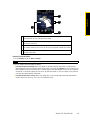
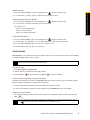
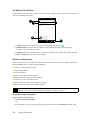
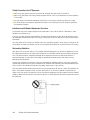
You can either tap onscreen or press the Navigation Control up or down (landscape orientation) to
navigate through the advanced options screen.
1
3
2
1
2
3
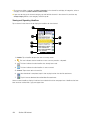
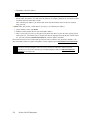
Tap an item to change the setting.
Tap the Left and Right Arrows to go through the different pages of settings.
Tap Back to go back to the live camera screen.
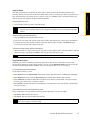
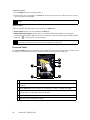
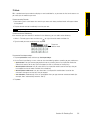
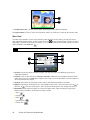
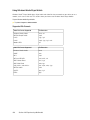
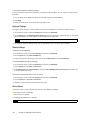
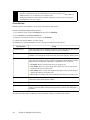
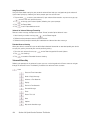
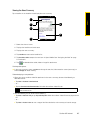
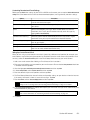
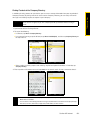
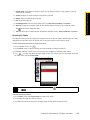
Settings on the Advanced Options Screen
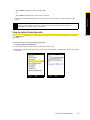
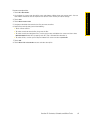
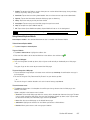
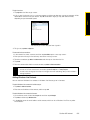
䢇 Quality.
Select the JPEG image quality level for all captured still images. Choose from Basic, Normal, Fine,
and Super Fine.
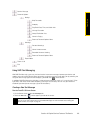
䢇 Capture Format.
䢇 Time Stamp
Select the desired file format.
(Photo mode). Choose whether to include the shooting date and time on captured photos.
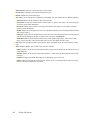
䢇 Storage.
Select where you want to save your files. You can either save the files to the main memory or to
internal storage.
䢇 Keep Backlight.
Turn the backlight on or off. This overrides your device backlight settings while you are
using the camera.
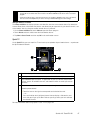
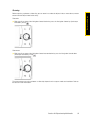
䢇 Shutter Sound.
Choose whether you want the camera to make a shutter sound when you press the
Enter key.
Section 2H. Experiencing Multimedia
93