1
Z-Wave Pan/Tilt IP Camera
List of Figures and Tables
Figure 2-1: Major components in the front panel
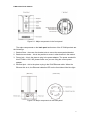
Figure 2-2: Major components in the back panel
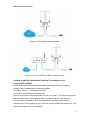
Figure 2-3: IP CAM connection diagram.
Figure 2-4: Connect Ethernet cable to a switch/router.
Figure 2-5: Download the latest CamView software
Figure 2-6: The ID/Password card
Figure 2-7: Running window of CamView program
Figure 2-8: Pop-up play-video password window
Figure 2-9: Unplug the Ethernet cable to enable the WiFi function
Figure 3-1: Open the web configuration page from CamView software
Figure 3-2: IP CAM Web configuration login page
Figure 3-3: IP CAM Information page
Figure 3-4: Network settings page for DHCP function
Figure 3-5: Network settings page for fixed IP address
Figure 3-6: WiFi security disabled page
Figure 3-7: WiFi security enabled page
Figure 3-8: WiFi testing page
Figure 3-9: Advanced network settings page
Figure 3-10: Video settings page
Figure 3-11: Mobile video settings page
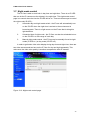
Figure 3-12: Night mode control page.
Figure 3-13: Email/FTP Alarm page
Figure 3-14: SMTP server settings page
Figure 3-15: Speaker Alarm Settings page
Figure 3-16: NAS Storage settings page
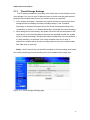
Figure 3-17: Cloud Storage Settings page
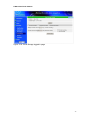
Figure 3-18: Cloud Storage logged in page
Figure 3-19: SD-Card settings page
Figure 3-20: SD-Card information page
Figure 3-21: Schedule Management page
Figure 3-22: Led Control settings page
Figure 3-23: System date/time settings page
Figure 3-24: Admin settings page
Figure 3-25: Firmware upgrade settings page
Figure 3-26: Firmware upgrade status page
Figure 3-27: System reboot settings page
4