1
Phocus by Hasselblad User Manual
1
???????????????????
Adjustments
Adjustments can facilitate workflow and add security
and rapidity to a sometimes risky and time-consuming aspect of file management.
59
???????????????????
Adjustments − editing management
#ZFYQMPJUJOHUIFQPTTJCJMJUJFTUIBU1IPDVTPíFSTZPVDBOOPUPOMZTBWFBHSFBU
EFBMPGUJNFCVUJNQSPWFUIFFîDJFODZBOETFDVSJUZJOUIJTBSFBPGZPVSXPSLóPXXIFOFEJUJOHJNBHFT
*O1IPDVTFEJUTDBOCFBQQMJFETJOHMZPSDPMMFDUJWFMZ4FUTPGFEJUTBSFSFGFSSFE
to as Adjustments
/PUFUIBUBOAdjustment JTBOJOUFSOBMGVODUJPOXJUIJO1IPDVTPOMZ8IFOUIF
ñMFJTFYQPSUFEJOUPBOPUIFSGPSNBUJUIBTUIFEFTJSFEFEJUJOTUSVDUJPOTBQQMJFE
UPUIFFYQPSUFEñMF5IBUJTBMMFEJUTBSFOPOEFTUSVDUJWFJO1IPDVTBOETP'
ñMFTSFNBJOVOBíFDUFEBOEDBOCFSFDBMMFEBUBMBUFSEBUFBTJEFOUJDBMBTUIFZ
XFSFXIFOñSTUQSPDFTTFEGSPNUIFSBXEBUB4PJOTJNQMFUFSNTZPVDBOOPU
QSFTTUIFXSPOHCVUUPOJO1IPDVTCFDBVTFUIFPSJHJOBMñMFBMXBZTSFNBJOT
"TZPVBQQMZFBDIFEJUDPMPSCBMBODFDVSWFTFYQPTVSFFUD
ZPVDBOQSPHSFTTJWFMZCVJMEVQBIJTUPSZPGUIFDIBOHFTNBEF8IFOZPVBSFTBUJTñFEXJUI
ZPVSDIPJDFPGNPEJñDBUJPOTZPVDBOTBWFUIFDPMMFDUJWFDIBOHFTBTAdjustments5IFTFBSFBEEFEUPBOETUPSFEJOTJEFUIFSBXñMFUPCFDPNFEmbedded
*UJTCZXBZPGUIFEmbeddedMJTUUIBUZPVDBOSFWFSUCBDLUPBOZTUBHFPGJNBHF
EFWFMPQNFOUUIBUZPVXJTI
Note
Current only illustrates
the current state regarding accumulated edits. It
does not necessarily imply
the current state has been
saved.
AdjustmentsDBOBMTPCFTBWFEGPSGVUVSFVTFPOPUIFSñMFTBOEXJMMBQQFBS
beneath the UserIFBEJOHAdjustments can also be applied simultaneously to
BXIPMFCBUDIPGñMFTCZVTJOHUIFModifyUPPM5IJTNFBOTZPVDBOBMXBZTHP
CBDLUPTPNFUIJOHZPVQSFGFSSFEBGFXNJOVUFTBHPPSCBDLUPTPNFUIJOH
ZPVQSFGFSSFETFWFSBMNPOUITBHPGPSFYBNQMF*OUIBUXBZBXIPMFGPMEFSPG
DBQUVSFTDBOCFTJNVMUBOFPVTMZFEJUFEJOFYBDUMZUIFTBNFXBZTFDVSFMZBOE
BVUPNBUJDBMMZJOBDDPSEBODFXJUIZPVSPXOPSZPVSDMJFOUTQSFGFSFODFTGPS
FYBNQMF
As a starting point, Phocus has some Factory presets that can either be used
EJSFDUMZPSBTBCBTJTGPSBEEJUJPOBMñOFUVOJOHBOETBWJOHBTDVTUPNJ[FE
QSFTFUT
Note
You must press Load
(or Return) to apply a
selected preset.
Note
Only saved adjustments
appear on the Embedded
list.
There are a number of controls that exploit the underlying Adjustments
concept:
r
r
r
r
r
r
A dialog for applying adjustments during image import.
A Modify function for applying adjustments to a batch of images.
Options for how current adjustments are saved (Ask Before Saving, etc.)
A tool for managing adjustments.
A Save changes button that saves current adjustments.
A Copy to User function that saves current adjustments as custom presets.
Therefore, it is advisable to build up your understanding of Adjustments to see
IPXUIFZDBOXPSLGPSZPVJOZPVSTJUVBUJPOBOEJNQSPWFZPVSXPSLóPX
4FFUIFGPMMPXJOHDIBSUGPSBOPWFSWJFXPGUIFUIFJEFBCFIJOEAdjustments
60
Adjustments
Adjustments − overview
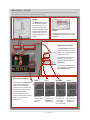
5IJTTJNQMJñFEPWFSWJFXJMMVTUSBUFTUIFJOUFSSFMBUJPOPGTPNFPGUIFBEKVTUNFOUTGVODUJPOTCFUXFFOGPVSUPPMT5IFSFBSFNBOZTFUUJOHT
UIBUBSFTIBSFE1SFTFUTDBOCFFYQMPJUFEVTJOHBOZPGUIFTFGPVSUPPMT
Modify
The Modify dialog is used
for rapid and automatic
batch processing. It uses
adjustment presets that
can be temporarily customized if required. IPTC data
and file naming can also
be batch changed in this
dialog.
Import
The Import dialog allows you to apply
Adjustments to images when they are
imported.
Adjustments window
The Adjustments window is a
visible reminder of the current
preset or save, according to the
image in the Viewer.
It also displays a list of presets
and saves under the three
headings: Factory, User and
Embedded.
It mirrors the information (except settings) also visible in the
Adjustment Browser.
Adjustments Browser
This tool acts as an Adjustment
multi-tool and information
check system. It provides four
separate and very useful groups
of information – Factory, User,
Embedded and Current.
Customized presets are also
created with this tool and saved
either as new presets or as
default presets.
Factory
User
Embedded
Current
Factory lists
several presets
as starting
QPJOUT
User lists
custom made
Adjustments
GPSHMPCBMVTF
Embedded lists
the history of
TBWFEBEKVTUNFOUTXJUIJO
UIFTFMFDUFEñMF
Current lists
the tools and
settings curSFOUMZJOVTF
61
Adjustments
Adjustments − editing management
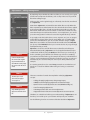
Adjustments Browser
2
*OUIFFYBNQMFTIPXOIFSFBOBEKVTUNFOU1 under the Embedded heading 2IBTCFFOTFMFDUFE"OBDUJWBUFEEJTDMPTVSFUSJBOHMFJOUIFWJFX
beneath 3, reveals the details of the SharpnessTFUUJOHTUIBUXFSFJOVTFBU
UIFUJNFUIFBEKVTUNFOUXBTBQQMJFEUPUIFJNBHF
1
Adjustments – categories
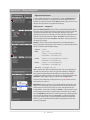
0QFOUIFAdjustment BrowserUPPMBOEDMJDLPOUIFBQQSPQSJBUFIFBEJOH
5IFMPXFSTFDUJPOEJTQMBZTUIFTFUUJOHTPGUIFUPPMTVTFEGPSUIFTFMFDUFE
BEKVTUNFOUSFWFBMFECZEJTDMPTVSFUSJBOHMFT
/PUFUIJTNFBOTUIF
BEKVTUNFOUZPVIBWFKVTUTFMFDUFEOPUOFDFTTBSJMZUIFBEKVTUNFOUJOVTF
XJUIUIFDPSSFTQPOEJOHSFTVMUTWJTJCMFJOUIFViewer"MTPOPUFUIBUBOZ
TFMFDUFEBEKVTUNFOUNVTUCFloadedUPUBLFFíFDUTFMFDUJOHBMPOFXJMM
OPUBQQMZBOZDIBOHFT
3
Factory: 5IFTFBSFUIFTUBOEBSEBEKVTUNFOUTQSPWJEFEXJUI1IPDVT
5IFZDBOCFFJUIFSVTFEEJSFDUMZPSGPSDSFBUJOHBDVTUPNJ[FEBEKVTUNFOU
XIJDIJTMJTUFECFOFBUIUIFUserIFBEJOH
Standard:
Nature:
No edits
Curves − RGB
Sharpness − Amount 180, Radius 0.8
White Balance − Temp 5500, Tint 10
Portrait:
Sharpness − Amount 90, Radius 0.8, Threshold 3
White Balance − Temp 5500, Tint 0
Product:
Sharpness − Amount 350, Radius 0.8
White Balance − Temp 5500, Tint 0
Square Crop: Crop (60Mpix model only)
4
User: %JTQMBZTVTFSEFñOFEBEKVTUNFOUTUIBUDBOCFVTFEHMPCBMMZGPS
VTFXJUIBOZPUIFSJNBHFT5IFTFBSFHFOFSBUFEFJUIFSCZDMJDLJOHUIF
plus sign 4 in the UserNFOVXIJDIXJMMTUPSFBOBEKVTUNFOUXJUIUIF
BDUVBMTBWFETFUUJOHTQSFTFOUPSCZTFMFDUJOHBOBEKVTUNFOUCFOFBUIUIF
EmbeddedIFBEJOHSJHIUDMJDLJOHBOEUIFODIPPTJOHCopy to User 5
"QSFTFUDBOCFEFMFUFECZDMJDLJOHUIFNJOVTTJHO6%PVCMFDMJDLUIF
OFXQSFTFUUPSFOBNFJU
6
5
Embedded: %JTQMBZTBIJTUPSZPGTBWFEFNCFEEFE
BEKVTUNFOUTOPUF
UIBUJUJTOPUBMJTUPGFEJUTZPVNBZIBWFUSJFEBOEOPUTBWFE
5IFTFBSF
BEEFEUPUIFMJTUFBDIUJNFDIBOHFTBSFTBWFE5IFBEKVTUNFOUTMBTU
TBWFEXJUIUIFDVSSFOUñMFBSFNBSLFEBTdefault"DIFDLNBSLJOGSPOUPG
BOBEKVTUNFOUTIPXTUIBUJUJTBQQMJFEUPUIFDVSSFOUñMF*GZPVXBOUUP
save an EmbeddedBEKVTUNFOUGPSVTFXJUIPUIFSJNBHFTFJUIFSSJHIUDMJDL
UIFTFMFDUFEBEKVTUNFOUBOETFMFDUCopy to User or under the User headJOHDMJDLPOUIFQMVTTJHOUPDPQZUIFPSJHJOBMFNCFEEFEBEKVTUNFOU
&JUIFSXBZZPVDBOUIFOEPVCMFDMJDLUIFOFXBEKVTUNFOUJO6TFSBOE
SFOBNFJUBEWJTBCMF
62
Adjustments
"MMFNCFEEFEBEKVTUNFOUTBSFTUPSFEEJSFDUMZXJUIJOB'ñMF8JUIPUIFSñMFGPSNBUTBEKVTUNFOUTBSFTUPSFEJOTJEFDBSñMFT*GñMFTBSFNPWFE
XJUIJO1IPDVTUIFOUIFBEKVTUNFOUTBSFBVUPNBUJDBMMZUSBOTGFSSFEUPP
)PXFWFSJGñMFTBSFDPQJFEPVUTJEFPG1IPDVTPSUPBOPUIFSDPNQVUFS
TUPSBHFEFWJDFUIFOZPVTIPVMEFOTVSFUIBUUIFBQQSPQSJBUFTJEFDBSñMFT
BSFDPQJFEUPPJOUIFDBTFPGPUIFSGPSNBUT'ñMFTSFNBJOVOBíFDUFE
XJUISFHBSEUPDPQZJOHBTUIFZBMXBZTSFUBJOUIFJSJOUFHSBMBEKVTUNFOU
IJTUPSZ
Current: 5IJTSFQSFTFOUTUIFDVSSFOUUPUBMTFUPGBEKVTUNFOUTGPSUIFTFMFDUFEJNBHF*UUIFSFGPSFWJTVBMMZJMMVTUSBUFTUIFFíFDUPOUIFDVSSFOUJNBHFNBEFCZBOZMPBEFEBEKVTUNFOUQMVTBOZDIBOHFTNBEFBGUFSXBSET
/PUFUIBUUIFCurrentTFUPGBEKVTUNFOUTNJHIUOPUOFDFTTBSJMZIBWFCFFO
TBWFEBTBOBEKVTUNFOUBUUIJTQPJOU$BOBMTPHFOFSBUFB User TFUUJOH
Transferring Adjustments
Both Embedded and CurrentBEKVTUNFOUTDBOCFDPQJFEUPUser as
DVTUPNQSFTFUTCZSJHIUDMJDLJOHUIFTFMFDUFEBEKVTUNFOUBOEDIPPTJOH
Copy to User
Adjustment Preferences
6OEFSPreferencesJOUIFToolbar
ZPVDBODIPPTFIPXUIFDVSSFOUBEKVTUNFOUTBSFUPCFTBWFEXIFOCSPXTJOHUPUIFOFYUJNBHF
The options are Manually, Ask Before Saving and Always Save SFDPNNFOEFE
Saving adjustments
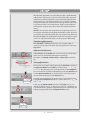
:PVDBOTBWFBOZDIBOHFTNBEFCZQSFTTJOHUIFSave changes 1 button in
the Adjustments Window on the Toolbar or use the shortcut –
+
+S
Ctrl+×+S 5IJTHFOFSBUFTBOFXTFUPGBEKVTUNFOUTPOUIFEmbeddedMJTU
:PVDBOSFWFSUGSPNBOZFEJUTNBEFTJNQMZCZQSFTTJOHUIFReload button
2 in the Adjustments WindowJGZPVIBWFOUNBEFBTBWFBTUIJTDSFBUFTB
set and automatically greys out the ReloadCVUUPO
1
+
+S
Ctrl +×+S
"SFDFOUMZTBWFEBEKVTUNFOUDBOBMTPCFVTFEPOBOFXJNBHFCZQSFTTing the Use last saved adjustment button 3 or use the shortcut – × +
+U
Ctrl +×+U
*OUIJTXBZUIFAdjustment Window section of the Toolbar also acts as a
TIPSUDVUUPEJSFDUMZDIPPTFmPSDIBOHFZPVSDIPJDFPGmBEKVTUNFOUTBT
BRVJDLBMUFSOBUJWFUPHPJOHUISPVHIUIFMPOHFSQSPDFTTPGTFMFDUJOHBOE
MPBEJOHOFXBEKVTUNFOUTGSPNUIFAdjustments BrowserUPPM
2
3
+
+U
Ctrl +×+U
63
Adjustments
Adjustments − an example
*OUIJTFYBNQMFBQPSUSBJUJTDIPTFOBOEBEKVTUNFOUTBQQMJFEUPEFNPOTUBSBUFIPXBEKVTUNFOUTDBOIFMQ
TNPPUIPVUUIFXPSLóPXQSPDFTT
#PUITJOHMFJNBHFTBOECBUDIQSPDFTTJOHPGNVMUJQMFJNBHFTDBOCFBEKVTUFEUIJTXBZ
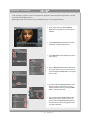
1. For this example, make sure the Viewer, Thumbnail
Browser and Tools are displayed. Select a file to appear in
the Viewer.
1
2. Open the Adjustments Browser tool and click on the Factory heading A to display the Factory presets B.
2
A
3. Open the White Balance and the Sharpness tools (note the
current settings C).
B
3
C
4. Back in the Adjustments Browser under the Factory heading, click on the "Portrait" preset D then click on Load E. You
will see that Sharpness and White Balance F now appear in
the lower window.
4
D
E
5. In the lower window of the Adjustments Browser, click on
the disclosure triangles G and H and to see the settings –
Sharpness (amount 90, radius 0.8, threshold 3) and White
Balance I (Temperature 5500, Tint 0).
5
G
6
H
I
6. If you now look back again at the White Balance and the
Sharpness tools, you will see that the new settings J (as
shown in 5 above in the Adjustments Browser) have now
been transferred to these tools thereby applying their effects
on the image in the Viewer.
J
64
Adjustments
Adjustments − an example
A
1
2
3
$POUJOVJOHGSPNUIFQSFWJPVTFYBNQMFPCTFSWFUIF
GPMMPXJOH
B
1. If you now look at the Adjustment window on the Toolbar
you will see "Portrait" A. This provides a constant visual
reminder of the adjustment in use for the selected image.
C
2. If you click on Modify B on the Toolbar the menu in the
Modify dialog also now lists "Portrait" C for selection. This
provides the opportunity to batch modify agroup of images
using the identical adjustments for all, automatically.
D
E
3. If you click on the Current D heading in the Adjustments
Browser tool you will see "Current Adjustments" E. The lower
panel now displays the current settings details allowing you
to inspect them for approval (in this case it is Sharpness and
White Balance from the "Portrait" preset plus an additional
edit of Curves, see below).
1
5PDPOUJOVFFWFOGVSUIFSUIJTFYBNQMFTIPXTIPX
BGBDUPSZQSFTFUJTDVTUPNJ[FETBWFESFOBNFEBOE
VTFEBTBOFXNPEJGZJOHQSFTFUGPSBCBUDIPGJNBHFT
2
3
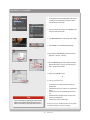
1. Having applied "Portrait" to the selected image as in the first
example, open the Curve tool and make a change.
A
B
2. Save the change by clicking the Save button A on the Toolbar
(which then dims to signify that a change has been saved).
C
D
3. Click on the Embedded B heading in the Adjustments
Browser tool to display the new setting which is named with
the date and time C. (Notice that the Adjustment window D
on the Toolbar bar displays the same name now).
4
E
5
4. Back in the Adjustment Browser, select the latest saved
adjustment E and right click it to reveal a pop up menu.
F
5. Select Copy to User F from the menu.
65
Adjustments
Adjustments − an example
6
G
6. The new adjustment now automatically appears under the User
G heading as a new customized preset (named here with the
same date and time as when saved).
7
7. You can now rename it by clicking on it first to highlight it. In this
example it is renamed to "New York".
8
8. In the Thumbnails Browser select the files you want to change.
9
H
9. Click on Modify H on the Toolbar to display the dialog.
10
10. On the droplist in the Modify dialog, select the desired saved
adjustment I ("New York" - in this case).
I
11
11. Also in the Modify dialog, you can also include some extra IPTC
data and rename the files. In this case, a previous IPTC preset is
chosen J and the files are renamed K .
J
K
12
12. Finally, click on the Modify L button.
❖
L
5PTVNVQZPVIBWFOPX
r used a preset to securely make previously approved edits.
r added to that preset to create a new customized
preset.
r renamed the new customized preset for future
use.
r altered the IPTC information for inclusion with
Tip
the newly modified files.
r renamed the newly modified files.
There several ways of exploiting the actions within
Adjustments and you should investigate the possibilities that would suit your particular preferences.
*OUIJTXBZZPVDBONPEJGZCBUDIFTPGWFSZñOFMZ
UVOFEñMFTRVJDLMZFBTJMZBOETFDVSFMZ
66
Adjustments
Hasselblad A/S
Hejrevej 30, DK - 2400 Copenhagen,
Denmark
Victor Hasselblad AB
Box 220, SE - 401 23 Göteborg,
Sweden
Phocus - 02.11 - UK - v10