1
Digitalsystem | Digital System | Système numérique
▶ Benutzerhandbuch
▶ User Manual
▶ Manuel d’utilisation
Legal Notice
Legal Notice
Please note the following cautions before using your Z21 Digital System:
▶ When combining Roco or Fleischmann components with third-party products, the warranty for
damage or malfunctions lapses.
▶ Any warranty claim lapses if the casings of the Z21 Digital Centre and Router are opened.
▶ Carry out all cabling works only when the power is switched off!
▶ Work carefully and make sure that no shortcircuits can occur when connecting the track system to
the mains! Incorrect wiring can destroy the digital components. If necessary, consult your dealer.
▶ Positively do not connect an analogue transformer or other digital systems or centres to the same
power circuit or neighbouring power circuits in parallel to digital control. This can result in the
destruction of the Z21 Digital Centre!
▶ Do not use the Z21 Digital Centre with current Roco amplifiers (e.g. Art. Nos. 10761 and 10764).
Änderungen von Konstruktion und Ausführung vorbehalten! • We reserve the right to change the construction and design! • Nous nous réservons le droit
de modifier la construction et le dessin ! • Ci riserviamo il diritto di variare la costruzione e il design! • Verandering van model en construcie voorbehounden. Bitte diese Beschreibung zum späteren Gebrauch aufbewahren! • Please retain these instructions for further reference! • Pire d‘bien vouloir
conserver ce mode d’emploi en vue d’une future utilisation ! • Conservate queste istruczioni per un futuro utiliozzo! • Deze handleding altijd bewaren.
Imprint
All rights, modifications, errors and delivery options reserved.
Specifications and illustrations without obligation. All changes reserved.
Editor: Modelleisenbahn München GmbH / Triebstr. 14 / 80993 Munich / Germany
32
Preface
Thank you for buying the Z21 Digital System
of Roco and Fleischmann!
▶
The Z21 Digital Centre is a high-performing state-of-the-art multi-protocol centre. It integrates perfectly
into your model layout and allows controlling locomotives and digital components easily and conveniently by smartphone, tablet PC or multiMAUS.
▶
The Z21 mobile app is a universal control software for Android and iOS-based smartphones and tablet
PCs. With this app, you can control all locomotives with DCC or Motorola decoders and program loco
libraries, entire locomotives, loco functions and digital components.
▶
The Z21 driver stands are apps with detailed reproductions of actual locomotive driver stands. Become
a virtual loco driver – and run your favourite locomotive with your tablet PC from an exact virtual driver
stand.
English
With the Z21 Digital System, model railway control is as easy and exciting as never before: locomotives,
switches and digital components of Roco and Fleischmann can be controlled easily and conveniently from
your smartphone or tablet PC – ensuring maximum driving fun from the first moment! The Z21 Digital
System is made up of three modules:
The following pages will explain everything you need to know to connect and operate the Z21 Digital System
to your layout. In addition, the manual contains many practical tips for digital operation and you will learn
which digital components of Roco and Fleischmann can be combined with the Z21 Digital System.
You can see: We still have a lot to do. So let’s go!
33
Contents Table
Contents
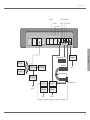
Z21 Digital Centre Connections .......................................................................................................... 35
1. Unpack, Connect and Go ................................................................................................................ 36
1.1 How to Connect Your Z21 Digital System .................................................................................... 36
1.2 How to Start Your WLAN Router .................................................................................................. 38
1.3 How to Install the Z21 Mobile App ............................................................................................... 38
2. Z21 Digital Centre: State-of-the-Art Model Railway Control .......................................................... 39
2.1 Connection of Additional Control Devices .................................................................................. 40
2.2 Compatibility with Roco and Fleischmann Components ........................................................... 40
2.3 Power Supply for the Z21 Digital Centre ...................................................................................... 41
2.4 Operation of Digital Locomotives .............................................................................................. 42
2.5 Upgrading of Analogue Locomotives .......................................................................................... 43
2.6 Resetting the Z21 Digital Centre .................................................................................................. 43
2.7 Update of Z21 Digital Centre ........................................................................................................ 43
2.8 Programming and Read-Out Track ............................................................................................. 44
2.9 Feedback at Programming and Main Track ................................................................................. 45
3. Driving with a Booster ................................................................................................................... 46
4. Loops in Digital Operation ........................................................................................................... 48
5. Z21 Mobile App: First Steps ........................................................................................................... 50
5.1 Controls .......................................................................................................................................... 51
5.2 Settings .......................................................................................................................................... 52
5.3 Locomotive Library ........................................................................................................................ 53
5.4 Programming Loco Settings ......................................................................................................... 54
5.5 Access to Loco Functions ............................................................................................................. 55
5.6 Assignment of Digital Functions .................................................................................................. 56
5.7 Setting and Handling of Magnetic Items ..................................................................................... 57
6. View from the Driver Stand ............................................................................................................ 58
34
Connections
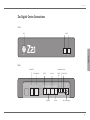
Z21 Digital Centre Connections
Front
Stop
X-BUS
X-BUS
X-BUS
English
STOP
Back
CAN-BUS
Programming Track
Local Network
CAN
LAN
X-BUS
SnifferBus
Loco Net
X-BUS R-BUS
DC
Power
L-BUS B-BUS
Sniff
BUS
Feedback
Main Track
Booster
Prog
Track
Main
Track
18-24V=
DC Power Supply
35
Quick Start Guide
1. Unpack, Connect and Go
This manual shows you how to operate your Z21 Digital System and control your layout using the
Z21 mobile and driver stand apps. Please prepare the following items:
▶ the Z21 Digital Centre and the supplied AC adaptor
▶ the supplied WLAN router and the supplied AC adaptor
▶ the supplied network cable
▶ your smartphone or tablet PC with Internet access, optionally or additionally the multiMAUS
(Art. No. 10810)
In addition, you will also need access to your Roco and Fleischmann layout, ideally prepared with a
powered track without capacitator, as e.g. Art. No. 61190 (geoLine), Art. No. 42517 (RocoLine), Art.
No. 22217 (Fleischmann N) or Art. No. 6430 (Fleischmann H0).
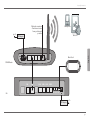
1.1 How to Connect Your Z21 Digital System
1. Place the Z21 Digital Centre into your system for good accessibility.
2. Connect the supplied clamping terminal to the powered track. Ensure good contact.
2. Plug the cable of your powered track into the track socket “Main Track” of the Z21 Digital
Centre.
3. Connect the switching adaptor to the DC power socket “DC Power”.
4. Connect the switching adaptor of the Z21 Digital Centre to the mains power outlet.
36
Assembly Instructions
AC Adapter
Smartphone
Tablet PC
RESET
WLAN-Router
Main Track
POWER
4
ON/OFF
CAN
Z21
English
230 V~
Optional connection
of an Internet router
from your Internet
provider
3
LAN
2
1
WAN
RESET
X-BUS R-BUS L-BUS
B-BUS
Sniff
BUS
Prog
Track
Main
Track
DC
Power
AC Adapter
230 V~
37
Quick Start Guide
1.2 How to Start Your WLAN Router
Connect the Z21 Digital Centre to the supplied WLAN router to allow operating your layout using
external peripherals such as a smartphone or tablet PC.
1. Place the WLAN router on top of or next to the controller. Select a location to ensure a troublefree connection between router and smartphone or tablet PC.
2. Connect the LAN port of the Digital Centre to a LAN port of the WLAN router using the supplied network cable.
3. If you have an Internet connection, you can optionally cable the WLAN router via a WAN port to
the router of your Internet provider. This allows accessing the existing connection to the Internet from your smartphone or tablet PC to download updates or information.
Ready! Your Z21 Digital System is now ready for use. Next, you will learn how to install the Z21
mobile control app on your smartphone and how to connect your smartphone or tablet PC with
the Z21 Digital Centre.
Refer to pages 16 and following on
what other Roco and Fleischmann
components can be used with the
Z21 Digital Centre.
Z21 mobile app system requirements:
▶ iPad as of v1.3
▶ iPhone and iPod as of iOS 4.2
▶ Android devices as of v2.3
38
1.3 How to Install the Z21 Mobile App
▶ Make sure that your smartphone or tablet PC is connected to the Internet.
▶ Register the smartphone or tablet PC with the Z21 WLAN. To register with Android or iOS
systems, consult the manual of your peripheral device.
▶ When using an iPad (as of version 1.3) or an iPhone or iPod (as of iOS 4.2), use the AppStore.
▶ When using an android smartphone or tablet (as of version 2.3) phone, change to Google Play.
▶ Use the search function to look for the “Z21 Mobile”. Install the app.
▶ Start the app. The start-up screen displays. Let’s go!
▶ More on the operation of the Z21 Mobile App, see Pages 50 and following.
Digital Centre
2. Z21 Digital Centre
iPhone or
Android smartphone
Start out into the future of model railway control with Roco and Fleischmann: with the Z21 Digital
Centre, you can control your layout from your smartphone or tablet PC with utmost convenience –
maximum driving fun and uncompromising faithfulness to the original.
▶ Controls up to 9,999 DCC loco decoders
▶ Controls up to 2,048 DCC switch decoders
▶ Adjustable, rectified track voltage (12-24 V, 3A) for smooth driving operation
▶ Compatible with multiMAUS models and Lokmaus 2
▶ Separate programming track connection with ZIMO decoder update
▶ Automatic loco detection and feedback via RailCom©
▶ Many interfaces: LAN, three X buses, loco feedback, Loco Net, CAN and Booster Bus,
Sniffer Bus
▶ Software and sound updates via smartphone
Your model railway
English
The state-of-the-art multiprotocol centre is the ideal control system for locos with DCC or Motorola
decoder and the perfect control for your digital components. The Centre connects your layout and
digital locos by WLAN with your smartphone or tablet PC and the control apps installed in them,
or optionally with one of our digital driver stand or the Z21 Mobile App.
Laptop or
Desktop PC
Z21
with WLAN-Router
multiMAUS
iPad or Android tablet
39
Digital centre
2.1 Connection of Additional Control Devices
You will probably prefer to control your Z21 Digital System from your smartphone or tablet PC. But if
you want to share control with others or do not have your smartphone at hand, you can also connect
your current multiMAUS or local mouse control devices to the X Bus sockets of the Z21 Digital
Centre.
Each of these control devices can interface with all locos and digital components. This allows controlling at any time locos controlled by other devices by selecting any function of the corresponding loco
or the loco controller from your Z21 mobile app.
2.2 Compatibility with Roco and Fleischmann Components
Warning: Positively do not connect
an analogue transformer to the
power circuit of your digital system!
Destruction of the Z21 Digital
Centre would be the result!
40
The Z21 Digital Centre can be connected without problem to all Roco and Fleischmann digital
devices, based on the RocoNet or the X Bus protocol. These include:
▶ multiMAUS, Lokmaus 2 and Lokmaus R3 (Art. No. 10760, 10790, 10860 and 10792)
▶ Keyboard (Art. No. 10770) and RouteControl (Art. No. 10772)
▶ Roco booster (not RailCom© compatible, Art. No. 10762 and 10765)
▶ For further information on compatibility, see online www.Z21.eu.
Digital centre
2.3 Power Supply for the Z21 Digital Centre
As a power supply for the Z21 Digital Centre, please use exclusively the supplied AC adaptor (Art. No.
10851). Positively do not use a wound-core transformer!
With the Z21 Digital System, you can modify the voltage applied to your system at any time by software. For this purpose, change to the menu “Z21 Settings” in the Z21 mobile app. Always make sure
to stay in 11 to 23 V range. Typical voltage ranges are from 14 to 18 V (for the gauges H0 and TT) and
approx. 12 V (for the gauge N).
Warning: Positively do not connect
the Z21 Digital Centre to Roco
amplifiers Art. Nos. 10761 and
10764! Use these components only
on electrically separate layout parts
connected only by transition tracks.
The Z21 Digital Centre is designed for loads of up to 3.2 A. If frequent power cuts occur in the system
due to overloads, please install a booster (see Page 46).
Note: To find out the current power consumption of your system, check the menu point “Power
Centre” in the “Z21 Settings” menu of the Z21 mobile app.
English
Maximum input voltage for the Z21 Digital System is 24 V. The maximum track voltage is always 1 V
below the input voltage.
Note: How to compute the power
consumption of an H0 system:
▶ Stationary locos with light:
approx. 100 mA
▶ Travelling locos depending on size
and load: 300 – 600 mA
▶ Illuminated coaches: approx. 30 mA
per minibulb (expect considerable
fluctuations!)
▶ Digital coupling or smoke generator:
approx. 100 mA
▶ Digital switch drive or switch
decoder: approx. 500 mA as reserve
41
Digital centre
2.4 Operation of Digital Locomotives
Note: Easy programming of your
loco decoder
▶ Place loco onto programming track
▶ Start the Z21 mobile app
▶ Switch to programming mode
▶ Enter the new parameters
▶ Ready!
The Z21 Digital System is suitable for the control of all locomotives using Roco loco decoders or any
DCC-compatible decoders. Your Z21 Digital System can administer up to 9,999 loco decoders.
The preconfiguration by the factory of all Roco and Fleischmann locos is decoder address 3. If you
use several locos on your system simultaneously, you need to assign a separate decoder address to
each one.
With the Z21 Digital System, this is very simple: put the locomotive as the only loco onto the programming track. Select the locomotive on Z21 mobile app and give it a name and decoder address
not yet assigned in the programming mode. That’s it!
All magnetic items (switches, decoupling tracks, signal decoders) equipped with a digital decoder
can be programmed and controlled with the Z21 mobile app just as easily.
42
Digital centre
2.5 Upgrading of Analogue Locomotives
Locomotives and components without decoder cannot be used in the Z21 Digital System.
Due to the entirely different voltage supply, the use of a non-decoder loco results in a highly irritating
high-frequency noise. In addition, there is a risk that the motors will be damaged.
Warning: Locomotives and components without decoder cannot be
used on the Z21 Digital System.
However, many analogue models can be refitted with loco decoders and so made suitable for use
on your Z21 layout. With locomotives with a free slot and an operational digital interface, this is very
simple and easy because as a rule, the decoder merely needs to be plugged into a free socket.
If your digital system no longer operates flawlessly, please reset your Z21 Digital Centre to the factory
setting as follows:
▶ Press the stop key on the front of the unit.
▶ Keep the key depressed for 5 seconds. The LED light starts flashing in purple.
This shows the Z21 Digital Centre has been reset to the factory setting. If the digital system still does
not operate flawlessly, contact your dealer.
Note: You can have your locomotives
converted in a professional workshop.
For a list of recommended suppliers,
see www.roco.cc/en/service-partner.
English
2.6 Resetting the Z21 Digital Centre
2.7 Update of Z21 Digital Centre
When your smartphone or tablet PC is connected to the Internet, you can search for apps and the
Z21 firmware in the “Updates” section of software updates at the AppStore and Google Play.
43
Digital centre
2.8 Programming and Read-Out Track
Note: The firmware of your Zimo
loco decoder can be updated very
conveniently via the programming
track. For this purpose, simply drive
the respective locomotive to the programming track. In the Z21 mobile
app, switch to programming mode
and select the menu item “Decoder
Update.
Warning: Only one loco can be read
out and/or programmed at the same
time.
Note: When setting the length of the
programming track, take the longer
tenders of steam locomotives into
account!
44
As long as you wish to program one single loco decoder, you can program it directly on the main
track. For this purpose, simply mark the loco in the Z21 mobile app, switch to programming mode
and change the desired parameters.
If you want to read the decoder settings or do not know the decoder adress anymore, we recommend
the use of a separate programming track.
You can use any partial section of your layout as a programming track – simply isolate it on both
ends with insulated rail connectors (Art. Nos. 42611, 61192, 6433 or 9403) or separator rails and
then connect it to a power supply element (Art. No. 61190) at the “Prog Track” socket of the Digital
Centre.
To program a loco, simply drive it to the corresponding track section. Then change your Z21 mobile
app to programming mode (for details, see www.z21.eu). The Z21 Digital Centre now switches the
track automatically into programming and read mode.
You can now read the decoder data of the locomotive in the Z21 mobile app via RailCom© and set
new CV values for the locomotive. For details, also see www.z21.eu.
Feedback
2.9 Feedback at Programming and Main Track
Programming Track
Loco Net
Booster
CAN
LAN
X-BUS
R-BUS
Sniffer
BUS
Main Track
DC
Power
L-BUS B-BUS
Sniff
BUS
Prog
Track
Main
Track
Programming Track
Tablet PC
WLAN Router
WAN
PC
AC Adapter
Main Track
Router (from
Internet Provider)
230V~
Smartphone
AC Adapter
18-24V=
English
Feedback
Roco feedback
(also possible
through WLAN)
230V~
Roco feedback
Roco feedback
45
Driving with a Booster
3. Driving with a Booster
If power consumption exceeds 2.5 A,
the section is overloaded and must be
divided.
When your system turns off frequently without a loco or coach having derailed or in the absence of
a wiring error, as a rule this suggests an overload due too many power consumers. In this case, a
booster (Art. No. 10765) which supplies extra power to the layout via an extra transformer (Art. No.
10718, 10725 or 10850) will help.
Installation is simple:
Warning: The booster and the Z21
Digital Centre must not be operated with
the same transformer or AC adaptor!
Make sure that at the change-over turnouts, the tracks have the same polarity
to avoid shortcircuits when driving over
the separating turnouts. Make sure that
powered tracks have no capacitors.
46
▶ Subdivide your system into two supply sections having approximately the same power consumption. Separate the tracks on both sides using insulated rail connectors (Art. No. 42611, 61192,
6433 or 9403) or separator tracks.
▶ Attach a power supply element to the new supply section (e.g. geoLine Art. No. 61190) or another
separator track and connect it to the “Track Out” socket of the booster.
▶ Now connect the booster to its transformer.
▶ Connect the “Booster In” socket on the booster with the “B Bus” socket of the Z21 Digital Centre.
Use the dedicated cable supplied with the booster for this purpose. A detailed cabling diagram is
found on Page 47.
You can connect up to three more boosters to the “Booster Out” socket of the booster when necessary. If more than four boosters are needed for your layout, a brake generator (Art. No. 10779) must
be connected in place of the fourth booster. Up to four more boosters can then be connected to the
“Booster Out” socket.
Driving with a Booster
Programming Track
Loco Net
Booster
CAN
LAN
SnifferBus
Main Track
DC
Power
X-BUS R-BUS L-BUS B-BUS
Sniff
BUS
Prog
Track
Main
Track
Programming Track
Tablet PC
LAN
WLAN-Router
WAN
Main Track
Router (from
Internet Provider)
18-24V=
English
Feedback
AC Adapter
230 V~
Smartphone
Track separation
AC Adapter
230 V~
Booster 2
Booster 1
AC Adapter
AC Adapter
230 V~
230 V~
Booster circuit 1
Booster circuit 2
47
Loops in Digital Operation
4. Loops in Digital Operation
Note: To make sure that the loop
module responds quickly enough,
the sensitivity must be set prior to
operation using the potentiometer
visible at the side. Observe operating
instructions.
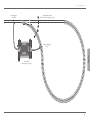
Every DC railway enthusiast knows the following problem: if after a loop, the left rail profile meets the
right one, a shortcircuit occurs without the appropriate wiring.
With our loop modules (Art. No. 10767 or 10769), this switching problem in digital operation is elegantly taken care of: simply separate the loop on both sides on two poles and insulate the rest using
insulated connectors (Art. No. 42611, 61192, 6433 or 9403) electrically from the remainder of the
layout (see Page 49). The separated layout portion within the loop must be longer than the longest
train which is to drive through the loop. The power to the loop is supplied by the loop module which
is connected either to the track outside the loop or to the Z21 Digital Centre.
And this is how the loop module works: as soon as a train enters the loop regardless of the direction,
shortcircuit detection occurs in the module. The polarity in the loop is automatically changed before
the shortcircuit detection of the Digital Centre is aware of it or before the trains slows down. The
polarity reversal is repeated when the train leaves the loop. Thus, the train can pass through a loop
without stopping or operator intervention.
48
Loops in Digital Operation
Power supply to
main track
Insulated rail connector
(Art. No. 42611, 61192, 6433 or 9403)
Power consumption
in loops
English
10769
OUT
IN
10767
Loop module
(Art.-Nr. 10767 or 10769)
49
Mobile App
5. Z21 Mobile App: First Steps
Note: You can get a Z21 Mobile App
free of charge in the AppStore from
Apple or from Google Play.
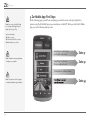
On the following pages, you will learn everything you need to know to control your digital locomotives using the Z21 Mobile App via your smartphone or tablet PC. When you start the Z21 Mobile
App, you see the following start-up screen
System requirements:
▶ iPad v1.3 or later
▶ iPhone and iPod iOS 4.2 or later
▶ Android devices v2.3 or later
Note: Illustrations may vary depending
on display size or updates!
Everything to control locos
and digital components
Seite 51
Everything for system or
library configuration etc
Seite 52
Information on software status
Note: The function selection of apps is
constantly extended by regular updates!
50
Everything to program
your locomotives
Seite 54
Z21 Mobile App
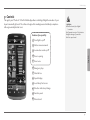
5.1 Controls
Functions (loco-specific):
12
6
11
1
2
3
4
8
5
7
9
10
1
Front lights on/off
2
Station announcements
3
Locomotive sound on/off
4
Doors opening
5
Door noise
6
Emergency stop
7
Selected loco
8
Speed display
9
Loco library fast access
10
Direction indication/change
11
Function panel
12
Driver stand
Highlights:
▶ Universal control for all digital
locomotives
▶ Convenient access to all loco functions
▶ Quick exchange of locomotives
▶ Precise speed control
English
The registry card “Controls” of the Z21 Mobile App allows controlling all digital locomotives of your
layout conveniently by touch. The surface is designed for unambiguous and intuitively comprehensible ergonomically laid out icons:
51
Z21 Mobile App
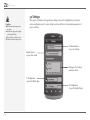
5.2 Settings
Highlights:
▶ All important system parameters
at a glance
▶ Customized configuration of Apps
and Z21 Digital Centre
▶ Clear intuitive user-friendly service
▶ Flexible import and export options
This register card allows entering all major settings into your Z21 Digital System, from basic
system configuration via Z21 centre settings up to the definition of customized parameters for
your loco library.
To Administration
of your loco library
Administration
of your driver stand
Exchange of loco library
and driver stand
To Configuration
of your Z21 Mobile App
To Configuration
of your Z21 Digital Centre
52
Z21 Mobile App
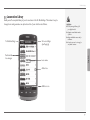
5.3 Locomotive Library
To Global settings
Customized
loco images
To Loco settings
(see Page 54)
Highlights:
▶ Clearly arranged library of all
your digital models
▶ Supports an unlimited number
of entries
▶ Assigns individual names and/or
nicknames
▶ Deposit your own loco images for
an optimal overview
English
Build yourself a complete library of your locomotives in the Z21 Mobile App. This makes it easy to
change trains and guarantees an optimal control of your collection at all times.
Loco name
Active loco
Add loco icon
53
Z21 Mobile App
5.4 Programming Loco Settings
Highlights:
▶ Clear access to major loco settings
▶ Quick assignment of loco addresses
▶ Easy orientation for new model
railway fans
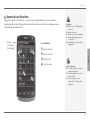
You can lay down the basic settings for each of your locomotives in the register card “Loco Settings”.
Only the most important parameters are given here. This allows even beginners to quickly find their
way.
Back to loco
library
(see Page 53)
Loco designation
Loco decoder address
Note: To store any changes, touch the
button “Store”. To undo any changes,
touch the button “Locomotives” at the
top left.
Maximum speed
Fade in/out of
loco library
DCC/Motorola switchover
To register card “Functions”
(see Page 55)
Add images
from the loco library
or take a new image
using a smartphone
camera
54
Z21 Mobile App
5.5 Access to Loco Functions
Back to
loco library
(see Page 53)
Loco Functions:
1
2
3
4
1
Function Panel 1
2
Function Panel 2
3
Function icon
4
Function name
Highlights:
▶ Quick access to all digital functions
of your locos
▶ Activation by touch
▶ Intuitive icons ensure easy handling
▶ Customized arrangement of icons
on two panels
▶ Configurable function names help
keeping track
English
Through the register card “Functions”, you can access the digital functions of your locomotives
easily and quickly. Instead of having to input complicated codes, just touch the unambiguous icons –
makes driving trains twice the fun.
Notes on Operation:
▶ To create a new function, touch an
empty field in the panel.
▶ To relocate functions, drag over to
the desired field.
▶ To delete a function, keep it
depressed until “X” appears, then
touch the “X”.
55
Overview: Z21 Driver Stand
5.6 Assignment of Digital Functions
This allows you to assign, name and program the digital functions of your locomotives in a few steps.
Highlights:
▶ Fast access to key function parameters
▶ Customized locomotive configuration
▶ Easy programming by touch
▶ Support of individual functions
Back to
register card
“Functions”
(see Page 55)
Function name (optional)
Selection of function parameters
Configuration of function parameters
Test
Function selection. Functions already
assigned are no longer displayed.
56
Overview: Z21 Driver Stand
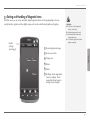
5.7 Setting and Handling of Magnetic Items
2
1
Back to
settings
(see Page 52)
6
3
4
1
Create background image
2
Create new article
3
Change size
4
Rotate
5
Delete
6
Briefly tap touch magnetized
items to configure. Touch
magnetized items longer to
change sizes and angles.
Highlights:
▶ Easy control of all magnetized
articles on the layout
▶ Switch management by touch
▶ Visualization with customized
background images
▶ For switches, signals and all other
digital components
English
With this menu, you can set up and switch digital magnetized items on the layout quickly and conveniently. Switches, signals and other digital components can be controlled easily with your fingertips.
5
57
Z21 Operating Instructions
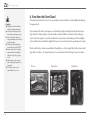
6. View from the Driver Stand
Highlights
▶ Reproduction of historical driver
stands for maximum driving fun
▶ Select the desired speed for every
kind of drive, from beginner to pro
▶ Fade out your own background
images and slideshows to create the
perfect atmosphere
▶ Download current driving data
from the decoder via RailCom©
▶ Steam, diesel and E-loco driving
stands available in the AppStore
and from Google Play (as of July
2012)
▶ Further apps on major new products and long-term favourites in
preparation
▶ For iPads v1.3 and over and
Android tablets v2.3 or over
58
Get aboard and control your loco from an exactly reproduced virtual loco stand. Maximum driving
fun guaranteed!
The model-specific driver stand apps are controlled by simply touching the clearly laid out operating elements. Slide your finger over the virtual accelerator and the locomotive starts putting on
speed. Touch the signal horn and the characteristic locomotive sound will appear. The headlights,
interior illumination and all other digital functions of our assortment can be operated just as easily.
Photo-realistic driver stands are available in the AppStore or from Google Play. Further driver stand
apps will soon follow – for many favourites of our assortment and for all major current novelties.
E-Loco
Diesel loco
Steam loco
Anhang / Supplement / Fiche d’accompagnement
Anmeldung am WLAN
Um Ihr Z21-Digitalsystem mit Ihrem Smartphone oder Tablet zu
steuern, müssen Sie das Gerät am WLAN-Router anmelden:
▶
▶
▶
▶
▶
▶
▶
Schließen Sie Router und Zentrale gemäß Quick-Start-Guide an.
Wechseln Sie am Smartphone/Tablet in die Netzwerk-Einstellungen.
Das Z21-WLAN erscheint in der Liste der Netzwerke in Reichweite.
Das Netzwerk heißt „Z21_wxyz“, wobei wxyz die Endziffern der
Router-Seriennummer (s. Feld „S/N“ auf der Router-Unterseite) sind.
Tippen Sie auf den Netzwerknamen.
Geben Sie nun das Passwort für die Netzwerkanmeldung ein.
Sie finden es im Feld „PIN“ an der Unterseite des Routers.
Fertig!
▶
▶
Unterseite des Routers / Bottom side
of the router / Dessous du routeur
Konfiguration iOS /
Configuration iOS
Konfiguration Android /
Configuration Android
English ▶
Francais ▶
Supplementary sheet / Fiche d’accompagnement
Router configuration / Configuration du routeur
English
Francais
Connect to WLAN
Connexion au réseau Wi-Fi
In order to control your Z21 Digital System via smartphone or tablet PC, connect your device to the supplied
WLAN router:
Pour contrôler votre système numérique Z21 avec votre smartphone ou votre tablette, vous devez enregistrer
l’appareil sur le routeur Wi-Fi :
▶
▶
▶
▶
▶
▶
▶
Connect the Z21 Digital Centre and the router as
described in the Quick Start Guide.
The Z21 WLAN network appears in the list of all
available networks.
The Z21 network is named “Z21_wxyz”, with “wxyz”
being the final four digits of the serial number of your
router (as stated at the bottom side of the router,
within the “S/N” box).
Tap the network name.
Enter the PIN to join the network.
Find the PIN at the bottom side of the router, within
the “PIN” box.
Done!
▶
▶
▶
▶
▶
▶
▶
▶
Connectez le routeur et la centrale en suivant le QuickStart-Guide.
Sur votre smartphone/tablette, allez dans les paramètres
de réseau.
Le réseau WiFi Z21 apparaît dans la liste des réseaux
disponibles.
Le réseau s’appelle « Z21_wxyz », wxyz étant les derniers
chiffres du numéro de série du routeur (champ « S/N »
au-dessous du routeur).
Touchez le nom du réseau.
Indiquez ensuite le mot de passe pour la connexion au
réseau.
Vous le trouverez dans le champ « PIN » au-dessous du
routeur.
Terminé !
8010820920
Digitalsystem | Digital System | Système numérique
▶ www.z21.eu