1
2. Copy the "gparms.cnf" file, located in the "Correlog\config" folder, on to a
removable disk.
Comment: The specified disk or transport media should be FIPS compliant
in order to maintain FIPS integrity. This may require observation of
TEMPEST requirements, zeroing out of the removable media after
transfer, destruction of the removable disk after transfer, or other specific
site security policy requirements.
3. At the CorreLog agent installation, copy the "gparms.cnf" file to the same
directory as the CO-sysmsg.exe program.
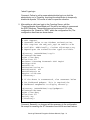
4. Edit the "gparms.cnf" file with a text editor, such as "notepad" and remove
all but the top three lines of the file.
5. Save the "gparms.cnf" file as "CO-sysmsg.key", creating the file, or
overwriting any existing file with the same name. Make sure the file is not
accidentally saved with a ".txt" extension.
6. Stop and restart the CO-sysmsg.exe program via the Windows Task
manager, or reboot the platform.
Comment: The CO-sysmsg.exe program is controlled by the "CorreLog
Message Service" entry of the Windows Service Manager. Stop and
restart this service to force the CO-sysmsg.exe program to read the newly
installed encryption key.
The "CO-sysmsg.exe" program looks for the "CO-sysmsg.key" file on startup,
and reads this file to obtain the cipher key used for network transfers. The cipher
key is encrypted in the file and cannot be decrypted by the user
Removing Encryption From An Agent
Once encryption is installed at an agent location, a manual process is required to
remove the encryption.
1. Login to the platform executing the CorreLog agent, and change working
directories to the location where the "CO-sysmsg" agent resides. This may
be the "CorreLog\system" folder, or the "CorreLog\wintools" folder, or
some other location.
2. Remove the "CO-sysmsg.key" file from the system. The user may wish to
delete the file, or move it to a different name.
CorreLog Enhanced Encryption Software Manual, Page - 21