1
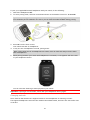
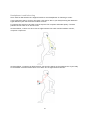
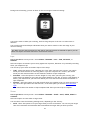
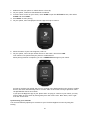
The distance at the top of the screen shows the remaining distance in the race, and the distance at
the bottom shows how much you are ahead or behind.
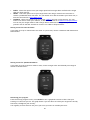
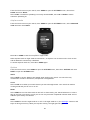
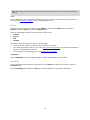
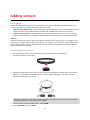
Your watch alerts you so you know if you are in front (#1) or behind (#2) in your race. In this
example you are 23 metres behind your previous activity and you have a remaining distance to race
of 2.3 kilometres.
Tip: To get information on adding previous activities to your watch, go to tomtom.com/support
and read the FAQ.
Tracking your activities
Whenever you train, your activity is logged by your watch for that type of activity. To see the
summary or history of your training for each type of activity on your watch, do the following:
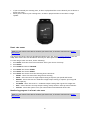
1. From the activity start screen, move UP to open the HISTORY for that type of activity.
2. From the list, select the activity you want to look at. The list shows the date you started the
activity and distance covered.
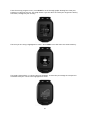
3. Move RIGHT.
Information about the activity is shown, for example, fastest pace/speed and the time spent in
each heart rate zone. The information available depends on the activity.
Transferring your activities to TomTom MySports
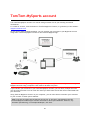
Connect your watch to your computer to transfer details of your activities to TomTom MySports or
another sports website that you choose, using TomTom MySports Connect. You can also transfer
details about the activity to your computer in several different file formats.
44