1
User’s Manual
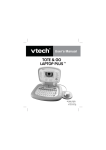
Tote & Go Laptop
TM
2011 VTech
Printed in China
91-001616-000-000
Dear Parent,
At VTech®, we know how important the first day of school is for your
child. To help prepare preschoolers for this important event, VTech® has
developed the Preschool Learning™ series of interactive toys.
Preschool Learning™ features fun characters and inviting school themes
that use technology to capture a child’s attention and teach important
preschool skills like spelling, counting and the alphabet. These vital skills
are taught in a way that's both fun and highly engaging to maintain a
child's interest. Children will also be introduced to fun school subjects
such as art class, music class and even recess! With Preschool Learning™,
learning is fun from day one!
At VTech®, we know that a child has the ability to do great things.
That’s why all of our electronic learning products are uniquely designed
to develop a child’s mind and allow them to learn to the best of their
ability. We thank you for trusting VTech® with the important job of
helping your child learn and grow!
Sincerely,
Your friends at VTech®
To learn more about Preschool Learning™ series and other VTech® toys, visit www.vtechkids.com
INTRODUCTION
Volume Slider
(3 Levels)
USB Jack
On/Off Button
Music Party
Button
My Downloads
Button
Net Pals
Button
LCD
Screen
Letters &
Words Button
Numbers &
Shapes Button
Report
Card Button
Logic &
Games Button
INTRODUCTION
The VTech® Tote & Go LaptopTM is a fun first laptop that introduces your child to
the world of computer play through 20 age-appropriate activities, a real working
mouse, and even a pretend social network – Net Pals – where your child can
visit and play with fun animal friends. Connect online and personalize the laptop
by downloading your child’s name, stories, e-Cards and favorite songs. You can
also connect to a PC or Mac with the USB cable provided to upload your child’s
progress report, or download new content back to your laptop!
A-Z Letter
Buttons
1-10 Number
Buttons
Answer Button
Help Button
Mouse + Enter Button
1
®
TM
WARNING: All packing materials, such as tape, plastic sheets, packaging locks
and tags are not part of this toy, and should be discarded for your child’s safety.
ATTENTION: Pour la sécurité de votre enfant, débarrassez-vous de tous les
produits d’emballage tels que rubans adhésifs, feuilles de plastique, attaches
et étiquettes. Ils ne font pas partie du jouet.
NOTE: Please keep the user’s manual as it contains important information.
Unlock the packaging locks:
Rotate the packaging locks 90 degrees counter-clockwise.
Pull out the packaging locks.
GETTING STARTED
BATTERY INSTALLATION
1. Make sure the unit is OFF.
2. Locate the battery cover on the bottom of the unit.
3. Open the battery cover.
4. Install 3 new “AA” batteries following the diagram inside the battery box. 5. Close the battery cover.
BATTERY NOTICE
The use of new alkaline batteries is recommended for maximum performance.
Non-rechargeable batteries are not to be recharged.
Rechargeable batteries are to be removed from the toy before being
charged (if removable).
Rechargeable batteries are only to be charged under adult supervision (if
removable).
Do not mix old and new batteries.
•
•
•
•
•
INCLUDED IN THIS PACKAGE / GETTING STARTED
INCLUDED IN THIS PACKAGE
• One VTech Tote & Go Laptop learning toy
• One USB cable
• One instruction manual
2
•
•
•
•
•
•
Do not mix batteries of different types: alkaline, standard (carbon-zinc) or
rechargeable (nickel-cadmium).
Only batteries of the same or equivalent type as recommended are to be used.
Batteries are to be inserted with the correct polarity.
Exhausted batteries are to be removed from the toy.
The supply terminals are not to be short-circuited.
The toy is not to be connected to more than the recommended number
of power supplies.
Do not dispose of batteries in fire.
DEMO STRIP REMOVAL:
When the product is taken out of the packaging, please remove the demo
strip from the unit to activate normal play mode.
PRODUCT FEATURES
1. ON/OFF BUTTON
To turn the unit on, press the ON/OFF BUTTON. Press the ON/OFF BUTTON again to turn the unit off.
2. MUSIC PARTY BUTTON
Press the MUSIC PARTY BUTTON to enter Music Party activity.
PRODUCT FEATURES
WE DO NOT RECOMMEND THE USE OF RECHARGEABLE BATTERIES.
3. MY DOWNLOADS BUTTON
Press the MY DOWNLOADS BUTTON to enter to the sub menu of
this category. There are 3 activities: Story Time, E-Card, and Picture
Dictionary.
4. NET PALS BUTTON
Press the NET PALS BUTTON to enter Net Pals activity.
3
5. LETTERS & WORDS BUTTON
Press the LETTERS & WORDS BUTTON to enter to the menu for
the different Letters & Words Activities.
6. NUMBERS & SHAPES BUTTON
Press the NUMBERS & SHAPES BUTTON to enter to the menu for
the different Numbers & Shapes Activities.
Press the LOGIC & GAMES BUTTON to enter to the menu for the
different Logic & Games Activities.
8. MOUSE + ENTER BUTTON
Move the mouse left, right, forward and backward to scroll
through menus or select an answer in related activities.
Press the mouse button to confirm an answer in related
activities.
9. A-Z BUTTONS
Press the 26 A-Z BUTTONS to input letters in the Letters & Words activities.
In other activities, pressing these buttons will voice out the associated letter
name.
PRODUCT FEATURES
7. LOGIC & GAMES BUTTON
4
10. 1-10 NUMBER BUTTONS
Press the 1-10 NUMBER BUTTONS to input numbers in the Numbers &
Shapes activities.
In other activities, pressing these buttons will voice out the associated
number name.
11. VOLUME SLIDER
12. HELP BUTTON
Press the HELP BUTTON to receive help or repeat the instruction.
13. ANSWER BUTTON
Press the ANSWER BUTTON to hear the correct answer.
14. REPORT CARD BUTTON
Press the REPORT CARD BUTTON to review your
progress in each activity. Note: This only applies to
activities in Letters & Words, Numbers & Shapes, and
Logic & Games.
PRODUCT FEATURES
Move the VOLUME SLIDER left or right to adjust the volume.
15. USB JACK
Plug the USB cable into the USB jack for connecting to a computer
for downloading or uploading.
5
ACTIVITIES
Music Party Button
The Music Party allows you to pick songs from a playlist and listen to them.
While the songs are playing, you may use the mouse to select different
animals and watch while each animal plays its own specific musical
instrument. Press the 1-10 number buttons to change the current song to a
different song. Press the A-Z letter buttons to add in some funny sounds.
You can also download new songs from the VTech® Learning Lodge Navigator.
There are 3 activities in this category:
1. STORY TIME
This activity allows you to watch and listen to short stories.
You can also download new stories from the VTech® Learning Lodge Navigator.
If you have also downloaded your child’s name, then during Story Time your
child’s name will become part of the stories.
2. E-CARD
ACTIVITIES
My Downloads Button
Press this button to receive and hear special e-cards from friends and family.
A short animation and song will accompany the e-card.
You can connect to the VTech® Learning Lodge Navigator and select
personalized messages for your child that will include his or her name, a
special message, and the name of the sender you choose.
3. PICTURE DICTIONARY
In this activity, you can learn vocabulary words by pressing any of the 26
letter buttons to learn the letter name and a related word.
Connect to the VTech® Learning Lodge Navigator to download new
vocabulary words.
6
Net Pals Button
Net Pals is a pretend social network that features 5 friendly animal pals to
interact with: Peter Puppy, Billy Bear, Milly Moo, Kitty Cat and Ducky. There
are 3 activities within the Net Pals:
1. Photo Album
Choose a postcard to share with your animal friends.
2. Visit a Friend
to play with your animal friend. Each
Or you can press this icon
animal friend will have a different game to play. Use the mouse to play along.
3. Send a Present
Press this button to receive a present from your animal friends. You can then
select a present to send back to your animal friends.
Letters & Words Button
ACTIVITIES
on the screen to hear
Choose an animal friend to visit. Press this icon
your friend’s status update and hear what they’re up to.
There are 6 activities in this category:
Activity 01: Letter Learner
Press any letter button to learn the letter name, phonics sound, and a related
vocabulary word.
Activity 02: Capital and Small Letter Learner
Press any letter button to learn the matching capital and small letters.
Activity 03: Hide & Seek Letters
Billy Bear finds a letter inside a dark cave. He can see part of the letter by
using his flashlight. Look closely and guess the letter by typing the correct
letter button.
7
Activity 04: Beginning Letter
First, an object will be shown. Then the name of the object will appear with
the first letter missing. There are 3 letter choices at the bottom. Select the
correct letter to complete the word. Use the mouse to scroll between the
choices and press enter to confirm your answer, or press the correct letter
button on the keyboard.
Activity 05: Capital & Small Letters
3 capital letter cards and another 3 small letter cards will be given. Match the
capital and small letters. Use the mouse to select one card first, then select
its matching card.
Activity 06: I Spy
Numbers & Shapes Button
There are 6 activities in this category:
Activity 7: Number Learner
Press any number button to hear the number said out loud, and then count
with Peter Puppy.
ACTIVITIES
Follow the instructions to find the object that begins with the given sound.
Use the mouse to scroll between different objects, and press enter to confirm
your answer.
Activity 8: Shape Learner
Use the mouse to go on a walk through the garden and discover different
shapes.
Activity 9: Counting Shapes
The screen will display some different shapes. You will be asked to count a
specific number of one type of shape. Press the correct number button to
answer.
Activity 10: Add it Up
Milly Moo and Peter Puppy are picking flowers. Count the total number of
flowers. Press the correct number button to answer.
8
Activity 11: More or Less?
Kitty Cat and Peter Puppy are picking apples. Select the one who picked
more/ less apples, depending on the question. Use the mouse to select and
press enter to confirm your answer.
Activity 12: Taller or Shorter?
Help Peter Puppy to select the object that is taller or shorter, depending
on the question. Use the mouse to select and press enter to confirm your
answer.
Logic & Games Button
There are 4 activities in this category:
Look closely and match the animals with their shadows. Use the mouse to
select and press enter to confirm your answer.
Activity 14: Picture Patch
Each picture is split into 2 parts and you need to select the 2 parts that make
a complete picture. Use the mouse to select and press enter to confirm your
answer.
Activity 15: Odd One Out
ACTIVITIES
Activitly 13: Shadow Search
Several objects will appear. Look closely and pick out the object that isn’t like
the others and then press enter.
Activity 16: My Fish Tank
This is a special bonus activity. Sea animals swim around in your very own
virtual fish tank. Use the mouse to change the sea creatures or feed the sea
animals by pressing the enter button.
9
INTERNET CONNECTIVITY FEATURES
PC Hardware Requirements:
CPU: Pentium® 4, 1 GHz or above
Memory: 256MB
Video Adaptor: Graphic card with 1024 x 768 at 16 or 32 bit color
Monitor Resolution: 1024 x 768
USB 1.1 or higher
100MB Hard disk space
Windows® compatible sound card and speakers
PC Software Requirements:
Microsoft® Windows® XP, Windows Vista® or Windows® 7 Operating System
Internet Explorer® version 6 or above
Adobe® Flash® Player 10 – Other Browsers Version (To acquire the latest
version of Flash player, please visit www.adobe.com)
Macintosh Hardware Requirements:
Macintosh Computer with an Intel (1GHz or faster) processor
256 MB RAM (512 MB recommended)
100 MB Hard disk space
USB Port required
Macintosh Software Requirements:
Mac OS X version 10.5 or 10.6
Safari Internet Browser version 3.0 or later
Adobe® Flash® Player 10 – Other Browsers Version (To acquire the latest
version of Flash player, please visit www.adobe.com)
*Internet connection required for Internet enabled functions on both PC and
Macintosh computers.
Microsoft® and Windows® and Windows Vista® are either registered trademarks or
trademarks of Microsoft Corporation in the United States and/or other countries.
Adobe®, the Adobe logo, Flash® are either registered trademarks or trademarks
of Adobe Systems Incorporated in the United States and/or other countries.
Intel®, Pentium® are trademarks of Intel Corporation in the United States and
other countries. Macintosh, Mac, Mac OS, and Safari are trademarks of Apple
Inc., registered in the United States and other countries. All other trademarks are
the property of their respective owners. THIS PRODUCT IS NOT ENDORSED OR
SPONSORED BY ADOBE SYSTEMS INCORPORATED, PUBLISHER OF FLASH.
INTERNET CONNECTIVITY FEATURES
Minimum System Requirements
10
Before you can connect the VTech® Tote & Go LaptopTM to your computer,
you need to install the software on the VTech® Tote & Go LaptopTM website.
To begin the software installation, please go to the http://www.vtechkids.com/download
to download the setup file.
Once the setup process is complete, connect the VTech® Tote
& Go LaptopTM to the computer using a USB cable. Locate the
USB port on the left side of your product, and plug the device
into your computer’s USB port.
Note:
1. If the power supply is interrupted during the transfer of data to and from the VTech® Tote & Go LaptopTM, the data on the VTech® Tote & Go LaptopTM may be lost. Before connection, please check and make sure that your batteries are not running low on power.
2. Refrain from unplugging the USB cable during the transfer of data to and from the VTech® Tote & Go LaptopTM. This may cause the data to transfer abnormally or be lost.
If the VTech® Tote & Go LaptopTM is connected properly, you will see this
picture
shown on the screen of your VTech® Tote & Go LaptopTM.
Your progress will automatically upload to the computer. And you will be taken
directly to the VTech® Tote & Go LaptopTM website, where you can enjoy all of
the online features.
CARE & MAINTENANCE
1. 2. 3. 4. Keep the unit clean by wiping it with a slightly damp cloth.
Keep the unit out of direct sunlight and away from any direct heat source.
Remove the batteries when the unit is not in use for an extended period of time.
Do not drop the unit on a hard surface and do not expose the unit to moisture or water.
TROUBLESHOOTING
If for some reason the program/activity stops working, please follow these
steps:
1. Turn the unit OFF.
2. Interrupt the power supply by removing the batteries.
3. Let the unit stand for a few minutes, then replace the batteries.
4. Turn the unit ON. The unit should now be ready to play again.
5. If the product still does not work, replace with an entire set of new batteries.
SOFTWARE INSTALLATION / CARE & MAINTENANCE
SOFTWARE INSTALLATION
11
6. If the screen is frozen and not responding to any input, insert the tip of a paper clip (or a similar object without a sharp tip) into the small hole labeled “RESET” located on the bottom of the unit.
If the problem persists, please call our Consumer Services Department at 1-800521-2010 in the U.S. or 1-877-352-8697 in Canada, and a service representative
will be happy to help you.
Creating and developing Preschool Learning products is accompanied by a
responsibility that we at VTech® take very seriously. We make every effort to
ensure the accuracy of the information which forms the value of our products.
However, errors sometimes can occur. It is important for you to know that we
stand behind our products and encourage you to call our Consumer Services
Department at 1-800-521-2010 in the U.S., or 1-877-352-8697 in Canada with
any problems and/or suggestions that you might have. A service representative
will be happy to help you.
NOTE: This equipment has been tested and found to comply with the limits
for a Class B digital device, pursuant to Part 15 of the FCC Rules. These limits
are designed to provide reasonable protection against harmful interference
in a residential installation. This equipment generates, uses and can radiate
radio frequency energy and, if not installed and used in accordance with the
instructions, may cause harmful interference to radio communications. However,
there is no guarantee that interference will not occur in a particular installation. If
this equipment does cause harmful interference to radio or television reception,
which can be determined by turning the equipment off and on, the user is
encouraged to try to correct the interference by one or more of the following
measures:
Reorient or relocate the receiving antenna.
Increase the separation between the equipment and receiver.
Connect the equipment into an outlet on a circuit different from that to
which the receiver is connected.
Consult the dealer or an experienced radio/TV technician for help.
•
•
•
•
TROUBLESHOOTING
IMPORTANT NOTE:
Caution: changes or modifications not expressly approved by the party
responsible for compliance could void the user’s authority to operate the
equipment.
THIS DEVICE COMPLIES WITH PART 15 OF THE FCC RULES. OPERATION IS
SUBJECT TO THE FOLLOWING TWO CONDITIONS:
(1) THIS DEVICE MAY NOT CAUSE HARMFUL INTERFERENCE, AND
(2) THIS DEVICE MUST ACCEPT ANY INTERFERENCE RECEIVED, INCLUDING
INTERFERENCE THAT MAY CAUSE UNDESIRED OPERATION.
12