1
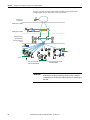
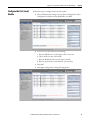
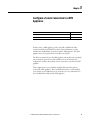
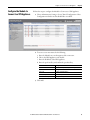
User Manual
EtherNet/IP Secure Communication
Catalog Number 1756-EN2TSC
Important User Information
Read this document and the documents listed in the additional resources section about installation, configuration, and
operation of this equipment before you install, configure, operate, or maintain this product. Users are required to
familiarize themselves with installation and wiring instructions in addition to requirements of all applicable codes, laws,
and standards.
Activities including installation, adjustments, putting into service, use, assembly, disassembly, and maintenance are required
to be carried out by suitably trained personnel in accordance with applicable code of practice.
If this equipment is used in a manner not specified by the manufacturer, the protection provided by the equipment may be
impaired.
In no event will Rockwell Automation, Inc. be responsible or liable for indirect or consequential damages resulting from the
use or application of this equipment.
The examples and diagrams in this manual are included solely for illustrative purposes. Because of the many variables and
requirements associated with any particular installation, Rockwell Automation, Inc. cannot assume responsibility or
liability for actual use based on the examples and diagrams.
No patent liability is assumed by Rockwell Automation, Inc. with respect to use of information, circuits, equipment, or
software described in this manual.
Reproduction of the contents of this manual, in whole or in part, without written permission of Rockwell Automation,
Inc., is prohibited.
Throughout this manual, when necessary, we use notes to make you aware of safety considerations.
WARNING: Identifies information about practices or circumstances that can cause an explosion in a hazardous environment,
which may lead to personal injury or death, property damage, or economic loss.
ATTENTION: Identifies information about practices or circumstances that can lead to personal injury or death, property
damage, or economic loss. Attentions help you identify a hazard, avoid a hazard, and recognize the consequence.
IMPORTANT
Identifies information that is critical for successful application and understanding of the product.
Labels may also be on or inside the equipment to provide specific precautions.
SHOCK HAZARD: Labels may be on or inside the equipment, for example, a drive or motor, to alert people that dangerous
voltage may be present.
BURN HAZARD: Labels may be on or inside the equipment, for example, a drive or motor, to alert people that surfaces may
reach dangerous temperatures.
ARC FLASH HAZARD: Labels may be on or inside the equipment, for example, a motor control center, to alert people to
potential Arc Flash. Arc Flash will cause severe injury or death. Wear proper Personal Protective Equipment (PPE). Follow ALL
Regulatory requirements for safe work practices and for Personal Protective Equipment (PPE).
Allen-Bradley, Rockwell Software, Rockwell Automation, ControlFLASH, ControlLogix, FactoryTalk, FLEX, Logix5000, POINT I/O, PowerFlex, RSLinx, RSView, Stratix 5900, and Studio 5000 are trademarks of Rockwell
Automation, Inc.
Trademarks not belonging to Rockwell Automation are property of their respective companies.
Summary of Changes
This manual contains new and updated information. Changes throughout this
revision are marked by change bars, as shown to the right of this paragraph.
New and Updated
Information
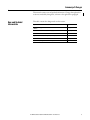
This table contains the changes made to this revision.
Topic
Page
Updated all web page interface screens from Series A to Series B module
firmware.
Throughout
Added references to the Stratix 5900 Security Appliance
11, 9, 51, 51
Added information about mobile clients
15
Updated information about Transport Layer Security (TLS) 1.2
11
Added new features
Throughout
Added Security Configuration Parameter Descriptions
16
Rockwell Automation Publication ENET-UM003C-EN-P - November 2015
3
Summary of Changes
Notes:
4
Rockwell Automation Publication ENET-UM003C-EN-P - November 2015
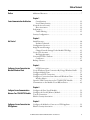
Table of Contents
Preface
Additional Resources . . . . . . . . . . . . . . . . . . . . . . . . . . . . . . . . . . . . . . . . . . . . . . . 7
Chapter 1
Secure Communication Architecture
Considerations . . . . . . . . . . . . . . . . . . . . . . . . . . . . . . . . . . . . . . . . . . . . . . .
Local Chassis Security . . . . . . . . . . . . . . . . . . . . . . . . . . . . . . . . . . . . . . . .
Network Access Security. . . . . . . . . . . . . . . . . . . . . . . . . . . . . . . . . . . . . . . . . .
IPsec Association . . . . . . . . . . . . . . . . . . . . . . . . . . . . . . . . . . . . . . . . . . . . .
Performance . . . . . . . . . . . . . . . . . . . . . . . . . . . . . . . . . . . . . . . . . . . . . . . . . . . . .
Traffic Filtering . . . . . . . . . . . . . . . . . . . . . . . . . . . . . . . . . . . . . . . . . . . . . .
Security Configuration . . . . . . . . . . . . . . . . . . . . . . . . . . . . . . . . . . . . . . . . . . .
11
12
13
14
15
15
16
Chapter 2
Get Started
Initial Powerup . . . . . . . . . . . . . . . . . . . . . . . . . . . . . . . . . . . . . . . . . . . . . . . . . .
Default Credentials. . . . . . . . . . . . . . . . . . . . . . . . . . . . . . . . . . . . . . . . . . .
Configuration Overview . . . . . . . . . . . . . . . . . . . . . . . . . . . . . . . . . . . . . . . . . .
Assign Network Settings. . . . . . . . . . . . . . . . . . . . . . . . . . . . . . . . . . . . . . . . . .
Change Network Settings Via the Module Web Page . . . . . . . . . . . .
Create User Accounts . . . . . . . . . . . . . . . . . . . . . . . . . . . . . . . . . . . . . . . . . . . .
Bad Login Attempts . . . . . . . . . . . . . . . . . . . . . . . . . . . . . . . . . . . . . . . . . .
Generate HTTPS Certificate . . . . . . . . . . . . . . . . . . . . . . . . . . . . . . . . . . . . .
Certificates . . . . . . . . . . . . . . . . . . . . . . . . . . . . . . . . . . . . . . . . . . . . . . . . . .
Backup / Restore . . . . . . . . . . . . . . . . . . . . . . . . . . . . . . . . . . . . . . . . . . . . . . . . .
20
22
22
23
23
25
26
26
27
28
Chapter 3
Configure a Secure Connection to a
Microsoft Windows Client
L2TP Connections . . . . . . . . . . . . . . . . . . . . . . . . . . . . . . . . . . . . . . . . . . .
Create Windows Client Connection By Using a Windows Profile . . .
Configure Mobile Client . . . . . . . . . . . . . . . . . . . . . . . . . . . . . . . . . . . . . . . . .
Configure an L2TP Connection . . . . . . . . . . . . . . . . . . . . . . . . . . . . . . . . . .
Configure a Connection from a Microsoft Windows Client . . . . . . . . .
Interface Metric . . . . . . . . . . . . . . . . . . . . . . . . . . . . . . . . . . . . . . . . . . . . . .
Open the VPN Connection to the 1756-EN2TSC Module. . . . . . . . . .
Communicate to the Module Via an RSLinx Driver. . . . . . . . . . . . . . . . .
32
35
37
38
40
46
47
49
Chapter 4
Configure Secure Communication
Between Two 1756-EN2TSC Modules
Configure the First (Local) Module. . . . . . . . . . . . . . . . . . . . . . . . . . . . . . . .
Configure the Second (Remote) Module . . . . . . . . . . . . . . . . . . . . . . . . . . .
Test the Connection . . . . . . . . . . . . . . . . . . . . . . . . . . . . . . . . . . . . . . . . . . . . .
Edit the Security Association . . . . . . . . . . . . . . . . . . . . . . . . . . . . . . . . . . . . . .
53
54
55
55
Chapter 5
Configure a Secure Connection to a
VPN Appliance
Configure the Module to Connect to a VPN Appliance . . . . . . . . . . . . . 59
Edit the Security Association . . . . . . . . . . . . . . . . . . . . . . . . . . . . . . . . . . . . . . 60
Rockwell Automation Publication ENET-UM003C-EN-P - November 2015
5
Table of Contents
Chapter 6
Diagnostics
Diagnostic Web Pages . . . . . . . . . . . . . . . . . . . . . . . . . . . . . . . . . . . . . . . . . . . .
Secure Tunnel Diagnostics Web Page . . . . . . . . . . . . . . . . . . . . . . . . . . . . . .
Status Indicators . . . . . . . . . . . . . . . . . . . . . . . . . . . . . . . . . . . . . . . . . . . . . . . . .
Link (LINK) Status Indicator . . . . . . . . . . . . . . . . . . . . . . . . . . . . . . . . .
Network (NET) Status Indicator . . . . . . . . . . . . . . . . . . . . . . . . . . . . . .
OK Status Indicator . . . . . . . . . . . . . . . . . . . . . . . . . . . . . . . . . . . . . . . . . .
Index
6
Rockwell Automation Publication ENET-UM003C-EN-P - November 2015
63
64
65
65
66
66
Preface
The 1756-EN2TSC is a security-enhanced version of the 1756-EN2T
EtherNet/IP communication module. This module is designed for applications
that limit network access to a control system from within the plant network. This
module is not intended to connect any devices in the local 1756 backplane to
devices outside of the plant firewall.
Additional Resources
These documents contain additional information concerning related products
from Rockwell Automation.
Resource
Description
1756 ControlLogix® Communication Modules Specifications Technical Data, publication 1756-TD003
Specifications for ControlLogix communication modules
EtherNet/IP Network Configuration User Manual, publication ENET-UM001
Guidelines for configuring EtherNet/IP network parameters
EtherNet/IP Modules Installation Instructions, publication ENET-IN002
Guidelines for installing EtherNet/IP modules
Ethernet Design Considerations Reference Manual, publication ENET-RM002
Guidelines for Ethernet networks
Industrial Automation Wiring and Grounding Guidelines, publication 1770-4.1
Guidelines for installing a Rockwell Automation industrial system
Product Certifications website, http://www.ab.com
Declarations of conformity, certificates, and other certification details
You can view or download publications at
http://www.rockwellautomation.com/literature/. To order paper copies of
technical documentation, contact your local Allen-Bradley distributor or
Rockwell Automation® sales representative.
Rockwell Automation Publication ENET-UM003C-EN-P - November 2015
7
Preface
Notes:
8
Rockwell Automation Publication ENET-UM003C-EN-P - November 2015
Chapter
1
Secure Communication Architecture
Topic
Page
Local Chassis Security
12
Network Access Security
13
IPsec Association
14
Performance
15
Traffic Filtering
15
Many control systems currently use 1756-EN2T and 1756-ENBT modules to
connect ControlLogix® systems to plant-level systems. A 1756-EN2TSC module
offers the same connectivity and additional security options that help protect
access to resources on the local backplane from the plant network. Use the
1756-EN2TSC module to establish secure tunnels with peer modules,
Windows 7 clients, and VPN appliances.
Rockwell Automation Publication ENET-UM003C-EN-P - November 2015
9
Chapter 1
Secure Communication Architecture
Figure 1 - 1756-EN2TSC module Establishes Secure Tunnels with Peer Modules, Windows 7 Clients,
and VPN Appliances
Enterprise Zone
Levels 4 and 5
Demilitarized Zone (DMZ)
Secure Tunnel Between 1756-EN2TSC
Module and VPN Appliance
Demilitarized Zone (DMZ)
Manufacturing Zone
Site Manufacturing
Operations and Control
Level 3
Secure Tunnel Between 1756-EN2TSC
Module and Windows 7 Client.
Level 0…2
Peer-to-peer Secure Tunnel
Between 1756-EN2TSC Modules
IMPORTANT
ControlLogix Chassis with
1756-EN2TSC Module
HMIs are not supported by the 1756-EN2TSC/B.
HMIs don’t support IPsec.
The 1756-EN2TSC module provides a level of protection against unauthorized
network access, either malicious or accidental, to a ControlLogix® controller via
an EtherNet/IP connection. The 1756-EN2TSC module uses the Internet
Protocol Security (IPsec) protocol suite to provide a secure communication
tunnel.
The 1756-EN2TSC module is intended for use behind an existing
firewall/DMZ that help protect the plant network from outside access. This
module is not intended to be connected directly to the public Internet or to
provide a mechanism by which remote access is provided to a network. The
module does not provide the ability to expose a private network address range via
IPsec; only the module’s IP address is available.
10
Rockwell Automation Publication ENET-UM003C-EN-P - November 2015
Secure Communication Architecture
Chapter 1
Considerations
Out-of-the-box, the module functions just like a 1756-EN2T module, except
that the module does not support the following:
• Integrated motion on EtherNet/IP networks
• ControlLogix® redundancy systems
• SIL 2 applications
• Email capabilities
• EtherNet/IP socket interface
Once security is enabled, modules like POINT I/O™ adapters, FLEX™ I/O
adapters, and PowerFlex® drives are not able to establish a secure connection
because they do not support secure tunnels.
When security is enabled, the module connects with:
• Upper level systems and user workstations with Windows 7 operating
systems
• Stratix 5900™ Services Router
• Cisco ASA security appliances
• Other 1756-EN2TSC modules
The module supports the current versions of common web browsers, such as
Internet Explorer (8 and 9). For security reasons, Secure Sockets Layer (SSL) 2.0
and 3.0 are disabled in the module. Browsers must enable support for Transport
Layer Security (TLS) 1.2.
The 1756-EN2TSC module lets only those devices with proper credentials
access the module. This module is intended for use behind an existing
firewall/DMZ that help protects the plant network from outside access.
To minimize complexity, the module supports the following authentication and
encryption methods.
• IPsec technology with as many as eight VPN tunnels (only one of which
can be a VPN appliance.
• Mobile Client
• Pre-shared key authentication
• AES encryption (128 bit, 192 bit, and 256 bit)
Rockwell Automation Publication ENET-UM003C-EN-P - November 2015
11
Chapter 1
Secure Communication Architecture
Local Chassis Security
You can use the 1756-EN2TSC module with the following features to prevent
unauthorized access to a controller in the local chassis.
• The trusted slot feature (in the controller properties) designates slots in
the local chassis as trusted. When the trusted slot feature is enabled, the
controller denies communication through paths that are not trusted. This
requires authentication to the module for anyone to access the controller
with programming software.
• The serial number lock feature (in the 1756-EN2TSC module properties)
with the trusted slot features restricts communication through a module in
the trusted slot with the specific serial number.
12
Rockwell Automation Publication ENET-UM003C-EN-P - November 2015
Secure Communication Architecture
Chapter 1
The trusted slot and serial number lock features are for applications that have
concern with physical access to and tampering with the controller.
IMPORTANT
Network Access Security
Use caution with these features and make sure you have the controller project
backed up in a secure location. If the module becomes disabled for any reason,
you have to download to the controller to recover.
The 1756-EN2TSC module uses the Internet Protocol Security (IPsec)
technology to provide secure communication over the Ethernet network. IPsec is
widely deployed, and is often used to create Virtual Private Networks (VPN).
IPsec provides the following security features:
• Authentication of the communication end points (both client and server)
• Data authenticity and integrity (via message integrity checks)
• Data confidentiality (via encryption algorithms)
Use of the IPsec protocol suite lets you use the Microsoft Windows VPN client
to connect securely to the module. IPsec also lets the module create secure
tunnels with other 1756-EN2TSC modules and with off-the-shelf, VPN
appliances.
IMPORTANT
The module does not provide access to a private network.
While the module supports secure communication, the module is not intended
to be connected directly to the public Internet and provide a VPN function, or be
the mechanism by which remote access is provided to a network. The module
does not provide the ability to expose a private network address range via
IPsec—only the module’s IP address is available.
The module does the following:
• Secures access to the controller and I/O modules in the local chassis
• Secures bridge access to other networks accessible within the local chassis
Secure Plant Network Access via
1756-EN2TSC
Logix5575
RUN FORCE SD
EtherNet/IP™
EtherNet/IP™
OK
ControlLogix
Chassis
DeviceNet Access Via 1756-DNB
EtherNet/IP Access Via 1756-EN2T
Rockwell Automation Publication ENET-UM003C-EN-P - November 2015
13
Chapter 1
Secure Communication Architecture
As part of establishing the secure tunnel, both endpoints must authenticate with
each other and exchange information to help ensure secure data transfer.
IPsec Association
Once the IPsec association is established, data between the two endpoints is fully
encrypted (except for produced/consumed tags) or optionally sent unencrypted,
but with a cryptographic message integrity code.
Table 1 - IPsec Capability Descriptions
Capability
Description
Authentication Method
Pre-shared key (PSK). Configure a secret key on each of the endpoints.
Header Format
Encapsulating Security Payload (ESP)
Encapsulation Mode
Tunnel mode, default
Transport mode used with Microsoft Windows 7 client
Internet Key Exchange
• IKE version 1
• IKE version 2
Negotiation Mode
• Passive
• Active
Lifetime(s)
IKE and IPsec lifetimes user-configurable
PFS Group
None
DH Key Group
MODP groups
• 2 (1024-bit, default)
• 5 (1536-bit)
• 14 (2048-bit)
IKE Encryption Algorithm
• AES(128 bit)
• AES(192 bit)
• AES(256 bit)
IKE Authentication Algorithm
SHA-1
IPsec Encryption Algorithm
•
•
•
•
IPsec Authentication Algorithm
SHA-1
AES(128 bit)
AES(192 bit)
AES(256 bit)
None
As long as the IPsec traffic is received, the connection is considered alive. Your
VPN connection can recover without having to reauthenticate if you lose your
connection for a short time (few seconds). However, if the time since the last
received packet is greater than the timeout interval, the connection times out.
This interval is common to all IPsec connections and is not configurable. The
default keepalive-timeout is 30 seconds.
14
Rockwell Automation Publication ENET-UM003C-EN-P - November 2015
Secure Communication Architecture
Performance
Chapter 1
The communication capability of the module is the same as the 1756-EN2T
module. The 1756-EN2TSC supports the following:
• The same number of TCP and CIP connections as the 1756-EN2T
module (256 CIP connections and 128 TCP/IP connections)
• The configuration of IPsec associations with as many as eight IP addresses
(devices); only one of which can be a VPN appliance connection
• Mobile clients
• CIP Sync communication
Traffic Filtering
When IPsec is enabled, the module blocks traffic that is not received via a VPN
client, another peer with an IPsec connection, or an appliance with an IPsec
connection, with these exceptions:
• BOOTP/DHCP traffic (to let the module obtain an IP address)
• HTTPS traffic (configure the module)
• CIP Sync packets (disable CIP Sync option)
• Logix produced/consumed tags (the establishment of the
produced/consumed connection occurs over via IPsec)
• 1756 I/O connections in a remote chassis
If the 1756-EN2TSC module is the trusted slot for a ControlLogix® chassis, the
following traffic to the controller must go through the 1756-EN2TSC module.
• RSLinx® Classic traffic (such as Studio 5000® and ControlFLASH™
communication)
• RSLinx® Enterprise traffic (such as FactoryTalk® View SE and FactoryTalk®
View ME communication)
Rockwell Automation Publication ENET-UM003C-EN-P - November 2015
15
Chapter 1
Secure Communication Architecture
Security Configuration
You can enable and disable features of the module to enhance security.
• The USB port can be disabled.
• The remote factory reset via a CIP message can be disabled.
• The remote reset via a CIP message can be disabled. When you disable the
remote reset, the ControlFlash update is also disabled.
Table 2 describes the IKE and IPsec SA parameters that you can configure. The
module profile dictates whether some parameters are configurable or not. There
are also other parameters that you cannot configure (some of them are displayed,
for example hash algorithm).
Table 2 - IKE and IPsec SA Parameter Descriptions
Parameter
Description
General
SA Identifier
IPsec security association name.
Profile
Profiles have values that are preconfigured for a specific type of connection.
The generic client profile offers full customization.
• Peer-to-peer (two 1756-EN2TSC modules)
• Windows Client
• VPN Appliance (CISCO ASA 5500 series, Stratix 5900™)
Negotiation mode
If active, the module tries to initiate connection. If passive, the module waits
for the other side to initiate connection.
• Passive for Windows and Mobile client
• Active for peer-to-peer and VPN Appliance
• Active or passive for Generic Client (user-selectable)
Exchange version
Phase 1 (IKE) exchange version. We recommend IKEv2.
• IKEv1 Main mode for Windows and Mobile client
• IKEv2 for peer-to-peer
• IKEv1 Main mode, IKEv1 Aggressive mode, or IKEv2 for Generic Client and
VPN Appliance (user-selectable). IKEv1 Aggressive mode is faster but less
secure than Main mode.
Phase 1 (IKE negotiation)
Local device identifier
(Except Windows and Mobile client)
16
Identifier of this device. It must match other side remote identifier.
• IP address
• FQDN (fully qualified domain name)
• User FQDN (in form user@domain)
Rockwell Automation Publication ENET-UM003C-EN-P - November 2015
Secure Communication Architecture
Chapter 1
Table 2 - IKE and IPsec SA Parameter Descriptions (continued)
Parameter
Description
Remote device identifier
(Except Windows and Mobile client)
Identifier of remote device. It must match other side local identifier.
• IP address
• FQDN (fully qualified domain name)
• User FQDN (in form user@domain)
Remote device IP address
IP address of other side of IKE/IPsec connection.
Remote network IP
(Only for VPN appliance)
Base address of subnet reachable through VPN appliance tunnel.
Remote network netmask
(Only for VPN appliance)
Netmask of subnet reachable through VPN appliance tunnel.
Encryption algorithm
Encryption algorithm for IKE exchange.
• AES 256 for Windows and Mobile client
• AES 128, 192, 256 otherwise (user-selectable)
Pre-shared key
PSK text. Must match other side PSK.
DH groups
MODP Groups 2, 5 and 14 are supported. Higher number of group offers
increased security, but requires more time and resources to establish
connection.
• At least 2 - accepts 2, 5 and 14, initiates connection with 2.
• At least 5 - accepts 5 and 14, initiates connection with 5.
• At least 14 - accepts only 14, initiates with 14.
Key life time limit
After this time, Phase 1 (IKE) keys are renegotiated.
• 8 hours by default for Windows and Mobile Client
• 24 hours by default otherwise
• 10 minutes minimum
We recommended that you use the default values.
Phase 2 (IPsec negotiation)
Encryption algorithm
Encryption algorithm for data inside IPsec tunnel.
• NULL or AES 128 for Windows and Mobile client
• NULL, AES 128, 192, 256 otherwise (user-selectable)
Key life time limit
After this time, Phase 2 (IPsec) keys are renegotiated.
• 8 hours by default for VPN appliance
• 1 hour by default otherwise
• 10 minutes minimum
We recommended that you use the default values.
Key life data limit
When this amount of data has been transferred inside IPsec tunnel, Phase 2
(IPsec) keys are renegotiated.
• Disabled (0) by default for Windows and Mobile Client
• 100000 KiB by default for peer-to-peer and Generic Client
• 4608000 KiB by default for VPN appliance
We recommended that you use the default values.
Rockwell Automation Publication ENET-UM003C-EN-P - November 2015
17
Chapter 1
Secure Communication Architecture
Notes:
18
Rockwell Automation Publication ENET-UM003C-EN-P - November 2015
Chapter
2
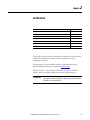
Get Started
Topic
Page
Initial Powerup
20
Configuration Overview
22
Assign Network Settings
23
Configuration Overview
22
Create User Accounts
25
Generate HTTPS Certificate
26
Backup / Restore
28
This chapter describes the initial configuration settings that are required for the
module. After installing the module, see the next chapters for security
configuration examples.
For information on how to install the module, see EtherNet/IP Network
Modules Installation Instructions, publication ENET-IN002.
Add the module to a controller project the same as you add a 1756-EN2T
module. All security-related configuration is via the module web pages.
IMPORTANT
When you finish using the web pages, make sure to use the logout link in the
upper right corner of the web page. Close all browsers to prevent others from
potentially accessing the web pages.
Rockwell Automation Publication ENET-UM003C-EN-P - November 2015
19
Chapter 2
Get Started
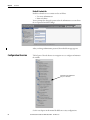
Configure all security parameters via the web server. In the Address field of your
web browser, enter the IP address that displays on the front of the module.
Specify the IP address of the web server
module in the Address window of your
web browser.
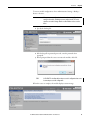
After you login, the Home page appears.
The 1756-EN2TSC module has an embedded HTTPS server that it uses to
provide secure web communication. An HTTPS server uses a certificate so that
the client can verify server authenticity. For websites connected to the Internet,
certificates are normally signed by a trusted certificate authority. Web browsers
are then able to verify the authenticity of the web server by virtue of its certificate.
The module uses a self-signed certificate. The module uses this certificate because
the IP address is not known (at manufacture time) and cannot be signed by
certificate authority (CA). Self-signed certificates are not signed by a known,
trusted authority, so they must explicitly be accepted by you (the user) when
connecting via the web browser.
Initial Powerup
On initial powerup, the module generates a new certificate for the embedded
HTTPS server. The certificate generation process can take up to a minute.
During this process, the message ‘SSL certificate generation in progress’ is shown
on the module display. Wait until the module is fully booted and ‘OK’ is shown
on the display before accessing the module by using a web browser.
1. In the Address field of your web browser, enter the IP address that displays
on the front of the module.
IMPORTANT
When you enter the IP address, you must enter the prefix https:// in the
address. If you enter an http:// prefix, the module redirects to the
https:// prefix.
After the web browser connects to the server, a warning message is shown
about the certificate that is not signed by a trusted authority.
20
Rockwell Automation Publication ENET-UM003C-EN-P - November 2015
Get Started
Chapter 2
2. Accept this message and continue to the web page.
IMPORTANT
In general, do not accept the certificate not being signed by a trusted authority.
But in the case of initial powerup, the module has a self-signed certificate, so
continue to the website even though the message says that this option is not
recommended.
The self-signed certificate warning continues to display unless you add the
certificate to the list of exceptions for the web browser.
3. After accepting the self-signed certificate, enter the user ID and password.
Rockwell Automation Publication ENET-UM003C-EN-P - November 2015
21
Chapter 2
Get Started
Default Credentials
Default credentials are case-sensitive and are as follows:
• User name: Administrator
• Password: admin
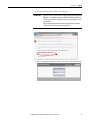
You are prompted to change the password on the Administrator account. Enter
the new password and click Change.
After you change Administrator password, the module home page appears.
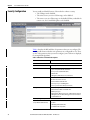
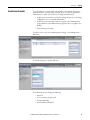
Configuration Overview
The left pane of the web browser is a navigation tree to configure and maintain
the module.
Only members of the Administrators
group can see all features.
See the next chapters in this manual for different security configurations.
22
Rockwell Automation Publication ENET-UM003C-EN-P - November 2015
Get Started
Assign Network Settings
Chapter 2
By default, the module is BOOTP enabled.
IMPORTANT
Do not simply configure the initial address that is assigned to the module as
a static IP address. Contact your network administrator for an appropriate
static IP address.
To assign an IP address, choose one of the following methods.
• Rotary switches on the module (before you install the module)
• Rockwell Automation® BOOTP/DHCP utility (available with RSLinx®
and Studio 5000® environments)
• RSLinx® software
• Studio 5000 environments
For information on how to assign network parameters, see EtherNet/IP Network
Configuration User Manual, publication ENET-UM001.
Change Network Settings Via the Module Web Page
Choose Administrative Settings > Device Configuration > Network
Configuration. An authenticated user can modify network parameters.
Rockwell Automation Publication ENET-UM003C-EN-P - November 2015
23
Chapter 2
Get Started
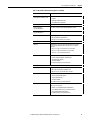
Table 3 - Network Configuration Parameter Descriptions
24
Parameter
Description
Ethernet Interface Configuration
The network configuration scheme:
• Dynamic BOOTP (default)
• Dynamic DHCP
• Static
IP address
IP address for the module:
If you want to specify a static IP address for the module, you must also choose Static
for the Ethernet Interface Configuration field.
Subnet Mask
Subnet mask for the module.
Default Gateway
Gateway address for the module.
Primary Server Name
Secondary Server Name
DNS server addresses, if you are using DNS addressing within your Logix program.
Domain Name
Domain name for the web server module, if you are using DNS addressing within
your Logix program.
Host Name
Host name for the module.
Name Resolution (DNS)
Whether the module uses DNS addressing within your Logix program.
Autonegotiate Status
How to determine port speed and duplex:
• Autonegotiate speed and duplex (recommended)
• Force speed and duplex
Select Port Speed
Port speed (10 Mbps or 100 Mbps), if you chose to force speed and duplex.
Select Duplex Mode
Duplex (full or half), if you chose to force speed and duplex.
Rockwell Automation Publication ENET-UM003C-EN-P - November 2015
Get Started
Create User Accounts
Chapter 2
You can define user accounts for the web interface to the module. Every user is
authenticated by a user name and a password. These accounts are typically for
administrators or others who need access to diagnostic information.
• Assign user accounts with access levels to manage who has access to change
configuration or to view module information.
• Define each user as a member of the Users group or the Administrators
group. Members of the Administrators group have all access rights to the
module.
• Cannot change a user name.
To add or remove a user, access Administrative Settings > User Management >
Edit Users.
To edit an existing user, click the Edit icon.
From this form, you can change the following:
• Password
• User can change own password
• Group membership
• Status (enabled or disabled)
Rockwell Automation Publication ENET-UM003C-EN-P - November 2015
25
Chapter 2
Get Started
Bad Login Attempts
The module logs bad login attempts and present statistics on the main page.
After 3 bad login attempts, logging ability is disabled for 5 minutes.
Generate HTTPS Certificate
You can generate a new HTTPS certificate if needed. Generating a new HTTPS
certificate is optional as the module automatically generates a certificate when the
module is turned on for the first time after factory reset.
• The certificate that is generated at first powerup of the module is not
bound to any specific IP address. This can cause the browser to report a
certificate error and you can decide whether to generate a new certificate.
• If you generate a new certificate and then later change the IP address of the
module, the current certificate becomes invalid. Generate a new certificate
that uses the new IP address; otherwise the browser reports a certificate
error.
A newly generated certificate has an advantage that the module uses the current
IP address. This can limit web browser certificate warnings, even though the
browser can still report an error due to a self-signed certificate.
You can specify the validity period of the certificate you generate. The period is
set from the current time on the module to a specified end time. Synchronize the
real-time clock on the Logix5000™ controller with the current time. Generating a
short-validity period without the clock being synchronized can generate an
outdated certificate.
To generate a new certificate, choose Administrative Settings > Certificate
Management > Generate HTTPS Certificate.
Use the pull-down menu to choose a valid length of time for the certificate to be
enabled.
26
Rockwell Automation Publication ENET-UM003C-EN-P - November 2015
Get Started
Chapter 2
Certificates
On initial powerup, the subject common name (CN) of the self-generated
certificate is set to Rockwell Automation®.
When you generate a new certificate, the CN is changed to the IP address of the
module and the new certificate is applied at the next restart of the module.
Rockwell Automation Publication ENET-UM003C-EN-P - November 2015
27
Chapter 2
Get Started
Backup / Restore
To back up module configuration, choose Administrative Settings > Backup /
Restore > Backup.
Choose which items to include in the backup configuration.
Parameter
Description
Secure Tunnel Configuration
Secure tunnel settings:
• IPsec Configuration
• Mobile Clients
• L2TP Configuration
• L2TP Users
USB Configuration
USB port enable/disable status
Security Configuration
Security settings:
• Remote Factory Reset
• Remote Reset
• Control Flash Update
User Management Configuration
User management settings
• Users, passwords, groups
You can also enter a password if you need to protect the backup file.
28
Rockwell Automation Publication ENET-UM003C-EN-P - November 2015
Get Started
Chapter 2
To restore module configuration, choose Administrative Settings > Backup /
Restore > Restore.
IMPORTANT
When you restore a configuration, it overwrites the current configuration
settings in the module, including user names and passwords. The restore
operation can result in changes that do not allow further web access to the
device.
1. Specify the back-up file.
2. If the back-up file is password protected, enter the password when
prompted.
3. When prompted that the restore overwrites the module, click OK.
TIP
A 1756-EN2TSC series B module can import a series A configuration but a series
A cannot import a series B configuration.
When the restore is complete, the module displays a status message.
Rockwell Automation Publication ENET-UM003C-EN-P - November 2015
29
Chapter 2
Get Started
Notes:
30
Rockwell Automation Publication ENET-UM003C-EN-P - November 2015
Chapter
3
Configure a Secure Connection to a Microsoft
Windows Client
Topic
Page
Create Windows Client Connection By Using a Windows Profile
35
Configure Mobile Client
37
Configure an L2TP Connection
38
Configure a Connection from a Microsoft Windows Client
40
Open the VPN Connection to the 1756-EN2TSC Module
47
Communicate to the Module Via an RSLinx Driver
49
In this scenario, a Microsoft Windows 7 client establishes an IPsec association
with the 1756-EN2TSC module.
Rockwell Automation Publication ENET-UM003C-EN-P - November 2015
31
Chapter 3
Configure a Secure Connection to a Microsoft Windows Client
Figure 2 -
Enterprise Zone
Levels 4 and 5
Demilitarized Zone (DMZ)
Demilitarized Zone (DMZ)
Manufacturing Zone
Site Manufacturing
Operations and Control
Level 3
Any servers or devices on this level need a
Windows 7 VPN client to connect to the
chassis with the 1756-EN2TSC module.
Level 0…2
ControlLogix® Chassis with 1756-EN2TSC Module
An example of a Windows 7 client is a personal computer running Studio 5000®,
FactoryTalk® View, or RSLinx® software.
To configure this secure connection, do the following.
1. Configure the 1756-EN2TSC module to support a connection to a
mobile client.
2. Configure a connection to the Microsoft Windows client.
3. Open the connection.
L2TP Connections
The 1756-EN2TSC module uses Layer 2 Tunneling Protocol (L2TP)
connections for Windows clients. Communication occurs within an L2TP
tunnel (after VPN is already running). The server IP address is used to
communicate with the module. The client IP address is assigned from the client
address pool.
All communication that software products generate, such as RSLinx® software, to
an L2TP server address of a 1756-EN2TSC module is sent via an IPsec
connection. This diagram shows how the physical and L2TP IP addresses differ.
32
Rockwell Automation Publication ENET-UM003C-EN-P - November 2015
Configure a Secure Connection to a Microsoft Windows Client
Chapter 3
Figure 3 - Differences Between L2TP IP Address and IP Address of a Physical Interface
1756-EN2TSC Module
L2TP Server
(192.168.1.1)
1756-EN2TSC
10.10.10.1
•
•
•
•
Personal Computer (L2TP Client)
L2TP Client
(192.168.1.2)
PC
10.10.10.2
Client, physical IP address 10.10.10.2
1756-EN2TSC module, physical IP address 10.10.10.1
L2TP server, virtual IP address 192.168.1.1
L2TP client, pool of virtual IP addresses starts 192.168.1.2 and ends
192.168.1.100
The client uses IP address 10.10.10.2 to establish a connection with the
1756-EN2TSC module at IP address 10.10.10.1. The L2TP server on the
1756-EN2TSC module at IP address 192.168.1.1 establishes a secure connection
with the L2TP client at an IP address from the pool 192.168.1.2 through
192.168.1.100.
Once the pool of addresses is configured, that pool is reserved for that specific
1756-EN2TSC module. If you have a second 1756-EN2TSC module in the
same controller chassis, you must use a separate subnet (such as 192.168.2.1),
even though the pool from the first address is not completely used.
This is only true if you want to connect from one Windows client to two or more
1756-EN2TSC modules at the same time. If only one module is connected with
a given client at a given time, there is no need for different subnets.
The Microsoft IPSec client uses classful network-addressing architecture.
• The traffic from a Windows client is directed to a specific VPN based on
the class of the IP address set in the L2TP configuration.
• Class C addresses (192.0.0.0…223.255.255.255).
• Range 192.168.0.0 … 192.168.255.255 is a set of private addresses in this
class. Because by default, class C network uses a netmask 255.255.255.0,
there are 256 non-overlapping subnets in this range. Using an IP address
from class C private range, in order to set up a Windows client L2TP
connection, helps ensure that the VPN connection is less likely to mask
any existing IP addresses normally used by the host PC.
• Two 1756-EN2TSC modules that are connected to the same Windows
client at the same time must be assigned to non-overlapping subnets. Once
the secure tunnel exists, RSLinx software uses the L2TP server IP
addresses to communicate with the controllers through the
1756-EN2TSC modules.
Rockwell Automation Publication ENET-UM003C-EN-P - November 2015
33
Chapter 3
Configure a Secure Connection to a Microsoft Windows Client
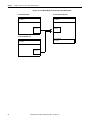
Figure 4 - Two 1756-EN2TSC Modules Connected to the Same Windows Client
First 1756-EN2TSC Module
Personal Computer (L2TP Client)
First L2TP Client
(192.168.1.2)
First L2TP Server
(192.168.1.1)
1756-EN2TSC
10.10.10.1
PC
10.10.10.2
Second 1756-EN2TSC Module
Second L2TP Client
(192.168.2.2)
Second L2TP Server
(192.168.2.1)
1756-EN2TSC
10.10.10.6
34
Rockwell Automation Publication ENET-UM003C-EN-P - November 2015
Configure a Secure Connection to a Microsoft Windows Client
Create Windows Client
Connection By Using a
Windows Profile
Chapter 3
Follow these steps to create a Windows client connection by using a Windows
profile.
1. Log in to the 1756-EN2TSC module and choose Administrative Settings
> Secure Tunnel Configuration> IPsec Configuration.
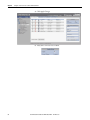
2. On the right side of the screen, check Enable to enable IPsec connections.
3. In the Add a Security Association (SA) area, do the following.
a. Enter the Identifier as a text description of the connection.
b. Choose the Windows Client profile.
c. Enter the Remote IP address.
d. Enter the pre-shared key and confirm the pre-shared key.
A pre-shared key is similar to a password. Enter a phrase or set of
characters. For example, you could enter ‘rockwell’ as a pre-shared key.
Remember the pre-shared key. You enter the same value when you
configure the connection from the Windows client, see page 40.
4. Click Add.
Rockwell Automation Publication ENET-UM003C-EN-P - November 2015
35
Chapter 3
Configure a Secure Connection to a Microsoft Windows Client
5. Click Apply Changes.
6. Verify IPsec connections are enabled.
36
Rockwell Automation Publication ENET-UM003C-EN-P - November 2015
Configure a Secure Connection to a Microsoft Windows Client
Configure Mobile Client
Chapter 3
A mobile client does not have a predetermined IP address that is explicitly
configured in the module. For example, a personal computer that is configured
for DHCP connects to the module. If the IP address of the personal computer
changes, no configuration changes are required on the module.
If the Windows client is a mobile client, make the following configurations on
the module. Follow these steps to configure a mobile client.
1. Choose Administrative Settings > Secure Tunnel Configuration> Mobile
Clients.
2. Make the following configuration selections.
a. Check Enable Mobile Clients.
b. Enter the pre-shared key and confirm the pre-shared key.
c. Choose an encryption algorithm.
3. Click Apply Changes.
Rockwell Automation Publication ENET-UM003C-EN-P - November 2015
37
Chapter 3
Configure a Secure Connection to a Microsoft Windows Client
Configure an L2TP
Connection
Follow these steps to configure an L2TP connection.
1. Choose Administrative Settings > Secure Tunnel Configuration> L2TP
Users.
2. For each user, define a user ID and password.
Each L2TP user must authenticate when establishing a tunnel to the
module. Configure a user name and password for each LT2P user.
Remember the user names and passwords. You enter the same values when
you configure the connection from a Windows client, see page 40.
3. Click Add.
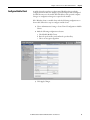
4. Choose Administrative Settings > Secure Tunnel Configuration> L2TP
Configuration.
38
Rockwell Automation Publication ENET-UM003C-EN-P - November 2015
Configure a Secure Connection to a Microsoft Windows Client
Chapter 3
Make sure that L2TP is enabled.
5. If needed, change the range of available client IP addresses
The IP addresses on this screen are the virtual IP addresses for the L2TP
server (in the 1756-EN2TSC module) and the pool of virtual IP addresses
(for Windows clients).
Once the secure tunnel is established, use the L2TP server IP address to
identify the 1756-EN2TSC module. The Windows client uses an IP
address from the L2TP pool.
6. Click Apply Changes.
Rockwell Automation Publication ENET-UM003C-EN-P - November 2015
39
Chapter 3
Configure a Secure Connection to a Microsoft Windows Client
Configure a Connection from
a Microsoft Windows Client
This section explains a connection from Windows Client where the Windows
computer is a client and the 1756-EN2TSC module is a server.
An IPsec client is required to make a secure connection to the module. Without
an active IPsec association, the module drops packets, which appear as message
timeouts. The IPsec client comes pre-installed in the Windows 7 operating
system.
To configure a Microsoft Windows client, do the following.
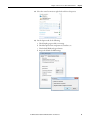
1. From the Control Panel, open the Network and Sharing Center.
2. Click Setup a new connection or network.
3. Select Connect to a workplace and click Next.
4. Select No, create a new connection, and click Next.
You do not see this screen if there are no connections set.
40
Rockwell Automation Publication ENET-UM003C-EN-P - November 2015
Configure a Secure Connection to a Microsoft Windows Client
Chapter 3
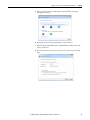
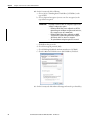
5. Choose Connect using a virtual private network (VPN) connection
through the Internet.
6. If prompted, choose I’ll set up an Internet connection later.
7. Enter the physical IP address of the 1756-EN2TSC module and a name
for the connection.
8. Select Don’t connect now; just set it up so I can connect later and click
Next.
Rockwell Automation Publication ENET-UM003C-EN-P - November 2015
41
Chapter 3
Configure a Secure Connection to a Microsoft Windows Client
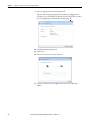
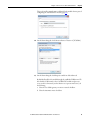
9. Enter the appropriate user name and password.
The user name and password must have already been configured as an
L2TP user on the 1756-EN2TSC module. See the L2TP Edit Users tab as
part of configuring the 1756-EN2TSC module (page 38).
10. Check Remember this password.
11. Click Create.
12. Once the connection is created, click Close.
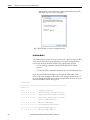
13. Click the network icon in the right, bottom corner of the Windows
taskbar.
42
Rockwell Automation Publication ENET-UM003C-EN-P - November 2015
Configure a Secure Connection to a Microsoft Windows Client
Chapter 3
14. Select the created connection, right-click, and choose Properties.
15. On the Options tab, do the following.
a. Check Display progress while connecting.
b. Check Prompt for name and password, certificate, etc.
c. Clear Include Windows logon domain.
d. Accept the defaults for PPP settings.
Rockwell Automation Publication ENET-UM003C-EN-P - November 2015
43
Chapter 3
Configure a Secure Connection to a Microsoft Windows Client
16. On the Security tab, do the following.
a. Choose Layer 2 Tunneling Protocol with IPsec (L2TP/IPsec) as the
type of VPN.
b. Choose Optional encryption (connect even if no encryption) as the
type of data encryption.
IMPORTANT
c.
d.
e.
f.
Depending on how the modules are configured encryption can be
enabled, according to these options.
• If Windows/Mobile Client SA was configured to use AES128,
Optional Encryption and Require encryption work. In this case,
IPsec encryption secures the communication.
• If Windows/Mobile Client SA was configured to use NONE
encryption in IPsec, Optional Encryption and No encryption
allowed work. In this case, there is no encryption.
• The option Maximum strength encryption does not work.
Click Allow these protocols.
Check Unencrypted password (PAP).
Check Challenge Handshake Authentication Protocol (CHAP).
Clear the Microsoft CHAP version 2 (MS-CHAP v2) checkbox.
17. On the Security tab, click Advanced Settings and enter the pre-shared key.
44
Rockwell Automation Publication ENET-UM003C-EN-P - November 2015
Configure a Secure Connection to a Microsoft Windows Client
Chapter 3
The pre-shared key must be same as defined for the mobile client as part of
configuring the 1756-EN2TSC module (page 35).
18. On the Networking tab, check Internet Protocol Version 4 (TCP/IPv4).
19. On the Networking tab, click Properties and then click Advanced.
By default all traffic is forwarded through the established VPN tunnel. To
have both the VPN tunnel to the 1756-EN2TSC module and preserve
access to the local network (such as Internet or corporate mail server), do
the following.
a. Clear the Use default gateway on remote network checkbox.
b. Clear the Automatic metric checkbox.
Rockwell Automation Publication ENET-UM003C-EN-P - November 2015
45
Chapter 3
Configure a Secure Connection to a Microsoft Windows Client
c. In the Interface metric field, enter a value larger than the metric of the
default gateway route in the routing table.
20. Click OK until you exit the configuration tabs.
Interface Metric
The interface metric specifies an integer cost metric (1…9999) for the route. This
metric is used when choosing among multiple routes in the routing table that
most closely match the destination address of a packet being forwarded.
• Use the ipconfig command to identify the IP address of the default
gateway.
• Use the route print command to identify the metric of the default gateway.
If you do not want all network traffic to go through the VPN tunnel, set the
metric of the route though the VPN connection to be larger than the metric of
the route through the default gateway. In the example below, the metric is 10; the
interface field metric must be 11 or greater.
C:\>route print
===========================================================================
Interface List
34...........................1.EN2TSC VPN Connection
11...f0 4d a2 20 ee d7 ......Broadcom NetXtreme 57xx Gigabit Controller
18...00 50 56 c0 00 01 ......VMware Virtual Ethernet Adapter for VMnet1
20...00 50 56 c0 00 08 ......VMware Virtual Ethernet Adapter for VMnet8
1...........................Software Loopback Interface 1
12...00 00 00 00 00 00 00 e0 Microsoft ISATAP Adapter
13...00 00 00 00 00 00 00 e0 Teredo Tunneling Pseudo-Interface
19...00 00 00 00 00 00 00 e0 Microsoft ISATAP Adapter #2
21...00 00 00 00 00 00 00 e0 Microsoft ISATAP Adapter #3
46
Rockwell Automation Publication ENET-UM003C-EN-P - November 2015
Configure a Secure Connection to a Microsoft Windows Client
Chapter 3
22...00 00 00 00 00 00 00 e0 Microsoft ISATAP Adapter #4
===========================================================================
IPv4 Route Table
===========================================================================
Active Routes:
Network Destination
Netmask
Gateway
0.0.0.0
0.0.0.0
10.22.23.1
10.76.16.0
255.255.252.0
On-link
10.22.23.123 266
10.76.16.127
255.255.255.255
On-link
10.22.23.123 266
10.76.18.110
255.255.255.255
On-link
10.22.23.123 11
10.76.19.255
255.255.255.255
On-link
10.22.23.123 266
127.0.0.0
255.0.0.0
On-link
127.0.0.1
306
127.0.0.1
255.255.255.255
On-link
127.0.0.1
306
127.255.255.255
255.255.255.255
On-link
127.0.0.1
306
192.168.2.0
255.255.255.0
192.168.1.1
Interface
Metric
10.22.23.123 10 <- metric of default gateway
192.168.1.2
11 <- interface field metric
for client
- - - - - - - - - - - - - - - - - - - - - - - - - - - - - - - - - - - - - -
Open the VPN Connection to
the 1756-EN2TSC Module
Once the Windows client and 1756-EN2TSC module are configured, you must
establish the VPN connection.
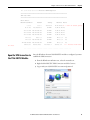
1. From the Windows notification area, select the network icon.
2. Right-click the EN2TSC VPN Connection and click Connect.
3. Log on with your 1756-EN2TSC user name and password.
Rockwell Automation Publication ENET-UM003C-EN-P - November 2015
47
Chapter 3
Configure a Secure Connection to a Microsoft Windows Client
It can take 30 seconds or more to connect.
TIP
48
If you want to delete a VPN connection on the Windows client, for example, it
does not work and you want to create a new connection.
1. Choose Control Panel > Network and Sharing Center > Change Adapter
Settings.
2. Right-click the connection and choose Delete.
Rockwell Automation Publication ENET-UM003C-EN-P - November 2015
Configure a Secure Connection to a Microsoft Windows Client
Communicate to the Module
Via an RSLinx Driver
Chapter 3
If you communicate to the module through an RSLinx® driver, you must use an
L2TP connection and the Ethernet devices driver.
Once the secure tunnel exists to the 1756-EN2TSC module, RSLinx® software
uses the L2TP server IP addresses to communicate with the controller through
the 1756-EN2TSC module.
IMPORTANT
The Microsoft Windows client must use the module IP address specified
(predetermined) on the L2TP configuration tab for all communication to the
module, including RSLinx® and Studio 5000® connections. The original IP
address for the module is not in the VPN tunnel and cannot be used.
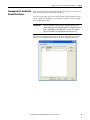
In the driver configuration field, enter the L2TP server IP address (virtual IP
address) of the 1756-EN2TSC module to the Station Mapping dialog box.
Rockwell Automation Publication ENET-UM003C-EN-P - November 2015
49
Chapter 3
Configure a Secure Connection to a Microsoft Windows Client
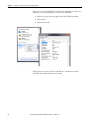
If you connect to the 1756-EN2TSC module without knowing the L2TP server
IP address, you can find that after the connection is established.
1. Click the network icon in the right, bottom of the Windows taskbar.
2. Choose Status.
3. Click the Details tab.
RSLinx® software uses the L2TP server IP address to communicate with the
1756-EN2TSC module inside the secure tunnel.
50
Rockwell Automation Publication ENET-UM003C-EN-P - November 2015
Chapter
4
Configure Secure Communication Between Two
1756-EN2TSC Modules
Topic
Page
Configure the First (Local) Module
53
Configure the Second (Remote) Module
54
Test the Connection
55
Edit the Security Association
55
In this scenario, an IPsec association is established between two 1756-EN2TSC
modules (peer-to-peer). In this case, a VPN tunnel services the remote and local
IP networks. There is one IP address at either end of the IPsec association.
Rockwell Automation Publication ENET-UM003C-EN-P - November 2015
51
Chapter 4
Configure Secure Communication Between Two 1756-EN2TSC Modules
To create a security association with another module, each module must be
configured with the pre-shared key of the other module.
Enterprise Zone
Levels 4 and 5
Demilitarized Zone (DMZ)
Demilitarized Zone (DMZ)
Manufacturing Zone
Site Manufacturing
Operations and Control
Level 3
Level 0…2
Remote ControlLogix® Chassis
with 1756-EN2TSC Module
IMPORTANT
52
Local ControlLogix® Chassis with
1756-EN2TSC Module
This peer-to-peer configuration does not maintain the security features of the
module if you use produced/consumed tags, CIP Sync packets, or multicast
communication. Use MSG instructions rather than produced/consumed tags to
share data.
Rockwell Automation Publication ENET-UM003C-EN-P - November 2015
Configure Secure Communication Between Two 1756-EN2TSC Modules
Configure the First (Local)
Module
Chapter 4
Follow these steps to configure the first (local) module.
1. Choose Administrative Settings > Secure Tunnel Configuration > IPsec
Configuration and make sure that Enable IPsec is enabled.
2. To create a secure association, do the following.
a. Enter the Identifier as a text description of the connection.
b. Choose the Peer to Peer as the Profile.
c. Enter the IP address of the second (remote) module.
d. Enter the pre-shared key and confirm the pre-shared key.
3. Click Add.
4. Click Apply Changes after entering all configurations.
Rockwell Automation Publication ENET-UM003C-EN-P - November 2015
53
Chapter 4
Configure Secure Communication Between Two 1756-EN2TSC Modules
Configure the Second
(Remote) Module
Follow these steps to configure the second (remote) module.
1. Choose Administrative Settings > Secure Tunnel Configuration > IPsec
Configuration and make sure that Enable IPsec is enabled.
2. To create a secure association, do the following.
a. Enter the Identifier as a text description of the connection.
b. Choose the Peer to Peer as the Profile.
c. Enter the IP address of the first (local) module.
d. Enter the pre-shared key and confirm the pre-shared key.
3. Click Add.
4. Click Apply Changes after entering all configurations.
54
Rockwell Automation Publication ENET-UM003C-EN-P - November 2015
Configure Secure Communication Between Two 1756-EN2TSC Modules
Chapter 4
When the security association is added on both sides of connection, the modules
take a few seconds to establish the IPsec tunnel between the modules. To verify
that the connection is established, access Diagnostics > Advanced Diagnostics >
Secure Tunnel > IPsec Security Associations.
Test the Connection
Edit the Security Association
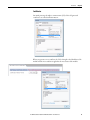
If you want to edit the settings for the association you created, click the
Edit button next to the association in the list.
Rockwell Automation Publication ENET-UM003C-EN-P - November 2015
55
Chapter 4
Configure Secure Communication Between Two 1756-EN2TSC Modules
Notes:
56
Rockwell Automation Publication ENET-UM003C-EN-P - November 2015
Chapter
5
Configure a Secure Connection to a VPN
Appliance
Topic
Page
Configure the Module to Connect to a VPN Appliance
59
Edit the Security Association
60
In this scenario, a VPN appliance (such as a firewall) establishes the IPsec
association with the 1756-EN2TSC module. Client workstations or other
modules then establish IPsec associations with the VPN appliance. The VPN
appliance then routes packets between the IPsec associations.
The IPsec association between the VPN appliance and module services multiple
remote (from the point of view of the module) devices and networks. You
configure the module to know which remote networks are routed via the VPN
appliance.
This configuration lets you consolidate multiple VPN clients through one
location (the VPN appliance). This consolidation limits the need for multiple
secure tunnels to each VPN client as you need only one secure tunnel between
the 1756-EN2TSC module and the VPN appliance.
Rockwell Automation Publication ENET-UM003C-EN-P - November 2015
57
Chapter 5
Configure a Secure Connection to a VPN Appliance
Figure 5 - Consolidate Multiple VPN Clients Through One Location
Enterprise Zone
Levels 4 and 5
Demilitarized Zone (DMZ)
Secure Tunnel to VPN Appliance
Demilitarized Zone (DMZ)
Manufacturing Zone
Site Manufacturing
Operations and Control
Level 3
Level 0…2
ControlLogix Chassis with
1756-EN2TSC Module
An appliance like the Cisco ASA supports multiple methods for authentication,
multiple encryption algorithms, and multiple types of VPN technology (such as
SSL VPN.)
58
Rockwell Automation Publication ENET-UM003C-EN-P - November 2015
Configure a Secure Connection to a VPN Appliance
Configure the Module to
Connect to a VPN Appliance
Chapter 5
Follow these steps to configure the Module to Connect to a VPN appliance.
1. Choose Administrative Settings > Secure Tunnel Configuration > IPsec
Configuration and make sure that Enable IPsec is enabled.
2. To create a secure association, do the following.
a. Enter the Identifier as a text description of the connection.
b. Choose the VPN Appliance as the Profile.
c. Enter the IP address of the VPN appliance.
d. Enter the pre-shared key and confirm the pre-shared key.
Parameter
Description
Identifier
Name for the security association, such as VPN_connection
Profile
VPN Appliance
Remote IP
IP address of the VPN appliance
Pre-shared key
Pre-shared key for the connection
Confirm Pre-shared key
Same pre-shared key for the connection, as entered above
3. Click Add.
Rockwell Automation Publication ENET-UM003C-EN-P - November 2015
59
Chapter 5
Configure a Secure Connection to a VPN Appliance
4. Click Apply Changes.
TIP
Edit the Security Association
Do not use IKE v1 configuration for the Stratix 5900 appliance. The IKE v1
connection can be unreliable. Use the IKE v2 connection instead.
If you want to edit the settings for the association you created, click the
Edit button next to the association in the list.
Set the key life time (10 min…8 hr) and key life data (1000…10000000 KB)
values to the same value as on the VPN appliance. If these values differ, there can
be issues with rekeying, even though the initial connection is successful.
60
Rockwell Automation Publication ENET-UM003C-EN-P - November 2015
Configure a Secure Connection to a VPN Appliance
Chapter 5
You must specify a value for key life time. If key life data is not used, set the value
to 0.
You can specify a subnetwork accessible via the VPN appliance by specifying
addresses for Remote Network IP and Remote Network Netmask.
Default values of all zeroes direct all VPN network traffic to the VPN appliance.
However, other security associations, such as peer-to-peer connections, still work
as narrower address ranges take precedence over the wider range that is specified
for VPN appliance.
For more information about the parameters that you can configure in the Local
IPsec Security Association, see Security Configuration on page 16.
IMPORTANT
You must disable the TCP Sequence Randomization feature in Cisco ASA. The
1756-EN2TSC/B module uses its own TCP sequence randomization so there is
no need to enable additional one in Cisco ASA. If this setting is enabled in ASA,
VPN connection to Cisco ASA is unreliable.
Rockwell Automation Publication ENET-UM003C-EN-P - November 2015
61
Chapter 5
Configure a Secure Connection to a VPN Appliance
Notes:
62
Rockwell Automation Publication ENET-UM003C-EN-P - November 2015
Chapter
6
Diagnostics
Diagnostic Web Pages
Topic
Page
Diagnostic Web Pages
63
Secure Tunnel Diagnostics Web Page
64
Status Indicators
65
The 1756-EN2TSC module supports the same diagnostic web pages as the
1756-EN2T modules, including these pages.
• Diagnostic Overview for a summary of the configuration and overall status
of the module
• Network Settings for the Ethernet configuration parameters of the module
• Ethernet Statistics for a summary of the status of communication activity
on the Ethernet network
For information on these standard diagnostic web pages, see EtherNet/IP
Network Configuration User Manual, publication ENET-UM001.
Rockwell Automation Publication ENET-UM003C-EN-P - November 2015
63
Chapter 6
Diagnostics
Secure Tunnel Diagnostics
Web Page
64
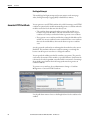
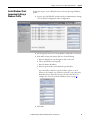
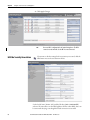
For specific diagnostics regarding secure connections, choose Diagnostics >
Advanced Diagnostics > Secure Tunnel.
This Diagnostic Web Page
Displays
IKE Security Associations (SA)
Active IKE security associations
IKE Statistics
Statistics of active exchanges and IKE security associations
IPsec Security Associations (SA)
Active IPsec security associations
IPsec Output Flows
Defined IPsec output flow rules
Rockwell Automation Publication ENET-UM003C-EN-P - November 2015
Diagnostics
Status Indicators
Chapter 6
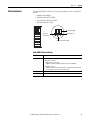
The 1756-EN2TSC module uses the same status indicators as the 1756-EN2T
module:
• Module Status Display
• Link Status Indicator (LINK)
• Network Status Indicator (NET)
• OK Status Indicator (OK)
VPN
Module Status Display
Link Status
Indicator (LINK)
OK Status Indicator
Network Status Indicator (NET)
Link (LINK) Status Indicator
Status
Description
Off
One of these conditions exists:
• The module is not powered.
– Verify that there is chassis power.
– Verify that the module is completely inserted into the chassis and backplane.
• No link exists on the port.
– Verify that the RJ45 connector in the Ethernet port is completely inserted and the other
end of the cable is connected to a device in your network
Flashing green
Activity exists on the port.
Green
A link exists on the port.
Rockwell Automation Publication ENET-UM003C-EN-P - November 2015
65
Chapter 6
Diagnostics
Network (NET) Status Indicator
Status
Description
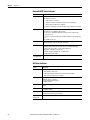
Off
One of these conditions exists:
• The module is not powered.
– Verify that there is chassis power.
– Verify that the module is completely inserted into the chassis and backplane.
– Make sure that the module has been configured.
• The module is powered but does not have an IP address. Assign an IP address to the module.
Flashing green
The controller has an IP address and one of these conditions exists:
• The module has not established any CIP connections.
If connections are configured for this module, check the connection originator for the
connection error code.
• One or more connections have timed out. For example, an HMI or I/O connection has timed
out.
Re-establish the connection.
Green
The module has established at least one CIP connection and is operating properly. The IP
address for the module scrolls across the Module Status display.
Red
The module is in conflict mode. The module shares an IP address with another device on the
network. The current IP address for the module scrolls across the Module Status display.
The display scrolls: OK <IP_address_of_this_module> Duplicate IP
<Mac_address_of_duplicate_node_detected>
For example: OK 10.88.60.196 Duplicate IP - 00:00:BC:02:34:B4
Change the IP address of the module.
Flashing
green/flashing red
The module is performing its power-up testing.
OK Status Indicator
66
Status
Description
Off
The module is not powered.
• Verify that there is chassis power.
• Verify that the module is completely inserted into the chassis and backplane.
• Make sure that the module has been configured.
Flashing green
The module is not configured. The Module Status display scrolls: BOOTP or
DHCP<Mac_address_of_module>
For example: BOOTP 00:0b:db:14:55:35
Configure the module.
Green
The module is operating correctly. The IP address of the module scrolls across the Module Status
display.
Flashing red
The module detected a recoverable minor fault. Check the module configuration. If necessary,
reconfigure the module.
Red
The module detected an unrecoverable major fault. Cycle power to the module. If the power
cycle does not clear the fault, replace the module.
Flashing red/
flashing green
The module is performing its power-up testing.
Rockwell Automation Publication ENET-UM003C-EN-P - November 2015
Index
A
additional resources 7, 19
architecture
Microsoft Windows client to module 31
module to module 51
secure communication 9
VPN appliance to module 57
B
backup 28
BOOTP 23
browers 11
C
certificate
generate 26
powerup 20
configure
client via RSLinx driver 49
interface metric 46
Microsoft Windows client 40
mobile client 35
module to module 53, 54
network settings 23
overview 22
powerup 20
security association 55, 60
user account 25
VPN appliance 59
web pages 20
connection
client 37
L2TP 32, 38
Microsoft Windows client 40
mobile 37
credentials 22
default 22
H
HTTPS certificate
generate 26
I
interface metric 46
Internet Protocol Security
See IPsec 13
IPsec
capability 13
modes 14
L
L2TP
RSLinx driver 49
local chassis security 12
login attempts 26
M
Microsoft Windows client to module scenario
31
mobile client
scenario 35
module
backup 28
browsers 11
certificate 26
default credentials 22
diagnostics 63
features 11
performance 15
restore 28
status indicators 65
traffic filtering 15
module to module scenario 51
D
default credentials 22
diagnostics
secure tunnel 64
status indicators 65
web pages 63
F
features 11
G
generate certificate 26
N
network settings 23
P
password
change 25
performance 15
powerup 20
R
restore 28
rotary switches 23
RSLinx driver 49
Rockwell Automation Publication ENET-UM003C-EN-P - November 2015
67
Index
S
scenario
Microsoft Windows client to module 31
module to module 51
VPN appliance to module 57
secure communication
architecture 9
scenarios 31, 51, 57
secure tunnel
diagnostics 64
security association 55, 60
self-signed 20
serial number lock 12
status indicators 65
T
test connection 55
traffic filtering 15
trusted slot 12
U
user account 25
V
VPM appliance to module scenario 57
W
web pages
diagnostics 63
network settings 23
68
Rockwell Automation Publication ENET-UM003C-EN-P - November 2015
Rockwell Automation Support
Rockwell Automation provides technical information on the Web to assist you in using its products.
At http://www.rockwellautomation.com/support you can find technical and application notes, sample code, and links to
software service packs. You can also visit our Support Center at https://rockwellautomation.custhelp.com/ for software
updates, support chats and forums, technical information, FAQs, and to sign up for product notification updates.
In addition, we offer multiple support programs for installation, configuration, and troubleshooting. For more
information, contact your local distributor or Rockwell Automation representative, or visit
http://www.rockwellautomation.com/services/online-phone.
Installation Assistance
If you experience a problem within the first 24 hours of installation, review the information that is contained in this
manual. You can contact Customer Support for initial help in getting your product up and running.
United States or Canada
1.440.646.3434
Outside United States or Canada
Use the Worldwide Locator at http://www.rockwellautomation.com/rockwellautomation/support/overview.page, or contact your local
Rockwell Automation representative.
New Product Satisfaction Return
Rockwell Automation tests all of its products to help ensure that they are fully operational when shipped from the
manufacturing facility. However, if your product is not functioning and needs to be returned, follow these procedures.
United States
Contact your distributor. You must provide a Customer Support case number (call the phone number above to obtain one) to your
distributor to complete the return process.
Outside United States
Please contact your local Rockwell Automation representative for the return procedure.
Documentation Feedback
Your comments will help us serve your documentation needs better. If you have any suggestions on how to improve this
document, complete this form, publication RA-DU002, available at http://www.rockwellautomation.com/literature/.
Rockwell Automation maintains current product environmental information on its website at
http://www.rockwellautomation.com/rockwellautomation/about-us/sustainability-ethics/product-environmental-compliance.page.
Rockwell Otomasyon Ticaret A.Ş., Kar Plaza İş Merkezi E Blok Kat:6 34752 İçerenköy, İstanbul, Tel: +90 (216) 5698400
Publication ENET-UM003C-EN-P - November 2015
Supersedes Publication ENET-UM003B-EN-P - September 2013
Copyright © 2015 Rockwell Automation, Inc. All rights reserved. Printed in the U.S.A.