1
Time
Time
Time
Time
Time
under 15 minutes
SET-UP LOCAL VIEWING ON YOUR PC
under 15 minutes
under 30 minutes
under 60 minutes
over 60 minutes
Time
Hand Tools
Time: 30 Minutes Hardware
PC/Router
STEP 3
under 30 minutes
Hand Tools
over 60 minutes
SET-UP INTERNET REMOTE SECURITY
MONITORING REMOTE VIEWING INSTALLATION GUIDE
Hand Tools
Hardware
Hi Speed
Hardware
Hi Speed
Router
Router
Skill Level
Time: 60 Minutes Hardware
Skill Level
PC/Router
under 15 minutes
Time
Intermediate
easy
under 30 minutes
Hand Tools
Hi Speed
advanced
Skill Level
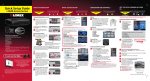
1. Launch Internet Explorer.
2. In the address bar, enter the IP address of your DVR
(recorded in Step 3-1).
3. In the ID and password fields, enter your network user ID
and password and click LOGIN.
Intermediate
STEP 4
over 60 minutes
Logging In to DVR Netviewer (on your local computer):
easy
Router
Skills - Intermediate
under 60 minutes
Hardware
Continued
4
under 60 minutes
Time
LO CA L V I E W I N G I N S TA L L AT I O N G U I D E
under 15 minutes
under 30 minutes
advanced
under 15 minutes
Login using your LAN user
ID and password (by default,
ID 9; password 3333).
Hand Tools
1
Local Live Viewing using DVR Netviewer (on your local
computer):
5 By default, DVR Netviewer launches in Live Viewing mode.
Hardware
over 60 minutes
Hi Speed
Hand Tools
STEP 4
Continued
under 15 minutes
advanced
Intermediate
Hand Tools
Intermediate
advanced
5
advanced
EXAMPLE
2. Click
,
,
in full-screen, or click
System
8090
8090
12
System
80
80
12
in the bottom-left corner
to resume live streaming.
under 15 minutes
Hand Tools
Intermediate
advanced
8
advanced
1. Open Internet Explorer (version 6 or above) and enter the IP
address of your DVR in the address bar (i.e. 192.168.xxx.89).
DVR Netviewer opens.
2. Login using your LAN user ID and password (by default, ID 9;
password 3333).
Open your web browser (Internet Explorer by default) and enter
http://www.lorexddns.net in the address bar.
3. Click
. The Setup menu opens.
4. Under Network, click DDNS.
5. In the corresponding text fields, enter your DDNS username
and password.
Note: Obtain this information from the confirmation email after
registering for the free Lorex DDNS service.
6. Under DDNS Domain Name, enter only the first portion of your
DDNS domain from the confirmation email. For example, if
your domain name is [email protected], you only need
to enter tomsmith in the text field.
7. Click Submit to save your settings or click Cancel to exit
without saving.
Create Account
Complete New Account Information:
4
Note: Once you have saved your DDNS settings, you must reset your system
in order for the changes to take effect. Disconnect and reconnect the power
cable from the rear panel to reset. Please allow 10-15 minutes for the DDNS
servers to update with your new DDNS address.
1 2
3
1. FOR PRODUCT LICENSE select the LH310 Series option
from the drop down menu.
2. FOR PRODUCT CODE enter the Monitor’s MAC address
(recorded in step 3, section 1).
3. FOR URL REQUEST enter a unique URL name (e.g.
tomsmith). Note: URL name should not be more than 15 characters.
under 60 minutes
over 60 minutes
easy
Hardware
Hi Speed
Hardware
Intermediate
Intermediate
Hand Tools
advanced
over 60 minutes
Hi Speed
Router
STEP 4
under 15 minutes
Continued
under 15 minutes
advanced
advanced
Hardware
Time: 60 Minutes Hardware
Skill Level
PC/Router
Time
under 30 minutes
Hand Tools
Router
under 60 minutes
Time
Hi Speed
Router
Intermediate
under 30 minutes
SET-UP INTERNET REMOTE SECURITY
MONITORING REMOTE VIEWING INSTALLATION GUIDE
over 60 minutes
Skill Level
easy
under 15 minutes
Skills - Advanced
under 60 minutes
4 Channel DVR: You must configure QuickTime prior to using DVR
Netviewer for the first time.
To configure QuickTime:
1. With QuickTime installed on your system, launch QuickTime
by double-clicking the QuickTime icon on your desktop or
selecting Start>Programs>QuickTime >QuickTime Player.
2. From the QuickTime Player main window, select Edit>
Preferences>QuickTime Preferences.
3. From the QuickTime Preferences window, click the Advanced
tab.
4. Under Transport Setup, select Custom. The Streaming
Transport window opens.
5. Under Transport Protocol, select HTTP.
6. Under Port ID, select 80 and click OK. The Streaming Transport
window closes.
7. From the Preferences window, click Apply, and then click OK.
easy
under 30 minutes
under 60 minutes
over 60 minutes
easy
Skills - Advanced
under 60 minutes
Hardware
over 60 minutes
Hi Speed
Router
Intermediate
advanced
Remote Live Viewing using DVR Netviewer:
Hand Tools
6
Hardware
Hi Speed
Skill Level
By default, DVR Netviewer launches in Live Viewing mode.
Intermediate
easy
advanced
Router
To use Live Viewing (4 channel DVR):
1. Click
.
Skill Level
2. Click
,
,
easy
,
Intermediate
in full-screen, or click
split-screen mode.
, to view individual selected channels
advanced
to view channels in quad
3. To pause the live image, click
of the QuickTime window. Click
streaming.
in the bottom-left corner
to resume live
To use Live Viewing (8/16 channel DVRs):
1. Click
.
2. Click
,
,
,
, to view in Quad or 16-split.
3. Click the Channel buttons to view channels in full-screen
Note: For added security, we highly recommend changing HTTP
port 80 on the system to any desired port -- the port must not
be blocked by your Internet service provider. For more details on
changing ports, please see Appendix C: Changing ports on Your
System in the LH310 Instruction Manual.
ATTENTION: You MUST enter your DDNS information LOCALLY
before attempting remote access.
3
under 30 minutes
under 30 minutes
Skill Level
http://www.lorexddns.net
Create Account:
Hi Speed
Configuring QuickTime (on your remote computer):
Open your web browser (Internet Explorer by default) and enter
http://www.lorexddns.net in the address bar.
2. Click
,
,
,
, to view in Quad or 16-split.
3. Click the Channel buttons to view channels in full-screen
LOCAL LIVE SITE- 16 CH
Continued
advanced
Router
Intermediate
under 15 minutes
Hand Tools
Skill Level
easy
STEP 4
DDNS (Dynamic Domain Name System) Set-up:
.
LOCAL LIVE SITE- 4 CH
Hi Speed
Hardware
Time: 60 Minutes Hardware
Skill Level
PC/Router
Time
Hi Speed
Router
Intermediate
easy
over 60 minutes
Router
over 60 minutes
Note: By default, your DDNS service is http://www.lorexddns.net
To use Live Viewing (8/16 channel DVRs):
1. Click
Hardware
over 60 minutes
Hand Tools
6
to view channels in quad split-screen mode.
of the QuickTime window. Click
under 60 minutes
Hardware
under 60 minutes
Time
Skills - Advanced
under 60 minutes
under 30 minutes
SET-UP INTERNET REMOTE SECURITY
MONITORING REMOTE VIEWING INSTALLATION GUIDE
Enter DDNS Set-up on your DVR:
, to view individual selected channels
3. To pause the live image, click
under 30 minutes
An automated REGISTRATION CONFIRMATION EMAIL will be
sent to your email. Print and Save this confirmation. You will
need this information to access your System remotely.
Service Provider: dns1.lorexddns.net
Domain Name: tomsmith.lorexddns.net
User ID: tomsmith
Password: (your password)
easy
.
,
Hi Speed
under 15 minutes
Skill Level
To use Live Viewing (4 channel DVR):
1. Click
under 30 minutes
Registration Email:
Router
easy
under 15 minutes
Hand Tools
Skill Level
easy
Hardware
Time: 60 Minutes Hardware
Skill Level
PC/Router
Time
Hi Speed
Port forward your router first before proceeding with the set-up.
You must forward • 80 (HTTP port), • 8090 (QuickTime Port - 4
channel only)
All routers are different. To port forward your router, please refer
to your router’s user manual.
A router configuration guide featuring the most commonly used
routers in the market is available on www.lorexcctv.com/support
in the Consumer’s Guide Section. An example of a port forwarding
screen is shown for illustration purposes.
over 60 minutes
Router
over 60 minutes
Router
Intermediate
easy
under 60 minutes
Time
Skill Level
2
5. 8/16 Channel DVR: You must install the ActiveX® plug-in for
DVR Netviewer to function. Click the attention bar at the top
of the main page and select Install ActiveX Control. DVR
Netviewer will reset.
6. Log in with your LAN user name and password. From the
security window, click Install.
under 60 minutes
Port Forward your Router:
NOTE: Once you have added
and connected to a DVR, you
can monitor and control the
system in real time.
4. 4 Channel DVR: If necessary, select your MIME type
configuration. DVR Netviewer uses Quicktime for live video
streaming. Select No to maintain your MIME type association
with your default media Player. If you select Yes, the MIME
types will be associated with QuickTime. Check the box
to avoid seeing the MIME type prompt in the future.
under 30 minutes
under 30 minutes
SET-UP INTERNET REMOTE SECURITY
MONITORING REMOTE VIEWING INSTALLATION GUIDE
Skills - Advanced
under 60 minutes
Hardware
under 15 minutes
Logging In to DVR Netviewer (on your remote computer):
9
1. Launch Internet Explorer.
2. In the address bar, enter the DDNS DOMAIN NAME
(e.g. tomsmith) from the Registration Email sent to you.
3. In the ID and password fields, enter your network user ID
and password and click LOGIN.
NOTE: Once you have added
and connected to a DVR, you
can monitor and control the
system in real time.
4. 4 Channel DVR: If necessary, select your MIME type
configuration. DVR Netviewer uses Quicktime for live
video streaming. Select No to maintain your MIME type
association with your default media Player. If you select
Yes, the MIME types will be associated with QuickTime.
Check the box to avoid seeing the MIME type prompt in the
future.
REMOTE LIVE SITE- 4 CH
REMOTE LIVE SITE- 16 CH
Congratulations! You have completed Step 3 & 4 successfully. You can now
view, playback images on your Local Computer via LAN (local area network)
and Remotely control the system on your Remote computer over
the Internet (Wide Area Network).
It’s all on the Web
www.lorexcctv.com
For detailed setup
information, please
refer to your included
User’s Manual. For
additional information,
please visit our website
www.lorexcctv.com
Adding a DVR (on your remote computer):
Note: Make sure you have connected your DVR to your network
prior to using DVR Netviewer.
Getting Started (on your remote computer):
7
4 Channel DVR: Before using DVR Netviewer, you must configure
settings in QuickTime. QuickTime is required for DVR Netviewer to
function properly. If not already installed on your system, download
QuickTime from www.apple.com/quicktime
5. 8/16 Channel DVR: You must install the ActiveX® plug-in for
DVR Netviewer to function. Click the attention bar at the top
of the main page and select Install ActiveX Control. DVR
Netviewer will reset.
6. Log in with your LAN user name and password. From the
security window, click Install.
LH310 Series Quick Setup Guide - English - R1