1
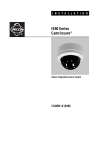
FD5 Series 650 TV lines
Ruggedized/Outdoor Dome Camera
Installation/Operation Manual
18 to 32 VAC (Revision A)
EN_C3970M (05/14)
Before attempting to connect or operate this product, please read these instructions
carefully and save this manual for future use.
FD5 series model names:
FD5-V9-6(X)
FD5-DV10-6(X)
FD5-IRV10-6(X)
FD5-DWV10-6(X)
FD5-DWV22-6(X)
1
CONTENTS
CONTENTS
Important Safety Instructions ................................................................................................................................... 4
REGULATORY NOTICES [FCC CLASS B] ........................................................................................................... 5
Warranty .............................................................................................................................................................. 6
1. Introduction............................................................................................................................................................. 7
1.1 Before You Begin ........................................................................................................................................ 7
1.2 Package Contents ....................................................................................................................................... 7
1.3 Optional Accessories .................................................................................................................................. 7
1.4 Dimensions .................................................................................................................................................. 7
1.5 Names of Camera Parts............................................................................................................................. 8
1.6 Routine Maintenance.................................................................................................................................. 8
2. Installation .............................................................................................................................................................. 9
2.1 Disassembling the Camera ....................................................................................................................... 9
2.2 Installing the Waterproof Plug ................................................................................................................. 10
2.3 Connecting the Wiring .............................................................................................................................. 10
2.4 Mounting the Camera ............................................................................................................................... 10
2.5 Optional Camera Settings........................................................................................................................ 13
2.6 Adjusting the Camera Position ................................................................................................................ 14
2.7 Adjusting the Lens (if equipped with vari-focal lens)............................................................................ 14
2.8 Completing the Installation ...................................................................................................................... 15
2.9 General Help for Waterproof Plug Installation ...................................................................................... 16
3. OSD Menu ............................................................................................................................................................ 18
4. OSD Menu Settings ............................................................................................................................................ 20
4.1(A) LENS...................................................................................................................................................... 21
4.2(A) SHUTTER/AGC ................................................................................................................................... 21
4.3(A) WHITE BAL .......................................................................................................................................... 22
4.4(A) BACKLIGHT ......................................................................................................................................... 23
4.5(A) PICTURE ADJUST .............................................................................................................................. 23
4.6(A) ATR* ...................................................................................................................................................... 23
4.7(A) MOTION DET ....................................................................................................................................... 24
4.8(A) PRIVACY .............................................................................................................................................. 24
4.9(A) DAY/NIGHT .......................................................................................................................................... 25
4.10(A) NR ........................................................................................................................................................ 25
4.11(A) CAMERA ID........................................................................................................................................ 26
4.12(A) SYNC................................................................................................................................................... 26
4.13(A) LANGUAGE........................................................................................................................................ 26
4.14(A) CAMERA RESET .............................................................................................................................. 26
4.15(A) SAVE ALL ........................................................................................................................................... 26
4.1(B) LENS.......................................................................................................................................................27
4.2(B) SHUTTER/AGC ................................................................................................................................... 28
4.3(B) WHITE BAL .......................................................................................................................................... 29
4.4(B) HLC/BLC ............................................................................................................................................... 30
4.5(B) PICTURE ADJUST .............................................................................................................................. 31
4.6(B) WDR ...................................................................................................................................................... 31
4.7(B) MOTION DET ....................................................................................................................................... 32
4.8(B) PRIVACY .............................................................................................................................................. 32
4.9(B) DAY/NIGHT .......................................................................................................................................... 32
4.10(B) 3D NR .................................................................................................................................................. 33
4.11(B) CAMERA ID........................................................................................................................................ 33
4.12(B) SYNC................................................................................................................................................... 33
4.13(B) LANGUAGE........................................................................................................................................ 33
4.14(B) CAMERA RESET .............................................................................................................................. 33
4.15(B) EZOOM ............................................................................................................................................... 33
4.16(B) DIS ....................................................................................................................................................... 34
4.17(B) FOCUS ADJ ....................................................................................................................................... 34
4.18(B) ALARM ................................................................................................................................................ 34
EN_C3970M (05/14)
2
CONTENTS
CONTENTS
4.19(B) REMOTE............................................................................................................................................. 35
4.20(B) SAVE ALL ........................................................................................................................................... 35
5. Specifications ....................................................................................................................................................... 36
Pelco Troubleshooting Contact Information......................................................................................................... 41
Note for Dimension Drawings ................................................................................................................................ 41
EN_C3970M (05/14)
3
Important Notices
Important Safety Instructions
1.
Read these instructions.
2.
Keep these instructions.
3.
Heed all warnings.
4.
Follow all instructions.
5.
Clean only with dry cloth.
6.
Do not block any ventilation openings. Install in accordance with the manufacturer’s instructions.
7.
Do not install near any heat sources such as radiators, heat registers, stoves, or other apparatus (including amplifiers) that
produce heat.
8.
Protect the power cord from being walked on or pinched particularly at plugs, convenience receptacles, and the points where
they exit from the apparatus.
9.
Only use attachments/accessories specified by the manufacturer.
10. Use only with the cart, stand, tripod, bracket, or table specified by the manufacturer, or sold with the apparatus. When a cart is
used, use caution when moving the cart/apparatus combination to avoid injury from tip-over.
11. Refer all servicing to qualified service personnel. Servicing is required when the apparatus has been damaged in any way,
such as power-supply cord or plug is damaged, liquid has been spilled or objects have fallen into the apparatus, the apparatus
has been exposed to rain or moisture, does not operate normally, or has been dropped.
12. WARNING: To reduce the risk of fire or electric shock, do not expose this apparatus to rain or moisture.
13. Installation should be done only by qualified personnel and conform to all local codes.
14. Unless the unit is specifically marked as a NEMA Type 3, 3R, 3S, 4, 4X, 6, or 6P enclosure, it is designed for indoor use only
and it must not be installed where exposed to rain and moisture.
15. Use only installation methods and materials capable of supporting four times the maximum specified load.
16. Use stainless steel hardware to fasten the mount to outdoor surfaces.
17. To prevent damage from water leakage when installing a mount outdoors on a roof or wall, apply sealant around the bolt holes
between the mount and mounting surface.
18. An all-pole mains switch with a contact separation of at least 3 mm in each pole shall be incorporated in the electrical
installation of the building.
19. A readily accessible disconnect device shall be incorporated in the building installation wiring.
20. The socket-outlet shall be installed near the equipment and shall be easily accessible.
EN_C3970M (05/14)
4
Important Notices
CAUTION: These servicing instructions are for use by qualified service personnel only. To reduce the risk of electric shock do not
perform any servicing other that contained in the operating instructions unless you are qualified to do so.
CAUTION: Danger of explosion if battery is incorrectly replaced. Replace only with the same or equivalent type. Dispose of used
batteries according to the instructions provided by the battery manufacturer.
Only use replacement parts recommended by Pelco.
The product and/or manual may bear the following marks:
This symbol indicates that dangerous voltage constituting a risk of electric shock is present within this unit.
CAUTION: RISK OF ELECTRIC SHOCK. DO NOT OPEN.
This symbol indicates that there are important operating and maintenance instructions in the literature accompanying
this unit
WARNING: This product is sensitive to Electrostatic Discharge (ESD). To avoid ESD damage to this product, use
ESD safe practices during installation. Before touching, adjusting or handling this product, correctly attach an ESD
wrist strap to your wrist and appropriately discharge your body and tools. For more information about ESD control
and safe handling practices of electronics, please refer to ANSI/ESD S20.20-1999 or contact the Electrostatic
Discharge Association (www.esda.org).
REGULATORY NOTICES [FCC CLASS B]
This device complies with Part 15 of the FCC Rules. Operation is subject to the following two conditions: (1) this device
may not cause harmful interference, and (2) this device must accept any interference received, including interference that
may cause undesired operation.
RADIO AND TELEVISION INTERFERENCE
This equipment has been tested and found to comply with the limits of a Class B digital device, pursuant to Part 15 of the
FCC Rules. These limits are designed to provide reasonable protection against harmful interference in a residential
installation. This equipment generates, uses, and can radiate radio frequency energy and, if not installed and used in
accordance with the instructions, may cause harmful interference to radio communications. However there is no guarantee
that the interference will not occur in a particular installation. If this equipment does cause harmful interference to radio or
television reception, which can be determined by turning the equipment off and on, the user is encouraged to try to correct
the interference by one or more of the following measures:
•
•
•
•
Reorient or relocate the receiving antenna.
Increase the separation between the equipment and the receiver.
Connect the equipment into an outlet on a circuit different from that to which the receiver is connected.
Consult the dealer or an experienced radio/TV technician for help.
You may also find helpful the following booklet, prepared by the FCC: “How to Identify and Resolve Radio-TV Interference
Problems.” This booklet is available from the U.S. Government Printing Office, Washington D.C. 20402.
Changes and Modifications not expressly approved by the manufacturer or registrant of this equipment can void your
authority to operate this equipment under Federal Communications Commission’s rules.
This Class B digital apparatus complies with Canadian ICES-003.
Cet appareil numérique de la classe B est conforme à la norme NMB-003 du Canada.
EN_C3970M (05/14)
5
Important Notices
Warranty
For information about Pelco’s product warranty and thereto related information, refer to www.pelco.com/warranty.
Operating Notes:
Warning:
For FD5 camera 18 to 32 VAC (Revision A); released in 2014,
• Connect to 12 VDC or 18 to 32 VAC power adapter
For older FD5 cameras (Prior to Revision A)
• Connect to 12 VDC or 24 VAC power adapter.
Operating Conditions
• Avoid viewing very bright objects (for example, light fixtures) for extended periods.
•
Avoid operating or storing the unit in the following locations:
- Extremely humid, dusty, hot/cold environments where the operating temperature is outside
the recommended range.
- Close to sources of powerful radio or TV transmitters
- Close to fluorescent lamps or objects reflecting light
- Under unstable light sources (may cause flickering)
Suggested Installation:
- For outdoor environmental conditions from -30°C to +50°C (-22°F to 122°F), use only an AC
power supply source (18 to 32VAC)
- For indoor or outdoor applications with ambient temperatures of 0°C to +50°C (32°F to
122°F), use 12VDC power, or an AC power supply source (18 to 32VAC)
EN_C3970M (05/14)
6
Introduction
1. Introduction
The dome camera series are ideal for outdoor installation in a commercial environment. With 3-axis
mount support, it provides flexible installation on a ceiling or wall even at an angle.
1.1 Before You Begin
Please read this guide carefully before you install the dome camera. Keep this guide for future reference.
1.2 Package Contents
Check that the items received match those listed on the order form and packing slip. The dome camera
series packing box includes:
• One fully assembled camera
• Four screw anchors and TP4x25mm tapping screws
• Four M4x15mm screws
• One guide pattern
• One user manual
• One waterproof plug
• One T20 wrench
If any parts are missing or damaged, contact the dealer you purchased the camera from.
1.3 Optional Accessories
• FD-SC service cable
We recommend you connect a local viewing monitor via the optional FD-SC service cable for setup.
1.4 Dimensions
EN_C3970M (05/14)
7
Introduction
1.5 Names of Camera Parts
Figure 1-1 FD5-V9-6(X)
Figure1-3 FD5-IRV10-6(X)
A.
B.
C.
Figure1-2 FD5-DV10-6(X)
Figure1-4 FD5-DWV10-6(X)
FD5-DWV22-6(X)
Video output connector
18 to 32 VAC /12 VDC power Input connector (Red +/Black -)
Alarm Out: Connect to device that responds to alarm signals (Blue+/Brown-).
Note: See Figure 2-7 for camera setup controls.
1.6 Routine Maintenance
• The dome cover is an optical part. Use a soft, dry cloth to remove any fingerprints or dust.
• Clean the camera housing with a soft, dry cloth. For more stubborn stains, use a cloth dampened with
a small quantity of neutral detergent, then wipe dry.
Caution: Do not use volatile solvents such as alcohol, benzene or thinners to avoid damaging the
surface finish.
EN_C3970M (05/14)
8
Installation
2. Installation
2.1 Disassembling the Camera
Before you mount and adjust the camera, follow these steps to disassemble the camera.
1. Loosen the installed torx screws and remove them.
2. Remove the inner liner by gently pulling it free from the tilt adjustment bracket. For the models without
inner liner, please simply skip this step.
3. Set the dome cover (and liner) aside.
1. Bottom case
2. Tilt adjustment bracket
3. Inner liner
4. Dome cover
FD5-V9-6(X)/FD5-DV10-6(X)
1. Bottom case
2. Tilt adjustment bracket
3. Dome cover
FD5-IRV10-6(X)
FD5-DWV10-6(X)
FD5-DWV22-6(X)
1. Bottom case
2. Tilt adjustment bracket
3. Inner liner
4. Dome cover
Figure 2-1 Disassemble the Camera
EN_C3970M (05/14)
9
Installation
2.2 Installing the Waterproof Plug
Plug the waterproof plug into the side conduit hole, or bottom conduit hole if side conduit hole is used for
wiring. See “2.9 General help for installing waterproof plug” for more information.
Figure 2-2 Waterproof Plug Installation
2.3 Connecting the Wiring
Refer to Figure 1-1/1-2/1-3/1-4 to connect the video connect output connector (A) and 24 VAC/18 to 32
VDC power connector (B).
Caution: For DC power supply use, make sure the polarity is correct to avoid malfunction and / or
camera damage.
Note: When powering camera using 12VDC, we recommend that the camera is installed with a
separate, isolated power supply to minimize power-related video interference.
2.4 Mounting the Camera
1. Attach the mounting template to the wall or ceiling.
Figure 2-3
EN_C3970M (05/14)
10
Installation
2. Before mounting the dome on a ceiling or a wall, please designate two screw holes or four screw
holes and pull out the corresponding outer rubber plugs by using tools like a screwdriver, etc.
Note: With four screw anchors and TP4x25mm tapping screws provided, you can choose two-hole
installation (refer to Figure 2-4) or change to four-hole installation (refer to Figure 2-5) when mounting
the camera on a ceiling or wall. This manual describes two-hole installation only.
Figure 2-4
Figure 2-5
Note: Don’t pull out the other rubber plugs to keep the IP66 performance of the camera. Also, never
remove the inside rubber plugs. Always install mounting screw through the inside plug.
EN_C3970M (05/14)
11
Installation
3. Drill two holes, and then insert the screw anchors (#1) into the holes.
4. Secure the bottom case to the wall or ceiling with the TP4 x 25 mm tapping screws supplied (#2).
①
1. Screw anchors (x4), supplied
2. TP4 x 25mm tapping screws
(x4), supplied
②
Figure 2-6 (typical)
Note: Depending on the material of your mounting surface, you may require different screws and
anchors than those supplied. Use caution to maintain a water tight seal to the mounting hardware.
EN_C3970M (05/14)
12
Installation
2.5 Optional Camera Settings
Refer to Figure 2-7 to locate the OSD joystick control on the camera board. Use the joystick to access
the OSD menu and configure the camera settings as required.
To use the OSD joystick control:
• Press the OSD joystick control straight down to enter the Main menu or a selected item.
• Move the OSD joystick control UP, DOWN, LEFT and RIGHT to navigate through menus and options.
For further information on OSD settings, refer to the “4.OSD Settings” section.
Note: Connect a local viewing monitor via the optional FD-SC service cable for setup.
1. Monitor out
2. OSD Joystick Control
3. Camera mounting holes
Figure 2-7 Camera Adjustment Controls
EN_C3970M (05/14)
13
Installation
2.6 Adjusting the Camera Position
The dome camera has three axes for positioning the camera. While monitoring the picture on the monitor,
adjust the camera position as follows:
• Pan Adjustment: Rotate 3D assembly in the base. Do not turn assembly more than 360° as this may
cause the internal cables to twist and disconnect or break.
• Tilt Adjustment: After loosening the screw on the bracket, position the camera as desired, and then
tighten the screw back to the bracket.
• Horizontal Rotation: For wall mount and tilted ceilings, rotate the lens base (maximum 360°) until you
are satisfied with the field of view.
2.7 Adjusting the Lens (if equipped with vari-focal lens)
1.
2.
3.
Loosen the zoom lever (#4) counter-clockwise a little, and then rotate the zoom lever and
determine the image view.
Loosen the focus lever (#5) counter-clockwise a little, and then adjust the focus for optimum
picture sharpness.
Re-tighten the zoom lever and focus lever after adjustment.
Note: It is important that you lock the zoom and focus levers after making adjustments. This will avoid
the positions moving (for example, from temperature changes or vibrations).
FD5-V9-6(X)/FD5-DV10-6(X)
FD5-IRV10-6(X)
Instructions for the Figure 2-8 Camera adjustment:
1.
Rotate 3D assembly in base for horizontal adjustment
2.
Tilt adjustment bracket and screw for vertical
adjustment
3.
Axis ring for horizontal rotation on wall mount / tilted ceilings
4.
Zoom lever
5.
Focus lever
FD5-DWV10-6(X)
FD5-DWV22-6(X)
Figure 2-8 Camera Adjustment
EN_C3970M (05/14)
14
Installation
2.8 Completing the Installation
Once all adjustments are done, attach and secure the camera housing:
1. Use a soft, lint-free cloth to wipe the dome cover clean and remove fingerprints.
2. Attach the inner liner to the tilt adjustment bracket. Push down until it clicks into place (with no liner
skip this step). Disconnect the optional FD-SC service cable.
3. Assemble the dome cover and the bottom case.
1. Bottom case
2. Tilt adjustment bracket
3. Dome cover
1. Bottom case
2. Tilt adjustment bracket
3. Inner liner
4. Dome cover
FD5-V9-6(X)/FD5-DV10-6(X)
FD5-IRV10-6(X)
FD5-DWV10-6(X)
FD5-DWV22-6(X)
1. Bottom case
2. Tilt adjustment bracket
3. Inner liner
4. Dome cover
Figure 2-9 Completing the Installation
EN_C3970M (05/14)
15
Installation
2.9 General Help for Waterproof Plug Installation
As “2.2 Installing the waterproof plug” mentioned, install the waterproof plug into the side conduit
hole.
If you want to install the waterproof plug to the bottom of the camera, please take the following
steps:
1. Unplug the camera’s internal Output cable connector that inserted in the interface (refer to Figure
2-10) and push the waterproof rubber plug out from within camera as shown in Figure 2-11.
Figure 2-10
Figure 2-11
2. Remove waterproof plug from the side of the camera and install it to the bottom as shown in
Figure 2-12.
3. Put Output cable through the side conduit hole and insert the cable waterproof rubber plug into the
side conduit hole (refer to Figure 2-12).
EN_C3970M (05/14)
16
Installation
Figure 2-12
Notes:
• Please make sure to lock the bottom waterproof plug to avoid waterproof failure.
• Please make sure to plug the cable waterproof rubber plug into the side conduit hole tightly to
avoid waterproof failure.
4. Confirm the internal waterproof rubber plug is tightly fixed with under cover for preventing it from
falling out or waterproof failure (refer to Figure 2-13).
Figure 2-13
5. Re-plug the camera’s internal output cable connector.
6. Complete waterproof plug installation.
EN_C3970M (05/14)
17
OSD Setup Menu
3. OSD Menu
Set up menu
Default set
Menu
Lens
AUTO
AUTO/Manual
Shutter/AGC
AUTO
AUTO (High Luminance, Low Luminance)/ Manual (Mode,
Shutter, AGC)
WHITE BAL
Backlight
Pic Adjust
ATR
Motion Det
ATW
OFF
Option
OFF
OFF
ATW/Push Lock/User1/User2/Anti CR/Manual
OFF/BLC/HLC
Mirror, Brightness, Contrast, Sharpness, Hue, Gain
OFF/ON (Luminance, Contrast)
OFF/ON (Detect Sense, Block DISP, Motion Area, Area Sel)
Privacy
OFF
OFF/ON (Area Sel, Color, Transp, Mosaic)
Day/Night
AUTO
AUTO/BW/Color
NR
OFF
NR Mode (Off, Y, C)
Y Level
C Level
Camera ID
SYNC
OFF
INT
OFF/ON
INT
Language
English
ENGLISH / SPANISH / RUSSIAN / GERMAN / FRENCH /
JAPANESE or PORTUGUESE
Camera Reset
Exit
Save All
Table 3-1 OSD Menu of FD5-V9-6(X)/ FD5-DV10-6(X)/ FD5-IRV10-6(X)
Note: The FD5-IRV series camera will automatically switch to B/W mode when the illumination is under a
certain threshold. Day/Night setting is not available for this model.
EN_C3970M (05/14)
18
OSD Setup Menu
Set up menu
Default set
Menu
Lens
AUTO
Auto / Manual
Shutter / AGC
Option
White / Bal
ATW
HLC / BLC
Option
Pic Adjust
Option
WDR
Full WDR
Motion Det
OFF
Privacy
Option
Day / Night
AUTO
Auto (High Luminance, Low Luminance)
ATW, PUSH, USER1, USER2, Anti CR , MANUAL,
PUSH LOCK
OFF / BLC / HLC
Flip, Contrast, Sharpness, Chroma, Blemish Det,
Negative
OFF / Full WDR / Light WDR (Contrast)
OFF / ON (Detect Sense, Area Sel, Mode, Top, Bottom,
Left, Right)
OFF / ON (Area Sel, Mode, Position, Color, Transp,
Mosaic)
Auto / Color / Mono
NR
Option
Level
Camera ID
OFF
OFF / ON
SYNC
INT
Language
English
INT
ENGLISH / SPANISH / RUSSIAN / GERMAN /
FRENCH / JAPANESE or PORTUGUESE
Camera Reset
Option
Ezoom
Option
Mag / Pan / Tilt
DIS
OFF
OFF/ON
Focus ADJ
Option
Focus Val
Alarm
Option
Defocus Txt, Alarm Out, Trigger, Normal Out
Back
Exit
Save All
Table 3-2 OSD Menu of FD5-DWV10-6(X) / FD5-DWV22-6(X)
EN_C3970M (05/14)
19
Menu Settings
4. OSD Menu Settings
Entering OSD Menu
Push in on the joystick to open the Main menu. Use the UP/DOWN functions of the joystick to move the
cursor to the item you want to modify. A selected menu item will be highlighted.
Press UP: Press to move the cursor up.
Press Down: Press to move the cursor down.
Enter button: Push in on the joystick to enter the selected item or change the settings of the
selected item.
Press Right: Press to change the settings of the selected item.
Press Left: Press to change the settings of the selected item.
Note: When an item is selected, it will be highlighted.
After all the settings have been satisfied, move the cursor to the "Save All" item and press the enter
button. Then move the cursor to the "EXIT" item and press the enter button to exit OSD setup menu.
You can also restore the settings to factory default by moving the cursor to the "CAMERA RESET" item
and then pressing the Enter button. Then move the cursor to the "Save All" item and press the Enter
button.
EN_C3970M (05/14)
20
Menu Settings
Section 4 (A) is for models:
FD5-V9-6(X)
FD5-DV10-6(X)
FD5-IRV10-6(X)
Use the OSD menu to set up the camera for optimum performance.
LENS
SHUTTER/AGC
WHITE BAL
BACKLIGHT
PICT ADJUST
ATR
MOTION DET
NEXT
EXIT
AUTO
AUTO
ATW
OFF
OFF
OFF
SAVE ALL
PRIVACY
OFF
DAY/NIGHT
AUTO
NR
CAMERA ID
OFF
SYNC
INT
LANGUAGE
ENGLISH
CAMERA RESET
BACK
EXIT
SAVE ALL
4.1(A) LENS
Select Auto or Manual lens function. The default setting is AUTO (Auto Iris lens). Move the joystick
control LEFT or RIGHT to select Auto or Manual Lens. Enter the AUTO submenu as shown in the figure.
Move the joystick control UP or DOWN to open, close, or set IRIS to auto mode. Move the joystick
control UP or DOWN to adjust the DC Iris Lens convergence speed.
If the speed value is lower, the IRIS will be slower. If speed value is higher, the IRIS will be faster.
TYPE
MODE
SPEED
RETURN
DC
OPEN
046
4.2(A) SHUTTER/AGC
Set Shutter speed/AGC (Auto Gain Control) function. The default setting is AUTO. Move the joystick
control LEFT or RIGHT to select AUTO or MANUAL.
SUGGESTED USE:
DC Lens: When using DC lens, we recommend you set SHUTTER/AGC to AUTO mode. Enter the AUTO
submenu as shown in the figure. Move the joystick control UP or DOWN to adjust HIGH LUMINANCE
MODE to AUTO IRIS.
Manual Lens: When using MANUAL lens, we recommend you set SHUTTER/AGC to AUTO mode. Enter
the AUTO submenu as shown in the figure. Move the joystick control UP or DOWN to adjust HIGH
LUMINANCE MODE and LOW LUMINANCE setting.
EN_C3970M (05/14)
21
Menu Settings
AUTO IRIS and SHUT+AUTO IRIS difference
• Use DC lens and setting to AUTO IRIS mode for normal condition application environments.
The IRIS level will be controlled by camera brightness.
• Use DC lens and setting to SHUT+AUTO IRIS mode for high light application environments. The
exposure will be controlled by AES or the DC Iris. The iris level will be controlled by camera brightness.
HIGH LUMINANCE
MODE
BRIGHTNESS
LOW LUMINANCE
MODE
BRIGHTNESS
RETURN
AUTO IRIS
024
AGC
x 0.25
This function adjusts the level of video out in a low light condition (when AGC mode is ON and/or SlowShutter mode is ON).
Brightness Level: x0.25, x0.50, x0.75, x1.00 (default setting is x1.00 – brightest).
If image is too bright in low-light decrease the level.
In low light more noise may be seen if Brightness Level is set to x1.00 with AGC ON mode.
In low light more motion artifacts may be seen if Brightness Level is set to x1.00 with Slow-Shutter ON mode.
This feature is disabled when WDR Mode is ON.
The shutter speed is variable from 1/50(1/60) sec to the 1/10Ksec and the AGC is selectable depending
on your environment condition.
MODE
SHUTTER
AGC
RETURN
SHUT+AGC
1/50(1/60)
6.0
Note:Menu settings for Lens and Shutter/AGC
• When the camera first starts up the menu setting for Lens=Auto (Mode=Auto) and the settings for
Shutter/AGC= High Luminance=Auto Iris
• When you change Lens=Manual then the default settings for Shutter/AGC= High Luminance=Shut
• When you change Lens=Auto then the settings for Shutter/AGC=Shut+AutoIris (this is not the default
value of menu setting when first turned on)
4.3(A) WHITE BAL
WHITE BALANCE controls color on the screen. The default is ATW. The color temperature range is
2500°K ~ 9500°K. Move the joystick control LEFT or RIGHT to select ATW (Auto White Balance), PUSH,
PUSH LOCK, USER1, USER2, Anti CR (Anti Color Rolling Suppression) or MANUAL mode. Enter the
ATW submenu as shown in the figure below. Move the joystick control UP or DOWN to select the
desired value. Select ATW (Auto White Balance) when the scene illumination varies between outdoor
scenes and outdoor scene lighting.
Note: When setting different value of ATW FRAME and application environment, the color temperature
range of white balance will be changed. The color temperature range of x0.50 of ATW FRAME will be
smaller than x2.00.
SPEED
DELAY CNT
ATW FRAME
ENVIRONMENT
RETURN
EN_C3970M (05/14)
171
152
x 0.50
OUTDOOR
22
Menu Settings
If you select MANUAL mode, you can adjust LEVEL from 17 to 54.
If you select USER1 or USER2 mode, you can adjust B-GAIN and R-GAIN value from 0 to 255.
If you select PUSH mode in the appropriate position, the whole area will perform white balance.
If you select PUSH LOCK mode in the appropriate position, WHITE BALANCE will perform once.
If you select Anti CR mode in the appropriate position, the whole area will effectively restrain color cast.
4.4(A) BACKLIGHT
Set the Backlight compensation function. The default is OFF. Move the joystick control LEFT or RIGHT
to select OFF, BLC or HLC (Highlight Compensation) mode. When you switched BLC, the function
controls the light level to overcome severe backlighting conditions. HLC activated automatically
depending on the shooting condition (detects night and high-luminance)
BLC and HLC Compensation are the functions that achieve the brightness of a selected area to an
optimum image level. Due to the intense light coming from the back of objects in the area expected to
view, the auto iris lens tends to close and areas you want to see become dark and invisible.
4.5(A) PICTURE ADJUST
Set the PICTURE ADJUST function. Enter the PICT ADJUST submenu as shown in the figure below.
Move the joystick control UP or DOWN to set picture Brightness, Contrast, Sharpness, Hue, or Gain
value. In addition, you can set MIRROR to the ON mode then the picture to be left or right.
MIRROR
BRIGHTNESS
CONTRAST
SHARPNESS
HUE
GAIN
RETURN
OFF
000
128
128
128
128
4.6(A) ATR*
Set the ATR (Adaptive Tone-curve Reproduction) function. The default is OFF. Move the joystick control
LEFT or RIGHT to select the ON mode, then enter to the ATR submenu. You can set LUMINACE and
CONTRAST to optimize by image.
LUMINANCE
CONTRAST
RETURN
LOW
LOW
*Also known as Wide Dynamic Range. This function expands the video dynamic range of the camera
and improves visibility of images even in high contrast environments.
EN_C3970M (05/14)
23
Menu Settings
4.7(A) MOTION DET
Set the Motion Detection function. MOTION DET allows moving objects to be detected on the screen.
The default is OFF. Move the joystick control LEFT or RIGHT to select the ON mode then enter to the
MOTION DET submenu. You can set 4 motion areas to detect moving objectives and adjust the motion
detection sensitivity. Use the LEFT/RIGHT functions of the joystick control to set the sensitivity from 000
to 127.
DETECT SENSE
BLOCK DISP
MONITOR AREA
AREA SEL
TOP
BOTTOM
LEFT
RIGHT
RETURN
100
OFF
OFF
1/4
000
000
000
000
Note: Only FD5-DV10(X) and FD5-IRV10(X) have "Alarm Out”, but no menu items for this function, so
you can set the alarm out by following these instructions:
For FD5-DV10(X)/ FD5-IRV10(X), the motion detection item also controls alarm out. So you need to
select the motion detection function to set alarm out.
Select BLOCK DISP to trigger motion detection. If something is moving in the area, the image will show
blocks. It is just a warning message to the user. Enter button around 2~3 sec, It will exit to BLOCK DISP.
MONITOR AREA also means "Alarm Area". If you use the model included "Alarm Out", you can set the
area you want to trigger motion detection when there is something moving in your selected area. If you
have connected external devices such as sirens or flashing lights to the alarm output connector to signal
users of the camera that an alarm is activated.
4.8(A) PRIVACY
Set the Privacy function. The default setting is OFF. Move the joystick control LEFT or RIGHT to select
the ON mode then enter to the PRIVACY submenu. You can configure 8 privacy positions, set 8 privacy
areas, choose different color zones and set transparency of 8 privacy zones. However if you enable the
MOTION DET function, then the PRIVACY function will support 4 zones only. In addition, the image of
PRIVACY can allow you to set the MOSAIC function.
REA SEL
TOP
BOTTOM
LEFT
RIGHT
COLOR
TRANSP
MOSAIC
RETURN
EN_C3970M (05/14)
1/8
000
000
000
000
1
0.00
OFF
24
Menu Settings
4.9(A) DAY/NIGHT
Set the DAY/NIGHT function. The default setting is AUTO. Move the joystick control LEFT or RIGHT to
select the AUTO, COLOR, BW mode. Enter the AUTO submenu as shown in the figure below. Move the
joystick control UP or DOWN to adjust BURST value and set the time before the camera switches to
DAY-> NIGHT mode or NIGHT->DAY mode.
Select Day->NIGHT level to set up switchover point of brightness from COLOR mode to B/W mode
under different Lux levels.
Select NIGHT->DAY level to set up switchover point of brightness from B/W mode to COLOR mode
under different Lux levels.
BURST
DELAY CNT
DAY->NIGHT
NIGHT->DAY
RETURN
OFF
100
100
100
If you selected COLOR mode, you can force the camera to stay in DAY (COLOR) mode.
If you selected BW mode, you can force the camera to stay in BW (NIGHT) mode. The BW submenu
allows you to turn ON or OFF the BURST signal. What’s the difference between BURST ON and BURST
OFF? When you select ON, the image is color with the signal of Y (BRIGHT) / C (COLOR); however, the
signal value of C (COLOR) is 0.
Note: The FD5-IRV series camera will automatically switch to B/W mode when the illumination is under a
certain threshold. There is no need to adjust this setting.
4.10(A) NR
You can configure the 2D DNR (Digital Noise Reduction) settings and reduce noise on the screen. Enter
NR submenu as shown in the figure below. Move the joystick control UP or DOWN to set NR MODE.
When you enable the NR MODE to the Y (BRIGHT) / C (COLOR), C LEVEL or Y LEVEL mode, you can
adjust Y LEVEL or C LEVEL depending on your environment condition.
NR MODE
Y LEVEL
C LEVEL
RETURN
Y/C
000
000
Note: When the Y Level value higher the noise in dark areas lessons. Also, the resolution will become
lower. When it is lower, there is more noise in dark areas.
When the C Level is higher the noise in dark areas lessons. Also, the resolution will become lower.
When it is lower, there is more noise in dark areas.
In the dark environment, you can adjust the value higher of Y Level to reduce the dark noise; adjust the
value higher of C Level to reduce the color noise.
EN_C3970M (05/14)
25
Menu Settings
4.11(A) CAMERA ID
CAMERA ID displays ON or OFF. The default setting is OFF. You can set the ON mode to add a camera
title up to 26 characters at 2 lines and on the top of the monitor screen.
4.12(A) SYNC
The default setting is INT. This has no adjustment.
4.13(A) LANGUAGE
OSD supports 6 available languages. The default setting is English. Move the joystick control LEFT or
RIGHT to select the ENGLISH / SPANISH / RUSSIAN / GERMAN / FRENCH / JAPANESE or
PORTUGUESE.
4.14(A) CAMERA RESET
Move to the CAMERA RESET mode then Press the ENTER key to recall factory settings.
4.15(A) SAVE ALL
Save all settings and exit.
“Save All” MUST be selected. If not selected, settings will revert to previously saved settings if power is
cycled.
EN_C3970M (05/14)
26
Menu Settings
Section 4 (B) is for models:
FD5-DWV10-6(X)/FD5-DWV22-6(X)
Use the OSD menu to set up the camera for optimum performance.
SETUP MENU 1/3
LENS
SHUTTER/AGC
WHITE BAL
HLC/BLC
PICT ADJUST
WDR
MOTION DET
NEXT
EXIT
AUTO
ATW
FULL WDR
OFF
SAVE ALL
SETUP MENU 2/3
PRIVACY
DAY/NIGHT
NR
CAMERA ID
SYNC
LANGUAGE
CAMERA RESET
BACK
EXIT
AUTO
OFF
INT
ENGLISH
NEXT
SAVE ALL
SETUP MENU 3/3
EZOOM
DIS
FOCUS ADJ
ALARM
BACK
EXIT
OFF
SAVE ALL
Note: All the value or configurations shown in the figures above are the camera’s default settings.
4.1(B) LENS
The LENS settings allow you to configure Lens and speed. The options are AUTO (Auto Iris lens) and
MANUAL. The default setting is AUTO.
In the AUTO submenu, you can set the MODE as AUTO. Then select SPEED to adjust the DC Iris Lens
convergence speed from 000~255.
If the speed value is lower, the IRIS will be slower. If the speed value is higher, the IRIS will be faster.
AUTO IRIS
TYPE
MODE
SPEED
DC
AUTO
048
RETURN
EN_C3970M (05/14)
27
Menu Settings
4.2(B) SHUTTER/AGC
You can set the SHUTTER/AGC as AUTO or MANUAL. The default setting is AUTO.
You can select HIGH LUMINANCE MODE or LOW LUMINANCE MODE and adjust the BRIGHTNESS.
The brightness level ranges from 0~255. The IRIS level will be controlled by camera brightness.
SUGGESTED USE:
DC Lens: When using the DC lens, we recommend you set SHUTTER/AGC to AUTO mode. Enter the
AUTO submenu as shown in the figure below. Move the joystick control UP or DOWN to adjust HIGH
LUMINANCE MODE to AUTO IRIS.
Manual Lens: When using the MANUAL lens, we recommend you set SHUTTER/AGC to AUTO mode.
Enter the AUTO submenu as shown in the figure below. Move the joystick control UP or DOWN to adjust
the HIGH LUMINANCE MODE and the LOW LUMINANCE setting.
AUTO SETUP
HIGH LUMINANCE
MODE
BRIGHTNESS
AUTO IRIS
034
LOW LUMINANCE
MODE
BRIGHTNESS
AGC
-
RETURN
The shutter speed is variable from 1/50(1/60) sec to the 1/10K sec and the AGC is selectable depending
on your environment condition.
AUTO IRIS and SHUT+AUTO IRIS difference
• Use the DC lens set to AUTO IRIS mode for normal condition application environments. The IRIS
level will be controlled by camera brightness.
• Use the DC lens set to SHUT+AUTO IRIS mode for high light application environments. The exposure
will be controlled by AES or the DC Iris. The iris level will be controlled by camera brightness.
In HIGH LUMINANCE MODE, the submenu appears as follows. When the high luminance mode is on,
the shut could not be set.
HIGH LUMINANCE SETUP
SHUT
-
RETURN
EN_C3970M (05/14)
28
Menu Settings
In LOW LUMINANCE MODE, LOW LUMINANCE could be set as AGC, SLOW, AGC→SLOW, AGC→
SLOW→AGC, and OFF.
BRIGHTNESS adjusts the level of video out in low-light conditions (when AGC mode is ON and/or SlowShutter mode is ON). Brightness Level: x0.25, x0.50, x0.75, x1.00 (default setting is x1.00 - brightest)
If the image is too bright in low light, decrease the level.
In low light more noise may be seen if the brightness Level is set to x1.00 with AGC ON mode.
In low light more motion artifacts may be seen if the Brightness Level is set to x1.00 with Slow-Shutter
ON mode.
Enter the LOW LUMINANCE MODE submenu shown as the following figure.
There are 10 levels for selection. Depending on your environment condition, SLOW SHUT could be
selected as OFF, x2, x4, x8, x16, x32, x64, x128, x256; the default SLOW SHUT is x4.
LOW LUMINANCE SETUP
AGC
SLOW SHUT
010
x4
RETURN
Note: Menu settings for Lens and Shutter/AGC
• When the camera first starts up the menu setting for Lens=Auto (Mode=Auto) and the settings for
Shutter/AGC=High Luminance=Auto Iris
• When you change Lens=Manual then the default settings for Shutter/AGC=High Luminance=Shut
• Slow Shutter is a method of a longer time passing from the moment the shutter opens till the moment it
closes, by which the camera lens is able to accumulate enough light intensity under low illuminating
environment for a better image. The bigger the value selected, the slower the shutter will be adopted.
4.3(B) WHITE BAL
WHITE BALANCE controls color on the screen. Options include ATW (Auto White Balance), PUSH,
USER1, USER2, Anti CR (Anti Color Rolling Suppression), MANUAL or PUSH LOCK mode. The default
is ATW. The color temperature range is 2500°K ~ 9500°K.
Enter the ATW submenu as shown in the figure below. Select ATW when the scene illumination varies
between indoor scenes and outdoor scene lighting. The SPEED and DELAY CNT have 000~255 levels
to select respectively. You can set ATW FRAME as x0.5, 1.0, 1.5, 2.0 or MAX.
In the Environment submenu, you can choose the standard, indoor or outdoor according to your
shooting environment.
ATW SETUP
SPEED
DELAY CNT
ATW FRAME
016
016
x1.0
ENVIRONMENT
STANDARD
RETURN
Note: When you are setting a different value of the ATW FRAME and the application environment, the
color temperature range of white balance will be changed. The color temperature range of x0.5 of ATW
FRAME will be smaller than x2.0.
EN_C3970M (05/14)
29
Menu Settings
If you selected MANUAL mode as shown in the following figure, you can adjust the LEVEL by pushing
enter or preset the configuration.
MANUAL WB
LEVEL UP
LEVEL DOWN
PRESET
PUSH ENTER
PUSH ENTER
RETURN
If you selected USER1 or USER2 mode as shown in the following figures, you can adjust the B-GAIN
and R-GAIN values from 000 to 255.
USER1 WB
B-GAIN
R-GAIN
USER2 WB
029
050
RETURN
B-GAIN
R-GAIN
045
038
RETURN
If you selected PUSH mode in the appropriate position, the whole area will perform white balance.
If you selected PUSH LOCK mode in the appropriate position, WHITE BALANCE will perform
once.
If you selected Anti CR mode in the appropriate position, the whole area will effectively restrain
color cast.
4.4(B) HLC/BLC
Set the Backlight Compensation (BLC) function and the Highlight Compensation (HLC) function. BLC
and HLC Compensation are the functions that achieve the brightness of a selected area to an optimum
image level. Due to the intense light coming from the back of objects in the area expected to view, the
auto iris lens tends to close and areas you want to see become dark and invisible.
Available options include OFF, ON or AUTO mode. The default is OFF.
If HLC is selected, HLC is activated automatically when the camera detects high-luminance.
When you select ON, the function controls the light level to overcome severe backlighting conditions.
The clip level ranges from 000 to 255 and the scale has 15 levels.
HLC/BLC
HLC
CLIP LEVEL
SCALE
BLC
OFF
000
010
-
RETURN
EN_C3970M (05/14)
30
Menu Settings
4.5(B) PICTURE ADJUST
PICTURE ADJUST allows you to adjust picture settings for the optimal image. In the PICT ADJUST
submenu, you can adjust picture Flip, Contrast, Sharpness, Chroma, Blemish detection, or Negative.
The options OFF, V-FLIP, H-FLIP and HV-FLIP are selectable in Flip line.
In the BLEMISH DET submenu, you can set the blemish compensation function. Press <SET> and wait
to be confirmed. After that, the white blemish will be removed, then back to the optimal image.
Contrast could be selected from 000 to 063, Sharpness is 000~015, and Chroma is 000~008.
PICT ADJUST
FLIP
CONTRAST
SHARPNESS
CHROMA
BLEMISH DET
NEGATIVE
OFF
038
008
002
SET
OFF
RETURN
4.6(B) WDR
Set the WDR (Wide Dynamic Range) function. The Wide Dynamic Range (WDR) function is intended to
provide clear images even under back light circumstances where the intensity of illumination can vary
widely.
The default setting is FULL WDR; it also has the options of OFF and LIGHT WDR. In WDR SETUP
submenu, you can set CONTRAST as MID, MIDHIGH, HIGH, LOW or MIDLOW to optimize the image.
The submenu of Light WDR is the same as the WDR SETUP submenu. Or you can select OFF to close
the WDR function.
WDR SETUP
CONTRAST
MID
RETURN
EN_C3970M (05/14)
31
Menu Settings
4.7(B) MOTION DET
MOTION DET allows you to detect moving objects on the screen. The default is OFF. If you select ON,
you will enter the MOTION DET submenu. You can set 4 motion areas to detect moving objectives and
adjust the motion detection sensitivity. The value of sensitivity is from 000 to 127.
MONITOR AREA
DETECT SENSE
AREA SEL
MODE
TOP
BOTTOM
LEFT
RIGHT
111
1/4
ON
002
003
004
005
RETURN
4.8(B) PRIVACY
The PRIVACY function masks up to 15 privacy areas on the screen from video monitoring. The default
setting is OFF. If you select ON, you will enter the PRIVACY submenu. You can configure up to 15
privacy areas and set color and transparency of the privacy zones. In addition, you can enable MOSAIC
function for the privacy zone.
PRIVACY
AREA SEL
MODE
POSITION
COLOR
TRANSP
MOSAIC
1/15
OFF
-
RETURN
Note: When TRANSP is 1.00, Mosaic function is not available.
4.9(B) DAY/NIGHT
Set the DAY/NIGHT function. The default setting is AUTO. Move the joystick control LEFT or RIGHT to
select the AUTO, COLOR, or MONO mode. Enter the AUTO submenu as shown in the figure below.
Move the joystick control UP or DOWN to turn BURST ON/OFF and set the time before the camera
switches to DAY-> NIGHT mode or NIGHT->DAY mode. The Delay CNT has a range from 000 to 255
and both switch modes allow you to select 20 levels.
DAY/NIGHT SETUP
BURST
DELAY CNT
DAY→NIGHT
NIGHT→ DAY
OFF
015
008
012
RETURN
EN_C3970M (05/14)
32
Menu Settings
Setting threshold for DAY -> NIGHT allows camera to detect and switch mode automatically under userdefined brightness value. The lower the value (Min. 0), the darker the environment needed for the
camera switching from DAY to NIGHT mode.
On the other hand, the threshold of NIGHT -> DAY is for the camera to switch automatically from NIGHT
to DAY mode under a certain defined value. The higher the value (Max. 20), the brighter the environment
needed for auto switching.
If you selected COLOR mode, you can force the camera to stay in COLOR (DAY) mode.
If you selected MONO mode, you can force the camera to stay in MONO (NIGHT) mode.
4.10(B) 3D NR
3D NR allows you to configure the DNR (Digital Noise Reduction) settings to reduce noise on the screen.
In the NR submenu, you can adjust NR LEVEL. When you enable the NR MODE, you can choose LOW,
MIDLOW, MID, MIDHIGH, or HIGH LEVEL depending on your environment condition.
NR SETUP
LEVEL
OFF
RETURN
4.11(B) CAMERA ID
Turn ON to display CAMERA ID or turn OFF to disable. The default setting is OFF. You can set to ON
mode to add a camera title up to 26 characters within 1 line appearing on the top of the monitor screen.
4.12(B) SYNC
The default setting is INT. This has no adjustment.
4.13(B) LANGUAGE
OSD supports 6 multi built-in languages. The default setting is English. Options include ENGLISH /
SPANISH / RUSSIAN / GERMAN / FRENCH / JAPANESE or PORTUGUESE.
4.14(B) CAMERA RESET
Move to the CAMERA RESET mode then Press the ENTER key to recall factory settings.
4.15(B) EZOOM
Enter EZOOM SETUP submenu as shown in the following figure. Move the joystick control LEFT or
RIGHT to select PAN /TILT value for zooming in and out f the image. The PAN range is 000~1023 and
the TILT range is 000~5110.
EZOOM SETUP
MAG
PAN
TILT
000
512
256
RETURN
EN_C3970M (05/14)
33
Menu Settings
4.16(B) DIS
The DIS (Digital Image Stabilizer) function detects a shaking image due to camera shaking, and perform
digital compensation processing to stabilize the image output. The default setting is OFF.
•
Note: When you choose DIS on, EZOOM function is NOT configurable at the same time.
4.17(B) FOCUS ADJ
The value shown is for reference on the precision of the focus level. The larger the value, the clearer the
image will be.
ADJUST FOCUS OF THE LENS
FOCUS VAL
2121
RETURN
4.18(B) ALARM
In this function line, you can set a series of general parameters for ALARM. Press joystick control to
enter the ALARM SETUP submenu as shown in the figure below.
ALARM SETUP
DEFOCUS TXT
ALARM OUT
TRIGGER
NORMAL OUT
AUX
OPEN
RETURN
For Submenu DEFOCUS TXT
Choose and press joystick control to enter the DEFOCUS TXT SETUP submenu as shown in the figure
below. The DEFOCUS TXT can be set as Off/ON, DEFOCUS LEVEL is 000~007. Use this feature when
your application requires screen notification of a camera tamper.
DEFOCUS SETUP
DEFOCUS TXT
DEFOCUS LEV
OFF
003
RETURN
For Submenu ALARM OUT
You can configure the ALARM OUT TRIGGER as AUX or MOTION DET. Choose AUX when your
application requires that the Coaxitron® remote control will be used to activate the Alarm Out. Choose
MOTION DET when your application requires that when motion is detected the Alarm Out is activated.
Only one type of Alarm Out can be specified.
EN_C3970M (05/14)
34
Menu Settings
Note:
When set to AUX, the Alarm Out function will operate as follows from Coaxitron remote control:
®
• AUX 1: Activates Alarm Out
• AUX 2: Activates Alarm Out for 2 seconds and then returns to deactivated state
• AUX 3: Deactivates Alarm Out
For Submenu NORMAL OUT
The default setting is Relay Open. The option can be set to Relay Closed. Configure this setting to
match your attached accessory logic.
4.19(B) REMOTE
This remote function does not show on the OSD menu. It is built in support for PELCO Coaxitron®. A
single video cable connection is used to transmit a video signal and control the PTZ and lens.
4.20(B) SAVE ALL
Save all settings and exit.
EN_C3970M (05/14)
35
Specification
5. Specifications
FD5-V Series
Camera System Type
Format
Optical System
Imager Size
IR Cut Filter
Electric
Sync System
Lens Options
Horizontal Resolution
Field Of View
Min. Object Distance
Sensitivity
Shutter
WDR
Noise Reduction-DNR
Motion Detection
Privacy Zones
Camera Titles
Connection/Termination
Set Up/OSD Input Device
Multi Language
Service Jack(RCA)
Set Up
Power supply
Power
Power Consumption
FD5-V9-6
NTSC
FD5-V9-6X
PAL
1/3"
Fixed
Internal
F1.2, 3-9mm, DC AI
650 TVL
fW 3mm Horizontal:(78°±2°)° Vertical:(57°±2°)°
fT 9mm Horizontal:31°°Vertical:23°
0.5m~∞
f/1.2; 2,850°K; 30 IRE
f/1.2 ; 30 IRE
Color (17 ms) 0.1 Lux
Color (20 ms) 0.1 Lux
Mono (17ms) 0.1 Lux
Mono (20 ms) 0.1 Lux
Auto: 1/60~1/10,000
Auto: 1/50~1/10,000
Manual: 1/60~10,000
Manual: 1/50~10,000
On / Off (selectable, ATR)
2D
Yes - Four (4) areas, sensitivity selectable
Yes-8 sizable windows
Yes
Flying leads (through the back)
Input Buttons/5 Way Rocker
English, Russian, German,
English, Russian, German,
French, Spanish, Japanese
French, Spanish, Portuguese
2 pin connector for monitor out
OSD
18 to 32 VAC 50/60 Hz/12 VDC +10% to -15% (Revision A)
2.5 W (without heater)
15 W (with heater on)
Environment
Operating Temperature Range
Operating humidity
Mechanism
Construction
Bubble Diameter
Positioning
Mechanism/Adjustment
Impact Resistance
Dimension
Weight(unit)
EN_C3970M (05/14)
-30° C to +50°C under power supply 18 to 32V AC
0° C to +50°C under power supply 12V DC
20~95% non-condensing
Aluminum Diecast
< 101mm
Manual 3 Axis Gimble
IK10
135mm X 108.5mm
730g
36
Specification
FD5-DV Series
Camera System Type
Format
Optical System
Imager Size
IR Cut Filter
Low Light Technology
Electric
Sync System
Lens Options
Horizontal Resolution
Field Of View
Min. Object Distance
Sensitivity
Shutter
WDR
Noise Reduction-DNR
Motion Detection
Privacy Zones
Camera Titles
Camera ID
Connection/Termination
Set Up/OSD Input Device
Multi Language
Service Jack(RCA)
Set Up
Power supply
Power
Power Consumption
FD5-DV10-6
NTSC
FD5-DV10-6X
PAL
1/3"
Yes - D/N Switch
ICR
Internal
F1.2, 2.8~10.5mm DC AI
650 TVL
fW 2.8mm Horizontal:(97°±2°) Vertical:(70°±2°)
fT 10.5mm Horizontal:27°Vertical:20°
0.3m~∞
f/1.2; 2,850°K; 30 IRE
f/1.2 ; 30 IRE
Color (17 ms) 0.1 Lux
Color (20 ms) 0.1 Lux
Mono (17ms) 0.05 Lux
Mono (20 ms) 0.05 Lux
Auto: 1/60~1/10,000
Auto: 1/50~1/10,000
Manual: 1/60~10,000
Manual: 1/50~10,000
On / Off (selectable, ATR)
2D
Yes - Four (4) areas, sensitivity selectable
Yes-8 sizable windows
Yes
Yes
Flying leads (through the back)
Input Buttons/5 Way Rocker
English, Russian, German,
English, Russian, German,
French, Spanish, Japanese
French, Spanish, Portuguese
2 pin connector for monitor out
OSD
18 to 32 VAC 50/60 Hz/12 VDC +10% to -15% (Revision A)
2.5 W (without heater)
15 W (with heater on)
Environment
Operating Temperature Range
Operating humidity
Mechanism
Construction
Bubble Diameter
Positioning
Mechanism/Adjustment
Impact Resistance
Dimension
Weight(unit)
EN_C3970M (05/14)
-30° C to +50°C under power supply 18 to 32 V AC
0° C to +50°C under power supply 12V DC
20~95% non-condensing
Aluminum Diecast
< 101mm
Manual 3 Axis Gimble
IK10
135mm X 108.5mm
730g
37
Specification
FD5-IRV Series
Camera System Type
Format
Optical System
Imager Size
IR Cut Filter
Low Light Technology
Electric
Sync System
Lens Options
Horizontal Resolution
Field Of View
Min. Object Distance
Sensitivity
Shutter
IR Illumination Type
IR Illumination Distance
IR Sensitivity
WDR
Noise Reduction-DNR
Motion Detection
Privacy Zones
Camera Titles
Camera ID
Connection/Termination
Set Up/OSD Input Device
Multi Language
Service Jack(RCA)
Set Up
Power supply
Power
Power Consumption
FD5-IRV10-6
NTSC
FD5-IRV10-6X
PAL
1/3"
Yes - D/N Switch
ICR and LEDs
Internal
F1.2, 2.8~10.5mm DC AI
650 TVL
fW 2.8mm Horizontal:(97°±2°) Vertical:(70°±2°)
fT 10.5mm Horizontal:27°Vertical:20°
0.3m~∞
f/1.2; 2,850°K; 30 IRE
f/1.2; 2,850°K; 30 IRE
Color (17 ms) 0.1 Lux
Color (20 ms) 0.1 Lux
Mono (with IR) 0 Lux
Mono (with IR) 0 Lux
Auto: 1/60~1/10,000
Auto: 1/50~1/10,000
Manual: 1/60~10,000
Manual: 1/50~10,000
IR compensation
25 meters
850nm >40% Peak Response
On / Off (selectable, ATR)
2D
Yes - Four (4) areas, sensitivity selectable
Yes-8 sizable windows
Yes
Yes
Flying leads (through the back)
Input Buttons/5 Way Rocker
English, Russian, German,
English, Russian, German,
French, Spanish, Japanese
French, Spanish, Portuguese
2 pin connector for monitor out
OSD
18 to 32 VAC 50/60 Hz/12 VDC +10% to -15% (Revision A)
4W (IR on, without heater)
17W (IR on, with heater on)
Environment
Operating Temperature Range
Operating humidity
Mechanism
Construction
Bubble Diameter
Positioning
Mechanism/Adjustment
Impact Resistance
Dimension
Weight(unit)
EN_C3970M (05/14)
-30° C to +50°C under power supply 18 to 32V AC
0° C to +50°C under power supply 12V DC
20~95% non-condensing
Aluminum Diecast
< 101mm
Manual 3 Axis Gimble
IK10
135mm X 108.5mm
730g
38
Specification
FD5-DWV Series
Camera System Type
Format
Optical System
Imager Size
IR Cut Filter
Low Light Technology
Electric
Sync System
Lens Options
Horizontal Resolution
Field Of View
Min. Object Distance
Sensitivity
Shutter
White Balance
WDR
Noise Reduction-DNR
Motion Detection
Image Stabilization
Privacy Zones
Camera Titles
Scene Learning/Analytics
Remote Access
Outputs
Connection/Termination
Set Up/OSD Input Device
Multi Language
Service Jack(RCA)
Set Up
Power supply
Power
Power Consumption
FD5-DWV10-6
NTSC
FD5-DWV10-6X
PAL
1/3"
Yes - D/N Switch
ICR
Internal
F1.2, 2.8-10.5mm, DC AI
650 TVL
fW 2.8mm Horizontal:(97°±2°) Vertical:(70°±2°)
fT 10.5mm Horizontal:27°Vertical:20°
0.3m~∞
f/1.2; 2,850°K; 30IRE
f/1.2; 2,850°K; 30IRE
Color (17 ms) 0.13 Lux
Color (20 ms) 0.13 Lux
Color (500 ms) 0.004 Lux
Color (500 ms) 0.004 Lux
Mono (17 ms) 0.03 Lux
Mono (20 ms) 0.03 Lux
Mono (500 ms) 0.001 Lux
Mono (500 ms) 0.001 Lux
Auto: 1/60~1/100,000
Auto: 1/50~1/100,000
Manual: 1/60~1/10,000
Manual: 1/50~1/10,000
Slow shutter support: 2X-256X
Slow shutter support: 2X-256X
ATW / Push / USER1 / USER2 / ANTI CR / Manual / Push lock
120dB D-WDR
3D
Yes - Four (4) areas, sensitivity selectable
Yes
Yes-15 sizable windows
Yes
Yes
Coaxitron
Yes
Flying leads (through the back)
Input Buttons/5 Way Rocker
English, Russian, German,
English, Russian, German,
French, Spanish, Japanese
French, Spanish, Portuguese
2 pin connector for monitor out
OSD
18 to 32 VAC 50/60 Hz/12 VDC +10% to -15% (Revision A)
4W (Heater off)
16W (Heater on )
Environment
Operating Temperature Range
Operating humidity
Mechanism
Construction
Bubble Diameter
Positioning
Mechanism/Adjustment
Impact Resistance
Dimension
Weight(unit)
EN_C3970M (05/14)
-30C ~ +50°C under power supply 18-32V AC
0° C ~ +50°C under power supply 12V DC
20~80% non-condensing
Aluminum Diecast
< 101mm
Manual 3 Axis Gimble
IK10
135mm X 108.5mm
730g
39
Specification
FD5-DWV Series
Camera System Type
Format
Optical System
Imager Size
IR Cut Filter
Low Light Technology
Electric
Sync System
Lens Options
Horizontal Resolution
Field Of View
Min. Object Distance
Sensitivity
Shutter
White Balance
WDR
Noise Reduction-DNR
Motion Detection
Image Stabilization
Privacy Zones
Camera Titles
Scene Learning/Analytics
Remote Access
Outputs
Connection/Termination
Set Up/OSD Input Device
Multi Language
Service Jack(RCA)
Set Up
Power supply
Power
Power Consumption
FD5-DWV22-6
NTSC
FD5-DWV22-6X
PAL
1/3"
Yes - D/N Switch
ICR
Internal
F1.5, 9~22mm DC AI
650 TVL
fW 9mm Horizontal:31° Vertical:23°
fT 22mm Horizontal:13°Vertical:10°
0.3m~∞
f/1.5; 2,850°K; 30IRE
f/1.5; 2,850°K; 30IRE
Color (17 ms) 0.15 Lux
Color (20 ms) 0.15 Lux
Color (500 ms) 0.008 Lux
Color (500 ms) 0.008 Lux
Mono (17 ms) 0.05 Lux
Mono (20 ms) 0.05 Lux
Mono (500 ms) 0.002 Lux
Mono (500 ms) 0.002 Lux
Auto: 1/60~1/100,000
Auto: 1/50~1/100,000
Manual: 1/60~1/10,000
Manual: 1/50~1/10,000
Slow shutter support: 2X-256X
Slow shutter support: 2X-256X
ATW / Push / USER1 / USER2 / ANTI CR / Manual / Push lock
120dB D-WDR
3D
Yes - Four (4) areas, sensitivity selectable
Yes
Yes-15 sizable windows
Yes
Yes
Coaxitron
Yes
Flying leads (through the back)
Input Buttons/5 Way Rocker
English, Russian, German,
English, Russian, German,
French, Spanish, Japanese
French, Spanish, Portuguese
2 pin connector for monitor out
OSD
18 to 32 VAC 50/60 Hz/12 VDC +10% to -15% (Revision A)
4W (Heater off)
16W (Heater on )
Environment
Operating Temperature Range
Operating humidity
Mechanism
Construction
Bubble Diameter
Positioning
Mechanism/Adjustment
Impact Resistance
Dimension
Weight(unit)
EN_C3970M (05/14)
-30C ~ +50°C under power supply 18-32V AC
0° C ~ +50°C under power supply 12V DC
20~80% non-condensing
Aluminum Diecast
< 101mm
Manual 3 Axis Gimble
IK10
135mm X 108.5mm
730g
40
Troubleshooting Information
Pelco Troubleshooting Contact Information
If the instructions provided fail to solve your problem, contact Pelco Product Support at 1-800-289-9100 (USA and Canada)
or +1-559-292-1981 (international) for assistance. Be sure to have the serial number available when calling.
Do not try to repair the unit yourself. Leave maintenance and repairs to qualified technical personnel only.
Note for Dimension Drawings
NOTE: VALUES IN PARENTHESES ARE INCHES; ALL OTHERS ARE CENTIMETERS.
This equipment contains electrical or electronic components that must be recycled
properly to comply with Directive 2002/96/EC of the European Union regarding the
disposal of waste electrical and electronic equipment (WEEE). Contact your local
dealer for procedures for recycling this equipment.
REVISION HISTORY
Manual #
C3970M
C3970M
C3970M
Date
02/14
04/14
05/14
Comments
Revision A
FD5-DWV10 added
FD5-DWV22 added
Pelco, the Pelco logo, and other trademarks associated with Pelco products referred to in this publication are trademarks of Pelco, Inc. or its affiliates.
ONVIF and the ONVIF logo are trademarks of ONVIF Inc. All other product names and services are the property of their respective companies.
Product specifications and availability are subject to change without notice.
EN_C3970M (05/14)
© Copyright 2014, Pelco, Inc.
All rights reserved.
41
42
43
44