1
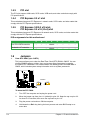
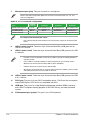
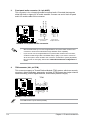
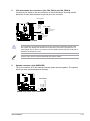
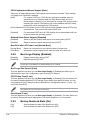
Motherboard
B85M-E
B85M-E/CSM
E8150
First Edition V1
April 2013
Copyright © 2013 ASUSTeK COMPUTER INC. All Rights Reserved.
No part of this manual, including the products and software described in it, may be reproduced,
transmitted, transcribed, stored in a retrieval system, or translated into any language in any form or by any
means, except documentation kept by the purchaser for backup purposes, without the express written
permission of ASUSTeK COMPUTER INC. (“ASUS”).
Product warranty or service will not be extended if: (1) the product is repaired, modified or altered, unless
such repair, modification of alteration is authorized in writing by ASUS; or (2) the serial number of the
product is defaced or missing.
ASUS PROVIDES THIS MANUAL “AS IS” WITHOUT WARRANTY OF ANY KIND, EITHER EXPRESS
OR IMPLIED, INCLUDING BUT NOT LIMITED TO THE IMPLIED WARRANTIES OR CONDITIONS OF
MERCHANTABILITY OR FITNESS FOR A PARTICULAR PURPOSE. IN NO EVENT SHALL ASUS, ITS
DIRECTORS, OFFICERS, EMPLOYEES OR AGENTS BE LIABLE FOR ANY INDIRECT, SPECIAL,
INCIDENTAL, OR CONSEQUENTIAL DAMAGES (INCLUDING DAMAGES FOR LOSS OF PROFITS,
LOSS OF BUSINESS, LOSS OF USE OR DATA, INTERRUPTION OF BUSINESS AND THE LIKE),
EVEN IF ASUS HAS BEEN ADVISED OF THE POSSIBILITY OF SUCH DAMAGES ARISING FROM ANY
DEFECT OR ERROR IN THIS MANUAL OR PRODUCT.
SPECIFICATIONS AND INFORMATION CONTAINED IN THIS MANUAL ARE FURNISHED FOR
INFORMATIONAL USE ONLY, AND ARE SUBJECT TO CHANGE AT ANY TIME WITHOUT NOTICE,
AND SHOULD NOT BE CONSTRUED AS A COMMITMENT BY ASUS. ASUS ASSUMES NO
RESPONSIBILITY OR LIABILITY FOR ANY ERRORS OR INACCURACIES THAT MAY APPEAR IN THIS
MANUAL, INCLUDING THE PRODUCTS AND SOFTWARE DESCRIBED IN IT.
Products and corporate names appearing in this manual may or may not be registered trademarks or
copyrights of their respective companies, and are used only for identification or explanation and to the
owners’ benefit, without intent to infringe.
Offer to Provide Source Code of Certain Software
This product contains copyrighted software that is licensed under the General Public License (“GPL”),
under the Lesser General Public License Version (“LGPL”) and/or other Free Open Source Software
Licenses. Such software in this product is distributed without any warranty to the extent permitted by the
applicable law. Copies of these licenses are included in this product.
Where the applicable license entitles you to the source code of such software and/or other additional data,
you may obtain it for a period of three years after our last shipment of the product, either
(1) for free by downloading it from http://support.asus.com/download
or
(2) for the cost of reproduction and shipment, which is dependent on the preferred carrier and the location
where you want to have it shipped to, by sending a request to:
ASUSTeK Computer Inc.
Legal Compliance Dept.
15 Li Te Rd.,
Beitou, Taipei 112
Taiwan
In your request please provide the name, model number and version, as stated in the About Box of the
product for which you wish to obtain the corresponding source code and your contact details so that we
can coordinate the terms and cost of shipment with you.
The source code will be distributed WITHOUT ANY WARRANTY and licensed under the same license as
the corresponding binary/object code.
This offer is valid to anyone in receipt of this information.
ASUSTeK is eager to duly provide complete source code as required under various Free Open Source
Software licenses. If however you encounter any problems in obtaining the full corresponding source
code we would be much obliged if you give us a notification to the email address [email protected], stating
the product and describing the problem (please DO NOT send large attachments such as source code
archives, etc. to this email address).
ii
Contents
Safety information....................................................................................... iv
About this guide.......................................................................................... iv
Package contents........................................................................................ vi
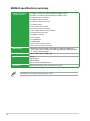
B85M-E specifications summary................................................................ vi
Product introduction
1.1
Before you proceed...................................................................... 1-1
1.2
Motherboard overview.................................................................. 1-1
1.3
Central Processing Unit (CPU).................................................... 1-3
1.4
System memory............................................................................ 1-7
1.5
Expansion slots............................................................................. 1-9
1.6
Jumpers....................................................................................... 1-10
1.7
Connectors.................................................................................. 1-11
1.8
Onboard LEDs............................................................................. 1-19
1.9
Software support......................................................................... 1-20
BIOS information
2.1
Managing and updating your BIOS............................................. 2-1
2.2
BIOS setup program..................................................................... 2-6
2.3
My Favorites.................................................................................. 2-9
2.4
Main menu................................................................................... 2-10
2.5
Ai Tweaker menu......................................................................... 2-12
2.6
Advanced menu.......................................................................... 2-22
2.7
Monitor menu.............................................................................. 2-32
2.8
Boot menu................................................................................... 2-35
2.9
Tools menu.................................................................................. 2-41
2.10
Exit menu..................................................................................... 2-42
Appendices
Notices........................................................................................................A-1
ASUS contact information........................................................................A-3
iii
Safety information
Electrical safety
•
To prevent electrical shock hazard, disconnect the power cable from the electrical outlet
before relocating the system.
•
When adding or removing devices to or from the system, ensure that the power cables
for the devices are unplugged before the signal cables are connected. If possible,
disconnect all power cables from the existing system before you add a device.
•
Before connecting or removing signal cables from the motherboard, ensure that all
power cables are unplugged.
•
Seek professional assistance before using an adapter or extension cord. These devices
could interrupt the grounding circuit.
•
Ensure that your power supply is set to the correct voltage in your area. If you are not
sure about the voltage of the electrical outlet you are using, contact your local power
company.
•
If the power supply is broken, do not try to fix it by yourself. Contact a qualified service
technician or your retailer.
Operation safety
•
Before installing the motherboard and adding components, carefully read all the manuals
that came with the package.
•
Before using the product, ensure all cables are correctly connected and the power
cables are not damaged. If you detect any damage, contact your dealer immediately.
•
To avoid short circuits, keep paper clips, screws, and staples away from connectors,
slots, sockets and circuitry.
•
Avoid dust, humidity, and temperature extremes. Do not place the product in any area
where it may be exposed to moisture.
•
Place the product on a stable surface.
•
If you encounter technical problems with the product, contact a qualified service
technician or your retailer.
About this guide
This user guide contains the information you need when installing and configuring the
motherboard.
How this guide is organized
This guide contains the following parts:
•
Chapter 1: Product introduction
This chapter describes the features of the motherboard and the new technology it
supports. It includes descriptions of the switches, jumpers, and connectors on the
motherboard.
•
Chapter 2: BIOS information
This chapter discusses changing system settings through the BIOS Setup menus.
Detailed descriptions fo the BIOS parameters are also provided.
iv
Where to find more information
Refer to the following sources for additional information and for product and software
updates.
1.
ASUS websites
The ASUS website provides updated information on ASUS hardware and software
products. Refer to the ASUS contact information.
2.
Optional documentation
Your product package may include optional documentation, such as warranty flyers,
that may have been added by your dealer. These documents are not part of the
standard package.
Conventions used in this guide
To ensure that you perform certain tasks properly, take note of the following symbols used
throughout this manual.
DANGER/WARNING: Information to prevent injury to yourself when
completing a task.
CAUTION: Information to prevent damage to the components when
completing a task
IMPORTANT: Instructions that you MUST follow to complete a task.
NOTE: Tips and additional information to help you complete a task.
Typography
Bold text
Indicates a menu or an item to select.
Italics
Used to emphasize a word or a phrase.
<Key>
Keys enclosed in the less-than and greater-than sign
means that you must press the enclosed key.
Example: <Enter> means that you must press the Enter or
Return key.
<Key1> + <Key2> + <Key3>
If you must press two or more keys simultaneously, the key
names are linked with a plus sign (+).
Package contents
Check your motherboard package for the following items.
Motherboard
ASUS B85M-E motherboard
Cables
2 x Serial ATA 6.0 Gb/s cables
Accessories
1 x I/O Shield
Application DVD
Support DVD
Documentation
User Guide
If any of the above items is damaged or missing, contact your retailer.
B85M-E specifications summary
CPU
LGA1150 socket for Intel® 4th Generation CoreTM i7/ i5 / i3, Pentium®,
Celeron® Processors
Supports Intel® 22/32nm CPU
Supports Intel® Turbo Boost Technology 2.0
* The Intel® Turbo Boost Technology 2.0 support depends on the CPU types.
** Refer to www.asus.com for Intel® CPU support list.
Chipset
Intel® B85 Express Chipset
Memory
4 x DIMM, max. 32GB, DDR3 1600 / 1333 / 1066 MHz, non-ECC, unbuffered memory
Dual-channel memory architecture
* Refer to www.asus.com for the latest Memory QVL (Qualified Vendors List).
** Due to Intel® chipset limitation, the DDR3 1600MHz and higher memory modules
on XMP mode will run at the maximum transfer rate of DDR3 1600MHz.
*** W
hen you install a total memory of 4GB capacity or more, Windows® 32-bit
operating system may only recognize less than 3GB. We recommend a
maximum of 3GB system memory if you are using a Windows® 32-bit operating
system.
Graphics
Integrated graphics processor
Multi-VGA output support: D-Sub, DVI, HDMI and DisplayPort ports
- Supports DVI-D with max.resolution of 1920 x 2000 @60Hz
- Supports D-Sub with max. resolution of 1920 x 2000 @60Hz
- Supports HDMI with max. resolution of 2560 x 1600 @60Hz
- Supports DisplayPort with max. resolution of 4096 x 2160 @24Hz /
3840 x 2160 @60Hz
Maximum shared memory of 1 GB
Expansion slots
1 x PCI Express 3.0/2.0 x16 slot
1 x PCI Express 2.0 x16 slot (@ x4)
1 x PCI Express 2.0 x1 slot
1 x PCI slot
Storage
Intel® B85 Express Chipset:
- 2 x Serial ATA 3.0 Gb/s connectors (black)
- 4 x Serial ATA 6.0 Gb/s connector (yellow)
(continued on the next page)
vi
B85M-E specifications summary
LAN
Realtek 8111F Gigabit LAN controller
Audio
8-channel Realtek® ALC887-VD2 High Definition Audio CODEC
- Supports multi-streaming
* Use a chassis with HD audio module in the front panel to support an 8channel audio output.
USB
4 x USB 3.0 ports (2 ports at midboard, 2 ports at back panel)
8 x USB 2.0 ports (4 ports at midboard, 4 ports at back panel)
ASUS unique features
ASUS Exclusive Features:
- ASUS USB 3.0 Boost
- ASUS Network iControl
- ASUS GPU Boost
- ASUS UEFI BIOS (EZ Mode)
ASUS Quiet Thermal Solution:
- ASUS Fan Xpert 2
ASUS EZ DIY:
- ASUS CrashFree BIOS 3
- ASUS EZ Flash 2
- ASUS MyLogo 2™
Other features
- Support SBA
Rear panel I/O ports
1 x PS/2 keyboard port (purple)
1 x PS/2 mouse port (green)
1 x DVI port
1 x D-Sub port
1 x HDMI port
1 x DisplayPort
1 x LAN (RJ-45) port
4 x USB 2.0/1.1 ports
2 x USB 3.0 ports
3 x Audio jacks
(continued on the next page)
vii
B85M-E specifications summary
Internal connectors/
switches/ buttons
1 x USB 3.0 connector supports additional 2 USB 3.0 ports
2 x USB 2.0 connectors support additional 4 USB 2.0 ports
2 x SATA 3.0 Gb/s connectors
4 x SATA 6.0 Gb/s connector
1 x Chassis intrusion connector
1 x CLRTC jumper
1 x 4-pin CPU fan connector
2 x 4-pin Chassis fan connectors
1 x Front panel audio connector (AAFP)
1 x System panel connector
1 x Speaker connector
1 x LPT Header
1 x COM Header
1 x TPM Header
1 x 24-pin ATX power connector
1 x 4-pin ATX 12V power connector
BIOS features
128 Mb Flash ROM, EFI BIOS, PnP, DMI v2.0, WfM2.0, SM BIOS v2.7,
ACPI v2.0a, SLP 3.0, EUP-ready, Multi-language BIOS, ASUS EZ Flash
2, ASUS CrashFree BIOS 3
Manageability
WOL by PME, WOR by PME, PXE
Support DVD
Drivers
ASUS utilities
ASUS Update
Anti-virus software (OEM version)
Form factor
MicroATX form factor: 9.6”x 8.4” (24.4cm x 21.3cm)
Specifications are subject to change without notice.
viii
Product introduction
1.1
Before you proceed
1
Take note of the following precautions before you install motherboard components or change
any motherboard settings.
1.2
•
Unplug the power cord from the wall socket before touching any component.
•
Before handling components, use a grounded wrist strap or touch a safely grounded
object or a metal object, such as the power supply case, to avoid damaging them due
to static electricity.
•
Hold components by the edges to avoid touching the ICs on them.
•
Whenever you uninstall any component, place it on a grounded antistatic pad or in the
bag that came with the component.
•
Before you install or remove any component, ensure that the ATX power supply is
switched off or the power cord is detached from the power supply. Failure to do so
may cause severe damage to the motherboard, peripherals, or components.
Motherboard overview
Before you install the motherboard, study the configuration of your chassis to ensure that the
motherboard fits.
Unplug the power cord before installing or removing the motherboard. Failure to do so can
cause you physical injury and damage to motherboard components.
1.2.1
Placement direction
When installing the motherboard, place it into the chassis in the correct orientation. The edge
with external ports goes to the rear part of the chassis as indicated in the image.
1.2.2
Screw holes
Place six screws into the holes indicated by circles to secure the motherboard to the chassis.
Do not overtighten the screws! Doing so can damage the motherboard.
ASUS B85M-E
1-1
Place this side
towards the rear
of the chassis
B85M-E
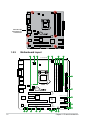
1.2.3
Motherboard layout
1
2
3
4
3
5
3
21.3cm(8.4in)
KBMS
CPU_FAN
ASP
1255
ATX12V
BATTERY
AUDIO
B85M-E
COM
EATXPWR
DDR3 DIMM_B2 (64bit, 240-pin module)
CHA_FAN1
24.4cm(9.6in)
RTL
8111F
LAN_USB910
2
USB3_12 CHA_FAN2
USB3_56
DDR3 DIMM_B1 (64bit, 240-pin module)
LGA1150
USB_34
DDR3 DIMM_A2 (64bit, 240-pin module)
DVI_VGA
DDR3 DIMM_A1 (64bit, 240-pin module)
HDMI_DP
6
PCIEX16_1
SATA3G_1 SATA3G_2
ASM
1083
PCIEX1_1
Super
I/O
7
Intel®
B85
16MB
BIOS
PCI1
ALC
887
SATA6G_3 SATA6G_4
PCIEX16_2
CHASSIS
SB_PWR
LPT
TPM
SATA6G_1 SATA6G_2
USB1314
USB1112
CLRTC
AAFP
SPEAKER
17 16
1-2
15
14
13
12
F_PANEL
8
9
11 10
Chapter 1: Product introduction
1.2.4
Layout contents
Connectors/Jumpers/Slots/LED
1. Serial port connectors (10-1 pin COM)
2. ATX power connectors (24-pin EATXPWR, 4-pin ATX12V)
3. CPU and chassis fan connectors (4-pin CPU_FAN, 4-pin CHA_FAN)
4. Intel® LGA1150 CPU socket
5. DDR3 DIMM slots
6. USB 3.0 connector (20-1 pin USB3_12)
7. Intel® B85 Serial ATA 3.0Gb/s connectors (7-pin SATA3G_1~2 [black])
8. Intel® B85 Serial ATA 6.0Gb/s connectors (7-pin SATA6G_1~4 [yellow])
9. System panel connector (10-1 pin F_PANEL)
10. Speaker connector (4-pin SPEAKER)
11. Clear RTC RAM (3-pin CLRTC)
12. USB 2.0 connectors (10-1 pin USB1112, USB1314)
13. TPM connector (20-1 pin TPM)
14. Onboard LED (SB_PWR)
15. LPT connector (26-1 pin LPT)
16. Chassis intrusion connector (4-1 pin CHASSIS)
17. Front panel audio connector (10-1 pin AAFP)
1.3
Page
1-16
1-13
1-15
1-3
1-7
1-18
1-17
1-16
1-17
1-15
1-10
1-18
1-14
1-19
1-13
1-19
1-14
Central Processing Unit (CPU)
This motherboard comes with a surface mount LGA1150 socket designed for the Intel® 4th
generation Core™ i7 / Core™ i5 / Core™ i3, Pentium® , Celeron® processors.
B85M-E
B85M-E CPU socket LGA1150
ASUS B85M-E
1-3
Unplug all power cables before installing the CPU.
1.3.1
•
Upon purchase of the motherboard, ensure that the PnP cap is on the socket and
the socket contacts are not bent. Contact your retailer immediately if the PnP cap
is missing, or if you see any damage to the PnP cap/socket contacts/motherboard
components. ASUS will shoulder the cost of repair only if the damage is shipment/
transit-related.
•
Keep the cap after installing the motherboard. ASUS will process Return Merchandise
Authorization (RMA) requests only if the motherboard comes with the cap on the
LGA1150 socket.
•
The product warranty does not cover damage to the socket contacts resulting from
incorrect CPU installation/removal, or misplacement/loss/incorrect removal of the PnP
cap.
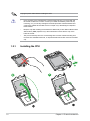
Installing the CPU
1
A
B
2
1-4
3
Chapter 1: Product introduction
4
5
C
A
B
1.3.2
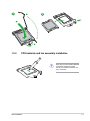
CPU heatsink and fan assembly installation
Apply the Thermal Interface Material
to the CPU heatsink and CPU
before you install the heatsink and
fan if necessary.
ASUS B85M-E
1-5
To install the CPU heatsink and fan assembly
1
2
A
B
B
A
3
4
To uninstall the CPU heatsink and fan assembly
1
2
A
B
B
A
1-6
Chapter 1: Product introduction
1.4
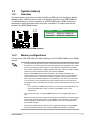
System memory
1.4.1
Overview
DIMM_B1
DIMM_B2
DIMM_A1
DIMM_A2
This motherboard comes with four Double Data Rate 3 (DDR3) Dual Inline Memory Module
(DIMM) sockets. A DDR3 module has the same physical dimensions as a DDR2 DIMM but
is notched differently to prevent installation on a DDR2 DIMM socket. DDR3 modules are
developed for better performance with less power consumption. The figure illustrates the
location of the DDR3 DIMM sockets:
Channel
Channel A
Channel B
Sockets
DIMM_A1 & DIMM_A2
DIMM_B1 & DIMM_B2
B85M-E
B85M-E 240-pin DDR3 DIMM sockets
1.4.2
Memory configurations
You may install 1GB, 2GB, 4GB, and 8GB unbuffered non-ECC DDR3 DIMMs into the DIMM
sockets.
•
You may install varying memory sizes in Channel A and Channel B. The system maps
the total size of the lower-sized channel for the dual-channel configuration. Any excess
memory from the higher-sized channel is then mapped for single-channel operation.
•
Due to Intel® chipset limitation, DDR3 1600MHz and higher memory modules on XMP
mode will run at the maximum transfer rate of DDR3 1600MHz.
•
Always install DIMMs with the same CAS latency. For optimal compatibility, we
recommend that you install memory modules of the same version or date code (D/C)
from the same vendor. Check with the retailer to get the correct memory modules.
•
Due to the memory address limitation on 32-bit Windows® OS, when you install 4GB
or more memory on the motherboard, the actual usable memory for the OS can be
about 3GB or less. For effective use of memory, we recommend that you do any of the
following:
-Install a 64-bit Windows® OS if you want to install 4GB or more on the
motherboard.
•
This motherboard does not support DIMMs made up of 512 megabits (Mb) chips or
less.
•
Memory modules with memory frequency higher than 2133 MHz and its corresponding
timing or the loaded X.M.P. Profile is not the JEDEC memory standard. The stability
and compatibility of these memory modules depend on the CPU’s capabilities and
other installed devices.
•
The maximum 32GB memory capacity can be supported with 8GB or above DIMMs.
ASUS will update the memory QVL once the DIMMs are available in the market.
-
ASUS B85M-E
Use a maximum of 3GB system memory if you are using a 32-bit Windows® OS.
1-7
1.4.3
•
The default memory operation frequency is dependent on its Serial Presence Detect
(SPD), which is the standard way of accessing information from a memory module.
Under the default state, some memory modules for overclocking may operate at a
lower frequency than the vendor-marked value. To operate at the vendor-marked
or at a higher frequency, refer to section 2.5 Ai Tweaker menu for manual memory
frequency adjustment.
•
For system stability, use a more efficient memory cooling system to support a full
memory load (4 DIMMs) or overclocking condition.
•
Visit the ASUS website at: www.asus.com for the latest QVL.
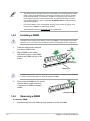
Installing a DIMM
Unplug the power supply before adding or removing DIMMs or other system components.
Failure to do so can cause severe damage to both the motherboard and the components.
1.
2.
Press the retaining clips outward
to unlock a DIMM socket.
2
DIMM notch
Align a DIMM on the socket
such that the notch on the DIMM
matches the DIMM slot key on the
socket.
1
Unlocked
retaining clip
DIMM slot key
A DIMM is keyed with a notch so that it fits in only one direction. DO NOT force a DIMM into
a socket in the wrong direction to avoid damaging the DIMM.
3.
3
Firmly insert the DIMM into the socket
until the retaining clips snap back
in place and the DIMM is properly
seated.
Locked Retaining Clip
1.4.4
Removing a DIMM
To remove a DIMM:
1.
1-8
Simultaneously press the retaining clips outward to unlock the DIMM.
Chapter 1: Product introduction
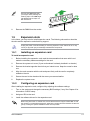
Support the DIMM lightly with
your fingers when pressing the
retaining clips. The DIMM might
get damaged when it flips out
with extra force.
2.
Remove the DIMM from the socket.
1.5
2
1
DIMM notch
Expansion slots
In the future, you may need to install expansion cards. The following sub‑sections describe
the slots and the expansion cards that they support.
Unplug the power cord before adding or removing expansion cards. Failure to do so may
cause you physical injury and damage motherboard components.
1.5.1
Installing an expansion card
To install an expansion card:
1.
Before installing the expansion card, read the documentation that came with it and
make the necessary hardware settings for the card.
2.
Remove the system unit cover (if your motherboard is already installed in a chassis).
3.
Remove the bracket opposite the slot that you intend to use. Keep the screw for later
use.
4.
Align the card connector with the slot and press firmly until the card is completely
seated on the slot.
5.
Secure the card to the chassis with the screw you removed earlier.
6.
Replace the system cover.
1.5.2
Configuring an expansion card
After installing the expansion card, configure it by adjusting the software settings.
1.
Turn on the system and change the necessary BIOS settings, if any. See Chapter 2 for
information on BIOS setup.
2.
Assign an IRQ to the card.
3.
Install the software drivers for the expansion card.
When using PCI cards on shared slots, ensure that the drivers support “Share IRQ” or that
the cards do not need IRQ assignments. Otherwise, conflicts will arise between the two PCI
groups, making the system unstable and the card inoperable.
ASUS B85M-E
1-9
1.5.3
PCI slot
The PCI slots support LAN cards, SCSI cards, USB cards, and other cards that comply with
PCI specifications.
1.5.4
PCI Express 2.0 x1 slot
This motherboard supports PCI Express x1 network cards, SCSI cards, and other cards that
comply with the PCI Express specifications.
1.5.5
PCI Express 3.0/2.0 x16 slot;
PCI Express 2.0 x16 (@x4) slot
This motherboard supports PCI Express x16 network cards, SCSI cards, and other cards that
comply with the PCI Express specifications.
IRQ assignments for this motherboard
A
B
C
D
E
F
G
H
Intel PCH SATA controller
–
–
–
shared
–
–
–
–
Realtek 8111F controller
–
–
shared
–
–
–
–
1.6
1.
Jumpers
Clear RTC RAM (3-pin CLRTC)
This jumper allows you to clear the Real Time Clock (RTC) RAM in CMOS. You can
clear the CMOS memory of date, time, and system setup parameters by erasing
the CMOS RTC RAM data. The onboard button cell battery powers the RAM data in
CMOS, which include system setup information such as system passwords.
CLRTC
B85M-E
1
2
2
Normal
(Default)
Clear RTC
3
B85M-E Clear RTC RAM
To erase the RTC RAM:
1-10
1.
Turn OFF the computer and unplug the power cord.
2.
Move the jumper cap from pins 1-2 (default) to pins 2-3. Keep the cap on pins 2-3
for about 5-10 seconds, then move the cap back to pins 1-2.
3.
Plug the power cord and turn ON the computer.
4.
Hold down the <Del> key during the boot process and enter BIOS setup to reenter data.
Chapter 1: Product introduction
Except when clearing the RTC RAM, never remove the cap on CLRTC jumper default
position. Removing the cap will cause system boot failure!
•
If the steps above do not help, remove the onboard battery and move the jumper
again to clear the CMOS RTC RAM data. After clearing the CMOS, reinstall the
battery.
•
You do not need to clear the RTC when the system hangs due to overclocking. For
system failure due to overclocking, use the CPU Parameter Recall (C.P.R.) feature.
Shut down and reboot the system, then the BIOS automatically resets parameter
settings to default values.
1.7
Connectors
1.7.1
Rear panel connectors
1
2
3
13
12
11
4
10
9
5 6
7
8
1.
PS/2 mouse port (green). This port is for a PS/2 mouse.
2.
DisplayPort. This port is for a DisplayPort-compatible devices.
3.
Video Graphics Adapter (VGA) port. This 15-pin port is for a VGA monitor or other
VGA-compatible devices.
4.
LAN (RJ-45) port. This port allows Gigabit connection to a Local Area Network (LAN)
through a network hub.
LAN port LED indications
Activity/Link LED
Status
Description
OFF
No link
ORANGE Linked
BLINKING Data activity
Speed LED
Status
Description
OFF
10Mbps connection
ORANGE 100Mbps connection
GREEN 1Gbps connection
Activity Link
LED
Speed
LED
LAN port
5.
Line In port (light blue). This port connects to the tape, CD, DVD player, or other
audio sources.
6.
Line Out port (lime). This port connects to a headphone or a speaker. In the 4, 6 and
8-channel configurations, the function of this port becomes Front Speaker Out.
ASUS B85M-E
1-11
7.
Microphone port (pink). This port connects to a microphone.
Refer to the audio configuration table for the function of the audio ports in 2, 4, 6, or 8channel configuration.
Audio 2, 4, 6, or 8-channel configuration
Port
Light Blue (Rear panel)
Lime (Rear panel)
Pink (Rear panel)
Lime (Front panel)
Headset
2-channel
Line In
Line Out
Mic In
-
4-channel
Rear Speaker Out
Front Speaker Out
Mic In
-
6-channel
Rear Speaker Out
Front Speaker Out
Bass/Center
-
8-channel
Rear Speaker Out
Front Speaker Out
Bass/Center
Side Speaker Out
To configure an 8-channel audio output:
Use a chassis with HD audio module in the front panel to support an 8-channel audio
output.
8.
USB 2.0 ports 9 and 10. These two 4-pin Universal Serial Bus (USB) ports are for
USB 2.0/1.1 devices.
9.
USB 3.0 ports 5 and 6. These two 9-pin Universal Serial Bus (USB) ports are for USB
3.0 devices.
•
DO NOT connect a keyboard / mouse to any USB 3.0 port when installing Windows®
operating system.
•
Due to USB 3.0 controller limitations, USB 3.0 devices can only be used under a
Windows® OS environment and after USB 3.0 driver installation.
•
USB 3.0 devices can only be used for data storage.
•
We strongly recommend that you connect USB 3.0 devices to USB 3.0 ports for faster
and better performance from your USB 3.0 devices.
10. USB 2.0 ports 3 and 4. These two 4-pin Universal Serial Bus (USB) ports are for USB
2.0/1.1 devices.
11.
DVI-D port. This port is for any DVI-D compatible device. DVI-D can’t be converted to
output RGB Signal to CRT and is not compatible with DVI-I.
12. HDMI port. This port is for a High-Definition Multimedia Interface (HDMI) connector,
and is HDCP compliant allowing playback of HD DVD, Blu-ray, and other protected
content.
13. PS/2 keyboard port (purple). This port is for a PS/2 keyboard.
1-12
Chapter 1: Product introduction
1.7.2
1.
Internal connectors
LPT connector (26-1 pin LPT)
The LPT (Line Printing Terminal) connector supports devices such as a printer. LPT
standardizes as IEEE 1284, which is the parallel port interface on IBM PC-compatible
computers.
GND
GND
GND
GND
GND
GND
GND
GND
SLIN#
INIT#
ERR#
AFD
B85M-E
PIN 1
SLCT
PE
BUSY
ACK#
PD7
PD6
PD5
PD4
PD3
PD2
PD1
PD0
STB#
LPT
B85M-E Parallel Port Connector
2. ATX power connectors (24-pin EATXPWR, 4-pin ATX12V)
These connectors are for ATX power supply plugs. The power supply plugs are
designed to fit these connectors in only one orientation. Find the proper orientation and
push down firmly until the connectors completely fit.
B85M-E
GND
GND
+12V DC
+12V DC
ATX12V
EATXPWR
+3 Volts
+12 Volts
+12 Volts
+5V Standby
Power OK
PIN 1
GND
+5 Volts
GND
+5 Volts
GND
+3 Volts
+3 Volts
GND
+5 Volts
+5 Volts
+5 Volts
-5 Volts
GND
GND
GND
PSON#
GND
-12 Volts
+3 Volts
PIN 1
B85M-E ATX power connectors
•
We recommend that you use an ATX 12V Specification 2.0‑compliant power supply
unit (PSU) with a minimum of 300W power rating. This PSU type has 24-pin and 4-pin
power plugs.
•
DO NOT forget to connect the 4-pin ATX +12V power plug. Otherwise, the system will
not boot up.
•
We recommend that you use a PSU with higher power output when configuring a
system with more power-consuming devices or when you intend to install additional
devices. The system may become unstable or may not boot up if the power is
inadequate.
•
If you are uncertain about the minimum power supply requirement for your system,
refer to the Recommended Power Supply Wattage Calculator at http://support.asus.
com/PowerSupplyCalculator/PSCalculator.aspx?SLanguage=en-us for details.
ASUS B85M-E
1-13
3.
Front panel audio connector (10-1 pin AAFP)
NC
AGND
NC
NC
SENSE2_RETUR
AGND
NC
SENSE1_RETUR
This connector is for a chassis-mounted front panel audio I/O module that supports
either HD Audio or legacy AC`97 audio standard. Connect one end of the front panel
audio I/O module cable to this connector.
AAFP
PIN 1
B85M-E
MIC2
MICPWR
Line out_R
NC
Line out_L
PORT1 L
PORT1 R
PORT2 R
SENSE_SEND
PORT2 L
PIN 1
HD-audio-compliant
pin definition
Legacy AC’97
compliant definition
B85M-E Front panel audio connector
4.
•
We recommend that you connect a high-definition front panel audio module to this
connector to avail of the motherboard’s high-definition audio capability.
•
If you want to connect a high-definition front panel audio module to this connector,
set the Front Panel Type item in the BIOS setup to [HD]. If you want to connect an
AC’97 front panel audio module to this connector, set the item to [AC97]. By default,
this connector is set to [HD]. See section 2.6.8 Onboard Devices Configuration for
details.
TPM connector (20-1 pin TPM)
This connector supports a Trusted Platform Module (TPM) system, which can securely
store keys, digital certificates, passwords, and data. A TPM system also helps enhance
network security, protects digital identities, and ensures platform integrity.
SB_SUS_STAT
GND
+3VSB
NC
LAD0
+3V
LAD3
PCIRST#
FRAME
PCICLK
TPM
PIN 1
GND
NC
NC
SERIRQ
NC
GND
LAD1
LAD2
NC
B85M-E
B85M-E TPM Connector
The TPM module is purchased separately.
1-14
Chapter 1: Product introduction
5. CPU and chassis fan connectors (4-pin CPU_FAN, 4-pin CHA_FAN1/2)
Connect the fan cables to the fan connectors on the motherboard, ensuring that the
black wire of each cable matches the ground pin of the connector.
CPU FAN PWM
CPU FAN IN
CPU FAN PWR
GND
CPU_FAN
B85M-E
CHA_FAN2
GND
CHA FAN PWR
CHA FAN IN
+5V
CHA_FAN1
GND
CHA FAN PWR
CHA FAN IN
+5V
B85M-E Fan connectors
Do not forget to connect the fan cables to the fan connectors. Insufficient air flow inside
the system may damage the motherboard components. These are not jumpers! Do not
place jumper caps on the fan connectors! The CPU_FAN connector supports a CPU fan of
maximum 2A (24 W) fan power.
Only the 4-pin CPU fan supports the ASUS Fan Xpert 2 feature.
6.
Speaker connector (4-pin SPEAKER)
The 4-pin connector is for the chassis-mounted system warning speaker. The speaker
allows you hear system beeps and warnings.
+5V
GND
GND
Speaker Out
SPEAKER
B85M-E
PIN 1
B85M-E Speaker Out Connector
ASUS B85M-E
1-15
7.
Serial port connector (10-1 pin COM)
This connector is for a serial (COM) port. Connect the serial port module cable to this
connector, then install the module to a slot opening at the back of the system chassis.
PIN 1
DCD
TXD
GN D
RTS
RI
RXD
DTR
DS R
CTS
COM
B85M-E
B85M-E Serial port (COM) connector
The COM module is purchased separately.
8.
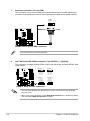
Intel® B85 Serial ATA 6.0Gb/s connector (7-pin SATA6G_1~4 [yellow])
This connector connects to Serial ATA 6.0 Gb/s hard disk drives via Serial ATA 6.0 Gb/s
signal cables.
GND
RSATA_RXP1
RSATA_RXN1
GND
RSATA_TXN1
RSATA_TXP1
GND
SATA6G_1
B85M-E
GND
RSATA_TXP4
RSATA_TXN4
GND
RSATA_RXN4
RSATA_RXP4
GND
SATA6G_4
SATA6G_2
GND
RSATA_RXP2
RSATA_RXN2
GND
RSATA_TXN2
RSATA_TXP2
GND
GND
RSATA_TXP3
RSATA_TXN3
GND
RSATA_RXN3
RSATA_RXP3
GND
SATA6G_3
B85M-E SATA 6.0Gb/s connector
• You must install Windows. XP Service Pack 3 or later version before using Serial ATA
hard disk drives.
• When using hot-plug and NCQ, set the SATA Mode Selection item in the BIOS to [AHCI].
See section 2.6.3 SATA Configuration for details.
1-16
Chapter 1: Product introduction
9.
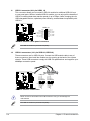
System panel connector (10-1 pin PANEL)
This connector supports several chassis-mounted functions.
F_PANEL
PLED+
PLEDPWR
GND
PWR LED PWR BTN
HD_LED+
HD_LEDGround
HWRST#
(NC)
PIN 1
B85M-E
+HD_LED
RESET
B85M-E System panel connector
•
System power LED (2-pin PWR_LED)
This 2-pin connector is for the system power LED. Connect the chassis power LED
cable to this connector. The system power LED lights up when you turn on the system
power, and blinks when the system is in sleep mode.
•
Hard disk drive activity LED (2-pin HD_LED)
This 2-pin connector is for the HDD Activity LED. Connect the HDD Activity LED cable
to this connector. The HDD LED lights up or flashes when data is read from or written
to the HDD.
•
ATX power button/soft-off button (2-pin PWR_BTN)
This connector is for the system power button.
•
Reset button (2-pin RESET)
This 2-pin connector is for the chassis-mounted reset button for system reboot without
turning off the system power.
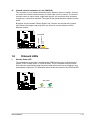
10. Intel® B85 Serial ATA 3.0Gb/s connectors (7-pin SATA3G_1~2 [black])
These connectors connect to Serial ATA 3.0 Gb/s hard disk drives and optical drives via
Serial ATA 3.0 Gb/s signal cables.
SATA3G_1
SATA3G_2
GND
RSATA_TXP2
RSATA_TXN2
GND
RSATA_RXN2
RSATA_RXP2
GND
GND
RSATA_TXP1
RSATA_TXN1
GND
RSATA_RXN1
RSATA_RXP1
GND
B85M-E
B85M-E SATA 3.0Gb/s connectors
When using hot-plug and NCQ, set the SATA Mode Selection item in the BIOS to [AHCI].
See section 2.6.3 SATA Configuration for details.
ASUS B85M-E
1-17
11.
USB 3.0 connector (20-1 pin USB3_12)
This connector allows you to connect a USB 3.0 module for additional USB 3.0 front
or rear panel ports. With an installed USB 3.0 module, you can enjoy all the benefits of
USB 3.0 including faster data transfer speeds of up to 5Gbps, faster charging time for
USB-chargeable devices, optimized power efficiency, and backward compatibility with
USB 2.0.
USB3_12
B85M-E
GND
IntA_P1_D+
IntA_P1_DGND
IntA_P1_SSTX+
IntA_P1_SSTXGND
IntA_P1_SSRX+
IntA_P1_SSRXVbus
IntA_P2_D+
IntA_P2_DGND
IntA_P2_SSTX+
IntA_P2_SSTXGND
IntA_P2_SSRX+
IntA_P2_SSRXVbus
PIN 1
B85M-E USB3.0 Front panel connector
The USB 3.0 module is purchased separately.
12. USB 2.0 connectors (10-1 pin USB1112, USB1314)
These connectors are for USB 2.0 ports. Connect the USB module cable to any of
these connectors, then install the module to a slot opening at the back of the system
chassis. These USB connectors comply with USB 2.0 specifications and supports up to
480Mbps connection speed.
USB+5V
USB_P13USB_P13+
GND
NC
USB1314
USB+5V
USB_P11USB_P11+
GND
NC
USB1112
B85M-E
USB+5V
USB_P14USB_P14+
GND
PIN 1
USB+5V
USB_P12USB_P12+
GND
PIN 1
B85M-E USB2.0 connectors
Never connect a 1394 cable to the USB connectors. Doing so will damage the
motherboard!
The USB 2.0 module is purchased separately.
1-18
Chapter 1: Product introduction
13. Chassis intrusion connector (4-1 pin CHASSIS)
This connector is for a chassis-mounted intrusion detection sensor or switch. Connect
one end of the chassis intrusion sensor or switch cable to this connector. The chassis
intrusion sensor or switch sends a high-level signal to this connector when a chassis
component is removed or replaced. The signal is then generated as a chassis intrusion
event.
By default, the pin labeled “Chassis Signal” and “Ground” are shorted with a jumper
cap. Remove the jumper caps only when you intend to use the chassis intrusion
detection feature.
Chassis Signal
GND
B85M-E
+5VSB_MB
CHASSIS
B85M-E Chassis intrusion connector
1.8
1.
Onboard LEDs
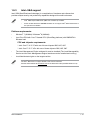
Standby Power LED
The motherboard comes with a standby power LED that lights up to indicate that the
system is ON, in sleep mode, or in soft-off mode. This is a reminder that you should
shut down the system and unplug the power cable before removing or plugging in any
motherboard component. The illustration below shows the location of the onboard LED.
SB_PWR
B85M-E
ON
Standby Power
OFF
Powered Off
B85M-E Onboard LED
ASUS B85M-E
1-19
1.9
1.9.1
Software support
Installing an operating system
This motherboard supports Windows® 7 (32bit/64bit) and Windows® 8 (32bit/64bit) Operating
Systems (OS). Always install the latest OS version and corresponding updates to maximize
the features of your hardware.
Motherboard settings and hardware options vary. Refer to your OS documentation for
detailed information.
1.9.2
Support DVD information
The Support DVD that comes with the motherboard package contains the drivers, software
applications, and utilities that you can install to avail all motherboard features.
The contents of the Support DVD are subject to change at any time without notice. Visit the
ASUS website at www.asus.com for updates.
To run the Support DVD
Place the Support DVD into the optical drive. If Autorun is enabled in your computer, the
DVD automatically displays the Specials screen which lists the unique features of your ASUS
motherboard. Click Drivers, Utilities, AHCI Driver, Manual, Contact and Specials tabs to
display their respective menus.
The following screen is for reference only.
Click an icon to
display Support
DVD/motherboard
information
Click an item to install
If Autorun is NOT enabled in your computer, browse the contents of the Support DVD to
locate the file ASSETUP.EXE from the BIN folder. Double-click the ASSETUP.EXE to run
the DVD.
1-20
Chapter 1: Product introduction
1.9.3
Intel® SBA support
Intel® SBA (Small Business Advantage) is a combination of hardware and software that
provides unique security and productivity capabilities designed for small businesses.
•
Intel® SBA requires MEI driver (AMT host software kit) installed.
•
Some models without the 5MB ME firmware do not support Intel® SBA. Please refer to
the spec sheet for details.
Platform requirements:
•
Windows® 7 (32/64bit) / Windows® 8 (32/64bit)
•
Lynx Point PCH with Core™ Haswell CPU (Shark Bay platforms) with 5MB ME 9.0
firmware load
CPU and chipsets requirements:
* Intel® Core™ i3 / i5 /i7 with one of these chipsets: B85, H87, Q87
* Intel® Core™ i5 / i7 vPro with one of these chipsets: B85, H87, Q87
•
The Intel® Management Engine software kit must be installed (The Local Manageability
Service and the Intel® Management Engine Interface must be installed and running.)
•
Local Administrator rights on the target machine
The Intel® SBA does not support the 800 x 600 screen resolution.
Visit the ASUS website at www.asus.com for the latest CPU QVL (Qualified Vendors List).
ASUS B85M-E
1-21
BIOS information
2.1
Managing and updating your BIOS
2
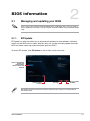
Save a copy of the original motherboard BIOS file to a USB flash disk in case you need to
restore the BIOS in the future. Copy the original motherboard BIOS using the ASUS Update
utility.
2.1.1
EZ Update
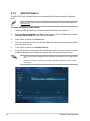
EZ Update is a utility that allows you to automatically update your motherboard’s softwares,
drivers and the BIOS version easily. With this utlity, you can also manually update the saved
BIOS and select a boot logo when the system goes into POST.
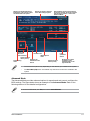
To launch EZ Update, click EZ Update on the AI Suite 3 main menu bar.
Click to automatically
update your
motherboard’s
driver, software and
firmware
Click to find and
select the BIOS
from file
Click to select a
boot logo
Click to update
the BIOS
EZ Update requires an Internet connection either through a network or an ISP (Internet
Service Provider).
ASUS B85M-E
2-1
2.1.2
ASUS EZ Flash 2
The ASUS EZ Flash 2 feature allows you to update the BIOS without using an OS‑based
utility.
Before you start using this utility, download the latest BIOS file from the ASUS website at
www.asus.com.
To update the BIOS using EZ Flash 2:
2-2
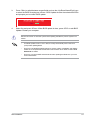
1.
Insert the USB flash disk that contains the latest BIOS file to the USB port.
2.
Enter the Advanced Mode of the BIOS setup program. Go to the Tool menu to select
ASUS EZ Flash Utility and press <Enter> to enable it.
3.
Press <Tab> to switch to the Drive field.
4.
Press the Up/Down arrow keys to find the USB flash disk that contains the latest BIOS,
and then press <Enter>.
5.
Press <Tab> to switch to the Folder Info field.
6.
Press the Up/Down arrow keys to find the BIOS file, and then press <Enter> to perform
the BIOS update process. Reboot the system when the update process is done.
•
This function supports USB flash disks formatted using FAT32/16 on a single partition
only.
•
DO NOT shut down or reset the system while updating the BIOS to prevent system
boot failure!
Chapter 2: Getting started
2.1.3
ASUS CrashFree BIOS 3 utility
The ASUS CrashFree BIOS 3 is an auto recovery tool that allows you to restore the BIOS file
when it fails or gets corrupted during the updating process. You can restore a corrupted BIOS
file using the motherboard support DVD or a USB flash drive that contains the updated BIOS
file.
•
Before using this utility, rename the BIOS file in the removable device into
B85ME.CAP.
•
The BIOS file in the support DVD may not be the latest version. Download the latest
BIOS file from the ASUS website at www.asus.com.
Recovering the BIOS
To recover the BIOS:
1.
Turn on the system.
2.
Insert the support DVD to the optical drive or the USB flash drive that contains the
BIOS file to the USB port.
3.
The utility automatically checks the devices for the BIOS file. When found, the utility
reads the BIOS file and enters ASUS EZ Flash 2 utility automatically.
4.
The system requires you to enter BIOS Setup to recover BIOS settings. To ensure
system compatibility and stability, we recommend that you press <F5> to load default
BIOS values.
DO NOT shut down or reset the system while updating the BIOS! Doing so can cause
system boot failure!
2.1.4
ASUS BIOS Updater
The ASUS BIOS Updater allows you to update BIOS in a DOS environment. This utility also
allows you to copy the current BIOS file that you can use as a backup when the BIOS fails or
gets corrupted during the updating process.
The succeeding utility screens are for reference only. The actual utility screen displays may
not be same as shown.
Before updating BIOS
1.
Prepare the motherboard support DVD and a USB flash drive formatted using
FAT32/16 on a single partition.
2.
Download the latest BIOS file and BIOS Updater from the ASUS website at
http://support.asus.com and save them on the USB flash drive.
NTFS is not supported under DOS environment. Do not save the BIOS file and BIOS
Updater to a hard disk drive or USB flash drive in NTFS format.
3.
Turn off the computer and disconnect all SATA hard disk drives (optional).
ASUS B85M-E
2-3
Booting the system to a DOS environment
1.
Insert the USB flash drive with the latest BIOS file and BIOS Updater to the USB port.
2.
Boot your computer. When the ASUS Logo appears, press <F8> to show the BIOS
Boot Device Select Menu. Insert the support DVD into the optical drive and select the
optical drive as the boot device.
3. When the Make Disk menu appears, select the FreeDOS command prompt item by
pressing the item number.
4.
At the FreeDOS prompt, type d: and press <Enter> to switch the disk from Drive C
(optical drive) to Drive D (USB flash drive).
Updating the BIOS file
To update the BIOS file using BIOS Updater:
1.
At the FreeDOS prompt, type bupdater /pc /g and press <Enter>.
2.
The BIOS Updater screen appears as below.
B85M-E
0208
03/20/2013
B85M-E-ASUS-0214.CAP 8194 2013-03-20 15:25:48
2-4
Chapter 2: Getting started
3.
Press <Tab> to switch between screen fields and use the <Up/Down/Home/End> keys
to select the BIOS file and press <Enter>. BIOS Updater checks the selected BIOS file
and prompts you to confirm BIOS update.
4.
Select Yes and press <Enter>. When BIOS update is done, press <ESC> to exit BIOS
Updater. Restart your computer.
DO NOT shut down or reset the system while updating the BIOS to prevent system boot
failure!
•
For BIOS Updater version 1.30 or later, the utility automatically exits to the DOS
prompt after updating BIOS.
•
Ensure to load the BIOS default settings to ensure system compatibility and stability.
Select the Load Optimized Defaults item under the Exit menu. Refer to section 2.10
Exit menu for details.
•
Ensure to connect all SATA hard disk drives after updating the BIOS file if you have
disconnected them.
ASUS B85M-E
2-5
2.2
BIOS setup program
Use the BIOS Setup program to update the BIOS or configure its parameters. The BIOS
screens include navigation keys and brief online help to guide you in using the BIOS Setup
program.
Entering BIOS Setup at startup
To enter BIOS Setup at startup:
•
Press <Delete> during the Power-On Self Test (POST). If you do not press <Delete>,
POST continues with its routines.
Entering BIOS Setup after POST
To enter BIOS Setup after POST:
•
Press <Ctrl>+<Alt>+<Del> simultaneously.
•
Press the reset button on the system chassis.
•
Press the power button to turn the system off then back on. Do this option only if you
failed to enter BIOS Setup using the first two options.
Using the power button, reset button, or the <Ctrl>+<Alt>+<Del> keys to force reset from a
running operating system can cause damage to your data or system. We recommend you
always shut down the system properly from the operating system.
•
The BIOS setup screens shown in this section are for reference purposes only, and
may not exactly match what you see on your screen.
•
Visit the ASUS website at www.asus.com to download the latest BIOS file for this
motherboard.
•
Ensure that a USB mouse is connected to your motherboard if you want to use the
mouse to control the BIOS setup program.
•
If the system becomes unstable after changing any BIOS setting, load the default
settings to ensure system compatibility and stability. Select the Load Optimized
Defaults item under the Exit menu. See section 2.10 Exit Menu for details.
•
If the system fails to boot after changing any BIOS setting, try to clear the CMOS and
reset the motherboard to the default value. See section 1.6 Jumpers for information
on how to erase the RTC RAM.
BIOS menu screen
The BIOS setup program can be used under two modes: EZ Mode and Advanced Mode.
You can change modes from the Exit menu or from the Exit/Advanced Mode button in the EZ
Mode/Advanced Mode screen.
EZ Mode
By default, the EZ Mode screen appears when you enter the BIOS setup program. The EZ
Mode provides you an overview of the basic system information, and allows you to select
the display language, system performance mode and boot device priority. To access the
Advanced Mode, click Exit/Advanced Mode, then select Advanced Mode.
The default screen for entering the BIOS setup program can be changed. Refer to the
Setup Mode item in section 2.8 Boot menu for details.
2-6
Chapter 2: Getting started
Displays the CPU/motherboard
temperature, CPU voltage output,
and CPU/chassis fan speed
Selects the
Advanced
mode functions
Selects the boot
device priority
Power saving
mode
Selects the display language
of the BIOS setup program
Exits the BIOS setup program without
saving the changes, saves the changes
and resets the system, or enters the
Advanced Mode
Normal mode
ASUS Optimal
mode
Displays the
Advanced mode
menus
Loads
optimized
default
Selects the boot
device priority
Displays the system
properties of the
selected mode on the
right hand side
•
The boot device options vary depending on the devices you installed to the system.
•
The Boot Menu(F8) button is available only when the boot device is installed to the
system.
Advanced Mode
The Advanced Mode provides advanced options for experienced end-users to configure the
BIOS settings. The figure below shows an example of the Advanced Mode. Refer to the
following sections for the detailed configurations.
To access the EZ Mode, click Exit, then select ASUS EZ Mode.
ASUS B85M-E
2-7
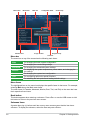
Back button
Menu items
Menu bar
Configuration fields
Pop-up window
Submenu item
General help
Navigation keys
Scroll bar
Menu bar
The menu bar on top of the screen has the following main items:
Main
Ai Tweaker
For changing the basic system configuration
For changing the overclocking settings
Advanced
Boot
For changing the advanced system settings
For displaying the system temperature, power status, and changing the
fan settings
For changing the system boot configuration
Tool
Exit
For configuring options for special functions
For selecting the exit options and loading default settings
Monitor
Menu items
The highlighted item on the menu bar displays the specific items for that menu. For example,
selecting Main shows the Main menu items.
The other items (Ai Tweaker, Advanced, Monitor, Boot, Tool, and Exit) on the menu bar have
their respective menu items.
Back button
This button appears when entering a submenu. Press <Esc> or use the USB mouse to click
this button to return to the previous menu screen.
Submenu items
A greater than sign (>) before each item on any menu screen means that the item has a
submenu. To display the submenu, select the item and press <Enter>.
2-8
Chapter 2: Getting started
Pop-up window
Select a menu item and press <Enter> to display a pop-up window with the configuration
options for that item.
Scroll bar
A scroll bar appears on the right side of a menu screen when there are items that do not fit on
the screen. Press the Up/Down arrow keys or <Page Up> / <Page Down> keys to display the
other items on the screen.
Navigation keys
At the bottom right corner of the menu screen are the navigation keys for the BIOS setup
program. Use the navigation keys to select items in the menu and change the settings.
General help
At the top right corner of the menu screen is a brief description of the selected item.
Configuration fields
These fields show the values for the menu items. If an item is user-configurable, you can
change the value of the field opposite the item. You cannot select an item that is not
user-configurable.
A configurable field is highlighted when selected. To change the value of a field, select it and
press <Enter> to display a list of options.
2.3
My Favorites
MyFavorites is your personal space where you can easily save and access your favorite
BIOS items.
ASUS B85M-E
2-9
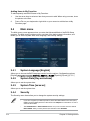
Adding items to My Favorites
To add frequently-used BIOS items to My Favorites:
1.
Use the arrow keys to select an item that you want to add. When using a mouse, hover
the pointer to the item.
2.
Press <F4> on your keyboard or right-click on your mouse to add the item to My
Favorites page.
2.4
Main menu
2.4.1
System Language [English]
The Main menu screen appears when you enter the Advanced Mode of the BIOS Setup
program. The Main menu provides you an overview of the basic system information, and
allows you to set the system date, time, language, and security settings.
Allows you to choose the BIOS language version from the options. Configuration options:
[English]
[Español] [Русский] [한국어]
2.4.2
System Date [Day xx/xx/xxxx]
Allows you to set the system date.
2.4.3
System Time [xx:xx:xx]
Allows you to set the system time.
2.4.4
Security
The Security menu items allow you to change the system security settings.
2-10
•
If you have forgotten your BIOS password, erase the CMOS Real Time Clock (RTC)
RAM to clear the BIOS password. See section 1.6 Jumpers for information on how to
erase the RTC RAM.
•
The Administrator or User Password items on top of the screen show the default
Not Installed. After you set a password, these items show Installed.
Chapter 2: Getting started
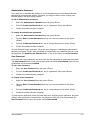
Administrator Password
If you have set an administrator password, we recommend that you enter the administrator
password for accessing the system. Otherwise, you might be able to see or change only
selected fields in the BIOS setup program.
To set an administrator password:
1.
Select the Administrator Password item and press <Enter>.
2.
From the Create New Password box, key in a password, then press <Enter>.
3.
Confirm the password when prompted.
To change an administrator password:
1.
Select the Administrator Password item and press <Enter>.
2.
From the Enter Current Password box, key in the current password, then press
<Enter>.
3.
From the Create New Password box, key in a new password, then press <Enter>.
4.
Confirm the password when prompted.
To clear the administrator password, follow the same steps as in changing an administrator
password, but press <Enter> when prompted to create/confirm the password. After you clear
the password, the Administrator Password item on top of the screen shows Not Installed.
User Password
If you have set a user password, you must enter the user password for accessing the system.
The User Password item on top of the screen shows the default Not Installed. After you set
a password, this item shows Installed.
To set a user password:
1.
Select the User Password item and press <Enter>.
2.
From the Create New Password box, key in a password, then press <Enter>.
3.
Confirm the password when prompted.
To change a user password:
1.
Select the User Password item and press <Enter>.
2.
From the Enter Current Password box, key in the current password, then press
<Enter>.
3.
From the Create New Password box, key in a new password, then press <Enter>.
4.
Confirm the password when prompted.
To clear the user password, follow the same steps as in changing a user password, but press
<Enter> when prompted to create/confirm the password. After you clear the password, the
User Password item on top of the screen shows Not Installed.
ASUS B85M-E
2-11
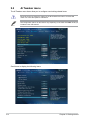
2.5
Ai Tweaker menu
The Ai Tweaker menu items allow you to configure overclocking-related items.
Be cautious when changing the settings of the Ai Tweaker menu items. Incorrect field
values can cause the system to malfunction.
The configuration options for this section vary depending on the CPU and DIMM model you
installed on the motherboard.
Scroll down to display the following items:
2-12
Chapter 2: Getting started
Scroll down to display the following items:
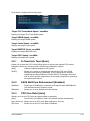
Target CPU Turbo-Mode Speed : xxxxMHz
Displays the target CPU Turbo-Mode speed.
Target DRAM Speed : xxxxMHz
Displays the target DRAM speed.
Target Cache Speed : xxxxMHz
Displays the target Cache speed.
Target DMI/PEG Clock : xxxxMHz
Displays the target DMI/PEG clock.
Target iGPU Speed : xxxxMHz
Displays the target iGPU speed.
2.5.1
Ai Overclock Tuner [Auto]
Allows you to select the CPU overclocking options to achieve the desired CPU internal
frequency. Select any of these preset overclocking configuration options:
[Auto]
Loads the optimal settings for the system.
[X.M.P.]
Allows your system to automatically optimize the CPU ratio, BCLK
frequency, and memory parameters. If you install memory modules
supporting the eXtreme Memory Profile (X.M.P.) Technology, select this
item to set the profiles supported by your memory modules for optimizing
the system performance.
2.5.2
ASUS MultiCore Enhancement [Enabled]
[Enabled]
Default set to [Enabled] for maximum performance under XMP/Manual/
User-defined memory frequency mode.
[Disabled]
Allows you to set to default core ratio settings.
2.5.3
CPU Core Ratio [Auto]
Allows you to set the CPU core ratio automatically or manually.
[Auto]
Sets all CPU Core Ratio to Intel® CPU default settings automatically.
[Sync All Cores] Allows you to set CPU Core Ratio settings for all cores.
[Per Core]
ASUS B85M-E
Allows you to set CPU Core Ratio individually.
2-13
The following two items appear only when you set the CPU Core Ratio to [Sync All
Cores] or [Per Core].
1-Core Ratio Limit [Auto]
Select [Auto] to apply the CPU default Turbo Ratio setting or manually assign a 1-Core
Limit value, which should be higher than or equal to the 2-Core Ratio Limit.
2-/3-/4-Core Ratio Limit [Auto]
These items become configurable only when you set the CPU Core Ratio item to [Per
Core].
2.5.4
Min CPU Cache Ratio [Auto]
Allows you to set the uncore ratio of the processor to its possible minimum value.
Configuration options: [Auto] [1] ~ [30].
2.5.5
Max CPU Cache Ratio [Auto]
Allows you to set the uncore ratio of the processor to its possible maximum value.
Configuration options: [Auto] [1] ~ [30].
2.5.6
CPU bus speed : DRAM speed ratio mode [Auto]
Allows you to set the CPU bus speed to DRAM speed ratio mode.
[Auto]
DRAM speed is set to the optimized settings.
[100:133]
The CPU bus speed to DRAM speed ratio is set to 100:133.
[100:100]
The CPU bus speed to DRAM speed ratio is set to 100:100.
2.5.7
Memory Frequency [Auto]
Allows you to set the memory operating frequency. The configuration options vary with the
BCLK/PEG Frequency item settings.
Selecting a very high memory frequency may cause the system to become unstable! If this
happens, revert to the default setting.
2.5.8
CPU Graphics Max. Ratio [Auto]
Allows you to set the CPU Graphics maximum ratio. The maximum ratio is 60x. Use <+>/<->
to adjust the value.
2.5.9
GPU Boost [As is]
Allows you to enable the GPU Boost to accelerate the integrated GPU for extreme graphics
performance. Configuration options: [As is] [Enabled].
2.5.10
EPU Power Saving Mode [Auto]
Allows you to enable or disable the EPU power saving function. Configuration options:
[Disabled] [Enabled] [Auto]
2-14
Chapter 2: Getting started
2.5.11
DRAM Timing Control
The subitems in this menu allow you to set the DRAM timing control features. Use the <+>
and <-> keys to adjust the value. To restore the default setting, type [auto] using the keyboard
and press the <Enter> key.
Changing the values in this menu may cause the system to become unstable! If this
happens, revert to the default settings.
Primary Timings
DRAM CAS# Latency [Auto]
Configuration options: [Auto] [1 DRAM Clock] – [31 DRAM Clock]
DRAM RAS# to CAS# Delay [Auto]
Configuration options: [Auto] [1 DRAM Clock] – [31 DRAM Clock]
DRAM RAS# PRE Time [Auto]
Configuration options: [Auto] [1 DRAM Clock] – [31 DRAM Clock]
DRAM RAS# ACT Time [Auto]
Configuration options: [Auto] [1 DRAM Clock] – [63 DRAM Clock]
DRAM COMMAND Rate [Auto]
Configuration options: [Auto] [1 DRAM Clock] [2 DRAM Clock] [3 DRAM Clock]
Secondary Timings
DRAM RAS# to RAS# Delay [Auto]
Configuration options: [Auto] [1 DRAM Clock] – [15 DRAM Clock]
DRAM REF Cycle Time [Auto]
Configuration options: [Auto] [1 DRAM Clock] – [511 DRAM Clock]
DRAM Refresh Interval [Auto]
Configuration options: [Auto] [1 DRAM Clock] – [65535 DRAM Clock]
DRAM WRITE Recovery Time [Auto]
Configuration options: [Auto] [1 DRAM Clock] – [16 DRAM Clock]
DRAM READ to PRE Time [Auto]
Configuration options: [Auto] [1 DRAM Clock] – [15 DRAM Clock]
DRAM FOUR ACT WIN Time [Auto]
Configuration options: [Auto] [1 DRAM Clock] – [255 DRAM Clock]
DRAM WRITE to READ Delay [Auto]
Configuration options: [Auto] [1 DRAM Clock] – [15 DRAM Clock]
DRAM CKE Minimum pulse width [Auto]
Configuration options: [Auto] [1 DRAM Clock] – [15 DRAM Clock]
DRAM CAS# Write to Latency [Auto]
Configuration options: [Auto] [1 DRAM Clock] – [31 DRAM Clock]
ASUS B85M-E
2-15
RTL IOL control
DRAM RTL (CHA) [Auto]
Configuration options: [Auto] [1 DRAM Clock] – [63 DRAM Clock]
DRAM RTL (CHB) [Auto]
Configuration options: [Auto] [1 DRAM Clock] – [63 DRAM Clock]
DRAM IO-L (CHA) [Auto]
Configuration options: [Auto] [Delay 1 Clock] - [Delay 15 Clock]
DRAM IO-L (CHB) [Auto]
Configuration options: [Auto] [Delay 1 Clock] - [Delay 15 Clock]
Third Timings
tRDRD [Auto]
Configuration options: [Auto] [1 DRAM Clock] – [7 DRAM Clock]
tRDRD_dr [Auto]
Configuration options: [Auto] [1 DRAM Clock] – [15 DRAM Clock]
tRDRD_dd [Auto]
Configuration options: [Auto] [1 DRAM Clock] – [15 DRAM Clock]
tWRRD [Auto]
Configuration options: [Auto] [1 DRAM Clock] – [63 DRAM Clock]
tWRRD_dr [Auto]
Configuration options: [Auto] [1 DRAM Clock] – [15 DRAM Clock]
tWRRD_dd [Auto]
Configuration options: [Auto] [1 DRAM Clock] – [15 DRAM Clock]
tWRWR [Auto]
Configuration options: [Auto] [1 DRAM Clock] – [7 DRAM Clock]
tWRWR_dr [Auto]
Configuration options: [Auto] [1 DRAM Clock] – [15 DRAM Clock]
tWRWR_dd [Auto]
Configuration options: [Auto] [1 DRAM Clock] – [15 DRAM Clock]
Dec_WRD [Auto]
Configuration options: [Auto] [0] [1]
tRDWR [Auto]
Configuration options: [Auto] [1 DRAM Clock] – [31 DRAM Clock]
tRDWR_dr [Auto]
Configuration options: [Auto] [1 DRAM Clock] – [31 DRAM Clock]
tRDWR_dd [Auto]
Configuration options: [Auto] [1 DRAM Clock] – [31 DRAM Clock]
MISC
MRC Fast Boot [Enabled]
Allows you to enable or disable the MRC fast boot.
[Enabled]
Enables the MRC fast boot.
[Disable]
2-16
Disables the MRC fast boot.
Chapter 2: Getting started
DRAM CLK Period [Auto]
Configuration options: [Auto] [1] – [14]
Channel A DIMM Control [Enable Bot...]
Configuration options: [Enable Both DIMMS] [Disable DIMM0] [Disable DIMM1]
[Disable Both DIMMS]
Channel B DIMM Control [Enable Bot...]
Configuration options: [Enable Both DIMMS] [Disable DIMM0] [Disable DIMM1]
[Disable Both DIMMS]
Scrambler Setting [Optimized ...]
Configuration options: [Optimized (ASUS)] [Default (MRC)]
2.5.12
CPU Power Management
The subitems in this menu allow you to set the CPU ratio and features.
Enhanced Intel® SpeedStep Technology [Enabled]
Allows you to enable or disable the Enhanced Intel® SpeedStep Technology (EIST).
[Disabled]
Disables this function.
[Enabled]
The operating system dynamically adjusts the processor voltage and
core frequency which may result in decreased average consumption and
decreased average heat production.
Turbo Mode [Enabled]
Allows you to enable your core processor’s speed to run faster than the marked frequency in
a specific condition. Configuration options: [Disabled] [Enabled]
•
Turbo Mode is only available on selected CPU models only.
•
The following first three items appear only when you set the Turbo Mode to [Enabled].
Turbo Mode Parameters
Long Duration Package Power Limit [Auto]
Allows you to limit the turbo ratio’s long duration package power.
Use the <+> and <-> keys to adjust the value.
Package Power Time Window [Auto]
Allows you to set the package power time window.
Use the <+> and <-> keys to adjust the value.
Short Duration Package Power Limit [Auto]
Allows you to limit the turbo ratio’s long duration power.
Use the <+> and <-> keys to adjust the value.
CPU Integrated VR Current Limit [Auto]
Allows you to limit the CPU Integrated VR current
Use <+> and <-> key to adjust the value.
ASUS B85M-E
2-17
CPU Internal Power Switching Frequency
Frequency Tuning Mode [Auto]
Allows you to set the frequency tuning mode. Configuration options: [Auto] [+] [-]
CPU Internal Power Fault Control
Thermal Feedback [Auto]
When enabled, it allows CPU to take precautionary actions when the thermal of the
external regulator exceeds the limit.Configuration options: [Auto] [Disabled] [Enabled]
CPU Integrated VR Fault Management [Auto]
Allows you to manage the CPU Integrated VR fault. Configuration options: [Auto]
[Disabled] [Enabled]
CPU Internal Power Configuration
CPU Integrated VR Efficiency Management [Auto]
Allows you to manage the CPU integrated VR efficiency. Configuration options: [Auto]
[High Performance] [Balanced]
Power Decay Mode [Auto]
Enable to improve power saving on the Fully Integrated Voltage Regulator as the processor
enters low current mode. Configuration options: [Auto] [Disabled] [Enabled]
Idle Power-in Response [Auto]
Allows you to set the idle power-in response. Configuration options: [Auto] [Regular] [Fast]
Idle Power-out Response [Auto]
Allows you to set the idle power-out response. Configuration options: [Auto] [Regular] [Fast]
Power Current Slope [Auto]
Allows you to set the power current slope. Configuration options: [Auto] [Level 4] [Level 3]
[Level 2] [Level 1] [Level 0] ]Level -1] [Level -2] [Level -3] [Level -4].
Power Current Offset [Auto]
Allows you to set the power current offset. Configuration options: [Auto] [100%] [87.5%] [75%]
[62.5%] [50%] [37.5%] [25%] [12.5%] [0%] [-12.5%] [-25%] [-37.5%] [-50.0%] [-62.5%] [-75%]
[-87.5%] [-100%]
Power Fast Ramp Response [Auto]
Allows you to set the power fast ramp response.
Use the <+> and <-> keys to adjust the value.
CPU Internal Power Saving Control
Power Saving Level 1 Threshhold [Auto]
Allows you to set the power saving level 1 threshhold.
Use the <+> and <-> keys to adjust the value.
Power Saving Level 2 Threshhold [Auto]
Allows you to set the power saving level 2 threshhold.
2-18
Chapter 2: Getting started
Use the <+> and <-> keys to adjust the value.
Power Saving Level 3 Threshhold [Auto]
Allows you to set the power saving level 3 threshhold.
Use the <+> and <-> keys to adjust the value.
2.5.13
CPU Core Voltage [Auto]
This item allows you to set the CPU core voltage. Increase the voltage when increasing the
core frequency. Configuration options: [Auto] [Manual Mode] [Offset Mode] [Adaptive Mode].
CPU Core Voltage Override [Auto]
This item appears only when you set the CPU Core Voltage to [Manual Mode] and allows you
to set the CPU core voltage override. The values range from 0.001V to 1.920V with a 0.001V
interval.
Offset Mode Sign [+]
This item appears only when you set the CPU Core Voltage to [Offset Mode] or [Adaptive
Mode] and allows you to set the offset mode sign. Configuration options: [+] [-]
CPU Core Voltage Offset [Auto]
This item appears only when you set the CPU Core Voltage to [Offset Mode] or
[Adaptive Mode] and allows you to set the CPU core voltage offset. The values range
from 0.001V to 0.999V with a 0.001V interval.
Additional Turbo Mode CPU Core Voltage [Auto]
This item appears only when you set the CPU Core Voltage to [Adaptive Mode] and allows
you to set the additional turbo mode CPU core voltage. The values range from 0.001V to
1.920V with a 0.001V interval.
Total Adaptive Mode CPU Core Voltage [Auto]
This item appears only when you set the CPU Core Voltage to [Adaptive Mode] and allows
you to set the total adaptive mode CPU core voltage. The values range from 0.001V to
1.920V with a 0.001V interval.
2.5.14
CPU Cache Voltage [Auto]
This item allows you to set the CPU Cache voltage. Increase the cache voltage when
increasing the ring frequency. Configuration options: [Auto] [Manual Mode] [Offset Mode]
[Adaptive Mode].
CPU Cache Voltage Override [Auto]
This item appears only when you set the CPU Cache Voltage to [Manual Mode] and allows
you to set the CPU Cache voltage override. The values range from 0.001V to 1.920V with a
0.001V interval.
Offset Mode Sign [+]
This item appears only when you set the CPU Cache Voltage to [Offset Mode] or [Adaptive
Mode] and allows you to set the offset mode sign. Configuration options: [+] [-]
ASUS B85M-E
2-19
CPU Cache Voltage Offset [Auto]
This item appears only when you set the CPU Cache Voltage to [Offset Mode] or
[Adaptive Mode] and allows you to set the CPU cache voltage offset. The values range
from 0.001V to 0.999V with a 0.001V interval.
Additional Turbo Mode CPU Cache Voltage [Auto]
This item appears only when you set the CPU Cache Voltage to [Adaptive Mode] and allows
you to set the additional turbo mode CPU cache voltage. The values range from 0.001V to
1.920V with a 0.001V interval.
Total Adaptive Mode CPU Cache Voltage [Auto]
This item appears only when you set the CPU Cache Voltage to [Adaptive Mode] and allows
you to set the total adaptive mode CPU cache voltage. The values range from 0.001V to
1.920V with a 0.001V interval.
2.5.15
CPU Graphics Voltage [Auto]
This item allows you to set the CPU graphics voltage. Increase the graphics voltage when
increasing the iGPU frequency. Configuration options: [Auto] [Manual Mode] [Offset Mode]
[Adaptive Mode].
CPU Graphics Voltage Override [Auto]
This item appears only when you set the CPU Graphics Voltage to [Manual Mode] and allows
you to set the CPU graphics voltage override. The values range from 0.001V to 1.920V with
a 0.001V interval.
Offset Mode Sign [+]
This item appears only when you set the CPU Graphics Voltage to [Offset Mode] or [Adaptive
Mode] and allows you to set the offset mode sign. Configuration options: [+] [-]
CPU Graphics Voltage Offset [Auto]
This item appears only when you set the CPU Graphics Voltage to [Offset Mode] or
[Adaptive Mode] and allows you to set the CPU graphics voltage offset. The values
range from 0.001V to 0.999V with a 0.001V interval.
Additional Turbo Mode CPU Graphics Voltage [Auto]
This item appears only when you set the CPU Graphics Voltage to [Adaptive Mode] and
allows you to set the additional turbo mode CPU graphics voltage. The values range from
0.001V to 1.920V with a 0.001V interval.
Total Adaptive Mode CPU Graphics Voltage [Auto]
This item appears only when you set the CPU Graphics Voltage to [Adaptive Mode] and
allows you to set the total adaptive mode CPU graphics voltage. The values range from
0.001V to 1.920V with a 0.001V interval.
2.5.16
CPU System Agent Voltage Offset Mode Sign [+]
This item allows you to set the CPU system agent voltage offset mode sign. Configuration
options: [+] [-].
2-20
Chapter 2: Getting started
CPU System Agent Voltage Offset [Auto]
This item allows you to set the CPU system agent voltage offset. Increase the value when
increasing DRAM frequency. The values range from 0.001V to 0.999V with a 0.001V interval.
2.5.17
CPU Analog I/O Voltage Offset Mode Sign [+]
This item allows you to set the CPU analog I/O voltage offset mode sign. Configuration
options: [+] [-].
CPU Analog I/O Voltage Offset [Auto]
This item allows you to set the CPU analog I/O voltage offset. Increase the value when
increasing DRAM frequency. The values range from 0.001V to 0.999V with a 0.001V interval.
2.5.18
CPU Digital I/O Voltage Offset Mode Sign [+]
This item allows you to set the CPU digital I/O voltage offset mode sign. Configuration
options: [+] [-].
CPU Digital I/O Voltage Offset [Auto]
This item allows you to set the CPU digital I/O voltage offset. Increase the value when
increasing DRAM frequency. The values range from 0.001V to 0.999V with a 0.001V interval.
2.5.19
SVID Support [Auto]
Disabling SVID Support stops the processor from commmunicating with the external voltage
regulator. Configuration options: [Auto] [Disabled] [Enabled].
2.5.20
VCCIN Offset Mode Sign [+]
This item allows you to set the VCCIN offset mode sign. Configuration options: [+] [-].
VCCIN Offset Voltage [Auto]
This item allows you to set the VCCIN offset voltage. Increase the value when increasing the
offset voltage. The values range from 0.010V to 0.600V with a 0.010V interval.
2.5.21
DRAM Voltage [Auto]
Allows you to set the DRAM Voltage. The values range from 1.185V to 1.800V with a 0.005V
interval.
2.5.22
DRAM CTRL REF Voltage [Auto]
Allows you to set the DRAM CTRL REF Voltage. The values range from 0.3950V to 0.6300V
with a 0.0050V interval.
2.5.23
DRAM DATA REF Voltage on CHA [Auto]
Allows you to set the DRAM DATA REF Voltage on CHA. The values range from 0.3950V to
0.6300V with a 0.0050V interval
ASUS B85M-E
2-21
2.5.24
DRAM DATA REF Voltage on CHB [Auto]
Allows you to set the DRAM DATA REF Voltage on CHB. The values range from 0.3950V to
0.6300V with a 0.0050V interval
2.5.25
•
The values of the CPU Core Voltage Override, CPU Core Voltage Offset, Adtional
Turbo Mode CPU Core Voltage, Total Adaptive Mode CPU Core Voltage, CPU
Cache Voltage Override, CPU Cache Voltage Override, CPU Cache Voltage
Offset, Adtional Turbo Mode CPU Cache Voltage, Total Adaptive Mode CPU
Cache Voltage, CPU Graphics Voltage Override, CPU Graphics Voltage Override,
CPU Graphics Voltage Offset, Adtional Turbo Mode CPU Graphics Voltage, Total
Adaptive Mode CPU Graphics Voltage, CPU System Agent Voltage Offset, CPU
Analog I/O Voltage Offset, CPU Digital I/O Voltage Offset, VCCIN Offset Voltage,
DRAM Voltage, DRAM CTRL REF Voltage, DRAM DATA REF Voltage on CHA/
CHB items are labelled in different colors, indicating the risk levels of high voltage
settings.
•
The system may need better cooling system to work stably under high voltage
settings.
CPU Spread Spectrum [Auto]
[Auto]
Automatic configuration.
[Disabled]
Enhances the BCLK overclocking ability.
[Enabled]
Sets to [Enabled] for EMI control.
2.6
Advanced menu
The Advanced menu items allow you to change the settings for the CPU and other system
devices.
Be cautious when changing the settings of the Advanced menu items. Incorrect field values
can cause the system to malfunction.
2-22
Chapter 2: Getting started
2.6.1
CPU Configuration
The items in this menu show the CPU-related information that the BIOS automatically
detects.
The items shown in submenu may be different due to the CPU you installed.
Intel® Adaptive Thermal Monitor [Enabled]
[Enabled]
Enables the overheated CPU to throttle its clock speed to cool down.
[Disabled]
Disables the CPU thermal monitor function.
Hyper-threading [Enabled]
The Intel Hyper-Threading Technology allows a hyper-threading processor to appear as two
logical processors to the operating system, allowing the operating system to schedule two
threads or processes simultaneously.
[Enabled]
Two threads per activated core are enabled.
[Disabled]
Only one thread per activated core is enabled.
Active Processor Cores [All]
Allows you to choose the number of CPU cores to activate in each processor package.
Configuration options: [All] [1] [2] [3]
Limit CPUID Maximum [Disabled]
[Enabled]
Allows legacy operating systems to boot even without support for CPUs
with extended CPUID functions.
[Disabled]
Disables this function.
Execute Disable Bit [Enabled]
[Enabled]
Enables the No-Execution Page Protection Technology.
[Disabled]
Forces the XD feature flag to always return to zero (0).
Intel® Virtualization Technology [Disabled]
[Enabled]
Allows a hardware platform to run multiple operating systems separately
and simultaneously, enabling one system to virtually function as several
systems.
[Disabled]
Disables this function.
Hardware Prefetcher [Enabled]
[Enabled]
Allows a hardware platform to automatically analyze the requirements and
prefetch data and codes for the CPU.
[Disabled]
Disables this function.
Adjacent Cache Line Prefetch [Enabled]
[Enabled]
Allows a hardware platform to perform adjacent cache line prefetching.
[Disabled]
Disables this function.
ASUS B85M-E
2-23
Boot performance mode [Max Non-Tu...]
This item allows you to select the boot performance mode. Configuration options: [Max NonTurbo Performance] [Max battery] [Turbo Performance]
CPU Power Management Configuration
This item allows you to manage and configure the CPU’s power.
Enhanced Intel® SpeedStep Technology [Enabled]
Allows you to enable or disable the Enhanced Intel® SpeedStep Technology (EIST).
[Disabled]
The CPU runs at its default speed.
[Enabled]
The operating system controls the CPU speed.
Turbo Mode [Enabled]
Allows you to set the processor cores to run faster than the marked frequency in a
specific condition. Configuration options: [Enabled] [Disabled]
Turbo Mode is only available on selected CPU models only.
CPU C states [Enabled]
[Auto]
Automatic configuration.
[Enabled]
Enables the CPU C states.
[Disabled]
Disables the CPU C states.
The following items appear only when you set the CPU C states to [Enabled].
Enhanced C1 state [Enabled]
[Enabled]
Enables enhanced C1 state.
[Disabled]
Disables enhanced C1 state.
CPU C3 Report [Enabled]
Allows you to disable or enable the CPU C3 report to OS. Configuration options:
[Enabled] [Disabled]
CPU C6 report [Enabled]
Allows you to disable or enable the CPU C6 report to OS. Configuration options:
[Enabled] [Disabled]
C6 Latency [Short]
Allows you to choose short or long latency for C6. Configuration options: [Short] [Long]
CPU C7 report [CPU C7s]
Allows you to disable or enable the CPU C7 report to OS. Configuration options:
[Disabled] [CPU C7] [CPU C7s]
C7 Latency [Long]
Allows you to choose short or long latency for C6. Configuration options: [Short] [Long]
Package C State Support [Auto]
Allows you to disable or enable the whole C-State package support. Configuration
options: [Auto] [Enabled] [C0/C1] [C2] [C3] [C6] [CPU C7] [CPU C7s]
2-24
Chapter 2: Getting started
2.6.2
PCH Configuration
PCI Express Configuration
DMI Link ASPM Control [Auto]
Allows you to control the Active State Power Managemennt on both NB and SB side of
the DMI Link. Configuration options: [Auto] [Enabled] [Disabled]
ASPM Support [Disabled]
Allows you to set the ASPM support. Configuration options: [Disabled] [Auto] [L0s] [L1]
L0sL1].
PCIe Speed [Auto]
Allows you to select the PCI Express port speed. Configuration options: [Auto] [Gen1]
[Gen2]
Intel® Rapid Start Technology
Intel® Rapid Start Technology [Disabled]
Allows you to enable or disable Intel® Rapid Start Technology. Configuration options:
[Enabled] [Disabled]
The following items appear only when you set the Intel® Rapid Start Technology to
[Enabled].
Entry on S3 RTC Wake [Enabled]
The system automatically wakes up and set to Rapid Start Technology S4 mode.
Configuration options: [Enabled] [Disabled
Entry After [x]
Allows you to set the wake-up time.The values range from 0 (immediately) to 120.
Active Page Threshold Support [Enabled]
The system automatically set itself to sleep when the partition size is not enough for
Rapid Start Technology to work. Configuration options: [Enabled] [Disabled]
Active Memory Threshold [0]
Key in the value for the additional partition size for Rapid Start Technology to work.
Ensure that the caching partition size is larger than the total memory size.
Hybrid Hard Disk Support [Disabled]
Allows you to enable or disable hybrid hard disk support.
Configuration options: [Enabled] [Disabled]
Intel® Smart Connect Technology [Disabled]
ICST Configuration [Disabled]
Allows you to enable or disable the ISCT configuration. Configuration options:
[Enabled] [Disabled]
ASUS B85M-E
2-25
2.6.3
SATA Configuration
While entering Setup, the BIOS automatically detects the presence of SATA devices. The
SATA Port items show Not Present if no SATA device is installed to the corresponding SATA
port.
SATA Mode Selection [AHCI]
Allows you to set the SATA configuration.
[Disabled]
Disables the SATA function.
[IDE]
Set to [IDE] when you want to use the Serial ATA hard disk drives as
Parallel ATA physical storage devices.
[AHCI]
Set to [AHCI] when you want the SATA hard disk drives to use the AHCI
(Advanced Host Controller Interface). The AHCI allows the onboard storage
driver to enable advanced Serial ATA features that increases storage
performance on random workloads by allowing the drive to internally
optimize the order of commands.
Aggressive LPM Support [Auto]
This item appears only when you set the previous item to [AHCI] and allows you to enable or
disable PCH entering link power state aggressively. Configuration options: [Auto] [Disabled]
[Enabled]
IDE Legacy / Native Mode Selection [Native]
This item appears only when you set the SATA Mode Selection item to [IDE]. Configuration
options: [Native] [Legacy]
S.M.A.R.T. Status Check [Enabled]
S.M.A.R.T. (Self-Monitoring, Analysis and Reporting Technology) is a monitor system. When
read/write of your hard disk errors occur, this feature allows the hard disk to report warning
messages during the POST. Configuration options: [Enabled] [Disabled]
Hot Plug [Disabled]
These items appear only when you set the SATA Mode Selection item to [AHCI] and allow
you to enable/disable SATA Hot Plug Support.
Configuration options: [Disabled] [Enabled]
2.6.4
System Agent Configuration
VT-d [Disabled]
Allows you to enable or disable VT-d function on MCH. Configuration options: [Enabled]
[Disabled]
CPU Audio Device [Enabled]
Allows you to enable or disable CPU SA Audio Device. Configuration options: [Enabled]
[Disabled]
DVI Port Audio [Disabled]
Allows you to enable or disable the DVI port. Configuration options: [Enabled] [Disabled]
2-26
Chapter 2: Getting started
Graphics Configuration
Allows you to select a primary display from iGPU, and PCIe graphical devices.
Primary Display [Auto]
Allows you to select which of the iGPU/PCIE Graphics device should be the Primary
Display. Configuration options: [Auto] [IGPU] [PCIE] [PCI]
iGPU Memory [Auto]
Allows you to select the amount of system memory allocated to DVMT 5.0 used by the
iGPU. Configuration options: [Auto] [32M] [64M] [96M] [128M] [160M] [192M] [224M]
[256M] [288M][320M] [352M] [384M] [416M] [448M] [480M] [512M] [1024M]
Render Standby [Auto]
Allows you to enable or disable Intel® Graphics Render Standby support to reduce
iGPU power use when the system is idle. Configuration options: [Auto] [Disabled]
[Enabled]
iGPU Multi-Monitor [Disabled]
Allows you to enable the iGPU Multi-Monitor. For LucidLogix Virtu MVP function
support, set this item to [Enabled] to empower both integrated and discrete graphics.
The iGPU shared system memory size will be fixed at 64MB.
Configuration options: [Disabled] [Enabled]
DMI Configuration
Allows you to control various DMI functions.
DMI Gen 2 [Auto]
Allows you to enable or disable DMI Gen 2. Configuration options: [Auto] [Enabled]
[Disabled]
NB PCIe Configuration
Allows you to configure the NB PCI Express settings.
PCIEX16_1 Link Speed [Auto]
Allows you to configure the PCIEX16_1 speed.
Configuration options: [Auto] [Gen1] [Gen2] [Gen3]
DMI Link ASPM Control [Auto]
Allows you to enable or disable the control of Active State Power Management on SA
side of the DMI Link. Configuration options: [Auto] [Disabled] [L0s] [L1] [L0sL1]
PEG - ASPM [Disabled]
Allows you to control ASPM support for the PEG Device. The setting takes no effect if
PEG is not the active device at present. Configuration options: [Disabled] [Auto] [ASPM
L0s] [ASPM L1] [ASPM L0sL1]
Memory Configuration
Memory Scrambler [Enabled]
Allows you to enable or disable Memory Scrambler support.
Memory Remap [Enabled]
Allows you to enable or disable remapping the memory above 4GB.
[Enabled]
Enables the function.
[Disabled]
ASUS B85M-E
Disables this function.
2-27
2.6.5
AMT Configuration
The items in this menu allow you to change the Intel® Active Management Technology (AMT)
feature.
Intel® AMT [Enabled]
Allow you to enable or disable the Intel® Active Management Technology (AMT) in the BIOS
extension. Configuration options: [Enabled] [Disabled]
•
iAMT H/W is always enabled. This option just controls the BIOS extension execution.
If enabled, this requires additional firmware in the SPI device.
•
The following two items become configurable only when you set the Intel®AMT item to
[Enabled].
BIOS Hotkey Pressed [Disabled]
This item become configurable only when the previous item is set to [Enabled] and allows
you to enable or disable this function. Configuration options: [Enabled] [Disabled]
Un-Configure ME [Disabled]
Sets this item to [Disabled] to unconfigure AMT/ME without using a password or set it to
[Enabled] to use a password. Configuration options: [Enabled] [Disabled]
2.6.6
USB Configuration
The items in this menu allow you to change the USB-related features.
The USB Devices item shows the auto-detected values. If no USB device is detected, the
item shows None.
Legacy USB Support [Enabled]
[Enabled]
Enables the support for USB devices on legacy operating systems (OS).
[Disabled]
The USB devices can be used only for the BIOS setup program.
[Auto] Allows the system to detect the presence of USB devices at startup. If
detected, the USB controller legacy mode is enabled. If no USB device is
detected, the legacy USB support is disabled.
Intel® xHCI Mode [Smart Auto]
[Auto]
Keeps the last operation of xHCI controller in OS during bootup.
[Smart Auto]
Enables the operation of xHCI controller.
[Enabled]
Enables the function.
[Disabled]
Disables the function.
EHCI Hand-off [Disabled]
2-28
[Enabled]
Enables the support for operating systems without an EHCI hand‑off
feature.
[Disabled]
Disables the function.
Chapter 2: Getting started
USB Single Port Control
USB3_1/2/5/6 [Enabled]
Allows you to enable or disable an individual USB port. Refer to the section 1.2.3
Motherboard layout in this user manual for the locations of the USB ports.
Configuration options: [Enabled] [Disabled].
USB3, 4, 9~14 [Enabled]
Allows you to enable or disable an individual USB port. Refer to the section 1.2.3
Motherboard layout in this user manual for the locations of the USB ports.
Configuration options: [Enabled] [Disabled].
2.6.7
Platform Misc Configuration
The items in this menu allow you to configure the Platform Misc.
PCI Express Native Power Management [Disabled]
Allows you to enable or disable PCIE express native power management. Configuration
options: [Enabled] [Disabled]
Native ASPM [Disabled]
The item appears only when you set the previous item to [Enabled] and allows you to enable
or disable ASPM. Configuration options: [Enabled] [Disabled]
2.6.8
Onboard Devices Configuration
HD Audio Controller [Enabled]
[Enabled]
Enables the HD Audio Device.
[Disabled]
Disables the HD Audio Device.
The following item appears only when you set the HD Audio Controller item to [Enabled].
Front Panel Type [HD]
Allows you to set the front panel audio connector (AAFP) mode to legacy AC’97 or highdefinition audio depending on the audio standard that the front panel audio module supports.
[HD]
Sets the front panel audio connector (AAFP) mode to high definition audio.
[AC97]
Sets the front panel audio connector (AAFP) mode to legacy AC’97
Realtek LAN Controller [Enabled]
[Enabled]
Enables the Realtek LAN controller.
[Disabled]
Disables the controller.
Realtek PXE OPROM [Disabled]
This item appears only when you set the previous item to [Enabled] and allows you to
enable or disable the PXE OptionRom of the Realtek LAN controller. Configuration options:
[Enabled] [Disabled]
Serial Port Configuration
The sub-items in this menu allow you to set the serial port configuration.
ASUS B85M-E
2-29
Serial Port [Enabled]
Allows you to enable or disable the serial port (COM).Configuration options: [Enabled]
[Disabled]
Change Settings [IO=3F8h; IRQ=4]
This item appears only when you set the Serial Port to [Enabled] and allows you
to select the Serial Port base address. Configuration options: [IO=3F8h; IRQ=4]
[IO=2F8h; IRQ=3] [IO=3E8h; IRQ=4] [IO=2E8h; IRQ=3]
Parallel Port Configuration
The sub-items in this menu allow you to set the parallel port configuration.
Parallel Port [Enabled]
Allows you to enable or disable the parallel port (LPT/LPTE).
Configuration options: [Enabled] [Disabled]
The following items appear only when you set the Parallel Port Configuration item to
[Enabled].
Change Settings [Auto]
Allows you to select an optimal setting for Super I/O devices. Configuration
options: [Auto] [IO=378h; IRQ=5;] [IO=378h; IRQ=5,6,7,9,10,11,12;] [IO=278h;
IRQ=5,6,7,9,10,11,12;] [IO=3BCh; IRQ=5,6,7,9,10,11,12;]
Device Mode [STD Printe...]
Allows you to select the Printer Port mode. Configuration options: [STD Printer Mode]
[SPP Mode] [EPP-1.9 and SPP Mode] [EPP-1.7 and SPP Mode] [ECP Mode] [ECP and
EPP 1.9 Mode] [ECP and EPP 1.7 Mode]
2.6.9
APM
Deep S4 [Disabled]
Allows you to enable or disable entering deep S4 sleep mode. The system in deep S4 state
can be waken up by pressing power button only. Configuration options: [Enabled] [Disabled]
Restore AC Power Loss [Power Off]
[Power On]
The system goes into on state after an AC power loss.
[Power Off]
The system goes into off state after an AC power loss.
[Last State]
The system goes into either off or on state, whatever the system state was
before the AC power loss.
Power On By PS/2 Keyboard [Disabled]
2-30
[Disabled]
Disables the Power On by a PS/2 keyboard.
[Space Bar]
Sets the Space Bar on the PS/2 keyboard to turn on the system.
[Ctrl-Esc]
Sets the Ctrl+Esc key on the PS/2 keyboard to turn on the system.
[Power Key]
Sets Power key on the PS/2 keyboard to turn on the system. This feature
requires an ATX power supply that provides at least 1A on the +5VSB lead.
Chapter 2: Getting started
Power On By PS/2 Mouse [Disabled]
[Disabled]
Disables the Power On by a PS/2 mouse.
[Enabled]
Enables the Power On by a PS/2 mouse. This feature requires an ATX
power supply that provides at least 1A on the +5VSB lead.
Power On By PCIE/PCI [Disabled]
[Disabled]
Disables the PCIE/PCI devices to generate a wake-on-LAN feature of the
Intel®/Realtek LAN device.
[Enabled]
Enables the PCIE/PCI devices to generate a wake-on-LAN feature of the
Intel®/Realtek LAN device.
Power On By Ring [Disabled]
[Disabled]
Disables Ring to generate a wake event.
[Enabled]
Enables Ring to generate a wake event.
Power On By RTC [Disabled]
[Disabled]
Disables RTC to generate a wake event.
[Enabled]
When set to [Enabled], the items RTC Alarm Date (Days) and Hour/
Minute/Second will become user-configurable with set values.
2.6.10
Network Stack
Network Stack [Disabled]
This item allows user to disable or enable the UEFI network stack. Configuration options:
[Disabled] [Enabled]
The following two items appear only when you set the previous item to [Enabled].
Ipv4 PXE Support [Enabled]
This item allows user to disable or enable the Ipv4 PXE Boot support. Configuration options:
[Disable Link] [Enabled]
Ipv6 PXE Support [Enabled]
This item allows user to disable or enable the Ipv6 PXE Boot support. Configuration options:
[Disable Link] [Enabled]
ASUS B85M-E
2-31
2.7
Monitor menu
The Monitor menu displays the system temperature/power status, and allows you to change
the fan settings.
Scroll down to display the following items:
2.7.1
CPU Temperature [xxxºC/xxxºF]
The onboard hardware monitor automatically detects and displays the CPU temperature.
Select Ignore if you do not wish to display the detected temperature.
2.7.2
CPU / Chassis Fan1/2 Speed [xxxx RPM] or [Ignore] /
[N/A]
The onboard hardware monitor automatically detects and displays the CPU / chassis fan
speeds in rotations per minute (RPM). If the fan is not connected to the motherboard, the field
shows N/A. Select Ignore if you do not wish to display the detected speed.
2.7.3
CPU Input Voltage (VCCIN), 3.3V Voltage, 5V Voltage,
12V Voltage
The onboard hardware monitor automatically detects the voltage output through the onboard
voltage regulators. Select Ignore if you do not want to detect this item.
2-32
Chapter 2: Getting started
2.7.4
CPU Q-Fan Control [Enabled]
[Disabled]
Disables the CPU Q-Fan control feature.
[Enabled]
Enables the CPU Q-Fan control feature.
CPU Fan Speed Low Limit [200 RPM]
This item appears only when you enable the CPU Q-Fan Control feature and allows you to
disable or set the CPU fan warning speed.
Configuration options: [Ignore] [100RPM] [200RPM] [300 RPM] [400 RPM] [500 RPM]
CPU Fan Profile [Standard]
This item appears only when you enable the CPU Q-Fan Control feature and allows you to
set the appropriate performance level of the CPU fan.
[Standard]
Sets to [Standard] to make the CPU fan automatically adjust depending on
the CPU temperature.
[Silent]
Sets to [Silent] to minimize the fan speed for quiet CPU fan operation.
[Turbo]
Sets to [Turbo] to achieve maximum CPU fan speed.
[Manual]
Sets to [Manual] to assign detailed fan speed control parameters.
The following four items appear only when you set CPU Fan Profile to [Manual].
CPU Upper Temperature [70]
Use the <+> and <-> keys to adjust the upper limit of the CPU temperature. The values
range from 20ºC to 75ºC.
CPU Fan Max. Duty Cycle(%) [100]
Use the <+> and <-> keys to adjust the maximum CPU fan duty cycle. The values
range from 20% to 100%. When the CPU temperature reaches the upper limit, the
CPU fan will operate at the maximum duty cycle.
CPU Lower Temperature [20]
Displays the lower limit of the CPU temperature.
CPU Fan Min. Duty Cycle(%) [20]
Use the <+> and <-> keys to adjust the minimum CPU fan duty cycle. The values
range from 20% to 100%. When the CPU temperature is under the lower limit, the CPU
fan will operate at the minimum duty cycle.
2.7.5
Chassis1/2 Q-Fan Control [Enabled]
[Disabled]
Disables the Chassis1/2 Q-Fan control feature.
[Enabled]
Enables the Chassis1/2 Q-Fan control feature.
Chassis1/2 Fan Speed Low Limit [600 RPM]
This item appears only when you enable the Chassis1/2 Q-Fan Control feature and allows
you to disable or set the chassis1/2 fan warning speed.
Configuration options: [Ignore] [200RPM] [300 RPM] [400 RPM] [500 RPM] [600 RPM]
ASUS B85M-E
2-33
Chassis1/2 Fan Profile [Standard]
This item appears only when you enable the Chassis1/2 Q-Fan Control feature and allows
you to set the appropriate performance level of the chassis1/2 fan.
[Standard]
Sets to [Standard] to make the chassis1/2 fan automatically adjust
depending on the chassis1/2 temperature.
[Silent]
Sets to [Silent] to minimize the fan speed for quiet chassis1/2 fan operation.
[Turbo]
Sets to [Turbo] to achieve maximum chassis1/2 fan speed.
[Manual]
Sets to [Manual] to assign detailed fan speed control parameters.
The following four items appear only when you set Chassis1/2 Fan Profile to [Manual].
Chassis1/2 Upper Temperature [70]
Use the <+> and <-> keys to adjust the upper limit of the Chassis1/2 temperature. The
values range from 40ºC to 75ºC.
Chassis1/2 Fan Max. Duty Cycle(%) [100]
Use the <+> and <-> keys to adjust the maximum chassis1/2 fan duty cycle. The
values range from 60% to 100%. When the chassis1/2 temperature reaches the upper
limit, the chassis1/2 fan will operate at the maximum duty cycle.
Chassis1/2 Lower Temperature [40]
Displays the lower limit of the chassis1/2 temperature.
CHASSIS1/2 Fan Min. Duty Cycle(%) [60]
Use the <+> and <-> keys to adjust the minimum chassis fan duty cycle. The values
range from 60% to 100%. When the chassis temperature is under 40ºC, the chassis
fan will operate at the minimum duty cycle.
2.7.6
Anti Surge Support [Disabled]
This item allows you to enable or disable the Anti Surge function.
Configuration options: [Disabled] [Enabled]
2-34
Chapter 2: Getting started
2.8
Boot menu
The Boot menu items allow you to change the system boot options.
Scroll down to display the following items:
2.8.1
Fast Boot [Enabled]
[Enabled]
Select to accelerate the boot speed.
[Disabled]
Select to go back to normal boot.
The following four items appear when you set Fast Boot to [Enabled].
USB Support [Partial Initialization]
[Disabled]All USB devices will not be available until OS boot up for a
fastest POST time.
[Full Initialization]All USB devices will be available during POST. This process will
extend the POST time.
[Partial Initialization]For a faster POST time, only the USB ports with keyboard and
mouse connections will be detected.
ASUS B85M-E
2-35
PS/2 Keyboard and Mouse Support [Auto]
Select any of these settings when PS/2 keyboard and mouse are installed. These settings
only apply when Fast Boot is enabled.
[Auto]
For a faster POST time, PS/2 devices will only be available when the
system boots up or rebooted when the PS/2 devices have not been
reconnected or changed. If you disconnect or change PS/2 devices before
restarting the system, PS/2 devices will not be available and BIOS setup
program will not be accessible via PS/2 devices.
[Full Initialization]For full system control, PS/2 devices will be available during POST at any
circumstances. This process will extend POST time.
[Disabled]
For the fastest POST time, all PS/2 devices will not be available until your
computer enters the operating system.
Network Stack Driver Support [Disabled]
[Disabled]
Select to skip the network stack driver from loading during POST.
[Enabled]
Select to load the network stack driver during POST.
Next Boot after AC Power Loss [Normal Boot]
[Normal Boot]
Returns to normal boot on the next boot after AC power loss.
[Fast Boot]
Accelerates the boot speed on the next boot after AC power loss.
2.8.2
Boot Logo Display [Enabled]
[Enabled]
Display the boot logo during POST.
[Disabled]
Hide the logo during POST.
Set this item to [Enabled] to use the ASUS MyLogo 2™ feature.
Boot Logo Size Control [Auto]
This item appears only when you set Boot Logo Display to [Enabled] and allows you to
adjust the boot logo size. Configuration options: [Auto] [Full Screen].
POST Delay Time [3 sec]
This item appears only when you set Boot Logo Display to [Enabled]. This item allows you
to select the desired additional POST waiting time to easily enter the BIOS setup. You can
only execute the POST delay time during Normal Boot. Configuration options: [1 sec] ~ [10
sec] [Until Press ESC].
This feature will only work under normal boot.
Post Report [5 sec]
This item appears only when you set Boot Logo Display to [Disabled]. This item allows you
to select a desired post report waiting time. The values range from 1 to 10 seconds.
2.8.3
2-36
Bootup NumLock State [On]
[On]
Sets the power-on state of the NumLock to [On].
[Off]
Sets the power-on state of the NumLock to [Off].
Chapter 2: Getting started
2.8.4
Wait for ‘F1’ If Error [Enabled]
When this item is set to [Enabled], the system waits for the F1 key to be pressed when error
occurs. Configuration options: [Disabled] [Enabled]
2.8.5
Option ROM Messages [Force BIOS]
[Force BIOS]
The third-party ROM messages will be forced to display during the boot
sequence.
[Keep Current]
The third-party ROM messages will be displayed only if the third-party
manufacturer had set the add-on device to do so.
2.8.6
Interrupt 19 Capture [Disabled]
[Enabled]
Allows the option ROMs to trap Interrupt 19.
[Disabled]
Disables this function.
2.8.7
Setup Mode [EZ Mode]
[Advanced Mode] Sets Advanced Mode as the default screen for entering the BIOS setup
program.
[EZ Mode]
2.8.8
Sets EZ Mode as the default screen for entering the BIOS setup program.
CSM (Compatibility Support Module)
Allows you to configure the CSM (Compatibility Support Module) items to fully support the
various VGA, bootable devices and add-on devices for better compatibility.
Launch CSM [Enabled]
[Auto]The system automatically detects the bootable devices and the add-on
devices.
[Enabled]For better compatibility, enable the CSM to fully support the non-UEFI
driver add-on devices or the Windows® UEFI mode.
[Disabled]Disable the CSM to fully support the Windows® Security Update and
Security Boot.
The following four items appear when you set Launch CSM to [Enabled].
Boot Devices Control [UEFI and Legacy OpROM]
Allows you to select the type of devices that you want to boot up. Configuration options:
[UEFI and Legacy OpROM] [Legacy OpROM only] [UEFI only]
Boot from Network Devices [Legacy OpROM first]
Allows you to select the type of network devices that you want to launch. Configuration
options: [Legacy OpROM first] [UEFI driver first] [Ignore]
Boot from Storage Devices [Legacy OpROM first]
Allows you to select the type of storage devices that you want to launch. Configuration
options: [Both, Legacy OpROM first] [Both, UEFI first] [Legacy OpROM first] [UEFI driver first]
[Ignore]
ASUS B85M-E
2-37
Boot from PCIe/PCI Expansion Devices [Legacy OpROM first]
Allows you to select the type of PCIe/PCI expansion devices that you want to launch.
Configuration options: [Legacy OpROM first] [UEFI driver first]
2.8.9
Secure Boot
Allows you to configure the Windows® Secure Boot settings and manage its keys to protect
the system from unauthorized access and malwares during POST.
OS Type [Windows UE...]
Allows you to select your installed operating system.
[Windows UEFI mode]Executes the Microsoft® Secure Boot check. Only select this
option when booting on Windows® UEFI mode or other Microsoft®
Secure Boot compliant OS.
[Other OS]Get the optimized function when booting on Windows® non-UEFI
mode, Windows® Vista/XP, or other Microsoft® Secure Boot
non-compliant OS. Only on Windows® UEFI mode that Microsoft®
Secure Boot can function properly.
The following item appears when OS Type is set to [Windows UEFI mode].
Key Management
This item appears only when you set Secure Boot Mode to [Custom]. It allows you to manage
the Secure Boot keys.
Clear Secure Boot keys
This item appears only when you load the default Secure Boot keys. This item allows
you to clear all default Secure Boot keys.
Save Secure Boot keys
This item appears only when you load the default Secure Boot keys. This item allows
you to save all default Secure Boot keys.
PK Management
The Platform Key (PK) locks and secures the firmware from any non-permissible
changes. The system verifies the PK before your system enters the OS.
Delete PK
Allows you to delete the PK from your system. Once the PK is deleted, all
the system’s Secure Boot keys will not be active. Configuration options:
[Yes] [No]
Load PK from File
Allows you to load the downloaded PK from a USB storage device.
The PK file must be formatted as a UEFI variable structure with time-based authenticated
variable.
2-38
Chapter 2: Getting started
KEK Management
The KEK (Key-exchange Key or Key Enrollment Key) manages the Signature database
(db) and Revoked Signature database (dbx).
Key-exchange Key (KEK) refers to Microsoft® Secure Boot Key-Enrollment Key (KEK).
Delete the KEK
Allows you to delete the KEK from your system. Configuration options:
[Yes] [No]
Load KEK from File
Allows you to load the downloaded KEK from a USB storage device.
Append KEK from file
Allows you to load the additional KEK from a storage device for an
additional db and dbx loaded management.
The KEK file must be formatted as a UEFI variable structure with time-based authenticated
variable.
DB Management
The db (Authorized Signature database) lists the signers or images of UEFI
applications, operating system loaders, and UEFI drivers that you can load on the
single computer.
Delete the db
Allows you to delete the db file from your system. Configuration options:
[Yes] [No]
Load db from File
Allows you to load the downloaded db from a USB storage device.
Append db from file
Allows you to load the additional db from a storage device so that more
images can be loaded securely.
The DB file must be formatted as a UEFI variable structure with time-based authenticated
variable.
DBX Management
The dbx (Revoked Signature database) lists the forbidden images of db items that are
no longer trusted and cannot be loaded.
Delete the DBX
Allows you to delete the DBX file from your system. Configuration options:
[Yes] [No]
Load DBX from File
Allows you to load the downloaded DBX from a USB storage device.
Append DBX from file
Allows you to load the additional DBX from a storage device so that more
db’s images cannot be loaded.
The DBX file must be formatted as a UEFI variable structure with time-based authenticated
variable.
ASUS B85M-E
2-39
2.8.10
Boot Option Priorities
These items specify the boot device priority sequence from the available devices. The
number of device items that appears on the screen depends on the number of devices
installed in the system.
•
•
2.8.11
To select the boot device during system startup, press <F8> when ASUS Logo
appears.
To access Windows OS in Safe Mode, do any of the following:
•
Press <F5> when ASUS Logo appears.
•
Press <F8> after POST.
Boot Override
These items displays the available devices. The number of device items that appears on
the screen depends on the number of devices installed in the system. Click an item to start
booting from the selected device.
2-40
Chapter 2: Getting started
2.9
Tools menu
2.9.1
ASUS EZ Flash 2 Utility
The Tools menu items allow you to configure options for special functions. Select an item
then press <Enter> to display the submenu.
Allows you to run ASUS EZ Flash 2. Press [Enter] to launch the ASUS EZ Flash 2 screen.
For more details, see section 2.1.2 ASUS EZ Flash 2.
2.9.2
ASUS O.C. Profile
This item allows you to store or load multiple BIOS settings.
The Setup Profile Status items show Not Installed if no profile is created.
Save to Profile
Allows you to save the current BIOS settings to the BIOS Flash, and create a profile. Key in a
profile number from one to eight, press <Enter>, and then select Yes.
Load from Profile
Allows you to load the previous BIOS settings saved in the BIOS Flash. Key in the profile
number that saved your CMOS settings, press <Enter>, and then select Yes.
2.9.3
•
DO NOT shut down or reset the system while updating the BIOS to prevent the
system boot failure!
•
We recommend that you update the BIOS file only coming from the same memory/
CPU configuration and BIOS version.
ASUS SPD Information
DIMM Slot # [DIMM_A1]
Displays the Serial Presence Detect (SPD) information of the DIMM module installed on the
selected slot. Configuration options: [DIMM_A1] [DIMM_B1] [DIMM_A2] [DIMM_B2]
ASUS B85M-E
2-41
2.10
Exit menu
The Exit menu items allow you to load the optimal default values for the BIOS items, and
save or discard your changes to the BIOS items. You can access the EZ Mode from the Exit
menu.
Load Optimized Defaults
This option allows you to load the default values for each of the parameters on the Setup
menus. When you select this option or if you press <F5>, a confirmation window appears.
Select Yes to load the default values.
Save Changes & Reset
Once you are finished making your selections, choose this option from the Exit menu to
ensure the values you selected are saved. When you select this option or if you press <F10>,
a confirmation window appears. Select Yes to save changes and exit.
Discard Changes & Exit
This option allows you to exit the Setup program without saving your changes. When you
select this option or if you press <Esc>, a confirmation window appears. Select Yes to discard
changes and exit.
ASUS EZ Mode
This option allows you to enter the EZ Mode screen.
Launch EFI Shell from filesystem device
This option allows you to attempt to launch the EFI Shell application (shellx64.efi) from one of
the available devices that have a filesystem.
2-42
Chapter 2: Getting started
Appendices
Notices
Federal Communications Commission Statement
This device complies with Part 15 of the FCC Rules. Operation is subject to the following two
conditions:
•
This device may not cause harmful interference.
•
This device must accept any interference received including interference that may cause
undesired operation.
This equipment has been tested and found to comply with the limits for a Class B digital
device, pursuant to Part 15 of the FCC Rules. These limits are designed to provide
reasonable protection against harmful interference in a residential installation. This
equipment generates, uses and can radiate radio frequency energy and, if not installed
and used in accordance with manufacturer’s instructions, may cause harmful interference
to radio communications. However, there is no guarantee that interference will not occur
in a particular installation. If this equipment does cause harmful interference to radio or
television reception, which can be determined by turning the equipment off and on, the user
is encouraged to try to correct the interference by one or more of the following measures:
•
Reorient or relocate the receiving antenna.
•
Increase the separation between the equipment and receiver.
•
Connect the equipment to an outlet on a circuit different from that to which the receiver is
connected.
•
Consult the dealer or an experienced radio/TV technician for help.
The use of shielded cables for connection of the monitor to the graphics card is required
to assure compliance with FCC regulations. Changes or modifications to this unit not
expressly approved by the party responsible for compliance could void the user’s authority
to operate this equipment.
IC: Canadian Compliance Statement
Complies with the Canadian ICES-003 Class B specifications. This device complies with RSS
210 of Industry Canada. This Class B device meets all the requirements of the Canadian
interference-causing equipment regulations.
This device complies with Industry Canada license exempt RSS standard(s). Operation is
subject to the following two conditions: (1) this device may not cause interference, and (2)
this device must accept any interference, including interference that may cause undesired
operation of the device.
Cut appareil numérique de la Classe B est conforme à la norme NMB-003 du Canada.
Cet appareil numérique de la Classe B respecte toutes les exigences du Règlement sur le
matériel brouilleur du Canada.
Cet appareil est conforme aux normes CNR exemptes de licence d’Industrie Canada. Le
fonctionnement est soumis aux deux conditions suivantes :
(1) cet appareil ne doit pas provoquer d’interférences et
(2) cet appareil doit accepter toute interférence, y compris celles susceptibles de provoquer
un fonctionnement non souhaité de l’appareil.
B85M-E
A-1
Canadian Department of Communications Statement
This digital apparatus does not exceed the Class B limits for radio noise emissions from
digital apparatus set out in the Radio Interference Regulations of the Canadian Department
of Communications.
This class B digital apparatus complies with Canadian ICES-003.
VCCI: Japan Compliance Statement
VCCI Class B Statement
KC: Korea Warning Statement
REACH
Complying with the REACH (Registration, Evaluation, Authorisation, and Restriction of
Chemicals) regulatory framework, we published the chemical substances in our products at
ASUS REACH website at http://csr.asus.com/english/REACH.htm.
DO NOT throw the motherboard in municipal waste. This product has been designed to
enable proper reuse of parts and recycling. This symbol of the crossed out wheeled bin
indicates that the product (electrical and electronic equipment) should not be placed in
municipal waste. Check local regulations for disposal of electronic products.
DO NOT throw the mercury-containing button cell battery in municipal waste. This symbol
of the crossed out wheeled bin indicates that the battery should not be placed in municipal
waste.
ASUS Recycling/Takeback Services
ASUS recycling and takeback programs come from our commitment to the highest standards
for protecting our environment. We believe in providing solutions for you to be able to
responsibly recycle our products, batteries, other components as well as the packaging
materials. Please go to http://csr.asus.com/english/Takeback.htm for detailed recycling
information in different regions.
A-2
Appendices
ASUS contact information
ASUSTeK COMPUTER INC.
Address
Telephone Fax E-mail
Web site
Technical Support
Telephone Online support
15 Li-Te Road, Peitou, Taipei, Taiwan 11259
+886-2-2894-3447
+886-2-2890-7798
[email protected]
www.asus.com.tw
+86-21-38429911
support.asus.com
ASUS COMPUTER INTERNATIONAL (America)
Address
Telephone
Fax
Web site
Technical Support
Telephone Support fax
Online support
800 Corporate Way, Fremont, CA 94539, USA
+1-812-282-3777
+1-510-608-4555
usa.asus.com
+1-812-282-2787
+1-812-284-0883
support.asus.com
ASUS COMPUTER GmbH (Germany and Austria)
Address
Fax
Web site
Online contact
Technical Support
Telephone
Support Fax
Online support
Harkort Str. 21-23, D-40880 Ratingen, Germany
+49-2102-959911
www.asus.de
www.asus.de/sales
+49-1805-010923*
+49-2102-9599-11
support.asus.com
* EUR 0.14/minute from a German fixed landline; EUR 0.42/minute from a mobile phone.
Manufacturer:
ASUSTeK Computer Inc.
Address:
4F, No. 150, LI-TE RD., PEITOU, TAIPEI 112,
TAIWAN R.O.C.
Authorised representative in
Europe:
ASUS Computer GmbH
Address:
HARKORT STR. 21-23, 40880 RATINGEN,
GERMANY
B85M-E
A-3
A-4
Appendices
(510)739-3777/(510)608-4555
800 Corporate Way, Fremont, CA 94539.
Asus Computer International
Date :
Signature :
Representative Person’s Name :
Apr. 18, 2012
Steve Chang / President
This device complies with part 15 of the FCC Rules. Operation is subject to
the following two conditions: (1) This device may not cause harmful
interference, and (2) this device must accept any interference received,
including interference that may cause undesired operation.
Supplementary Information:
FCC Part 15, Subpart B, Unintentional Radiators
Conforms to the following specifications:
Model Number : B85M-E
Product Name : Motherboard
hereby declares that the product
Phone/Fax No:
Address:
Responsible Party Name:
Per FCC Part 2 Section 2. 1077(a)
DECLARATION OF CONFORMITY
Ver. 120601
Manufacturer:
TAIWAN
ASUS COMPUTER GmbH
HARKORT STR. 21-23, 40880 RATINGEN
GERMANY
Country:
Authorized representative in Europe:
Address, City:
Country:
B85M-E
Model name :
Year to begin affixing CE marking:2013
Declaration Date: 18/04/2013
CE marking
2011/65/EU-RoHS Directive
Regulation (EC) No. 642/2009
Regulation (EC) No. 1275/2008
2009/125/EC-ErP Directive
EN 60950-1 / A12:2011
2006/95/EC-LVD Directive
EN 300 328 V1.7.1(2006-10)
EN 300 440-1 V1.6.1(2010-08)
EN 300 440-2 V1.4.1(2010-08)
EN 301 511 V9.0.2(2003-03)
EN 301 908-1 V5.2.1(2011-05)
EN 301 908-2 V5.2.1(2011-07)
EN 301 893 V1.6.1(2011-11)
EN 302 544-2 V1.1.1(2009-01)
EN 302 623 V1.1.1(2009-01)
EN 50360:2001
EN 62479:2010
EN 50385:2002
EN 62311:2008
1999/5/EC-R &TTE Directive
EN 55022:2010
EN 61000-3-2:2006+A2:2009
EN 55013:2001+A1:2003+A2:2006
2004/108/EC-EMC Directive
Name :
Signature : __________
CEO
Jerry Shen
Position :
(EC conformity marking)
Regulation (EC) No. 278/2009
EN 60065:2002 / A12:2011
EN 301 489-1 V1.9.2(2011-09)
EN 301 489-3 V1.4.1(2002-08)
EN 301 489-4 V1.4.1(2009-05)
EN 301 489-7 V1.3.1(2005-11)
EN 301 489-9 V1.4.1(2007-11)
EN 301 489-17 V2.1.1(2009-05)
EN 301 489-24 V1.5.1(2010-09)
EN 302 326-2 V1.2.2(2007-06)
EN 302 326-3 V1.3.1(2007-09)
EN 301 357-2 V1.4.1(2008-11)
EN 302 291-1 V1.1.1(2005-07)
EN 302 291-2 V1.1.1(2005-07)
EN 55024:2010
EN 61000-3-3:2008
EN 55020:2007+A11:2011
conform with the essential requirements of the following directives:
Motherboard
Product name :
declare the following apparatus:
4F, No. 150, LI-TE Rd., PEITOU, TAIPEI 112, TAIWAN
Address, City:
ASUSTeK COMPUTER INC.
EC Declaration of Conformity
We, the undersigned,
Ver. 130208