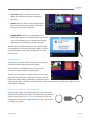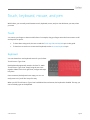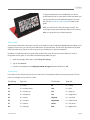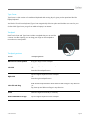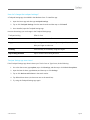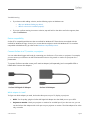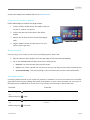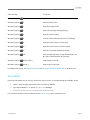
1
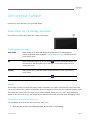
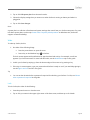
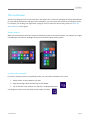
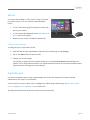
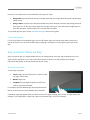
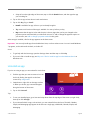
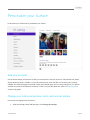
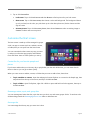
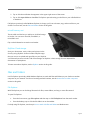
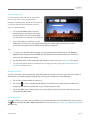
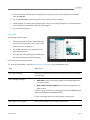
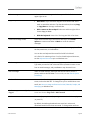
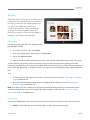
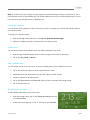
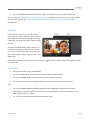
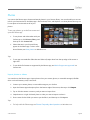
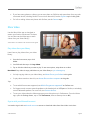
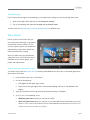
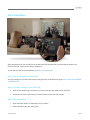
3. Tap or click Notifications (on the left), then make sure notifications are on for the Calendar app. To learn more, see Calendar app: Frequently asked questions on Windows.com. For info on how to get notified about upcoming events, see How to manage notifications for Mail, Calendar, People, and Messaging on Windows.com. Camera Surface has two cameras. You can use the front camera to have a video chat with a friend, and the rear-facing camera to record meetings and events hands-free. You can also use either camera to take pictures. A privacy light appears when either camera is on, so there are no surprises. Both cameras are fixed focus, so you don’t need to worry about focusing. The cameras capture video in 720p HD, with a 16:9 aspect ratio. Both cameras take pictures and videos. The rear camera is angled to point straight ahead when Surface is resting on its kickstand. Shoot a video 1. From the Start screen, tap or click Camera. 2. Tap or click Video mode. This icon switches between video and photo mode. 3. Tap or click Change camera to switch between the front and rear cameras. 4. Tap the screen to start recording video. When you’re done, tap the screen to stop recording. Tips Tap or click Camera options to change settings like video stabilization, brightness, and contrast. Videos that you take with Surface are saved in the Camera Roll album in your Pictures library. Use the Photos app to watch your videos. You can also use other camera apps from the Windows Store. © 2013 Microsoft Page 86