1
Finding Messages in Mailboxes and Folders
Eudora User Manual
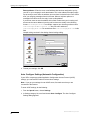
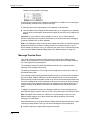
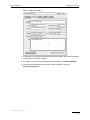
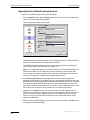
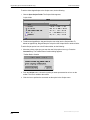
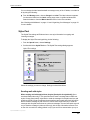
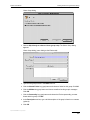
When the search is finished, the following occurs:
■
The Stop button changes back to Search.
■
Mailboxes and Results tabs reappear.
■
Search results checkbox appears next to the More button (or, with multiple conditions,
next to the More and Fewer buttons and the “Match all/Match any” popup).
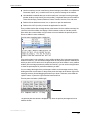
To stop a search at any time, do the following:
■
In the Search window, click Stop, or if the Search window is currently on top, press
Escape (Esc) or Command+. (period).
The search stops, and any results appear in the Results pane. The button behavior is the
same as described above (as if the search had completed).
You can also stop a search, using any of the above methods, when a desired result
appears in the Results pane.
Closing the Search window terminates the search without preserving your results.
Note. For optimum search speed, keep the Search window on top until the search is
completed. Searches run in the background tend to be a bit slower.
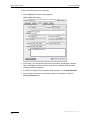
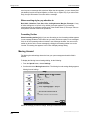
To perform multiple searches, do the following:
1
Begin one search.
2
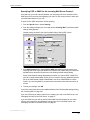
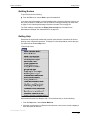
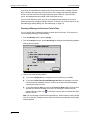
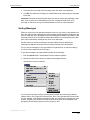
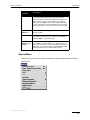
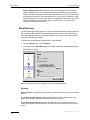
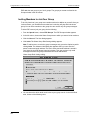
From the Special menu, choose Find. The Find submenu appears.
3
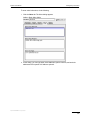
From the Find submenu, choose Search or press Command+F. Another Search
window appears.
4
Set up the second search in the new Search window and begin the second search.
Continue with additional searches if you like. Eudora can perform all of these searches in
tandem. You can also start a search and then move to other tasks, and Eudora will perform
the search in the background.
QUALCOMM Incorporated
164