1
FIT T E D E QUIP M E N T
REAR VISION CAMERA
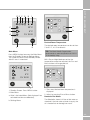
• Select Destination, Find address
• Press on Town, then if the keyboard looks
incorrect, press More, select the English
keyboard (either ABC, or QWERTY format)
• Enter a test post code (HU17 0TB),
pressing the 123 button to switch to
number entry and please noting the space
(...)
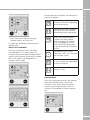
• Select the required address from the list
• If known, enter the house number (39),
Done
• Press GO
If you don’t want to use the supplied monitor
you can use the separate App on an Android
or Apple iOS device.
Head to the appropriate App store (Android or
Apple) and search for WIFI_AVIN. Download
and install the App.
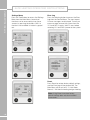
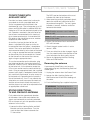
Initial WiFi setup - The camera system creates
its own WiFi Network for the monitor or your
own phone or tablet device to connect to, so
you need to setup this initial connection.
• On the device menu select the settings
option to connect to a new network.
•A
n overview of the route is shown for a
short while, the unit will start navigating
• Turn Wi-Fi on if it is not on already.
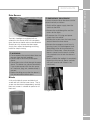
Switching between Apps
• View the list of available networks.
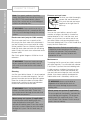
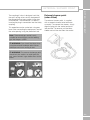
he following Android system
T
buttons (at the bottom of the
screen) can be used to switch
between App’s, close App’s or go
to the previous screen.
BACK: Opens the previous
screen you were working in,
even if it was in a different
App. Once you back up to the
Home screen, you can’t go
back any further.
HOME: Return to the home
screen.
RECENT APPS: Opens the
previous screen you were
working in, even if it was in a
different app. Once you back
up to the Home screen, you
can’t go back any further.
180
Using the separate App on your Android
or Apple iOS phone
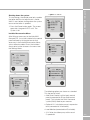
• The camera system uses the WIFI_AVIN
network, so select this.
• Enter the default password 12345678 to
connect.
• Now return to the main menu and start the
App.
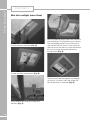
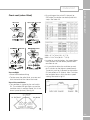
• If the caravan is connected to the car and
the engine is running, the camera image will
be shown on the screen.