1
Edu.Dex User Manual
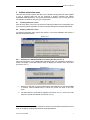
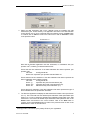
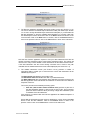
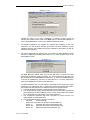
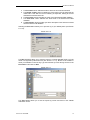
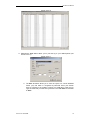
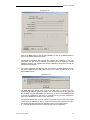
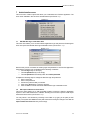
3. Select the data submission date on the calendar screen by indicating the data
submissions year, month and day. The application will return to the date selection
screen (Screen 5.2.3.2) once a valid date has been entered. Click on the Next button
to continue, click on Close to return to the main menu or click on Previous to return
to the previous screen.
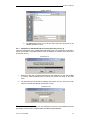
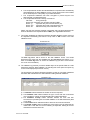
Screen 5.2.3.3
Note that the Edu.Dex application uses this information, in combination with your
6
provider code , to identify your data submission file/s.
Ensure that the first characters of the data submission file names represent your
provider code:
File name:
nnnnffyymmdd.dat
Where nnnn represents your provider code like CHED-1
Ensure that the last six characters of the data submission file names represent the
date of submission in the following manner:
File name:
nnnnffyymmdd.dat
Where yy
represents the year of the submission (07).
Where mm
represents the month of the submission (12).
Where dd
indicates the day of the submission (02).
Ensure that the ff characters of the data submission file name represent the type of
file as indicated in the file specification document.
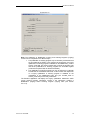
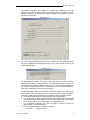
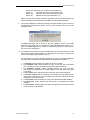
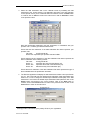
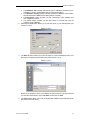
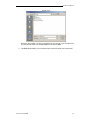
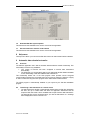
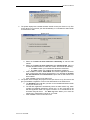
4. The Edu.Dex application will display the data submission location screen (see Screen
5.2.3.4). The screen will have the default import submission folder path loaded (see
Section 7.2 on how to change the default import submission folder path). If the data
submission is not found in the default import submission folder path then click on the
Search button and browse to the correct location. Click on the Next button to
continue, click on the Previous button to return to the previous screen or click on the
Close button to return to the main menu.
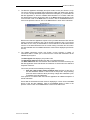
Screen 5.2.3.4
6
Training provider code issued by the primary ETQA of your organization
Version 2.02 17/04/2008
21