1
APPENDIXES
CHAPTER
CHAPTER
APPENDIXES
Completion of this field is optional. Fitting: Select the
instruments in the input field Serial Number, if desired.
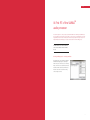
Import and export of client data
data to be stored for this fitting by checking Audio-
By clicking Ok, the selected fitting data is stored and is
With the help of this tool, client data can be imported
gram, right hearing instrument and/or left hearing
available for later use. The Ok button cannot be cho-
and exported. Start the tool by selecting Client DB
instrument. The input fields Manufacturer and Hearing
sen if no data has been selected. By clicking Cancel,
Import/Export … from the file menu.
Instrument are automatically filled in and cannot be
the dialog box is closed and data is not saved.
changed. Enter the serial numbers of the hearing
Exporting client data
The saved client data can be exported by choosing
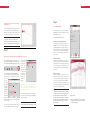
between one, several or all entries (Figure x). With the
Show all button all the clients saved on the current
Mute button
Critical Gain Measurement
workstation are displayed. Entries can be selected
Click on the loudspeaker symbol (Figure x) in the
from this list. To define the location as to where the
lower toolbar to mute the SAMBA. Click on the symbol
exported data should be saved, insert the correspon-
a second time to unmute the SAMBA.
ding file path and file name in the field Export client
If feedback occurs after activation, the Feedback Can-
data to file. After you have selected at least one entry,
Export data for standalone use: SHS compatible data
cellation system can be activated within the Speech/
the export process can be started by clicking on the
will be exported. NOAH import is not possible with this
Sound settings. Furthermore, programming adjust-
Export button.
format. Export data for use in NOAH: NOAH compa-
Program link
ments can be made to eliminate the feedback.
In a subsequent step, the type of export has to be
tible data will be exported. Here your NOAH user ID
When a change in one program is made it can be
A suggested adjustment strategy is as follows: start by
defined:
has to be entered.
applied to all the programs by clicking on the marked
increasing the compression kneepoint by a few incre-
symbols (Figure x).
ments in compression band no.8. If the feedback level
stays the same, bring it back to the initial position and
try the same strategy with the next compression band,
Importing client data
no.7. Continue until you have identified which band
Client data can be added to the database via the
creates the feedback.
import function (Figure x) by clicking on Import client
data from file, navigating to the file’s location, and
Binaural link
For bilateral SAMBA users, a setting for both audio
Note that this is the recommended manual procedure.
selecting the appropriate file. The Client database
processors can be changed simultaneously. To apply
In addition, an automated Anti-Feedback analyzer is
location displays the database, to which the new data
a change to one program for the respective program
available by selecting Critical Gain Measurement in
will be added. If an NHA file is selected the whole list
on the contralateral side, click on the marked symbols
the Fitting menu (Figure x).
of clients, which will be added during the import pro-
(Figure x).
cess, is shown in the list field. Click the import button
to start the import process.
Remark:
Please be aware that importing client data is only posWhen selecting Start Measure-
sible with the identical version of the Import/Export
ment the hearing implant gene-
tool that you used for exporting the client data. The
rates an impulse sound across
client database is not compatible with earlier versions
the whole frequency range for
of Connexx.
the programs that have been
selected. This impulse sound is
ciphered and analyzed by the
microphones. Select Optimise
to apply the recommended
settings.
42
43