1
1 - 10 MT2070/MT2090 User Guide
Host Interfaces
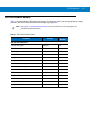
This device supports the following host interfaces through communication with a single slot multi-interface cradle:
• Standard RS-232 connection to a host.
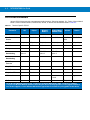
• Keyboard wedge connection to a host, where scanned data is interpreted as keystrokes. The following
international keyboards are supported (for Windows™ environment): North American, German, French,
French Belgian, French Canadian, Spanish, Italian, Swedish, UK English, Japanese, and Brazilian
Portuguese (see Keyboard Wedge Country Types - Country Codes on page 11-5 for a full list).
• IBM® 468X/469X hosts.
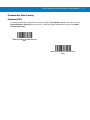
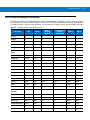
• USB connection to a host. The device autodetects a USB host and defaults to the HID keyboard interface
type. Select other USB interface types by scanning programming bar codes. The following international
keyboards are supported (for Windows™ environment): North America, German, French, French Belgian,
French Canadian, Spanish, Italian, Swedish, UK English, Japanese, and Brazilian Portuguese (see USB
Country Keyboard Types - Country Codes on page 9-8 for a full list).
NOTE
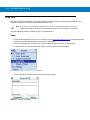
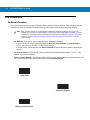
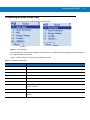
USB interface types can also be selected via the USB configuration menu on the device. To access the
USB configuration menu from the device’s Home screen, select Config... > Configure USB.
This device supports the following host interfaces without communication with a cradle:
• Standard RS-232 connection to a host.
• USB connection to a host via Bluetooth technology. The device autodetects a USB host and defaults to the
HID keyboard interface type. Select other USB interface types by scanning programming bar codes. The
following international keyboards are supported (for Windows™ environment): North America, German,
French, French Belgian, French Canadian, Spanish, Italian, Swedish, UK English, Japanese, and Brazilian
Portuguese.
NOTE
USB interface types can also be selected via the USB configuration menu on the device. To access the
USB configuration menu from the device’s Home screen, select Config... > Configure USB.
Out-of-Box Startup
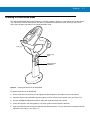
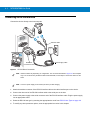
To get the MT2070/MT2090 up and running:
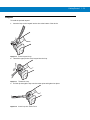
• Insert the rechargeable Li-ion battery
• Connect power to the cradle.
• Insert the device in the cradle.
• Charge the device.
• Configure the device.