1
CityFlex 48/CityFlex Wireless DMX
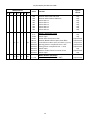
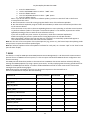
totL - the function shows the total number of the operation hours in the “FuLL” mode since the
CityFlex 48 has been fabricated.
rESEt - the function shows the number of the operation hours that the CityFlex 48
has been powered on in the “FuLL” mode since the counter was last reset. In order to reset this
counter to 0 you have to press and hold the UP and DOWN buttons and at the same time press
the ENTER button.
DM.In.---DMX values. Select this function to read DMX values of each channel received by the fixture.
VErS. ---Software Versions. Select this function to read the software version of the fixture processor.
6.3 Personality
Use this menu to modify the CityFlex 48 operating behaviour.
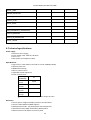
dM.Pr. --- DMX preset. Select this menu item to set a desired DMX mode. Please refer to the chapter "DMX
protocol" for detail description of each DMX mode.
Note: Selected DMX preset affects number of items in the menu”dM.In” and ”MAn.M”.
dM.I.M. --- DMX input. Select this menu item to select desired DMX input:
dM.Ur. --- Wire DMX.
dM.UL. --- Wireless DMX
DiSP. --- Display adjusting. This function allows you to change the display settings.
d.On --- this function allows you to keep the display on or to turn off automatically 2 minutes fter
last pressing any button on the control panel.
d.Int. --- select this function to adjust the display intensity (30-min.,100-max.).
turn --- select this function to turn the display by 180°.
dotS. --- Pixels configuration. The function allows you to set configuration of pixels.
FInd --- this function checks all pixels and the message “donE” is displayed after the procedure.
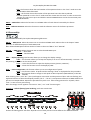
Sort --- this function allows to assign to each pixel its desired position (DMX address) in the LED
modules.
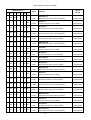
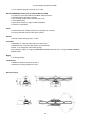
After entering “Sort”, item “dt.I” ( dot 1) will appear. Press Enter and the position of dot 1 will start flashing. Use
Up/Down buttons to select desired pixel position (“dP.1” – “dP.12”). Pixel position influences its DMX address-see
pictures in examples below. Repeat the procedure for pixels 2-12. After setting positions for all pixels, select
“Stor.” to save current pixel sorting.
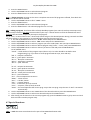
Note: If message “nonE” appears in the menu “Sort”, run “ Find” function again.
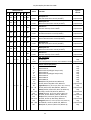
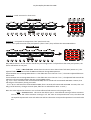
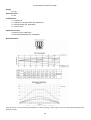
Example 1 – Default (factory) pixel ordering- pixels are sorted inline
Position of flashing pixels “dt1-dt12” depends on ID of each pixel and can be different for different fixtures.
16