1
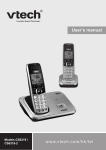
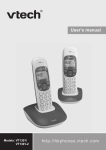
User’s manual
Model: DS6177A
h t t p : / / h k p h o n e s .vtech.com
TABLE OF CONTENTS
1.
Important safety instructions.....................................1
2.
SET UP THE TELEPHONE.........................................................2
3.
GET TO KNOW YOUR PHONE...................................................6
4.
Use your phone...................................................................12
2.1
2.2
2.3
2.4
2.5
2.6
3.1
3.2
3.3
3.5
3.6
4.1
4.2
4.3
4.4
4.5
4.6
4.7
4.8
4.9
Package Contents....................................................................... 2
Location....................................................................................... 2
Connect the Base Station........................................................... 3
Connect the Corded Handset . .................................................. 4
Charge the Headset.................................................................... 4
Earbud installation....................................................................... 5
Base Station Overview................................................................ 6
Headset Overview....................................................................... 8
LCD Display Icons and Symbols................................................. 9
Menu Structure.......................................................................... 10
Text and Digit Entry Table.......................................................... 11
3.5.1 English Character Set.................................................. 11
Make a Call............................................................................... 12
4.1.1
Preparatory Dialing..................................................... 12
4.1.2
Direct Dialing.............................................................. 12
4.1.3
Call from the Phonebook............................................ 12
4.1.4
Call from the Call List.................................................. 12
4.1.5
Call from the Redial List.............................................. 12
4.1.6
Call Timer.................................................................... 12
Call from the Direct Memory Key.............................................. 12
Answer a Call............................................................................ 13
Booster Feature........................................................................ 13
End a Call.................................................................................. 13
Adjust Earpiece, Speakphone, and Headset Volume................ 13
Mute a Call................................................................................ 13
Adjust the Headset Ringer Volume........................................... 13
Redial the Last Number.............................................................. 14
4.9.1 Redial a Number from the Redial List........................... 14
4.9.2 Store a Redial Number into the Phonebook................. 14
4.9.3 Delete a Redial Number............................................... 14
4.10
4.11
4.12
4.9.4 Delete the Entire Redial List........................................ 14
Make an Internal Call by the Headset....................................... 14
Transfer an External Call to Another Handset........................... 15
Make a 3-way Conference Call................................................. 15
5.
Private PHONEBOOK............................................................16
6.
CALLER DISPLAY (NETWORK DEPENDENT)........................18
7.
PHONE SETTINGS....................................................................20
8.
DEFAULT SETTINGS................................................................25
9.
Troubleshooting...............................................................26
5.1
5.2
5.3
5.4
5.5
5.6
6.1
6.2
6.3
6.4
6.5
7.1
7.2
7.3
7.4
7.5
7.6
7.7
7.8
7.9
7.10
7.11
7.12
Store a Number Entry in the Phonebook.................................. 16
Review a Phonebook Entry....................................................... 16
Edit a Phonebook Entry............................................................ 16
Delete a Phonebook Entry........................................................ 17
Delete the Entire Phonebook Entries........................................ 17
Check Phonebook Status.......................................................... 17
View the Call List....................................................................... 18
Store a Call List Number into the Phonebook........................... 18
Delete an Entry in the Call List.................................................. 19
Delete the Entire List of the Call List Entries............................. 19
Voicemail Indicators.................................................................. 19
Set the Date and Time.............................................................. 20
Set the Ringer Melody for Internal Calls................................... 21
Set the Ringer Melody for External Calls.................................. 21
Set the Ringer Volume.............................................................. 21
Change the Dial Mode.............................................................. 22
Change the Flash Time............................................................. 22
Set the Key Tones..................................................................... 22
Set the Call Share Feature........................................................ 22
Change the System PIN Code.................................................. 23
Set the Direct Memory Keys..................................................... 23
Registration.............................................................................. 23
Reset Your Phone and Headset............................................... 24
10. TECHNICAL SPECIFICATIONS................................................28
11. Care and maintenance instructions.........................29
1.
Important safety instructions
When using your telephone equipment, basic safety precautions should always be
followed to reduce the risk of fire, electric shock and injury, including the following:
1.
Read and understand all the instructions.
2.
Follow all warnings and instructions marked on the product.
3.
Unplug this product from the wall outlet before cleaning. Do not use liquid cleaners
or aerosol cleaners. Use a damp cloth for cleaning.
4.
Do not use this product near water (for example, near a bath tub, kitchen sink,
swimming pool).
5.
Do not expose the telephone to direct sunlight or extreme cold environment. Do
not put the telephone close to heating sources such as radiators, cookers, etc.
6.
Do not overload wall outlets and extension cords as this can result in the risk of fire
or electric shock.
7.
Unplug this product from the wall outlet and refer servicing to VTech under the
following conditions:
•
When the power supply cord or plug is damaged or frayed.
•
If the product does not operate normally by following the operating instructions.
•
If the product has been dropped and the cabinet has been damaged.
•
If the product exhibits a distinct change in performance.
8.
Avoid using a telephone (other than a cordless type) during an electrical storm.
There may be a remote risk of electric shock from lightning.
9.
Do not use the telephone to report a gas leak in the vicinity of the leak.
10. Operation is subject to the following two conditions: (1) this device may not cause
harmful interference to legal radio stations, and (2) this device must accept any
interference received. Use this product properly to reduce interference.
11. Disconnect the power of this telephone in case it is not responding normally.
Disposal warning
1.
When this crossed-out wheeled bin symbol is attached to a product, it
means the product is covered by the European Directive 2002/96/EC.
2.
All electrical and electronic products/battery should be disposed of
separately from the municipal waste stream via designated collection
facilities appointed by the government or the local authorities.
3.
The correct disposal of your old appliance/battery will help prevent potential
negative consequences for the environment and human health.
For more detailed information about disposal of your old appliance/battery, please contact
your city office, waste disposal service or The Shop where you purchased the product.
2.
SET UP THE TELEPHONE
2.1
Package Contents
The package contains the following items:
1 Base station
•
1 Handset
•
1 Headset
•
1 AC power adapter
•
2 Telephone line cords
•
1 Coiled handset cord
•
3 Earbuds
•
User’s manual
•
Warranty card
2.2
Location
For maximum coverage and reduce the interference, here are some guidelines you
should consider when you place the base unit:
-
place it at a convenient, high, and central location with no obstructions between the
handset and base unit in an indoor environment.
-
place it away from electronic appliances such as televisions, microwave ovens,
radios, personal computers, wireless devices or other cordless phones.
-
avoid facing radio frequency transmitters, such as external antennas of mobile
phone cell stations.
-
avoid plugging it into the same circuit as other major household electrical
appliances because of the potential interference. Try moving the appliance or the
base unit to another power outlet.
If the reception for a base unit location is not satisfactory, move it to another location
for better reception.
Depending on the surrounding conditions as well as spatial and structural factors, the
range may be reduced. The range indoors is normally less than outdoors.
SET UP THE TELEPHONE
•
2.3
Connect the Base Station
POWER 6.0V DC
Power adapter
cord
Telephone
line cord
1.
Plug the power cable and the telephone line cord into the
base station as shown above.
2.
Plug the other end of the power adapter into the wall outlet not controlled by a wall
switch. Plug the other end of the telephone line cord into a telephone wall jack. If
you have DSL high speed internet service, a DSL filter (not included) is required.
Notes
•
Always use the telephone line cord supplied with the product.
•
Use only the power adapter supplied with the base station.
2.4
Connect the Corded Handset
1.
Plug the coiled handset cord into the handset as shown below.
2.
Plug the other end of the coiled handset cord into the telephone base, and put the
handset on the telephone base.
Charge the Headset
After installing the telephone base, charge the headset on the telephone base for at
least three hours at the first time. If the light does not turn on while charging, you need
to charge the headset without interruption for at least 15 minutes to give the headset
enough charge to use for a short time. For best performance, keep the headset in the
telephone base when not in use.
1.
Place the headset onto the telephone base as shown below.
SET UP THE TELEPHONE
2.5
2.
2.6
When the headset is charging, the light on the headset turns on in red steadily.
Earbud installation
1.
There are three earbuds of different sizes provided. Choose a suitable earbud.
2.
Press the earbud towards the earpiece until it clicks into place. Move the earbud
around so that the protruding bump on the earbud is pointing towards your mouth
when placed on your ear. The protruding bump on the earbud holds the headset
securely in your ear.
3.
3.1
Base Station Overview
GET TO KNOW YOUR PHONE
1.
GET TO KNOW YOUR PHONE
LED indicator light
Flashes when there is an incoming call.
2.
OK / MENU
In idle mode: Press to access the main menu.
In sub-menu mode: Press to confirm the selection.
In redial list / call list entry: Press to store the number into the phonebook.
3.
LCD display
4.
INTERCOM / CANCEL/ MUTE (
)
In idle mode: Press to initiate an intercom call.
In main menu mode: Press to go back to idle screen.
In sub-menu mode: Press to go back to previous menu.
In sub-menu mode: Press and hold to go back to idle screen.
In editing / pre-dial mode: Press to delete a character / digit.
In editing / pre-dial mode: Press and hold to delete all the characters / digits.
During a call: Press mute / unmute the microphone.
While the base is ringing: Press to turn off the ringer volume.
5.
FLASH
In pre-dial mode/ during a call : Press to insert a flash.
6.
UP / VOLUME+ (
)
In menu mode: Press to scroll up the menu items.
In phonebook / redial list / call list entry: Press to scroll up the list.
During a call: Press to increase the volume.
7.
CID
In idle mode: Press to access the call list.
8.
DOWN / VOLUME– / REDIAL (
)
In menu mode: Press to scroll down the menu items.
In idle mode: Press to access the redial list.
In phonebook / redial list / call list entry: Press to scroll down the list.
During a call: Press to decrease the volume.
9.
BOOSTER (
)
During a call using the handset: Press to turn on or turn off the booster feature.
10. SPEAKERPHONE (
)
In idle mode / phonebook / redial list / call list: Press to make a call with
speakerphone.
11. DIRECT MEMORY KEYS (
/ / / /
)
In pre-dial mode: Press and hold to store the pre-dial number.
In idle mode: Press to dial out the stored number.
12. ALPHANUMERIC KEYPAD, * (STAR)
, # (HASH)
In menu / editing mode: Press to insert a digit/ character/ */ #.
3.2
Headset Overview
TALK ON/TALK OFF
Press and hold to turn on or off the headset.
Press to answer a call.
Press to exit registration in registration mode.
Steadily on in red when headset is charging on the base.
Steadily on in blue when the headset is fully charged.
Flashes in blue when the headset is in idle mode and not on the
telephone base.
Flashes in red when the battery is low and needs charging.
Flashes in red and blue alternately when the headset is in
registration mode.
Flashes in purple: The headset has been registered but is not
available for use (there is no signal or the headset is searching for
signal).
Earpiece
VOLUME (+)
During a call: Press to
increase the headset
volume.
During a call: Press
and hold to insert
a flash.
VOLUME (-)
During a call: Press to
decrease the headset
volume.
While the telephone
is ringing: Press to
increase the ringer
volume.
While the telephone is
ringing: Press to decrease
the ringer volume.
Reset
Microphone
GET TO KNOW YOUR PHONE
Steadily on in purple: The headset is not registered to the phone
3.3
LCD Display Icons and Symbols
The LCD display gives you information on the current status of the telephone.
Indicates there is a new call or reviewing a new call list entry.
Indicates that a call is in progress.
Indicates that you have accessed the phonebook menu.
Indicates that there is more than one call from the same caller.
Indicates that the speakerphone is turned on.
Indicates the sequence number of the call list entries.
Indicates that the ringer is turned off.
Indicates the time format.
Indicates there is a new voice message.
3.5
Menu Structure
In idle mode, press OK / MENU to enter the phonebook. Refer to the following table for
the menu structure.
Key Press
OK / MENU
/
/
PHONEBOOK
CALL LOG
DATE & TIME
Sub menu
Review
phonebook list
MISSED
TIME FORMAT
RECEIVED
SET CLOCK
Under a
phonebook entry:
DIALED
VIEW
ADD
EDIT
DELETE
DELETE ALL
PB STATUS
/
SETTINGS
/
PAGE ALL HS
/
REGISTRATION
RING SETUP
DELETE HS
DIAL MODE
FLASH TIME
KEY TONE
CALL SHARE
CHANGE PIN
BS DEFAULT
10
GET TO KNOW YOUR PHONE
Main menu
3.6
Text and Digit Entry Table
The following table shows you where each letter and punctuation character can be
found. This will be helpful when storing a name into the phonebook.
In editing mode, a cursor is displayed to indicate the current text entry position. It is
positioned at the right of the last character entered.
Notes
1.
Once a character is selected, the cursor will move to the next position after a
short pause.
2.
You can move the cursor within the text by pressing
text entry.
3.
Press
4.
Press and hold
3.5.1
/
to amend the
to delete the last character.
to delete the entire text string.
English Character Set
Key
Alphanumeric Editing
(For phonebook name editing and renaming handset)
2nd
3rd
4th
5th
6th
7th
8th
9th
Number
Editing (For
number
editing,
date/time
editing)
Key press
1st
10th
1
space
-
1
2
A
B
C
2
2
1
3
D
E
F
3
3
4
G
H
I
4
4
5
J
K
L
5
5
6
M
N
O
6
6
7
P
Q
R
S
8
T
U
V
8
9
W
X
Y
Z
0
0
*
*
?
/
\
(
)
*
#
#
‘
,
-
.
&
#
7
7
8
9
9
0, P (Pause)
11
4.
Use your phone
4.1
Make a Call
4.1.1
Preparatory Dialing
Enter the phone number, then lift the handset or press
to clear the entry.
4.1.2
Direct Dialing
Lift the handset or press
number.
4.1.3
to dial the number. Press
on the base to take the line, and then enter the phone
Call from the Phonebook
4.1.4
Call from the Call List
Press CID to access the call list, and then press
/
to select the desired call
list entry. Lift the handset or press
do dial out the selected number. Alternatively,
press OK / MENU to access the call list entry from the main menu.
4.1.5
Call from the Redial List
Press
to access the redial list, and then press
/
to select the
desired redial number. Lift the handset or press
to dial out the selected number.
Alternatively, press
OK / MENU to access the redial list from the main menu.
4.1.6
Call Timer
You handset automatically times the duration of every call. The call timer will display a
few seconds after a call ends. It is shown in hours, minutes and, seconds format
(HH-MM-SS).
4.2
Call from the Direct Memory Key
In idle mode, press / / / / , the telephone base will dial out the number stored in
the respective key by speakerphone automatically.
12
USE YOUR PHONE
Press OK / MENU to access the phonebook from the main menu, press
/
to
select VIEW, and then press
/
to select the desired phonebook entry. Lift the
handset or press
to dial the selected number.
4.3
Answer a Call
When the telephone is ringing, lift the handset, or press
TALK ON/TALK OFF on the headset to answer the call.
4.4
on the base, or
Booster Feature
The booster feature makes the listening volume louder and clearer.
You can press
to turn on the booster feature at any time while you are on a call.
The screen will display “BOOSTER ON”. Press
again to turn off the booster
feature and return the handset volume to normal level.
4.5
End a Call
During a call, place the handset on the telephone base to end the call.
OR
If you are on a call using the speakerphone, press
to end the call.
OR
If you are on a call using the headset, press TALK ON/TALK OFF to end the call.
4.6
Adjust Earpiece, Speakphone, and Headset Volume
There are 5 levels (VOLUME 1 to VOLUME 5) to choose from each of the earpiece,
speakerphone, and headset volume.
During a call:
Press
/
to select VOLUME 1-5. The current setting is shown. When you end
the call, the setting will remain at the last selected level.
OR
If you are using the headset, press VOLUME+/VOLUME- to adjust the volume. When
you end the call, the setting will remain at the last selected level.
4.7
Mute a Call
You can mute the microphone so that you can talk to someone in the room without
your caller hearing you.
During a call:
Press
to turn the microphone off. The screen will display “MUTED”. Your
caller cannot hear you. Press
again to turn on the microphone.
4.8
Adjust the Headset Ringer Volume
Press VOLUME+/VOLUME- on the headset to adjust the ringer volume when in idle
mode or when the telephone is ringing.
13
4.9
Redial the Last Number
You can redial up to 10 of the last numbers dialed. If you have stored a name in the
phonebook to match with the number, the name will be displayed instead. The most
recently dialed number will display at the top of the redial list.
4.9.1
Redial a Number from the Redial List
1.
In idle mode, press
2.
Press
3.
Lift the handset or press
/
to access the redial list.
to scroll through the list.
to dial out the selected number.
NOTE
If there are no numbers in the redial list, the display shows “EMPTY”.
4.9.2
Store a Redial Number into the Phonebook
Follow Steps 1 and 2 in the section of 4.9.1 .
2.
Press OK / MENU to select ADD TO PB? .
3.
Press OK / MENU to enter the name.
4.
Press OK / MENU to edit the number.
5.
Press OK / MENU and
6.
Press OK / MENU to store the number into the phonebook.
4.9.3
/
to scroll through the phonebook melody.
Delete a Redial Number
1.
Follow Steps 1 and 2 in the section of 4.9.1.
2.
Press OK / MENU and
3.
Press OK / MENU to confirm.
4.
Press OK / MENU to confirm again.
4.9.4
/
to select DELETE? .
Delete the Entire Redial List
1.
Follow Steps 1 and 2 in the section of 4.9.1.
2.
Press OK / MENU and
3.
Press OK / MENU to confirm.
4.
Press OK / MENU to confirm again.
4.10
/
to select DELETE ALL? .
Make an Internal Call by the Headset
1.
In idle mode, press
intercom with.
2.
Press OK / MENU to confirm.
and
/
14
to select the handset you want to
USE YOUR PHONE
1.
3.
The called headset rings. Press TALK ON/ TALK OFF on the called headset to
establish the internal call.
NOTE
If only one headset is registered to the telephone base, pressing
will call the
headset immediately. If called headset do not answer within 60 seconds, the headset
will stop ringing and the telephone base will return to idle mode.
4.11
Transfer an External Call to Another Handset
During an external call:
1.
Press OK / MENU to select the number of the headset that you want to
intercom with.
2.
The external call is put on hold automatically and the called headset rings
3.
Press TALK ON/ TALK OFF on the called headset to establish an internal call.
4.
Put the handset on the telephone base to end the current call with the external call.
The external call is transferred to the called headset.
4.12
Make a 3-way Conference Call
The conference call feature allows one external call to be shared with the telephone
base and one headset (in intercom). The three parties can share the conversation and
no network subscription is required.
1.
Follow Steps 1 to 4 in the section of 7.8 to connect the telephone base and the
headset.
2.
During the external call connection, lift the handset, press
on the base, or press
TALK ON/TALK OFF on the headset to share the external call.
NOTE
During a call using speakerphone, you can still transfer the external call from the
telephone base to the headset mode, and establish the external call respectively
by telephone base or headset. However, under this circumstance, no internal call is
established between the telephone base and the headset.
15
5.
Private PHONEBOOK
Your phone can store up to 50 private phonebook entries with names and numbers.
Each phonebook entry can have a maximum of 20 digits for the phone number and 8
characters for the name. You can also select different ringer tones for your phonebook
entries. Phonebook entries are stored in alphabetical order by name.
5.1
Store a Number Entry in the Phonebook
In idle mode:
1.
Press OK / MENU to select PHONEBOOK.
2.
Press OK / MENU and then
3.
Press OK / MENU to enter the name.
4.
Press OK / MENU to enter the number.
5.
Press OK / MENU and then
6.
Press OK / MENU to save.
to select ADD.
/
to choose the desired melody.
Review a Phonebook Entry
In idle mode:
1.
Press OK / MENU three times. The first entry of the phonebook displays.
2.
Use the alphanumeric key to enter the first character of the name.
OR
Press
5.3
/
to scroll through the entries.
Edit a Phonebook Entry
In idle mode:
1.
Press OK / MENU to select PHONEBOOK.
2.
Press OK / MENU and then
3.
Press OK / MENU, the first entry (according to alphabetically order) of the
phonebook displays.
4.
Press
again.
5.
Edit the name, press OK / MENU again.
6.
Edit the number, press OK / MENU again.
7.
Press
8.
Press OK / MENU again to confirm.
/
/
/
to select EDIT .
to select the desired phonebook entry, then press OK / MENU
to select the melody.
16
PRIVATE PHONEBOOK
5.2
/
5.4
Delete a Phonebook Entry
In idle mode:
1.
Press OK / MENU to select PHONEBOOK.
2.
Press OK / MENU and then
/
to select DELETE.
3.
Press OK / MENU and then
/
to select the entry to be deleted.
4.
Press OK / MENU, and the screen will display “CONFIRM?”.
5.
Press OK / MENU to confirm or press
5.5
to cancel.
Delete the Entire Phonebook Entries
In idle mode:
1.
Press OK / MENU to select PHONEBOOK.
2.
Press OK / MENU and then
3.
Press OK / MENU, and the screen will display “CONFIRM?”.
4.
Press OK / MENU to confirm or press
5.6
/
to select DELETE ALL.
to cancel.
Check Phonebook Status
You can check the number of entries saved into your phonebook, and the number of
entry vacancies available for you to store in the phonebook.
In idle mode:
1.
Press OK / MENU to select PHONEBOOK.
2.
Press OK / MENU and then
3.
Press OK / MENU to confirm.
/
to select PB STATUS.
NOTE
You can store up to 50 number in your private phonebook. In step 2, if you have stored
one number in your phonebook, the screen will display “01/50 USED”. If there is no
number stored in your phonebook, the screen will display “00/50 USED”.
17
6.
CALLER DISPLAY
(NETWORK DEPENDENT)
If the caller number is disabled to send out caller information, the screen will
display “WITHHELD”.
In idle mode, if three unanswered calls are received, the screen will display “NEW 3”.
6.1
View the Call List
All received calls are saved in call list with the latest call at the top of the list. When the
call list is full, the oldest call will be replaced by a new call. The unanswered call which
has not been read is marked with
at the centre of the bottom line of the display.
1.
Press CID and then
OR
2.
Press OK / MENU and then
/
to select CALL LOG.
3.
Press OK / MENU and then
/
to select MISSED, RECEIVED, or DIALED.
4.
Press OK / MENU to view the new calls in the call list.
5.
Press
6.2
/
/
to review the missed calls.
to view the caller’s number.
Store a Call List Number into the Phonebook
1.
Follow Steps 1 to 4 in Section 6.1 .
2.
Press OK / MENU to select ADD TO PB?.
3.
Press OK / MENU to enter the name.
4.
Press OK / MENU and the screen will display the select call list number.
5.
Edit the number if necessary.
6.
Press OK / MENU and then
7.
Press OK / MENU to confirm.
6.3
/
to select the melody.
Delete an Entry in the Call List
18
CALLER DISPLAY (NETWORK DEPENDENT)
This feature is available if you have subscribed to the Caller ID service from your
telephone service provide. Your phone can store up to 20 received calls (with date/time
information) in the Call List. When the phone is ringing, the number will be shown on the
LCD. If the number matches with one of the entries in your private phonebook,
the caller’s name stored in the private phonebook will be displayed alternately with
the number.
1.
Follow Steps 1 to 4 in Section 6.1 .
2.
Press OK / MENU and then
3.
Press OK / MENU to confirm.
4.
Press OK / MENU to confirm again.
6.4
/
Delete the Entire List of the Call List Entries
1.
Follow Steps 1 to 4 in Section 6.1 .
2.
Press OK / MENU and then
3.
Press OK / MENU to confirm.
4.
Press OK / MENU to confirm again.
6.5
to select DELETE ?
/
to select DELETE ALL ?
Voicemail Indicators
If you have subscribed to the voicemail service from your telephone service provider,
the screen displays “New voicemail” and the
icon when there are new voicemail
messages. The
icon will disappear and the telephone will turn off the indicators
automatically after you have listened all the new voicemail messages.
19
7.
PHONE SETTINGS
Your phone comes with a selection of settings that you can customize your phone
according to your preference.
7.1
Set the Date and Time
You need to set the correct date and time so that you know when you received calls.
The date format is YYYY/MM/DD, and the time format is HH: MM (It can be 12 HR or
24 HR).
Press OK / MENU and then
2.
Press OK / MENU to display “TIME FORMAT”. If you want to switch between 12
HR and 24 HR, press OK / MENU to confirm. Alternatively, press
/
to
display “SET CLOCK”.
3.
Press OK / MENU to confirm, the year is displayed on the screen in 4-digit, and the
last two digits flash to prompt you to enter the year.
4.
Press
5.
Press OK / MENU and the month digits flash to prompt you to enter
the month.
6.
Press
7.
Press OK / MENU and the day digits flash to prompt you to enter the day.
8.
Press
9.
Press OK / MENU and the hour digits flash to prompt you to enter the hour.
10. Press
/
/
/
/
/
to select DATE & TIME.
to set the year.
to set the month.
to set the day.
to set the hour.
11. Press OK / MENU and the minute digits flash to prompt you to enter the minute.
12. Press
/
to set the minute.
13. Press OK / MENU to confirm. You hear a confirmation tone and the screen returns
to the previous menu.
20
PHONE SETTINGS
1.
7.2
Set the Ringer Melody for Internal Calls
You can set the melody to customize your internal ringer. A total of 10 melodies are
provided for your selection.
1.
Press OK / MENU and then
/
to select SETTINGS.
2.
Press OK / MENU and then
/
to select RING SETUP.
3.
Press OK / MENU and then
/
to select INT. RING.
4.
Press OK / MENU and the screen will display “MELODY”.
5.
Press OK / MENU and
internal call.
6.
Press OK / MENU to confirm.
/
to select the desired ringer melody for
Note
The respective ringer melody will be played while you are scrolling through the melody list.
7.3
Set the Ringer Melody for External Calls
You can set the melody to customize your external ringer. A total of 10 melodies are
provided for your selection.
1.
Press OK / MENU and then
/
to select SETTINGS.
2.
Press OK / MENU and then
/
to select RING SETUP.
3.
Press OK / MENU and then
/
to select EXT. RING.
4.
Press OK / MENU and the screen will display “MELODY”.
5.
Press OK / MENU and
external call.
6.
Press OK / MENU to confirm.
/
to select the desired ringer melody for
Note
The respective ringer melody will be played while you are scrolling through the melody list.
7.4
Set the Ringer Volume
You can set the ringer volume level for both internal call and external call. A total of 6
ringer volume levels including VOLUME OFF are provided for your selection.
1.
Follow the Steps 1 to 3 in Section 7.2 or 7.3.
2.
Press OK / MENU and then
/
to select VOLUME.
3.
Press OK / MENU and then
/
to select the desired ringer volume level.
4.
Press OK / MENU to confirm.
Note
When you are scrolling through the melody list, if you have selected VOLUME OFF, the
screen will display .
21
7.5
Change the Dial Mode
The default dial mode best suits your country and network operator. You do not have to
change this setting unless advised to do so.
1.
Press OK / MENU and then
/
to select SETTINGS.
2.
Press OK / MENU and then
/
to select DIAL MODE.
3.
Press OK / MENU and then
/
to select TONE or PULSE.
4.
Press OK / MENU to confirm.
7.6
Change the Flash Time
The default flash time best suits your country and network operator. You do not have to
change this setting unless advised to do so.
Press OK / MENU and then
/
to select SETTINGS.
2.
Press OK / MENU and then
/
to select FLASH TIME.
3.
Press OK / MENU and then
/
to select SHORT, MEDIUM, or LONG.
4.
Press OK / MENU to confirm.
7.7
Set the Key Tones
A single beep is emitted when you press a key. You can turn on or off the key tone.
1.
Press OK / MENU and then
/
to select SETTINGS.
2.
Press OK / MENU and then
/
to select KEY TONE.
3.
Press OK / MENU and then
/
to select ON or OFF.
4.
Press OK / MENU to confirm.
7.8
Set the Call Share Feature
You can set if a call is shared between the handset and headset. If you select OFF , the
handset can not join the call when the handset is in use.
1.
Press OK / MENU and then
/
to select SETTINGS.
2.
Press OK / MENU and then
/
to select CALL SHARE.
3.
Press OK / MENU and then
/
to select ON or OFF.
4.
Press OK / MENU to confirm.
22
PHONE SETTINGS
1.
7.9
Change the System PIN Code
1.
Press OK / MENU and then
/
to select SETTINGS .
2.
Press OK / MENU and then
/
to select CHANGE PIN .
3.
Press OK / MENU and you are requested to enter the 4-digit system PIN.
4.
Enter the old system PIN.
5.
Press OK / MENU and the screen will display “NEW PIN”, then enter the new
system PIN code.
6.
Press OK / MENU and the screen will display “REPEAT”, then enter the new
system PIN code again.
7.
Press OK / MENU to confirm.
7.10
Set the Direct Memory Keys
There are five direct memory keys( to ) in you phone. You can store 5 numbers into
these direct memory keys and dial them directly from idle mode.
1.
In idle mode, enter the number you want to store.
2.
Press and hold any direct memory key until you hear a confirmation tone that
indicates the number is stored in that key.
3.
Press any direct memory key to dial the number stored in that key.
7.11
Registration
Your headset and base station is pre-registered. Up to four handsets or headsets can
be registered to a single base.
If you registered the headset to other telephone base, the headset will cancel the
registration to the current telephone base automatically.
If for some reason, the headset is not registered to the base station, register your
headset according to the following procedure.
1.
Press OK / MENU and then
2.
Press OK / MENU and the screen will display “PLEASE WAIT”.
/
to select REGISTRATION.
3.
At the same time, press and hold + and - on the headset for about five seconds,
the base station is entered into registration mode. The red and blue light flash
alternately to show that the registration is in progress.
4.
For a short delay, you will hear a confirmation tone if the registration is successful.
NOTE
Press TALK ON/ TALK OFF on the headset at any time to exit the registration process.
If the registration is failed, please repeat the steps 1 to 4 above.
23
7.12
Reset Your Phone and Headset
You can reset your phone and headset to the default settings . After reset, all your
personal settings, call log entries, and redial list will be deleted, whereas your contacts
list remains unchanged.
Reset the phone:
1.
Press OK / MENU and then
/
to select SETTINGS.
2.
Press OK / MENU and then
/
to select BS DEFAULT.
3.
Press OK / MENU and you are requested to enter 4-digit system PIN code.
4.
Enter 4-digit system PIN code (default PIN code is 0000).
5.
Press OK / MENU to confirm.
Reset the headset:
Use a thin pin or similar things to insert and press the reset button.
PHONE SETTINGS
24
8.
DEFAULT SETTINGS
Items
Default Values
Default Settings of Base Station
LANGUAGE
ENGLISH
EXT RINGER MELODY
MELODY 6
INT RINGER MELODY
MELODY 2
EXT RING VOLUME
VOLUME 3
INT RING VOLUME
VOLUME 3
EARPIECE VOLUME
VOLUME 3
SPEAKER VOLUME
VOLUME 3
KEY TONE
ON
DATE FORMAT
DD--MM--YYYY
TIME FORMAT
24 HR
SET DATE
01--01--2014
SET TIME
00--00
FLASH TIME
LONG
DIAL MODE
TONE
CALL SHARE
ON
25
9.
Troubleshooting
If you have difficulty with your phone, please try the suggestion listed below.
Solutions
My telephone does
not work at all.
•
Make sure the power adapter is securely plugged into an
outlet not controlled by a wall switch.
•
Make sure the telephone line cord is plugged firmly into
the telephone base and the telephone wall jack.
•
Unplug the electrical power to the telephone base. Wait
for approximately 15 seconds, then plug it back in. Allow
up to one minute for the handset and telephone base to
synchronize.
•
Disconnect the telephone base from the telephone
wall jack and plug in a working telephone. If the other
telephone does not work, the problem is probably in
the wiring or the telephone service. Call your telephone
service provider.
The red light keeps
flashing on the
headset.
•
Place the headset in the telephone base for charging.
•
If the above measures do not solve the problem, register
the headset to the phone functioning. If the headset still
does not function , purchase a new one.
The headset does
not charge in the
telephone base.
(The indicator on
headset does not
turn on).
•
Make sure the headset is placed in the telephone base
correctly, and charge for up to 16 hours.
•
If the above measures do not solve the problem,
purchase the new one.
There is
interference
during a telephone
conversation. My
calls fade out when
I am using the
handset.
•
The handset may be out of range. Move it closer to the
telephone base.
•
If you subscribe to high-speed Internet service (digital
subscriber line - DSL) through your telephone line, you
must install a DSL filter between the telephone base and
the telephone wall jack. The filter prevents noise and
caller ID problems caused by DSL interference. Please
contact your DSL service provider for more information
about DSL filters.
•
Appliances or other cordless telephones plugged into
the same circuit as the telephone base can cause
interference. Try moving the appliance or telephone base
to another outlet.
26
TROUBLESHOOTING
Problem
There is
interference
during a
telephone
conversation.
My calls fade
out when I
am using
the handset.
(Continued)
Common cure
for electronic
equipment.
•
Other electronic products may cause interference to your
cordless telephone. Install your telephone as far away as
possible from the following electronic devices: wireless
routers, radios, radio towers, pager towers, cellular
telephones, digital telephones, intercoms, room monitors,
televisions, VCRs, personal computers, kitchen appliances,
and other cordless telephones.
•
If your telephone is plugged in with a modem or a surge
protector, plug the telephone (or modem/surge protector) into
a different location. If this doesn’t solve the problem, re-locate
your telephone or modem farther apart from each other, or
use a different surge protector.
•
The location of your telephone base can impact the
performance of your cordless phone. For better reception,
install the telephone base in a centralized location within
your home or office, away from walls or other obstructions. In
many environments, elevating the telephone base improves
overall performance.
•
Disconnect the telephone base from the telephone wall jack
and plug in a corded telephone. If calls are still not clear,
the problem is probably in the wiring or telephone service.
Contact your telephone service provider (charges might
apply).
•
If the other telephones in your home are having the same
problem, the problem is in the wiring or telephone service.
Contact your telephone service provider (charges may
apply).
If the telephone is not responding normally, put the handset in
the telephone base. If it does not respond, try the following (in the
order listed):
•
Disconnect the power to the telephone base.
•
Disconnect the batteries on the handset.
•
Wait a few minutes before connecting power to the
telephone base.
•
Re-install the batteries and place the handset in the
telephone base.
•
Wait for the handset to synchronize with the telephone base.
Allow up to one minute for this to take place.
Please contact the technical support of the network provider for further information. This
telephone is not equipped with a grounding function! Therefore some of the functions
may be limited when used in PBX systems.
27
10. TECHNICAL SPECIFICATIONS
Basic Information
Dimensions
Base: width / depth / height= 170 X 215 X 70 mm
Headset: width / depth / height= 71.2 X 21.8 X 28.5 mm
Weight
Base: 544 g
Headset: 18.4 g
Handset: 147 g
Headset Valid
Range
Indoor: 30 m*
Headset Operating
Time
Standby time: 60 Hours approx.**
Outdoor: 150 m* Talk time: 6 Hours approx.**
RF Parameter
Frequency
1.88GHz to 1.9GHz
Number of Channels
10
Power Supply
Base
Input 100-240VAC 50/60Hz; output 6VDC 450/300mA adapter
Headset
LI-ION Battery; 3.7V; 200mAH rechargeable battery
* Values may vary according to environment.
** Depending on initial battery charge.
28
CARETECHNICAL
AND MAINTENANCE
INSTRUCTION
SPECIFICATIONS
Handset: width / depth / height= 200.5 X 47.2 X 35.5 mm
11. Care and maintenance
instructions
Take care of your telephone
•
Your cordless telephone contains sophisticated electronic parts, so you must treat
it with care.
•
Avoid rough treatment.
•
Place the handset down gently.
•
Save the original packing materials to protect your telephone if you ever need to
ship it.
Avoid water
•
You can damage your telephone if it gets wet. Do not use the handset in the rain,
or handle it with the wet hands. Do not install the telephone base near a sink,
bathtub or shower.
Electrical storms
•
Electrical storms can sometimes cause power surges harmful to electronic
equipment. For your own safety, take caution when using electric appliances
during storms.
Cleaning your telephone
•
Your telephone has a durable plastic casing that should retain its luster for many
year. Clean it only with a soft cloth slightly dampened with water or a mild soap.
•
Do not use excess water or cleaning solvents of any kind.
NOTE
Remember that electrical appliances can cause serious injury if used when you are wet
or standing in water. If the telephone base should fall into water. DO NOT RETRIEVE
IT UNTIL YOU UNPLUG THE POWER CORD AND TELEPHONE LINE CORDS
FROM THE WALL. Then pull the unit out by the unplugged cords.
29
Customer Service Centre
Suite 1601, Lever Tech Centre, 69-71 King Yip Street,
Kwun Tong, Kowloon, Hong Kong.
Customer Service Hotline: (852) 2666 5558
Technical Inquiry Hotline: (852) 2667 7433
VTECH TELECOMMUNICATIONS LTD.
A member of THE VTECH GROUP OF COMPANIES.
© 2014 VTech Telecommunications Ltd. All Rights Reserved.