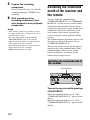
1
Notes
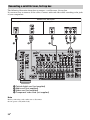
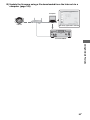
• When you pull out the HDMI cable or change the
connection, perform the steps given in “When your
TV is compatible with the “Control for HDMIEasy Setting” function” (page 112) or “When your
TV is not compatible with the “Control for HDMIEasy Setting” function.”
However, you do not need to perform these steps
when you use an HDMI IN 1, IN 2, or IN 6 jack.
• When you assign the component video input to the
HDMI input using the Input Assign function, you
cannot set “Control for HDMI” to “ON.”
• While “Control for HDMI-Easy Setting” is being
set, you cannot use functions such as One-Touch
Play or System Audio Control.
• When you set up the receiver using the “Control for
HDMI-Easy Setting” from a TV, turn on the TV,
the receiver and the playback components
beforehand.
• When you set up the receiver using the “Control for
HDMI-Easy Setting” from a TV, before you make
the “Control for HDMI-Easy Setting” function
effective, make the Control for HDMI function of
the components that are not compatible with the
“Control for HDMI-Easy Setting” function
effective.
When your TV is not compatible
with the “Control for HDMI-Easy
Setting” function
Turn the Control for HDMI function of the
receiver and the connected component on
individually.
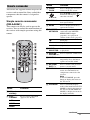
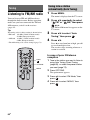
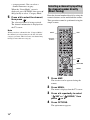
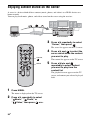
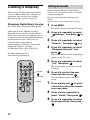
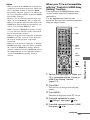
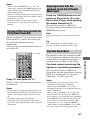
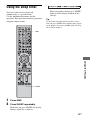
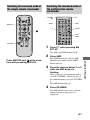
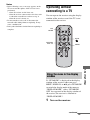
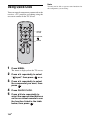
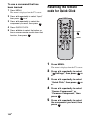
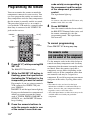
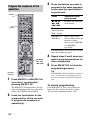
Use the multifunction remote for this
operation. This operation cannot be performed
using the simple remote.
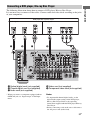
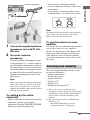
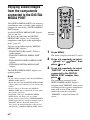
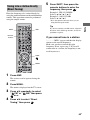
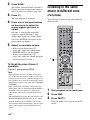
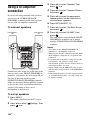
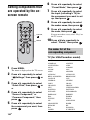
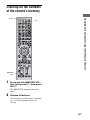
?/1
AMP
HDMI
input
buttons
GUI
MODE
MENU
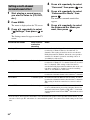
1 Perform the steps given in “When your
TV is compatible with the “Control for
HDMI-Easy Setting” function”
(page 112).
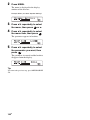
2 Press AMP.
The receiver can be operated using the
remote.
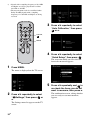
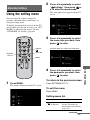
3 Press MENU.
The menu is displayed on the TV screen.
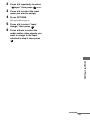
4 Press V/v repeatedly to select
“
Settings,” then press
or b.
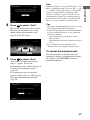
5 Press V/v repeatedly to select “HDMI,”
then press
or b.
continued
113GB
Using Other Features
V/v/b,