1
Shipping Manager : user manual I V.1.0 I January 2014
3. Pickup management
3.1. How to make a pickup request
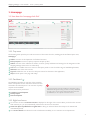
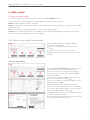
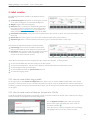
Select the user account from the homepage and click on the “new pickup” button.
You will arrive on a page with two options:
• Option 1: creation of a pickup list without making a pickup request;
• Option 2: pickup request with the possibility of creating a pickup list linked to the request.
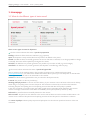
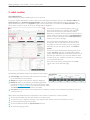
If you choose the second option (pickup request), you must complete several fields such as the pickup address, the
date, the number of parcels, the volume and the weight. From this step, you can confirm your request using the first
three selection buttons at the bottom of the screen (save and new, save and print, save and close). Doing one of
these actions, the pickup request is effective and the driver will come by on the day requested.
Same-day pickup requests must be submitted before 11.30 am.
3.2. D
oes a pickup request have to be confirmed?
When a pickup request is submitted, confirmation is effective from the moment you click on one of the first three
selection buttons at the bottom of the page (save and new, save and print, save and close).
3.3. C
an the pickup list be changed once the request has been submitted?
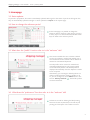
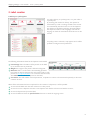
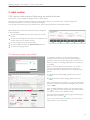
By clicking on the “pickup” button in the top menu, you arrive in the overview of the various pickup requests or
pickup lists. You can choose the list you would like to change by clicking on the icon at the beginning of the line.
3.4. Until when can a pickup request be submitted?
Pickup requests can be submitted up to 11.30 am on the same day. Pickup on weekends or official holidays is not
possible.
3.5. W
hat is a pickup list?
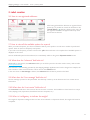
A pickup list includes all the information that you have encoded for a pickup, a depot or other information.
This list has your general data and data relating to the pickup (address, date, quantity, volume and weight) but also the
parcels that can be linked to this list. You define this parcel list in the application.
3.6. How is a pickup list created?
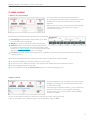
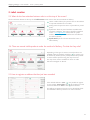
You select the user account required from the homepage and click on the “new pickup” button.
You will arrive on a page with two management pickup options:
• Option 1: creation of a pickup list without making a pickup request;
• Option 2: pickup request with the possibility to create a list linked to the request.
If you choose the first option (pickup list), you have to complete several fields such as pickup address, date, number
of parcels, volume and weight. The address and the date are the only obligatory fields. The creation of this list has no
impact on the logistic flow of parcels or on any other pickup request.
15