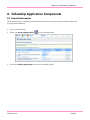
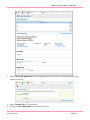
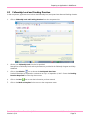
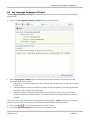
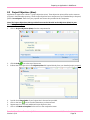
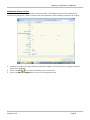
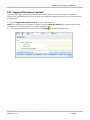
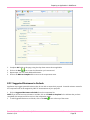
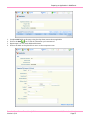
1
2014 2014 Fellowship Application User Manual PhD & Postdoctoral Academic Research Fellowship Awards Preparing an Application in WebGrants Copyright © 2014 Canadian Breast Cancer Foundation. All rights reserved. All company, product and service names may be trademarks or registered trademarks of their respective owner(s). New in Fall 2014! All applicants are requested to complete an Intent to Apply; submission of an Intent to Apply is mandatory for all Fellowship programs except the Nurses & Allied Health Professional program While the Intent to Apply is an administrative step and is not subject to scientific review, the Intent to Apply must be completed fully for a subsequent application to be considered eligible (Page 17). Reminder For Physicians, Nurses and Allied Health Professionals Fellowship application instructions, please refer to Fellowship User Manual for Physicians, Nurses and Allied Health Professionals. Limit of cumulative Doctoral experience: Doctoral applicants without a Masters degree are eligible for support until the end of their 5th year of cumulative graduate training. Doctoral applicants with a Masters degree are eligible for support until the end of their 4th year of doctoral training. Limit on cumulative Postdoctoral experience: Postdoctoral applicants are eligible for support until the end of their 5th year of postdoctoral training. Valid transcripts may be uploaded directly onto the WebGrants online application (Please see page 7 for detailed information). Signed letters of reference in unsecured PDF format must be emailed, by the referees, to and received by Ms. th Deanna Slapack (Email: [email protected]) by Wednesday, October 15 , 2014, no later than 5:00 p.m. (ET). th Intent to Apply Deadline: Wednesday, September 17 , 2014, no later than 5:00 p.m. (ET). Application Deadline: Applications must be finalized and submitted online on WebGrants by Wednesday, th October 15 , 2014, no later than 5:00 p.m. (ET). Canadian Breast Cancer Foundation © 2014 Version 1.0/14 WebGrants User Manual Page 2 Preparing an Application in WebGrants Table of Contents 1. Using this Manual .....................................................................................................................................4 2. General Guidelines for Applicants .......................................................................................................5 3. How to Apply for Fellowship Funding ................................................................................................7 4. Preparing to Use the WebGrants System ...........................................................................................8 5. Navigating WebGrants ........................................................................................................................ 11 6. Main Menu Instructions ...................................................................................................................... 14 7. Intent to Apply Components .............................................................................................................. 17 8. Fellowship Application Components ................................................................................................. 18 8.1 General Information .................................................................................................................. 18 8.2 Fellowship Level and Funding Duration ................................................................................. 21 8.3 CSO Coding ................................................................................................................................. 22 8.4 Lay Language Summary of Project ......................................................................................... 23 8.5 Project Objectives (Aims) ......................................................................................................... 24 8.6 Detailed Project Proposal ........................................................................................................ 25 8.7 Anticipated Impact/Relevance to Breast Cancer .................................................................. 29 8.8 Abstract........................................................................................................................................ 30 8.9 Fellowship Applicant and Supervisors .................................................................................... 32 8.10 Resubmission ............................................................................................................................ 36 8.11 Present Position and Duties .................................................................................................. 38 8.12 Locations of Project(s)............................................................................................................. 39 8.13 Required Certificates/Approvals ........................................................................................... 40 8.14 Knowledge Translation Plan ................................................................................................... 42 8.15 Funding for Fellow Salary/Stipend/Income ......................................................................... 45 8.16 Funding to Cover Research and Other Expenses ................................................................ 47 8.17 References ................................................................................................................................. 49 8.18 Attachments .............................................................................................................................. 50 8.19 Host Organization .................................................................................................................... 52 8.20 Host Organization Certification ............................................................................................. 54 8.21 Suggested Reviewers to Include ............................................................................................ 55 8.22 Suggested Reviewers to Exclude ........................................................................................... 56 8.23 Submitting your application for assessment ....................................................................... 58 Canadian Breast Cancer Foundation © 2014 Version 1.0/14 WebGrants User Manual Page 3 Preparing an Application in WebGrants 1. Using this Manual This manual and the Fellowship Program and Policy Handbook 2014 (which can be downloaded from www.cbcf.org/ontario/ApplyForGrants) contain detailed criteria, guidelines and instructions to help you prepare an Intent to Apply and an application to the Fall 2014 Canadian Breast Cancer Foundation - Ontario Region Fellowship Program. Please ensure that you meet all eligibility requirements and understand funding guidelines prior to preparing a funding application. Applicants are encouraged to contact CBCF - Ontario Region Allocations staff with any questions or clarifications on the Foundation’s fellowship program objectives, funding priorities, or Intent to Apply and application requirements by email at: [email protected]. After you have confirmed your eligibility to apply to the Fellowship Program, please follow the detailed instructions to complete your application using the online WebGrants system. Canadian Breast Cancer Foundation Statement on Privacy and Confidentiality The information requested on the Fellowship Application form is being collected to enable the Foundation to process and respond to your request for funding. The Foundation values your privacy and will keep all information in strict confidence except as noted herein. Your proposal will be reviewed by employees and agents of the Foundation as necessary to ensure that it is suitable for formal review. The proposal will also be disclosed to peer reviewers for the purpose of soliciting their commentary, and to Advisory Committees and the Board of Directors as required to inform the decision-making and approval process. The Foundation will use your contact information for future correspondence and to keep you informed of our activities. Disclosures and Information in the Public Domain Summary data on the number of applications received, funding requested, number of proposals approved, total funding approved, areas of investigation and geographic representation are disclosed. Only funded Fellows, their Supervisor(s), and Host Organizations are publicly identified. Lists of Advisory Committee members and grant reviewers are made public following the completion of the grant review process. The Foundation provides information on funded projects to the Canadian Cancer Research Alliance for posting to their online database of cancer research in Canada (www.ccra-acrc.ca/default_en.htm), and on the International Cancer Research Portfolio website (www.cancerportfolio.org). How to Contact CBCF - Ontario Region Please contact Canadian Breast Cancer Foundation - Ontario Region Allocations Staff regarding any questions or clarifications on Foundation policies, procedures and guidelines at: [email protected] Canadian Breast Cancer Foundation © 2014 Version 1.0/14 WebGrants User Manual Page 4 Preparing an Application in WebGrants 2. General Guidelines for Applicants Intent to Apply and Application Processes Download the Fellowship Program and Policy Handbook 2014 from the CBCF-Ontario Region website: www.cbcf.org/ontario/ApplyForGrants and review in detail to determine whether your proposed project meets CBCF-Ontario Region eligibility requirements. Use the Fellowship Application User Manual 2014 as your guide to completing your Intent to Apply and application for funding. Together, the Fellowship Program and Policy Handbook and the Fellowship Application User Manual provide all the information that is required to submit an Intent to Apply form and an application for Fellowship funding to CBCF-Ontario Region. If you are eligible, register to use the WebGrants system (http://webgrants.cbcf.org/). Please note that it may take up to two business days to process your request for a new registration. If you have applied to CBCF previously, please log on to the WebGrants system using your existing User ID and Password. Application Quality The Foundation is committed to funding the highest quality research and clinical/professional training, with demonstrated relevance to, and impact on, breast cancer. Through a rigorous review process, the Foundation commits to arriving at funding decisions in a manner that is fair, transparent and equitable. The Foundation expects applicants to prepare competitive fellowship proposals that meet program criteria, are clear and complete in all respects and free of error. The same meticulous attention to detail that is required for preparation of a scientific paper for publication should guide applicants in the preparation of their proposal to the Foundation. Application Formatting In order to ensure fair treatment of all applicants, applications must meet program criteria, be complete in all respects and fully adhere to formatting requirements to be eligible for peer review. Applications not adhering to specified formats or criteria will be ineligible for peer review without appeal. Intent to Apply Submissions All Intent to Apply forms must be submitted using CBCF’s online WebGrants system. Intent to Apply must be th finalized and submitted by Wednesday, September 17 , 2014, no later than 5:00 p.m. (ET). Application Submission All applications must be submitted using CBCF’s online WebGrants system. Applications must be finalized and th submitted by Wednesday, October 15 , 2014, no later than 5:00 p.m. (ET). Canadian Breast Cancer Foundation © 2014 Version 1.0/14 WebGrants User Manual Page 5 Preparing an Application in WebGrants Letters of Reference and Transcripts: Letters of reference: Signed letters of reference in unsecured PDF format must be emailed, by the referees to, th and received by, Ms. Deanna Slapack (Email: [email protected]) by Wednesday, October 15 , 2014 no later than 5:00 p.m. (ET). It is the responsibility of the applicant to follow up with referees to ensure that letters of reference are submitted within the required timeframe. Official transcripts are to be uploaded directly onto the WebGrants online application by the deadline of, th Wednesday, October 15 , 2014, no later than 5 p.m. (ET). (Official transcripts are those issued by the Registrar's Office to the applicant. The applicant may open and scan the official transcripts to upload onto WebGrants. Transcripts printed from the applicant's personal university account are not considered to be official). Certified true copies of official transcripts are permitted for studies undertaken outside of North America; these are to be scanned and uploaded directly onto the WebGrants online application by the deadline of th Wednesday October 15 , 2014, no later than 5 p.m. (ET). (A certified true copy is defined as a copy of the original document or of the original translated document if official transcript is not in either English or French that has been certified to be a true copy of the original document by a commissioner of oath such as a notary or lawyer. The copy must bear the original signature and stamp of the official authority). Late or Incomplete Applications and Required Documents Late or incomplete application packages will not be accepted. The WebGrants system will not allow submission of th applications later than 5 p.m. (ET) on Wednesday, October 15 , 2014. Applications missing any required Letters of Reference or Original and/or Certified Transcripts will be considered incomplete and ineligible for formal review. Eligibility Screening and Notification Applications are carefully screened for eligibility prior to being assigned for peer review. Applicants will be th informed by email no later than Friday, December 12 , 2014 whether their proposal is eligible for peer review. If the application is ineligible for peer review the Applicant will be provided with the reason(s) for which the application is ineligible and the applicant may re-apply to a future Fellowship call for proposals. Fellowship Start Dates st st If funded, Fellowships may commence July 1 or September 1 , 2015. Notification of Funding Decisions Preliminary Notification: April, 2015 Detailed Letter and Feedback: May, 2015 Canadian Breast Cancer Foundation © 2014 Version 1.0/14 WebGrants User Manual Page 6 Preparing an Application in WebGrants 3. How to Apply for Fellowship Funding This manual provides a step-by-step guide to completing your Intent to Apply and application for the Fellowship funding online, using the WebGrants system. Applicants are strongly encouraged to begin the application process early. It is the applicant’s responsibility to ensure they allow sufficient time for securing required documents and signatures in time for submission by application deadlines. Applicants must: carefully follow all instructions in this User Manual and refer to information provided in the Handbook as appropriate complete all Intent to Apply application components, responding to all questions in each component carefully review their entire application prior to submission In order to ensure fair treatment of all applicants, applications which are incomplete or do not adhere to specified criteria or formatting will be ineligible for peer review, without appeal. For Assistance Answers to most questions applicants may have will be found in the Fellowship Program and Policy Handbook and this User Manual. If, after consulting these reference documents, you have further questions or require additional assistance, or require help with technical aspects of the WebGrants system, please contact the CBCF-Ontario Region office by email at: [email protected]. Email is monitored during regular office hours (9am-5pm ET, Monday to Friday). The Foundation will reply within one business day to all requests for assistance. Canadian Breast Cancer Foundation © 2014 Version 1.0/14 WebGrants User Manual Page 7 Preparing an Application in WebGrants 4. Preparing to Use the WebGrants System This section explains the steps involved in gaining access to the WebGrants system. Set your web browser to: http://webgrants.cbcf.org/index.jsp Existing WebGrants Users 1. Enter your User ID and Password to login. If you are not sure whether you have an existing WebGrants User Profile, or have lost your password, please contact the Foundation for assistance: [email protected]. 2. Go to Step 2 to Update your User Profile. System Compatibility Step 1: Registering to become a WebGrants User Step 2: Updating your WebGrants Grantee Profile Canadian Breast Cancer Foundation © 2014 Version 1.0/14 WebGrants User Manual Page 8 Preparing an Application in WebGrants 1. After you have received an e-mail indicating that your WebGrants registration has been approved by CBCF, log in to the Login screen; click the My Profile icon from the Main Menu. 2. 2. Click the Edit icon. 3. Review and confirm accuracy of profile information, and update as required. 4. Click the Save icon to return to My Profile Main Screen. Canadian Breast Cancer Foundation © 2014 Version 1.0/14 WebGrants User Manual Page 9 Preparing an Application in WebGrants Canadian Breast Cancer Foundation © 2014 Version 1.0/14 WebGrants User Manual Page 10 Preparing an Application in WebGrants 5. Navigating WebGrants This section provides basic information for applicants on how to navigate the WebGrants system. Basic Navigation Tools: The WebGrants Navigation Bar At the top of each WebGrants page are a series of icons representing action options or functions. Icons that are grayed out are not available at that time, for that screen. WebGrants Navigation Bar Icons The Menu icon returns the applicant to the WebGrants Main Menu. For more information, please see the section, Main Menu Instructions, in this User Manual. The Help icon opens a pop-up window with basic help information. If it does not contain the information you are seeking, please refer to this User Manual for help with specific components, or contact CBCF staff by email at [email protected] for assistance. The Log Out icon is used to end the applicant’s WebGrants session. Logging out will not save entered information. You must Save the component on which you are working prior to logging out if you wish the entered information to be retained. The Back icon is used to go back, usually to the previously viewed page, sometimes to the Components Menu. Please note that using the Back icon will NOT save any new information entered on the current page. To keep information newly entered, please use the Save icon before going Back. The Print icon is active on pages which can be printed. This button will bring up a new window that will display the current screen’s contents in printer friendly format. To print the page, use the Print function in your internet browser. The Add icon is active when new entries can be made. It takes the applicant to a new screen to enter component information. Once information is entered, click on the Save icon to save the information entered to return to the current component. Sometimes summarized information will be displayed within the component. Should you wish to view the full entry, or edit the entry, click on the coloured (blue) text within the entry you wish to view or edit (see Linked Words or Phrases, below). To return to the component, use the Save icon again, or the Back icon. The Delete icon is used to delete all entered information for a particular component. The applicant will be prompted to confirm that they wish to delete the information, prior to execution of this command. The Edit icon is active when the contents of the page you are on can be changed. It takes the applicant to a new screen to add or edit component information. Once information is edited, Save the information entered to return to the component. All entered information will be displayed on the component screen. The Save icon saves all entered information within a component, and takes the applicant back to the current component. Canadian Breast Cancer Foundation © 2014 Version 1.0/14 WebGrants User Manual Page 11 Preparing an Application in WebGrants Other Navigation Tools Linked Words or Phrases When a word or phrase is shown in underlined blue text, this indicates that this is a link. To see further information related to the word or phrase, click on the word. Clicking on a linked word or phrase will open a new screen with the linked information. This information is sometimes display-only and sometimes editable using the Edit icon, as above. To return to the original screen, click the Save or the Back icon. Dropdown Menus For some items the applicant must select one of a number of optional responses. When this is the case, a shaded box with a down chevron will be displayed. Click on the chevron to display the available options and select the one which applies. Mark as Complete Applications are entered into WebGrants using “Components”, which are mini-modules containing grouped information. Applicants are recommended to use the Component List as their main navigation point when entering applications, accessing and completing each component from this List. Components can be completed in any order. On all individual component screens there is a Mark as Complete link on the right hand side of the screen. The Mark as Complete function is used to track which components you have completed and finished editing. Clicking the “Mark as Complete” link will activate a checkmark for that component on the Application Forms Screen. You can still return to components that have been marked as complete for further editing prior to submitting your application as required. All components must be completely filled out and “Marked as Complete” before your application can be submitted to the Foundation for assessment. Masks Some items require the applicant to enter information in a specific format, which is indicated through the use of a “mask”. One such item is “Phone/Fax” (i.e. This field is pre-formatted to provide dashes between each set of numbers). Please confirm that your information entered correctly within these items. Attaching Documents or This function is accessed by clicking the Add icon, or the Attach icon, depending on the component screen being utilized. Some components require the entry of a brief file description for clarity, when more than one file can be uploaded. Where indicated, the file description field must be filled out. The “Browse” button is used to find the file to be attached, and the “Upload File” or “Save” icon will save the file to the WebGrants systems. Allowable File Formats: Adobe Acrobat (.pdf) only Only attach files that are in plain unsecured PDF format (no digital signature, no password protection and no watermark – no background image or stationery formatting applied) Deleting Attachments On screens where you have attached a document, clicking on the Delete Attachment icon will delete your document. This will allow you to re-attach a new document. Radio Buttons On some component screens the applicant must select from among a number of optional responses using radio buttons. In some case only one response is permitted; in other cases multiple responses are allowed. Please see individual component instructions regarding what is permitted for any given item. To select the desired response, click on the button by that response. Entering Dates On some component screens applicants are required to enter specific dates. When this is required, a calendar icon will be displayed. Click on the calendar icon and, using the arrows at the top to scroll through the months, click on the desired date. Canadian Breast Cancer Foundation © 2014 Version 1.0/14 WebGrants User Manual Page 12 Preparing an Application in WebGrants Certification Pages Certification pages are required documents. To complete these components, the applicant must download the certification form from WebGrants. These forms should be printed, completed by the applicant, signed by the appropriate individuals, scanned, and saved on the applicant’s computer and uploaded into the application using the Browse button, as above. Where two signatures are required on one form (for Host Organization, for example), if it is necessary to use two hard copies to obtain the two signatures, please scan the two pages into one document and attach it as single attachment. Other Important Information Completeness All questions are mandatory and must be answered in order for your application to be complete and ready for submission to CBCF for review. Certain questions however, may not apply to all applicants. For the components with questions that do not apply, applicants must click the Mark as Complete link, to indicate that the question/component does not apply to the applicant’s current application and to enable submission of your application. Character Counts Text box entry fields have preset maximum character counts. Character count maximums for larger entry fields will be indicated in the User Manual. The maximum character counts indicated include both characters and spaces. Should you encounter an error in saving data entered into a text box, check the character count of your entry to make sure you have not exceeded the maximum character count, then edit your entry before clicking the Save icon. Fonts and Scientific Characters It is recommended that applicants “cut & paste” larger text entries into WebGrants, and proof-read their text entries after saving to ensure that scientific characters and formatting have been retained as desired. WebGrants Passwords If you forget your WebGrants password, click the Forgot Password link on the Login screen. Enter your User ID and email address in the displayed form and click Submit. Your password will be emailed to you at the email address in your profile; therefore it is essential that you enter your email address accurately on your profile page. If you want to change your password, Login to the WebGrants system, click on the My Profile icon. Click the Reset Password link. Enter and confirm the new password. Click the Save icon. Document Naming To ensure reviewers are able to match attached documents to the appropriate components and questions, please use the following file-naming protocol: [applicant’s surname]-[detail].pdf For example: Smith-array table.pdf CIHR-other funding.pdf Allen-cv.pdf Canadian Breast Cancer Foundation © 2014 Version 1.0/14 WebGrants User Manual Page 13 Preparing an Application in WebGrants 6. Main Menu Instructions This section provides an overview of the Main Menu screen and the Components found there. Main Menu The modules displayed on the Main Menu are as follows: My Profile This module allows you to reset your password, as well as edit your personal contact information. Please see “Updating your Grantee Profile” for more information. Funding Opportunities To View Funding Opportunities (Calls for Proposals) available in Ontario, click the Funding Opportunities icon. This will button. This will display a list of all open Opportunities, their Program Areas, and Proposal Deadlines. Ontario Region Fellowship funding is only available to applicants planning to train/study in the province of Ontario. To view a particular Funding Opportunity, click on the link under Opportunity Title. A screen with Opportunity Details will be displayed. The Fellowship Program and Policy Handbook and Fellowship Application User Manual can also be accessed from this page. Also displayed will be titles and status of any Canadian Breast Cancer Foundation © 2014 Version 1.0/14 WebGrants User Manual Page 14 Preparing an Application in WebGrants applications you may already have made to this Opportunity. This screen can be printed using the print function of your web browser. To Apply to a particular Funding Opportunity, click the Start a New Application link. This will take you directly to the first Application Component to begin entering your application. Canadian Breast Cancer Foundation © 2014 Version 1.0/14 WebGrants User Manual Page 15 Preparing an Application in WebGrants My Applications The My Applications module displays a list of all recent applications, and shows the current status of each (Editing, Submitted, Correcting, Under Review and Approved). To view applications in other statuses, click on the Archived Applications link. Clicking on an application's Project Title will display the application. My Grants The My Grants screen is designed to display titles of previously funded applications (Awards) from the Fall 2008 grant call forward (This module is under development). Canadian Breast Cancer Foundation © 2014 Version 1.0/14 WebGrants User Manual Page 16 Preparing an Application in WebGrants 7. Intent to Apply Components All applicants are requested to complete an Intent to Apply; submission of an Intent to Apply is mandatory for all Fellowship programs except the Nurses & Allied Health Professional program While the Intent to Apply is an administrative step and is not subject to scientific review, the Intent to Apply must be completed fully for a subsequent application to be considered eligible. For instructions on how to fill out each section, please refer to the page numbers listed beside each component or the steps listed below. 1. General Information - ITA (Page 18): Choose the Funding Opportunity entitled: “Ontario Fellowship All Programs Fall 2014 - Intent to Apply” 2. Fellowship Level – ITA (Page 21) 3. CSO Coding – ITA (Page 22) 4. Keywords and Host Institution - ITA: 1) Enter up to five Keywords that describe the scientific and technical aspects of the project and/or focus of the training plan. You must enter at least one Keyword. 2) Indicate the institution or organization that will administer the proposed fellowship 3) Click on the Save icon to save the information you have entered. 4) Click on the Mark as Complete link to complete this component and return to the Components menu. 5. Fellowship Idea - ITA: 1) Enter a Lay Summary of the fellowship idea in the text box provided. This summary will simply be used to help categorize the project and assist with the project reviewer selection process. It will not be used for eligibility purposes or will be scored. 2) Click on the Save icon to save the information you have entered. 3) Click on the Mark as Complete link to complete this component and return to the Components menu. 6. Suggested Reviewers to Include - ITA (Page 55-56) 7. Suggested Reviewers to Exclude – ITA (Page 56-57) Please include Fellowship Supervisor(s) (Page 34 for role description) and potential Collaborators who could be conflicted in a review (Page 50). TO SUBMIT: Please make sure that all components are “Marked as Complete”. Click the Submit link on the Components menu to submit your Intent to Apply. Canadian Breast Cancer Foundation © 2014 Version 1.0/14 WebGrants User Manual Page 17 Preparing an Application in WebGrants 8. Fellowship Application Components 8.1 General Information This is the initial step to completing a Fellowship application. This component requests the full scientific title of your planned Fellowship. 1. Login to the Main Menu. 2. Click on the Funding Opportunities 3. Choose the Funding Opportunity from the list of available options. Canadian Breast Cancer Foundation © 2014 Version 1.0/14 icon from the Main Menu. WebGrants User Manual Page 18 Preparing an Application in WebGrants 4. Click on Start a New Application at the top right hand side of the screen to create an application for this funding opportunity. 5. 6. Enter the Project Title of your application. Choose your Host Organization from the drop down menu. Canadian Breast Cancer Foundation © 2014 Version 1.0/14 WebGrants User Manual Page 19 Preparing an Application in WebGrants 7. 8. Click on the Save icon to save the information you have entered. Click on the Go to Application Forms link to complete the remaining application components. Canadian Breast Cancer Foundation © 2014 Version 1.0/14 WebGrants User Manual Page 20 Preparing an Application in WebGrants 8.2 Fellowship Level and Funding Duration In this component, applicants must indicate the fellowship level, anticipated start date and funding duration. 1. Click on Fellowship Level and Funding Duration from the components list. 2. Choose your Fellowship Level from the list provided. Descriptions of fellowship levels and requirements are provided in the Fellowship Program and Policy Handbook. 3. Click on the Calendar icon to choose the Anticipated Start Date. Funded Fellowships are expected to commence on July 1 or September 1, 2015. Choose the Funding Duration Requested from the drop down menu. 4. Click on the Save icon to save the information you have entered. Click on the Mark as Complete link to return to the components menu. 5. Canadian Breast Cancer Foundation © 2014 Version 1.0/14 WebGrants User Manual Page 21 Preparing an Application in WebGrants 8.3 CSO Coding Applicants must indicate in this component which Common Scientific Outline (CSO) Codes most closely match the topic of their proposed work. 1. 2. Click on CSO Coding from the components list. Use the drop down menu to choose three different, sub/numerical CSO Codes that best describe the Primary, Secondary and Tertiary focus areas of the project for which funds are being requested. More details on the various CSO Codes can be found in: https://www.icrpartnership.org/CSO.cfm 3. 4. Click on the Save icon to save the information you have entered. Click on the Mark as Complete link to return to the components menu. Note: Please select focus areas with a sub/numerical CSO code only. Canadian Breast Cancer Foundation © 2014 Version 1.0/14 WebGrants User Manual Page 22 Preparing an Application in WebGrants 8.4 Lay Language Summary of Project The Lay Language Summary of Project is used to describe your project to Foundation stakeholders and the general public. 1. Click on the Lay Language Summary of Project from the components list. 2. Enter a Lay Language Summary of your Fellowship project and/or activities in the text box provided, clearly describing in plain English: What gap – in research or health care – will be addressed by this Fellowship (i.e. what is the rationale for this work)? A brief description of what you intend to accomplish during the Fellowship, including key objectives, hypotheses, and methods (in plain language) Expected outcomes, including how they relate to the Foundation’s Vision, Mission, and Program Objectives, and how you will ensure these are realized (through knowledge translation activities, for example) The text box will accept a maximum of 1,500 characters (including spaces). *Note: text boxes have a limited buffer beyond the maximum amount to accommodate characters used for hidden formatting. 2. Click on the Save icon to save the information you have entered. 3. Click on the Mark as Complete link to return to the components menu. Canadian Breast Cancer Foundation © 2014 Version 1.0/14 WebGrants User Manual Page 23 Preparing an Application in WebGrants 8.5 Project Objectives (Aims) Applicants are required to outline 1-5 project objectives (aims). These objectives (aims) will be used to measure progress in the fellowship reporting. These Project Objectives are a component of your Detailed Project Proposal, please “cut and paste” them from your proposal into the text box provided in this component. Note: The Project Objectives (Aims) provided here must be identical to the Objectives (Aims) in your Detailed Project Proposal. 1. Click on Project Objectives (Aims) from the components list. 2. 3. Click the Add icon at the top of the screen. Indicate the first Project Aim in the Objective/Aim field (copied directly from your detailed project proposal) 4. Provide a brief Description of your Project Aim in the text box provided. 5. 6. 7. Click on the Save icon to save the information you have entered. Repeat steps 2 to 5 for each additional Project Objective (Aim). Click on the Mark as Complete link to return to the components menu. Canadian Breast Cancer Foundation © 2014 Version 1.0/14 WebGrants User Manual Page 24 Preparing an Application in WebGrants 8.6 Detailed Project Proposal Applicants must provide a detailed project proposal, following specific content and formatting guidelines. The Detailed Project Proposal should be completed off-line, converted to unsecured PDF format, and attached to this component. The following files are to be attached to this component and all must be formatted as per the instructions below: File #1: Detailed Project Proposal of up to ten (10) pages, plus definitions of acronyms and references in the same document (definitions of acronyms and references are not included in the 10-page count); Figures/Tables/Charts are NOT allowed in this document (they are to be uploaded as separate documents, see below). File #2: Figures/Tables/Charts of up to five (5) pages Additional Files: Study Surveys and Questionnaires (if applicable) In order to promote fairness for all applicants, proposals varying from the prescribed formatting standards will be ineligible for peer review without appeal. File #1: Detailed Project Proposal Required Formatting – Detailed Project Proposal: Written text of up to a maximum of ten (10) numbered pages, double-spaced with 12-point font (Times New Roman), plus definitions of acronyms and references in the same document (definitions of acronyms and references are not included in the 10-page count). Condensed fonts or condensed character spacing may not be used. No Figures/Tables/Charts are allowed in this document, they must be uploaded as separate documents. Every page of text must clearly display visible line numbers in the left margin and each page must be numbered independently (i.e. each page starts with line ‘1’). No page may exceed 23 lines. Top, bottom and side margins must be not less than 1 inch. Top, bottom and side margins should be adjusted to ensure 23 lines per page, as above. Every page must have applicant’s full name in the header Attach list of definitions for acronyms used within the detailed proposal proposal and references directly after the proposal in the same document All of the above information must be compiled and converted to one unsecured PDF file. Contents of Detailed Project Proposal: The items below should be addressed within the detailed project proposal. It is not necessary to duplicate the section headings. Proposals are subject to methodological and statistical review so please ensure that sufficient information is provided to inform assessments of methodological and statistical components of the proposed project, including power calculations (if applicable). All applicants’ Detailed Project Proposals must include: Section A: Training Plan/Career Development; Section B: Research Project Details; and Section C: Fellowship Timetable/Milestones Canadian Breast Cancer Foundation © 2014 Version 1.0/14 WebGrants User Manual Page 25 Preparing an Application in WebGrants Section A. Training Plan/Career Development (all applicants) Document the research, consultations or requirements that led to the development of this training plan. Outline the goals and objectives of your training/career development activities. Provide a detailed description of the training program including courses, papers, teaching duties and other responsibilities. Demonstrate how the training plan will develop your knowledge and/or expertise related to breast cancer/breast health. Describe how the proposed training responds to breast cancer and/or breast health needs or gaps. Indicate if you currently have an offer of employment from an institution following completion of the Fellowship. Identify if project/training plan establishes or builds on linkages and/or partnerships within the breast cancer community. If applying at early PhD levels, briefly outline career vision. If applying at early Postdoctoral level, outline vision for next 3-5 years of career. If Fellowship duration exceeds one year, demonstrate how second and third year activities will build upon prior year results. Describe how knowledge gained through this fellowship will be shared and/or applied. Section B. Research Project Details (all applicants) All subsections must be included and clearly labeled. Background Data Review of relevant literature, relevant preliminary data and/or consultations that led to the development of this project Rationale for the Project Explain why this project is being proposed and what you hope to achieve Demonstrate how the project builds upon existing knowledge and/or expertise Hypothesis/Research Question Identify the key concept(s) or correlation(s) to be tested, or the research question to be answered Objectives Identify a limited number of specific, concise and measurable objectives for the project Project Design Specify study parameters and inclusion/exclusion criteria Demonstrate that the research design is appropriate for the questions being asked and that the data generated will answer the questions asked Explicitly state assumptions Research Methodology Describe methods to be used, in sufficient detail that reviewers will understand the steps/protocols Demonstrate that the research methods match the specific objectives for the project Reference established/validated instruments or methodologies whenever possible Statistically justify sample size (for studies involving human research subjects, specify the population of interest, how accrual rates have been determined and evidence that accrual expectations will be met) Data Analysis Specify subgroups and stratification parameters for statistical analysis Provide biostatistical information (sample size calculations, power estimates, etc.). Formal Canadian Breast Cancer Foundation © 2014 Version 1.0/14 WebGrants User Manual Page 26 Preparing an Application in WebGrants consultation with a biostatistician is highly recommended for most projects For qualitative projects, please provide justification for chosen analysis(es) Resources Demonstrate that you will acquire the necessary human and material resources to complete the project as planned Risks Identify anticipated risks to completing the project as planned and strategies to be used to mitigate risk Section C. Fellowship Timetable/Milestones (all applicants) Provide a timetable (by Fellowship month) for all Fellowship training and/or research activities and identify specific milestones to be achieved within the project. File #2: Figures/Tables/Charts Applicants may attach, in a separate PDF file, a maximum of up to five (5) pages of figures/tables/charts and associated legends. The associated legends must contain only the information necessary to understand the data being presented and not be used to circumvent the detailed proposal page length limitations. The figures, tables and charts should be saved to the “Detailed Project Proposal” component as one distinct PDF file. Additional Files: (if applicable) If the project methodology includes the use of study surveys and/or questionnaires, these items should be saved to the “Detailed Project Proposal” component as separate PDF file(s). Please Note: No other project or supporting information may be attached to the “Detailed Project Proposal” component of the application. Additional attachments, such as background materials, supporting documents may be uploaded to the “Attachments” component towards the end of the application form. Applicants are advised however, that peer reviewers are not obligated to review these additional attachments. 1. Click on the Detailed Project Proposal from the components list. The Detailed Project Proposal (File #1) should be saved as unsecured PDF format, and attached in this component. Canadian Breast Cancer Foundation © 2014 Version 1.0/14 WebGrants User Manual Page 27 Preparing an Application in WebGrants 2. To attach the Detailed Project Proposal (File #1), click the Add icon at the top of the page. 3. 4. Click on the Browse button to search for the document on your computer In the Description text box provide a description of the file attachment (This description is required to complete this component, see File Naming Convention below). 5. Click on the Save icon to save your selected document. 6. Click on the Add icon to add Figures/tables/charts (File #2) pertaining to the Detailed Project Proposal. Click on the Save icon to save your selected document (Single PDF file). 7. If applicable, click on the Add icon to add Study Surveys and Questionnaires. 8. 9. Click on the Save icon to save your selected document. Click on the Mark as Complete link to return to the components menu. Note: Allowable File Format - Adobe Acrobat (.pdf) only Only attach files that are in plain unsecured PDF format (no digital signature, no password protection and no watermark – no background image or stationery formatting applied) File Naming Convention: File #1 Detailed Project Proposal: Surname-Detailed Proposal.pdf File #2 Figures/Tables/Charts: Surname-Figures Tables.pdf Study Surveys and Questionnaires (if applicable): Surname-Survey Questionnaire #.pdf Canadian Breast Cancer Foundation © 2014 Version 1.0/14 WebGrants User Manual Page 28 Preparing an Application in WebGrants 8.7 Anticipated Impact/Relevance to Breast Cancer This is a mandatory component. Please provide a description of the Anticipated Impact/Relevance to Breast Cancer of their project in the text box provided. (The text box will accept a maximum of 1500 characters, including spaces). 1. Click on the Anticipated Impact/Relevance to Breast Cancer from the components list. 2. Click on the Edit icon at the top of the screen. 3. In the text box, please: 4. 5. Describe the proposed project outcomes, and how they relate to the Foundation’s Mission, Vision, and Fellowship Program Objectives. Describe how the proposed project, if successful, will help to advance the breast cancer field. Click on the Save icon to save your selected document. Click on the Mark as Complete link to return to the components menu. Canadian Breast Cancer Foundation © 2014 Version 1.0/14 WebGrants User Manual Page 29 Preparing an Application in WebGrants 8.8 Abstract The Technical Abstract is used to describe your proposed fellowship to Scientific stakeholders. It will also be used in the peer reviewer recruitment process to match the focus of your proposal to reviewer’s areas of expertise and to determine potential conflicts of interest. Please complete ALL fields. This is a mandatory component. 1. Click on the Abstract from the components list. 2. 3. 4. In the first text box, please include Names, Department affiliation(s) and Organization(s) of the following individuals, separated by a semi-colon. Fellowship Applicant Fellowship Supervisor(s) Other research investigators (if applicable) Enter the Title of the Project or training plan. Enter up to five Keywords that describe the scientific and technical aspects of the project and/or focus of the training plan. You must enter at least one Keyword. Canadian Breast Cancer Foundation © 2014 Version 1.0/14 WebGrants User Manual Page 30 Preparing an Application in WebGrants 5. Enter or “cut and paste” the Technical Abstract in the text box provided. (“Cut and paste” is recommended, however please review for accuracy – symbols may not transfer appropriately. Please single space. The text box will accept a maximum of 3800 characters, including spaces). *Note: text boxes have a limited buffer beyond the maximum amount to accommodate characters used for hidden formatting. Please provide the following: a. Background/Rationale for the proposed training and research b. Training Objectives and Hypothesis/Research Questions and Objectives c. Research/Training Designs and Methods d. Fellowship Timetable/Milestones e. Anticipated Fellowship Outcomes: i. How the Fellowship will prepare you to contribute to breast cancer research and/or care and your future career plans ii. Anticipated Research/Training outcomes The Technical Abstract must clearly state the nature of the research question to be investigated (and training to be accomplished), project objectives, methodologies to be used, as well as the significance of the research/training to the breast cancer/breast health field. 6. Click on the Save icon to save the information you have entered. 7. Click on the Mark as Complete link to return to the components menu. Canadian Breast Cancer Foundation © 2014 Version 1.0/14 WebGrants User Manual Page 31 Preparing an Application in WebGrants 8.9 Fellowship Applicant and Supervisors In this component, fellowship applicants must provide contact information for themselves and for their Supervisor(s) and attach a C.V. and Fellowship and Supervisor’s Certification for ALL individuals. Applicants must indicate at least one (or at most two) Fellowship Supervisor(s), one of whom must be affiliated with the Project Host Organization. Please see “Additional Information”, below, for Supervisor requirements and commitments. The Fellowship Applicant must be a Canadian citizen or permanent resident of Canada. Proof of citizenship or permanent resident status must be provided as an attachment in the “Attachments” component. Scan of current passport, birth certificate or front and back of your permanent resident card may be provided. 1. Click on Fellowship Applicant and Supervisors from the components list. 2. Click on the Signatures Template link and save the template to your computer. Fill out one template for the fellowship applicant, and Primary and/or Secondary Supervisor(s). Print each form and obtain the Commercial Interest/Conflict of Interest disclosure and certifying signature from each of the above, and scan and save one completed Fellowship Applicant and Supervisor’s Certification for each of the above individuals to your computer. (Note: unsecured PDF format). 3. Click on the Add icon at the top of the screen. Canadian Breast Cancer Foundation © 2014 Version 1.0/14 WebGrants User Manual Page 32 Preparing an Application in WebGrants 4. Complete ALL fields on this page with the Fellowship Applicant’s, information, using drop down menus where applicable. 5. Click on the Save icon to save the information you have entered. Canadian Breast Cancer Foundation © 2014 Version 1.0/14 WebGrants User Manual Page 33 Preparing an Application in WebGrants 6. Click on the Attach icon on the right hand side under the Attach CV column to browse and attach the Fellowship Applicant’s CV. 7. Click the Attach icon on the far right hand side under the Signature Template column to browse and attach the appropriate Fellowship Applicant and Supervisor’s Certification. Repeat steps 3 to 7 to add contact information, CV and Fellowship Applicant and Supervisor’s Certification for the Primary and/or Supervisor(s), Click on the Mark as Complete link to return to the components menu. 8. Additional Information Fellowship Supervisor(s) Fellowship Supervisors are investigators or clinicians holding an academic appointment and involved in areas of investigation or professional practices with a clear and direct relevance to breast cancer and breast health. Fellowship Supervisors are expected to have the skills, expertise and experience necessary to supervise the proposed Fellowship, including past experience in mentorship, supervision and/or staff education. Qualifications and experience will be assessed in relation to the requirements of the Fellowship plan. Supervisors are expected to provide input and guidance to the fellow regarding their application, and Detailed Project Proposal, and to certify with their signature that they have consulted with the applicant and agree to supervise the fellowship. If at any time during the tenure of the Fellowship award, the Supervisor feels that the progress of the Fellowship recipient is not satisfactory, she/he must immediately notify the Foundation in writing. For a complete list of Fellowship Supervisor Commitments, please see the Fellowship Program and Policy Handbook. Curriculum Vitae (CV) Requirements – CBCF does not specify a particular format for applicant and Fellowship Supervisor(s) C.V.’s, however, at a minimum, C.V.’s must include: Fellowship Applicants: Academic Degrees and Awards Canadian Breast Cancer Foundation © 2014 Version 1.0/14 WebGrants User Manual Page 34 Preparing an Application in WebGrants Details of employment since graduation Professional Affiliations and activities Publications during the last five years Grant support received during the last five years Grant support currently held Common CV formatted for CIHR is acceptable but is not required o Applicants are advised to detail any interruptions in their scientific career for information of reviewers. File Naming Convention – Applicant CV : [applicant’s surname-cv.pdf] Fellowship Supervisors, all of the above plus: Details of supervisory, teaching and other experience relevant to the supervisory role File Naming Convention – Fellowship Supervisor(s) : [supervisor’s surname-cv.pdf] Note: Attach files that are in plain unsecured PDF format Canadian Breast Cancer Foundation © 2014 Version 1.0/14 WebGrants User Manual Page 35 Preparing an Application in WebGrants 8.10 Resubmission Applicants re-submitting proposals that were considered, but not funded in a prior funding Call for Proposals must clearly and directly respond to review panel feedback from the prior Call. The prior review panel feedback and applicant’s response to the feedback must be saved as an unsecured PDF document (please see File Naming Convention below) to attach in this component. 1. Click on Resubmission from the components list. 2. Indicate with the “Yes” or “No” button, whether or not this project is a resubmission of a previously reviewed proposal. 3. 4. If “No”, click the “No” button, then click the Save icon. Click the Go to Application Forms link to return to the components menu. 5. If “Yes”, click the “Yes” button, then click the Save 6. Click the 1 Attach icon to browse and attach the prior review panel feedback and applicant’s response to the feedback. (Note: unsecured PDF format) 7. Click the remaining Attach icons to browse and attach any additional supporting documents (see Note below). icon st Canadian Breast Cancer Foundation © 2014 Version 1.0/14 WebGrants User Manual Page 36 Preparing an Application in WebGrants 8. Click on the Mark as Complete link to return to the components menu Note: Applicants may attach supporting documents related to their response. These may include references, abstracts, presentations, articles, or other items. File Naming Convention - Resubmission: [surname-resubmission.pdf] or [surname-resub-references.pdf] Note: Attach files that are in plain unsecured PDF format Canadian Breast Cancer Foundation © 2014 Version 1.0/14 WebGrants User Manual Page 37 Preparing an Application in WebGrants 8.11 Present Position and Duties Applicants should use this component to briefly outline their present position and duties. 1. Click on Present Position and Duties from the components list. 2. In lay language provide a single-spaced summary of the applicant’s present position, including a description of current duties and responsibilities. Please include current source(s) of salary support and when/why these will cease. Please limit your response to 800 characters (including spaces). 3. 4. Click on the Save icon to save the information you have entered Click on the Mark as Complete link to return to the components menu. Canadian Breast Cancer Foundation © 2014 Version 1.0/14 WebGrants User Manual Page 38 Preparing an Application in WebGrants 8.12 Locations of Project(s) Research Projects/Fellowships must be conducted within settings that provide facilities and staff necessary to support the requirements of the Detailed Project Proposal. Provide all locations, including Host Organization facilities, where proposed work will take place. 1. Click on Locations of Project(s) from the components list. 2. Click on the Add 3. In the Location of Work text box provide the name of the primary location where project activities/training will take place. In the Description text box, provide a brief point-form description of the work that will be undertaken at this location. Indicate whether certificates or approvals (for animal care, biohazard, etc.) are required for this location. Please limit your response to 800 characters (including spaces). 4. 5. 6. 7. icon at the top of the screen. Click on the Save icon to save the information you have entered Repeat steps 2 to 5 for each additional location. Click on the Mark as Complete link to return to the components menu. Canadian Breast Cancer Foundation © 2014 Version 1.0/14 WebGrants User Manual Page 39 Preparing an Application in WebGrants 8.13 Required Certificates/Approvals Research funded by the Foundation must adhere to host organization policies and procedures and accepted Canadian standards for scientific research. If a fellow is engaged in research, copies of applicable approval certificates are required prior to the start of the proposed research activities and will be a condition of funding. Applicable guidelines include but are not limited to: Tri-Council Policy Statement: Ethical Conduct for Research Involving Humans, published by the Canadian Institutes for Health Research, Natural Sciences and Engineering Research Council of Canada, and Social Sciences and Humanities Research Council of Canada. Guide to the Care and Use of Experimental Animals, published by the Canadian Council on Animal Care. Laboratory Biosafety Guidelines, published by the Canadian Institutes of Health Research and Health Canada. For each of the certificate types listed in the Certificate Type drop down menu you must indicate whether they are “Attached”, “Pending” or “Not Required”. 1. Click on the Required Certificates/Approvals from the components list. 2. Click on the Add icon at the top of the screen. Canadian Breast Cancer Foundation © 2014 Version 1.0/14 WebGrants User Manual Page 40 Preparing an Application in WebGrants 3. 4. Use the drop down menu to indicate the first Certificate Type. Indicate for this certificate type, whether the certificate is Attached, Pending, or Not Required. 5. 6. 7. Click on the Calendar icon to choose the certificate’s Approval Date and Expiration Date. If attached, enter the certificate’s Protocol Number & the name of the Issuing Institution. If certificate type Other was selected, please provide a description of the certificate in the last text box and provide the name of the Issuing Institution in the textbox provided. 8. Click on the Save 9. To Attach certificate(s) that correspond to the one(s) listed under the Certificate Type column, click on the icon to save the information you have entered. Canadian Breast Cancer Foundation © 2014 Version 1.0/14 WebGrants User Manual Page 41 Preparing an Application in WebGrants Attach icon at the far right hand side, under the Attach Certificate column. Use the browse and attach buttons to browse and attach the appropriate certificate. File Naming Convention - Attached Certificates: [surname-approval certificate #.pdf] Note: Attach files that are in plain unsecured PDF format 10. Repeat steps 2 to 8 and/or 9 to complete each of the remaining certificate types. 11. Click on the Mark as Complete link to return to the components menu once all certificate types have been completed. Note: It is permissible to obtain and submit these after funding approval. If funding is approved, certificates/approvals must then be provided prior to commencement of Fellowship, or prior to commencement of the related Fellowship activity. Research involving the use of human embryonic stem cell (hESC) In keeping with Canadian legal requirements and best practices within the field, research involving the use of human embryonic stem cells (hESC) is guided by the the “CIHR Tri-Council Policy Statement: Ethical Conduct for Research Involving Humans” (TCPS), which include the Guidelines for Human Pluripotent Stem Cell Research (June 30, 2010 version). Research Ethics Board (REB) approval and approval by the CIHR Stem Cell Oversight Committee (SCOC) are required for any CBCF-funded project proposing to utilize human embryonic stem cells. 8.14 Knowledge Translation Plan The Canadian Breast Cancer Foundation’s vision is to create a future without Breast Cancer. To help us achieve this vision, we invest in relevant and innovative research and training that aims to answer the questions and solve the problems that challenge our ability to completely prevent, diagnose, treat, and control breast cancer. The fundamental purpose of medical research is to ‘advance knowledge for the good of society; to improve the 1 health of people worldwide; or to find better ways to treat and prevent disease’ . For breast cancer research, this means improving our understanding of breast cancer to better prevent, diagnose, treat, and care for those affected by the disease. Answering a particular question or solving a particular problem does not, however, automatically lead to improved health. Putting new knowledge into practice is a process that requires deliberate and carefully considered actions to reach the right audience with the right message to ensure that knowledge is put to use. The Foundation supports the Canadian Institutes of Health Research (CIHR) definition of Knowledge Translation as, “a dynamic and iterative process that includes synthesis, dissemination, exchange and ethically sound application of knowledge to improve the health of Canadians, provide more effective health services and products and strengthen the health care system.” (CIHR, 2012) The Foundation expects all fellowship applications to include a carefully considered Knowledge Translation (KT) plan that ought to include training in knowledge translation theory and practice. 1 What is the purpose of medical research? The Lancet, Volume 381, Issue 9864, Page 347, 2 February 2013 Canadian Breast Cancer Foundation © 2014 Version 1.0/14 WebGrants User Manual Page 42 Preparing an Application in WebGrants Following CIHR’s lead, the Canadian Breast Cancer Foundation has identified two types of knowledge translation that applicants are expected to consider in the development of their plan: 1) Integrated Knowledge Translation (iKT): this type of KT involves those who are the intended implementers of ‘new knowledge’ gained by the research (i.e. Knowledge Users) from inception of the research (i.e. project development) through to results implementation. This level of involvement ensures that the knowledge being sought, as well as the methods employed to seek it, is relevant (i.e. will fill a gap), and increases Knowledge Users’ commitment to utilizing results at the conclusion of the project. While not every project is suitable for a high level of engagement, iKT can occur on a spectrum from low to high engagement, and we encourage all fellows to consider the potential implications of their findings, and to proactively seek to establish the relationships (with clinicians, administrators, and policymakers) that will support putting them into practice from the outset of their research. Knowledge Users may submit a letter of collaboration to articulate their involvement with the project. 2) End-of-Grant Knowledge Translation: this type of KT includes any activity or product aimed at dispersing or applying the results of the research. Activities and products range from traditional academic communications such as conference presentations and peer-reviewed publications, to those intended for a broader audience such as websites, workshops, tailored reports, fact sheets with actionable messages, and media or public events. All fellows must publish research findings via traditional academic mediums, as well as undertake strategies to effectively share research results with those who would put the results into practice. Fellows are also strongly encouraged to pursue training in the area of knowledge translation during their fellowship. Available courses and other opportunities for training can be viewed on the Knowledge Translation Canada website here. Developing skills and capacity in knowledge translation will further enhance the fellow’s ability to effectively steward research results towards implementation. Knowledge Translation Plan Requirements: Applicants should submit up to 3800 characters (approximately 650 words) that include the following information: An integrated knowledge translation plan that describes the gap this research will fill and how this was determined; who the knowledge users are who will contribute to this research, and what contact has been made with them to date, as well as plans for the duration of the project; and any contributions made to the research by knowledge users to date An End-of-Grant KT plan that describes not only the academic communication plan (conference presentations, peer-reviewed journal articles, etc.), but also which products and activities (e.g. reports, fact sheets, workshops) will be targeted to broader audiences; the anticipated impact of the different end-ofgrant activities, and how these will be instrumental to the implementation of your research results A follow-up plan that briefly describes how the strengths and weaknesses of the KT plan will be identified, and whether the plan enhanced the use of the fellow’s research results A KT training plan that describes details of proposed training opportunities – this could include both formal and informal training such as coursework, literature reviews, mentorship or outreach to knowledge translation experts, etc. Note: CBCF recognizes that each plan will be unique to the type of research being pursued, and that not all research will lend itself to the wide range of KT activities available. We also anticipate that KT plans may change during the course of the award to reflect actual research findings. For additional guidance on KT planning, applicants may consult CIHR’s Guide to Knowledge Translation Planning at CIHR: Integrated and End-of-Grant Approaches, or email CBCF’s KT staff at [email protected]. Canadian Breast Cancer Foundation © 2014 Version 1.0/14 WebGrants User Manual Page 43 Preparing an Application in WebGrants 1. Click on Knowledge Translation Plan from the components menu. 2. Click on the Edit icon at the top of the screen. 3. Describe your Knowledge Translation Plan in the text box provided. 4. Click on the Save icon to save the information that you have entered. 5. Click on the Save icon to save the information you have entered. 6. Click on the Mark as Complete link to return to the components menu. Canadian Breast Cancer Foundation © 2014 Version 1.0/14 WebGrants User Manual Page 44 Preparing an Application in WebGrants 8.15 Funding for Fellow Salary/Stipend/Income In this component, applicants must provide information concerning funding they anticipate receiving, or have applied to receive, toward their personal salary/stipend during the fellowship period. This does NOT include funding for research or study-related costs such as tuition, travel, supplies, reagents, etc. Please see Additional Information, below. 1. Click on Funding for Fellow Salary/Stipend/Income from the components list. NOTE: If no other sources of support are anticipated, please select the Mark as Complete link to indicate completion of this component and to return to the components menu. 2. 3. If other sources of support are anticipated, click on the Add Indicate the Funding Source in the first text box. Examples of sources include: University Departments, CIHR. Canadian Breast Cancer Foundation © 2014 Version 1.0/14 icon at the top of the screen. WebGrants User Manual Page 45 Preparing an Application in WebGrants 4. 5. 6. 7. 8. 9. Use the drop down menu to choose the Nature of Funding. (Fellowship/Scholarship/Stipend vs. Income for Services Provided) Use the drop down menu to choose the Funding Status. Click on the Calendar icon to choose the anticipated funding Start Date and End Date. Indicate the funding Amount. Please indicate the TOTAL ANNUAL amount you anticipate receiving from this source. Indicate which award you would choose, from the drop down menu, in the event that CBCF Fellowship funding is awarded. If the source is a paid service/activity, indicate in the last text box, what percentage of your level of effort (LOE) would be devoted to it. 10. Click on the Save icon to save the information you have entered 11. Repeat steps 2 to 10 for each type of funding awarded or applied for. 12. Click on the Mark as Complete link to return to the components menu. Additional Information Applicants are encouraged to apply to other funders for support concurrently with their application to the Foundation. Fellowship recipients may not accept any other fellowship award concurrently with their Canadian Breast Cancer Foundation - Ontario Region Fellowship, or hold a concurrent faculty appointment. Applicants awarded more than one grant for salary support will be asked to choose which funding they wish to accept. In order for Fellowship recipients to maintain their clinical and/or teaching skills, the Fellowship recipient may, with the approval of their Fellowship supervisor, engage in and receive remuneration for departmental activities contributory to the development of the Fellowship recipient. Such activities must be limited to twenty-five percent of the Fellow’s time and may include, but need not be limited to undergraduate teaching and other services, provided that such activities do not adversely affect the quantity or quality of work on the approved Fellowship project. No limit will be placed on the level of supplementary salary support received by the Fellow for such services, within the twenty-five percent of allowable time. See Fellowship Program and Policy Handbook for more information. Canadian Breast Cancer Foundation © 2014 Version 1.0/14 WebGrants User Manual Page 46 Preparing an Application in WebGrants 8.16 Funding to Cover Research and Other Expenses CBCF Fellowship funding does not directly support research expenses, travel expenses, etc. It is expected that the Fellowship recipient will have support from other sources for these items. In this component, applicants must provide information concerning funding they anticipate receiving, or have applied to receive, toward research or study-related costs such as tuition, travel, supplies, reagents, etc. If the source of funding is from a Research Grant please attach a one-page scientific abstract for the grant (see step 9). Please include in-kind or financial support from the Host Organization, supervisor’s research project or other source, for the proposed investigation and/or fellowship training activities. 1. Click on Funding to Cover Research and Other Expenses from the components list. NOTE: If no other sources of support are anticipated, please select the Mark as Complete link to indicate that this component has been completed and to return to the components menu. 2. If other sources of support are anticipated, click on the Add 3. Indicate the Funding Source. Examples of sources include: University Departments, CIHR. Canadian Breast Cancer Foundation © 2014 Version 1.0/14 icon at the top of the screen. WebGrants User Manual Page 47 Preparing an Application in WebGrants 4. 5. Use the drop down menu to choose the type of Expenses Being Covered. Use the drop down menu to indicate the Funding Status. 6. 7. 8. Click on the Calendar icon to choose the anticipated funding Start Date and End Date Indicate the funding Amount. Please indicate the TOTAL ANNUAL amount you anticipate receiving from this source. If source of funding is from a Research Grant provide the Title of the Grant. 9. If the source is from a research project grant, Click on the Save icon, then attach a one-page scientific abstract by clicking on the Attach icon at the far right hand side, under the Abstract column. Browse and attach the abstract. Ensure that the abstract description clearly identifies the source to which it pertains. Files should be named as: [surname-abstract [#].pdf] Note: Attach files that are in plain unsecured PDF format. 10. Repeat steps 2 to 9 and/or 10 for each additional funding source. 11. Click on the Mark as Complete link to return to the components menu. Canadian Breast Cancer Foundation © 2014 Version 1.0/14 WebGrants User Manual Page 48 Preparing an Application in WebGrants 8.17 References Three (3) confidential letters of reference must be provided. One letter of reference must be from your Primary Fellowship supervisor and two must be from individuals other than the proposed Secondary Fellowship supervisor in the current fellowship application. NOTE: Please see Additional Information below for content instructions. Please indicate within this component the names and contact information for the two non-Supervisor referees, as well as that of your Primary supervisor. 1. Click on References from the components list. 2. Click on the Add 3. Complete ALL fields on this page, using the drop down menus where applicable. 4. 5. 6. Click on the Save icon to save the information you have entered. Repeat steps 2 to 4 for each referee. Click on the Mark as Complete link to return to the components menu. icon at the top of the screen. Additional Information One letter of reference must be from the applicant’s Primary Fellowship supervisor and two must be from other individuals who are familiar with the applicant’s academic and/or professional achievements (in particular with past research). The letter from the Primary Fellowship Supervisor should include: a statement of support for the applicant, including an assessment of his/her career potential details regarding operational funding for research/clinical training expenses related to the Fellowship a description of the training environment and opportunities a statement as to the applicant’s role in the project and in writing the proposal Note: Letters of reference should be prepared in unsecured PDF format and submitted directly via email to the Canadian Breast Cancer Foundation - Ontario Region by the referees. All letters must be emailed to and received by Ms. Deanna Slapack (Email: [email protected]) by Wednesday, October 15, 2014, no later than 5:00 p.m. ET. It is the responsibility of the applicant to follow-up with referees to ensure that letters of reference are submitted within the required timeframe. Applications missing reference letters by 5:00 p.m. ET, Wednesday, October 15, 2014 will be ineligible for final review. Canadian Breast Cancer Foundation © 2014 Version 1.0/14 WebGrants User Manual Page 49 Preparing an Application in WebGrants 8.18 Attachments This component is used to attach all other documents required as part of a Fellowship application. The following must be attached (unless noted below as optional), with descriptions of each provided: Evidence of Canadian citizenship (scan of Passport [photo page], Birth Certificate) or permanent resident status (Permanent Resident Card [front and back of card]) of Fellowship Applicant. File Naming Convention – Citizenship : [surname-citizenship.pdf] Letter of Collaboration (only applicable for fellowship projects with collaborators) Letters of collaboration must confirm each collaborator’s contribution to the fellowship project (or broader research project related to the fellowship project), stating the supplies, services and/or expertise to be provided. All letters of collaboration should be collated and uploaded as one document. File Naming Convention – Collaboration : [surname-letter of collaboration.pdf] Additional Attachments (optional) The provision of additional attachments is permitted to present additional background, photographic or other graphical materials. Applicants are advised that reviewers are not obligated to review Additional Attachments, so it is important that all essential information be contained within the tenpage Detailed Fellowship Plan and formally requested Appendices. Note: Evidence of Canadian citizenship is mandatory. Do not select “Mark as Complete” before attaching required document. 1. Click on Attachments from the components list. 2. Click on the Add icon at the top of the screen. Canadian Breast Cancer Foundation © 2014 Version 1.0/14 WebGrants User Manual Page 50 Preparing an Application in WebGrants 3. 4. 5. 6. 7. In the Upload File field, use the Browse function to search for the document. Please see below for File Naming Convention In the Description text box provide a description of the file attachment. (This description is required to complete this component). Click on the Save icon to save the information you have entered. Repeat steps 1 to 4 for each additional attachment. Click on the Mark as Complete link to return to the components menu. Note: Attach files that are in plain unsecured PDF format. Canadian Breast Cancer Foundation © 2014 Version 1.0/14 WebGrants User Manual Page 51 Preparing an Application in WebGrants 8.19 Host Organization CBCF-Ontario Region requires the identification of an eligible Host Organization within the Province of Ontario, to administer proposed fellowships that are funded. Please refer to the Fellowship Program and Policy Handbook for a detailed listing of Host Organization commitments and responsibilities. 1. Click on Host Organization from the components list. Financial Office Approved Fellowship funds must be directed to an authorized Financial Officer at the Host Organization. The Host Organization Financial Officer is also the Foundation’s key contact for financial reporting and tracking issues of approved Fellowship funding. 2. Complete ALL fields on this page with the Financial Office’s information, using the drop down menus where applicable. (Please Note: All fields for the Financial Office are mandatory, including the Host Organization’s CRA Charitable Registration # and the Cheques Payable To fields) Canadian Breast Cancer Foundation © 2014 Version 1.0/14 WebGrants User Manual Page 52 Preparing an Application in WebGrants Media/Public Relations Contact Media/Public Relations contact information must be provided. The designated contact is the individual who would be the media/public relations contact at the Host Organization, if the Fellowship is approved for funding. 3. Complete ALL fields on this page with the Media/Public Relations Contact information, using the drop down menus where applicable. 4. Click on the Save icon to save the information you have entered. 5. Click on the Mark as Complete link to return to the components menu. Canadian Breast Cancer Foundation © 2014 Version 1.0/14 WebGrants User Manual Page 53 Preparing an Application in WebGrants 8.20 Host Organization Certification This application component certifies, through signatures from two Project Host Organization signing officers (Department Head or Dean and Executive Authority) that the Project Host Organization: Agrees to support the Fellowship as outlined within the application, and to abide by the funding terms as outlined in the Fellowship Program and Policy Handbook, for approved funding; Confirms that the information in the application is accurate and complete to the best of their knowledge. The Certificate template is to be downloaded directly from this component, and should be completed, signed, scanned, and attached to this component. Where two printed copies have been signed (one by each of the signatories), these documents should be scanned into one file for uploading into WebGrants. Applications without all required signatures, declarations and certifications will be ineligible for review. 1. Click on Host Organization Certification from the components list. Note: This is a mandatory component. Do not select Mark as Complete. 2. 3. 8. Click the link Host Organization Signatures Template to download the template. Print the Host Organization Signatures Template. Have the Department Head or Dean and Executive Authority complete and sign the form. Scan and save the completed and signed Host Organization Signatures Template on your computer. (Note: unsecured PDF format) Return to the Host Organization Certification page. Click on the Attach Completed Certificate link Use the Browse function to browse and attach the completed and signed Host Organization Signatures Template. In the Description text box provide a description of the file attachment. (This description is required to 9. complete this component).Click the Save icon to save the information you have entered. Click on the Mark as Complete link to return to the components menu. 4. 5. 6. 7. Note: The application will not be eligible for review without the completed certification form. Canadian Breast Cancer Foundation © 2014 Version 1.0/14 WebGrants User Manual Page 54 Preparing an Application in WebGrants 8.21 Suggested Reviewers to Include Applicants may suggest potential reviewers with appropriate expertise to assess their proposal. Suggested reviewers may be considered by CBCF for inclusion in the application assessment process, but their participation is not guaranteed. 1. Click on Suggested Reviewers to Include from the components list. NOTE: If you do not have any reviewers to suggest, click on the Mark as Complete link to indicate that you have completed this component and to return to the components menu. 2. To add Suggested Reviewers to Include, click on the Add Canadian Breast Cancer Foundation © 2014 Version 1.0/14 icon at the top of the screen. WebGrants User Manual Page 55 Preparing an Application in WebGrants 3. Complete ALL fields on this page, using the drop down menus where applicable. 4. 5. 6. Click on the Save icon to save the information you have entered. Repeat steps 2 to 4 for each additional Reviewer. Click on the Mark as Complete link to return to the components menu. 8.22 Suggested Reviewers to Exclude Applicants may suggest potential reviewers they do not wish to assess their proposal. Potential reviewers named in this component will not be assigned by CBCF to the assessment of your proposal. 1. Click on Suggested Reviewers to Exclude from the components list. NOTE: If you do not have any reviewers to exclude, click on the Mark as Complete link to indicate that you have completed this component and to return to the components menu. 2. To add Suggested Reviewers to Exclude, click on the Add Canadian Breast Cancer Foundation © 2014 Version 1.0/14 icon at the top of the screen. WebGrants User Manual Page 56 Preparing an Application in WebGrants 3. Complete ALL fields on this page, using the drop down menus where applicable. 4. 5. 6. Click on the Save icon to save the information you have entered. Repeat steps 2 to 4 for each additional Reviewer. Click on the Mark as Complete link to return to the components men Canadian Breast Cancer Foundation © 2014 Version 1.0/14 WebGrants User Manual Page 57 Preparing an Application in WebGrants 8.23 Submitting your application for assessment When you have completed all required application components and attachments, it is recommended that you review the application in detail to confirm that no information is missing, and no further edits are required. Note: Only attach unsecured PDF files (no digital signature, no password protection and no watermark – no background image or stationery formatting applied) The application can be reviewed, looking at each component individually or by clicking Preview link from the Main Application menu. In Preview mode, you will be able to click on the links to all attachments to ensure that they are complete. When you have finished reviewing your application, click the Go to Application Forms link to return to the Components menu. Please make sure that all components are “Marked as Complete”. Click the Submit link on the Components menu. You will receive an error message if any component required fields are not complete. Enter any missing information and click the Submit link again to submit the application to CBCF for assessment. You will receive an auto-generated system message that your application has been successfully submitted, please ensure the email you provided on WebGrants is correct. After submitting your application to CBCF all screens become locked. You will be able to view your application but will not be able to make any further changes. The Foundation will assess your submitted application for eligibility and will advise you by the notification deadline in the Fellowship Program and Policy Handbook whether your application is eligible to be assigned for formal peer review. Canadian Breast Cancer Foundation © 2014 Version 1.0/14 WebGrants User Manual Page 58