Transcript
HARDWARE & INSTALLATION
How to Interpret the Results of the T4
Integrity Tests
A series of diagnostic tests can be performed to
check the integrity of the T4 hardware. The test
results will be displayed after each test has been
completed. The different types of integrity test
available are described below:
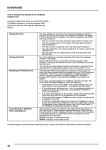
Testing LAN Card
For units containing a correctly operating LAN
card, the message “Present” will be shown on
the completion of the test.
If a LAN card is not included, the message “Not
Present” will be shown.
NOTE: The LAN (Local Area Network)
facility is intended for potential future
developments in dealership systems,
and is not currently in use.
Checking for Parallel Device
This test verifies the connection to a printer.
If no printer is connected, a message “Not
Connected” will be displayed.
If a printer is connected to T4 which is powered
OFF and On-line, the message “Connected” will
be displayed.
Testing CD Drive
This test attempts to read from the Compact Disc
that is currently loaded in the CD drive.
If the CD can be read successfully, the display
screen will show a “PASSED” message.
If the test fails and the CD cannot be read, the
message “Fail or No CD Found” will be
displayed. A CD read failure could be caused by
one of the following conditions:
• There is no CD in the CD drive (press
the eject button to make sure).
• The CD has been inserted upside down
in the CD drive. Ensure the label side of
the CD is face up.
• The CD is dirty or scratched. (see “CD
Cleaning Procedure”).
• The CD is defective. Try using another
CD, if it works, replace the defective CD.
• The drive may be malfunctioning. Check
all the above and repeat the test for
confirmation that there is a CD drive
problem.
If a printer is connected to T4 and the message
“Off-Line or Not Connected” is displayed, check
the following:
• Is the printer On-Line? The indication
light on the printer labelled “On-Line”
should be lit. If not, press the On-Line
button on the printer.
• If the printer does not come on-line, try
resetting the printer by turning it OFF
then back ON. Select BLACK or WHITE
to TEST LCD DISPLAY.
• If an error code appears on the printer,
refer to the User’s Manual that was
supplied with the printer for an
explanation of the printer error
message.
• Check the cable between T4 and the
printer to make sure it is plugged in
securely.
• Check the Configuration Module to
make sure T4 is set up to use the
printer. The Configuration Screen can
be accessed by selecting the
“Configuration” option button on the
“Welcome Screen”. See “Set Printer/
Paper” in the T4 Configuration section of
the on-line details.
65