1
I ENGLISH
DVD Camcorder
SC-DC 163/DC164/DC 165
AF
Auto Focus
COD
Charge Coupled Device
LCD
Liquid Crystal Display
Owner's Instruction Book
Before operating the unit, please read this Instruction Book
thoroughly, and retain it for future reference.
[ US PATENT 4415844 J
Use only approved battery packs.
Otherwise, there is a danger of overheating, fire or explosion.
Samsung is not responsible for problems occurring due to
us ng unapproved batter es.
_/Rw
Dw+r_w,_aI,Ee
DVD+_
_L
I
[ ENGLISH
I
Notices and Safety instructions
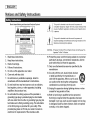
ShockHazardMarkingand AssociatedGraphical Symbols
This symbolis intended
to alertthe userto the presenceof
un[nsulated "dangerous voltage" within the product's enclosure that
may be of sufficient magnitude to constitute a risk of electric shock
to persons
Explanationof Safety RelatedSymbols
This symbol is intended to alert the user to the presence of
important operating and maintenance (servicing) instructions in the
literature accompanying the appNance
WARNING - To Reduce The Risk Of Fire Or Electric Shock, Do Not Expose This
Apparatus To Rain Or Moisture.
1. Read these instructions.
10. Protect the power cord from being walked on or pinched
particularly at plugs, convenience
receptacles, and the
point where they exit from the apparatus.
2. Keep these instructions.
3. Heed all warnings,
11. Only use attachments/accessories
manufacturer.
4. Follow all instructions.
5. Do not use this apparatus
near water.
6. Clean only with dry cloth.
7. Do not block any ventilation openings. Install in
accordance with the manufacturer's
instructions.
8. Do not install near any heat sources such as radiators,
heat registers, stoves, or other apparatus (including
amplifiers) that produce heat.
9. Do not defeat the safety purpose of the polarized or
grounding type plug. A polarized plug has two blades
with one wider than the other. A grounding type plug has
two blades and a third grounding prong. The wide blade
or the third prong are provided for your safety. If the
provided plug does not fit into your outlet. Consult an
electrician for replacement of the obsolete outlet.
specified by the
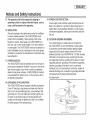
12. Use only with the cart, stand, tripod, bracket,
or table specified by the manufacturer,
or
sold with the apparatus. When a cart is used,
use caution when moving the cartlapparatus
combination to avoid injury from tip-over.
13. Unplug this apparatus during lightning
unused for long periods of time.
storms
...................
or when
14. Refer all servicing to qualified service personnel.
Servicing is required when the apparatus has been
damaged in any way, such as power-supply
cord or plug
is damaged, liquid has been moisture, does not operate
normally, or has been dropped,
I ENGLISH
Notices and Safety instructions
15. The apparatus shall not be exposed to dripping or
splashing and that no objects filled with liquids, such as
vases, shall be placed on the apparatus.
16. VENTILATION:
Slots and openings in the cabinet are provided for ventilation
to ensure reliable operation of the CAMCORDER and to
protect it from overheating. These openings must not be
blocked or covered. Never place your CAMCORDER on a
bed, sofa, rug, or other similar surface: on or near a radiator
or heat register. This CAMCORDER should not be placed in a
built-in installation such as a bookcase or rack unless proper
ventilation is provided or the manufacturer's instructions have
been adhered to.
17. POWER SOURCES:
The CAMCORDER should be operated only from the type of
power source indicated on the label If you are not sure of the
type of power supply at your home, consult your appliance
dealer or local power company. A CAMCORDER is intended
to be operated from battery power, or other sources, refer to
the operating instructions.
18. GROUNDING
OR POLARIZATION:
This CAMCORDER may be equipped with either a polarized
2-wire AC line plug (a plug having one blade wider than the
other) or a 3-wire grounding type plug, a plug having a third
(grounding) pin. If you are unable to insert the plug fully into
the outlet, try reversing the plug. If the plug still fails to fit,
contact your electrician to replace your outlet. Do not defeat
the safety purpose of the polarized plug.
19. POWER-CORD
PROTECTION:
Power-supply cords should be routed so that they are not
likely to be walked on or pinched by items placed upon or
against them, paying particular attention to cords or plugs,
convenient receptacles, and the point where they exit from
the unit.
20. OUTDOOR ANTENNA
GROUNDING:
If an outside antenna or cable system is connected to
the CAMCORDER, be sure the antenna or cable system
is grounded to provide some protection against voltage
surges and built-up static charges, Section 810 of the
National Electrical Code, ANSI/NFPA No. 70-1984, provides
information with respect to proper grounding of the mast
and supporting structure, grounding of the lead-in wire and
supporting structure, grounding of the mast and supporting
structure, grounding of the lead-in wire to an antenna
discharge unit, size of grounding to conductors, location of
antenna-discharge unit, connection to grounding electrodes
and requirements for the grounding electrode.
See figure below.
]
[ ENGLISH
]
Notices and Safety instructions
2t. LIGHTNING:
For added protection of this CAMCORDER during a lightning
storm or when it is left unattended and unused for long
periods of time, unplug it from the wall outlet and disconnect
the antenna or cable system. This will prevent damage to the
CAMCORDER due to lightning and power-%e surges.
22. POWER LINES:
An outside antenna system should not be located in the
vicinity of overhead power lines or other electric light or power
circuits where it can fall into such power lines or circuits.
When installing an outside antenna system, extreme care
should be taken to keep from touching such power lines or
circuits as contact with them might be fatal.
23. OVERLOADING:
Do not overloadwall outlets and extension cords as this can
result ina risk of fire or electric shock.
24. OBJECTS
AND LIQUIDS:
Never push objects of any kind into this CAMCORDER
through openings as they may touch dangerous voltage
points or short out a part that could result in a fire or electric
shock. Never spill liquids of any kind onto the CAMCORDER.
Should spiltage occur, unplug unit and have it checked by a
technician before use.
26. DAMAGE REQUIRING SERVICE:
Unplug this CAMCORDER from the wall outlet and refer
servicing to qualified service personnel under the following
conditions:
a
When the power-supply cord or plug is damaged.
b.
If any liquid has been spilled onto, or objects have fallen
into the CAMCORDER.
c.
If the CAMCORDER
d.
If the CAMCORDER does not operate normatly by
following the operating instructions, adjust only those
controls that are covered by the operating instructions.
Improper adjustment of other controls may result in
damage and will often require extensive work by a
qualified technician to restore the CAMCORDER to its
normal operation.
e
If the CAMCORDER
been damaged.
f.
When the CAMCORDER exhibits a distinct change in
performance, this indicates a need for service.
27. REPLACEMENT
has been exposed to rain or water.
has been dropped orthe cabinet has
PARTS:
When replacement parts are required, be sure the service
technician has used replacement parts specified by the
manufacturer and having the same characteristics as the
original part. Unauthorized substitutions may result in fire,
electric shock or other hazards.
25. SERVICING:
Do not attempt to service this CAMCORDER yourself.
Opening or removing covers may expose you to dangerous
voltage or other hazards. Refer all servicing to qualified
service personnel
28. SAFETY CHECK:
Upon completion of any service or repairs to this
CAMCORDER, ask the service technician to perform safety
checks to determine that the CAMCORDER is in safe
operating order.
I ENGLISH
Notices and Safety instructions
29. To prevent damage which may result in fire or shock hazard,
do not expose this appliance to rain or moisture.
30. If this power supply is used at 240V ac, a suitable plug
adapter should be used.
USER INSTALLER
CAUTION:
Your authority to operate this FCC certified equipment could
be voided if you make changes or modifications not expressly
approved by this party responsible for compliance to part 15 FCC
rules.
NOTE:
_
LAMP(S) INSIDE THIS PRODUCT CONTAIN
MERCURY AND MUST BE RECYCLED OR
DISPOSED OF ACCORDING
TO LOCAL, STATE OR
FEDERAL LAWS. For details see lamprecycle.org,
eiae.org, or call 1-800-Samsung
(7267864)
NOTE: This equipmeet has been tested and found to comply with
the limits for a Class B digital device, pursuant to part 15 of the FCC
Rules. These limits are designed to provide reasonable protection
against harmful interference in a residential installation.
This equipment generates, uses and can radiate radio frequency
energy and, if not installed and used in accordance with the
instructions, may cause harmful interference to radio communications
However, there is no guarantee that interference will not occur
in a particular installation. If this equipment does cause harmful
interference to radio or television reception, which can be determined
by turning the equipment off and on, the user is encouraged to try to
correct the interference by one or more of the following measures:
Reorient or relocate the receiving antenna.
Increase the separation between the equipment and receiver.
Connect the equipment into an outlet on a circuit different from
that to which the receiver is connected
Consult the dealer or an experienced radio/TV technician for hel
and for additional suggestions.
The user may find the following booklet prepared by the Federal
Communications Commission helpful : "How to Identify and
Resolve Radio-TV Interference Problems."
This Booklet is available from the U.S. Government Printing
Office, Washington, DC. 20402, Stock No. 004-000-00345-4.
CC Warning
The user is cautioned that changes or modifications not expressly
approved by the manufacturer could void the user's authority to
operate the equipment.
FCC ID : A3L06RAINBOW1
This device complies with Part 15 of FCC Rules.
Operation is subject to the following two conditions;
(1) This device may not cause harmful interference, and
(2) This device must accept any interference received, including
interference that may cause undesired operation.
]
[ ENGLISH
Contents
Features ............................................................................... 9
About Disc .......................................................................... 10
Disc Type Description ..........................................................
How to use the DVD Camcorder easily ..............................
Accessories Supplied with the DVD Camcorder ................
Front & Left View ................................................................
Left Side View .....................................................................
Right & Top View ................................................................
Rear & Bottom View ..........................................................
11
12
13
14
15
16
17
Setting the Clock (Clock Set) .............................................
Setting the Wireless Remote Control Acceptance
(Remote) (SC-DC164/DC165 only) ....................................
Setting the Beep Sound (Beep Sound) ..............................
Setting the Shutter Sound (Shutter Sound) ........................
Selecting the OSD Language (Language) .........................
Viewing the Demonstration (Demonstration) ......................
30
3t
32
33
34
35
Adjusting the LCD Screen (LCD Bright/LCD Color) ........... 36
Displaying the Date/Time (Date/Time) ................................ 37
Remote Control (SC-DC164/DC165 only) .......................... 18
Using the Hand Strap & Lens Cover .................................. 19
Lithium Battery installation ................................................. 20
Using the Lithium Ion Battery Pack .................................... 21
Connecting a Power Source ............................................... 25
About the Operating Modes ............................................... 26
Using the Joystick .............................................................. 26
Using the QUICK MENU .................................................... 27
OSD (On Screen Display) in Camera Mode/Player Mode .... 28
OSD (On Screen Display) in MCam Mode/M.Player Mode.... 29
Turning the OSD (On Screen Display) On/Off .................... 29
A
Using the Viewfinder ...........................................................
Various Recording Techniques ...........................................
inserting and Removing a Disc ..........................................
Selecting the Record Mode (Rec Mode) ............................
38
39
40
42
Making your First Recording .............................................. 43
Recording with Ease for Beginners (EASY.Q Mode) .......... 44
Using External Microphone ................................................ 45
Zooming In and Out ............................................................ 45
Using the Fade In and Out (FADE) .................................... 46
Using Back Light Compensation Mode (BLC) .................... 47
[ ENGLISH
J
Contents
Using the Color Nite ........................................................... 48
Using the LED LIGHT (SC-DC165 only) ............................ 49
Deleting a Title (Delete) ................................................... 70
Deleting a Section of a Title (Partial Delete) ...................... 71
Cutting Off Wind Noise (Wind Cut) ................................... 50
Setting the Shutter Speed & Exposure
(Shutter/Exposure) ............................................................. 51
Auto Focus / Manual Focus................................................ 52
Creating a New Playlist (New Playlist) .............................
Renaming a Playlist (Playlist Name) .................................
Playing the Playlist ............................................................
Playlist information (Playtist Info) ....................................
Deleting a Playlist (Delete) ................................................
Adding Scenes to Playlist (Edit Playlist-Add) ....................
Changing the Order of Scene Playing within a Playlist
(Edit Playtist-Move) .........................................................
Deleting Scenes from Playlist (Edit Playtist-Detete) ......._.
Deleting a Section of a Playtist
(Edit Playtist - Partial Delete) .............................................
Programmed Automatic Exposure Modes (Program AE)...
Setting the White Balance (White Batance) .......................
Applying Digital Effects (Digital Effect) ..............................
Setting the 16:9 Wide mode (16:9 Wide) ...........................
Setting the Digital Image Stabilizer (DIS) ...........................
Zooming In and Out with Digital Zoom (Digital Zoom) .......
53
55
57
59
60
61
72
73
74
75
76
77
78
79
80
_ "Title"List?'
" ............................................................
"
"
" ' " "
"
;What's'a
62
What's a Playlist? .............................................................. 62
Disc Information (Disc Info) ............................................... 82
Editing the Disc Name (Disc Info-Rename) ....................... 83
Finalizing aaDisc
DiSC(Disc(DiSCFinalize)Formatting
Format) ......................................
84....................................__
85
Playing Title Lists .............................................................
Adjusting the Volume .........................................................
Various Functions while in Player Mode ...........................
Zooming during Playback (PB ZOOM) ..............................
Renaming a Title (Title Name) ...........................................
Title Information (Title tnfo) ................................................
Protecting a Title (Protect) .................................................
63
63
64
66
67
68
69
Playing Back on a PC with DVD drive ................................ 86
Playing back a finalized disc on a DVD Player/Recorder _ 86
Unfinalizing a Disc (Disc Unfinalize) ................................ 87
A
L ENGLISH
J
Contents
"
Setting the AV In/Out (SC-DC165 only) ..............................
Viewing Recordings on TV .................................................
Copying a Disc onto a Tape................................................
Recording (Copying) a TV Program or Video Tape
onto a Disc (SC-DC165 only) ...........................................
88
89
91
92
Using a Memory Card (Usable Memory Card)
(not supplied).. .................................................................. 93
Memory Card Functions ............................................... 93
inserting a Memory Card ............................................. 93
Ejecting a Memory Card ............................................. 93
Structure of Folders and Files on the Memory Card ......... 94
Selecting the Photo Quality (Photo Quality) ...................... 95
Setting the File Number (File No.) .................................... 96
Taking a Photo image (JPEG) on the Memory Card .......... 97
Viewing Photo images (JPEG) ........................................... 98
Protection from accidental Erasure (Protect) ................... 100
t,
o_-
I*
Printing Your Pictures-Using the PictBridge TM..................
Connecting To a Printer (USB Connect) ....................
Setting the Number of Prints ........................................
Setting the Date/Time imprint Option. ........................
Printing images .........................................................
Canceling the Printing ...............................................
109
109
110
110
110
110
Using USB Interface .........................................................
Selecting the USB Device (USB Connect) ........................
installing DV Media PRO Program ..................................
Ulead Video Studio ............................................................
111
113
114
115
Connecting to a PC ........................................................
Disconnecting the USB Cable .....................................
Using the PC Camera Function ..................................
Using the USB Streaming Function ............................
Using the removable Disk Function .............................
116
116
117
118
118
DeletingFormatting
the Memory
Images and
CardMoving
(Format)
Images
.............................
(Delete)....... 101
1o3Photo
Recording Moving images (MPEG) on the Memory Card ...
Playing the Moving images (MPEG) on the Memory Card...
Recording Still images onto a Memory Card during
DVD playback ................................................................
Marking Images for Printing (Print Mark) .........................
A
104
105
106
107
Using Your DVD Camcorder Abroad ................................. 119
[ ENGLISH
Contents
o
o
-
o_
_
Q
Troubleshooting ................................................................ 120
Setting menu items........................................................... 125
9"
.
•
A
I ENGLISH
I
Notes and Safety instructions
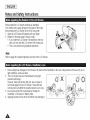
Please rotate the LCD Screen carefully as illustrated.
Over-rotation may cause damage to the inside of the hinge
that connects the LCD Screen to the DVD Camcorder.
1. Open the LCD Screen 90 degrees with your finger.
2. Rotate it to the best angle to record or play.
• If you rotate the LCD Screen 180 degrees to the lens
side, you can close the LCD Screen with it facing out.
• This is convenient during playback operations.
Referto page36 to adjustbrightnessandcolorof the LCDScreen.
1. Direct sunlight can damage the LCD Screen, the inside of the Viewfinder or the Lens. Take pictures of the sun only in low
light conditions, such as at dusk.
2. The
highprecision
LCD technology.
Screen has been manufactured using
However, there may be tiny dots (red, blue or green in
color) that appear on the LCD Screen. These dots are
normal and do not affect the recorded picture in any way.
3. Do not pick up the DVD Camcorder by holding the
Viewfinder, LCD Screen or Battery Pack.
4. Applying excessive force to the Viewfinder may damage it.
A
__'_J/d X__
_)_
]d_
,,',
O
I ENGLISH
Notes and Safety instructions
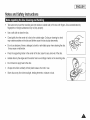
= Take care not to touch the recording side (the rainbow colored side) of the disc with fingers. Discs contaminated by
fingerprints or foreign substances may not play properly.
=
Use a soft cloth to clean the disc.
=
Clean lightly from the center of a disc to the outside edge. Circling or cleaning too hard
may create scratches on the disc and further cause the disc to play abnormally.
=
Do not use benzene, thinner, detergent, alcohol or anti-static spray when cleaning the disc.
It may cause a malfunction.
=
Press the supporting holder in the center of the disc case for easy removat of the disc.
= Handle discs by the edges and the center hole to avoid finger marks on the recording side.
= Do not bend or apply heat to the disc.
= Always store discs vertically in their plastic cases when not in use.
= Store discs away from direct sunlight, heating elements, moisture or dust.
A
I
[ ENGLISH
Notes and Safety instructions
= Do not leave the DVD Camcorder exposed to high temperatures (above 60 °C or 140 °F).
For example, in a parked car in the sun or exposed to direct sunlight.
, Do not let the DVD Camcorder get wet. Keep the DVD Camcorder away from rain, sea water, and any other form of
moisture.
,
If the DVD Camcorder gets wet, it may get damaged. Sometimes a malfunction due to exposure to liquids cannot be
repaired.
A sudden rise in atmospheric temperature may cause condensation to form inside the DVD Camcorder.
- When you move the DVD Camcorder from a cold location to a warm location (e.g. from outside to inside during the
winter.)
- When you move the DVD Camcorder from a cool location to a hot location (e.g. from inside to outside during the
sumn_el:)
Television programs, video tapes, DVD titles, films, and other program materials may be copyrighted.
Unauthorized copying of copyrighted material may be against the law.
Atl the trade names and registered trademarks mentioned in this manual or other documentation provided with your Samsung
product are trademarks or registered trademarks of their respective holders.
,
,
,
,
,
A
Do not attempt to service this DVD Camcorder yourself.
Opening or removing covers may expose you to dangerous voltage or other hazards.
Refer all servicing to qualified service personnel.
When replacement parts are required, be sure the service technician has used replacement parts specified by the
manufacturer that have the same characteristics as the original parts.
Unauthorized substitutions may result in fire, electric shock or other hazards.
[ ENGLISH
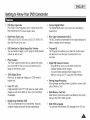
Getting to Know Your DVD Camcorder
= DVD Disc Camcorder
DVD-VIDEO Title Production with 3 1/2inch (Scm) DVDRW/+RW/DVD-R/+R DL(Dual Layer) discs,
= Various Digital Effects
The Digital Effects allow you to give your recordings a
special look.
= High Power Zoom Lens
Offers you 30x (SC-DC163 only), 33x (SC-DC164/DC165
only) High Power Zoom Lens.
= Back Light Compensation (BLC)
The BLC function compensates for the bright background
behind a subject you're recording.
USB Interface for Digital image Data Transfer
You can transfer images to a PC using the USB interface
without an add-on card.
Program AE
The Program AE enables you to alter the shutter speed
and aperture to suit the type of scene/action to be
recorded.
Photo Capture
The Photo Capture function lets you capture the scene
you want while the disc is in play, and save as a still
image on the Memory Card.
1200× Digital Zoom
Altows you to magnify an image up to 1200 times its
original size.
Color TFT LCD
A high-resolution color TFT LCD gives you clean, sharp
images as welt as the ability to review your recordings
immediately.
Digital Image Stabilizer (DIS)
The DiS compensates for any handshake, reducing
unstable images particularly at high magnification.
Digital Still Camera Function
- Using Memory Card, you can easily record and
playback standard photo images.
- You can transfer standard photo images on the
Memory Card to your PC using the USB interface.
•
Moving Image Recording
Moving image recording makes it possible to record video
onto a Memory Card.
= Multi Memory Card Slot
Multi Memory Card slot is able to use Memory Stick (Duo),
Memory Stick PRO, MMC and SD.
= Multi OSD Language
You can select the desired OSD language from OSD list.
A
I ENGLISH
Getting
I
to Know Your DVD Camcorder
DVD-R / DVD-RW (31/2inch (Scm))
DVD+RW (3 l/2i_ch (8crn))
m
DVD÷f{eW_it aMe
DVD+R DL (Dual Layer) (31/2inch (8cm))
m
OVD÷R
DL
,
,
,
,
,
,
,
You may not use 5inch (12cm) CD/DVD discs.
Unplayable 3 1/2inch (8cm) Discs
CD
CD-R
CD-RW
DVD-ROM
DVD+R (Single Layer)
DVD-RAM
DVD-R(Dual Layer)
Floppy Disk, MO, MD, iD, LD
We are not responsible for the life span of the recording based on the quality of the disc in the DVD Camcorder and how
long the data can be kept.
You may not be able to play discs recorded from a PC or DVD recorder. When such a case occurs, the message, Bad
Disc! may be displayed.
We do not warranty any damage or loss incurred due to recording and playback failure caused by disc or card malfunction.
We take no responsibility and offer no compensation for any recording failure, loss of recorded or edited material and/or
damage to the recorder arising from the misuse of discs.
I ENGLISH
Getting to Know Your DVD Camcorder
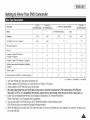
DVD-R
(31/2inch (Scm))
Disc Type
Mode
-
Capacity
Formatting a new disc :-page
1.4G
,
-
'
2.6G
DVD-RW (31/2inch
i
VR (Video Recording)
1.4G
_
DVD+RW
(31/2inch (Scm))
(8cm)}
i
Video
1.4G
1.4G
Auto
Recording _page 43
O
O
O
O
Rewrite
X
X
O
O
O
Playback on other DVD Players r_
(Finalize _ ) '_page 86
O
O
X
O
O :'
Playback on other DVD Recorders r_ '=page 86
O
O
O
O
O :_
Additional recording after finalization (UnfJnalJze)
_page 87
X
X
O
O
- "_
Editing _page 71
X
X
O
X
X
X
X
O
O
O
(Format) '=page 84
O ¢
_
Auto
Reusing a disc by formatting
41
DVD+R DL
(3 lt2inch (Sere))
O "O
(b You must format new disc before recording on it.
= o: possible / X: notpossible
/ -: notneeded
(z; When loading a DVD-RW disc you must format it in Video or VR mode.
G) When loading a DVD+RW disc you must format it.
(,0 We cannot guarantee that you will he able to play back in all other manufacturer's DVD camoorders, DVD Players/
Recorders, or PC's. For compatibility information, please refer to the manual of the device you wish to play back on.
(9 Discs must be finalized before they can be played on standard DVD Players/Recorders.
Refer to the page 12 for Finalized disc compatibility.
(b; You can play back DVD+RW discs on DVD Players/Recorders without finalizing them.
DVD+RW disc does not need the Finalize/Unfinatize feature.
(7) When formatting a recorded disc, the data recorded on the disc is deleted and disc capacity is restored, enabling you
to re-use the disc.
I
I ENGLISH
Getting
I
to Know Your DVD Camcorder
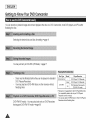
You can record any desired image and edit and playback the disc on a DVD Camcorder, most DVD players, and PCs after
finalizing the disc.
Selecting the desired disc and disc formatting _page 41
You may edit only in DVD-RW (MR Mode). "-,page 71
Disc Type
Discs must be finalized before they can be played on standard
DVD Players/Recorders.
You may play back DVD+RW discs on other devices without
finalizing them.
Mode
DVD-R/+R DL
DVD-RW
Player/Recorder
DVD Player, DVD Recorder
Video
DVD Player, DVD Recorder
VR
DVD Recorder that supports
DVD-RW VR mode
Playback is not guaranteed in a]] DVO Players/Recorders
For compatibility details, refer to your DVD Players/
Recorder's owner's manual.
DVD-RW(VR mode) : You may play back only on DVD Recorders
that support DVD-RW VR mode. ",page 86
,A
You can play back DVD+RW discs on other DVD Players/
Recorders without finalizing them.
I ENGLISH
Getting to Know Your DVD Camcorder
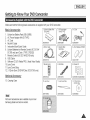
Make sure that the following basic accessories are supplied with your DVD Camcorder.
Basic Accessories
i o,
{SB-LSMS0)
1. LithiumIon BatteryPack(SB-LSM80)
2.
3.
4.
5.
6.
AC Power Adapter (AA-E8 TYPE)
AC Cord
Multi-AV Cable
instruction Book/Quick Guide
Lithium Batteries for Remote Control (SC-DC164/
DC165 only) and Clock. (TYPE: CR2025)
7. Remote Control (SC-DC164/DC165 only)
8. USB Cable
AD43-00136A
{AA-E8 TYPE)
3 AC
Cor_
AD44-00090A
AD39-00076A
E Lithium Batteries
,._
4 [Vlu,ti-AV Cab,e
i
(CR2025)
Quick Guide
I 5 Instrllction Book
AD39-0011EA
AD43-10130H
9. Software CD (DV Media PRO, Ulead Video Studio)
10. Lens Cover
9 8offwale
CD
11. Lens Cover Strap
12.3 1/2inch (8cm) DVD-RW Disc (SC-DC165 only)
Optional
Accessory
ADSE-00148A
AD39-00073A
13. Carrying Case
12 31/2inch (8cm)
DI/D-RW Disc
AD97110990A
Parts and accessories are available at your local
Samsung dealer and service center.
AD46-000E 1A AD46-00082A
AD72100049A
AD46-00088A
I
I ENGLISH
I
Getting to Know Your DVD Camcorder
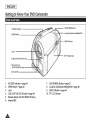
1. ACCESS Indicator
7. QUICK MENU Button
2. OPEN Switch
8. Joystick (Up/Down/Left/Right/OK)
5. EASY.Q Button
3. Lens
10. TFT LCB Screen
4. LED LIGHT
5. Remote Sensor
(SC-DCI64/DC165
only}
6. Internal MIC
1.
2.
3.
ACCESS Indicator =page 40
OPEN Switch "*page 40
Lens
4.
5.
6.
LED LIGHT (SC-DC165 only) "_page 49
Remote Sensor (SC-DC164/DC165 only)
Internal MIC
7.
8.
QUICK MENU Button _*page 27
Joystick (UplDownlLeftlRightlOK)
9. EASY.Q Button _*page 44
10. TFT LCD Screen
"*page 26
I ENGLISH
Getting
I
to Know Your DVD Camcorder
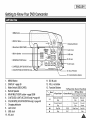
1ME.UButton
[l
¸¸¸¸ ¸¸
3ModeSw=to.
B_sc_cARo
k_
"_!i!
1 JI ®
\_\_
,.ou,=o.,. If1
5. MF/AF/MULT[ D[SP. button
--
I
D!,
_
_Mf/t=Ul/
6. C.NITE/LBD LIGHT (SC=DC165 only).
_\
6. COLOR NITB (SC=DC163/DC164 on
_
i ..............
13. Function Buttons (below)
1.
MENU Button
11. DC IN Jack
2.
3.
4.
5.
6.
6.
DISPLAY -page 29
Mode Switch (DISC/CARD)
Built-In Speaker
MF/AF/MULTI D{SP. button '-page 52/98
C.NtTE/LED LIGHT (SC-DC165 only) -page 49
COLOR NITE (SC-DC163/DC164 only) -page 48
12. VOL (4+) Button
13. Function Buttons
7.
8.
Charging Indicator
Jack Cover
9. USB Jack
10. AV Jack
= M.Player Mode : Memory Player Mode
Mode
_e
<P,ayer Mode>
<C.....
Mode>
Photo image
Moving image
Backward
Backward
144
Backward Search/
Skip
Skip
Search
Forward Search/
Skip
Forward
Forward
_1
Ni
Play/Stil
FADE
I!
Stop
BLC
Skip
Searoh
Slde Show
Play/Stll
Stop
I ENGLISH
I
Getting to Know Your DVD Camcorder
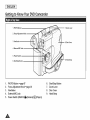
1. PHOTO Button
2. Focus Adjustment Knob
3. Viewfinder
4. External MIC Jack
5. Power Switch
6. Start/Stop
-
Button
1.
2.
3.
4.
PHOTO Button =page 97
Focus Adjustment Knob ".page 38
Viewfinder
ExternaIMIC Jack
5.
Power Switch (ON/OFF/l_(Camera)/_.;i_J(Player))
6.
7.
8.
Start/Stop Button
Zoom Lever
Disc Cover
9.
Hand Strap
9. Hand Strap
I ENGLISH
Getting to Know Your DVD Camcorder
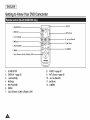
2. Tripod Receptacle
3. Memory Card Slot
4. Battery
Release switch
o
1, Lithium Battery Cover
1.
2.
Lithium Battery Cover
Tripod Receptacle
3.
4.
5.
Memory Card Slot
Battery Release switch
Hand Strap Hook
5. H
a _Hook
Usabte Memory Cards
SD
MMC
Memory Stick
Memory Stick PRO
I
I ENGLISH
I
Getting to Know Your DVD Camcorder
8. PHOTO
1. STARTISTOP
2. DISPLAY
9. WIT (Zoom)
3. 14<I V_I (Skip)
10. _{_ I _,_.(Search)
4. ! (Stop).
11. I_
(Slow)
5. _ II (Play/Still)
12. Q-MENU
6. MENU
7. Up(,_,)lDown(v)/Left(<
)lRight( >)/OK
SAMSUNG
1.
START/STOP
2.
DISPLAY _page 29
3.
4.
5.
6.
J_4/_l(Skip)
[] (Stop)
_ll (Play/Still)
MENU
7.
Up(^)/Down(v)/Left(<
8.
9.
PHOTO =page 97
WIT(Zoom) =page 45
10. 44 / _,_(Search)
11. I_ (slow)
12. Q-MENU
)/Right( >)/OK
I ENGLISH
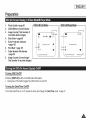
Preparation
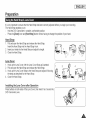
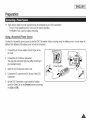
It is very important to ensure that the Hand Strap has been correctly adjusted before you begin your recording.
The Hand Strap enables you to:
Hold the DVD Camcorder in a stable, comfortable position.
Press the [Zoom] lever and [Start/Stop] button without having to change the position of your hand.
Hand Strap
1. Pull and open the Hand Strap and release the Hand Strap.
Insert the Hand Strap into the Hand Strap Hook.
2. Insert your hand into the Hand Strap and adjust its length.
3. Close the Hand Strap.
/
//
\
Lens Cover
1. Hook up the Lens Cover with the Lens Cover Strap as illustrated.
2. Pull and open the Hand Strap and release the Hand Strap.
3. Hook up the Lens Cover Strap to the Hand Strap and adjust it following
the steps as described for the Hand Strap.
4. Close the Hand Strap.
Installing
the Lens Cover after Operation
Press buttons on both sides of the Lens Cover, then insert it so it covers the
DVD Camcorder Lens.
,,&
I
i ENGLISH
i
Preparation
Lithium
Battery
Installation
for the Internat
Clock
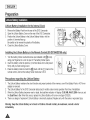
1. Remove the Battery Pack from the rear of the DVD Camcorder.
2. Open the Lithium Battery Cover on the rear of the DVD Camcorder.
3. Position the Lithium Battery in the Lithium Battery Holder, with the
positive (+) terminal face up.
Be careful not to reverse the polarity of the Battery.
4. Close the Lithium Battery Cover.
Installinq
the Lithium
Battery
in the Remote
Control
(SC-DC164/DC165
1. Turn the battery holder counterclockwise (as indicated with [Q] mark).
using your fingernail or a coin to open it. The battery holder opens.
2. insert the battery while the positive (+)terminai faces down and press it
firmly until you hear locking sound.
3.
Place
the
battery
holder
to match
its [_]
mark
with
the
[O]
mark
remote control, and turn the battery holder clockwise to fix it.
PrecautiOn
the Lithium
on
the
1
only)
2
_
¢
_Battery
3
Holder
_
.....o
o
/
Batter
1. The Lithium Battery maintains the clock function and preset contents of the memory; even if the Battery Pack or AC Power
adapter is removed.
2. The Lithium Battery for the DVD Camcorder lasts about 6 months under normal operation from time of installation.
3. When the Lithium Battery becomes weak or dead, the date/time indicator wilt display 12:00 AM JAN.01.2006 when you set
the Date/Time to On. When this occurs, replace the Lithium Battery with a new one (type CR2025).
4. There is a danger of explosion if Lithium Battery is incorrectly replaced. Replace only with the same or equivalent type.
Warning: Keep the Lithium Battery out of reach of children. Should a battery be swallowed, consult a doctor
immediately.
I ENGLISH
Preparation
*:o Use SB-LSM80 or SB-LSM160 Battery Pack only.
°:o The Battery Pack may be charged a little at the time of purchase.
Charging
the Lithium
Ion Battery
Pack
1. Turn the [Power] switch to [Off].
2. Attach the Battery Pack to the DVD Camcorder.
3. Connect the AC Power Adapter to an AC Cord and connect the AC
Cord to a walt socket.
f
4. Open the LCD Screen and Jack Cover.
5. Connect the DC cable to the DC IN jack on the DVD Camcorder.
The charging indicator wilt start to blink, showing that the Battery is
charging.
6. When the Battery is fully charged, disconnect the Battery Pack and
the AC Power Adapter from the DVD Camcorder. Even with the
Power switched Off, the Battery Pack wilt still discharge.
Blinking
time
Charging rate
Once per second
Less than 50%
Twice per second
50% ~ 75%
Three times per second
75% ~ 90%
BNnking stops and stays on
90% ~ 100%
On for a second and off for a
second
Error - Reset the Battery Pack and
ihe DO Cable
<Charging indicator>
I
I ENGLISH
I
Preparation
Chargingp
Recording
Times
based
on Battery
Type
= if you close the LCD Screen, it switches off and the Viewfinder switches on automatically.
• The continuous recording times given in the table below are approximations.
Actual recording time depends on usage.
• The continuous recording times in the operating instructions are measured using a fully charged Battery Pack at 77 °F
(25 °C).
• Even when the Power is switched Off, the Battery Pack will still discharge if it is left attached to the device.
SB-LSM8O (AD43-00136A)
Battery Type
Charging time
Approx.lhr
Mode
SB-LSMI60
20rain
Continuous recording hme
(Option)
Approx. 3hr
Playback time
Mode
Continuous recording time
Playback time
XP
Approx lhr 10rain
XP
Approx. 1hr45min
Approx 2hr 15rain
SP
Approx
lhr 15rain
SP
Approx. lhr 55rain
Approx 2hr 25rain
Approx
lhr 20rain
LP
Approx. 2hr 5m!n
Approx 2hr 35rain
LCD ON
Viewfinder
LCD ON
VJewfinder
LOD ON
LP
Approx. !hr 5m!n
Viewfinder
= Measured figures shown above are based on model 8C-DC163,
The amount of continuous recording time available depends on;
The type and capacity of the Battery Pack you are using.
Ambient temperature.
How often the Zoom function is used.
Type of use (DVD Camcorder/Camera/With LCD Screen etc.).
it is recommended that you have several batteries available.
J ENGLISH
Preparation
Battery
Level Dis I]_aj/
The battery bvel display indicatesthe amount of power remaining in the Battery Pack.
a. Fully charged
b. 20~40% used
c. 40~80% used
d. 80~95% used
e. Completely used (Blinking)
(The DVD Camcorder will turn off soon, change the battery as soon as possible.)
I
a
b
c
,t
€
e
The Finalize/Format functions are not available at battery level 'd' and 'e'
, At battery level 'd'
Each time you select Finalize/Format from menu, the message of <Please connect AC adapter> will be displayed for 5
seconds.
At battery level 'e'
The battery becomes low in capacity and the <_>
indicator blinks on the display.
The screen wilt turn blue when the battery is almost completely discharged.
Battery
,
,
,
,
,
,
Pack Management
The Battery Pack should be recharged in an environment between 32 °F (0 °C) and 104 °F (40 °C).
The Battery Pack should never be charged in a room with a temperature that is below 32 °F (O °C).
The life and capacity of the Battery Pack will be reduced if it is used in temperatures below 32 °F (0 °C) or left in
temperatures above 104 °F (40 °C) for a long period of time, even when it is fully recharged.
Do not put the Battery Pack near any heat source (i.e. fire or a heater).
Do not disassemble, apply pressure to, or heat the Battery Pack.
Do not altow the + and - terminals of the Battery Pack to be short-circuited. It may cause leakage, heat generation, induce
overheating or fire.
J
[ ENGLISH
Preparation
Maintaininq
.
.
.
.
.
.
.
.
.
.
the Battery
Pack
Please refer to the Table on page 22 for approximate continuous recording time.
The recording time is affected by temperature and environmental conditions.
The recording time shortens dramatically in a cold environment. As the environmental temperature and conditions vary.
The continuous recording times in the operating instructions are measured using a fully charged Battery Pack at 77 OF
(25 ° C). The remaining battery time may differ from the approximate continuous recording times given in the instructions.
We recommend only using the original Lithium ion Battery Pack that is available from your SAMSUNG retailer.
When the Battery reaches the end of its life, please contact your local dealer.
The batteries have to be dealt with as chemical waste.
Make sure that the Battery Pack is fulty charged before starting to record.
A brand new Battery Pack is not charged. Before using the Battery Pack, you need to charge it completely.
Fully discharging a Lithium Ion Battery damages the internal cells.
The Battery Pack may be prone to leakage when fully discharged.
To preserve battery power, keep your DVD Camcorder turned off when you are not operating it.
if your DVD Camcorder is in Camera Mode, and it is left in STBY mode without being operated for more than 5 minutes
with a disc inserted, it will automaticalty turn itself off to protect against unnecessary battery discharge.
Make sure that the Battery Pack is fitted firmly into place.
Do not drop the Battery Pack. Dropping the Battery Pack may damage it.
J ENGLISH
Preparation
+ There are two types of power source that can be connected to your DVD Camcorder.
- The AC Power adapter and AC Cord: used for indoor recording.
- The Battery Pack: used for outdoor recording.
Using
a Household
Power
Source
Connect to a household power source to use the DVD Camcorder without worrying about the battery power. You can keep the
Battery Pack attached; the battery power wilt not be consumed.
1. Connect the AC Power adapter (AA-E8 Type) to the
AC Cord.
2. Connect the AC Cord to a walt socket.
The plug and walt socket type may differ according to
your resident country.
3. Open the LCD Screen and Jack Cover.
4. Connect the DC cable to the DC IN jack of the DVD
Camcorder.
5. Set the DVD Camcorder to each mode by holding
down the Green Tab on the [Power] switch and turning
it to [On] or [Off].
/1@
h
.
J
I ENGLISH
I
Preparation
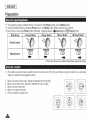
+ The operating modes are determined by the position of the [Power] switch and the [Mode] switch.
+ Set the Operation Mode by adjusting [Power] switch and [Mode] switch before operating any functions.
4o Each time you move the [Power] switch downward, it toggles between [l_(Camera)]
and [[J_(Player)]
Mode Name
<Camera Mode>
<Player Mode>
<M.Cam Mode>
mode.
<M.Player Mode>
[Mode] Switch
• M.Cam Mode : Memory Camera Mode / M.Pla
._rMode : Memory Player Mode
4° The Joystick is used to make a selection and to move the cursor left, right, up and down. Using the Joystick you can easily
make your selection and navigate the menu.
1.
2.
3.
4.
5.
Move to a previous menu item/Adjust the selected item (to the left).
Move to a sub menu item/Adjust the selected item (to the right).
Move to a lower menu item.
Move to an upper menu item.
Press to select the chosen item.
I ENGLISH
I
Preparation
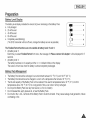
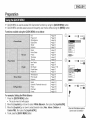
+ QUICK MENU is used to access DVD Camcorder functions by using the [QUICK MENU] button.
+ QUICK MENU provides easier access to frequently used menus without using the [MENU] button.
Functions available using the QUICK MENU are as below:
DiS
Exposure
page
_page
page
"-page
"-page
"-page
60
53
55
57
51
51
Delete
Partial Delete
Protect
Title Name
Title hfo
_page
_page
"-page
"-page
"-page
70
71
69
67
68
New Playlist
Delete
page
_page
_pages
"-page
"-page
72
76
77-81
73
75
Program AE
White Balance
Digital Effect
Shutter
Edit Playlist
Playlist Name
Play
White Balance
Photo Quality
Exposure
page 55
_page 95
_page 51
3. Move the [Joystick] up or down to select desired mode (Auto, Indoor, Outdoor, or
Custom WB), then press the [Joystick(OK)].
4. Toexit pressthe [QUICK MENU] button.
Exit
/
Exit
/
J
<When the White Balance option in
Camera mode was selected>
I ENGLISH
I
Preparation
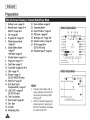
1.
2.
Battery Level =page 23
Manual focus "=,page 52 *
EASY.Q =page 44 *
3.
4.
5.
7.
DIS =page 60
Program AE -page 53
White Balance Mode
=,page 55
Digital Effects Mode
",page 57
16:9 Wide "*page 59
Shutter Speed -page 51 *
8.
Exposure =page 51 *
6.
21.
22.
23.
24.
Record Mode -page 42
Operating Mode
Zoom Position "*page 45
PB Zoom =page 66
25. Message Line -page 120
26. Volume Control '='page 63
27. AV IN "*page 88
(SC-DC165 only)
28. Playback Speed _page 64
23
4@_.
22
21 20 19
_
E_15
6_--$epia
_/200
[p_13
......
6--
AM JAN 01 2006
/ 6cJ WkSe
I
9
Colo_ N / 30
I
10
9. Date/Time =page 37
10. Color Nite -pages 48~49 *
11.USB "*page113
12.Remote =page 31
(SC-DCI641DCI65 only)
13.Wind Cut '=,page
50
14.BLC (Back Light
Compensation) "*page 47
15. LED LIGHT =page 49
(SC-DC165 only)
16. Title List Number
17. Disc Format -page
18. Disc Type
19. Counter
20. Remaining Time
84
F.o00oo0 "/ °
= Functions not marked with *
wilt be retained when the DVD
Camcorder powered on after
turning it off,
, OSD (On Screen Display) and
printed names for each part of
the DVD Camcorder are based
on model SC-DC163,
26
_/0@_
2006
I ENGUSH
Preparation
1.
2.
Photo Quality '='page 95
CARD (Memory Card) Indicator
3.
Image Counter [Total number of
recordable photo images)
4.
5.
6.
7.
8.
Slide Show '-page 99
Erase Protection Indicator
=,page 100
Print Mark '=,page 107
Folder Number-File Number
",page 94
Image Counter [Current Image/
Total number of recorded images)
_8
-3
f_llll
/ n/in
5s/0 _E]
4
Slide
No memo_ cad
lm
5
\
/ 2 00 AM JAN 01 2006
OSD On/Off
Press the [DISPLAY] button on the left side control panel.
= Each press of the button toggles the OSD function on and off.
Turning
the Date/Tirne
On/Off
To turn the Date/Time on or off, access the menu and change the Date/Time mode. =,page 37
/00 0005 _7
I
I ENGLISH
I
initial Setting • System Menu Setting
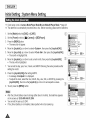
•:* Clock setup works in Camera Mode/Player Mode/M.Cam Mode/M.Player Mode. '=page 26
+ The date/time is automatically recorded onto a disc. Before recording, please set the date/time.
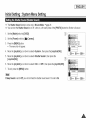
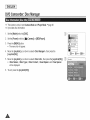
1. Set the [Mode] switch to [DISC] or [CARD].
2. Set the [Power] switch to [ll_ (Camera)] or [LZ](Player)]
3. Press the [MENU] button.
= The menu list will appear.
4. Move the [Joystick]
up or down to select <System>, then press the [Joystick[OK)].
5. Move the [Joy stick] up or down to select <Clock Set>, then press the [Joystick(OK)].
= The month wilt highlight first.
6. Move the [Joystick] up or down to set current month, then press the [Joystick(OK)].
= The day will be highlighted.
7. You can set the day, year, hour, minute, and AM/PM following the same procedure after
setting the month.
8. Press the [Joystick(OK)] after setting AM/PM.
= A message <Complete !> is displayed.
= To adjust the clock, select the Year, Month, Day, Hour, Min, or AM/PM by pressing the
[Joystick(OK)I, then move the [Joystick] up or down to set respective values.
9. To exit, press the [MENU] button.
= After the Lithium Battery loses its charge (after about 6 months), the date/time appears
on the screen as 12:00 AM JAN.01.2006.
= You can set the year up to 2040.
= If the Lithium Battery is not installed, data inputted wilt not be backed up.
I ENGLISH
I
Initial Setting • System Menu Setting
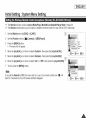
*:* The Remote function works in Camera Mode/Player Mode/M.Cam Mode/M.Player Mode. _page 26
*:* The Remote function atlows you to enable or disable the remote control for use with the DVD Camcorder.
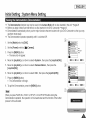
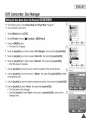
1. Set the [Mode] switch to [DISC] or [CARD].
2. Set the [Power] switch to [1_ (Camera)] or [l_E}(Player)].
3. Press the [MENU] button.
= The menu list will appear.
4. Move the [Joystick]
up or down to seIect <System>, then press the [Joystick(OK)].
5. Move the [Joystick]
up or down to select <Remote> then press the [Joystick(OK)]
6. Move the [Joystick]
up or down to setect <On> or <Off>, then press the [Joystick(OK)].
'
_Move
_Select
_Exit
/
. .........................................................................................
/
%
7. To exit, press the [MENU] button.
Language
If you set the Remote to Off in the menu and try to use it, the remote control icon ({_r_) witl
blink for 3 seconds on the LCD Screen and then disappear.
_Move
_Se_ect
_Exit
A
/_
I ENGLISH
I
initial Setting • System Menu Setting
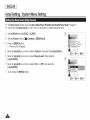
*:* The Beep Sound function works in Camera Mode/Player ModelM.Cam Mode/M.Player Mode. _page 26
*:* You can turnthe Beep Sound on or off, when on, each press of a button sounds a beep.
1. Set the [Mode] switch to [DISC] or [CARD].
2. Set the [Power] switch to [_
(Camera)] or [_(Player)]
3. Press the [MENU] button.
= The menu list will appear.
4. Move the [Joystick]
up or down to select <System>, then press the [Joystick(OK)].
5. Move the [Joystick]
[Joystick(OK)]
up or down to select <Beep Sound>, then press the
6. Move the [Joystick]
[Joystick(OK)]
up or down to select <On> or <Off>, then press the
7. To exit, press the [MENU] button.
I ENGLBH
I
Initial Setting • System Menu Setting
-:* The Shutter Sound function works only in M.Cam Mode. _'page 26
-:* You can turn the Shutter Sound on or off, when on, with each press of the [PHOTO] button the Shutter witl sound,
1. Set the [Mode] switch to [CARD].
2. Set the [Power] switch to [1_ (Camera)].
3. Press the [MENU] button.
= The menu list will appear.
f
4. Move the [Joystick]
.......................................................................
<__"_
l_}ove
_
Select
_'_On_OnEnglish_Exit
_/
up or down to select <System>, then press the [Joystick(OK}].
5. Move the [Joystick) up or down to select <Shutter Sound>, then press the
[Joystick(OK]]
6. Move the [Joystick]
up or down to select <On> or <Off>_then press the [Joystick(OK)].
Clock Set
7. To exit, press the [MENU] button.
Language
!i
If Beep Sound is set to OfL you will not hear the shutter sound even if it is set to On.
_,love
J
_Select
_Exitj
I ENGLISH
I
Initial Setting • System Menu Setting
*:* The Language function works in Camera Mode/Player Mode/M.Cam Mode/M.Player Mode. ",page 26
*:* You can select the desired language to display the menu screen and the messages.
1. Set the [Mode] switch to [DISC] or [CARD].
2. Set the [Power] switch to [1_ (Camera)] or [[]i_(Player)].
3. Press the [MENU] button.
= The menu list will appear.
4. Move the (Joystick] up or down to select <System>, then press the [Joystick(OK)].
5. Move the [Joystick] up or down to select <Language>, then press the [Joystick(OK)].
= The available language options are listed.
6. Move the [Joystick] up or down to select desired OSD language, then press the
[Joystick(OK)]
= The OSD language is refreshed inthe selected language.
7. To exit, press the [MENU] button.
_Move
The word Language in the menu is always indicated in English.
_Select
_Exit
I ENGLBH
Initial Setting • System Menu Setting
+ The Demonstration function may only be used in the Camera Mode with no disc insertedin the unit. ",page 26
+ Before you begin: Make Sure that there is no disc inserted in the DVD Camcorder. _page 40
*:o Demonstration automatically shows you the major functions that are included with your DVD Camcorder so that you may
use them more easily.
*:o The Demonstration operates repeatedly until it is switched Off.
1. Set the [Mode] switch to [DISC].
2. Set the [Power] switch to [1_ (Camera)].
3. Press the [MENU] button.
= The menu list will appear.
4. Move the [Joystick]
up or down to select <System>, then press the [Joystick(OK)].
5. Move the [Joystick]
[Joystick(OK)]
up or down to select <Demonstration>,
6. Move the [Joystick]
up or down to select <On>, then press the [Joystick(OK)]
_Mode
_Select
_Exit
then press the
7. Press the [MENU] button.
• The Demonstration wilt begin.
8. To quit the Demonstration, press the [MENU] button.
When you press FADE, BLC, EASY Q, MF/AF, or COLOR NITE button during the
Demonstration operation, the operation wilt be deactivated and the function of the button
pressed will be activated.
,,&
I
I ENGLISH
I
Initial Setting • Display Menu Setting
+ Adjusting the LCD Screen works in Camera Mode/Player Mode/M.Cam Mode/M.Player Mode. '='page 26
+ Your DVD Camcorder is equipped with a 2.5 inch(SC-DC163) / 2.7 inchwide (SC-DC164/DC165) color Liquid Crystal
Display (LCD) Screen, which enables you to view what you are recording or playing back directly.
+ Depending on the conditions under which you are using the DVD Camcorder (indoors or outdoors for example), you can
adjust;
- LCD Bright
- LCD Color
1. Set the [Mode] switch to [DISC] or [CARD].
2. Set the [Power] switch to [1_ (Camera)] or [[J_(Player)]
3. Press the [MENU] button.
= The menu list will appear.
4. Move the [Joystick]
up or down to select <Display>, then press the [Joystick(OK)].
5. Move the [Joystick] up or down to select the item you want to adjust (LCD Bright or
LCD Color), then press the [Joystick(OK)]
6. Move the [Joystick] left or right to adjust the value of the selected item (LCD Bright or
LCD Color), then press the [Joystick(OK)]
= You can set values for <LCD Bright> and <LCD Color> between <00> ~ <35>.
7. To exit, press the [MENU] button.
= Adjusting the LCD Screen does not affect the brightness and color of the image to be
recorded.
I ENGLISH
I
InitiaJ Setting • Display Menu Setting
-:* The Date/Time function works in Camera ModelPlayer Mode/M.Cam Mode/M.Player Mode. _page 26
•:* The date and time are automatically recorded on a special data area of the disc.
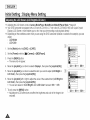
1. Set the [Mode] switch to [DISC] or [CARD].
2. Set the [Power] switch to [1_ (Camera)] or [Ilia(Player)].
3. Press the [MENU] button.
= The menu list will appear.
4. Move the [Joystick]
up or down to select <Display>, then press the [Joystick(OK)].
5. Move the [Joystick]
up or down to select <Date/Time>, then press the [Joystick(OK)].
_Move
_Select
_Exit
/
. ......................................................................................
/
6. Move the [Joystick] up or down to select the display type of the Date/Time, then press
the [Joystick(OK)].
= Display type ofthe Date/Time: <Off>, <Date>, <Time>, <Date&Time>.
7. To exit, press the [MENU] button.
= The Date/Time will read 12:00 AM JAN.01.2006 in the following conditions.
- During playback of a blank section of a disc.
- If the disc was recorded before setting the Date/Time in the DVD Camcorder.
- When the Lithium Battery becomes weak or dead.
= Before you use the Date/Time function, you must set the clock. '-page 30
\
_Move
_Se/ect
_Exit
...................................................................
A
/
I ENGLISH
I
DVD Camcorder:
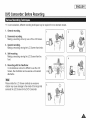
Before Recording
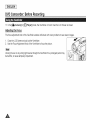
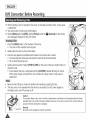
*:o In the [1_ (Camera)] or [[_(Player)]
Ad'ustin
mode, the Viewfinder will work when the LCD Screen is closed.
the Focus
The focus adjustment knob of the Viewfinder enables individuals with vision problems to see clearer images.
1. Close the LCD Screen and pull out the Viewfinder.
2. Use the Focus Adjustment Knob of the Viewfinder to focus the picture.
Viewing the sun or any strong light source through the Viewfinder for a prolonged period may
be harmful, or cause temporary impairment.
I ENGLISH
DVD Camcorder:
I
Before Recording
-:* In some situations, different recording techniques may be required for more dramatic results.
1. General recording.
2. Downward recording,
Making a recording with a top view of the LCD Screen.
3. Upward recording.
Making a recording viewing the LCD Screen from below.
4. Self recording.
Making a recording viewing the LCD Screen from the
front.
5. Recording with the Viewfinder,
In circumstances where it is difficult to use the LCD
Screen, the Viewfinder can be used as a convenient
alternative.
J
Please rotate the LCD Screen carefully as excessive
rotation may cause damage to the inside of the hinge that
connects the LCD Screen to the DVD Camcorder.
I ENGLISH
I
DVD Camcorder:
Before
Recording
+ When inserting a disc or closing the disc cover, do not apply excessive force, tt may cause
a malfunction.
***oYou cannot open the disc cover while loading.
***oSet the [Mode] switch to [DISC] and the [Power] switch to [_l_(Camera)]
and messages displayed on the LCD Screen.
to view menus
1. Push the [OPEN] switch in the direction of the arrow.
• The cover of disc insertion block will open.
2. Gently open the cover by hand until it stops.
3. Push the disc against the turntable at the center to lock until a click is heard.
• The recording side of the disc must face the inside of the DVD camcorder.
• Do not touch the pickup lens.
4. Gently push the section marked [PUSH CLOSE] on the cover of the disc insertion block, to
close the cover.
• Once inserted, the disc is recognized with the [ACCESS] indicator blinking. Do not cut
off the power supply during this time. Do not shake nor apply impact. It may cause a
malfunction.
•
•
Move the Hand Strap so it does not interfere with inserting or ejecting the disc.
The disc cover can be opened when the device is connected to an AC power adapter or
the battery pack, even if the power is off.
Caution
This product utilizes a laser. Use of controls or adjustments or performance of procedures other than those
specified herein may result in hazardous radiation exposure. Do not open covers and do not Fookinside the
product if interlock mechanism is damaged.
Warning
Be careful not to damage the interlock mechanism.
I ENGLISH
DVD Camcorder:
Before Recording
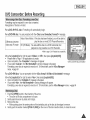
Fomlatting may be required if a new disc is inserted.
Recognition of the disc will start.
For a DVD-R/+R DL disc: Formatting wilt automatically begin.
For a DVD-RW disc: You are prompted with the <Disc is not formatted. Format?> message.
Differences between
Video and VR mode
Video (Video Mode) : If the disc has been finalized, you will be able to
play the disc on most DVD Players/Recorders.
VR (VR Mode) : You can edit the disc on a DVD Camcorder, but
playback is only possible on a DVD Recorder.
• Refer to page 12 for Finalized disc compatibi]ity.
Move the [Joystick] left or right to select <Video> or <VR>, then press [Joystick(OK)]
• Please refer to Page 11 for applications by mode.
• Upon completion, the <Complete 1> message wilt appear.
• If you select <Cancel>, the <Not formatted!> warning message will appear.
Formatting a new disc is required to record on it. To format later, use the <Disc Manager>
menu. -page 84
<When a DVD-RW disc is formatted.>
For a DVD+RW disc: You are prompted with the <Disc format? All files will be deleted!> message.
Move the [Joystick] left or right to select <Yes>, then press [Joystick(OK)]
• Upon completion the <Complete 1> message will appear.
• tf you select <No>, the <Not formatted!> warning message wilt appear.
Formatting a new disc is required to record on it. To format later, use the <Disc Manager> menu. ",page 84
1. Push the [OPEN] switch in the direction of the arrow.
• The cover of the disc compartment will open.
2. Gently open the cover by hand until it stops.
3. Remove the disc.
• While pushing down the center portion of the turntable, pick up the disc by the edges to remove.
4. Gently push the section marked [PUSH CLOSE] on the cover of the disc insertion block, to close the cover.
I
I ENGLISH
I
DVD Camcorder:
Before Recording
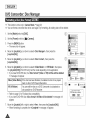
+ The Record Mode function works in both Camera Mode and Player Mode. _-page 26
+ This DVD Camcorder can film in the XP (extra play), the SP (standard play) and the LP (long play) modes.
The SP mode is set as the factory default.
1. Set the [Mode] switch to [D_SC].
2. Set the [Power] switch to [_
(Camera)] or [[_(Player)]
3. Press the [MENU] button.
= The menu list will appear.
4. Move the [Joystick]
up or down to select <Record>_ then press the [Joystick[OK)].
5. Move the [Joystick]
up or down to select <Rec Mode>, then press the [Joystick[OK}]
_
_Move
_SeFec?
_Exit
_Move
_Select
_Exit
/
6. Move the [Joystick] up or down to select desired record mode (XP, SP or LP), then
press the [Joystick(OK)].
7. To exit, press the [MENU] button.
• The icon of the selected mode is displayed.
_-____
,A
XP
DVD-RW/+RW/-R (1.4G)
Approx. 20min
DVD+R DL (2.6G)
Approx. 35rain
SP
Approx. 30min
Approx. 53min
LP
Approx. 60min
Approx.106min
/
I ENGLISH
I
DVD Carncorder: Basic Recording
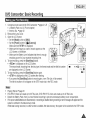
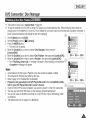
1. Connect a power source to the DVD Camcorder. '-pages 21_25
• (A Battery Pack or a AC Power adapter)
• Insert a disc. '-*page 40
2. Remove the Lens Cover.
3. Open the LCD Screen
• Set the [Mode] switch to [DISC].
• Set the [Power] switch to [_ (Camera)].
Make sure that <STBY> is displayed.
• Make sure the image you want to record appears on the
LCD Screen or Viewfinder.
• Make sure the Battery Levet indicates that there is enough
remaining power for your expected recording time.
4. To start recording, press the [Start/Stop] button.
• <RECe> is displayed on the LCD Screen.
The record mode, recording time, the disc type_ the format mode and the title list number
are displayed on the LCD Screen.
5. To stop recording, press the [Start/Stop] button again.
• <STBY> is displayed on the LCD screen after blinking.
= If you press the [Start/Stop] button to record again, a new Title List will be created.
The title list number will not appear in the STBY mode but in the REC mode.
20 ilin
I_
0Ol
\
= Playing Title list ",page 63
=
DVD-RW/-R discs can create up to 99 Title Lists, DVD+RW/+R DL discs can create up to 49 Title Lists.
Detach the Battery Pack when you have finished recording to prevent unnecessary battery power consumption.
If the power cable/batteriesare disconnected, or recording is disabled during recording an error messagewill appear and the
system is switched to the data recovery mode.
While data is being recovered, no other function is enabled After data recovery,the system wilt be switched to the STBY mode.
I ENGLISH
1
DVD Camcorder:
Basic Recording
+ The EASY.Q function works onty in Camera Mode. "*page 26
4o The EASY.Q function allows a beginner to easily make good recordings.
1. Set the [Mode] switch to [DISC].
2. Set the [Power] switch to till(Camera)].
3. By pressing the [EASY.Q] button, all functions on the DVD Camcorder wilI be set to off
and the recording settings will be set to the following basic modes (DIS, AF(Auto Focus,
AWB(Auto White Balance), AE(Auto Exposure) ON:
• The word <EASY.Q> and DIS (_) appear on the display at the same time.
4. Press the [Start/Stop] button to start recording.
• Recording will begin using the basic automatic settings.
" The EASY.Q function will not turn off while you are recording.
• The DVD Camcorder wilt return to the settings that were set prior to activating EASY.Q
mode.
5. Press the [EASY.Q] button again in the STBY mode to turn the EASY.Q mode off.
= tn EASY.Q mode certain functions are not available, such as Menu, BLC, Manual focus,
Color Nite. if you want to use these functions, you must first turn the EASY.Q mode off.
• The EASY.Q mode settings are deleted when the Battery Pack is removed from the DVD
Camcorder and must be reset when the Battery Pack is replaced.
LgJ
_
\
_11_STBY
[]
Q'_,
200:00:00rnN/[]dV
I ENGLISH
DVD Camcorder:
Basic Recording
Connect external microphone (not supplied) to the external microphone jack of this DVD
Camcorder. Clearer sound can be recorded.
*:o
*:o
*:*:o
The Zoom function works in both Camera Mode and M.Cam Mode. -page 26
Zooming is a recording technique that lets you change the size of the subject in a scene.
You can zoom using variable zoom speeds.
Use these features for different shots. Please note that over-use of the Zoom feature can lead to unprofessional looking
results and a reduction of battery usage time.
1. Move the [Zoom] lever slightly for a gradual zoom, move it
further for a high-speed zoom.
• Your zooming is monitored on the OSD.
TELE
2. [T] (Telephoto) side: Subject appears closer.
3. [W] (Wide angle) side: Subject appears farther away.
• You can record a subject that is about 10mm (about 0.5
inch) away from the lens surface in the Wide position.
WIDE
I
I ENGLISH
I
DVD Camcorder:
Basic Recording
+ The Fade function works only in Camera Mode. -page 26
*:* You can give your recording a professional look by using special
effects such as fade in at the beginning of a sequence or fade out
at the end of a sequence.
To Start
Recordin
1. Set the [Mode] switch to [DISC].
2. Set the [Power] swrtch to [_ (Camera)].
3. Before recording, hold down the [FADE] button.
• The picture and sound gradually disappear (fade out).
4. Press the [Start/Stop] button and at the same time release the
[FADE) button.
• Recordingstartsand the pictureand soundgraduallyappear(fadein)
To Sto_
5. When you wish to stop recording, hold down the [FADE] button.
= The picture and sound gradually disappear (fade out).
6. When the picture has disappeared, press the [Start/Stop] button
to stop recording.
a. Fade Out (Approx. 4 seconds)
Hold down the [FADE] button
a. Fade Out
Gradual disappearance
II
b. Fade In (Approx. 4 seconds)
Gradualappearance
b. Fadeln
Release the [FADE] button
I ENGLISH
DVD Camcorder:
Basic Recording
+ BLC works in both Camera Mode and M.Cam Mode. "page 26
4o Back lighting exists when the subject is darker than the background:
- The subject is in front of a window.
- The person to be recorded is wearing white or shiny clothes and is
placed against a bright background; the person's face is too dark to
distinguish his/her features.
- The subject is outdoors and the background is overcast.
- The light sources are too bright.
- The subject is against a snowy background.
1. Set the [Mode] switch to [DISC] or [CARD].
2. Set the [Power] switch to [l_(Camera)].
3. Press the [BLC] button.
• BLC icon (_)is
displayed.
4. To exit BLC mode, press the [BLC] button again.
• Each press of the [BLC] button toggles: Normal _ BLC _ Normal.
The BLC function will not operate in EASY.Q mode.
<BLC Off>
<BLC On>
I
I ENGLISH
1
DVD Camcorder:
Basic Recording
4. Color Nite function works only in Camera Mode. '=page 26
4o You can take a shot of an object in slow motion by controlling the shutter speed, or a
brighter image in dark places without a compromise in colors.
1. Set the [Mode] switch to [DISC].
2. Set the [Power] switch to [l_(Camera)].
3. Press the [COLOR NITE] (SC-DC163/DC164 only) or [C.NITE/LED LIGHT] (SC-DC165
only) button.
4. Each time you press the [COLOR NITE] (SC-DC163/DC164 only) or [C,NITE/LED
LIGHT] (SC-DCt65 only) button, shutter speed is changed to;
<Color N, 1/30>, <Color N, 1/15> and off. (SC-DC163/DCt64 only)
<Color N. 1/30>, <Color N. 1/15>, <Color N. 1/15(_)> and off. (SC-DC165 only)
= When using the Color Nite, the image takes on a slow motion like effect.
= When using the Color Nite, the focus adjusts slowly and white dots may appear on the
screen, this is not a defect.
= Digital Zoom, Mosaic, Mirror, Emboss2, Pastel2 or 16:9 Wide is not available in the
Color Nite mode.
= tf DIS or EASY.Q is set, Color Nite mode will be released.
<SC-DC163/DC164 only>
<SC-D0165 only>
I ENGLISH
DVD Camcorder: Basic Recording
+ The LED LIGHT function works only in Camera Mode. ",page 26
*:* The LED LIGHT enables you to record a subject in dark places.
*:° The LED LIGHT can be used with Color Nite function only.
1. Set the [Mode] switch to [DISC].
2. Set the [Power] switch to [_
(Camera)].
3. Press the [C.NITE/LED LIGHT] button until <Color N. 1/15([_)>
,
,
,
,
appears.
The LED LIGHT can become extremely hot.
Do not touch it while in operation or soon after turning it off_otherwise serious injury may
result.
Do not place the DVD Camcorder into the carrying case immediately after using the LED
LIGHT, since it remains extremely hot for some time.
Do not use near flammable or explosive materials.
20 I/in []
Ab,_[]
/'_
STBY
[]
00000_¢_
The range of the LED LIGHT is limited. (up to 6.6ft (2m))
Color N 115j
I
I ENGLISH
I
DVD Camcorder:
Advanced
Recording
+ The Wind Cut function works only in Camera Mode. "_page 26
+ Use the Wind Cut when recording in windy places such as the beach or near buildings.
-:o The Wind Cut function minimizes wind noise or other noise while recording.
- When the Wind Cut is on, some low pitched tones are eliminated along with the sound of the wind.
1. Set the [Mode] switch to [DISC].
{_
/
2. Set the [Power] switch to [IW_(Camera)].
3. Press the [MENU] button.
4. Move the [Joystick]
up or down to select <Record>, then press the [Joystick(OK)].
5. Move the [Joystick]
up or down to select <Wind Cut>, then press the [Joystick(OK]].
Move
_
Select
_
Exit
6. To activate the Wind Cut function move the [Joystick] up or down to select <On>,
then press the [Joystick(OK)].
7. To exit, press the [MENU] button.
= Wind Cut icon ([_]) is displayed.
_Move
Make sure Wind Cut is set to off when you want the microphone to be as sensitive as
possible.
_Selec_
STBY
_Exi_
0:0090
(_
[M 1
\
,A
/
I ENGLISH
DVD Camcorder: Advanced
I
Recording
+ The Shutter Speed function works only in Camera Mode. _,page 26
*:* The Exposure function works in both Camera Mode and M.Cam Mode. "page 26
*:o The Shutter Speed and Exposure functions can be set in the QUICK MENU.
1. Set the [Mode] switch to [DISC] or [CARD].
2. Set the [Power] switch to [1_ (Camera)].
3. Press the [QUICK MENU] button.
. QUICK MENU list will appear.
4. Move the [Joystick] up or down to select <Shutter> or <Exposure>, then press the
[Joystick(OK)]
5. Move the [Joystick] up or down to seiect <Manual>, then press the [Joystick(OK)].
6. Move the [Joystick] left or right to select desired shutter speed or exposure value, then
press the [Joystick(OK)].
. Shutter speed can be set to <1/60>, <11100>,<11250>,<11500>, <111000>,
<112000>,<114000> or <1110000>.
. Exposure value can be set between <00> and <29>.
7. To exit, press the [QUICK MENU] button.
. Selected settings are displayed.
Recommended
Shutter Speeds when Recording
*:* Outdoor sports such as golf or tennis: 1/2000 or 1/4000
*:o Moving cars or trains or other rapidly moving vehicles such as roller coasters: 1/1000,
11500or 1/250
+tndoor sports such as basketball: 1/100
%
Exit
j
z
%
Exit
= If you manually change the Shutter Speed and the Exposure value when Program AE
option is selected, manual changes are applied first.
= The image may not seem as smooth when a high Shutter Speed is set.
= The DVD Camcorder returns to the auto shutter and auto exposure settings when you
L E[E_®':_®
change to the EASY.Q mode.
=
When recording with a Shutter Speed of 1/1000 or higher, make sure the sun is not shining into the lens.
/
I ENGLISH
1
DVD Camcorder:
Advanced
Recording
+ The Auto Focus/Manual Focus function works in both Camera Mode and
M,Cam Mode. _page 26
***oIn most situations, it is better to use the automatic focus feature, as it
enables you to concentrate on the creative side of your recording.
***oManual focusing may be necessary under certain conditions that make
automatic focusing difficult or unreliable.
Auto
Focus
***otf you are inexperienced in the use of DVD Camcorders, we recommend
that you use Auto Focus.
ManualFocus
***otn the following situations, you may obtain better results by adjusting the
focus manually.
a. A picture containing several objects, some closeto the DVD Camcorder,othersfurther away.
b. A person enveloped in fog or surrounded by snow.
c. Very shiny or glossy surfaces like a car.
d. People or objects moving constantly or quickly like an athlete or a crowd.
1. Set the [Mode] switch to [DISC] or [CARD].
2. Set the [Power] switch to [l_(Camera)].
3. Press the [MF/AF] button.
• The manual focus icon (_F_)will blink.
4. Focus with the [VOL-] and [VOL+] buttons.
• Pressing the [VOL-] button will focus on the foreground image while pressing the [VOL+]
button will focus on the background image.
Manual Focus is not available in the EASY.Q mode.
I ENGLISH
DVD Camcorder: Advanced
Recording
+ The Program AE function works only in Camera Mode, _page 26
4. The Program AE mode allows you to adjust shutter speeds and apertures to suit different recording conditions.
***oThey give you creative control over the depth of field.
<Auto ([])>
mode
- Auto balance between the subject and the background.
f
/ _
- The shutter speed automatically varies from 1/60 to 1/250 per second, depending on the
scene.
=
STBY
[]
02o00ni_
%
<Sports (_[_,)> mode
- TObe used in normal conditions.
For recording people or objects moving quickly.
._
\
=
<Portrait ( _)> mode
- For focusing on the background of the subject, when the background is out of focus.
- The Portrait mode is most effective when used outdoors.
- The shutter speed automatically varies from 1/60 to 1/1000 per second.
=
<Spotlight (_))> mode
For recording correctly when there is only light on the subject and not the rest of the picture.
=
<Sand/Snow ( _ )> mode
For recording when people or objects are darker than the background because of reflected light from sand or snow.
=
<High Speed (4)> (High Shutter Speed) mode
For recording fast-moving subjects such as players in golf or tennis games.
I
I ENGLISH
I
DVD Camcorder:
Settin
the Pro
Advanced
Recording
ram AE
1. Set the [Mode] switch to [DISC].
2. Set the [Power] switchto [l_(Camera)].
3. Press the [MENU] button.
• The menu list will appear.
4. Move the [Joystick) up or down to select <Camera>, then press the [Joystick(OK)].
5. Move the [Joystick] up or down to select <Program AE>, then press the
[Joystick(OK)].
• The available options are listed.
6. Move the [Joystick]
[Joystick(OK)].
up or down to select desired program AE option, then press the
7. To exit, press the [MENU] button.
• The icon of the selected mode is displayed.
• When the <Auto> mode is selected no icon is displayed.
= Direct accessing the Program AE function is available simply using the [QUICK
MENU] button. _,,page 27
= The Program AE function will not operate in EASY.Q mode
_Move
_Se[ect
_Exit
I ENGLISH
DVD Camcorder: Advanced
I
Recording
+ The White Balance function works in both Camera Mode and M,Cam Mode. _page 26
-.'* The White Balance is a recording function that preserves the unique image color of the subject in any recording condition.
*:* You may select the appropriate White Balance mode to obtain good quality image color.
. Auto ( [] ): This mode is generally used to control the White Balance automatically.
. Indoor ( _ ): This controls the White Balance according to indoor ambience.
Under halogen or studio/video lighting
_
F...........................................................
- Subject is of one dominant color
- Close up
, Outdoor ( _): This controls the White Balance according 1othe outdoor ambience.
tn daylight, especially for close up and where the subject is of one dominant color.
. Custom WB (_): This controls the White Balance according to the recording
environment.
_l/Iove
_Select
_Exit
1. Set the [Mode] switch to [DISC] or [CARD].
2. Set the [Power] switch to [l_l_(Camera)].
3. Press the [MENU] button.
= The menu list will appear.
4. Move the [Joystick]
up or down to select <Camera>, then press the [Joystick(OK)].
5. Move the [Joystick]
[Joystick(OK)].
up or down to select <White Balance>, then press the
STBY []
7. To exit, press the [MEND] button.
• The icon of the selected mode is displayed.
• When the <Auto> mode is selected, no icon is displayed.
O:O0:OOd_
20 nin []
6. Move the [Joystick] up or down to select desired mode (Auto, Indoor, Outdoor or
Custom WB), then press the [Joystick(OK)].
• Refer to page 56 for details on setting Custom WB.
I'
©
\
J
I ENGLISH
I
DVD Camcorder:
Advanced
Recording
the Custom White Balance
_o You can adjust the white balance as you wish based on the recording environment.
1. Set the [Mode] switch to [DISC] or [CARD].
2. Set the [Power] switch to [l_(Camera)].
3. Press the [MENU] button.
• The menu list will appear.
4. Move the [Joystick]
up or down to select <Camera>, then press the [Joystick(OK)].
5. Move the [Joystick]
[Joystick(OK)].
up or down to select <White Balance>, then press the
_Move
_Serect
_Exit
6. Move the [Joystick] up or down to select <Custom WB>, then press the [Joystick(OK)].
• The <Set White Balance> will blink.
7. Place the white object under the desired lighting, then press the [Joystick(OK)]
• The <Set White Balance> will disappear and the white balance setting will
commence.
button.
Set White Balance
8. To exit, press the [MENU] button.
• Custom WB icon (_)is
displayed.
X_
{_
= You can directly access the White Balance function by using the [QUICK MENU] button.
page 27
= The White Balance function will not operate in EASY.Q mode.
= Turn the Digital Zoom off (if necessary) to set a more accurate white balance.
= Reset the white balance if lighting conditions change.
= During normal outdoor recording, setting to Auto may provide better results.
_
Select
_Exit
F
STOY
[] 02;o r? l
\
J ENGLISH
DVD Camcorder: Advanced
Recording
-:*
-:*
*:o
°:*
1.
The Digital Effect function works only in Camera Mode. =page 26
The Digital Effects enable you to give a creative look to your recording.
Select the appropriate Digitat Effect for the type of picture that you wish to record and the effect you wish to create.
There are 10 Digital Effect modes.
<Art> mode
This mode gives the images a coarse effect.
2. <Mosaic> mode
This mode gives the images a mosaic effect.
3. <Sepia> mode
This mode gives the images a reddish-brown pigment.
4. <Negative> mode
This mode reverses the colors, creating a negative image.
5. <Mirror> mode
This mode cuts the picture in half, using a mirror effect.
6. <BLK & WHT> mode
This mode changes the images to btack and white.
7. <Emboss1> mode
This mode creates a 3D effect (embossing).
8. <Emboss2> mode
This mode creates a 3D effect (embossing) on surrounding area of an image.
9. <Pastel1>
This mode
10. <Pastel2>
This mode
mode
applies a pate pastel drawing effect to an image.
mode
applies a pale pastel drawing effect to surrounding area of an image.
J
I ENGLISH
I
DVD Camcorder: Advanced
Setectin
theDi
Recording
itat Effects
1. Set the [Mode] switch to [DISC].
2. Set the [Power] switch te [l_qCamera)].
3. Press the [MENU] button.
= The menu list will appear.
4. Move the [Joystick]
i
_-Auto
i .A.to
_orf
i
_-Off
up or down to select <Camera>_ then press the [Joystick(OK)]
\
5. Move the [Joystick]
[Joystick(OK]]
_-Off
_-Off
_l/Iove
_Select
_Exit
up or down to select <Digital Effect>_ then press the
6. Move the [Joystick] up or down to select the desired Digital Effect option, then press
the [Joystick(OK)].
= The display mode is set to the selected mode.
Program A£
7. To exit, press the [MENU] button.
Move
= You can directly access the Digital Effect function by using the [QUICK MENU] button.
"*page 27
= The Mosaic, Mirror, Emboss2, or Pastel2 mode is not available while DIS or Color
Nite is in use.
= Digital Effect modes are not available while EASY.Q is in use.
= Once DIS, EASY.Q, Color Nite, or 16:9 Wide is set, Mosaic, Mirror, Emboss2, or
Pastel2 mode wilt be released.
= Digital Zoom is net available in the Mosaic, Mirror, Emboss2, or Pastel2 mode,
_
Select
v
_
Exit
I ENGLISH
DVD Camcorder: Advanced
Recording
+ The 16:9 Wide function works only in Camera Mode. _page 26
+ Select to record a picture to be played back on a 16:9 Wide TV.
1. Set the [Mode] switch to [DISC].
2. Set the [Power] switch to [1_ (Camera)].
3. Press the [MENU] button.
• The menu list will appear.
4. Move the [Joystick]
up or down to seiect <Camera>_ then press the [Joystick(OK)]
5
up or down to select <16:9 Wide>, then press the [Joystick(OK)]
Move the [Joystick]
6. To activate the 16:9 Wide function, move the (Joystick] up or down to select <On>,
then press the [Joystick(OK}]
• If you do not want to use the 16:9 Wide function_ set the <16:9 Wide> menu to <Off>.
7. To exit, press the [MENU] button.
• The disptay mode is set to the selected mode.
= The 16:9 Wide mode is not available while DIS, EASY.Q or Color Nite is in use.
= Once DIS, EASY.Q or Color Nite is set, 16:9 Wide mode will be released.
= Digital Zoom is not available in the 16:9 Wide mode.
I
I ENGLISH
I
DVD Camcorder: Advanced
Recording
+ The DIS function works only in Camera Mode. _page 26
*:* DIS (Digital Image Stabilizer) is a function that compensates for any shaking or hand movement while holding the DVD
Camcorder (within reasonable limits).
*:* It provides more stable pictures when:
- Recording with the zoom (If the DIS is set, Digital Zoom mode wilt be released.)
- Recording a small object close-up
_
f ....................................................................
- Recording and walking at the same time
- Recording through the window of a vehicle
1. Set the [Mode] switch to [DISC].
2. Set the [Power] switch to [_
(Camera)].
3. Press the [MENU] button.
= The menu list will appear.
4. Move the [Joystick]
up or down to select <Camera>, then press the [Joystick(OK)]
5
up or down to select <DIS>, then press the [Joystick(OK)]
Move the [Joystick]
_l/Iove
_Select
_Exit
F ¸¸
\
6. To activate the DtS function, move the [Joystick] up or down to select <On>, then
press the [Joystick(OK)].
= If you do not want to use the DIS function, set the <DIS> menu to <Off>.
7. To exit press the [MENU] button.
. DIS icon (_)is displayed.
= You can directly access the DIS function by using the [QUICK MENU] button.
'..,page 27
= Digital Zoom, Color Nite, 16:9 Wide, Mosaic, Mirror, Emboss2, or Pastel2 is not
available in the DIS mode.
= It is recommended that you deactivate the DIS function when using a tripod.
= If you use the DIS function, the picture quality may deteriorate.
= EASY.Q mode automatically sets the DIS to On.
\
_Move
_Seect
_Exlt
/
I ENGLBH
DVD Camcorder: Advanced
I
Recording
4. The Digital Zoom works only in Camera Mode. "*page 26
4o Zooming more than 30x (SC-DC163 only), 33x (SC-DC164/DC165 only) is achieved digitally, up to 1200x when combined
with optical zoom.
4o The picture quality may deteriorate depending on how much you zoom in on the subject.
Selecting
the Digital Zoom
1. Set the [Mode] switch to [DISC].
2. Set the [Power] switch to [l_(Camera)].
3. Press the [MENU] button.
• The menu list will appear.
4. Move the [Joystick] up or down to select <Camera>, then press the [Joystick(OK]].
5. Move the [Joystick] up or down to select <Digital Zoom>, then press the
[Joystick(OK)].
6. Move the [Joystick] up or down to select desired zoom value (Off, 100x, 200x, 400x
or 1200x), then press the [Joystick(OK]].
7. To exit, press the [MENU] button.
• When using the digital zoom switch, an indicator appears on the screen.
= Maximum zooming may result in lower picture quality.
= Digital Zoom is not available while DIS EASY.Q, Color Nite 16:9 Wide, Mosaic,
Mirror, Emboss2, or Pastel2 is in use.
= Once Color Nite, 16:9 Wide, Mosaic, Mirror, Emboss2, or Pastel2 is set, Digital
Zoom mode will be released. (The Digital Zoom mode will be backed up.)
= Once DIS or EASY.Q is set, Digital Zoom mode will be released.
\
•
_,love
_Select
_Exit
_Move
_Select
_Exit
j
J
I ENGLISH
I
DVD Camcorder:
What's Title List and Playlist
+ The Title List displays multiple titles (scenes) that have been recorded.
*:* A title is created between the points where you start and stop a recording.
Once deleted, you cannot recover the title again.
Current
TitleList/
TotalTitleList
*:o You can create a Playtist on the same disc by gathering your favorite scene from the recorded titles (title lists).
You can edit the Playlist without changing the original recordings,
f
*:o Even if the Playlist is deleted, the original title lists remain undeteted.
P_yiist
*:* Up to 199 playlists can be created, and up to 999 title scenes can be registered on a
Playlist.
Example: You have recorded a few scenes on a DVD-RW in VR mode. You want to save
the original recording, but you also want to create a digest by putting your favorite scenes
together. In this case, you can create a Playlist by selecting your favorite scenes, leaving the
original recording as it is.
F A title is created between the points where you start and stop a recording.
Current Playlist/
Total Playlist
Once deleted you cannot recover the title again.
I_JAN'12
Title 1
Title 2
2006 _
Title 3
I
Title 4
Tlfle 5
10:00 AM
10:30AM
11:30AM
02:00 PM
02:10 PM
JAN 30 2006_
Title 6
02:20 PM
Title 7
02:30 PM
I ENGLISH
DVD Camcorder:
Title List
The recorded Title List scenes are displayed as a thumbnail index (multiple images) on the
LCD Screen.
[_
You can find the desired scene quickly using this convenient index. If the LCD is closed,
you can view the recording through the viewfinder. Use the Playback related buttons on the
DVD Camcorder or on the remote control. '-page 64
1.
2.
3.
4.
insert the disc you want to view.
Open the LCD Screen.
Set the [Mode] switch to [DISC].
Set the [Power] switch to [[_[](Player)].
• The thumbnail index of the Title List witl appear.
• Use the [MENU] button to adjust brightness or color of the LCD Screen. ",page 36
5. Use the [Joystick] to select a Title List scene to be played, then press the
[Joystick(OK)] or [_ll] button.
• To stop playback, press the [re(Stop)] button.
%
+_+.mm]
+mm]+m
-+-+<
m
+ When you use the LCD Screen for playback+ you can hear recorded sound from the built-in
speaker.
*:* When you hear sound once the disc is in play, use the [VOL -,+] buttons to adjust the
volume.
, A volume level display wifl appear on the LCD Screen.
, Levels may be adjusted from anywhere between O0to 19
, If you close the LCD Screen while playing, you will not hear sound from the speaker.
I
I ENGLISH
1
DVD Camcorder:
Title List
+ These functions works only in Player Mode. _page 26
4o Play, Still, Stop Fast Forward Rewind, Forward Skip, and Reverse Skip functions are accessible using the remote control.
(SC-DC164/DC165 only)
4o Slow function is accessible only using the remote control. (SC-DC164/DC165 only)
Playback/Still
• Press the [1_||] button to pause during playback.
• To resume playback, press the [t ,_11|]button.
Picture Search (Forward/Reverse)
• Pressing the [ I_ ]/[ 1_1_1]
button once makes the play speed to approx x2 and pressing
twice plays at approx x16.
• When the number 1 appearson the OSD, it means X2 speed. Number2 = X16.
• To resume normal playback, press the [l_.l|] button.
• Same as [ ._,,t]/[ I,,I, ] buttons on the remote control.
Skip Playback
(Forward/Reverse)
• Press and hold the [ I.q_]/[ 1_1] buttons during playback.
• When playing a disc, if you press and hold the [1_1] button, it moves to the next scene.
If you press and hold the [ I.,1_] button, it moves to the beginning of the scene. One more
press and hold makes it move to the beginning of the previous scene. If you press and
hold the [ I._ ] button at a portion 3 seconds from the start of scene, it moves to the
beginning of the previous scene.
Portion being played back
,_1
1_
Sce_nel
i__Pressthe144tw+ce P ess be 4._P ess he _
Pressthe
__
Press tbe _[_ltwice
Scene1
I
Scene
2
I_
_++ltwice
iiiiiii ++_
_
......
I ENGLISH
I
DVD Camcorder: Title List
Slow Pla byback _Forward/ReverseMSC-DC164/DC165
only)
= Press the [11_']button on the remote control during playback.
- To resume normal playback, press the [_ II ] button.
®®®
_MENU
SAMSUNG
,,dl
I ENGLISH
1
DVD Camcorder:
Title List
_* The PB Zoom function works only in Player Mode. "*page 26
4o The PB Zoom function enables you to magnify the playback.
1. Set the [Mode] switch to [DISC].
2. Set the [Power] switch to [l_(Player)].
3. Move the [Zoom] lever toward [T(Tele)] to activate the PB Zoom during playback.
• The image is magnified starting from the center of image.
4. You can zoom in from 2.0x to 8.0x by moving the [Zoom] lever.
• It zooms 2.0x
4.0x - 8.0x progressively.
• Zoom ratio is displayed.
5. Use the [Joystick] to move the screen up, down, right or left.
6. To cancel the PB Zoom function, move the [Zoom] lever toward [W(Wide)].
= You cannot apply the PB Zoom function to pictures which are being input from an
external video source.
= The PB Zoom images cannot be exported to a PC.
= To stop operating PB Zoom function, press the [l(Stop)] button.
%
I ENGLISH
DVD Camcorder: Title List
-:* Title Name function works only in Player Mode. _page 26
-:* The recording date automatically becomes the title name if date had been set in the system
menu. '-',page 37
You can change the recording date to any desired title name.
1. Set the [Mode] switch to [DISC].
2. Set the [Power] switch to [[_(Player)].
= The Title List screen appears.
3. Press the [QUICK MENU] button.
4. Move the [Joystick]
up or down to select <Title Name>, then press the [Joystick[OK)].
5. Use the [Joystick] to select a title scene you want to rename from the Title List scenes, then
press the [Joystick(OK)].
= Title Name screen will appears.
6. Use the [Joystick] to move the cursor to the first character of the current title name.
_]
7. Use the [Joystick] to move the cursor to <Delete>, then press the [Joystick(OK)] to delete
the existing title name.
8. Use the [Joystick] to select the desired characters and items, then press the [Joystick(OK)].
= <Delete>: Deletes the character at the cursor position.
= <Space>: Enter a blank and moves the cursor one forward (to the right).
= <Done>: Registers the character inputs.
= <Back>: Returns to the previous mode.
9. Use the [Joystick] to select <Done>, then press the [Joystick(OK)].
= The title name is now changed,
= Use the [Joystick] to select <Back>, then press the [Joystick(OK)] to return to Title List,
I
I ENGLISH
I
DVD Camcorder:
Title List
*:* Title Info function works only in Player Mode. _page 26
*:* It shows you the title information.
*:° You can view the Title name, Protect, Rec Date, Length, Rec Mode and Disc Format.
1. Set the [Mode] switch to [DISC].
%
2. Set the [Power] switch to [[]_(Player)].
= The Title List screen appears.
3. Press the [QUICK MENU] button.
4. Move the [Joystick]
up or down to select <Title Info>, then press the [Joystick(OK)]
5. Use the [Joystick] to select a scene you want to display the title information from the
Title List scenes, then press the [Joystick(OK)].
= It shows the information on the selected title.
= The title information includes the <Title Name>, <Protect>, <Rec Date>, <Length>,
<Rec Mode> and <Disc Format>.
6. To exit, press the [Joystick(OK)].
= Use the [Joystick] to select <Back>, then press the [Joystick(OK)] to return to Title
List.
%
J ENGLISH
DVD Camcorder:
Title List
-:* Protect function works only in Player Mode. '-*page 26
+ You can set protection for a title so that the title cannot be deleted.
1. Set the [Mode] switch to [DISC].
%
2. Set the [Power] switch to [[_(Player)].
= The Title List screen appears.
3. Press the [QUICK MENU] button.
4. Move the [Joystick]
up or down to select <Protect>, then press the [Joystick(OK)].
5. Move the [Joystick] up or down to select <Select> or <Select All>, then press the
[Joystick(OK)]
= Select: Protects individual files
%
To protect individual files, use the [Joystick] to select files to protect, then press the
[Joystick[OK)].
The selected fibs wilt be marked <[_>.
= SelectAIh Protects atl files
To protect all files, simply press the [Joystick(OK)]
Atl files will be marked with <[_>.
after <Select All> is selected.
6. Move the [Joystick] up to select <Execute>, then press the [Joystick(OK)].
• Protect is set on all selected tries.
= The above procedure wilt release the lock on the title if previously set.
%
z&
J
J ENGLISH
J
DVD Camcorder:
Title List
-:* Delete function works only in Player Mode. "*page 26
+ Individual orAll Title scenes can be deleted.
1. Set the [Mode] switch to [DISC].
2. Set the [Power] switch to [[_(Player)].
= The Title List screen appears.
3. Press the [QUICK MENU] button.
4. Move the [Joystick]
up or down to setect <Delete>, then press the [Joystick(OK)].
5. Move the [Joystick] up or down to select <Select> or <Select All>, then press the
[Joystick(OK)]
= Select: Delete individual flies
To delete individualfiles, use the [Joystick] to select files to delete, then press the
[Joystick(OK)].
The selected files wilt be marked < I_>.
= SelectAIh Delete alt flies
To delete alt flies, simply press the [Joystick(OK)] after <Select All> is selected.
Atl flies will be marked with < I_>.
6. Move the [Joystick] up to select <Execute>, then press the [Joystick(OK)].
= The <Delete?> message witl appear.
7. Move the [Joystick] left or right to select <Yes>, then press the [Joystick(OK)]
= All selected titles witl be deleted.
• Related flies in Playtist will be deleted. (DVD-RW(VR mode only))
An audible warning wilt be heard if you try to delete a title that had previously been
protected. You must release the protect function to delete the title. ",page 69
%
I ENGLISH
DVD Camcorder:
Title List
+ Partial Delete function works only in Player Mode. _page 26
-:- ATitle scene can be partially deleted.
-:o The editing function only works on a DVD-RW (VR Mode).
You should format the DVD-RW to VR Mode before recording. ",page 41
1.
2.
3.
4.
5.
Set the [Mode] switch to [DISC].
Set the [Power] switch to [[_:](Player)].
Press the [QUICK MENU] button.
Move the [Joystick] up or down to select <Partial Delete>, then press the [Joystick(OK)].
Move the [Joystick] to select a title scene you want to delete partially from the Title List
scenes_then press the [Joystick(OK)]
= The selected title will be paused, then the <Start> will be highlighted.
6. Search the start point of deletion by pressing the [ I._i / _-I ] or [I_ IIll] button.
7. Press the [1_I!ll] button at the start point to pause the screen, then press the
[Joystick(OK)].
= The <End> will be highlighted.
8. Press the [ I.q.4/ _,_,1
] or [_, IIll] button to search the end point of deletion.
9. Press the [_- H ] button at the end point to pause the screem then press [Joystick(OK)].
= The <Execute> will be highlighted.
10. Press the [Joystick(OK)].
= The <Delete selected part? Please confirm.> message wilt appear.
11. Move the [Joystick] Ieft or right to select <Yes>, then press the [Joystick(OK)]
= The selected part of the title wili be deleted.
= Use the [Joystick] to select <Back>_ then press the [Joystick(OK)] to return to Title
List.
[_
(_
An audible warning wilt be heard if you try to delete a title that had previously been protected.
You must release the protect function to delete. ",page 69
,,&
I
[ ENGLISH
1
DVD Camcorder: Playlist
_ This function works only in Player Mode. _page 26
4o The editing function only works on a DVD-RW (VR Mode).
You should format the DVD-RW to VR Mode before recording. '=page 41
1. Set the [Mode] switch to [DISC].
2. Set the [Power] switch to [[_(Player)].
• The Title List scenes will appear.
3. Move the [Joystick] up to highlight the Title List icon (_), then move the [Joystick]
to highlight the Playtist icon (_).
• The Playlist scenes will be displayed in the form of a thumbnail index.
• No thumbnail index is provided before creating a Playlist.
right
4. Press the [QUICK MENU] button.
5. Move the [Joystick] up or down to select <New Playlist>, then press the [Joystick(OK)].
• Title List scenes will appear.
6. Use the [Joystick] to select a scene to create, then press the [Joystick(OK)].
• Keep selecting in the order of your preference.
• The selected scene will be marked with <,/>.
7. Move the [Joystick] up to <Add>, then press the [Joystick(OK)].
= A new Ptaylist will be created.
= Up to 199 playtists can be created.
= Up to 999 title scenes can be registered on a Playlist.
09
I ENGLISH
DVD Camcorder:
Playlist
-:o Playlist Name function works only in Player Mode. ",page 26
_[}
-:- The recording date automatically becomes the title name if date had been set in the system
menu.
You can change the recording date to any desired title name.
*:o The editing function only works on a DVD-RW (VR Mode).
You should format the DVD-RW to VR Mode before recording. '-page 41
1. Set the [Mode] switch to [DISC].
2. Set the [Power] switch to [[_](Player)].
= The Title List scenes will appear.
{_}
3. Move the [Joystick] up to highlight the Title List icon (_), then move the [Joystick] right to
highlight the Playlist icon (_).
= The Playiist scenes wilt be displayed in the form of a thumbnail index.
4. Press the [QUICK MENU] button.
5. Move the [Joystick] up or down to select <Playlist Name>, then press the [Joystick(OK)]
6. Use the [Joystick] to select a Playlist scene you want to rename from the Playtist scenes,
then press the [Joystick[OK)].
= Title Name screen will appears.
7. Use the [Joystick] to move the cursor to the first character of the current title name.
8. Use the [Joystick] to move the cursor to <Delete>, then press the [Joystick(OK)] to delete
the existing title name.
9. Use the [Joystick] to select the desired characters and items, then press the
[Joystick(OK)]
= <Delete>: Deletes the character at the cursor position.
= <Space>: Enters a blank and moves the cursor one forward (to the right).
@
= <Done>: Registers the character inputs.
= <Back>: Returns to the previous mode.
10. Use the [Joystick] to select <Done>, then press the [Joystick[OK)].
= The Playlist name is now changed.
= Use the [Joystick] to select <Back>, then press the [Joystick[OK)] to return to Playlist.
P_y_,s:
I
I ENGLISH
I
DVD Camcorder:
Playlist
_ This function works only in Player Mode. "*page 26
4o The Playlist scenes are displayed in the form of a thumbnail index on the LCD Screen.
if the LCD is ciosed, you can view the recording through the viewfinder.
Use the Playback related buttons on the DVD Camcorder or on the remote control. _page 64
***oThe editing function only works on a DVD-RW (VR Mode). You should format the DVDRW to VR Mode before recording. _page 4t
(_ fT_t_e
L_
1. Insert the disc you want to view.
2. Set the [Mode] switch to [DISC].
3. Set the [Power] switch to [[]_(Ptayer)].
• The Title List scenes will appear.
4. Move the [Joystick] up to highlight the Title List icon (_), then move the [Joystick]
right to highlight the Playlist icon (_).
• The Ptaylist scenes will be displayed in the form of a thumbnail index.
5. Use the [Joystick] to select a Playlist to be played, then press the [b"||] button.
6. Press the [VOL -,+] buttons to adjust volume.
• The sound will be heard through the built-In speaker.
%
I ENGLISH
DVD Camcorder:
Playlist
+ Playlist Info function works only in Player Mode. "*page 26
*:* It shows you the Playlist information.
You can view the Playtist Name, Protect, Rec Date, Length, Rec Mode and Disc Format.
*:* The editing function only works on a DVD-RW (VR Mode).
You should format the DVD-RW to VR Mode before recording. "*page 41
[_
1. Set the [Mode] switch to [DISC].
2. Set the [Power] switch to [[_(Player)].
= The Title List screen wilt appear.
3. Move the [Joystick] up to highlight the Title List icon (t'_'b),then move the [Joystick]
right to highlight the Playlist icon (_).
= The Playlist scenes will be displayed in the form of a thumbnail index.
%
4. Press the [QUICK MENU] button.
5. Move the [Joystick] up or down to select <Playlist Info>, then press the [Joystick(OK)].
6. Use the [Joystick] to select the desired Playiist info, then press the [Joystick(OK)]
= It shows you information on the selected Playlist.
= Playlist information includes Playlist Name, Protect, Rec Date, Length, Rec Mode
and Disc Format.
7. To exit, press the [Joystick(OK)].
= Use the [Joystick] to select <Back>, then press the [Joystick(OK)] to return to
Playlist.
%
Fp_y,_
I
I ENGLISH
I
DVD Camcorder:
Playlist
+ Delete function works only in Player Mode. '-page 26
+ IndMdua{ or alt undesired piaylists can be deleted.
+ The editing function only works on a DVD-RW (VR Mode). You should format the DVD-RW
to MR Mode before recording. ",page 41
[_} "PL_y_
1. Set the [Mode] switch to [DISC].
2. Set the [Power] switch to [[_(Player)].
= The Title List screen wilt appear.
3. Move the [Joystick] up to highlight the Title List icon (t'_), then move the [Joystick]
right to highlight the Playlist icon (_).
= The Playtist scenes will be displayed in the form of a thumbnail index.
4. Press the [QUICK MENU] button.
5. Move [Joystick]
up or down to select <Delete>, then press the [Joystick(OK)]
6. Move the [Joystick] up or down to select <Select> or <Select All>, then press the
[Joystick(OK)]
= Select: Delete individual files
To delete individual files, use the [Joystick] to select files to delete, then press the
[Joystick[OK)].
The selected files wilt be marked < _'>.
= SelectAIh Delete alt files
To delete all files, simply press the [Joystick(OK)]
All files will be marked with < _>.
after <Select All> is selected.
7. Move the [Joystick] up to select <Execute>, then press the [Joystick(OK)].
= <Delete?> message will appear.
8. Move the [Joystick] left or right to select <Yes>, then press the [Joystick(OK)]
• All selected playlists wilt be deleted.
%
I ENGLISH
DVD Camcorder:
Playlist
-:* This function works only in Player Mode. '-.page 26
*:o You can add more scenes in an existing Playlist.
°:* The editing function only works on a DVD-RW (VR Mode). You should format the DVD-RW
to VR Mode before recording. '-page 41
1. Set the [Mode] switch to [DISC].
2. Set the [Power] switch to [[_(Player)].
The Title List screen wilt appear.
3. Move the [Joystick] up to highlight the Title List icon (t'_'b),then move the [Joystick] right
to highlight the Playtist icon (_).
[_
The Ptayiist scenes wilt be displayed in the form of a thumbnail index.
4. Press the [QUICK MENU] button.
5. Move the [Joystick] up or down to select <Edit Playlist>, then press the [Joystick(OK)]
The screen will be switched to the Edit PIaylist mode.
6. Use the [Joystick] to select the Playlist to which the scenes are to be added, then press
the [Joystick(OK]].
The scenes inside the Playtist wilt appear.
7. Press the [QUICK MENU] button.
8. Move the [Joystick] up or down to select <Add>, then press the [Joystick(OK)]
The Title List scenes to be added to the Playlist wilt appear.
9. Use the [Joystick] to select the Title List scenes to be added to the Playlist, then press
the [Joystick(OK)].
The selected scenes wilt be marked with <./>.
10. Move the [Joystick] up to select <Execute>, then press the [Joystick(OK)].
= <Want to add?> message will appear.
11. Move the [Joystick] left or right to select <Yes>, then press the [Joystick(OK)]
. The <Now adding...> message will appear.
. The selectedsceneswill be addedtothe Playlist The newscenewill be addedas the lastscene.
While the Quick Menu is displayed on the screen, pressing the [_'11] button plays back, and
pressing the [g(Stop)] button while in play goes back to the thumbnail, and the Quick Menu
disappears.
[_
A
I
I ENGLISH
I
DVD Camcorder:
Playlist
*:* This function works only in Player Mode. ""page 26
+ You can change the order of scene playing within a Playtist.
*:o The editing function only works on a DVD-RW (VR Mode). You should format the DVD-RW
to VR Mode before recording. ",page 41
1. Set the [Mode] switch to [DISC].
2. Set the [Power] switch to [_(Player)].
= The Title List scenes will appear.
3. Move the [Joystick] up to highlight the Title List icon (_), then move the [Joystick] right
to highlight the Playiist icon (_).
= The PIaylist scenes wilt be displayed in the form of a thumbnail index.
4. Press the [QUICK MENU] button.
5. Move the [Joystick] up or down to select <Edit Playlist>, then press the [Joystick(OK)]
= The screen will be switched to the Edit PIaylist mode.
6. Use the [Joystick] to select the Playlist which contains the scenes whose order you want
to change then press the [Joystick(OK)]
= The scenes inside the Playlist wilt appear.
7. Press the [QUICK MENU] button.
8. Move the [Joystick] up or down to select <Move>, then press the [Joystick(OK)].
9. Use the [Joystick] to select the scene to be moved, then press the [Joystick(OK)]
= The SeIected scenes wilt be marked with <./>.
Also a bar next to the scenes wilt appear.
10. Use the [Joystick] to move the bar to the position of your choice, then press the
[Joystick(OK]]
= The selected scene will be moved to the new position.
11. Move the [Joystick] up to select <Execute>, then press the [Joystick(OK)].
= The <Want to move?> message witl appear.
12. Move the [Joystick] left or right to select <Yes>, then press the [Joystick(OK)]
= The <Now moving...> message will appear.
• You can move the scenes as many times as you wish.
_}
I ENGLISH
DVD Camcorder:
Playlist
*:* This function works only in Player Mode. ""page 26
4- You can delete the scenes from a Playlist.
4° The editing function only works on a DVD-RW (VR Mode). You should format the DVD-RW
to VR Mode before recording. ",page 41
1. Set the [Mode] switch to [DISC].
2. Set the [Power] switch to [l_(Player)].
= The Title List screen wilt appear.
3. Move the [Joystick] up to highlight the Title List icon (_), then move the [Joystick] right
to highlight the Playiist icon (_).
= The PIaylist scenes wilt be displayed in the form of a thumbnail index.
4. Press the [QUICK MENU] button.
5. Move the [Joystick] up or down to select <Edit Playlist>, then press the [Joystick(OK)]
= The screen will be switched to the Edit PIaylist mode.
6. Use the [Joystick] to select the Playlist which contains the scenes to be deleted, then
press the [Joystick(OK)].
= The scenes inside the Playlist wilt appear.
7. Press the [QUICK MENU] button.
8. Move the [Joystick] up or down to select <Delete>, then press the [Joystick(OK)].
9. Use the [Joystick] to select the scenes to be deleted, then press the [Joystick(OK)].
= The selected scenes will be marked with <./>.
10. Move the [Joystick] up to select <Execute>, then press the [Joystick(OK)].
[_
= The <Delete?> message will appear.
11. Move the [Joystick] left or right to select <Yes>, then press the [Joystick(OK)]
= The <Now deleting...> message will appear.
= The selected scenes will be deleted.
[_
I
I ENGLISH
I
DVD Camcorder:
Playlist
+ This function works only in Player Mode. ",page 26
-:* Your can delete a part from a Playlist.
-:o The editing function only works on a DVD-RW (VR Mode). You should format the DVD-RW to
VR Mode before recording. ",page 41
%
1. Set the [Mode] switch to [DISC].
2. Set the [Power] switch to [[_(Player)].
= The Title List screen wilt appear.
3. Move the [Joystick] up to highlight the Title List icon (("_),then move the [Joystick]
to highlight the Playiist icon (1£_).
= The Playtist scenes wilt be displayed in the form of a thumbnail index.
right
%
4. Press the [QUICK MENU] button.
5. Move the [Joystick] up or down to select <Edit Playlist>, then press the [Joystick(OK)]
= The screen will be switched to the Edit Playtist mode.
6. Use the [Joystick] to select the Playiist which contains the scenes to be partially deleted
within, then press the [Joystick(OK)]
= The scenes inside the Playtist wilt appear.
7. Press the [QUICK MENU] button.
8. Move the [Joystick] up or down to select <Partial Delete>, then press the [Joystick(OK)]
9. Use the [Joystick] to select the scene to be partially deleted, then press the
[Joystick(OK)]
= The Partial Delete screen will appear. The Scene wilt be paused and the <Start> wilt be
highlighted.
%
I ENGLISH I
DVD Camcorder: Playlist
10. Press the [ I_ / _,!_1
] or [I_ II ] to search the starting point of deletion.
11. Press the [_ II] button to pause the screen at the starting point of deletion, then press the
[Joystick(OK)]
= The <End> wilt be highlighted.
12. Press the [ 14_/ _,_,1
] or [1_II ] to search the end point of deletion.
13. Press the [I, 11] button to pause the screen at the end point of deletion, then press the
[Joystick(OK)]
= The <Execute> will be highlighted.
14. Press the [Joystick(OK}].
= The <Delete selected part? Please confirm.> message will appear.
15. Move the [Joystick] left or right to select <Yes>, then press the [Joystick(OK)]
= The <Now deleting...> message will appear.
,,A
I ENGLISH
I
DVD Camcorder:
Disc Manager
+ This function works in both Camera Mode and Player Mode. -page 26
+ It provides disc information.
1. Set the [Mode] switch to [DISC].
2. Set the [Power] switch to [1_ (Camera)] or [[]_(Player)].
3. Press the [MENU] button.
= The menu list will appear.
4. Move the [Joystick]
[Joystick(OK)]
up or down to select <Disc Manager>, then press the
5. Move the [Joystick] up or down to select <Disc Info>, then press the [Joystick(OK)]
= <Disc Name>, <Disc Type>, <Disc Format>, <Used Space> and <Free Space>
will be displayed.
6. To exit, press the [Joystick(OK)].
,A
_Move
_Select
_Exit
. ....................................................................................
/
[_
_r,fo
I ENGLISH I
DVD Camcorder:
Disc Manager
-:* This function works in both Camera Mode and Player Mode. ",page 26
-:* You can specify a disc name.
Camera Mode
Disc FmaEize
1. Set the [Mode] switch to [DISC].
2. Set the [Power] switch to [ _
@
D_r Folm_t
(Camera}] or [[_(Player)].
3. Press the [MENU] button.
= The menu list will appear.
_,
4. Move the [Joystick]
up or down to select <Disc Manager>, then press the [Joystick(OK)]
5. Move the [Joystick]
up or down to select <Disc Info>, then press the [Joystick(OK)]
_Select
_Exi_
Disc FinaEize
6. Move the [Joystick] left or right to select <Rename>, then press the [Joystick(OK)].
= Disc Title screen will appears.
7. Use the [Joystick] to move the cursor to the first character of the current disc title.
8. Use the [Joystick] to move the cursor to <Delete>, then press the [Joystick(OK)]
the existing disc title.
_Move
[_
_Move
[_
to delete
9. Use the [Joystick] to select the desired characters and items, then press the [Joystick(OK)].
10. Use the [Joystick] to select <Done>, then press the [Joystick(OK)].
= The Disc Name will be changed.
= Use the [Joystick] to select <Back>, then press the [Joystick(OK)] to return to Disc
Manager menu.
_Select
_Exit
I ENGLISH
I
DVD Camcorder:
Disc Manager
*:* This function works only in Camera Mode. '-',page 26
+ You can format a recorded disc to be used again• By formatting, altexisting data wilt be deleted•
1. Set the [Mode] switch to [DISC]•
2. Set the [Power] switch to [1_ (Camera)].
3. Press the [MENU] button.
= The menu list will appear•
Disc Format
4. Move the [Joystick]
[Joystick(OK)]
up or down to select <Disc Manager>, then press the
5. Move the [Joystick]
[Joystick(OK)]
up or down to select <Disc Format>, then press the
_Move
_Select
/
_Exit
6. Move the [Joystick] up or down to select <Video Mode> or <VR Mode>, then press
the [Joystick(OK}].(DVD-RW only) Set the mode depending on the application•
= If you insert DVD-RW disc, the <Disc format? (Video or VR) All files will be deleted
!> message will appear•
Video (Video Mode} If the disc has been finalized, it enables the disc to be played
back on other DVD Players/Recorders.
VR (VR Mode}
\
/
You can edit the disc on a DVD Camcorder, but playback is
only possible on DVD Recorder•
• Refer to page 12 for Finalized disc compatibility.
= If you insert DVD+RW disc <Disc format? All files will be deleted !> message wilt
appear.
7. Move the [Joystick] teft or right to select <Yes>, then press the [Joystick(OK)]
• When formatting is complete, the <Complete t> message will appear.
•
.J
I ENGLBH
DVD Camcorder:
I
Disc Manager
+ This function works only in Camera Mode. '=,page 26
-:- To play the contents of a DVD-RW on other DVD players you must finalize the disc. When finalizing, there should be
enough power in the batteries. If an the AC Power adapter is to be use& make sure that the jack is properly connected. A
power cut during finalizing may disrupt the disc from replaying.
[_ /
1. Set the [Mode] switch to [DISC].
2. Set the [Power] switch to [1_ (Camera)]
3. Press the [MENU] button.
• The menu list will appear.
4. Move the [Joystick] up or down to select <Disc Manager>, then press the
[Joystick(OK)]
5. Move the [Joystick] up or down to select <Disc Finalize>, then press the [Joystick(OK)].
._ _ Move_ Select_
6. Move the [Joystick] left or right to select <Finalize>, then press the [Joystick(OK)].
The <Finalizing, please wait...> message will appear. When finalizing is complete the _
<Complete t> message wilt appear.
• Once finalized, the Title Lists or Piaylists in the disc cannot be deleted or edited.
• Time required for finalizing may differ by disc type.
= Refer to page 12 for Finalized disc compatibility.
=
Playback is not guaranteed in all DVD Players/Recorders. For compatibility details,
refer to your DVD Players/Recorders owner's manual.
• Once the DVD-R/+R DL disc is finalized, you cannot re-record it in the DVD Camcorder.
= You may play back DVD+RW discs on other devices without finalizing them.
• You can not make an additional recording on a DVD-RW disc without unfinalizing it after
it is finalized.
• The finalized disc wilt not support in a Macintosh.
/
Exit.j
I ENGLISH
I
DVD Camcorder:
Disc Manager
+ The DVD disc can be played on a PC with a DVD running media (DVD drive).
1. Turn on your PC.
2. insert a finalized disc into the DVD drive of the PC.
= Starts DVD playback application software and the disc will play.
• If a DVD playback application does not start automatically, run the application
by navigating through the Start menu.
PC
= Use a DVD drive compatible to 3 1/2inch (8m) discs. '-page 10
= A DVD playback application software should have been installed before playing back a disc. '-page 114
= Video and audio may be paused or skipped when you play back from a DVD disc directly. In this case, copy the data into
your hard disk drive.
= The finalized disc wilt not support in a Macintosh.
You can playback finalized DVD-R/-RW (Video mode)/+R DL discs on a DVD Players/Recorders.
Playback is not guaranteed in all DVD Players/Recorders. For compatibility details, refer to your DVD Player/Recorder
owner's
manual
Most DVD Players/Recorders can play back a DVD+RW disc that has not been finalized.
= Refer to the page 12 for Finalized disc compatibility.
1. Turn on the DVD Player/Recorder.
2. insert the finalized DVD disc into the tray of a DVD Players/Recorders.
• It may start playing automatically or press the PLAY button to start.
• For further details on playing back DVD discs, refer to the DVD Player/
Recorder user's manual.
A finalized DVD-RW in VR mode can be played back using a DVD Recorder which is
capable of playing VR mode DVD-RW discs.
I ENGLISH
DVD Camcorder:
Disc Manager
*:* This function works only in Camera Mode. "-,page 26
*:* If a DVD-RW disc had been finalized in the VR mode or Video mode, you can unfinalize the disc for further recording.
1. Set the [Mode] switch to [DISC].
2. Set the [Power] switch to [1_ (Camera)].
3. Press the [MENU] button.
= The menu list will appear.
4. Move the [Joystick]
[Joystick(OK)]
up or down to select <Disc Manager>, then press the
5. Move the [Joystick]
[Joystick(OK)]
up or down to select <Disc Unfinalize>, then press the
6. Move the [Joystick] left or right to select <Unfinalize>, then press the [Joystick(OK)]
• The <Unfinalizing, please wait...> message will appear. When unfinatizing is
complete, the <Complete 1>message wilt appear.
I
I ENGLISH
1
DVD Camcorder: Connection
*:* AV In/Out function works only in Player Mode. '-'page 26
-:- AV In/Out setting enables you to record signal from external sources and display it on LCD Screen.
Also, you can send your video or image to external devices to record or play back.
1. Set the [Mode] switch to [DISC].
2. Set the [Power] switch to [[iii_(Player)].
3. Press the [MENU] button.
• The menu list will appear.
4. Move the [Joystick]
up or down to select <Record>, then press the [Joystick(OK)].
5. Move the [Joystick]
up or down to select <AV In/Out>, then press the [Joystick[OK)].
6. Move the [Joystick]
up or down to select <AV In>, <S-Video In> or <Out>, then press
_}
..........................................................
• If you want to see the DVD Camcorder picture with a TV, set <AV In/Out> menu to
<Out>.
7. the
To exit,
press the [MENU] button.
[Joystick(OK)].
_-[]
00010(R!_
[]
I_
00/
AV I_/
J
I ENGLISH
DVD Camcorder:
Connection
+ The Playback function works only in Player Mode. ",page 26
back on a TV Monitor
*:* To play back a disc, the television must be NTSC compatible. ",page 119
*:- We recommend that you use the AC Power adapter as the power source for the DVD Camcorder.
Connectinq
to a TV which
has AudioNideo
input Jacks
1. Connect the DVD Camcorder to your TV with the Multi-AV cable.
= The yellow jack: Video
• The white jack: Audio(L)-mono
TV
• The red jack: Audio(R)
= If you connect to a monaural TV, connect the
yellow jack (Video) to the video input of the TV
and the white jack (Audio L) to the audio inputof
the TV.
2. Set the [Mode] switch to [DISC].
3. Set the [Power] switch to [[_(Player)].
4. Turn on the TV and set the TVNIDEO selector on
the TV to Video.
\
= Refer to the TV user's manual.
5. Play the disc. ",page 63
DVD Camcorder
Muki-AV CabEe
= You may use an S-Video connector on the cable to obtain better quality pictures if you have a S-Video connector on your
TV.
= Even if you use an S-Video connector, you need to connect an audio cable.
= If you connect the cable to the AV/S jack, you will hear sound from the DVD Camcorder's speakers.
= If only a mono audio input is available on the TV set, use the audio cable with the white jack (Audio L).
I
I ENGLISH
I
DVD Camcorder:
_to
Connection
a TV which
has no Audio/Video
InJ_ut Jacks
*:* You can connect your DVD Camcorder to a TV through a VCR.
1. Connect the DVD Camcorder to your VCR with the Multi-AV cable.
• The yellow jack: Video
• The white jack: Audio(L)- Mono
• The red jack: Audio(R)
VCR
2. Connect a TV to the VCR.
3. Set the [Mode] switch to [DISC].
4. Set the [Power] switch to [[_}(Player)].
5. Turn on both the TV and VCR
• Set the input selector on the VCR to Line.
• Select the channel reserved for your VCR on the TV
set.
6. Play the disc. ",page 63
= If the VCR has an S-Video input terminal, you may use S-Video for better quality.
= Even if you use an S-Video connector, you need to connect an audio cable.
= If only a mono audio input is available on the VCR set, use the audio cable with the white jack (Audio L).
I ENGLISH
DVD Camcorder:
Connection
*:* The copying function works only in Player Mode. ",page 26
*:* Connect your DVD Camcorder to a VCR using the AV/S jack to dub the recording from a disc onto a VCR tape.
1. Set the [Mode] switch to [DISC].
VCR
2. Set the [Power] switch to [[__ii:"}(Player)].
DVD Camcorder
3. insert the disc you want to copy in your DVD Camcorder.
4. insert a new tape in your VCR.
5. Connect the DVD Camcorder toyourVCRwith
cable.
Multi-AV
= Connect the Multi-AV cable to the input jack on your
VCR.
Multi-AV Cable
= The yellow jack: Video
= The white jack: Audio(L)-mono
= The red jack: Audio(R)
6. Press the Record button on your VCR to start recording.
7. Play the disc on your DVD Camcorder. Please refer to Page 63 for Playing.
• Press the [DISPLAY] button so as not to display OSD.
Stop recording on your VCR, then press the [l(Stop)]
button on your DVD Camcorder.
I
I ENGLISH
I
DVD Camcorder:
Connection
+ The Recording (Copying) function works only in Player Mode. _page 26
-:* Connect your DVD Camcorder to a VCR or a TV using the AV/S jack to record a TV program or copy a video tape to a disc.
Set the AV In/Out before Recording (Copying). ",page 88
Recording
(Copying)
onto a Disc
1. Get your TV or VCR ready.
2. Connect the DVD Camcorder to your VCR or TV with
Multi-AV cable.
TV
= Connect the Multi-AV cable to the output jack on
your VCR or TV
= The yellow jack: Video
= The white jack: Audio (L) - Mono
= The red jack: Audio (R)
3. insert an empty disc in your DVD Camcorder.
• Please refer to page 11 for selecting and formatting
of discs.
4. insert the tape to be played in your VCR.
• Pause at the starting point of playing.
5. Start copying by pressing the [Start/Stop] button on your DVD Camcorder.
6. Press the PLAY button on your VCR to play the tape.
4. Select a TV channel to be recorded.
5. Start recording by pressing the [Start/Stop] button on your DVD Camcorder.
Press the [re(Step)] button on your DVD Camcorder to stop recording(copying).
MultJ-AV Cable
I ENGLBH
Digital Still Camera Mode
+ The Memory Card stores and manages Photo/Moving
images recorded by the DVD Camcorder.
*:o Before inserting or ejecting the Memory Card, set the
[Power] switch to [Off] and open the LCD Screen.
Memory
Card Functions
*:o Recording/Viewing Photo/Moving Images
*:o Protecting Images from accidental erasure (except
Memory Stick Duo/MMC)
*:o The Memory Stick Duo/MMC does not have a Protection
Tab. When using the Memory Stick Duo/MMC, be careful
not to edit or delete data by mistake.
***°Deleting Photo Images stored in Memory Card
*:* Marking Photo images with Print Information
*:o Formatting Memory Cards
Inserting
Terminals--
a Memory
<MMC/SD>
<Memory Stick/Memory Stick PRO>
<RS MMC/Mini SD>
<Memory Stick Duo>
Memory Stick Duo, RS MMC or Mini SD should
(not supplied).
be inserted by using an Adapter
Card
1. Open the LCD Screen.
2. Open the Memory Card Cover.
3. insert the Memory Card.
= Please insert the Memory Card with its terminals facing upward.
4. insert the Memory Card into the slot until it softly clicks.
5. Close the Memory Card Cover.
Eectin
1.
2.
3.
4.
a Memor
Card
Open the LCD Screen.
Open the Memory Card Cover.
Slightly push the Memory Card inwards to pop it out.
Pull the Memory Card out of the slot and close the Memory Card Cover.
,,&
I
ENGLISH
I
Digital Still Camera Mode
Do not apply excessive force when you insert/eject the Memory Card.
Do not turn the power off while recording, loading, erasing photo images or formatting the Memory Card.
Do not place the Memory Card near a strong electro-magnetic device.
Do not allow metal substances to come in contact with the terminals on the Memory Card.
Do not bend, drop or apply strong shock to Memory Card.
After removing the Memory Card from the DVD Camcorder, keep it in a soft case to prevent static shock.
The data stored on the Memory Card may be changed or lost as a result of misuse, static electricity, electric noise or repair.
Save important images separately. Samsung is not responsible for data loss due to misuse.
= The DVD Camcorder supports 2GB SD/MMC and lower. SD/MMC above 2GB may not record or play properly.
*:o The photo images that you recorded are saved in JPEG file
format on the Memory Card.
*:* The moving images that you recorded are saved in MPEG4 file
format on the Memory Card.
*:* Each file has a file number and atl files are assigned to a folder.
- Afile numberfrom DCAM0001 is sequentialty assigned to
each recorded image.
- Each folder is numbered from 1OOSSDVCand recorded on
the Memory Card.
DCIM
[?CAN0001
DCAM0002
I00SSDVC
_
101SSDVC
<Photo
Image>
<Moving Image>
Format
Photo Image
= Images are compressed in JPEG (Joint Photographic Experts Group) format.
= The picture size is 800x600
Moving Image
= images are compressed in MPEG4 (Moving Picture Experts Group) format.
= The picture size is 720x480.
<M.Player Mode>
I ENGLISH
Digital
Still Camera
I
Mode
Ill
+ Photo Quality function works in both Player Mode and M.Cam Mode. _page 26
_* You can select the quality of a photo image to be recorded.
Select
the photo
_"Sllper Fne
Quality
1. Set the [Mode] switch to [DISC] or [CARD].
2. tf the [Model switch is set to [DISC], set the [Power] switch to [_(Player)].
If the [Mode] switch is set to [CARD], set the [Power] switch to [_ [Camera]].
3. Press the [MENU] button.
• The menu list will appear.
4. Move the [Joystick] up or down to select <Memory>, then press the [Joystick[OK)].
5. Move the [Joystick] up or down to select <Photo Quality>, then press the
[Joystick(OK)].
6. Move the [Joystick] up or down to select desired photo quality (Super Fine or Fine,
Normal), then press the [Joystick(OK)].
7. To exit, press the [MENU] button.
• The icon of the setected option is displayed.
Number
of Imaqes
Quality
128MB
256MB
512MB
IGB
Approx 600
Approx 1200
Approx 2400
Approx 4960
Approx
<Fine>
Approx 790
Approx 1580
Approx 3150
Approx 6520
Approx 12800
Approx 2540
Approx 5070
Approx 10490
Approx 20580
Approx
_Select
_Exit
_ltlove
_Select
_Kxit
on the Memo,q/Card
<Super Fine>
<Normal>
_l/Iove
1270
2GB
9740
The actual number of images that you can record varies depending on the nature of the
subject to be recorded.
• You can directly access the Photo Quality function by using the [QUICK MENU] button. '-,page 27
• The above approximate figures are based on number of images under normal recording conditions.
= The number of images that can be stored on a Memory Card depends on various conditions.
/
1
I ENGLISH
I
Digital Still Camera Mode
+ File Number setting works only in M.Cam Mode. ",page 26
+ File Numbers are given to images in the order they were recorded when they are stored on the Memory Card.
*:o File numbers may be set as follows:
- <Series>: When there are existing files, the new image witl be named as the next number in the sequence.
- <Reset>: When there are no flies stored on the Memory Card_ the file numbering starts from 0001.
1. Set the [Mode] switch to [CARD].
2. Set the [Power] switch to [1_ (Camera)].
3. Press the [MENU] button.
= The menu list witl appear.
4. Move the (Joystick] up or down to select <Memory>, then press the [Joystick(OK)].
5. Move the [Joystick]
up or down to select <File No.>, then press the [Joystick(OK]].
6. Move the [Joystick]
up or down to select desired option (Series or Reset), then press
[_
J
_'
the [Joystick(OK)[.
= The selected option is applied.
7. To exit, press the [MENU] button.
_Move
_SeJect
_Exit.
I ENGLISH
J
Digital Still Camera Mode
4.
4.
4*
4o
You may take photo images while in M.Cam Mode and store the images on the Memory Card. '_page 26
You can take photo images using the remote controI.(SC-DC164/DC165 only)
Audio will not be recorded with a photo image on to the Memory Card.
Please check the protection tab setting on your memory card before recording. You may not be able to record when it is set
to lock.
1. Insert the Memory Card.
2. Set the [Mode] switch to [CARD].
3. Set the [Power] switch to [_(Camera)].
4. After framing your object to record, fully press the [PHOTO] button to take the picture.
• The picture is taken and saved into the Memory Card within a few seconds.
• Taking another picture within this interval is not possible.
• The <Photo capture> indicator appears during the time it takes to save the image.
f-
•
•
Photo images are saved in the Memory Card in an 800x600 format.
The number of photo images that can be stored depends on the quality of the image.
Photo capture
i
m
i
.J
I ENGLISH
1
Digital Still Camera Mode
+ This function works only in M.Player Mode. _',page 26
+ You can piayback and view photo images recorded on the Memory Card.
1. Set the [Mode] switch to [CARD].
2. Set the [Power] switch to [[J_(Player)].
• The thumbnail index of photo image appears, tf there are no recorded images on
the Memory Card, <No fil!!> is displayed.
3. Use the [Joystick] to select a desired photo image, then press the [Joystick(OK)].
• To display the previous six images, press and hold the [ I._ ] button.
• To display the next six images, press the [1_1] button.
1. Use the [Joystick] to select a desired photo image, then press the [Joystick(OK)].
2. Use the [1_.4/ _1] buttons, search for the desired photo image.
• To view the next image: press the [ 1_1] button.
• To view the previous image: press the [ 1.4_] button.
• Keep pressing [I.4_ ] or [ _1.1]to search for an image quickly.
Holding the [ I_ ] or [ 1_1] buttons will not change the displayed image while the file
number displayed changes until it is released. When the button is released, selected file will be displayed.
3. To return to thumbnail index, press the [1_;;_]button,
= Loading time may vary depending on the image size.
= Any large sized image taken with another device will be displayed as a thumbnail image.
I ENGLISH
Digital Still Camera Mode
1. Use the [Joystick] to select a desired photo image, then press the [Joystick(OK)].
2. Press the [_,'II(S.SHOW)] button in the single image display mode.
• All images will be played back consecutively for 2~3 seconds each.
• The <Slide> is displayed. The Slide Show will start from the current picture.
To stop the slide show, press the [_" || (S.SHOW)] button again.
I
J ENGLISH
J
Digital Still Camera Mode
-:* The Protect function works only in M.Player Mode. _page 26
-:* You can protect importantimages from accidental erasure.
If you execute format, all images including protected imageswilt be erased.
1. Set the [Mode] switch to [CARD].
2. Set the [Power] switch to [_(Player)].
• The thumbnail index of photo image appears. If there are no recorded images on the
Memory Card, <No file!> is displayed.
3. Use the [Joystick] to select images to be protected.
4. Press the [MENU] button.
• The menu list will appear.
5. Move the [Joystick]
up or down to select <Memory>, then press the [Joystick(OK)].
6. Move the [Joystick]
up or down to select <Protect>, then press the [Joystick(OK)].
7. Move the [Joystick] up or down to select <On>, then press the [Joystick(OK)]
• The protection icon ([_]) is displayed.
=
=
=
=
It operates identically in Single Image Display mode.
You can directly access the Protect function by using the [QUICK MENU]. ",page 27
Protected images will show the ([_) mark when they are displayed.
If the write protection tab on the Memory Card is set to LOCK, you cannot set image
protection.
%
I ENGLISH
Digital Still Camera Mode
*:* The Delete function works only in M.Player Mode. ".page 26
*:* You can erase the photo images and moving images recorded on the Memory Card.
*:o If you want to delete protected images, you must first deactivate the image protection.
*:* An image which has been deleted cannot be recovered.
1. Set the [Mode] switch to [CARD].
%
2. Set the [Power] switch to [[_(Player)].
= The thumbnail index of photo image appears. If there are no recorded images on the
Memory Card, <No file!> is displayed.
3. Use the [Joystick] to select an image to be deleted.
4. Press the [MENU] button.
= The menu list will appear.
5. Move the [Joystick]
up or down to select <Memory>, then press the [Joystick(OK)].
6. Move the [Joystick] up or down to select <Delete>, then press the [Joystick(OK)].
= The <Delete?> message will appear.
7. Move the [Joystick] teft or right to select <Yes>, then press the [Joystick(OK)]
• The selected image will be deleted.
• Press the [MENU] button to finish setting.
,\
= It operates identically in Single Display.
= You can directly access the Delete function by using the [QUICK MENU].
",page 27
= If an erroneousimagefile is foundon the MemoryCard,the messageMemory card error! will be
displayed.It maybe causedbycopyingimagesfrom differentdigitaldevices.
= Formatting the Memory Card will Delete All the stored images. '-.page 103
= To protect important pictures from accidental deletion, activate the image protection.
",page 100
_l/Iove
_Select
_Exit
I
I ENGLISH
I
Digital Still Camera Mode
Deletin
All Irna
es at Once
M PEayer Mode
6. Move the [Joystick] up or down to select <Delete All>, then press the [Joystick(OK)].
• A message <Delete all?> is displayed.
7. Move the [Joystick]
[Joystick(OK)]
Protect
left or right to select <Yes> or <No>, then press the
8. To exit, press the [MENU] button.
= You can directly access the Delete All function by using the [QUICK MENU].
'=,page27
= Deleting all files using the Delete All menu may take a while. To Delete All files much
faster, format the Memory Card after backing up the files into other storage device.
",page 103
_Move
_Select
_Exit
I ENGUSH
Digital Still Camera Mode
*:o The Format function works only in M.Player Mode. ",page 26
+ You can use the Format functions to completely Delete All images and options on the
Memory Card, including protected images.
+ The Format function restores the Memory Card to its initial state.
_
/
+ If you execute the Format function, all images will be erased completely and erased
images cannot be recovered.
1. Set the [Mode] switch to [CARD].
2. Set the [Power] switch to [[_l(Player)].
_
= The thumbnail index of photo image appears. If there are no recorded images on the
Memory Card, <No file!> is displayed.
3. Press the [MENU] button.
= The menu list will appear.
4. Move the [Joystick] up or down to select <Memory>, then press the [Joystick(OK)].
5. Move the [Joystick] up or down to select <Format>, then press the [Joystick(OK)]
= The <Format? All files will be deleted !> message wilt appear.
6. Move the [Joystick] to the left or right to select <Yes>, then press the [Joystick(OK)].
, The <Complete t> message wilt appear when the format is completed.
_}
_[_o,_ _Select _Exit
/
_ow
_Select _Exit
7. To exit, press the [MENU] button.
= It operates identically in Single Display.
= You can directly access the Format function by using the [QUICK MENU].
'-page 27
= If you execute the Format function, all photo/moving images wilt be erased completely
and erased photo/moving images cannot be recovered.
= Formatting the Memory Card using a different device wilt cause Memory Card read errors.
= Do not turn the power off in the middle of the formatting.
= A Memory Card with the protection tab set to save will not be formatted. -page 93
i
Do not format the Memory Card on a PC. Not formatted message may appear if a Memory Card formatted on a PC was
inserted.
I
I ENGLISH
1
Digital Still Camera Mode
+ You can record moving images while in M.Carn Mode. '-,page 26
*:* You can record moving images with audio on the Memory Card.
*:o The screen format of the moving image to be recorded is 720x480.
Saving
Moving
Images
onto
a Memory
Card
1.
2.
3.
4.
insert the Memory Card.
Set the [Mode] switch to [CARD].
Set the [Power] switch to [l_(Camera)].
Press the [Start/Stop] button, the moving images are recorded on the Memory Card in
MPEG4.
= You can record a photo image on Memory Card by pressing the [PHOTO] button instead
of the [Start/Stop] button. '-',page 97
5. Press the [Start/Stop] button to stop the recording.
Recordinq
1-_+
time
available
128MB
Approx
8min
on the Memory
256MB
Approx
16rnJn !
Card
512MB
Approx
32rain
!
IGB66rain
Approx.
2GB
Approx.
130rain t
= The DVD Camcorder supports memory cards ranging up to 2GB.
=
Recording time is limited to one minute if 16MB memory card (or less)is used.
Movingimages that you recorded are saved in *.avi (avi 1.0) file format on the Memory Card.
The moving images on a Memory Card are a smaller size and lower definition than images
on Disc.
The sound is recorded in stereo.
The following functions are not allowed in M.Cam Mode: DIS, Digital Zoom, Fade, Program AE, Digital Effect, Color Nite.
= While recording on a Memory Card, don't insert or eject the disc as it may record noise.
= While recording on a Memory Card, don't eject the Memory Card or it may break the data on the Memory Card or Memory
Card itself.
= Turning the power off while accessing the Memory Card may damage the data stored on the Memory Card.
I ENGLISH
Digital Still Camera Mode
4. The Moving images playback function works only in M.Player Mode. '-'page 26
4. You can play the moving images on the Memory Card. Stereo audio is played back at the same time.
4° The Moving images will look better when played back on a PC.
1. Set the [Mode] switch to [CARD].
2. Set the [Power] switch to [[_(Player)].
• The thumbnail index of photo image appears. If there are no recorded images on the
Memory Card, the <No fil!!> message will appear.
3. Move the [Joystick] up to highlight photo image icon (g_), then move it right to highlight
moving image icon (t_).
4. Use the [Joystick] to select moving image that you want to play, then press the
[Joystick(OK]].
• To display the previous six images, press and hold the [ I_ ] button.
• To display the next six images, press the [1_1] button.
• You can control playback using the [1_||], [I._.q/_1] and [lll(Stop)] buttons.
•
•
=
[MENU] and [QUICK MENU] buttons are not available during moving image
playback.
There may be broken or mosaic pictures while playing the moving images, but it is not
malfunction.
The moving images that you recorded on the Memory Card may not play on other manufacturer's.
The moving images recorded by another DVD Camcorder may not play on by this DVD Camcorder.
To playback moving images on a PC, the Video Codec (in the CD provided with the DVD Camcorder) should be installed.
- You need Microsoft Windows Media Player Version 9 or higher version in order to play moving images on the Memory
Card on your PC.
- You can download the Microsoft Windows Media Player applied each languages on Microsoft Website,
"http:llwww.microsoft.comlwindowslwindowsmedia/download/default.asp".
I
I ENGLISH
1
Digital Still Camera Mode
_ This function works only in Player Mode. "page 26
4o tfyou press the [PHOTO] button during DVD disc playback, the disc stops and the image on the DVD is saved on the
Memory Card.
%
1. Set the [Mode] switch to [DISC).
2. Set the [Power] switch to [[_(Player)].
• The thumbnail index of the Title List will appear.
3. Use the [Joystick] to select a Title List scene to be played, then press the
[Joystick(OK)] or [I_11] button.
• The selected scene will be playing one scene after another continuously to the last
scene.
4. Press the [PHOTO] button.
• The photo image is recorded on the Memory Card.
• During the time it takes to save an image, the playback screen is paused and the
OSD is displayed. (see illustration to the right)
•
•
Photo images copied from the DVD to the Memory Card are saved in a 640x480 format.
Number of images you can save varies depending on the image resolution.
I ENGLISH
Digital Still Camera Mode
+
+
4o
+
4*
The Print Mark function works only in M.Player Mode. ",page 26
This DVD Camcorder supports the DPOF (Digital Print Order Format) print format.
You can automatically print images recorded on a Memory Card with a printer supporting DPOR
Setting the Print Mark is only available when using a memory card.
There are 2 ways to make a Print Mark.
- <This File>: You can set a print mark on the photo image displayed on the LCD
[_}
Screen. It can be set up to 999.
- <All Files>: To print 1 copy each of all of the stored images.
1. Set the [Mode] switch to [CARD].
2. Set the [Power] switch to [[)_(Player)].
• The thumbnail index of photo image appears. If there are no recorded images on the
Memory Card, the <No file!> message will appear.
3. Use the [Joystick] to search for the photo image that you want to mark.
4. Press the [MENU] button.
• The menu list will appear.
5. Move the [Joystick]
up or down to select <Memory>, then press the [Joystick(OK)].
6. Move the [Joystick] up or down to select <Print Mark>, then press the [Joystick(OK]].
7. Move the [Joystick] up or down to select desired option (All Off, All Files or This
File) then press the [Joystick(OK)].
8. tfyou select <This File>, move the [Joystick]
press the [Joystick(OK)].
up or down to select the quantity, then
9. To exit, press the [MENU] button.
• Print Mark icon( !=1) and number of prints are displayed.
8}
J
ENGLISH
Digital Still Camera Mode
Removing
the Print Mark
To remove all Print Marks, select <All Off>.
To remove individual file's Print Mark, select the fite and set <This File> to <000>.
It operates identically in Single Display.
You can directly access the Print Mark function by using the [QUICK MENU] button. '-',page 27
If the Print Mark is set to This File, you can set the number of copies from 000 to 999.
If the Print Mark is set to All Files, you can set the number of copies to 1.
The All Files option may require extended operation time depending on the number of stored images.
DPOF supporting printers are commercially available.
Use the USB cable provided with the DVD Camcorder.
I ENGLISH
PictBridge
I
TM
-:* PictBridge function works onty in M,Player Mode. _page 26
-:* By connecting the DVD Camcorder to printers with PictBridge support (sold separately), you can send images from the
Memory Card directly to the printer with a few simple operations.
-:* With the PictBridge Support, you can control the printer directly through your DVD Camcorder in order to print out stored
pictures. For direct printing of your stored pictures using the PictBridge function, you must
connect your DVD Camcorder to a PictBridge printer using a USB cable.
Connecting
To a Printer
(USB
Connect)
1. Turn your printer power off.
= Turn your DVD Camcorder on by setting the [Mode] switch to [CARD].
USB Connect
_Computer
English
2. Set the [Power] switch to [[]E](Player)].
= Move the [Joystick] to select an image to print.
_l/Iove
_Select
_Exit
/
3. Press the [MENU] button.
= The menu list witl appear.
4. Move the [Joystick) up or down to select <System>, then press the [Joystick(OK)].
5. Move the [Joystick]
up or down to select <USB Connect>, then press the [Joystick(OK)]
6. Move the [Joystick) up or down to select <Printer>, then press the [Joystick(OK)]
= <Computer>: Connect to a computer.
= <Printer>: Connect to a printer. (Touse the <PictBridge> function, select this.)
7. Connect your DVD Camcorder to the printer using the provided USB cable.
f-.
.\
8. Turn your printer power on.
= The <PictBridge> menu screen appears automatically after a short period.
= The cursor highlights <Print>.
-_ _
Prevlousi!
Next_
,/
I
PictBridge
TM
the Number
1. Move the [Joystick]
2. Move the [Joystick]
[Joystick(OK)]
Settin
of Prints
up or down to setect <Copies>, then press the [Joystick(OK)]
up or down to set the number of prints, then press the
the Date/Time
Im
tint O tion
S ......................................................................
5'/0
TM
I ENGLISH
i
Date£rime
Canceling
Next _
images
Move the [Joystick] up or down to select <Print>, then press the [Joystick(OK)],
setected image flies wilt be printed.
and
the Printing
To cancel the image printing, press [Joystick(OK)] button again.
The message <Cancel> appears and the image printing will be canceled.
i
I
3. Move the [Joystick] up or down to select <Date/Time>, then press the [Joystick(OK)].
4. Move the [Joystick] up or down to select the Date/Time display type, then press the
[Joystick(OK)]
= Date/Time display type: <Off>, <Date>, <Time>, <Date&Time>
Printing
\
_
Previous
Next
= The Date/Time Option may not supported by all printers. Check with your printer manufacturer. The Date/Time menu
cannot be setup if the printer does not support this option.
= The PictBridge T_4is a registered trademark of CIPA(Camera & imaging Products Association), an image transfer standard
developed by Canon, Fuji, HP, Oiympus, Seiko Epson, and Sony.
= PictBridge supporting printers are commercially available.
= Use the USB cable provided with the DVD Camcorder.
= Use the AC power adapter for your DVD Camcorder during PictBridge Direct Printing.
Turning your DVD Camcorder off during printing might damage data on the Memory Card.
= Printing photo images is supported. Moving images are not available for printing.
= You can set various printing options depending on the printer.
Please refer to the user's manual of the printer for details.
/
I ENGLISH
USB interface
Tran_t
rou
haUSBConnection
*:* The DVD Camcorder supports both USB 1.1 and 2.0 standards. (Depends on the PC specification)
*:o You can transfer a recorded file in memory Card to a PC via a USB connection.
*:* If you transfer data to a PC, you need to install the software (DV Driver, Video Codec, DirectX 9.0) supplied with the DVD
Camcorder.
USB Connection
S eed de
endin
on the S stem
S
High speed USB connection is supported by Microsoft (Windows) device drivers only.
= Windows 98SE/ME - Full Speed USB
= Windows 2000 - High speed USB on a system with Service Pack 4 or later installed.
= Windows XP- High speed USB on a system with Service Pack 1 or later installed.
System
Requirements
Minimum
Windows System
Recommended
CPU
Intel(R)Pentium Ill TM,600MHz
Intel(_ Pentium 4TM, 2GHz
OStOperating System)
Windows(R) 98SE/ME
Windows(_D2000/XP
Memory
128MB
512MB
HDD capacity
1GB or more
2GB or more
Resolution
1024 x 768 dots 24bit Color
1024 x 768 dots 24bit Color
USB
USBI.1
USB20 High Speed
USB interface between the DVD Camcorder and a Mac is not possible.
Operations are not guaranteed for alt of the recommended computer environments mentioned above.
A
I
ENGLISH
J
USB interface
On a slower PC than recommended, movie playback may not be smooth or video editing may take a long time.
On a slower PC than recommended, movie playback may skip frames or operate unexpectedly.
Intel® Pentium 111TM
or Pentium 4TMis a trademark of the Inte{ Corporation.
Windows® is a registered trademark of the Microsoft® Corporation.
AIt other brands and names are property of their respective owners.
In M.Cam Mode or M.Player Mode, be sure that the Memory Card is inserted into DVD Camcorder before connecting
USB cable. If no Memory Card or an unformatted Memory Card is inserted, PC wilt not recognize your DVD Camcorder as
a removable disk.
= USB Streaming requires Video Codec, DV Driver and DirectX 9.0.
= If you disconnect the USB cable from the PC or the DVD Camcorder during the data transfer, the data transfer wilt stop and
the data may be damaged.
= If you connect the USB cable to a PC using a USB HUB or with other devices at the same time, it may cause conflict and
may not work properly. If this occurs, remove all other USB devices and try the connection again.
I ENGLISH
USB interface
+ The USB Connect function works only in M.Player Mode. ",page 26
+ Using the USB cable, you can connect your DVD Camcorder to a computer to copy your moving images and photo images
from the Memory Card, or to a printer to print your images.
1. Set the [Mode] switch to [CARD].
2. Set the [Power] switch to [_(Player)].
3. Press the [MENU] button.
• The menu list will appear.
4. Move the [Joystick]
up or down to select <System>, then press the [Joystick(OK)].
5. Move the [Joystick]
[Joystick(OK)]
up or down to select <USB Connect>, then press the
6. Move the [Joystick] up or down to select <Computer> or <Printer>, then press the
[Joystick(OK)]
• You can select <Computer> to use the DVD Camcorder as a PC Camera, USB
Stream or removable disk.
• You can select <Printer> to use the Pictbridge feature. ",page 109
7. To exit, press the [MENU] button.
I
[ ENGLISH
J
USB interface
*:* You need to install DV Media PRO Program to play back movie files recorded by the DVD Camcorder on your PC.
+ Turn on your PC. Exit all other applications running.
*:o insert the provided CD into the CD-ROM drive.
The setup screen appears automatically soon after the CD was inserted. If the setup screen does not appear, click on 'Start"
on the bottom left corner and setect "Run" to display a dialog. Type "D:\autorun.exe" and then press ENTER, if your
CD-ROM drive is mapped to "D:Drive".
*:* DV Driver is a software driver that is required to support establishing connection to a PC.
(if it is not installed, some functions wilt not be supported.)
1. Click on <DV Driver> on the Setup screen.
. Driver software is installed automatically. Following drivers will be installed:
USB Removable disk driver (Windows 98 SE only)
USB PC-CAMERA driver
2. Click on <Confirm> to finish driver installation.
= Windows 98 SE users need to restart Windows.
3. If the <DirectX 9.0> is not installed, it is installed automatically after setting <DV Driver>.
= After installing <DirectX 9.0% PC needs to be restarted.
. If <DirectX 9.0> is installed already, there no need to restart the PC.
= Click on <Video Codec> on the Setup screen.
<Video Codec> is required to play movie flies recorded by this DVD Camcorder on a PC.
I ENGLISH
USB interface
1. Click <Photo Express> on the Setup screen.
, It is a photo editing tool that allows users to edit images.
1. Click <Quick Time> on the Setup screen.
, QuickTime is Apple's technology for handling movie, sound, animation, graphics, text, music, and even 360-degree
virtual reality (VR) scenes.
= After inserting the CD, the setup screen displays automatically. Follow the instruction to start installation.
Ulead Video Studio is a video editing toot that allows users to edit movie files.
= Please install by using the Software CD that came with this DVD Camcorder.
We do not guarantee compatibility for different CD versions.
= For photo editing, use Photo Express.
= For movie playback on a PC_instalt software in this order: DV Driver - DirectX 9.0 - Video Codec
= For movie editing, please use Ulead Video Studio that came with the product.
= For PC Cam use, DV Driver installation is required.
= You have to Jnstalt DV Driver, Video Codec and DirectX 9.0 to run DV Media
Pro properly.
= If a message saying "Digital Signature not found" or something similar appears,
ignore the message and continue with the installation.
I
I ENGLISH
I
USB interface
1. Connect a USB cable to the USB jack on the PC.
2. Connect the other end of the USB cable into the USB jack
on the DVD Camcorder. (USB jack)
• If a PC is connected to the DVD Camcorder with a USB
cable, only [Power] switch, [Mode] switch, [Zoom]
lever can be operated.
Disconnecting
the USE} Cable
*:* After completing the data transmission, you must
disconnect the cable in the following way:
1. Select the removable disc icon and click the right mouse button to select "Eject".
2. Select "Confirm" and disconnect the USB cable when the Windows Splash screen appears.
= If you disconnect the USB cable from the PC or the DVD Camcorder while transferring, the data transmission witl stop and
the data may be damaged.
= If you connect the USB cable to a PC via a USB HUB or simultaneously connect the USB cable along with other USB
devices, the DVD Camcorder may not work properly. If this occurs, remove all USB devices from the PC and reconnect the
DVD Camcorder.
,aL
I ENGLISH
I
USB interface
_the
PC Camera
Function
-:* This function works only in Camera Mode. "',page 26
-:o To use the PC Camera function, the DV Driver, Video Codec and DirectX 9,0 programs mast be installedin the PC.
-:- You can use this DVD Camcorder as a PC Camera.
-:o When you connect to a Web site that provides video chatting functions, you can use your DVD Camcorder for such
functions.
*:* When using this DVD Camcorder for video conferencing (such as NetMeeting), voice communication may not be supported
depending on the video conferencing software, in this case, connect an external microphone to the soundcard of the PC to
enable voice communication.
+ Using the DVD Camcorder with PC Net-meeting program installed, you can participate in video conference.
*:o The PC Camera's screen size (Transferred video frame rate for the PC Camera function is max 30 fps.)
- 640X480(VGA) pixels for USB 2.0 connection.
*:o if PC is connected with the USB to the DVD Camcorder, only the [Power] switch, [Mode] switch, [Zoom] lever can be
operated.
1. Set the [Mode] switch to [DISC].
2. Set the [Power] switch to [_ (Camera)].
3. Connect one end of the USB cable to the USB jack on the DVD Camcorder and the
other end to the USB connector on your computer.
@
[ ENGLISH
J
USB interface
Using
the USE} Streaming
Function
-:* This function works in both Camera and Player Modes. _page 26
-:o To use USB streaming, the DV Driver, Video Codec and DirectX 9.0 programs must be installed in the PC.
-:- You can view DVD Camcorder video on your PC using USB streaming.
-:o You can also store it as a moving image in the "avi" fite format, or as a photo image in the "jpg" file format on a PC.
1. Connect one end of the USB cable to the USB jack on the DVD Camcorder and the other end to the USB jack on your
computer.
2. Setup and execute Windows Movie Maker or the Ulead VIDEO Studio Software application provided on the CD.
• For detailed instructions for Ulead VIDEO Studio use, refer to the program's Help function.
• Windows Movie Maker is used for WINDOWS ME and XP users. (C:\program flies\Movie maker\moviemk.exe)
Using the removable Disk Function
+ Youcaneasilytransferdatafrom a MemoryCardto a PC withoutadditionalcardsvia a USBconnection.
1. Set the [Mode] switch to [CARD], set the [Power] switch to [1_ (Camera)] or [L_(Player)]
2. connect one end of the USB cable to the USB jack on the DVD Camcorder and the other end to the USB jack on your
computer.
3. To verify whether the removable disk has been properly recognized, open Windows Explorer and locate the removable
disk.
[ ENGLISH
Maintenance
+ Each country or region has its own electric and color systems.
*:* Before using your DVD Camcorder abroad, check the following items.
Power sources
= You can use your DVD Camcorder in any country or area with the supplied AC Power adapter within 100V to 240V, 50/60
Hz.
= Use a commercially available AC jack adapter, if necessary, depending on the design of the local walt outlet.
Color
system
You can view your recordings using the built-in LCD screen and viewfinder.
However, to view your recordings on a television set or to copy it to a video cassette recorder (VCR), the television set or the
VCR must be NTSC-compatibte and have the appropriate Audio / Video jacks. Otherwise, you may need to use a
separate Video Format Transcoder (NTSC-PAL format Converter).
PAL-compatible Countries/Regions
Australia. Austria, Belgium, Bulgaria. China. ClS. Czech Republic. Denmark. Egypt. Finland Fiance. Germany, Greece,
Great Britain. Holland. Hong Kong, Hungary, India. Iran. Iraa. Kuwait. Libya, Malaysia. Mauritius. Nor ray, Romania,
Saudi Arab=a. Singapore, Slovak RedubIic. Spain. Sweden. Switzerland. Syria, Tha land. Tunisia. etc.
NTSC-compatible Countries/Regions
Bahamas. Canada. Central America Japan, Korea, Mexico, Phiiipuines. Taiwan. Untted States of Amer ca. e[c.
Note
You can make recordings w_myour DVD Camcorder and view pictures on the LCD Screen from anywhere n the world.
J
J ENGLISH
J
Troubleshooting
+ Before contacting a Samsung authorized service center, perform the following simple checks.
They may save you the time and expense of an unnecessary call.
Self Diagnosis
Display
in <Camera/Player>
Modes
b_ No disc!
Slow
Slow
The Battery Pack is almost discharged. Change to a charged one.
There is no disc in DVD Camcorder.
Insert a disc.
c,,_Disc full!
Slow
There is not enough memory to record. Change to a new disc.
Erase recorded image.
Bad Disc!
Slow
Slow
If inserted disc is not recognized by the Eject and re-insert the disc.
DVD Camcorder.
Try another disc.
The disc is finalized.
To record on a DVD-RW disc_unfinalize it.
Slow
Cover is opened.
Finalized disc!
['Y Cover is opened
When there is dew condensation,
=
,
=
put aside for a while
Close the cover.
before
using
What is Dew Condensation?
Dew condensation happens when a DVD Camcorder is moved to a place where there is a significant temperature difference from the previous place.
In other words, the water vapor in the air turns into dew because of the temperature difference, and it condensates like dew on the external
or internal lenses of theDVD Camcorder and on the reflection lens and the surface of the disc which are related to playback When this
happens, you temporarily may not use the record or play functions of the DVD Camcerder.
Also, it may cause a malfunction or damage to the DVD Camcorder when using the device with the power on while there is dew condensation.
What canldo?
Turn the power off and detach the battery pack, and leave itin a dry area for 1~2 hours before using it.
When does the dew condensation occur?
When the device is relocated to a place with a higher temperature than the previous location, or when using it in a hot area suddenly, itwill
cause condensation
1) When recording outside in cold weather during the winter and then using it in indoors.
2) When recording outside in hot weather after being indoors or inside a car where the AC was running.
I ENGLISH
Troubleshooting
Self Diaqn_n<M.CamlM.Player>
No memory card!
Modes
Slow (M.Cam) There is no Memory Card in
(M.Player) the DVD Camcorder.
Slow
There is not enough memory
to record.
Insert a Memory Card.
Read error!
Slow
Format a Memory Card or insert Memory
Card recorded on this DVD Camcorder.
Write error!
Slow
The DVD Camcorder can not
playback.
The DVD Camcorder can not
record.
Not formatted!
Slow
The Memory Card needs to
format.
Format a Memory Card. '-'page 103
Memory card full!
No file!
Change to a new Memory Card.
Erase recorded image.
Format a Memory Card or change to a
new Memory Card.
There are no images recorded Record new images.
on the Memory Card.
I
I ENGLISH
I
Troubleshooting
*:* If these instructions do not solve your problem, contact your nearest Samsung authorized service center.
_i_!iii_;_!i_!_:i_!_iiii_i!!ii_ii
_ii
_ii
_ii_ii
_ii
_ii
_ii
_ii
_ii
_ii_ii
_ii
_ii
_ii
_ii
_ii
_ii
_ii_ii
_ii
_ii
_ii
_ii
_ii
_ii_ii
_ii
_ii
_ii
_ii
_ii
_ii_ii
_ii
_ii
_ii
_ii
_ii
_ii
_ii_ii
_ii
_ii
_ii
_ii
_ii
_ii_ii
_ii
_ii
_ii
_ii
_ii
_ii_ii
_ii
_ii
_ii
_ii
_ii
_ii
_ii_ii
_ii
_ii
_ii
_ii
_ii
_ii_ii
_ii
_ii
_ii
_ii
_ii
_ii
_ii_ii
_ii
_ii
_ii
_ii
_ii
_ii_ii
_ii
_ii
_ii
_ii
_ii
_ii_ii
_ii
_ii
_ii
_ii
_ii
_ii
_ii_ii
_ii
_ii
_ii
_ii
_ii
_ii_ii
_ii
_ii
_ii
_ii
_ii
_ii_ii
_ii
_ii
_ii
_ii
_ii
_ii
_ii_ii
_ii
_ii
_ii
_ii
_ii
_ii_ii
_ii
_ii
_ii
_ii
_ii
_ii_ii
_ii
_ii
_ii
_ii
_ii
_ii
_ii_ii
_ii
_ii
_ii
_ii
_ii
_ii_ii
_ii
_ii
_ii
_ii
_ii
_ii_ii
_ii
_ii
_ii_i
¸
You cannot switch the DVD
Camcorder on.
Check the Battery Pack or the AC Power adapter.
You have left the DVD Camcorder set to STBY for more than 5
The DVD Camcorder shuts off
minutes without using it. To turn on the DVD Camcorder, press
automatically,
the [Start/Stop] button.
The Battery Pack is fully exhausted. Replace it with the fully
charged battery pack.
The atmospheric temperature is too low.
Charge runs out quickly.
The Battery Pack has not been charged fully.
The Battery Pack is completely dead, and cannot be recharged,
use another Battery Pack.
A vertical strip appears on the
screen when recording a dark
The contrast between the subject and the background is too
great for the DVD Carncorder to operate normally. Make the
background bright to reduce the contrast or use the BLC
function while you are recording in bright Surroundings.
background,
The image in the Viewfinder is
blurred.
Auto focus does not work.
When the power is turned off
and then turned on, a blue
screen shows up instead of the
screen,
The Viewfinder Iens has not been adjusted.
Adjust the Viewfinder control lever until the indicators displayed
on the Viewfinder come into sharp focus.
Check the Manual Focus menu.
Auto focus does not work in the Manual Focus mode.
If the DC Adapter is connected, remove the cord, turn on
the Power switch, and then connect it again. If the battery is
connected, disconnect it, turn the Power switch to on, and then
connect it again.
I ENGLISH
Troubleshooting
Pressing the [Start/Stop] button
does not start recording.
Check the [Power] switch is set to [1_ [Camera)].
There is not enough free space in the disc. Replace the disc
with a new one or format the disc.
Disc was finalized.
Make the disc writable to record additional pictures.
DVD Camcorder is too hot. Turn off the power and cool it down
a while.
Disc is not recognized and the
disc cover opens.
The disc is a damaged one. Replace with a new disc.
Pressing the [_ II] button does
not start playing,
Check the [Power] switch is set to [l"_7(Player)].
Check the disc compatibility.
Check the disc was inserted properly to face its writable side
toward the DVD Camcorder.
A disc with data that had been recorded using other devices
may not properly work with this DVD Camcorder.
I
i ENGLBH
i
Troubleshooting
Playback screen interrupted
unexpectedly.
= Check the Power supply (Battery Pack or AC Power Adapter)
is properly connected and stable.
i
Cannot play back recorded
DVD-RW/+RW/-R/+R DL disc
on a DVD player.
=
Cannot play back recorded
DVD-RW/+RW/-R/+R DL disc
on a PC.
=
=
A disc with data that had been recorded using other devices
may not properly work with this DVD Camcorder.
Only DVD-RW disc
A disc recorded in VR mode cannot be played back using a
recorder that does not support VR mode. Refer to the user's
manual of playback device to check compatibility.
Clean the disc using a cleaning cloth.
Finalize the disc (except DVD+RW).
Check the Power supply (Battery Pack or AC Power Adapter)
is properly connected and stable.
=
Detach the Battery Pack from the DVD Camcorder and install
it again.
= Check the Battery Pack was charged.
=
Disc finalization was interrupted by turning the DVD
Camcorder off. Turn the DVD Camcorder on, and take out the
disc after finalizing the disc.
=
Pushing the [OPEN] switch
does not open the Disc Cover.
Cannot close the Disc Cover.
=
=
Make sure the hand strap is not entangled.
Check the disc was inserted properly.
I ENGLISH
Troubleshooting
Camera
Record
Memory
Disc Manager
Display
Program AE
Selecting the Program AE Function
,/
White Balance
Setting White Balance
,/
Digital Effect
Setting the Digital special effect
,/
57
16:9 Wide
Setting the 16:9 Wide mode
v_
59
DIS
Selecting the Digital Image Stabilizing
,z
60
Digital Zoom
Selecting Digital Zoom
,z
Rec Mode
Selecting the recording speed
v_
AV In/Out Im
Selecting the AV input/output
Wind Cut
Minimizing wind noise
Photo Quafity
Selecting Image Quality
Delete
Deleting Files
'/
101
Delete All
Deleting all Files
,/
102
Protect
Preventing Accidental Erasure in Memory Card
,/
100
Print Mark
Marking images recorded on a Memory Card for Printing
'/
107
Format
Formatting the Memory Card
,/
File No
File Numbering Options
Disc Finalize
FJnaJizinga Disc
,/
85
Disc Unfinalize
Unfinalizing a Disc
,z
87
Disc Format
Formatting Disc
v_
Disc Info
Providing a Disc Information
v_
*/
LCD Bright
Setting the Brightness tone of the LCD Screen
,z
,/
,z
,/
36
LCD Color
Setting the Color tones of the LCD Screen
v_
*/
v_
,/
36
Date/Time
Setting the Date and Time Display
v_
*/
v_
'/
37
I: SC-DC165 only
53
,/
55
61
*/
42
*/
88
,z
50
,/
,z
95
v_
103
96
84
82
I
I ENGLISH
I
Troubleshooting
System
Clock Set
Setting the time
,_
*/
_/
'/
30
Remote e
Using the remote control
,/
,/
v'
,/
31
Beep Sound
Setting the aeep sound
,/
*/
,/
"/
32
Shutter Sound
Setting the Shutter sound
USB Connect
Selecting the USB device
Language
Selecting the OSD language
,/
Demonstration
Demonstration
,/
v'
'/
,/
33
'/
113
'/
34
35
o: SC-DC164/DC165 only
f
MEMORY STICK_
All other product names'mentioned herein may be the trademarks or registered trademarks of their respective
companies.Stick" and ",_o' are trademarks of Sony Corporation.
Furthermore, ,'TM"and "®" are not mentioned in each instance in this manual.
\
/'
\
Manufactured under license from Dolby Laboratories.
"Dolby' and the double-D symbol are trademarks of Dolby Laboratories.
J
I ENGLISH
Specifications
_t_
......................................................................................
Video signal
NTSC
Picture Compression format
MPEG-2
Audio Compression format
DOLBY'
Recording Quality
XP (about 9Mbps), SP (about 8Mbps), LP (about 3Mbps)
Image device
CCD (Charge Coupled Device) (880k pixe]s)
Lens
F18 3Ox (SC-D0183), 33x (SC-DC164/DC165) (Optical), 1200x(Digital) Electronic zoom lens
Filter diameter
030
DIGITAL
STEREO
CREATOR
Size/dot number
SC-DC163:2 5inchs 112k / SC-DC164/DC165:2
LCD Screen Method
TFT LCD
ViewfJnder
CoJor LCD
Video output
1Vp-p (75D terminated)
S-video output
Y: IVp-p, 75D, C: 0. 286Vp-p, 75D
Audio output
-7 5dBs (80OD terminated)
USB output
Mini-B type connector
External Mic
035 stereo
_i_[i
7inch 230k
Mi!,¸_____
Power source
DC 84V, Lithium Ion Battery Pack 7.4V
Power source type
Lithium Ion Battery Pack, Power supply (100V~240V) 50/60Hz
Power consumption (Recording)
5.2W (SC-DC183, LCD/Viewfinder), 5.4W (SC-DC164/DC165, LCDNiewfinder)
Operating temperature
0~4OC
Storage temperature
-200 ~ 800 (-4F ~ 14OF)
(32 F~104 F)
External dimension
Height 202 inches (51 5 ram), Length 3.44 inches (875 ram), Width 4.78 inches (121 5 ram)
Weight
0.936 ]b (425 g, 15.17 oz) (Except for Lithium Ion Battery Pack)
Internal MIC
Omni-directional stereo microphone
Remote control
SC-DC164/DC165 only)
Indoors: greater than 49 ft (15 m) (straight line), Outdoors: about 164 ft (5 m) (straight line)
- These technical specifications and design may be changed without notice.
I
[ ENGLISH
index
Function buttons ............................... 15
Accessories ......................................
Add ....................................................
AF/MF ...............................................
AV in/Out ...........................................
13
77
52
88
Hand Strap ....................................... 19
Playlist ............................................... 62
Power Source .................................... 25
Print Mark ........................................ 107
Program AE ...................................... 53
Protection .................................. 69,100
information .............................. 68,75,82
Beep Sound ....................................... 32
BLC .................................................. 47
Quick Menu ....................................... 27
Joystick .............................................. 26
Record Mode ..................................... 42
Remote ............................................. 31
Remote control ................................. 18
Clock Set .......................................... 30
Color Nite .......................................... 48
Connection ....................................... 89
Copying ........................................ 91,92
LCD .................................................. 36
LED Light ........................................... 49
Lithium Ion Battery Pack ................... 21
Date/Time ......................................... 37
Delete ................................................ 79
Deleting ................................ 70,76,101
Demonstration .................................. 35
Digital Effect ..................................... 57
Digital Zoom ...................................... 61
DIS ................................................... 60
Disc Cleaning ...................................... 7
Discs.................................................. 10
Memory Card .................................... 93
Memory Stick .................................... 93
Microphone ........................................ 45
Move .................................................. 78
Moving Image ................................. 104
Title List ............................................. 62
Name ....................................... 67,73,83
Viewfinder ......................................... 38
Operating Modes ............................... 26
OSD ............................................. 28,29
White Balance .................................. 55
Wind Cut ........................................... 50
Partial Delete ................................ 71,80
PB Zoom ........................................... 66
Photo Quality .................................... 95
PictBridge ........................................ 109
Zoom ................................................ 45
EASY.Q Mode ................................... 44
Exposure .......................................... 51
Fade ................................................. 46
File No............................................... 96
Finalize .............................................. 85
Format ........................................ 84,103
Shutter Sound ................................... 33
Shutter Speed .................................. 51
Photo images ................................... 97
LI
Unfinatize ........................................... 87
USB interface .......................... 111~118
[ ENGLISH
Warranty
(SEA users only)
SAMSUNG
LIMITED WARRANTY
SAMSUNG Electronics America Inc. (SEA), warrants that this product is free from defective material and workmanship.
SEA further warrants that if product fails to operate properly within the specified warranty period and the failure is due to
improper workmanship or defective material, SEA wilt repair or replace the product at it's option.
Atl warranty repairs must be performed by a SEA authorized service center. The name and address of the location nearest you
can be obtained by calling toll free: 1-800 SAMSUNG (1-800-726-7864).
Labor
90 days carry-in
Parts
1 year
On carry-in models, transportation to and from the service center is the customer's responsibility.
The original dated sales receipt must be retained by the customer and is the only acceptable proof of purchase.
It must be presented to the authorized service center.
EXCLUSIONS (WHAT IS NOT COVERED)
This warranty does not cover damage due to accident, fire, flood and/or other acts of God; misuse, incorrect line voltage,
improper installation, improper or unauthorized repairs, commercial use, or damage that occurs in shipping.
Exterior and interior finish, lamps, and glass are not covered under this warranty.
Customer adjustments which are explained in the instruction manual are not covered under the terms of this warranty.
This warranty will automatically be voided for any unit found with a missing or altered serial number. This warranty is valid only
on products purchased in the United States and Puerto Rico.
Some States do not atlow the exclusions or limitations of incidental or consequential damages, or allow limitations on
how long an implied warranty lasts, so the above limitations or exclusions may not apply to you.
This warranty gives you specific legal rights, and you may also have other rights which vary from State to State.
I ENGLISH
I
Contact SAMSUNG WORLD WIDE
If you have any questions or comments relating to Samsung products, please contact the SAMSUNG customer care center.
Req o_/Count,s/
North An erica
Lath Amer ca
Eu_pe
CIS
Cl_stun er
CANADA
MEXICO
USA
ARGENTINE
BRAZIL
CH]LE
COSTA RICA
ECUADOR
EL SALVADOR
G_JATEMALA
YAMA_CA
PANAMA
PUERTO RICO
REP DOMINICA
TRINIDAD & TOBAGO
VENEZUELA
BELGIUM
CZECH REP_ JBL_C
DENMARK
FINLAND
FRANCE
GERMANY
H_JNGARY
_TALIA
LUXEMBURG
NETHERLANDS
NORWAY
POLAND
PORT_ JGAL
SLOVAKIA
SPAIN
SWEDEN
UK
RUSSIA
UKRAINE
AUSTRALIA
CHINA
HONG KONG
_NDIA
Asia Pacific
INDONESIA
JAPAN
MALAYSIA
PHILIPPINES
S_NGAPORE
THAILAND
Middle East &Africa
TA_WAN
V_ETNAMI
SOUTH AFRICA
UAE
Care Center
800 SAMSUNG (726 7864)
01 800 SAMSUNG/726
7864}
800 SAMSUNG (726 7864)
0800 333 3733
0800 _24 42/
800 726 786,1/SAMSUNG}
(} 800 5(}7 7267
800 E07267
800 6225
800 299 0013
800 234 7267
800 7267
800 682 3180
800 75/ 2676
800 7267 864
800 EOO5303
02 201 24 / 8
844 000 844
38 322 887
09 693 79 554
08 25 08 65 65 (0 _5(iMin}
01805 /212E3 (_ 0 12iMn)
(}6 40 985 985
_99/53 _53
02 26_ 03 7/0
0900 20 200 88 (( 0 _0'klin)
23/ 627 22
080/ 80[ 881
80 8 200 _28
0850 123 989
902/0 I1 30
08 585 367 87
0870 242 0303
8 800 200 0400
8 800 5(}20000
_300 362 603
800 810 5858 (}/0 6475/880
2862 600
3030 8282
_600 El00 H
(}800 H2 8888
0120 327 527
_800 88 9999
_800 _0 SAMSUNG {7267864)
_800 SAMSUNG/726786,1}
_800 29 3232
(}2 689 3232
0800 329 999
800 588 889
(}860 7267864 /SAMSUNG}
800SA_,IS_ JNG (7267864}
www
www
www
www
www
www
www
www
www
www
www
www
www
www
www
www
www
www
www
www
www
www
www
www
www
www
www
www
www
www
www
www
www
www
www
www
www
www
samsung
samsun_
samsun_
samsung
samsung
samsun_
samsun_
samsun_
samsung
samsun_
samsun_
samsun_
samsung
samsun_
samsun_
samsun_
samsung
samsun_
samsun_
samsun_
samsung
samsun_
samsun_
samsun_
samsung
samsun_
samsun_
samsun_
samsung
samsun_
samsun_
samsun_
samsung
samsun_
samsun_
samsun_
samsung
samsung
Web Site
comica
comimx
com
comiar
comibr
comicl
comi[atin
comi[atin
com_atin
comi[atin
comi[atin
comi[atin
com_atin
comi[atin
comi[atin
comi[atin
comibe
comicz
comidk
com_i
comer
de
comihu
comi_t
lu
cominl
comino
com@l
comi_
comisk
comies
comise
comiuk
ru
comiu_
comiau
com cn
comihk
www samsung comi_n
www
www
www
www
www
samsun_
samsun_
samsung
samsun_
samsun_
com4d
comiip
comimv
com@h
comis_
www samsung com_h
www
www
www
www
samsung
samsun_
samsun_
samsung
com_w
comivn
comiza
comimea
[ ENGLISH
THiS DVD CAMCORDER
IS MANUFACTURED
if you have any questions
products,
BY:
or comments
ptease contact the SAMSUNG
Samsung
relating to Samsung
customer care center
Electronics America, inc.
1-800-SAMSUNG
(726-7864)
www.samsung.com
RollS compliant
Our product complies with "The Restriction Of the use of certain
Hazardous Substances in electrical and electronic equipment", and we
do not use the 6 hazardous materials- Cadmium(Cd), Lead (Pb), Mercury
(Hg), He×avalent Chromium (Or+6), Poly Brominated Biphenyls (PSBs),
Poly Srominated Diphenyl Ethers(PBDEs}= in our products,
AD68-00993B