
1
Chapter 9. Display Modes
•
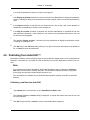
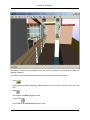
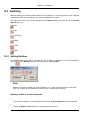
Click Full lights
on the Rendering Style toolbar.
9.1.2. Render Modes
The four render modes affect how the items are rendered in the main navigation window.
9.1.2.1. Full Render
This option renders the model with smooth shading including any Presenter materials that have been applied using NavisWorks Presenter or have been brought through from the native CAD file (although NavisWorks does not convert all native CAD file's textures - see Chapter 3 for more details).
To select full render
•
Go to Viewpoint, Rendering, Full
or
•
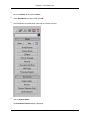
Click Full Render
on the Rendering Style toolbar.
9.1.2.2. Shaded Render
This option renders the model with smooth shading and without textures.
To select shaded render
•
Go to Viewpoint, Rendering, Shaded
or
•
Click Shaded
on the Rendering Style toolbar.
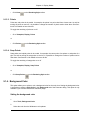
9.1.2.3. Wireframe Render
This option renders the model in wireframe. As NavisWorks uses triangles to represent surfaces and
solids, all triangle edges are visible in this mode.
To select wireframe render
•
Go to Viewpoint, Rendering, Wireframe
or
109
















![1 Click the [OK] button.](http://vs1.manualzilla.com/store/data/005894494_1-d1f52ee6fd3b2146a5f252d3f1858c3b-150x150.png)