1
JFS524E_IG_29June11.fm Page 1 Thursday, July 7, 2011 10:32 AM
Installation Guide
ProSafe® Plus 24-port 10/100Mbps Switch JFS524E
Install the Switch and Connect the Other Devices
Set Up the Switch Configuration Utility
1.
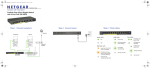
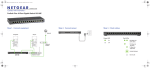
Place the switch on a flat surface or mount in a rack.
2.
For each device, insert one end of an Ethernet cable into the port in the device and
insert the other end into one of the Ethernet ports on the switch.
In order to make use of the switch’s enhanced features you can install and use a
switch configuration utility. This utility is on the Resource CD shipped with the
switch.
Start Here
Note: The configuration utility is installed on your PC and is only supported on MS
Windows.
Estimated Installation Time: 5–10 minutes
Install the Configuration Utility
Unpack the Box and Verify the Contents
To install the ProSafe® Plus Switch Configuration Utility:
When you open the box, verify that you received everything. The package includes:
•
•
•
•
•
1.
2.
ProSafe® Plus 24-port 10/100Mbps Switch JFS524E
AC power cord
Rack-mounting screws
Installation Guide (this document)
Resource CD (contains switch configuration software)
If you do not have everything listed above, see the support information card for
contact information. If you are missing the support information card, get contact
information at http://www.NETGEAR.com in the Technical Support section.
8
7
6
•
Also, you will need one Category 5e (Cat 5e) Ethernet cable with RJ-45 connectors
for each device you want to connect to the switch. Each Ethernet cable must be less
than 328 feet (100 meters).
4
3
2
1
INTERNET
OFF
ON
Configure the Switch
3.
Connect the power cord into the back of the switch and then plug the cord to an AC
power source (such as a wall socket or power strip). The Power light should light up.
Power
Reset
Decide where you want to place the switch. Find a flat horizontal surface such as a
table, desk or shelf. The switch comes with rack-mounting screws. You can use the
screws if you want to mount the switch in an equipment rack. Make sure the
selected location is:
Not in direct sunlight or near a heater or heating vent.
Not cluttered or crowded. There should be at least 2 inches (5 cm) of clear space
on all sides of the switch.
Well ventilated (especially if it is in a closet).
LOCAL
10/100M
12VDC 1.2A
Prepare to Install the Switch
•
•
5
Insert the Resource CD into a PC connected to the switch.
Click on Install ProSafe Plus Utility and follow the prompts to install the
program. The switch configuration utility will be installed in the program
directory of your PC and a ProSafe Plus Utility icon will be placed on your
desktop.
4.
Check the LEDs to confirm that all connections are correct.
LED
Activity
Power
• On: Switch has power.
• Off: No power.
RJ-45 ports
• Top LED on/Blink: Link/Activity
• Bottom LED Off/Green: 10 Mbps/100Mbps.
To configure the switch to use enhanced features:
1.
Double click the ProSafe Plus Utility icon. The configuration home screen
displays.
2. The configuration utility displays a list of enhanced switches it discovers on the
local network. Select the switch you want to configure.
3. You will be asked to enter a password. The default is “password”.
4. Enter the desired switch configuration. Refer to the ProSafe® Plus Switch
Configuration Utility User Guide for a description of enhanced features. The
user guide can be accessed by links on the Help tab of the utility or on the
Resource CD.
JFS524E_IG_29June11.fm Page 2 Thursday, July 7, 2011 10:32 AM
Specifications
Troubleshooting
Performance Specifications
Technical Specifications
Standards compatibility
IEEE 802.3i 10BASE-T Ethernet, IEEE 802.3u 100BASE-TX
Fast Ethernet, IEEE 802.3x Flow Control, IEEE 802.1p and
TOS priority, WRR queuing with two queues
Network interface
RJ-45 connector for 10BASE-T or 100BASE-TX
Power Consumption
5.9W max
AC POwer
100-240VAC 50-60Hz, 1.2A max.
Weight
1.43 Kg (3.15 lbs)
Dimensions
(W x D x H)
330 mm x 173 mm x 43 mm
13 in x 6.8 in x 1.7 in
Operating temperature
0 to 50° C (32 to 122° F)
Operating humidity
10% t0 90% relative humidity, non-condensing
Electromagnetic
compliance
CE Class A, included EN55022 (CISPR 22) and EN55024,
FCC part 15 Class A, VCCI Class A, C-Tick Class A, CCC
Safety agency
approvals
CE mark, Commercial UL listed (UL 60950-1), C-Tick, CCC,
CB
Frame filter rate
14,880 frames/sec max for 10M port; 148,800 frames/sec max
for 100M;
Frame forward rate
14,880 frames/sec max for 10M port; 148,800 frames/sec max
for 100M;
Network latency
(using 64-byte packets)
100 Mbps to 100 Mbps: 10 μs max
Address database size
up to 8K MAC addresses
MAC Address Learning
Automatically updated
Queue buffer
1.25Mb
NETGEAR Green
features
• Auto power-down mode saves energy when ports are
unused
• Power-saving per port if the cable length is less than 32.8
feet (10 meters)
"Este equipamento opera em caráter
secundário, isto é, não tem direito a
proteção contra interferência prejudicial
mesmo de estações do mesmo tipo, e
não pode causar interferência a sistemas
operando em caráter primário."
Problem
Action
Power light is not lit
The switch has no power. Make sure that the power cord is
properly connected to the switch and to a functioning power outlet.
If it is in a power strip, make sure the power strip is turned on. If the
socket is controlled by a light switch, make sure the switch is in the
on position.
Port number light is There is a hardware connection problem.
not lit for a connected • Make sure the cable connectors are securely plugged in at the
device, or stays on
switch and the device.
continuously
• If the Ethernet cable is connected to a NIC or other Ethernet
adapter, make sure the card or adapter is installed correctly and
is working.
• Make sure the cable is less than 328 feet (100 meters).
Technical Support
Thank you for selecting NETGEAR products.
After installing your device, locate the serial number on the label of your product and
use it to register your product at http://www.NETGEAR.com/register. Registration is
required before you can use the telephone support service. Registration via our
website is strongly recommended.
Go to http://support.netgear.com for product updates and Web support. For
additional information about setting up, configuring, and using your 24-port
Unmanaged Plus Switch, see the User Manual.
For complete DoC please visit the NETGEAR EU Declarations of Conformity
website at:http://support.netgear.com/app/answers/detail/a_id/11621/
This symbol was placed in accordance with the European Union Directive 2002/96 on the Waste
Electrical and Electronic Equipment (the WEEE Directive). If disposed of within the European Union,
this product should be treated and recycled in accordance with the laws of your jurisdiction
implementing the WEEE Directive.
July 2011
©2011 by NETGEAR, Inc. All rights reserved. NETGEAR and the NETGEAR logo are registered trademarks of
NETGEAR, Inc. in the United States and/or other countries. Other brand and product names are trademarks or
registered trademarks of their respective holders. Information is subject to change without notice.