1
e
om
e
s.
c
tc
m
i
ail
uc
u
et
v
i
od
r
rd
pr
fo
m
e
is
S
e
ge
Th
r
pa
e
e
P
si d
om e i n
H to th
Register you product and get support at
r
fe
Re
www.philips.com/welcome
ith
sw
HDR3800
HDR3810
EN
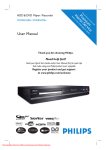
HDD/ DVD Recorder
hdr3800_31_eng_29522.indd 1
Downloaded From DvDPlayer-Manual.com Philips Manuals
4
2008-07-18 11:45:56 AM
Premium Home Service
United Kingdom, Ireland
Dear valued customer,
Thank you for buying a Philips DVD Recorder.
Your product comes with the Philips ‘Premium Home Service’ warranty.
Should you require any assistance in operating your set, Philips offers you professional support via:
Philips Support Center website
www.philips.com/support
or
Philips Consumer Care Helpline *
where our trained representatives will guide you, step-by-step, to solve any issues you have.
If we are unable to provide a solution, Philips will be pleased to pick-up your DVD Recorder from your home; and provide
a service replacement set, within 7 days. That’s the Philips ‘Premium Home Service’ commitment to you. This service comes
free-of-charge (except for Consumer Care Helpline) and applies to all Philips DVD Recorders during the Philips warranty
period.
For more information, please contact a representative via the Philips Consumer Care Helpline.
* Refer to the back page of this manual for the Philips Customer Care phone number in your country.
Please have with you the model number, serial number and purchase date of your
. product when contacting Philips Customer Care.
2
hdr3800_31_eng_29522.indd 2
Downloaded From DvDPlayer-Manual.com Philips Manuals
2008-07-18 11:46:01 AM
Italia
English
DICHIARAZIONE DI CONFORMITA’
Si dichiara che l’apparecchio HDR3800, HDR3810,
Philips risponde alle prescrizioni dell’art. 2 comma
1 del D.M. 28 Agosto 1995 n. 548. Fatto a
Eindhoven
Philips Consumer Electronics
Philips, Glaslaan 2
5616 JB Eindhoven,
The Netherlands
Norge
Typeskilt finnes på apparatens underside.
Observer: Nettbryteren er sekundert innkoplet.
Den innebygde netdelen er derfor ikke frakoplet
nettet så lenge apparatet er tilsluttet
nettkontakten.
For å redusere faren for brann eller elektrisk støt,
skal apparatet ikke utsettes for regn eller fuktighet.
LASER
‘CONSUMERS SHOULD NOTE THAT NOT ALL HIGH
DEFINITION TELEVISION SETS ARE FULLY
COMPATIBLE WITH THIS PRODUCT AND MAY CAUSE
ARTIFACTS TO BE DISPLAYED IN THE PICTURE. IN
CASE OF 525 OR 625 PROGRESSIVE SCAN PICTURE
PROBLEMS, IT IS RECOMMENDED THAT THE USER
SWITCH THE CONNECTION TO THE ‘STANDARD
DEFINITION’ OUTPUT. IF THERE ARE QUESTIONS
REGARDING OUR TV SET COMPATIBILITY WITH THIS
MODEL 525p AND 625p DVD PLAYER, PLEASE
CONTACT OUR CUSTOMER SERVICE CENTER.’
Ensure the power outlet is always within reach.
If abnormal situations occur, fully disconnect
power: unplug the power cord from the power
outlet.
Type
Semiconductor laser
InGaAlP (DVD)
AIGaAs (CD)
Wave length
658 nm (DVD)
90 nm (CD)
Output Power
30 mW (DVD+RW write)
1.0 mW (DVD read)
1.0 mW (CD read)
Beam divergence
84 degrees (DVD)
61 degrees (CD)
For Customer Use:
Read carefully the information located at the
bottom or rear of your DVD Recorder and
enter below the Serial No. Retain this
information for future reference.
Model No.
Serial No.
HDD/ DVD RECORDER
HDR3800/ HDR3810
_______________
3
hdr3800_31_eng_29522.indd 3
Downloaded From DvDPlayer-Manual.com Philips Manuals
2008-07-18 11:46:01 AM
Contents
6 Use GUIDE Plus+
28
GUIDE Plus+ menu options
1
Important
Safety
Notice
6
6
6
2 Your product
9
Region codes
Features highlight
Product Overview
9
9
11
28
7 Record
32
Before you record
Record settings
Record live TV
Schedule a timer recording
Record from other devices
Simultaneous record and play
32
33
35
36
40
42
8 Play
3 Connect
Place the unit
Connect antenna or cable
Connect video/audio cables
Connect other devices
4 Get Started
Prepare the remote control
First Time Settings
GUIDE Plus+ Setup
5 Watch live TV
Watch live TV through your recorder
About Time Shift Buffer - temporary
HDD storage
Control live TV
Clear the Time Shift Buffer
4
14
14
14
15
17
21
21
22
24
26
43
Play recorded TV programmes
Play from media storage
Play from USB
Play from disc
Play video
Play music
View photos
43
44
45
46
47
51
53
9 Edit Recordings
55
Edit titles in the hard disk
Manage titles by genre
Edit titles on a recordable DVD
Play your recordings on other players
55
58
60
64
26
26
27
27
10 Copy Files
Copy recorded titles
Copy data files
65
65
65
EN
hdr3800_31_eng_29522.indd 4
Downloaded From DvDPlayer-Manual.com Philips Manuals
2008-07-18 11:46:01 AM
12 Additional Information
Upgrade software
Care
About DivX subtitle font
TV System Guide
Specifications
Display panel symbols/ messages
67
69
71
73
73
75
75
78
79
English
Tuner Settings
Disc Settings
Playback Settings
Recording Settings
Audio Settings
Video Settings
System settings
Manage Easylink settings
Adjust HDMI video and audio
67
Contents
11 Adjust Settings
80
80
81
81
82
84
85
13 Troubleshooting
86
14 Glossary
90
EN
hdr3800_31_eng_29522.indd 5
Downloaded From DvDPlayer-Manual.com Philips Manuals
5
2008-07-18 11:46:01 AM
1 Important
Safety
Warning!
Risk of fire or electric shock!
• Ensure that air can circulate freely through the
•
•
•
•
•
•
•
ventilation holes on this unit. Allow at least 5~10 cm
clearance around the unit.
Never expose this unit to direct sunlight, naked
flames or heat.
Never place this unit on another electrical
equipment.
Keep away from this unit during lightning storms.
Never remove the casing of this unit. Please leave all
maintenance work to qualified personnel.
Keep this unit away from water, moisture and liquidfilled objects.
This unit employs a laser. Due to possible eye injury,
only a qualified service person should remove the
cover or attempt to service this device.
Install this unit near the AC outlet and where the AC
power plug can be reached easily.
Caution!
Notice
Recycle notice
Disposal of your old product. Your product is
designed and manufactured with high quality
materials and components, which can be
recycled and reused. When this crossed-out
wheeled bin symbol is attached to a product it
means the product is covered by the European
Directive 2002/96/EC. Please inform yourself
about the local separate collection system for
electrical and electronic products.
Please act according to your local rules and do
not dispose of your old products with your
normal household waste. The correct disposal
of your old product will help prevent potential
negative consequences for the environment and
human health.
Copyright notice
• Remove batteries if they are exhausted or if the
remote control is not to be used for a long time.
• Do not mix batteries (old and new or carbon and
alkaline, etc.).
• Batteries contain chemical substances, they should
•
•
be disposed of properly.
Visible and invisible laser radiation when open.
Avoid exposure to beam.
Use of controls or adjustments on performance
of procedures other than herein may result in
hazardous radiation exposure or other unsafe
operation.
Note
• Refer to the type plate at the rear or bottom of the
The making of unauthorised copies of copyprotected material, including computer
programmes, files, broadcasts and sound
recordings, may be infringement of copyrights
and constitute a criminal offence. This unit
should not be used for such purpose.
CLASS 1
LASER PRODUCT
product for identification and supply ratings.
6
EN
hdr3800_31_eng_29522.indd 6
Downloaded From DvDPlayer-Manual.com Philips Manuals
2008-07-18 11:46:01 AM
1
2
3
English
Mains plug
This apparatus is fitted with an approved 13
Amp plug. To change a fuse in this type of plug
proceed as follows:
Copyright in the U.K.
Recording and playback of material may require
consent. See Copyright Act 1956 and The
Performer’s Protection Acts 1958 to 1972.
Important
Important notes for users in U.K.
Remove fuse cover and fuse.
Fix new fuse which should be a BS1362
5 Amp, A.S.T.A. or BSI approved type.
Refit the fuse cover.
If the fitted plug is not suitable for your socket
outlets, it should be cut off and an appropriate
plug fitted in its place.
If the mains plug contains a fuse, this should
have a value of 5 Amp. If a plug without a fuse
is used, the fuse at the distribution board should
not be greater than 5 Amp.
Note: The severed plug must be disposed off
to avoid a possible shock hazard should it be
inserted into a 13 Amp socket elsewhere.
How to connect a plug
The wires in the mains lead are coloured with
the following code: blue = neutral (N), brown
= live (L).
As these colours may not correspond with the
colour markings identifying the terminals in your
plug, proceed as follows:
• Connect the blue wire to the terminal
marked N or coloured black.
• Connect the brown wire to the terminal
marked L or coloured red.
• Do not connect either wire to the earth
terminal in the plug, marked E (or e) or
coloured green (or green and yellow).
Before replacing the plug cover, make certain
that the cord grip is clamped over the sheath of
the lead - not simply over the two wires.
EN
hdr3800_31_eng_29522.indd 7
Downloaded From DvDPlayer-Manual.com Philips Manuals
7
2008-07-18 11:46:02 AM
Trademark notice
HDMI, and HDMI logo and High-Definition
Multimedia Interface are trademarks or
registered trademarks of HDMI licensing LLC.
GUIDE Plus+, SHOWVIEW, VIDEO Plus+,
G-LINK are (1) registered trademarks or
trademarks of, (2) manufactured under license
from and (3) subject to various international
patents and patents applications owned by, or
licensed to, Gemstar-TV Guide International,
Inc. and/or its related affiliates.
GEMSTAR-TV GUIDE INTERNATIONAL, INC.
AND/OR ITS RELATED AFFILIATES ARE NOT
IN ANY WAY LIABLE FOR THE ACCURACY
OF THE PROGRAM SCHEDULE
INFORMATION PROVIDED BY THE GUIDE
PLUS+ SYSTEM. IN NO EVENT SHALL
GEMSTAR-TV GUIDE INTERNATIONAL, INC.
AND/OR ITS RELATED AFFILIATES BE LIABLE
FOR ANY AMOUNTS REPRESENTING LOSS
OF PROFITS, LOSS OF BUSINESS, OR
INDIRECT, SPECIAL, OR CONSEQUENTIAL
DAMAGES IN CONNECTION WITH THE
PROVISION OR USE OF ANY
INFORMATION, EQUIPMENT OR SERVICES
RELATING TO THE GUIDE PLUS+ SYSTEM.
This product incorporates copyright protection
technology that is protected by US patents. Use
of this copyright protection technology must be
authorised by Macrovision, and is intended for
home and other limited viewing uses only
unless otherwise authorised by Macrovision.
Reverse engineering or disassembly is
prohibited.
8
Manufactured under license from Dolby
Laboratories. “Dolby” and the double-D
symbol are trademarks of Dolby Laboratories.
DivX Ultra Certified products: DivX, DivX
Ultra Certified, and associated logos are
trademarks of DivX, Inc. and are used under
license.
i.Link is also known as ‘FireWire’ and ‘IEEE1394’.
This connection is to transfer high bandwidth
digital signals used by digital video (DV)
camcorders. It carries all audio and video signals
through a single cable.
This product complies with the radio
interference requirements of the European
Community.
This product complies with the requirements of
the following directives: 2006/95/EC +
2004/108/EC.
EN
hdr3800_31_eng_29522.indd 8
Downloaded From DvDPlayer-Manual.com Philips Manuals
2008-07-18 11:46:02 AM
Recording has never been easier, you can now
record up to 135 or 230 hours of video in SLP
(Super Long Play) recording mode.
Model
Hard Disk
Maximum
Drive (HDD) hours of
recording
HDR3800
160 GB
135
HDR3810
250 GB
230
Pause Live TV
You can pause any live TV programme by
pressing the PAUSE LIVE TV button. Resume
play by pressing the PAUSE LIVE TV button
again. You can now continue watching the
remainder of the programme or if you want to
return to the live TV programme again, just
press the LIVE TV button.
English
Congratulations on your purchase and welcome
to Philips! To benefit from the support that
Philips offers, register your product at
www.philips.com/welcome.
Features highlight
Your Product
2 Your product
Instant Replay
You can repeat any scene of a live TV
programme by pressing the left button on the
remote control. To return to live TV
programme, press the LIVE TV button.
Note
• Ensure the recorder is connected to the power
supply unless you do not intend to use this product
for a long period of time. Power supply is needed for
the recorder to perform tasks like timer recordings
and automatic system time and date update.
Region codes
DVD films are usually not released at the same
time in all regions of the world, thus all DVD
players are keyed to a specific region code.
ALL
2
This device will only play Region 2 DVDs or
DVDs manufactured to be played in all regions
(‘ALL’). DVDs from other regions cannot be
played on this recorder.
FlexTime
With FlexTime, you watch a TV programme
while it is recorded. You do not need to wait
for the recording to finish to watch it. You can
also watch a title recorded earlier, play a DVD
or DivX movie or even enjoy some music
during recording.
Time Shift Buffer (TSB)
Once you turn on the recorder, the Time Shift
Buffer stores the TV channel it is tuned to. It
can store up to 6 (six) hour of TV programmes
and automatically removes anything that is
older. You can also mark a section of the TSB
and copy it to your hard disk to view later.
Media Jukebox
The Media Jukebox stores media files (video,
music and photos). These files are stored
according to its media type.
EN
hdr3800_31_eng_29522.indd 9
Downloaded From DvDPlayer-Manual.com Philips Manuals
9
2008-07-18 11:46:02 AM
G-LINK transmitter
You can control the external receiver (e.g.,
satellite receiver, cable box) for timer recording
through the GUIDE Plus+ system. Record TV
programmes received through the external
receiver.
Enhanced USB upgrade
You can get information and upgrade the
software from a USB flash drive.
EasyLink
EasyLink uses the HDMI CEC (Consumer
Electronics Control) industry standard protocol
to share functionality with all HDMI CEC
compliant devices over HDMI. It enables the
connected devices to control each other with a
single remote control.
Note
• Philips does not guarantee 100% interoperability
with all HDMI-CEC devices.
One touch play
When you press PAUSE LIVE TV to turn on
this unit and start disc play (if a video disc is
found in the disc compartment), it turns on
your TV automatically and switches to the
correct viewing channel.
One touch power off
This unit responses to the standby command
from other HDMI CEC compliant TV/devices.
For example, if you turn off the TV, this unit
automatically turns off to standby even during
playback.
• To power off this unit, you have to press
and hold 2.
10
EN
hdr3800_31_eng_29522.indd 10
Downloaded From DvDPlayer-Manual.com Philips Manuals
2008-07-18 11:46:03 AM
b
c
d
e
f
g h
Your Product
a
English
Product Overview
Main Unit
a 2 (Standby-on)
Note
• These connections are located under the flap on the
right corner of the front panel.
• Turns on this unit or switches to
standby mode.
b Disc tray
c
ç(Open/Close)
• Opens or closes the disc tray.
d System display panel
• Displays information about the current
status of the recorder.
e z (Record)
• Starts recording the current TV channel
or the current video source.
• Press repeatedly to set the recording
length in 30-minute increments.
• Indicator lights up during recording.
g
USB
• To connect a USB device, USB card
reader or digital camera.
• To view this source, press USB.
• Only brands and models of digital
cameras which support USB Mass
Storage Device class standard are
supported.
h DV-IN
• To connect a digital camcorder or
suitable device.
fu
• Starts play or resumes recording.
• Pauses play or recording.
m M
• Press to make a forward/ reverse search.
x (Stop)
• Stops play or recording.
EN
hdr3800_31_eng_29522.indd 11
Downloaded From DvDPlayer-Manual.com Philips Manuals
11
2008-07-18 11:46:03 AM
a 2(Standby-On)
• Turns on the recorder or switches to
Remote Control
standby mode.
b ç(Open/Close)
• Opens or closes the disc tray.
1
c Coloured coded buttons
2
3
4
• Buttons to select the coloured options
available in some menus.
qg
d HOME
• Enters or exits the Home menu.
5
e WX:
6
7
qh
qj
8
• Cursor buttons to move left or right.
• Press and hold to fast reverse or fast
forward search.
ST :
• Cursor buttons to move up/ down.
f OK
qk
9
q;
• Confirms an entry or selection.
g BACK
• Returns to the previous menu of the
on-screen menu, a video CD (VCD) or
some DVDs.
qa
qs
qd
qf
ZOOM
ql
w;
wa
h u (Pause Live TV)
• Starts play or resumes recording.
• Pauses play or recording..
z (Record)
• Starts recording the current TV channel
or video source.
• Press repeatedly to set the recording
length in 30-minute increments.
x (Stop)
• Stops play or recording.
i TV VOL+/ • Adjusts the volume of the TV (Philips
TV only).
12
EN
hdr3800_31_eng_29522.indd 12
Downloaded From DvDPlayer-Manual.com Philips Manuals
2008-07-18 11:46:03 AM
TIMER RC
j GUIDE Plus+/ TIMER
English
• Enters or exits the GUIDE Plus+ TV
programme menu.
k Numeric keypad
Your Product
• Selects a chapter/track number.
• Selects the preset TV channel of the
recorder.
l SUBTITLE
• Selects a subtitle language during play of
a DVD or DivX Ultra Video disc.
m LIVE TV
• Switches to view live TV programmes.
n USB
• Access the contents of the connected
USB device.
o INFO
• Displays or hides the on-screen help
text.
p OPTIONS
• Displays or hides the options menu.
qí ë
• Skips to the previous or next chapter/
track/ title.
r P +/• In live TV mode, select the next or
previous TV channel.
s AUDIO
• Selects an audio language.
t DISC MENU
• Access the DVD disc menu.
• Access the VCD disc menu when PBC
is turned on.
u ZOOM
• Enlarges a picture during play.
EN
hdr3800_31_eng_29522.indd 13
Downloaded From DvDPlayer-Manual.com Philips Manuals
13
2008-07-18 11:46:03 AM
3 Connect
This section describes the basic connections
required for this recorder before it can be used.
Look for the highest quality connection based
on the type of devices you have and make the
best connection for this recorder.
Basic connections:
• Connect antenna or cable
• Connect video/audio cables
Optional connections:
• Connect other devices
• Connect to AV amplifier/receiver
• Connect to Cable box/ Satellite receiver
• Connect to VCR or other similar device
• Connect to digital video/digital 8 camcorder
• Connect to analogue camcorder
Connect antenna or cable
To watch and record TV programmes, connect
this recorder to an antenna or a cable box/
satellite receiver.
Connect to an off-air antenna or
cable TV signal
To get TV reception, connect the recorder
directly to an off-air antenna or a cable TV
signal.
1
??
?
???
??
??
????
???
ANTENNA
CABLE
Place the unit
• Place this unit on a flat, hard and stable
surface. Do not place this unit on a carpet.
• Install this unit near the AC outlet where
the AC power plug can be easily reached.
2
1
2
3
Unplug the existing antenna cable from
your TV.
Connect the antenna cable to the
ANTENNA-IN
socket.
Connect the supplied RF antenna cable
from the TV OUT
socket to the
antenna input on the TV.
Tip
• The antenna input socket on your TV may be
labelled as ANT, ANTENNA IN or RF IN.
14
EN
hdr3800_31_eng_29522.indd 14
Downloaded From DvDPlayer-Manual.com Philips Manuals
2008-07-18 11:46:03 AM
Option 1: Connect to SCART socket
English
Connect video/audio cables
Before you start, select the best video
connection.
EXT 1
Connect
To view the playback from this recorder,
connect the recorder to the TV.
TO TV
• Option 1: Connect to SCART socket (for a
standard TV).
• Option 2: Connect to S-video socket (for a
standard TV).
• Option 3: Connect to composite video
sockets (for a standard TV).
• Option 4: Connect to HDMI socket (for a
HDMI, DVI or HDCP-compliant TV).
SCART IN
Notes
• You must connect this recorder directly to a TV.
• If your TV has a digital audio input socket, you can
replace the analogue audio connection with digital
audio connection in order to enjoy multi-channel
surround sound output.
1
Connect the supplied scart cable from the
EXT1 TO TV scart socket to the scart
input on the TV.
Tips
• If your TV has several SCART sockets, select the
SCART socket for video input.
• To connect to other devices, use the EXT2 TO VCR/
SAT socket on the recorder. See chapter “Connect
other devices”.
EN
hdr3800_31_eng_29522.indd 15
Downloaded From DvDPlayer-Manual.com Philips Manuals
15
2008-07-18 11:46:03 AM
Option 2: Connect to S-Video socket
Option 3: Connect to VIDEO (CVBS)
socket
S-VIDEO IN
1
2
Connect an S-video cable (not supplied)
from the S-VIDEO OUT socket to the
S-Video input socket on the TV.
Connect an audio cable (red/white ends not supplied) from the AUDIO OUT-L/R
sockets to the matching audio input
sockets on the TV.
1
2
Connect a composite video cable (yellow
end - not supplied) from the CVBS OUT
socket to the video input socket on the
TV.
Connect an audio cable (red/white ends not supplied) from the AUDIO OUT-L/R
sockets to the matching audio input
sockets on the TV.
Tips
• The S-video input socket on your TV may be labelled
•
16
as Y/C or S-VHS.
If your TV has a digital audio input socket, you can
enjoy multi-channel surround sound output. See
chapter “Connect other devices - Connect to AV
amplifier/receiver”.
Tips
• The video input socket on your TV may be labelled
as A/V IN, VIDEO IN, COMPOSITE or BASEBAND.
• If your TV has a digital audio input socket, you can
enjoy multi-channel surround sound output. See
chapter “Connect other devices - Connect to AV
amplifier/receiver”.
EN
hdr3800_31_eng_29522.indd 16
Downloaded From DvDPlayer-Manual.com Philips Manuals
2008-07-18 11:46:03 AM
To connect this recorder to other devices, you
can use these suggested connections for
common used cases. Other solutions may be
possible, it depends on the capabilities of the
devices.
English
HDMI (High Definition Multimedia Interface) is
a digital interface that supports both audio and
video transmission through a single cable.
Connect other devices
Connect
Option 4: Connect to HDMI socket
Connect to AV amplifier/receiver
You can enjoy multi-channel surround sound
from this recorder when it is connected to a
digital audio device.
HDMI IN
1
Connect a HDMI cable (not supplied)
from the HDMI OUT to the HDMI IN
socket on your TV.
• To adjust HDMI settings (see chapter
‘Adjust settings – Adjust HDMI video
and audio’).
Notes
• Depending on your TV capabilities, audio may not
•
be supported through the HDMI connection. In
this case, make an audio connection to your TV and
turn off the HDMI audio output (See chapter ‘ Setup
HDMI video and audio’).
HDMI supports HDCP (High-bandwidth Digital
Contents Protection). HDCP is a copy protection
signal that comes with the HD content (DVD disc or
Blu-ray disc).
Tips
• Use a HDMI/DVI adaptor in case your TV has only
•
DIGITAL IN
1
Connect a coaxial cable (not supplied)
from the COAXIAL DIGITAL OUT
socket to the digital input socket on the
amplifier/receiver.
• Select the digital audio output setting
according to the type of audio that the
device can output (See chapter ‘Audio
settings’).
Tip
• The digital coaxial input socket on the device may be
labelled as COAXIAL IN or DIGITAL IN.
a DVI connection. An extra audio connection is
needed to complete this connection.
This connection provides the best picture quality.
EN
hdr3800_31_eng_29522.indd 17
Downloaded From DvDPlayer-Manual.com Philips Manuals
17
2008-07-18 11:46:03 AM
Connect to satellite receiver/ cable
box
1
Connect the G-Link cable
With the G-link cable, you can control the
satellite receiver/ cable box for timer recording
through the GUIDE Plus+ system.
Ensure that the device is connected to the
TV with an antenna cable.
EXT 2 TO VCR/SAT
IN
RF
VIDEO
OUT
R
AUDIO
L
TO TV
S-VIDEO
TO TV
2
Connect a scart cable (not supplied) from
the EXT2 TO VCR/SAT scart socket to
the scart output socket on the cable box/
satellite receiver.
Tips
1
2
Connect the supplied G-LINK cable to the
G-LINK socket on the recorder.
Place the G-LINK transmitter in front of
the cable box/ satellite receiver facing its IR
sensor (remote sensor) so that its infrared
detector can receive a clear signal.
• When using this connection, automatic channel
•
18
search is not required. Read the chapter “Get
started”.
The scart socket on the device may be labelled as TV
OUT or TO TV.
EN
hdr3800_31_eng_29522.indd 18
Downloaded From DvDPlayer-Manual.com Philips Manuals
2008-07-18 11:46:04 AM
You can record from a video tape to a
recordable DVD or use the VCR when the
recorder is turned off.
Connect to digital video/digital 8
camcorder
English
Connect to VCR or similar device
Connect
DV OUT
DV-IN
EXT 2 TO VCR/SAT
1
IN
TV OUT
TV IN
VHF/UHF
RF IN
VIDEO
IN
AUDIO
L
VHF/UHF
RF OUT
1
TV IN
AUDIO
R
Connect a scart cable (not supplied) from
the EXT2 TO VCR/SAT scart socket and
to the scart output socket on the device.
• To view the video input, press HOME
and select [ EXT2 ], then press OK.
2
Flip down the cover on the right hand
corner of this recorder.
Connect an i.LINK 4-pin cable (not
supplied) from the DV-IN socket on the
front panel to the DV OUT socket on the
camcorder.
• To view the video input, press HOME
and select [ DV-IN ], then press OK.
Note
Notes
• Your recorder replaces the VCR for all your
•
recording needs. Just unplug all the connections to
your VCR.
Most commercial video tapes and DVDs are copyprotected and cannot be recorded.
• It is not possible to record or copy the titles or files
from this recorder to your camcorder.
Tip
• This connection provides the best picture quality.
EN
hdr3800_31_eng_29522.indd 19
Downloaded From DvDPlayer-Manual.com Philips Manuals
19
2008-07-18 11:46:04 AM
Connect to an analogue camcorder
VIDEO OUT
1
2
Connect to a USB device or digital
camera
AUDIO OUT
Connect a video cable (yellow - not
supplied) from the CVBS IN socket and to
the S-VHS or video output socket on the
camcorder.
Connect the audio cable (not supplied)
from the AUDIO IN sockets and to the
audio output sockets on the camcorder.
• To view the video input, press HOME
and select [ EXT3 ], then press OK.
1
2
Flip down the cover on the right hand
corner of this recorder.
Connect a USB device or digital camera to
the
USB socket.
• To view the content, press USB.
Note
• The USB socket does not support a USB hub device.
Tip
Only digital cameras which support USB Mass
Storage Device class standard are supported.
• To record from this device, see chapter “Record
from other devices”.
Tips
• You can copy media files (e.g. jpeg files) from the
recorder to your USB device.
• To view the contents of the connected USB device,
see chapter “Play – Play from USB”.
20
EN
hdr3800_31_eng_29522.indd 20
Downloaded From DvDPlayer-Manual.com Philips Manuals
2008-07-18 11:46:04 AM
Navigate through the menu
1
English
4 Get Started
Point the remote control directly at the
remote sensor on the front panel and
select a function.
Get Started
Prepare the remote control
2
1
2
3
Open the battery compartment cover.
Insert two batteries type R03 or AAA.
Match the indications (+-) inside the
battery compartment.
Use the following buttons on the remote
control to navigate through the on-screen
menus, enter characters or numbers and
confirm your selection.
Action
Move up or down in a menu.
Button
ST
Move left or right in the menu.
WX
Confirm a selection.
OK
Close the cover.
Note
• If you are not going to use the remote control for a
long time, remove the batteries.
EN
hdr3800_31_eng_29522.indd 21
Downloaded From DvDPlayer-Manual.com Philips Manuals
21
2008-07-18 11:46:04 AM
First Time Settings
3
When you turn on this recorder for the first
time, follow the instructions on the TV and
complete the initial setup.
Press ST to select an on-screen display
language, then press the Green button
[ Next ].
The country selection screen is
displayed.
Country Selection
Austria
Belgium
Czech
Select your country.
Notes
• Before you start, ensure that all the required
•
•
1
2
Denmark
Finland
France
connections are made.
If a cable box or satellite receiver is connected, turn
it on now.
Complete this initial setup before you insert a disc
for play or recording.
Press 2 to turn on the recorder.
Turn on the TV to the correct video-in
channel.
Germany
Greece
Previous
4
Note
Next
Press ST to select the country of use,
then press the Green button [ Next ]. It
enables the recorder to find all the TV
channels in your area.
The date entry screen is displayed.
• Select a channel on your TV, then press the channel
down button on your TV remote control until you
see the menu language screen. (The screen options
may differ depending on your country of purchase).
Date
Set the current date.
01 01 2008
Menu Language
Select a menu language.
Deutsch
English
Español
Français
Italiano
Nederlands
Next
Previous
5
Next
Press ST (or the numeric keys) to enter
the correct date, then press the Green
button [ Next ].
The time entry screen is displayed.
Time
Set the current time.
00 : 03
Previous
22
Next
EN
hdr3800_31_eng_29522.indd 22
Downloaded From DvDPlayer-Manual.com Philips Manuals
2008-07-18 11:46:05 AM
Press ST (or the numeric buttons) to
enter the correct time, then press the
Green button [ Next ].
The eco mode selection page is
displayed.
9
Press the Green button [ Next ].
English
6
GUIDE Plus+ setup
To install interactive TV
program guide, it is
recommended to continue
with the GUIDE Plus+ setup.
Start setup
Skip setup
To view the external
source during standby,
select Eco mode off.
Previous
7
Get Started
ECO Mode
On
Off
Previous
Next
Select the eco mode setting, then press
the Green button [ Next ].
• [ On ] : Energy saving mode is enabled.
In standby mode, the external device/
source cannot be viewed.
• [ Off ] : Energy saving mode is disabled.
In standby mode, the external device/
source can be viewed.
The channel search screen is displayed.
Next
• To continue with GUIDE Plus setup:
Select [ Start setup ], then press the
Green button [ Next ]. (See chapter
‘Get started - GUIDE Plus+ Setup’)
• To skip GUIDE Plus setup:
Select [ Skip setup ], then press OK.
The recorder is now ready for use.
Tips
• To re-install or modify the TV channels, see chapter
“Adjust Settings - Tuner settings”.
• To record from a cable box or satellite receiver, see
chapter “Record from other devices”.
Auto Search
Stop Search
Searching channels.
Please wait.
38%
Channels found
5
Previous
8
Next
Store the preset channels:
• If a cable box or satellite receiver is
connected:
Select [ Stop Search ], then press the
Green button [ Next ] to skip the
channel search.
• If an off-air antenna is connected:
Wait for the channel search to
complete. This process takes a few
minutes.
EN
hdr3800_31_eng_29522.indd 23
Downloaded From DvDPlayer-Manual.com Philips Manuals
23
2008-07-18 11:46:05 AM
GUIDE Plus+ Setup
The GUIDE Plus+ system offers a free
interactive programme guide that lists all the TV
programmes available in your area.
3
Once complete, press the Red button
[ Back ] to return to the setup screen.
P06
‘Setup’ allows you to define your language, country
and postal code and external receiver(s) details.
Before you start, define your geographic
location and current setup devices to receive
the correct GUIDE Plus+ TV listings.
1
2
If you had selected to continue with the
GUIDE Plus+ setup, the basic setup menu
is displayed.
Follow the on-screen instructions.
Select the option and press OK.
[ Language ]
Select the language for on-screen display.
[ Country ]
Select the country of your residence.
[ Postal code ]
Enter your local postal code.
[ External Receiver 1 ], [ External
Receiver 2 ] or [ External Receiver 3 ]
Select the source for TV signals.
Notes
• If your country is not in the displayed list or if you are
•
•
24
not able to receive TV listings data, you can still use
the GUIDE Plus+ system for manual recordings.
The postal code entered must be valid in the
identified country. Otherwise, incorrect TV listings
data will be received.
The [ Editor ] menu will be updated later when the
external receiver is selected as the source for TV
signals. See chapter ‘Use GUIDE Plus+ – Manage
your GUIDE Plus+ channels’.
Home
4
To specify the source and programme
number of a GUIDE Plus+ host channel,
select [ Host Channel Setup ] and follow
the instructions to complete the setup.
• The default host channel setup is set to
‘Automatic’.
Visit www.europe.guideplus.com/En/help/
countries_hostchannels.html for the latest
information on the supporting host channels.
Country/City
(Language)
Host Channel
(aerial / cable)
Austria
Eurosport
Belgium
France
Germany
Italy
Nederlands
RTL-TV1
Canal +
Eurosport
MTV
Eurosport
Luxembourg
Spain
Switzerland(Deutsch)
United Kingdom
RTL-TV1
Tele 5
Eurosport
ITV (terrestrial)
Eurosport
Host Channel
(SAT)
Eurosport ASTRA 1C, 1H
HOT BIRD 7A
ATLANTIC BIRD3
Eurosport ASTRA 1C, 1H
Eurosport ASTRA 1C, 1H
HOT BIRD 7A
Eurosport ASTRA 1C, 1H
Eurosport UK ASTRA 2A
EN
hdr3800_31_eng_29522.indd 24
Downloaded From DvDPlayer-Manual.com Philips Manuals
2008-07-18 11:46:06 AM
6
Once complete, press GUIDE Plus+ to
exit the menu.
English
5
Switch the recorder to standby mode
during the night to load the TV listing data.
Get Started
Notes
• In standby mode, some noise and heat will be
generated during the download of EPG information.
• Check your TV listings on the [ Grid ] screen for the
•
following day to ensure that the data downloaded is
completed.
If a problem occurs during the GUIDE Plus+ system
setup, visit the website at www.europe.guideplus.
com for further assistance.
EN
hdr3800_31_eng_29522.indd 25
Downloaded From DvDPlayer-Manual.com Philips Manuals
25
2008-07-18 11:46:06 AM
5 Watch live TV
Watch live TV through your
recorder
Once you switch to live TV, this recorder
stores whatever you watch into the Time Shift
Buffer. You can now control the live TV
broadcast. For example, pause live TV and
resume play at any time or replay the live TV
programme.
1
2
3
4
Turn on the TV to the correct viewing
channel for this recorder.
Press 2 to turn on this recorder.
Press LIVE TV.
Press P +/- to select a channel.
About Time Shift Buffer temporary HDD storage
Time Shift Buffer (TSB) is a temporary hard disk
storage in your recorder. It stores up to the
last 6 (six) hours of TV programmes since the
recorder was turned on
The Time Shift video bar displays the status and
time of the stored TV programmes.
Press INFO to display or hide the information
bar.
19:00
22:00
LIVE
A
B
C
D
A Start time of the TV programme.
Once it has exceeded 6 (six) hours, the
start time will be changed accordingly.
B Sections selected to record onto the hard
disk (red bar).
C Current position of the broadcast TV
programme.
D Current time of the TV programme.
Tip
• To save the TSB contents to the hard disk, see
chapter ‘Record a TV programme’. Otherwise, it is
cleared once you switch the recorder to standby.
26
EN
hdr3800_31_eng_29522.indd 26
Downloaded From DvDPlayer-Manual.com Philips Manuals
2008-07-18 11:46:06 AM
Clear the Time Shift Buffer
To control live TV, switch the recorder to LIVE
TV mode.
English
Control live TV
Note
• If you access DV-IN mode, the Time Shift Buffer will
Pause live TV or resume play.
u
• Press to skip backward
(instant replay).
• Press and hold to fast
rewind a programme.
W
• Press to skip forward
(skip ahead).
• Press and hold to fast
forward a programme.
X
Go to live TV broadcast.
be cleared.
Button
1
2
3
4
LIVE TV
5
Display the information bar
and colour keys options.
INFO
Press HOME.
Select [ Settings ], then press OK.
Select [ Recording ] > [ Reset TSB ],
then press OK.
A confirmation message is displayed.
• To cancel, select [ Cancel ], then press
OK.
Watch Live TV
Action
To proceed, select [ OK ], then press OK.
The time shift buffer is cleared.
To exit the setup menu, press the Blue
button [ Exit ].
Cancel the marked recording
on the time shift buffer.
(Red button)
Change audio language
This option is available only if the TV
programme broadcasts more than one audio
language.
1
Press AUDIO repeatedly to select an
audio language.
• ‘I’ is the original broadcast language and
‘II’ is the additional broadcast language.
EN
hdr3800_31_eng_29522.indd 27
Downloaded From DvDPlayer-Manual.com Philips Manuals
27
2008-07-18 11:46:06 AM
6 Use GUIDE
Plus+
For other actions, use the following keys:
Action
Button
Go to GUIDE Plus+ Home
menu.
(Blue button)
GUIDE Plus+ menu options
The menu bar is displayed at the top panel of
the screen. It provides access to different
options in the GUIDE Plus+ menu.
1
2
3
4
28
Press GUIDE Plus+.
The GUIDE Plus+ screen is displayed.
Press S to access the options in the
menu.
Grid
Search
My TV
Info
Editor
Setup
Schedule
Select an option and press T to access.
The information on the menu bar is
described in the following pages.
Use these WXST keys to navigate in the
menu.
View the programme listing of
a selected channel.
OK
Press to scroll up a page.
P+
Press to scroll down a page.
P-
Go to the previous day’s TV
listings.
í
Go to the next day’s TV
listings.
ë
5
Select a TV programme and press OK to
view.
Note
• If certain channels are missing, go to the [ Editor ]
menu bar to check and adjust the channels.
EN
hdr3800_31_eng_29522.indd 28
Downloaded From DvDPlayer-Manual.com Philips Manuals
2008-07-18 11:46:07 AM
Search TV listings
The Grid screen is the main TV listings screen
of the GUIDE Plus+ system. You can view TV
listings for the next seven days.
The Search screen helps you to locate
programme listings by category. You can easily
search for programmes to watch or record.
F
A
E
D
B
Home
1
2
3
Press GUIDE Plus+.
Use GUIDE Plus+
P06
English
View GUIDE Plus+ TV listing
Press S, then X to select [ Search ].
Press T to access the options.
P06
C
The GUIDE Plus+ menu consists of the
following:
A Video window
Displays the picture of the current TV
programme.
B Information panels
Record
4
Channels
Home
Select an option and press OK.
Displays instructions on the GUIDE Plus+
system, programme promotions and
advertisements.
C Action key
Displays the available functions. To activate the
feature, press the respective colour coded
buttons on the remote control.
D Grid/Tiles
Displays the TV listings by channel and time,
7 days in advance.
E Menu bar
Displays the GUIDE Plus+ menu options and
your current selection.
F Information box
Displays brief programme descriptions or help
menus.
EN
hdr3800_31_eng_29522.indd 29
Downloaded From DvDPlayer-Manual.com Philips Manuals
29
2008-07-18 11:46:07 AM
Setup personal profile
View more information
Define your preferred settings by channels,
categories and/or by keywords. You can easily
find programmes of your interest to watch or
record.
The [ Info ] screen displays additional
information such as news, weather reports,
stock quotes, etc. The information may be
broadcast in the same way as the TV listings
and may vary according to the region.
1
2
3
Press GUIDE Plus+.
1
2
3
Press S, then X to select [ My TV ].
Press T to access the option.
Press GUIDE Plus+.
Press S, then X to select [ Info ].
Press T to access the option.
P06
P06
The Scooby-Doo Show
16:05
Bring it on
16:30
Blue Peter
17:00
Newsround
17:20
Neighbours
17:30
BBC News
18:00
Regional news programmes
20:00
Profile
4
Home
Home
Select the Yellow button [ Profile ].
P06
Press OK to activate your Profile.
Add
5
30
Home
Enter the settings and press the Yellow
button [ Add ].
EN
hdr3800_31_eng_29522.indd 30
Downloaded From DvDPlayer-Manual.com Philips Manuals
2008-07-18 11:46:07 AM
You can assign programme numbers to the TV
channels, switch a channel on or off and select a
channel source (Tuner, External Receiver). The
changes made will be applied in the [ Grid ]
screen.
Set the GUIDE Plus+ system according to your
preference (Region, TV reception). You can
also set up your [ Host Channel Setup ] and
view the GUIDE Plus+ system information
screen.
1
2
3
1
2
3
Press GUIDE Plus+.
Press S, then X to select [ Editor ].
Press T to access the option.
Press GUIDE Plus+.
English
Adjust GUIDE Plus+ settings
Record
Manage your GUIDE Plus+ channels
Press S, then X to select [ Setup ].
Press T to access the option.
P06
P06
‘Setup’ allows you to define your language, country
and postal code and external receiver(s) details.
Editor
Home
Home
4
Make the changes and press the Blue
button [ Home ].
4
5
Press T to select [ Host Channel Setup ]
and press OK.
Make the changes and press the Blue
button [ Home ].
EN
hdr3800_31_eng_29522.indd 31
Downloaded From DvDPlayer-Manual.com Philips Manuals
31
2008-07-18 11:46:08 AM
7 Record
Before you record
DVD±RW
• Recordings can be erased
and the space can be
used for new recordings.
Record media
The recording media for this recorder are
internal hard disk drive (HDD), DVD±R,
DVD±RW or DVD+R DL.
Note
• Copy-protected programmes cannot be recorded.
• If power failure occurs during copying the titles from
hard disk, the disc may be damaged.
• Cannot record or copy both PAL and NTSC video
format on a same recordable DVD.
Supported disc types and media speeds
Disc
Media speeds
DVD+R/-R
1x ~ 16x
DVD+RW
2.4x ~ 8x
DVD-RW
1x ~ 6x
DVD+R DL
2.4x ~ 8x
32
• High storage capacity.
• TV programmes are
recorded to the hard disk
before it can be copied to
a recordable DVD.
(except for manual
recording)
DVD±R
• Recordings can be erased,
but the space cannot be
used for new recordings.
• Recordings can be edited
or added on the disc
before it is finalised.
• A DVD±R must be
finalised before it can be
played on another DVD
players.
DVD+R DL (DVD+R
Double Layer)
• Similar to the DVD±R,
but with a higher storage
capacity at 8.5 GB.
• The disc contains two
recording layers and can
be accessed from the
same side, which makes
recording uninterrupted.
EN
hdr3800_31_eng_29522.indd 32
Downloaded From DvDPlayer-Manual.com Philips Manuals
2008-07-18 11:46:08 AM
Record Mode
Select the recording quality
Before you record, select the record mode.
The selected picture quality determines the
amount of space for recording.
1
1
2
2.5
3
4
6
1 hr 55 mins
3 hrs 40 mins
4 hrs 35 mins
5 hrs 30 mins
7 hrs 20 mins
11 hrs 5 mins
Record Mode
Recorded Titles
Media Jukebox
Disc
USB
DV-IN
(250GB)
HQ (high quality)
SP (standard play)
SPP (standard play plus)
LP (long play)
EP (extended play)
SLP (super long play)
EXT2
EXT3
Settings
Select [ Recording ] > [ Rec. Mode ], then
press X.
Setup
Recording
Rec Mode
Tuner
Rec. Mode
Disc
Playback
Recording
Rec. Language
SAT Record
Auto Chapter
Reset TSB
HQ
SP
SPP
LP
EP
SLP
35
70
95
110
145
230
1
2
2.5
3
4
6
1 hr 55 mins
3 hrs 40 mins
4 hrs 35 mins
5 hrs 30 mins
7 hrs 20 mins
11 hrs 5 mins
Note
Select [ Settings ], then press OK.
Video
Audio
20
40
55
65
85
135
Number of hours that can be recorded
(HDR3810)
Press HOME.
Live TV
2
3
HQ (high quality)
SP (standard play)
SPP (standard play plus)
LP (long play)
EP (extended play)
SLP (super long play)
Record
English
Number of hours that can be recorded
(HDR3800)
Record settings
• Recording time values are estimates only. Parts of
•
•
•
the HDD storage capacity will be reserved for the
operations of this recorder and time shift buffer.
The default factory setting is SP record mode.
When copying recorded titles from the hard disk to
a recordable DVD, it is not possible to change the
record mode.
If the size of a title is too large to a recordable DVD,
split the title or remove the unwanted sections (see
‘Edit recordings - Edit video’).
System
Misc
4
5
Press ST to select a setting, then press
OK.
• To return to the previous menu, press
BACK.
To exit the setup menu, press the Blue
button [ Exit ].
EN
hdr3800_31_eng_29522.indd 33
Downloaded From DvDPlayer-Manual.com Philips Manuals
33
2008-07-18 11:46:08 AM
Select the recording language
Some TV programmes are broadcast with an
additional language. To ensure the correct
language is recorded, select the default language
before recording.
1
2
3
Press HOME.
Select [ Settings ], then press OK.
Select [ Recording ] > [ Rec. Language ],
then press X.
Set chapter markers
Note
• For DVD+R DL discs, select the option of
[ 10 mins ] or longer.
1
2
3
Press HOME.
Select [ Settings ], then press OK.
Select [ Recording ] > [ Auto Chapter ],
then press X.
Setup
Recording
Rec. Language
Setup
Recording
Auto Chapter
Tuner
Rec. Mode
Rec. Language
SAT Record
Auto Chapter
Reset TSB
Language 1
Language 2
Tuner
Rec. Mode
Rec. Language
SAT Record
Auto Chapter
5 min
10 min
15 min
20 min
Off
Disc
Playback
Recording
Video
Audio
Disc
Playback
Recording
Video
Audio
System
Misc
System
Misc
4
Select an option, then press OK.
4
[ Language 1 ]
Chapter markers are inserted during
recording after every interval of the
selected time.
[ Language 2 ]
Additional audio language.
To exit the setup menu, press the Blue
button [ Exit ].
Tip
• For other recording settings, see chapter
Select an option, then press OK.
[ 5 min ], [ 10 min ] , [ 15 min ] or
[ 20 min ]
Original broadcast audio language.
5
Reset TSB
[ Off ]
Auto chapter markers are disabled.
5
To exit the setup menu, press the Blue
button [ Exit ].
“Adjust Settings – Recording settings”.
34
EN
hdr3800_31_eng_29522.indd 34
Downloaded From DvDPlayer-Manual.com Philips Manuals
2008-07-18 11:46:09 AM
Each recording can contain up 6 (six) hours of a
TV programme. If a recording exceeds six
hours, it is recorded as another new title.
1
2
Turn on the recorder to live TV mode.
Use the remote control to record the
current TV programme.
Action
1
Button
Start recording.
â
Set the length of recording.
• Press this button to add
30 minutes increment
at each press, up to 6
hours.
â
Stop recording at the
current position.
Once you switch to live TV, the programme
will be stored in the Time Shift Buffer. You can
record the programme you have watched by
marking the section in the Time Shift Buffer to
record.
Press INFO.
19:00
22:00
LIVE
2
Use the remote control to search and
mark the section for recording.
Action
Ç
Cancel recording.
(Red button)
English
Record a TV programme that you
have watched
Record
Record live TV
Button
Press to fast rewind within a
programme that is stored
on the TSB.
í
Press to fast forward within
a programme that is stored
on the TSB.
ë
Mark the start point.
â
Mark the stop point.
Ç
Cancel the marked section.
(Red button)
Tips
• A red mark appears indicating the marked section.
•
When the recorder is switched to standby, the
marked section appears in the HDD as a recorded
title.
Marking of section can be done forward or backward
within the Time Shift Buffer.
EN
hdr3800_31_eng_29522.indd 35
Downloaded From DvDPlayer-Manual.com Philips Manuals
35
2008-07-18 11:46:09 AM
Schedule a timer recording
Schedule a GUIDE Plus+ recording
Schedule your recordings in advance and you
can watch your favourite programmes at your
convenience.
1
2
3
Note
• Copy-protected programmes cannot be recorded.
• If a recording is more than 6 hours long, it splits into
Press GUIDE Plus+.
Press the Blue button [ Home ].
Select [ Grid ], then press T.
P06
two or more titles.
• Maximum 14 recordings can be scheduled in
advance.
• When timer recording is active, changing of
recorder’s channel is not possible.
• In UK and Ireland, the SHOWVIEW system is known as
VIDEO Plus+ system and S HOWVIEW Programming
Number is known as the PlusCode Programming
Number.
There are several ways to schedule a timer
recording:
• Use GUIDE Plus+ system
• Use VIDEO Plus+/ SHOWVIEW recording
• Use manual timer recording
Home
Action
Button
View all the available channels
in your area
(Yellow
button)
Go to GUIDE Plus+ Home
Menu
(Blue button)
To view the programme
listing of a selected channel.
OK
To scroll up a page
P+
To scroll down a page
P-
View TV listings from the
previous day
í
View TV listings for the next
day
ë
4
36
Select a programme and press the Red
button [ Record ].
The new recording is displayed in the
[ Schedule ] list.
EN
hdr3800_31_eng_29522.indd 36
Downloaded From DvDPlayer-Manual.com Philips Manuals
2008-07-18 11:46:10 AM
Press GUIDE Plus+.
Press the Blue button [ Home ].
Use the numeric buttons to enter the
SHOWVIEW/ PlusCode programme number
(e.g. 5-312-4 or 5,312 4, key in ‘53124’),
then press OK.
Please select the Source and the Programme Number
you wish to record from and press OK.
Press S, then press X to select [ Schedule ].
Grid
Tu n e r
01
Search
My TV
No Programmes
18-Jan 08:35 09:50
Schedule
English
1
2
3
5
Record
Schedule a VIDEO Plus+/ SHOWVIEW
recording
HDD Once SP
No programmes
Home
Cancel
6
ShowView
4
Manual
Select the channel to record from and
press OK.
Home
Press the Red button for [ VIDEO Plus+]
or [ ShowView ].
Please enter the ShowView programming number and
press OK to confirm.
Media: HDD, Frequency: Once.
Rec Mode: SP
Recordings set: 1/25. VPS/PDC set: 0/25.
Press to display Extend Time.
Record Schedule
1-Jan 11:00 12:00
P01
Media Freq. Mode
HDD Once SP
= = = = = = = = =
Grid
Search
My TV
Schedule
No Programmes
HDD Once SP
Media
Cancel
Back
Frequency
Rec Mode
Home
Home
EN
hdr3800_31_eng_29522.indd 37
Downloaded From DvDPlayer-Manual.com Philips Manuals
37
2008-07-18 11:46:10 AM
To change the default record settings:
Action
Button
[ Frequency ] : Select the
repeat recording setting
(Once, Weekly, Mon~Fri,
Weekend).
[ Media ] : Select the
destination for recording
(HDD or DVD).
(Red button)
Schedule a manual recording
1
2
3
7
[ HQ ] ~ [ SLP ] – See
chapter ‘Before you
record – Select the
recording quality’.
Press the Blue button [ Home ].
Press S, then press X to select [ Schedule ].
(Green button)
[ Mode ] : Select the
recording quality.
•
Press GUIDE Plus+.
No programmes
(Yellow
button)
To exit, press GUIDE Plus+.
The ‘X’ icon lights up on the display
panel if a timer recording is set.
ShowView
4
Note
Manual
Home
Press the Green button [ Manual ].
The timer entry screen is displayed.
• If the recorder is not in standby mode, a notification
•
message appears before the timer recording begins.
If you ignore the message, the recorder automatically
switches to standby mode. Recording begins at the
scheduled time.
‘VPS’ (Video Programming System) or ‘PDC’
(Programme Delivery Control) is used to control
the start and duration of TV channel recordings. If a
TV programme starts earlier or ends later than was
scheduled, this recorder will then turn on and off at
the correct time.
Please enter the recording date and press the green
button to confirm.
0 1 - Jan
No Programmes
Back
5
38
Media Freq. Mode
HDD Once SP
Next
Home
Follow the instructions on the screen and
enter the recording information (date, start
time, end time) and press the Green
button [ Next ] to confirm each entry.
EN
hdr3800_31_eng_29522.indd 38
Downloaded From DvDPlayer-Manual.com Philips Manuals
2008-07-18 11:46:10 AM
7
8
Press the Green button [ Save ].
The programme title entry menu is
displayed.
Note
• If the recorder is not in standby mode, a notification
•
message appears before the timer recording begins.
If you ignore the message, the recorder automatically
switches to standby mode. Recording begins at the
scheduled time.
‘VPS’ (Video Programming System) or ‘PDC’
(Programme Delivery Control) controls the
start and end of a TV programme recording. If a
TV programme starts earlier or ends later than
scheduled, the timer recording begins at the correct
time.
English
When ‘TUNER 01’ is displayed, select the
input source and enter a channel.
• To select an external input channel,
highlight ‘TUNER’ in the menu and
select [ EXT2 ] or [ EXT3 ].
• To select a TV channel, highlight ‘01’ in
the menu and use the numeric keypad
0-9 to enter the channel number.
Record
6
Follow the on-screen instructions to make
the entry and press the Green button
[ Save ].
• To change default record settings.
Action
[ Media ] : Select the
destination for recording
(HDD or DVD).
[ Frequency ] : Select the
repeat recording setting
(Once, Weekly, Mon~Fri,
Weekend).
Button
(Red button)
(Green button)
[ Mode ] : Select the
recording quality.
•
9
[ HQ ] ~ [ SLP ] – See
chapter ‘Before you
record – Select the
recording quality’.
(Yellow
button)
To exit, press GUIDE Plus+.
The ‘X’ icon lights up on the display
panel if a timer recording is set.
EN
hdr3800_31_eng_29522.indd 39
Downloaded From DvDPlayer-Manual.com Philips Manuals
39
2008-07-18 11:46:11 AM
Edit a scheduled recording
Record from other devices
1
2
3
Record from a digital video
camcorder
Press GUIDE Plus+.
Press the Blue button [ Home ].
Press S, then press X to select [ Schedule ].
You can record the content from a digital video
camcorder when you connect it to the DV-IN
socket.
Record Schedule
1-Jan 11:00 12:00
3-Jan 14:00 14:30
5-Jan 08:00 09:00
Delete
4
P01
P06
P03
Edit
Media
HDD
DVD
HDD
Freq.
Once
Once
Once
Mode
SP
SP
SP
Home
1
2
3
4
EXT2
EXT3
Settings
selected recording.
(Red button)
5
6
Follow the on-screen instructions to make
the necessary changes.
To exit, press GUIDE Plus+.
Select [ DV-IN ], then press OK.
Media Jukebox
Disc
USB
DV-IN
[ Delete ] : Delete the
(Green button)
Press HOME.
Recorded Titles
Button
[ Edit ] : Edit record settings.
Connect the digital video camcorder to
the DV-IN socket on the recorder.
Live TV
Press T to select a scheduled recording
which you want to delete or edit.
Action
Turn on the TV to the correct viewing
channel for the recorder.
5
6
7
8
9
Start play on the digital video camcorder.
Press z at the point you want to start
recording.
Select a destination for recording:
[ DVD ] or [ HDD ], then press OK.
Recording begins.
• To pause recording, press u.
• To continue recording, press u again.
To stop the recording, press x.
A new HDD title is saved.
To exit, press HOME.
Tip
• To view the recording, see chapter “Play – Play
video”.
40
EN
hdr3800_31_eng_29522.indd 40
Downloaded From DvDPlayer-Manual.com Philips Manuals
2008-07-18 11:46:11 AM
You can record from the external device to a
recordable DVD. Copy-protected material
cannot be recorded on this recorder.
1
2
3
4
Turn on the TV to the correct viewing
channel for the recorder.
Connect the external device (e.g. analogue
camcorder, VCR, DVD player) to this
recorder.
Press HOME,
Select a recording source, then press OK.
[ EXT2 ]
the device connected to the EXT2 scart
socket on the recorder.
Synchronise recording from a satellite
receiver
This feature is only applicable to the satellite
receiver (or any similar devices) with timer
function. Connect the satellite receiver to the
EXT2-TO VCR/SAT scart socket of this
recorder.
Enable the satellite recording
It allows the recorder to start and stop
recording when a signal is received from the
satellite receiver.
1
2
3
[ EXT3 ]
5
6
7
8
the device connected to the EXT3
(VIDEO IN and AUDIO L/R) sockets on
the recorder.
4
Start play on the external device and
locate the content to record.
1
Press z at the point you want to start
recording.
• To pause recording, press u.
• To continue recording, press u again.
To stop the recording, press x.
A new HDD title will be saved.
To exit, press HOME..
English
(Analogue Camcorder/ Satellite Receiver/
VCR/ DVD Player)
Record
Record from an external device
Press HOME.
Select [ Settings ], then press OK.
Select [ Recording ] > [ SAT Record ] >
[ On ], then press OK.
• To disable this option, select [ Off ],
then press OK.
To exit, press the Blue button [ Exit ].
Programme the satellite receiver
2
Programme the timer recording on your
satellite receiver (refer to the satellite
receiver user manual).
Turn off the recorder to standby.
The recording starts once the recorder
detects a signal from the satellite
receiver.
• Each recording can be programmed up
to 6 hours.
Note
• Switch the recorder in standby mode for timer
Tip
• Chapter markers are created at each break in the
time code on the DV tape.
recording.
• If a timer recording is scheduled during recording
from the satellite receiver, the recording from the
satellite receiver stops and timer recording begins.
EN
hdr3800_31_eng_29522.indd 41
Downloaded From DvDPlayer-Manual.com Philips Manuals
41
2008-07-18 11:46:11 AM
Simultaneous record and play
Navigate the programme during
recording
1
Watch other TV programme
1
2
Use the TV remote control to select a TV
channel.
To view play from the recorder, switch the
TV back to its correct viewing channel for
recorder.
During recording, press W on the remote
control to go to the beginning of the
recorded programme.
Play another programme or media
during recording
Play from HDD
1
2
3
Press HOME.
Select [ Recorded Titles ], then press OK.
Select a title to play, then press u.
Playback from DVD
1
Press ç on the front panel of the
recorder.
2
Insert a disc, then press ç to close the
tray.
• If play does not start, press DISC
MENU to display the disc content.
Select a title and press u.
Playback from USB
1
2
3
42
Insert a USB device to the USB socket.
Press USB.
Select a file to play, then press u.
EN
hdr3800_31_eng_29522.indd 42
Downloaded From DvDPlayer-Manual.com Philips Manuals
2008-07-18 11:46:12 AM
Play recorded TV
programmes
1
2
Press HOME.
Select [ Recorded Titles ], then press OK.
Title:
Delete
3
1/3
P06
18 / 01
00:26:32
1.7GB
01:32
SP
Remainder:
62:48:46
93.0%
SP
Copy
Edit
Action
Button
• Skip to the previous/ next
chapter.
íë
• Press and hold for fast
backward search.
W
• Press and hold for fast
forward search. Press the
button again to increase the
search speed.
X
Pause/ resume play.
u
Display or hide the
information bar.
INFO
Stop play.
Exit
Select a title and press u.
Return to live TV.
During play, press to go to
[ Recorded Titles ].
Play
Control play
When you watch a recorded title, control play
with the following options:
English
8 Play
x
LIVE TV
BACK
Symbols at the content menu
Symbol
Description
Title is protected.
EN
hdr3800_31_eng_29522.indd 43
Downloaded From DvDPlayer-Manual.com Philips Manuals
43
2008-07-18 11:46:12 AM
Play from media storage
Create your playlist
The Home menu provides access to the various
play media supported by this recorder.
1
Press HOME.
Live TV
Recorded Titles
1
2
3
4
Media Jukebox
Disc
USB
DV-IN
Select the media folder and press B.
Select a file, then press the Red button
[ Playlist ].
The file is added to the playlist.
00:00/00:00
Photo
Music
Video
EXT3
Settings
/ Photo
Track1.mp3
Track2.mp3
Track3.mp3
Track4.mp3
Track5.mp3
Select [ Media Jukebox ], then press OK.
• This is a media jukebox where you can
store your video, music and photos.
Track6.mp3
Playlist
Repeat
Edit
Exit
00:00/00:00
Photo
Music
Video
Tip
Picture1.jpg
Picture2.jpg
Picture3.jpg
• You can mark several files to add to the playlist. To
Picture4.jpg
Picture5.jpg
Picture6.jpg
Playlist
Select [ Media Jukebox ], then press OK.
/ Music
EXT2
2
Press HOME.
Repeat
Edit
mark or unmark a file, select the file and press the
B button.
Exit
Each media folders stores these file
formats:
[ Photo ] :
JPEG digital camera photos (.jpg, .jpeg).
[ Music ] :
MP3 and Windows Media Audio (.mp3
and .wma).
Play the playlist
1
2
3
4
Press HOME.
Select [ Media Jukebox ], then press OK.
Select the media folder and press B.
Select [ Playlist ], then press u.
Edit from playlist
[ Video ] :
DivX movies (.avi and .divx).
3
44
Select a file to play, then press u.
• To return to the previous menu, press
BACK.
• To exit the menu, press HOME.
Remove from playlist
1
2
Select the playlist and press B
Select the file to remove and press the
Red button [ Remove ].
The file is removed.
EN
hdr3800_31_eng_29522.indd 44
Downloaded From DvDPlayer-Manual.com Philips Manuals
2008-07-18 11:46:12 AM
1
2
3
Note
• The USB socket does not support a USB hub device.
Only digital cameras which support USB Mass
Storage Device class standard are supported.
4
English
View the contents of a USB drive, USB memory
card reader or digital camera through this
recorder. The
USB socket supports the
playback of JPEG, MP3, WMA and DivX files.
Play from a USB card reader
Flip down the flap on the front panel.
Connect the USB device to the
socket.
USB
Press USB.
The content menu is displayed.
• To select another card in the reader,
press USB to repeatedly to select the
source.
Play
Play from USB
Select a file, then press u to start.
Tip
• During play, when you select another card in the
reader, play stops.
1
2
3
4
Flip down the flap on the front panel.
Connect the USB flash drive to the
USB socket.
Press USB.
The content menu is displayed.
Select a file, then press u.
Tip
• For more play options, see chapter ‘Play – Play from
USB’.
EN
hdr3800_31_eng_29522.indd 45
Downloaded From DvDPlayer-Manual.com Philips Manuals
45
2008-07-18 11:46:12 AM
Play from disc
Notes
• DVDs and DVD players are designed with regional
Playable discs
•
DVD Video (Digital Versatile
Disc)
• Region 2/ ALL
•
restrictions. Before you play a disc, make sure it is
for the same region zone as your device (indicated
on its rear).
If the inhibit icon ( X ) is displayed when a key is
pressed, it means the function is not available.
Do not push on the disc tray or put any objects
other than discs on the disc tray. It may cause the
disc player to malfunction.
DVD±RW (DVD Rewritable)
Play a disc
Caution!
DVD±R (DVD Recordable)
• Never place any objects other than discs into the
disc tray.
• Never look into the laser beam inside the recorder.
DVD+R DL (DVD+R Double
Layer)
CD-RW (CD-Rewritable)
• MP3/WMA/JPEG/DivX
ReWritable
1
2
Press 2.
3
Press ç.
The disc tray opens.
4
Place the disc on to the tray and press ç.
• Ensure that the label is facing up.
• For double-sided discs, load the side
which you want to play as indicated on
the disc.
CD-R (CD-Recordable)
• MP3/WMA/JPEG/DivX
Recordable
Audio CD (Compact Disc
Digital Audio)
Video CD
Super Video CD
5
Turn on the TV to the correct viewing
channel for the recorder.
Play starts automatically.
• If play does not start, press DISC
MENU to display the disc content.
Select a track and press u.
Tip
• For more playback options, see chapter “Play”.
46
EN
hdr3800_31_eng_29522.indd 46
Downloaded From DvDPlayer-Manual.com Philips Manuals
2008-07-18 11:46:12 AM
Play video
Play a recorded title
1
Title:
Delete
2
1
2
Press DISC MENU.
The content menu is displayed.
1/3
P06
18 / 01
00:57:18
1.9GB
00:08
SP
Remainder:
00:11:09
0.4GB
SP
Edit
3
4
Exit
Select a title to play and press u.
5
6
Press HOME.
Select the media source ( [ Media Jukebox ],
[ Disc ] or [ USB ] ) where the files are
stored, then press OK.
Play
Play the DivX files which you have copied from
your computer onto a CD-R/RW, recordable
DVD or USB device.
English
Play a DivX file
Select [ Video ] and navigate to the file
you want to play, then press u.
Use ST buttons to navigate within the
menu and press OK.
• If the disc contains many files, useí
ë to view the previous/ next page of
file names.
• To return to the previous level, press
BACK.
Select the file to play and press OK.
To stop play, press x.
If multilingual subtitles are available on the
DivX disc,
1
2
During playback, press SUBTITLE to select
another subtitle language.
• To select another character set for the
subtitle file, see chapter “Adjust Settings
– Playback settings - Set DivX(R)
subtitle font”.
To stop playback, press x.
Notes
• Subtitle files with the following filename extensions
(.srt, .smi, .sub, .sami) are also supported.
• Due to poor clarity of digital contents during
internet downloading, it is normal to experience an
occasional pixelation during DivX playback
EN
hdr3800_31_eng_29522.indd 47
Downloaded From DvDPlayer-Manual.com Philips Manuals
47
2008-07-18 11:46:13 AM
Select a subtitle language
For DVDs and DivX® Ultra discs with multiple
subtitle languages.
Control video play
Select a chapter
When a disc contains more than one title or
chapter, follow the options below to select a
specific title or chapter.
ZOOM
During play, use the remote control:
Action
Button
To go to the next chapter.
ë
To go to the start of the
previous chapter.
í
1
To select by a chapter number.
Select an audio language
For DVDs with multiple soundtrack language or
VCDs with multiple audio channel.
Select a title
1
2
During disc playback, press SUBTITLE.
The subtitle options appear. If the
option selected is not available, the
default disc subtitle option will be used.
During play, press OPTIONS.
Select the title icon, then press X.
1/3
3
4
ZOOM
Use the numeric buttons to enter a title
number.
Play skips to the selected title.
To exit the menu, press OPTIONS.
1
During disc play, press AUDIO.
The audio options appear. If the audio
channel is not available, the default disc
audio channel will be used.
Tip
• Some DVDs discs allow audio and subtitle language
selections only from the DVD disc menu. To access
the disc menu, press DISC MENU.
48
EN
hdr3800_31_eng_29522.indd 48
Downloaded From DvDPlayer-Manual.com Philips Manuals
2008-07-18 11:46:13 AM
Search by time
Skip to a specific point on the disc.
Select the time search icon, then press
OK.
The elapsed play time is displayed.
2
Action
To move the picture forward
frame by frame. (Not
Button
X
applicable to DivX files, VCD,
SVCD discs).
_ _:_ _:_ _
Use the numeric keypad (0-9) to enter
the 6-digit time.
Play skips to the entered time.
Search forward/ backwards
Fast forward search or fast reverse search the
video content during play.
1
To pause during play, press u.
Play pauses and displays a still picture.
During play, press and hold W or X.
The search speed is displayed and the
sound is muted.
To move the picture back
frame by frame. (Not
English
During play, press OPTIONS.
TT
3
1
Play
1
2
Slow motion play
W
applicable to DivX files, VCD,
SVCD discs).
To cycle through the different
slow motion speed, press the
button repeatedly.
2
X
To resume normal play, press u.
Press W or X repeatedly to cycle through
the different speed options.
• To resume normal play, press u.
Switch camera angles
For DVDs that contain sequences recorded
from different camera angles. You can view the
scene from different angles.
Note
• If multiple angles function is supported, the
icon
will appear.
1
2
3
During play, press OPTIONS.
The options menu is displayed.
Select
[ Angle ], then press X.
Select a camera angle on the disc.
EN
hdr3800_31_eng_29522.indd 49
Downloaded From DvDPlayer-Manual.com Philips Manuals
49
2008-07-18 11:46:13 AM
Select repeat play options
Select various repeat functions during play. The
repeat play options vary depending on the disc
type.
1
2
3
During playback, press OPTIONS.
Select the repeat icon
and press X.
Select a repeat option, then press OK.
[ All ]
Repeat play of all files and tracks.
[ Chapter ] - DVD, DVD±R, DVD±RW
only
Repeat play of the current chapter.
[ Track ]/ [Title ]
Resume play from the last stopped
point
This option is available during play of DVDs/
VCDs. The recorder is able to resume disc
playback from its last stopped point.
Before you start...
Ensure that you have enabled the function
before playing the disc or title.
1
2
3
4
Repeat play of the current track/ title.
Cancel repeat function.
To exit, press OPTIONS.
Repeat a specific scene ( A-B )
You can repeat play of a specific segment
within a title or chapter. To do so, you must
mark the start and end of the segment you
want.
1
2
3
4
5
6
50
Select [ Playback ] > [ Resume ], then
press X.
Select [ On ], then press OK.
The resume play function is enabled.
1
Press ç on the front panel of the
recorder.
2
Insert a disc, then press ç to close the
tray.
Playback starts from the last stopped
point.
• If play does not start, press DISC
MENU to display the disc content and
press u.
During playback, press OPTIONS.
Select the repeat icon
Select [ Settings ], then press OK.
For DVD discs: Resume playback after you
have stopped play
[ Off ]
4
Press HOME.
and press X.
Select [ A - ] at the point to mark the
start point for repeat play.
Select [ A - B ] at the end point.
Play skips to the start of the marked
segment. The segment is repeated until
repeat mode is cancelled.
To cancel play, repeat steps 1 and 2, then
select [ A - B Off ].
To exit, press OPTIONS.
For HDD titles: Resume playback after you
have stopped play
1
2
3
4
Press HOME.
Select [ Recorded Titles ], then press OK.
Select a title, then press the Yellow button
[ Edit ].
Select [ Resume Play ], then press OK.
Playback starts from the last stopped
point.
EN
hdr3800_31_eng_29522.indd 50
Downloaded From DvDPlayer-Manual.com Philips Manuals
2008-07-18 11:46:14 AM
Press ç on the front panel of the
recorder.
2
Insert a disc, then press ç to close the
tray.
Playback starts from the last stopped
point.
• If play does not start, press DISC
MENU to display the disc content and
press u.
3
Pressí.
Playback starts from the first title/track.
Set playback control - PBC
Some (Super) Video CDs feature ‘PBC’ (Play
Back Control). You can play video CDs
interactively by following the on-screen menu.
1
2
3
4
Insert a (Super) Video CD.
• If the disc menu is displayed, select an
option and press OK.
Play music
English
1
Play an audio disc
1
2
Play
To start playback from the beginning
Play a track.
Use the remote control to control the
track.
Action
Pause/ resume play.
Button
u
Stop play.
x
Jump to the next track.
ë
Return to the beginning of
the current track or jump to
the previous track.
í
Enter the track number.
During disc play, press OPTIONS.
Select [ PBC ] and press OK.
Select an option, then press OK.
[ On ]
Enable playback control.
Search forward (press and
hold the button).
X
Search backward (press and
hold the button).
W
[ Off ]
Disable playback control.
5
To stop playback, press x.
EN
hdr3800_31_eng_29522.indd 51
Downloaded From DvDPlayer-Manual.com Philips Manuals
51
2008-07-18 11:46:14 AM
Play MP3/ WMA files
Control audio play
This recorder can play most MP3/ WMA audio
files recorded on a recordable DVD,
commercial discs or USB flash drive.
Shuffle play audio
Play CD tracks or audio files in random order.
1
2
3
Press HOME.
1
Select the media source ( [ Media Jukebox ],
[ Disc ] or [ USB ] ), then press OK.
2
Select [ Music ] and navigate to the track
you want to play, then press u.
Audio playback begins.
Music / MP3
01:15 / 03:00
Track1.mp3
Track2.mp3
Track3.mp3
Track4.mp3
Track5.mp3
Track1.mp3
01:15
Playlist
To cancel shuffle play, press the Green
button to select [ Off ].
Repeat play audio
Repeat play options vary depending on the disc
type.
1
To cycle through various repeat options
during play, press the Green button.
[ Once ]
Track6.mp3
01/06
Repeat
During play, press the Green button
[ Repeat ] repeatedly to select [ Shuffle ].
Play only once.
Edit
[ Repeat Track ]
Exit
Repeat play of the current track/ title.
[ Repeat All ]
Note
Repeat play of all files and tracks. To
repeat a folder or entire disc, select the
folder then select [ Repeat All ] option.
• CDs recorded in multiple sessions, only the first
•
•
52
session is played.
This recorder does not support MP3PRO audio
format.
If any special characters are present in the MP3 track
name (ID3) or album name, it might not be displayed
correctly on the screen because these characters are
not supported.
[ Shuffle ]
Files or tracks are played randomly.
2
To cancel repeat play, press the Green
button repeatedly to select [ Off ].
EN
hdr3800_31_eng_29522.indd 52
Downloaded From DvDPlayer-Manual.com Philips Manuals
2008-07-18 11:46:14 AM
View photos
1
You can view JPEG pictures as a slideshow.
Index
1
2
3
2
Press HOME.
Select the media source ( [ Media Jukebox ],
[ Disc ] or [ USB ] ), then press OK.
Repeat
Transitions
Action
Pause/ resume play.
Photo / Pictures
Zoom in or out on a picture.
• Play will pause while in
zoom mode.
01:15 / 03:00
Resolution
Date
Time
Playlist
2560 x 1920
01.02.2005
03:10:50
Repeat
Pic4.jpg
Pic5.jpg
Pic6.jpg
Edit
Stop play.
Display the index of all
pictures.
Exit
Rotate
Use the remote control to control the
photo slideshow.
Select [ Photo ] and navigate to the file
you want to play, then press u.
The slideshow begins.
Pic1.jpg
Pic2.jpg
Pic3.jpg
Play
Play a picture disc (slideshow)
During playback, press INFO.
The control options are displayed at the
bottom of the screen.
English
Control photo playback
Press repeatedly to access
repeat and shuffle play
options.
Press repeatedly to access
transition options.
Press repeatedly to rotate the
picture.
Button
u
x
ZOOM
(Red button)
(Green button)
(Yellow
button)
(Blue button)
Tip
• You can view a customised series of photos from
different photo folders by organising the photos from
existing photo folders into a photo playlist.
EN
hdr3800_31_eng_29522.indd 53
Downloaded From DvDPlayer-Manual.com Philips Manuals
53
2008-07-18 11:46:14 AM
Notes
• It may require a longer time for the recorder to
•
•
•
•
display the disc content on the TV due to the large
number of songs/photos compiled onto one disc.
Some types of JPEG file cannot be played on this
recorder.
Unreadable disc or disc with no name will be
displayed as ‘Unknown Disc’.
If the JPEG photo is not recorded with an ‘exif ’ type
file, the actual thumbnail picture will not be shown
on the display.
This recorder can only display digital camera pictures
according to the JPEG-EXIF format, typically used by
almost all digital cameras. It cannot display Motion
JPEG, progressive JPEG and other JPEG formats, or
pictures in formats other than JPEG, or sound clips
associated with pictures.
Play musical slideshow
Play MP3/WMA audio files and JPEG photo
files simultaneously to create musical slideshow.
The MP3/WMA and JPEG files must be stored
on the same disc, USB device or hard disk.
1
2
Press HOME.
Select the media source ( [ Media Jukebox ],
[ Disc ] or [ USB ] ), then press OK.
To start music play
1
2
3
Select [ Music ], then press B.
Select a track and press u.
The audio file is played.
Press b to go to the media folders.
To start photo slideshow
1
2
Select [ Photo ], then press B.
Select a picture file or playlist and press
u.
Slideshow begins.
Audio continues to play until the end of
the disc or playlist.
To stop the musical slideshow
1
54
To stop slideshow play, press x.
• If the audio file is still playing, press x.
EN
hdr3800_31_eng_29522.indd 54
Downloaded From DvDPlayer-Manual.com Philips Manuals
2008-07-18 11:46:14 AM
Edit title name
Edit titles in the hard disk
1
2
3
•
•
•
•
•
•
Edit title name
Erase an unwanted scene
Divide a title
Protect/ Unprotect title
Delete title
Manage titles by genre
Select a title, then press the Yellow button
[ Edit ].
The HDD edit menu is displayed.
Edit
Edit Title
Rename
Divide
A-B Erase
Protect
Erase
Edit Title
Set Genre
Sort Format
Back
4
5
P06
10 / 01
00:30:21
1.0GB
10:08
SP
Exit
Select [ Edit Title ] > [ Rename ], then
press OK.
A keyboard screen is displayed.
Select the key to enter, then press OK.
• Use the following options to edit.
Option
Action
Press HOME.
Insert a space between the
characters.
[ Space ]
Select [ Recorded Titles ], then press OK.
The list of recorded titles is displayed.
Remove the character to the
left of the cursor.
Title:
Delete
3
Select [ Recorded Titles ], then press OK.
Play
To access the HDD edit menu:
1
2
Press HOME.
Toggle between upper, lower
case characters or symbols
1/3
Copy
P06
18 / 01
00:26:32
1.7GB
01:32
SP
Remainder:
62:48:46
93.0%
SP
Edit
Edit Recordings
You can:
English
9 Edit Recordings
⌫
(Green
button)
Clear all entries.
(Yellow
button)
Exit
Select a title, then press the Yellow button
[ Edit ].
The HDD edit menu is displayed.
6
To confirm, select [ Confirm ], then press
OK.
The title is renamed.
EN
hdr3800_31_eng_29522.indd 55
Downloaded From DvDPlayer-Manual.com Philips Manuals
55
2008-07-18 11:46:14 AM
Hide an unwanted scene in a title
Note
• Once a scene is hidden, the scene is removed
permanently.
1
2
3
4
Divide a title
1
2
3
Press HOME.
Select [ Recorded Titles ], then press OK.
Select a title, then press the Yellow button
[ Edit ].
The HDD edit menu is displayed..
Select [ Edit Title ] > [ A-B Erase ], then
press OK.
The title screen is displayed in pause
mode.
4
Press HOME.
Select [ Recorded Titles ], then press OK.
Select a title, then press the Yellow button
[ Edit ].
The HDD edit menu is displayed..
Select [ Edit Title ] > [ Divide ], then
press OK.
The title screen is displayed in pause
mode.
Divide
Title : 1
Divide
OK
Cancel
00:00:00
A-B Erase
Title : 1
Set Point A
Set Point B
00:00:00
OK
Cancel
00:00:00
5
6
7
8
56
Press u.
Playback begins.
• To make a fast forward or reverse
search, press and hold the WX buttons.
• In pause mode, to move frame by
frame, press the WX buttons.
To set the start point, select [ Set Point
A ], then press OK.
Locate the end point, select [ Set Point
B ], then press OK.
The scene to erase is marked.
• To cancel, select [ Cancel ], then press
OK.
5
6
7
Press u.
Playback begins.
• To make a fast forward or reverse
search, press and hold the WX buttons.
• In pause mode, to move frame by
frame, press the WX buttons.
Select [ Divide ], then press OK.
The title divide point is marked.
• To cancel, select [ Cancel ], then press
OK.
To proceed, select [ OK ], then press OK
A new title is created and is displayed in
the list of HDD titles.
To proceed, select [ OK ], then press OK
This scene is removed.
EN
hdr3800_31_eng_29522.indd 56
Downloaded From DvDPlayer-Manual.com Philips Manuals
2008-07-18 11:46:15 AM
Delete a title
You can protect the recorded title to prevent
any accidental loss of recordings.
1
2
4
5
Press HOME.
2
Select [ Recorded Titles ], then press OK.
Title:
1/3
Select [ Recorded Titles ], then press OK.
Select a title, then press the Yellow button
[ Edit ].
The HDD edit menu is displayed.
Select [ Edit Title ] > [ Protect ], then
press OK.
A confirmation message is displayed.
• To cancel, select [ Cancel ], then press
OK.
To proceed, select [ OK ], then press OK.
The title is protected. It cannot be
erased or edited.
To unprotect a title,
1
Press HOME.
Delete
3
4
Copy
P06
18 / 01
00:26:32
1.7GB
01:32
SP
Remainder:
62:48:46
93.0%
SP
Edit
Edit Recordings
1
2
3
English
Protect/ Unprotect a title
Exit
Select a title, then press the Red button
[ Delete ].
A confirmation message is displayed.
• To cancel, select [ Cancel ], then press
OK.
To proceed, select [ OK ], then press OK.
The title is deleted.
Repeat steps 1 - 3, select [ Edit Title ] >
[ Unprotect ], then press OK.
A confirmation message is displayed.
• To cancel, select [ Cancel ], then press
OK.
To proceed, select [ OK ], then press OK.
The title is unprotected.
EN
hdr3800_31_eng_29522.indd 57
Downloaded From DvDPlayer-Manual.com Philips Manuals
57
2008-07-18 11:46:15 AM
Manage titles by genre
Display format
You can assign each HDD title to a genre
group and search for it by its genre later. You
can also create your personal genre groups.
Assign a genre
1
2
3
4
Press HOME.
Select [ Recorded Titles ], then press OK.
Select a title, then press the Yellow button
[ Edit ].
The HDD edit menu is displayed.
Select [ Set Genre ], then press B.
To set sort format
1
2
3
4
Press HOME.
Select [ Recorded Titles ], then press OK.
Select a title, then press the Yellow button
[ Edit ].
The HDD edit menu is displayed..
Select [ Sort Format ] > [ Sort ], then
press OK.
Edit
Sort Format
Play
Sort
Sort by Genre
Create Genre
Erase
Edit Title
Set Genre
Sort Format
Edit
Set Genre
Play
No Genre
Movies
Sport
Children
Other
Erase
Edit Title
Set Genre
Sort Format
Pre-defined 1
Pre-defined 2
Pre-defined 3
Back
5
P06
10 / 01
00:30:21
1.0GB
Back
P06
10 / 01
00:30:21
1.0GB
10:08
SP
Exit
Select a genre, then press OK.
The title is tagged to this genre.
5
10:08
SP
Exit
Select an option and press OK.
[ Recent First ]
The most recent recording is displayed
first.
[ Oldest First ]
The oldest recording is displayed first.
[ Name Ascending ]
The recordings are listed alphabetically
from A - Z.
[ Name Descending ]
The recordings are listed alphabetically
from Z to A.
58
EN
hdr3800_31_eng_29522.indd 58
Downloaded From DvDPlayer-Manual.com Philips Manuals
2008-07-18 11:46:15 AM
4
5
Press HOME.
Select [ Recorded Titles ], then press OK.
Select a title, then press the Yellow button
[ Edit ].
Select [ Sort Format ] > [ Sort by
Genre ], then press OK.
Select an option and press OK.
The HDD titles in the genre group is
displayed.
Create a new genre
1
2
3
4
5
6
English
1
2
3
Press HOME.
Select [ Recorded Titles ], then press OK.
The list of recorded titles is displayed.
Select a title, then press the Yellow button
[ Edit ].
The HDD edit menu is displayed.
Select [ Sort Format ] > [ Create
Genre ], then press OK.
Edit Recordings
To sort by genre
Press the Yellow button [ Edit ].
A keyboard screen is displayed.
Select the key to enter, then press OK.
• Use the following options to edit.
Option
Action
Insert a space between the
characters.
[ Space ]
Remove the character to the
left of the cursor.
[⌫]
Toggle between upper,
lowercase characters or
symbols.
(Green
button)
Clear all entries.
(Yellow
button)
7
To confirm, select [ Confirm ], then press
OK.
The new genre is created.
EN
hdr3800_31_eng_29522.indd 59
Downloaded From DvDPlayer-Manual.com Philips Manuals
59
2008-07-18 11:46:16 AM
Edit titles on a recordable
DVD
Edit a genre name
Note
• Only genre names beginning with [ Pre-defined _ ]
Note
can be edited.
1
2
3
4
5
6
• If a DVDR has been finalised, it cannot be edited.
Press HOME.
Select [ Recorded Titles ], then press OK.
Select a title and press the Yellow button
[ Edit ].
Select [ Sort Format ] > [ Create
Genre ], then press OK.
Select the genre to rename and press OK.
A keyboard screen is displayed.
Select the key to enter, then press OK.
• Use the following options to edit.
The disc edit menu provides to disc editing
functions:
•
•
•
•
•
•
•
Edit title name
Edit disc name
Hide/ unhide a scene
Divide a title (DVDRWs only)
Protect/ unprotect a title
Delete a title
Erase a disc
Edit the title name
Option
Action
Insert a space between the
characters.
[ Space ]
The title name is automatically generated by the
recorder. You can edit the title name.
Remove the character to the
left of the cursor.
[⌫]
1
2
Toggle between upper,
lowercase characters or
symbols.
(Green
button)
Clear all entries.
(Yellow
button)
7
Select a title and press the Yellow button
[ Edit ].
Edit
Title
Play
Erase
A-B Hide
Unhide
Rename
Title
Disc
Divide
Protect
To confirm, select [ Confirm ], then press
OK.
The genre name is edited.
Back
3
60
Press DISC MENU.
P06
10 / 01
00:30:21
1.0GB
10:08
SP
Exit
Select [ Title ] > [ Rename ], then press
OK.
A keyboard screen is displayed.
EN
hdr3800_31_eng_29522.indd 60
Downloaded From DvDPlayer-Manual.com Philips Manuals
2008-07-18 11:46:16 AM
Option
Action
Insert a space between the
characters.
[ Space ]
Remove the character to the
left of the cursor.
[⌫]
Toggle between upper,
lowercase characters or
symbols.
(Green
button)
Clear all entries.
The disc name is automatically generated by the
recorder. You can edit the disc name.
1
2
3
4
(Yellow
button)
5
Edit the disc name
To confirm, select [ Confirm ], then press
OK.
The title name is edited.
Press DISC MENU.
The disc menu is displayed.
Select a title and press the Yellow button
[ Edit ].
Select [ Disc ] > [ Label ], then press OK.
A keyboard screen is displayed.
English
Select the key to enter, then press OK.
• Use the following options to edit.
Edit Recordings
4
Select the key to enter, then press OK.
• Use the following options to edit.
Option
Action
Insert a space between the
characters.
[ Space ]
Remove the character to the
left of the cursor.
[⌫]
Toggle between uppercase,
lowercase characters or
symbols.
(Green
button)
Clear all entries.
(Yellow
button)
5
To confirm, select [ Confirm ], then press
OK.
The disc name is edited.
EN
hdr3800_31_eng_29522.indd 61
Downloaded From DvDPlayer-Manual.com Philips Manuals
61
2008-07-18 11:46:16 AM
Hide an unwanted scene in a title
(DVDRW only)
1
2
3
To unhide a hidden scene (DVDRW only)
1
2
Press DISC MENU.
Select a title and press the Yellow button
[ Edit ].
3
Select [ Title ] > [ A-B Hide ], then press
OK.
The title is displayed in pause mode.
Press DISC MENU.
Select the title and press the Yellow
button [ Edit ].
Select [ Title ] > [ Unhide ], then press
OK.
The hidden scene is revealed.
Tip
• If the [ Unhide ] option is not available, there are no
A-B Hide
hidden scenes in the title.
Title : 1
Set Point A
Set Point B
OK
Cancel
00:00:00
Divide a title (DVDRW only)
Divide a title into two or more titles. The title
length must be more than 6 (six) seconds.
4
5
6
7
Press u.
Playback begins.
• To make a fast forward or reverse
search, press and hold the WX buttons.
• In pause mode, to move frame by
frame, press the WX buttons.
To set the start point, select [ Set Point
A ], then press OK.
Locate the end point, select [ Set Point
B ], then press OK.
The scene to erase is marked.
• To cancel, select [ Cancel ], then press
OK.
To proceed, select [ OK ], then press OK.
This scene is hidden during play.
Warning!
• Once a title is divided, it cannot be merged.
1
2
3
Press DISC MENU.
Select a title and press the Yellow button
[ Edit ].
Select [ Title ] > [ Divide ], then press
OK.
The title is displayed in pause mode.
Divide
Title : 1
Divide
OK
Cancel
00:00:00
00:00:00
62
EN
hdr3800_31_eng_29522.indd 62
Downloaded From DvDPlayer-Manual.com Philips Manuals
2008-07-18 11:46:16 AM
5
6
Select [ Divide ], then press OK.
The title divide point is marked.
• To cancel, select [ Cancel ], then press
OK.
To proceed, select [ OK ], then press OK.
A new title is created and is displayed in
the disc menu index.
Protect/ Unprotect a title
You can protect the recorded title to prevent
accidental loss of recordings.
1
2
3
4
Delete a title
1
2
4
Select [ Title ] > [ Protect ], then press
OK.
A confirmation message is displayed.
• To cancel, select [ Cancel ], then press
OK.
To proceed, select [ OK ], then press OK.
The title is now protected. It cannot be
erased or edited.
1
2
Repeat steps 1 - 3, select [ Unprotect ],
then press OK.
A confirmation message is displayed.
Select a title and press the Red button
[ Delete ].
A confirmation message is displayed.
• To cancel, select [ Cancel ], then press
OK.
To proceed, select [ OK ], then press OK.
The title is deleted.
Press DISC MENU.
Select a title, then press the Yellow button
[ Edit ].
The disc edit menu is displayed..
Edit
Disc
Play
Erase
Title
Disc
Finalize
Label
P06
10 / 01
00:30:21
1.0GB
3
4
Select [ Disc ] > [ Erase ], then press OK.
A confirmation message is displayed.
• To cancel, select [ Cancel ], then press
OK.
To proceed, select [ OK ], then press OK.
All unprotected titles on the disc are
erased.
EN
hdr3800_31_eng_29522.indd 63
Downloaded From DvDPlayer-Manual.com Philips Manuals
10:08
SP
Exit
To unprotect a title,
1
Press DISC MENU.
Erase a disc
Press DISC MENU.
Select a title and press the Yellow button
[ Edit ].
English
Press u to start play.
• To make a fast forward or reverse
search, press the WX buttons.
• In pause mode, to move frame by
frame, press the WX buttons.
Edit Recordings
4
63
2008-07-18 11:46:16 AM
Play your recordings on other
players
To play this recorded DVDR or DVDRW on
another DVD player, you have to either finalise
the disc or make it compatible.
Prepare a DVDRW for playback
1
2
3
Prepare a DVDR for playback
4
Note
• Once a DVDR disc is finalised, no further recordings
or editing can be made to it. Ensure that you have
completed all recording and editing before finalising
the disc.
1
2
3
4
64
Press HOME.
Select [ Settings ], then press OK.
Select [ Disc ] > [ Make Compatible ],
then press OK.
A confirmation message is displayed.
• To cancel, select [ Cancel ], then press
OK.
To proceed, select [ OK ], then press OK.
• The process takes a few minutes
depending on the length of recordings.
Do not open the disc tray or switch off
the power as this may render the disc
unusable.
Tip
Press DISC MENU.
Select a title and press the Yellow button
[ Edit ].
• If the option [ Make Compatible ] is not available, the
disc is already compatible for playback.
Select [ Disc ] > [ Finalize ], then press
OK.
A warning message is displayed.
• To cancel, select [ Cancel ], then press
OK.
To proceed, select [ OK ], then press OK.
Finalisation begins. The process takes a
few minutes depending on the length of
recordings. Do not open the disc tray
or switch off the power as this may
render the disc unusable.
EN
hdr3800_31_eng_29522.indd 64
Downloaded From DvDPlayer-Manual.com Philips Manuals
2008-07-18 11:46:17 AM
10 Copy Files
English
Copy data files
Copy recorded titles
Copy your HDD titles onto a recordable DVD
for future viewing.
Copy your media files (MP3, WMA, DivX and
jpeg files) to the hard disk recorder. These files
are stored in the Media Jukebox.
1
2
1
2
3
4
Press HOME.
Select [ Recorded Titles ], then press OK.
Title:
Delete
3
4
5
1/3
Copy
P06
18 / 01
00:26:32
1.7GB
01:32
SP
Remainder:
62:48:46
93.0%
SP
Edit
Copy Files
Copy data files to Media Jukebox
Insert a disc or connect a USB device.
Select a source:
• For discs: press DISC MENU.
• For USB devices: press USB.
The content menu is displayed.
Select the media folder and press B.
Select a file and press the Yellow button
[ Edit ].
Select [ Copy ], then press OK.
A message box is displayed. Follow the
on-screen instructions.
To copy several files at once:
Tip
• You can mark several files before adding to the
copylist. To mark or unmark a file, select the file and
press the B button.
Exit
Select a title, then press the Green button
[ Copy ].
A confirmation message is displayed.
• To cancel, select [ Cancel ], then press
OK.
To proceed, select [ OK ], then press OK.
The copying begins.
Tip
• If the disc does not have enough space, the HDD
title is too large for copy. You have to edit or divide
your HDD title before copy. See chapter ‘Edit
Recordings – Edit titles in the hard disk’.
1
2
3
4
5
Insert a disc or connect a USB device.
Select a source:
• For discs: press DISC MENU.
• For USB devices: press USB.
The content menu is displayed.
Select the media folder and press B.
Select a file and press the Yellow button
[ Edit ].
Select [ Select ], then press OK.
The file is selected for copy.p
EN
hdr3800_31_eng_29522.indd 65
Downloaded From DvDPlayer-Manual.com Philips Manuals
65
2008-07-18 11:46:17 AM
6
7
8
Repeat steps 4 and 5 until you have
finished your selection.
Select a title and press the Yellow button
[ Edit ].
Select [ Copy ], then press OK.
A message box is displayed. Follow the
on-screen instructions.
Copy data files to USB
You can copy your media files (MP3, WMA,
DivX and jpeg files) stored in the hard disk
recorder to your USB flash device.
1
Press HOME.
Live TV
Recorded Titles
Media Jukebox
Disc
USB
DV-IN
EXT2
EXT3
Settings
2
3
4
5
66
To copy several files at once:
Tip
• You can mark several files before adding to the
copylist. To mark or unmark a file, select the file and
press the B button.
1
2
3
4
5
6
7
8
Press HOME.
Select [ Media Jukebox ], then press OK.
Select the media folder and press B.
Select a file and press the Yellow button
[ Edit ].
Select [ Select ], then press OK.
The file is selected for copy.
Repeat steps 4 and 5 until you have
finished your selection.
Select a title and press the Yellow button
[ Edit ].
Select [ Copy ], then press OK.
A message box is displayed. Follow the
on-screen instructions.
Select [ Media Jukebox ], then press OK.
• This is a media jukebox where you can
store your video, music and photos.
Select the media folder and press B.
Select a file and press the Yellow button
[ Edit ].
Select [ Copy ], then press OK.
A message box is displayed. Follow the
on-screen instructions.
EN
hdr3800_31_eng_29522.indd 66
Downloaded From DvDPlayer-Manual.com Philips Manuals
2008-07-18 11:46:17 AM
4
5
Tuner Settings
Select [ Tuner ] > [ Manage Presets ] and
press OK.
Select a channel and press W.
Select [ NICAM ], then press OK
repeatedly to toggle between:
[ On ]
Enable NICAM mode.
[ Off ]
Sort preset channels
1
2
3
4
Select [ Tuner ] > [ Manage Presets ] and
press OK.
To return to the setup menu, press BACK.
Receive TV channels through the
decoder
Select a channel and press W.
Move Up
Move Down
NICAM
Decoder
Rename
Manual Setting
7
6
Select [ Settings ], then press OK.
PR
5
6
Disable NICAM mode.
Press HOME.
English
3
Adjust Settings
11 Adjust Settings
Station Fine NICAM Decoder
1
2
3
4
5
6
7
P01
P02
P03
P04
P05
P06
P07
0
0
0
0
0
0
0
On
On
On
On
Off
On
Off
Off
Off
Off
On
On
On
Off
Note
CH
C01
S08
C05
C09
C21
C25
C27
Select [ Move Up ] or [ Move Down ].
Press OK repeatedly until the channel
reaches the preferred position.
To return to the setup menu, press BACK.
• These instructions apply only if the TV channel is
transmitted through a decoder connected to the
EXT2 socket on the recorder.
1
2
3
4
5
Press HOME.
Select [ Settings ], then press OK.
Select [ Tuner ] > [ Manage Presets ] and
press OK.
Select a channel and press W.
Select [ Decoder ], then press OK
repeatedly to toggle between:
[ On ]
Enable NICAM sound
Enable reception from the decoder.
NICAM is a digital sound transmission system. It
transmits either one stereo channel or two
separate mono channels.
[ Off ]
1
2
Disable reception from the decoder.
6
To return to the setup menu, press BACK.
Press HOME.
Select [ Settings ], then press OK.
EN
hdr3800_31_eng_29522.indd 67
Downloaded From DvDPlayer-Manual.com Philips Manuals
67
2008-07-18 11:46:17 AM
Rename a channel
Tune/ Modify a channel manually
1
2
3
1
2
3
4
5
6
Press HOME.
Select [ Settings ], then press OK.
Select [ Tuner ] > [ Manage Presets ] and
press OK.
Select a channel and press W.
Select [ Rename ], then press OK.
The keyboard screen is displayed.
4
5
Action
Insert a space between the
characters.
[ Space ]
Remove the character to the
left of the cursor.
[⌫]
Toggle between upper,
lowercase characters or
symbols.
6
Select a channel and press W.
Select [ Manual Setting ], then press OK.
PR
Seek(MHz)
CH
Fine
Standard
3
95.25
C21
0
PAL B/G
Confirm
Use ST keys to change the setting and
WX keys to select the previous/next entry
field.
[ PR ]
(Green
button)
Displays the programme preset numheber.
[ Seek (MHz) ]
(Yellow
button)
8
Select [ Tuner ] > [ Manage Presets ] and
press OK.
Back
Clear all entries.
7
Select [ Settings ], then press OK.
Manual Setting
Select the key to enter, then press OK.
• Use the following options to edit.
Option
Press HOME.
Use ST keys to search for a valid
frequency transmission.
Once complete, select [ Confirm ], then
press OK.
[ CH ]
Use ST keys to select a TV channel.
To return to the setup menu, press BACK.
[ Fine ]
Use ST keys to increase/decrease the
frequency by 0.06~0.07 MHz.
[ Standard ]
Use ST keys to select a TV system
standard that produces the least distortion
of picture and sound.
7
8
68
Once complete, press the Green button
[ Confirm ].
To return to the setup menu, press BACK.
EN
hdr3800_31_eng_29522.indd 68
Downloaded From DvDPlayer-Manual.com Philips Manuals
2008-07-18 11:46:17 AM
4
5
Press HOME.
Select [ Settings ], then press OK.
Select [ Tuner ] > [ Country Setting ],
then press X.
Select an option and press OK.
Format a recordable DVD disc
Some DVD VR, DVDR SL/DL and DVDRW
discs need to be formatted before it can be
used for recording on this recorder.
Adjust Settings
1
2
3
Disc Settings
English
Change country of residence
To exit, press the Blue button [ Exit ].
Note
Re-install all channels
• This option is required when you are using a
•
Note
Select [ Settings ], then press OK.
1
2
3
Select [ Tuner ] > [ Auto Search ], then
press OK.
A confirmation message is displayed.
• To cancel, select [ Cancel ], then press
OK.
4
To proceed, select [ OK ], then press OK.
Automatic channel tuning begins.
5
• All channels stored on the recorder will be reset.
1
2
3
4
5
Press HOME.
To exit the setup menu, press the Blue
button [ Exit ].
rewritable DVD data disc (e.g. MP3, JPEG files) for
video recording.
Once the disc is formatted, all the contents on it will
be removed.
Press HOME.
Select [ Settings ], then press OK.
Select [ Disc ] > [ Format ], then press
OK.
A confirmation message is displayed.
• To cancel, select [ Cancel ], then press
OK.
To proceed, select [ OK ], then press OK.
This disc is formatted.
To exit the setup menu, press the Blue
button [ Exit ].
EN
hdr3800_31_eng_29522.indd 69
Downloaded From DvDPlayer-Manual.com Philips Manuals
69
2008-07-18 11:46:17 AM
Lock/ Unlock a disc
View disc information
Prevent recordings from being accidentally
erased or edited by locking the recordable DVD.
Displays the current disc information.
Note
• If the disc is locked, this option will change to
[ Unlock ].
1
2
3
4
1
2
3
Press HOME.
4
5
Select [ Settings ], then press OK.
Select [ Disc ] > [ Disc Info ], then press
OK.
The disc information is displayed.
Select [ Settings ], then press OK.
[ Label ]
Select [ Disc ] > [ Lock ], then press OK.
A confirmation message is displayed.
• To cancel, select [ Cancel ], then press
OK.
Name of the disc.
To proceed, select [ OK ], then press OK.
The disc is locked.
[ Media ]
[ Title No. ]
Total number of titles on the disc.
Disc type.
[ Status ]
To unlock a disc
1
2
3
Press HOME.
The status of the disc (recordable, blank,
finalised or full).
Press HOME.
Select [ Settings ], then press OK.
[ Space ]
Select [ Disc ] > [ Unlock ], then press
OK.
A confirmation message is displayed.
• To cancel, select [ Cancel ], then press
OK.
To proceed, select [ OK ], then press OK.
The disc is unlocked.
To exit the setup menu, press the Blue
button [ Exit ].
The capacity of the disc used for recording.
[ Remainder ]
The remaining time available for recording
on the disc. It is dependent on the selected
mode of recording quality.
4
5
To return to the setup menu, press BACK.
To exit the setup menu, press the Blue
button [ Exit ].
Prepare a DVDRW for playback
See chapter ‘Edit Recordings – Play your
recordings on other players’.
70
EN
hdr3800_31_eng_29522.indd 70
Downloaded From DvDPlayer-Manual.com Philips Manuals
2008-07-18 11:46:18 AM
Select language options
Notes
• If the selected language is not available on the disc,
•
1
2
3
4
the default disc language will be used instead.
For some DVDs, the language can only be changed
through the DVD disc menu. Press DISC MENU to
access the menu.
English
Set TV display format
The TV format refers to the aspect ratio of
display according to the type of TV you have
connected.
1
2
3
4
Press HOME.
Adjust Settings
Playback Settings
Select [ Settings ], then press OK.
Select [ Playback ] > [ TV Shape ], then
press X.
Select an option and press OK.
[ 4:3 PS ]
Press HOME.
Select [ Settings ], then press OK.
Select [ Playback ], then press X.
Select this for a full-height picture with
both sides trimmed.
Select an option and press X.
[ 4:3 LB ]
[ Audio Language ]
Select an audio language for DVD play.
Select this for a ‘wide screen’ display with
black bands on the upper and lower
portions of the TV screen.
[ Subtitle Language ]
Select a subtitle language for DVD play.
5
6
[ 16:9 ]
Select a setting and press OK.
To exit the setup menu, press the Blue
button [ Exit ].
Select this for a wide screen TV (frame
ratio16:9).
5
To exit the setup menu, press the Blue
button [ Exit ].
Resume play from the last stopped
point
See chapter ‘Play – Play Video’.
EN
hdr3800_31_eng_29522.indd 71
Downloaded From DvDPlayer-Manual.com Philips Manuals
71
2008-07-18 11:46:18 AM
View DivX(R) VOD registration code
Set DivX(R) subtitle font
Select to view the DivX® VOD (Video On
Demand) registration code that allows you to
rent or purchase videos using DivX® VOD
services. For more information, visit
www.divx.com/vod.
1
2
3
1
2
3
4
4
5
Press HOME.
Select [ Settings ], then press OK.
Select [ Playback ] > [ DivX Subtitle
Font ], then press X.
Select an option and press OK.
Select [ Settings ], then press OK.
[ Standard ]
Select [ Playback ] > [ DivX® VOD
DRM ], then press OK.
The registration code is displayed. Use
this code to purchase or rent videos
from DivX® VOD service at www.divx.
com/vod.
Display a standard list of Roman subtitle
fonts supported on this recorder.
To return to the setup menu, press BACK.
Display Cyrillic fonts.
[ Central Eur. ]
Display Central European fonts.
[ Cyrillic ]
To exit the setup menu, press the Blue
button [ Exit ].
[ Greek ]
Display Greek fonts.
5
72
Press HOME.
To exit the setup menu, press the Blue
button [ Exit ].
EN
hdr3800_31_eng_29522.indd 72
Downloaded From DvDPlayer-Manual.com Philips Manuals
2008-07-18 11:46:18 AM
Audio Settings
Select the recording quality
Set audio downmix
See chapter ‘Record – Before you record’.
Select a suitable audio downmix when you are
playing a DVD recorded in Dolby Digital
format.
Select the recording language
1
2
3
See chapter ‘Record – Before you record’.
Synchronise recording from a satellite
receiver
4
Press HOME.
Adjust Settings
English
Recording Settings
Select [ Settings ], then press OK.
Select [ Audio ] > [ Downmix ], then
press X.
Select an option and press OK.
[ LT/RT ]
See chapter ‘Record – Record from other
devices’.
Select this if the recorder is connected to a
Dolby Pro Logic decoder.
[ Stereo ]
Set chapter markers
Select this to downmix the multi-channel
audio signals to two channels which
delivers sound from only the two front
speakers.
See chapter ‘Record – Record settings’.
Clear the Time Shift Buffer (TSB)
5
To exit the setup menu, press the Blue
button [ Exit ].
See chapter ‘Watch live TV – Clear the Time
Shift Buffer’.
EN
hdr3800_31_eng_29522.indd 73
Downloaded From DvDPlayer-Manual.com Philips Manuals
73
2008-07-18 11:46:18 AM
Set digital output
Enable night mode
Select a suitable setting if you have connected
an audio/video device to the COAXIAL socket
on the recorder.
Night mode optimises playback of sound at low
volumes
1
2
3
4
Press HOME.
Select [ Settings ], then press OK.
Select [ Audio ] > [ Digital Output ], then
press X.
Select an option and press OK.
1
2
3
4
5
Select [ Audio ] > [ Night Mode ], then
press X.
Select an option and press OK.
Enable night mode. High volume outputs
are softened and low volume outputs are
increased to an audible level.
Select this if the connected device cannot
decode multi-channel audio. The recorder
converts Dolby Digital and MPEG-2 multichannel signals to PCM (Pulse Code
Modulation).
Select this if the connected device
supports multi-channel audio format. The
audio output is played according to the
audio stream on the disc.
Select [ Settings ], then press OK.
[ On ]
[ PCM ]
[ All ]
Press HOME.
[ Off ]
Disable night mode. Enjoy surround sound
with its full dynamic range.
5
To exit the setup menu, press the Blue
button [ Exit ].
To exit the setup menu, press the Blue
button [ Exit ].
Set HDMI audio
See the chapter ‘Adjust Settings – Adjust HDMI
video and audio’.
74
EN
hdr3800_31_eng_29522.indd 74
Downloaded From DvDPlayer-Manual.com Philips Manuals
2008-07-18 11:46:18 AM
System settings
Set HDMI video
Change system menu language
See the chapter ‘Adjust Settings – Adjust HDMI
video and audio’.
1
2
3
Select SCART video input
This option enhances the video display of the
device connected to the EXT2 socket.
1
2
3
4
4
5
Adjust Settings
English
Video Settings
Press HOME.
Select [ Settings ], then press OK.
Select [ System ] > [ Menu Language ],
then press X.
Select an option and press OK.
To exit the setup menu, press the Blue
button [ Exit ].
Press HOME.
Select [ Settings ], then press OK.
Select [ Video ] > [ SCART Input ], then
press X.
Select an option and press OK.
[ CVBS ]
Recommended for most external devices.
[ RGB ]
Select this if the external device supports
RGB output.
5
To exit the setup menu, press the Blue
button [ Exit ].
EN
hdr3800_31_eng_29522.indd 75
Downloaded From DvDPlayer-Manual.com Philips Manuals
75
2008-07-18 11:46:18 AM
Adjust time and date
Notes
• Automatic time date download occurs only when the
recorder is in standby mode.
• During update in standby mode, the recorder
behaves as follows:
1) The message on the front panel display switches
from the current time to ‘PHILIPS’.
2) Once the update completes, the recorder
switches back to standby and the current time is
displayed.
1
2
3
4
Press HOME.
Set screen saver
The screen saver protects the TV screen from
damage due to prolong exposure to a static
image. It is enabled by default.
1
2
3
4
Press HOME.
Select [ Settings ], then press OK.
Select [ System ] > [ Screen Saver ], then
press X.
Select an option and press OK.
[ On ]
Select [ Settings ], then press OK.
Select [ System ] > [ Clock Setting ], then
press X.
The screen saver is activated. The screen
saver is displayed after 5 minutes of
inactivity.
Select an option and press OK.
[ Off ]
[ Manual ]
The screen saver is disabled.
Set the time and date.
• Enter the correct time and date, then
press OK to confirm.
5
To exit the setup menu, press the Blue
button [ Exit ].
[ Auto ]
Enable/ disable automatic time/date setting,
• Select an option, then press OK.
• [ On ]
Enable automatic time/date update. The
time and date are set according to the
first preset channel which transmits
time and date signals. Updates occur
daily.
• [ Off ]
Disable automatic time/date update.
5
76
To exit the setup menu, press the Blue
button [ Exit ].
EN
hdr3800_31_eng_29522.indd 76
Downloaded From DvDPlayer-Manual.com Philips Manuals
2008-07-18 11:46:18 AM
View hard disc information
This an energy saving mode.
Displays the hard disk information.
1
2
3
1
2
3
Select [ Settings ], then press OK.
Select [ System ] > [ Eco mode ], then
press X.
Select an option and press OK.
Select [ Settings ], then press OK.
Select [ System ] > [ HDD Info ], then
press OK.
The hard disk information is displayed.
[ On ]
[ Recorded Titles Space ]
Enable energy saving mode. In standby
mode, the front panel display is switched
off.
The capacity of the hard disk used for
recorded titles.
[ Media Jukebox Space ]
[ Off ]
The capacity of the hard disk used for the
Media Jukebox.
Disable energy saving mode.
5
Press HOME.
To exit the setup menu, press the Blue
button [ Exit ].
4
5
Adjust Settings
4
Press HOME.
English
Set energy saving mode
To return to the setup menu, press BACK.
To exit the setup menu, press the Blue
button [ Exit ].
Format hard disk
The hard disk stores all the HDD title
recordings and media files. These content are
removed when your format the hard disk.
1
2
3
4
Press HOME.
Select [ Settings ], then press OK.
Select [ System ] > [ Format HDD ], then
press OK.
A confirmation message is displayed.
• To cancel, select [ Cancel ], then press
OK.
To proceed, select [ OK ], then press OK.
The hard disk is formatted. All HDD
titles are deleted.
EN
hdr3800_31_eng_29522.indd 77
Downloaded From DvDPlayer-Manual.com Philips Manuals
77
2008-07-18 11:46:18 AM
Restore default settings
Manage Easylink settings
This setting resets the recorder to factory
default settings.
Note
• After the reset, the initial setup is required.
1
2
3
4
Notes
• Your TV and other connected deivices must be
compliant with HDMI CEC.
• Philips does not guarantee 100% interoperability
with all HDMI-CEC devices.
Press HOME.
Select [ Settings ], then press OK.
Select [ System ] > [ Restore default ],
then press OK.
A confirmation message is displayed.
• To cancel, select [ Cancel ], then press
OK.
To proceed, select [ OK ], then press OK.
Once complete, the recorder switches
off, then restarts. (See chapter ‘Get
Started - First Time settings’).\
Enable Easylink
Before you start...
You must switch on the HDMI CEC operations
on your TV/devices to enjoy the EasyLink
controls. See your TV/devices manual for
details.
1
2
3
4
Press HOME.
Select [ Settings ], then press OK.
Select [ Misc ] > [ Easylink ], then press
X.
Select an option and press OK.
[ On ]
Enable HDMI CEC compliant TV/devices
to control each other with a single remote
control.
[ Off ]
Disable the feature.
5
78
To exit the setup menu, press the Blue
button [ Exit ].
EN
hdr3800_31_eng_29522.indd 78
Downloaded From DvDPlayer-Manual.com Philips Manuals
2008-07-18 11:46:18 AM
To exit the setup menu, press the Blue
button [ Exit ].
English
Before you start...
Ensure that the recorder is connected to a
HDMI TV. (See chapter “Connect – Connect
video/audio cables – Option 4”).
6
Adjust HDMI audio
Adjust Settings
Adjust HDMI video and audio
Note
• Ensure that you have alternative audio connection
Adjust HDMI video
1
2
3
4
•
Turn on the TV to the correct viewing
channel for the recorder.
Press HOME.
Select [ Settings ], then press OK.
Select [ Video ] > [ HDMI Resolution ],
then press X.
Setup
Video
Tuner
HDMI Resolution
SCART Input
Disc
Playback
Recording
HDMI Resolution
Video
Audio
System
Misc
5
1
2
3
Auto
Native
480i
480p
576i
576p
720p
Press HOME.
Select [ Settings ], then press OK.
Select [ Audio ] > [ HDMI Audio ], then
press X.
Setup
Audio
HDMI Audio
Tuner
Downmix
Digital Output
HDMI Audio
Night Mode
Auto
Disable
Disc
Playback
Recording
Video
Audio
System
Misc
1080i
Select an option and press OK.
from the recorder to your TV or the display device
for the sound output.
It is not possible to listen to SACDs or
copy-controlled DVD-Audio CPPM (Content
Protection for Playable Media) sources using the
HDMI connection.
4
Select an option and press OK.
[ Auto ]
[ Auto ]
Display follows the best supported video
resolution of the connected HDMI TV.
Select to enjoy the multi-channel audio
output through your HDMI connection.
[ Native ]
Display follows the video resolution of the
connected HDMI TV.
[ Disable ]
Select this if the connected device is unable
to output the sound through the HDMI
connection or the playback audio format is
not supported by HDMI connection (e.g.,
projector, SACD).
[ 480i ], [ 480p ], [ 576i ]. [ 576p ],
[ 720p ], [ 1080i ] or [ 1080p ]
Select a suitable video resolution according
to the capability of the connected TV: “i”
denotes interlace and “p” denotes
progressive.
5
To exit the setup menu, press the Blue
button [ Exit ].
EN
hdr3800_31_eng_29522.indd 79
Downloaded From DvDPlayer-Manual.com Philips Manuals
79
2008-07-18 11:46:18 AM
12 Additional
Information
Copy upgrade information
Note
• When checking for the latest software upgrade,
please also check for any accompanying instructions
on installing the software.
Upgrade software
The software installed in your recorder is
continuously being refined for greater stability
and compatibility of the set. Periodically, Philips
issues upgrades for the software which you can
copy onto your USB flash drive to install on
your recorder.
Caution!
1
2
3
4
5
• Power supply must not be interrupted during
upgrade!
6
Check the software version
1
2
3
4
80
Press HOME.
Select [ Settings ], then press OK.
Select [ Misc ] > [ Version Info ], then
press OK.
The software version of the recorder is
displayed.
To return to the setup menu, press BACK.
7
8
9
Insert a USB flash drive to the USB socket
on the front panel of the recorder.
Press HOME.
Select [ Settings ], then press OK.
Select [ Misc ] > [ Product Support ], then
press X.
Select [ Copy to USB ], then press OK.
A confirmation message is displayed.
• To cancel, select [ Cancel ], then press
OK.
To proceed, select [ OK ], then press OK.
The information is copied to the USB
flash drive.
Once copying completes, press OK and
remove the USB flash drive.
Plug the USB flash drive to a personal
computer with internet access.
Select the html file and you will be
directed to a web page to download
the latest software.
Follow the on-screen instructions and
download the required software.
EN
hdr3800_31_eng_29522.indd 80
Downloaded From DvDPlayer-Manual.com Philips Manuals
2008-07-18 11:46:19 AM
Energy saving
Most of the DivX® videos embedded with
multiple subtitles. In order to display the
subtitle correctly on the screen, you may need
to change the character set to which supports
the selected DivX® subtitle.
In order to minimise the power consumption in
standby mode, we recommend you to enable
Eco mode. See chapter ‘Adjust settings - [ Video ]
settings – Set energy saving mode’.
Clean discs
To access the font options during play of a
DivX® video, press OPTIONS on the remote
control.
Character set Subtitle language
/DivX Subtitle
Standard
Albanian, Danish, Dutch,
English, Faeroese, Finnish,
French, German, Irish, Italian,
Norwegian (Bokmål and
Nynorsk), Portuguese, RhaetoRomanic, Scottish Gaelic,
Spanish, Swedish, Turkish, as
well as the African languages
Afrikaans and Swahili
Central
Europe
Albanian, Bosnian, Croatian,
Czech, Hungarian, Italian,
Polish, Romanian, Slovak,
Slovenian, and Irish Gaelic
Cyrillic
Belarusian, Bulgarian,
Macedonian, Russian, Serbian,
and Ukrainian
Greek
Greek
Caution!
• Never use solvents such as benzene, thinner,
cleaners available commercially, or anti-static sprays
intended for discs.
Wipe the disc with a micro fibre cleaning cloth
from the centre to the edge in a straight line
movement.
English
About DivX subtitle font
Additional Information
Care
Note
• Ensure that the subtitle file has the exact same file
name as the movie file. If for example the filename of
the movie is ‘Movie.avi’, then you will need to name
the text file ‘Movie.sub’ or ‘Movie.srt’.
EN
hdr3800_31_eng_29522.indd 81
Downloaded From DvDPlayer-Manual.com Philips Manuals
81
2008-07-18 11:46:19 AM
TV System Guide
COUNTRY
VHF
AFGHANISTAN
ALBANIA
ALGERIA
ANGOLA
ARGENTINA
AUSTRALIA
AUSTRIA
AZORES
BAHAMAS
BAHRAIN
BANGLADESH
BARBADOS
BELGIUM
BERMUDA
BOLIVIA
BOTSWANA
BRAZIL
BRUNEI
BULGARIA
BURKINA FASO
BURMA
BURUNDI
CAMBODIA
CAMEROON
CANADA
CANARY ISLANDS
CHAD
CHILE
CHINA
COLOMBIA
COSTA RICA
CROATIA
CUBA
CYPRUS
CZECH REPUBLIC
DAHOMEY
DENMARK
DJIBOUTI
DOMINICAN REP
ECUADOR
EGYPT
EL SALVADOR
EQUAT. GUINEA
ESTONIA
ETHIOPIA
FIJI
FINLAND
FRANCE
FRENCH POLYNESIA
GABON
GAMBIA
GERMANY
GHANA
GIBRALTAR
GREECE
GREENLAND
GUADELOUPE
GUAM
GUATEMALA
GUINEA
GUYANA (FRENCH)
HONDURAS
PAL/SECAM B
PAL B
PAL B
PAL I
PAL N
PAL B
PAL B
PAL B
NTSC M
PAL B
PAL B
NTSC M
PAL B
NTSC M
NTSC M
PAL I
PAL M
PAL B
SECAM D
SECAM K1
NTSC M
SECAM K1
NTSC M
PAL B
NTSC M
PAL B
SECAM K1
NTSC M
PAL D
NTSC M
NTSC M
PAL B
NTSC M
PAL B
PAL D
SECAM K1
PAL B
SECAM B
NTSC M
NTSC M
SECAM B/PAL B
NTSC M
PAL B
PAL B (was SECAM)
PAL B
PAL B
PAL B
SECAM L
SECAM K1
SECAM K1
PAL I
PAL B
PAL B
PAL B
PAL B (was SECAM)
NTSC/PAL B
SECAM K1
NTSC M
NTSC M
PAL K
SECAM K1
NTSC M
82
UHF
PAL G
PAL G
PAL N
PAL H
PAL G
PAL G
PAL H
NTSC M
PAL M
PAL B
SECAM K
PAL G
NTSC M
NTSC M
NTSC M
NTSC M
PAL G
NTSC M
PAL G
PAL K
PAL G
SECAM G
NTSC M
NTSC M
SECAM G/PAL G
NTSC M
DVD REGIONS
5
2
5
5
4
4
2
4
2
5
4
2
4
5
4
2
5
5
3
5
1
2
5
4
6
4
4
2
4
2
PAL D
PAL G
2
5
4
4
2
4
5
5
5
PAL G
SECAM L
2
2
PAL G
PAL G
PAL H
PAL G
NTSC M
NTSC M
5
5
2
5
2
2
2
1
4
5
4
4
EN
hdr3800_31_eng_29522.indd 82
Downloaded From DvDPlayer-Manual.com Philips Manuals
2008-07-18 11:46:19 AM
UHF
DVD REGIONS
SECAM B
PAL D (was SECAM)
PAL B/SECAM L
SECAM K1
PAL B
SECAM K1
PAL B
PAL B
SECAM K1
PAL B
SECAM K1
SECAM B
SECAM B
NTSC M
SECAM L
SECAM D
SECAM B
PAL B
PAL I
PAL B
PAL B
NTSC M
SECAM K1
PAL B
PAL B
NTSC M
SECAM K1
PAL B
PAL B
PAL B
PAL B
NTSC M
PAL N
NTSC M
NTSC M
PAL D
PAL B
NTSC M
PAL B
SECAM K1
PAL D
SECAM D
SECAM K1
PAL B
NTSC M
NTSC M
SECAM-B/PAL-B
PAL
PAL B
PAL B
PAL B
PAL
PAL B
PAL I
PAL B
PAL B
PAL B
NTSC M
PAL B
PAL B
PAL B
SECAM B
SECAM G
PAL K
PAL G/SEC L
5
5
2
5
PAL G
5
3
5
2
PAL H
NTSC M
5
5
4
2
5
5
5
5
PAL G
NTSC M
2
PAL G
PAL G
NTSC M
4
4
4
5
5
2
2
5
4
4
4
3
2
2
1
2
PAL G
PAL G
PAL G
NTSC M
PAL N
NTSC M
NTSC M
PAL K
PAL G( was SECAM D )
NTSC M
PAL K
SECAM K
2
5
5
NTSC M
SECAM G
PAL G
PAL G
PAL G
PAL
PAL G
PAL I
PAL G
PAL G
NTSC M
PAL G
PAL G
PAL G
1
2
5
5
5
2
5
2
2
5
5
4
2
2
2
EN
hdr3800_31_eng_29522.indd 83
Downloaded From DvDPlayer-Manual.com Philips Manuals
English
VHF
LIBYA
LITHUANIA
LUXEMBOURG
MADAGASCAR
MADEIRA
MALAGASY
MALAWI
MALAYSIA
MALI
MALTA
MARTINIQUE
MAURITANIA
MAURITIUS
MEXICO
MONACO
MONGOLIA
MOROCCO
MOZAMBIQUE
NAMIBIA
NEPAL
NETHERLANDS
NETH. ANTILLES
NEW CALEDONIA
NEW GUINEA
NEW ZEALAND
NICARAGUA
NIGER
NIGERIA
NORWAY
OMAN
PAKISTAN
PANAMA
PARAGUAY
PERU
PHILIPPINES
POLAND
PORTUGAL
PUERTO RICO
QATAR
REUNION
RUMANIA
RUSSIA
RWANDA
SABAH/SAWARA
ST. KITTS
SAMOA (US)
SAUDI ARABIA
SENEGAL
SEYCHELLES
SIERRA LEONE
SINGAPORE
SLOVAK REPUBLIC
SOMALIA
SOUTH AFRICA
SPAIN
SRI LANKA
SUDAN
SURINAM
SWAZILAND
SWEDEN
SWITZERLAND
SYRIA
Additional Information
COUNTRY
83
2008-07-18 11:46:19 AM
Specifications
Note
• Specification and design are subject to change
without notice.
Video Recording
•
•
•
•
Recording system: PAL
Compression formats: MPEG2
Recording modes: High Quality (HQ), Standard Play
(SP), Standard Play Plus (SPP), Long Play (LP),
Extended Play (EP), Super Long Play (SLP)
Audio compression: Dolby Digital, PCM
Audio Playback
Accessories supplied
•
•
•
•
Remote control and batteries
RF antenna cable
SCART cable
Quick Start Guide
•
•
Still Picture Playback
•
Recording Media
•
Recording media: HDD, DVD±R, DVD±RW,
DVDR+DL
Playback Media
•
•
•
DVD-Video, Video CD/SVCD, Audio CD, CD-R/
CD-RW, DVD+R/+RW, DVD-R/-RW, Picture CD,
MP3-CD, MP3-DVD, WMA-CD, USB flash drive
Compression formats: MPEG2, MPEG1, DivX
Video disc playback system: PAL, NTSC
Storage Media
•
Hard Disk capacity:
• HDR3800 - 160 GB
• HDR3810 - 250 GB
Tuner/Reception/Transmission
•
•
TV system: PAL
Aerial Input: 75 Ohm coaxial (IEC75)
Compression formats: Dolby Digital, MPEG2
Multichannel, PCM, MP3, WMA
MP3 bit rates: 32~256 kbps and VBR
•
•
Disc formats: Picture CD, DVD±R, DVD±RW,
DVDR+DL
Picture compression formats: JPEG
Picture enhancement: Rotate, Zoom
Convenience
•
•
Programming/Timer Enhancements: Electronic
Programme Guide, Daily/Weekly, Repeat
Programme, Manual Timer, One Touch Recording,
Programmable events: 14
Power
•
•
•
•
Power supply: 230 - 240V; 50 Hz
Consumption: 30 W (typical)
Standby power consumption: < 4W
Eco standby power consumption < 2.2 W
Cabinet
•
•
Dimensions (W x H x D) : 435 x 49.8 x 323 mm
Net Weight : 3.5 kg
Picture/Display
•
•
•
D/A converter: 10 bit, 54 MHz
A/D converter: 10 bit, 27 MHz
Picture enhancement: HDMI
Sound
•
•
•
•
•
84
D/A converter: 24 bit, 192 kHz
A/D converter: 24 bit, 96 kHz
Signal to noise ratio: 102 dB
Crosstalk (1kHz): 105 dB
Dynamic Range (1kHz): 90 dB
EN
hdr3800_31_eng_29522.indd 84
Downloaded From DvDPlayer-Manual.com Philips Manuals
2008-07-18 11:46:19 AM
The following symbols/ messages may appear
on your recorder display:
00:00:00
Multifunction display/ text line
•
•
•
•
•
Title/ track number
Total/ elasped/ remaining title/ track time
Additional information regarding the disc
TV channel number or source of video
Clock (This is displayed in standby mode. It
is switched off in eco mode).
• TV programme title
English
OPEN
• Disc tray is opened or opening.
REGION
• The region code of the DVD is different
from the recorder.
MENU
• The home menu or timer menu is displayed.
STOP
• When playback/ recording is stopped.
TIMER
• A timer recording has been programmed or
is active.
Additional Information
Display panel symbols/
messages
BUSY
• The recorder is writing to the disc.
ERR
• The software update was not successful.
• The disc tray is blocked from opening.
FULL
• Disc is full. There is no more space for new
recordings.
PHILIPS
• The recorder has been turned on.
LOAD
• Disc is being recognised by the recorder.
NO DISC MENU
• No disc has been inserted. If a disc has been
inserted, then it is possible that the disc
cannot be read.
NO COPY
• During recording, the recorder has detected
a copy protected video source. No
recording will be made.
EN
hdr3800_31_eng_29522.indd 85
Downloaded From DvDPlayer-Manual.com Philips Manuals
85
2008-07-18 11:46:19 AM
13 Troubleshooting
Warning!
• Risk of electric shock. Never remove the casing of
this recorder.
To keep the warranty valid, never try to repair the system yourself.
If you encounter problems when using this recorder, check the following
points before requesting service. If the problem remains unsolved,
register your product and get support at www.philips.com/welcome.
Main Unit
No power.
• Press 2 button on the front of the recorder to turn on the
system.
• Ensure that the AC outlet has power.
Remote control does not
work.
• Aim the remote control directly at the sensor on the front of
the recorder (not towards TV).
• Remove any obstacles between the recorder and the remote
control.
• Batteries are weak, replace the batteries.
No TV signal received from
the recorder.
• Check the connection to the antenna or cable TV signal.
• Manually tune and store the TV channel. See chapter “Adjust
Settings – Tune/ Modify a channel manually”.
Unable to eject tray.
• Exit from any on-screen menu.
•
86
Press x to stop any playback or recording, then press ç.
EN
hdr3800_31_eng_29522.indd 86
Downloaded From DvDPlayer-Manual.com Philips Manuals
2008-07-18 11:46:20 AM
No picture
• Check the video connections. See chapter “Connect”.
• Turn on the TV to the Video In channel.
• Use the TV remote control to select the channel until you see
the DVD screen. See chapter “Get Started”.
• Check that the video cable (HDMI, CVBS or SCART)
connecting the recorder to the TV is not damaged.
The picture is distorted or
black and white during
playback.
• The disc does not match with the TV colour system standard
(PAL/NTSC).
• The disc is dirty, clean the disc.
• At times, some picture distortion may occur. This is not a
malfunction.
• If you have connected the recorder to a HDMI TV:
- Check if your TV supports the selected HDMI video
resolution. Select a lower HDMI video resolution. (See chapter
“Adjust settings - Setup HDMI video and audio”).
- Change to a better quality HDMI cable (e.g. Category 2 cable).
There is picture or sound
interference with the TV
reception.
• Check the connection to the antenna or cable TV signal.
• Fine-tune your TV channel. Read chapter “Adjust Settings”.
Unable to display JPEG
pictures.
• This unit only supports pictures in JPEG-Exif file format with a
resolution not exceeding 4096 x 4096 (horizontal/vertical).
JPEG pictures that are downloaded from the internet or have
been modified using the computer may not be displayed
properly.
Troubleshooting
English
Picture
Sound
No sound.
• Check the audio connections. See chapter “Connect”.
• Depending on the audio device you have connected to the
recorder, set the digital output accordingly. See chapter “Adjust
Settings - Audio settings”.
The connected amplifier
produces distorted sound
• Do not connect any cables from the recorder to the ‘Phono’
input of your amplifier.
• If you are playing a DTS CD, connect the Hi-Fi system or
amplifier to the COAXIAL socket of this recorder.
EN
hdr3800_31_eng_29522.indd 87
Downloaded From DvDPlayer-Manual.com Philips Manuals
87
2008-07-18 11:46:20 AM
No surround sound output
on HDMI connection.
• It depends on your TV audio capabilities. In this case, connect
COAXIAL DIGITAL OUT of this recorder to your TV or AV
amplifier receiver. Disable the HDMI audio output.
Play
Disc does not play.
• Insert the disc with the label facing up.
• Wrong region code. The DVD must be coded for ALL regions
or Region 2 for playback on this recorder.
• There is no recording on the disc or it is a wrong disc type. See
chapter “Play - Play video”.
• Ensure that the disc is not scratched or warped. Clean the disc
or replace a new one.
• Check if the disc is defective by trying another disc.
Unable to play DivX movies
• Check that the DivX file is encoded according to the ‘Home
Theatre Profile’ mode with DivX encoder.
• Check that the DivX movie downloaded is a complete file.
A DVDR/ DVDRW
recorded on this DVD
recorder does not play on a
DVD player.
• If a recording is too short, it is possible that a DVD player
cannot detect it. Please follow the minimum recording times for
each recording mode : [ HQ ] – 5 mins, [ SP ] – 10 mins, [ SPP ]
– 13 mins, [ LP ] - 15 mins, [ EP ] – 20 mins, [ SLP ] – 30 mins.
• You have to finalise the DVDR. See chapter “Edit Recordings Play your recordings on other DVD Players”.
The message ‘UNKNOWN
DISC’ is displayed.
• This message may appear if you insert a disc that may have
encountered one of the following:
• Error during recording: the title may be missing.
• Error while changing the title/ index picture: the original
title/ index picture may be visible.
• Error during the finalisation of the disc or the disc has not
been finalised.
88
EN
hdr3800_31_eng_29522.indd 88
Downloaded From DvDPlayer-Manual.com Philips Manuals
2008-07-18 11:46:20 AM
• Check the video connection between the DVD recorder and
the TV.
• Press P+/- to search for the same TV channel which may
have a clearer picture.
• You can fine-tune the signal of the TV channel. See chapter on
“Adjust Settings – Tune/ Modify a channel manually”.
Picture is fuzzy and
brightness varies when
copying DVD Video discs
or pre-recorded video
cassettes.
• This happens if you try to copy DVDs or video cassettes that
are copy-protected. Even though the picture on the TV is fine,
the recording on the recordable DVD disc appears distorted.
This interference is unavoidable with copy-protected DVDs or
video cassettes.
• The recordable DVD disc has a limited recording lifetime, please
change to a new disc for recording.
Recordings are not
occurring as scheduled.
New recordings cannot be
made.
• The TV channel you want is not stored or the wrong program
number was selected. Check the TV channels stored.
• In the timer recording list, one of the following messages may be
displayed in the [ Status ] column:
• [ Overlap ] : the timer recording has coincided with another
timer recording.
• [ Failed ] : A power cut had occurred at the time of the
scheduled recording.
• [ Overdue ] : The clock setting was adjusted after setting the
timer recording.
• [ To HDD ] : The scheduled recording was recorded to the
hard disk. The recordable DVD disc may be damaged or it
may not have sufficient space for recording.
EN
hdr3800_31_eng_29522.indd 89
Downloaded From DvDPlayer-Manual.com Philips Manuals
Troubleshooting
A TV channel installed
during the DVD recorder’s
automatic TV channel
search is fuzzy or distorted.
English
Recording
89
2008-07-18 11:46:20 AM
14 Glossary
Analogue sound
Sound that has not been converted into
numbers. Analogue sound varies, while digital
sound has specific numerical values. These
sockets send audio through two channels, the
left and right.
Aspect ratio
The ratio of vertical and horizontal sizes of a
displayed image. The horizontal vs. vertical ratio
of conventional TVs. is 4:3, and that of widescreens is 16:9.
AUDIO OUT sockets
Red and white sockets that send audio to
another system (TV, Stereo, etc).
Chapter
Sections of a picture or a music piece on a
DVD that are smaller than titles. A title is
composed of several chapters. Each chapter is
assigned a chapter number enabling you to
locate the chapter you want.
Component Video Out sockets:
Sockets that send high quality video to a TV
that has Component Video In sockets (R/G/B,
Y/Pb/Pr, etc).
Digital
Sound that has been converted into
numerical values. Digital sound is available when
you use the COAXIAL DIGITAL OUT. These
sockets send audio through multiple channels,
instead of just two channels as analogue does.
Disc menu
A screen display prepared for the selection of
images, sounds, subtitles, multi-angles, etc
recorded on a DVD.
90
DivX
The DivX code is a patent pending, MPEG-4
based video compression technology,
developed by DivX Inc., that can shrink digital
video to sizes small enough to be transported
over the internet, while maintaining high visual
quality.
Dolby Digital
A surround sound system developed by Dolby
Laboratories containing up to six channels of
digital audio (front left and right, surround left
and right, centre and subwoofer).
HDMI CEC
HDMI Consumer Electronics Control enables
linked functions of this recorder with HDMI
CEC compliant devices using HDMI cables.
You can control the basic operations of all the
connected devices with a single remote control.
JPEG
A common digital still picture format. A stillpicture data compression system proposed by
the Joint Photographic Expert Group, which
features small decrease in image quality in spite
of its high compression ratio.
MP3
A file format with a sound data compression
system. “MP3” is the abbreviation of Motion
Picture Experts Group 1 (or MPEG-1) Audio
Layer 3. By using the MP3 format, one CD-R or
CD-RW can contain about 10 times more data
then a regular CD.
MPEG
Motion Picture Experts Group. A collection of
compression systems for digital audio and video.
Multichannel
DVDs are formatted to have each sound track
constitute one sound field. Multichannel refers
to a structure of sound tracks having three or
more channels.
EN
hdr3800_31_eng_29522.indd 90
Downloaded From DvDPlayer-Manual.com Philips Manuals
2008-07-18 11:46:20 AM
English
PBC - Playback Control
Refers to the signal recorded on video CDs or
SVCDs for controlling playback. By using menu
screens recorded on a Video CD or SVCD that
supports PBC, you can enjoy interactive
playback and searching.
Glossary
PCM Pulse Code Modulation
A digital audio encoding system.
Region code:
A system allowing discs to be played only in the
region designated. This unit will only play discs
that have compatible region codes. You can
find the region code of your unit by looking on
the product label. Some discs are compatible
with more than one region (or ALL regions).
S-Video
Produces a clear picture by sending separate
signals for the luminance and the colour. You
can use S-Video only if your TV has an
S-Video In socket.
Surround sound
A system for creating realistic three dimensional
sound fields full of realism by arranging multiple
speakers around the listener.
Title
The section of a movie or music feature on
DVD. Each title is assigned a title number,
enabling you to locate the title you want.
VIDEO OUT socket
Yellow socket that sends the DVD picture
video to a TV.
EN
hdr3800_31_eng_29522.indd 91
Downloaded From DvDPlayer-Manual.com Philips Manuals
91
2008-07-18 11:46:20 AM
Philips Customer Care phone numbers:
Austria
Belgium
Czech Republic
Denmark
Finland
France
Germany
Greece
Ireland
Italy
Hungary
Luxembourg
Netherlands
Norway
Poland
Portugal
Slovakia
Spain
Sweden
Switzerland
United Kingdom
0810 000205
078 250 145
800 142840
3525 8759
09 2311 3415
0821 611655
01803 386 852
0 0800 3122 1280
01 601 1777
840 320 086
06 80018 189
40 6661 5644
0900 8407
2270 8111
022 349 15 04
2 1359 1442
0800 004537
902 888 784
08 5792 9100
0844 800 544
0870 900 9070
€ 0.07/ min
€ 0.06/ min
free
pstn
pstn
€ 0.09/ min
€ 0.09/ min
free
pstn
€ 0.08/ min
pstn
pstn
€ 0.10/ min
pstn
pstn
pstn
free
€ 0.10/ min
pstn
pstn
pstn
© 2008 Koninklijke Philips Electronics N.V.
All right reserved
12nc: 3139 245 29522
sgpjl-0829/31-1
hdr3800_31_eng_29522.indd 92
Downloaded From DvDPlayer-Manual.com Philips Manuals
2008-07-18 11:46:20 AM