1
Product Specification
IMPORTANT SAFETY INSTRUCTIONS
1.
Please read these instructions carefully before using the product and save for later reference..
2.
Follow all warnings and instructions marked on the product.
3.
Unplug this product from the wall outlet before cleaning. Clean the product with a damp soft cloth.
Do not use liquid or aerosol cleaners as it may cause permanent damage to the screen.
4.
Do not use this product near water.
5.
Do not place this product on an unstable cart, stand, or table.
The product may fall, causing serious damage to the product.
6.
Slots and openings in the cabinet and the back or bottom are provided for ventilation; to ensure
reliable operation of the product and to protect it from overheating, these openings must not be
blocked or covered.
The openings should never be placed near or over a radiator or heat register, or in a built-in
installation unless proper ventilation is provided.
7.
This product should be operated from the type of power indicated on the marking label.
If you are not sure of the type of power available, consult your dealer or local power company.
8.
This product is equipped with a 3-wire grounding type plug, a plug having a third (grounding) pin.
This plug will only fit into a grounding-type power outlet.
This is a safety feature. If you are unable to insert the plug into the outlet, contact your electrician
to replace your obsolete outlet.
Do not defeat the purpose of the grounding-type plug.
9.
Do not allow anything to rest on the power cord. Do not locate this product where persons will
walk on the cord.
10. If an extension cord is used with this product, make sure that the total of the ampere ratings on the
products plugged into the extension cord does not exceed the extension cord ampere rating.
Also make sure that the total of all products plugged into the wall outlet does not exceed 15 amps.
11. Never push objects of any kind into this product through cabinet slots as they may touch dangerous
voltage points or short out parts that could result in a risk of fire or electric shock.
Never spill liquid of any kind on the product.
12. Do not attempt to service this product yourself, as opening or removing covers may expose you to
dangerous voltage points or other risks and will void the warranty.
Refer all servicing to qualified service personnel.
2/19
Product Specification
13. Unplug this product from the wall outlet and refer servicing to qualified service personnel under the
following conditions:
a.
When the power cord or plug is damaged or frayed.
b.
If liquid has been spilled into the product.
c.
If the product has been exposed to rain or water.
d.
If the product does not operate normally when the operating instructions are followed.
Adjust only those controls that are covered by the operating instructions since improper
adjustment of other controls may result in damage and will often require extensive work
by a qualified technician to restore the product to normal operation.
e.
If the product has been dropped or the cabinet has been damaged.
f.
If the product exhibits a distinct change in performance, indicating a need for service.
3/19
Product Specification
Contents
Cover ……………………………………………………………………………………………01
IMPORTANT SAFETY INSTRUCTIONS ………………..………………………………… 02
Contents …………..……………………………………………………………………………04
1.
General Description …………………………………………………………………………05
1.1 Features ……….…………………………………………………………………………05
1.2 Notice …………….………………………………………………………………………05
1.3 Check List …………….………………………………………………………………… 05
2.
Installing the Monitor ……………………………………………………………………… 06
2.1 Power & Signal connections ……………………………………………………………06
2.2 Optional connections ……………………………………………………………………06
06
2.3 Photo ………………………………………………………………………………………
2.4 Dimensions ………………………………………………………………………………07
3.
08
Using LCD Monitor ……………………………………………………………………………
3.1 Key Definition ……………………………………………………………………………08
09
3.2 Setup for Operation ………………………………………………………………………
4.
Specifications …………………………………………………………………………………10
5.
Cleaning the Monitor …………………………………………………………………………11
6.
11
Disclaimer ………………………………………………………………………………………
7.
Trouble shooting …………………………………………………………………………… 12
8.
13
OSD Menu ………………………………………………………………………………………
4/19
Product Specification
1. Introduction
1.1 Features
.High contrast color TFT-LCD Monitor support resolution up to 800*600 .
.Power management system conforms to VESA DPMS and EPA Energy Star standards.
.Full consideration for touch screen installation and application.
.Universal Power adapter.
.Support DDC1 & DDC2B for Plug & Play compatibility.
.Advanced OSD control for picture quality adjustment.
.Detachable stand for wall-mounting adjustment.
.Heavy duty monitor with steel frame.
.Custom design by request.
1.2 Notice
.Do not touch the LCD panel surface with sharp or hard objects.
.Do not use abrasive cleaners, waxes or solvents for cleaning, use only a dry or damp, soft cloth.
.Use only with a high quality, safety-approved, AC/DC power adapter.
1.3 Check List
Before using this monitor, please make sure that all the items listed below are present in your package
Analog color TFT LCD monitor Accessory Box containing:
1
Adapter
x1
2
Power cord
x1
3
VGA Cable, L=1.8m
x1
4
Touch Cable, USB, L=1.8m
x1
5
Touch Driver
x1
If any items are missing or damaged, please contact your dealer immediately.
5/19
Product Specification
2. Installing the Monitor
The procedures for setting up your TFT LCD monitor are as followings:
2.1 Power & Signal connections
2.1.1 Power
Switch off the power of your monitor and computer. The Power Switch is located on in the center of the
monitor.
2.1.2 Power cable connection
Connect the power cord to the AC outlet, and connect the power to the monitor through the AC/DC
adapter.
2.1.3 Signal cable connection
Plug one end of the 15-pin signal cable to the video signal connector at the rear of the PC system and the
other end to the monitor.
Secure the connectors with the screws on the cable connector at both ends.
2.2 Optional Connections
The LCD monitor is designed to work with a variety of compatible video sources.
Due to possible deviations between these video sources, you may have to make some adjustments to the
monitor settings when switching between these sources.
These adjustments are made from the OSD menu.
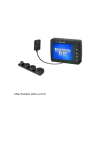
2.3 Photo
6/19
Product Specification
2.4 Dimensions
7/19
Product Specification
3. Using VGA LCD Monitor
3.1 Key Definition
OSD KEY
Function
▼
↓/ ←
Down / value decrease
▲
↑/→
Up / value increase
Power
Power ON / OFF
Menu
Menu Select
Auto
Auto Adjust
8/19
Product Specification
3.3 Setup for Operation
The OSD (On Screen Display) menu enables user to manipulate the image and settings OSD Main
menu consists of source:
OSD MENU
Description
Automatically adjust the Horizontal position, Vertical position,
Auto Adjustment
Horizontal size, and Phase Windows’s background or
characters should display on your Full screen after proceed
this function.
Color
Contrast
Adjust the contrast of the screen.
Brightness
Adjust the brightness of the screen.
Color Adjust
Choose "User color" can use to set value of Red/Green/Blue.
Color Temp
Set color to 9300 , 6500 , 5500 , sRGB, User Color .
Clock
Adjust frequency to fill display.
Phase
Adjust the phase control of the image.
Image Setting Gamma
Sharpness
Position
OSD Menu
Adjust the value of GAMMA.
This functuon allows the user to optimize the sharpness
of the image.
H. Position
Adjust the horizontal position of the screen’s image.
V. Position
Adjust the vertical position of the screen’s image.
OSD H. Pos.
Factory preset, OSD Horizontal Position.
OSD V. Pos.
Factory preset, OSD Vertical Position.
OSD Timer
It can adjust OSD display time.
Select one of the 7 languages.
Language
(English, Français, Deutsch, Español, Japanese,
Chinese Tradition, Chinese Simple)
Misc.
Signal Source
The setting of signal input channel.
Reset
Return to factory original setting.
9/19
Product Specification
4. Specifications
Item
Specification
Panel Type
10.4-inch TFT LCD
Screen Diagonal
10.4-inch
Active Display Area (mm)
211.2 (H) x 158.4 (V)
Pixel Pitch (mm)
0.264 x 0.264
Number of Pixels
800 * 600
Contrast Ratio
500:1
Brightness (cd/㎡)
1000 cd/㎡
Viewing Angle(Typ.)
80/80/60/70 (R/L/U/D)
Signal Connector
15 PIN D-Sub
Power Source
AC100 ~ 240V, Universal +/- 10%
Power Management
VESA DPMS Compliant
Operating Temperature
0 ~ +50 ℃
Storage Temperature
-20 ~ +60℃
Plug & Play
VESA DDC 1/2B
Touch Type
Resistive Touch Screen
Transparency
> 80% (typ.)
Hardness of surface
3H
Linearity
±1.5%(max.)
(without touch screen)
*Specifications are subject to change without notice**
The LCD Products listed on this document are not suitable for use in aerospace, submarine, nuclear
reactor control systems or life support systems. If customers intend to use these LCD products for
this type of mission critical applications they should contact our sales department for further input.
Suitable applications include, but are not limited to, the following: Computer and Office equipment,
Communications equipment, Test and Measurement equipment, Machine tools, Industrial robots,
Audio and Visual equipment.
10/19
Product Specification
5. Cleaning the Monitor
1.
Make sure the monitor is turned off.
2.
Never spray or pour any liquid directly onto the screen or case.
3.
Wipe the screen with a clean, soft, lint-free cloth. This removes dust and other particles.
4.
The display area is highly prone to be scratched. Do not use ketone-type material
(ex. Acetone), Ethyl alcohol, toluene, ethyl acid or Methyl chloride to clean the panel.
It may permanently damage the panel and void the warranty.
5.
If it is still not clean enough, apply a small amount of non-ammonia, non-alcohol based
glass cleaner onto a clean, soft, lint-free cloth, and wipe the screen.
6.
Don't use water or oil directly on the monitor. If droplets are allowed to dry on the monitor,
permanent staining or discoloration may occur.
7.
Cleaning Touch Screen: please use dry cloth or soft cloth with neutral detergent (after wring dry)
or one with ethanol at cleaning. Do not use any organic solvent, acid or alkali solution.
6. Disclaimer
We do not recommend using any ammonia or alcohol-based cleaners on the monitor
screen or case.
Some chemical cleaners have been reported to damage the screen and/or case of
the monitor.
11/19
Product Specification
7. Trouble shooting
If your monitor fails to operate correctly, consult the following chart for possible solution before calling
for repairs:
Condition
The picture does not appear
Check Point
●
Check if the signal cable is firmly seated in the socket.
●
Check if the Power is ON at the computer
●
Check if the brightness control is at the appropriate position,
not at the Maximum .
●
Check if the signal cable is firmly seated in the socket.
●
Check if the output level matches the input level of your
computer.
The screen is not synchronized
●
Make sure the signal timings of the computer system are
within the specification of the monitor.
●
If your computer was working with a CRT monitor, you should
check the current signal timing and turn off your computer
before you connect the VGA Cable to this monitor.
The position of the screen is
not in the center
●
The screen is too bright (too
dark)
●
Adjust the H-position, and V-position, or Perform the
Auto adjustment.
Check if the brightness or contrast control is at the
appropriate position, not at the Maximum (Minimum).
●
Press ”+” (the Auto - adjustment control) to adjust.
Moving all the objects, which emit a magnetic field, such as
motor or transformer, away from the monitor.
The screen is shaking or
waving
Check if the specific voltage is applied.
●
Check if the signal timing of the computer system is within
the specification of monitor.
12/19
Product Specification
8. OSD Menu
[Color]
Press "+" to increase or "-" to decrease the brightness,
contrast or color adjust or color temp.
● Contrast
Adjust the contrast of the screen.
● Brightness
Adjust the brightness of the screen.
● Color Adjust
( notice: please do color temp setting first.
After finish color temp, then do color adjust.)
Choose "USER" option can set value of Red/Green/Blue.
● Color Temp
Set color to 9300 , 6500 , 5500 , sRGB, USER .
You can select the screen’s color level of the white color
field from the default color temperature settings.
Also, you can fine tune the color temperature by
USER option if necessary.
13/19
Product Specification
[Image Setting]
You can adjust the value of screen quality
automatically.
● Clock
Adjust frequency to fill display.
● Phase
Adjust the phase control of the image.
● Gamma
Adjust the value of GAMMA.
● Sharpness
This functuon allows the user to optimize
the sharpness of the image.
14/19
Product Specification
[Position]
You can adjust the screen's position
by horizontal and vertical manually.
● H. Position
Adjust the horizontal position of the
screen’s image.
● V. Position
Adjust the vertical position of the
screen’s image.
15/19
Product Specification
[OSD Menu]
You can adjust the OSD Menu screen's
position by horizontal and vertical
manually.
● OSD H. Pos.
Adjust the horizontal position of OSD Menu
screen’s image.
● OSD V. Pos.
Adjust the vertical position of the OSD Menu
screen’s image.
● OSD Timer
Adjust OSD display time.
16/19
Product Specification
[Language]
Select one of the 7 languages.
17/19
Product Specification
[Misc.]
● Signal Source
The setting of signal input channel.
● Reset
Return to factory original setting.
18/19
Product Specification
[Exit]
Exit the OSD Menu.
Summary
Color
Contrast
English
Brightness
Français
Color Adjust
Deutsch
Clock
Image Setting
Position
Language
Español
Phase
繁體中文
Gamma
简体中文
Sharpness
日本語
H. Position
V. Position
Misc
Signal Source
Reset
OSD H. Pos.
OSD Menu
OSD V. Pos.
OSD Timer
19/19