1
134 Using Other Applications
13.1 Voice Speed Dial
You can record voice tags so that you can dial a phone number or launch programs simply by speaking a
word.
Create a voice tag for a phone number
1. Tap Start > Contacts to open the Contacts list.
2. Do one of the following:
• Tap and hold the desired contact, then tap Add Voice Tag.
• Select the desired contact, then tap Menu > Add Voice Tag.
• Tap the desired contact to open the contact’s detailed screen, then tap Menu > Add Voice Tag.
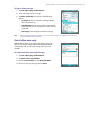
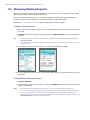
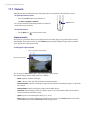
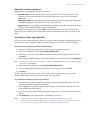
3. Select the phone number that you want to create a voice tag, then tap the Record button (
4. When completed, a Voice Tag icon (
).
) will be displayed on the right of the item.
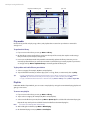
Select the desired
phone number.
Tap the Record button to start recording.
5. When you create a voice tag for the item, you can do one of the following:
• Tap the Record button (
• Tap the Play button (
• Tap the Delete button (
Tip
) to rebuild the voice tag.
) to play the voice tag.
) to delete the voice tag.
To ensure voice recognition accuracy, please record your voice in a quiet place.
Create a voice tag for a program
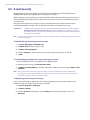
1. Tap Start > Settings > Personal tab > Voice Speed Dial.
2. The Application tab displays a list of all installed programs on your device. The procedure for creating
a voice tag for a program is the same as the procedure for creating a voice tag for a phone number.
3. After you have created a voice tag for a program, you can then launch the program by saying the
recorded voice tag after tapping Start > Programs > Voice Speed Dial.