1
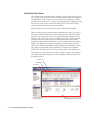
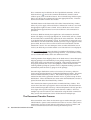
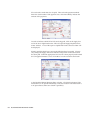
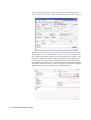
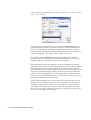
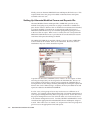
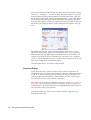
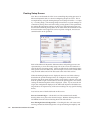
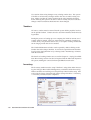
To control where the report prints click on the Destination button in the lower
right-hand corner of the window. Reports always default to the printer, but
this can be changed. Reports can be printed to the screen, to a printer or to a
file or any combination of these options. The report can also be set to Ask
Each Time thereby allowing the user to specify the destination each time the
report is printed.
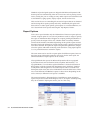
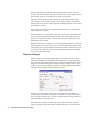
After all of the settings are selected, click the Save button to memorize the
report. Upon closing the Report Options window the new report option will
be listed in the Options section of the reports window. To print the report
simply highlight it and click the Insert button which will add it to the Print
List. Multiple report options may be added to the Print List, once the Print
button is selected each of the reports in the Print List will print to the specified destination.
The Report List
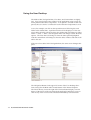
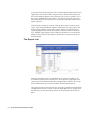
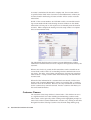
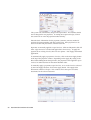
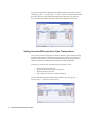
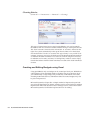
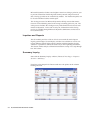
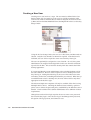
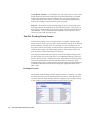
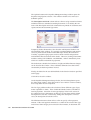
Similar to the Report Center in QuickBooks, the report list contains a list
of available reports for the selected series. The report list is displayed in the
content pane of the Microsoft Dynamics GP application window. The screen
below illustrates the list of reports available for the Financial Series.
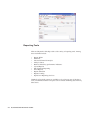
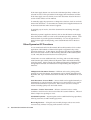
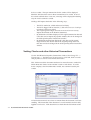
The report list can be accessed from any area page in the Microsoft Dynamics
GP application window. To print a report from the Reports List, simply mark
the check box next to the report and click on the Print button in the Action
Pane.
24
QUICKBOOKS MOVER’S GUIDE