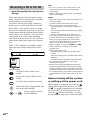
1
4-241-222-12 (1) Micro Hi-Fi Component System Operating Instructions Owner’s Record The model and serial numbers are located on the rear of the unit. Record the serial number in the space provided below. Refer to them whenever you call upon your Sony dealer regarding this product. Model No. CMT-L7HD © 2002 Sony Corporation Serial No. This symbol is intended to alert the user to the presence of important operating and maintenance (servicing) instructions in the literature accompanying the appliance. WARNING To prevent fire or shock hazard, do not expose the unit to rain or moisture. To avoid electrical shock, do not open the cabinet. Refer servicing to qualified personnel only. Do not install the appliance in a confined space, such as a bookcase or built-in cabinet. This appliance is classified as a CLASS 1 LASER product. This label is located on the rear exterior. To prevent fire, do not cover the ventilation of the apparatus with news papers, table-cloths, curtains, etc. And don’t place lighted candles on the apparatus. To prevent fire or shock hazard, do not place objects filled with liquids, such as vases, on the apparatus. Don’t throw away the battery with general house waste, dispose of it correctly as chemical waste. IN NO EVENT SHALL SELLER BE LIABLE FOR ANY DIRECT, INCIDENTAL OR CONSEQUENTIAL DAMAGES OF ANY NATURE, OR LOSSES OR EXPENSES RESULTING FROM ANY DEFECTIVE PRODUCT OR THE USE OF ANY PRODUCT. US and foreign patents licensed from Dolby Laboratories. NOTICE FOR THE CUSTOMERS IN EUROPE The following caution label is located inside the apparatus. NOTICE FOR THE CUSTOMERS IN THE U.S.A. This symbol is intended to alert the user to the presence of uninsulated “dangerous voltage” within the product’s enclosure that may be of sufficient magnitude to constitute a risk of electric shock to persons. 2GB CAUTION The use of optical instruments with this product will increase eye hazard. Note to CATV system installer: This reminder is provided to call the CATV system installer’s attention to Article 820-40 of the NEC that provides guidelines for proper grounding and, in particular, specifies that the cable ground shall be connected to the grounding system of the building, as close to the point of cable entry as practical. WARNING This equipment has been tested and found to comply with the limits for a Class B digital device, pursuant to Part 15 of the FCC Rules. These limits are designed to provide reasonable protection against harmful interference in a residential installation. This equipment generates, uses, and can radiate radio frequency energy and, if not installed and used in accordance with the instructions, may cause harmful interference to radio communications. However, there is no guarantee that interference will not occur in a particular installation. If this equipment does cause harmful interference to radio or television reception, which can be determined by turning the equipment off and on, the user is encouraged to try to correct the interference by one or more of the following measures: – Reorient or relocate the receiving antenna. – Increase the separation between the equipment and receiver. – Connect the equipment into an outlet on a circuit different from that to which the receiver is connected. – Consult the dealer or an experienced radio/TV technician for help. If you have any questions about this product, you may call; Sony customer Information Center 1-800-4887669. The Number below is for the FCC related matters only. Regulatory Information Declaration of Conformity Trade name: SONY Model No.: HCD-L7HD Responsible Party: Sony Electronics Inc. Address: 680 Kinderkamack Road, Oradell, NJ. 07649 USA Telephone No.: 201-930-6972 This device complies with Part 15 of the FCC Rules. Operation is subject to the following two conditions: (1)This device may not cause harmful interference, and (2)this device must accept any interference received, including interference that may cause undesired operation. CAUTION You are cautioned that any changes or modifications not expressly approved in this manual could void your authority to operate this equipment. NOTICE FOR THE CUSTOMERS IN CANADA CAUTION TO PREVENT ELECTRIC SHOCK, DO NOT USE THIS POLARIZED AC PLUG WITH AN EXTENSION CORD, RECEPTACLE OR OTHER OUTLET UNLESS THE BLADES CAN BE FULLY INSERTED TO PREVENT BLADE EXPOSURE. Except for European model: ENERGY STAR® is a U.S. registered mark. As an ENERGY STAR® partner, Sony Corporation has determined that this product meets the ENERGY STAR® guidelines for energy efficiency. On moisture condensation If the system is brought directly from a cold place to a warm place, or is placed in a room where heat has just been turned on, moisture may condense on or inside the system. Since condensation may damage the system. Leave the system turned off for about an hour until the moisture evaporates. Notes on the hard disc This system records a music to an internal hard disc. Although the hard disc has safety devices to prevent losing data due to mechanical vibration, shock or dust, you should be careful when handling the system. Avoid damaging your data: • Do not cause a shock or strong vibration to the system. • Do not place the system in a location subject to mechanical vibration or in unstable location. • Do not move the system while the power is on. • Do not pull out the power cord during playback or recording. • The storage mode is factory set to “AUTO”. Each CD track is automatically recorded after it has been played back. (for details, see page 24) • Do not use the system in a place subject to extreme changes in temperature (temperature gradient less than 10 °C/ hour). • Do not change the hard disc or add another hard disc by yourself. This may damage the system. For M-crew • Duplication of any or all of the contents of this software and instruction manual or lending of this software to third parties without the express permission of the copyright holder is strictly prohibited by copyright law. • Sony cannot be held liable in any way for monetary losses, lost profits or claims from third parties arising from the use of this software. • Should any manufacturing defects occur, Sony’s responsibility shall be limited solely to replacing said defective merchandise. • This software is approved for use only with the specified equipment. • Sony reserves the right to change software specifications without prior notice. Other related software and services provided are also subject to change without prior notice. Program 1997-2002 Sony Corporation Documentation 2002 Sony Corporation 2002 Sony Corporation All rights reserved. • M-crew and LabelMaker are the registered trademarks of Sony Corporation. • Microsoft, MS-DOS and Windows are the registered trademarks of Microsoft Corporation. • IBM and PC/AT are the registered trademarks of International Business Machines Corporation. • Macintosh is the registrated trademark of Apple Computer Inc. • Gracenote CDDB or Gracenote CDDB Music Recognition ServiceSM • Powered by Gracenote CDDB • Other companies and product names are the trademarks or the registered trademarks of each company. If the hard disc is damaged, data cannot be restored or recovered. 3GB Table of Contents List of Button Locations and Reference Pages Main unit ............................................... 6 Remote control ...................................... 7 Overview Getting Started Hooking up the system .......................... 9 Inserting two size AAA (R03) batteries into the remote .............................. 12 Using the wall hanging bracket ........... 12 Setting the clock .................................. 13 CD Loading the CD ................................... 14 Playing the CD — Normal Play/Shuffle Play/ Repeat Play ................................... 14 Programing the CD tracks — Program Play ............................ 15 Labelling a CD — Disc Memo ............................... 16 HD - Recording Notes on recording .............................. 23 Recording a CD to the HD — Auto Storage/ High-Speed Synchro Storage ........ 24 Recording to the HD manually — Manual Recording .................... 26 Recording tips — Making tracks/Smart Space/ Adjusting the recording level ........ 26 HD - Editing Labelling a track, album or playlist — Name Function ......................... 30 Erasing recordings — Erase Function .......................... 32 Moving recorded tracks or albums — Move Function ......................... 33 Dividing recorded tracks — Divide Function ........................ 34 Combining recorded tracks — Combine Function .................... 35 Undoing the last edit — Undo Function .......................... 36 Tuner HD - Play Playing the HD — Normal Play/Shuffle Play/ Repeat Play ................................... 18 Registering a track to a playlist — Playlist Play .............................. 19 Locating a desired album or track — Keyword Search/ Highlight Play ............................... 20 Playing a registered album — Album Favorites ....................... 22 Playing an album you listened to recently — History ...................................... 22 4GB Presetting radio stations ....................... 37 Listening to the radio — Preset Tuning/Manual Tuning ... 38 Labelling the preset stations — Station Name ............................ 39 Using the Radio Data System (RDS)* ... 39 Sound Adjustment Adjusting the sound — DSG .......................................... 40 Timer Falling asleep to music — Sleep Timer .............................. 40 Waking up to music — Daily Timer .............................. 41 Timer recording radio programs .......... 42 Troubleshooting Problems and remedies ........................ 59 Self-diagnosis display .......................... 62 Additional Information Precautions .......................................... 64 Specifications ...................................... 65 * European model only Display Turning off the display — Power Saving Mode ................. 44 Changing the illumination level .......... 44 Using the display ................................. 44 M-crew Overview ............................................. 46 System requirements ........................... 47 Installing the software ......................... 47 Connections ......................................... 50 Setup procedure for your computer system ............................................ 50 Installing LabelMaker 5.1 ................... 53 Uninstalling the software ..................... 53 Starting up the software ....................... 54 Quitting the software ........................... 54 Using the Help ..................................... 54 Optional Components Hooking up optional components ........ 56 Listening to audio from a connected component ..................................... 57 Recording audio from a connected component ..................................... 57 Recording on a connected component ... 58 5GB List of Button Locations and Reference Pages Illustration number How to use this page r Use this page to find the location of buttons and other parts of the system that are mentioned in the text. PLAY MODE qh (14 - 18, 21) R R Name of button/part Reference page Main unit ALPHABETICAL ORDER BUTTON DESCRIPTIONS @/1 (power) 4 (11, 41, 42) ./> qj (15, 16, 18) m/M qj (15, 18) Z 3 (14, 15) V OPEN 5 To open the front cover, push down on V OPEN. P–Z A–H ALBUM dial qf (18, 19, 21, 26) CD cover 2 (14, 15) CD u qa (14 - 16, 25) CD x qs (15, 16, 24, 25) DISPLAY 8 (39, 44, 45) Display window 1 (44, 45) FUNCTION qh (14 - 22, 25 - 28, 30, 32 - 35, 57) HD u 9 (18, 20 - 22, 25, 26) HD x q; (18, 25, 26, 30) HIGH SPEED SYNC ql (25) PHONES jack 7 REC w; (26, 28) Remote sensor 6 STORAGE MODE qk (14, 25, 26) TUNER/BAND qd (37, 38) TUNING +/– qj (37, 38) VOL +/– qg (41) 2 1 6 6GB 5 789q;qaqsqd 4 w;qlqk qj qhqg qf 3 Remote control List of Button Locations and Reference Pages ALPHABETICAL ORDER ALBUM eh (19) ALBUM FAVORITES 7 (22) ALBUM MEMORY 8 (22) ALBUM +/– 6 (18, 19, 21, 26) CAPS rd (16, 31) CD N wa (14 - 16, 25) CD X qa (15) CD x q; (15, 16, 24, 25) CLEAR es (15 - 17, 29, 31, 39) CLOCK/TIMER SELECT eg (41 - 43) CLOCK/TIMER SET ef (13, 41, 42) CURSOR T/t el (13, 17, 20, 21, 31, 35, 42) wk DIMMER 5 (44) DISPLAY wk (39, 44, 45) wj DSG qk (40) wh ENTER/YES e; (13, 15 - 17, 19 - 21, 27 - 37, 39, 41 - 43, 57) wg FM MODE qg (38) wf FUNCTION ws (14 - 22, 25 - 28, wd 30, 32 - 35, 57) HD N wd (18, 20 - 22, 25, 26) ws wa HD X wf (18, 25, 26) HD x 9 (18, 25, 26, 30) w; HIGHLIGHT wg (21) ql HISTORY +/– wh (22) MENU/NO ek (17, 20, 27 - 39, qk 57) qj MENU +/– r; (13, 17, 20, 21, qh 27 - 36, 41 - 43) qg NAME rs (16, 39) Numeric buttons for selecting an album or track ej (15, 19, 38) PLAYLIST ed (19, 20) PLAY MODE qh (14 - 18, 21) PRESET EQ qj (40) REPEAT qg (15, 18) SCROLL 4 (17, 45) SEARCH ea (20) SLEEP 2 (40) SML ra (16, 31) Text input buttons wl (16, 31) TIME wj (16, 44, 45) TUNER BAND w; (37, 38) TUNING MODE qh (37, 38) TUNING +/– qs (37, 38) VOL +/– qf (41) BUTTON DESCRIPTIONS @/1 (power) 3 (11, 41, 42) ./> ql (15, 16, 18) m/M qd (15, 18) Z 1 (14, 15) 12 wl 3 4 5 6 7 8 9 q; qa qs rd qd rs ra qf r; el ek e; ea es ed ej eheg ef 7GB Overview Search This system, with its internal hard disc (HD), supports the following functions: HD configuration CDs Library area Album/track Any sound source Playlist Flexible area Editing Specific tracks on the HD can be easily found. • Keyword Search (see page 20) A keyword can be entered to find a desired album or track. Keywords may be the name of the album, track or artist. • Highlight Play (see page 21) This function allows you to listen to just a part of a single track in each album in order to find a specific album on the HD. Album favorites By registering up to 5 albums on the HD to ALBUM FAVORITES (A - E) on the remote, you can play them easily at the press of a button. Library area History This area can be used like a 250-CD changer. CDs (or selected tracks from a CD) are stored as albums in this area (the “L” indicator lights up). Up to 250 albums can be stored here. This system memorizes the 20 most recently played albums, any of which can be selected for playback. Flexible area This area can be used like a 250-MD changer. As on an MD deck, you can record from any sound source to the Flexible area and then edit the recorded material in this area (the “F” indicator lights up). Up to 250 albums can be stored here. Labelling The supplied “M-crew for CMT-L7HD” software* enables CDDB2** to be accessed from your computer for automatic labelling of albums and tracks (refer to the Help). * For details, see to “Overview” on page 46 ** A database containing information on CDs on the market Album Up to 400 tracks can be contained in a single album and up to 20,000 tracks on the HD (or more than 300 hours of data on the HD). Playlist You can create playlists containing only desired tracks in the Library or Flexible area (the “P” indicator lights up during playlist registration or playback). Up to 10 playlists can be created. Library storage The system automatically records the CD to the HD during CD playback when Auto Storage is selected as the storage mode. You can check the contents of the current CD storage status through the display window. 8GB Notes • The recorded music is limited to private use only. Use of the music beyond this limit requires permission of the copyright holders. • Sony is not responsible for any loss that may arise from lost data. • Recording to the hard disc should be considered as a temporary means of storing audio data. Be sure to retain the original sound source as backup. • There is no service for the recovery of lost data. • You may hear sounds as the system access the hard disc when you turn on the system, play an HD track, record to the HD, etc. These sounds are natural to the HD and are not abnormal. • The system may make sounds even when no operation is being performed. These sounds are produced by the system’s self-maintenance functions and are not abnormal. • You may also feel vibrations from the system, but this is not a malfunction. Getting Started Hooking up the system Left speaker Right speaker The rear cover Started Started Overview/Getting Getting Perform the following procedure 1 to 9 to hook up your system using the supplied cords and accessories. Desktop stand AM loop antenna FM antenna Before attaching the system to the stand, draw the wires under the horizontal bar of the stand. Otherwise, the wires could be damaged. 1 Set the speaker cord into the speaker cord groove at the bottom of the speaker. Otherwise, the speaker cord could be damaged. 2 Attach the speakers. Afterwards, push down on the speakers to make sure they are securely fastened to the main unit. continued 9GB Hooking up the system (continued) FM antenna (Jack type A) Extend the FM wire antenna horizontally 3 Secure the speaker cords with the speaker cord hooks at the bottom of the main unit. Otherwise, the speaker cord could be damaged. FM antenna (Jack type B) Extend the FM wire antenna horizontally Bend a speaker cord slightly, insert it into the hole and secure it with the hook. 4 Connect the speaker cords. Connect the speaker cords to the SPEAKER jacks as shown below. FM antenna (Jack type C) Extend the FM wire antenna horizontally 5 Connect the FM and AM antennas. Set the AM loop antenna up before connecting it. To prevent noise, locate the AM loop antenna as far away from the system as possible. 6 Attach the stand pads. Attach the supplied stand pads to the bottom of the stand to stabilize the stand and to prevent it from slipping. AM antenna AM loop antenna White Black 10GB Note Use caution when placing the stand on a specially treated (waxed, oiled, polished, etc.) floor, as staining or discoloration may result. 7 Attach the system to the supplied desktop stand. 1 Connect one end of the supplied joint connector to the speaker cord, and then connect the supplied cord extension to the other end of the joint connector. Getting Started Make sure to grasp the main unit, and not the speakers. After attaching the system to the stand, push down on the system to make sure they are securely fastened to the stand. Using the system with the speakers detached 2 Connect the cord extensions to the SPEAKER jacks. 3 Secure the cord extensions with the speaker cord hooks at the bottom of the main unit. Otherwise, the cord extension could be damaged. 8 Attach the supplied rear cover to the stand. 4 Attach the system to the supplied desktop Put the wires through the holes at the bottom of the rear cover. 5 Attach the supplied rear cover to the stand. 6 After folding up the speaker legs, set the stand. speakers at the desired positions. 9 Connect the power cord to a wall outlet. If the plug does not fit the wall outlet, attach the supplied plug adaptor (only for models equipped with an adaptor). To turn on the system, press @/1. Notes • Either mount both speakers or remove both speakers. Do not use the system with only one speaker mounted. • When moving the system, first detach the main unit from the desktop stand, and then move the system. If you leave the speakers attached during the move, make sure to grasp the system by the main unit, and not by the speakers. 11GB Inserting two size AAA (R03) batteries into the remote Preparation • The screws for attaching the wall hanging bracket to the wall are not supplied. Be sure to purchase screws suited to the wall materials. • If the wall materials cannot support a load of 50 kg or more, be sure to reinforce the wall. Hanging the system on the wall 1 Fix the wall hanging bracket to the wall using 8 screws (not supplied). Tip When the remote no longer operates the system, replace both batteries with new ones. Note If you do not use the remote for a long period of time, remove the batteries to prevent possible damage from battery leakage and corrosion. Using the wall hanging bracket You can hang the system on the wall using the supplied wall hanging bracket. The screws for attaching the wall hanging bracket to the wall are not supplied. When installing the bracket by yourself, be sure to use screws appropriate for the type of wall. Sony cannot take responsibility for any damages or injury due to installation. Safety precautions • The supplied bracket is for use with the Sony Interior Hi-Fi Component System CMT-L7HD only. Using this item for purposes other than to hang the system on the wall may result in accidents. • The component system CMT-L7HD (7.9 kg) and the wall hanging bracket (0.6 kg) have a combined weight of 8.5 kg. Therefore, for safety reasons, the bracket should be attached securely to a wall made from materials capable of supporting a load of 50 kg or more. • When you hang the system on the wall, make sure the left and right speakers are both attached or both detached. Attaching one speaker without the other may cause the system to drop and injure someone. 12GB Note Be sure to secure the bracket in a level position. 2 Set the speaker cord into the speaker cord groove at the bottom of the speaker. Otherwise, the speaker cord could be damaged. 3 Attach the speakers. Afterwards, push down on the speakers to make sure they are securely fastened to the main unit. 4 Connect the speaker cords to the SPEAKER jacks. 5 Attach the system to the wall hanging Getting Started bracket which you have fixed to the wall. Make sure to grasp the main unit, and not the speakers. After attaching the system to the bracket, push down on the system to make sure they are securely fastened to the bracket. Setting the clock 1 Turn on the system. 2 Press CLOCK/TIMER SET on the remote. 3 Press MENU + or – on the remote repeatedly to set the day, and then press ENTER/YES or CURSORt on the remote. The hour indication flashes. 4 Press MENU + or – on the remote repeatedly to set the hour, and then press ENTER/YES or CURSORt on the remote. The minute indication flashes. 5 Press MENU + or – on the remote repeatedly to set the minute, and then press ENTER/YES on the remote. If you make a mistake Press TCURSOR or CURSORt on the remote repeatedly until the indication you want to change (day, hour, minute) flashes, and then change the setting. To adjust the clock 1 Press CLOCK/TIMER SET on the remote. 2 Press MENU + or – on the remote repeatedly until “CLOCK SET?” appears in the display, and then press ENTER/YES on the remote. 3 Do the same procedures as steps 3 to 5 above. 13GB CD Loading the CD 1 Touch Z (or press Z on the remote). The CD cover opens and the function switches to CD. 2 Insert a CD and push down on it gently. The CD is drawn in and playback starts automatically. Playing the CD — Normal Play/Shuffle Play/Repeat Play This system lets you play CDs in different play modes. The system is set to automatically start CD-toHD recording at the start of CD playback. Load with the label side front. Track number Playing time 1 Press FUNCTION repeatedly until “CD” appears in the display. 2 Press PLAY MODE on the remote in stop mode repeatedly until the mode you want appears in the display. Tips • To reload the CD, first remove the CD, and then load it again. • You can load a CD single (8-cm CD) without an adapter. • Playback starts automatically when you simply load the CD (CD Auto Play). This function, however, does not work while Program Play is selected. Note If the CD cover does not open when you touch Z (for example, when you are wearing gloves), touch it with bare fingers or press the Z button on the remote. 14GB Select To play No display (Normal Play) The CD in original order. SHUFFLE (Shuffle Play) The tracks on the CD in random order. PROGRAM (Program Play) The tracks on the CD in any order that you want (see “Programing the CD tracks” on page 15). 3 Press CD u (or CD N on the remote). To deactivate automatic CD-to-HD recording While the CD is stopped, press STORAGE MODE to switch the storage mode to off. For details, see page 25. Other operations Programing the CD tracks Do this Stop playback Press CD x. — Program Play Pause Press CD u (or CD X on the remote). Press again to resume playback. You can make a program of up to 25 tracks on a CD in any order that you want. Select a track During playback or pause, press . or > repeatedly until you find the desired track. Find a point in a track During playback, press and hold down m or M until you find the desired point. Play repeatedly (Repeat Play) Press REPEAT on the remote repeatedly during playback until “REP” or “REP1” appears in the display. 1 Press FUNCTION repeatedly until “CD” appears in the display. CD To 2 Press PLAY MODE on the remote in stop mode repeatedly until “PROGRAM” appears in the display. 3 Press . or > repeatedly until the desired track number appears in the display. REP: For all the tracks on the CD up to 5 times. REP1: For only the currently playing track. To cancel playing repeatedly, press REPEAT on the remote repeatedly until “REP” and “REP1” disappear from the display. Remove the CD Touch Z (or press Z on the remote) to remove the CD, then touch Z (or press Z on the remote) again to close the CD cover. To enter track number using the remote You can also select the desired track using the remote during Normal Play (no display). Press the numeric buttons. The playback automatically starts. To enter track number over 10 1 Press >10. 2 Enter the corresponding digits. To enter 0, press 10/0 instead. Example: Selected track number Playing time of the selected track To enter the desired track number using the remote, press the numeric buttons, then skip step 4. 4 Press ENTER/YES on the remote. The track is programmed. “Step” appears, followed by the order number of the track just programmed. Then the last programmed track number appears, followed by the total playing time of the program. If you have made a mistake, you can clear the last programmed track from the program by pressing CLEAR on the remote. Last programmed track number Total playing time 5 To program additional tracks, repeat steps 3 and 4. 6 Press CD u (or CD N on the remote). To enter track number 30, press >10, then 3 and 10/0. continued 15GB Programing the CD tracks (continued) Labelling a CD Other operations — Disc Memo To Do this Check the program order Press . or > repeatedly during Program Play. You can label up to 100 CDs with titles of up to 20 symbols and characters. Whenever you load a labelled CD, the title appears in the display. Check the total number of programmed tracks Press TIME on the remote in stop mode. The total number of programmed tracks appears, and then the last programmed track number and the total playing time of the program. Cancel Program Play Press CD x, and then press PLAY MODE on the remote repeatedly until “PROGRAM” and “SHUFFLE” disappear from the display. Add a track to the end of the program Do steps 3 and 4 with Program Play stopped. Erase the last programmed track Press CLEAR on the remote in stop mode. Each time you press the button, the last programmed track is erased. Tips • The program you made remains after Program Play finishes. To play the program again, switch the function to CD, and then press CD u (or CD N on the remote). • “--.--” appears when the total program time exceeds 100 minutes, or when you select a CD track whose number is 21 or over. Note When labelling CDs for the first time, be sure to erase all disc titles using the procedure “Erasing a disc title” on page 17. 1 Press FUNCTION repeatedly until “CD” appears in the display. If “SHUFFLE” or “PROGRAM” appears in the display, press PLAY MODE on the remote repeatedly until both disappear. 2 Press NAME on the remote. The cursor starts flashing. 3 Press CAPS or SML on the remote to select the desired type of character. Type of character Press Uppercase letters/blank space/symbols/numbers CAPS. Lowercase letters/blank space/symbols/numbers SML. 4 Press the corresponding text input button on the remote to enter a character. 5 Repeat steps 3 and 4 to enter the rest of the name. 6 Press ENTER/YES on the remote to complete the labelling procedure. 16GB To erase and change a character In step 3 or 4, press TCURSOR or CURSORt on the remote repeatedly until the character you want to change flashes, press CLEAR on the remote to erase the character, and then repeat steps 3 and 4. To cancel labelling To add a character After step 2, press TCURSOR or CURSORt on the remote repeatedly to move the cursor to the place where you want to add a character. And then proceed to step 3. repeatedly to select the disc title you want to erase. 5 Press ENTER/YES on the remote again. “Complete!” appears. To erase all disc titles Press MENU + or – on the remote repeatedly until “All Erase?” appears in step 3, and then press ENTER/YES on the remote twice. CD Press MENU/NO on the remote. 4 Press MENU + or – on the remote To cancel erasing Press MENU/NO on the remote during steps 1 to 4. Checking the disc titles 1 Press FUNCTION repeatedly until “CD” appears in the display. 2 Press MENU/NO on the remote in stop mode. 3 Press MENU + or – on the remote repeatedly until “Name Check?” appears, and then press ENTER/YES on the remote. 4 Press MENU + or – on the remote repeatedly to select a disc title stored in the system memory between 001 and 100. To check the current disc title Press SCROLL on the remote in stop mode. To pause the scrolling, press SCROLL on the remote again. Erasing a disc title 1 Press FUNCTION repeatedly until “CD” appears in the display. If “SHUFFLE” or “PROGRAM” appears in the display, press PLAY MODE on the remote repeatedly until both disappear. 2 Press MENU/NO on the remote in stop mode. 3 Press MENU + or – on the remote repeatedly until “Name Erase?” appears, then press ENTER/YES on the remote. 17GB HD - Play Other operations Playing the HD — Normal Play/Shuffle Play/Repeat Play This system lets you play the HD in different play modes. To Do this Stop playback Press HD x. Pause Press HD u (or HD X on the remote). Press again to resume playback. Select a track Press . or > repeatedly until you find the desired track. Select an album Turn ALBUM dial clockwise (to go forward) or counterclockwise (to go backward) (or press ALBUM + or – on the remote repeatedly). Find a point in a track*1 During playback, press and hold down m or M until you find the desired point. Play repeatedly (Repeat Play) Press REPEAT on the remote repeatedly during playback until “REP” or “REP1” appears in the display. Track number Album number Playing time 1 Press FUNCTION repeatedly until “HD” appears in the display. 2 Press PLAY MODE on the remote in stop mode repeatedly until the mode you want appears in the display. When you select Result ALL ALBUM All the albums on the HD are only played back consecutively in the (Normal Play) order of album number. 1ALBUM only (Normal Play) Only the current album is played back. ALL ALBUM and SHUFFLE (Shuffle Play) An album* is selected at random and the tracks in that album are played back in random order. After all the tracks have been played, another album is selected in the same manner. 1ALBUM and All the tracks in the current SHUFFLE album are played back in random (Shuffle Play) order. * Except for the playlists 3 Press HD u (or HD N on the remote). 18GB REP (All Album Normal Play): The system repeats all the tracks on the HD. REP (1 Album Normal Play): The system repeats all the tracks in the current album. REP (All Album Shuffle Play): The system repeats all the tracks (except for the playlists) on the HD in random order. REP (1 Album Shuffle Play): The system repeats all the tracks in the current album in random order. REP1: The system repeats only the current track*2. To cancel playing repeatedly, press REPEAT on the remote repeatedly until “REP” and “REP1” disappear from the display. *1 You can locate a point only within the current album. *2 If a track is not specified, the system repeats the first track in the current album. Registering a track to a playlist — Playlist Play You can also select the desired track using the remote during Normal Play (no display). Press the numeric buttons. Playback starts automatically. By registering tracks on the HD to a playlist, you can play back only the tracks you want to listen to. Up to 10 playlists can be created and each playlist can contain up to 400 tracks. To enter track number over 10 1 Press FUNCTION repeatedly until “HD” 1 Press >10. 2 Enter the corresponding digits. appears in the display. 2 During the playback or play pause of To enter 0, press 10/0 instead. the desired track, press PLAYLIST on the remote. Example: When you press the PLAYLIST on the remote while the system is stopped, all the tracks in the current album are registered to a playlist. • To enter track number 20 for an album containing less than 100 tracks, press >10, 2 and then 10/0. • To enter track number 30 for an album containing 100 tracks or more, press >10, 10/0, 3 and then 10/0. To enter album number using the remote You can also select the desired album using the remote. Press ALBUM repeatedly until the desired album area appears. The display changes cyclically as follows: L.Album t F.Album t Playlist t No display Then press the numeric buttons. Enter three digits to select an album in the Library or Flexible area. Enter two digits to select a playlist. To enter 0, press 10/0 instead. Playback starts automatically. HD - Play To enter track number using the remote 3 Turn ALBUM dial (or press ALBUM + or – on the remote repeatedly) until the desired playlist appears, then press ENTER/YES on the remote. 4 Do the procedure of “Playing the HD” on page 18 to play the playlist. Notes • When “ALL ALBUM SHUFFLE” is selected, playlists cannot be played back. • If you edit a track in an album that is registered to one or more playlists, the track is erased from all the playlists automatically. (except for the Name function) Example: • To enter album number L.Album30 (or F.Album30) in the Library area (or the Flexible area), press ALBUM repeatedly, then 10/0, 3 and 10/0. • To enter album number Playlist4, press ALBUM repeatedly, then 10/0 and 4. 19GB Locating a desired album or track 6 Press ENTER/YES on the remote. When the corresponding item is found, playback of the item starts as follows: If you selected The system plays — Keyword Search/Highlight Play For Album? Searching by keywords (Keyword Search) the first 10 seconds of each track in the album. For Track? the track repeatedly. If there are multiple matches, press MENU + or – on the remote repeatedly to select the desired album or track. If there are no matches, “Not Found” appears in the display. You can easily find desired albums or tracks on the HD if they have been named. 1 Press FUNCTION repeatedly until “HD” appears in the display. 2 While the system is stopped, press 7 Press HD u (or HD N on the remote). Playback starts with the current item. SEARCH on the remote. 3 Press MENU + or – on the remote to select the target level, then press ENTER/YES on the remote. To Select Search for an album For Album?. Search for a track For Track?. To cancel Keyword Search Press MENU/NO on the remote. To check information about the matches Track number 4 Press MENU + or – on the remote to select the keyword type, then press ENTER/YES on the remote. To Select Search by an album or track name By Title?. Search by an artist name By Artist?. Album number Item number* * “– – –” appears when you select an item whose number is 1,000 or over. Other operations “Keyword In” appears in the display. 5 Enter the keyword (see “Assigning a title or artist name” on page 30). To Press Select an item MENU + or – on the remote. Go back/ahead (20 items at a time) TCURSOR or CURSORt on the remote. Up to 10 characters can be entered. Tips • When you press SEARCH on the remote while the current item is displayed, the display for entering a keyword appears again. This allows you to do another search with another keyword under the same condition as the previous keyword. • In step 6, you can register the track to a playlist by pressing PLAYLIST on the remote. (see “Registering a track to a playlist” on page 19). Notes • You cannot search for a playlist or for a track in a playlist with Keyword Search. • If you perform Keyword Search when Shuffle Play is selected, the HD play mode automatically switches to Normal Play. 20GB Searching by playback (Highlight Play) This function allows you to easily locate an album on the HD by playing back a part of a representative track in each album. To register a representative track for Highlight Play 1 Press FUNCTION repeatedly until “HD” If “SHUFFLE” appears in the display, press PLAY MODE on the remote repeatedly until it disappears. 2 Start playing the track you want to register in an album. 3 While monitoring the sound, press HIGHLIGHT on the remote at the starting point of Highlight Play. Rehearsal playback starts from the point. 4 Press ENTER/YES on the remote if the starting point of Highlight Play is correct. The Highlight position plays for 10 seconds. If the point is incorrect, press MENU + or – on the remote repeatedly to find the correct point, then press ENTER/YES on the remote. You can shift the starting point in 1-frame (f) intervals (1 frame = 1/43 second). Tip To shift the point by minutes or second intervals in step 4, press TCURSOR or CURSORt on the remote repeatedly so that the minute or second indication flashes, then press MENU + or – on the remote repeatedly. • If the registration of the Highlight position has not been performed, the beginning of the first track in the album becomes the Highlight position of the album. • Only one track can be selected as the representative track for each album. • During Highlight Play, you cannot: – register a Highlight position – register a track to a playlist • You cannot register a Highlight position to a playlist (album numbers Playlist1 to Playlist10). To play an album found through Highlight Play 1 Press FUNCTION repeatedly until “HD” appears in the display. HD - Play appears in the display. Notes 2 While the system is stopped in Normal Play, press HIGHLIGHT on the remote. Highlight Play starts. 3 While monitoring the sound, turn ALBUM dial (or press ALBUM + or – on the remote repeatedly) to locate the desired album. 4 Press HD u (or HD N on the remote). Playback starts from the first track in the selected album. Notes • Highlight Play starts with the album that was selected at the time you pressed HIGHLIGHT on the remote. • Highlight Play skips blank albums and playlists (album numbers Playlist1 to Playlist10). • If you perform Highlight Play when Shuffle Play is selected, the HD play mode automatically switches to Normal Play. Second Minute Frame 21GB Playing a registered album — Album Favorites — History Up to 5 albums can be registered for easy playback at the press of a button. This system memorizes the 20 most recently played albums, any of which can be selected for playback. Registering an album 1 Press FUNCTION repeatedly until “HD” 1 Press FUNCTION repeatedly until “HD” appears in the display. 2 Select the album you want to register. 3 Press ALBUM MEMORY on the remote. 4 Press one of ALBUM FAVORITES (A E) on the remote to register the album to that button. “Complete!” appears. appears in the display. 2 While the HD is stopped or playing, press HISTORY + or – on the remote repeatedly. To start playing the album you selected, press HD u (or HD N on the remote). To cancel the History function Press any button other than HISTORY + and – on the remote. To cancel registration Notes Press ALBUM MEMORY on the remote. • When an album is played back for more than 5 seconds, the album is automatically registered in the History (except during rehearsal playback, play pause or Highlight Play). • HISTORY + and – on the remote do not function when “SHUFFLE” is selected. • The same album will not appear twice in the History. If you play an album registered in the History, the order of the album in the History is merely updated. • If an album registered in the History is made blank, the registration of that album in the History is cleared. Note The selected album cannot be registered during Highlight Play, Keyword Search, recording or recording pause. Playing a registered album Press ALBUM FAVORITES (A - E) on the remote for the desired album. Playback starts. Notes • Registered albums will not play when you press ALBUM FAVORITES (A - E) on the remote while “SHUFFLE” is selected. • Registered albums will not play when you press ALBUM FAVORITES (A - E) on the remote during recording or recording pause. • If a registered album is made blank, the registration of that album is cleared. 22GB Playing an album you listened to recently HD - Recording Notes on recording Before recording • You cannot select a playlist as the recording destination. • You cannot record over an existing track. If you select an album with existing tracks as the recording destination, the system automatically starts recording from the end of the existing tracks. The HD play mode automatically switches to Normal Play. Automatic conversion of digital sampling rates A built-in sampling rate converter automatically converts the sampling frequency of various digital sources to the 44.1 kHz sampling rate of the system. This allows you to monitor and record sources such as 32- or 48-kHz DAT tape or satellite broadcasts, as well as the CDs and HD. Digital audio components, such as CDs, MDs, HDs and DATs let you copy music easily with high quality by processing music as a digital signal. To protect the copyrighted music programs, this system uses the Serial Copy Management System that allows you to make only a single copy of a digitally recorded source through digital-to-digital connections. You can make only a first generation copy* through a digital-to-digital connection. That is: 1 You can make a copy of a commercially available digital sound program (for example, a CD or MD), but you cannot make a second copy from the first-generation copy. 2 You can make a copy of a digital signal from a digitally recorded analog sound program (for example, an analog record or a music cassette tape) or from a digital satellite broadcast program, but you cannot make a second copy. * A first-generation copy means a digital recording of a digital signal made on digital audio equipment. For example, if you record from this system’s CD player to the HD recorder, you make a firstgeneration copy. HD - Recording After recording Guide to the Serial Copy Management System Maximum number of recordable tracks Total number of the tracks recorded on the HD cannot exceeds 20,000, not counting the tracks in playlists. If “Track Full!” appears in the display when you select the recording destination The album already contains 400 tracks, the maximum number of tracks that can be recorded to a single album. Select another album. If “Drive Full!” appears in the display while recording to the HD Further recording is impossible because there is not enough recordable space on the HD or the maximum number of recordable tracks has been attained on the HD. Erase any unnecessary albums or tracks to continue recording to the HD. 23GB Recording a CD to the HD — Auto Storage/High-Speed Synchro Storage When Auto Storage is selected as the storage mode, CD tracks are automatically recorded to the HD while being played back. Only tracks that are played back completely and are not yet stored on the HD are recorded in this mode. If the tracks are from a CD that has never been played before, they are stored to a blank album with the smallest album number in the Library area. Otherwise, they are stored in the album in the Library area containing other tracks from the same CD. The tracks are stored in the album in the order of the original CD. While “CD” is displayed, the display window shows the track storage status of the current CD. Storage indicator All tracks on the CD have been stored. Some tracks on the CD have been stored. No track on the CD has been stored. Data on the CD is being collated with that on the HD (flashing). y 24GB Data is being recorded to the HD (flashing). Tips • If you set “TextSave” in the setup menu to “On”, CD text (track name only) is saved to the HD automatically. • While a CD track is being recorded, "STORAGE" appears in the display. Notes • More than one copy of the same track cannot exist in the same album. • An album cannot contain more than one CD. • The system cannot record CD tracks when: – The remaining time on the HD is less than 240 minutes. – The remaining number of the tracks on the HD is less than 131. – There is no blank album in the Library area. • If you erase an album from the Library area with the Erase function or move an album from the Library area to the Flexible area with the Move function, the corresponding CD is restored to the Library area when the CD is played back. • While recording, if you press HD u (or HD N on the remote), the recording stops and HD playback starts. • The recording stops when: – The total number of tracks on the HD reaches 20,000. – The total recording time of the HD reaches about 300 hours. – The CD function is changed to another function. • You cannot name an album or a track while recording is in progress. • Because Auto Storage and High-Speed Synchro Storage are different from conventional recording methods, the playing time of the tracks recorded on the HD may differ from that of the CD tracks, and the total playing time of the album in which the CD is recorded may not be the same as that of the CD itself. Before turning off the system or pulling out the power cord HD recording is completed only when the indicator has stopped flashing after you press CD x. To ensure completion of the recording, do not press @/1 or pull out the power cord while the indicator is flashing. If you do, the played tracks may not be stored to the HD. Switching Auto Storage mode on or off Recording a CD in HighSpeed Synchro Storage mode While the CD is stopped, press STORAGE MODE. 1 Press FUNCTION repeatedly until “CD” “LIBRARY” and “AUTO” appear in the display. 2 After the Press again to cancel Auto Storage mode. Tip Auto Storage mode is factory set to on. Notes indicator stops flashing, press HIGH SPEED SYNC. The album to be recorded is automatically set and the HD stands by for recording. 3 After “HIGH SPEED” disappears, press HD u (or HD N or HD X on the remote) Recording starts. To stop recording Press CD x or HD x. Recording a CD in Auto Storage mode Tip 1 Press FUNCTION repeatedly until “CD” Notes appears in the display. 2 Press STORAGE MODE to switch Auto Storage mode on. 3 After the High-Speed Synchro Storage can be performed even when Auto Storage mode is off. • After High-Speed Synchro Storage has completed, the CD/HD play mode automatically switches to Normal Play. • CD Repeat Play is automatically cancelled. indicator stops flashing, press CD u (or CD N on the remote). If “Retry” flashes in the display after you press HIGH SPEED SYNC The album to be recorded is automatically set and recording starts. A reading failure has occurred, and the system is trying to read the data again. To stop recording Press CD x. Notes • Recording stops automatically when: – The total playing time of the current CD has exceeded 120 minutes. – The total number of tracks on the current CD that have been played or paused has exceeded 128. • Recording does not stop even when you press HD x. • The HD play mode automatically switches to Normal Play. HD - Recording • The system does not automatically change from Auto Storage mode to another mode even when further recording becomes impossible. • Auto Storage mode automatically changes to off when the timer is activated. appears in the display. • If the retry was successful, the system continues with High-Speed Synchro Storage. • If the condition of the loaded CD or the system is poor, and retry fails, High-Speed Synchro Storage is disabled. In this case, “HIGH” flashes in the display and the system automatically starts recording in NormalSpeed Synchro Storage. Note that monitoring of the recorded signal is not possible when this occurs. 25GB Recording to the HD manually — Manual Recording Tracks are stored in an album in the Flexible area. 1 Press FUNCTION repeatedly to select the sound source • CD: For recording a CD loaded in the system. If “AUTO” appears, press STORAGE MODE until “AUTO” disappears. • FM/AM: For recording from the system’s tuner. • OPTICAL IN: For digital recording from an optional componet. • MD (or TAPE): For analog recording from an optional componet. 2 Press REC. “REC” appears in the display. The HD stands by for recording. To change the album position, turn ALBUM dial (or press ALBUM + or – on the remote repeatedly). 3 Press HD u (or HD N or HD X on the remote), and then start playing the sound source. To stop recording Press HD x. Tips • If you hear noise while recording an AM radio station, reorient the AM loop antenna to reduce the noise. • You can use Program Play to select specific CD tracks to be recorded. After loading a CD, do the procedure “Programming the CD tracks” on page 15, and then do the recording procedure afterwards. 26GB Notes • Manual recording cannot be performed when Auto Storage is selected as the storage mode. • Tracks longer than 120 minutes cannot be recorded. If the recording time has reached 120 minutes, the track number increases by one automatically. If the track number cannot be incremented, recording ends. • If the selected album is one that contains 400 tracks at the time you press REC, the sound source is recorded to the album that is closest in number with recording space. • CD text is not saved to the HD during manual recording of a CD. If “Check OPT-IN” flashes in the display • The digital sound source is not connected as you selected with FUNCTION. Connect the sound source properly. • The sound source is not turned on. Turn on the sound source. Recording tips — Making tracks/Smart Space/ Adjusting the recording level Making tracks • Automatically during recording (Level Synchro Recording) Track numbers are automatically marked as on the original source during recording from this system’s CD player or components connected to the DIGITAL OPTICAL IN jack. However, track numbers are not marked depending on the track. Use the Level Synchro Recording function to automatically mark track numbers during recording from this system’s tuner or components connected to the MD/TAPE IN jack. However, track numbers are not marked automatically if the sound source to be recorded is noisy (e.g., tapes or radio programs). Note When recording a CD, track numbers are marked when you paused recording. In addition, the tracks might be recorded as the same single track with a single track number when the same single track of the same CD is recorded repeatedly. • Any point during recording (Track Mark) You can mark track numbers during manual recording of any source. • After recording Use the Divide function (see page 34). Marking track numbers automatically during recording — Level Synchro Recording The Level Synchro Recording function is factory set to on, so the track numbers are automatically marked. If “L-SYNC” does not appear during recording, turn on the Level Synchro Recording as follows. Track numbers are automatically marked when the input signal is continuously below a certain level for more than 1.5 seconds and then exceeds that level. 1 Press FUNCTION repeatedly until “HD” appears in the display. 2 While the system is stopped, press MENU/NO on the remote. “Edit Menu” appears in the display. 3 Press MENU + or – on the remote repeatedly until “Setup?” flashes in the display, then press ENTER/YES on the remote. select the setting, then press ENTER/ YES on the remote. To Select Turn on the Level Synchro Recording function T.Mark LSync. (factory setting) Turn off the Level Synchro Recording function T.Mark Off. 6 Press MENU/NO on the remote. To proceed to recording, follow the procedures about recording. To change the trigger level for Level Synchro Recording When the Level Synchro Recording is set to “On”, track numbers are automatically marked when the input signal is below the trigger level set in this section for more than 1.5 seconds and then exceeds that level. The factory setting is “–50 dB”. HD - Recording This function is convenient when the source is tape or radio programs and the track numbers are not marked automatically. 5 Press MENU + or – on the remote to When the recording source is tape or radio program and the track numbers are not marked properly because of noise, set this level higher so that track numbers are marked easily. Perform the following procedure to change the signal level that triggers Level Synchro Recording. 1 Press FUNCTION repeatedly until “HD” appears in the display. 2 While the system is stopped, press MENU/NO on the remote. “Edit Menu” appears in the display. continued 4 Press MENU + or – on the remote repeatedly until “T.Mark Off” (or “T.Mark LSync”) appears in the display, then press ENTER/YES on the remote. 27GB Recording tips (continued) 3 Press MENU + or – on the remote repeatedly until “Setup?” flashes in the display, then press ENTER/YES on the remote. 4 Press MENU + or – on the remote repeatedly until “LS(T) –XXdB” appears in the display, then press ENTER/YES on the remote. 5 Press MENU + or – on the remote Erasing blank portions automatically (Smart Space/Auto Cut) The Smart Space function lets you make the blank spaces between tracks 3 second long automatically. If the Smart Space function is on and there is no sound input for about 3 seconds or more (but less than 30 seconds) during manual recording, the system replaces this silence with a blank of about 3 seconds and continues recording: No sound input for less than 30 seconds repeatedly to select the level, then press ENTER/YES on the remote. You can set the level at any value between –72 dB and 0 dB, in 2 dB steps. Off 6 Press MENU/NO on the remote. Marking track numbers at a specific point during recording — Track Mark You can mark track numbers at any time during manual recording, regardless of the type of sound source. Press REC during manual recording at the point you want to add a track mark. On Replaced with a blank of 3 seconds and recording continues Auto Cut: When the Smart Space function is on, if there is no sound input for 30 seconds or more, the system replaces this silence with a blank of about 3 seconds and enters recording pause. No sound input for 30 seconds or more The tracks following the added one are renumbered. Off Marking track numbers after recording Use the Divide function (see page 34). On Note During Auto Storage or High-Speed Synchro Storage, the Track Mark function does not function. Replaced with a blank of 3 seconds and recording pauses 1 Press FUNCTION repeatedly until “HD” appears in the display. 2 While the system is stopped, press MENU/NO on the remote. “Edit Menu” appears in the display. 28GB 3 Press MENU + or – on the remote repeatedly until “Setup?” flashes in the display, then press ENTER/YES on the remote. 4 Press MENU + or – on the remote repeatedly until “S.Space On” (or “S.Space Off”) appears in the display, then press ENTER/YES on the remote. 5 Press MENU + or – on the remote to select the setting, then press ENTER/ YES on the remote. Select Turn on the Smart Space and Auto Cut functions S.Space On. (factory setting) Turn off the Smart Space and Auto Cut functions S.Space Off. 6 Press MENU/NO on the remote. Notes • When you record from a CD, Smart Space does not affect the order of the track numbers being recorded, even if the blank space occurs in the middle of a track. • Auto Cut is automatically turned on or off in tandem with Smart Space. • If the system continues recording pause for about 10 minutes after Auto Cut activated, recording stops automatically. • If this function is activated when the 400th track is reached, recording stops. • During Auto Storage or High-Speed Synchro Storage, the Smart Space and Auto Cut functions do not function. You can adjust the recording level for both analog and digital recordings. 1 Do steps 1 and 2 of “Recording to the HD manually” on page 26. 2 Play the portion of the sound source with the strongest output. 3 Press MENU/NO on the remote. “Setup?” appears in the display. 4 Press ENTER/YES on the remote. “Setup Menu” appears in the display. 5 Press MENU + or – on the remote repeatedly until “LevelAdjust?” appears in the display, then press ENTER/YES on the remote. 6 Press MENU + or – on the remote repeatedly to adjust the recording level so that the OVER indicator on the peak level meters does not turn on. HD - Recording To Adjusting the recording level 7 Press ENTER/YES on the remote. 8 Press MENU/NO on the remote. 9 Stop playing the sound source. 10 Do step 3 of “Recording to the HD manually” on page 26. Tip To restore the factory setting, press CLEAR on the remote while adjusting the recording level in step 6. Notes • The recording level can only be increased up to +12 dB (for analog recording) or +18 dB (for digital recording) (0.0 dB is the factory setting). Therefore, if the output level of the connected components is low, it may not be possible to set the recording level to maximum. • The monitor sound is not affected when you adjust the recording level during recording. • During Auto Storage or High-Speed Synchro Storage, CD tracks are recorded at the same level as the original tracks. The adjusted recording level is not applied during Auto Storage or High-Speed Synchro Storage. 29GB HD - Editing Notes Before editing • You can edit an HD track only when the HD play mode is Normal Play. • You cannot edit HD tracks during Auto Storage or High-Speed Synchro Storage. To cancel the last edit Use Undo function to cancel the last edit and restore the contents of the HD to the condition before the edit. To quit while editing Press MENU/NO on the remote or HD x. • You cannot name an album or playlist during recording. • You cannot name tracks in a playlist. Track names in a playlist cannot be erased or changed. Assigning a title or artist name 1 Press FUNCTION repeatedly until “HD” appears in the display. 2 Press MENU/NO on the remote after selecting the album you want to edit. “Edit Menu” appears in the display. 3 Press MENU + or – on the remote Labelling a track, album or playlist — Name Function You can enter a title or artist name for albums and playlists as well as for individual tracks. During recording (track name only) During Auto Storage/High-Speed Synchro Storage, CD-TEXT information is recorded automatically. To cancel recording the CD-TEXT information automatically, change the setting as follows. Use the remote for the operation. After pressing FUNCTION repeatedly to switch the function to “HD”, press MENU/NO, press MENU + or – repeatedly until “Setup?” appears, then press ENTER/YES. Press MENU + or – repeatedly until “TextSave On” appears, then press ENTER/YES. Again, press MENU + or – repeatedly until “TextSave Off” appears, then press ENTER/YES, then press MENU/NO. The factory setting is “On”. Notes • Even when “TextSave Off” is selected, the CDTEXT information is recorded automatically depending on the disc. • If CD-TEXT information is not recorded, the track numbers on the CD (“Tr**:”) are automatically recorded instead. After recording Use Name function. Name can consist of uppercase and lowercase letters, numbers and symbols. Up to 127 characters can be entered for each name. 30GB repeatedly until “Nm In?” flashes in the display, then press ENTER/YES on the remote. 4 Press MENU + or – on the remote to select the item, then press ENTER/YES on the remote. To Select Assign a title to a track, album or playlist Nm in Title. Assign an artist name to a track, album or playlist Nm in Artist. 5 Press MENU + or – on the remote to select the item, then press ENTER/YES on the remote. To Select Name a track A track number. Name an album or playlist An album. A flashing cursor appears. The system starts playing and you can assign a title or artist name while monitoring the sound. (for track only) 6 Press CAPS or SML on the remote to select the desired type of character. 4 Press MENU + or – on the remote to Type of character Press select the item, then press ENTER/YES on the remote. Uppercase letters/blank space/symbols/numbers CAPS. To Select Copy an album name Nm Cpy Album. Lowercase letters/blank space/symbols/numbers SML. Copy a track name Nm Cpy ***. (desired track number) 7 Press the corresponding text input button on the remote to enter a character. 8 Repeat steps 6 and 7 to enter the rest of the name. 5 Press MENU + or – on the remote repeatedly to select the item, then press ENTER/YES on the remote. Select Copy a name to a track ttt ***. (desired track number) Copy a name to an album and all tracks in the album tttAll. Copy a name to an album tttAlbum. 9 Press ENTER/YES on the remote. To erase and change a character In step 6 or 7, press TCURSOR or CURSORt on the remote repeatedly until the character you want to change flashes, press CLEAR on the remote to erase the character, and then repeat steps 6 and 7. To cancel labelling If you select “tttAll”, press ENTER/ YES on the remote again after “Nm Copy All??” starts flashing. Press MENU/NO on the remote. When “Overwrite??” appears To add a character The copy destination already has a title or artist name. To continue and copy it, press ENTER/ YES on the remote. After step 5, press TCURSOR or CURSORt on the remote repeatedly to move the cursor to the place where you want to add a character. And then proceed to step 6. Note Copying a title or artist name Once a title or artist name is copied to an album or track by the Name Copy function, it cannot be restored even if you use the Undo function. 1 Press MENU/NO on the remote after Erasing a title or artist name selecting the album you want to edit. “Edit Menu” appears in the display. 2 Press MENU + or – on the remote repeatedly until “Nm Copy?” flashes in the display, then press ENTER/YES on the remote. 3 Press MENU + or – on the remote to select the item, then press ENTER/YES on the remote. To Select Copy a title Nm Cpy Title?. Copy an artist name Nm Cpy Artist?. HD - Editing To You can use this function to erase a title or artist name. 1 Press MENU/NO on the remote after selecting the album you want to edit. “Edit Menu” appears in the display. 2 Press MENU + or – on the remote repeatedly until “Nm Erase?” flashes in the display, then press ENTER/YES on the remote. continued 31GB Labelling a track, album or playlist (continued) 1 Press FUNCTION repeatedly until “HD” 3 Press MENU + or – on the remote to 2 Press MENU/NO on the remote after select the item, then press ENTER/YES on the remote. Select Erase a title Nm Ers Title?. Erase an artist name Nm Ers Artist?. 4 Press MENU + or – on the remote repeatedly to select the item, then press ENTER/YES on the remote. To Select Erase a name of a track A track number. Erase a name of an album or playlist An album. The two options for erasing recordings are: • Erasing a single track (Track Erase) • Erasing all tracks in an album (Album Erase) Erasing a single track (Track Erase) You can erase a track simply by selecting its track number. When you erase a track, the total number of tracks in the album decreases by one and all the tracks following the erased one are renumbered. Example: Erasing track 2 Erase track 2 1 After ERASE 32GB 3 B 4 C 2 A The display for erasing tracks appears and playback of the displayed track starts. 4 Press MENU + or – on the remote repeatedly until the track number you want to erase flashes. Notes The HD lets you erase unwanted tracks quickly and easily. 2 repeatedly until “Tr Erase?” flashes in the display, then press ENTER/YES on the remote. The track following the erased track starts playing. If you erase the last track in the album, the track preceding the erased track starts playing. — Erase Function A “Edit Menu” appears in the display. 5 Press ENTER/YES on the remote. Erasing recordings 1 selecting the album you want to edit. 3 Press MENU + or – on the remote To Track number Original tracks appears in the display. D 3 C D • If erasing a track causes an album or playlist to become empty, the album or the playlist will be also erased. • If you erase a track that is registered to a playlist, the track is erased from the playlist also. Afterwards, the contents of the playlist cannot be restored to the condition before the edit even if you use the Undo function. • If you erase a track containing a registered Highlight position (for Highlight Play), the first track of the album that contained the erased track becomes the registered track instead. After the erasure of such a track, the Highlight Play registration cannot be restored to the condition before the edit, evin if you use the Undo function. • You cannot erase a track in the Library area. Erasing all tracks in an album (Album Erase) Do the procedure below to erase all tracks, track names, album name and artist name at once. 1 Press FUNCTION repeatedly until “HD” appears in the display. 2 Press MENU/NO on the remote after selecting the album you want to edit. “Edit Menu” appears in the display. 3 Press MENU + or – on the remote “Album Erase??” flashes. appears in the display. 2 Press MENU/NO on the remote after selecting the album you want to edit. “Edit Menu” appears in the display. 3 Press MENU + or – on the remote repeatedly until “Move?” flashes in the display, then press ENTER/YES on the remote. 4 Press MENU + or – on the remote repeatedly until the track number you want to move flashes, then press ENTER/YES on the remote. 5 Press MENU + or – on the remote to select the item, then press ENTER/YES on the remote. 4 Press ENTER/YES on the remote. To Select Notes Move a track within the same album Same Album. Move a track to another album Other Album. • Once an album is erased by the Album Erase function, it cannot be restored, even if you use Undo function. • Do not turn off the system while “Erasing” appears in the display. Moving recorded tracks or albums 6 Press MENU + or – on the remote repeatedly until the new track (or album) position flashes, then press ENTER/YES on the remote. The moved track starts playing. Tip — Move Function When moving a track to another album, the track is added to the last position in the album. You can use this function to change the order of any track or album on the HD. Notes Moving recorded tracks When you move tracks, the tracks are automatically renumbered. Example: Moving track 3 to position 2 Track number 1 2 3 4 Original A B C tracks After MOVE 2 1 A • You cannot move a track in the Library area within the same album. • You can move a track to another album only if you move it from the Library area to the Flexible area or between Flexible areas. • The item displayed in step 5 differs according to the album area containing the desired track. continued D 4 3 C HD - Editing repeatedly until “Album Erase?” flashes in the display, then press ENTER/YES on the remote. 1 Press FUNCTION repeatedly until “HD” B D 33GB Moving recorded tracks or albums (continued) Moving recorded albums — Divide Function All tracks in an album can be simultaneously moved to a blank album. You can use this function to add track numbers to previously recorded materials. For example, you can add multiple track numbers to material recorded as a single track. The total number of tracks in the album increases by one and all the tracks following the divided one are renumbered. 1 Press FUNCTION repeatedly until “HD” appears in the display. 2 Press MENU/NO on the remote after selecting the album you want to edit. “Edit Menu” appears in the display. 3 Press MENU + or – on the remote repeatedly until “Move?” flashes in the display, then press ENTER/YES on the remote. 4 Press MENU + or – on the remote repeatedly until “Album” flashes, then press ENTER/YES on the remote. “Other Album” appears in the display. 5 Press ENTER/YES on the remote again. 6 Press MENU + or – on the remote repeatedly until the new album position flashes, then press ENTER/YES on the remote. The album after being moved becomes the current album. Notes • You can move an album from the Library area to the Flexible area, but you cannot move an album from the Flexible area to the Library area. • You can move an album between the Flexible areas or between the Playlists. • It is not possible to move an album (or playlist) when there is no blank album (or playlist). • Moving an album does not affect the order of its tracks. 34GB Dividing recorded tracks Example: Dividing track 2 into two tracks Track number 1 2 3 Original A B C D tracks Divide track 2 into track B and C 1 2 3 4 After A B C D DIVIDE 1 Press FUNCTION repeatedly until “HD” appears in the display. 2 Press MENU/NO on the remote after selecting the album you want to edit. “Edit Menu” appears in the display. 3 Press MENU + or – on the remote repeatedly until “Divide?” flashes in the display, then press ENTER/YES on the remote. 4 Press MENU + or – on the remote repeatedly until the track number you want to divide flashes. 5 While monitoring the sound, press ENTER/YES on the remote at the dividing point. “– Rehearsal –” appears and the portion to be divided is played repeatedly. 6 Press ENTER/YES on the remote again if the dividing point is correct. If the dividing point is incorrect, press MENU + or – on the remote repeatedly until the point is correct, then press ENTER/YES on the remote. You can shift the starting point in 1-frame (f) intervals (1 frame = 1/43 second). Example: Combining track 3 to track 1 Track number 1 2 3 Original A B C tracks 1 After COMBINE 2 A C 4 D 3 B D Example: Combining track 1 to track 4 Tip To shift the point by minutes or second intervals in step 6, press TCURSOR or CURSORt on the remote repeatedly so that the minute or second indication flashes, then press MENU + or – on the remote repeatedly. Second Original tracks 1 2 1 After COMBINE 3 B A 2 B 4 5 C D D A 3 C 4 Minute Frame Notes • You cannot divide an album. • You cannot divide a track at its beginning or end. • You cannot divide a track if the total number of tracks in the album will exceed 400 after the division. • You cannot divide a track if the total number of tracks on the HD will exceed 20,000 after the division. • You cannot divide tracks in the Library area or in the Playlist. Combining recorded tracks — Combine Function You can use this function to combine two tracks into a single track in the Flexible area. The total number of tracks in the album decreases by one and all the tracks following the combined ones are renumbered. You can also use this function to erase unnecessary track numbers. appears in the display. 2 Press MENU/NO on the remote after selecting the album you want to edit. “Edit Menu” appears in the display. HD - Editing 1 Press FUNCTION repeatedly until “HD” 3 Press MENU + or – on the remote repeatedly until “Combine?” flashes in the display, then press ENTER/YES on the remote. 4 Press MENU + or – on the remote repeatedly until the track number of the first track you want to combine flashes, then press ENTER/YES on the remote. The display for selecting a second track appears and the system plays the portion where joining will occur (the end of the first track and the beginning of the second track following it) repeatedly. 5 Press MENU + or – on the remote repeatedly until the track number of the second track you want to combine flashes, then press ENTER/YES on the remote. The combined track starts playing. continued 35GB Combining recorded tracks (continued) Notes • You cannot combine two albums into a single album. • If both of the combined tracks have track names, the name of the second track is erased. • If “Impossible” appears in the display, the tracks cannot be combined because repeated editing has been done to the track(s). This is a technical limitation of the HD system and is not a mechanical error. • You cannot combine tracks if the total playing time of the tracks will exceed 120 minutes after the combination. • You cannot combine tracks in the Library area or in the Playlist. Undoing the last edit — Undo Function You can undo the last edit operation and restore the contents of the HD to the condition that existed before the operation. Note, however, that you cannot undo an edit operation if you perform any of the following operation after the edit: • Do another edit. • Start recording. • Perform a playlist or Highlight Play registration. • Turn off the system. • Disconnect the power cord. 1 Press MENU/NO on the remote. “Edit Menu” appears in the display. 2 Press MENU + or – on the remote repeatedly until “Undo?” flashes in the display. “Undo” does not appear if no editing has been done. 3 Press ENTER/YES on the remote. One of the messages appears depending on the last edit operation. 4 Press ENTER/YES on the remote again. Note You cannot undo an edit operation for a track or album in the Library area. 36GB Tuner 6 Press TUNING + or – repeatedly to Presetting radio stations The system can store a total of 30 preset stations (20 for FM and 10 for AM). You can then tune in any of those stations simply by selecting the corresponding preset number. There are two ways to store the preset stations. To Method Automatically tune in all of the stations that can be received in your area and then store them manually Automatic Tuning Preset Manually tune in and store the radio frequency of your favourite stations Manual Tuning Preset select the desired preset number. 7 Press ENTER/YES on the remote. “Complete!” appears, and then the station is stored. 8 Repeat steps 1 to 7 to preset other stations. Tip Press TUNING MODE on the remote when you want to stop scanning. 1 Press TUNER/BAND to select “FM” or “AM”. 2 Press TUNING MODE on the remote repeatedly until “AUTO” appears in the display. 3 Press TUNING + or –. The frequency changes as the system scans for a station. Scanning stops automatically when a station is tuned in. At that time, “TUNED” and “STEREO” (for stereo program only) appear. If “TUNED” does not appear and the scanning does not stop 1 Press TUNER/BAND to select “FM” or “AM”. 2 Press TUNING MODE on the remote Tuner Setting presets through automatic tuning Setting presets through manual tuning repeatedly until “MANUAL” appears in the display. 3 Press TUNING + or – repeatedly to tune in the desired station. 4 Press MENU/NO on the remote. 5 Press TUNING + or – until “Memory?” appears, and then press ENTER/YES on the remote. A preset number appears in the display. Perform steps 6 and 7 while the preset number is flashing. 6 Press TUNING + or – repeatedly to select the desired preset number. Set the frequency of the desired radio station as described in steps 2 to 8 of “Setting presets through manual tuning”. 4 Press MENU/NO on the remote. 5 Press TUNING + or – until “Memory?” appears, and then press ENTER/YES on the remote. A preset number appears in the display. Perform steps 6 and 7 while the preset number is flashing. 7 Press ENTER/YES on the remote. “Complete!” appears, and then the station is stored. 8 Repeat steps 1 to 7 to preset other stations. continued 37GB Presetting radio stations (continued) 3 Press TUNING + or – repeatedly to select the desired preset station (or station name* or RDS station name**). Other operations To Do this Tune in a weak station Follow the procedure described in “Setting presets through manual tuning”. Cancel presetting Press MENU/NO on the remote in step 5 or 6. Change the preset number Start over from step 1. To change the AM tuning interval (not applicable on the European model) The AM tuning interval is factory-preset to 9 kHz (or 10 kHz for some areas). To switch the AM tuning interval, tune in any AM station first, then turn off the system. Pressing and holding down FUNCTION, turn the system back on. When you change the interval, all the AM preset stations are erased. To change back to the original interval, repeat the same procedure. * The station name appears only if you have labelled the station (see “Labelling the preset stations ” on page 39). ** European model only. To select a desired preset number using the numeric buttons on the remote Press numeric buttons instead of performing step 3. To enter preset number over 10, press >10 and enter the corresponding digits. To enter 0, press 10/0 instead. Example: To enter preset number 20, press >10, then 2 and 10/0. Listening to a non-preset radio station — Manual Tuning Tips • The preset stations are saved in the system’s memory for about a day even if you disconnect the power cord or a power failure occurs. • You can label the preset stations (see page 39). • To improve the reception, adjust the supplied antennas or connect an external antenna. 1 Press TUNER/BAND to select “FM” or “AM”. 2 Press TUNING MODE on the remote repeatedly until “MANUAL” appears in the display. 3 Press TUNING + or – repeatedly to tune Listening to the radio in the desired station. Tips You can listen to a radio station either by selecting a preset station or by manually tuning in a station. Listening to a preset station — Preset Tuning Preset radio stations in the tuner’s memory first (see “Presetting radio stations” on page 37). 1 Press TUNER/BAND to select “FM” or “AM”. 2 Press TUNING MODE on the remote repeatedly until “PRESET” appears in the display. 38GB • To improve the reception, adjust the supplied antennas or connect an external antenna. • If there is static during an FM broadcast, press FM MODE on the remote until “MONO” appears in the display. The broadcast will no longer be in stereo, but the reception will improve. • In step 2, press TUNING MODE on the remote repeatedly until “AUTO” appears in the display, and then press TUNING + or –. The frequency indication changes and the scanning stops when the system tunes in a station (Automatic Tuning). Labelling the preset stations — Station Name You can label each preset station with up to 10 symbols or characters (Station Name). 1 Tune in the preset station you want to label (see page 38). 2 Follow the same procedures as from steps 2 to 6 on “Labelling a CD” (see page 16). Receiving RDS broadcasts Simply select a station from the FM band. When you tune in a station that provides RDS services, the station name appears in the display. To check the RDS information Each time you press DISPLAY, the display changes cyclically as follows: Station name** t Clock display t Preset Equalizer name t Volume ** If the RDS broadcast is not properly received, the station name may not appear in the display. To cancel labelling Press MENU/NO on the remote. To erase the station name Tuner 1 Tune in the preset station. 2 Press NAME on the remote. 3 Press CLEAR on the remote repeatedly to erase the name. 4 Press ENTER/YES on the remote. Using the Radio Data System (RDS) (European model only) What is the Radio Data System? Radio Data System (RDS)* is a broadcasting service that allows radio stations to send additional information along with the regular program signal. Note RDS may not work properly if the station you have tuned in is not transmitting the RDS signal properly or if the signal is weak. * Not all FM stations provide RDS service, nor do they all provide the same type of services. If you are not familiar with the RDS system, check with your local radio stations for details on RDS services in your area. 39GB Sound Adjustment Timer Adjusting the sound Falling asleep to music — Sleep Timer Reinforcing the bass sound Press DSG* on the remote. The Sleep Timer function lets you specify a sleep time, after which the system stops playing and turns off automatically. You can thus fall asleep to music. “DSG” appears in the display. Press SLEEP on the remote repeatedly. Press again to cancel DSG. The sleep time changes cyclically as follows: * DSG: Dynamic Sound Generator AUTO* t 90min t 80min t 70min t … t 10min t SLEEP OFF — DSG Tip DSG is factory set to on. Selecting the Preset Equalizer menu To Press The Preset Equalizer enables you to select the sound characteristic among 5 sound effects according to the type of music you are listening to. Check the remaining sleep time** SLEEP on the remote once. Change the sleep time SLEEP on the remote repeatedly until the time you want appears. Press PRESET EQ on the remote repeatedly. Cancel the Sleep Timer function SLEEP on the remote repeatedly until “SLEEP OFF” appears. The display changes cyclically. To cancel the Preset Equalizer Press PRESET EQ on the remote repeatedly until “FLAT” appears. 40GB * The system turns off automatically when playback of the current CD, album or playlist finishes (up to 4 hours). When the tuner is selected, the system turns off in 4 hours. ** When “AUTO” is selected, you cannot check the Sleep Timer’s remaining time. Waking up to music 7 Press MENU + or – on the remote repeatedly until the music source you want appears. — Daily Timer By setting the Daily Timer, you can make the system automatically turn on and off at specified times. To use this function, make sure that you have set the system clock correctly (see “Setting the clock” on page 13). 1 Prepare the music source you want to listen to when the system turns on. • CD: Load a CD. To start playing from a specific track, make a program (see “Programing the CD tracks” on page 15). • HD: Select the album that you want. • Radio: Tune in the preset radio station that you want (see “Listening to the radio” on page 38). The display changes cyclically as follows: TUNER t CD PLAYt HD PLAY 8 Press ENTER/YES on the remote. The starting time, the stopping time, the music source, and the volume appear in turn, then the original display returns. 9 Press @/1 to turn off the system. To Do this Check the settings/ Activate the timer/ Cancel the timer 1 Press CLOCK/TIMER SELECT on the remote and press MENU + or – on the remote repeatedly until “TIMER SELECT?” appears, and then press ENTER/YES on the remote. 2 Press VOL + or – repeatedly to adjust 3 Press CLOCK/TIMER SET on the remote. 4 Press MENU + or – on the remote repeatedly until “DAILY SET?” appears, and then press ENTER/YES on the remote. Change the setting Start over from step 1. Turn off the timer Press CLOCK/TIMER SELECT on the remote and press MENU + or – on the remote repeatedly until “TIMER OFF?” appears, and then press ENTER/YES on the remote. The hour indication flashes. 5 Set the starting time. Press MENU + or – on the remote repeatedly to set the hour, and then press ENTER/YES on the remote. The minute indication begins flashing next. Press MENU + or – on the remote repeatedly to set the minute, and then press ENTER/YES on the remote. The hour indication flashes again. 6 Set the stopping time by repeating step 5. Sound Timer Adjustment/Timer 2 Press MENU + or – on the remote repeatedly to select “DAILY ON?” (to activate the timer) or “DAILY OFF?” (to cancel the timer), and then press ENTER/YES on the remote. the volume. Notes • The system will turn on 30 seconds before the specified starting time. Do not operate the system from the time the system turns on until the Daily Timer starts. Otherwise the timer will not be activated correctly. • When you use the Daily Timer at the same time as the Sleep Timer, the Sleep Timer setting has priority. • When you use the Daily Timer at the same time as the timer-recording, the timer-recording setting has priority. • You cannot use the optional components connected to MD/TAPE IN jack or DIGITAL OPTICAL IN jack as the sound source for Daily Timer. • If timer-recording is activated before the Daily Timer and the HD has been set as the sound source for the Daily Timer, the album that is recorded by timer-recording will be played back by the Daily Timer, not the album originally specified for the Daily Timer. 41GB Timer recording radio programs 9 Set the starting time. Press MENU + or – on the remote repeatedly to set the hour, and then press ENTER/YES on the remote. The minute indication begins flashing next. Press MENU + or – on the remote repeatedly to set the minute, and then press ENTER/YES on the remote. The day indication or the hour indication flashes again. Before recording with the timer, make sure that you have set the system clock correctly (see “Setting the clock” on page 13) and preset the radio station (see “Presetting radio stations” on page 37). 1 Tune in the desired preset radio station (see “Listening to the radio” on page 38). 10 Set the stopping time by repeating step 7 to 9. 2 Press CLOCK/TIMER SET on the The timer-recording settings appear, then the original display returns. remote. 3 Press MENU + or – on the remote 11 Press MENU + or – on the remote repeatedly to specify the number of the album in the Flexible area to be recorded. repeatedly until “REC SET?” appears in the display, and then press ENTER/YES on the remote. 4 Press MENU + or – on the remote repeatedly to select one of “REC 1” to “REC 3”, and then press ENTER/YES on the remote. 5 Press MENU + or – on the remote 12 Press ENTER/YES on the remote. 13 Press @/1 to turn off the system. To Do this Check the settings Select the timer number (REC 1 to 3) in step 2 of “Activate/Cancel the timer”, then press ENTER/ YES on the remote. The last setting appears. Activate/Cancel the timer 1 Press CLOCK/TIMER SELECT on the remote, then press MENU + or – on the remote repeatedly until “TIMER SELECT?” appears and press ENTER/YES on the remote. repeatedly until “ONCE?”, “DAILY?” or “WEEKLY?” appears. If you select “ONCE?”, the timer-recording activates only once. If you select “DAILY?”, the timer activates at the same time every day. If you select “WEEKLY?”, the timer activates at the same time on the set day of every week. 6 Press ENTER/YES on the remote. If you select “ONCE?” or “WEEKLY?”, the day indication starts flashing. If you select “DAILY?”, the hour indication starts flashing. 7 Press MENU + or – on the remote repeatedly to select the desired day. If you select “DAILY?” in step 5, proceed to step 9. 8 Press ENTER/YES on the remote. The hour indication flashes. 42GB 2 Press TCURSOR or CURSORt on the remote repeatedly to select the timer number (REC 1 to 3), then press MENU + or – on the remote repeatedly to select the timer number (to activate the timer) or “–” (to cancel the timer) and press ENTER/YES on the remote. If you have not set the timerrecording, “.” appears instead of the timer number or “–”. To Do this Change the setting Start over from step 1. Turn off the timer Press CLOCK/TIMER SELECT on the remote and press MENU + or – on the remote repeatedly until “TIMER OFF?” appears, and then press ENTER/ YES on the remote. Tip To cancel all timer settings (Daily Timer and timerrecordings) simultaneously, press CLOCK/TIMER SELECT on the remote, press MENU + or – on the remote repeatedly until “TIMER OFF” appears, and then press ENTER/YES on the remote. Notes Timer • The system will turn on 30 seconds before the specified starting time. Do not operate the system from the time the system turns on until the timerrecording starts. Otherwise the timer will not be activated correctly. • When you use the timer-recording at the same time as the Sleep Timer, the Sleep Timer setting has priority. • The volume is reduced to minimum during recording. • The system records from the radio to the Flexible area. • If two or more timer-recording settings have the same starting time, the timer setting with the smallest number has priority. • If one timer-recording setting starts while another timer-recording setting is still in progress, the later one takes priority over the first one (the first timer setting stops and the later timer setting starts). 43GB Display Turning off the display — Power Saving Mode Even if the system is off, the system consumes power to display the clock and to stay responsive to commands from the remote. Power Saving mode reduces the amount of power consumed during standby. In this mode, the clock is not displayed. Press DISPLAY or TIME on the remote while the system is off. To cancel Power Saving mode Press DISPLAY or TIME on the remote while the system is off. The display changes as follows: Clock display* y No display (Power Saving mode) * The clock is displayed only if you set the clock. Tip The timer continues to operate during Power Saving mode. Changing the illumination level Checking the remaining time (CD/HD) Press TIME on the remote repeatedly during normal playback. The display changes cyclically as follows: Elapsed playing time on the current track t Remaining time on the current track* t Remaining time on the current CD or album * “--.--” appears when you check the remaining time of a CD track whose number is 21 or over. Checking the total playing time (HD) Press TIME on the remote in stop mode. The display changes as follows: Total playing time on the current album y Percentage of the HD area used as a total recorded time Checking a track title or a disc title (CD) Press DISPLAY repeatedly. The display changes cyclically as follows: You can change the illumination level for the front panel. Clock display t Preset Equalizer name t Volume t Track title or disc title* Press DIMMER on the remote repeatedly. * The track title appears during playback, and the disc title appears when the system is stopped. The illumination level changes cyclically as follows: High t Low t Off Tip The illumination level is factory set to high. 44GB Using the display Checking a track title, an album title or a playlist title (HD) Press DISPLAY repeatedly. The display changes cyclically as follows: Clock display t Preset Equalizer name t Volume t Track title, album title or playlist title* t Artist name * The track title appears during playback, and an album or a playlist title appears when the system is stopped. Checking a station name (Tuner) Press DISPLAY repeatedly. The display changes cyclically as follows: Station name* t Clock display t Preset Equalizer name t Volume * The station name is skipped if the station is unlabelled. To scroll a long name Display Press SCROLL on the remote. The title appears scrolling in the display. To pause the scrolling of the title, press SCROLL on the remote again. Tips • If you press TIME on the remote in stop mode for a CD with CD text containing the artist name, the artist name appears scrolling in the display. • To label a disc title on a CD, see “Labelling a CD” on page 16. • To label an album or a track title on the HD, see “Labelling a track, album or playlist” on page 30. • To label a station name on a preset station, see “Labelling the preset stations ” on page 39. 45GB M-crew Note This chapter shows how to install the “M-crew for CMT-L7HD” software and how to use the Help. For the latest information, refer to the “Readme.txt” file in the Start menu. The “Readme.txt” file is in the folder which this software is installed in. Overview M-crew for CMT-L7HD allows you to control this system. Through this software, you can perform the functions listed below. Playback • Use the computer to operate the playback function on CD and HD. • Enjoy audio files stored on the computer. • Tune in radio stations using the computer. Recording/editing • Input disc, album and track names from the computer keyboard. • Edit the HD on the computer screen. • Record easily from a radio to the HD. • Record audio files to the HD through easy drag-and-drop operations. • Access CDDB2 from your computer to label albums and tracks automatically. Other operations • Create virtual media for the management of audio files. • Keep track of played and recorded tracks through a Disc Library. • Access related websites while enjoying tracks. • Register images to attach them to a track and view them while listening to the track (CLIP function). • Access related websites while enjoying radio programs. • Set playback and recording timers. • Use the Easy Mode window to access easily to the basic functions of this software. • Print out labels. 46GB You can use this software to operate only this system connected directly to the computer. Music recognition technology and related data are provided by Gracenote and the Gracenote CDDB Music Recognition ServiceSM. Gracenote is the industry standard in music recognition technology and related content delivery. For more information go to www.gracenote.com. Gracenote is CDDB, Inc. d/b/a “Gracenote.” CD and music related data from Gracenote CDDB Music Recognition ServiceSM 2000, 2001 Gracenote. Gracenote CDDB Client Software 2000, 2001 Gracenote. U.S. Patents Numbers #5,987,525; #6,061,680; #6,154,773, and other patents issued or pending. CDDB is a registered trademark of Gracenote. CDDB-Enabled, the Gracenote logo, the CDDB Logo, and the “Powered by Gracenote CDDB” logo are trademarks of Gracenote. Music Recognition Service and MRS are service marks of Gracenote. System requirements The following hardware and software are necessary to use the “M-crew for CMT-L7HD” software. *1 The operation of this software is not guaranteed on some computers with Pentium-compatible CPU chips, such as the AMD K6 (e.g., sound skipping may occur during playing of an audio file). *2 Another 20 MB of hard disk space is required to install LabelMaker 5.1. *3 Be sure to log on through the administrator’s account to install this software and setup devices on a computer running Windows 2000 or Windows XP. • The proper operation of this software is not guaranteed on some computers even if they meet the requirements above. • The proper operation of this software is not guaranteed on computers that you constructed yourself or on computers with an operating system that you upgraded yourself. • Do not use a USB hub. If multiple USB devices are connected to the hub, this software may not operate the system connected to the computer properly. • This software can be used only with an Englishlanguage operating system. If used in a different language environment, it may not function properly or text may not be correctly displayed. Installing the software Use this procedure to install this software onto your computer’s hard disk. Be sure to start up Windows in advance. Notes • Be sure to install this software before connecting the system to your computer. If not, this software may not function properly. • Be sure to log on through the administrator’s account to install this software (for Windows 2000/ Windows XP). 1 Load the supplied “M-crew for CMT-L7HD” CD-ROM into the CD-ROM drive of your computer. M-crew s IBM PC/AT or compatible (This software does not run on the Apple Macintosh.) s CPU*1: Intel Pentium II 333 MHz/Celeron 366 MHz or higher s Video board and display driver: SVGA (800 × 600 pixels), 65,536 colors or more. s Hard disk space: 20 MB*2 or more s USB port: 1 or more s OS: Windows 98/Windows 98SE/ Windows 2000*3/Windows Me/ Windows XP*3 (This software does not run on Microsoft Windows 3.1, Windows 95 or Windows NT.) s Media player: Windows Media Player 6.4 or higher is required in order to play audio files on the computer. s Video monitor: SVGA (800 × 600 pixels), 65,536 colors or more. Notes The window will open with the (InstallDlg.exe) icon displayed. Note If the window does not open, use Windows Explorer to open the window by double-clicking the “M-crew for CMT-L7HD” CD-ROM icon. 2 Double-click the (InstallDlg.exe) icon. The setup window appears. continued 47GB Installing the software (continued) 5 Select one of the setup type options, and then click “Next”. 3 Click “1. Setting up M-crew” in the setup window. The setup program starts up. Note The Windows Installer is necessary to install this software. If the Windows Installer is not installed on your computer, the following window appears. If this happens, click “Restart” to restart your computer. When you restart your computer, do not remove the CD-ROM. Complete: All the “M-crew for CMT-L7HD” files on the CDROM will be installed. This option does not allow you to specify the folder to which the “M-crew for CMT-L7HD” files are installed. (Normally the files are installed in “C:\Program Files\M_crew\ L7HD” folder.) Custom: You can specify the folder to which the “M-crew for CMT-L7HD” files are installed. 4 Click “Next”. 6 If you selected “Complete” in step 5, click “Install”. The installation starts. 48GB If you selected “Custom” in step 5, click “Next”. To change the folder to which to install this software, click “Change” to open the dialog box, click “Next” after specifying the folder, and then click “Install”. 7 When the dialog box indicating the completion of installing the “M-crew for CMT-L7HD” files appears, click “Finish”. 8 Click “2. Setting up PCLK-USB Driver” in the setup window. 9 Click “Next”. 10 Click “3. Setting up HDD Driver” in the Before starting this software Open the “Readme” file and read it. To open the “Readme” file, go to the Start menu and select “Programs” and “M-crew for CMT-L7HD”, and then click “Readme”. Notes • A folder is created as a result of the installation. This folder is used by the software. Do not erase, move, or change its contents. • If the required driver and other items have already been installed, a dialog box for your confirmation will appear during the installation. M-crew The installation of the driver starts. When the dialog box indicating the completion of installing the PCLK-USB driver appears, click “Finish”. This completes the setup process. Be sure to restart the computer. If not, this software will not function properly. Be sure to close the dialog box activated by executing InstallDlg.exe before connecting the system to the computer. After restarting the computer, eject the CD-ROM. Now, you can proceed to the next preparation steps: connecting the system to the computer, installing the USB drivers, and then verifying the status of the installed devices according to the procedures described on the following pages. setup window. 11 Click “Next”. The installation of the driver starts. When the dialog box for restarting the computer appears, click “Finish”, and then restart the computer. 49GB Notes Connections Connecting your computer with the system Use the supplied USB cable to connect your computer with the system. To listen to an audio file or record an audio file to the HD, use a digital optical cable (not supplied) or an audio cord (not supplied) along with the USB cable. To the output connector (digital output/audio output) on a sound card To the computer’s USB port ? Computer USB cable CMT-L7HD • Be sure to install this software before connecting the system to your computer. If not, this software may not function properly. • Be sure to log on through the administrator’s account to install this software. (for Windows 2000/Windows XP) • Make sure each plug is straight when you insert it. Inserting it at an angle may damage the connector parts. • Connect the USB connector directly to the computer's USB port with a USB cable. If you connect the two units via a USB hub, the computer may not be able to control the connected system. • In case of Windows XP/Windows 2000/Windows Me, if you turn off the system with a USB cable connected, a warning message may appear in the display. • Some CMT-L7HD functions are not supported by M-crew for CMT-L7HD. • If you use the same CMT-L7HD with more than one computer in which this software has been installed, CMT-L7HD data may not be properly read in. If this occurs, click the Reload button (refer to the Help). Setup procedure for your computer system To the USB connector Be sure to check the status of the installed devices before you start up this software. To the MD/TAPE IN jack To the DIGITAL CD OPTICAL IN jack The following procedure is for Windows 98/ 98SE. Some parts of the procedure may differ depending on which operating system you have installed the software in. See page 51 for Windows 2000/Windows Me/Windows XP. Note Some illustrations included in the following procedures may differ partly depending on which operating system your computer is running. 50GB Setting up for Windows 98/ 98SE Installing the USB driver 1 Connect the system to the computer directly, and then start up the computer. “Add New Hardware Wizard” appears. Quit any applications that are active. 3 Click the “Device Manager” tab. Make sure that the following items are listed in the “Device Manager” dialog box. • “SONY PCLK USB Driver” • “Sony HDD Audio Recorder”* and “Generic USB Hub” under “Universal Serial Bus controllers” * This appears only when the system is turned on. 2 Click “Next”. 3 Select “Search for the best driver for your device. (Recommended)”. Load the Windows 98/98SE CD-ROM into the CD-ROM drive of the computer if the wizard requests it, and then install the drivers. Installation procedure will be repeated for each of the following device. • Generic USB hub Verifying the status of the installed devices Be sure to check the status of the installed devices after you have installed thier drivers. 1 Open the Control Panel. 2 Double-click the “System” icon. The “System Properties” dialog box appears. Properties” dialog box. Setting up for Windows 2000/ Windows Me/Windows XP M-crew In the Start menu, point to “Settings” and click “Control Panel”. 4 Click “OK” to close the “System Installing the USB driver (Windows 2000) 1 Connect the system to the computer directly, and then start up the computer. “Found New Hardware Wizard” appears. Quit any applications that are active. 2 Click “Next”. continued 51GB Setup procedure for your computer system (continued) 4 Turn on the system. 3 Select “Search for a suitable driver for 5 Select “Install the software my device (recommended)”. Load the Windows 2000 CD-ROM into the CD-ROM drive of the computer if the wizard requests it, and then install the drivers. Installation procedure will be repeated for each of the following device. • Generic USB hub Installing the USB driver (Windows Me) 1 Connect the system to the computer directly, and then start up the computer. “Found New Hardware Wizard” appears. automatically [Recommended]”. 6 Click “Next”. If the following message appears, click “Continure Anyway” to continue with the procedure. The installation is completed without a problem. If you click “STOP Installation”, the installation of the drivers is cancelled. Please note that as a result, the CMT-L7HD will not connect properly with your computer. “Add New Hardware Wizard” appears. Quit any applications that are active. 2 Select “Search for the best driver for your device. (Recommended)”. Load the Windows Me CD-ROM into the CD-ROM drive of the computer if the wizard requests it, and then install the drivers. Installation procedure will be repeated for each of the following device. • Generic USB hub Installing the USB drivers (Windows XP) 1 Quit any applications that are active. 2 Connect the system to the computer Verifying the status of the installed devices (Windows 2000/Windows Me/ Windows XP) directly, and then start up the computer. Be sure to check the status of the installed devices after you have installed thier drivers. Installation of the drivers starts automatically, and will be terminated after completing installation. If “Found New Hardware Wizard” should not appear, skip step 3. 1 Open the Control Panel. 3 Select “Install the software automatically [Recommended]” after confirming that the name of the device for which the drivers are to be installed is “SONY LINK KIT”. 52GB 7 Click “Finish”. In the Start menu, point to “Settings” and click “Control Panel”. (For Windows XP) In the Start menu, click “Control Panel”, and then click “Switch to Classic View” on the left pane of the window. 2 Double-click the “System” icon. The “System Properties” dialog box appears. Note If you cannot find the “System” icon, click “View all Control Panel options” (for Windows Me). 3 (For Windows 2000/Windows XP only) Click the “Hardware” tab. 4 Click the “Device Manager” tab. (For Windows 2000/Windows XP, click the “Device Manager” button, instead) Make sure that the following items are listed in the “Device Manager” dialog box. • “SONY PCLK USB Driver” (This item may be found under “Universal Serial Bus controllers”.) • “Sony HDD Audio Recorder”* and “Generic USB Hub” under “Universal Serial Bus controllers” * This appears only when the system is turned on. Installing LabelMaker 5.1 Please note that if you install LabelMaker 5.1 onto the Windows XP preinstalled VAIO computer, LabelMaker 5.0 installed on it may be overwritten by the new version. Installing LabelMaker 5.1 will not overwrite any version of LabelMaker older than 5.0 such as included in PictureGear 4.x. 1 Click “4. Setting up LabelMaker 5.1” in the setup window (see step 2 on page 47). 2 Follow the instructions that appear to install the software. Uninstalling the software When you no longer require M-crew for CMT-L7HD or LabelMaker 5.1, uninstall a software as follows: 1 Open the Control Panel. In the Start menu, point to “Settings” and click “Control Panel”. Programs” icon. The “Add/Remove Programs Properties” window appears. M-crew 2 Double-click the “Add/Remove 3 Select and click “M-crew for CMT-L7HD” or “LabelMaker 5.1” in the program list. 4 Click “Add/Remove”. Note (for Windows Me only) Depending on the configuration of your computer, may appear before the listed device. This, however, does not affect the operation of the system (the computer and CMT-L7HD). Uninstaller is activated and the software selected in step 3 is deleted automatically. continued 5 Click “OK” to close the “System Properties” dialog box. 53GB Uninstalling the software (continued) Using the Help Notes • After uninstalling M-crew, the “Database” and “Jacket” folders created under the “M-crew for CMT-L7HD” folder (usually C:\Program Files\M_crew\L7HD) and their files still remain on the hard disk. Delete them manually, if there is no more need for them. • If you select LabelMaker 5.1 in step 3 above and uninstall it, not only LabelMaker 5.1 installed through M-crew but also any other copy of LabelMaker 5.1 that you may have installed separately from M-crew will be removed. • Similarly, if you uninstall LabelMaker 5.1 that has been installed separately from M-crew, the label printing function will be no longer available also in M-crew. Opening the Help table of contents Click the Help button on the Main bar. The M-crew for CMT-L7HD table of contents will appear. Click to open the Help Starting up the software In the Start menu, point to “Programs” and “M-crew for CMT-L7HD”, and then click “M-crew”. This software starts up and the Main bar appears. The bar below is displayed immediately after M-crew for CMT-L7HD is started up. Note If you start up the software while recording to the HD, you can stop the recording or cancel the software startup. Quitting the software 1 Click on the Main bar. A dialog box for quitting the software appears. 2 Click “END”. M-crew for CMT-L7HD ends. 54GB • Double-click to display the topics within. • Click to display an explanation of the given item. • Click an underlined item in an explanation to display a related explanation on another page. Searching by Keyword 1 Click the “Index” tab in the above topic search dialog box. 2 Enter a word or phrase that you want to search for or select the keyword by scrolling the list of keywords. 3 Click “Display”. A topic containing the selected keyword appears in the right frame of the dialog box. If the “Topics Found” dialog box appears, select the appropriate topic and click “Display”. Finding topics with a certain word or phrase 1 Click the “Search” tab in the above topic search dialog box. 2 Enter a word or phrase that is related to the desired topic, and then click “List Topics”. The topics that are found appear in the “Select Topics to display:” list box. 3 Select the appropriate entry and click “Display”. M-crew A topic corresponding to the selected entry appears in the right frame of the dialog box. 55GB Optional Components Hooking up optional components To enhance your system, you can connect optional components. Refer to the operating instructions provided with each component. Optional analog component To the computer’s USB port From the audio output jacks on an analog component To the audio input jacks on an analog component To the digital input jack on a digital component Optional digital component From the digital output jack on a digital component Optional analog component A DIGITAL OPTICAL IN jack Use a digital optical cable (square, not supplied) to connect an optional digital component (such as a digital satellite receiver) to this jack. You can then record or listen to digital audio from that component through this system. B DIGITAL CD OPTICAL OUT jack Use a digital optical cable (square, not supplied) to connect an optional digital component (such as an MD deck) to this jack. You can then output digital audio to that component from this system. C MD/TAPE IN jack 56GB Personal computer Use an audio cord (not supplied) to connect an optional component (such as an MD deck or a cassette deck) to this jack. You can then record or listen to analog audio from that component through this system. Optional digital component D MD/TAPE OUT jack Use an audio cord (not supplied) to connect an optional component (such as an MD deck or a cassette deck) to this jack. You can then output analog audio to that component from this system. E USB connector Connect a personal computer with the supplied USB cable. This allows you to control the system from a computer in which the supplied M-crew for CMT-L7HD is installed. Listening to audio from a connected component Listening to a digital component such as digital satellite receiver, DVD player, etc. 1 Connect a digital optical cable. See “Hooking up optional components” on page 56. 2 Press FUNCTION repeatedly until “OPTICAL IN” appears. Start playing the connected component. Note Sound from the component connected to the DIGITAL OPTICAL IN jack is inaudible while the indicator is flashing or when there is no indicator (“L”, “F” or “P”) displayed. Recording audio from a connected component Making a digital recording from a digital component to the HD The Serial Copy Management system (see page 23) may prevent you from making a digital recording of certain material. In this case, connect the component to the MD/TAPE IN jack and make an analog recording. 1 Connect a digital optical cable. See “Hooking up optional components” on page 56. 2 Start recording manually. See “Recording to the HD manually” on page 26. Tip Listening to an analog component such as MD deck, cassette deck, etc. 1 Connect an audio cord. 2 Press FUNCTION repeatedly until “MD” or “TAPE” appears. Start playing the connected component. To switch the function from “MD” to “TAPE” When you listen to the connected tape deck, do the following procedure. 1 Turn on the system. 2 Press FUNCTION repeatedly until “MD” Making an analog recording from an analog component to the HD 1 Connect an audio cord. See “Hooking up optional components” on page 56. 2 Start recording manually. See “Recording to the HD manually” on page 26. Optional Components See “Hooking up optional components” on page 56. You can activate Smart Space/AutoCut (see page 28) functions. appears. 3 Press MENU/NO on the remote. “TAPE?” appears. 4 Press ENTER/YES on the remote. To switch back to “MD”, do the procedure again. 57GB Recording on a connected component Making a digital recording on a digital component 1 Connect a digital optical cable. See “Hooking up optional components” on page 56. 2 Start recording. Refer to the operating instructions provided with connected component. Making an analog recording on a component 1 Connect an audio cord. See “Hooking up optional components” on page 56. 2 Start recording. Refer to the operating instructions provided with connected component. 58GB Troubleshooting The timer does not function. Problems and remedies If you have any problem using this system or software, use the following checklist. First, check that the power cord is connected firmly and that the speakers are connected correctly and firmly. Please also refer to your computer’s manual, as well as the “Readme.txt” file installed on the hard disk with this software. To open the “Readme” file, go to the Start menu and select “Programs” and “M-crew for CMT-L7HD”, and then click “Readme”. Should any problem persist, consult your nearest Sony dealer. When bringing the system in for servicing, be sure to bring the speaker system (SS-L7) along with the main unit (HCD-L7HD). General “– –:– –” appears in the display. • Set the clock again (see page 13). There is no sound. • • • • Adjust the volume. Make sure the headphones are not connected. Check the speaker connections (see page 10). High-Speed Synchro Storage is underway. • Connect the speaker cords properly (see page 10). • Place the speakers as symmetrically as possible. • Connect the supplied speakers. There is severe hum or noise. • Move the system away from the source of noise. • Connect the system to a different wall outlet. • Install a noise filter (commercially available) to the power line. The remote does not function. • • • • • Remove the obstacle. Move the remote closer to the system. Point the remote at the system’s sensor. Replace the batteries (size AAA/R03). Locate the system away from the fluorescent light. CD Player The CD cover does not open and “LOCKED” appears. • Consult your Sony dealer or local authorized Sony service facility. The CD does not eject. • The CD will not eject during manual recording using a function other than CD. • Consult your Sony dealer or local authorized Sony service facility. Play does not start. • • • • Load a CD. Wipe the CD clean (see page 64). Replace the CD. The CD has been inserted with the label side facing inward. Load the CD correctly. • Remove the CD and wipe away the moisture on the CD, then leave the system turned on for a few hours until the moisture evaporates. • Press CD u to start playback. Troubleshooting Sound comes from one channel, or unbalanced left and right volume. • Activate the timer (see “To check the settings/ Activate the timer” on page 41 or 42). • Check the set contents and set the correct time (see page 13, 41 or 42). • After you have set the timer, make sure to press `/1 to turn off the system. • The system is on about 30 seconds before the preset time. continued The system makes sounds. • The following sounds are normal: – The sound of the HD operating – The sound of the CD operating – The sound of the cooling fan operating The timer cannot be set. • Set the clock again (see page 13). 59GB Problems and remedies (continued) Tuner The sound skips. There is severe hum or noise (“TUNED” or “STEREO” flashes). • Wipe the CD clean (see page 64). • Replace the CD. • Try moving the system to a place without vibration (e.g., on top of a stable stand). • Try moving the speakers away from the system, or placing them on separate stands. When you listen to a track with bass sounds at high volume, the speaker vibration may cause the sound to skip. Play does not start from the first track. • With the system stopped, press PLAY MODE on the remote repeatedly until “PROGRAM” or “SHUFFLE” disappears to return to Normal Play. HD Recorder Play does not start. • There is no track on the HD. • Moisture has condensed inside the system. Leave the system turned off for about an hour. • Press @/1 to turn on the system. Album selection is not possible. • You cannot select an album that contains no tracks. Select an album that contains tracks. The HD does not record. • Make connections properly to an optional component. • Switch to a function other than HD. • Adjust the recording level properly (see page 29). • There has been a power failure or the power cord has been disconnected during recording. Data recorded to that point may be lost. Repeat the recording procedure. • Erase unnecessary tracks or albums to increase the available space on the HD (see page 32). • All the tracks on the CD are recorded on the HD. • Switch Auto Storage mode off (see page 25). The HD does not edit. • Press PLAY MODE on the remote repeatedly until “SHUFFLE” disappears. The sound has a lot of static. • Strong magnetism from a television or similar device is interfering with operations. Move the system away from the source of strong magnetism. 60GB • Set the proper band and frequency (see page 38). • Connect the antenna properly (see page 10). • Locate the antennas as far away from the main unit and speakers as possible. • Find a place and an orientation that provide good reception, then set up the antenna again. If you cannot obtain good reception, we recommend you connect a commercially available external antenna. • The supplied FM wire antenna receives signals along its entire length, so make sure you extend it fully. • Locate the antennas as far away from the speaker cords as possible. • Consult your nearest Sony dealer if the supplied AM antenna wire has come off the plastic stand. • Try turning off surrounding electrical equipment. • Consult your nearest Sony dealer. There is a severe hum or noise while recording an AM radio station. • Locate the AM loop antenna as far away from the main unit and speakers as possible to improve broadcast reception. • Consult your nearest Sony dealer. A stereo FM program cannot be received in stereo. • Press FM MODE on the remote until “MONO” disappears from the display. • See “There is severe hum or noise (“TUNED” or “STEREO” flashes).”, and check the antenna condition. M-crew The message “Equipment does not respond. Check connections.” appears. • Check the USB connector connection. • Try disconnecting the USB cable from the computer, and then connecting it again. • Check that the power cord of the system is connected to a wall outlet. No screen response or screen error. • Turn off and on the system, and then restart this software. • Try disconnecting the USB cable from the system and from the computer, and then connecting it again. • Start up another often-used software and verify that the computer functions properly. • After uninstalling this software (see page 53), try re-installing it (see page 47). The system sounds (warning alarm/mail arrival notice) are not heard. • The system sounds have been specified not to sound during M-crew startup, or the setting may have changed to OFF when this software was abnormally ended. To restore the sounds, restart this software and then quit the software normally. Or double-click the backup file (reg0.reg to reg3.reg) in the “M-crew for CMT-L7HD” folder and follow the instructions to set up the software again (except for Windows XP). No sound (audio file playback) is output from your computer through this system. • Connect your computer properly to the system through a PC sound card (see page 50). Optional components The system does not respond. • Check that the connections have been made properly (see page 50). • Try disconnecting the USB cable from the system and from the computer, and then connecting it again. The displayed CD name differs from that of the original. • Click the Reload button (refer to the Help). • Restart this software. Should the problem persist, the data in the Disc Library may be corrupted. Enter the names again. • Click the Reload button (refer to the Help). • Refer to General item “There is no sound.” on page 59 and check the condition of the system. • Connect the component properly (see page 56) while checking: – if the cords are connected properly. – if the cord plugs are firmly inserted all the way. • Turn on the connected component. • Refer to the operating instructions included with the connected component and start playing. • Press FUNCTION repeatedly until “MD” (or “TAPE”) or “OPTICAL IN” appears in the display. The sound is distorted. • Set the volume of the connected component lower or adjust the recording level (see page 29). The installed devices are not set properly. • Refer to the “Readme.txt” file in the Start menu. The “Readme.txt” file is in the folder which this software is installed in. The message “Could not connect to the CDDB.” appears. • Check that you are successfully connected to the Internet. • If you have access to the Internet through a proxy server, check the proxy settings in the “Option” dialog box. If the system still does not operate properly after performing the above measures, reset the system as follows: Troubleshooting The displayed HD data (name, time or number of albums or tracks) differs from the contents of the original. There is no sound. With the system turned on, press DISPLAY, TUNER/BAND and FUNCTION at the same time. “COLD RESET” appears in the display and the system turns off. All system parameters are reset to their factory settings. Afterwards, be sure to do the followings procedures again: presetting the radio stations, setting the clock and the timer, and labelling the CD. Note You cannot reset the system in the Power Saving Mode. 61GB Self-diagnosis display Messages One of the following messages may appear or flash in the display during operations. CD Complete! CD editing (Disc Memo) finished normally. File Full There are already 100 disc titles stored in the system. Initialize The system is being initialized. You cannot load a CD during this time. Wait until “Initialize” disappears from the display. No Disc There is no disc in the CD player. —OVER— You have reached the end of the CD while pressing and holding down M during playing pause. Push STOP! You pressed PLAY MODE on the remote during playback. You pressed STORAGE MODE during playback. You pressed STORAGE MODE during manual recording of a CD. Step Full! You tried to program 26 tracks (steps) or more. HD Cannot Copy You tried to play a CD with a format that the system does not support, such as a CD-ROM. The sound source is a copy of commercially available music software. Cannot Edit You tried to edit in Shuffle Play, or you tried to register a track to a playlist that already contains 400 tracks. Cannot Play The system cannot play the track because of damage to the audio data. Cannot Rec You tried to record to the HD with HD selected as the sound source. You tried to perform manual recording from the CD with “AUTO” selected as the storage mode. You pressed REC with “AUTO” selected as the storage mode. You tried to record a CD to the HD without loading the CD. Cannot STORAGE You tried to record to the HD with less than 131 recordable tracks remaining on the HD. You tried to record to the HD with less than 240 minutes of recordable time remaining on the HD. You tried to perform High-Speed Synchro Storage with no blank album in the Library area. Check OPT-IN A moment’s lighting is due to the signals of the digital program being recorded. This does not affect the recorded material. While recording from a digital component connected through the DIGITAL OPTICAL IN jack, the digital connecting cable was unplugged or the digital component turned off. Complete! Already Done You tried to perform High-Speed Synchro Storage for a CD that has already been completely recorded. Auto Cut The system is pausing the recording because silence continued for 30 seconds or more during digital recording. Blank Disc There is no track on the HD. 62GB The editing operation of the HD is completed. The system is copying a title or artist name. Copying The system is copying the text data. Drive Error Consult your Sony dealer or local authorized Sony service facility. Drive Full! Recording tracks is not possible because there is not enough recordable space on the HD or the maximum number of recordable tracks has been reached. Erasing The system is erasing data from the HD. Do not disconnect the power cord. Format Error Consult your Sony dealer or local authorized Sony service facility. REMOTE The system is being connected to your computer.* Retry The system is retrying reading data from the CD during High-Speed Synchro Storage. Smart Space The signal was input again after silence continued for 3 or more but less than 30 seconds during digital recording. STORAGE NOW You tried to turn off the system while the system was storing data to the HD. TOC Reading The system is reading data from the HD. Impossible You tried to make an impossible editing or recording operation. Library Making The system is recording data to the HD. Name Full! The naming capacity of the HD has reached its limit (about 127 characters). Track End You have reached the end of the track while adjusting the dividing point during the Divide function. Track Full! Recording tracks is not possible because there are 400 tracks in the album. Select another album for recording. No Name The album or track has not been labelled. No Signal The system has detected a silent portion during recording. Not Found No matches were found for Keyword Search. You tried to perform High-Speed Synchro Storage while the system was collating data between the CD and the HD. You tried to perform High-Speed Synchro Storage while the system was preparing for Auto Storage and High-Speed Synchro Storage. Push STOP! OFF TIME NG! The stopping time is the same as the starting time in the Daily Timer operation. OVERLAP! The Daily Timer or timer-recording setting that you attempted to make partially or wholly coincides with another setting. * If “REMOTE” appears under other circumstances, turn off the system, then turn on it again. Troubleshooting Please Wait Timer You pressed PLAY MODE on the remote during playback. You pressed SEARCH on the remote during playback. Rec Error Proper recording is not possible. – Rehearsal – The HD is playing the specified dividing point for confirmation during the Divide function. The HD is playing the specified Highlight position for confirmation during the Highlight Play function. 63GB Additional Information On the speaker system Precautions The nameplate is located on the rear exterior. On operating voltage Before operating the system, check that the operating voltage of your system is identical with the voltage of your local power supply. On safety • The unit is not disconnected from the AC power source (mains) as long as it is connected to the wall outlet, even if the unit itself has been turned off. • Be sure to turn off the system before disconnecting the power cord. • Unplug the system from the wall outlet (mains) if it will not be used for an extended period of time. To disconnect the power cord (mains lead), pull it out by the plug. Never pull the cord itself. • Should any solid object or liquid fall into the system, unplug the system and have it checked by qualified personnel before operating it any further. • AC power cord must be changed only at the qualified service shop. On placement Notes on CDs • Before playing a CD, clean the CD surface with a cleaning cloth. Wipe the CD from the center out. • Do not play a CD with tape, stickers, or adhesives on any of its surfaces as this may damage the system. • Do not use solvents. • Do not expose the CDs to direct sunlight or heat sources. • Discs with non-standard shapes (e.g., heart, square, star) cannot be played on this system. Attempting to do so may damage the system. Do not use such discs. • Do not place the system in an inclined position. • Do not place the system in locations where it is: — Extremely hot or cold — Dusty or dirty — Very humid — Subject to vibrations — Subject to direct sunlight Note on CD-R/CD-RW play On heat buildup Clean the cabinet, panel and controls with a soft cloth slightly moistened with mild detergent solution. Do not use any type of abrasive pad, scouring powder or solvent such as thinner, benzene or alcohol. • Although the unit heats up during operation, this is not a malfunction. • To prevent heat build-up in the system, place the system in a location with adequate ventilation and refrain from placing anything on the top of the cabinet. If you continuously use this system at a large volume, the cabinet temperature of the top, side and bottom rises considerably. To avoid burning yourself, do not touch the cabinet. To prevent a malfunction, do not cover the ventilation hole for the cooling fan. On operation If the system is brought directly from a cold place to a warm place, or is placed in a very damp room, moisture may condense on the lens inside the system. Should this occur, the system will not operate properly. Remove the CD and leave the system turned on for about an hour until the moisture evaporates. If you have any questions or problems concerning your system, please consult your nearest Sony dealer. 64GB Although this speaker system is magnetically shielded, there may be cases where the picture on some TV sets becomes magnetically distorted. In such a case, turn off the power of the TV set, and after 15 to 30 minutes turn it on again. If there seems to be no improvement, locate the speaker system further away from the TV set. Also, be sure not to place objects in which magnets are attached or used near the speaker system, such as audio racks, TV stands, and toys. These may cause magnetic distortion to the picture due to their interaction with the system. Discs recorded on CD-R/CD-RW drives may not be played back because of scratches, dirt, recording condition or the drive’s characteristics. Besides, the discs, which are not yet finalized at the end of recording, cannot be played back. Cleaning the cabinet Note on High-Speed Synchro Storage Certain CD conditions may cause sound dropout or noise in the recording results, or even create unwanted tracks on the HD. If this happens, clean the CD as instructed on “Notes on CDs” on this page, and record material to the HD using Auto Storage only. Specifications CD player section System Laser Main unit (HCD-L7HD) Amplifier section Frequency response Compact disc and digital audio system Semiconductor laser (λ = 795 nm) Emission duration: continuous 2 Hz – 20 kHz For the U.S. model AUDIO POWER SPECIFICATIONS HD recorder section POWER OUTPUT AND TOTAL HARMONIC DISTORTION: Capacity 20 GB Recording system ATRAC 3 Transfer rate 132 kbps Maximum recording time About 300 h Maximum number of albums Library area: 250 Flexible area: 250 Maximum number of tracks 20,000 Maximum number of tracks per album 400 Maximum CD-HD ripping speed Max. ×2 With 4-ohm loads, both channels driven, from 120 - 10,000 Hz; rated 25 watts per channel minimum RMS power, with no more than 10% total harmonic distortion from 250 milliwatts to rated output. North American model: Continuous RMS power output (reference): 25 + 25 W (4 ohms at 1 kHz, 10% THD) European model: DIN power output (rated): 20 + 20 W (4 ohms at 1 kHz, DIN) Continuous RMS power output (reference): 25 + 25 W (4 ohms at 1 kHz, 10% THD) Music power output (reference): 25 + 25 W Other models: The following measured at 220 V AC, 60 Hz DIN power output (rated): 20 + 20 W (4 ohms at 1 kHz, DIN, 110 V - 240 V AC) Continuous RMS power output (reference): 25 + 25 W (4 ohms at 1 kHz, 10% THD, 110 V - 240 V AC) FM stereo, FM/AM superheterodyne tuner FM tuner section Tuning range North American model: Other models: Antenna Antenna terminals Intermediate frequency 87.5 - 108.0 MHz (100-kHz step) 87.5 - 108.0 MHz (50-kHz step) FM wire antenna 75 ohm unbalanced 10.7 MHz AM tuner section Tuning range North American model: European model: Other models: Antenna Intermediate frequency 530 - 1,710 kHz (with the tuning interval set at 10 kHz) 531 - 1,710 kHz (with the tuning interval set at 9 kHz) 531 - 1,602 kHz (with the tuning interval set at 9 kHz) 530 - 1,710 kHz (with the tuning interval set at 10 kHz) 531 - 1,602 kHz (with the tuning interval set at 9 kHz) AM loop antenna, external antenna terminal 450 kHz Additional Information Inputs MD/TAPE IN (stereo minijack): Sensitivity 450 mV (MD)/ 250 mV (Tape), impedance 47 kilohms DIGITAL OPTICAL IN (Supported sampling frequencies: 32 kHz, 44.1 kHz and 48 kHz) Outputs MD/TAPE OUT (stereo minijack): Sensitivity 250 mV, impedance 1 kilohmes PHONES (stereo minijack): Accepts headphones with an impedance of 8 ohms or more DIGITAL CD OPTICAL OUT (Supported sampling frequency: 44.1 kHz) Tuner section continued 65GB Specifications (continued) Speakers (SS-L7) Speaker system Speaker units Rated impedance Dimensions (w/h/d) Mass Two-way, bass reflex system 10 cm dia., cone type woofer 2.5 cm dia., balance drive tweeter 4 ohms Approx. 149 × 248 × 220 mm Approx. 1.8 kg net per speaker General Power requirements North American model: European model: Other models: Power consumption European model: Other models: 120 V AC, 60 Hz 230 V AC, 50/60 Hz 110 - 240 V AC , 50/60 Hz See the nameplate 0.2 W (at the Power Saving Mode) See the nameplate Dimensions (w/h/d) Approx. 293 × 246 × 131 mm incl. projecting parts and controls Mass Approx. 4.3 kg Supplied accessories Remote commander (1) Size AAA (R03) battery (2) AM loop antenna (1) FM wire antenna (1) Desktop stand (1) Stand pad (4) Rear cover (1) Wall hanging bracket (1) Joint connector (2) Cord extension (2) USB cable (1) “M-crew for CMT-L7HD” CD-ROM (1) Design and specifications are subject to change without notice. 66GB Additional Information 67GB Sony Corporation Printed in Malaysia