1
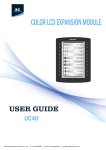
COLOR LCD EXPANSION MODULE 86(5*8,'( UC40 Hanlong Technology(Nanjing) Co., Ltd 86-25-84658050 www.h-tek.com [email protected] Notices Information Notices Information Copyright Copyright © 2005 - 2015 Nanjing Hanlong Technology CO., LTD. All rights reserved. Nanjing Hanlong Technology Co., LTD. owns all the right to revise and change this document at any time. And all the illustrations and instructions in this paper are subject to the copyright protection of legal law. No parts of this document may be used or reproduced, transmitted by the third parties for any purposes without the express written permission of Nanjing Hanlong Technology Co., LTD. When this document is made available on Hanlong’s web page, hanlong Technology Co., LTD. gives its right to download and print copies of this content only for private use as a user manual. No parts shall have the right to alter, modify or use as commercial means without the express written permission of Nanjing Hanlong Technology Co., LTD. Safety cautions To use the device follow the instructions in this manual. To use the power adapter that delivered with the device. Other power adapters may damage the device. The device is only for indoor use. And also avoid in high humidity, water and some other liquids. Do not use the device during thunderstorms. CE FCC Disposal of the phone This symbol indicates that the product is classified as electrical or electronic equipment and should not be disposed of with other commercial or household waste at the end of its working life. Cleaning To clean the device, use an anti-static cloth. Please avoid cleaning liquids as they might damage the surface or internal electronics of the phone Copyright © Nanjing Hanlong Technology Co., Ltd. 2005-2015 All rights reserved. 1 Table of Content Table of Content Notices Information ........................................................................................................................ 1 Copyright .................................................................................................................................. 1 Safety cautions .......................................................................................................................... 1 Disposal of the phone................................................................................................................ 1 Cleaning .................................................................................................................................... 1 Table of Content ............................................................................................................................. 2 Getting Started ................................................................................................................................ 4 Packing List .............................................................................................................................. 4 Expansion Module Installation ................................................................................................. 6 1. Connect the expansion module and IP Phone ............................................................... 6 2. Attach the Foot stand..................................................................................................... 6 3. Connect the IP Phone and Power .................................................................................. 7 Getting Familiar with Expansion Module .................................................................................... 8 Hardware Components Preview ................................................................................................ 8 Icon Preview ............................................................................................................................. 9 How to connect to the IP Phone................................................................................................. 11 Change the IP Phone to “Connect to Expansion Module.” ..................................................... 11 Features Configuration ................................................................................................................ 11 Line ......................................................................................................................................... 11 Speed Dial ............................................................................................................................... 12 BLF ......................................................................................................................................... 12 Voice Mail ............................................................................................................................... 14 Direct Pickup .......................................................................................................................... 14 Group Pickup .......................................................................................................................... 15 Call Park.................................................................................................................................. 15 Intercom .................................................................................................................................. 16 DTMF ..................................................................................................................................... 17 Prefix ....................................................................................................................................... 17 Local Group ............................................................................................................................ 18 XML Group............................................................................................................................. 18 LDAP ...................................................................................................................................... 19 XML Browser ......................................................................................................................... 20 Broadsoft Group...................................................................................................................... 20 Conference .............................................................................................................................. 21 Forward ................................................................................................................................... 21 Transfer ................................................................................................................................... 22 Hold......................................................................................................................................... 22 Group Listening ...................................................................................................................... 23 DND ........................................................................................................................................ 23 Redial ...................................................................................................................................... 24 Call Return .............................................................................................................................. 25 SMS......................................................................................................................................... 25 Copyright © Nanjing Hanlong Technology Co., Ltd. 2005-2015 All rights reserved. 2 Getting Started Record ..................................................................................................................................... 26 Paging ..................................................................................................................................... 26 Shared Line ............................................................................................................................. 27 Public Hold ............................................................................................................................. 28 Private Hold ............................................................................................................................ 28 Hot Desking ............................................................................................................................ 29 ACD(Pending) ........................................................................................................................ 29 Zero Touch .............................................................................................................................. 30 Multicast Paging ..................................................................................................................... 31 Upgrade ........................................................................................................................................... 32 A. Upgrade via IP Phone ......................................................................................................... 32 B. Upgrade via Exp upgrade server ( Only works for HTTP) ................................................ 32 Copyright © Nanjing Hanlong Technology Co., Ltd. 2005-2015 All rights reserved. 3 Getting Started Getting Started Packing List The package contains the following parts, please check if all the items are not missed: 1. The Expansion module device 2. The Stand 3. Connecting Sheet Copyright © Nanjing Hanlong Technology Co., Ltd. 2005-2015 All rights reserved. 4 Getting Started 4. Power adapter 5. Ethernet cable/Connecting Cord 6. Quick installation reference 7. Quick installation reference Copyright © Nanjing Hanlong Technology Co., Ltd. 2005-2015 All rights reserved. 5 Getting Started Expansion Module Installation 1. Connect the expansion module and IP Phone 2. Attach the Foot stand Copyright © Nanjing Hanlong Technology Co., Ltd. 2005-2015 All rights reserved. 6 Getting Started 3. Connect the IP Phone and Power Note: 1. In order to use the UC40, you must first change a setting in the phone attached to the UC40 to accept Expansion Modules on the PC Port. This setting can be found in the phone menu under "Settings / Advanced Settings / Network / PC Port" or in the web GUI under "Network / PC Port". 2. Our expansion modules must be connected to the IP Phone’s PC port and can’t be connected to the any switches in a LAN. 3. Use the "Uplink" port on the UC40 to connect to the phone, or to the previous UC40 in the chain (if using multiple UC40s). Use the "Downlink" port to connect to the next UC40 in the chain. 4. The open "Downlink" port on the last UC40 may be used as an Ethernet port to provide a data connection to a PC or other device.(please refer to the “Figure 1”) 5. The HTek IP phones UC86x and UC84x can support six expansion modules at most. Figure 1 Copyright © Nanjing Hanlong Technology Co., Ltd. 2005-2015 All rights reserved. 7 Getting Familiar with Expansion Module Getting Familiar with Expansion Module Hardware Components Preview Copyright © Nanjing Hanlong Technology Co., Ltd. 2005-2015 All rights reserved. 8 Getting Familiar with Expansion Module Icon Preview Icon Description Line(Registered succeed) Line (Unregistered) Line(Ringing) Speed Dial BLF BLF(Ringing) BLF(Talking) Voice messages Pick up Call Park Intercom/Paging DTMF Prefix XML Group Local Group XML Browser Copyright © Nanjing Hanlong Technology Co., Ltd. 2005-2015 All rights reserved. 9 Getting Familiar with Expansion Module LDAP Broadsoft Group Conference Forward Transfer Hold Line on Hold DND Redial Call Return SMS Record Recording Group Listening Shared Line Other Functions Copyright © Nanjing Hanlong Technology Co., Ltd. 2005-2015 All rights reserved. 10 How to connect to the IP Phone How to connect to the IP Phone Change the IP Phone to “Connect to Expansion Module.” Log on the web page of Phone, on the page “NetworkBasic”, PC Port option, choose “Connect to Expansion Module”. After save set the Phone will reboot. Features Configuration Line It works same as Line keys. To configure Line Feature via Web Interface 1. Click Function keys →EXP Key. 2. Select the wanted Key and set as Line. 3. Select the Account. Copyright © Nanjing Hanlong Technology Co., Ltd. 2005-2015 All rights reserved. 11 Features Configuration 4. Click the to save the configuration. Speed Dial With this feature, you can dial one directory by press the definite key. To configure Speed Dial feature via Web Interface 1. Click Function keys →EXP Key. 2. Select the wanted Key and set as Speed Dial. 3. Enter the desired phone number in the Value field. 4. Filled the Label displayed on LCD 5. Select the Account. 6. Click the to save the configuration. BLF You can use the BLF (Busy Lamp Field) feature to monitor a specific one whether his phone is busy or free. Copyright © Nanjing Hanlong Technology Co., Ltd. 2005-2015 All rights reserved. 12 Features Configuration 1. When the monitored line is idle, the light is steady green. 2. When the monitored line is ringing, the light is blinking red, press the BLF key to pick the phone up directly. 3. When the monitored line is calling or in a conversation, the light is steady red. To configure a BLF key by web 1. Click Function keys → EXP Key. 2. Select the desired Key and select BLF in the Type. 3. Enter the monitored phone number in the Value field. 4. Filled the Label displayed on LCD. 5. Select the Account. 6. Filled the Pickup code. 7. Click to save the configuration and then restart. Note: This feature is not available on all servers. For more information, contact your system administrator. In the Web interface, you can also active the pickup function(Setting->Features->Call Pickup) and set the pickup code. For example, if you set the BLF value as 333, and the pickup code is **, then when there is an incoming call to 333, press the BLF key, it will call out the ** automatically to pickup the incoming call on 333. Copyright © Nanjing Hanlong Technology Co., Ltd. 2005-2015 All rights reserved. 13 Features Configuration Voice Mail To configure Voice Mail feature via Web Interface 1. Click Function keys → EXP Key. 2. Select the wanted Key. 3. Enter the desired voicemail feature codes in the Value field. 4. Filled the Label displayed on LCD. 5. Select the Account. 6. Click to save the configuration. Direct Pickup With this feature, you can pick up the set line when it ringing. To configure Direct Pickup feature via Web Interface 1. Click Function keys → EXP Key.. 2. Select the wanted Key and set as Direct Pickup. 3. Enter the pickup code and followed the desired phone number in the Value field. 4. Filled the Label displayed on LCD. 5. Select the Account. 6. Click to save the configuration. Copyright © Nanjing Hanlong Technology Co., Ltd. 2005-2015 All rights reserved. 14 Features Configuration Group Pickup With this feature, you can pick up the specified group that you want incoming calls. To configure the Group Pick up via Web interface 1. Click Function keys → EXP Key. 2. Select the desired Key and select Group Pickup in the Type. 3. Enter the pickup code and followed the desired Group number in the Value field. 4. Filled the Label displayed on LCD.. 5. Click to save the configuration. Call Park With this feature, you can put a call on hold and continue the conversation from another phone. To configure the Call Park via Web interface 1. Click Function key → EXP Key. 2. Select the desired Key and select Call Park in the Type. 3. Enter the park feature codes in the value field. 4. Filled the Label displayed on LCD. 5. Select the Account. 6. Click to save the configuration. Copyright © Nanjing Hanlong Technology Co., Ltd. 2005-2015 All rights reserved. 15 Features Configuration Note: Your VoIP PBX must support this feature and enable this feature. Intercom When use the intercom feature, you can quickly get access connect to the configured EXPension. To configure Intercom feature via Web Interface 1. Click Function keys → EXP Key. 2. Select the wanted Key and select Intercom as the Type. 3. Enter the intercom codes followed by desired number in the Value field. 4. Filled the Label displayed on LCD. 5. Select the Account. 6. Click to save the configuration. Note: This feature is not available on all servers. For more information, contact your system administrator, And make sure the intercom EXPension enables the Auto-answer function. Copyright © Nanjing Hanlong Technology Co., Ltd. 2005-2015 All rights reserved. 16 Features Configuration DTMF When the key is configured as DTMF key, You are allowed to send out the desired DTMF number during the conversation. To configure the DTMF via Web interface 1. Click Function keys → EXP Key. 2. Select the desired Key and select DTMF in the Type. 3. Fill the value with the Desired DTMF number 4. Enter the Label displayed on LCD. 5. Click to save the configuration. Prefix If the key is configured as Prefix key, you can set the number prefix (e.g. Before the number plus 9), then you don't input 9, press the key and 9 will display on the LCD interface. To configure the Prefix via Web interface 1. Click Function key → EXP Key. 2. Select the desired Key and select Prefix in the Type. 3. Fill the value with number that you want to set as prefix 4. Enter Label displayed on LCD. 5. Click to save the configuration. Copyright © Nanjing Hanlong Technology Co., Ltd. 2005-2015 All rights reserved. 17 Features Configuration Then when you press this key, the set value is input directly. Local Group When use the Local Group feature, press the key and enter the local Contacts interface quickly. To configure the Local Group via Web interface 1. Click Function key → EXP Key. 2. Select the desired Key and select Local group in the Type. 3. Filled the Label displayed on LCD. 4. Click to save the configuration. Then you can press the local group key to access the pre-defined contact group in the local directory quickly. XML Group When use the XML Group feature,press the key and enter the Remote Contacts interface quickly. Copyright © Nanjing Hanlong Technology Co., Ltd. 2005-2015 All rights reserved. 18 Features Configuration To configure the Local Group via Web interface 1. Click Function key → EXP Key. 2. Select the desired Key and select XML group in the Type. 3. Filled the Label displayed on LCD. 4. Click to save the configuration. LDAP When use the LDAP feature, you can get the LDAP Phonebook directly. To configure the LDAP via Web interface 1. Click Function key → EXP Key. 2. Select the desired Key and select LDAP in the Type. 3. Filled the Label displayed on LCD. 4. Click to save the configuration. Copyright © Nanjing Hanlong Technology Co., Ltd. 2005-2015 All rights reserved. 19 Features Configuration XML Browser To configure the XML Browser via Web interface 1. Click Function key → EXP Key. 2. Select the desired Key and select xml browser in the Type. 3. Filled the value and Label. 4. Click to save the configuration. Broadsoft Group When use the BroadSoft Group feature,press the key and enter the Remote Contacts interface quickly. To configure the Broadsoft group via Web interface 1. Click Function key → EXP Key. 2. Select the desired Key and select Broadsoft group in the Type. 3. Filled the Label displayed on LCD. 4. Click to save the configuration. Copyright © Nanjing Hanlong Technology Co., Ltd. 2005-2015 All rights reserved. 20 Features Configuration Conference The HanLong IP Phone supports up to 5-way conference. You are allowed to configure the programmable key to be used as a conference key. To configure Conference via Web Interface 1. Click Function keys →EXP Key. 2. Select the desired Key and select Conference in the Type. 3. Enter the Label displayed on LCD. 4. Click to save the configuration. Forward If the key is configured as Forward key, press this key under the idle status, the IP phone will turn to the Always Forward interface and you can set the Forward to number, then when there is any call to the EXPension number will be forwarded to the set number automatically. To configure Forward via Web Interface 1. Click Function keys →EXP Key. 2. Select the desired Key and select Forward in the Type. 3. Enter the Value with the number you want to forward 4. Enter the Label displayed on LCD. 5. Click to save the configuration. Copyright © Nanjing Hanlong Technology Co., Ltd. 2005-2015 All rights reserved. 21 Features Configuration Transfer You are able to configure the key as a transfer key to perform the Blind/Attended Transfer. To configure Transfer via Web Interface 1. Click Function keys →EXP Key. 2. Select the desired Key and select Transfer in the Type. 3. Enter the Value with the number that wanted transfer to 4. Enter the Label displayed on LCD. 5. Click to save the configuration. Hold The key can be configured as a hold key. You can use this key to hold and resume a call during the conversation. To configure Hold via Web Interface Copyright © Nanjing Hanlong Technology Co., Ltd. 2005-2015 All rights reserved. 22 Features Configuration 1. Click Function keys →EXP Key. 2. Select the desired Key and select Hold in the Type. 3. Enter the Label displayed on LCD. 4. Click to save the configuration. Group Listening To configure Group listening via Web Interface 1. Click Function keys →EXP Key. 2. Select the desired Key and select Group listening in the Type. 3. Enter the Label displayed on LCD. 4. Click to save the configuration. DND If the key is configured as DND key, you are allowed to active the DND function immediately when you press it and the phone is to reject all incoming calls automatically. Press it again to Copyright © Nanjing Hanlong Technology Co., Ltd. 2005-2015 All rights reserved. 23 Features Configuration deactivate DND mode. To configure DND via Web Interface 1. Click Function keys →EXP Key. 2. Select the desired Key and select DND in the Type. 3. Enter the Label displayed on LCD. 4. Click to save the configuration. Redial If the key is configured as Redial key, you can redial the last placed call from the IP Phone. To configure Redial via Web Interface 1. Click Function keys →EXP Key. 2. Select the desired Key and select redial in the Type. 3. Enter the Label displayed on LCD. 4. Click to save the configuration. Copyright © Nanjing Hanlong Technology Co., Ltd. 2005-2015 All rights reserved. 24 Features Configuration Call Return When the key is configured as Call Return key you are allowed to dial out the last phone call you received. To configure Call Return via Web Interface 1. Click Function keys →EXP Key. 2. Select the desired Key and select Call Return in the Type. 3. Enter the Label displayed on LCD. 4. Click to save the configuration. SMS To configure SMS via Web Interface 1. Click Function keys →EXP Key. 2. Select the desired Key and select SMS in the Type. 3. Enter the Label. 4. Click to save the configuration. Copyright © Nanjing Hanlong Technology Co., Ltd. 2005-2015 All rights reserved. 25 Features Configuration Record With record feature, you can record calls by pressing a record key on the phone. To configure the record via Web Interface 1. Click Function keys → EXP Key. 2. Select the desired Key and select Record in the Type. 3. Enter the Label dispalyed on LCD. 4. Click to save the configuration. Note: Please contact the system administrator whether support this feature or not. Paging With this feature, you can call a phone or a group directly. To configure the Paging via Web interface 1. Click Function keys → EXP Key. Copyright © Nanjing Hanlong Technology Co., Ltd. 2005-2015 All rights reserved. 26 Features Configuration 2. Select the desired Key and select Paging in the Type. 3. Enter the Paging codes followed by phone number or group number 4. Enter the Label dispalyed on LCD. 5. Click to save the configuration. Shared Line This feature allows subscribers to share SIP lines. Moreover it also provides status monitoring of the shared line. To configure shared line via Web Interface 1. Click Function keys →EXP Key. 2. Select the desired Key and select Shared Line in the Type. 3. Enter the Value. 4. Enter the Label dispalyed on LCD. 5. Select the Account. 6. Click to save the configuration and then restart. Copyright © Nanjing Hanlong Technology Co., Ltd. 2005-2015 All rights reserved. 27 Features Configuration Note: This feature is not available on all servers. For more information, contact your system administrator. Public Hold The key can be configured as a public hold key. During a conversation, all members belonging to that particular SLA group can use this key to hold or resume a call. To configure public hold via Web Interface 1. Click Function keys →EXP Key. 2. Select the desired Key and select public hold in the Type. 3. Enter the Label dispalyed on LCD. 4. Click to save the configuration. Private Hold The key can be configured as a private hold key. During a conversation, all members belonging to that particular SLA group can use this key to hold the call, but only the initiator can resume the call. To configure private hold via Web Interface 1. Click Function keys →EXP Key. 2. Select the desired Key and select public hold in the Type. 3. Enter the Label dispalyed on LCD. 4. Click to save the configuration. Copyright © Nanjing Hanlong Technology Co., Ltd. 2005-2015 All rights reserved. 28 Features Configuration Hot Desking Hot Desking originates from the definition of being the temporary physical occupant of a work station or surface by a particular employee. A primary motivation for Hot Desking is cost reduction. This feature is regularly used in places where not all the employees are in the office at the same time, or not in the office for very long at all, which means actual personal offices would be often vacant, consuming valuable space and resources. You can use Hot Desking on the IP phone to logout the existing accounts and then log in a new account, that is, many users can share the phone resource in different time. To use this feature, you need to configure a Hot Desking key in advance. To configure Hot Desking via Web Interface 1. Click Function keys →EXP Key. 2. Select the desired Key and select hot desking in the Type. 3. Enter the Label dispalyed on LCD. 4. Click to save the configuration ACD(Pending) ACD feature is often used in offices for customer service, such as call center. The ACD system handles large volumes of incoming calls from callers who have no need to talk to a specific person but who require assistance from any of multiple persons at the earliest opportunity. The ACD Copyright © Nanjing Hanlong Technology Co., Ltd. 2005-2015 All rights reserved. 29 Features Configuration feature on the Htek IP Phone allows the ACD system to distribute calls from large volumes of incoming calls to the registered IP phone users. To use this feature, you should configure an ACD key in advance. To configure ACD via Web Interface 1. Click Function keys →EXP Key. 2. Select the desired Key and select ACD in the Type. 3. Enter the Label dispalyed on LCD. 4. Click to save the configuration Zero Touch You can use this key feature to configure auto provision and network parameters quickly. To configure Zero Touch via Web Interface 1. Click Function keys →EXP Key. 2. Select the desired Key and select zero touch in the Type. 3. Enter the Label dispalyed on LCD. 4. Click to save the configuration Copyright © Nanjing Hanlong Technology Co., Ltd. 2005-2015 All rights reserved. 30 Features Configuration Multicast Paging Hanlong IP Phones support MultiCast Paging function, you can use this function follow below steps: Firstly, Multicast address is a Class D addresses are reserved from 224.0.0.0-239.255.255.255, some have a specific use, such as address 224.0.0.0-244.0.0.255 only be used for LAN router is not forward, and 224.0 .0.1 the addresses of all hosts, 224.0.0.2 all routers address, 224.0.0.5 address all of routers 224.0.13 is PIMv2 router address; 239.0.0.0-239.255.255.255 is a private address (such as 192.168.x ..x); 224.0.1.0-238.255.255.255 can use the Internet. To configure Multicast Paging via Web Interface 1. Click Function keys →EXP Key. 2. Select the desired Key and select multicast paging in the Type. 3. Enter the multicast address in the Value field. 4. Enter the Label dispalyed on LCD. 5. Click to save the configuration Copyright © Nanjing Hanlong Technology Co., Ltd. 2005-2015 All rights reserved. 31 Upgrade Upgrade Two ways to upgrade for the Expansion Module A. Upgrade via IP Phone 1. Connect the expansion module with IP Phone 2. Click Management Auto Provison 3. Choose Yes for the Self as Server 4. Put the Expansion module firmware files under the same path of the upgrade for IP Phone, and upgrade via TFTP/FTP/HTTP/HTTPS B. Upgrade via Exp upgrade server ( Only works for HTTP) 1. Connect the expansion module with IP Phone Copyright © Nanjing Hanlong Technology Co., Ltd. 2005-2015 All rights reserved. 32 Upgrade 2. Click Management Auto Provison 3. Choose No for the Self as Server 4. Set the exp upgrade server path: 172.20.xxx.xx (The http server address must start with 172.20.) Upgrade via HTTP. 5. Copyright © Nanjing Hanlong Technology Co., Ltd. 2005-2015 All rights reserved. 33