1
Traffic overview screen
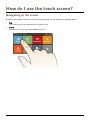
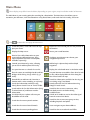
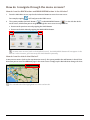
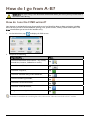
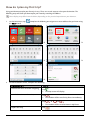
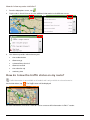
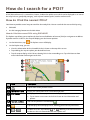
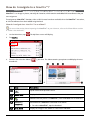
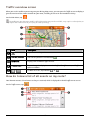
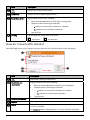
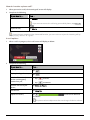
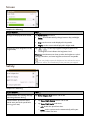
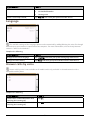
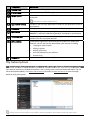
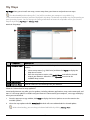
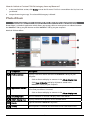
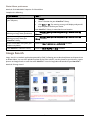
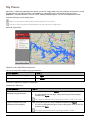
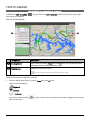
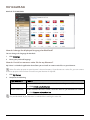
When you see the traffic event message on your driving Map screen, you can open the Traffic screen to display a
general overview of the traffic situation on your route, including all events in the immediate vicinity.
On the Main Menu, tap
.
Depending on your Navman model, traffic information may not be available, may require a subscription, or
may require the Traffic Accessory Kit (may be sold separately).
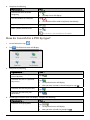
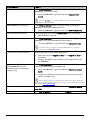
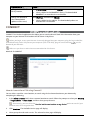
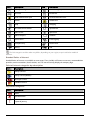
Item
Description
Tap to return to the previous screen.
Current position
Your current position is marked with
Event icon
Displays icon to indicate type of event.
Title bar tabs
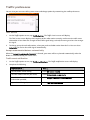
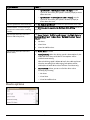
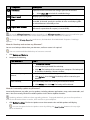
Tap to change the display between the Traffic, All traffic events, and Traffic
Options windows.
/
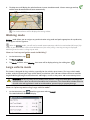
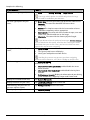
To zoom in or out, tap and hold
.
or
.
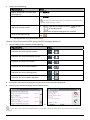
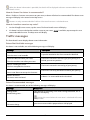
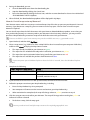
How do I view a list of all events on my route?
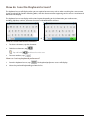
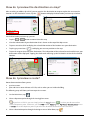
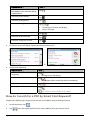
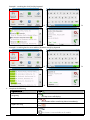
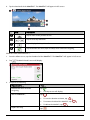
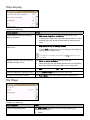
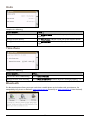
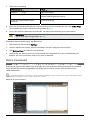
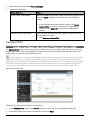
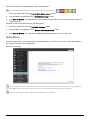
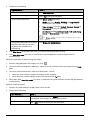
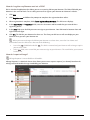
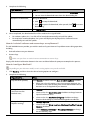
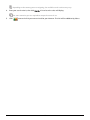
Your Navman creates a list of events as they are received, which is displayed on the All traffic events screen.
On the Traffic screen, tap
.
35