1
0
Digital Writing Pad User Manual
Table of Content
1. Product....................................................................................................... 2
1-1
1-2
1-3
1-4
Product Introduction ........................................................................ 2
Features .......................................................................................... 2
Product and Accessories................................................................. 2
Functions......................................................................................... 3
2. Hardware Installation ................................................................................ 4
2-1
2-2
Illustration of Installation.................................................................. 4
Install Step by step .......................................................................... 5
3. NXBoard Software and Touch Driver....................................................... 6
3-1
3-2
3-3
Introduction...................................................................................... 6
Recommend System Spec .............................................................. 7
Install Microsoft Windows XP Tablet PC Edition Development Kit
1.7 .................................................................................................... 7
3-4 Install Microsoft Windows XP Tablet PC Edition 2005 Recognizer
(Windows XP Only)........................................................................... 9
3-5 Install NXBoard Software .............................................................. 10
3-6 Install Wireless Driver..................................................................... 13
3-7 Install WUSB Driver....................................................................... 14
3-8 Wireless transmission.................................................................... 15
3-9 NXBoard Online Register .............................................................. 16
3-10 NXBoard Software Function Introduction ...................................... 17
4. Definitions of On Screen Display Control Key...................................... 29
4-1
4-2
Navigating the OSD Menu............................................................. 29
OSD Menu on VGA Mode ............................................................. 30
5. Revision History ...................................................................................... 32
1
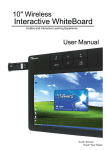
10" Wireless interactive whiteboard User Manual
1. Product
1-1
Product Introduction
The 10” wireless interactive whiteboard integrates 10” widescreen display
with touch technology, which is a creative solution for teaching environment.
You can instantly present through a second display or a projector, what you
just wrote on the 10” wireless interactive whiteboard would be
simultaneously showed on the projector wall. You can easily make marks
and comments on digital files which enables you to interact with your
students as well as improve your teaching quality, renewing the traditional
teaching methods.
1-2
Features
1. Intuitive Operation
Different from other products in the market, 10” wireless interactive
whiteboard is embedded with 10” widescreen display that is user-friendly
and requires no practice before operating.
2. Wireless transmission
With a wireless design, 10” wireless interactive whiteboard help you get
rid of those annoying cables and it allows maximum distance of data
transmission 10 meters.
3. Ergonomic Design
Taking place of the traditional mouse, the writing stylus efficiently
reduces injuries caused by using mouse constantly.
4. Multiple functions
10” wireless interactive whiteboard is built-in four hot keys for NXBoard
software.
1-3
Product and Accessories
l
l
l
l
Wireless interactive whiteboard
Stylus
User manual
Wireless PC Adapter
l
l
l
l
Wireless Device Adapter
Wireless USB Dongle Driver CD
NXBoard Software & Driver CD
Power Adapter
2
10" Wireless interactive whiteboard User Manual
1-4
Functions
Hotkeys (Functions are enable under OSD menu)
Battery information/Exist OSD menu
Enter OSD menu / Select
Decrease the value “ ━ ” (minus), or “◄” (Left) Select below function
Increase the value “ ┿ ” (plus), or “►” (Right) Select up function
No function
No function
Hotkeys (Functions are enable under NXBoard Software interface)
Selection
Return to last function for (Flood Fill/Text Box/Stamper/Medium
Eraser/Pen/Florescent Pen/Creativity Pen/Cut)
White Board Mode
Click Through
2. Hardware Installation
2-1 Illustration of Installation
※ To release the battery pack:
※ Battery can be used about 3 hours when it is fully charged.
4
10" Wireless interactive whiteboard User Manual
2-2 Install Step by step
•
•
•
•
Step 1
Step 2
Step 3
Step 4
•
Step 5 Waiting for dialogue box shows “Wireless USB Dongles has been
paired”. Check and choose “ok” when the wireless USB dongle has
been paired.
•
Step 6
Press the power button locating in the upper left to turn on the
wireless interactive whiteboard.
•
Step 7
Pull the Wireless Device Adapter out the PC’s another USB port, and
plug it in the Wireless interactive whiteboard’s USB port.
•
Step 8
The indicator light of Wireless Device Adapter and Wireless PC
Adapter start to twinkle.
•
Step 9 When the Wireless PC Adapter has been connected to Wireless
Install Wireless USB Dongle Driver Software (Refer to page 13 )
Plug your projector’s VGA connector in PC’s VGA port.
Plug the Wireless PC Adapter in the PC’s USB port.
Plug the Wireless Device Adapter in the PC’s another USB port.
Device Adapter, the
will be showed in right descend corn.
(※ When you change the computer, you need to pair Wireless Device Adapter and
Wireless PC Adapter again.)
Wireless PC Adapter
Wireless Device Adapter
5
10" Wireless interactive whiteboard User Manual
3. NXBoard Software and Touch Driver
3-1
Introduction
NXBoard, the cutting edge software, offers the new teaching ways that
you have never imaged before. It has user-friendly interface and most powerful
multiple functions and it saves the teacher’s time to prepare the lessons.
NXBoard supports almost all formats of files which you can import as your
teaching materials such as website, flash contents, youtube videos, pictures
and power points and so on.
6
10" Wireless interactive whiteboard User Manual
3-2
Recommend System Spec
PC Hardware & Software Requirements
Section
Specification
Processor
1.8GHz Core2 Due or higher
Memory
2GB
DirectX
V9.0c or higher
OS
Windows 2000/ Windows XP/ Windows Vista/ Windows 2003
/ Windows 7
Recommended
resolution
1024×600@ 60 Hz
Office
applications
Office XP / 2002 / 2003 / 2007
Support resolution 800×600, 1024×600, 1024×768, 1280×800, 1280×1024
Web browser
Internet Explorer, Firefox
Video Device
Supported Direct X 8.1 and higher VGA Graphic Card
Audio Device
Build-in Audio Chipset and Audio Speaker
3-3
Install Microsoft Windows XP Tablet PC Edition Development Kit 1.7
A.
B.
Select “Next” to proceed.
Enter the installation page.
7
10" Wireless interactive whiteboard User Manual
C.
D.
Select “I accept the terms in the
license agreement” and “Next” to
proceed.
Select “Everyone who use the
computer (all users)” and “Next” to
proceed。
E.
F.
Select “Custom” and “Next” to
proceed.
G.
Select “Next” to proceed.
H.
Select “Install” to install the
software.
The installation page will be closed
automatically after the installation is
done.
8
10" Wireless interactive whiteboard User Manual
3-4 Install Microsoft Windows XP Tablet PC Edition 2005 Recognizer
(Windows XP Only)
A.
B.
Select “Next” to proceed.
Please select “I accept the terms
in the license agreement” and
select “Next” to proceed。
C.
D.
Select “Next” to proceed after filling
out Customer Information.
E.
Please select “Custom” and “ Next”
to proceed.
F.
The installation page will be closed
automatically after the installation is
done.
Select “Install” to install the
software.
9
10" Wireless interactive whiteboard User Manual
3-5
Install NXBoard Software
A.
B.
Select Installer Language
Traditional Chinese
Simplified Chinese
English P
Dutch
Click “ Install” to proceed
C.
D.
Select “Next” to proceed.
Please select “the destination folder” then
click “Install” to proceed.
F.
E.
Installation page automatically
proceed.
While entering the installation page, select
“Next” to proceed.
10
10" Wireless interactive whiteboard User Manual
G.
H.
Select “Next” to proceed.
Select “Next” to proceed.
I.
J.
Please select “None” to do 4 point
calibration when the system starts and
select “Next” to proceed.
K.
After making sure the USB Touch device
is installed correctly, select “OK” to
proceed.
L.
Select “Next” to proceed.
Select “Next” to proceed.
11
10" Wireless interactive whiteboard User Manual
M.
N.
Select “Next” to proceed.
The “Installing” Image
O.
Select “Finish” when installation is
completed
12
10" Wireless interactive whiteboard User Manual
3-6
Install Wireless Driver
A.
B.
Select “DisplayLink-5[1].2.22663.exe”
which is in the Wireless Driver file to
proceed.
Select language and read the license
agreement, select “I Accept” and precede
installation
C.
D.
Installation page automatically
proceed.
Wireless Driver has been installed in your
computer.
13
10" Wireless interactive whiteboard User Manual
3-7
Install WUSB Driver
A.
B.
If your computer is 32 bits, select
“WUSB WinDrivers_×32.exe” which is in
the WUSB file to proceed.
Installation page automatically proceed.
If your computer is 64 bits, select
“WUSB WinDrivers_×64.exe” which is in
the WUSB file to proceed.
D.
C.
Choose your geographic location.
Installation page automatically proceed.
E.
Setup complete
14
10" Wireless interactive whiteboard User Manual
3-8
Wireless transmission
•
Step1: After you installed the wireless driver, you will find a new icon
your tool bar.
•
Step2: Pair the wireless USB dongle. (Refer to page 5)
•
Step3: Plug the PC Adapter into the USB port of your computer.
•
Step4: Plug the Device Adapter into the USB port of wireless interactive
whiteboard.
•
Step5: Turn your wireless interactive whiteboard on.
•
Step6: The indicator of both wireless USB dongles (PC/Device Adapter) will
start to flashing and the monitor of wireless interactive whiteboard will
on
receive images. The Wireless icon turns to green .
(The Wireless icon turns to red
represent no signal is being
received.)
•
Step7: A new icon
is shown on the tool bar while the wireless
transmission is being activated.
•
Step8: Wireless transmission setting is done.
※If you has some problems with the images on the screen of wireless interactive
whiteboard, try to click
(The icon
to open the menu and choose “ mirror“.
is only shown while wireless transmission is being activated.)
15
10" Wireless interactive whiteboard User Manual
3-9
NXBoard Online Register
※One serial number is bound for one computer. You don’t need to register
again after first time.
A.
B.
While you first time to start “NXBoard“, it
will ask you to register online. Click
“ Next ” to proceed.
Click the “get code“ button after you fill
out the information boxes.
D.
C.
Waiting for 1 or 2 minutes, you will receive
the code in the mail address that you filled
above. Fill the code in “verify code“ box
and click “Register“.
The online register procedure is done,
please click “Next” to proceed.
16
10" Wireless interactive whiteboard User Manual
3-10
NXBoard Software Function Introduction
Picture 1: View of NXBoard after starting the application
17
10" Wireless interactive whiteboard User Manual
Vertical Taskbar Functions
Switch: Switch the column of vertical bar to the next column of
functions.
Red: Select the red color (for pen, fluorescent pen, creativity pen, flood fill.)
Blue: Select the blue color (for pen, fluorescent pen, creativity pen, flood fill).
Green: Select the green color (for pen, fluorescent pen, creativity pen, flood fill).
Black: Select the black color (for pen, fluorescent pen, creativity pen, flood
fill).
Flood fill: Fill an area, object or shape with the selected color.
Textbox: Make a textbox, and enter text with the keyboard or on screen keyboard.
Stamper: Stamp using the selected stamp icon.
Eraser: Eraser tool. Select the size of the eraser by clicking the icon multiple times.
Pen tool: Write and draw with selected pen thickness and color.
Fluorescent pen: Make semi transparent highlights with selected pen thickness and
color.
Creativity pen: Write and draw with selected pen with change thickness, color, and
format.
Selection: Go to Selection mode to select objects or shapes and then move, change or
remove them.
18
10" Wireless interactive whiteboard User Manual
Vertical taskbar functions (2)
Switch: Switch to the next column of functions.
Freehand Shape: draws a line between one or more points with selected line type,
thickness and color.
Line: Draw a line on the whiteboard.
Rectangle: Draw a rectangle with the desired size on the whiteboard.
Circle: Draw a circle with the desired size on the whiteboard.
Ellipse: Draw an ellipse with the desired size on the whiteboard.
Triangle: Draw a triangle with the desired size on the whiteboard.
Etriangle: Draw an Etriangle with the desired size on the whiteboard.
Diamond: Draw a Diamond with the desired size on the whiteboard.
Pentagon: Draw a pentagon with the desired size on the whiteboard.
Star: Draw a star with the desired size on the whiteboard.
Table: Draw a table with the desired size on the whiteboard.
Selection: Go to Selection mode to select objects or shapes and then move, change or
remove them.
19
10" Wireless interactive whiteboard User Manual
Horizontal taskbar functions
Desktop
Mode
If the Return to Desktop icon is clicked, the NXBoard
icon. This icon is
application will be minimized to the
placed at the right bottom corner of the screen. The Pen can
now be used to start and navigate in window applications.
NXBoard can be used again immediately by clicking on the
icon.
Click
Through
When the Click Through function is started, the icon will change
from
.In Click Through mode, the whiteboard
to
and icons are visible. Some icons are not active and are grayed
out. The Pen can be used now to activate shortcuts on the
desktop, to start and control windows applications. If any of the
active icons are clicked (for example the pen), the click through
mode will be stopped automatically.
Whiteboard Switch between Whiteboard mode and transparent desktop
mode
mode.
Cut
With the Cut function you can make a copy from the desktop or
from an application (for example part of a webpage in Internet
explorer) and place this on the whiteboard as an object. Place
the Pen at the corner of the area to be copied and drag the
pressed Pen to the opposite corner of the area. You will see a
semi-transparent rectangle appearing. At the moment the Pen
is not pressed anymore, the area will be copied to an object.
The object can now be dragged to your preferred location on
the whiteboard.
20
10" Wireless interactive whiteboard User Manual
Zoom
in/out
With the Zoom function, you can zoom in or zoom out on a
certain area of the whiteboard. During Zoom mode, a pop-up
button
menu appears for further options, by Clicking
to zoom in and zoom out the image. Click
move the zone;Click
function.
Spot Light
button,You can
button means shut down this
With the help of the Spotlight function a selected area of the
whiteboard can be highlighted. During Spotlight mode, a
pop-up menu appears for further options.
button, you can move or change the size of
By Clicking
zone;By Clicking
button, you can change Menu for
choosing the Spotlight shape, background color and
percentage transparency.
By Clicking
button, it means Stop Spotlight mode
21
10" Wireless interactive whiteboard User Manual
Screen
Shade
With the help of the screen shade it is possible cover a certain
area of the whiteboard (for example the area with answers to
certain questions). Horizontal, vertical and a combination of
horizontal en vertical shades are available. During the screen
shade mode, a pop-up menu appears for further options.
Shapes
With the Shapes function, you can add images and
backgrounds to the whiteboard. When Shapes is clicked, the
following pop-up menu appears.
The pop-up menu has three tabs; Gallery, Background and
Attachment.
Gallery: Here are shown the objects that can be placed on
the whiteboard such as images, geometric shapes, symbols
etc.
Backgrounds: Here are shown the backgrounds for the
whiteboard, such as backgrounds for mathematics, language,
map etc.
Attachment: Objects placed on the whiteboard, can be used
for later use by exporting them. The files are stored in the tabs
Gallery or Attachment. Extra folders can be added for further
categorization. If an object is stored in the Attached File tab, it
will be included into the NXBoard project file when this is
stored. This is useful when creating a NXBoard session at
home. Home created objects can now be carried in the
Attachment tab from home to the school or office location and
can be re-used here. Take care to store not too many objects in
the Attachment tab as it will increase the NXBoard file size.
22
10" Wireless interactive whiteboard User Manual
Print
With the Print function you can print directly to the printer
connected to the computer network. Or you can print to an
export format such as pdf, png (image format), html,
PowerPoint and Email (in development). When the Print icon is
clicked, the following pop-up menu appears.
Camera
When you click the “Camera” function, it can be perfectly
combined
with webcam to apply projector into real-time application. You
can use camera function and other NXBoard’s tool at same
time without any interruption.
This function supports two modes. One is called “real object
projector”, and the other is called “Teaching mode”.
23
10" Wireless interactive whiteboard User Manual
Record
If you click the Record icon, you can make a recording of the
NXBoard session. he file can be recorded in various file
formats, which can be configured in Wizard/Setting.
After stopping the recording, the recording will be converted to
the set video format. After the conversion you can enter the
filename and folder name.
Wizard
Under the Wizard Icon, a number of important functions and
settings are made available.
If the Wizard icon is clicked, the following menu will be made
available. You
can choose now the submenu’s Tools, Print, Setting, Help and
Close.
Page Sorter
In the Page Sorter menu, an overview of all pages in the
current NXBoard session will be presented.
It will show 6 pages at a time. If the session contains more than
6 pages, you can move to the next 6 pages by using the green
arrow button.
24
10" Wireless interactive whiteboard User Manual
Save
With the Save option you can save your current NXBoard
session for later use. You can save the file on the desktop or in
a folder on your own PC or any accessible folder on the
network.
A stored NXBoard session can be started by stopping the
current NXBoard session and then click on the filename of the
stored NXBoard session.
Solving problems
Close
Stop this NXBoard session, close the application.
Previous
Page
[PgUp]
Go back to previous page.
Next Page
[PgDn]
Continue to next page.
New Page
[Ctrl+N]
Add a new page.
Undo
[Ctrl+Z]
Attention. Doesn’t Work for Eraser.
Redo
[Ctrl+Y]
Redo the last step
Recycle
Bin
When you click the recycle bin, all objects will be erased from
the whiteboard. To erase one object, just drag it to the recycle
bin.
25
10" Wireless interactive whiteboard User Manual
Switch
Click
Color Tool
icon, can switch the column A to column B.
There are 4 different default color settings in color tool, or you
can choose other color on your own. By Clicking
icon,
you can use default color tool. However, if you want to use
other color, you need to click the color tool bar, all you just need
is to click
icon for 1 to 2 seconds. Then it will show the
color tool bar.
26
10" Wireless interactive whiteboard User Manual
Flood Fill
This tool can fill color into whole background, and it also can fill
color into the closed lines.
Text Box
This tool can enter the text content, and set up the font’s
settings, it also support the visual keyboard in this tool.
Stamp
This tool supports Stamp format, you also can set up your own
stamp by importing the image from other files.
Eraser
This tool supports three different sizes eraser. You can change
eraser’s sizes by clicking the
icon.
Pen
This tool supports pen for white board. You can change the
format, color, and thickness of the pen.
Fluorescen
t Pen
This tool supports pen to highlight text content. You can change
format, color, and thickness of the pen by clicking quick setting
tool bar.
Creativity
Pen
This tool supports brushes which can draw some creative icons
on the whiteboard. You can change color, format, and thickness
of the pen.
27
10" Wireless interactive whiteboard User Manual
Selection
You can select single item by clicking the mouse, or move the
cursor on the item, then click the right button on the mouse, it
will be show the tool list, which includes:
Rotate an object
Operate on an object
Dimension of an object
Drag (Rotate an object) , it can rotate the item;
Drag(Dimension on an object) , it can enlarge or narrow the
item.
Freehand
Shape
This tool supports user to transfer the handmade shape into the
real one, which like cycle, oval, triangle, and etc.
Line
This tool can draw the straight line.
Polygon
Tool
By clicking the
icon, the toolbar will be transformed into
polygon tool, which supports any geometric figure, and change
the color, format and thickness.
28
10" Wireless interactive whiteboard User Manual
4. Definitions of On Screen Display Control Key
4-1 Navigating the OSD Menu
A. Display the main menu
Press
to display the main menu on the screen.
B. Select the item you want to adjust
Press the
/
button to shift the item selections down or up until it is
desired, and then press the
button again to enter the menu item.
C. Adjust the item setting
Press the
/
button to adjust the value of setting. The value will be
stored automatically once you adjust the value of setting.
D. Exit the OSD menu
To return the regular screen viewing, press the
button. If there is no
command respond for 10 seconds, OSD menu will be closed
automatically.
29
10" Wireless interactive whiteboard User Manual
4-2
OSD Menu on VGA Mode
BRICONTRAST
Press “
” to increase or “
” to decrease
the brightness or contrast
u BRIGHTNESS is used to adjust the
screen’s brightness.
u CONTRAST is used to adjust the screen’s
contrast.
POSITION
You can adjust the screen’s position by
changing its horizontal and vertical position.
u H-POSITION is used to adjust the image to
left or right of the screen.
u V-POSITION is used to adjust the image
up or down of the screen.
IMAGE
You can change the screen quality through
adjusting items under “IMAGE”
u AUTO is used to choose the best settings
for the current input signal.
u CLOCK is used to adjust the value of
horizontal image.
u PHASE is used to adjust the phase control
(Phase adjustment may be required to
optimize the display quality )
u WHITE BALANCE is used to set the RGB
signal voltage level
30
10" Wireless interactive whiteboard User Manual
COLOR
You can set different color levels of the white
color field as the default color temperature.
Besides you can fine tune the color
temperature by selecting “USER” option if
necessary.
u USER is used to set the color temperature
brightness by choosing
RED/GREEN/BLUE for your preference.
u 9300K is used to set the value of the
monitor as 9300 color temperature of the
CIE Color System.
u 6500K is used to set the value of the
monitor as 6500 color temperature of the
CIE Color System.
GAMMA
GAMMA is used to adjust it at four default
levels from GAMMA 0 to GAMMA 3. Select
“RETURN” to the main menu.
RECALL
RECALL is used to recall the original factory
default setting by selecting “YES”. Select “NO”
to return the main menu.
31
10" Wireless interactive whiteboard User Manual
OSD EXIT
You can quit the OSD menu by selecting “YES”.
Select “NO” to return the main menu.
SUMMARY
BRICONT BRIGHTNESS
CONTRAST
RAST
POSITION
IMAGE
COLOR
GAMMA
GAMMA 0
GAMMA 1
GAMMA 2
GAMMA 3
YES
NO
H-POSITION
RECALL
V-POSITION
AUTO
CLOCK
YES
PHASE
OSD EXIT
NO
WHITE
BALANCE
USER(RED/GREEN/BLUE)
9300K
6500K
ADC BRIGHTNESS
5. Revision History
Version
Date
1.0
2010.02.01
Note
ü
First Version
Author
Alicia Liao
32
10" Wireless interactive whiteboard User Manual