1
5.
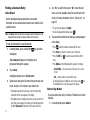
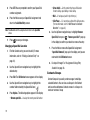
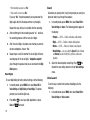
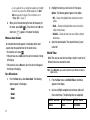
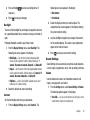
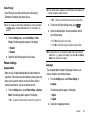
Press SET. You are prompted to confirm your Speed Dial
number assignment.
6.
Press the Yes to save your Speed Dial assignment and
return to the Add New Entry screen.
Note: Press No to discard the assignment and return to the Speed Dial
screen.
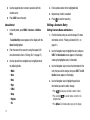
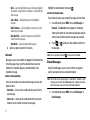
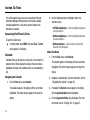
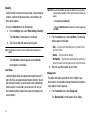
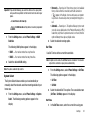
• Set as default — Set the number the phone will dial when
Contacts dialing, speed dialing, or voice dialing.
• Wait — A hard pause (waits for input from you).
• 2-Sec Pause — A 2-second pause after which dialing resumes.
(For more information, refer to “Add Pauses to Contacts
Numbers” on page 34.)
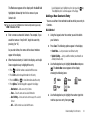
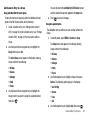
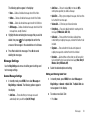
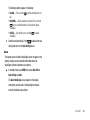
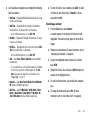
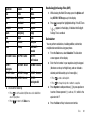
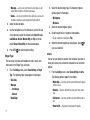
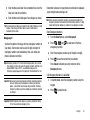
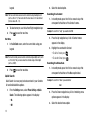
6. Use the Up/Down navigation keys to highlight Remove
Speed Dial, then press
7.
Press
to save your changes.
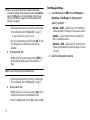
Changing a Speed Dial Location
1.
7.
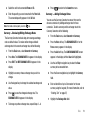
“Speed Dial Removed” pops up in the display, and you are
information, refer to “Finding a Contacts Entry” on
returned to the Edit Contact screen.
8.
Use the Up and Down navigation keys to highlight the
desired entry.
Press Edit. The Edit Contact screen appears in the display.
4.
Use the Up and Down navigation keys to highlight the
number field marked by the Speed Dial icon (
).
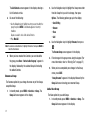
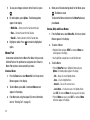
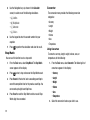
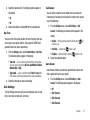
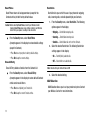
Press Options. The following options appear in the display:
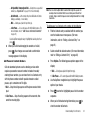
• Remove speed dial — Unassign the current speed dial number.
39
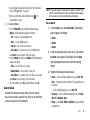
Do steps 3 through 7 of “Assignment During Entry
Creation” on page 38.
Contacts Groups
3.
5.
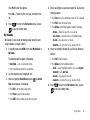
Press the Yes to remove the Speed Dial assignment.
Find the Contacts entry you want to edit. (For more
page 31.)
2.
. “Remove speed dial?” pops up
in the display to confirm your desire to remove the entry.
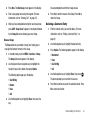
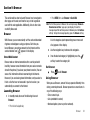
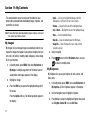
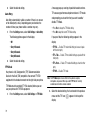
Contact Groups let you easily send messages to multiple,
selected Contacts. You can also use Groups to find Contact
entries and to add/remove Contacts names in a Group or to
create or rename a Group.