1
66
Chapter 6. HarAdmin { The Harmony Administrator
6.4 Managing Users
A Hyper{G user account is not identical to a Unix user account, a user can have
dierent Unix accounts on dierent machines but access a single Hyper{G account.
To gather information about which users exist or which attributes a certain user
has on the current Hyper{G server, press the User button in the Main Window
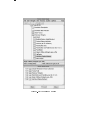
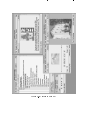
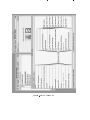
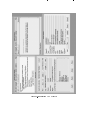
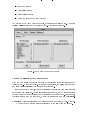
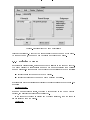
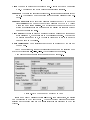
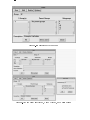
(Figure 6.1) and the User Window in Figure 6.11 appears. A user account is at least
made up a username, one or more passwords, and a personal home collection.
6.4.1 The User Window of HarAdmin
The function of the User Window is displaying several user accounts and attributes
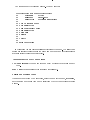
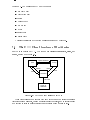
of the currently selected user. With the topmost button bar you can
{
{
{
{
Create new users
Edit existing users
Delete multiple users
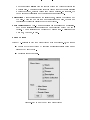
Change the look of the User Window
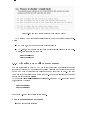
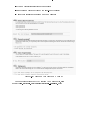
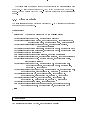
The rst time the User Window appears, the User eld is set to the name of the
identied user, the Group eld is set to \*", and all attributes of the user are shown
automatically, see Figure 6.11.
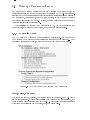
Rows and Columns of the User Window
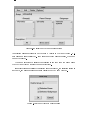
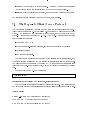
Only the elds User and Group are not read{only. They together build the selection
string for searching the Hyper{G user database. To change the selection, edit the
User and=or the Group eld and press Enter. During searching, the mouse pointer
changes to an hour{glass and no other database commands can be made. After a
short time the matching user(s) are displayed and the mouse cursor changes back to
a pointer. If only one user matches, the user is marked and the user's attributes are
shown automatically, otherwise all matching users are displayed and only by double
clicking the left mouse button are the attributes of the selected user shown.
For example:
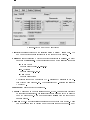
1. To see all users with user names beginning with 'c' type in the User eld
"c*", in the Group eld "*", and press Enter to send the selection string to the
database.
2. To see all users of group 'iicm', set the User eld to "*", the Group eld to
"iicm", and press Enter to send the selection string to the database.