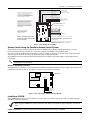
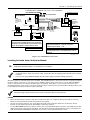
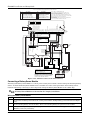
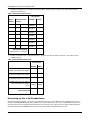
1
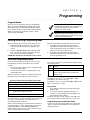
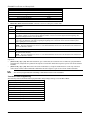
FA1660C
Enhanced
Commercial Burglary
Partitioned Security System
with Scheduling
ARMED
READY
R
BS/ESC
1
2
A
B
4
N/Y
S
F
SPACE
ARMED
9
T
0
SHIFT
C
E
8
7
3
6
5
D
READY
X
#
ENTER
FA 5 6 0
R
A
1 OFF
2 AWAY
3STAY
6BYPASS
B
4 MAX
5TEST
C
7INSTANT
8 CODE
9 CHIME
D
READY
0
#
FA260
Installation and Setup Guide
R
K4968-1V5 9/10 Rev A
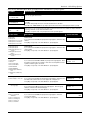
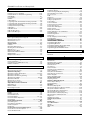
Table of Contents
• • • • • • • • • • • • • • • • • • • • • • • • • • • • • • • • • • • • • • • • • • • • • • • • •
SECTION 1 ...........................................................................................................................................................1-1
About the FA1660C............................................................................................................................................................1-1
Features .............................................................................................................................................................................1-1
SECTION 2 ...........................................................................................................................................................2-1
Theory of Partitioning .........................................................................................................................................................2-1
Setting-Up a Partitioned System ........................................................................................................................................2-1
Common Lobby Logic ........................................................................................................................................................2-1
Master Keypad Setup and Operation .................................................................................................................................2-3
Panel Linking......................................................................................................................................................................2-4
SECTION 3 ...........................................................................................................................................................3-1
Mounting the Control Cabinet.............................................................................................................................................3-1
Installing the Cabinet Lock .................................................................................................................................................3-1
Mercantile Premises Listing Guidelines..............................................................................................................................3-1
Mercantile Safe and Vault Listing Guidelines .....................................................................................................................3-2
Installing the Control's Circuit Board ..................................................................................................................................3-2
Installing the Keypads ........................................................................................................................................................3-3
Installing External Sounders...............................................................................................................................................3-4
Telephone Line Connections..............................................................................................................................................3-6
Wiring Burglary, Panic and Smoke Detector Devices to Zones 1-9 ...................................................................................3-7
Installing V-PLEX Devices................................................................................................................................................3-11
Wireless Zone Expansion.................................................................................................................................................3-13
Installing Output Devices..................................................................................................................................................3-17
Installing the Ground Start Module...................................................................................................................................3-20
Installing a Remote Keyswitch .........................................................................................................................................3-20
Smoke Detector Reset .....................................................................................................................................................3-21
Remote Keypad Sounder .................................................................................................................................................3-22
Installing the VA8200 Panel Link Module .........................................................................................................................3-22
Communicator Connected to the J7 Triggers...................................................................................................................3-23
Communicator Connected to the ECP .............................................................................................................................3-24
Access Control Using VistaKey ........................................................................................................................................3-25
Access Control Using the PassPoint Access Control System ..........................................................................................3-27
Installing a 4100SM..........................................................................................................................................................3-27
Installing the 4286 VIP Module.........................................................................................................................................3-29
Installing the Audio Alarm Verification Module .................................................................................................................3-31
Connecting a Battery Sense Module................................................................................................................................3-32
Connecting the Transformer.............................................................................................................................................3-33
Panel Earth Ground Connections.....................................................................................................................................3-34
Determining the Control’s Power Supply Load.................................................................................................................3-34
Determining the Size of the Standby Battery....................................................................................................................3-36
SECTION 4 ...........................................................................................................................................................4-1
Program Modes..................................................................................................................................................................4-1
Entering and Exiting Programming Mode...........................................................................................................................4-1
Data Field Programming Mode ..........................................................................................................................................4-1
#93 Menu Mode Programming...........................................................................................................................................4-2
Zone Number Designations................................................................................................................................................4-4
Zone Response Type Definitions .......................................................................................................................................4-5
Zone Input Type Definitions ...............................................................................................................................................4-7
Programming for Panel Linking ..........................................................................................................................................4-8
Programming for 4100SM ..................................................................................................................................................4-8
Programming for Access Control........................................................................................................................................4-8
Programming for ECP Communicator ..............................................................................................................................4-10
SECTION 5 ...........................................................................................................................................................5-1
About Data Field Programming ..........................................................................................................................................5-1
Programming Data Fields...................................................................................................................................................5-1
SECTION 6 ...........................................................................................................................................................6-1
Time Window Definitions....................................................................................................................................................6-2
Open/Close Schedules Definitions .....................................................................................................................................6-3
iii
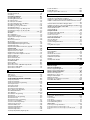
Table of Contents
Scheduling Menu Mode......................................................................................................................................................6-4
Time Windows....................................................................................................................................................................6-5
Daily Open/Close Schedules..............................................................................................................................................6-6
Holiday Schedules..............................................................................................................................................................6-7
Time-Driven Events............................................................................................................................................................6-8
Limitation of Access Schedules........................................................................................................................................6-13
Temporary Schedules ......................................................................................................................................................6-14
User Scheduling Menu Mode ...........................................................................................................................................6-15
SECTION 7 ...........................................................................................................................................................7-1
General Information............................................................................................................................................................7-1
Unattended Download........................................................................................................................................................7-1
Getting On-Line with a Control Panel.................................................................................................................................7-3
Scheduled Download .........................................................................................................................................................7-4
Direct-Wire Downloading....................................................................................................................................................7-4
Telco Handoff.....................................................................................................................................................................7-4
SECTION 8 ...........................................................................................................................................................8-1
General Information............................................................................................................................................................8-1
Setting the Time and Date..................................................................................................................................................8-1
SECTION 9 ...........................................................................................................................................................9-1
General Information............................................................................................................................................................9-1
User Codes & Levels of Authority ......................................................................................................................................9-1
Multiple Partition Access ....................................................................................................................................................9-2
Adding a Master, Manager, or Operator Code ...................................................................................................................9-3
Changing a Master, Manager, or Operator Code ...............................................................................................................9-4
Adding an RF Key to an Existing User ...............................................................................................................................9-4
Deleting a Master, Manager, or Operator Code .................................................................................................................9-4
Exiting the User Edit Mode.................................................................................................................................................9-4
SECTION 10 .......................................................................................................................................................10-1
Battery Test......................................................................................................................................................................10-1
Dialer Test........................................................................................................................................................................10-1
Burglary Walk-Test (Code + [5] TEST).............................................................................................................................10-1
Armed Burglary System Test ...........................................................................................................................................10-1
Testing Wireless Transmitters..........................................................................................................................................10-2
Smoke Detector Test........................................................................................................................................................10-2
Trouble Conditions ...........................................................................................................................................................10-2
To the Installer .................................................................................................................................................................10-2
APPENDIX A....................................................................................................................................................... A-1
UL Installation Requirements ............................................................................................................................................ A-1
UL609 Local Mercantile Premises/Local Mercantile Safe & Vault..................................................................................... A-1
UL365/UL609 Bank Safe and Vault Alarm System ........................................................................................................... A-1
UL365 Police Station Connected Burglar Alarm................................................................................................................ A-1
UL611/UL1610 Central Station Burglary Alarm................................................................................................................. A-2
California State Fire Marshal (CSFM) and UL Residential Fire Battery Backup Requirements......................................... A-2
APPENDIX B....................................................................................................................................................... B-1
APPENDIX C....................................................................................................................................................... C-1
APPENDIX D ...................................................................................................................................................... D-1
TABLE OF CONTACT ID EVENT CODES ....................................................................................................................... D-1
Event Log Alpha Descriptors............................................................................................................................................. D-1
THE LIMITATIONS OF THIS ALARM SYSTEM
LIMITED WARRANTY
iv
List of Figures
• • • • • • • • • • • • • • • • • • • • • • • • • • • • • • • • • • • • • • • • • • • • • • • • •
Figure 3-1: Installing the Lock ...............................................................................................................................................3-1
Figure 3-2: Cabinet Attack Resistance Considerations..........................................................................................................3-2
Figure 3-3: Mounting the PC Board .......................................................................................................................................3-3
Figure 3-4: Keypad Connections to Control Panel .................................................................................................................3-3
Figure 3-5: Using A Supplementary Power Supply ...............................................................................................................3-4
Figure 3-6: Wiring Polarized Fire Devices .............................................................................................................................3-5
Figure 3-7: Wiring Nonpolarized Burglary Devices...............................................................................................................3-6
Figure 3-8: Telephone Line Connections ................................................................................................................................3-7
Figure 3-9: Wiring Connections for Zones 1-9........................................................................................................................3-8
Figure 3-10: 2-Wire Smoke Detector on Zone 1 ......................................................................................................................3-9
Figure 3-11: 4-Wire Smoke Detectors......................................................................................................................................3-9
Figure 3-12: Wiring Latching Glassbreaks to Zone 8 ...........................................................................................................3-10
Figure 3-13: Wiring a Normally Closed Loop for Tamper Supervision ..............................................................................3-11
Figure 3-14: Wiring a Normally Open Loop for Tamper Supervision.................................................................................3-11
Figure 3-16: Polling Loop Connections to the FA1660C ......................................................................................................3-12
Figure 3-16: Polling Loop Connections Using One 4297 Extender Module ........................................................................3-13
Figure 3-17: Polling Loop Connections Using Multiple Extender Modules ........................................................................3-13
Figure 3-18: Installing the 5881ENHC with Tamper Protection .........................................................................................3-15
Figure 3-19: 5881 RF Receiver (cover removed) ...................................................................................................................3-15
Figure 3-20: 4204 Relay Module...........................................................................................................................................3-18
Figure 3-21: 4204CF Relay Module......................................................................................................................................3-18
Figure 3-22: Wiring the FSA Module ...................................................................................................................................3-19
Figure 3-23: Ground Start Module Connections..................................................................................................................3-20
Figure 3-24: Remote Keyswitch Wiring ................................................................................................................................3-21
Figure 3-25: Remote Keypad Sounder Wiring......................................................................................................................3-22
Figure 3-26: Panel Linking Block Diagram .........................................................................................................................3-22
Figure 3-27: VA8200 Panel Link Module Wiring.................................................................................................................3-23
Figure 3-28: Wiring Communicator to Keypad Terminals ..................................................................................................3-25
Figure 3-29: Wiring the VistaKey ..........................................................................................................................................3-27
Figure 3-301: Wiring the VISTA Gateway Module ..............................................................................................................3-27
Figure 3-31: 4100SM Using a Serial Printer ........................................................................................................................3-28
Figure 3-32: 4100SM Using Home Automation...................................................................................................................3-29
Figure 3-33: VIP Module Connections..................................................................................................................................3-31
Figure 3-34: UVS Connections to the Control Panel............................................................................................................3-32
Figure 3-35: Wiring the Battery Sense Module ....................................................................................................................3-33
Figure 3-36: 1361 Transformer and Battery Connections ...................................................................................................3-34
Figure 3-37: 1361X10 Transformer Connections .................................................................................................................3-34
Figure 7-1: Direct-Wire Downloading Connections................................................................................................................7-4
v
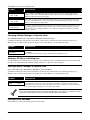
Conventions Used in This Manual
• • • • • • • • • • • • • • • • • • • • • • • • • • • • • • • • • • • • • • • • • • • • • • • • •
Before you begin using this manual, it is important that you understand the meaning of the following
symbols (icons).
UL
These notes include specific information that must be followed if you are installing this system for
a UL Listed application.
These notes include information that you should be aware of before continuing with the
installation, and that, if not observed, could result in operational difficulties.
This symbol indicates a critical note that could seriously affect the operation of the system, or
could cause damage to the system. Please read each warning carefully. This symbol also
denotes warnings about physical harm to the user.
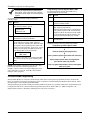
ZONE PROG?
1 = YES 0 = NO 0
✴00
Many system options are programmed in an interactive mode by responding to
alpha keypad display prompts. These prompts are shown in a single-line box.
Additional system options are programmed via data fields, which are indicated by a “star” (✴)
followed by the data field number.
PRODUCT MODEL NUMBERS:
Unless noted otherwise, references to specific model numbers represent ADEMCO products.
vi
S E C T I O N
1
General Description
• • • • • • • • • • • • • • • • • • • • • • • • • • • • • • • • • • • • • • • • • • • • • • • • •
About the FA1660C
The FA1660C is an 8-partition, UL Listed control panel with the following features:
•
Supports hardwired, polling loop, and wireless zones
•
Supervision of bells, keypads, RF receivers, and output devices
•
Scheduling capabilities (allows certain operations to be automated)
•
The capability to link up to eight control panels using Panel Linking Modules
The FA1660C can interface with the following devices:
•
Symphony (AUI)
•
Panel Link Module (VA8200)
•
Voice Keypad (FA570KPV)
•
An ECP Communicator that can send Contact ID messages
•
An access control system by using either the ADEMCO PassPoint system (via the VISTA Gateway Module) or a
VistaKey module (via the polling loop)
UL
The access control function is not Listed for use with the FA1660C Control Panel in a UL installation.
The system supports either the VistaKey or the VISTA Gateway Module, not both.
Features
Hardwire and Optional Expansion Zones
•
•
•
•
•
•
•
•
Provides nine hardwire zones.
Supports up to 16 2-wire smoke detectors on zone 1.
Automatically resets 4-wire smoke detectors using the J7 output when a code + off is entered.
Triggers the built-in sounders on other hardwired smoke detectors if one smoke detector annunciates an alarm. This
feature requires a 4204 Relay Module.
Provides tamper supervision on the hardwire zones.
Supports up to 50 2-wire latching glassbreak detectors on zone 8.
Supports up to 119 additional expansion zones using a built-in polling (multiplex) loop.
Supports up to 2 wireless zones (fewer if using hardwire and/or polling loop zones).
UL
ULC
•
•
The 5881ENHC RF Receiver and the 5869 Holdup Switch Transmitter are listed for UL Commercial Burglary
applications. All other RF receivers and transmitters are not listed for UL Commercial Burglary applications.
Wireless devices are not ULC Listed and cannot be used for ULC Installations.
Can program burglary zones as silent in the alarm condition (alarm output is silent and the keypad does not display
or sound the alarm).
Provides three keypad panic keys: 1 + ✴ (A), ✴ + # (B), and 3 + # (C).
1-1
FA1660C Installation and Setup Guide
Peripherals Devices
•
•
•
•
Supports up to 31 addressable devices, (keypads, RF receivers, relay modules, etc.).
Supervises devices (keypads, RF receivers, and relay modules) and individual relays (up to 32), as well as system
zones (RF receivers and keypad panics).
Provides 96 outputs using 4204 and 4204CF Relay Modules, Fire System Annunciators (FSA-8, FSA-24), V-Plex
Relay Modules and X-10 devices can activate outputs in response to system events (alarm condition), at a specific
time of day, at random times, and manually using the #70 Relay Command Mode.
Supports the ADEMCO 4286 VIP Module, which allows access to the system from either a remote location or on the
premises
UL
•
The VIP Module is not Listed for use with the FA1660C Control Panel in a UL installation.
Supports the ADEMCO 4146 Keyswitch on any one of the system's eight partitions.
Arming/Disarming and Bypassing
•
•
Can arm the system with zones faulted (Vent Zone). These zones are automatically bypassed and can be
programmed to automatically unbypass when the zone restores.
Can arm with entry/exit and interior type zones faulted (Arm w/Fault). These zones must be restored before the exit
delay expires, otherwise an alarm is generated.
UL
ULC
•
•
•
•
•
•
Vent zones cannot be used in UL installations.
You must disable the Force Arm option (used in conjunction with the Arm w/Fault option), in UL installations.
You must disable the Force Arm option (used in conjunction with the Arm w/Fault option), in ULC Installations.
Provides global arming capability (ability to arm all partitions the user code has access to in one command).
Can Quick Exit an armed premises without having to disarm and then rearm the system.
UL
•
•
•
Quick Exit is not permitted for use with the FA1660C Control Panel in a UL installation.
Can be armed in one of three STAY modes or Instant modes, automatically bypassing specific burglary zones
regardless of the zone response type.
Can automatically bypass specific zones if no one exits the premises after arming (Auto-STAY). Auto-STAY will not
occur if the system is armed via an RF transmitter, VIP module, scheduling, access control, keyswitch, RS232
automation or downloading.
Can bypass a group of zones with one set of keystrokes.
Supports Exit Error Logic, whereby the system can tell the difference between a regular alarm and an alarm caused
by leaving an entry/exit door open. If the system is not subsequently disarmed, faulted E/E zone(s) and/or interior
zones are bypassed and the system arms.
Supports Recent Close report, which is designed to notify the central station that an alarm has occurred within 2
minutes after the exit delay has expired.
Partitioning and Panel Linking
•
•
•
•
•
1-2
Can control eight separate areas independently, each functioning as if it had its own separate control.
Provides a Common Lobby partition, which can be programmed to arm automatically when the last partition is
armed, and to disarm when the first partition is disarmed.
Provides a Master partition (9), used for the purpose of viewing the status of all partitions at the same time.
Can display fire, burglary, panic and trouble conditions at all other partitions’ keypads (selectable option).
Can “link” together up to eight control panels. This allows users to access and control from a keypad another control
panel.
Section 1 - General Description
Scheduling
•
•
•
Can automate system functions, such as arming, disarming, and activation of outputs (e.g., lights).
Provides access schedules (for limiting system access to users by time).
Provides an End User Output Programming Mode, allowing the user to control outputs.
Access Control
•
•
•
•
Supports up to 8 VistaKey modules (8 access points) which are used for access control. It is a single-door access
control module.
Support up to 250 access cards.
Supports ADEMCO PassPoint system via one VISTA Gateway Module (VGM), for a fully integrated access control
system.
Can store access control events in the event log.
System Communication
•
Supports ADEMCO Contact ID; ADEMCO High Speed; ADEMCO Express; and 3+1, 4+1, and 4+2 ADEMCO and
Sescoa/Radionics Low-Speed formats.
The system is shipped defaulted for Contact ID communication. It is the only format capable of uniquely reporting all
128 zones, as well as openings and closings for all 150 users. This requires central stations to be equipped with the
MX8000 receiver to fully support all new FA1660C report codes. If you need to update your MX8000 receiver,
contact your distributor.
•
•
•
Supports Dynamic Signaling feature, which prevents redundant signals being sent to the central station when both
the built-in dialer and Communicator are used.
Provides an Audio Alarm Verification (AAV) option that permits voice dialog between an operator at the central
station and a person at the premises. An AAV unit, such as ADEMCO UVS, is required.
Provides the Dialer Queue Report in the event of a loss of communications between the dialer and the central
station, i.e. telco loss. The total events that will be queued up are 128 (91 Burg + 37 Life Safety). A Dialer Queue
Overflow report (E354) will be sent if the report queue goes beyond its limits. Note that: Life Safety includes
Fire, CO, 24 HR Silent/Audible/Auxiliary, and Duress. Life Safety events may go beyond 37 (up to 128) if
there are no Burg events in the queue. If all dialer attempts are exhausted before communication to the
central station is restored, the queue will be cleared.
Downloading
•
•
•
•
•
Supports upload and download capability.
Can perform unattended downloading (no one at the downloading computer).
Provides an Installer Unattended Program Mode. This allows the installer to program the download phone number,
subscriber number, and primary central station receiver phone number without entering the normal program mode.
Can periodically and automatically perform a scheduled download.
Revision 4.0 and above panels can be downloaded via the following 7845GSM, 7845i-GSM or 7847i using Compass
revision 1.5.8 or above.
UL
•
Unattended and Scheduled Downloading are not UL Listed features.
Can download access control cardholder information.
Event Log
•
Provides an event log (history log) that can store up to 512 events.
•
Can print the event log on a serial printer via the RS232 (J8) header and a 4100SM.
•
Can view the event log on an alpha keypad or AUI.
Additional Features
•
•
Provides up to 60 installer-defined, custom words that can be used for zone descriptors.
Provides 32 keypad macro commands (each macro is a series of keypad commands of up to 32 keystrokes) using the
A, B, C, and D keys by partition.
1-3
FA1660C Installation and Setup Guide
•
•
•
•
Provides cross-zone capability, which helps prevent false alarms by preventing a zone from going into alarm unless
its cross-zone is also faulted within a 5-minute period.
Contains a built-in User’s Manual, which provides the end user with a brief explanation of the function of a key
when the user presses any of the function keys on the keypad for 5 seconds.
Provides trigger outputs, which may interface with Communicator equipment or other devices such as keyswitch
LEDs, or printer.
Provides an RS232 input for serial data. This is useful for interfacing the system with Automation software.
Automation software cannot be used if a serial printer is used on the system.
At least one 2-line alpha keypad (FA570KP) must be connected to the system for programming (if you are using
keypad programming), and must remain connected to the system in order to allow the primary user to program
additional user codes into the system at a later time.
1-4
S E C T I O N
2
Partitioning and Panel Linking
• • • • • • • • • • • • • • • • • • • • • • • • • • • • • • • • • • • • • • • • • • • • • • • • •
Theory of Partitioning
This system provides the ability to arm and disarm up to eight different areas, as if each had its own control. These
areas are called partitions. A Partitioned system allows the user to disarm certain areas while leaving other areas
armed, or to limit access to certain areas to specific individuals. Each system user can be assigned to operate any or all
partitions, and can be given a different authority level in each.
Before anything can be assigned to those partitions, you must first determine how many partitions (1-8) are required.
Following are some facts you need to know about partitioning.
Keypads
Each keypad must be given a unique "address" and be assigned to one partition. It can also be assigned to Partition 9 if
Master keypad operation is desired. (See “Master Keypad Setup and Operation” later in this section.)
Zones
Each zone must be assigned to one partition. The zones assigned to a partition will be displayed on that partition's
keypad(s).
Users
Each user may be given access to one or more partitions. If a user is to operate more than one partition and would like
to arm/disarm all or some of those partitions with a single command, the user must be enabled for Global Arming for
those partitions (when entering user codes).
A user with access to more than one partition (multiple access) can "log on" to one partition from another partition's
keypad, provided that program field 2*18: Enable GOTO is enabled for each partition he/she wants to log on to from
another.
A partition can be selected as a "common lobby" partition, and other partitions can affect this partition by causing
arming/disarming of this partition to be automated (see “Common Lobby Logic” later in this section).
Setting-Up a Partitioned System
The basic steps to setting up a partitioned system are described below. If you need more information on how to program
the options, see SECTION 4: Programming.
1. Determine how many partitions the system will consist of (programmed in field 2*00).
2. Assign keypads to partitions (Device Programming in the #93 Menu Mode).
3. Assign zones to partitions (Zone Programming in the #93 Menu Mode).
4. Confirm zones are displayed at the keypad(s) assigned to those partitions.
5. Assign users to partitions.
6. Enable the GOTO feature (program field 2*18) for each partition a multiple-access user can log on to (alpha keypad
only).
7. Program partition-specific fields (see the Data Field Descriptions section).
Common Lobby Logic
When an installation consists of a partition shared by users of other partitions in a building, that shared partition may
be assigned as the "common lobby" partition for the system (program field 1*17). An example of this might be in a
medical building where there are two doctors’ offices and a common entrance area (see example that follows
explanation).
The Common Lobby feature employs logic for automatic arming and disarming of the common lobby. Two programming
fields determine the way the common lobby will react relative to the status of other partitions. They are: 1*18 Affects
Lobby and 1*19 Arms Lobby.
1*18
Affects Lobby (must be programmed by partition)
Setting this field to 1 for a specific partition causes that partition to affect the operation of the common lobby as follows:
a. When the first partition that affects the lobby is disarmed, the lobby is automatically disarmed.
b. The common lobby cannot be armed unless every partition selected to affect the lobby is armed.
2-1
FA1660C Installation and Setup Guide
1*19
Arms Lobby (must be programmed by partition)
Setting this field to 1 for a specific partition causes that partition to affect the operation of the common lobby as follows:
a. The common lobby cannot be armed unless every partition selected to affect the lobby is armed.
b. Arming a partition that is programmed to arm the lobby causes the system to automatically attempt to arm the
lobby. If any faults exist in the lobby partition, or if another partition that affects the lobby is disarmed, the lobby
cannot be armed, and the message "UNABLE TO ARM LOBBY PARTITION" is displayed.
You cannot select a partition to "arm" the lobby unless it has first been selected to "affect" the lobby. Do not enable
field 1*19 without enabling field 1*18.
The following chart sums up how the common lobby partition will operate.
1*18
Affects
Lobby
1*19
Arms
Lobby
Disarms
when
partition
disarms?
Attempts
to arm
when
partition
arms?
Can be armed
if other
partitions
disarmed?
0
0
NO
NO
1
0
YES
NO
YES
NO
1
1
YES
YES
NO
0
1
---ENTRY NOT ALLOWED---
Example
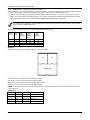
Here is an example of how the lobby would react in a typical setup.
OFFICE 1
OFFICE 2
COMMON LOBBY
MAIN ENTRANCE
V128BP-001-V0
User #1 has access to Office #1 and the Common Lobby.
User #2 has access to Office #2 and the Common Lobby.
Office #1 is set up to affect the Common Lobby, but not arm it.
Office #2 is set up to affect and arm the Common Lobby.
NOTE: In the tables below, the notations in parentheses ( ) indicate the current status of the other partition when the
user takes action.
Sequence #1:
Office 1
Office 2
Lobby Action
User #1:
Disarms
(Armed)
Disarms
User #2:
(Disarmed)
Disarms
No Change
User #1:
Arms
(Disarmed)
No change
User #2:
(Armed)
Arms
Arms
2-2
Section 2: Partitioning and Panel Linking
Sequence #2:
Office 1
Office 2
Lobby Action
User #2:
(Armed)
Disarms
Disarms
User #1:
Disarms
(Disarmed)
(No change)
User #2:
(Disarmed)
Arms
No Change
User #1:
Arms
(Armed)
No Change
Notice that in sequence #1, because Office #2 was the last to arm, the lobby also armed (Office #2 is programmed to
affect and arm the lobby). In sequence #2, the lobby could not arm when Office #2 armed, because Office #1, which
affects the lobby, was still disarmed.
When Office #1 armed, the lobby still did not arm because Office #1 was not programmed to arm the lobby. User #1
would have to arm the lobby manually. Therefore, you would want to program a partition to affect and arm the lobby if
the users of that partition are expected to be the last to leave the building.
How User Access Codes Affect the Common Lobby
Codes with Global Arming
If a code is given "global arming" when it is defined (see SECTION 9: User Access Codes), the keypad prompts the user to
select the partitions they want to arm. Only the partitions the user has access to are displayed. This allows the user to
choose the partitions to be armed or disarmed, and so eliminates the "automatic" operation of the lobby. Keep in mind,
however, that if a user attempts to arm all, and another "affecting" partition is disarmed, the user cannot arm the lobby,
and the message "UNABLE TO ARM LOBBY PARTITION" is displayed.
Codes with Non-Global Arming
If a user arms with a non-global code, the lobby partition operation is automatic, as described by fields 1*18 and 1*19.
Other Methods of Arming/Disarming
Common Lobby logic remains active when arming or disarming a partition that affects and/or arms the common lobby in
one of the following manners:
•
Quick-Arm
•
Keyswitch
•
Wireless Button
•
Wireless Keypad
Arming/Disarming Remotely
If a user arms or disarms remotely (through Compass downloading software), the lobby does not automatically follow
another partition that is programmed to arm or disarm the lobby. The lobby must be armed separately, after arming all
affecting partitions first.
Auto-Arming/Disarming
If scheduling is used to automatically arm and/or disarm partitions, the common lobby partition does not automatically
follow another partition that is programmed to arm or disarm the lobby.
The lobby must be included as a partition to be armed/disarmed and must be scheduled as the last partition armed.
If you are using auto-arming, make sure that the Auto-Arm Delay and Auto-Arm Warning periods, for the lobby
partition, (fields 2*05 and 2*06) combined are longer than that of any other partition that affects the lobby. This
causes the lobby to arm last.
Master Keypad Setup and Operation
Although this system has eight actual partitions, it provides an extra partition strictly for the purpose of assigning
keypads as Master keypads for the system.
Assigning any keypad to Partition 9 in Device Programming in the #93 Menu Mode makes that keypad a Master keypad.
A Master keypad reflects the status of the entire system (Partitions 1-8) on its display at one time. This is useful
because it eliminates the need for a building security officer to have to log on to various partitions from one partition's
keypad to find out where an alarm has occurred.
2-3
FA1660C Installation and Setup Guide
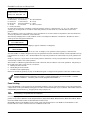
The following is a typical display:
SYSTE M 12 34 5 6 78
STATUS RRNNA ✴B
Possible status indications include:
A = Armed Away S = Armed Stay
C = Comm Fail
I = Armed Instant
N = Not Ready
B = Bypassed/Ready
T = Trouble
F = Fire Alarm
L = Low System Battery
M = Armed Maximum
R = Ready
✴ = Alarm
P = AC Power Failure
To obtain more information regarding a particular partition, enter [✴] + Partition No. (e.g., [✴] + [4]). This allows
viewing only of that partition. In order to affect that partition, the user must use a code that has access to that
partition.
Also, in order for a user of any partition to log on to Partition 9 to view the status of all partitions, that user must have
access to all partitions. Otherwise, access is denied.
The following is displayed for a fault condition on Zone 2 (Loading Dock Window) on Partition 1 (Warehouse) when a
user logs on from a keypad on Partition 9:
WHSE DISARMED
HIT ✴ FOR FAULTS
Pressing [✴] causes the following display to appear at Partition 1's keypad(s):
FAULT 002 LOADING
DOCK WINDOW
Additional zone faults are displayed one at a time. To display a new partition's status, press [✴] + Partition No.
The Armed LED on a Master keypad is lit only if all partitions have been armed successfully. The Ready LED is lit only
if all partitions are "ready to arm." Neither LED is lit if only some partitions are armed and/or only some partitions are
ready.
Press [✴] + [0] or [✴] + [9] to return to the master partition. Otherwise, if no keys are pressed for 2 minutes, the system
automatically returns to the master partition
The sounder on a Master keypad reflects the sound of the most critical condition on all of the partitions. The priority of
the sounds, from most to least critical, is as follows:
1. Pulsing fire alarm sounds
2. Steady burglar alarm sounds
3. Trouble sounds (rapid beeping)
Silence the sounder by pressing any key on the Master keypad or a keypad on the partition where the condition exists.
A Master keypad uses the same panics as Partition 1. Master keypad panics are sent to Partition 1, and will
activate on Partition 1. Therefore, panics must be programmed for Partition 1.
Panel Linking
Up to eight FA1660C control panels may be networked, enabling a user to control the features of all control panels from
a single location. The panel linking bus supports an end-to-end network length of up to 4,000 feet. This makes it ideal for
multi-building environments (e.g., shopping mall, college campus, etc.).
UL
Panel Linking is not permitted in UL installations.
Panel linking requires a VA8200 Panel Link Module (PLM) on each FA1660C. Users can link (access other control
panels) in any of three different modes: Single-Partition, Single-Panel Mode; Multi-Partition, Multi-Panel Mode; MultiPanel View Mode. These modes are described later in this section.
Each PLM connects to the ECP bus on the control panel and communicates to each PLM via an RS-485 bus (3-wire
twisted cable run) with a maximum wire-run of 4000 feet end-to-end.
2-4
Section 2: Partitioning and Panel Linking
•
•
•
Users 001-050 are the only users that can perform panel linking and are automatically assigned panel linking
access when added to the system.
An alpha keypad must be used for panel linking.
The system may take up to 7 seconds to respond to a command when in a panel linking mode
NOTE: A user cannot access partitions or panels that they have not been assigned to.
Panel Link Module Supervision
The Panel Link Module can be supervised for its connection to the control panel. The module’s supervisory zone is zone
8xx, where “xx” = the ECP address of the PLM. You must program that zone with response type 05 (Day/Night) in Zone
Programming in the #93 Menu Mode (refer to the Programming Guide for detailed programming instructions). If you
want to report the supervisory failure to the central station and/or to a paging service, the appropriate reporting
parameters for that zone must be programmed.
If you want the supervisory failure of PLM(s) on other linked control panels to display on this control panel, they must
be programmed into Zone Programming in the #93 Menu Mode with response type 12 in this control panel (refer to the
Programming Guide for detailed programming instructions). The panel ID number for each module must match the
panel ID number programmed in Device Programming of its “host” FA1660C.
How to Use Panel Linking
Panel Linking can be used in any of three different modes:
•
Single-Partition, Single-Panel − displays status of a partition on a remote control panel and allows control of that
remote control panel.
•
Multi-Partition, Multi-Panel Mode − displays status and allows arming/disarming of multiple partitions at once on a
remote control panel.
•
Multi-Panel View Mode − displays status and allows arming/disarming of multiple remote control panels at a time.
NOTE: A user will not be able to access or view partitions or panels that they have not been assigned to.
Single-Partition Single-Panel Mode
To access the Single-Partition, Single Panel mode, perform the following steps:
Step
Action
1
Enter User Code (for users 001-050) + [#] + [86].
2
Enter the panel ID number (01-08) of the panel you want to link to.
3
Enter the partition number of the panel. The keypad displays “AWAITING PANEL LINK.” After a few
seconds, the keypad displays the status of the partition along with the panel ID number and partition
number flashing in the upper right-hand corner. The user now has full control of the remote control panel.
All functions can be performed except the following:
•
Those limited by the user’s authority level.
•
The user cannot enter Installer Program mode.
•
The user cannot execute another panel linking mode.
NOTE: To execute another panel linking mode or to access a different remote panel, the user must first exit
this mode (return to the original control panel).
4
To exit, enter the User Code (for users 001-050) + [#] + [85]. After a few seconds, the keypad displays the
status of the original partition for the keypad.
2-5
FA1660C Installation and Setup Guide
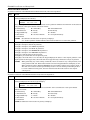
Multi-Partition Multi-Panel Mode
To perform a function in the Multi-Partition, Multi Panel mode, follow the steps below:
Step
Action
1
Enter User Code (for users 001-050) + [#] + [88].
The keypad displays the following:
PANELnn
STATUS
1 2 3 4 5 6 7 8
x x x x x x x x
where “nn” = panel ID number (01-08), “12345678” are the partition numbers and “xxxxxxxx” is the status of
each partition of that panel. Status indications include:
A = Armed Away
S = Armed Stay
M = Armed Maximum
I = Armed Instant
R = Ready
N = Not Ready
B = Bypassed/Ready
✴ = Alarm
T = Trouble
F = Fire Alarm
P = AC Power Failure
L = Low System Battery
C = Comm Fail
NOTES: See table later in this section for priority of displays.
A “•” under a partition number indicates the user does NOT have access to that partition.
2
The following functions can be performed:
Press [1] to attempt to disarm all partitions.
Press [2] to attempt to arm AWAY all partitions.
Press [3] to attempt to arm STAY all partitions.
Press [4] to attempt to arm MAXIMUM all partitions.
Press [7] to attempt to arm INSTANT all partitions.
Press [✴] to read the status of the next panel.
Press [#] key to read the status of the previous panel.
Press [0] to exit mode. After a few seconds, the keypad displays the status of the original partition of the
original panel for the keypad. Also, this mode will end in approximately 2 minutes if no keys are pressed.
NOTES: When performing any of the arming commands, if there are faults in any of the partitions, none
of the partitions will arm. These faults must be corrected or bypassed before attempting to arm.
When performing either a STAY or INSTANT arm command the system always arms in mode 1.
The user cannot execute another panel linking mode. To execute another panel linking mode or
to access a different remote panel, the user must first exit this mode (return to the original
control panel).
Multi-Panel View Mode
To perform a function in the Multi-Panel View mode, follow the steps below:
Step
Action
1
Enter User Code (for users 001-050) + [#] + [87].
The keypad displays the following typical display:
ALLPANEL 1 2 3 4 5 6 7 8
STATUS
x x x x x x x x
where “12345678” are the panel ID numbers and “xxxxxxxx” is the overall status of each panel. Status
indications include:
A = Armed Away
S = Armed Stay
M = Armed Maximum
I = Armed Instant
R = Ready
N = Not Ready
B = Bypassed/Ready
✴ = Alarm
T = Trouble
F = Fire Alarm
P = AC Power Failure
L = Low System Battery
C = Comm Fail
NOTE: See table later in this section for priority of displays.
2-6
Section 2: Partitioning and Panel Linking
Step
Action
2
The following functions can be performed::
Press [1] to attempt to disarm all partitions on all panels.
Press [2] to attempt to arm AWAY all partitions on all panels.
Press [3] to attempt to arm STAY all partitions on all panels.
Press [4] to attempt to arm MAXIMUM all partitions.
Press [7] to attempt to arm INSTANT all partitions.
Press [0] to exit mode. After a few seconds, the keypad displays the status of the original partition of the
original panel for the keypad. Also, this mode will end in approximately 2 minutes if no keys are pressed.
NOTES:
When performing any of the arming commands, if there are faults in any of the partitions of a panel, the
system will not arm that panel, but will arm all the other partitions of the other panels.
When performing either a STAY or INSTANT arm command, the system always arms in mode 1 (see the
FA1660C User Guide for a detailed explanation of the STAY and INSTANT arming modes).
The user cannot execute another panel linking mode. In order to perform another panel linking mode or to
access a different remote panel, the user must first exit this mode (return to the original control panel).
Priority of Displays for Multi-Partition and Multi-Panel Modes
This table shows the priority of displays if more than one of these conditions exists at the same time.
Priority
Description
Display
Priority
Description
Display
1
Fire Alarm
F
8
Not Ready
N
2
All Other Alarms
✴
9
Ready
R
3
AC Loss
P
10
Armed STAY
S
4
Comm Fail
C
11
Armed AWAY
A
5
System Low Battery
L
12
Armed INSTANT
I
6
Trouble
T
13
Armed MAXIMUM
M
7
Bypass
B
2-7
FA1660C Installation and Setup Guide
2-8
S E C T I O N
3
Installing the Control
• • • • • • • • • • • • • • • • • • • • • • • • • • • • • • • • • • • • • • • • • • • • • • • • •
This section describes the procedures for mounting and wiring the control panel and all the peripheral devices.
UL
All devices are to be installed in accordance with UL 681, Standard for Installation and Classification of Burglar
and Holdup Alarm Systems. In addition, since the transmission method utilizes DACT communication, UL 827,
Standard for Central-Station Alarm Services should be referenced.
Mounting the Control Cabinet
To mount the control cabinet, perform the following steps:
Step
Action
1
Before mounting the circuit board, remove the metal knockouts for the wiring entry that you will be using.
DO NOT ATTEMPT TO REMOVE THE KNOCKOUTS AFTER THE CIRCUIT BOARD HAS BEEN
INSTALLED.
2
Using fasteners or anchors (not supplied), mount the control cabinet to a sturdy wall in a clean, dry area
that is not readily accessible to the general public. The back of the cabinet has 4 holes for this purpose.
UL
To provide certificated burglary service for UL installations, refer to the special requirements and Figure 3-2
Cabinet Attack Resistance Considerations to follow. For UL Commercial Burglary installations that require
ATTACK RESISTANCE, use the cabinet included in the VISTA-ULKT kit.
Installing the Cabinet Lock
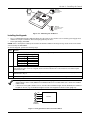
1.
2.
Remove cabinet door, then remove the lock knockout from the door. Insert the key into the lock.
Position the lock in the hole, making certain that the latch will make contact with the latch bracket when the
door is closed.
3. When correctly positioned, push the lock until it is held securely by its snap tabs.
Use an ADEMCO No. K4445 Lock (supplied).
CHECK
POSITION
CABINET DOOR
BOTTOM
SNAP
TAB
STEP 1
STEP 2
cab_lock_snap-001-V0
UNLOCKED
ADEMCO
PUSH
ADEMCO
LOCKED
PUSH
ON LOCK
UNTIL IT
IS SEATED
SECURELY
SNAP
TAB
Figure 3-1: Installing the Lock
Mercantile Premises Listing Guidelines
•
•
•
The panel door must be supervised. Mount the clip-on tamper switch (supplied) to the cabinet's right side wall as
shown in the diagram below, and wire it to one of the hardwire zones.
Use a bell with a tamper-protected housing such as the ADEMCO AB12M. The bell housing's tamper switch and
inner tamper linings must also be wired to the hardwire zone.
Assign the tampers’ hardwire zone to a burglary partition. Program the hardwire zone for day trouble/night alarm
(zone type 5) when only one burglary partition is used. Program it for 24-hr. audible alarm (zone type 7) when more
than one burglary partition is used.
3-1
FA1660C Installation and Setup Guide
•
•
•
All wiring between the bell and panel must be run in conduit. Remaining wires do not need to be run in conduit.
All wiring that is not run in conduit must exit from the knockout openings on the bottom or back of the cabinet.
All unused knockouts must be plugged using the disc plugs and carriage bolts (supplied), as indicated in the
diagram below.
Fasten the cabinet door to the cabinet backbox using the 18 one-inch-long Phillips-head screws (supplied) after all
wiring, programming, and checkout procedures have been completed.
•
(Shows typical local Grade A listing installation)
RUN BELL WIRES
IN CONDUIT
PLUG THIS
KNOCKOUT
CLIP-ON DOOR
TAMPER SWITCH
PC
BOARD
PLUG THIS
KNOCKOUT
CABINET
MOUNTING
HOLE
(4 PLACES)
PLUG THIS
KNOCKOUT
PLUG THIS
KNOCKOUT
TO PLUG AN UNUSED KNOCKOUT OPENING,
REMOVE KNOCKOUT AND INSTALL A PAIR OF
DISC PLUGS AND A CARRIAGE BOLT AS SHOWN.
KNOCKOUT
OPENING
DISC PLUGS (DIMPLES IN DISC
PLUG SHOULD REGISTER INSIDE
KNOCKOUT OPENING)
CARRIAGE BOLT
HEX NUT AND
WASHER
CABINET SIDE WALL
(OUTSIDE)
RUN ALL REMAINING
WIRE THROUGH HERE
cabattack-001-V0
Figure 3-2: Cabinet Attack Resistance Considerations
Mercantile Safe and Vault Listing Guidelines
•
•
Follow the guidelines given above for Mercantile Premises listing.
Mount a shock sensor such as Sentrol No. 5402 to the control's backbox. Follow the manufacturer's instructions for
proper sensor mounting. This sensor also must be wired to a hardwire zone.
•
For safe and vault applications, a UL Listed contact must be used inside the cabinet through one of the knockouts
for pry-off tamper purposes. This sensor also must be wired to a hardwire zone.
Installing the Control's Circuit Board
To install the circuit board in the cabinet, perform the following steps:
Step
Action
1
Hang the three mounting clips on the raised cabinet tabs. Refer to Figure 3-3 (Detail B).
Make sure the clip orientation is exactly as shown in the diagram to avoid damage. This will also avoid
problems with insertion and removal of the PC board.
2
Insert the top of the circuit board into the slots at the top of the cabinet. Make certain that the board rests in
the slots as indicated (Detail A).
3
Swing the base of the board into the mounting clips and secure the board to the cabinet with the
accompanying screws.
NOTES:
•
•
3-2
Make certain that the mounting screws are tight. This ensures that there is a good ground connection between the
PC board and the cabinet.
Dress field wiring away from the microprocessor (center) section of the PC board. Use the loops on the left and right
sidewalls of the cabinet for anchoring field wiring using tie wraps (Detail C). These steps are important to minimize
the risk of panel RF interference with television reception.
Section 3 – Installing the Control
DETAIL A
SIDE VIEW OF
BOARD INSERTED
INTO SLOTS
DETAIL C
SIDE VIEW
OF SLOTS
+
+
+
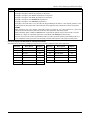
DETAIL B
SIDE VIEW OF SHORT
MOUNTING CLIPS
(TYP.)
hi_end_mnt-PCB
Figure 3-3: Mounting the PC Board
Installing the Keypads
•
Up to 31 addressable keypads (addresses 00-30) may be used (you may need to use an auxiliary power supply if the
750mA aux. output is exceeded). The following keypads may be used:
•
2-line alpha display, FA570KP
NOTE: Refer to the Alpha Vocabulary list found in the #93 Menu Mode in the Programming Guide for list of the words
annunciated by the FA570KPV.
To wire the keypads, perform the following steps:
Step
Action
1
Determine wire gauge by referring to the Wire Run Length/Gauge table below.
Wire Run Length/Gauge Table
Wire Gauge
Length
#22 gauge
450 feet
#20 gauge
700 feet
#18 gauge
1100 feet
#16 gauge
1750 feet
2
Wire keypads to a single wire run or connect individual keypads to separate wire runs. The maximum wire
run length from the control to a keypad, which is homerun back to the control must not exceed the lengths
listed in the table.
3
Run field wiring from the control to the keypads (using standard 4-conductor cable of the wire gauge
determined in step 1).
4
Connect the keypad(s) to terminals 6, 7, 8, and 9 on the control board, as shown in Figure 3-4.
•
•
The length of all wire runs combined, regardless of the wire gauge, must not exceed 2000 feet when unshielded
quad conductor cable is used (1000 feet if unshielded cable is run in conduit, which acts a shield, or if shielded
cable is used).
If more than one keypad is wired to one run, then the above maximum lengths must be divided by the number of
keypads on the run (e.g., the maximum length is 225 feet if two keypads are wired on a #22 gauge run).
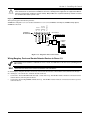
RED
6
BLACK
7
GREEN
KEYPADS
8
YELLOW
9
CONTROL
TERMINALS
Figure 3-4: Keypad Connections to Control Panel
3-3
FA1660C Installation and Setup Guide
Addressing the Keypads
The keypads will not operate until they are physically addressed and enabled in the system's Device Programming
in the #93 Menu Mode.
Set each keypad for an individual address (00-30) according to the keypad's instructions. Set an alpha keypad for
address 00 and other keypads for higher addresses (00 and 01 are enabled in the system's default program). Any
keypads set for address 02 and above will appear blank until they are enabled in the system's program. Each keypad
must be set for a different address.
• Do not set any keypads to address 31 (nonaddressable mode). They will interfere with other keypads (as well as
other devices) connected to the keypad terminals.
• If an “OC” or “OPEN CIRCUIT” message is present on a keypad, data from the control is not reaching the
keypad. Check your wiring.
Supplementary Power Supply for Additional Keypads
When the control’s auxiliary power load for all devices exceeds 750mA, you can power additional keypads from a
regulated 12VDC power supply (e.g., ADEMCO AD12612 (1.2A)). Use a UL Listed, battery-backed supply for UL
installations.
Connect the additional keypads as shown in Figure 3-5, using the keypad wire colors shown. Be sure to observe the
current ratings for the power supply used.
• Make connections directly to the screw terminals as shown in Figure 3-5. Make no connection to the blue wire (if
present).
• Be sure to connect the negative (–) terminal on the power supply unit to terminal 7 (–) on the control.
SUPPLEMENTARY
POWER SUPPLY
pwr_supply-002-V0
TO
MAIN
KEYPAD
YELLOW WIRE
GREEN WIRE
BLACK WIRE
YELLOW WIRE
GREEN WIRE
TO
SECONDARY
KEYPAD
IMPORTANT:
MAKE THESE
CONNECTIONS
DIRECTLY TO
SCREW
TERMINALS AS
SHOWN.
RED WIRE
AUX. AUX. DATA DATA
IN OUT
+
–
6
7
8
9
+
RED WIRE
BLACK WIRE
–
CONTROL TERMINAL STRIP
Figure 3-5: Using A Supplementary Power Supply
Installing External Sounders
The FA1660C provides a bell circuit output for operating fire and burglary alarm notification appliances. The alarm
output is rated as follows: 10VDC – 14VDC, 1.7A max., power-limited.
UL
•
•
For Household Fire and combination Household Fire/Burglary installations, the total current drawn from the
auxiliary power, polling loop, and alarm output combined must not exceed 750mA.
For Household Burglary installations, the total current drawn from the alarm output must not exceed 1.7A. A
battery must be installed, as it supplies the current for the combined auxiliary power, polling loop, and alarm
output in excess of 750mA.
The output has the following options:
•
Selectable for supervision.
•
Selectable for confirmation of arming ding.
•
Selectable to chime when entry/exit or perimeter zones are faulted.
•
Selectable for no timeout or timeout of 2-30 minutes.
UL
3-4
Burglary bell circuits must be programmed for a timeout of 16 minutes or longer.
Section 3 – Installing the Control
UL985 Household Fire or Combination Household Fire/Burglary Installations
For installations that must provide UL Listed protection, the total combined current drawn from the alarm output,
auxiliary power output, and polling loop must not exceed 750mA in order to comply with the battery independence
requirements. If, for example, two System Sensor MH piezo alarm sounders, wired in parallel, are used (24mA total),
then 726mA (750mA – 24mA) is available for auxiliary output and polling loop use.
UL1023 Household Burglary Installations
For Household Burglary installations, the total current drawn from the alarm output must not exceed 1.7A. A battery
must be installed, as the battery supplies current from the combined auxiliary power, polling loop, and alarm output in
excess of 750mA.
Non-UL Installations
For non-UL installations, the total current drawn from this output can be up to 1.7A. A battery must be installed, as the
battery supplies current in excess of 750mA. Up to two 719 sirens can be used wired in parallel.
UL
This control complies with National Fire Protection Association (NFPA) requirements for temporal pulse sounding
of fire notification appliances.
Alarm Output Supervision
When supervision is enabled, the FA1660C monitors the alarm output wiring for open and short circuit faults while the
output is inactive. The system provides a trouble indication (Zone 970) when an open occurs; or when a short occurs
between the Bell (+) and Bell (-) terminal wiring, or between the Bell (+) terminal wiring and earth ground.
UL
NOTE: When supervising the bell output (zone 970), only one device can be connected to the alarm output
(terminals 4 and 5) for UL and Fire installations.
The FA1660C indicates the trouble condition regardless of whether the system is armed or disarmed. The zone displays
on the keypads, reports to the event log, and transmits to the central station (if programmed) on Partition 1. The
Contact ID event code is 321, Bell Trouble. The trouble is cleared from the display by entering the user code + OFF.
Wiring the Alarm Output
The wiring of the alarm output depends upon whether you are going to supervise the output or not. Use the appropriate
procedure below for your application.
UL
Use only UL Listed sounding devices for UL installations.
Compatible Alarm Indicating Devices
Device Type
Compact Outdoor Siren (not UL Listed)
Indoor Siren
Bell
Fire Piezo Horn
Fire Horn/Strobe
Fire Horn/Strobe
1
2
3
+
4
5
+
-
-
6
Polarizing Diode
Yes
Yes
Yes
No
No
No
7
8
ALARM SOUNDER OUTPUT:
1-VDC - 13.8VDC
1.7A MAXIMUM
BELL
HORN
fire_devices-001-V0
Model Number
719
747
AB12M
System Sensor HR
System Sensor P2RK, P4RK
Wheelock AS-121575W
Figure 3-6: Wiring Polarized Fire Devices
3-5
FA1660C Installation and Setup Guide
POLARIZING DIODES
(MUST MOUNT AT INDICATING DEVICE)
PANEL BELL
HORN
BELL
BELL
TO
OTHER
DEVICES
PANEL BELL
NONPOLARIZED BURGLARY
INDICATING DEVICES
POLARIZED FIRE
INDICATING DEVICE
non_polar_devices
Figure 3-7: Wiring Nonpolarized Burglary Devices
Supervising the Alarm Output
To wire the alarm output using the supervision feature, perform the following steps:
Step
1
Action
Wire polarized fire-indicating devices to the alarm output as shown in Figure 3-6.
2
Wire nonpolarized burglary indicating devices to the alarm output using a polarizing diode (two 2A diodes
supplied), as shown in Figure 3-7.
3
Program Zone 970 with a response type of 05 (trouble by day/alarm by night).
NOTE: When supervising the bell output (zone 970), only one device can be connected to the alarm output
(terminals 4 and 5) for UL and Fire installations.
The minimum load on the alarm output must exceed 5mA at 12V for proper supervision operation.
UL
If a device such as a siren driver with a high-resistance trigger input (drawing less than 5mA) is used in a UL
Household Fire installation, the siren driver must independently supervise siren speaker wiring.
Using a Siren Driver
To install a siren driver, perform the following steps:
Step
Action
1
Mount the siren driver in the panel’s cabinet.
2
Wire the siren driver to the control and to the speaker(s). (See the driver’s instructions.)
3
Cut the blue jumper on the upper left-hand corner of the panel’s PC board.
4
Program Zone 970 with no response type (00).
Disabling the Supervision of the Alarm Output
To install the alarm output and disable the supervision feature, perform the following steps:
Step
Action
1
Wire the devices to terminals 4 and 5, observing polarity if necessary.
2
Cut the blue jumper on the upper left-hand corner of the panel’s PC board.
3
Program Zone 970 with no response type (00).
Telephone Line Connections
Connect the main dialer output to telephone company lines using the RJ31X cables supplied.
UL
The telephone line inputs have overvoltage protection in accordance with UL1459, as specified in UL985/UL1023.
The system is shipped defaulted for Contact ID format. It is the only format capable of uniquely reporting all 128
zones, as well as openings and closings for all 150 users. This requires central stations to be equipped with the
MX8000 receiver to fully support all new FA1660C report codes. If you need to update your MX8000, contact your
distributor.
3-6
Section 3 – Installing the Control
To prevent the risk of shock, disconnect phone lines at the telco jack before servicing.
If the communicator is connected to a PABX, be sure it has a backup power supply that can support the PABX for
24 hours (central station) or 60 hours (remote station). Many PABXs are not power-backed up, and this can result
in a communication failure if power is lost.
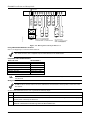
{
{
GROUND
Reporting Formats
The system supports the following formats:
ADEMCO Low Speed 3+1; 4+1; 4+2; Sescoa/Radionics 3+1; 4+1; 4+2; ADEMCO 4+2 Express; ADEMCO High Speed;
ADEMCO Contact ID
26
30
Handset
27
Incoming
Telco Line
28
29
TERMINALS
ON CONTROL
DIRECT
CONNECT
CORD
TIP
RING
INCOMING TELCO LINE
RED (RING)
GREEN (TIP)
GREY (RING)
BROWN (TIP)
EARTH GROUND
TIP
RJ31X
RING
JACK
PREMISES
PHONES
PLUG
Figure 3-8: Telephone Line Connections
Wiring Burglary, Panic and Smoke Detector Devices to Zones 1-9
The maximum zone resistance is 100 ohms for zones 1 and 8, and 300 ohms for all other zones (excluding the 2K
EOL resistor).
ULC
Smoke detector devices have not been evaluated for ULC installations.
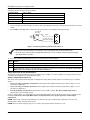
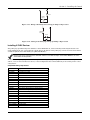
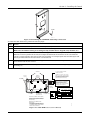
To wire burglary and panic devices to zones 1-9, connect sensors/contacts to the hardwire zone terminals (10 through
23). See Figure 3-9. Connect N.C. and N.O. devices as follows:
•
Connect N.C. devices in series with the high (+) side of the loop. The 2K EOL resistor must be connected in series
with the devices, following the last device.
•
Connect N.O. devices in parallel (across) the loop. The 2K EOL resistor must be connected across the loop wires
at the last device.
3-7
FA1660C Installation and Setup Guide
Red Jumper
ZONE 2 ZONE 3
10
11
12
13
ZONE 4 ZONE 5
14
15
16
ZONE 6 ZONE 7
17
18
19
ZONE 8 ZONE 9
20
21
22
23
+
-
N.C.
-
+
+
+
-
N.C.
N.C.
N.C.
N.O.
N.O.
N.O.
N.O.
2k EOLR
2k EOLR
2k EOLR
2k EOLR
+
Fire
Usage
N.C.
SMOKE
-
LATCHING TYPE GLASS
BREAK DETECTORS
2-WIRE SMOKE
DETECTOR LOOP
+
(Also supports NO/NC Burg contacts)
ZONE 1
+
+
-
GLASS
BREAK
N.C.
N.C.
N.O.
N.C.
hw-zones-002-V0
Burg.
Usage
2k EOLR
N.O.
2k EOLR
N.C.
N.O.
N.O.
2k EOLR
+
Zone resistance (Excluding EOLR):
ZONE 1,8: 100 OHMS MAXIMUM
ALL OTHER ZONES: 300 OHMS MAXIMUM
N.C.
2k EOLR
Zone response time:
ZONES 1-9: 350mSec-500mSec
ZONE 9: Also Programmable
for RS232 input
Figure 3-9: Wiring Connections for Zones 1-9
Using 2-Wire Smoke Detectors on Zone 1
Zone 1 can support up to 16 2-wire smoke detectors.
The alarm current on zone 1 supports only one smoke detector in the alarmed state.
Compatible 2-Wire Smoke Detectors
DETECTOR TYPE
DEVICE MODEL #
Photoelectric, direct-wire
Photoelectric w/heat sensor, direct-wire
Ionization w/B401B base
Photoelectric duct detect (DH400 base)
Ionization duct detector (DH400 base)
Ionization, direct-wire
Photoelectric w/B110LP base
System Sensor 2W-B
System Sensor 2WT-B
System Sensor 1451
System Sensor 2451
System Sensor 1451DH
System Sensor 1100
System Sensor 2151
UL
These smoke detectors are UL Listed for use with the FA1660C and are the only 2-wire smoke detectors that
may be used.
Wiring 2-Wire Smoke Detectors to Zone 1
2K EOL resistors must be used on fire zones and must be connected across the loop wires of each zone at the
last detector.
To wire 2-wire smoke detectors to zone 1, perform the following steps:
Step
Action
1
Select up to 16 2-wire smoke detectors from the list of compatible detectors.
2
Connect 2-wire smoke detectors across zone 1 terminals (10 and 11) as shown in Figure 3-10. Observe proper
polarity when connecting the detectors.
3
Connect the EOL resistor at the last detector in the loop across the zone 1 terminals. The EOL resistor
must be connected across the loop wires at the last detector.
3-8
Section 3 – Installing the Control
(+)
10
(+)
11
(-)
ZONE 1
SMOKE
2k EOLR
2-WIRE SMOKE
DETECTOR
(-)
Figure 3-10: 2-Wire Smoke Detector on Zone 1
Using 4-Wire Smoke Detectors on Zones 1-8
You may use as many 4-wire smoke detectors as can be powered from the panel's Auxiliary Power output without
exceeding the output's rating (750mA).
• NFPA limits the number of 4-wire smoke detectors to 18 per zone.
• Auxiliary power to 4-wire smoke detectors is not automatically reset after an alarm, and therefore must be
momentarily interrupted using either the J7 smoke detector reset output trigger or a 4204 Relay Module.
Compatible 4-Wire Smoke Detectors
Use any UL Listed 4-wire smoke detector that is rated for 10-14VDC operation and that has alarm reset time not
exceeding 6 seconds. Some compatible 4-wire smoke detectors are listed below.
Detector Type
Photoelectric, direct wire
Photoelectric w/heat
sensor, direct wire
Detector Model #
System Sensor 4W-B
System Sensor 4WT-B
Wiring 4-Wire Smoke Detectors
UL
Power to 4-wire smoke detectors must be supervised with an EOL device (use a System Sensor EOLR-1 EOL relay
module connected as shown in Figure 3-11).
To wire 4-wire smoke detectors to zones 1-8, perform the following steps:
Step
Action
1
Select 4-wire smoke detectors (see list of compatible detectors shown previously).
2
Connect detectors (including heat detectors, if used) across terminals of the zone selected. All detectors must
be wired in parallel. See Figure 3-11.
NOTE: If you are using the J7 output trigger to reset the smoke detectors, refer to Smoke Detector Reset later
in this section for the wiring instructions.
3
Connect the EOLR at the last detector in the loop across the zone’s terminals. You must connect the
EOLR across the loop wires at the last detector.
TO
AUXILIARY
POWER
TERMINALS
_
_
+
4-WIRE
SMOKE
DETECTORS
+
NOTES:
· PROGRAM THE RELAY TO
TRANSFER ON FIRE ZONE
RESET (ACTIVATION CODE 54).
SEE 4204 RELAY MODULE
SECTION FOR DETAILS.
· SECOND CODE AND OFF
ENTERED AT CONSOLE
MOMENTARILY INTERRUPTS
DETECTOR POWER.
+
_
NO CONNECTION
C
NC
_
+
EOL POWER
SUPERVISION
RELAY MODULE
A77-716B
SHOWN POWERED.
RELAY OPENS WHEN
POWER IS LOST.
NO
RESET
HEAT
DETECTOR
RELAY 1, 2, 3, OR 4
4204 RELAY MODULE
+
2k
EOLR
_
TO
FIRE ZONE
TERMINALS
V128BP-002-V0
Figure 3-11: 4-Wire Smoke Detectors
Using 2-Wire Latching Glassbreaks on Zone 8
Zone 8 can support 2-wire glassbreak detectors. The zone provides enough standby current to power up to 50 2-wire
glassbreak detectors meeting the requirements listed below.
3-9
FA1660C Installation and Setup Guide
Compatible Glassbreak Detectors
Use detectors that meet the following ratings:
Standby Voltage:
5VDC–13.8VDC
Standby Resistance:
Greater than 20k ohms (equivalent resistance of all detectors in parallel)
Alarm Resistance:
Less than 1.1k ohms (see note below)
Alarm Current:
2mA–10mA
Reset Time:
Less than 6 seconds
NOTES:
•
You can use detectors that exceed 1.1k ohms in alarm, provided they maintain a voltage drop of less than 3.8 volts in
alarm.
•
The ADEMCO ASC-SS1 detector has been tested and found to be compatible with these ratings.
GLASSBREAK
DETECTOR
2000
OHMS
EOLR
ZONE 8
21
(+)
22
(-)
LATCHING TYPE GLASS
BREAK DETECTOR LOOP
Figure 3-12: Wiring Latching Glassbreaks to Zone 8
• The alarm current provided by zone 8 supports only one glassbreak detector in the alarmed state.
• Do not use other contacts when using glassbreak detectors on zone 8. Other contacts may prevent proper
glassbreak detector operation.
To wire 2-wire latching glassbreak detectors to zone 8, perform the following steps:
Step
Action
1
Select 2-wire glassbreak detectors that meet the requirements stated previously.
2
Connect detectors across zone 8 (terminals 21 and 22). See Figure 3-12.
3
Connect the EOL resistor at the last detector in the loop across the zone’s terminals. You must connect the
EOL resistor across the loop wires at the last detector.
Tamper Supervision for the Hardwired Zones
The system can be programmed to monitor for either an open condition or a short condition of a tamper switch on zones
1-8. End-of-line supervision is required for this option.
Wiring a Tamper Switch to Zones 1-8
The wiring of the tamper switch depends on whether the tamper switch and the sensor are normally open or normally
closed.
•
If you are using a normally closed sensor, the tamper switch must be normally open. Refer to Figure 3-13 for
the wiring configuration.
•
If you are using a normally open sensor, the tamper switch must be normally closed. Refer to Figure 3-13 for
the wiring configuration.
•
For the normally closed sensor, program the zone for trouble on short. For the normally open sensor,
program the zone for trouble on open.
To wire a tamper switch on a hardwired zone, connect the EOL resistor at the last detector in the loop across the zone’s
terminals. You must connect the EOL resistor at the last detector for proper operation of the tamper
supervision.
NOTE: These zones cannot be programmed for any 24 hour zone type and that tamper supervision is only in the
disarmed state. When armed goes into alarm.
NOTE: For zones with a response type of 9 or 16 (Fire), the tamper selection must be “0” none.
3-10
Section 3 – Installing the Control
+
SENSOR
TAMPER
SWITCH
2k EOLR
Figure 3-13: Wiring a Normally Closed Loop for Tamper Supervision
+
TAMPER
SWITCH
SENSOR
2k EOLR
Figure 3-14: Wiring a Normally Open Loop for Tamper Supervision
Installing V-PLEX Devices
The polling loop provides both power and data to the V-PLEX devices, and is constantly monitoring the status of all
zones enabled on the loop. The maximum current draw of all devices on the polling loop cannot total more than 128mA
(unless the system uses a 4297 Polling Loop Extender Module).
Devices that can be programmed via either DIP switches or the built-in unique serial number must be set for the
serial number mode operation.
All devices on the polling loop must be wired in parallel to the [+] and [-] polling loop terminals of the control panel (24
and 25). You can wire from device to device, or have multiple branches connected directly to the control panel in a star
configuration.
Compatible Polling Loop Devices
Model Number
Type
4297
DT7500SN
IS2500SN
4208SN
4208SNF
269SN
FG1625SN
5192SD
5192SDT
5193SD
5193SDT
4101SN
4208U
4959SN
4209U
4193SN
4293SN
4190SN
998MX
Quest 2260SN
V-Plex VSI
Extender Module
V-Plex Dual Tech PIR
V-Plex Dual Tech
8 Zone V-Plex Interface
8 Zone V-Plex Class A Interface
V-Plex Holdup Switch
V-Plex Glass Break Detector
Photoelectric Smoke Detector Devices
Photoelectric Smoke Detector w/Heat Detector
Photoelectric Smoke Detector Device
Photoelectric Smoke Detector w/Heat Detector
Serial Number Single-Output Relay Module
Universal 8-Zone Expander
Aluminum Overhead Door Contact
Universal Group Zoning Module
Serialized 2-Zone Expander
Serialized 1-Zone Expander
Serialized 2-Zone Expander
Serialized PIR
Serialized PIR
V-Plex Short Isolator
3-11
FA1660C Installation and Setup Guide
UL
•
•
•
•
•
•
•
The 4208 must be mounted either inside the control panel’s cabinet or in a separate enclosure that has a tampersupervised cover.
The 4190WH right loop must not be used, and the left loop must be EOLR-supervised.
The 4278 right loop cannot be used.
The 4297 must be powered from the control panel’s Auxiliary Power Output or from a UL Listed supplementary
power supply.
For new polling loop installations, always use twisted pair wiring. In many cases, existing non-twisted pair wiring
may be used, but it is more susceptible to interference from other sources, and may be problematic in installations
with long wire runs or in high noise environments.
Always locate polling loop wiring at least 6 inches (15cm) of AC power, telephone, or intercom wiring. The polling
loop carries data between the control panel and the devices; interference on this loop can cause an interruption of
communication. The polling loop can also cause outgoing interference on the intercom or phone lines. If this
spacing cannot be achieved, shielded wire must be used. (Note that the maximum total wire length supported is
cut in half when shielded wire is used.)
No more than 64mA may be drawn on any individual wire run.
IMPORTANT NOTE: If the installation needs to exceed or deviate from these parameters, refer to the application note on
the Honeywell website for additional polling loop wiring configurations. To access the application note:
1. Go to the honeywell.com/security website
2. Click the Honeywell Security & Custom Electronics link.
3. Click the Commercial link.
4. Click the Documentation link.
5. Click the V-Plex Application Note.
To install polling loop devices, perform the following steps:
Step
Action
1
Select devices from the list of compatible devices shown previously.
2
Set the DIP switches in the device (if required). Refer to the device’s instructions.
3
Mount each device in the desired location. Refer to the device’s instructions.
4
Run wires from the control panel to each device on the polling loop (see Figure 3-15).
5
Wire each device to the polling loop, making sure of the correct polarity (refer to the device’s instructions).
NOTE: If you are using serial number devices, and intend to enroll each device through the keypad
automatically, wire no more than 25 of these devices to the control at a time. Then power up and
program them before connecting the next 25. Leave previously enrolled devices connected.
If you intend to manually enter the serial numbers via the keypad or the Compass downloading software,
all the devices may be connected before powering up to program.
22
POLLING LOOP RATING:
128mA MAXIMUM
23
25
24
+
-
POLLING LOOP
21
4190
RPM
TO RIGHT LOOP
4278
PIR
poll_loop-001-V1
5192SD
SMOKE
Figure 3-16: Polling Loop Connections to the FA1660C
3-12
Section 3 – Installing the Control
Polling Loop Supervision
A short on the polling loop is indicated by a trouble on zone 997 and reports as a trouble condition only. If annunciation
is desired, program the zone as type 05.
If a device on the polling loop fails (the panel cannot "see" that device), the system displays a trouble condition for all
zones on that device. If the panel is armed when a device fails, and the zone is a burglary zone, the will go into alarm
A trouble on zone 997 prevents a partition from being armed, unless all polling loop zones on that partition are
bypassed.
Using the 4297 Polling Loop Extender
The 4297 Polling Loop Extender may be used to provide additional polling loop current, to extend the polling loop wire
run length, and/or to provide individual electrically isolated polling loops. Refer to Figures 3-16 and 3-17, to follow.
DO NOT use the 4197 Polling Loop Extender module with the FA1660C.
Be sure to include the total current drawn on the polling loop when figuring the total auxiliary load on the panel’s
power supply.
INPUT POLLING LOOP
RPM
CONTROL PANEL
RPM
INPUT LOOP LIMITS:
• 128 mA MAX. LIMIT CURRENT TO 64mA ON ANY
INDIVIDUAL WIRE RUN.
• NO MORE THAN 64 DEVICES MAY BE USED.
• NO INDIVIDUAL WIRE RUN CAN EXCEED:
GAUGE
#22
#20
LENGTH
650 FT
950 FT
#18
1500 FT
#16
2400 FT
EXTENSION POLLING LOOP
4297
RPM
TO
OTHER
RPMS
RPM
EXTENSION POLLING LOOP LIMITS = SAME AS INPUT LOOP
COMBINED INPUT AND EXTENSION LOOP LIMITS:
• NO MORE THAN 119 DEVICES COMBINED.
polling_loop_003-V2_BP
Figure 3-16: Polling Loop Connections Using One 4297 Extender Module
EXTENSION POLLING LOOP #1
• DO NOT CONNECT 4297 MODULES IN
SERIES (i.e., DO NOT CONNECT ONE
MODULE'S EXTENSION LOOP TO
ANOTHER MODULE'S INPUT LOOP.)
CONTROL PANEL
4297
RPM
INPUT POLLING LOOP
EXTENSION POLLING LOOP #2
4297
COMBINED INPUT AND EXTENSION LOOP LIMITS:
• NO MORE THAN 119 DEVICES COMBINED ON THE INPUT LOOP AND EXTENSION
LOOP #1. NO MORE THAN 119 DEVICES COMBINED ON THE INPUT LOOP AND
EXTENSION LOOP #2.
RPM
polling_loop-004-V1_BP
Figure 3-17: Polling Loop Connections Using Multiple Extender Modules
NOTE: The input loop limits stated in Figure 3-16 apply to Figure 3-17 as well.
Wireless Zone Expansion
UL
ULC
The 5881ENHC RF Receiver and the 5869 Holdup Switch Transmitter are listed for UL Commercial Burglary
applications. All other RF receivers and transmitters are not listed for UL Commercial Burglary applications.
Wireless devices are not ULC Listed and cannot be used for ULC Installations.
3-13
FA1660C Installation and Setup Guide
The following table lists the receivers that may be used and the number of zones they support.
5800 Series Receivers
Receiver
Zones
5881L
5881M
5881H
up to 8
up to 16
up to 150
RF System Operation and Supervision
The 5800 RF system operation has the following characteristics:
•
The receiver responds to a frequency of 345MHz.
•
The receiver has a nominal range of 200 feet.
•
Supervised transmitters send a supervisory signal every 70-90 minutes.
Zones 988 and 990 are used to supervise the RF reception of receivers 2 and 1, respectively. The reception is supervised
for two conditions:
1. The receiver goes “deaf” (doesn’t hear from any transmitter) within a programmed interval of time (defined by
program field 1*30).
2. Proper RF reception is impeded (i.e., jamming or other RF interference). The control checks for this condition
every 45 seconds.
UL
•
•
•
•
•
st
A response type (05 Day/Night) must be programmed for zones 990 (1 receiver) and 988 (2
installations.
nd
receiver) for UL
The 5881ENHC receiver contains front and back tampers that permit its use in commercial burglary installations.
You may only mount the 5881ENHC its own plastic housing. Otherwise, the receiver constantly reports a tamper
condition.
The control checks the receiver connections about every 45 seconds. The receiver supervisory zone is 8 + 2-digit
receiver device address (for example, Device address 05 = supervisory zone 805).
NOTE: This zone must be programmed with a response type (e.g., type 05 Day/Night Trouble) before it supervise
the connection to the receiver.
Use two identical receivers to provide either a greater area of coverage or redundant protection. They must be set for
different addresses.
NOTE: No more than two receivers can be installed.
Any zone from 1 to 150 can be used as a 5800 Series wireless zone, with the exception of zone 64 (reserved for a
wireless keypad).
RF System Installation Advisories
•
Place the receiver in a high, centrally located area. Do not place it on or near metal objects. This will decrease the
range and/or block transmissions.
•
Install the RF receiver at least 10 feet from the control panel or any keypads, to avoid interference from the
microprocessors in these units.
•
If dual receivers are used:
a. They must be at least 10 feet from each other, as well as from the control panel and remote keypads.
b. Each receiver must be set to a different device address. The receiver set to the lower address is considered the
st
1 RF receiver for supervisory purposes.
c. The House IDs must be the same.
d. Using two receivers does not increase the number of transmitters the system can support (249 zones using the
5881H, plus a wireless keypad).
Installation and Setup of 5881 RF Receivers
Take note of the address you select for the RF receiver, as this address must be enabled in the system’s Device
Programming in the #93 Menu Mode.
3-14
Section 3 – Installing the Control
SCREW
5881ENHC-001-V0
Figure 3-18: Installing the 5881ENHC with Tamper Protection
To install the 5881 RF receiver, perform the following steps:
Step
Action
1
Mount the receiver, following the advisories stated previously.
2
Set the DIP switches in the receiver for the address (01-07). See Figure 3-19.
Make sure the address setting is not being used by another device (keypad, relay module, etc.).
If installing a 5881ENHC, install a flat-head screw (supplied) in the case tamper tab as shown in Figure 3-18.
When the receiver is pried from the wall, the tamper tab will break off and remain on the wall. This will
activate a tamper switch in the receiver and cause generation of a tamper signal. Note that this signal will
also be generated when the receiver’s front cover is removed.
3
4
Connect the receiver’s wire harness to the keypad terminals (6, 7, 8, and 9). Plug the connector at the other
end of the harness into the receiver.
5
Refer to the Installation Instructions provided with the receiver for installations regarding antenna
mounting, etc.
ANTENNAS
TO CONTROL'S REMOTE KEYPAD
CONNECTION POINTS.
USE MAX. of 220 ft. [67m of #22 (0.64mm)
WIRE or 550 ft. (168m) of #18 (1mm) WIRE
FOR EACH RUN. OBSERVE 20 ft. MAX.
FOR COMMERCIAL FIRE INSTALLATIONS.
(SEE RECEIVER'S INSTRUCTIONS.)
INSERT IN
RIGHT-HAND
TERMINALS
CIRCUIT
BOARD
MOUNTING
HOLES
YELLOW
RED
BLACK
GREEN
WIRING
OPENING
DIP SWITCH WHITE AREAS = SWITCH
HANDLES. POSITION 2-4 DETERMINE
RECEIVER'S ADDRESS. CONSULT
CONTROL'S INSTRUCTIONS FOR
ADDRESS TO USE. DIP SWITCH BELOW
SHOWN SET FOR ADDRESS "0."
SWITCH RECEIVER ADDRESS SETTINGS
(" - " MEANS OFF)
POSITION
0
5
4
DIP SWITCH
INTERFERENCE
INDICATOR LED
PLUG & SOCKET
DIP SWITCH #5 (PRESET ONLY ON 5881EH)
1
2
3
4
5
6
7
PRESENT ONLY ON 5881EH (SEE TEXT AT LEFT)
3
2
1
ON
ON
ON ON
ON
ON
ON ON
ON ON ON ON
FOR FUTURE USE
OFF: USE IN NON-COMMERCIAL FIRE
INSTALLATIONS.
* FOR COMMERCIAL FIRE APPLICATIONS
THE 5881EH PC BOARD MUST BE MOUNTED
IN A SEPARATE CABINET (SEE RECEIVER'S
INSTRUCTIONS FOR DETAILS).
5881-001-V1
ON: SETS 5881EH FOR USE IN COMMERCIAL
FIRE APPLICATIONS (SEE THE RECEIVER'S
INSTRUCTIONS)*.
Figure 3-19: 5881 RF Receiver (cover removed)
3-15
FA1660C Installation and Setup Guide
Installing the 5800TM Module
Installation of this module is necessary only if you are using a 5827BD or 5804BD Bi-directional device.
The address for the 5800TM must be enabled in the control’s Device Programming in the #93 Menu Mode as a
keypad and then assigned to a partition.
To install the 5800TM, perform the following steps:
Step
Action
1
Mount the unit using its accompanying mounting bracket near the RF receiver.
The 5800TM must not be installed within the control cabinet. It must be between one and two feet
from the receiver’s antennas.
Set the module for the appropriate address. For Address Setting 28 cut the red jumper; for Address 29 cut the
white jumper; for Address 30 cut both jumpers.
Make sure the address setting is not being used by another device (keypad, relay module, etc.).
Connect the module’s wire harness to the keypad terminals (6, 7, 8, and 9). Plug the connector at the other
end of the harness into the module.
2
3
House ID Sniffer Mode
This mode applies only if you are using a wireless keypad (e.g., 5827) or bi-directional devices (e.g., 5804BD). Use the
House ID Sniffer mode to make sure you do not choose a House ID that is in use in a nearby system. The House ID must
be programmed for the receiver in Device Programming in the #93 Menu Mode.
To enter House ID Sniffer mode, enter your Installer Code + [#] + [2].
The receiver now “sniffs” for any House IDs in the area and displays them. Keep the receiver in this mode for 2 hours.
Use a House ID that is not displayed. Exit the Sniffer mode by entering your Installer Code + OFF.
As Sniffer mode effectively disables RF point reception, Sniffer mode cannot be entered while any partition is
armed.
5800 Series Transmitter Setup
5800 Series transmitters have the following characteristics:
•
Transmitters have built-in serial numbers that must be enrolled in the system using the #93 Menu Mode
Programming, or input to the control via the downloader.
•
Transmitters do not have DIP switches (except 5827, described separately).
•
Some transmitters, such as the 5816 and 5817, can support more than one “zone” (referred to as loops or inputs).
Each loop must be assigned a different zone number.
•
For button-type transmitters (wireless keys), such as the 5804 and 5804BD, you must assign a unique zone number
to each individual button used on the transmitter.
Transmitter Input Types
All transmitters have one or more unique factory-assigned input (loop) codes. Transmitters can be programmed as one
of the following types:
Type
RM
(RF Motion)
RF
(Supervised
RF)
UR
(Unsupervised
RF)
BR
(Unsupervised
Button RF)
3-16
Description
Sends periodic check-in signals, as well as fault and low-battery signals. The control panel automatically restores the
zone to “ready” after a few seconds. This type is designed for facilities with multiple motion detectors that may fault and
restore simultaneously. The transmitter must remain within the receiver’s range.
NOTE: If using RF Motion with a door/window type transmitter, only loop 1 may be used.
Sends periodic check-in signals, as well as fault, restore, and low-battery signals. The transmitter must remain within
the receiver’s range.
Sends all the signals that the RF type does, but the control does not supervise the check-in signals. The transmitter
may therefore be carried off-premises.
These send only fault signals. They do not send low-battery signals until they are activated. The transmitter may be
carried off-premises.
Section 3 – Installing the Control
Transmitter Supervision
Supervised RF transmitters send a check-in signal to the receiver at 70–90 minute intervals. If at least one check-in is
not received from each supervised transmitter within a programmed period (field 1∗31), the “missing” transmitter
number(s) and “CHECK” or “TRBL” are displayed. Unsupervised RF transmitters (5802MN, 5804) may be carried off the
premises.
Some transmitters have built-in tamper protection, and annunciate a “CHECK” or “TRBL” condition if covers are
removed.
If a loss of supervision occurs on a transmitter programmed for Fire, it reports in Contact ID as a Fire Trouble
(373), not Loss of Supervision (381), to the central station.
Transmitter Battery Life
Batteries in the wireless transmitters may last from 4 to 7 years, depending on the environment, usage, and the specific
wireless device being used. Factors such as humidity, high or low temperatures, as well as large swings in temperature
may all reduce the actual battery life in a given installation.
The wireless system can identify a true low battery situation, thus allowing the dealer or user of the system time to
arrange a change of battery and maintain protection for that point within the system.
Some transmitters (e.g., 5802, 5802CP, and 5803) contain long-life but non-replaceable batteries. At the end of their life,
the complete unit must be replaced (and a new serial number enrolled at the control).
Button-type transmitters (e.g., 5801, 5802, 5802CP and 5803) should be periodically tested, as these transmitters do not
send supervisory check-in signals.
To test the transmitters using the Transmitter ID Sniffer mode and the Go/NoGo Test Mode, see SECTION 10:
Testing the System for the procedures.
Compatible 5800 Series Transmitters
Model
Product
Input Type
5800CO
5800RP
5801
5802
5802CP
5802MN
5802MN2
5804
5804BD
5804BDV
5808W3
5816
5816MN
5817
5817CB
5818
Carbon Monoxide Detector with Built-in Wireless Transmitter
RF Repeater Module
Panic Transmitter
Pendant (Personal Emergency Transmitter)
Belt Clip (Personal Emergency Transmitter)
Miniature (Personal Emergency Transmitter)
Miniature (Personal Emergency Transmitter)
Wireless Key Transmitter
Wireless Key Bi-directional Transmitter
Wireless Key Bi-directional Transmitter with Voice
Wireless Photoelectric Smoke Detector
Door/Window Transmitter
Miniature Door/Window Transmitter
Multi-Point Universal Transmitter
Wireless Commercial Household Transmitter
RF
RF
UR or RF
BR Only
5827
5827BD
Wireless Keypad
Wireless Bi-directional Keypad
House ID
House ID
5890
5890PI
PIR Detector
PIR Detector with Pet Immunity
RF
RF
Recessed Transmitter
UR or RF
UR or RF
BR Only
BR Only
BR Only
RF
RF
RF
RF
RF
Installing Output Devices
The FA1660C support up to 96 outputs. Each device must be programmed as to how to act (ACTION), when to activate
(START), and when to deactivate (STOP). The 4204, 4204CF, FSA-8, FSA-24, 4140SN and/or X-10 devices may be used
as output devices.
3-17
FA1660C Installation and Setup Guide
Installing 4204 and 4204CF Relay Modules
ULC
Relay modules have not been evaluated for ULC installations.
Each 4204 module provides 4 relays with Form C (normally open and normally closed) contacts. Each 4204CF module
adds two style Y supervised bell outputs to the system. For 4204CF modules, only relays 1 and 3 on each module can be
programmed.
The relay module will not operate until the device address you have set the DIP switches for is enabled in the
control’s Device Programming in the #93 Menu Mode.
To install the relay modules, see Figures 3-20 and 3-21 and perform the following steps:
Step
Action
1
Set the 4204 or 4204CF’s DIP switches for a device address 01-15.
Do not use an address being used by another device (keypads, RF receivers, etc.).
Mount the 4204 and 4204CF Modules per the instructions provided with them.
Connect the module’s wire harness to the control (6, 7, 8, and 9). Plug the connector (other end of harness) to
the module.
If you are mounting remotely, homerun each module to the control. The table below shows the maximum wire
run lengths. Refer to the instructions provided with the 4204CF for its maximum permissible wire lengths.
2
3
Wire Gauge
#22
#20
#18
#16
Maximum Length
125 feet
200 feet
300 feet
500 feet
SWITCH
NUMBER
➞
ON
1
➞
➞
➞
➞
➞
OFF
4204 ADDRESS SETTINGS
("—" means "OFF")
0
1
2
3
4
2
3
4
5
1
NOT USED
2
ON
—
—
3
ON
ON
—
—
4
ON
ON
ON
ON
5
ON
ON
ON
ON
ON
SWITCH SHOWN
FOR ADDRESS "0"
5
6
7
8
9
10
11
ON
—
ON
—
ON
—
—
ON
ON
—
—
ON
ON
—
—
—
—
—
—
ON
ON
ON
ON
—
ON
ON
ON
ON
—
—
—
—
—
ON
12
13
14
15
ON
—
ON
—
ON
ON
—
—
—
—
—
—
—
—
EITHER OR BOTH
CAN BE USED
TB2
4204
DIP SWITCH FOR
SETTING DEVICE
ADDRESS AND
ENABLING/DISABLING
TAMPER
RELAY
12
TYPICAL
(SHOWN "OFF")
10
NO
9
C
4
RELAY
RELAY
RELAY
TB1
1
14
15
16
YEL
DATA IN FROM
CONTROL
BLK
(–) GROUND
GRN
DATA OUT
TO CONTROL
RED
(+) 12V
NC
7
NO
6
C
5
2
4-PIN
CONSOLE
PLUG
13
NC
8
3
COVER
TAMPER
(REED)
SWITCH
C
11
NC
4
NO
3
C
2
NC
1
NO
4204-01-V1
Figure 3-20: 4204 Relay Module
DIP SWITCH:
WHITE AREAS DENOTE SWITCH HANDLES
OFF
2
3
4
5
6
8
9
10
ON
—
ON
—
ON
—
ON
—
ON
—
ON
3
3
ON ON
—
—
ON ON
—
—
ON ON
—
—
ON ON
—
4
4
ON ON ON ON
—
—
—
ON ON ON ON
—
—
—
—
5
5
ON ON ON ON ON ON ON ON
—
—
—
—
—
1 2
1
—
7
11
10
EITHER OR BOTH
CAN BE USED
4-PIN CONSOLE
PLUG
NC
NC
9
8
COVER TAMPER (REED) SWITCH
7
POLARIZED
NC NOTIFICATION
NC APPLIANCES
5
3
2
1
16
YEL
BLK
GRN
RED
NOTIFICATION
APPLIANCE
OUTPUT B
2K EOLR
EOL20
NOTIFICATION
APPLIANCE
OUTPUT A
2K EOLR
EOL20
6
4
TB1
—
—
12
13
14
—
ON —
15
—
NC
NC
SPECIAL APPLICATIONS CIRCUITS
ALARM POLARITY SHOWN
EACH OUTPUT PROVIDES
STYLE Y SUPERVISION
EACH OUTPUT RATED 1.2A MAX
USE NOTIFICATION APPLIANCES
COMPATIBLE WITH POWER SUPPLY
VOLTAGE RATING
POWER FOR NOTIFICATION APPLIANCE OUTPUTS A & B
8-30 VDC OR VFW. UP TO 2.4A DEPENDING ON
NOTIFICATION APPLIANCE CURRENT.
DATA IN FROM CONTROL
GROUND
NOTIFICATION APPLIANCE AND CONSOLE DATA
OUTPUTS ARE POWER-LIMITED.
ALL POWER-LIMITED WIRING MUST BE SEPARATED
FROM NON-POWER-LIMITED AND HIGH-VOLTAGE
WIRING BY 1/4" (6.4mm).
ALL CIRCUITS ARE SUPERVISED AND POWER-LIMITED
WHEN POWERED BY THE CONTROL PANEL.
NFPA-72 COMPLIANT.
DATA OUT TO CONTROL
12VDC; SUPPLIES POWER TO MODULE CIRCUITRY (INCLUDING APPLIANCE OUTPUT
RELAY COILS). CURRENT DRAIN AY 12V IS: 25mA + (80mA PER ACTIVE OUTPUT).
Figure 3-21: 4204CF Relay Module
3-18
—
11
FOR UL COMMERCIAL FIRE INSTALLATIONS, ONLY ONE NOTIFICATION APPLIANCE
MODULE MAY BE USED, AND ONLY ONE NOTIFICATION APPLIANCE OUTPUT (A or B)
MAY BE USED ON THAT MODULE.
12
DIP SWITCH
FOR SETTING DEVICE
ADDRESS AND
ENABLING/DISABLING TAMPER
15
("—" means "OFF")
0
TB2
4204CF
14
4204CF ADDRESS SETTINGS
SWITCH
NUMBER
ON —
POSITIONS 2-5
DETERMINE 4204CF'S ADDRESS:
CONTROL'S INSTRUCTIONS SPECIFY ADDRESS TO
USE. "0" ADDRESS SETTING SHOWN (AS SHIPPED).
13
ON
2
POSITION 1
ENABLES/DISABLES COVER TAMPER
ON = TAMPER DISABLED; OFF = TAMPER ENABLED
SHOWN DISABLED (AS SHIPPED).
4204CF-004-V1
Section 3 – Installing the Control
Installing FSA Modules
The 8-zone LED Fire System Annunciator FSA-8 and 24-zone LED Fire System Annunciator FSA-24 enable a fire
response unit to identify quickly the point/zone of a fire. These indicators may be used for other functions as well, such
as status indication. A maximum of four FSA modules, in any combination, can be supported.
The FSA module will not operate until the device address you have set the DIP switches for is enabled in the
control’s Device Programming in the #93 Menu Mode.
ULC
The FSA Module has not been evaluated for ULC installations.
To install the FSA module, refer to Figure 3-22 and perform the following steps:
Step
Action
1
Set the FSA’s DIP switches for a device address from 08 to 23. See the module’s instructions for the DIP
switch table.
Do not use an address being used by another device (keypads, RF receivers, etc.).
Mount the FSA module horizontally to a duplex box (quad box for FSA-24).
Connect the module to the control’s keypad terminals (6, 7, 8, and 9).
2
3
Optional
Keyswitch
Connection
Dip Switch
00000
Terminal
Block
SIDE
VIEW
All Switches shown
in Up position.
(ECP Address 23)
Connect to
Keypad
Terminals
ECP Bus
Figure 3-22: Wiring the FSA Module
Installing 4101SN Relay Modules
The 4101SN V-Plex Single Output Relay Module is a serial number polling loop output device. The 4101SN features the
following:
•
Form C relay contacts rated at 2A, 28VAC/VDC with contact supervision.
The position of the relay is supervised, but not the actual external contact wiring.
•
One class B/style B EOLR-supervised auxiliary input zone.
•
Operating power and communication with control panels via the V-Plex polling loop.
•
Electronics mounted in a small plastic case with tamper-protected cover.
Connect the device to the polling loop, terminals 24 (+) and 25 (-). Be sure to observe polarity
Installing X10 Devices
X-10 devices are either plugged into standard AC outlets or wired into the AC electrical system by a licensed electrician,
depending on the type of device used.
Note each device’s House and Unit Code setup, as these codes will be used to program the devices in Output
Programming in #93 Menu Mode described in the Programming Guide.
X-10 devices require the use of a 1361X10 transformer in place of the regular 1361 transformer.
X-10 devices respond to “on” and “off” commands sent from the panel through the 1361X10 transformer.
To connect the 1361X10 transformer, see Connecting the Transformer, later in this section.
3-19
FA1660C Installation and Setup Guide
Installing the Ground Start Module
UL
The Ground Start Module is not intended for use in UL Listed applications.
Output 1 may be used to trigger an optional Ground Start Module for installations having telephone lines that require
ground start instead of loop start operation to obtain a dial tone from the telco central office.
When the panel has a message to transmit to the central station, it seizes the line, goes off hook, and then triggers the
Module to connect the RING side of the telephone line to earth ground. The panel causes the module to break the
connection between RING and earth ground when it obtains a dial tone.
You cannot use Output 1 for the Ground Start if you are using it for a Smoke Detector Reset or an AAV module.
To install the 675 Ground Start Module, perform the following steps:
Step
Action
1
Determine which side of the telephone line is the RING side by connecting the (+) lead of a DC voltmeter to
earth ground, and the (-) lead to one side of the telephone line.
The wire that reads + 50VDC is the RING side.
Connect the Ground Start Module to the panel’s J7 connector trigger output 1, to auxiliary power, and to the
RING side of the telephone line as shown in Figure 3-23.
2
3
Program field 1✱46 Auxiliary Output Enable with a [0].
J7 CONNECTOR
3
4
WHITE (GROUND)
RED (OUT 2)
BLUE (GROUND)
BLACK (OUT 4)
9
GREEN
BROWN
TO
EARTH
GROUND
BROWN (OUT 3)
8
TO AUX. POWER
TERM. 6
(50mA CURRENT DRAW)
7
VIOLET
GREEN (GROUND)
6
TO AUX. POWER
TERM. 7
5
BLACK
(CUT ORANGE
JUMPER)
TO
TELCO
RING
GRAY (GROUND)
YELLOW (OUT 1)
2
GROUND START
TRIGGER
BLUE
1
675
GROUND
START
MODULE
N/U
4142TR
CABLE
IF USED:
1. OUT 1 IS NO LONGER
USABLE FOR SMOKE DETECTOR RESET
(SEE FIELD 1*46).
2. OUT 2, 3, 4 CAN STILL BE
USED TO PROVIDE ALARM
STATUS INDICATIONS OR
TO OPERATE A KEYSWITCH
(SEE FIELD *15).
3. THE 675 IS NOT UL LISTED.
Figure 3-23: Ground Start Module Connections
Installing a Remote Keyswitch
A UL-Listed remote keyswitch, such as the ADEMCO 4146, can be used for remote arming/disarming of the burglary
portion of the system and for silencing alarms. The keyswitch can operate in only one particular partition.
ULC
Remote Arming is not a ULC Listed feature.
The keyswitch is wired across zone 7. This zone is no longer available as a protection zone. Be sure to program Zone 7
with a response type (e.g., type 10).
Operation
•
A momentary short across zone 7 arms the partition in the AWAY mode, and a short held for more than 10 seconds
arms the partition in STAY mode 1. A subsequent short disarms the partition.
•
The keyswitch LEDs indicate the partition’s status (see table below).
•
A momentary short across Zone 7 silences alarm bell and keypad sounds, and disarms the system if it was armed. A
subsequent short across Zone 7 clears the alarm memory indication and resets 2-wire smoke and glassbreak
detectors (if used).
3-20
Section 3 – Installing the Control
LED Indications
Green
On
Off
Off
Off
Off
Red
Off
Off
On Steady
Slow Flash
Rapid Flash
Indication
Disarmed & Ready
Disarmed & Not Ready
Armed Away
Armed Stay
Alarm Memory
The keyswitch reports as user 0, if Open/Close reporting is enabled in field ✱40.
Keyswitch Tamper Operation
The tamper switch need not be used for fire or UL Household Burglary installations. For UL Commercial Burglary
installations, the tamper switch must be wired to a zone (zone 6 in Figure 3-24).
Program that zone for Day Trouble/Night Alarm (response type 5). When the keyswitch is removed from the wall, the
tamper switch opens, causing an alarm or trouble on the zone. This also causes the control to disable keyswitch
operation until the tamper is restored and the associated partition is disarmed.
Wiring for the Remote Keyswitch
To install the ADEMCO 4146 keyswitch, perform the following steps:
Step
Action
1
Connect the ADEMCO 4146 to the panel as shown in Figure 3-24.
2
If you are using the tamper, make sure it is connected to a zone.
TO AUX POWER
(TERMINAL 6)
YELLOW
RED
(ARMED)
WHITE
GREEN
(READY)
820
ohms
RED
820
ohms
BLACK
TO J7 / OUT 2
TO J7 / OUT 4
ZONE
+
2K ELOR
TAMPER SWITCH
(CONTACTS CLOSE WHEN
SWITCH DEPRESSED).
ZONE
LOCK SWITCH
(NORMALLY OPEN)
TO ZONE 7 (+)
(TERMINAL 20)
2K ELOR
J7_keyswitch
Figure 3-24: Remote Keyswitch Wiring
Smoke Detector Reset
Output 1 may be used to reset 4-wire smoke detectors. Use this output to trigger a low current relay, and wire the power
for the smoke detectors through the relay’s contacts.
NOTE: The output is normally high (12VDC) and goes low when the User Code + Off is entered at the keypad.
To install a relay for smoke detector reset, perform the following steps:
Step
Action
1
Connect power terminals of the relay to the panel’s auxiliary power (terminals 6 & 7).
2
Connect trigger input of the relay to Output 1 on J7.
3
Connect the “pole” (common) of the relay to terminal 6 of the control.
4
Connect the positive side of the smoke detectors to the normally closed contact of the relay.
5
Connect the negative side of the smoke detectors to terminal 7 of the control.
3-21
FA1660C Installation and Setup Guide
Remote Keypad Sounder
An optional Amseco PAL 328N Piezo Sounder can be used to duplicate the sounds produced by the keypad's built-in
sounder. The panel will remote all sounds (e.g., alarm, trouble, chime, entry/exit, etc.) produced by the keypad's built-in
sounder except for the short beeps associated with keypad key depression. One application of this feature might be to
produce chime sounds at a distant location from the panel's keypads.
Remote Keypad Sounder Setup
To setup for a remote keypad sounder, connect the piezo sounder to the panel’s positive auxiliary power output and to
Output 1 on the J7 connector as shown in Figure 3-25.
To duplicate the keypad sounds for a particular partition, program that partition number in field ✱15.
Program field 1✱46 Auxiliary Output Enable with a [2].
J7 CONNECTOR
4142TR CABLE
1
N/U
IF USED.
1. OUT 1 IS NO LONGER
USABLE FOR SMOKE
DETECTOR RESET
OR GROUND START
(SEE FIELD 1*46).
2. OUT 2 & 4 CAN NO LONGER
BE USED TO PROVIDE
ALARM TRIGGERS.
GRAY (GROUND)
2
YELLOW (OUT 1)
3
BLACK
WHITE (GROUND)
4
–
RED (OUT 2)
5
AMSECO PAL-328N
PIEZO SOUNDER
GREEN (GROUND)
6
+
BROWN (OUT 3)
7
RED
BLUE (GROUND)
8
TO AUX POWER +
TERMINAL 6
10mA CURRENT DRAIN)
BLACK (OUT 4)
9
J7_trigcon-001-V1
Figure 3-25: Remote Keypad Sounder Wiring
Installing the VA8200 Panel Link Module
The VA8200 Panel Link Module (PLM) connects to the keypad (ECP) terminals on the FA1660C and also connects to
other PLMs via the RS-485 bus (3-wire twisted cable run). Figure 3-26 is a block diagram of a panel linking setup using
three control panels.
UL
Panel Linking is not permitted in UL installations.
ECP
CONTROL
PANEL
ECP
CONTROL
PANEL
ECP
CONTROL
PANEL
CONSOLE
PLM
CONSOLE
PLM
RS-485
PLM
CONSOLE
PLG-001-V0
Figure 3-26: Panel Linking Block Diagram
ECP Wire Run Limitations
Determine wire gauge by referring to the table below.
Wire Run Length Table
Wire Gauge
Length
#22 gauge
450 feet
#20 gauge
700 feet
#18 gauge
1100 feet
#16 gauge
1750 feet
•
•
3-22
The length of the ECP wire runs combined must not exceed 2000 feet when unshielded cable is used (1000 feet
if unshielded cable is run in conduit or if shielded cable is used).
If more than one ECP device is wired to a single run, then the above maximum lengths must be divided by the
number of devices on the run (e.g., the maximum length is 225 feet if two keypads are wired on a #22 gauge
run).
Section 3 – Installing the Control
RS-485 Bus Wire Run Limitations
The RS-485 bus from the first Panel Linking Module to the last Panel Linking Module cannot exceed 4000 feet, using 16AWG twisted-pair cable.
The recommended form of wiring is to daisy chain the connection from one unit to another. If several buildings are to be
connected, the RS-485 bus should form a continuous path from one building to the next.
Avoid wiring units in a star configuration, where multiple branches are formed. Star configurations create loading and
capacitance problems that are complex, and become difficult to troubleshoot.
Mounting and Wiring the Panel Link Module
•
•
The PLM will not operate until the device is enabled in the control’s Device Programming in #93 Menu Mode.
Do not mount the PLM on the cabinet door or attempt to attach it to the PC board.
To mount and wire the Panel Link Module, refer to Figure 3-27 and perform the following steps:
Step
Action
1
Remove all power from the control panel before making any wiring connections.
2
Mount the module in the control cabinet if space is available or, adjacent to the cabinet, using 2-faced adhesive
tape.
3
Set the PLM’s DIP switches for a device address between 01 and 30. See the module’s instructions for the DIP
switch table.
Do not use an address being used by another device (keypads, RF receivers, etc.).
4
Connect the 12V (+) and (–) and data-out and data-in connections from the PLM to the control’s keypads
terminals (6, 7, 8, and 9), respectively.
5
Connect the 3-wire RS-485 cable between each PLM. Recommended wiring is to bring the wires “in” from one
module (or control panel) to terminals 5 (+), 6 (-), and 7 (G) and “out” to the next module from terminals TB1-8
(+), 9 (-), and 10 (G).
DIP
SWITCH
12345678
+
_
ECP OUT
ECP IN
+
_
G
+
_
RS-485
RS-485
G
TAMPER
REED
SWITCH
PIEZO
SOUNDER
EOL
JUMPER
PINS
PLG-002-V0
Figure 3-27: VA8200 Panel Link Module Wiring
Communicator Connected to the J7 Triggers
These triggers may be used to trip auxiliary alarm signaling equipment such as ADEMCO’s 7845GSM, 7845iGSM,
7847i, and 7845i-ent Communicators. The triggers are common to all partitions and must be enabled for each partition
(field 2✱20).
The fire and burglary/audible panic alarm triggers are normally LOW and go HIGH until a User Code + OFF is
entered in all enabled partition(s) that display these conditions. The silent panic/duress trigger latches HIGH, except for
duress, which is momentary.
Refer to the installation instructions that accompany your Communicator for the connections to the control panel.
3-23
FA1660C Installation and Setup Guide
Communicator Connected to the ECP
The control can support an ECP Communicator (7845GSM, 7845i-GSM, 7845i-ent and 7847i are supported) that
connects to control panel’s keypad terminals. All messages programmed for transmission via the phone lines may also
be sent via the Communicator. These messages are transmitted in Contact ID format regardless of the format
programmed for the control in fields 45 and 47.
We recommend that, if possible, you use Contact ID for the main dialer. If Contact ID is not used, certain types of
reports are not sent.
ULC
For ULC installations, Contact ID is the only permitted format.
Operation
The FA1660C features Dynamic Signaling Delay and Dynamic Signaling Priority message reporting when a
Communicator is used. These options are accessed through data fields ✱56 and ✱57, respectively. The Dynamic Signaling
feature is designed to reduce the number of redundant reports sent to the central station.
The feature is described as follows:
Dynamic Signaling Delay (Field ✱56)
Select the time the panel should wait for acknowledgment from the first reporting destination before it attempts to send
a report to the second destination. Delays can be selected from 0 to 225 seconds, in 15-second increments.
Dynamic Signaling Priority (Field ✱57)
Select the initial reporting destination for reports, Primary Dialer (0) or Communicator (1).
The chart below provides an explanation of how the Dynamic Signaling feature functions.
If Priority (✱57)
is…
And message is…
Then…
Primary Phone
No. ("0")
Acknowledged before delay expires
Report is removed from queue and no message is sent to the
Communicator.
Not acknowledged before delay
expires
Report is sent to both the Primary Phone No. and Communicator.
Acknowledged before delay expires
Report is removed from queue and no message is sent to Primary Phone
No.
Not acknowledged before delay
expires
Report is sent to both the Primary Phone No. and Communicator.
Communicator
("1")
Additional Communicator reporting options are defined by selecting the events for each subscriber ID in fields 58 and
59. The reporting events are Alarms, Troubles, Bypasses, Openings/Closing, System Events, and Test. Also, within an
enabled category, the specific event must be enabled for dialer reporting. If, for instance, zone 10 is enabled to report,
but zone 11 is not, zone 10 will report via the Communicator, but Zone 11 will not.
Reports are transmitted from the FA1660C to the Communicator on a “first in/first out” basis. If events occur at the
same time, they are transmitted in order of priority. The priority from most to least important is : Fire Alarms, Panic
Alarms, Burglary Alarms, Fire Troubles, Non-Fire Troubles, Bypasses, Openings/Closings, Test messages, and all other
types of reports.
There are two subscriber IDs programmed into the Communicator: primary and secondary. These correspond to the two
subscriber ID’s programmed into the control for each partition. If a subscriber ID for a partition is not programmed
(disabling reports to that central station), the events enabled for the corresponding subscriber ID in the Communicator
will not be transmitted.
If the event is to be reported to both phone numbers (dual reporting), then reporting through the Communicator will be
done in an alternating sequence. The first event in the queue is transmitted to both the primary and the secondary
Communicator central stations before transmitting the second event.
If split reporting is selected for the FA1660C, then the Communicator will send the appropriate reports to the primary
and secondary central stations.
Installing the ECP Communicator
To install the ECP Communicator, perform the following steps:
Step
Action
1
Mount the communicator according to the instructions that accompany the communicator.
2
Connect the data in/out terminals and voltage input terminals of the communicator to the control’s keypad
connection points, terminals 6, 7, 8, and 9. See Figure 3-28.
3-24
Section 3 – Installing the Control
6
7
8
9
RED
BLACK
GREEN
ECP RADIO
YELLOW
CONTROL
TERMINALS
Figure 3-28: Wiring Communicator to Keypad Terminals
Supervision
The data lines between the control and the communicator, as well as certain functions in the Communicator, can be
supervised.
If communication is lost or a trouble condition occurs, both the Communicator and the control’s dialer can be
programmed to send a Trouble message to the central station.
NOTE: For complete information, see the Installation Instructions that accompany the Communicator.
Trouble Messages
The following messages are displayed on the FA570KP when a problem exists on the Communicator:
1. “LRR Battery”: The battery connected to the Communicator is low.
2. “PLL out of Lock”: The Communicator has an internal fault and cannot transmit any messages.
3. “Early Power Detect”: RF power is detected without a valid transmission.
4. “Power Unattained”: Full RF power was never attained.
5. “Frwd. Power Loss”: RF power was not sustained throughout the transmission.
6. “Antenna Fault”: A problem with the antenna has been detected.
7. “LRR CRC is bad”: The Communicator’s EEPROM is corrupt (the internal CRC is bad).
NOTES:
Items 2 and 3 require factory service.
Items 4 and 5 could be the result of a bad or low battery.
If the item 6 message appears, check the antenna, connection and cable; if they are secure, factory service is required.
All these messages are displayed in conjunction with the “CHECK 8xx” message, which indicates a trouble on the
address to which the Communicator is programmed in the control.
All of these events except Antenna Fault are sent to the event log and reported to the central station using Contact ID
Event Code 333 (expansion device trouble). Antenna Fault uses Event Code 357. If the tamper is tripped on the
Communicator, it uses Event Code 341 (expansion device tamper).
Access Control Using VistaKey
The VistaKey is a single-door access control module that, when connected to the alarm system, provides access control to
the protected premises. The FA1660C supports up to 8 modules (8 access points).
DO NOT USE BOTH the VistaKey and a PassPoint Access Control System on the same alarm panel.
UL
The VistaKey module contains three zones. These zones should ONLY be used for access control functions in UL
installations. THESE INPUT ZONES ARE NOT TO BE USED FOR FIRE AND BURGLARY APPLICATIONS IN UL
INSTALLATIONS.
VistaKey Features
•
Each VistaKey communicates with the FA1660C via the V-Plex polling loop.
•
In the event local power to the VistaKey is lost, the VistaKey module provides backup monitoring of the access point
door via a built-in V-Plex device that is powered solely from the polling loop. It is programmed as a new type of VPlex device as part of the control’s V-Plex Device Programming. A serial number label is affixed to the VistaKey
module for manual entry of its serial number.
•
The VistaKey supports up to 250 cardholders.
3-25
FA1660C Installation and Setup Guide
•
•
The addition and removal of VistaKey modules from the system is easily accomplished via the FA1660C keypad.
All configurable options for each VistaKey are accomplished via software, firmware, and nonvolatile memory,
eliminating the need for PC board jumpers. The access point zone number (1-15) is set via a user-friendly, 16position rotary switch.
Each VistaKey provides one open-collector output trigger (sink 12mA @ 12VDC).
•
Mounting and Wiring the VistaKey
For detailed instructions on how to install and program the VistaKey, refer the Installation and Setup Guide that
accompanies the VistaKey-SK.
To mount and wire the VistaKey module, perform the following steps:
Step
Action
1
Mount the VistaKey, door strike or mag lock, and card reader.
2
Mount the door status monitor (DSM) and/or request-to-exit (RTE) devices.
3
Using Figure 3-29 as a reference, connect the card reader interface cable to TB3, making the +5V or +12V
connection last.
4
Connect the leads to TB1 in the following order:
a. All ground leads to terminals 2, 5, and 9.
b. The DSM, (optional) RTE, and General Purpose leads to terminals 6, 7, and 8, respectively.
c. Door strike (or mag lock) lead to terminal 10.
d. Local +12V or +24V supply lead to terminal 1.
e. Local +12V or +24V supply lead to the N/C relay terminal 11 (if a mag lock is being used), OR to the N/O
relay terminal 10 (if a door strike is being used).
5
Connect the (–) polling loop and (+) polling loop leads (from the FA1660C) to terminals 4 and 3, respectively.
6
Set the Address Select switch to the desired access door number (1-15).
7
Repeat steps 1 through 6 for each VistaKey being installed.
Connecting the Card Reader
Lead from Reader
Lead Color
To VistaKey TB3
Terminal #
Green LED
Ground*
DATA 1 (Clock)
DATA 0 (Data)
+5VDC†
+12VDC†
Orange
Black
White
Green
Red†
Red†
1
2
3
4
6
7
*
TB-3 Terminal 5 is also a ground and may be used
instead of terminal 2. Terminals 2 and 5 are a common
ground.
† Connect to +5VDC OR +12VDC per reader
manufacturer’s specification.
3-26
Section 3 – Installing the Control
TO TB1, 11 OR 12
14V MAX (12V @ 85-160mA Nominal)
GND
THIS DEVICE COMPLIES WITH PART 15 CLASS A
LIMITS OF FCC RULES. OPERATION IS SUBJECT
TO THE FOLLOWING TWO CONDITIONS:
(1) IT MAY NOT CAUSE HARMFUL INTERFERENCE.
(2) IT MUST ACCEPT ANY INTERFERENCE THAT
MAY CAUSE UNDESIRED OPERATION.
POLLING LOOP +
POLLING LOOP GND
ZONE A (DSM)
TO ALARM SYSTEM
CONTROL PANEL
POLLING LOOP TERMINALS.
ZONE B (RTE)
ZONE C (General)
GND
POLE Door Strike/Mag Coil
N/C MAG COIL POWER
N/O DOOR STRIKE POWER
THIS EQUIPMENT SHOULD BE INSTALLED IN
ACCORDANCE WITH THE NATIONAL FIRE
PROTECTION ASSOCIATION'S STANDARDS 70 &
74 (NATIONAL FIRE PROTECTION ASSOC.,
BATTERYMARCH PARK, QUINCY, MA. 02269).
PRINTED INFORMATION DESCRIBING PROPER
MAINTENANCE, EVACUATION PLANNING AND
REPAIR SERVICE IS TO BE PROVIDED WITH
THIS EQUIPMENT.
1 2 3 4 5 6 7 8 9 10 11 12
TB 1
K1
DOOR
CONTROL
RELAY
FOR ADDITIONAL RATINGS AND
SPECIFICATIONS, REFER TO
INSTALLATION INSTRUCTION
FOR THE VISTAKEY-SK.
TB 3
WEEKLY TESTING IS REQUIRED
TO ENSURE PROPER OPERATION
OF THIS SYSTEM.
RELAY CONTACT RATINGS:
3A @ 28VDC MAX. (RESISTIVE LOAD)
READER INTERFACE CABLE
RDR LED (ORANGE)
GND (BLACK)
DATA 1 (WHITE)
DATA 0 (GREEN)
GND
+5V
+12V (RED)
1
2
3
4
5
6
7
8
+ 12 VDC TO ONLY
ONE OF THESE INPUTS.
(FROM TB1-1)
NO
CONNECTION
TRIGGER (SEE NOTE 3)
+
NOTE 1: USE UL LISTED ENERGY CABLE FOR ALL CONNECTIONS.
NOTE 2: VISTAKEY TB3 TERMINAL 5 IS A GROUND AND MAY BE
USED INSTEAD OF TB3 TERMINAL 2. TB3 TERMINALS 2 AND 5 ARE
A COMMON GROUND.
VISTAKEY
NOTE 3: WHEN USING TRIGGER TO TURN ON AN LED OR BUZZER,
RETURN HIGH SIDE OF LED OR BUZZER TO TB3 TERMINAL 7.
TRIGGER RATING IS 15mA AT 12VDC.
Figure 3-29: Wiring the VistaKey
Access Control Using the PassPoint Access Control System
The FA1660C interfaces with the PassPoint ACS via the VISTA Gateway Module (VGM). The VGM is connected
between the ECP bus (keypad terminals) of the control and the network bus of the PassPoint ACS.
The control sends the VGM its status information, event log entries, and entry/exit requests (inputs programmed with
response type Access Point) from keypads, hardwired zones, and RF transmitters.
The VGM then reformats and retransmits this information to the Main Logic Board, (MLB) on the PassPoint ACS
network bus.
UL
Interfacing the FA1660C with the PassPoint Access Control System via the VISTA Gateway Module is not
permissible for UL installations.
Wiring the VISTA Gateway Module
The VISTA Gateway Module is connected between the ECP bus (FA1660C keypad terminals) and the network bus of the
PassPoint Access Control System. See Figure 3-30 for the proper wiring connections.
}
PROM C
ECHELON NETWORK
(PASSPOINT ACS)
4-PIN
KEYPAD
PLUG
TRANSFORMER
GREEN
BLACK
RED
YELLOW
}
TO
CONTROL’S
KEYPAD
TERMINALS
Figure 3-301: Wiring the VISTA Gateway Module
Installing a 4100SM
The 4100SM is used to print event log reports to a serial printer or to interface the control with a computer equipped
with Home Automation software.
When using the 4100SM, the system can interface with either a serial printer or Home Automation. It cannot do
both.
NOTE: See SECTION 4: Programming for the programming details when using the 4100SM.
3-27
FA1660C Installation and Setup Guide
Printer/Computer Configurations
Configure the serial printer or the Home Automation computer as follows:
•
8 data bits, no parity, 1 stop bit
•
1200 baud
Connecting the 4100SM to a Serial Printer
To connect a serial printer using the 4100SM, refer to Figure 3-31and perform the following steps:
Step
1
2
3
4
5
Action
Connect terminal 1 on the 4100SM to the Violet wire on the 4142TR cable.
Connect terminal 6 on the 4100SM to the Brown wire on the 4142TR cable.
Connect the 4142TR cable to J8 on the control.
Connect terminals 8 and 7 of the 4100SM to terminals 6 and 7 (aux. power (+) and (-)), respectively of the
control.
Connect the UL EDP Listed serial printer to the 4100SM Interface Module.
The 4100SM Module is supplied with a 10-foot RS232 cable. A longer cable can be used if the FA1660C is
separated from the serial printer by more than 10 feet, but the total cable length should be less than 50 feet.
1
2
3
4
5
6
7
8
9
J8 CONNECTOR
GREEN
OU
T6
BROWN
GR
OU
ND
BLUE
IN
4
BLACK
RED
OU
T5
3
IN
GR
OU
ND
PR
IN
2
INT
ER
DT
R
GREY
YELLOW
VIOLET
NU
4142TR CABLE (SUPPLIED WITH 4100SM)
To TB6 Aux. Power (+)
(25mA current draw)
To TB7 Aux. Power (-)
4100SM SERIAL MODULE
8
+ PWR
7
- (GND)
6
RXD
5
not used
4
not used
3
TXD
2
not used
1
DTR
RED
USE GENDER CHANGER
SUPPLIED WITH 4100SM
IF PRINTER HAS DB25
MALE CONNECTOR
BLUE
WHITE
3M
Cable
Supplied with
4100SM
COLOR
FUNCTION
PIN #
RED
BLUE
WHITE
CD
CTS
DSR
8
5
6
SERIAL PRINTER
SET FOR: 8 DATA BITS
EVEN PARITY
STOP BIT
300/1200 BAUD
4100SM-011-V1
4100SM JUMPERS
(CUT TO SET RESPECTIVE SIGNAL FLOATING)
Figure 3-31: 4100SM Using a Serial Printer
NOTE: See the 4100SM Installation Instructions for details concerning the serial printer operation.
Connecting the 4100SM to a Home Automation Computer
To connect the computer to the 4100SM, refer to Figure 3-32 and perform the following steps:
Step
1
2
3
4
5
3-28
Action
Connect terminal 3 on the 4100SM to the Black wire on the 4142TR cable.
Connect terminal 6 on the 4100SM to the Brown wire on the 4142TR cable.
Connect the 4142TR cable to J8 on the control.
Connect terminals 8 and 7 of the 4100SM to terminals 6 and 7 (aux. power (+) and (-)), respectively of the
control.
Connect the Home Automation computer serial port to the 4100SM Interface Module.
Section 3 – Installing the Control
VISTA BP
CONTROL PANEL
OUT 5
RED
GROUND
NU
9
8
GREEN
4100SM
SERIAL
MODULE
8 + PWR
7 - (GND)
6 RXD
5 NOT USED
4
NOT USED
3
YELLOW
2
3 TXD
GREY
1
4
7
OUT 6
BROWN
6
GROUND
5
IN 4
BLACK
BLUE
4142TR CABLE (SUPPLIED WITH 4100SM)
VIOLET
IN 3
2 NOT USED
1 DTR
IN 2
PRINTER DTR
RED
BLUE
WHITE
J8 CONNECTOR
7
TO
AUTOMATION
EQUIPMENT
(RS232 INTERFACE)
AUX GND.
6
AUX PWR.
4100SM-013-V3
Figure 3-32: 4100SM Using Home Automation
NOTE: See the Home Automation software instructions for details concerning its operation.
Installing the 4286 VIP Module
The 4286 VIP Module is an add-on accessory that permits the user to access the security system (and relays) via a
TouchTone telephone. This may be done either from the premises or by calling the premises from a remote location.
Only one VIP Module can be used in a security system. This module must be enabled as Device Address 4 in the Device
Programming in #93 Menu Mode, and must be assigned to a partition.
UL
The 4286 VIP Module is not permitted in UL installations.
Detailed operating instructions for phone access to the security system are provided with the VIP Module.
The 4286 VIP Module features:
•
Allows the user to receive synthesized voice messages over the phone regarding the status of the security system.
•
Allows the user to arm and disarm the security system and perform most other commands using the telephone
keypad.
•
Allows the user to control relays using the telephone keypad.
•
Provides voice annunciation over the phone to confirm any command that is entered.
•
Announces many of the same words that would normally be displayed on an alpha keypad under the same system
conditions. Refer to the words in bold on the Alpha Vocabulary list found in the #93 Menu Mode in the
Programming Guide.
•
Can be supervised for connection to control panel (annunciated and reported as Zone 804).
The 4286 is wired between the control panel and the premises’ handset(s) (see Figure 3-33). It listens for TouchTones on
the phone line and reports them to the control panel. During on-premises phone access, it powers the premises phones.
During off-premises phone access, it seizes the line from the premises phones and any answering machines.
• The VIP module will not operate until the device address (04) is enabled in the control’s Device Programming in
#93 Menu Mode.
• Do not mount the VIP Module on the cabinet door or attempt to attach it to the PC board.
3-29
FA1660C Installation and Setup Guide
To install the VIP module, perform the following steps:
Step
Action
1
Mount the module in the control cabinet if space is available or, if this is not possible, on the side of the
cabinet or adjacent to it.
If you mount the VIP Module inside the control cabinet, attach it to the cabinet’s interior surface with
2-faced adhesive tape. You may leave the module’s cover off if it is mounted within the cabinet.
If you mount the module outside the cabinet, use the screw holes at the rear to mount horizontally or
vertically (2-faced adhesive tape may be used, if preferred).
2
Affix the 4286 connections label (supplied separately) to the inside of the VIP Module’s cover, if the cover is
used. Otherwise, affix the label to the inside of the control cabinet’s door.
3
Make 12V (+) and (–) and data-in and data-out connections from the VIP Module to the control, using the
connector cable supplied with the VIP Module. These are the same connections as for remote keypads.
4
Connect the module to the phone line as shown below. See Figure 3-33.
4286 Terminal
Connects to direct connect cord:
1. Phone In (Tip)
green wire
2. Phone In (Ring)
red wire
3. Phone Out (Tip)
brown wire
4. Phone Out (Ring)
gray wire
5. No Connection
6. Audio Out 1∗
Speaker
7. Audio Out 1∗
Speaker
∗Supported by the 4286 only
Use an RJ31X Jack with the phone cable supplied with the control to make connections to the VIP module.
Make connections exactly as shown in Figure 3-33. This is essential, even if the system is not
connected to a central station. The 4286 will not function if this is not done.
• If touch-tones are not present following phone access to the security system via an on-premises phone, try
reversing the pair of wires connected to terminals 3 and 4 on the 4286.
• If the phone plug is disconnected from the control, the premise’s phones will not operate.
3-30
Section 3 – Installing the Control
SPEAKER NOTE: IF CONNECTING SINGLE SPEAKER, USE 8-ohm SPEAKER ONLY.
IF CONNECTING 2 SPEAKERS, USE 4-ohm or 8-ohm SPEAKERS
AND CONNECT IN SERIES.
SPEAKER
VOLUME
CONTROL
NO
CONNECTION
YELLOW
GREEN
4500
THERMOSTAT
KEYED
HEADER
RING
TIP
GREY
BROWN
TIP
RJ31X
JACK RING
GREEN
RED
NOTE:
4286 DEVICE
ADDRESS IS
FACTORY SET
TO “4”
1 2 3 4 5 6 7
4286 VIP MODULE
INCOMING TELCO LINE
SEE SPEAKER NOTE
CALLER ID
UNIT
EARTH
GROUND
TO CONTROL PANEL
KEYPAD CONNECTIONS
PREMISES
ANSWERING
MACHINE AND
PHONES
ANSWERING
MACHINE
TIP RING TIP RING
HANDSET INCOMING
TELCO LINE
YELLOW
NO CONNECTION
RED
BLACK
GREEN
IMPORTANT NOTE FOR EXISTING INSTALLATIONS:
EXISTING WIRES CONNECTED TO THE “HANDSET”
TERMINALS ON CONTROL MUST BE MOVED FROM
THERE TO TERMINALS 3 AND 4 ON THE 4286.
U.S. PATENT No. 4791658
THIS DEVICE COMPLIES WITH FCC RULES, PART 68
FCC REGISTRATION No. AC3USA-74659-KX-N
RINGER EQUIVALENCE: 1.0B
FOR COMPLETE INFORMATION, SEE INSTALLATION
INSTRUCTIONS N6431-3 ACCOMPANYING 4286 VIP
MODULE
4286_wiring-002-V1
Figure 3-33: VIP Module Connections
Installing the Audio Alarm Verification Module
UL
Audio Alarm Verification (AAV) is not permitted in UL installations.
•
•
Contact ID code for “Listen-in to Follow” is 606. Contact ID is the only reporting format that will send a “Listen-in
to Follow.”
If you are also using a 4286 VIP Module, be sure to follow Figure 3-34 when making connections.
The UVS consists of a UVCM and at least one UVST. The UVCM board has a DC power jack and a 34-position terminal
block for making connections to a DC power source, UVSTs, telephone lines, music source, or to the 4286 VIP Module;
and to a control panel’s voice trigger and bell outputs (if required). Refer Figure 3-27 for wiring connections. For a
detailed explanation of the wiring connections and the functions of the DC power jack and terminal block positions, refer
to the installation instructions that accompany the UVS.
If the phone plug is disconnected from the control, the premise’s phones will not operate.
NOTES:
•
When the AAV indicates that the audio alarm verification session is completed, all keypad sounds are restored.
Sirens are restored if the alarm timeout period has not expired.
•
As part of its fail-safe software, the control limits all audio alarm verification sessions to 15 minutes. This is
because once the session begins, the AAV Module controls the duration.
•
If a new Fire alarm should occur during a session, the control breaks the phone connection and sends the new Fire
Alarm report, then re-triggers the AAV Mode. All other dialer messages triggered during ongoing conversation are
held until either the AAV Module signals that it is inactive, or the 15-minute timeout occurs.
3-31
FA1660C Installation and Setup Guide
UVCM AND UVST SUMMARY OF CONNECTIONS
Refer to UVS Installation and Setup Guide K4214 for complete information
SW
1
2
3
4
5
6
7
8
NOTE 1: CONNECT TO PROPER EARTH GROUND.
SWITCH BANK 2
NOTE 2: POWER MAY ALSO BE SUPPLIED BY A LISTED CLASS 2
POWER SUPPLY RATED 12VDC, MIN 600mA CONNECTED TO THE
UVCM +12VDC IN AND GND TERMINALS.
FUTURE USE, SET TO ON
FUTURE USE, SET TO ON
TELEPHONE RING, ON = ENABLED
END USER VOICE, ON = DISABLED
FUTURE USE, SET TO ON
CS CODE LEARN, ON = DISABLED
USER CODE LEARN, ON = DISABLED
FUTURE USE, SET TO ON
NOTE 3: SOME CONTROL PANELS USE BUILT-IN TRIGGER AND SOME
USE 4204 RELAY MODULE. REFER TO AAV SECTION OF CONTROL PANEL
INSTALLATION AND SETUP GUIDE FOR CONNECTION.
NOTE 4: EITHER MUSIC SOURCE OR 4286 VIP MODULE CAN BE USED BUT
NOT AT THE SAME TIME.
NOTE 5: DO NOT CONNECT IF 4286 VIP MODULE IS USED.
SHIPPED WITH ALL SWITCHES IN "ON" POSITION.
RING
TIP
NOT USED
EARTH GND
GND
AUXILIARY AUD IN
SPKR 7
SPKR 6
SPKR 5
SPKR 4
SPKR 1
GND
INSIDE UVST PWR
MIC 7
MIC 6
10 11 12 13 14 15 16 17 18 19 20 21 22 23 24 25 26 27 28 29 30 31 32 33 34
MIC 5
9
MIC 4
8
MIC 3
7
MIC 2
6
MIC 1
5
GND
4
INSIDE UVST PWR
3
OUTSIDE UVST PWR
VOICE RELAY NC
2
VOICE RELAY POLE
FALLING VOICE TRIG
1
ALARM TRIG IN
RISING VOICE TRIG
SWITCH BANK 2
NOT USED
1 2 3 4 5 6 7 8
SWITCH BANK 1
GND
ON
1 2 3 4 5 6 7 8
+12VDC IN
ALTERNATE
+12 VDC IN FOR
PLUG-IN WALL PACK
(SEE NOTE 2)
ON
AUXILIARY AUD ENABLE
UVST 1 AUX AUDIO, ON = ENABLED
UVST 2 AUX AUDIO, ON = ENABLED
UVST 3 AUX AUDIO, ON = ENABLED
UVST 4 AUX AUDIO, ON = ENABLED
UVST 5 AUX AUDIO, ON = ENABLED
UVST 6, ON = OUTSIDE, OFF = INSIDE
UVST 7, ON = OUTSIDE, OFF = INSIDE
VOICE TRIGGER, ON = IMMED, OFF = CALLBACK
SPKR 3
1
2
3
4
5
6
7
8
SWITCH BANK 1
SPKR 2
SW
AUXILIARY
AUDIO LEVEL
ADJUSTMENT
TRIM POT
NOTE 1
(OPTIONAL; NOTE 5)
SELECT
APPROPRIATE
INPUT
OPTIONAL
(NOTE 4)
AUDIO OUT
GND
GREEN
RED
BELL OUTPUT
2-WAY VOICE TRIGGER
(SEE NOTE 3)
INCOMING
TELCO
LINES
INCOMING RING
INCOMING TIP
HANDSET RING
HANDSET TIP
SPEAKER
VOLUME
TRIM POT
VOLUME CONTROL DIAL
GRAY
GND
AUX PWR (12VDC)
RING
SPEAKER
VOLUME
CONTROL
4286 VIP
MODULE
UVST
1 2 3 4 5 6 7
GND
UVST PWR
MIC
DIRECT
CONNECT
CORD
TIP
TIP
RING
SPKR
RJ31X
JACK
PLUG
CONTROL PANEL
BROWN
(NOTE 2)
(NOTE 2)
MUSIC SOURCE
1 2
1234
OPTIONAL
(NOTE 4)
3 4
P3
KEYED
HEADER
P7
P2
TYPICAL 1 OF 7
ANSWERING
MACHINE
P1
THIS DEVICE COMPLIES WITH PART 15 OF FCC RULES.
OPERATION IS SUBJECT TO THE FOLLOWING TWO
CONDITIONS: (1) THIS DEVICE MAY NOT CAUSE HARMFUL
INTERFERENCE, AND (2) THIS DEVICE MUST ACCEPT ANY
INTERFERENCE RECEIVED, INCLUDING INTERFERENCE
THAT MAY CAUSE UNDESIRED OPERATION.
PREMISES
ANSWERING
MACHINE AND
PHONE (S)
WARNING: TO PREVENT RISK
OF ELECTRICAL SHOCK,
DISCONNECT TELCO JACK
BEFORE SERVICING THIS PANEL.
UVCM_UVST-SOC-V1
FOR COMPLETE INFORMATION, SEE
4286 VIP MODULE INSTRUCTIONS.
COMPLIES WITH FCC RULES, PART 68
FCC REGISTRATION NO. AC3 USA-40133-SP-T
RINGER EQUIVALENCE: 1.0B
Figure 3-34: UVS Connections to the Control Panel
Connecting a Battery Sense Module
The Honeywell Battery Sense Module is a control panel accessory that is used to monitor and report the backup battery
status. To install the Battery Sense Module select a suitable area in the control panel where the mounting will not
interfere with testing or servicing of other components and clip the Battery Sense Module to the cabinet edge.
ULC A Battery Sense Module must be used for ULC burglary installations.
Wiring the Battery sense Module
Step
Action
1
Connect the module's power leads to the control panel's 12VDC backup battery power terminals (see Figure
3-35).
2
Connect backup battery A to the module. Then connect backup battery B (if present) to the module.
3
If only one backup battery is being used, depress the ENROLLMENT switch to toggle the Battery Sense
Module to sense only one battery.
3-32
Section 3 – Installing the Control
Step
Action
4
Connect the ZONE OUT to an unused control panel zone. (Do not use a fire zone.)
TO BATTERY A TERMINALS
BSM-001-V0
PANEL
ZONE OUT
TO THE CONTROL PANEL
BATTERY TERMINALS
BAT.A
BAT.B
TO A CONTROL PANEL ZONE
FOR FAULT MONITORING
BAT
A
BAT
B
TO BATTERY B TERMINALS
Figure 3-35: Wiring the Battery Sense Module
Connecting the Transformer
This product uses the 1361 transformer (1361CN in Canada). If you are using X-10 devices, the 1361X10 transformer
interface must be used instead of the regular 1361 transformer. The 1361X10 supplies the control panel with AC, and
also sends control pulses through the premises’ electrical system to control the X-10 devices.
NOTE for CANADIAN CONTROLS (Rev 6): Upon a total power failure, the control unit shall ignore and
not transmit alarm supervisory information for a stabilization period of 120 seconds following restoration of
power. Within 60 seconds at the end of the stabilization period, the control unit shall initiate the
transmission of a power restoration signal code. If this report code is enabled, this is the report that will be
sent.
ULC
The 1361CN Transformer must be used in Canadian installations.
Power Limiting Outputs
All outputs are power-limited as per UL985/UL1023. The following table shows the maximum current that may be
drawn from each output.
Output
Auxiliary Power
Polling Loop
Alarm Output
Maximum Current Draw
750mA (for Canada 390mA including Polling Draw Current)
128mA
1.7A
For Household Fire or Combination Household Fire/Burglary Installation: The total current drawn from the
auxiliary power, the polling loop, and the alarm output combined must not exceed 750mA to comply with the battery
independence requirements in UL985.
For Household Burglary-Only Installations: The total current drawn from the alarm output may be up to 1.7A. A
battery must be installed to supply the current of the combined auxiliary power, polling loop, and alarm output in excess
of 750mA.
Failure to observe the polling loop current rating will cause polling loop malfunction. Failure to observe the auxiliary
power current rating will result in a battery that does not charge properly or possibly a tripped circuit breaker.
3-33
FA1660C Installation and Setup Guide
To connect the transformer to the control, perform the following steps:
Step
Action
1
Connect all installed devices to the control.
2
Wire the 1361 Transformer (1361CN in Canada) to the panel (before connecting the battery) as shown in
Figure 3-36, or wire the 1361X10 Transformer as shown in Figure 3-37(if using X-10 devices).
3
Plug the transformer into a 24-hour, uninterrupted, 120VAC, 60Hz outlet. After a few seconds, the keypad
display appears.
RED (+)
BATTERY
TABS
Connect to
12VDC, 4AH
or 12VDC, 7AH
1
GEL CELL
BATTERY
2
Connect to
24hr. source
of AC mains
TRANSFORMER
16.5VAC, 40VA
ADEMCO No.1361
or 1361X10, if X-10
DEVICES WILL BE USED.
NO CONNECTION
CHARGING
VOLTAGE
13.7VDC
NOTE:
WHEN POWERING UP
THE PANEL, PLUG THE
TRANSFORMER IN BEFORE
CONNECTING THE BATTERY.
3
BLK (-)
PRIMARY POWER
Supplied by a transformer
which is rated at
16.5VAC, 40VA.
Caution must be taken when
wiring this transformer to the
panel to guard against blowing
the fuse inside the transformer
(non-replaceable).
Figure 3-36: 1361 Transformer and Battery Connections
TRANSFORMER/X10 INTERFACE
J8 CONNECTOR
9-PIN CONNECTOR
ON CONTROL PANEL
BLACK
BLUE
BROWN
GREEN
RED
WHITE
GRAY
YELLOW
VIOLET
1 2 3 4 5 6 7 8 9
4142TR CABLE
AC
AC
Sync Signal X10
Output Common Data
PINS (1,2,5,7,8) NOT USED
YEL/WHT (SYNC)
TERMINALS
ON CONTROL
BOARD
GREEN (DATA)
BLUE (COM)
1361X10-002-V1
NOTE: In FA1660C Panel Revisions prior to 4.x use the Black wire (J8, pin 9) for the Common Connection.
Figure 3-37: 1361X10 Transformer Connections
Panel Earth Ground Connections
In order for the lightning transient protective devices in this product to be effective, the designated earth ground
terminal (terminal 30) must be terminated in a good earth ground. Recommended wire gauge for the ground connection
is #16 AWG, run no farther than 30 feet. The following are examples of good earth grounds available at most
installations:
•
Metal Cold Water Pipe: Use a noncorrosive metal strap (copper is recommended) firmly secured to the pipe to
which the ground lead is electrically connected and secured.
•
AC Power Outlet Ground: Available from 3-prong, 120VAC, power outlets only. To test the integrity of the ground
terminal, use a three-wire circuit tester with neon lamp indicators, such as the UL-Listed Ideal Model 61-035, or
equivalent, available at most electrical supply stores.
The panel requires the earth ground connection for its lightning transient protection devices.
Determining the Control’s Power Supply Load
Use the tables that follow to calculate the total current for the Auxiliary Power, the Alarm Output, and the Polling Loop.
In each table, multiply each device’s standby and/or alarm current by the number of units used.
1. In Table 1, enter devices used on the polling loop. Calculate total current draw on the polling loop.
3-34
Section 3 – Installing the Control
Table 1: Total Polling Loop Current Draw
Polling Loop Device
Current
# of Units
Total
Polling Loop Subtotal
(terminals 24 & 25 – 128mA) *
* The total current cannot exceed 128mA. If total load exceeds 128mA, then a 4297 Loop Extender Module can be used. Note that the
total number of points connected to the panel cannot exceed 119.
In Table 2, enter devices used on Auxiliary Power. Calculate standby and alarm currents, then add to get Auxiliary
Power current subtotal.
Table 2: Auxiliary Power Current Load
Total Current
Device
Model #
Device Current X
# of Units
Standby
Alarm
Auxiliary Power Subtotal
(terminals 6 & 7 – 750mA max.)
3-35
FA1660C Installation and Setup Guide
3.
In Table 3, enter devices connected to the Alarm Output. Calculate alarm currents, then add to get the Alarm
Output current subtotal.
Table 3: Alarm Output Current Load
Total Current
Device
Model #
Device Current X
# of Units
Standby
Alarm
XXXXXX
XXXXXX
XXXXXX
XXXXXX
XXXXXX
XXXXXX
XXXXXX
Alarm Output Subtotal
(terminals 4 & 5 – 1.7A max.)
4.
In Table 4, enter the total calculated subtotals of all listed outputs from Tables 1 through 3, then add to get the
combined current.
Table 4: Total FA1660C Current Load
Total Current
Standby
Alarm
250mA
330mA
Polling Loop Subtotal (see Table 1)
Aux. Power Subtotal (see Table 2)
Alarm Output Subtotal (see Table 3)
FA1660C PCB Current (Includes 2wire smoke detector loading on
zone 1)
Total Current Load
Determining the Size of the Standby Battery
The cabinet supplied with the control panel can house batteries of up to 12V, 14AH (two 12V, 7AH batteries wired in
parallel). The VISTA-ULKT kit provides a cabinet that can house batteries of up to 12V, 17.2AH and that may be used
with this panel. The total standby current drawn from the auxiliary power and polling loop outputs combined must be
limited to 270mA when 14AH batteries are used; and to 390mA when 17.2AH batteries are used.
3-36
Section 3 – Installing the Control
DO NOT use Gates batteries (sealed lead-acid type). These batteries require a different charging voltage than is
supplied by the panel.
UL
Household Fire or Combination Household/Fire/Burglary installations require the use of a backup battery that is
capable of providing 24 hours of standby time followed by 4 minutes of alarm time. UL1023 Household Burglaryonly installations require the use of a backup battery that is capable of providing 4 hours of standby time followed
by 4 minutes of alarm time.
Use Table 5 to determine the required backup battery capacity and use Table 6 to determine the battery model number.
A dual battery harness is supplied that allows two batteries to be wired in parallel for increased capacity.
5. Using the total calculated from Table 4, calculate the battery capacity required for the installation.
Table 5: Battery Capacity Calculation Table
Calculated
Value
Capacity
Formula
Standby
Capacity
For 4-hour standby time:
Total standby current X 4 hours X
1.4 contingency factor.
For 24-hour standby time:
Total standby current X 24 hours
X 1.1 contingency factor.
Alarm
Capacity
For 4-, 5-, 15- or 30-minute alarm
time:
Total alarm curr. X 0.067 (4 min)
0.250 (15 min)
0.500 (30min)
Total
Capacity
6.
Add standby and alarm
capacities
Use the Battery Selection Table to select the appropriate battery for the installation.
Table 6: Battery Selection Table
Capacity
Recommended Battery
Comment
4AH
Yuasa NP4-12
7AH
Yuasa NP7-12
12AH
Yuasa NP12-12
Fits in large
mercantile
cabinet only.
14AH
Yuasa NP7-12
Connect two
in parallel.
17.2AH
Yuasa NPG18-12
Fits in large
mercantile
cabinet only.
18AH
Ultra Tech UT12180
Fits in large
mercantile
cabinet only.
The standby battery is automatically tested for 10 minutes every 4 hours, beginning 4 hours after exiting
Programming mode. In addition, entry into the Test mode initiates a battery test. The FA1660C also runs a 5second battery test every 60 seconds to check if the battery is connected.
7.
Connect the battery, referring to Figure 3-36.
3-37
FA1660C Installation and Setup Guide
3-38
S E C T I O N
4
Programming
• • • • • • • • • • • • • • • • • • • • • • • • • • • • • • • • • • • • • • • • • • • • • • • • •
Program Modes
There are two programming modes for the FA1660C.
These are the Data Field Program Mode and the #93
Menu Mode. The Data Field Program Mode is where
many system options are programmed. The #93 Menu
Mode is an interactive mode that requires a 2-line
alpha keypad (FA570KP).
The factory-loaded defaults (✱97) enable
keypad addresses 00-01 only. A keypad set to
one of these addresses must be used to
program the system initially.
Local keypad programming can be disabled
through Compass downloading software. If this
is done, Program mode can only be accessed
via the downloading software.
Entering and Exiting Programming Mode
Enter Programming mode using either method a or b:
a. Press both the [✱] and [#] keys at the same time
within 30 seconds after power is applied to the
control.
b. Enter the Installer Code + [8] + [0] + [0] + [0]
keys. The factory installer code can be changed
once in the Program mode (field ✱00).
NOTE: The default for the Installer Code is 4140.
Exit the Programming mode by either method a or b:
a. Press [✱] + [9] + [8]. Exiting by this method
prevents the installer code from being used to reenter Programming mode. Only method “a” can be
used to re-enter Programming mode.
b. Press [✱] + [9] + [9]. Exiting by this method
permits the installer code to be being used to reenter Programming mode.
Data Field Programming Mode
In the Data Field Program Mode you may access any
field simply by entering either [✱] or [#] + the field
number:
•
To write or change information in a field press [✱]
+ the field number (✱03).
•
To read the information in a field press [#] + the
field number (#03).
When the entries for a field are completed, the keypad
beeps three times and advances to the next field.
Summary of Data Field Programming Commands
To access the next level of programming fields, perform
the following steps:
Step
Action
1
Press ✱94.
2
Press [✴] + [XX], where XX = the last two
digits of the program field, and make the
desired entry.
NOTES:
nd
Press ✱94 to move to 2 page, (fields 1✱01 - 1✱76);
st
press ✱99 to move back to 1 page.
rd
Press ✱94 to move to 3 page (fields 2✱00 - 2✱88); press
nd
✱99 to move back to 2 page
✱91
Select partition for programming partition-specific fields
✱92
Display the software revision level of the control panel
✱93
Enter Menu mode programming
Entry Errors
✱94
Go to next page of fields
•
✱99
Go back to previous page of fields or exit Programming
Mode with no installer code lockout
✱98
Exit Programming Mode with Installer Code lockout
Moving Between Programming Levels
The data fields are grouped into three levels (referred to
as “pages”). The first page is accessed as soon as
Programming Mode is entered.
The second and third pages of data fields are indicated
at the keypad by a 1 and 2, respectively, in front of the
2-digit field address. “ALT PROGRAM MODE” is
displayed along with a “100” or “200,” indicating which
page of program fields is accessed.
If an address is improperly entered, the keypad
displays “FC.”
•
If a program entry is improperly entered (for
example, a larger number than is permitted), the
keypad display will go blank.
In either of the above cases, simply re-enter [✱] + the
correct field number and then enter the correct data.
Programming System-Wide Data Fields
Values for some programming fields are system-wide
(global), and some can be different for each partition
(partition-specific).
4-1
FA1660C Installation and Setup Guide
The partition-specific programming fields are
automatically skipped when programming the
global fields. If the system has only 1 partition,
the partition-specific fields are not automatically
skipped.
To program system-wide data fields, perform the
following steps:
Programming Partition-Specific Data Fields
To program partition-specific data fields once in
Program Mode, do the following:
Step
Action
1
Enter Program Mode: Installer Code + 8 0 0
0.
Step
Action
2
1
Press ✱91, which will prompt you for the
partition number desired.
Enter Program Mode: Installer Code + 8 0 0 0.
The following display appears:
3
Enter a partition-specific field number (e.g.,
✱09) to begin programming.
When the first field’s entry is completed, the
next partition-specific field is automatically
displayed. When all partition-specific fields
are programmed, the system returns to the
global programming fields (page 1 fields).
4
Repeat this procedure for each partition in
the installation.
Program Mode
✱Fill # View – 00
2
3
If the control has not been programmed before,
enter ✱97 to load factory defaults.
Press [✱] and enter the first field number to be
programmed (for example, ✱00, Installers
Code). Make the desired entry. When the field
is complete, the keypad beeps three times and
advances to the next field. If you do not want to
change the next field, press [✱] and enter the
next field number to be programmed.
First Page of fields
(✱00 - ✱90)
To change to the next page of fields, press ✱94.
To return to the previous page of fields, press
✱99.
4
Press ✱99 or ✱98 to exit Program Mode.
NOTE: If the number of digits that you enter in a data
field is fewer than the maximum permitted (for
example, a phone number), the keypad displays the last
entry and waits. To proceed, enter [✱] + the next data
field you wish to program.
NOTE: To return to the global program fields before
finishing all fields, enter any global field number.
Programming Partition-Specific Fields
Press ✱91 to select a partition.
↓
Enter the partition to be programmed.
↓
Enter a partition-specific field number and make entry.
↓
After partition-specific fields are programmed,
press ✱91 to select next partition.
Enter any global field number to return to the global
fields at any time.
#93 Menu Mode Programming
The #93 Menu Mode is an interactive mode through which much of the system’s programming is done. In this mode,
there are “question and answer” prompts that can be accessed once Data Field Program Mode has been entered. These
prompts require a 2-line alpha keypad (FA570KP).
After programming all system-related programming fields in the usual way, press #93 while still in programming mode
to display the first choice of the menu-driven programming functions. Press 0 (NO) or 1 (YES) in response to the
displayed menu selection. Pressing 0 will display the next choice in sequence.
4-2
Section 4 – Programming
Below is a list of the main menus. For details refer to the FA1660C Programming Guide.
MAIN MENU
ZONE PROG?
1 = YES 0 = NO
EXPERT MODE?
1 = YES 0 = NO
OPTIONS
0
0
For programming the following:
•
Zone Number
•
Zone Response Type
•
Partition Number for Zone
•
Dialer report code for zone
•
•
Input Device Type for zone (whether RF, polling
loop, etc.)
Enrolling serial numbers of 5800 Series transmitters
& serial polling loop devices into the system.
Zone Attributes (e.g., Arm w/Fault, Silent, etc.).
Same as Zone Programming except:
•
Done with a minimum number of keystrokes.
•
Can program wireless keys using pre-defined templates.
REPORT CODE PROG?
1 = YES 0 = NO
0
For programming the following:
•
Alarm report codes for zones
•
Restore and supervisory codes
•
All other system report codes
ALPHA PROG?
1 = YES 0 = NO
0
For entering alpha descriptors for the following:
•
Zone Descriptors
•
Installer’s Message
•
Custom Words
DEVICE PROG?
1 = YES 0 = NO
0
OUTPUT PGM?
1 = YES 0 = NO
0
•
•
Partition Descriptors
Relay Descriptors
For defining the following device characteristics for addressable devices, including keypads, RF receivers
(5881), output relay modules (4204/4204CF), FSA (FSA-8/FSA-24), 4286 VIP Module, Panel Link Module
(VA8200), ECP Communicator (7845GSM, 7845i-GSM), and VISTA Gateway Module:
•
Device Address
•
Device Type
•
Keypad Options (including Partition assignment)
•
RF House ID
•
Communicator Options (including Programming Communicator)
For defining output device functions.
For entering voice descriptors for relays to be used with the 4286 VIP Module.
RLY VOICE DESCR?
1 = YES 0 = NO
0
CUSTOM INDEX ?
1 = YES 0 = NO
0
For creating custom word substitutes for VIP Module annunciation.
ACCESS POINT PGM
1 = YES 0 = NO
0
ACCESS GRP PGM
1 = YES 0 = NO
0
EVENT/ACTION PGM
1 = YES 0 = NO
0
SCHEDULED CHK-IN
1 = YES 0 = NO
•
For defining the parameters for each of the VistaKey zones, including which group(s) have access through
an access point (door). See the VistaKey-SK Installation and Setup Guide for detailed programming
instructions.
For defining the capabilities (privileges) for each group of users. See the VistaKey-SK Installation and Setup
Guide for detailed programming instructions.
For defining events and time windows for an access group. See the VistaKey-SK Installation and Setup
Guide for detailed programming instructions.
For defining the schedule for the system to automatically call the downloader.
0
4-3
FA1660C Installation and Setup Guide
Following is a list of commands used while in the Menu Mode:
#93 Menu Mode Programming Commands
#93
Enters Menu Mode.
[✱]
Serves as [ENTER] key. Press to have keypad accept entry.
[#]
Backs up to previous screen.
0
Press to answer NO.
1
Press to answer YES.
00, or 000+[✱]
Quits Menu Mode and goes back to Data Field Programming Mode, if entered at first prompt of each main menu option.
Zone Number Designations
The FA1660C supports up to 128 zones of hardwire,
polling loop and/or wireless protection, distributed
among up to eight partitions. The following table lists
the zone numbers and the types of sensors that can be
used with each, and some alternate functions of the
zones.
Zone
Function
1
2-wire Smoke Detectors (if used)
5
Audio Alarm Verification (if used)
7
Keyswitch (if used)
8
Latching-Type Glassbreak Detectors (if used)
Traditional Hardwired Zones
9
For unsupervised, N.C. use only.
1-128
5800 Series Wireless Devices
Polling Loop Devices
995
✱ + 1 Panic
996
# + 3 Panic
999
✱ + # Panic
The zones are designated as follows:
ZONE #
RANGE
Zone Defaults
Zone #
Zone Type
Zone #
001
09
601-632
Zone Type
00
002
03
800-830
00
ZONE
FUNCTION
ACTUAL ZONE
001 – 128
Protection
zones
As indicated
601 – 632
Relay
Supervisory
Zones
6 + 2-digit Relay Number; e.g.,
Relay Number 03 is zone 603.
8 + 2-digit Device Address; e.g.,
Device Address 01 is zone 801.
VIP Module is zone 804 (Device
Address must be set to 4).
970:
Bell Supervision
970, 988,
System
990, & 997 Supervisory
988:
2nd Wireless Receiver –
Zones
not receiving signals
990:
1st Wireless Receiver –
not receiving signals
997:
Polling Loop (short
circuit)
992:
Duress
992, 995 – Duress and
999
Keypad
995:
1 + ✱ panic (A key)
Panics
996:
3 + # panic (C key)
999:
✱ + # panic (B key)
Program supervisory zones with response type of 05.
800 – 830
1-9
10-128
Zone Index
ECP Device
Supervisory
Zones
003
03
970
00
Communication Defaults
004**
04
988
00
005
03
990
00
006
03
992*
N/A
007
03
995
00
*45
*46
*47
*48
*49
008
03
996
00
009
03
997
05
010–128
00
999
06
NOTES:
* Zone 992 is the Duress zone. Programming of the zone
response type is not applicable. This zone requires only the
report code programming.
** Zone 004 is also defaulted with Auto-STAY enabled.
4-4
PRIMARY FORMAT
LOW SPEED FORMAT (Prim)
SECONDARY FORMAT
LOW SPEED FORMAT (Sec.)
CHECKSUM VERIFICATION
[1]
[0]
[1]
[0]
[0]
No checksum
Primary
ADEMCO Contact ID
ADEMCO Low Speed
ADEMCO Contact ID
ADEMCO Low Speed
[0]
Secondary
*50
*51
*52
SESCOA/RADIONICS SEL.
[0] Radionics
DUAL REPORTING
[0] no
STANDARD/EXPANDED REPORT FOR PRIMARY
standard
[0]
[0]
[0]
[0]
[0]
[0]
*53
STANDARD/EXPANDED REPORT FOR SECONDARY
standard
[0]
[0]
[0]
[0]
[0]
[0]
Alarm Rstr
Alarm Rstr
Bypass
Bypass
Trbl
Trbl
Opn/Cls Low Bat
Opn/Cls Low Bat
Section 4 – Programming
Communication Defaults for Zones
ZONE #
1
2
3
4
5
6
7
8
9
10
11
12
13
14
15
16
17
18
19
20
21
22
23
24
25
26
27
28
29
30
31
32
33
34
35
36
37
38
39
40
41
42
43
44
45
46
47
48
49
1st
01
02
03
04
05
06
07
08
09
10
11
12
13
14
15
01
02
03
04
05
06
07
08
09
10
11
12
13
14
15
01
02
03
04
05
06
07
08
09
10
11
12
13
14
15
01
02
03
04
2nd
00
00
00
00
00
00
00
00
00
00
00
00
00
00
00
00
00
00
00
00
00
00
00
00
00
00
00
00
00
00
00
00
00
00
00
00
00
00
00
00
00
00
00
00
00
00
00
00
00
ZONE #
50
51
52
53
54
55
56
57
58
59
60
61
62
63
64
65
66
67
68
69
70
71
72
73
74
75
76
77
78
79
80
81
82
83
84
85
86
87
88
89
90
91
92
93
94
95
96
97
98
1st
05
06
07
08
09
10
11
12
13
14
15
01
02
03
04
05
06
07
08
09
10
11
12
13
14
15
01
02
03
04
05
06
07
08
09
10
11
12
13
14
15
01
02
03
04
05
06
07
08
2nd
00
00
00
00
00
00
00
00
00
00
00
00
00
00
00
00
00
00
00
00
00
00
00
00
00
00
00
00
00
00
00
00
00
00
00
00
00
00
00
00
00
00
00
00
00
00
00
00
00
ZONE #
99
100
101
102
103
104
105
106
107
108
109
110
111
112
113
114
115
116
117
118
119
120
121
122
123
124
125
126
127
128
601-632
800-830
970
988
990
992 (DURESS)
995
996
997
999
ALARM RST.
TROUBLE
TRBLE. RST
BYPASS
BYP. RST.
1st
09
10
11
12
13
14
15
01
02
03
04
05
06
07
08
09
10
11
12
13
14
15
01
02
03
04
05
06
07
08
00
00
00
00
00
11
00
00
06
06
00
00
00
00
00
2nd
00
00
00
00
00
00
00
00
00
00
00
00
00
00
00
00
00
00
00
00
00
00
00
00
00
00
00
00
00
00
00
00
00
00
00
00
00
00
00
00
00
00
00
00
00
Zone Response Type Definitions
Each zone must be assigned a zone type, which defines
the way in which the system responds to faults in that
zone. There are three keypad-activated zones (panic
keys; see note) for each partition, a polling loop
supervision zone, and four RF supervisory zones, two
for each RF receiver installed. Zone types are defined
below.
Type 00: Zone Not Used
Program with this zone type if the zone is not used.
Type 01: Entry/Exit #1 Burglary
Provides entry delay whenever the zone is faulted and
the system is armed in the AWAY or STAY mode. When
the panel is armed in the INSTANT or MAXIMUM
mode, no entry delay is provided. Exit delay begins
whenever the control is armed, regardless of the arming
mode selected. These delays are programmable.
Assign this zone type to zones that are used for primary
entry to and exit from the facility.
Type 02: Entry/Exit #2 Burglary
Provides a secondary entry delay, if the system is
armed in the AWAY or STAY modes and the zone is
faulted. When the panel is armed in the INSTANT or
MAXIMUM mode, no entry delay is provided.
Secondary exit delay begins whenever the control is
4-5
FA1660C Installation and Setup Guide
armed, regardless of the arming mode selected. These
delays are programmable.
Assign this zone type to zones that are used for entry
and exit of the facility and require more time than the
primary entry and exit point. Delay times for this zone
type must be greater than those for zone type 01 (e.g., a
garage, loading dock, or basement door).
Type 03: Perimeter Burglary
Provides an instant alarm if the zone is faulted and the
system is armed in the AWAY, STAY, INSTANT, or
MAXIMUM mode.
Assign this zone type to all exterior door and window
zones.
Type 04: Interior, Follower
Provides a delayed alarm (using the programmed entry
delay time) if an entry/exit zone is faulted first.
Otherwise it produces an instant alarm. It is active
when the system is armed in the AWAY or MAXIMUM
mode, but the MAXIMUM mode eliminates the entry
delay.
If the Interior Follower zone is programmed for one of
the STAY modes (default is STAY mode 1), it is
automatically bypassed when the panel is armed in the
STAY or INSTANT mode.
Assign this zone type to a zone covering an area such as
a foyer, lobby, or hallway through which one must pass
upon entry or exit (to and from the keypad).
Type 05: Trouble by Day/Alarm by Night
Provides an instant alarm if the zone is faulted and the
system is armed in the AWAY, STAY, INSTANT, or
MAXIMUM mode. During the disarmed state (day), the
system annunciates a latched trouble sounding from
the keypad (and a central station report, if desired).
Assign this zone type to a zone that contains a foilprotected door or window (such as in a store), or to a
zone covering a sensitive area such as a stock room or
drug supply room. It can also be used on a zone in an
area where immediate notification of an entry is
desired.
Type 06: 24-Hour Silent Alarm
Sends a report to the central station but provides no
keypad display or sounding. Assign this zone type to a
zone containing an Emergency button.
Type 07: 24-Hour Audible Alarm
Sends a report to the central station and provides an
alarm sound at the keypad and an audible external
alarm. Assign this zone type to a zone containing an
Emergency button.
Type 08: 24-Hour Auxiliary Alarm
Sends a report to central station and provides an alarm
sound at the keypad only. (No bell output is
provided.) Assign this zone type to a zone an
Emergency button or one containing monitoring devices
such as water sensors or temperature sensors.
Type 09: Supervised Fire (Without Verification)
Provides a fire alarm on a short circuit and a trouble
condition on open circuit. A fire alarm produces a
4-6
pulsing of the bell output. A zone of this type is always
active and cannot be bypassed.
Type 10: Interior with Delay
Provides entry and exit delays (using the programmed
entry and exit delay times) when armed in the AWAY
mode. Provides only exit delay when armed in the
MAXIMUM mode (no entry delay).
If the Interior with Delay zone is programmed for one of
the STAY modes (default is STAY mode 1), it is
automatically bypassed when the panel is armed in the
STAY or INSTANT mode. Delay begins whenever
sensors in this zone are violated, regardless of whether
or not an entry/exit delay zone was tripped first.
Assign this zone type to a zone covering an area such as
a foyer, lobby, or hallway through which one must pass
upon entry or exit (to and from the keypad).
Type 12: PLM Supervision
Provides supervision of remote Panel Link Modules. If
the communication between the local PLM and a
remote PLM fails, a trouble message is produced for the
PLM zone.
Type 14: CO Detector Alarm
Sends a report to the central station (CO report codes
include: E162 Alarm, R162 Restore, E380 Trouble,
R380 Restore, E381 RF Supervision, R381 RF
Supervision Restore, E382 V-PLEX Supervision and
R382 V-PLEX Supervision Restore) and displays a CO
text message at the keyboard. Upon a CO alarm only
the keypad’s sounder will annunciate the Temporal 3
cadence. The external bell will not sound at all.
Type 16: Fire With Verification
Provides a fire alarm on a short circuit and a trouble
condition on open circuit. An initial short detection
causes 7-second smoke detector power reset. A
subsequent short detection within 90 seconds of the
reset causes a fire alarm. A fire alarm produces a
pulsing of the bell output. A zone of this type is always
active and cannot be bypassed.
Type 20: Arm-STAY (5800 Series devices only)
Causes the system to arm in the STAY mode when the
zone is activated.
Type 21: Arm-AWAY (5800 Series devices only)
Causes the system to arm in the AWAY mode when the
zone is activated.
Type 22: Disarm (5800 Series devices only)
Causes the system to disarm when the zone is
activated.
Type 23: No Alarm Response
Used on a zone when an output relay action is desired,
but with no accompanying alarm (e.g., for lobby door
access).
Section 4 – Programming
Type 29: Momentary Exit
Used to cause an access point programmed for entry to
revert to an exit point for 15 seconds. After the 15
seconds, it automatically reverts to an entry point. This
zone type should be used only with VistaKey modules.
Type 27: Access Point
Assign this zone type to an input device (hardwired
zone, wireless zone, keypad, access control relay, etc.)
that controls an access entry point (e.g., a door). The
access point entry relay can be assigned to an access
control relay (controlled by the FA1660C), ECP relay
(4204), or to the access control system independent of
the control panel.
NOTE FOR PANIC KEYS: Keypad panic zones share the same
zone response type for all eight partitions, but panics may be
individually enabled for each partition.
Type 28: Main Logic Board (MLB) Supervision
Used to supervise the MLB. If communication between
the MLB and the VISTA Gateway Module (VGM) fails,
a trouble condition is annunciated for the zone. Also, if
the communication fails, all access control system
(ACS) input zones also display a “CHECK.”
IMPORTANT! FAULT ANNUNCIATION
Polling loop and RF troubles (zones 988, 990, and 997) report as
trouble conditions only, and as such, should be assigned zone
type 05 if annunciation is desired. See Polling Loop Supervision
and RF System Operation and Supervision in SECTION 3
Installing the Control for more information.
Zone Input Type Definitions
Each zone must be assigned an input type, which
defines the where the system will “look” for status of
the zone (RF receiver, polling loop, etc.). Zone input
types are defined below.
Type 01 Hardwired (HW)
Reserved for the built-in hardwired zones 1-9.
Type 02 RF Motion (RM)
Select for 5800 Series RF transmitters. Sends periodic
check-in signals, as well as fault and low-battery
signals. The control panel automatically restores the
zone to “ready” after a few seconds. This type is
designed for facilities with multiple motion detectors
that may fault and restore simultaneously. The
transmitter must remain within the receiver’s range.
NOTE: If using RF Motion with a door/window type
transmitter, only loop 1 may be used.
Type 03 Supervised RF (RF)
Select for 5800 Series RF transmitters that will be
supervised for check-in signals. The transmitter must
remain within the receiver’s range.
Type 04 Unsupervised RF (UR)
Select for 5800 Series RF transmitters that will not be
supervised for check-in signals. The transmitter may
therefore be carried off-premises.
Type 05 Unsupervised Button RF (BR)
Select for 5800 Series RF transmitters specifically
designed for this input type. Check the transmitter’s
instructions for proper programming of the input type.
These transmitters send only fault signals. They do not
send low-battery signals until they are activated. The
transmitter may be carried off-premises.
Type 06 Serial Number Polling Loop (SL)
Select for polling loop devices with a built-in serial
number.
For VistaKey, select this type for Door Status Monitor
Backup DSMB. If local power to the VistaKey is lost, a
V-Plex SIM, located on the VistaKey board, is powered
directly from the polling loop and reports the state of
the DSM via the standard V-Plex polling system.
NOTE: To obtain the DSMB function, the Input Type
must be defined as 06 and the next prompt in Zone
Programming (Access Point) must contain the Access
Point number (01-15) (address of the VistaKey module).
Type 07 DIP Switch Loop (DP)
Select for polling loop devices that use DIP switches for
programming the zone number of the device.
Type 08 Dip Switch Polling Loop Right Loop (PS)
Select for the second loop of two-zone polling loop
devices (e.g., 4190WH; 4278).
Type 09 Console Input (CS)
Select when this zone is to be controlled by a keypad
input (user code + [#] + [7] + [3]) for access control.
Type 10 PassPoint Access Control (ACS)
Select when this zone is mapped to a zone on the
PassPoint Access Control System.
Type11 VistaKey Door Status Monitor (DSM)
Select this input type when using a VistaKey module
connected to a door. This must be programmed for each
VistaKey module to provide the DSM zone mapping a
panel zone. If this is not programmed the panel will not
“see” the VistaKey module.
It is also used to determine the door is opened after a
card swipe or if the door is being held open. The device
is normally a magnetic switch mounted on the door.
The status of the switch is different when the door is in
an open position.
Type 12 VistaKey Request to Exit (RTE)
Use this input type to map an uncommitted RTE zone
to an alarm panel zone. This input type is not normally
used if the zone is used for a request-to-exit function.
Type 13 VistaKey General Purpose (GP)
This input type operates in the same manner as other
FA1660C alarm panel zones and is provided so that a
zone in the proximity of the VistaKey can be wired
without having to run additional wiring from the
control panel.
4-7
FA1660C Installation and Setup Guide
Type 14: CO Detector Alarm
Sends a report to the central station (CO report
codes include: E162 Alarm, R162 Restore, E380
Trouble, R380 Restore, E381 RF Supervision,
R381 RF Supervision Restore, E382 V-Plex
Supervision and R382 V-Plex Supervision
Restore) and displays a CO text message at the
keyboard. Upon a CO alarm only the keypad’s
sounder will annunciate the Temporal 3 cadence.
The external bell will not sound at all.
Programming for Panel Linking
Step
Action
Step
Action
1
Program the Panel Link Module (PLM) into
the system in Device Programming in the #93
Menu Mode with Device Type 10.
3
2
If you want to supervise the PLM, program
zone 8xx with response type 05, where “xx” =
the module’s address. If you want the zone to
report to the central station, make sure the
report code for the zone is set with a non-zero
value.
If you want to supervise the PLMs
connected to other controls, program those
modules in Zone Programming with response
type 12. Also, program the panel ID number.
The ID number must match the ID number
programmed in Device Programming of the
control panel the PLM is connected. If you
want the zone to report to the central station,
make sure the report code for the zone is set
with a non-zero value. Be sure to program
the input type with 00.
See Device Programming and Zone Programming in #93
Menu Mode Programming in the Programming Guide
for a detailed explanation of the programming
procedures.
Programming for 4100SM
•
•
•
•
✱05 Enter 1 to print all zone faults/restores; enter
0 to print only events enabled in field 1✱70
✱14 Enter 1 if using Home Automation (cannot use
both serial printer and Home Automation)
1✱69 Not applicable
1✱70 Event Log Types (1=enable; 0=disable
•
1✱71 12/24-Hour Time Stamp (0=12 hr; 1=24 hr)
•
1✱72 Printer On-line (0=disable; 1=enable)
•
1✱73 Enter 0 for 1200 Baud Rate
NOTE: For Event Log Report Codes program
System Group #2 in the #93 Menu Mode.
Programming for Access Control
VistaKey
See the VistaKey-SK Installation and Setup Guide for
the detailed programming instructions.
VistaKey Dialer Enables
When the VistaKey is installed with an alarm system,
the system defaults are set so that the system does not
send reports to the central station. The programming is
accomplished in field 1∗35 for the following events:
•
ACS Troubles - To enable or disable ACS trouble
reporting.
•
ACS Bypasses - To enable or disable ACS bypass
reporting.
•
ACS System - To enable or disable ACS system
reporting, (i.e., ACS module reset).
•
ACS Alarms - To enable or disable ACS alarm
reporting.
•
Dialer (Trace) - To enable or disable access
grant/denial events sent to the central station.
utilize the control panel dialer for reports to the central
station.
PassPoint Dialer Events
All PassPoint ACS events can be sent to the FA1660C
dialer via the VGM. These events will also be logged
into the control’s event log. This is enabled in the
PassPoint ACS. See the PassPoint ACS documentation
for a detailed explanation.
Programming the VISTA Gateway Module
See the PassPoint ACS instructions to program the
VISTA Gateway Module.
Using ACS Zone Inputs
If the PassPoint ACS has uncommitted zones, these
may be used by the FA1660C as hardwired zones. To
program for ACS zone inputs, perform the following
steps:
Step
1
PassPoint
The PassPoint ACS can dedicate some of its inputs for
use as regular FA1660C hardwired zones (the zone
response type is ACS). The PassPoint ACS can also
4-8
2
3
Action
Enter Zone Programming in the #93 Menu
Mode.
Program this zone as any other zone. Indicate
the input type as ACS (10).
Enter the PassPoint ACS’s zone ID (00-31)
Section 4 – Programming
See Zone Programming in the Programming Guide for a
detailed explanation.
Access Control of an Entry/Exit Point
The control can send entry and exit requests to the
VistaKey or PassPoint ACS utilizing keypads and
button-type (BR) RF transmitters. A zone is
programmed with a response type 27 (Access Point) and
an appropriate input type (console, RF).
Step
Action
8
Enroll the serial number
See Zone Programming in the Programming Guide for a
detailed explanation.
•
Using the Alpha Keypad
Step
1
2
3
4
5
6
7
Action
Enter Zone Programming in the #93 Menu
Mode.
Program the zone with a response type 27
(Access Point).
Enter the access point number (00-31) of the
door.
Program whether this is an entry or exit point.
Enter the partition number.
Enter the input type as CS (09).
Enter the keypad ECP address.
See Zone Programming in the Programming Guide for a
detailed explanation.
Using Wireless Keypads
Wireless keypads (5827 & 5827BD) can provide another
way of entering or exiting the premises. They function
the same as alpha keypads, except when the code + # 73
is entered. This entry will allow momentary access to
ALL access points in the partition to which the keypad
is assigned. To program the wireless keypad, enter the
partition the keypad is assigned to in field 1*48.
Using an RF Transmitter Zone
A button type RF transmitter (5804) can be used to
provide access or egress for up to 4 doors. One button
will control one door. Also, a button can be used to
provide access or egress due to a panic or duress
condition.
An RF transmitter (5816) can be used with a remote
switch to provide exit in case of a fire alarm using a
PassPoint event action. To program the RF transmitter
for access control, perform the following steps:
Step
Action
1
Enter Zone Programming in the #93 Menu
Mode.
2
Program the zone with a response type 27
(Access Point).
3
Enter the access point number (00-31) of the
door.
4
Indicate whether RF device is for entry or exit.
5
Enter the partition number
6
Enter the input type: button RF (03).
7
Enter the loop number.
•
RF buttons and pendants must be assigned
to a user number in order to function. See
SECTION 9: User Access Codes for the
procedure.
An RF transmitter will not provide access or
grant if the system is in any test mode.
Control of Lighting and Appliances
Lighting and appliances can be controlled when an
access or exit event occurs. Lights or appliances can be
automatically turned on or off when a valid entry or
egress request is presented at an access point. To
control these devices, the FA1660C relays or the ACS
relays or triggers are used with keypads and/or RF
transmitters whose response type is Access Point (27).
To program the control of lighting and appliances,
perform the following steps:
Step
Action
1
Enter Output Programming in the #93 Menu
Mode.
2
Program all the information for the relay.
3
Select the output type: ECP (1) (4204) or (2)
(X-10).
See Output Programming in the Programming Guide
for a detailed explanation.
Using the FA1660C for Stand-Alone Access
Control
The FA1660C can be used for access control without
interfacing to PassPoint ACS or VistaKey. A user can
trigger an access point (i.e., door strike) for 2 seconds by
entering User Code + [0]. To program the FA1660C for
Stand-Alone access control, perform the following steps:
4-9
FA1660C Installation and Setup Guide
Step
Action
Step
Action
4
For type 2, program the house and unit codes.
1
Enter Output Programming in the #93 Menu
Mode.
5
Program the relay number in field 1∗76
(partition-specific).
2
Program the output type as 1, or 2.
3
For type 1, program the ECP address and
relay number.
See Output Programming in the Programming Guide
for a detailed explanation.
Programming for ECP Communicator
•
•
Program the COMMUNICATOR in Device
Programming in the #93 Menu Mode Programming.
Field ✱56: Selects the time the panel should wait
before it attempts to send a message to the second
destination.
4-10
•
•
•
Field ✱57: Select the initial reporting destination
for messages.
Field ✱58: Select events for the primary sub’s ID
Field ✱59: Select events for the secondary sub’s ID.
S E C T I O N
5
Data Field Descriptions
• • • • • • • • • • • • • • • • • • • • • • • • • • • • • • • • • • • • • • • • • • • • • • • • •
About Data Field Programming
The following pages list this control’s data fields in numerical order. Field numbers are listed in the left column, followed
by a “Title and Data Entries column, which lists the valid entries for each field. Experienced installers can simply follow
this column when programming the data fields. The “Explanation” column provides explanatory information and special
notes where applicable.
NOTE: Refer to the Programming Guide for the default values. They are not listed in this section.
Use the Programming Guide to record the data for this installation.
Programming Data Fields
Data field programming involves making the appropriate entries for each of the data fields. Start Data Field
programming by entering the installer code + 8 + 0 + 0 + 0.
FIELD
TITLE and DATA ENTRIES
EXPLANATION
*00
Installer Code
The Installer Code is a 4-digit code reserved for installation company use.
This is the only code that can be used to enter the Program Mode from the
keypad. This code cannot be used to disarm the system if it isn’t used to arm
the system. This code cannot be used to re-enter Program Mode if Program
Mode is exited by the *98 command.
*04
Enable Random Timers For
Partitions 1-8
Enter 4 digits, 0-9
0 = disable
1 = enable
*05
System Events Notify
*06
Quick Exit (partition-specific)
0 = disable
1 = enable
0 = disable
1 = enable
UL
*09
If enabled, the activation time of the window is randomized up to 30 minutes
and is initialized by either of two methods:
User Code + [#] + [41]Initiates the random schedule for all devices in the
partition.
User Code + [#] + [42]Initiates the random schedule for all devices in the
partition with a time window within 6 PM and 5 AM.
If enabled the system sends notification messages via the RS232 port. Field
*14 must be set for RS232 port (1).
NOTE: If enabled, the system also sends fault and restore messages via the
RS232 port.
If enabled, allows users to exit the armed partition without disarming and then
rearming the partition.
Quick Exit is initiated by entering [#] + [9]. This restarts the exit delay. All rules
of exit apply, including exit error logic.
Quick Exit is not permitted for use with the FA1660C Control Panel in a UL installation.
Entry Delay #1 (partition-specific)
Enter 02-15 multiplied by 15 seconds.
00 = no delay.
Entry delay defines the delay time that allows users to re-enter the premises
through a door that has been programmed as an entry delay door and disarm
the system without sounding an alarm. The system must be disarmed within
this period or an alarm will occur.
NOTE: The delay may not exceed 45 seconds for UL installations. SIA
Guidelines: The entry delay time and Burg Alarm Comm Delay (field *88)
combined cannot exceed 1 minute.
5-1
FA1660C Installation and Setup Guide
FIELD
TITLE and DATA ENTRIES
EXPLANATION
*10
Exit Delay #1 (partition-specific)
Exit delay defines the delay period that allows users to leave the premises
through a door that has been programmed as an entry/exit delay door after
arming the system without setting off the alarm.
NOTE: SIA Guidelines: The delay must be set for a minimum 45 seconds.
*11
*12
*13
*14
Enter 02-15 multiplied by 15 seconds.
00 = no delay.
Entry Delay #2 (partition-specific)
Enter 02-15 multiplied by 15 seconds.
00 = no delay.
Exit Delay #2 (partition-specific)
Enter 03-15 multiplied by 15 seconds.
00 = no delay.
*16
Enter 01-15 multiplied by 2 minutes.
00 = no timeout.
RS232 Input
When enabled, sets input at J8 as an RS232 input.
0 = Disable
1 = Enable
Using the RS232 input for automation is not permitted in UL installations.
Keyswitch Assignment
Enter 1-8 partition keyswitch is being used.
Enter 0 if the keyswitch is not used.
Confirmation of Arming Ding
(partition-specific)
0 = disable
1 = enable
*17
AC Loss Keypad Sounding
*19
Randomize AC Loss Report
*20
VIP Module Phone Code
*21
Prevent Fire Timeout
5-2
Exit Delay #2 is used for a secondary door requiring a longer delay than those
assigned to Exit Delay #1.
NOTE: The delay may not exceed 60 seconds for UL installations. SIA
Guidelines: The delay must be set for a minimum 45 seconds.
Defines the length of time the Bell Output and the keypad’s sounder will sound
for all audible alarms.
Must be minimum 16 minutes for UL Commercial Burglary installations. SIA
Guidelines: Must be minimum 6 minutes.
Alarm Sounder Duration (Bell
Timeout) (partition-specific)
UL
*15
Entry Delay #2 is used for a secondary door requiring a longer delay than
those assigned to Entry Delay #1.
NOTE: The delay may not exceed 45 seconds for UL installations. SIA
Guidelines: The entry delay time and Burg Alarm Comm Delay (field *88)
combined cannot exceed 1 minute.
0 = disable
1 = enable
0 = disable
1 = enable
1-9 = first digit of access code
∗ or # = second digit of access code (enter #
+11 for “∗”, or # +12 for “#”)
To disable enter 00 for the 1st digit
0 = disable (timeout)
1 = enable (no timeout)
The keyswitch requires the use of zone 7 wired loop (zone 7 is no longer
available as protection zone). The fire and panic alarm voltage triggers (J7)
automatically become ARMING and READY status outputs for the Keyswitch
LEDs.
Openings/closing report as user “0” if enabled in field *40.
If enabled, produces ½-second external alarm sounding (“ding”) at the end of
exit delay (or after kissoff from the central station, if sending closing reports).
NOTE: If using a keyfob, when the button is pressed, either for arming or
disarming, the bell will ding indicating that the button is working.
Must be 1 for UL installations.
If enabled, sounding at the keypad (rapid beeping) occurs when AC power is
lost (sounding occurs about 2 minutes after actual AC loss).
If enabled, randomizes AC loss reporting between 10 and 40 min. after an
actual AC loss.
If disabled, AC loss reporting about 2 minutes after actual AC loss.
Selecting this option helps prevent an overload of AC loss messages at the
central station during a community blackout.
If a 4286 Voice Module is being used, enter the 2-digit phone code used to
access the system.
Must be disabled for UL installations.
If enabled, there is no timeout of the alarm sounder duration for all fire zones,
regardless of partition, so that fire sounding continues until the system is
reset.
If disabled, (timeout) the normal burglary sounder duration (field ✱13) applies
to fire alarms.
Section 5 – Data Field Descriptions
FIELD
TITLE and DATA ENTRIES
EXPLANATION
*22
Keypad Panic Enables (partitionspecific)
If enabled, the keypad panics (zones 995, 996, and 999) may be used in this
partition. There are three entries in this field, one for each panic.
0 = disable
1 = enable
*23
Multiple Alarms (partitionspecific)
0 = disable
1 = enable
If enabled, allows more than one alarm sounding for a given zone during an
armed period.
NOTE: that multiple alarm soundings will not occur more frequently than
allowed by the programmed alarm sounder duration. This has no impact on
the number of communication messages transmitted.
Must be 1 for UL installations.
*24
Ignore Expansion Zone Tamper
0 = disable (tamper detection)
1 = enable (no tamper detection)
If disabled, the system monitors the tampers on expansion zones.
NOTE: Only applicable to certain polling loop sensors with tamper switches or
5800 Series transmitters.
Must be 0 for UL installations.
*25
Burglary Trigger for Response
Type 8
If enabled, allows triggering of Output 3 (pin 7) of the J7 header to include
zone response type 8 (24-hr. auxiliary).
0 = disable
1 = enable
*26
Intelligent Test Report
*27
Test Report Interval
*28
Power-Up in Previous State
*29
Quick Arm (partition-specific)
*30
TouchTone or Rotary Dial
*31
PABX Access Code
*32
Primary Subscriber’s Account
Number (partition-specific)
0 = disable
1 = enable
Enter 0001-9999 for the test report interval in
hours.
Enter 0000 for test reporting.
0 = disable
1 = enable
0 = disable
1 = enable
If enabled, no test report is sent if any other type of report was sent since the
last test report.
If disabled, test reports are sent at the set intervals, regardless of whether or
not any other report has been sent.
Must be 0 for UL applications.
If a test report is desired, enter a test code in Report Code Programming in
#93 Menu Mode. Set first test report time in field *83.
Maximum Test report interval is 0024 for UL installations.
If enabled, the system, upon power-up, reverts to its status prior to a complete
power loss.
If disabled, the system always powers up in a disarmed state.
NOTE: Neither authority level 0 nor 5 can be used to disarm the system if the
control powers up armed.
Must be 1 for UL applications.
If enabled, allows arming of the burglary system in AWAY, STAY, INSTANT,
or MAXIMUM mode by using the [#] key instead of the user code.
NOTES:
When armed, the system reports closing as User 0 if Open/Close reporting for
User #2 (typically a Master level user) was enabled for a given partition.
If Quick Arm is used, the Installer Code and Authority Level 5 codes cannot
disarm the system.
Select the dialing method for the system
0 = disable
1 = enable
Enter 00-09; B-F (11-15)
Enter 00-09; B-F (11-15)
This field is used to enter up to four 2-digit numbers representing the prefix
needed to obtain an outside telco line. If not required, enter nothing and
proceed to next field.
Enter a 3- or 4-digit (depending on report format) primary subscriber account
number. Each number requires a 2-digit entry so as to allow entry of
hexadecimal digits (B-F). If a 3-digit account number is to be used, enter data
only in the first three locations, and enter * in the fourth location.
5-3
FA1660C Installation and Setup Guide
FIELD
TITLE and DATA ENTRIES
EXPLANATION
*33
Primary Phone Number
Enter the primary central station phone number, up to 17 digits. This is the
phone number the control will use to transmit Alarm and status messages to
the central station. Do not fill unused spaces.
NOTE: Backup reporting is automatic only if a secondary phone number is
entered.
*34
Secondary Phone Number
*35
Download Phone Number
*36
Download ID Number
*37
Download Command Enables
*38
Prevent Zone XXX Bypass
(partition-specific)
Enter 0-9; #11 for *, #12 for #, #13 for a 2second pause.
Enter 0-9; #11 for *, #12 for #, #13 for a 2second pause.
Enter 0-9; #11 for *, #12 for #, #13 for a 2second pause.
Make entries as 2-digit numbers as follows:
00=0 01=1 02=2 03=3 04=4 05=5
06=6 07=7 08=8 09=9 10=A 11=B
12=C 13=D 14=E 15=F
0 = disable
1 = enable
Enter a zone number (001-128).
Enter 000 if all zones can be bypassed.
Enter the secondary phone number, up to 17 digits. The secondary phone
number is used if communication on the primary number is unsuccessful, or if
split/dual reporting is desired. Do not fill unused spaces.
NOTE: If this field is programmed, a secondary subscriber account number
(field *90) must also be programmed.
Enter the downloading phone number, up to 17 digits. Do not fill unused
spaces.
NOTE: This field is applicable only if downloading is utilized.
Enter eight digits.
NOTE: This field is applicable only if downloading is utilized.
Enabling a function means that you are able to perform that function via the
ADEMCO Compass Downloading software.
Functions are as follows: Dialer Shutdown; System Shutdown; Not Used;
Remote Bypass; Remote Disarm; Remote Arm; Upload Program; Download
Program.
For UL installations, all entries must be 0.
Enter three digits for zone that cannot be bypassed by the user.
NOTES:
The actions manual bypass, group bypass, auto-stay, and STAY/INSTANT
arming modes cannot bypass any zone programmed in this field.
The system will not arm if the zone is programmed with the vent zone or force
arm fault attributes.
ULC
*39
Enable Open/Close Report for
Installer Code (partition-specific)
Force Arming is not a ULC Listed feature and
must be disabled for ULC installations.
If enabled, whenever the Installer Code is used to arm or disarm the partition,
an open/close report is sent to the central station.
0 = disable
1 = enable
*40
Enable Open/Close report for
Keyswitch
If enabled, whenever the keyswitch is used to arm or disarm the partition, an
open/close report is sent to the central station.
0 = disable
1 = enable
*42
*43
5-4
Dial Tone Pause
Enter the wait time for dial tone detection:
0 = 5 seconds; 1 = 11 seconds; 2 = 30
seconds.
Dial Tone Detection
0 = disable
1 = enable
Enter the time the system waits for dial tone before dialing. Applies if true dial
tone is not selected in field *43.
Must be 0 for UL installations.
If enabled, the system waits for true dial tone. If no dial tone is detected,
control dials at end of pause programmed in field *42.
If disabled, the system pauses for seconds entered in field *42, then dials.
NOTE: Disabling may be necessary in high-noise environment telco networks
where noise can be confused with dial tone, resulting in premature dialing.
Section 5 – Data Field Descriptions
FIELD
TITLE and DATA ENTRIES
EXPLANATION
*44
Ring Detection Count
Only applicable if using a 4286 VIP Module and/or if station-initiated
downloading will be used.
NOTES:
Do not enter 00 if a 4286 is installed.
In the Answering Machine Mode, the caller should let the phone ring once,
then hang up, and call again within 30 seconds. The system, upon hearing
one ring followed by nothing, does not answer the first call, but readies itself to
pick up on the first ring of the next incoming call that is received within 30
seconds (i.e., the downloader calling again).
Must be 00 for UL installations.
*45
Enter 00 to disable ring detection.
Enter 01-14 for ring counts of 1-14.
Enter 15 to select Answering Machine Defeat
Mode
Primary Format
*46
Low Speed Format (Primary)
*47
Secondary Format
Enter the reporting format for the secondary telephone number.
0=Low Speed; 1=Contact ID; 2=ADEMCO
High Speed; 3=ADEMCO Express
Low Speed Format (Secondary)
*49
Checksum Verification
*50
Sescoa/Radionics Select
*51
Dual Reporting
*52
Standard/Expanded Reporting
Primary
Enter the low speed format for the secondary telephone number.
0 = ADEMCO Low Speed
1 = Sescoa/Radionics
Enter 2 digits, one for the primary and one
for the secondary.
0 = disable
1 = enable
0 = Radionics
1 = Sescoa
0 = disable
1 = enable
0 = disable
1 = enable
Standard/Expanded Reporting
Secondary
0 = disable
1 = enable
*54
Enter the low speed format for the primary telephone number.
0 = ADEMCO Low Speed
1 = Sescoa/Radionics
*48
*53
Enter the reporting format for the primary telephone number.
0=Low Speed; 1=Contact ID; 2=ADEMCO
High Speed; 3=ADEMCO Express
Unattended Mode
0 = disable
1 = enable
If enabled, the system for either or both primary/secondary formats sends a
verification digit to validate the message at the receiver without having to send
two message rounds. Selection is valid for 3+1, 4+1, and 4+2 reports.
Radionics selection uses hexadecimal 0-9, B-F reporting.
Sescoa selection uses only numeric reporting (0-9).
NOTE: The selection applies to both primary and secondary phone numbers.
If enabled, all reports are to be sent to both primary and secondary phone
numbers.
NOTE: If used with Split Reporting option 1 (1*34), alarms go to both primary
and secondary numbers, while all other reports go to secondary only. If used
with Split Reporting option 2, alarms go to both lines, open/close and test
messages go to secondary only, while all other reports go to primary.
This field has six entries as follows: Alarm, Restore, Bypass, Trouble,
Open/Close, Low Battery. If enabled, expanded reports are sent to the
primary phone number if low speed format is selected in field *45.
NOTE: Expanded overrides 4+2 format.
This field has six entries as follows: Alarm, Restore, Bypass, Trouble,
Open/Close, Low Battery. If enabled, expanded reports are sent to the
secondary phone number if low speed format is selected in field *47.
NOTE: Expanded overrides 4+2 format.
If enabled, the system automatically calls the downloader at programmed
intervals.
NOTE: The following fields must be programmed first: primary subscriber
account number – field *32; primary phone number – field *33; downloader
phone number – field *35. Or you can go into the Unattended Program Mode,
from normal operating mode, by entering Installer Code + [#] + [8] + [9].
5-5
FA1660C Installation and Setup Guide
FIELD
TITLE and DATA ENTRIES
EXPLANATION
*56
Dynamic Signaling Delay
Select the time the panel should wait for acknowledgment from the first
reporting destination before it attempts to send a message to the second
destination (first and second destinations are determined in field ✱57).
NOTE: If the acknowledgment is received before the delay time expires, no
message is sent to the second destination.
*57
Dynamic Signaling Priority
*58
Long Range Radio Central
Station #1 Category Enable
Enter 00-15 times 15 seconds.
0 = Primary Dialer
1 = Long Range Radio
0 = disable
1 = enable
*59
Long Range Radio Central
Station #2 Category Enable
0 = disable
1 = enable
*79
Zone Type Restores for Zone
Types 1-8
Select the initial reporting path for central station messages.
NOTE: Must be set to 0 for SIA installations.
This field has six entries as follows: Alarm, Trouble, Bypass, Open/Close,
System and Test. If enabled, the reports are sent to the primary subscriber ID
of the Communicator.
This field has six entries as follows: Alarm, Trouble, Bypass, Open/Close,
System and Test. If enabled, the reports are sent to the secondary subscriber
ID of the Communicator.
This field has eight entries, one for each zone type. Select the zone types that
will send Restore reports.
0 = disable
1 = enable
*80
Zone Type Restores for Zone
Types 9, 10, 16 and 14
This field has four entries, one for each zone type. Select the zone types that
will send Restore reports.
0 = disable
1 = enable
*83
*84
First Test Report Time
Enter 00-07 for the day (01 = Monday)
Enter 00-23 for the hour
Enter 00-59 for the minutes
Swinger Suppression (partitionspecific)
Enter 01-15.
Enter 00 for unlimited reports
Enter the day and time that the first Test report shall be transmitted. Enter 00
in all locations if the Test report is to be sent immediately upon exiting. Enter
00 in the day location if the report is to be sent at the next occurrence of the
time that is set.
This option limits the number of messages (alarms or troubles) sent for a
specific zone in an armed period. The system automatically resets the
shutdown for a zone after 48 hours if there are no trips on any zone.
Must be 00 for UL installations.
0 = disable
1 = enable
This field has four entries as follows: Zone 995, 996, 999, Duress Enable for
each partition that the panics and duress reporting is desired.
NOTE: Non-zero report code must be assigned to zone 992 (duress) to
enable Duress reporting.
If you enable any of the panics to report, make sure field *22 is programmed
correctly for each partition.
*87
Entry Warning (partition-specific)
Select the type of warning for the entry delay period.
*88
Burglary Alarm Communicator
Delay (partition-specific)
*85
Enable Dialer Reports for Panics
& Duress (partition-specific)
0 = 3 short beeps
1 = slow continuous beeps
0 = no delay
1 = 30-second delay
*89
5-6
Restore Report Timing
0 = instant
1 = after bell timeout
2 = when system is disarmed
Select the delay, if any, for burglary alarm communications.
Must be 0 for UL installations.
This field must be enabled (1) for SIA installations
Select the time when restore reports are sent after an alarm.
Must be 2 for UL installations.
Section 5 – Data Field Descriptions
FIELD
TITLE and DATA ENTRIES
EXPLANATION
*90
Secondary Subscriber Account
Number (partition-specific)
Enter a 3- or 4-digit (depending on report format) primary subscriber account
number. Each number requires a 2-digit entry so as to allow entry of
hexadecimal digits (B-F). If a 3-digit account number is to be used, enter data
only in the first three locations, and enter * in the fourth location.
NOTE: This field must be programmed if a secondary phone number is used
(field *34). This account number can be the same as the primary account
number.
Enter 00-09; B-F (11-15)
1*07
Check or TRBL Display
1*11
Zone Bypass After Disarm
0 = CHECK
1 = TRBL
0 = disable
1 = enable
1*17
Lobby Partition
1*18
Affects Lobby (partition-specific)
1*19
Arms Lobby (partition-specific)
1*20
Exit Error Logic Enable
Select whether the system should display TRBL or CHECK for trouble
conditions.
This field has eight entries, one for each partition. For each partition in which
“1” is entered, zones will remain bypassed after the system is disarmed..
NOTES:
For each partition in which field 1✱11 is enabled, the USER CODE + OFF will
no longer unbypass zones. To unbypass ALL zones, you must enter USER
CODE + # + 64. To unbypass zones INDIVIDUALLY, you must enter USER
CODE + 6 + zone number.
Any zone that was automatically bypassed by the system will be unbypassed
upon disarming of the system (e.g., STAY mode, Auto-STAY, etc.).
Vent zones and zones bypassed by a programmed Auto-Bypass schedule
(Timed Driven Event) are considered “manual bypasses” and will not be
unbypassed upon disarming the system.
Zones that were in a bypassed state at the time a System Shutdown is sent
from the Compass Downloading software will be unbypassed when the
System Shutdown is removed.
Select the Common Lobby Partition.
0 = none
1-8 = partition number
0 = disable
1 = enable
0 = disable
1 = enable
0 = disable
1 = enable
UL
If enabled, causes lobby partition to disarm when this partition disarms.
NOTE: This partition must be armed before lobby can be armed.
If enabled, arming this partition causes the system to attempt to arm the lobby
partition automatically. To enable this field, field 1*18 must also be enabled
(partition-specific).
NOTES:
The lobby cannot be armed unless all partitions programmed for “affect” (field
1*18) is already armed.
If his field is enabled, Field 1*18 for this partition must also be enabled.
Exit Error Logic functions as follows: the system at the end of the exit delay, if
a door is left open or an interior zone is faulted, starts the entry delay period,
and sounds the bell(s), siren(s), and keypad sounders for the duration of entry
delay. This gives the user time to re-enter the premises and disarm the
system before exit error occurs.
If the user does not re-enter the premises and disarm the system, the system
bypasses the faulted entry/exit and/or interior zone(s). The rest of the system
is armed. In addition, the following dialer reports are sent to the central
station if programmed:
Exit Error by User (not sent when is using ADEMCO High Speed format)
Entry/Exit or Interior Alarm with the zone number
Bypass reports
NOTE: This field must be enabled (1) for SIA installations.
Exit Error Logic is not suitable for use in a UL installation.
5-7
FA1660C Installation and Setup Guide
FIELD
TITLE and DATA ENTRIES
EXPLANATION
1*21
Exit Delay Reset
If enabled, when the panel is armed, the normal exit delay begins. After the
user exits, closes the door and then re-enters the premises, the exit delay
time is reset to the programmed value.
NOTES:
Exit Delay Reset is designed to allow an operator to re-enter the premises to
retrieve a forgotten item without triggering an alarm. This feature may only be
activated once after arming.
0 = disable
1 = enable
This field must be enabled (1) for SIA installations.
UL
Exit Delay Reset is not suitable for use in a UL installation.
Cross-Zoning
UL
Cross Zoning is not suitable for use in a UL installation.
Cross Zoning is designed so that a combination of two zones must be faulted within a 5-minute period of each other
(whereas the first zone remains faulted, when the second zone trips) to cause an alarm on either zone. This prevents
momentary faults from one of the zones from causing an alarm condition.
You can select four "sets" of cross-zones (programmed in data fields 1*22, 1*23, 1*24, and 1*25), keeping in mind the
following:
•
Both zones in each set must protect the same area.
•
When cross-zoning motion sensors, both device's areas of protection must be situated so that both units will trip at
the same time if their shared protected area is violated.
•
Both zones in each set must be in the same partition.
•
A fire zone must only be crossed to another fire zone protecting the same physical area (see warning below).
DO NOT cross-zone a fire zone with a burglary zone under any circumstance. Cross a fire zone with another fire
zone only, and BOTH must be protecting the same physical area (no walls or partitions separating them). Consult
NFPA 72 standard for exact spacing requirements. We recommend that spacing between fire cross-zones be no
farther than 30 ft.
Conditions That Affect Cross-Zone Operation
•
•
•
•
If one of the zones in a pair is bypassed or has a zone response type set to 0, the cross-zoning feature does not apply.
If an entry/exit zone is paired with an interior follower zone, be sure to enter the entry/exit zone as the first zone of
the pair. This ensures that the entry delay time is started before the follower zone is processed.
If a relay is programmed to activate on a fault of one of the zones, the relay activates without the other zone being
faulted.
If a relay is programmed to activate on either an alarm or trouble, both zones must trip before the relay will
activate, and both zones must restore for the relay to deactivate (if relay is programmed to deactivate on a Zone List
Restore).
If the one of the zones trips and the second zone does not trip within the 5-minute period, an “error” message is
reported to the central station. The Contact ID event code is 378.
5-8
Section 5 – Data Field Descriptions
FIELD
TITLE and DATA ENTRIES
EXPLANATION
1*22
Cross Zoning Pair One
Select the first pair of cross zones, which must both be faulted within a 5minute period to cause an alarm.
Must be 000,000 for UL installations.
1*23
Cross Zoning Pair Two
1*24
Cross Zoning Pair Three
1*25
Cross Zoning Pair Four
1*26
Panic Button or Speedkey
Enter 001-250
Enter 000,000 to disable
Enter 001-250
Enter 000,000 to disable
Enter 001-250
Enter 000,000 to disable
Enter 001-250
Enter 000,000 to disable
For A, B, C keys:
00 = panic function
01-32 = macro number
For D key:
00 = to select a macro to execute when key
is pressed
01-32 = macro number
1*28
RF Transmitter Low Battery
Sound
0 = disarmed state only
1 = both armed and disarmed states
1*29
RF Transmitter Low Battery
Reporting
0 = disable
1 = enable
1*30
RF Receiver Supervision Checkin Interval
Enter 02-15 times 2 hours (4-30 hours).
00 = disable receiver supervision.
Select the second pair of cross zones, which must both be faulted within a 5minute period to cause an alarm.
Must be 000,000 for UL installations.
Select the third pair of cross zones, which must both be faulted within a 5minute period to cause an alarm.
Must be 000,000 for UL installations.
Select the fourth pair of cross zones, which must both be faulted within a 5minute period to cause an alarm.
Must be 000,000 for UL installations.
Select for the A, B, and C keys whether the system performs a panic or a
speedkey function when the key is pressed.
Select for the D key whether the system performs a specific macro or if the
user will select a macro when the key is pressed.
NOTES:
If using the A, B, and C, keys for panic alarms, verify fields *22 and *85 are
programmed correctly.
If a user code with global arm/disarm is used to execute the macro, the user’s
global capabilities will override any arm/disarm commands in the macro
sequence.
Select when the RF transmitter low-battery condition should display and
audible beep annunciate on the keypad.
Must be 1 for UL installations.
If enabled, the system sends a Trouble message for RF transmitter lowbattery condition to the central station.
NOTE: The Trouble message will be sent for a transmitter supervision failure,
independent of this selection.
Must be 1 for UL.
Select the check-in monitoring interval for the RF receiver(s).
Failure of a receiver to receive any RF signal within the time entered results in
the activation of the response type programmed for zone 990 for the first
receiver and zone 988 for the second receiver and their related
communication reports.
Maximum is 2 (4 hr) for UL installations.
Enter 02-15 times 2 hours (4-30 hours).
00 = disable transmitter supervision.
Select the check-in monitoring interval for the RF transmitters.
Failure of an individual transmitter to send a supervision signal within the time
entered will result in a trouble response and related communication report.
Maximum is 2 (4 hr) for UL.
1*33
TouchTone with Rotary Backup
If enabled, the system reverts to rotary dialing if communicator is not
successful in dialing using TouchTone DTMF on first attempt.
1*34
Communicator Split Reporting
1*31
RF Transmitter Check-in Interval
0 = disable
1 = enable
0 = Split Reporting disabled
1 = Alarm, Alarm Restore, and Cancel
reports to primary, all others to secondary
2 = Open/Close and Test reports to
secondary, all other reports to primary
Select the type of split reporting for system communication.
NOTE: See *51 for split/dual reporting combinations.
NOTE: Split reporting should not be used with Dynamic Signaling.
5-9
FA1660C Installation and Setup Guide
FIELD
TITLE and DATA ENTRIES
EXPLANATION
1*35
Access Control Dialer Enables
There are six entries for this field as follows: Trace, Trouble, Not Used,
Bypass, System and Alarm.
If Trace is enabled, access grant/denial events sent to the central station.
For the other events, if enabled, a report is sent to the central station.
0 = disable
1 = enable
NOTE: When Access Control and/or Home Automation is in use, Opening
Reports and Trace Reports are delayed 60 seconds.
1*42
Call Waiting Defeat
1*43
Permanent Keypad Display
Backlighting (partition-specific)
0 = disable
1 = enable
0 = disable
1 = enable
1*44
Wireless Keypad Tamper Detect
1*45
Exit Delay Sounding (partitionspecific)
0 = disable
1 = enable
0 = disable
1 = enable
If enabled, the system defeats Call Waiting on the first outgoing call attempt to
both the primary and secondary numbers.
NOTES:
After the panel's initial call to report the alarm, the panel may attempt to make
an additional call, perhaps for a cancel or a zone restoral. If Call Waiting is
not defeated, an operator at the central station attempting to contact the
premises (to verify whether the alarm is valid) hears the phone ringing
indefinitely and must to dispatch on the call.
DO NOT enable this feature unless Call Waiting is being used.
If enabled, backlighting for the keypad display remains on at all times.
Otherwise the backlighting comes on when a key is pressed.
NOTE: When a key is pressed, display backlighting turns on for all keypads in
that partition.
NOTE: This field affects only standard keypads, not AUI or graphic keypads.
If enabled, when more than 40 key depressions are received without a valid
sequence (arm, disarm, etc.), the control panel disables the wireless keypad.
The inhibit is removed once a valid key sequence is received from a wired
keypad.
If enabled, the system produces slow beeping from the keypads during exit
delay and reverts to rapid beeping during the last 10 seconds of the exit delay.
NOTES:
The duration of the beeping is the programmed value of field *10 regardless of
which entry/exit zone is used to exit the premises.
This field must be enabled (1) for SIA installations.
See page 32 in the Programming Guide, “SOUND OPTION”, prompt for
disabling the entry/exit beeps on individual keypads.
1*46
Auxiliary Output Mode
0 = ground start output.
1 = smoke detector reset.
2 = keypad sounds at an auxiliary sounder.
3 = AAV module.
Select the mode for output 1 on the J7 triggers.
NOTES:
Only one of the options may be active within the system.
Option 2 is available in the VISTA-128BP only.
Option 2 applies only to the partition enabled in field *15.
1*47
Chime on External Siren
(partition-specific)
If enabled, the system produces chime annunciation on the external alarm
sounder.
0 = disable
1 = enable
1*48
Wireless Keypad Assignment
1*49
Suppress Transmitter
Supervision Sound
0 = disable
1 = enable
5-10
Select the partition in which RF keypad is used.
0 = none
1-8 = partition number
If enabled, no trouble soundings occur on the keypad for transmitter check-in
failures.
Must be 0 for UL.
Section 5 – Data Field Descriptions
FIELD
TITLE and DATA ENTRIES
EXPLANATION
1*52
Send Cancel If Alarm + Off
(partition-specific)
If enabled, Cancel reports are sent when the system is disarmed after an
alarm, regardless of how much time has gone by.
If disabled, Cancel reports are sent within Bell Timeout period only.
NOTES:
This option must be enabled so Cancel reports are always sent.
This field must be enabled (1) for SIA installations.
0 = disable
1 = enable
1*53
Disable Download Callback
1*55
European Date Format
1*56
AC 60Hz or 50Hz
1*57
Enable 5800 RF Button Global
Arm
0 = callback required
1 = no callback required
Select whether a callback from the control panel is required for downloading.
Must be 0 for UL installations.
Select the date format for display in the event log.
0 = disable (mm/dd/yy)
1 = enable (dd/mm/yy)
0 = 60Hz
1 = 50Hz
Select the frequency for the AC.
Must be set to 0 for U.S. and Canadian installations.
If enabled, the system arms/disarms in accordance with the button’s user’s
global arming settings.
0 = disable
1 = enable
1*58
Enable 5800 RF Button Force
Arm
0 = disable
1 = enable
If enabled, allows the RF button user to force a bypass of all faulted zones
when arming the system.
NOTE: When attempting to arm the system, the keypad beeps once after the
button is pressed if any faulted zones are present. The user should then
press the button again within 4 seconds to force-bypass those zones and arm
the system.
ULC
Force Arming is not a ULC Listed feature and
must be disabled for ULC installations.
1*60
Zone 5 Audio Alarm Verification
0 = disable
1 = enable
If enabled, zone 5 is used for 2-way audio (AAV).
Must be 0 for UL installations.
NOTE: Zone 5 cannot be used as protection zone.
1*69
Printer Type
Select the printer type for the event log printout.
1*70
Event Log Types
0 = disable
1 = enable
This field has five entries as follows: Alarm, Check, Bypass, Open/Close and
System. If enabled, the system logs those events into the event log.
NOTE: Events are also logged into the PassPoint system, if installed.
1*71
12/24 Hour Type Stamp Format
Select the type of time stamping for the event log.
1*72
Event Log Printer On-Line Mode
1*73
Printer Baud Rate
0 = parallel printer
1 = serial printer
0 = 12-hour
1 = 24-hour
0 = disable
1 = enable
If enabled, the system prints the events as they occur.
If disabled, the system prints the log only upon request.
Select the baud rate for the serial printer.
0 = 1200
1 = 300
5-11
FA1660C Installation and Setup Guide
FIELD
TITLE and DATA ENTRIES
EXPLANATION
1*74
Relay Timeout XXX Minutes
This is used for #80 Menu Mode Time-Driven event relay command numbers
“04/09” and Output Programming in the #93 Menu Mode Programming output
command “56.”
1*75
Relay Timeout YYY Seconds
1*76
Access Control Relay (partitionspecific)
Enter 000-127 times 2 minutes (000-254).
Enter 000-127 seconds.
01-96 = relay number
00 = relay not used.
1*78
1*79
Extended Home Control Enable
0 = limited
1 = extended
Home Control Events
0 = disable
1 = enable
This is used for #80 Menu Mode Time-Driven event relay command numbers
“05/10” and Output Programming in the #93 Menu Mode Programming
command “57.”
If enabled, the assigned relay closes for 2 seconds when the user enters his
code and presses 0.
Must be 00 for UL installations.
NOTE: See SECTION 3: Installing the Control for enhanced access control
capabilities.
If extended, there are 255 commands to the home control command set. If
limited, there are 32 commands to the home control command set.
Home Control Automation is not allowed in UL installations.
This field has five entries as follows: Alarm, Trouble, Bypass, Open/Close,
and System. Select the type of events (status reports) transmitted via the
RS232 output.
Home Control Automation is not allowed in UL installations.
Log Faults & Restores
When enabled automatically transfers data of the RS232 output.
0 = disable
1 = enable
Home Control Automation is not allowed in UL installations.
2*00
Number of Partitions
Enter the number of partitions used in the system.
2*01
Daylight Saving Time Start/End
Month
1*80
Enter 1-8.
0 = disable
1 = enable
2*02
Daylight Saving Time Start/End
Weekend
0 = disable
1 = enable
UL
2*05
Enter the months (00-12) in which daylight saving time starts and ends.
Enter 00, 00 if daylight saving time does not apply to the user’s region.
Standard setting for U.S. is 03,11.
Enter the start and end weekends for daylight saving time as follows: 1=first;
2=second; 3=third; 4=fourth; 5=last; 6=next to last; 7=third from last.
Standard setting for U.S. is 2,1.
Fields 2*05 – 2*08 must be set to 0 for UL installations.
Auto-Arm Delay (partitionspecific)
This is the time between the end of the arming window and the start of autoarm warning time (field 2*06).
00 = no delay.
01-14 times 4 minutes (04-56) delay.
15 = no auto arming.
2*06
Auto-Arm Warning Period
(partition-specific)
This is the time that the user is warned by a keypad sounding and display to
exit the premises prior to auto arming of the system.
01-15 times 1-minute warning.
00 = no warning period.
2*07
Auto-Disarm Delay (partitionspecific)
00 = no delay.
01-14 times 4 minutes (04-56) delay.
15 = no auto disarming.
5-12
This is the time between the end of the disarming window and the start of auto
disarming of the system.
Section 5 – Data Field Descriptions
FIELD
TITLE and DATA ENTRIES
EXPLANATION
2*08
Force Arm Enable for Auto-Arm
(partition-specific)
If enabled, the system automatically bypasses any faulted zones when it
attempts to auto-arm.
If disabled, the system will not auto-arm.
0 = disable
1 = enable
2*09
Open/Close Reports by
Exception (partition-specific)
0 = disable
1 = enable
2*10
Allow Disarming Only During
Arm/Disarm Windows (partitionspecific)
0 = disable
1 = enable
2*11
Allow Disarm Outside Window if
Alarm Occurs
0 = disable
1 = enable
2*18
Enable GOTO for this Partition
(partition-specific)
ULC
Force Arming is not a ULC Listed feature and
must be disabled for ULC installations.
If enabled, Open/Close reports are sent only if the openings/closings occur
outside the arm and disarm windows.
NOTES:
Open reports are also suppressed during the closing window in order to
prevent false alarms if the user arms the system, then re-enters the premises,
for example to retrieve a forgotten item.
Openings and closings are still recorded in the event log.
This field must be set to 1 if No Opening and No Closing reports are to be
sent.
If enabled, disarming of the system is allowed only during the
arming/disarming windows, or if the system is in alarm (if 2*11 is set to 1).
NOTE: This applies only to Operator-level users. Installer, Master, and
Manager-level users can disarm the system at any time.
If enabled, allows the system to be disarmed outside the programmed disarm
(opening) window if an alarm has occurred. Otherwise disarming is allowed
only during the disarm window.
NOTE: Used only if field 2*10 is enabled.
If enabled, this partition can be accessed from another partition’s keypad
using the GOTO command.
0 = disable
1 = enable
2*19
Use Partition Descriptor
2*20
Enable J7 Triggers for Partition
(partition-specific)
0 = disable
1 = enable
If enabled, the normal keypad display will include a partition number and fourdigit descriptor.
If enabled, the J7 triggers function for this partition.
0 = disable
1 = enable
2*21
Supervision Pulses for LRR
2*22
Display Fire Alarms of Other
Partitions (partition-specific)
0 = disable
1 = enable
There are three entries in this field as follows: Fire, Burglary/Audible Panic
and Silent Panic/Duress.
If enabled, causes the control to send periodic short pulses on the J7
Communicator triggers to the Communicator. The Communicator uses these
pulses to determine that its connection to the control is still intact.
Must be 1 for UL installations.
If enabled, allows fire alarms that occur on other partitions to be displayed at
this partition’s keypad(s).
0 = disable
1 = enable
2*23
Display Burg, Panic and CO
Alarms for Other Partitions
(partition-specific)
If enabled, allows burglary, panic and CO alarms that occur on other partitions
to be displayed at this partition’s keypad(s).
0 = disable
1 = enable
5-13
FA1660C Installation and Setup Guide
FIELD
TITLE and DATA ENTRIES
EXPLANATION
2*24
Display Troubles of Other
Partitions (partition-specific)
If enabled, allows troubles that occur on other partitions to be displayed at this
partition’s keypad(s).
0 = disable
1 = enable
5-14
S E C T I O N
6
Scheduling Options
• • • • • • • • • • • • • • • • • • • • • • • • • • • • • • • • • • • • • • • • • • • • • • • • •
•
•
•
UL
You must program Bypass and Auto-Arm Fail reports for UL installations.
Auto-disarming is not permitted in UL installations.
You must not program Random Scheduling of Time Driven Events for UL installations.
General
The scheduling features allow certain operations to be automated, such as arming, disarming, bypassing of zones, and
activating relay outputs.
The system uses time windows (a programmed period of time with a start and stop time) for defining open/close
schedules, holiday schedules, user-defined temporary schedules, and access schedules for users.
Scheduled events are programmed by user-friendly menu modes of programming (#80, #81, #83, and #93 modes),
explained in detail in this section. These menus take you step by step through the options.
Auto Arming
ULC
Auto Arming is not a ULC Listed feature.
The system can automatically arm (AWAY Mode) a partition at the end of a pre-determined closing (arming) time
window.
Auto Arming can be delayed three ways: by use of the Auto-Arm Delay, the Auto-Arm Warning, or by manually
extending the closing (arming) time window with a keypad command.
The system can also automatically bypass any open zones when auto arming.
Auto-Arm Delay
Auto-Arm Delay provides a delay (grace period) before auto arming. It starts at the end of the closing time window.
The delay is set in 4-minute increments, up to 56 minutes in partition-specific program field 2*05. At the expiration of
this delay, the Auto-Arm Warning will start.
Auto-Arm Warning
The Auto-Arm Warning causes the keypad sounder to warn the user of an impending Auto-Arm.
The warning can be set from 1 to 15 minutes prior to the arming in partition-specific program field 2*06. During this
period the keypad beeps every 15 seconds and displays “AUTO ARM ALERT.” During the last 60 seconds, the keypads
beep every 5 seconds.
The panel arms at the conclusion of the Auto-Arm Warning period.
Extend Closing Window
A user can manually delay the arm (closing) time window by 1 or 2 hours. This is done by entering a keypad command
(User Code + #82), which then prompts the user to enter the desired extension time of 1 or 2.
This feature is useful if a user must stay on the premises later than usual.
The Auto-Arm delay and warning periods begin at the end of the extension.
Force Arm
The Force Arm option causes the panel to attempt to bypass any faulted zones prior to auto arming (panel performs a
force-arm).
ULC
Force Arming is not a ULC Listed feature and must be disabled for ULC installations.
This option is set in partition-specific program field 2*08.
Auto Disarming
The system can automatically disarm a partition at the end of a pre-determined opening (disarm) time window.
The disarming time can be delayed by using the Auto-Disarm Delay feature.
6-1
FA1660C Installation and Setup Guide
Disarm Delay
Auto-Disarm Delay provides a delay before auto disarming. This delay is added to the end of the disarm time window.
The delay is set in 4-minute increments, up to 56 minutes, in partition-specific program field 2*07.
Restrict Disarming
This option allows disarming by users only during the disarm time window and during the arming time window (in case
user needs to re-enter premises after manually arming the partition).
This option is set in partition-specific field 2*10. If field 2*10 is set, we highly recommend setting field 2*11, as well.
This field allows the partition to be disarmed outside the arm/disarm time windows only if the partition is in alarm.
Exception Reports
This option allows the reporting of openings and closings to the central station only if the arming and disarming occurs
outside of the predetermined opening and closing time windows. It is set in partition-specific field 2*09.
The system can be programmed to send Failed to Open and Failed to Close reports if the partition is not armed or
disarmed by the end of the corresponding time window.
Limitation of Access of Users by Time
A user’s access to the system can be limited to a certain time period. Outside this time, that user’s code is inactive. The
system provides up to eight access schedules, each consisting of two time windows (typically one for opening, one for
closing) for each day of the week and two time windows for holidays.
The access schedules are programmed in the #80 Menu Mode, and enabled when a user’s access code is added to the
system.
If a user tries to operate the system outside the schedule, the alpha keypad displays “Access Denied.”
Time-Driven Events
The system can automatically activate and de-activate relays at predetermined times to turn lights or other devices on
and off. The Time-Driven events can be activated at different times in relation to a time window:
• At the beginning of a time window
• At the end of a time window
• During a time window (on at beginning of window, off at end)
• At both the beginning and end of the time window (e.g., to sound a buzzer at the beginning and end of a coffee break)
• Random time at the start of the time window (occurs within 30 minutes after the start of the time window)
• Random time at the end of the time window (occurs within 30 minutes after the end of the time window)
• Random during the time window (begins within 30 minutes after the start of the time window and ends within 30
minutes after the end of the time window)
The system can perform the same actions on a daily basis, or can perform an action only once (e.g., turn on the porch
light this Wednesday at 8:00 PM).
The system also provides up to 20 programmable “timers” available to the end user for the purpose of activating output
devices at preset times and days.
Time Window Definitions
Scheduled events are based on time windows, (periods of time) during which an event may take place. The system
supports up to 20 time windows, each defined by a “Start” time and a “Stop” time.
The windows are shared by all eight partitions, and are used when programming the various schedules (open/close,
limitation of access), as well as for Time-Driven event control.
Scheduling Example
A store that has the following hours:
Monday to Friday
9am to 6pm
Saturday
10am to 4pm
Sunday
Closed
Holidays
Closed
The owner desires the following time windows to allow time for employees to arm or disarm the system:
Monday to Friday
Saturday
Sunday & Holidays
6-2
Open (disarm)
Close (arm)
Open (disarm)
Close (arm)
Closed
8am to 9am
6pm to 6:30pm
9am to 10am
4pm to 4:30pm
Section 6 – Scheduling Options
For this schedule, the four time windows need to be programmed:
Window
1
2
3
4
Start
8am
9am
4pm
6pm
Stop
9am
10am
4:30pm
6:30pm
Purpose
Monday-Friday open window
Saturday open window
Saturday close window
Monday-Fri. close window
Using the #80 Menu Mode, the installer can program open/close schedules by assigning a time window to a day of the
week (windows are entered as 2-digit entries)
Mon
Tue
Wed
Thu
Fri
Sat
Sun
Hol
Op/Cl
Op/Cl
Op/Cl
Op/Cl
Op/Cl
Op/Cl
Op/Cl
Op/Cl
01/04
01/04
01/04
01/04
01/05
02/03
00/00
00/00
NOTE: 00 is entered for those days on which the store is closed.
Employees can arm and disarm the system, when programmed, within the open and close time windows without causing
a report to be sent to the central station (reporting by exception, field 2*09). The system can be programmed to
automatically arm/disarm in case an employee fails to arm/disarm manually (auto-arm/auto-disarm).
Open/Close Schedules Definitions
General
The open/close scheduling is controlled by one of three schedules. Each schedule consists of one time window for
openings and one time window for closings.
There are three types of schedules available: Daily, Holiday, and Temporary.
Daily Schedule
Each partition can have one daily schedule consisting of one opening window and one closing window per day.
Holiday Schedule
A holiday schedule overrides the regular daily schedule on selected holidays throughout the year.
The opening and closing windows are programmed in the daily schedule, but the holidays themselves are defined in
Holiday Schedule Programming in the #80 Menu Mode.
Temporary Schedule
The temporary schedule provides a method for the end user to override the daily and holiday schedules. It consists of one
opening window and one closing window for each day of the week. The schedule takes effect for up to one week, after
which it is automatically deactivated.
This schedule is programmed using the #81 Temporary Schedule Menu Mode.
Additional Schedules
Additional opening and closing schedules can be programmed using the Time-Driven Event Programming. For example,
a schedule for normal store openings/closings can be programmed with a daily open/close schedule, and another
open/close schedule for a lunch hour can be programmed using the Time-Driven event schedule programming.
Refer to “Time-Driven Events” later in this section for detailed information.
Open/Close Reports by Exception
The system can help reduce communication traffic to the central station by using the Open/Close Reports by Exception
feature. The Open/Close by Exception option suppresses these reports from being sent to the central station if an arm or
disarm is done within the expected time window. Reports are only sent if the arm or disarm occurs outside the assigned
time window.
The system keeps a record of all openings/closings in its event log.
If a disarming occurs during a closing window (for example, a person who arms the system forgets something and has to
re-enter), the Opening report (although outside of the opening window) will not be sent (as long as that disarming occurs
within the closing window).
This option is programmed in partition-specific program field 2*09.
6-3
FA1660C Installation and Setup Guide
Example of Open/Close Exception Reporting & Scheduling
The following chart gives an example of how the Open/Close by Exception reporting works.
6:01PM
5:59AM
6AM
9AM
9:01AM
3:59PM
4PM
6PM
Early Opening reports are
sent if system is manually
disarmed before opening
window begins.
Early and Late Opening
and Closing reports are
programmable options
in the Report Code
Programming. They are
not dependent on the
programming of the
Exception Reporting
option.
Opening Window
No reports are sent if
system is disarmed
during this time
window.
If an arming occurs,
a Closing report is
sent to the central
station regardless of
how the Exception
Reporting option is
set.
Auto-disarm delay begins.
Auto-disarm occurs after delay (if
auto-disarm is enabled).
Missed Opening reports are sent
if manual disarming has not
occurred at expiration of opening
window.
Late Opening reports are sent if
disarm occurs after the opening
window expires.
Early Closing reports are sent if
manual arming occurs before the
closing window begins.
Missed Opening/Closing type
reports are programmed in the
Report Code Programming.
The Exception Reporting
option must be set for these to
be sent.
Closing Window
No reports are sent
if system is armed*
during this time
window.
* or disarmed if
user needs to reenter premises.
6:01PM
5:59AM
Auto-arm delay begins.
Auto-arm warning begins.
Auto-arm occurs after
warning expires (if autoarm is enabled).
Missed Closing reports are
sent if manual arming has
not occurred at expiration
of closing window.
Late Closing reports are
sent if system is manually
armed after the closing
window expires.
Scheduling Menu Mode
The #80 Scheduling Menu Mode is used to program most of the scheduling and timed-event options. Enter Installer
Code + [#] + [8] + [0] from the normal operating mode. NOTE: Only users with an Installer or Master level user code
may enter the #80 mode.
The following can be programmed while in this mode:
•
time windows
•
open/close schedules to each partition
•
holiday schedules
•
Time-Driven events (for system functions and relay activation)
•
limitation of access schedules
Some scheduling features are programmed in Data Field Programming Mode (Installer Code + 8 0 0 0). Some features
are programmed in the #93 Menu Mode. The programming scheduling fields are listed below.
System-Wide Fields:
*04
Enable Random Timers
1*74 –1*75
Relay timeout values
2*01-2*02
Daylight saving time options
Allow disarming outside window if alarm
2*11
occurs
Partition-Specific fields:
2*05
Auto-arm delay value
2*06
Auto-arm warning time
2*07
Auto-disarm delay value
2*08
Force-arm enable
2*09
Open/Close Reporting by Exception
2*10
Restrict disarm only during windows
#93 Menu Mode (System Group #3)
Scheduling related report codes
Event-driven options are programmed using Output Programming in #93 Menu Mode. Relay activation can also be TimeDriven and that those are programmed using the #80 Menu Mode. Refer to the Time-Driven Event Programming later
in this section for the procedure.
Steps to Program Scheduling Options
This section contains examples of the worksheets only. For complete worksheets, see the Programming Guide
accompanying this Installation and Setup Guide.
6-4
Section 6 – Scheduling Options
In order to use #80 Scheduling Menu Mode, use the worksheets to do the following:
1. Define time windows (up to 20)
2. Define the daily open/close schedules (one schedule per day, per partition)
3. Define the holidays to be used by the system (up to 16)
4. Define limitation of access times (up to 8 schedules)
5. Define the Time-Driven events (up to 20)
NOTE: Temporary schedules are programmed using #81 Menu Mode.
Use #80 Scheduling Menu Mode to perform the following functions:
6. Program the time windows
7. Program the open/close schedules
8. Program the Time-Driven events
9. Program the access schedules
Scheduling Menu Structure
To program schedules, enter Scheduling Program Mode:
Installer Code + [#] + [80]. (Installer or Master level user code.)
Scheduling Program Mode can be entered only
when all partitions are disarmed.
There are 6 sections of scheduling menus accessed via #80, as shown below. Entering 1 at a displayed main menu
prompt selects that menu section. Prompts for programming that scheduling feature then appear. Enter 0 to skip a
section and display the next menu option.
PROMPT
EXPLANATION
Time Window ?
1 = YES 0 = NO
0
Upon entering Schedule Menu Mode, this prompt appears. Enter 1 to program time windows. Refer to Time
Windows Programming later in this section for detailed procedures.
Enter 0 to move to the “O/C Schedules?” prompt.
O/C Schedules ?
1 = YES 0 = NO
0
Holidays ?
1 = YES 0 = NO
0
Timed Events ?
1 = YES 0 = NO
0
Access Sched. ?
1 = YES 0 = NO
0
Quit ?
1 = YES 0 = NO
0
Enter 1 to program opening and closing schedules. Refer to Open/Close Schedules Programming later in
this section for detailed procedures.
Enter 0 to move to the “Holidays?” prompt.
Enter 1 to program holiday schedules. Refer to Holiday Schedule Programming later in this section for
detailed procedures.
Enter 0 to move to the “Timed Events?” prompt.
Enter 1 to program timed events for relay outputs, additional schedules, and other system functions. Refer
to Time-Driven Event Programming later in this section for detailed procedures.
Enter 0 to move to the “Access Sched?” prompt.
Enter 1 to program access schedules. Refer to Limitation of Access Schedules Programming later in this
section for detailed procedures.
Enter 0 to move to the “Quit?” prompt.
Enter 1 to quit #80 Scheduling Menu Mode and return to normal operating mode.
Enter 0 to make any changes or review the scheduling programming options. If you press 0, the “Time
Window?” prompt is displayed.
Time Windows
The system provides 20 time windows that are defined with start and stop times. These windows are used for various
open/close and access schedules, as well as for output controls, and are the basis of the scheduling system. These
windows are shared among all eight partitions.
Time Windows Worksheet
The following worksheet is an example of the worksheet found in the Programming Guide. This worksheet will help you
define time windows and scheduling aspects of this system before you program them. Note that time windows can span
midnight; for example, from 11 PM to 1 AM.
6-5
FA1660C Installation and Setup Guide
Start Time
(HH:MM)
Time Window
Number
Stop Time
(HH:MM)
1
2
3…..20
A time window must have a start and a stop time.
Time Windows Programming
Enter Scheduling Mode by entering Installer Code + [#] + [80]. The keypad displays the Time Window Programming
prompt.
PROMPT
EXPLANATION
Enter 1 at this main menu prompt to program time windows.
Time Window ?
1 = YES 0 = NO
0
Time Window # ?
01-20, 00 = Quit 01
Enter the 2-digit time window number (01-20) to be programmed.
Press [✱] to accept the entry. Enter 00 + [✱] at the “Time Window #?” prompt to quit time window
programming and display the “Quit ?” prompt.
01 TIME WINDOW
00:00AM 00:00AM
If you entered a time window number, the cursor is now positioned on the tens of hours digit of the start of
window entry.
Enter the desired start of window hour and press [✱]. The cursor moves to the minutes position. Enter the
desired minutes and press [✱]. Toggle the AM/PM indication by pressing any key 0-9 while the cursor is
under the A/P position and then press [✱]. Repeat this to program the stop of window entry.
When the entry is completed, the “Time Window #?” prompt is displayed again.
Enter the next time window number to be programmed and repeat the procedure.
Quit ?
1 = YES 0 = NO
Enter 0 at the Quit ? prompt to return to the main menu choices and continue programming.
Enter 1 to quit Scheduling Menu Mode.
0
Because the time windows are shared among all partitions, it is important to make sure that changing a
time window does not adversely affect desired actions in other partitions.
Daily Open/Close Schedules
Each partition can be assigned one daily open/close schedule, plus a holiday schedule. Temporary schedules are
programmed separately, using the #81 Temporary Schedule Menu Mode. To program additional open/close schedules,
see Time-Driven Events Programming later in this section for the procedure.
Open/Close Schedule Worksheet
The following worksheet is an example of the worksheet found in the Programming Guide. Write the previously defined
time window numbers for open and close for each partition.
Part
Mon
Op
1
2
3…8
6-6
Tues
Cl
Op
Cl
Wed
Op
Cl
Thur
Op
Fri
Cl
Op
Sat
Cl
Op
Sun
Cl
Op
Hol
Cl
Op
Cl
Section 6 – Scheduling Options
Open/Close Schedule Programming
After entering Scheduling Menu Mode, press [0] until the “O/C Schedules?” prompt appears.
PROMPT
EXPLANATION
O/C Schedules ?
1 = YES 0 = NO
Enter 1 to program opening and closing schedules.
0
Partition # ?
01-08, 00 = Quit 01
Enter the appropriate partition number for which the following open/close schedules will apply.
Enter 00 + [✱] at the “Partition #?” prompt to quit open/close schedules programming and display the “Quit
?” prompt.
Mon P1 OP WIND.?
00:00 00:00 00
Enter the time window number 01-20 for the displayed day’s opening schedule beginning with Monday.
Enter 00 if no schedule is desired for a particular day. As the number is keyed in, the actual time that has
been stored for that window number is displayed as a programming aid.
Press [✱] to accept the entry.
Mon P1 CL WIND.?
00:00 00:00 00
Enter the time window number for the displayed day’s closing schedule. As the number is keyed in, the
actual time that has been stored for the window number is displayed.
Press the [✱] key to accept the entry.
Tue P1 OP WIND.?
00:00 00:00 00
The keypad now prompts for Tuesday’s open/close schedule. Follow the procedure for Monday’s prompts.
When the last day of the week has been programmed, the holiday opening and closing window prompts are
displayed.
Hol P1 OP WIND.?
00:00 00:00
00
Repeat the procedure for the holiday opening and closing time windows.
Press the [✱] key to accept the entry.
When the entries are completed, the “Partition #?” prompt is displayed again. Repeat this procedure for
each partition in the system.
Quit ?
1 = YES 0 = NO
Enter 0 at the “Quit ?” prompt to return to the main menu choices and continue programming.
Enter 1 to quit Scheduling Menu Mode.
0
Holiday Schedules
A holiday schedule overrides the regular daily open/close schedule on the programmed holidays throughout the year.
The system provides up to 16 holidays that can be assigned for the system. Each holiday can be assigned to any
combination of partitions. List the desired holidays in a Month/Day format on the worksheet. Check the partitions for
which these holidays apply.
Holiday Schedule Worksheet
The following worksheet is an example of the worksheet found in the Programming Guide.
HOL
1
2
3…16
Partition
Month/Day
/
/
1
2
3
4
5
6
7
8
6-7
FA1660C Installation and Setup Guide
Holiday Schedule Programming
After entering Scheduling Menu Mode, press [0] until the “Holidays ?” prompt appears.
PROMPT
EXPLANATION
Enter 1 to program holiday schedules.
Holidays ?
1 = YES 0 = NO
0
HOLIDAY NUMBER ?
01-16,00=Quit 01
Enter the 2-digit holiday number (01-16) to be programmed and press [✱] to accept entry.
Enter 00 + [✱] at the “Holiday Number?” prompt to quit the holiday menus and display the “Quit ?” prompt.
01 ENTER DATE
00/00
The cursor is now positioned on the tens of months digit. Enter the appropriate month, then press [✱] to
proceed to the day field.
Enter the appropriate day for the holiday.
Press [✱] to accept the entry.
Part ? 12345678
Hit 0-8 x x
Holidays can be set for any partition, as follows. Press [0] to turn all partitions on or off, or use keys 1-8 to
toggle the letter “x” under the partition to which this holiday will apply.
Press the [✱] key when all desired partitions have been assigned.
The “Holiday Number?” prompt is displayed again. Repeat the procedure for each holiday to be
programmed.
Quit ?
1 = YES 0 = NO
Enter 0 at the “Quit ?” prompt to return to the main menu choices and continue programming.
Enter 1 to quit Scheduling Menu Mode.
0
Time-Driven Events
These schedules are used to activate outputs, bypass zones, etc. based on time. There are 20 of these schedules that may
be programmed for the system, each governed by the previously defined time windows.
The actions that can be programmed to automatically activate at set times are: relay commands, arm/disarm commands,
zone bypassing commands, and open/close access conditions.
Time-Driven Events Worksheet
The following worksheet is an example of the worksheet found in the Programming Guide. Fill out the worksheet using
the steps outlined below.
Automatic Refresh Feature
The system automatically updates the status of all Time-Driven Events upon any of the following occurrences:
•
Changing of the time or date via #63 mode
•
Exiting #80 Scheduling Menu mode
•
Exiting Program mode
•
After a disconnect from the downloader
•
On a power-up
•
At Daylight Saving Time adjustment.
Sched
Time
Num.
Window
Days
M
T
W
T
F
S
S
H
Action
Action
Activation
Desired
Specifier
Time
1
2
3…20
1.
2.
6-8
Enter the schedule number (01-20) and time window number (01-20), and note the day of the week the action
is desired.
Enter the code for the desired action and action specifier. The action codes represent the events that are to
take place when the scheduled time is reached. Each action also requires an action specifier, which defines what the
action will affect (relay, relay group, partition, zone list, user group). The action specifier varies, depending on the
type of action selected.
The following is a list of the Action Codes (desired actions) used when programming Time-Driven events. Note that
these codes are independent of the relay codes programmed during Output Programming in the #93 Menu Mode.
Section 6 – Scheduling Options
Relay Commands
Action Code
01
02
03
04
05
06
07
08
09
10
Action
Relay On
Relay Off
Relay Close for 2 seconds
Relay Close XX minutes (set in field 1*74)
Relay Close YY seconds (set in field 1*75)
Relay Group On
Relay Group Off
Relay Group Close for 2 seconds
Relay Group Close XX minutes (set in field 1*74)
Relay Group Close YY seconds (set in field 1*75)
Action Specifier
Relay #
Relay #
Relay #
Relay #
Relay #
Relay Group #
Relay Group #
Relay Group #
Relay Group #
Relay Group #
Arm/Disarm Commands
Action Code
20
21
22
23
24
25
26
•
•
•
Action
Arm-STAY
Arm AWAY
Disarm
Force Arm STAY (Auto-bypass faulted zns)
Force Arm AWAY (Auto-bypass faulted zns)
Arm INSTANT
Arm MAXIMUM
Action Specifier
Partition(s)
Partition(s)
Partition(s)
Partition(s)
Partition(s)
Partition(s)
Partition(s)
The auto-arm warning (field 2*06) applies when using Time-Driven events to auto-arm.
Temporary schedules do not override an auto-arming or auto-disarming programmed in Time-Driven events.
The auto-arming window cannot be extended using the Installer Code + #82 Mode.
Bypass Commands
Action Code
30
31
Action
Auto bypass – Zone list
Auto unbypass – Zone list
Action Specifier
Zone list #
Zone list #
Open/Close Windows
Action Code
40
41
42
Action
Enable Opening Window by partition
Enable Closing Window by partition
Enable Access Window for access group
Action Specifier
Partition(s)
Partition(s)
Access Group
Access Control Commands
Action Code
55
56
57
58
59
60
61
62
63
64
65
66
67
68
69
70
Action
Access Point Grant
Access Point Grant with Override
Access Point Protect
Access Point Bypass
Access Point Lock
Access Point Exit
Access Point Group Grant
Access Point Group Grant with Override
Access Point Group Protect
Access Point Group Bypass
Access Point Group Lock
Access Point Group Exit
Access Point Partition Grant
Access Point Partition Grant with Override
Access Point Protect by Partition
Access Point Bypass by Partition
Action Specifier
Access Point #
Access Point #
Access Point #
Access Point #
Access Point #
Access Point #
Group #
Group #
Group #
Group #
Group #
Group #
Partition #
Partition #
Partition #
Partition #
6-9
FA1660C Installation and Setup Guide
Action Code
71
72
73
74
77
78
3.
Action
Access Point Lock by Partition
Access Point Exit by Partition
Access Point Trigger On
Access Point Trigger Off
Access Point Group Enable
Access Point Group Disable
Action Specifier
Partition #
Partition #
Trigger #
Trigger #
Group #
Group #
Enter the desired activation time (when the action is to take place). Select from:
Activation
Time
Description
1
Beginning of time window.
2
End of time window.
3
During time window active period only (on at beginning of window, off at end).
For example, if bypass is selected to activate during the window, zones in a zone list are bypassed at the beginning of the
window and unbypassed at the end of the window.
4
Beginning and end of time window (e.g., a coffee break buzzer). In this example, if relay pulse is selected, the relay pulses for
2 seconds at the beginning of the window, signaling the beginning of the coffee break. At the end of the window it pulses
again, signaling the end of coffee break.
5
Random time at the start of the time window (occurs within 30 minutes after the start of the time window).
NOTE: Since the randomization for choice “5” occurs within 30 minutes after the start of the window, the time window must
be at least 30 minutes duration.
6
Random time at the end of the time window (occurs within 30 minutes after the end of the time window).
7
Random during the time window (begins within 30 minutes after the start of the time window and ends within 30 minutes after
the end of the time window).
NOTE: Since the randomization for choice “7” occurs within 30 minutes after the start of the window, the time window must
be at least 30 minutes duration.
Field *04 must be enabled for randomization. A user must initiate a random schedule by entering one of the following
sequences:
•
•
[User Code] + [#] + [41]. This will randomize, up to 30 minutes, the activation time of all devices, programmed for
randomization, assigned to the partition the sequence is entered in. Enter the sequence again to turn off the random
schedule.
[User Code] + [#] + [42]. This is the same as the method above, except the randomization occurs only on devices
with activation times within 6 PM and 5 AM. Enter the same sequence again to turn off the random schedule.
UL
You must not program Random Scheduling of Time Driven Events for UL installations.
Time-Driven Event Programming
The following menu items must first be programmed in Output Programming in the #93 Menu Mode:
Enter Relay No.
Output Group
Restriction
Output Type
Zone No.
ECP Address
Relay No.
LED No.
House Code
Unit Code
6-10
(reference identification number)
(if applicable)
(V-Plex, 4204/4204CF, FSA, or X-10)
(V-Plex)
(4204/4204CF or FSA)
(4204/4204CF)
(FSA)
(X-10)
(X-10)
Section 6 – Scheduling Options
After entering Scheduling Menu Mode, press [0] until the “Timed Events ?” prompt appears.
PROMPT
EXPLANATION
Timed Events ?
1 = YES 0 = NO
Enter 1 to program timed events.
0
TIMED EVENT # ?
01-20, 00=Quit 01
Enter the timed event number to be programmed (01-20).
Press [✱].
The system then prompts the user to enter the desired action to be taken.
Enter 00 at the “TIMED EVENT #?” prompt to quit the timed event menus and display the “Quit ?” prompt.
01 ACTION ?
none
00
Enter the action code for this timed-event number from the list at the left. This could be an output command,
an arming command, or any other Time-Driven event.
Press [✱] to accept the entry. The prompt for the action specifier appears.
ACTION CODES
EXPLANATION
ACTION SPECIFIER
01=Relay On
02=Relay Off
03=Relay Close for 2 seconds
04=Relay Close XX minutes
05=Relay Close YY seconds
Actions 01-05
If you selected actions 01-05, the prompt at the right appears. Enter the relay
number.
Press [✱] to accept entry. The “Time Window ?” prompt appears.
01 RELAY # ?
06=Relay Group On
07=Relay Group Off
08=Relay Group Close for 2
seconds
09=Relay Group Close XX
minutes
10=Relay Group Close YY
seconds
Actions 06-10
If you selected actions 06-10, the prompt at the right appears. Enter the relay
group number.
Press [✱] to accept entry. The “Time Window ?” prompt appears.
01 RELAY GRP # ?
20=Arm-STAY
21=Arm AWAY
22=Disarm
23=Force Arm STAY
24=Force Arm AWAY
25=Arm INSTANT
26=Arm MAXIMUM
40=Enable Open Window by
Part.
41=Enable Close Window by
Part.
Actions 21-26 and 40-41
If you selected actions 21-26 or 40-41, the prompt at the right appears. Enter
the partition to which the action applies. Enter 0 to select all partitions. Enter
a partition number again to deselect it.
Press [✱] to accept entry. The “Time Window ?” prompt appears.
PART? 12345678
HIT 0-8 X X
30=Auto bypass – Zone list
31=Auto unbypass – Zone list
Actions 30-31
If you selected actions 30-31, the prompt at the right appears. Enter the zone
list number that contains the zones to be bypassed or unbypassed.
Press [✱] to accept entry. The “Time Window ?” prompt appears.
01 ZONE LIST ?
ENTER 01-15
42=Enable Access Window for
Access group(s)
Action 42
If you selected action 42, the prompt at the right appears. Enter the group
number to which the time window will apply.
Press [✱] to accept entry. The “Time Window ?” prompt appears.
GROUP ? 12345678
HIT 0-8 X
55=Access Point Grant
56=Access Point Grant
w/Override
57=Access Point Protect
58=Access Point Bypass
59=Access Point Lock
60=Access Point Exit
Actions 55-60
If you selected actions 55-60, the prompt at the right appears. Enter the
access point number.
Press [✱] to accept entry. The “Time Window ?” prompt appears.
01 ACCESS POINT #
00
00
01
000
6-11
FA1660C Installation and Setup Guide
ACTION CODES
EXPLANATION
ACTION SPECIFIER
61=Access Point Group Grant
62=Access Point Group Grant
w/Override
63=Access Point Group
Protect
64=Access Point Group
Bypass
65=Access Point Group Lock
66=Access Point Group Exit
77=Access Point Group
Enable
78=Access Point Group
Disable
Actions 61-66 and 77-78
If you selected actions 61-66, the prompt at the right appears. Enter the
group number.
Press [✱] to accept entry. The “Time Window ?” prompt appears.
01
67=Access Point Partition
Grant
68=Access Point Partition
Grant w/Override
69=Access Point Protect by
Partition
70=Access Point Bypass by
Partition
71=Access Point Lock by
Partition
72=Access Point Exit by
Partition
Actions 67-72
If you selected actions 67-72, the prompt at the right appears. Enter the
partition to which the action applies. Enter 0 to select all partitions. Enter a
partition number again to deselect it.
Press [✱] to accept entry. The “Time Window ?” prompt appears.
PART? 12345678
HIT 0-8 X X
73=Access Point Trigger On
74=Access Point Trigger Off
Actions 73-74
If actions 73-74 were selected, the prompt at the right will be displayed. Enter
the trigger number.
Press [✱] to accept entry. The “Time Window ?” prompt appears.
01 TRIGGER #
PROMPT
EXPLANATION
01 Time Window ?
00:00 00:00 01
Enter the time window number (01-20) for which this timed event is to occur. As the number is keyed in, the
actual time that has been stored for the time window number is displayed.
Press [✱] to accept entry.
01 Active time ?
Enter the activation time from 1-10 (listed below). As the number is keyed in, the activation time is
displayed. The choices are:
1: Trigger at the start of the window.
2: Trigger at the end of the window.
3: Take effect only for the duration of the window.
4: Trigger at both the start and the end of the window. Example: coffee break buzzer.
5: Random trigger, up to 30 minutes, after the start of the window.
6: Random trigger, up to 30 minutes, after the end of the window.
7: Take effect only for the duration of the window, but random start and end the window up to 30 minutes.
Press [✱] to accept entry.
0
6-12
00
00
The system then asks for which days the event is to be activated.
Press 0 to toggle all days on or off; or press keys 1-8 to toggle the letter “x” under the day on or off (Monday
= 1, Holiday = H = 8).
When all entries have been made, the “TIMED EVENT #?” prompt is displayed again.
Repeat the procedure for each timed event for the installation.
Days ? MTWTFSSH
Hit 0-8 x x
Quit ?
1 = YES 0 = NO
GROUP #
0
Enter 0 at the “Quit ?” prompt to return to the main menu choices and continue programming. Enter 1 to quit
Scheduling Menu Mode.
Section 6 – Scheduling Options
Bank Safe and Vault
The Bank Safe or Vault should be limited to its own partition where only a Master or Manager code would be allowed to
operate (see Section 2 of this Manual - Partitioning). If regular users are enabled there is a way to disable their access
(see below):
1. Enter Scheduling Mode by entering Installer Code + [#] + [80].
2. Select Time Windows.
3. Create Time Window 01 as -6:00am-10:00am.
4. Create Time Window 02 as 9:30pm-10:00pm, enter 00* to exit Time Windows.
5. Do not Quit Menu Mode, go to O/C Schedules.
6. Enter Vault Partition #.
7. Assign Window 01 as the OP window and Window 02 as the Cl Window for Monday thru Saturday. Exit Program
mode.
Vault Partition
1. Program 2*05 = 00, Auto-Arm Delay (partition-specific) Arm at 10pm.
2. Program 2*06 = 00, Auto-Arm Warning Period (partition-specific) No Warning Period.
3. Program 2*07 = 00, Auto-Disarm Delay (partition-specific) Disarm at 6am.
4. Program 2*08 = 1, Force Arm (partition-specific) Enable.
5. Program 2*10 = 1, Allow Disarming Only During Arm/Disarm Windows (partition-specific).
6. Program 2*11 = 0, Allow Disarm Outside Window if Alarm Occurs.
Panel will arm at 10pm Monday thru Saturday with no warning and Only Master/Manager can disarm
between 10pm and 6am.
To also Disable the Master/Manager from Disarming between 10pm and 6am All Master/Manager codes will
only work between 6am and 10pm Monday thru Saturday. They will not work on Sunday or Holidays.
1. Enter program mode Installers code + #80
2. Enter ‘Time Windows’ and Create window 03 for 6:00am-10:00pm, enter 00* to exit Time Windows
3. Do not Quit Menu Mode, go to Access Sched.
4. Create Access Sched 01 by assigning Window 03 to A1 Monday thru Saturday. Exit Program mode
5. Assign all Master and Manager Codes to Access Schedule 01 when user codes are assigned.
Open and Closed window can be removed from schedule for Saturday to prevent regular users (if they are
enabled for this particular partition) from being able to disarm on Saturday, and window can be removed
from Limit Access Group 1 for Saturday to prevent Master/Manager Access on Saturday.
1 Enter program mode Installers code + #80.
2. Go to O/C Schedules.
3. Enter Vault Partition, go to Saturday and enter 00 for OP and CL window.
4. Go to Access Schedules.
5. Enter Schedule 01, go to Saturday and enter 00 for Window A1. exit program mode.
Create selected Holidays in Holiday Programming and assign to all partitions. Holiday window in
Open/Close Schedule remains empty to prevent regular users (if they are enabled for this particular
partition) from being able to disarm on Holidays, and Limit Access Group 1 Holiday Window can remain
empty to prevent Master/Manager Access on Holidays.
1. Enter program mode Installers code + #80.
2. Go to Holidays.
3. Enter Selected Holiday dates.
4. Exit program mode.
Limitation of Access Schedules
Limitation of Access is a means by which a user’s access code is limited to working during a certain period of time. The
system provides eight Access Schedules, each of which consists of two time windows for each day of the week and two
6-13
FA1660C Installation and Setup Guide
time windows for holidays (typically, one for an opening time window and the second for a closing time window). A user,
required to follow a schedule, would be assigned to an access group of the same number (e.g., schedule 1= group 1).
The user’s access code is assigned to a group when that user is added to the system. If no limitations apply, enter 0.
Limitation of Access Schedule Worksheet
Enter the appropriate time window numbers for each access schedule.
Acc
Sch
Mon
W1
Tues
W2
W1
W2
Wed
W1
W2
Thurs
W1
W2
Fri
W1
Sat
W2
W1
Sun
W2
W1
W2
Hol
W1
W2
1
2
3…8
NOTE: The holidays used for the access groups are the same as those defined in the holiday schedule.
Limitation of Access Schedules Programming
To program access schedules enter Scheduling Menu Mode Installer Code + # 80. After entering Scheduling Menu
Mode, press [0] until the “Access Sched. ?” prompt appears.
PROMPT
EXPLANATION
Access Sched. ?
1 = YES 0 = NO
Enter 1 to program access schedules.
0
Enter the access control schedule number between 01 and 08.
Press [✱] to accept entry.
Enter 00 at the “Access Sched #?” prompt to quit the access control menus and display the Quit ? prompt.
ACCESS SCHED # ?
01-08, 00 = Quit 01
MON A1 Window 1?
00:00 00:00
00
Enter the first time-window number (01-20) for this access schedule for the displayed day. As the number is
keyed in, the actual time that has been stored for the window is displayed.
Press [✱] to continue.
MON A1 Window 2 ?
00:00 00:00
00
Enter the second time-window number from 01-20 for this access schedule for the displayed day. As the
number is keyed in, the actual time that has been stored for the window is displayed.
Press [✱] to continue.
TUE A1 Window 1?
00:00 00:00
00
Repeat the procedure for the other days of the week. When the last day of the week has been programmed,
the windows for holidays may be entered.
Hol A1 Window 1 ?
00:00 00:00 00
Enter the first time-window number for holidays for this access schedule. As the number is keyed in, the
actual time that has been stored for the window is displayed.
Press [✱] to continue.
Hol A1 Window 2 ?
00:00 00:00 00
Enter the second time-window number for holidays for this access schedule. As the number is keyed in, the
actual time that has been stored for the window is displayed.
Press [✱] to continue.
Quit ?
1 = YES 0 = NO
0
Enter 0 at the “Quit ?” prompt to return to the main menu choices and continue programming.
Enter 1 to quit Scheduling Menu Mode.
Temporary Schedules
Each partition can be assigned a temporary schedule, which overrides the regular open/close schedule (and the holiday
schedule). This schedule takes effect as soon as it is programmed, and remains active for up to one week.
Only users with the authority level of manager or higher can program temporary schedules.
A temporary schedule affects only the partition from which it is entered. Temporary schedules can also be reused at later
dates simply by scrolling (pressing [#]) to the “DAYS?” prompt and activating the appropriate days. This should be
considered when defining daily time windows.
6-14
Section 6 – Scheduling Options
Temporary Schedule Worksheet
Partition/Windows
1
Mon
Tue
Wed
Thu
Fri
Sat
Sun
Disarm Window
Start Time
HH:MM
Stop Time
HH:MM
Arm Window
2…8
Start Time
HH:MM
Stop Time
HH:MM
Disarm Window
Start Time
HH:MM
Stop Time
HH:MM
Arm Window
Start Time
HH:MM
Stop Time
HH:MM
Temporary Schedules Programming
Enter User Code + [#] + 81 to enter this mode.
PROMPT
EXPLANATION
Mon DISARM WIND.
00:00AM 00:00AM
This prompt is for entering the start and end times of the disarm (opening) window for Monday.
Upon entry of this mode, the cursor is positioned on the tens of hours digit of the start time of the disarm
window. Enter the desired hour.
Press [✱] to move to the minutes field. The minutes are entered in the same manner.
Press [✱] to move to the AM/PM position. Pressing any key in the 0-9 range toggles the AM/PM indication.
Repeat the procedure for the stop time entry.
Press [✱] to store the entries and move to the arming (closing) window for Monday.
Pressing [#] scrolls you through the prompts without making any changes.
Mon ARM WINDOW
00:00AM 00:00AM
This prompt is for entering the start and end times of the arm (closing) window for Monday.
The cursor is positioned on the tens of hours digit of the start time of the arm window. Enter the hour.
Press [✱] to move to the minutes field. The minutes are entered in the same manner.
Press [✱] to move to the AM/PM position. Pressing any key in the 0-9 range toggles the AM/PM indication.
Repeat the procedure for the stop time entry.
After the windows for that day have been completed, the system prompts for disarm and arm time windows
for the next day.
Press [#] if no changes are desired.
Tue DISARM WIND.
00:00AM 00:00AM
Repeat the procedure described above for all days of the week.
When all the windows for all the days have been completed, the system prompts for which days of the
schedule are to be activated.
Days ? MTWTFSS
Hit 0-7 x x
This is the prompt that actually activates the temporary schedule.
To select the days to be activated, enter 1-7 (Monday = 1). An “X” appears under that day, indicating the
temporary schedule for that day is active. Entering a day’s number again deactivates that day. Pressing 0
toggles all days on/off.
The temporary schedule is in effect only for the days highlighted with the letter “x” under them. As the week
progresses, the selected days are reset to the inactive state, but all other entries for the temporary schedule
remain programmed.
Press [✱] to store the entries or press [#] to exit the Temporary Schedule Entry Mode without making any
changes.
User Scheduling Menu Mode
The system provides up to 20 “timers” available to the end user to control output devices. The output devices themselves
are programmed into the system by the installer during Output Programming in the #93 Menu Mode. The end user
needs only to know the output device number and its alpha descriptor.
The installer may set certain outputs to be “restricted” during Output Programming (this prevents the end user from
controlling doors, pumps, bell outputs, etc.)
To enter this mode, the user enters User Code + [#] + 83.
6-15
FA1660C Installation and Setup Guide
PROMPT
EXPLANATION
Output Timer # ?
01-20, 00=Quit 01
Enter the output timer number to be programmed (01-20). Press [✱] to accept entry and move to the next
prompt.
Enter 00 to quit and return to normal operating mode.
06 07:00P 11:45P
PORCH LITE 04
If that timer number has already been programmed, a summary screen appears. In this example:
06 = Timer #
07:00PM = Start Time
11:45PM = Stop Time
PORCH LITE = Descriptor for Output Device # 4
04 = Output Device # affected by this timer
Press [✱] to continue.
06 ENTER OUTPUT#
PORCH LITE 04
Enter the desired output number (01-96). As the number is entered, the descriptor for that output device is
displayed.
Press [✱] to continue.
Entering 00 as the output number deletes the timer (Timer 06, in this example) and displays an output
descriptor of “None.” Output devices are programmed via #93 Menu Mode.
PROMPT
EXPLANATION
06 ON TIME ?
07:00 PM
The cursor is positioned on the tens of hours digit of the ON time. Enter the desired hour. Press [✱] to move
to the minutes field. The minutes are entered in the same manner. The AM/PM indication is toggled by
hitting any key from 0-9 while the cursor is under the AM/PM position.
Press [✱] to continue.
06 OFF TIME ?
11:45 PM
The cursor positioned on the tens of hours digit of the OFF time. Enter the desired hour. Press [✱] to move
to the minutes field. The minutes are entered in the same manner. The AM/PM indication is toggled by
hitting any key in the 0-9 range while the cursor is under the AM/PM position.
Press [✱] to continue.
06 DAYS? MTWTFSS
HIT 0-7
x x
To select the days to be activated, enter 1-7 (Monday = 1). An “x” appears under that day, indicating the
output for that day is active. Entering a day’s number again deactivates that day. Pressing 0 toggles all
days on/off.
The outputs are in effect only for the days highlighted with the letter “x” under them. As the week progresses,
the selected days are reset to the inactive state, unless the permanent option is selected (next screen
prompt).
When completed, press [✱] to continue.
06 Permanent ?
0 = NO,1 = YES 0
Selecting “Permanent” (1) means that this schedule will be in effect on a continuous basis. Selecting 0
means that this schedule will be in effect for one week only. The letter “x” under the day is then cleared, but
all other entries for the output device remain programmed.
Press [✱] to accept entry.
The system quits User Scheduling Mode and returns to normal operating mode.
6-16
S E C T I O N
7
Downloading Primer
(Remote Downloading is not a UL Listed feature)
• • • • • • • • • • • • • • • • • • • • • • • • • • • • • • • • • • • • • • • • • • • • • • • • •
General Information
Downloading allows the operator to remotely access,
program, and control the security system over normal
telephone lines, IP, or GSM Communicators. Anything
that can be done directly from the keypad can be done
remotely, using ADEMCO’s COMPASS downloading
software. To communicate with the control panel, the
following is required:
1. IBM PC-compatible 486 33MHz PC or better with
100 MB of available hard disk space and at least
8MB of RAM (12MB is preferred). Windows 3.X,
Windows 95, 98, or Windows NT.
Phone Line Up Load/ Downloading
1. One of the following modems:
•
ADEMCO CIA
•
Hayes Smartmodem 1200 (external: level 1.2
or higher; internal: level 1.1 or higher)
•
Hayes Optima 24 + Fax 96 external
•
Hayes Optima 336
•
BizComp Intellimodem 1200 w/volume
•
BizComp Intellimodem 2400
Other brands are not compatible, even if claimed to
be 100% compatible.
Internal modems must have a 4-position DIP
switch. Modems with a 6-position DIP switch
will not work.
2.
Compass revision 1.5.8 or above.
IP/GSM Downloading
Revision 4.0 and above panels can be downloaded via
the ECP bus over the following Communicators:
•
7845GSMCF – Revision 2.0.7 or higher
•
7845iGSMCF – Revision 2.0.7 or higher
•
7847i – Revision 2.0.7 or higher
•
8132i – Revision 2.0.91 or higher
Access Security
The following four levels of protection guard the control
against compromise while it is being accessed from a
remote location:
1. Security code handshake: The subscriber’s account
number as well as an 8-digit ID number (known
only to the office) must be matched between the
control and computer.
2. Hang-up and callback: The control panel “hangs
up” and calls the computer back at the preprogrammed number only if the security codes
match.
3. Data encryption: All data that is exchanged
between the computer and control is encrypted to
reduce the possibility of anyone “tapping” the line
and corrupting data.
4. Operator access levels: Operators may be assigned
various levels of access to the downloader, each
having its own log-on code. The access levels allow
the operators read/write capabilities of the
customers’ account information. For a detailed
explanation of the access levels, see the
downloading software User Manual.
NOTES:
•
Each time the control panel is accessed
successfully, a Callback Requested report is sent to
the central station, if Opening reports are
programmed.
•
When the system is downloading, the keypad
displays “MODEM COMM.”
•
After each download or save an automatic time
stamp is done to indicate the last download (or
save) and the operator ID number.
•
A complete hard copy of each individual account
can be obtained by connecting a printer to the
computer. Refer to your computer Owner’s Manual
or contact your dealer for printer recommendations.
Unattended Download
Unattended download allows the control panel to
communicate with the download computer without an
operator at the computer. This feature is useful on new
installations.
The installer can mount the control, attach a keypad
and phone line, and continue to wire the rest of the
installation while the system is automatically
downloaded.
7-1
FA1660C Installation and Setup Guide
The following items must be programmed for
Installer Unattended Program Mode
unattended download:
The Installer Unattended Program Mode allows the
•
The account number (field ✱32)
installer to program fields ✱32, ✱33, and ✱35 without
entering the normal program mode. Press 0 (NO) or 1
•
Primary central station telephone number (field
(YES) in response to the displayed menu selection.
✱33)
Pressing 0 displays the next choice in sequence.
•
The download telephone number (field ✱35)
•
Unattended Mode (enable in field ✱54.)
NOTE: The default for field ✱54 is enabled (1).
To access this mode, enter Installer Code + [#] + [89]. The following prompt appears:
PROMPT
EXPLANATION
Press 1 to enter the unattended phone number.
Unattend. Phone
1 = YES 0 = NO
0
Unattend. Phone
1
Unattended Acct#
1 = YES 0 = NO
0
Enter the telephone number of the download software modem.
Enter up to 17 digits, 0-9; A key = ✱, B key = #, C key = 2-Sec. Pause. Do not fill unused spaces. Press the
✱ key to accept the phone number and exit.
Press the # key to exit without changing any data.
The system displays the Quit menu prompt. Press 1 to exit the Installer Unattended Program Mode, or 0 to
continue to the next prompt.
Press 1 to enter the unattended account number.
Unattended Acct#
15-15-15-15
Enter a 3-or 4-digit (depending on report format) account number 00-09; B-F (11-15). Each number requires
a 2-digit entry so as to allow entry of hexadecimal digits (B-F). If a 3-digit account number is to be used,
enter digits in the first three locations, and enter 00 in the last location.
Press the ✱ to exit without changing any data.
The system displays the Quit menu prompt. Press 1 to exit, or 0 to continue.
Primary Phone
1 = YES 0 = NO
Press 1 to enter the primary phone number.
0
Primary Phone
0
Quit ?
1 = YES 0 = NO
0
Trig. Unattended
1 = YES 0 = NO
0
Enter the primary central station telephone number.
Enter up to 17 digits, 0-9; A key = ✱, B key = #, C key = 2-Sec. Pause. Do not fill unused spaces. Press the
D key accept the phone number and exit.
Press the ✱ to exit without changing any data.
The system displays the Quit menu prompt. Press 1 to exit, or 0 to continue.
Enter 1 to quit the Installer Unattended Program Mode. Enter 0 at the “Quit ?” prompt to return to the first
menu prompt, “UNATTEND. PHONE”.
Enter 1 to initiate the unattended download at this time. Otherwise enter 0.
NOTE: The ADEMCO Compass Downloader must be in Unattended Mode.
An unattended download may be initiated by the installer or end user at any time by entering User Code + [#] + [1].
7-2
Section 7 – Downloading
Getting On-Line with a Control Panel
At the protected premises, the control panel must be
connected to the existing telephone line (refer to
SECTION 3: Installing the Control). No programming
of the panel is required before downloading to an initial
installation unless you are performing an unattended
download.
When establishing a connection between the computer
and the control panel, the following occurs:
Stage
What Happens
1
The computer calls up the control panel.
(The phone number for each customer must
be entered into the customer’s account file
on the computer.)
2
The control panel answers the phone call at
the pre-programmed ring count and executes
a handshake with the computer.
3
The computer sends a request for callback to
the control, unless callback is not required.
4
The panel acknowledges the request and
hangs up. During the next few seconds, the
control processes the request, making sure
certain encrypted information received from
the computer matches its own memory.
5
Upon a successful match, the control panel
seizes the phone line and calls the computer
back, unless callback is not required. (The
phone number to which the computer’s
modem is connected must be programmed
into the control field ✱35.)
6
The computer answers, usually by the
second ring, and executes a handshake with
the panel.
7
The panel then sends other default
information to the computer. If this
information matches the computer’s
information, a successful link is established.
The system is now “on-line” with the
computer.
•
•
To download a control without programming any
information, perform the following steps:
Step
Action
1
Enter the Installer Code + [#] + [5]. The
panel temporarily enables a ring count of 5
and sets the Download Callback option to “1”
(callback not required).
2
From the computer, call the panel using the
downloader
software
set
to
“First
Communication” Mode.
The downloader establishes a session with no
callback. The panel information can then be
downloaded.
On-Line Control Functions
The following functions can be performed while on-line
with a control panel (see field *37):
•
Arm the system in the AWAY Mode; disarm the
system
•
Bypass a zone
•
Force the system to accept a new program
download
•
Shut down communication (dialer) functions (for
nonpayment of monitoring fees in an owned
system)
•
Shut down all security system functions (for
nonpayment for a leased system)
•
Inhibit local keypad programming (prevents
takeover of your accounts)
•
Leave a message for customer
NOTE: Messages sent to the control panel from the
downloader will be viewable at ALL partitions.
•
Command the system to upload a copy of its
resident program to the office
•
Read: arming status, AC power status, list of
faulted zones, list of bypassed zones, 1000 event
log, list of zones currently in alarm, list of zones
currently in trouble, and ECP equipment list
•
Set the real-time clock
Alarms and Trouble responses and reports
are disabled during actual uploading or
downloading sessions. If you are on-line,
but not actively uploading or downloading,
all alarms report immediately. All other
reports are delayed until you complete the
session.
The keypads remain active when on-line
with a control, but are inactive during
actual uploading or downloading sessions.
7-3
FA1660C Installation and Setup Guide
Scheduled Download
•
The FA1660C can be programmed to periodically and
automatically call the downloader. When this option is
set up, the system will call the downloader at a
scheduled time. Once the connection is established with
the modem, the downloader controls which functions
are performed (download, arm, upload event log, etc.).
The programmable options for the scheduled download
are located in the #93 Menu Mode section under the
main menu prompt Scheduled Check-in.
The options are as follows:
•
Check-in interval (weekly, monthly quarterly,
yearly)
•
Quarter of the year (if quarterly is selected)
Month of the year (if monthly, quarterly, or yearly
is selected)
•
Day of the month (if monthly, quarterly, or yearly
is selected)
•
Day of the week (if weekly is selected)
•
Time of day
Refer to the #93 Menu Mode section in the
Programming Guide for sequence of the prompts.
Direct-Wire Downloading
The FA1660C can be downloaded without using a
modem or telephone line by using a 4100SM Serial
Module and Compass Downloading Software. The
direct-wire downloading connection is to be temporary,
and is not part of the permanent installation. Directwire downloading is meant as a tool for the installer
during the installation process.
Connector J8 on the main PC board (see the Summary
of Connections diagram on the inside back cover of this
manual) is intended to be interfaced to either a local
serial printer (see SECTION 3:Installing the Control) or
a computer. Make connections to a computer as shown
below. Note that the violet wire connection for a
computer differs from that used when connecting
a serial printer.
The connections between the control and the
4100SM are different than those shown in the
4100SM Installation Instructions. See Figure 71 for the correct connections. In addition, in
place of the green wire, referred to in step 2 of
the “IN CASE OF DIFFICULTY” section of the
4100SM Instructions, use the violet wire instead.
1
2
3
4
5
6
7
8
9
J8 CONNECTOR
BLUE
BLACK
BROWN
IN
4
ND
GR
OU
RED
GREEN
OU
T6
ND
T5
GR
OU
OU
GREY
ND
3
IN
2
IN
GR
OU
YELLOW
VIOLET
NU
4142TR CABLE (SUPPLIED WITH 4100SM)
4100SM SERIAL MODULE
To TB6 Aux. Power (+)
(25mA current draw)
8
+ PWR
To TB7 Aux. Power (-)
7
- (GND)
6
RXD
5
not used
4
not used
3
TXD
2
not used
1
DTR
RED BLUE WHITE
4100SM-019-V1
Figure 7-1: Direct-Wire Downloading Connections
Telco Handoff
Telco handoff is another method of getting on-line with the downloader. The installer or customer enters the User Code
+ [#] + [1], while on the phone line with the computer’s modem phone line. The customer will get cut-off and the panel
and download computer will establish a connection.
7-4
S E C T I O N
8
Setting the Real-Time Clock
• • • • • • • • • • • • • • • • • • • • • • • • • • • • • • • • • • • • • • • • • • • • • • • • •
General Information
This system provides a real-time clock, which must be
set in order for the system’s event log to keep track of
events by time and date. It must also be set in order to
execute scheduling programs (Time-Driven events). If
you are using Panel Linking, you can set the Real-Time
clock at one panel and have the system automatically
update the time and date at the other control panels.
Use a FA570KP alpha keypad to set the realtime clock, or set the clock via the downloader
software. Only users with Installer or Master
authority level can set the clock.
Setting the Time and Date
To set the real time clock, perform the following steps:
Step
Action
1
Enter Installer or Master Code + [#] 63.
Typical display shows:
TIME/DATE –– THU
12:01 AM
01/01/90
The day of the week is automatically
calculated based on the date entered. Time
and date entries are made by simply entering
the appropriate hour, minute, month, day
and year.
Press [✱] to move the cursor to the right of
the display, to the next position.
Press [#] to move the cursor to the left of the
display, to the previous position.
2
Enter the correct hour. Then press [✱] to
move to the “minutes” field.
3
Enter the correct minutes. Press [✱] to move
to the AM/PM position.
Step
Action
4
Press any key 0-9 to change AM to PM, or PM
to AM. Press [✱] to move cursor to the
“month” field position.
5
Enter the correct month using a 2-digit entry.
Press [✱] to move cursor to the “day” field
position.
6
Enter the correct day using a 2-digit entry.
Press [✱] to move cursor to the “year” field
position.
7
Enter the correct year.
Press [✱] to continue.
The following display appears:
8
Broadcast Time?
1=YES 0=NO
0
If panel linking is being used, enter 1 (YES)
to send this time and date setting to all the
other panels. Otherwise enter 0.
Press [✱] to exit the real-time clock edit
mode.
8-1
FA1660C Installation and Setup Guide
8-2
S E C T I O N
9
User Access Codes
• • • • • • • • • • • • • • • • • • • • • • • • • • • • • • • • • • • • • • • • • • • • • • • • •
General Information
The FA1660C allows a total of 150 security access codes
to be allocated. Each security access code is identified
by a user ID number. Regardless of the number of
partitions each code has access to, it occupies
only one user slot in the system. If a code is not
used in all partitions, that user ID number cannot
be used again.
The Quick Arm feature can also be programmed
(partition-specific program field *29). The Quick Arm
feature allows the user to arm the system by pressing
the [#] key instead of the security code. The security
code must always be entered to disarm the system.
•
•
A user code other than the installer code
must be programmed in order for the Quick
Arm feature to function.
Users 001-050 are the only users that can
perform panel linking and are automatically
assigned panel linking access.
The system is shipped with the following defaults
for the user codes:
User
4-Digit Code
Alpha Descriptor
User 1 (Installer)
4140
INSTLR
User 2
1234
MASTER
User Codes & Levels of Authority
Each user of the system can be assigned a level of
authority, which authorizes the user for certain system
functions. A user can have different levels of authority
within different partitions
Use the “View Capabilities” keypad function (User
Code + [✱] + [✱]) to view the partitions and authority
levels for which a particular user is authorized. These
levels are described below.
Level 0: Installer (User 1) Code
•
•
•
•
•
•
Programmed in field *00 (default = 4-1-4-0).
Installer Open/Close reporting selected in field *39.
Can perform all system functions (arm, disarm,
bypass, etc.), but cannot disarm if armed by
another code (or by Quick Arm).
Can add, delete, or change all other codes, and can
select Open/Close reports for any user.
Is the only code that can be used to enter program
mode. The Installer Code can be prevented from reentering the Program Mode by exiting using ∗98.
Must program at least one Master Code during
initial installation. Master Codes are codes
intended for use by the primary user(s) of the
system.
Level 1: Master Codes
•
•
•
•
•
•
Can perform all normal system functions.
Can be used to assign up to 148 lower-level codes,
which can be used by other users of the system.
Cannot assign anybody a level of 0 or 1.
May change own code.
Can add, delete, or change Manager or Operator
Codes. Each user’s code can be individually
eliminated or changed at any time.
Open/Close reporting is automatically the same as
that of the Master who is adding the new user.
•
•
May add, delete, or change other users of the
system below this level (Manager cannot assign
anybody a level of 0, 1, or 2).
May change own code.
Open/Close reporting is automatically the same as
that of the Manager who is adding the new user.
Levels 3-5: Operator Codes
•
Can operate a partition, but cannot add or modify
any user code (see table below).
Level
3
4
5
•
Title
Operator A
Operator B
Operator C
Functions Permitted
Arm, Disarm, Bypass
Arm, Disarm
Arm, Disarm only if armed with
same code
Operator C (sometimes known as the Babysitter
Code) cannot disarm the system unless the system
was armed with that code. This code is usually
assigned to persons who may need to arm and
disarm the system at specific times only (e.g., a
babysitter needs to control the system only when
babysitting).
Level 2: Manager Codes
•
Can perform all system functions (arm, disarm,
bypass, etc.) programmed by Master.
9-1
FA1660C Installation and Setup Guide
Duress Reporting NOTE: A non-zero report
code for zone 992 (duress) must be
programmed, and partition-specific field *85
duress location enabled, to enable Duress
reporting.
Level 6: Duress Codes
•
Sends a silent alarm to a central monitoring station
if the user is being forced to disarm (or arm) the
system under threat (system must be connected to
a central station).
When the system’s Auxiliary Voltage Triggers are
connected to another communication’s media
(Derived Channel/Communicator), note that duress
is signaled on the same trigger that signals silent
panic (whereas duress has its own unique report
when digitally communicated).
Assigned on a partition-by-partition basis, and can
be any code or codes desired.
•
•
General Rules on Authority Levels and Changes
The following rules apply to users when making modifications
within the system based on the user code authority levels:
•
Master Codes and all lower-level codes can be used
interchangeably when performing system functions within a
partition (a system armed with a user’s temporary code can
be disarmed with the Master Code or another user’s
temporary code), except the Operator Level C Code
described above.
•
A user may not delete or change the user code of the SAME
or HIGHER authority than that which he is assigned.
•
A user (levels 0, 1 and 2 only) may only ADD users to a
LOWER authority level.
•
A user may assign other users access to only those
partitions to which he himself has access.
•
A user code can be DELETED or CHANGED only from
within the partition it was created in.
•
User numbers must be entered in 3 digits. Single-digit user
numbers must, therefore, always be preceded by a “00”
(e.g., 003, 004, 005, etc.). Make sure the end user
understands this requirement. Temporary codes are entered
as 4-digit numbers.
•
The Duress report-triggering logic activates on the
th
th
5 key depression (such as OFF), not the 4 key
depression (last digit of code). Duress reports are
th
not triggered if the 5 key is a [*], such as when you
perform a GOTO or view the capabilities of a user.
Open/Close Reporting Note: When a user is added,
the system prompts for Open/Close reporting capability
only if the installer is adding the new user. When a
Master or Manager adds a new user, the new user’s
Open/Close reporting is the same as that of the Master
or Manager who is adding the user. If Open/Close
reports are required to be selectable by the Master or
Manager, the Installer should assign two Master or
Manager user codes: one with Open/Close reporting
enabled, and one without.
Note that Open/Close reporting of Quick Arm is enabled
if User 002 is enabled for Open/Close reporting, and
that Quick Arm reports as User 000. In order for Quick
Arm reports to be sent for all partitions, User 002 must
have authority and Open/Close must be enabled for all
partitions. If a code with access to all partitions is not
desired, it is suggested that user 002 be assigned
authority level 5 in all partitions, and that the code be
kept secret. Authority level 5 cannot disarm the system
unless armed by that user.
ADEMCO Contact ID format is capable of
reporting Users 001-150 uniquely. If any other
report format is used, only user numbers 001 –
015 can uniquely report to the central station.
Users 016 – 150 will report as User 015.
Multiple Partition Access
Each user is programmed for a primary (home)
partition. A user can also be given access to operate
one or more additional partitions. Within each
partition, each user may be programmed to have
different levels of authority. For example, User 003,
the VP of Engineering, could be assigned to work within
the Engineering Department (Partition 1) of ABC
Manufacturing. Because he needs the full capabilities
in his area, he is assigned as a MASTER with Level 1
authority.
He must also be able to gain access to the
manufacturing area (Partition 2) on an emergency
basis. You can set this up easily by requesting that he
also be assigned to Partition 2, with a level of authority
set lower, such as Level 4 (OPERATOR Level B).
9-2
The control automatically assigns him the same user
number within Partition 2.
EXAMPLE OF MULTIPLE PARTITION ACCESS
Part 1
Part 2
User 3
User 3
Level 1
Level 4
Master
Oper B
Part 3
Part 4
Part 5
Part 6
Part 7
Part 8
In the above example, User 3 has MASTER authority in
Partition 1 and OPERATOR B authority in Partition 2.
His user number is the same for both partitions. Note
that if a user number is already being used in a
partition, the system will automatically assign a new
user an unused number. Also notice that no access is
allowed for this user into Partitions 3 – 8. Attempts to
access these partitions would be denied automatically.
Section 9 – User Access Codes
Adding a Master, Manager, or Operator Code
During user code entry, normal key
depressions at other keypads in a partition are
ignored. However, panic key depression
causes an alarm and terminates user entry.
When entering panel link users (001-050) on the
local panel, the other remote panels will be
prevented from entering panel link user data
until the local panel exits User Edit Mode.
PROMPT
User Number = 003
Enter Auth. Level
Enter Installer Code†+ [8] + new user no. (002-150)
+ new user’s code
†Or Master or Manager Code, but the code must be a
higher level of authority than the code being changed
(e.g., a Manager Code can add an Operator-level Code,
but cannot add a Master or another Manager Code).
Keypad prompts for the authority level for this user.
EXPLANATION
Enter the level number as follows:
1 = Master
2 = Manager
3 = Operator Level A
4 = Operator Level B
5 = Operator Level C
6 = Duress
Keypad then prompts for Open/Close reporting option for this user.
Open/Close Rep.?
0 = NO , 1 = YES
Press 0 (NO) or 1 (YES), depending on whether or not arming/disarming by this user will trigger Opening
and Closing reports. This prompt appears only if the Installer Code is used to add a user.
Group Bypassing?
0 = NO , 1 = YES
Enter 1 (YES) to allow this user to perform group bypasses. Enter 0 (NO) this user will not be able to perform
group bypasses.
NOTE: In addition to enabling the user for group bypassing, the user must also have access to the
partition(s) containing the zones being bypassed and have global arming capability.
Access Group?
Enter 0-8
If access schedules have been programmed, this prompt appears. Enter the user’s access group number (18) if this user should have limited access to the system. Enter 0 if no access group should be assigned.
RF Button ?
0=NO , 1=YES
If a 5800 Series button transmitter has been enabled for arming/disarming functions, and is not assigned to
a user, this prompt appears. Press 0 (NO) or 1 (YES).
Enter Button ZN #
(001-087)
If you answered “yes” to the RF button question, the zone number for the button is requested. Enter any
one of the zone numbers assigned to the button transmitter as AWAY, STAY, or DISARM. The system then
assigns all buttons of the transmitter to this user number.
Multi-Access ?
0 = NO , 1 = YES
Press 0 (NO) if the user is to have access to this partition only. Press 1 (YES) if the user is to have access
to more than one partition. If NO, the program exits this mode. If YES, the keypad prompts for the Global
Arm option for this user.
Global Arm ?
0 = NO , 1 = YES
Press 0 (NO) or 1 (YES), depending on whether this user will be allowed to arm more than one partition via
Global Arm prompts.
The keypad now prompts for the user’s access to the next partition.
Part. 2 – SHOP ?
0 = NO , 1 = YES
Press 0 (NO) or 1 (YES), depending on whether this user will have access to the displayed partition number.
If NO, the keypad displays this prompt for the next partition number in sequence.
If YES, the keypad prompts for the following:
•
User’s authority level in the displayed partition (see Authority Level prompt above).
•
Open/Close option for this user in the displayed partition (see Open/Close prompt above).
•
Global Arm option for this user in the displayed partition.
When all partitions have been displayed, the keypad will scroll through all partitions to which access has
been assigned, and will display the user number, authority level, open/close and global arm options that
were programmed for each partition to which the user was granted access.
9-3
FA1660C Installation and Setup Guide
PROMPT
EXPLANATION
XMT USER DATA
1 = YES 0 = NO
If the user number is from 001-050 this appears. Answer YES (1) to have the system send the user’s
attributes to all the other control panels that are “linked” to this control. If you answer NO (0), the system
displays the following prompt on the next page.
INDV USER PGM
1 = YES 0 = NO
Answer YES (1) to link to another control panel and manually enter the user into partition(s) in that control
panel. If you answer NO (0), the system scrolls through each partition displaying a summary of the user’s
attributes in each partition (see next prompt).
Part. 1 A0* WHSE
User 003 Auth=3G.
Note that the “G” following the authority level indicates that the global arm feature is enabled for this user in
the displayed partition, and that the period at the end of the second line indicates Open/Close reporting is
enabled for this user in the displayed partition. The “T” indicates the partition from which the user may be
changed or deleted.
Changing a Master, Manager, or Operator Code
Enter Installer Code*+ [8] + new user no. (002-150) + new user’s code
*Or Master or Manager Code, but the code must be a higher level of authority than the code being changed (e.g. a
Manager Code can add an Operator-level Code, but cannot add a Master or another Manager Code).
PROMPT
EXPLANATION
User Number = 003
NEW USER?
The system detects that the user number is already assigned, and prompts if this is a new user.
Press 0 (NO).
The system then confirms that the change is allowed based on authorization level.
Adding an RF Key to an Existing User
To add an RF key to an existing user, or to change a user’s global arm option, first delete that user’s code, then re-add
the user code as described in the “Adding a Master, Manager, or Operator Code” paragraph.
Deleting a Master, Manager, or Operator Code
Enter your code*+ [8] + new user no. (002-150) + your code again
*Or Master or Manager Code, but the code must be a higher level of authority than the code being changed (e.g. a
Manager Code can add an Operator-level Code, but cannot add a Master or another Manager Code).
PROMPT
EXPLANATION
OK TO DELETE 003?
0=NO
1=YES
The system prompts to confirm that you want to delete this user. Press 0 (NO) or 1 (YES).
If you answered “yes,” that user’s code is removed from all partitions to which it was assigned, and all
authorization levels and other information about that user are deleted. Note that a user can be deleted only
by a user with a higher authority level. A user cannot delete himself.
A user code can be deleted only from the partition through which it was entered. If an attempt is made to
delete from another partition, the message “User [XXX] Not Deleted” is displayed.
Exiting the User Edit Mode
Press either [✴] or [#], or don’t press any key for 10 seconds.
9-4
S E C T I O N
1 0
Testing the System
• • • • • • • • • • • • • • • • • • • • • • • • • • • • • • • • • • • • • • • • • • • • • • • • •
Battery Test
When AC power is present, the FA1660C runs a brief
battery test every 60 seconds to determine if there is a
battery connected, and runs an extended battery test
every 4 hours to check on the battery’s condition.
If the FA1660C finds that the battery voltage is low
(less than approximately 11.5V), it initiates a keypad
“SYSTEM LOBAT” display and a rapid keypad beeping
sound. It also sends a Low Battery report to the central
station (if programmed). The keypad is cleared by
entering any security code + OFF, and a Restore report
is sent to the central station if the situation has been
corrected.
Dialer Test
The FA1660C may be programmed to automatically
transmit test reports to a central station at intervals
ranging from once per hour to once per 9999 hours (field
✱27).
UL requires the test report to be transmitted at least
once every 24 hours. The system can be programmed to
send the first report at any time of the day, or on any
day of the week (field ✱83).
Burglary Walk-Test (Code + [5] TEST)
This test causes the system to sound keypad beeps in
response to faults on zones for the purpose of allowing
proper zone operation to be checked without triggering
alarms. This test can be activated by any-level user by
entering the corresponding security code and pressing
TEST while the burglary portion of the system is
disarmed. UL requires that this test be conducted on a
weekly basis.
When this test is first entered, the system activates the
alarm output for 3 seconds. The system sends a Start of
Walk-Test message to the central station. The keypad
displays “Burg Walk Test in Progress” and sounds a
single beep every 15 seconds while the test remains
active.
Open and close each protected door and window in turn.
Each action should produce three beeps from the
keypad. Walk in front of any motion detectors. Listen
for three beeps when the detector senses movement.
The keypad displays the zone number and alpha
descriptor while a door or window remains open or
while a detector remains activated. The system
automatically issues a Zone 8 Glassbreak Detector
Power Reset about 10 seconds after it finds a fault on
this zone, to allow faulted detectors to be reset.
To end this test, enter any security code and press OFF.
An End of Walk-Test message is sent to the central
station.
The system automatically exits the Test mode
if there is no activity (no doors or windows
are opened and closed, no motion detectors
are activated, etc.) for 30 minutes on the
FA1660C. The system beeps the keypad(s)
twice every 15 seconds during the last 5
minutes as a warning that it is about to exit
the Test mode and return to normal operation.
Armed Burglary System Test
Alarm messages are sent to the central station
during the armed system tests. Notify the
central station that a test will be in progress.
A display of “COMM. FAILURE” indicates a
failure to communicate (no kissoff by the receiver
at the central station after the maximum number
of transmission attempts is tried). If this occurs,
verify that the phone line is connected, the
correct report format is programmed, etc.
10-1
FA1660C Installation and Setup Guide
To perform an armed burglary test, proceed as follows:
Step
Action
Step
Action
1
Notify the central station that a test of the
system is being performed.
6
2
Arm the system.
3
Fault one or more zones.
4
Silence alarm sounder(s) each time by
entering the code and pressing OFF.
NOTE: The system must be rearmed after
each code + off sequence.
Check the keypad-initiated alarms, if
programmed, by pressing the panic key pairs
(✱ and #, 1 and ✱, and/or 3 and #).
The word ALARM and a descriptor “999” are
displayed for ✱ and #. If [1] and [✱] are
pressed, “995” is displayed; if [3] and [#] are
pressed, “996” is displayed.
7
If the system has been programmed for
audible emergency, the keypad emits a loud,
steady alarm sound. Silence the alarm by
entering the security code and pressing OFF.
If the system has been programmed for silent
panic, there are no audible alarms or
displays. A report is sent to the central
station, however.
8
Notify the central station that all tests are
finished, and verify results with them.
5
Check that entry/exit delay zones provide the
assigned delay times.
Testing Wireless Transmitters
Transmitter ID Sniffer Mode
Go/No Go Test Mode
Use the Transmitter Sniffer Mode to test that
transmitters have all been properly programmed.
Checking the transmitters in this mode assists in
determining good mounting locations, and verifies that
the RF transmission has sufficient signal amplitude
margin for the installed system.
If a transmitter does not have its serial number
“enrolled,” it will not turn off its zone number.
•
To enter the Transmitter ID Sniffer Mode, proceed as
follows:
Step
Action
1
Enter Installer Code + [#] + [3]. The
keypad displays all zone numbers of wireless
units programmed into the system.
2
3
10-2
Fault each wireless zone, causing each device
to transmit.
As the system receives a signal from each of
the transmitters, the zone number of that
transmitter disappears from the display.
•
All partitions containing wireless
transmitters must be placed in the test
mode for sensitivity reduction of the RF
receiver (50% sensitivity). Otherwise, the
RF receiver remains at full strength.
Make sure that all partitions are disarmed
when performing this test, as the wireless
receiver gain is reduced in half.
To enter the Go/No Go Test Mode, proceed as follows:
Step
Action
1
Enter Installer Code + [5].
Fault each wireless transmitter, causing each
device to transmit.
NOTE: If a single receiver is used, the
keypad beeps three times to indicate signal
reception. If two receivers are used, the
keypad beeps once if the first receiver
received the signal, twice if the second
receiver received the signal, and three times
if both receivers heard the signal.
2
Enter Installer Code + OFF to exit the
Sniffer Mode.
3
If the keypad does not beep, reorient or move
the transmitter to another location. Usually
a few inches in either direction is all that is
required.
4
Enter Installer Code + OFF to exit the
Go/No Go Test Mode.
FA1660C Installation and Setup Guide
Smoke Detector Test
All smoke detectors must be tested monthly by
pressing the TEST button located on the detector.
If the TEST button does not cause the detector to
activate it must be replaced immediately.
Trouble Conditions
Check or Trouble Messages
Power Failure
Display
Description
Display
Description
CHECK or
TRBL
(as per field
1✱07)
This indicates that a problem exists on
the zone number displayed. Zone trouble
may be caused by one of the following
conditions:
•
A hardwired fire zone is open
(broken wire).
•
A Day/Night zone (zone type 5) is
faulted.
•
A polling loop zone is not seen by
the control panel.
•
A polling loop zone has been
tampered (cover removed on a
4190).
•
A wireless zone has not checked in
during the time programmed in field
1✱31.
•
A 5800 Series transmitter has been
tampered (cover removed).
AC LOSS
POWER
LED is off
This indicates that the system is
operating on battery power only. Check
to see that the circuit breaker for the
branch circuit that your system’s
transformer is wired to has not been
accidentally turned off. Instruct the
user to call a service representative
immediately if AC power cannot be
restored.
CHECK 6XX
XX = 01-32
CHECK 8XX
XX = 00-30
CHECK 9XX
XX = 00-99
This indicates a trouble on a 4204CF
Supervised Bell Output (corresponding
relay number 01-32).
This indicates a trouble on a peripheral
device (connected to the panel’s keypad
terminals) of the corresponding device
address (00-30).
This indicates that a system trouble
exists (RF receiver, bell output, etc.).
If the problem has been corrected, enter an
OFF sequence (Security Code + OFF) twice to
clear the display.
Other System Messages
Display
Description
COMM
FAILURE
This indicates that a failure occurred in
the telephone communication portion of
your system.
LO BAT
This indicates that a low-battery
condition exists in the wireless
transmitter displayed. Pressing any key
silences the audible warning sound.
SYSTEM LO
BAT
This indicates that a low-battery
condition exists with the system’s backup
battery.
RCVR
SETUP
ERROR
This indicates that the system has more
wireless zones programmed than the
wireless receiver can support. If this is
not corrected, none of the zones in the
system will be protected. If additional
wireless zones are desired, use an
appropriate receiver.
MODEM
COMM
This indicates that the control is on-line
with a remote computer.
To the Installer
Regular maintenance and inspection (at least annually)
by the installer and frequent testing by the user are
vital to continuous satisfactory operation of any alarm
system.
The installer should assume the responsibility of
developing and offering a regular maintenance program
to the user as well as acquainting the user with the
proper operation and limitations of the alarm system
and its component parts. Recommendations must be
included for a specific program of frequent testing (at
least weekly) to ensure the system’s proper operation at
all times.
10-3
FA1660C Installation and Setup Guide
Turning the System over to the User
Contacting Technical Support
Fully explain the operation of the system to the user by
going over each of its functions, as well as the User
Guide supplied.
In particular, explain the operation of each zone
(entry/exit, perimeter, interior, fire, etc.). Be sure the
user understands how to operate any emergency
feature(s) programmed into the system.
PLEASE, before you call Technical Support, be sure
you:
•
READ THE INSTRUCTIONS!
•
Check all wiring connections.
•
Determine that the power supply and/or backup
battery are supplying proper voltages.
•
Verify your programming information where
applicable.
•
Verify that all keypads and devices are addressed
properly.
•
Note the proper model number of this product, and
the version level (if known) along with any
documentation that came with the product.
•
Note your Honeywell customer number and/or
company name.
Having this information handy will make it easier for
us to serve you quickly and effectively.
You may contact Technical Support via Toll-Free Fax.
Please include your return fax number. You will receive
a reply within 24 hours.
Technical Support:.....................................................1-800-645-7492 (8 a.m.-8 p.m. EST)
World Wide Web Address: .......................................... http:// www.security.honeywell.com
10-4
A P P E N D I X
A
Regulatory Agency Statements
• • • • • • • • • • • • • • • • • • • • • • • • • • • • • • • • • • • • • • • • • • • • • • • • •
UL Installation Requirements
The following requirements apply to both UL Residential and UL Commercial Burglary installations:
•
All partitions must be owned and managed by the same person(s).
•
•
•
All partitions must be part of one building at one street address.
The audible alarm device(s) must be placed where it/they can be heard by all partitions.
The control cabinet must be protected from unauthorized access. This can be done by installing a tamper switch on the cabinet
door (not supplied with FA1660C) or by installing a UL Listed passive infrared detector positioned to detect cabinet access. Wire
the selected device to any EOLR-supervised zone (Zone 1-8). Program this zone for day trouble/night alarm (type 05) or 24-hour
audible alarm (type 07) response. The 24-hour alarm response must be used for multiple-partitioned systems.
•
•
•
Remote downloading and auto-disarming are not UL Listed features.
The Minimum standby power time for the receiving unit (DARC) is 24 hours.
The alarm system will be installed at a property and connected directly to constant monitored receiving equipment at the central
monitoring station. The central monitoring station is to be continually manned for the purpose of providing immediate attention to
all signals received from protected area(s).
•
The central monitoring station is intended for operation by personnel responsible to the owner of the protected property only. The
protected property may consist of a single property or of non-contiguous properties under the same ownership.
NOTE: UL Commercial Burglary installations require the attack resistant cabinet. The cabinet is included in the VISTA-ULKT kit.
UL609 Local Mercantile Premises/Local Mercantile Safe & Vault
Use the following guidelines for a Local Mercantile Premises/Local Mercantile Safe & Vault installation:
•
All zones must be configured for EOLR supervision (✱41=0). Wireless sensors may not be used. If 4190WH V-PLEXs are used, set
field ✱24 to “0” to enable tamper detection.
•
Attach a door tamper switch (supplied) to the FA1660C cabinet backbox. For safe and vault installations, a shock sensor (not
supplied) must also be attached to the backbox. (Also see SECTION 3: Installing the Control)
•
•
Wire an ADEMCO AB12M Bell/Box to the bell output. Bell wires must be run in conduit. Program the bell output for a timeout of
16 minutes or longer timeout and for confirmation of arming ding. (Also see SECTION 3: Installing the Control.)
Wire the FA1660C tamper switch and AB12M Bell/Box tamper switches to any EOLR-supervised zone (zones 1-8). Program this
zone for day trouble/night alarm (type 05) or 24-hour audible alarm (type 07) response. The 24-hour alarm response must be used
for multiple-partitioned systems.
•
Entry delays must not exceed 45 seconds, and exit delays must not exceed 60 seconds.
UL365/UL609 Bank Safe and Vault Alarm System
•
•
•
Follow the instructions for UL609 local installations above and Bank/Mercantile Safe and Vault (page 3-2) sections of this manual.
Bell 1 Confirmation of Arming Ding (*16) must be set to 1 to on (enabled) (will automatically test bell).
Entry delays or any other delays to report alarms may not exceed 45 seconds.
•
Models 7845i-ent, 7845i-GSM or other compatible Listed communicators with 200-second supervision of the communication
channel must be used. A DACT is not to be used.
•
•
Bell Timeout must be programmed for 16 minutes min. (See Section 5, page 5-2)
Two 17.2AH Batteries must be used for this application.
•
The main protective circuits, linings and attachments on the safe and vault, control units and alarm housing must be of the
normally closed circuit, fully supervised type.
•
Total current load must be 430mA max standby; 1.7A max alarm.
UL365 Police Station Connected Burglar Alarm
Follow the instructions for UL609 local installations given above.
For Systems without Line Security
•
You may use the FA1660C dialer alone, or the 7845i-ent Communicator alone.
•
When using the dialer, program it to send Burglary Alarm, Low Battery, and Communicator Test reports. Field ✱27 must be set to
“0024” (or less).
•
If you are using the 7845i-ent, connect it to the FA1660C burglary/audible panic alarm trigger.
A-1
FA1660C Installation and Setup Guide
For Systems with Line Security:
•
You must use a 7920SE Communicator.
•
Connect the 7920SE to the FA1660C burglary/audible panic alarm trigger.
UL611/UL1610 Central Station Burglary Alarm
Follow the instructions for UL609 Local installations given above.
For Systems without Line Security:
•
You must use the FA1660C’ dialer with a 7845i-ent Communicator.
•
Connect the control’s burglary/audible panic alarm trigger (on J7 header) and the 659EN’s phone line monitor output to the 7845ient. The 7845i-ent will send a report to the central station when a telephone line fault condition is detected.
Also connect the 7845i-ent’s Communicator fault output to one of the FA1660C’ EOLR-supervised zones (i.e., 1-8). Program this
zone for a trouble by day/alarm by night (type 05) or a 24-hour alarm (type 07, 08) response to Communicator faults.
•
•
Program the control’s dialer to send Burglary Alarm, Trouble, Opening/Closing, and Low Battery reports.
For Systems with Line Security:
Follow the instructions for Systems without Line Security, except use the 7920SE in place of the 7845i-ent.
California State Fire Marshal (CSFM) and UL Residential Fire Battery Backup
Requirements
The California State Fire Marshal and UL have regulations that require all residential fire alarm control panels to have backup battery
with sufficient capacity to operate the panel and its attached peripheral devices for 24 hours in the intended standby condition, followed
by at least 4 minutes in the intended fire alarm signaling condition.
The FA1660C can meet this requirement without using a supplemental power supply, provided that the panel’s outputs (including the
current drawn from the auxiliary power output terminals) are limited as shown below:
•
Output current is limited to 750mA maximum (For Canada 390mA) total auxiliary power, polling loop, and bell output current.
•
Maximum auxiliary current is 300mA (including polling loop current).
•
A 14AH battery is used. (Yuasa model NP7-12 recommended; use two connected in parallel.) A dual-battery harness is provided
with ADEMCO No. 4100EOLR Resistor Kit (kit also contains EOL resistors having spade lug/heat shrink tubing construction
approved by UL and CSFM for fire zone usage). Both batteries fit inside the panel’s cabinet.
ULC Installation Requirements
•
The zone inputs of the control unit are considered Low Risk applications only. For Medium or higher Risk applications, model
4208EX must be used.
•
The control unit must not be mounted on the exterior of a vault, safe or stockroom.
•
Subscriber control units capable of maintaining opening (disarming) and closing (arming) schedules must facilitate a hardcopy
printout of the opening (disarming) and closing (arming) schedule programming and of all the programmed holidays.
•
Telephone service must be of the type that provides for timed release disconnect.
•
A server employed for control over network addressing, encryption or re-transmission, Must be designed to remain in the “on state”
at all times.
•
Encryption must be enabled at all times for active communications channel security.
•
For ULC Installations, refer to CAN/ULC-S302, Installation and Classification of Burglar Alarm Systems for Financial and
Commercial Premises, Safes and Vaults, for requirements for a secondary communications path, where 24-hr standby cannot be
facilitated for all communications interface components as routers, hubs, switches and other network components.
•
Network access and domain access policies must be set to restrict unauthorized network access and “spoofing” or “denial of service”
attacks.
A-2
Appendix A – Regulatory Agency Statements
FEDERAL COMMUNICATIONS COMMISSION (FCC) STATEMENTS
The user shall not make any changes or modifications to the equipment unless authorized by the Installation Instructions or User's
Manual. Unauthorized changes or modifications could void the user's authority to operate the equipment.
CLASS B DIGITAL DEVICE STATEMENT
NOTE: This equipment has been tested and found to comply with the limits for a Class B digital device, pursuant to part 15 of the FCC
Rules. These limits are designed to provide reasonable protection against harmful interference in a residential installation. This
equipment generates, uses and can radiate radio frequency energy and, if not installed and used in accordance with the instructions,
may cause harmful interference to radio communications. However, there is no guarantee that interference will not occur in a particular
installation. If this equipment does cause harmful interference to radio or television reception, which can be determined by turning the
equipment off and on, the user is encouraged to try to correct the interference by one or more of the following measures:
• Reorient or relocate the receiving antenna.
• Increase the separation between the equipment and receiver.
• Connect the equipment into an outlet on a circuit different from that to which the receiver is connected.
• Consult the dealer or an experienced radio/TV technician for help.
INDUSTRY CANADA (IC) STATEMENTS
This device complies with RSS210 of Industry Canada. Operation is subject to the following two conditions: (1) This device may not
cause harmful interference, and (2) This device must accept any interference received, including interference that may cause undesired
operation.
This Class B digital apparatus complies with Canadian ICES-003.
Cet appareil numérique de la classe B est conforme à la norme NMB-003 du Canada.
IN THE EVENT OF TELEPHONE OPERATIONAL PROBLEMS
In the event of telephone operational problems, disconnect the control panel by removing the plug from the RJ31X (CA38A in Canada)
wall jack. We recommend that you demonstrate disconnecting the phones on installation of the system. Do not disconnect the phone
connection inside the control panel. Doing so will result in the loss of your phone lines. If the regular phone works correctly after the
control panel has been disconnected from the phone lines, the control panel has a problem and should be returned for repair. If upon
disconnection of the control panel, there is still a problem on the line, notify the telephone company that it has a problem and request
prompt repair service. The user may not under any circumstances (in or out of warranty) attempt any service or repairs to the system.
It must be returned to the factory or an authorized service agency for all repairs.
FCC PART 68 NOTICE
This equipment complies with Part 68 of the FCC rules. On the front cover of this equipment is a label that contains,
among other information, the FCC registration number and ringer equivalence number (REN) for this equipment. If
requested, this information must be provided to the telephone company.
This equipment uses the following jacks:
An RJ31X is used to connect this equipment to the telephone network.
The REN is used to determine the quantity of devices that may be connected to the telephone line. Excessive RENs on
the telephone line may result in the devices not ringing in response to an incoming call. In most, but not all areas, the
sum of the RENs should not exceed five (5.0). To be certain of the number of devices that may be connected to the line, as
determined by the total RENs, contact the telephone company to determine the maximum REN for the calling area.
If this equipment causes harm to the telephone network, the telephone company will notify you in advance that
temporary discontinuance of service may be required. If advance notice is not practical, the telephone company will
notify the customer as soon as possible. Also, you will be advised of your right to file a complaint with the FCC if you
believe necessary.
The telephone company may make changes in its facilities, equipment, operations, or procedures that could affect the
operation of the equipment. If this happens, the telephone company will provide advance notice in order for you to make
the necessary modifications in order to maintain uninterrupted service.
If trouble is experienced with this equipment, please contact the manufacturer for repair and warranty information. If
the trouble is causing harm to the telephone network, the telephone company may request that you remove the
equipment from the network until the problem is resolved.
There are no user serviceable components in this product, and all necessary repairs must be made by the manufacturer.
Other repair methods may invalidate the FCC registration on this product.
This equipment cannot be used on telephone company-provided coin service. Connection to Party Line Service is subject
to state tariffs.
This equipment is hearing-aid compatible.
When programming or making test calls to an emergency number, briefly explain to the dispatcher the reason for the
call. Perform such activities in the off-peak hours, such as early morning or late evening.
A-3
FA1660C Installation and Setup Guide
CANADIAN EMISSIONS STATEMENTS
This Class B digital apparatus complies with Canadian ICES-003
NOTICE
The Industry Canada Label identifies certified
equipment. This certification means that the
equipment meets telecommunications network
protective, operational and safety requirements as
prescribed
in
the
appropriate
Terminal
Equipment Technical Requirements document(s).
The Department does not guarantee the
equipment will operate to the user’s satisfaction.
Before installing this equipment, users should
ensure that it is permissible to be connected to the
facilities of the local telecommunications
company. The equipment must also be installed
using an acceptable method of connection. The
customer should be aware that compliance with
the above conditions may not prevent degradation
of service in some situations.
Repairs to certified equipment should be
coordinated by a representative designated by the
supplier. Any repairs or alterations made by the
user
to
this
equipment,
or
equipment
malfunctions, may cause the telecommunications
company to request the user to disconnect the
equipment.
Users should ensure for their own protection that
the electrical ground connections of the power
utility, telephone lines, and internal metallic
water pipe system, if present, are connected
together. This precaution may be particularly
important in rural areas.
Caution: Users should not attempt to make such
connections themselves, but should contact an
appropriate electric inspection authority, or
electrician, as appropriate.
NOTICE: The Ringer Equivalence Number
(REN) assigned to each terminal device provides
an indication of the maximum number of
terminals allowed to be connected to a telephone
interface. The termination on an interface may
consist of any combination of devices subject only
to the requirement that the sum of the Ringer
Equivalence Numbers of all the devices does not
exceed 5.
A-4
AVIS
L’étiquette d’Industrie Canada identifie le
matériel homologué. Cette étiquette certifie que le
matériel est conforme aux normes de protection,
d’exploitation et de sécurité des réseaux de
télécommunications, comme le prescrivent les
documents concernant les exigences techniques
relatives au matériel terminal. Le Ministère
n’assure toutefois pas que le matériel fonctionnera
à la satisfaction de l’utilisateur. Avant d’installer
ce matériel, l’utilisateur doit s’assurer qu’il est
permis de le raccorder aux installations de
l’enterprise locale de télécommunication. Le
matériel doit également être installé en suivant
une méthode acceptée da raccordement. L’abonné
ne doit pas oublier qu’il est possible que la
conformité aux conditions énoncées ci-dessus
n’empêche pas la dégradation du service dans
certaines situations.
Les réparations de matériel nomologué doivent
être coordonnées par un représentant désigné par
le
fournisseur.
L’entreprise
de
télécommunications peut demander à l’utilisateur
da débrancher un appareil à la suite de
réparations ou de modifications effectuées par
l’utilisateur
ou
à
cause
de
mauvais
fonctionnement.
Pour sa propre protection, l’utilisateur doit
s’assurer que tous les fils de mise à la terre de la
source
d’energie
électrique,
de
lignes
téléphoniques
et
des
canalisations
d’eau
métalliques, s’il y en a, sont raccordés ensemble.
Cette précaution est particulièrement importante
dans les régions rurales.
Avertissement : L’utilisateur ne doit pas tenter
de faire ces raccordements lui-même; il doit avoir
racours à un service d’inspection des installations
électriques, ou à un électricien, selon le cas.
AVIS : L’indice d’équivalence de la sonnerie
(IES) assigné à chaque dispositif terminal indique
le nombre maximal de terminaux qui peuvent être
raccordés à une interface. La terminaison d’une
interface téléphonique peut consister en une
combinaison de quelques dispositifs, à la seule
condition que la somme d’indices d’équivalence de
la sonnerie de tous les dispositifs n’excède pas 5.
A P P E N D I X
B
Summary of System Commands
• • • • • • • • • • • • • • • • • • • • • • • • • • • • • • • • • • • • • • • • • • • • • • • • • •
User Code
Commands
Add A User Code = User Code + 8 + New User Number + New User’s Code
Change a Code = User Code + 8 + User Number + New User’s Code
Delete a User’s Code = Your User Code + 8 + User Number to Be Deleted + Your Code
Again
View User Capability = User’s Code + [✱] + [✱]
Set Real-Time Clock (Installer, Master Only) = Code + [#] + 63
Programming
Commands
Site Initiated Download = User Code + [#] + 1.
Direct-Wire Download Enable = User Code + [#] + 5.
Enter Program Mode = Installer Code + 8000.
Enter Interactive Program Mode = Installer Code + 8000 + [#] + 93
Exit Program Mode = ✱99 or ✱98.
Event Logging
Commands
Event Log Display = Code + [#] + 60 (Installer or Master Only)
Event Log Print = Code + [#] + 61 (Installer or Master Only)
Clear Event Log = Code + [#] + 62 (Installer or Master Only)
Wireless System
Commands
House ID Sniffer Mode = Code + [#] + 2 (Installer Only)
Transmitter ID Test = Code + [#] + 3 (Installer Only)
Go/No Go Test = Code + 5 (Test Key)
Additional
Commands
Partition GOTO
User Code + [✱] + Partition Number 0-8.
GOTO Home Partition
User Code + [✱] + 0.
Panics
[✱] + 1 or A Key (Zone 995).
[✱] + [#] or B Key (Zone 999).
[#] + 3 or C Key (Zone 996).
View Downloaded Messages
Press 0 for 5 Seconds.
Display All Zone Descriptors
Press [✱] for 5 Seconds.
Display User Self Help
Hold Any Key for 5 Seconds.
Output Device
Control Commands
Activate Output Device as Programmed = User Code + [#] + 71.
Activate Output Device as Programmed = User Code + [#] + 72.
Activate Output Device Manually = User Code + [#] + 70.
Activate Output Device or System Event Instantly = User Code + [#] + 77.
Randomize Output Devices = User Code + [#] + 41
Randomize Output Devices Programmed with Activation Times Between 6 PM and 5
AM = User Code + [#] + 42.
De-activate Randomization = Enter the sequence used to activate randomization.
Scheduling
Commands
Installer-Programmed Schedule Events = Installer Code + [#] + 80 (Installer or Master
Only).
Temporary Schedule Editing = User Code + [#] + 81 (Installer, Master, Manager Only).
Extend Closing Window = User Code + [#] + 82 (Installer, Master, Manager Only).
End User Output Device Programming = User Code + [#] + 83.
B-1
FA1660C Installation and Setup Guide
Access Control
Commands
Activate Access Relay for Current Partition = User Code + 0.
Request to Enter/Exit = User Code + [#] + 73.
Request to Enter/Exit at Access Point = User Code + [#] + 74 + Access Point Number.
Change Access Point State = User Code + [#] + 75 + Access Point + State.
Perform a Test of the VistaKey Module = Installer Code + [#] + 78.
Perform an Access Control Card Function = User Code + [#] + 79.
Panel Linking
Commands
Only user 001 – 050 can perform panel linking.
Activate Single-Partition, Single-Panel Mode = User Code + [#] + 86.
Exit Single-Partition, Single-Panel Mode = User Code + [#] + 85.
Activate Multi-Partition, Multi-Panel Mode = User Code + [#] + 87.
Exit Multi-Partition, Multi-Panel Mode = Enter [0].
Activate Multi-Panel View Mode = User Code + [#] + 88.
Exit Multi-Panel View Mode = Enter [0].
B-2
A P P E N D I X
C
Specifications
• • • • • • • • • • • • • • • • • • • • • • • • • • • • • • • • • • • • • • • • • • • • • • • • • •
FA1660C CONTROL
Physical:
Standard Cabinet (included) 12 1/2" W x 14 1/2" H x 3" D
UL Cabinet (optional)
14 1/2" W x 18" H x 4.3" D (Included in the VISTA-ULKT kit)
Electrical:
Voltage Input:
From ADEMCO No. 1361 Plug-In Transformer (use 1361CN in Canada) or 1361X10
transformer (for X-10 installations) rated 16.5VAC, 40 VA.
Alarm Sounder Output:
10VDC-13.8VDC, 1.7A max. (UL1023, UL609 installations); 750mA less aux. current
draw (UL985 installations).
9.6VDC-13.8VDC, 750mA max (For Canada 390mA). For UL installations, the
accessories connected to the output must be UL Listed, and rated to operate in the
above voltage range.
12VDC, 4AH or 7AH gel cell. YUASA NP4-12 (12V, 4AH) or NP7-12 (12V, 7AH)
recommended.
4 hours min. with 750 mA aux. load using 7 AH battery.
PTC circuit breakers are used on battery input to protect against reverse battery
connections and on alarm sounder output to protect against wiring faults (shorts).
A solid-state circuit breaker is used on auxiliary power output to protect against wiring
faults (shorts).
Auxiliary Power Output:
Backup Battery:
Standby Time:
Circuit Protectors:
Digital Communicator
Formats Supported:
Line Seize:
Ringer Equivalence:
FCC Registration No.:
ADEMCO High Speed, ADEMCO 4 + 2 Express, ADEMCO Low Speed, ADEMCO
Contact ID, Sescoa and Radionics Low Speed
Double Pole
0.7B
AC398U-68192-AL-E
Remote Keypads
FA570KP
Physical:
Width:
Height:
Depth:
Electrical:
Voltage Input:
Current Drain:
FA570KPV
Physical:
Width:
Height:
Depth:
Electrical:
Voltage Input:
Current Drain:
Interface Wiring:
RED:
GREEN:
YELLOW:
BLACK:
7.437 inches
5.25 inches
1.312 inches
12VDC
150mA
Interface Wiring:
RED:
GREEN:
YELLOW:
BLACK:
12VDC input (+) auxiliary
power
Data to control panel
Data from control panel
Ground and (-) connection from
supplemental power supply
7 3/8 inches
5 5/16 inches
1 3/16 inches
12VDC
190mA
12VDC input (+) auxiliary power
Data to control panel
Data from control panel
Ground and (-) connection from supplemental power supply
C-1
FA1660C Installation and Setup Guide
WARNING!
THE LIMITATIONS OF THIS ALARM SYSTEM
While this System is an advanced wireless security system, it does not offer guaranteed protection against burglary, fire or other emergency.
Any alarm system, whether commercial or residential, is subject to compromise or failure to warn for a variety of reasons. For example:
• Intruders may gain access through unprotected openings or have the technical sophistication to bypass an alarm sensor or disconnect an
alarm warning device.
•
Intrusion detectors (e.g., passive infrared detectors), smoke detectors, and many other sensing devices will not work without power.
Battery-operated devices will not work without batteries, with dead batteries, or if the batteries are not put in properly. Devices powered
solely by AC will not work if their AC power supply is cut off for any reason, however briefly.
•
Signals sent by wireless transmitters may be blocked or reflected by metal before they reach the alarm receiver. Even if the signal path
has been recently checked during a weekly test, blockage can occur if a metal object is moved into the path.
•
•
A user may not be able to reach a panic or emergency button quickly enough.
While smoke detectors have played a key role in reducing residential fire deaths in the United States, they may not activate or provide
early warning for a variety of reasons in as many as 35% of all fires, according to data published by the Federal Emergency Management
Agency. Some of the reasons smoke detectors used in conjunction with this System may not work are as follows. Smoke detectors may
have been improperly installed and positioned. Smoke detectors may not sense fires that start where smoke cannot reach the detectors,
such as in chimneys, in walls, or roofs, or on the other side of closed doors. Smoke detectors also may not sense a fire on another level of a
residence or building. A second floor detector, for example, may not sense a first floor or basement fire. Finally, smoke detectors have
sensing limitations. No smoke detector can sense every kind of fire every time. In general, detectors may not always warn about fires
caused by carelessness and safety hazards like smoking in bed, violent explosions, escaping gas, improper storage of flammable materials,
overloaded electrical circuits, children playing with matches, or arson. Depending on the nature of the fire and/or location of the smoke
detectors, the detector, even if it operates as anticipated, may not provide sufficient warning to allow all occupants to escape in time to
prevent injury or death.
•
Passive Infrared Motion Detectors can only detect intrusion within the designed ranges as diagrammed in their installation manual.
Passive Infrared Detectors do not provide volumetric area protection. They do create multiple beams of protection, and intrusion can only
be detected in unobstructed areas covered by those beams. They cannot detect motion or intrusion that takes place behind walls, ceilings,
floors, closed doors, glass partitions, glass doors, or windows. Mechanical tampering, masking, painting or spraying of any material on the
mirrors, windows or any part of the optical system can reduce their detection ability. Passive Infrared Detectors sense changes in
temperature; however, as the ambient temperature of the protected area approaches the temperature range of 90° to 105°F (32° to 40°C),
the detection performance can decrease.
•
Alarm warning devices such as sirens, bells or horns may not alert people or wake up sleepers if they are located on the other side of
closed or partly open doors. If warning devices are located on a different level of the residence from the bedrooms, then they are less likely
to waken or alert people inside the bedrooms. Even persons who are awake may not hear the warning if the alarm is muffled by noise from
a stereo, radio, air conditioner or other appliance, or by passing traffic. Finally, alarm-warning devices, however loud, may not warn
hearing-impaired people.
•
Telephone lines needed to transmit alarm signals from a premises to a central monitoring station may be out of service or temporarily out
of service. Telephone lines are also subject to compromise by sophisticated intruders.
•
Even if the system responds to the emergency as intended, however, occupants may have insufficient time to protect themselves from the
emergency situation. In the case of a monitored alarm system, authorities may not respond appropriately.
•
This equipment, like other electrical devices, is subject to component failure. Even though this equipment is designed to last as long as 20
years, the electronic components could fail at any time.
The most common cause of an alarm system not functioning when an intrusion or fire occurs is inadequate maintenance. This alarm system
should be tested weekly to make sure all sensors and transmitters are working properly. The security keypad (and remote keypad) should be
tested as well.
Wireless transmitters (used in some systems) are designed to provide long battery life under normal operating conditions. Longevity of
batteries may be as much as 4 to 7 years, depending on the environment, usage, and the specific wireless device being used. External factors
such as humidity, high or low temperatures, as well as large swings in temperature, may all reduce the actual battery life in a given
installation. This wireless system, however, can identify a true low battery situation, thus allowing time to arrange a change of battery to
maintain protection for that given point within the system.
Installing an alarm system may make the owner eligible for a lower insurance rate, but an alarm system is not a substitute for insurance.
Homeowners, property owners and renters should continue to act prudently in protecting themselves and continue to insure their lives and
property. We continue to develop new and improved protection devices. Users of alarm systems owe it to themselves and their loved ones to
learn about these developments.
C-2
A P P E N D I X
D
Contact ID Codes
• • • • • • • • • • • • • • • • • • • • • • • • • • • • • • • • • • • • • • • • • • • • • • • • • •
TABLE OF CONTACT ID CODES
Code
110
111
121
122
123
124
125
131
132
133
134
135
140
150
162
301
302
305
306
308
309
313
320
321
332
333
338
339
342
343
354
373
378
380
381
382
383
384
389
401
403
406
407
408
409
411
421
422
423
424
425
Definition
Fire Alarm
Smoke Alarm
Duress
Silent Panic
Audible Panic
Duress Access Grant
Duress Egress Grant
Perimeter Burglary
Interior Burglary
24-Hour Burglary
Entry/Exit Burglary
Day/Night Burglary
ACS Zone Alarm
24-Hour Auxiliary
CO Alarm
AC Loss
Low System Battery
System Reset
Program Tamper
System Shutdown
Battery Test Fail
System Engineer Reset
ACS Relay Supervision
Bell 1 Trouble
Poll Loop Short-Trouble
Expansion Module Failure
ACS Module Low Battery
ACS Module Reset
ACS Module AC Loss
ACS Module Self-Test Fail
Communication Fail
Fire Loop Trouble
Cross Zone Trouble
Trouble (global)
Loss of Supervision (RF)
Loss of V-PLEX Supervision
V-PLEX Sensor Tamper
RF Transmitter Low Battery
Detector Self-Test Failed
O/C by User
Power-Up Armed/Auto-Arm
Cancel by User
Remote Arm/Disarm (Download)
Quick Arm
Keyswitch O/C
Callback Requested
Access Denied
Access Granted
Door Force Open
Egress Denied
Egress Granted
Code
426
427
428
429
430
431
432
433
434
441
451
452
453
454
455
457
459
501
520
570
576
577
579
602
606
607
621
624
625
631
632
Definition
Door Prop Open
Access Point DSM Trouble
Access Point RTE Trouble
ACS Program Entry
ACS Program Exit
ACS Threat Change
Access Point Relay/Trigger Fail
Access Point RTE Shunt
Access Point DSM Shunt/Unshunt
Armed STAY
Early Open/Close
Late Open/Close
Fail to Open
Fail to Close
Auto-Arm Fail
Exit Error by User
Recent Close
ACS Reader Disable
ACS Relay Disable
Bypass
ACS Zone Shunt
ACS Point Bypass
Vent Zone Bypass
Communicator Test
Listen-In to Follow
Burglary Walk-Test
Event Log Reset
Dialer Queue Overflow
Time/Date Reset
Exception Schedule Change
Access Schedule Change
NOTE for CANADIAN CONTROLS (Rev 6): If
there is a phone line (or radio (must enable 8XX
supervisory)) failure and the panel has exhausted
its maximum attempts to send reporting events to
the central station, the panel will hold the
messages in a buffer and resend upon restoral of
the communication path. In addition, old
messages that are sent will indicate that they are
not current messages so that the central station
does not dispatch on them. In order to accomplish
this, an event qualifier of “6” will be sent in place
of the “1” or “3” character in the message. The “6”
indicates that the message is old. Events will be
sent in chronological order and will be timestamped in the system’s event log.
Event Log Alpha Descriptors
Alpha
FIRE
DURESS
PANIC
BURGLARY
EXP SHRT
RF EXPND
AUXILIARY
TROUBLE
Event Description
Fire Alarm
Duress Alarm
Silent or Audible Panic Alarm
Burglary Alarm
Polling Loop Short
Expander Module Failure
Non-burglary Alarm
Trouble
Alpha
AC LOSS
LOW BATTERY
SYSTEM RESET
PROG CHANGE
BATTERY FAIL
RF SUPR
V-PLEX SUPR
RF LBAT
Event Description
AC Loss
System Low Battery
System Reset
Program Change
System Battery Failure
RF Supervision
V-PLEX Supervision
RF Low Battery
D-1
FA1660C Installation and Setup Guide
Alpha
EXP TRBL
RF TRBL
TAMPER
FIRE TRB
FAIL TO COMM
BELL TROUBLE
DISARMED
DISARMED-REM
DISARMED-KEY
DISARM-AUTO
CALL BACK
CANCEL
DISRMD-EARLY
DISRMD-LATE
MISSED DISRM
SKED CHANGE
ACC SKED CHG
ARM FAILED
DIALER SHUT
SYSTEM SHUT
BYPASS
SELF TEST
TEST ENTRY
TEST EXIT
LOG OVERFLOW
LOG CLEARED
TIME SET
TIME ERROR
PROGRM ENTRY
PROGRAM EXIT
Uxxx ADD BY
Uxxx DEL BY
Uxxx CHG BY
PRINTER FAIL
TESTED
UNTESTED
FAILED
RLY TRBL
EXP TMPR
VENT BYPASS
RF JAM
JAM RSTR
FIRE RST
DURE RST
PNC RST
BURG RST
EXP RST
RF RST
AUX RST
MED RST
TRBL RST
AC RESTORE
LOW BATT RST
PROG CHANGE
BAT TST FAIL
V-PLEX RST
RFLB RST
EXP RST
TMPR RST
FRTR RST
COMM RESTORE
RLY RST
ARMED
ARMED-STAY
ARMED-REM
ARMED-QUICK
ARMED-KEY
ARMED-AUTO
PARTIAL ARM
D-2
Event Description
Expander Module Trouble
RF Trouble
Tamper
Fire Trouble
Failure to Communicate
Bell Trouble
Disarmed
Disarmed Remotely
Disarmed Via RF Key
Auto-Disarm
Callback Requested
Cancel
Disarmed Early
Disarmed Late
Missed Disarm
Schedule Change
Access Control Schedule Change
Failed to Arm
Dialer Shutdown
System Shutdown
Bypass
Self-test
Manual Test Entry
Manual Test Exit
Dialer Queue Overflow
Event Log Cleared
Time Set
Time Error
Program Entry
Program Exit
User XXX Added BY
User XXX Deleted BY
User XXX Changed BY
Event Log Printer Failure
Zone Tested
Zone Untested
Zone Test Failed
Relay Trouble
Expansion Module Tamper
Vent Zone Bypass
RF Jam Detected
RF Jam Restore
Fire Alarm Restore
Duress Alarm Restore
Panic Alarm Restore
Burglary Alarm Restore
Expansion Module Restore
RF Restore
Auxiliary Restore
Medical Restore
Trouble Restore
AC Restore
System Low Battery Restore
Program Change
Battery Test Failure
V-PLEX Restore
RF Low Battery Restore
Expansion Module Failure Restore
Tamper Restore
Fire Trouble Restore
Communication Restore
ECP Relay Trouble Restore
Armed
Armed Stay
Armed Remotely
Quick Armed
Armed Via RF Key
Auto-Armed
Partial Armed
Alpha
ARMED-EARLY
ARMED-LATE
MISSED ARM
DIALER RST
SYSTEM RST
BYP RST
TEST EXIT
PRINTER RSTR
BELL RESTORE
EXIT ERR
RECENT ARM
VENT BYP RST
ACS MOD
ACS PNT
DSM SHNT
DUR ACCS
NO ENTRY
DR OPEN
DR FORCE
ENTERED
NO EXIT
ACPT BYP
RTE SHNT
EXITED
ACLO MOD
LBAT MOD
COMM MOD
RES MOD
ACPT RLY
SELF MOD
ACZN CHG
ACS PROG
ACS PRGX
THRT CHG
SYS SHUT
SYS RST
ZN SHUNT
ZN ALARM
RDR DISA
RLY DISA
RTE TRBL
DSM TRBL
DUR EXIT
BGN ACS TEST
MOD RST
ACPT RST
ACRST MOD
LBAT RST
COMM RST
RLY RST
SELF RST
ACPT UNB
DSM UNSH
RTE UNSH
DRFO RST
DRPO RST
DSM RST
RTE RST
RLY ENAB
RDR ENAB
ZNAL RST
ZN UNSHT
SYSHTRST
END ACS TEST
Event Description
Armed Early
Armed Late
Missed Arm
Dialer Restore (Shutdown)
System Restore (Shutdown)
Bypass Restore
Test Mode Exit
Printer Restore
Bell Restore
Exit Error
Recent Arm
Vent Zone Bypass Restore
Access Control Events
VGM/Access Control Module Failure
Access Point Failure
Door Status Monitor Shunt
Duress Access Grant
Access Denied
Door Propped Open
Door Forced Open
Access Granted
Egress Denied
Access Point Bypass
Request to Exit Shunt
Egress Granted
AC Loss at Module
Low Battery at Module
Comm Failure from MLB to Module
Access Control Module Reset
Access Point Relay Supervision Fail
Module Self-Test Failure
Access Control Zone Change
Access Control Program Entry
Access Control Program Exit
Access Control Threat Change
System Shutdown
System Engineer Reset
Access Control Zone Shunt
Access Control Zone Alarm
Access Control Reader Disable
Access Control Relay/Trigger Disable
Request to Exit Point Trouble
Door Status Monitor Point Trouble
Duress Egress Grant
Access Control Test Mode Start
VGM/Access Control Module Restore
Access Point Restore
AC Loss at Module Restore
Low Battery at Module Restore
Comm Fail MLB to Module Restore
Access Point Relay Supervision Rest
Self-Test at Module Restore
Access Point Unbypass
Door Status Monitor Unshunt
Request to Exit Point Unshunt
Door Forced Open Restore
Door Propped Open Restore
Door Status Monitor Trouble Restore
Request to Exit Point Trouble Rest
Access Control Relay/Trigger Enable
Access Control Reader Enable
Access Control Zone Restore
Access Control Zone Unshunt
System Shutdown Restore
Access Control Test Mode End
– NOTES –
D-3
FA1660C Installation and Setup Guide
– NOTES –
D-4
Index
• • • • • • • • • • • • • • • • • • • • • • • • • • • • • • • • • • • • • • • • • • • • • • • • • •
#
#93 Menu Mode Programming ................................................. 4-2
#93 Menu Mode Programming Commands........................... 4-4
1
12/24 Hour Type Stamp Format ............................................. 5-12
1361.................................................... 3-18, 3-31, 3-32, 3-33, C-1
1361X10 transformer.................................... 3-18, 3-31, 3-32, C-1
2
24-hour Audible Alarm Type 07 ................................................ 4-6
24-hour Auxiliary Alarm Type 08 .............................................. 4-6
24-hour Silent Alarm Type 06................................................... 4-6
2-Wire Latching Glassbreak Detectors ..................................... 3-8
2-Wire Smoke Detectors .......................................................... 3-7
4
4100SM ...................................................................3-27, 4-9, 7-4
4101SN Relay Modules.......................................................... 3-18
4197 Polling Loop Extender ................................................... 3-12
4204 and 4204CF Relay Modules .......................................... 3-17
4286 VIP Module.................................................................... 3-28
4297 Polling Loop Extender ................................................... 3-12
4-Wire Smoke Detectors .......................................................... 3-7
5
5800 Series Transmitters ....................................................... 3-15
5800TM Module ..................................................................... 3-15
5869................................................................................ 1-2, 3-13
5881 RF Receivers ................................................................ 3-14
5881ENHC...................................................................... 1-2, 3-13
6
FA570KP ................................................................................ C-1
FA570KPV.............................................................................. C-1
675 Ground Start Module..................................................... 3-18
7
719........................................................................................... 3-4
747........................................................................................... 3-4
7845GSM............................................................................... 3-22
7845iGSM .............................................................................. 3-22
7847i ...................................................................................... 3-22
7845i-ent ................................................................................ 3-22
A
AAV........................................................................................ 3-30
AC 60Hz or 50Hz ................................................................... 5-11
AC Loss Keypad Sounding....................................................... 5-2
AC Outlet Ground................................................................... 3-1
Access Group.......................................................................... 9-3
Access Control ....................................................... 3-25, 3-26, 4-9
Access Control Commands .............................................. 6-8, B-2
Access Control Dialer Enables ............................................... 5-10
Access Control of an Entry/Exit Point ....................................... 4-9
Access Control of Lighting and Appliances............................. 4-10
Access Control Relay Number................................................ 5-12
Access Control Using RF Transmitter....................................... 4-9
ACCESS GRP PGM................................................................. 4-3
ACCESS POINT PGM ............................................................. 4-3
Access Point Type 27............................................................... 4-7
Access Schedules ................................................................... 6-5
Action Code ........................................................................... 6-8
Action Specifier ..................................................................... 6-8
Activation Time ........................................................................ 6-9
Adding a User Code................................................................. 9-3
Adding an RF Key to a User Code ........................................... 9-4
Addressing the Keypads......................................................... 3-4
ADEMCO 4+2 Express .....................................................3-5, C-1
ADEMCO 4146 ...................................................................... 3-19
AAdemco AB12M. ................................................................... 3-1
ADEMCO CONTACT ID ..........................................................C-1
ADEMCO HIGH SPEED ..........................................................C-1
ADEMCO Low Speed .......................................................3-5, C-1
Affects Lobby.................................................................. 2-1, 5-8
Agency Statements.................................................................. A-1
Alarm Output Current Load................................................. 3-36
Alarm Output Supervision ........................................................ 3-4
Alarm Sounder Duration (Bell Timeout).................................... 5-2
Allow Disarm Outside Window if Alarm Occurs ...................... 5-13
Allow Disarming Only During Arm/Disarm Windows............... 5-13
ALPHA PROG ......................................................................... 4-3
Antenna Fault ........................................................................ 3-23
Arm/Disarm Commands........................................................... 6-8
Arm-Away Type 21 .................................................................. 4-7
Arms Lobby..................................................................... 2-2, 5-8
Arm-STAY Type 20.................................................................. 4-7
Audio Alarm Verification Module ............................................ 3-30
Auto Arming............................................................................. 6-1
Auto Disarming ........................................................................ 6-1
Auto-Arm Delay .............................................................. 5-13, 6-1
Auto-Arm Warning ................................................................... 6-1
Auto-Arm Warning Period ...................................................... 5-13
Auto-Disarm Delay................................................................. 5-13
AUXILIARY OUTPUT ENABLE..................................... 3-18, 3-20
Auxiliary Output Mode............................................................ 5-11
Auxiliary Power Current Load............................................. 3-36
B
BACK-UP BATTERY ...............................................................C-1
Battery Capacity Worksheet................................................... 3-37
Battery Selection Table.......................................................... 3-37
Battery Test .................................................................. 10-1, 10-2
Burglary Alarm Communicator Delay ....................................... 5-7
Burglary or RS232 Input .......................................................... 5-2
Burglary Trigger for Response Type 8 ..................................... 5-3
Burglary Walk Test ................................................................ 10-1
Button RF ............................................................................. 3-16
Button RF (BR) Type 05 .......................................................... 4-7
Bypass Commands.................................................................. 6-8
C
Cabinet Lock............................................................................ 3-1
California State Fire Marshal (CSFM) ...................................... A-2
Call Waiting Defeat ................................................................ 5-10
Callback................................................................................... 7-3
Callback Requested................................................................. 7-1
CANADIAN EMISSIONS STATEMENTS ................................A-4
Carbon Monoxide (CO) Tyoe 14 .............................................. 4-8
Changing a User Code ............................................................ 9-4
Check Messages ................................................................... 10-2
Check or TRBL Display............................................................ 5-7
Checksum Verification ............................................................. 5-5
Chime on External Siren ........................................................ 5-11
CIRCUIT PROTECTORS.........................................................C-1
Code + TEST [5].................................................................... 10-1
COMM FAILURE ................................................................... 10-2
Common Lobby........................................................................ 2-1
Communication Defaults .......................................................... 4-4
Communicator Split Reporting Selection ................................ 5-10
Compass Downloading Software.......................................7-1, 7-4
Compatible 2-Wire Smoke Detectors........................................ 3-7
Compatible 4-Wire Smoke Detectors........................................ 3-7
Compatible 5800 Series Transmitters..................................... 3-16
Compatible Alarm Indicating Devices ....................................... 3-4
Compatible Glass Break Detectors........................................... 3-8
Compatible Polling Loop Devices ............................................. 3-2
Confirmation of Arming Ding .................................................... 5-2
Console Input (CS) Type 09 ................................................... 4-8
Contact ID................................................................................ 1-3
CONTACT ID CODES............................................................. D-1
Contacting Technical Support ................................................ 10-4
Control Unit Power Supply Load............................................... 3-1
Conventions Used in This Manual ..............................................vii
Cross Zoning Pair Four ............................................................ 5-9
Cross Zoning Pair One............................................................. 5-9
Cross Zoning Pair Three .......................................................... 5-9
Cross Zoning Pair Two............................................................. 5-9
Cross-Zoning ........................................................................... 5-8
CUSTOM INDEX...................................................................... 4-3
D
Data Encryption........................................................................ 7-1
Data Field Descriptions ............................................................ 5-1
Data Field Programming Mode................................................. 4-1
Daylight Saving Time Start/End Month ................................... 5-12
Daylight Saving Time Start/End Weekend .............................. 5-12
Deleting a User Code ............................................................... 9-4
DEVICE PROG ........................................................................ 4-3
Dial Tone Detection.................................................................. 5-5
Dial Tone Pause....................................................................... 5-5
Dialer Test.............................................................................. 10-1
DIGITAL COMMUNICATOR ................................................... C-1
DIP Switch Loop (DP) Type 07............................................... 4-8
Direct-Wire Downloading.......................................................... 7-4
Disable Download Callback.................................................... 5-11
Disarm Delay ........................................................................... 6-1
Disarm Type 22........................................................................ 4-7
Display Burglary & Panic Alarms for Other Partitions.............. 5-14
Display Fire Alarms of Other Partitions................................... 5-14
Display Troubles of Other Partitions ....................................... 5-14
Door Status Monitor (DSM) Type 11...................................... 4-8
Download Command Enables .................................................. 5-4
Download ID Number ............................................................... 5-4
Download Phone Number ........................................................ 5-4
Downloading ............................................................................ 7-1
Downloading Access Security .................................................. 7-1
Downloading Requirements ..................................................... 7-1
Dual Reporting ......................................................................... 5-6
Duress Codes Level 6 .............................................................. 9-2
Duress Reporting ..................................................................... 9-2
Dynamic Signaling Delay.............................................. 3-22, 5-6
Dynamic Signaling Priority........................................... 3-22, 5-6
E
Early Power Detect ................................................................ 3-23
ECP Wire Run........................................................................ 3-21
Enable 5800 RF Button Force Arm......................................... 5-11
Enable 5800 RF Button Global Arm ....................................... 5-11
Enable Dialer Reports for Panics & Duress .............................. 5-7
Enable GOTO for this Partition ............................................... 5-13
Enable J7 Triggers for Partition .............................................. 5-13
Enable Open/Close Report for Installer Code ........................... 5-4
Enable Open/Close report for Keyswitch .................................. 5-5
Enable Random Timers For Partitions 1-8................................ 5-1
Entering Programming Mode.................................................... 4-1
Entry Delay #1.......................................................................... 5-2
Entry Delay #2.......................................................................... 5-2
Entry Warning .......................................................................... 5-7
Entry/Exit #1 Type 01 ............................................................... 4-6
Entry/Exit #2 Type 02............................................................... 4-6
Event Log ................................................. 1-4, 3-23, 3-27 4-8, 4-9
Event Log and Pager Alpha Descriptors ..................................D-1
Event Log Printer On-Line Mode............................................ 5-12
Event Log Types.................................................................... 5-12
Event Logging Commands....................................................B-1
EVENT/ACTION PGM ............................................................. 4-3
Exception Reports ................................................................... 6-1
Exit Delay #1 ........................................................................... 5-2
Exit Delay #2 ........................................................................... 5-2
Exit Delay Sounding............................................................... 5-11
Exit Error ................................................................................. 1-2
Exit Error Logic Enable ............................................................ 5-8
Exiting the User Edit Mode....................................................... 9-4
EXPERT MODE....................................................................... 4-3
Extend Closing Window ........................................................... 6-1
External Sounders ................................................................... 3-4
F
FCC Part 15 STATEMENT......................................................A-3
FCC PART 68 NOTICE ...........................................................A-3
FCC REGISTRATION NO .......................................................C-1
Fire Display Lock ..................................................................... 5-7
Fire With Verification Type 16 ........................................... 4-6, 4-7
First Communication ................................................................ 7-3
First Test Report Time ............................................................. 5-6
Force Arm................................................................................ 6-1
Force Arm Enable for Auto-Arm ............................................. 5-13
Frwd. Power Loss .................................................................. 3-23
FSA Modules ......................................................................... 3-17
G
General Purpose (GP) Type 13.............................................. 4-8
Getting On-Line with a Control Panel ....................................... 7-3
Global Arm ?............................................................................ 9-3
Go/No Go Test Mode............................................................. 10-2
Mercantile Premises Listing ..................................................... 3-1
Mercantile Safe and Vault Listing............................................. 3-2
Ground Start Module.............................................................. 3-18
H
Hardwire and Optional Expansion Zones ................................. 1-1
Hardwired (HW) Type 01 ......................................................... 4-7
Holiday Schedule..................................................................... 6-3
Holiday Schedule Programming............................................... 6-7
Holiday schedules.................................................................... 6-4
Holiday Schedules ................................................................... 6-6
Home Automation ......................................................... 3-24, 3-27
House ID Sniffer Mode........................................................... 3-15
How to Use Panel Linking ........................................................ B-2
I
Ignore Expansion Zone Tamper............................................... 5-3
Installer (User 1) Code Level 0................................................. 9-1
Installer Code .......................................................................... 5-1
Installer Unattended Program Mode......................................... 7-2
Installing RPM Devices ............................................................ 3-2
Installing The Control ............................................................... 3-1
Installing the Control's Circuit Board ........................................ 3-2
Intelligent Test Report.............................................................. 5-3
Interior w/Delay Type 10 .......................................................... 4-6
Interior, Follower Type 04 ........................................................ 4-6
K
Keypad Panic Enables............................................................. 5-3
Keypads .................................................................................. 2-1
Keyswitch .............................................................................. 3-19
Keyswitch Assignment ............................................................. 5-2
Keyswitch Tamper ................................................................. 3-19
FA1660C Installation and Setup Guide
L
Limitation of Access ................................................................. 6-2
Limitation of Access Schedules .............................................. 6-11
Limitation Of Access Schedules Programming ....................... 6-12
LINE SEIZE............................................................................. C-1
List of Figures ............................................................................ vi
LO BAT .................................................................................. 10-2
Lobby Partition ......................................................................... 5-7
Long Range Radio Central Station #1 Category Enable ........... 5-6
Long Range Radio Central Station #2 Category Enable ........... 5-6
Low Speed Format (Primary) ................................................... 5-5
Low Speed Format (Secondary)............................................... 5-5
LRR Battery ........................................................................... 3-23
LRR CRC is bad..................................................................... 3-23
LRR reporting options ............................................................ 3-22
LRR Trouble Messages.......................................................... 3-23
M
Main Logic Board ................................................................... 3-26
Main Logic Board Supervision Type 28 .................................... 4-7
Manager Codes Level 2 ........................................................... 9-1
Master Codes Level 1 .............................................................. 9-1
Master Keypad ......................................................................... 2-3
MODEM COMM .............................................................. 7-1, 10-2
modems ................................................................................... 7-1
Momentary Exit Type 29 .......................................................... 4-7
Mounting The Control Cabinet.................................................. 3-1
Multi-Access ?.......................................................................... 9-3
Multi-Panel View Mode............................................................. 2-5
Multi-Partition Multi-Panel Mode............................................... 2-4
Multiple Alarms......................................................................... 5-3
Multiple Partition Access .......................................................... 9-2
Perimeter Type 03 ................................................................... 4-6
Peripherals Devices................................................................. 1-2
Permanent Keypad Display Backlighting................................ 5-10
Phone Module Access Code.................................................... 5-3
PLL out of Lock...................................................................... 3-23
PLM......................................................................................... 2-4
polling loop .............................................................................. 3-2
Polling Loop Current Draw ..................................................... 3-36
Polling Loop Supervision ....................................................... 3-12
Power Failure ........................................................................ 10-2
Power Unattained .................................................................. 3-23
Power-Up in Previous State ..................................................... 5-3
Prevent Fire Timeout ............................................................... 5-3
Prevent Zone XXX Bypass....................................................... 5-4
Primary Format ........................................................................ 5-5
Primary Phone Number ........................................................... 5-4
Primary Subscriber’s Account Number..................................... 5-4
Printer Baud Rate .................................................................. 5-12
Printer Configurations ............................................................ 3-27
Printer Type ........................................................................... 5-12
Priority of Displays for Panel Linking ........................................ 2-5
Program Modes ....................................................................... 4-1
Programming Commands .....................................................B-1
PROGRAMMING COMMANDS............................................... 4-1
Programming Entry Errors ....................................................... 4-1
Programming Overview ........................................................... 4-1
Programming Partition-Specific Data Fields ............................. 4-2
Programming Scheduling Options............................................ 6-4
Programming System-Wide Data Fields .................................. 4-2
Q
Quick Arm......................................................................... 5-3, 9-1
Quick Exit ................................................................................ 5-1
N
R
No Alarm Response Type 23 ................................................. 4-7
Non-UL Installations ................................................................. 3-4
Normally Closed or EOLR (Zones 2-8) ..................................... 5-5
Number of Partitions............................................................... 5-12
RADIONICS LOW SPEED.......................................................C-1
Random time ........................................................................... 6-9
Randomize AC Loss Report..................................................... 5-2
RCVR SETUP ERROR.......................................................... 10-2
Real-Time Clock ...................................................................... 8-1
Recent Close ........................................................................... 1-2
Refresh Feature....................................................................... 6-7
Regulatory Agency Statements................................................ A-1
Relay commands ..................................................................... 6-8
Relay Timeout XXX Minutes .................................................. 5-12
Relay Timeout YYY Seconds................................................. 5-12
Remote Keypads .....................................................................C-1
Remote Keypad Sounder....................................................... 3-20
REPORT CODE PROG ........................................................... 4-3
Reporting Formats ................................................................... 3-5
Request to Exit (RTE) Type 12 .............................................. 4-8
Restore Report Timing............................................................. 5-7
Restrict Disarming ................................................................... 6-1
RF Motion ............................................................................. 3-16
RF Motion (RM) Type 02 ......................................................... 4-7
RF Receiver Supervision Check-in Interval ............................ 5-10
RF System Installation Advisories.......................................... 3-14
RF System Operation and Supervision .................................. 3-13
RF Transmitter Check-in Interval ........................................... 5-10
RF Transmitter Low Battery Reporting ................................... 5-10
RF Transmitter Low Battery Sound .......................................... 5-9
Ring Count............................................................................... 7-3
Ring Detection Count............................................................... 5-5
RINGER EQUIVALENCE.........................................................C-1
RJ31X...................................................................................... 3-5
RJ31X jack.......................................................................... 3-29
RLY VOICE DESCR ................................................................ 4-3
RS-485 .................................................................................... 2-4
RS-485 Bus ........................................................................... 3-21
RTE ......................................................................................... 4-8
O
OC or OPEN CIRCUIT ............................................................. 3-4
On-Line Control Functions........................................................ 7-3
Open/Close Reporting ........................................................... 9-2
Open/Close Reports by Exception................................... 5-13, 6-3
Open/Close Schedule .............................................................. 6-3
Open/Close Schedule Programming ........................................ 6-6
Open/Close Schedules...................................................... 6-4, 6-6
Open/Close Windows............................................................... 6-8
Operator Access Levels ........................................................... 7-1
Operator Codes Levels 3-5 ...................................................... 9-1
Output Device Control Commands ...................................... B-1
Output Devices....................................................................... 3-17
OUTPUT PGM ......................................................................... 4-3
Overvoltage Protection............................................................. 3-5
P
PA400 ...................................................................................... 3-4
PABX Access Code.................................................................. 5-4
Panel Earth Ground................................................................ 3-33
Panel Link Module........................................................... 2-4, 3-21
Panel Link Module Supervision ................................................ 2-4
Panel Linking ......................................................1-3, 2-1, 2-4, 4-8
Panel Linking Commands..................................................... B-2
panel linking users ............................................................2-4, 9-1
Panic Button or Speedkey........................................................ 5-9
Partitioned System ................................................................... 2-1
Partitioning ........................................................................1-3, 2-1
PassPoint Access Control (ACS) Type 10 ............................ 4-8
PassPoint Access Control System ......................................... 3-26
PassPoint Dialer Events........................................................... 4-9
S
Scheduled Check-in ................................................................. 7-4
Scheduled Download ............................................................... 7-4
Scheduling ............................................................................... 6-1
Scheduling Commands......................................................... B-1
Scheduling Menu Mode............................................................ 6-4
Scheduling Menu Structure ...................................................... 6-4
Secondary Format.................................................................... 5-5
Secondary Phone Number ....................................................... 5-4
Secondary Subscriber Account Number................................... 5-7
Send Cancel If Alarm + Off..................................................... 5-11
Send Message to Pager After Dialer ...................................... 5-14
Serial Number Devices........................................................... 3-12
Serial Number Polling Loop (DS) Type 08 ................................ 4-8
Serial Number Polling Loop (SL) Type 06................................. 4-7
Serial Printer ................................................................. 3-24, 3-27
SESCOA................................................................................. C-1
Sescoa/Radionics .................................................................... 3-5
Sescoa/Radionics Select.......................................................... 5-5
Single-Partition Single-Panel Mode .......................................... 2-4
Siren Driver .............................................................................. 3-5
Smoke Detector Reset ........................................................... 3-20
Specifications.......................................................................... C-1
Standard/Expanded Reporting Primary .................................... 5-6
Standard/Expanded Reporting Secondary................................ 5-6
Standby Battery Size.............................................................. 3-37
Supervised Fire (Without Verification) Type 09......................... 4-6
Supervised RF ...................................................................... 3-16
Supervised RF (RF) Type 03.................................................... 4-7
Supervision Pulses for LRR.................................................... 5-14
Supplementary Power Supply .................................................. 3-4
Suppress Transmitter Supervision Sound............................... 5-11
Swinger Suppression ............................................................... 5-7
System Commands................................................................. B-1
System Communication ........................................................... 1-3
System Events Notify ............................................................... 5-1
SYSTEM LO BAT................................................................... 10-2
System LoBat”........................................................................ 10-1
System Messages.................................................................. 10-2
System Sensor A77-716B EOL Relay Module.......................... 3-7
System Sensor MA 12/24D ...................................................... 3-4
System Sensor P12575............................................................ 3-4
T
Tamper Supervision ................................................................. 3-8
TAP protocol .......................................................................... 3-23
Telco Handoff........................................................................... 7-4
Telephone Line Connections.................................................... 3-5
TELEPHONE OPERATIONAL PROBLEMS........................... A-3
Temporary Schedule ................................................................ 6-3
Temporary Schedules ............................................................ 6-12
Temporary Schedules Programming ...................................... 6-13
Test Report Interval.................................................................. 5-3
Testing The System ............................................................... 10-1
Time Driven Events.................................................................. 6-2
Time Driven Events Worksheet ................................................ 6-7
Time to Delay Pager After Dialer ............................................ 5-14
Time Window Definitions.......................................................... 6-2
Time Windows................................................................... 6-4, 6-5
Time Windows Programming ................................................... 6-5
Timed Events ........................................................................... 6-5
Time-Driven Event Programming ............................................. 6-9
Time-Driven Events.................................................................. 6-7
Time-Driven Events Programming............................................ 6-7
TouchTone or Rotary Dial ........................................................ 5-4
TouchTone with Rotary Backup.............................................. 5-10
Transformer Connections ....................................................... 3-33
Transmitter Battery Life .......................................................... 3-16
Transmitter ID Sniffer Mode ................................................... 10-2
Transmitter Input Types ......................................................... 3-16
Transmitter Supervision ......................................................... 3-16
Trouble by Day/Alarm by Night Type 05 ................................... 4-6
Trouble Conditions................................................................. 10-2
Trouble Messages ................................................................. 10-2
Turning the System Over to the User ..................................... 10-4
U
UL Installation Requirements ................................................... A-1
UL1023 Household Burglary Installations ................................ 3-4
UL365 Police Station Connected Burglar Alarm ....................... A-1
UL609 Local Mercantile Premises/Local Mercantile Safe & Vault
............................................................................................ A-1
UL611/UL1610 Central Station Burglary Alarm ........................ A-2
UL985 Household Fire or Household Fire/Burglary Installations3-4
UNABLE TO ARM LOBBY PARTITION ................................... 2-2
Unattended Download ............................................................. 7-1
Unattended Mode .................................................................... 5-6
Unsupervised RF ................................................................. 3-16
Unsupervised RF (UR) Type 04 ............................................... 4-7
Use Partition Descriptor ......................................................... 5-13
User Access Codes ................................................................. 9-1
User Code Authority Levels ..................................................... 9-1
User Code Commands ..........................................................B-1
user code defaults................................................................... 9-1
User Code Rules ..................................................................... 9-2
User Scheduling Menu Mode................................................. 6-14
Users ....................................................................................... 2-1
Using ACS Zone Inputs ........................................................... 4-9
V
VA8200........................................................................... 2-4, 3-21
View Capabilities ..................................................................... 9-1
VIP Module ............................................................................ 3-28
VIP Module Phone Code ......................................................... 5-3
Vista Gateway Module ........................................................... 3-26
VISTA Gateway Module........................................................... 4-9
VistaKey ......................................................................... 3-25, 4-9
VistaKey Dialer Enables .......................................................... 4-9
W
Wheelock AS-121575W .......................................................... 3-4
Wire Run Length .................................................................. 3-21
Wire Run Length/Gauge ........................................................ 3-4
Wireless Keypad Assignment ................................................ 5-11
Wireless Keypad Tamper Detect............................................ 5-10
Wireless System Commands ................................................B-1
Wireless Zone Expansion ...................................................... 3-13
Wiring Devices to Zones 1-9 .................................................... 3-6
Wiring the Alarm Output........................................................... 3-4
Wiring the Keypads.................................................................. 3-4
Worksheets to calculate the total current................................ 3-36
World Wide Web Address ...................................................... 10-4
X
X-10....................................................................................... 3-18
Y
Yuasa .................................................................................... 3-37
Z
Zone 5 Audio Alarm Verification............................................. 5-12
Zone 804 ............................................................................... 3-28
Zone Defaults .......................................................................... 4-4
Zone Index............................................................................... 4-4
Zone Input Type Definitions ..................................................... 4-7
Zone Number Designations ..................................................... 4-4
ZONE PROG ...................................................................... vii, 4-3
Zone Response Type Definitions ............................................. 4-6
Zone Type Restores for Zone Types 1-8.................................. 5-6
Zone Type Restores for Zone Types 9, 10 16 and 14 .............. 5-6
Zones ...................................................................................... 2-1
For the latest warranty information, please go to:
www.honeywell.com/security/hsc/resources/wa
2 Corporate Center Drive, Suite 100
P.O. Box 9040, Melville, NY 11747
www.firstalertprofessional.com
Copyright © 2010 Honeywell International Inc.
ÊK4968-1V5TŠ
K4968-1V5 9/10 Rev A