1
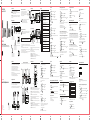
Main Menu
Sub-menu 1
Sub-menu 2
NEW ENTRY
LIST
HANDSET TONES
HANDSET SETTING
BASE SETTINGS
LANGUAGE
BACKLIGHT TIME
DIM MODE
AUTO HANG-UP
AUTO ANSWER
SELECT BASE
RING VOLUME
RING MELODY
SET DATE/TIME
TIME FOMRAT
DATE FORMAT
ALARM
ALARM TONE
ALARM VOLUME
CONFERENCE
CALL BARRING
CHANGE PIN
REGISTRATION
DE-REGISTER
RESET
RECALL TIME
AREA CODE
DIAL MODE
PLAY
DELETE ALL
ADVANCED SET
ANSWER MACHINE
(28527)
3. Press [
]/[
] to select “ADVANCED SET” and press [SELECT], then
]/[
] to select “CHANGE PIN” and press [SELECT], then
4. Input the old 4 digits PIN (Default: 0000) and press [OK], then
5. Input the new PIN and press [OK], then
6. Confirm the new PIN and press [OK]
7. A beep sound emit and display show “NEW PIN SAVED”
Registering a handset
SET FORMAT
CLOCK & ALARM
2. Press [
ANSWER & RECORD
ANSWER ONLY
OUTGOING MSG
RECORD MEMO
ANSWER & RECORD
ANSWER ONLY
ANSWER OFF
RING DELAY
REMOTE ACCESS
HS SCREENING
ANSWER MODE
ANS SETTINGS
The base unit of this telephone can support up to a total of 4 cordless handsets.
The handsets that ship with your main base are pre-registered in the factory.
To add or re-register a handset:
Handset:
1. Press [MENU], then
2. Press [
]/[
] to select “ADVANCED SET” and press [SELECT], then
3. Press [
]/[
] to select “REGISTRATION” and press [SELECT], then
4. Press [
]/[
] to select base and press [SELECT], then,
5. Enter you PIN (default PIN: 0000) and press [OK], then
6. Handset will show “WAITING”
Base:
7. Press and hold the [
] for 5 seconds, the base LED will blink slowly.
Handset:
8. Handset will have a long beep when success register
An alarm sounds at the set time for 1 minute once or daily. Alarm can be set for
each handset.
1. Press [MENU], then
Important: Set the date and time beforehand
1. [MENU]
2. press [
]/[
] to select “CLOCK & ALARM”
3. Press [
] or [
] to select “ALARM”
4. Press [
]/[
] to select the desired alarm option
[OK]
[OK]
OFF: Turns alarm off. (Go to step 6)
ON ONCE: An alarm sounds once at the set time
ON DAILY: An alarm sounds daily at the set time.
5. Set the desired time.
6. Alarm set (or turned off) and press [
] return to idle
] to select “ADVANCED SET” and press [SELECT], then
3. Press [
]/[
] to select “DE- REGISTER” and press [SELECT], then
]/[
] to select the desired handset and press [SELECT], then
6. Selected handset de-registered and press [
] return to idle
IMPORTANT: In order to use this unit’s Caller ID features, you must subscribe
to either the standard Name/Number Caller ID Service or Call Waiting Caller
ID Service. To know who is calling while you are on the phone, you must
subscribe to Call Waiting Caller ID Service.
This unit receives and displays information transmitted by your local phone
company. This information can include the phone number, date, and time; or
the name, phone number, date, and time.
You can select from 3 alarm melody
1. [MENU]
2. press [
]/[
] to select “CLOCK & ALARM”
3. Press [
]/[
] to select “ALARM TONE”
4. Press [
]/[
] to select the desired alarm tone
] return to idle
]/[
Using Caller ID service
Alarm tone:
5. Alarm tone set and press [
2. Press [
5. Press [
Caller ID records are stored in the order that they are received.
[OK]
[OK]
]/[
]: “DELETE” or “DELETE ALL”
Storing CID Records (In CID Memory)
Play message
Store a CID record
Forward
1. [
]
2. [
]/[
Stop playback
On/Off Switch
]: Select the desired record
]/[
]: “SAVE NUMBER”
4. Enter the name and number
5. [
]
[MENU]
[ OK ]
Answering system (Available for 28527)
The answering system can answer and record calls for you when you are
unavailable to answer the phone.
Important:
Only 1 person can access the answering system via handset or base at a time.
When callers leave messages, the unit records the day and time of each
message. Make sure the date and time have been set correctly.
Recording capacity (including the outgoing message)
The total recording capacity is about 14 minutes. A maximum of 59 messages
can be record
When the new messages have been recorded:
- “NEW MESSAGE” is displayed
- The message indicator on the handset flashes slowly.
To listen to new message:
1. Press [PLAY] when there aew new messages
or
1. Press [MENU], then
2. Press [
]/[
] to select “ANSWER MACHINE” and press [SELECT], then
3. Press [
]/[
] to select “ANSWER MODE” and press [SELECT], then
4. Press [
]/[
] to select the desired setting, then
5. Press [SELECT] and press [
] return to idle
On base unit:
Press [
] to change the answering mode. The sequence is “ANSWER & RECORD”
>”ANSWER ONLY”>”ANSWER OFF”.
Note:
When the answering system is turned on, the LED counter on the base light up with
number of message.
When the answering system is in answer only mode, the LED counter will show
[
] then change to [
]
When the answering system is off, the LED counter will off.
1. When the answering system answers the call, listen while the caller leaves
a message (to determine who is calling).
Note:
To turn off the call screening, Press [
As calls are received and stored, the display is updated to let you know how
many calls have been received. To scroll CID records:
]
] to search from
Playback the messages using the base unit
When the new message have been recorded, the message indicator on the
base unit flashes
Press [
]
• If new messages have been recorded, the base plays new messages only,
press again to play all messages
Keys
[1]
[2]
[3]
[4]
[5]
[6]
[7]
[0]
Description
Repeat the Voice Guide
Play new message
Play all message
Skip to the previous message
Delete the playing message
Skip to the next message
Stop message playback
Set answer mode
If the answering system is off, you can turn it on remotely.
1. Dial your phone number from a touch-tome phone.
2. Let the phone ring 20 times
- An OGM will be played
3. Press [ ] and enter the remote access code within 8 seconds, then
4. You will enter the remote access and press [0] to turn on the answering system
Answering system settings
Number of rings before the unit answers a call
You can select the number of rings you want the phone to ring before the
answering system answers a call.
1. [MENU]
2. [
]/[
]: “ANSWER MACHINE”
[SELECT]
3. [
]/[
]: “ANS SETTINGS”
3. Press [
]/[
] to select “PLAY” and press [SELECT], then
4. [
]/[
]: “RING DELAY”
5. [
]/[
]: Select the desired setting
6. [
]
4. Press [OPTIONS] to select the operation during playback or
press [STOP] to stop playback
[SELECT]
[SELECT]
Erasing all messages
Voice mail service
1. [MENU]
The [
] on LCD flash when you receive a new message from your
service provider.
3. [
]: “ANSWER MACHINE”
]/[
]: “DELETE ALL”
[SELECT]
[SELECT]
4. Press [OK] to confirm
5. All message deleted and press [
]/[
]: Select the desired handset setting
[SELECT]
] return idle
Memo Recording
You can record the memo as a new message through handset.
1. Press [MENU], then
2. Press [
]/[
] to select “ANSWER MACHINE” and press [SELECT], then
3. Press [
]/[
] to select “RECORD MEMO” and press [SELECT], then
IMPORTANT:
In order to use this unit’s Visual Message Waiting Indicator (VMWI) feature,
you must subscribe to this service from your phone company.
Intercom calls can be made between handsets
Note:
If you receive an outside call while talking on the intercom, you hear beep.
To answer the call with the handset, long press [*] to switch the outside call
and intercom
While paging a handset, the paged handset beeps for 1 minute.
Making an intercom call
Remote operation
3. When you finish talking, press [
• Do not burn, disassemble, mutilate, or puncture. Like other batteries of this
type, toxic materials could be released which can cause injury.
• To reduce the risk of fire or personal injury, use only the battery listed in the
User’s Guide.
• Keep batteries out of the reach of children.
• Remove batteries if storing over 30 day
2. [
]/[
]: Select the desired handset setting
Answering an intercom call
Secure remote access code
1. Press [
] to answer the page
2. When you finish talking, press [
Handset locator
[SELECT]
Cause/solution
Caller information is not displayed - You must subscribe to Caller ID service from your
service provider/telephone company.
- If your unit is connected to any additional telephone
equipment such as a Caller ID box or cordless
telephone line jack, plug the unit directly into wall jack.
- If you use a DSL/ADSL service, we recommend
connecting a DSL/ADSL filter between the base unit
and the telephone line jack. Contact your DSL/ADSL
provider for details
- The name display service may not be available in
some areas. Contact your service provider/telephone
company for details.
- Other telephone equipment may be interfering with
this unit. disconnect the other equipment and try again.
Caller information is displayed late - Depending on your service provider /telephone
company, the unit may display the caller's information
at the 2nd ring or later.
- Move closer to the base units.
The 2nd caller's information is not - In order to use Caller ID, call waiting, or Call Waiting
displayed during an outside call
Caller ID (CWID), you must first contact your service
provider/telephone company and subscribe to the
desired service.
General product care
To keep your unit working and looking good, follow these guidelines:
• Avoid dropping the handset, as well as other rough treatment to the phone.
• Clean the phone with a soft cloth.
• Never use strong cleaning agents, paint thinner, abrasive powder, alcohol,
or other chemical products to clean the unit. Doing so will damage the finish.
• Retain the original packaging in case you need to ship the phone at a later date.
• Periodically clean the charge contacts on the handset and base with a clean
pencil eraser.
20.
21.
22.
23.
24.
IF YOUR PRODUCT UTILIZES BATTERIES, THE FOLLOWING ADDITIONAL
PRECAUTIONS SHOULD BE OBSERVED:
1.
2.
3.
4.
Use only the type and size battery(ies) specified in the user manual.
Do not use this product if the battery door is removed or missing.
Replace batteries that appear to be swollen or have damaged wiring.
Do not dispose of the battery(ies) in fire. They may explode. Check with local codes for
possible special disposal instructions.
5. Do not open or mutilate the battery(ies). Released electrolyte is corrosive and may cause
damage to the eyes or skin. It may be toxic if swallowed.
6. Exercise care in handling battery(ies) in order not to short out the battery(ies) with
conducting materials such as rings, bracelets, and keys. The battery(ies) or conductor may
overheat and cause burns.
7. Do not attempt to recharge the battery(ies) provided with or identified for use with this
product that are not rechargeable. The battery(ies) may leak corrosive electrolyte or explode.
8. Do not attempt to rejuvenate the battery(ies) provided with or identified for use with this
product by heating them. Sudden release of the battery(ies) electrolyte may occur causing
burns or irritation to eyes or skin.
9. When replacing battery(ies), all batteries should be replaced at the same time. Mixing fresh
and discharged batteries could increase internal cell pressure and rupture the discharged
battery(ies). (Applies to products employing more than one separately replaceable primary
battery.)
10. When inserting battery(ies) into this product, the proper polarity or direction must be
observed. Reverse insertion of battery(ies) may result in leakage or explosion.
11. When inserting battery(ies) into this product, do not twist or pinch the wires or allow wires
to become pinched in battery door.
12. If storing over 30 days, remove battery(ies) from this product because the battery(ies)
could leak and damage the product.
13. Discard “dead” battery(ies) as soon as possible since “dead” batteries are more likely to
leak in a product.
14. Do not store this product, or the battery(ies) provided with or identified for use with this
product, in high-temperature areas. Batteries that are stored in a freezer or refrigerator
for the purpose of extending shelf life should be protected from condensation during
storage and defrosting. Batteries should be stabilized at room temperature prior to use
after cold storage.
15. If your product uses rechargeable battery(ies), charge the battery(ies) only in accordance
with the instructions and limitation specified in the User Guide.
Important safety intructions
Environment
Telephone general use
Some of the following information may not apply to your particular product;
however, when using telephone equipment, basic safety precautions should
always be followed to reduce the risk of fire, electric shock and injury to persons,
including the following:
Used equipment must be disposed of in compliance with current environmental
protection regulations. You should return it to you reseller or dispose of it in an
approved recycling centre.
Problem
Cause/solution
The handset does not turn on
- Place the handset on the base unit or charger to turn
even after installing battery pack on the handset.
The unit does not work
- Make sure the battery pack is installed correctly.
- Fully charge the battery. Check the connections.
(for 16 hours)
- Unplug the base unit's AC adaptor to reset the unit.
Reconnect the adaptor and try again.
- The handset has not been registered to the base unit.
Register the handset.
Cannot hear a dial tone
- The base unit's AC adaptor or telephone line cord is not
connected. Check the connections.
- Disconnect the base unit from the telephone line and
connect the line to a known working telephone. If the
working telephone operates properly, contact our service
personnel to have the unit repaired. If the working
telephone does not operate properly, contact your service
provider/telephone company. The ringer volume is turned
off. Adjust the ringer volume.
Handset does not ring
- The handset may be out of range of the base.
Move closer to the base.
]
You experience static, noise, or - You are using the handset or base unit in an area with
high electrical interference. Reposition the base unit and
fading in and out
use the handset away from sources of interference.
]
You can locate a misplaced handset by paging it.
1. Base unit: [
]
All register handsets beep for 1 minute.
2. To stop paging:
Base Unit: Press [
]
Handset: Press [
]
Problem
C. The product does not operate normally by following the operating instructions.
D. The product’s cabinet has been damaged.
E. The product exhibits a distinct change in performance.
Avoid using a telephone (other than a cordless type) during an electrical storm. There may
be a remote risk of electric shock from lightning.
Do not use the telephone to report a gas leak in the vicinity of the leak.
Do not place this product on an unstable cart, stand, or table. The product may fall,
causing serious damage to the product.
Only use attachments/accessories specified by the manufacturer.
Unplug this apparatus during lightning storms or when unused for long periods of time.
Troubleshooting guide
1. [ int ]
Using a touch-tone phone, you can call your phone number from outside and
access the unit to listen to messages or change answering system setting.
1. Dial your phone number from a touch-tone phone.
2. After the outgoing message finish, Press [
] and the answering system will
ask you input the remote access code. Please input the remote access code
after the message played.
3. The voice guide will be played if you input the remote access code correctly.
CAUTION: To reduce the risk of fire or personal injury, use only the CCT
Tech Global Limited approved model SL-422943 Li-Polymer battery, which
is compatible with this unit.
1. Make sure the telephone is OFF (not in TALK mode) before you replace the battery.
2. Remove the battery compartment door.
3. Disconnect the cord attached to the battery pack and remove the battery pack
from the handset.
4. Insert the new battery pack and connect the cord to the jack inside the battery
compartment.
5. Put the battery compartment door back on.
6. Place handset in the base or handset charge cradle to charge. Allow the
handset battery to properly charge (for 16 hours) prior to first use or when
you install a new battery pack. If you do not properly charge the phone,
battery performance will be compromised.
Intercom
4. When display show “RECORDING”, you should move 9 inches from the handset
microphone and speak clearly into the handset microphone. (2 minutes max)
5. Press [STOP] to stop recording
Your answering system use PIN as the remote access code to access your
messages while away from home. The default PIN is “0000”
To change the PIN code, please refer the PIN section
Changing the battery
Battery Safety Precautions
[SELECT]
NOTE:
If you select Toll Saver (TS) the unit answers after the 3rd ring if there are NEW
messages, OR the unit answers after the 5th ring if there are NO new messages.
This allows user to access their answerer from another location and then hang
up after 4 rings to avoid long distance charges.
]/[
Outside calls can be transferred or a conference call with an outside party
can be made between 2 handsets.
1. During outside call, press [ int ]
3. Press [
]
4. The call will transfer to the paged handset
For conference call
1. During the intercom, long press [ int ]
2. LCD will show “CONFERENCE”
] to select “ANSWER MACHINE” and press [SELECT], then
2. [
Caller ID
Transferring calls
2. [
]/[
Using the answering system remotely
] to set the volume off
You can press dial keys to access certain answering system functions.
2. Press [
Answer mode
Reviewing CID Records and call back
3. To Call back, press [
]
To Exit, press [
] return to idle
] while the unit is not in use
Playback the messages using the handset
[ OK ]
Remote commands
Turning on the answering system remotely
Erasing all messages
Long Press [
2. To speak to the caller, press the [
]
The answering system automatically stops recording when you activate the
handset or pick up an extension phone.
2. Press [
] to search from the most recent call, or [
the oldest call.
Repeat message
4. Press [ OK ] to confirm
5. [
]
If you are not at home or cannot answer, your telephone’s Caller ID memory
stores the data for the 10 most recent calls. When the 11th call is received, the
oldest Caller ID record (1st call) is automatically deleted.
1. [
Erase currently play message
[ OK ]
Call screening
Receiving CID Records
[OK]
Adjust the speaker volume
]: Select the desired record and press [SELECT] to show call details
To select the answering mode
On handset:
1. Press [MENU], then
4. Enter you PIN (default PIN: 0000) and press [OK], then
[OK]
]/[
Operation
There are two answering mode. “ANSWER & RECORD” mode means the answering
system will record message when no one pick up the call. “ANSWER ONLY” mode
means the answer system will play the outgoing message only but not record the
message.
Important:
The unit shall able to register with 28507xxx-A only
Deregistering a handset
Key
]
3. Press [MENU], [
3. [
Additional handset
Alarm
1. [
2. [
To change PIN:
1. Press [MENU], then
RING VOLUME
RINGER TONE
KEY TONE
CONFIRM TONE
Operating the answering system during playback
Delete a CID record
Important: If you change the PIN, please make note of your new PIN.
The unit will not reveal the PIN to you. If you forget your PIN, please reset your phone
EDIT ENTRY
SELECT MELODY
DELETE ENTRY
DELETE ALL
HANDSET NAME
PHONEBOOK
PIN (Personal Identification Number)
Answering System (28527 only)
Problem
The unit does not record new
message
Cause/solution
- The answering system is turned off. Turn it on.
- The message memory is full, Erase unnecessary messages.
Cannot operate the answering - Someone is using the unit. Wait for other user finish.
system
- A caller is leaving a message. Wait for the caller finsih.
- The handset is too far from the base unit. Move closer.
Cannot operate the answering - The remote access is deactivate, activate the remote
system remotely.
access.
- You are entering the wrong remote access code.
- You must use a tone-dial phone. This phone does not
support pulse (rotary) dialing
1. Read and understand all instructions.
2. Follow all warnings and instructions marked on the product.
3. Unplug this product from the wall outlet before cleaning. Do not use liquid cleaners or
aerosol cleaners. Use a damp cloth for cleaning.
4. Telephones should not be used while you are in a bathtub, shower or pool. Immersion of
the telephone or handset in water could cause an electrical shock.
5. Slots and openings in the cabinet back or bottom are provided for ventilation, to protect it
from overheating. Do not block or cover these openings. Do not block the openings by
placing the product on a bed, sofa, rug, or other similar surface. Do not place this product
in a built-in installation unless proper ventilation is provided.
6. Only operate this product from the type of power source indicated on the marking label.
If you are not sure of the type of power supply to your home, consult your dealer or local
power company.
7. Plug the adaptor into an easily accessible electrical outlet near the equipment.
8. Do not allow anything to rest on the power cord. Do not locate this product where the
cord will be abused by persons walking on it.
9. Do not overload wall outlets and extension cords as this can result in the risk of fire or
electric shock.
10. Never push objects of any kind into this product through cabinet slots as they may touch
dangerous voltage points or short out parts that could result in a risk of fire or electric
shock. Never spill liquid of any kind on the product.
11. Never spill liquid of any kind on the product.
12. To reduce the risk of electric shock, do not disassemble this product. If service or repair
work is required, take it to a qualified serviceman. Opening or removing covers may expose
you to dangerous voltages or other risks. Incorrect reassembly can cause electric shock
when the appliance is subsequently used.
13. Do not expose the product to extreme temperatures such as areas near a hot radiator,
stove or in a hot car. Do not place product upon other consumer electronic products such
as; computer monitors, power amplifiers, etc.
14. Do not place lighted candles, cigarettes, cigars, etc., on the telephone.
15. Never touch uninsulated telephone wires or terminals unless the telephone line has been
disconnected at the network interface.
16. Never install or modify telephone wiring during a lightning
17. Never install telephone jacks in wet locations unless the jack is specifically designed for
wet locations.
18. Use caution when installing or modifying telephone lines to prevent electrical shock
and/or fire.
19. Under the following conditions, unplug this product from the wall outlet and refer servicing
to qualified service personnel:
A. The power supply cord or plug is damaged or frayed.
B. The product has been exposed to rain or water.
Do not attempt to open the batteries as they contain chemical substances.
In the event of leakage, avoid contact with the skin, eyes and mouth. In the
event of contact, rinse the affected part for several minutes in running
water. Clean the product with absorbent paper or a dry cloth and contact
your reseller for replacement batteries.
This 28517/28527 telephone is compliance with the DECT6.0 standard
which operates in the 1.92MHz to 1.93MHz frequency range.
WARNING: TO PREVENT FIRE OR ELECTRICAL SHOCK HAZARD, DO NOT EXPOSE
THIS PRODUCT TO RAIN OR MOISTURE.
CAUTION
RISK OF ELECTRICAL SHOCK, DO NOT OPEN
THE LIGHTING
FLASH AND ARROW
HEAD WITHIN THE
TRIANGLE IS A
WARNING SIGN
ALERTING YOU
OF “DANGEROUS
VOLTAGE” INSINDE
THE PRODUCT.
CAUTION: TO REDUCE THE
RISK OF ELECTRICAL SHOCK,
DO NOT REMOVE COVER
(OR BACK). NO USER
SERVICEABLE PARTS INSIDE.
REFER SERVICING TO
QUALIFIED SERVICE
PERSONNEL.
THE EXCLAMATION
WITHIN THE
TRIANGLE IS
WARNING SIGN
ALERTING YOU OF
IMPORTANT
INSTRUCTIONS
ACCOMPANYING
THE PRODUCT.
SEE MARKING ON BOTTOM / BACK OF PRODUCT