1
C84 ICEBOX
PRODUCT INTORMATION
READ THIS FIRST!
PRODUCT INFORMATION
C84 ICEBOX™
QUICK START
1
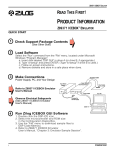
Check Support Package Contents
(See Other Side)
2
Load Software
1. Select the "Run" command from the "File" menu, located under Microsoft Windows
"Program Manager".
a. Insert the disk labeled "Zilog ZASM Cross Assembler/MOBJ Object File Util."
in drive A (or drive B, if appropriate.)
b. Type "a:\setup" and press ENTER. (Type "b:\setup" if drive B is used.)
c. Follow on-screen instructions.
d. Remove diskette and store in a safe place when done.
For more information on assembling source code, refer to the C84 ICEBOX
User's Manual and the Zilog Cross Assembler and File Utilities User Guides.
2. Select the "Run" command from the "File" menu, located under Microsoft
Windows "Program Manager".
a. Insert disk labeled "Z8 GUI S/W" in drive A (or drive B, if appropriate).
b. Type "a:\setup" and press ENTER. (Type "b:\setup" if drive B is used.)
c. Follow on-screen instructions.
d. Remove diskette and store in a safe place when finished.
3
Make Connections
Emulation Cable
Power Supply, PC, and Your Design
Power Supply
Refer to C84 ICEBOX
Emulator User's Manual
Your Design
Observe Electrical Safeguards
(See C84 ICEBOX User's Manual)
Serial Cable
4
Run Zilog ICEBOX GUI Software
1. Double click the Z8-ICE icon.
2. Select the microcontroller and ROM size
to be emulated in the Configuration Dialog Box.
3. Use the "File" menu to download sample files to
Z8 Code Memory.
4. Refer to C84 ICEBOX User's Manual,
"Chapter 3: Z8 Emulator Sample Session".
1
COM1–4
100-Percent Compatible PC
PI96DZ80201
C84 ICEBOX
PRODUCT INFORMATION
SUPPORT PRODUCTS PACKAGE CONTENTS
The Zilog C84 ICEBOX™ Support Products Package contains the following items:
Hardware
C84 ICEBOX™
28-Pin DIP Target Pod – Z86C83/C84
28-Pin PLCC Target Pod – Z86C83/C84
DB25 RS-232 Cable
Power Cable with Banana Plugs
Software
Z8® GUI S/W Diskette
Zilog ZASM Cross Assembler/MOBJ Object File Util. Diskette
Publications
Zilog C84 ICEBOX™ User's Manual
Product Information
asm S8, Super8/Z8 Cross Assembler User's Guide
Zilog Universal Object File Utilities User's Guide
Registration Card
SUPPORTED ZILOG Z8® DEVICES
Emulation
Z86C83
Z86C84
OTP Programming
N/A
N/A
For emulation of 28-pin SOIC, we recommend that you purchase an adapter from Emulation
Technology, Inc. (PN: AS-DIP.6-028-S003-17).
Emulation Technology, Inc.
2344 Walsh Ave., Bldg. F
Santa Clara, CA 95051-1301
FAX: 408-982-0664
TEL: 408-982-0660
PI96DZ80201
2
C84 ICEBOX
PRODUCT INTORMATION
PRECAUTIONS
1. GUI software versions prior to 3.00 are incompatible with hardware containing BOOTROM 3.00.
The GUI software may still boot, but will fail at some later point.
2. When device serialization is enabled in the OTP dialog, the GUI copies the current serial number
to code memory immediately before performing a VERIFY operation. If this behavior is undesirable, then device serialization should be disabled prior to invoking the VERIFY operation.
3. The status color bar in the OTP dialog box will be cleared in the area where a new window opens
on top of it.
4. For some 386 PCs, the user is cautioned to set the baud rate to 19.2K or less because the
Windows’ communication driver does not guarantee “reliable” operation above 9600 baud. It is
possible that on some slower 386 machines, selecting a high baud rate would crash the Windows’
environment or result in excessive communication errors.
5. Do not press hardware reset when the ICEBOX is in the OTP dialog for programming. If reset is
pressed while the GUI is doing OTP programming, the user would need to close the OTP dialog
box and reopen it to reload the information back to the hardware. (Note: Although the Command
Status indicates “Processing” after the GUI reestablishes the communication link when Retry was
selected, the ICEBOX is really sitting idle.)
6. The emulator cannot be operated while performing ESD/EMI testing on the target board.
7. The PCON Register reserved bits for the C84 Emulator must be set to 1.
LIMITATIONS
1. Typing into the File Name box in order to change the drive in the file download and load symbol
dialog boxes is not anticipated by the GUI. Instead, use the mouse in the Directories box as the
workaround.
2. Switching ICEBOXes without quitting the GUI is not supported and may cause unexpected
results.
3. The maximum loadable symbols is 32,768 provided there is enough system resource (memory).
4. The keyboard and mouse will lock up if the screen saver supplied by Windows 3.1 times out while
the GUI software is waiting for the user to complete entering a line of assembly code in the Debug
window. To recover, the user must reset the computer. The “Totally Twisted After Dark Screen
Saver” version 3.2 and the Windows 95 screen saver both work fine. The workaround is to either
turn off the screen saver, set the screen saver to much longer time out value, finish the line of code
before the time-out occurs (press ENTER), or use a different screen saver such as “After Dark”.
This problem may also exist at other points in the GUI that request input from the user.
3
PI96DZ80201
C84 ICEBOX
PRODUCT INFORMATION
LIMITATIONS (Continued)
5. Although GUI 3.00 and later support baud rates up to 57.6K, the actual maximum usable rate may
be less due to limitations of the user is hardware and or system software setup. The maximum
usable rate is determined by the user is tolerance of the frequency of communication errors.
6. Although the ICEBOX has auto latches, Auto Latch Mask Option for P00, P01, and P02 is not
supported.
7. The ICEBOX does not support software-programmable pull-up resistors. The pull-up resistors are
emulated by jumper switches. (Refer to the C84 ICEBOX User’s Manual, Chapter 2, Table 2-2.)
8. The initial blue Zilog screen can be distorted by other active windows. This only affects the
appearance, not the functionality, of the GUI.
PI96DZ80201
4
C84 ICEBOX
PRODUCT INTORMATION
© 1996 by Zilog, Inc. All rights reserved. No part of this document may be copied or reproduced in any form or by any
means without the prior written consent of Zilog, Inc. The information in this document is subject to change without notice.
Devices sold by Zilog, Inc. are covered by warranty and patent indemnification provisions appearing in Zilog, Inc. Terms
and Conditions of Sale only. Zilog, Inc. makes no warranty, express, statutory, implied or by description, regarding the
information set forth herein or regarding the freedom of the described devices from intellectual property infringement.
Zilog, Inc. makes no warranty of merchantability or fitness for any purpose. Zilog, Inc. shall not be responsible for any
errors that may appear in this document. Zilog, Inc. makes no commitment to update or keep current the information
contained in this document.
Zilog's products are not authorized for use as critical components in life support devices or systems unless a specific
written agreement pertaining to such intended use is executed between the customer and Zilog prior to use. Life support
devices or systems are those which are intended for surgical implantation into the body, or which sustains life whose
failure to perform, when properly used in accordance with instructions for use provided in the labeling, can be reasonably
expected to result in significant injury to the user.
Zilog, Inc. 210 East Hacienda Ave.
Campbell, CA 95008-6600
TEL: (408)-370-8000
Telex: (910)-338-7621
FAX: (408) 370-8056
Internet: http://www.zilog.com
5
PI96DZ80201