1
ES-G131633
MANUAL DEL USUARIO
Antes de utilizar el televisor, por favor lea este manual
detenidamente y consérvelo para futuras referencias.
Español
ES-G131633
English
A
Important Safety Instructions
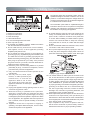
The lightning flash with arrowhead symbol, within an
equilateral triangle is intended to alert the user to the
presence of uninsulated dangerous voltage within the
product's enclosure that may be of sufficient magnitude
to constitute a risk of electric shock.
The exclamation point within an equilateral triangle is
intended to alert the user to the presence of important
operating and maintenance (servicing) instructions in
the literature accompanying the appliance.
16. An outside antenna system should not be located in the
vicinity of overhead power lines or other electric light or
power circuits, or where it can fall into such power lines
or circuits. When installing an outside antenna system,
extreme care should be taken to keep from touching
such power lines or circuits, as contact with them might
be fatal.
17. Do not overload wall outlets and extension cords, as this
can result in a risk of fire or electric shock.
18. Do not push objects through any openings in this unit,
as they may touch dangerous voltage points or short out
parts that could result in fire or electric shock. Never spill
1. Read these instructions.
2. Keep these instructions.
3. Heed all warnings.
4. Follow all instructions.
5. Do not use this apparatus near water.
6. Clean only with dry cloth.
7. Do not block any ventilation openings. Install in accordance
with the manufacturer's instructions.
8. Do not install near any heat sources such as radiators,
heat registers, stoves, or other apparatus (including
amplifiers) that produce heat.
9. Do not defeat the safety purpose of the polarized or
grounding-type plug. A polarized plug has two blades with
one wider than the other. A grounding type plug has two
blades and a third grounding prong. The wide blade or the
third prong are provided for your safety. If the provided
plug does not fit into your outlet, consult an electrician for
replacement of the obsolete outlet.
10. Protect the power cord from being walked on or pinched
particularly at plugs, convenience receptacles, and the
point where they exit from the apparatus.
11. Only use attachments/accessories specified by the
manufacturer.
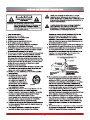
12. Use only with cart, stand, tripod,
bracket, or table specified by the
m a n u f a c t u r e r, o r s o l d w i t h t h e
apparatus. When a cart is used,
use caution when moving the cart/
apparatus combination to avoid injury
from tip-over.
13. Unplug this apparatus during lightning storms or when
unused for long periods of time.
14. Refer all servicing to qualified service personnel.
Servicing is required when the apparatus has been
damaged in any way, such as power-supply cord or plug
is damaged, liquid has been spilled or objects have fallen
into the apparatus, the apparatus has been exposed to
rain or moisture, does not operate normally, or has been
dropped.
15. Apparatus should not be exposed to dripping or
splashing, and objects filled with liquids, such as vases,
should not be placed on the apparatus.
or spray any type of liquid into the unit.
19. If an outside antenna or cable system is connected to the
unit, be sure the antenna or cable system is grounded to
provide some protection against voltage surges and builtup static charges, Section 810 of the National Electrical
Code, ANSI/NFPA 70, provides information with respect
to proper grounding of the mast and supporting structure,
grounding of the lead-in wire to an antenna discharge
unit, size of grounding conductors, location of antenna
discharge unit, connection to grounding electrodes, and
requirements for the grounding electrode.
20. When replacement parts are required, be sure the service
technician uses replacement parts specified by the
manufacturer or those that have the same characteristics
as the original part. Unauthorized substitutions may result
in fire, electric shock or other hazards.
21. Upon completion of any service or repairs to this unit,
ask the service technician to perform safety checks to
determine that the unit is in proper operating condition.
B
Important Safety Instructions
22. When you connect the product to other equipment, turn
off the power and unplug all of the equipment from the
wall outlet. Failure to do so may cause an electric shock
and serious personal injury. Read the owner's manual of
the other equipment carefully and follow the instructions
when making any connections.
23. Sudden high volume sound may cause hearing or
speaker damage. When you use headphones, (if the unit
is equipped with a headphone jack) keep the volume at a
moderate level. If you use headphones continuously with
high volume sound, it may cause hearing damage.
LCD Panels are manufactured using an extremely high
level of precision technology, however sometimes parts
of the screen may be missing picture elements or have
luminous spots.
This is not a sign of a malfunction.
Do not install the LCD Panel near electronic equipment that
produces electromagnetic waves. Some equipment placed
too near this unit may cause interference.
Effect on infrared devices - There may be interference
while using infrared devices such as infrared cordless
headphones.
CONDENSATION:
Declaration of Conformity
Moisture will form in the operating section of the unit if the
unit is brought from cool surroundings into a warm room or
if the temperature of the room rises suddenly. When this
happens, unit's performance will be impaired. To prevent
this, let the unit stand in its new surroundings for about an
hour before switching it on, or make sure that the room
temperature rises gradually.
This device complies with part 15 of the FCC Rules.
Operation is subject to the following two conditions:
(1) This device may not cause harmful interference and (2)
This device must accept any interference received, including
interference that may cause undesired operation.
End of life directives
Condensation may also form during the summer if the unit is
exposed to the breeze from an air conditioner. In such cases,
change the location of the unit.
Your TV also contains material that can be recycled and
reused. For disposal or recycling information, contact your
local authorities or the Electronic Industries Alliance at
www.eia.org to find a recycler in your area.
HOW TO HANDLE THE LCD PANEL:
Do not press hard or jolt the LCD panel. It may cause the
LCD panel glass to break and injury may occur.
If the LCD panel is broken, make absolutely sure that you
do not touch the liquid in the panel. This may cause skin
inflammation.
If the liquid gets in your mouth, immediately gargle and
consult with your doctor. Also, if the liquid gets in your eyes
or touches your skin, consult with your doctor after rinsing
for at least 15 minutes or longer in clean water.
Non-active pixels
The LCD panel contains almost 3 million thin film transistors,
which provide exceptionally sharp video quality. Occasionally,
a few non-active pixels may appear on the screen as a
fixed black (in the case of a dead pixel), blue, green, or red
point. These non-active pixels do not adversely affect the
performance of your TV, and are not considered defects.
Possible Adverse Effects on LCD Panel:
Power source
If a fixed (non-moving) pattern remains on the LCD Panel
for long periods of time, the image can become permanently
engrained in the LCD Panel and cause subtle but permanent
ghost images. This type of damage is NOT COVERED BY
YOUR WARRANTY. Never leave your LCD Panel on for long
periods of time while it is displaying the following formats or
images:
Fixed Images, such as stock tickers, video game patterns,
TV station logos, and websites.
Special Formats that do not use the entire screen. For
example, viewing letterbox style (16:9) media on a normal
(4:3) display (black bars at top and bottom of screen); or
viewing normal style (4:3) media on a widescreen (16:9)
display (black bars on left and right sides of screen).
TO USE AC POWER
1. The power cord is attached to the TV at the factory.
2. Connect the AC cord into an AC outlet.
WARNING
Do not connect this unit to the power using any device
other than the supplied AC cord. This could cause fire,
electrical shock, or damage.
Do not use with a voltage other than the power voltage
specified. This could cause fire, electrical shock, or
damage.
CAUTION
When this unit is not used for a long time, (e.g., away on
a trip) in the interest of safety, be sure to unplug it from
the AC outlet.
Do not plug/unplug the AC cord when your hands are
wet. This may cause electrical shock.
The following symptoms are not signs of malfunction
but technical limitation. Therefore we disclaim any
responsibility for these symptoms.
C
D
E
Important Safety Instructions
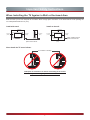
When Installing the TV Against a Wall or Enclosed Area
Make sure that your TV has adequate air circulation. Allow enough space around the TV as shown below. Avoid operating the
TV at temperatures below 41°F (5°C).
Install with stand
Install on the wall
12 inches
(30cm)
4 inches
(10cm)
12 inches
(30cm)
4 inches
(10cm)
2 3⁄8 inches
(6cm)
4 inches
(10cm)
4 inches
(10cm)
Leave at least this much
space around the set.
Leave at least this much
space around the set.
4 inches
(10cm)
Never install the TV set as follows:
Air circulation is blocked.
Wall
Wall
Inadequate air circulation can lead to overheating of the TV and
may cause damage to your TV or cause a fire.
F
Legal Notices
FCC Statement
Energy Star
NOTE:
Yo u r H i s e n s e T V i s E N E R G Y
STAR ® qualified in the “Energy
Savings” mode. It meets strict energy
efficiency guidelines set by the U.S.
Environmental Protection Agency
and Department of Energy. ENERGY
STAR is a joint program of these
government agencies, designed to
promote energy efficient products and practices. Changes to
certain features, settings, and functionalities of this TV (i.e.
TV Guide, Picture, Sound) can increase or change the power
consumption. Depending upon such changed settings, the
power consumption may exceed the limits required for the
ENERGY STAR qualification in the “Energy Savings” mode.
This equipment has been tested and found to comply with
the limits for a class B digital Device, pursuant to part 15
of the FCC Rules. These limits are designed to provide
reasonable protection against harmful interference in a
residential installation. This equipment generates, uses and
can radiate radio frequency energy and, if not installed and
used in accordance with the instructions, may cause harmful
interference to radio Communications. However, there is
no guarantee that interference will not occur in a particular
installation. If this equipment does cause harmful interference
to radio or television reception, which can be determined by
turning the equipment off and on, the user is encouraged to
try to correct the interference by one or more of the following
measures:
NOTE
Reorient or relocate the receiving antenna.
Increase the separation between the equipment and the
receiver.
Connect the equipment into an outlet on a circuit different
from that to which the receiver is connected.
Consult the dealer or an experienced radio/TV technician
for help.
Where the MAINS plug or an appliance coupler is used
as the disconnect device, the disconnect device shall
remain readily operable.
WARNING
The manufacturer is not responsible for any radio or TV
interference caused by unauthorized modifications to
this equipment. Such modifications could void the user's
authority.
FCC ID Number WiFi Module: WWMMN42756IV2
The WiFi Module complies with FCC radiation exposure
limits set forth for an uncontrolled environment. This device
should be installed and operated with a minimum distance of
20 centimeters between the radiator and your body.
This TV incorporates High-Definition Multimedia Interface (HDMITM) technology.
HDMI, the HDMI logo and High-Definition Multimedia Interface are trademarks or registered trademarks of HDMI Licensing LLC.
Hisense and associated logos where applicable are registered trademarks of Hisense Group in the United States and/or other
countries. All other trademarks are property of their respective owners. 2013 Hisense USA, Corporation. All Rights Reserved.
Manufactured under license from Dolby Laboratories. Dolby and the double-D symbol are trademarks of Dolby Laboratories.
* Specifications subject to change without notice.
G
Contents
Getting Started
Installing Batteries in the Remote Control........................................................ 3
Making Connections......................................................................................... 4
Network Connection......................................................................................... 7
Basic Features
Turning your TV on or off.................................................................................. 9
Turning the TV On for the First Time................................................................ 9
Changing Channels / Volume.......................................................................... 10
Selecting the Input Source.............................................................................. 10
Shortcuts Instructions...................................................................................... 11
To Use the Menu............................................................................................. 12
Using the Picture Menu................................................................................... 12
Using the Audio Menu..................................................................................... 13
Using the TV Menu.......................................................................................... 14
Using the Setup Menu..................................................................................... 14
Using the Network Menu................................................................................. 16
Advanced Features
DLNA Setting................................................................................................... 18
Media Share Settings in Computer................................................................. 18
Setting to Share Files...................................................................................... 19
Network Function............................................................................................ 20
Using the Home Menu..................................................................................... 21
Movies............................................................................................................. 21
Apps................................................................................................................ 21
AccuWeather................................................................................................... 21
YouTube.......................................................................................................... 21
VUDU Movies.................................................................................................. 22
1
Contents
Advanced Features
VUDU Apps..................................................................................................... 22
Netflix.............................................................................................................. 23
Vimeo.............................................................................................................. 23
Pandora........................................................................................................... 24
Twitter.............................................................................................................. 24
Picasa.............................................................................................................. 24
Opera.............................................................................................................. 25
Opera Apps..................................................................................................... 27
Digital Media Receiver (HiBeam).................................................................... 28
Digital Media Player(HiMedia)......................................................................... 28
Browse Pictures.............................................................................................. 29
Enjoy Video Files............................................................................................. 29
Enjoy Music Files............................................................................................ 30
Other Information
Troubleshooting............................................................................................... 31
2
Getting Started
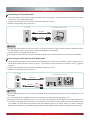
Installing Batteries in the Remote Control
Change the batteries
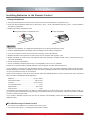
1. Press the release button on the back of the remote control to remove the battery compartment cover.
2. Insert two AAA size batteries. Make sure to match the (+) and ( - ) ends of the batteries with the (+) and ( - ) ends indicated in
the battery compartment.
3. Replace the battery compartment cover.
1
Remove the battery compartment cover
2
Insert the batteries
NOTES
1. Dispose of your batteries in a designated disposal area. Do not throw the batteries into a fire.
2. Remove depleted batteries immediately to prevent leakage into the battery compartment.
3. If you do not intend to use the remote control for a long time, remove the batteries.
4. Batteries should not be exposed to excessive heat, such as sunshine, heat registers, or fire.
5. Battery chemicals can cause a rash. If the batteries leak, clean the battery compartment with a cloth. If chemicals touch your
skin, wash immediately.
6. Do not mix old and new batteries.
7. Do not mix alkaline, standard (carbon-zinc) or rechargeable (ni-cad, ni-mh, etc.) batteries.
Program Your Universal Cable or Satellite Remote Control to Operate Your New Hisense Television!
If you would like to program your other household remote controls to your new Hisense television, please consult the User’s
Manual supplied by your Cable or Satellite provider. The Cable or Satellite providers’ User’s Manuals should include instructions
on how to program their remote to your television.
Below is a list of Hisense codes for the most common Cable and Satellite providers. Use the Hisense code that is associated
with your Cable or Satellite provider(if applicable).
DIRECTV.................................................... 0178 or 10019
Time Warner Cable......................................... 386 or 0178
Comcast..................................................... 0178 or 10178
Cox Communications................................................ 0178
Dish Network.................................................... 627 or 505
AT&T U-verse............................................................ 1346
If the Hisense code associated with your Cable or Satellite provider is not listed above, if the code above does not work, or if
you cannot locate the instructions for programming your household remote to your television, call your local Cable or Satellite
provider’s customer service center.
If your Cable or Satellite provider does not have an Hisense code available, please visit http://www.hisense-usa.com for
additional codes.
The effective range of remote control
1. The remote control distance: up to 26 feet in front of the TV set.
2. The remote control angle: +/- 30-degrees (horizontal and vertical).
3
Getting Started
Making connections
NOTES
Check the jacks for position and type before making any connections. Loose connections can result in image or color
problems. Make sure that all connections are tight and secure.
Not all A/V devices have the ability to connect to a TV, please refer to the user manual of your A/V device for compatibility
and connections procedure.
Always unplug the power cord when connecting external equipment.
Connecting an antenna, cable or cable/satellite box
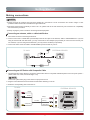
1. Turn off the TV before connecting the antenna.
2. Connect one end of a coaxial cable (not included) to the RF OUT jack on the antenna, cable or cable/satellite box. If you are
using an antenna with twin-lead cable, you may need a 300-75 ohm adapter (not provided) to connect it to the back of your
TV. Likewise, if you are using several antennas, you may need a combiner (not provided).
3. Connect the other end of the cable to the ANT/CABLE jack on the side of your TV.
TV JACK
EXTERNAL DEVICES
Cable
ANT OUT
or
ANT/CABLE
Connecting an A/V Device with Composite Cable
1. Use the audio and video cables to connect the external A/V device’s composite video/audio jacks to the TV’s jacks. (Video =
yellow, Audio Left = white, and Audio Right = red)
NOTE
Connect the yellow video plug to the Green Y-input jack on the TV.
2. Plug the connected devices into the mains socket before switching on the TV.
3. Select the corresponding source from the TV.
PR
PB
COMPONENT IN
AV IN
VIDEO
EXTERNAL DEVICES
Red(R)
Y
L -AUDIO- R
TV JACK
VCR
White(L)
Red(R)
R
White(L)
L
DVD Player/Recorder
AV Cable
(not included)
Yellow(Video)
Yellow(Video)
Video
A/V OUT
Video
Camera
Set-top box
Satellite
antenna
cable
Satellite Receiver
Equipment with A/V jacks
4
Getting Started
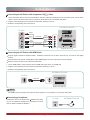
Connecting an A/V Device with Component (YPBPR) Cable
1. Use a component cable to connect the external A/V device’s component output jacks to the TV’s YPBPR jacks. Use an audio
cable to connect the external A/V device’s component audio jacks to the Tv’s AUDIO (L/R) jacks.
2. Plug the connected devices into the mains socket before switching on the TV.
3. Select the corresponding source from the TV.
EXTERNAL DEVICES
PR
PB
COMPONENT IN
Red(R)
White(L)
VCR
Audio Cable
(not included)
PR/CR
PB/CB
Y
Y
VIDEO
AV IN
L -AUDIO- R
TV JACK
Red(R)
R
White(L)
PR/CR
Component Cable
(not included)
DVD Player/Recorder
L
PR
PB/CB
Video
Camera
Set-top box
Satellite
antenna
cable
PB
Y
Y
Satellite Receiver
Component
Equipment with A/V jacks
Connecting an A/V Device with HDMI Cable
Support digital connections between HDMI - enabled A/V devices such as PVR, DVD, Blu-ray, AV receiver and digital
devices.
Some devices such as PVR or DVD player require HDMI signal to be set to output in the device's settings.
Please consult your device user manual for instructions.
1. Use an HDMI cable to connect the A/V device’s HDMI output jack to the TV’s HDMI jack.
2. Plug the connected devices into the mains socket before switching on the TV .
3. Select the corresponding source from the TV.
EXTERNAL DEVICES
HDMI Cable
(not included)
HDMI
HDMI
TV JACK
DVD Player/Recorder
Set-top box
Equipment with HDMI jacks
NOTE
The HDMI connector provides both video and audio signals, it’s not necessary to connect the audio cable.
Connecting a headphone
TV JACK
Headphones can be connected to the /AUDIO OUT output
on your set. (While the headphone is connected, the sound
from the built-in speakers is disabled.)
AUDIO OUT
5
EXTERNAL DEVICES
Getting Started
Connecting a PC with VGA Cable
1. Use a VGA cable to connect the PC’s VGA output jack to the TV’s VGA jack. Use an audio cable to connect the PC’s audio
output jack to TV’s PC/DVI AUDIO IN jack.
2. Plug the connected devices into the mains socket before switching on the TV.
3. Select the corresponding source from the TV.
PC/DVI AUDIO IN
EXTERNAL DEVICES
Audio Cable
(not included)
VGA Cable
(not included)
VGA
PC IN
TV JACK
Computer
NOTES
Primarily this unit is intended for use as an LCD TV. If you want to use it as a monitor, please contact the manufacturer of the
PC Video/Graphic's card for further support. Perfect compatibility is not guaranteed.
The VGA cable is not supplied with the product.
We strongly recommend the use of a VGA cable with two ferrite cores to reduce interference. (as shown in the illustration).
Connecting an Audio Receiver with Audio cable
1. Use an audio Optical cable to connect the A/V device’s digital audio in jack to the TV’s DIGITAL OUTPUT (Optical) jack. Or
use an RCA Y-cable (1/8”-stereo mini to L/R phono - not provided) to connect analog sound system to the TV’s /AUDIO
OUT jack.
2. Plug the connected devices into the mains socket before switching on the TV.
3. Select the corresponding source from the TV.
TV JACKS
DIGITAL
OUTPUT
(Optical)
AUDIO OUT
EXTERNAL DEVICES
Audio Cable
(not included)
Audio Cable
(not included)
Red(R)
Audio Amplifier
White(L)
Powerless
Bass Speaker
Speaker
NOTES
When a digital audio system is connected to the DIGITAL OUTPUT (Optical) jack, decrease the volume of both the TV and
the system.
5.1 CH (channel) audio is available when the TV is connected to an external device supporting 5.1 CH.
When the receiver (home theater) is set to on, you can hear sound output from the TV’s digital audio out jack. When the TV
is receiving a DTV signal, the TV will send 5.1 CH sound to the home theater receiver. When the source is connected to the
TV via HDMI, only 2 CH audio will be heard from the home theater receiver. If you want to hear 5.1 CH audio, connect the
digital audio out jack from your DVD/Blu-ray player/cable box/STB satellite receiver directly to an amplifier or home theater.
6
Getting Started
Network Connection
You can set up your TV so that it can access the Internet through your local area network (LAN) with a Ethernet or wireless
connection.
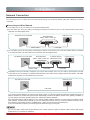
Connecting to a Wired Network
You can attach your TV to your LAN by one of the three following ways:
You can attach your TV to your LAN by connecting the LAN port on the back of your TV to an external modem using a Cat 5
LAN cable. See the diagram below.
The Modem Port on the Wall
LAN Port on TV
External Modem
(ADSL / VDSL / Cable TV)
LAN
Modem Cable
LAN Cable
You can attach your TV to your LAN by connecting the LAN port on the back of your TV to an IP Sharer which is connected
to an external modem. Use LAN cable for the connection. See the diagram below.
The Modem Port on the Wall
External Modem
IP Sharer (Router)
(ADSL / VDSL / Cable TV) (with DHCP server)
LAN Port on TV
LAN
Modem Cable
LAN Cable
LAN Cable
Depending on how your network is configured, you may be able to attach your TV to your LAN by connecting the LAN port
on the back of your TV directly to a network wall outlet with a Cat 5 cable. See the diagram below. Note that the wall outlet
is attached to a modem or router elsewhere in your house.
The LAN Port on the Wall
LAN Port on TV
LAN
LAN Cable
If you have a Dynamic Network, you should use an ADSL modem or router that supports Dynamic Host Configuration Protocol
(DHCP). Modems and routers that support DHCP automatically provide the IP address, subnet mask, gateway, and DNS, so
you don’t have to enter them manually. Most home networks are Dynamic Networks.
Some networks require a Static IP address. If your network requires a Static IP address, you must enter the IP address, subnet
mask, gateway, and DNS values manually on your TV’s Cable Setup Screen when you set up the network connection. To get
the IP address, subnet mask, gateway, and DNS values, contact your Internet Service Provider (ISP).
If you have a Windows computer, you can also get these values through your computer.
NOTE
You can use ADSL modems that support DHCP if your network requires a Static IP address. ADSL modems that support
DHCP also let you use Static IP addresses.
7
Getting Started
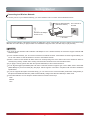
Connecting to a Wireless Network
To connect your TV to your network wirelessly, you need a wireless router or modem. See the illustration below.
Wireless IP Sharer(Router) The LAN Port on
(with DHCP Server)
the Wall
Wireless LAN Adapter
built-in TV set
LAN Cable
Hisense’s built-in Wireless LAN Adapter supports the IEEE 802.11 b/g/n communication protocols. Hisense recommends using
IEEE 802.11n router. When you play the video over a IEEE 802.11b/g connection, the video may not play smoothly.
NOTES
You must use the Hisense’s built-in Wireless LAN Adapter to use a wireless network, the set doesn’t support external USB
network adapter.
To use a wireless network, your TV must be connected to a wireless IP sharer. If the wireless IP sharer supports DHCP, your
TV can use a DHCP or static IP address to connect to the wireless network.
Select a channel for the wireless IP sharer that is not currently being used. If the channel set for the wireless IP sharer is
currently being used by another device nearby, this will result in interference and communication failure.
If you apply a security system other than the systems listed below, it will not work with the TV.
If Pure High-throughput (Greenfield) 802.11N mode is selected and the Encryption type is set to WEP, TKIP or TKIP-AES
(WPS2 Mixed) for your Access Point (AP), this player will not support a connection in compliance with new Wi-Fi certification
specifications.
If your AP supports WPS (Wi-Fi Protected Setup), you can connect to the network via PBC (Push Button Configuration) or
PIN (Personal Identification Number). WPS will automatically configure the SSID and WPA key in either mode.
Connection Methods: You can setup the wireless network connection three ways.
-Scan
-Manual
-Auto
8
Basic Features
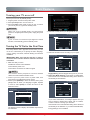
Turning your TV on or off
To turn your TV on or off (standby mode):
1. Plug the power cord into an AC power outlet.
2. Press [POWER] button. Your TV turns on.
3. Press [POWER] button again to turn off your TV. When
you turn off your TV, it goes into standby mode.
WARNING
When your TV is in standby mode, it is still receiving
power. To completely disconnect power, unplug the power
cord.
4. Select the country where you will operate the TV.
2.Country setting
Next: Time Zone Setting
NOTE
Country setting
If your TV does not receive an input signal for several
minutes, it automatically goes into standby mode.
USA
Canada
Mexico
Turning the TV On for the First Time
Previous
The Setup Wizard menu appears the first time you turn
on the TV. It will assist you to specify the menu language,
country setting, Use Mode, Network Setting and Channel
Installation.
5. Select the local time zone according to your region.
3.Time zone setting
IMPORTANT: Make sure that the antenna or cable is
connected and a wired or wireless Internet connection
is available.
1. Make sure that you have:
Next: Use Mode
Time Zone settings
Pacific Time
Mountain Time
Central Time
Eastern Time
Hawaii
Daylight Saving Time
Installed the remote control batteries.
Connected the power cord.
Previous
Connected to an antenna or cable TV signal.
NOTE
Next
Daylight Saving: Set the Daylight Saving time for your area.
6. Select Use Mode Setting: Home Mode or Retail Mode.
Home Mode is the recommended setting which offers full
functionality of the television.
The customer will be prompted to connect a Network
cable in the Select Network wizard screen.
2. Connect your TV’s power cord to a power outlet, then
press power. The Initial Setup screen opens.
3. Please press [ENTER] to start the wizard, then press
[▲/ ] button to select your language: English, Spanish
or French, select [Next] to confirm and move to the
Welcome screen.
4.Use Mode
▲
1. Language setting
Next
Next: Network Setting
Use Mode
Home mode
Retail mode
Next: Country Setting
Home mode default settings are recommended
Language settings
for in-home use.ENERGY STAR ® qualified.
Previous
English
Next
Español
Français
If you select Retail Mode, a message appears “Are you
sure to change to retail mode?” Select “OK” to continue,
or select “Cancel” to change your selection.
Home Mode is the recommended setting which offers full
functionality of the television. If you selected Retail Mode,
Energy Savings are not realized.
Next
The Welcome screen displays the available input devices
and interfaces.
9
7. Select Network : Connect your TV to access the
network.
5.Select Network
Depending on the reception condition, it may take
up to 30 minutes or more to complete memorizing
channels. Please allow the process to complete
without interruption.
After the Channel Search, a summary of the current
settings will be displayed. Select “go” to exit the wizard.
Next: Channel Search
Select Network
END USER TERMS AND CONDITIONS AND PRIVACY POLICY FOR
HISMART SERVICES. The product/device you have purchased from Hisense
USA Corp., or its Parent Company, affiliates and/or Subsidiary Company, its
successors and/or assigns (hereinafter referred to as “Hisense”) provides direct
access to the internet through one or more internet provider services (hereinafter
referred “Web Service(s)”).All content and services accessible through this
device belong to Hisense USA Corp., “Hisense” is sometimes also referred to
herein as “we” or “us”) or third parties and are protected by copyright, patent,
trademark and/or other intellectual property laws. Such content and services
are provided solely for your personal non-commercial use. You may not use
Disagree
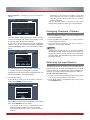
Changing Channels / Volume
Agree
V
1. Press the [CH /V] (or [CH +/-]) on the TV/remote control
to change the channel.
2. Press the [VOL /V] (or [VOL +/-]) on the TV/remote
control to adjust the volume.
3. Press the numeric buttons on the remote control to
display the corresponding channels.
When the Network Setting menu opens, Hisense Service
Terms and Conditions will appear. Press [◄/►] to scroll
through the pages. Please read it carefully.
V
If you want to access the internet, press the [Agree]
button to set your TV’s network connections. Otherwise,
press the [Disagree] button to enter the Channel search
menu.
5.Select Network
NOTE
Changing the channels can also be achieved by directly
entering the channel number using the numeric keys on
the remote control. If you are entering a two or three digit
channel number, the time between key presses should be
less than 3 seconds.
Next: Channel Search
Select Network
Wired Network
Wireless Network
Selecting the Input Source
Connect a wireless network with Wi-Fi
Previous
Next
Skip
The first time you turn on your TV, you must select the TV
signal source. Your TV stores this information, so you do not
need to change the TV signal source unless it changes. For
example, you change from an outside antenna to cable TV.
To select the video input source:
1. Turn on your TV, then press [INPUT] button on the remote
or on the TV. The Input Source menu opens.
2. Press [▲/ ] button to highlight the input source, then
press [ENTER] button.
You can select the network configuration in this menu
or choose to skip network configuration. For more
information or to setup the network configuration later, see
“Network Connection” and “Network Setup”.
8. The Channel Search.
Press [▲/ ] to select your Tuner Mode: Antenna or
Cable, press [ENTER] button to confirm.
▲
▲
6. Channel Search
Channel Search
Please allow 30 minutes to complete.
30%
ATV Channels added:0
DTV Channels added:0
Stop
▲
▲
Press [ / ] to set the Channel Installation: Scan or Skip
Scan, press [ENTER] button to confirm.
If you select “Scan”, your TV automatically starts
Channel Installation available in your viewing area.
If you select “Skip Scan”, your TV does not scan for
channels.
10
Shortcuts Instructions
Sleep - It can set the TV to let it enter into the Standby
state automatically. Press this button repeatedly to select
the proper sleeping clock mode, and the clock tells you the
remaining time before the TV enters Standby state.
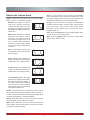
Aspect - Select the screen aspect ratio from Normal, Wide,
Zoom, Cinema , 1:1 Pixel Map, and Auto.
Normal: The original 4:3 aspect
ratio (1.33:1 signal) is preserved,
so black bars are added to the left
and right of the image. Standard TV
broadcasts are displayed with a 4:3
aspect ratio.
Display - Press this button to display the information
including channel number, channel name, current system
time, tuner mode, audio stream, video format, audio
language, closed caption mode, parental lock rating,
program details, etc.
CCD - Press the [CCD] button to the Closed Caption mode:
CC Off, CC On or CC On When Mute.
Wide: When watching a standard
broadcast or full-frame movie in
this mode, the display image is
stretched proportionately to fill
the TV screen. When watching a
widescreen (1.78:1 signal) program
or movie, the display image fills the
TV screen.
MTS - Press the [MTS] button to selec the default audio
stream: Mono, Stereo or SAP.
Auto: Automatically adjusts the
image based on the screen size and
the TV program.
Zoom: Stretch the 4:3 aspect ratio
image vertically and horizontally to
fill the screen at 1:1.78 aspect ratio.
Cinema: Stretch the 4:3 aspect ratio
image vertically and horizontally to
fill the screen at 1:2.35 aspect ratio.
1:1 Pixel Map: Displays the native
signal format pixel-by-pixel without
any video processing or scaling. In
this mode, 1920 x 1080 resolution
sources fill the screen while all
other resolutions are centered and
surrounded by black bars.
Picture - Press this button to set the picture mode. It can be
set as Vivid, Standard, Energy Savings, Game, Theater or
Custom. This mode achieves a certain image display effect
by setting the brightness, contrast and Speech.
Sound - Press this button to set the sound mode. It can be
set as Standard, Speech, Music and Custom.
Mute - Press this button to turn the sound off, press this
button again to turn the sound back on. This function is used
to switch off sound temporarily.
11
Basic Features
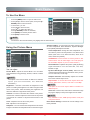
To Use the Menu
1 Press the [MENU] button to open the main menu.
2 Press [▲/ ] to select a menu option, then press [ /
Picture
▲
▲
Picture Mode
Brightness
Contrast
Color
Tint
Sharpness
Advanced Video
Reset Picture Settings
ENTER] button to enter the menu.
3 In each menu, you can:
▲
▲
▲
Press [▲/ ] to select an item,
Press [ / ] to adjust the value, or
Press [ /ENTER] to enter the submenu,
Press [MENU] to back the previous menu.
Energy Savings
▲
50
50
50
0
10
>
>
Personalize the
picture to suit your
preferences and
viewing conditions.
4 Press [EXIT] to exit the menu.
NOTE
The menus in the user manual may vary slightly from the actual screen.
Advanced Video - Access advanced video settings such
as Color Temperature, Noise Reduction, Dynamic Backlight
Control (DCR) and Adaptive Contrast.
Using the Picture Menu
Color Temperature: Change the color temperature. You
can select a preset color temperature: Cool, Normal and
Warm (when set to cool, whites are bluer; when set to
warm, whites are yellower)
Picture
Picture Mode
Brightness
Contrast
Color
Tint
Sharpness
Advanced Video
Reset Picture Settings
Energy Savings
50
50
50
0
10
>
>
Personalize the
picture to suit your
preferences and
viewing conditions.
120HZ Effect: Inserts frames to reduce judder in fast
action scenes. You can select High, Low or Off. (May not
be accessible, depend on your TV series and size.)
Noise Reduction: Optimize the picture quality by filtering
signal interference. You can select Off, Low, Auto,
Medium or High.
You can adjust:
Dynamic Backlight Control (DCR): Enhances the
contrast ratio between light and dark areas of the picture.
You can select Off, Low or High.
Picture Mode - Adjust the Picture Mode. You can select
Vivid, Standard, Energy Savings, Theater, Custom or Game
mode.
Adaptive Contrast: Automatically adjusts the contrast
level of the selected input source.
NOTE
The option of the Picture Mode is different in different
inputs. (For more information, see “Shortcuts
Instructions”)
Aspect Ratio: To choose the screen aspect ration from
Normal, Wide, Zoom, Cinema , Auto and 1:1 Pixel Map.
Brightness - Increase or decrease the brightness of the
picture. Increasing the brightness can add more light to dark
areas of the picture, while decreasing the brightness can
add more darkness to light areas of the picture.
The option of the screen Aspect Ration is different in
different inputs.
NOTE
Overscan: In DTV mode, Select ON to extend the image
beyong the display so the picture edges are not visible.
Contrast - Increase or decrease the contrast of the picture.
Increase the contrast to adjust the white areas of the picture
or decrease the contrast to adjust the black areas of the
picture.
NOTE
Only available in DTV, HDMI (Except Game mode) and
Component source.
Color - Adjust the level of color in the picture.
Reset Picture Settings - Resets all Picture settings to the
factory defaults.
Tint - Adjust the hue of the picture.
Sharpness - You can increase the sharpness level for clearer
images or decrease the sharpness level for smoother images.
12
Basic Features
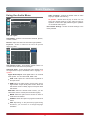
Using the Audio Menu
Audio Language - Change the default value for audio
language. (Digital channels only)
TV Speaker - Selects where to play TV audio. You can
select On (default setting) to play audio through TV
speakers, or select Off to play audio through the speakers
on an external audio system.
Audio
Sound Mode
Balance
Equalizer
Auto Volume Control
Advanced Audio
Reset Audio Settings
Standard
0
>
Off
>
>
Personalize the audio
to suit your preferences and listening
conditions.
Reset Audio Settings - Resets all Audio Settings to the
factory defaults.
You can adjust:
Sound Mode - Select the Sound Mode: Standard, Speech,
Custom or Music .
Balance - Adjust the volume of the left and right speakers.
Equalizer - Soften or enhance the sound at specific
frequency points.
Audio - Equalizer
10 DB
0
0
0
0
0
0 DB
-10 DB
120Hz 500Hz 1.5KHz 5KHz 10KHz
Auto Volume Control - Automatically adjusts volume to a
consistent level; attenuates loud passages.
Advanced Audio - Access Advanced Audio settings such
as Digital Audio Output, MTS/SAP, Audio Language, TV
Speaker.
Digital Audio Output: Send digital audio to an external
audio system. You can select PCM, RAW or Off.
PCM: PCM outputs two channel audio regardless of
the input format.
RAW: When the data stream carries Dolby signal,
digital SPDIF outputs Dolby data stream. When the
data stream carries no Dolby signal, it transports PCM
data stream.
MTS/SAP: Select the default audio stream, you can
select Mono, Stereo or SAP (Second Audio Program).
MONO: Select this option if there is noise or static on
weak stereo broadcasts.
STEREO: Select this option for programs broadcast in
stereo.
SAP: Depending on the particular program being
broadcast, you can listen to a foreign-language
translation.
13
Basic Features
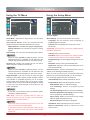
Using the TV Menu
Using the Setup Menu
Settings
Channels
Tuner Mode
Auto Channel Search
Channel Skip
Favorite List
Signal Strength
Audio Only
Antenna
Off
>
>
>
5
Menu Settings
Time Setup
Parental Controls
Caption
CEC Function
Demo Mode
Power LED
Version Info
Reset Settings
Personalize the local
television services
settings.
Off
On
>
>
>
>
>
Personalize the
general TV setting.
>
>
You can adjust:
You can adjust:
Tuner Mode - Select the TV signal source. You can select
Antenna or Cable.
Menu Settings - You can set On-screen menu system.
Language: You can select the menu’s language to
English,Español or Français.
Auto Channel Search - Scans for channels that have
signals and stores the channels information in memory.
Timeout: Select the display time of the menu: 10-20-...-
Digital Channels: The scanned TV program in digital signals.
60 seconds.
Analog Channels: The scanned TV program in analog
signals.
Time Setup - Set the Country, Time Zone, Daylight Savings,
Date/Time, Sleep Timer.
Channel Skip - You can cancel a channel stored in memory.
Country: Select your local Country.
NOTE
Time Zone: Select your local time zone: Eastern, Indiana,
Central, Mountain, Arizona, Pacific, Alaska or Hawaii.
When you press [CH V/V] (or [CH +/-]) button, your TV
skips the channel you cancelled. You can still tune to the
channel using the number buttons on the remote control.
Daylight Savings: Set the Daylight Saving time for your
area.
Favorite List - Display your Favorite List. You can add or
delete channels to create your favorite list.
Date/Time: Set the current year/month/day/time.
Sleep Timer: Select the amount of time before the TV to
turns off automatically.
NOTE
Parental Controls - Prevent unauthorized users, such as
children, from watching unsuitable programs.
When you press [CH V/V] (or [CH +/-]) button, your TV
skips the channel you cancelled. You can still tune to the
channel using the number buttons on the remote control.
When you first use this function, the default password is
[0000]. Once you input this password, you can set options.
Signal Strength - This menu is used to check the signal
strength of your antenna system. Usually strengths of above
75% indicates an acceptable signal for your TV to display
correct image. Each channel may vary in signal / quality
strengths and its common for broadcast strengths to change
in your area. The signal strength of the channel on the
screen is displayed.
You can change password in the Lock submenu.
Channel Block: Block selected Channels on the TV.
Program Block: Block selected Programs on the TV.
Rating Enable: Block or unblock TV ratings.
U.S. TV Ratings: Restrict TV programs by USA
Ratings.
NOTE
U.S. Movie Ratings: Restrict movies by USA Ratings.
If lower than 75% we advise to have your antenna system
checked by qualified personnel.
Canadian English/French Ratings: Restrict movies
and TV programs by Canadian Ratings.
Audio Only - Listen to the program audio only, when you
turn off the picture on your TV. (May not be accessible,
depend on your TV series and size.)
Open V-Chip: Display an advanced V-Chip ratings
table for digital channels (USA only).
Block Unrated: Block unrated TV programs.
NOTE
Input Block - Block selected Input source on the TV.
Audio Only works only when the input source is TV, and
your TV is receiving a broadcast signal.
Button Lock(On/Off) - Block or unblock use of the
remote control.
To exit audio only mode, press any button. When you exit
audio only mode, the Audio Only option is automatically
reset to Off.
14
Basic Features
Change Password - If you want to change the default
password, first enter the new password then enter the
same password again.
G
Reset Parental Control - You can reset all locks to
factory mode.
Reset to Factory Default - Restores the TV configuration
to factory settings. You will need to complete the setup
for such things as Tuner/Channel settings, Network
connection, Date/Time and other user preferences.
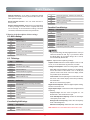
PG
PG-13
R
NC-17
X
Parents Guidance
14+
Viewers 14 years and older
18+
Adult Programming
Rating
G
U.S. Movie Ratings
G
PG
Canadian French Ratings
Following is the description of these ratings.
Rating
General Programming, suitable for all audiences
Defined as
General audience
Parental Guidance suggested
Parents strongly cautioned
Restricted
Description
General
8 ans+
8+General; Not recommended for young
children
13 ans+
Programming may not be suitable for children
under the age of 13
16 ans+
Programming is not be suitable for children
under the age of 16
18 ans+
Programming restricted to adults
NOTE
No one 17 and under admitted
As you block rating, all rating higher than the ones you
select are blocked as well. E.g. if you choose to block
the MPAA rating R, the higher ratings, NC-17 and X,
are automatically blocked too.
Adult audience only
U.S. TV Ratings
Caption - Adjust Closed Captioning settings.
Age
Defined as
TV-Y
All children
Caption Control: Select the Closed Caption mode: CC Off,
CC On or CC On When Mute by press the CC button.
TV-Y7
Directed to older children
Analog Closed Caption: Select an Analog Caption setting:
TV-G
General audience
TV-PG
Parental Guidance suggested
TV-14
Parents Strongly cautioned
TV-MA
Mature Audience only
Contents
Text1~Text4: Closed captioning that covers half or all of
the screen. Text1~Text4 display content are provided by
the broadcaster.
Defined as
A
All of the ratings below that rating set blocked
automatically
D
Suggestive dialogue
L
Strong language
S
Sexual situations
V
Violence
FV
CC1~CC4: Closed captioning appears in a small banner
across the bottom of the screen. CC1 is usually the
“printed” version of the audio. CC2~CC4 display content
are provided by the broadcaster.
Off: To turn off the Analog Caption.
Digital Closed Caption: Select a Digital Caption setting:
Service1~Service6 or Off.
Digital Caption Style: Customize the look of digital Closed
Captioning.
Caption Style: Set the look of Digital CC. “As
Broadcaster” uses broadcaster’s style.
Font Size/Style/Color/Opacity: Select the size/style/
color/opacity level of font.
Fantasy Violence
Background Color/Opacity: Select the color/opacity
level of the background.
Canadian English Ratings
Rating
C
C8+
Description
Window Color/Opacity: Select the color of the window.
Children
CEC Function: Turn the HDMI-CEC function ON or OFF.
Children 8 years and older
15
Basic Features
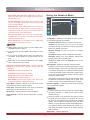
Using the Network Menu
Device Auto Power Off: When HDMI-CEC is turned on,
Device Auto Power Off turns off HDMI CEC devices when
you turn off your TV.
Network
TV Auto Power On: When HDMI-CEC is turned on and
you turn on an HDMI CEC device, TV Auto Power On turns
on your TV automatically.
Configuration
Auto Upgrade
Firmware Upgrade
Applications
Audio Receiver: When HDMI-CEC is turned on and you
have connected an audio receiver to your TV, turning on
Audio Receiver lets you use your TV’s remote control to
control the volume on the audio receiver.
Device Root Menu: You can open an HDMI-CEC
compatible device’s root menu, then use your TV’s remote
control to control the device.
>
Off
>
>
Personalize the
network connection
settings.
You can adjust:
Configuration - Select On or Off. When On mode is selected, the following options are available.
Device Discovery: You can display a list of HDMI-CEC
devices that are connected to your TV.
Internet Connection: Setting the Internet Connection.
NOTES
Interface: You can set up your TV so that it can access
the Internet through your local area network (LAN) with a
Ethernet or wireless connection.
HDMI cables must be used to connect HDMI CECcompatible devices to your TV.
Wireless Setting: You can set up your TV’s wireless
connection.
The connected device’s HDMI CEC feature must be
turned on.
Information: Display network configuration information.
If you connect an HDMI device that is not HDMI CECcompatible, all the HDMI-CEC Control features do not
work.
IP Setting: Allows you to set IP address, subnet mask,
gateway, primary and secondary DNS.
Connection Test: Press the [ENTER] button to test
network status.
Depending on the connected HDMI device, the HDMICEC Control feature may not work.
Auto Upgrade - Update the software using the Internet.
VGA (Only available in VGA mode.) - Access Computer
Settings such as H.Position, V.Position, Phase, Clock and
Auto Adjust.
Configure your network. For detailed procedures on using
the Network Setup, refer to the “Connecting to the Internet
or a network” instructions. If you want the Network Update
to work automatically, please select Auto Updates (On).
If you want to do the Network Update manually, please
select Auto Updates (Off).
H.Position: Move the image right or left.
V.Position: Move the image up or down.
Phase: Adjust the focus of stable images.
Clock: Adjust the sample frequency.
Auto Adjust: Detects input signal clock, phase and
position and adjusts TV display accordingly.
If the Internet connection doesn’t operate properly, check
the Network Configuration settings and try again. If the
problem persists, use the USB method below to update.
Demo Mode - Displays a banner at the top of the screen
which describes the key features of the TV.
Firmware Upgrade - Check the process and it will prompt
you to upgrade the software.
Power LED - Select this feature to turn off or On the Power
LED indicator on the front panel on your TV.
NOTES
Software Update can also be performed via downloading
the latest software to a USB memory device.(www.
hisense-usa.com).
Version Info - View the software version information.
Reset Settings - Restores the TV configuration to factory
settings.
Please be careful not to disconnect the power or remove
the USB drive until updates are complete. The TV will
be turned on automatically after completing the software
update. When software is updated, video and audio
settings you made will return to their default settings and
your personal settings will be deleted. We advise you to
write down your settings so that you can easily reset them
after the update.
Applications - Network application.
16
Basic Features
Network Setup (Manual)
DLNA: Digital Media Player (HiMedia) feature of Digital
Living Network Alliance. Press the [◄/►] buttons to set
DLNA to On.
Use the Manual Network Setup when connecting your TV to
a network that requires a Static IP address.
Getting the Network Connection Values
To get the network connection values on most windows
computers, follow these steps:
1. Right click the Network icon in the bottom right of the
screen.
2. In the pop-up menu that appears, click Status.
3. On the dialog that appears, click the Support tab.
4. On the Support tab, click the Details button. The network
connection values are displayed.
How to manually setup the network connection
To set up your TV’s network connection manually, follow
these steps:
1. Follow Steps 1 through 5 in the “How to set up
automatically” procedure.
2. Set Address Type to Manual.
3. Press [▲/▼] button to select IP Address and press [◄/►]
button to move the cursor to the entry field. Then press
0~9 buttons to enter the numbers.
4. Press [MENU] button to exit IP Address and press [▲/▼]
button to select the next options to enter the numbers.
5 When done, press [MENU] button to return to the
previous menu.
6. Select Connection Test to check the internet connectivity.
Netflix: Deactivate Netflix and display the exclusive
Netflix ESN.
VUDU: Deactivate VUDU. (If available.)
PANDORA: Deactivate Pandora. (If available.)
My Shared Devices: Allow or deny content sharing from
other devices on your network.
NOTES
•
Software Update can also be performed via downloading
the latest software to a USB memory device.
•
Please be careful not to disconnect the power or remove
the USB drive until updates are complete. The TV will
be turned on automatically after completing the software
update. When software is updated, video and audio
settings you made will return to their default settings and
your personal settings will be deleted. We advise you
to write down your settings so that you can easily reset
them after the update.
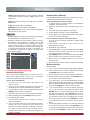
Network
Configuration
Auto Upgrade
Firmware Upgrade
Applications
>
Off
>
>
Personalize the
network connection
settings.
Wireless Setting
How to set up
1. Turn on your TV, press Menu and select Settings Network.
2. On the Network screen, select Configuration and press
the [ENTER] button to enter the submenu.
3. Set Internet Connection to On and Interface to Wireless.
4. Select Wireless Setting and press the [ENTER] button
you can select: Scan / Manual / Auto.
5. If you select Scan, a screen will appear listing all of the
wireless networks within range of the TV. Use the [▲/▼]
button to select the wireless network with your router SSID
and press the [ENTER] to confirm. Proceed to Step 7.
6. If you select Manual, a screen will appear prompting
you to enter the SSID of your wireless network. Press
[ENTER] and an on-screen keyboard will pop up. Enter
the SSID and select OK. Press [ENTER] and a screen
will appear prompting you select the security mode for
your wireless network. Use the [▲/▼] button to select
the proper security mode and press [ENTER] to confirm.
If you selected None for the security mode, proceed to
step 9.
7. A screen will appear prompting you to enter the password
for the selected security mode. Press [ENTER] and an
on-screen keyboard will pop up. Enter the password and
select OK. Press [ENTER] to confirm. Proceed to Step 9.
Connecting to a Wired Network
Network Setup (Auto)
Use the Automatic Network Setup to connect the TV to a
network that supports DHCP. To set up your TV’s network
connection automatically, follow these steps:
How to set up automatically
1. Connect your TV to your LAN as described in the
previous section.
2. Turn on your TV, operate according to the description in
the Settings menu until the Network screen appears.
3. On the Network screen, select Configuration and press
[ENTER] button to enter the submenu.
4. Set Internet Connection to On and Interface to Ethernet.
5. Select IP Setting and press [ENTER] button to enter it.
6. Set Address Type to Auto.
7. Auto acquires and enters the necessary connection
values automatically.
8. If the connection values are not automatically entered,
please check your modem and router manuals for
directions to enable automatic IP addressing by DHCP.
Or, follow the steps listed in the following section,
Network Setup (Manual), to manually configure the
network connection.
17
Advanced Features
DLNA Setting
8. If you select Auto, a screen will appear prompting you
to select PIN (personal identification number) or PBC
(push button configuration) setup. Choose the method
supported by your wireless access point.
If you choose PIN, an identification number will
appear on the screen for you to enter into the access
point. After entering the PIN, press the [►] button. If
the PIN is in use by another device, select [REFRESH]
to obtain a new PIN and enter it into the access point.
After entering the PIN, press the [►] button.
If you choose PBC, a screen will appear prompting
to press [►] button. After pressing the [►] button you
have two minutes to locate and press the Push Button
on your access point to connect to the TV.
9. Press the [MENU] button to return to the previous menu.
10. Select Connection Test to check the Internet connectivity.
You can use DLNA Certified computers, TVs, and other
devices to play or transfer the videos, pictures, and music
stored on your phone , tablet or other devices connected to
your network. For more about DLNA (Digital Living Network
Alliance), visit www.dlna.org. Make sure your phone and TV
are both connected to the same Wi-Fi network.
Set DLNA to On:
1. On the Network screen, select Applications and press
the [ENTER] button to enter the submenu.
2. Press the [◄/►] buttons to set DLNA to On.
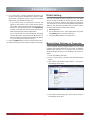
Media Share Settings in Computer
If your computer does not support DLNA, you may install
software that supports DLNA such as TVersity or Windows
Media Player (Version V11 or higher). We recommend
Windows Media Player as the installation and setup is
easier.
1. On the PC taskbar, click Start.
2. Point to All Programs, and then click Windows Media
Player.
3. Click “Library” tab and then “Add to Library...” as shown in
the following screen shot.
4. In the Add To Library dialog box, click “Add” as shown in
the following screen shot.
18
Advanced Features
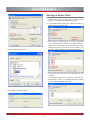
Setting to Share Files
1. Click “Library” and move the cursor to select “Media
Sharing...” as shown in the following screen shot.
2. In the Media Sharing dialog box, select the Share my
media check box and click “OK”.
3. After turnnig on media sharing, you need to select the
devices that should have access to your Player library. An
equipment icon will appear on the white area if the DLNA
Settings have been correctly set. Select a device and
then click “Allow” as shown in the following screen shot.
5. Select a folder and click “OK”.
4. Then the TV can access to the shared files in the
computer.
For information about how to customize what media you
share with the device, see "Change settings for sharing
media" in Windows Media Player Help.
6. Click “Close” to close the dialog.
19
Advanced Features
Network Function
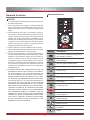
Operational buttons
NOTICE
1.
2.
3.
4.
5.
6.
To access Internet streaming video services, please note
the follow requirements.
Use of Internet services requires a working broadband
Internet connection (1 to 2 Mbps for SD video, 2.25 to 4.5
Mbps for HD video and 4.5 to 9 Mbps for 1080p and 3D
video.).
Internet-based services are not provided by Hisense,
may change or be discontinued at any time and may be
subject to restrictions imposed by your Internet service
provider. The quality, functionality, or availability of such
services may be affected by the capacity of your Internet
connection. Use of video-on-demand and other Internet
services may require the creation of a separate account
through a computer with internet access.
Certain services may not be available for this TV model.
Video-on-demand and other Internet services may require
payment of one-time and/or recurring charges.
You are solely responsible for any charges incurred as a
result of using Internet-based content, including, without
limitation, communications charges for the provision of
Internet or network services and any charges incurred
for third-party Internet content services, such as video on
demand or subscription services. All third-party services
are provided in accordance with whatever terms and
conditions are established between such third-party
providers and you.
H I S E N S E M A K E S N O R E P R E S E N TAT I O N S O R
WARRANTIES ABOUT THE CONTENT, AVAILABILITY
OR FUNCTIONALITY OF THE VUDU SERVICE OR
O T H E R I N T E R N E T D E L I V E R E D T H I R D - PA RT Y
SERVICES AND DOES NOT WARRANT THAT ANY
OF THEM WILL BE UNINTERRUPTED, ERROR FREE
OR SATISFACTORY. ANY IMPLIED WARRANTY,
INCLUDING BUT NOT LIMITED TO ANY IMPLIED
WARRANTY OF MERCHANTABILITY OR FITNESS
FOR A PARTICULAR PURPOSE OF ANY THIRD PARTY
CONTENT OR SERVICE, IS EXPRESSLY EXCLUDED
AND DISCLAIMED. UNDER NO CIRCUMSTANCES
WILL HISENSE BE LIABLE IN CONTRACT, TORT OR
UNDER ANY OTHER THEORY FOR ANY DAMAGES
ARISING OUT OF OR IN CONNECTION WITH YOUR
USE OF ANY CONTENT OR SERVICE PROVIDED
BY ANY THIRD PARTY, EVEN IF ADVISED OF THE
POSSIBILITY OF SUCH DAMAGES.
Button
Description
Press to launch VUDU Movies App directly.
(Not available in Canada.)
Open the HiSmart Hub with links to various
Internet Services.
Open the digital multimedia player.
Press to launch YouTube App directly.
Open the menu.
Close the menu.
Return to the previous menu.
▲/▼/◄/►
Navigate Up / Down / Left / Right or adjust
OSD settings.
Confirm selections.
Press to launch NETFLIX App directly.
Display the TrickPlay screen and fast
reverses playback.
Display the TrickPlay screen and fast
forwards playback.
Play the previous one.
Play the next one.
Pause playback. Press the button to return
to playback.
Stop playback and display the file title
screen.
20
Advanced Features
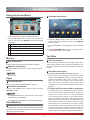
Using the Home Menu
Operation instructions
4
1
AccuWeather.com®
3
10/10
21℃
Sydney
Mostly Cloudy
5 24MPH
2:28 PM Updated
2
1. Press the [HiSmart] button to display Home menu.
Today
Wednesday
Thursday
Friday
Saturday
Sunday
1/29/2013
1/30/2013
1/31/2013
2/1/2013
2/2/2013
2/3/2013
20/28℃
20/27℃
20/27℃
20/29℃
20/29℃
20/26℃
Del this city
2. Press [◄/►/▲/▼] button to select the interface you
Add a city
˚C/˚F
City List
Change
Set default
1. Press the [◄/►] buttons to move the cursor to select
service items in AccuWeather screen and the [ENTER]
button to confirm.
want to view and press [ENTER] to enter the following
description.
No Interface description
2. To use other features, press the button shown in the help
bar.
① Launcher Bar (Movies/Apps/HiMedia)
② Functional application
3. Press the [RETURN] button to return to the upper menu,
or the [EXIT] button to close the App.
③ Advertising
④ Network (Display or set the network status.)
3. Press [EXIT] button exit the home mode.
YouTube
Movies
Brief introduction
Brief introduction
The YouTube app allows you to watch original videos, music
videos, feature length movies, previews and trailers on your
TV screen. Search or browse recommendations with the TV
remote.
Display VUDU recommend newest movies information.
Operation introduction
Press the [◄/►] button select the movie and press enter to
confirm.
Operation instructions
NOTES
To activate your YouTube account for your TV:
Select "Sign in" and "Settings" from the toolbar on the
left side of the application, then go to www.youtube.com/
activate and enter the code you see on the TV screen.
While you enter the code the screen should remain
open, otherwise the code will no longer be valid. Once
completed your account will be activated and you will be
signed in.
For U.S. only.
Apps
Brief introduction
Apps contains all pre-loaded applications of the TV.
Operation introduction
To control YouTube from your tablet or smartphone:
Press the [▲/▼/◄/►] button select the app and press
[ENTER] to confirm.
Please first check if your mobile device supports YouTube
TV and use the same network connection. To pair your
device to the YouTube screen, you will be prompted
to go to www.youtube.com/pair on your mobile device.
The screen guide to "Pair with TV" will appear. Enter the
pairing code or enter the value of the scanned QR code
on the SmartTV. While you enter the code the screen
should remain open, otherwise the code will no longer
be valid. Select a name for your device then click "Add
TV". Once complete, the YouTube app will show that your
mobile device has been paired. You can now select a
video to watch on YouTube TV using your mobile device.
NOTES
In Cannada and Mexico, VUDU Movies/ VUDU Apps/
Pandora may not all available.
Opera and Opera Apps depend on your TV series and size.
AccuWeather
Brief introduction
This application provides local and international weather
forecasts, world class weather radar plus up-to-date weather
reports and current conditions.
21
Advanced Features
VUDU Movies
2. Press [ENTER] button to display the keyboard.
There are some shortcuts on the bottom of the keyboard
so that you can input part of the address often used
directly.
Other keys are used as the keyboard of your computer.
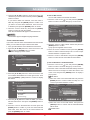
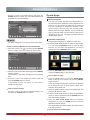
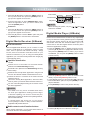
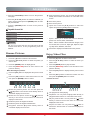
Brief introduction
VUDU is an on-demand service that offers high-definition
movies via the web.
To enjoy movies, please register and log in to your account.
Enter email address
Enter email address to begin enjoying VUDU!
Enter email address
Operation instructions
a b c d e f g h i j k l m
n o p q r s t u v w x y z
0 1 2 3 4 5 6 7 8 9 @ .com
Symbols
Space
Shift
To access Vudu HD Movies: You can access the VUDU HD
Movies by the following method:
1. Press the [HiSmart] button to display home menu.
Back
2. Press [◄/►] button to select the VUDU HD Movies icon
and press [ENTER] to enter it, or press [VUDU] button to
enter directly.
Done
3. Select the Sign Up Now icon on the VUDU HD Movies
interface, and press [ENTER] to enter.
3. Press [▲/▼/◄/►] button to move the cursor to the
characters you want to select and then press [ENTER]
button to confirm.
4. Enter your email address to start your VUDU experience.
(Refer to “How to Input the Email Address” on page 23.”)
If you want to delete one character, move the cursor to
Back key
and press [ENTER] button to confirm.
5 Press [▲/▼/◄/►] button to move the cursor to select
service items in the VUDU HD Movies home page, and
press [ENTER] button to confirm.
4. Move the cursor to Done key and press [ENTER] button
to confirm if you have completed the address input. Then
the new address will appear on the address bar.
6. While watching a movie, press [ENTER] button to display/
exit the tool bar, press [◄/►] button to select the function
icon, and press [ENTER] button to confirm.
VUDU Apps
7 Press [RETURN] button to return the upper menu, or
press [EXIT] button to close the menu.
Brief introduction
The applications platform for connected TVs.
Tool Bar
HDX
1
7
0:00:56
2
3
4
5
VUDU Apps provides customers with access to a wide
range of Internet services and applications including
streaming video, music on demand, photo browsing,
social networking and more.
0:02:32
6
VUDU Apps supports the development of responsive
apps designed specifically for use on home HD
televisions.
1
Press [ENTER] button to enter and press [◄/►] button to
select the chapter.
2
Stop playback.
3
Fast backward. Press [ENTER] to select the backward
speed. You can press [ ] button to achieve the function.
4
Play/Pause. You can press [►II] button to play/pause
directly when there is no control bar on the screen.
5
Fast forward. Press [ENTER] button to select the forward
speed. You can press [ ] button to achieve the function.
6
Progress bar. The progress bar when playing.
You can access the VUDU Apps by the following methods:
7
Press [ENTER] button to select the movies quality HDX, HD
or SD.
1. Press the [HiSmart] button to display home menu.
VUDU Apps uses a unique, cloud-based architecture
optimized for consumer electronics devices, including
delivering the latest applications to consumers without
the need for software downloads or frequent firmware
updates.
Operation instructions
2. Press [◄/►] button to select the VUDU Apps icon and
press [ENTER] to enter it.
How to Input the Email Address
3. Press [◄/►/▲/▼] button to select the widget you want to
access, and press [ENTER] to enter it.
1. Press [▲/▼/◄/►] button to move the cursor to the
address bar and press [ENTER] button to confirm.
4. You can press [RETURN] to return the upper menu or
press [EXIT] button to close the Widgets display.
22
Advanced Features
Netflix
Vimeo
Brief introduction
Netflix unlimited membership required.
Vimeo App provides a variety of HD video. All these video
are mainly divided into two parts: Featured Video and
Categories Video which includes Activism & Non Profits,
Animation &Motion Graphics, Art, Comedy, Education & DIY,
Everyday Life, Experimental, Films, HD, Music, Products &
Equipment, Science & Tech, Sports and others.
Brief introduction
Instantly watch thousands of TV episodes & movies
streaming over the Internet from Netflix. Unlimited
membership required.
NOTES
For more information on Netflix visit http://www.netflix.
com/help or login to your Netflix account and click “Help”
at the top of the page.
When you sign in this App , you can bookmark you favorite
movie and watch the movie last watched.
Picture quality depends on the network speed and
original bit rate.
1. You can choose the movie you like to watch in Featured
and Categories in home page.
2. If you want to sign in vimeo , please choose Setting.
3. After signing in vimeo, you can save your favorite video
to My Stuff or Watch Later.
4. Choose Search to search the name of movie or music
you love.
5 To use other features, press the button showed in the
help bar.
6 Press [RETURN] button to return to the upper menu, or
[EXIT] button to close the App.
Operation introduction
Illustrations are examples and may differ from the actual
Netflix screens. The display and operations may change
as a result of a software update. Use Netflix without
configuring a proxy server. Part or all of Netflix may not
be available when connecting to the Internet via a proxy
server.
Operation instructions
1. Press the [HiSmart] button to display home menu.
2. Press [◄/►] button to select the Netflix icon and press
[ENTER] to enter it, or press [NETFLIX] button to enter
Netflix website directly.
3. Input Email and Password in following window to sign in.
(Refer to “How to Input the Email Address” on page 23)
4. Press [▲/▼/◄/►] button to move the cursor to select
service items in the Netflix home page, and [ENTER]
button to confirm.
5. While watching a movie, press operational buttons to
control the movie.
6. Press [RETURN] button to return the upper menu, or
press [EXIT] button to close the menu.
23
Advanced Features
Pandora
Picasa
Brief introduction
Brief introduction
With Picasa you can explore featured photos in Google
Picasa Web Album, also you can search your favorite photos
in Google Picasa Web Album. If you have already had a
Google Picasa account, you can enjoy your private photos
stored in Google Picasa Web Album.
Pandora is a personalized radio service that streams music
on your TV. Just start with the name of one of your favorite
artists, songs, comedians, or composers and Pandora will
create a custom station that plays similar tracks. Pandora
features hundreds of music and comedy genre stations.
Create up to 100 stations so you can easily switch between
favorites.
Operation introduction
1. Press the [HiSmart] button to display home menu.
2. Press [◄/►] button to select the Picasa icon and press
[ENTER] to enter it.
For enjoying more movies, please register and log in to your
account.
1. Press the [HiSmart] button to display home menu.
Operation introduction
2. Press [◄/►] button to select the Pandora icon and press
[ENTER] to enter it.
3. Input Email and Password in following window to sign in.
(Refer to “How to Input the Email Address” on page 23)
4. Press [▲/▼/◄/►] button to move the cursor to select
service items in the Pandora home page, and [ENTER]
button to confirm.
5. Press [RETURN] button to return the upper menu, or
press [EXIT] button to close the menu.
3. Press [▲/▼/◄/►] button to move the cursor to select
service items in Picasa screen and [ENTER] button to
confirm.
4. To use other features, press the button showed in the
help bar.
5. Press [RETURN] button to return to the upper menu, or
[EXIT] button to close the App.
Twitter
Operation introduction
1. Press the [HiSmart] button to display the home menu.
2. Press [◄/►] button to select the Twitter icon and press
[ENTER] to enter it.
3. Input Email and password in the following window to sign
in.
4. Press [▲/▼/◄/►] button to move the cursor to select
service items in the Twitter home page, and [ENTER]
button to confirm.
5. Press [ENTER] button to return the upper menu, or press
[EXIT] button to close the menu.
24
Advanced Features
Opera
10 Exit Browser.
Move the cursor to the icon and press the [ENTER]
button to close the page.
Brief introduction
The opera browser allows you to browse any URL, edit
or delete folders, add bookmarks and select websites
from the "Favorites" folder.
The function of buttons on the remote control
Operation instructions
How to enter the Opera Browser
1. Press the [HiSmart] button to display the home menu.
Key
Operation
Exit
Exit Opera Browser.
Back to previous page or exit current
page; Cancel pop dialoge or soft
keyboard
Return
2. Press the [◄/►/▲/▼] buttons to select the opera icon
and press the [ENTER] button to enter it.
3. Then the default interface will appears on the screen.
There are some function icons on the bottom of the
screen:
▲/▼/◄/►
Up/Down/Left/Right.
CH Λ/CH V
Page Up/Page Down.
History of viewed pages.
Guide
?
1
2
3
4
5
6
7
Back to previous viewed web page.
RED
8 Address bar
9 10
The function of the buttons on the screen:
1. Main page.
Move the cursor to the icon and press the [ENTER]
button to show the main page.
Green
Forward to previous viewed web page.
Yellow
Open marked page.
Favorite marker.
Blue
ASPECT
Zoom in or Zoom out.
2. Back to previous page.
Move the cursor to the icon and press the [ENTER]
button to return to the previous viewed web page.
Menu
Toolbar
Enter
Enter
3. Forward to next page.
Move the cursor to the icon and press the [ENTER]
button to go forward to the previous viewed web pages.
VOLΛ / VOLV
Volume Control
Mute
4. Refresh page.
Move the cursor to the icon and press the [ENTER]
button to refresh the current page.
Mute
How to Input a New Address
1. Press the [▲/▼/◄/►] buttons to move the cursor to the
address bar.
5. Bookmark manager.
Move the cursor to the icon and press the [ENTER]
button to enter the favorite folder.
2. Press the [ENTER] / [RETURN] buttons to display / close
the keyboard.
There are some shortcuts on the bottom of the keyboard
so that you can input part of the address often used
directly. Other keys are used as the keyboard of your
computer.
6. Add a bookmark.
Move the cursor to the icon and press the [ENTER]
button to add the website to the favorite folder.
7. Help.
Move the cursor to the icon and press the [ENTER]
button for help.
、
8. Address bar.
Input the website you want to view.
1
Tab
2
q
Caps L a
9. Go to the website.
Move the cursor to the icon and press the [ENTER]
button to search the website.
25
3
w
4
e
5
r
6
t
s
d
f
g
Shift
z
x
http://
www.
c
v
.com
b
7
y
8
u
9
i
h
j
k
n
.org
m
,
.gov
0
o
p
l
;
.
=
[
‘
/
.net
Back
]
\
Enter
Space
Reset
Advanced Features
How to Add a Folder
3. Press the [▲/▼/◄/►] buttons to move the cursor to the
characters you want to select and then press the [ENTER]
button to confirm.
If you want to delete one character, move the cursor to
Back key and press the [ENTER] button to confirm. Or if
you want to re-enter all the characters, move the cursor
to Reset key and press the [ENTER] button to confirm.
You can add a folder to the favorite as follows:
1. Move the cursor to the
icon and press the [ENTER]
button to confirm. The menu will pop up on the screen.
Add a folder
Close bookmark manager
Opera Software
4. Move the cursor to Enter key and press the [ENTER]
button to confirm to enter the website.
Then the new address will appear on the address bar.
GOGI SDK
Add a folder
Are you sure to add it?
Opera technology
Name:
NOTE
Add
The browser supports English language websites.
?
How to Add a Bookmark
If you want to find the often viewed website from the favorite
folder, you can follow the steps to add it to the folder.
1. First, input the address on the address bar and enter it.
3. Move the cursor to Name bar and press the [ENTER]
button to confirm. Follow the steps 2 to 4 in “How to Input
the New Address” to input the name.
and press the [ENTER] button to confirm.
The menu will pop up on the screen.
4. Move the cursor to Add button and press the [ENTER]
button to confirm and the new folder has been added.
Add a bookmark
Are you sure to add it?
Operattp://www.Manufacturer.
URL:
com.au/
Folder:
Root folder
Add
Http://www.opera.com.au/
2. Move the cursor to “Add a folder” button and press the
[ENTER] button to confirm.
A pop-up menu appears on the screen.
2. Press the [▲/▼/◄/►] buttons to move the cursor to the
Name:
Cancel
How to Edit/Delete a Folder/Bookmark
1. Move the cursor to the
icon and press the [ENTER]
button to confirm. The menu will pop up on the screen.
2. Move the cursor to the folder /bookmark directly and there
will be two icons on the right of it. Move the cursor to one
of the icons and press the [ENTER] button to display a
pop-up menu.
Cancel
3. Press the [▲/▼/◄/►] buttons to move the cursor to the
icon marked with dashed box on the right screen. Then
press the [ENTER] / [▲/▼] buttons to confirm to display
the folders.
: Edit button.
1).Move the cursor to the Name/URL bar and press the
[ENTER] button to confirm. Follow the steps 2 to 4 in
“How to Input a New Address” to edit it.
Add a bookmark
Are you sure to add it?
Name:
OperaHttp://www.Manufacturer.
URL:
com.au/
Folder:
Root folder
Root folder
Opera Software
GOGI SDK
Opera technology
Add a folder
Close bookmark manager
Opera Software
GOGI SDK
Opera technology
Edit this bookmark
Are you sure to edit it?
Name: Opera
URL: http://www.opera.com.au/help/warranty
Edit
Cancel
?
4. Press the [▲/▼] buttons to select the folder you want to
add the bookmark to. And press the [ENTER] button to
confirm.
Http://www.opera.com.au/
2).Move the cursor to the "Edit" button, then press the
[ENTER] button to confirm and the folder/bookmark
will be saved.
5. Move the cursor to the Add button and then press the
[ENTER] button to confirm. If you do not want to add the
book mark, move the cursor to the Cancel button and
press the [ENTER] button to confirm.
: Delete button.
26
Advanced Features
Opera Apps
Move the cursor to the Delete button and press the
[ENTER] button to confirm. Then the folder/bookmark will
be deleted from the favorite folder.
Add a folder
Brief introduction
The user can browse and launch any application from
the Opera App store dashboard. These applications are
based on the Opera Devices SDK and are displayed
in a layout optimized for widescreen television. In the
Opera TV Store, there are more than 100 high-quality,
HTML5-powered TV apps available. You can choose any
apps you like and either use them online or add them to
"My Apps" for easy use. "My Apps" is located under the
"MORE APPS" section.
Close bookmark manager
Opera Software
GOGI SDK
Opera technology
Delete this bookmark
Are you sure to delete it?
Name: Opera
URL: http://www.opera.com.au/help/warranty
Delete
Cancel
?
Http://www.opera.com.au/
Operation instructions
NOTE
1. Press the [HiSmart] button to display the home menu.
The Name will appear on the pop-up menu for the folder.
2. Press the [▲/▼/◄/►] buttons to select the Opera Apps
icon and press the [ENTER] button to enter My Apps
interface. You can select the applications you want to
enter and press the [ENTER] button to confirm.
How to select the Website from the favorite folder
1. Move the cursor to the
icon and press the [ENTER]
button to confirm. The menu will pop up on the screen.
Add a folder
My Apps
Close bookmark manager
MORE APPS
MENU
Opera Software
GOGI SDK
Opera technology
?
Http://www.opera.com.au/
iG Receitas
vimeo
Zing TV
Viewster
Yandex
五子棋
3. Press the [RETURN] button to return to the upper menu
or press the [Exit] button to close the apps.
2. Move the cursor to the folder name and press the [ENTER]
button to confirm.
The websites in the folder will appear in the following
lines.
How to add more apps
1. Press the [▲/▼] buttons to select the "MORE APPS"
button on the top of the screen and press the [ENTER]
button to enter it.
3. Move the cursor to the website you want to view and
press the [ENTER] button to confirm.
If the website is in the root folder, you can select it
directly, and skip step 2.
In the More Apps' subpage, the application is classified
by All categories, New, Popular, Watch, Listen, Play,
Socialize, Shop, Read, Use.
How to exit the manager
2. Press the [◄/►] buttons to select the classification and
press the [▼] button to enter.
Move the cursor to the Close bookmark manager icon
and press the [ENTER] button to confirm.
3. Press the [▲/▼/◄/►] buttons to select the applications
which you want to install and press the [ENTER] button to
enter the installing interface.
4. Press the "ADD TO MY APPS" button to install the
applications or press the "OPEN" button to enter the
application interface directly.
If the applications have been installed, they will be shown
in My Apps interface.
How to remove the installed apps
27
Advanced Features
Fast forward
1. Press the [▲/▼] buttons to select the "MENU" button on
the top of the screen and press the [ENTER] button. A
pop-up menu appears on the screen.
The previous one
The next one
Fast backward
Play/Pause
2. Press the [▼] button to select "REMOVE APP" option,
select the application which you want to delete, then
press the [ENTER] button.
Stop
NOTE
When browsing the photos, only the
buttons are available.
SelfService
1. Press the [▲/▼] buttons to select the "MENU" button on
the top of the screen and press the [ENTER] button. A
pop-up menu appears on the screen.
,
and
Digital Media Player (HiMedia)
2. Press the [▼] button to select "About" option and press
the [ENTER] button to view the service information.
Please note that Hisense does not assume any responsibility
for any lost data and cannot guarantee perfect compatibility
with all mass storage devices. Be sure to insert the USB
disk/mobile hard disk with standard USB2.0 port or to
connect the TV with other digital devices via DLNA ( Menu
>Network >Applications >DLNA ).
Press the [INPUT] button to display the Source menu,
press the [▲/▼] buttons to highlight the HiMedia source,
then press the [ENTER] button to confirm. (If you want to
exit HiMedia, you can press the [INPUT] button to switch
to other sources).
Digital Media Receiver (HiBeam)
Brief introduction
With the Digital Media Receiver you do not have to crowd
around a small tablet PC or smartphone screen to share
video, music or pictures with friends and family. Simply
browse, discover and beam media files stored on your
Android or iOS device to your TV using the Twonky Beam
application. (You can seach Twonky Beam from Google play
or the Apple App store).
Operation introduction
1. TV side:
Confirm the TV is connected to a local area network.
(Reference the Network Settings section)
Set DLNA to On. (Reference the DLNA Settings section)
2. Device Setup:
Download the Twonky Beam application using the link
found on the Hisense website at www.hisense-usa.com.
Confirm the device is connected to the same local area
network as the TV.
Launch the Twonky Beam application, select the video,
music or picture you want the share and beam it to the TV.
You can control the playback using the TV remote or from
the device application.
Press the [HiMedia] button to enter the HiMedia mode
directly. Or press the [HiSmart] button to enter.
In the HiMedia screen you can press the [◄/►] select the
Picture/Video/Music option, then press [ENTER] to enter/
play the folder/file.
Press [RETURN] to return to the previous directory.
NOTES
HiMedia
・ Your DMR of TV may not be accessible when there
are some prior applications working (such as Skype
or firmware updating). You need to close these prior
applications or waiting for the firmware updating finished,
then the DMR will work.
・ If a mobile device has access TV, you can set the
access privileges to Allow or Deny in "Menu-NetworkApplications-My Shared Devices"
Information
All
Video
USB1
Music
Picture
Page up
Media content control function buttons
Page down
1. Press the [▲/▼] buttons to switch the media type.
When viewing video/photo, you can press these buttons on
the remote control to control video/photo.
28
Advanced Features
2. Press the [Yellow/Blue] buttons to turn to the previous/
next page.
3. Press the [▲/▼/◄/►] buttons to select the folder/file you
want to open and then press the [ENTER] button to enter/
play the folder/file.
4. Press the [RETURN] button to return to the previous
directory.
6
Stop browsing the picture. You can press the [■] button
directly in the remote control when no control bar on the
screen.
7
Zoom in the picture.
8
Zoom out the picture.
9
Option Set. Press the [▲/▼] buttons to select the
options and press the [◄/►] buttons to set them.
Playable format list
Option Set
Files Format
Playable format
Photo
Music
.jpg
.avi(mp3,mpeg,ac3), .mp4, .rm
.avi(H.264, MPEG, Divx), .mkv(H.264, MPEG),
.flv, .mpeg, .wmv(Divx, XviD)
Video
Speed:
Fast
Effect:
Box in
・ Speed - Allows you to browse the picture at different
speed, such as Fast, Slow, and Medium.
・ Effect - Select transition effects between images, such
as: random, Box in, Box out, Wipe right, Wipe left, Wipe
up, Wipe down, Dissolve, and None.
NOTES
We can not promise that this unit will support all the
formats listed above, as the programming tools are
different.
10
Picture info. Displays information about the pictures.
Browse Pictures
Enjoy Video Files
1. Press the [◄] button to switch to All or Picture.
1. Press the [◄] button to switch to All or Video.
2. Press the [▲/▼/◄/►] buttons to select the picture you
want to view.
2. Press the [▲/▼/◄/►] buttons to select the video you
want to view.
3. Press the [ENTER] button to display picture.
3. Press the [ENTER] button to play the video.
4. Press the [■/RETURN] buttons to exit or return to the
previous directory.
4. Press the [■/RETURN] buttons to exit and return to the
previous directory.
When browsing the pictures.
Press the [Info] button to display/exit the picture control
bar.
5. Press the [Info] button to display/exit the picture control
bar
6. Press the [◄/►] buttons to select the function icon and
then press the [ENTER] button to confirm.
Press the [◄/►] buttons to select the function icon and
then press the [ENTER] button to confirm.
Function of icons:
1
1
1
2
2
3 4
5
6
7
8
00:00:36/00:20:01
9 10
2
Browse the previous picture. You can also press the
[
]/[◄] buttons in the remote control directly when no
control bar displays on the screen.
Browse the next picture. Press the [
]/[►] buttons
directly in the remote control when no control bar
displays on the screen.
3
Rotate the picture 90 degrees clockwise.
4
Rotate the picture 90 degrees anticlockwise.
5
Play/pause. Press the [►II] button directly when no
control bar displays on the screen.
29
3
4
5
6
7
8
9
10
11
1
The progress bar when playing.
2
Play/Pause. You can press the [►II] button directly to
play/pause when there is no control bar on the screen.
3
Play the previous video. You can press the [
] button
directly to achieve the function when no control bar
displayed on the screen.
4
Play the next video. You can press the [
] button to
achieve the function when no control bar displayed on
the screen.
Advanced Features
5
6
7
Enjoy Music Files
Fast backward. Then press the [ENTER] button to select
the backward speed. You can press the [◄◄] button to
achieve the function.
1. Press the [◄] button to switch to All or Music.
2. Press the [▲/▼/◄/►] buttons to select the music you
want to view.
Fast forward. Then press the [ENTER] button to select
the forward speed. You can press the [►►] button to
achieve the function.
3. Press the [ENTER] button to play the music.
4. All the music is listed on the left. Press the [▲/▼]
buttons to select the music and press the [►] button to
mark it. You can press the [Yellow/Blue] buttons to turn
to the previous /next page. Press the [Green] button to
select the Mode: Mark / All / Single.
Select time to play
・ Press the [◄/►] buttons to select the position you want
to set.
・ Press the [0~9] buttons to set the time and press the
[▲/▼/◄/►] buttons to adjust it.
5. Press the [RETURN] button to exit the music playback
interface.
・ Press the [ENTER] button to confirm and the video will
to play at the time you have set or press the [RETURN]
button to exit.
8
Play list
・ Press the [Yellow/Blue] buttons to page up/page down
and press the [▲/▼] buttons to select the video.
・ Press the [ENTER] button to confirm.
9
Options
Option Set
Repeat:
Once
Subtitle Selection:
No
AUDIO1:
1/1
・ Press the [▲/▼] buttons to select the options in the
menu.
・ Press the [◄/►] buttons to select the settings.
・ Press the [ENTER] button to confirm.
10
Program info
・ Allows you to view the program information.
11
Stop playback
NOTE
You can press the [ASPECT] button to change the aspect
ratio (Normal, Full Screen, Original Size) while playing the
video.
30
Other Information
Troubleshooting
If you experience difficulties while using the TV, please check the table below for possible solutions.
SYMPTOMS
POSSIBLE SOLUTIONS
No sound or picture.
Check if the power cord is in the AC outlet and if it has electricity.
Check if you have pressed [POWER] button on the TV or [POWER] button on the
remote control.
I have connected an external
source to my TV and I get no
picture and/or sound.
Check for the correct output connection on the external source and for the correct
input connection on the TV.
Make sure you have made the correct selection for the input mode for the incoming
signal.
When I turn on my television,
there is a few second delay
before the picture appears. Is
this normal?
Yes, this is normal. That is the TV searching for previous setting information and
initializing the TV.
Picture is normal, but no sound.
Check the volume settings.
Check if Mute mode is set “on”.
Sound but no picture or black
and white picture.
If black and white picture first unplug TV from AC outlet and replug after 60 seconds.
Check Color Setting if picture is black and white.
Sound and picture distorted or
appear wavy.
An electrical appliance may be affecting TV set. Turn off any appliances, if
interference goes away, move appliance farther away from TV.
Insert the power plug of the TV set into another power outlet.
Sound and picture is blurry or
cuts out momentarily.
If using an external antenna, check the direction, position and connection of the
antenna.
Adjust the direction of your antenna or reset or fine tune the channel.
Horizontal/vertical stripe on
picture or picture is shaking.
Check if there is interfering source nearby, such as appliance or electric tool.
The plastic cabinet makes a
“clicking” type of sound.
“Click” sound can be caused when the room temperature changes. This change
causes the television cabinet to inflate or contract, which makes the sound. This is
normal and TV is OK.
Black square appears in the
center of my television screen?
The Closed Caption function is set in the text mode. To remove it, access Closed
Caption from the menu screen and change the Mode setting from text to either CC1 or
off .
On some channels getting
another language or sometimes
no sound at all.
That would indicate that the MTS mode on your unit is set to SAP mode. We suggest
setting the MTS mode to either Stereo or Mono . For further instruction, please see
Audio Adjust or MTS/SAP in your user manual.
SAP is Second Audio Program. It’s a second audio channel that is usually used for a
second language or descriptive audio for the visually impaired.
MTS stands for Multichannel Television Sound, a standard that allows the encoding
of 3 channels of audio within a standard NTSC (analog) video signal to a television.
A television that is able to receive MTS Stereo allows you to watch television with
stereo sound.
31
Other Information
SYMPTOMS
POSSIBLE SOLUTIONS
Not getting all of my cable
channels on the television or I’m
only getting 13 channels.
Check the cable connection for an incoming signal. Make sure the signal is coming
OK. Best way to confirm signal is to use another TV and/or contact your cable
company.
Reprogram your channels. Press [MENU] button on your TV remote control, change
Input Source setting to “Cable”, then use “Auto Channels Search” to reprogram your
channels.
After switching to Cable, please auto program the channels. The TV will “remember” all
the channels then the TV will allow you to surf the channels with [CH /V] buttons.
V
V
[CH / V] don’t work when I
set the Channel to Cable? They
work with the Air setting?
Confirm that TV still has power and is operational.
Change the batteries in the remote control.
Check if the batteries are correctly installed.
Clean the front of the remote control (LED window).
If using a universal remote, be sure to select the TV mode on the remote.
If the remote still does not work:
Remote control does not work.
• Remove and reinstall the batteries correctly to reset the remote or install new
batteries.
• Press the Power button to turn on the TV. With a universal remote if you have reset
or changed the batteries you will need to reprogram the remote for the other units.
Check if there is obstruction between the remote control and the TV.
TIP: If you have a digital camera / camera phone, you can aim the front of the remote
at camera lenses (at this time, the camera should set on camera mode, not play
mode). Observe the camera screen while pressing a button on the remote control; you
should see flashing light on the screen. If there is no light observed, the remote control
is not working. You need to repair or replace the remote control.
32