1
With SureThing Software
Rev. 6-22-2007
Installing the Prism Plus Printer Driver*
1.
2.
3.
4.
5.
6.
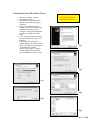
Click Start-> Settings-> Printers
Click Add New Printer
The “Welcome to the Add Printer
Wizard” window will appear (fig 1) .
Click Next.
In the “Local or Network Printer”
window, uncheck the “Automatically
detect installed printer” option ,
leaving the “Local printer attached to
computer” option fi( g 2) and click
Next..
In the “Select a Printer Port” window,
leave the default as LPT1 (fig 3) and
click Next.
In the “Install Printer Software”
window, click the “Have Disk” button
(fig 4). You will then be prompted to
“Install from Disk”, click the
“Browse” button (fig 5). Select the
location of the printer driver from
your CD-ROM drive in the PC ( fig 6).
* Pre-Installed on 21XX,
31XX and 91XX Series.
Excluding 9100 Baxter
fig 1
fig 2
fig 3
fig 4
fig 5
fig 6
rev. 11-29-06
Installing the Prism Plus Printer Driver (cont.)
7. After specifying the driver for the Prism
Plus printer, the printer “Rimage Perfect
Image Printer PF” will appear in the “Add
Printer Window” (fig 7). Click Next to
continue.
8. In the “Name your Printer” window,
leave the printer as the default name, and
select the printer to be the default printer
(fig 8) and click Next.
fig 7
9. In the “Printer Sharing” window, select
“Do Not Share the Printer” (fig 9) and
click Next.
10. Say No to “Print Test Page” (fig 10)
and click next.
11. The “Completing the Add Printer
Wizard” window will appear (fig 11).
Click Finish. After clicking finish, the
Prism Plus printer driver will be installed.
You will be asked to accept that the printer
driver is not digitally signed by Microsoft,
click Continue (fig 12). You have now
successfully installed the printer.
fig 8
fig 10
fig 9
fig 11
fig 12
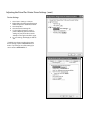
!DJUSTINGTHE0RISM0LUS0RINTER$RIVER3ETTINGS CONT
$EVICE3ETTINGS
'OTO3TART3ETTINGS0RINTERS
2IGHTCLICKONTHE2IMAGE0ERFECT)MAGE
0RINTER0&PRINTERINTHE0RINTERS&OLDER
'OTO0ROPERTIES
'OTOTHE$EVICE3ETTINGS4AB
&ORTHE3CRIBE0ROGRAMTOUSETHE
PRINTEREFFECTIVELYPLEASEMATCHTHE
SETTINGSOFYOURPRINTERDRIVERTOTHE
EXAMPLEONTHERIGHTSIDEOFTHISPAGE
4OSAVESETTINGS#LICK!PPLYAND/+TO
EXIT
8DPI
./4%!NYCHANGESMADETOTHEPRINTER
DRIVERSETTINGSREQUIREA.%702.FILETOBE
MADE)FYOUCHANGEONEOFTHESETTINGSBE
SURETOCREATEA.%702.FILE
-ONOCOLOR
Installing SureThing Software *
* When Prism Plus and
Duplicator are purchased
together, SureThing Software
is pre-installed at the factory
*2000 & 9000 Series Only
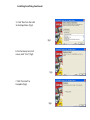
1. Place CD in Drive and run
the SureThing Setup.exe file
2. Click the “I Accept” button on
the license agreement (fig1)
fig1
3. Click “Next” on the Welcome Screen
(fig2)
fig2
4. Select Destination Folder,
then click “Next” (fig3)
fig3
Installing SureThing-Continued
5. Click “Next” on the Add
to Desktop Menu (fig4)
fig4
6. On the Ready to Install
screen, click “Start” (fig5)
fig5
7. Click “Finished” to
Complete (fig6)
fig6
Important Notes
Note:
The maximum resolution for a .STD file is 600 dpi.
If print image exceeds 600 dpi, a .PRN file must
be used.
Note:
When submitting the PDF file to print, please
make sure the target printer is NOT the Default
printer. (For Example If printing to Prism -Prism
cannot be the default printer) If needed, add a
dummy Printer to the printers and faxes directory.
Any Questions Please Contact
Technical Support
631 249-9393 ext 217
Creating an STD file
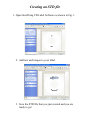
1. Open SureThing CD Label Software as shown in Fig. 1.
2. Add text and images to your label.
3. Save the STD file that you just created and you are
ready to go!
________________________________________________
Note:
For information on creating .PRN files, Please see your
user manual. The user manual is located on the User
Manual CD that came with your MF Digital Duplicator.
________________________________________________
This Page Intentionally Left Blank
4HERMAL0RISM2IBBONS#$$6$0RINTER2IBBONS
4HE'OLD3TANDARD
4O/RDER0RISM2IBBONSOR)NKJETPRINTERSUPPLIES
#ALLX
WWWMFDIGITALCOM
0!24 #$002."+ #$002.2%$ #$002.",5%
#$002.'2.
#$002.-5,4)
$%3#2)04)/.
g"LACK2IBBON
FOR0RISM0LUS&INE,INE0RINT
g2ED2IBBON
FOR0RISM0LUS3PECTRUM0RINTERS
g"LUE2IBBON
FOR0RISM0LUS3PECTRUM0RINTERS
g'REEN2IBBON
FOR0RISM0LUS3PECTRUM0RINTERS
g-ULTI2IBBONFOR0RISM0LUS