1
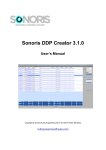
Sonoris DDP Player 3.0 User’s Manual Copyright © Sonoris Audio Engineering 2014 & © 2014 Pieter Stenekes [email protected] 1/14 Table of Contents Introduction .............................................................................................................. 3 What is it? ...................................................................................................................................................... 3 About this helpfile .......................................................................................................................................... 3 Features .................................................................................................................... 4 Basics ....................................................................................................................... 5 Audio format .................................................................................................................................................. 5 Tracks and indexes ........................................................................................................................................ 5 ISRC, MCN .................................................................................................................................................... 5 Enhanced CD ................................................................................................................................................ 5 Main screen .............................................................................................................. 6 Workspace ..................................................................................................................................................... 6 View Disc Data .............................................................................................................................................. 6 Playback tracks ............................................................................................................................................. 6 Playing a transition between two tracks ........................................................................................................ 6 File Menu .................................................................................................................. 7 Save audio files ............................................................................................................................................. 7 Save PQ Sheet as PDF ................................................................................................................................. 7 Exit ................................................................................................................................................................. 7 Import........................................................................................................................ 8 DDP Image .................................................................................................................................................... 8 CUE Sheet ..................................................................................................................................................... 8 Pmi Image...................................................................................................................................................... 8 Cda Image ..................................................................................................................................................... 8 Burn CD .................................................................................................................... 9 Audio CD ....................................................................................................................................................... 9 Tools ....................................................................................................................... 10 Check Project ..............................................................................................................................................10 Check MD5 ..................................................................................................................................................10 Check for Updates .......................................................................................................................................10 Audio Settings..............................................................................................................................................10 Settings ........................................................................................................................................................10 Help ......................................................................................................................... 13 Help .............................................................................................................................................................13 About ...........................................................................................................................................................13 Keyboard Commands ........................................................................................... 14 2/14 Introduction Thank you for using Sonoris DDP! What is it? The Sonoris DDP Player is a standalone Windows and Mac CD application that imports DDP 1.0x and 2.00 images, Cue Sheet (cue) files, Pyramix .pmi and CD Architect .cda files for playback or burning RedBook compatible audio CD's. Enhanced CD DDP images are supported as well. You can playback tracks, audition gaps, see all PQ codes, ISRC, MCN and CD-Text data and automatically check the project for RedBook compatibility. About this helpfile This helpfile explains all settings and options to get started. Windows is a registered trademark of Microsoft Corporation in the United States and other countries. 3/14 Features Import DDP 1.0x and 2.00 image files (loadback) Cue Sheet (cue) support Pyramix .pmi CD image support CD Architect .cda CD image support Enhanced CD support Playback of tracks Audio CD burning MD5 checking RedBook compliance checking PQ Sheet pdf export Time display selectable between disc time or track time Export files with variable naming (%track name%) ISRC codes embedded in .wav file following the MPG / EBU standard Automatic Updates Easy Online License Activation USB drive based license activation for offline computers 4/14 Basics Audio format A CD holds 16 bit, 44.1KHz stereo audio. This audio is stored in a whole number of frames, where every frame consists of 2352 bytes of audio. At a sample rate of 44.1KHz this means that the frame rate is 75 frames / second. Tracks and indexes A CD can hold 99 tracks. Normally each song gets a track number, but it is also possible to have more tracks in a song. This can be useful if you want to give sections in a song a separate track number, as is common on classical recordings. Another, less common way to divide a track in sections is to use indexes. Some players show them but it is not widely supported. Every track can hold 99 indexes. Index 0 is a special index, it defines the pre-gap or pause before the audio starts. Most players show index 0 by a negative countdown to zero. It is not mandatory to use the index 0, if you don't use it then you end up with a gap less CD (if burned in SAO or DAO mode). However, the very first index on a CD does have to be an index 0 entry of 150 frames (2 seconds) length minimum as is defined by the RedBook standard. It is also mandatory to have an index 1 for every track. An index 0 entry normally defines a pause between two tracks, but it is possible to fill it with audio. While this is not strictly RedBook compatible, it is supported by many players. ISRC, MCN It is common to add a media catalog number to a disc. This MCN number the standard UPC/EAN number and should conform to the specifications of the UCC and EAN. EAN numbers are 13 digits long and UPC numbers 12. UPC numbers should therefore have an extra 0 at the beginning. The last digit is a checksum of the preceding digits. ISRC numbers are issued per track and have the following format: CCXXXYYNNNNN, where CC is the 2-character country code, XXX is the alphanumeric registrant code, YY are the last two digits of the year and NNNNN is a unique 5-digit number. Please note that there should be only one ISRC code on a track and that it is only valid on the first index entry for each track. Enhanced CD Besides audio data a CD can also hold computer data like images, videos, songtexts or even program files. A CD with additional data is called an Enhanced CD. It is possible to add data in the space before the first track or as a separate data session on the CD. The DDP Player supports the extra session as this is the most common and compatible format. When an Enhanced CD is played back in a normal CD player it will play just like any other audio CD. But when this CD is opened on a Windows PC or Mac it will show the data session as an extra drive. 5/14 Main screen After starting the DDP Creator a screen will open. At the left you find a large window that holds the project workspace. At the right you find text boxes and a few buttons. Workspace The workspace consists of a table with the following columns: Track: track number of the entry, ranging from 0 to 99. Index: sub index of the entry, ranging from 0 to 99 within a track. Start: absolute position of the index entry. Duration: length of the index entry in frames. File Name: file that holds the audio of the index entry. This can be a wav, aif(c) or DDP image file Title, Performer, Songwriter, Composer, Arranger and Message: Alphanumeric information. This information is used for CD Text only . ISRC: ISRC code of the track. Copy permitted flag (this columns is disabled by default, enable it by right clicking on the header) Pre-emphasis flag (this columns is disabled by default, enable it by right clicking on the header) You can adjust the columns by dragging the headers, or the separators between headers. You can also hide/display columns by right clicking on a header and select or deselect the desired column. View Disc Data The CD Text information for the disc can be viewed by clicking on the “Show CD Text” button. Playback tracks To play back a track, select an index in the workspace and press the “Play” button or press the Space key. Pressing the button or Space key again pauses the playback. Playback will stop when the user presses the pause button or at the end of the project. It is possible to navigate during playback by clicking on the left and right arrow buttons. Holding them will fast forward or rewind. The playback slider displays the relative track position and can be adjusted to go to any position quickly. Playing a transition between two tracks You can audition the transition between two tracks by pressing the “Play Transition” button. Pressing the button again or the Space key pauses the playback. You will hear the end of the last index of the current track played into the first index of the next track and if a pre-gap exists it will be played in between. The preroll time can be set in the Settings menu. 6/14 File Menu Save audio files Export the tracks to separate audio files. Save PQ Sheet as PDF Saves a PQ sheet from the current project to a pdf file. It is recommended to send this sheet with the DDP files to the duplication plant for reference. Before the command is started, the project is tested against the RedBook rules Exit Exits the program. 7/14 Import DDP Image Loadback (import) of a DDP 2.00 fileset, regardless of the image data is stored in one file or more. CD Text data is imported if it exists. After the import, the project window shows the current DDP image as a regular project. You are prompted for a folder holding the DDP image This function enables you to import a DDP images made by any application to verify PQ points, CD text, ISRC, MCN and other data. You can playback the audio and burn a RedBook compatible CD with or without CD Text. The project can be further changed and files can be added if needed. It is also possible to change the track order. The project can be exported again to DDP, CUE Sheet or CD. CUE Sheet Import of the widely supported CUE Sheet (cue) file. Only wav and aif and binary image files are supported. All indexes and CD Text entries are preserved. You are prompted for a .cue file. This function ensures compatibility with other software that can export CUE Sheet files. Pmi Image Import of a Pyramix .pmi CD image. All indexes and CD Text entries are preserved. Cda Image Import of a CD Architect .cda CD image. All indexes and CD Text entries are preserved. 8/14 Burn CD Audio CD Burn a RedBook compatible CD from the current project. All indexes and CD Text entries are preserved. 9/14 Tools Check Project The current project is tested against a number of RedBook rules. The following criteria are used: MCN code must have the proper format First pre-gap must have a duration greater than 2 seconds Maximum length is 80 minutes Maximum number of tracks is 99 Every track must have an index point 1 The maximum number of index points for a track is 99 Every track must have a duration greater than 4 seconds CD Text data on an index point other than 1 is not allowed ISRC codes must have the proper format This test is automatically started before all export functions and PQ Sheet printing. If any of these criteria is not met an error is shown. Non critical errors can be ignored. Check MD5 Prompts to open a checksum file (with extension md5) and tests whether the checksums of the files found in this file matches with the actual checksums of these files. This function allows you to check the integrity of a DDP fileset after downloading or reading them from disc. Check for Updates Selecting the “check for updates” function will check if there are any newer updates of DDP Creator. If you are currently running the latest version and no updates are available, a message will be displayed that no new updates are available. If a new update is available, a dialog box is shown with the details about the new release. It will ask if you want to download and install the update. Choosing “Yes” will automatically do so. Audio Settings Audio Settings: In this dialog box, you can select the audio playback device on your computer that is used to listen to playback of the project, as well as its settings. Settings The settings dialog box allows you to set various program settings that are used to customize the behavior of DDP Creator. These settings are not saved with a specific project, but are instead saved as global program settings, that are preserved upon re-launch of the program, and are applied to every new project that is created. Pre-Roll Time: This setting is used during the playback of a transition between two tracks, and defines how much time at the end of the first track will be played before the transition, and how much time of the second track will be played into. You can enter a pre-roll time between 5 and 35 seconds. 10/14 Encoder Bit: Selects the bitrate when exporting tracks to MP3 or AAC. Choices include: 128 Kbit/s 192 Kbit/s 256 Kbit/s 320 kbps 11/14 Encoder Bit Rate Mode: Selects the encoder mode used when exporting to MP3 or AAC. Choices include: Variable Bit Rate (VBR) Constant Bit Rate (CBR). CBR only works with MP3, and is not available when encoding to AAC. Encoder Stereo Mode: Selects the stereo mode that is used when exporting to MP3 or AAC. Choices include: LR Left Right MS (Mono-Sum) JS (Joint stereo) Filename Pattern: This setting controls the filename when exporting audio files with a filename pattern. The options are: track, title, performer, composer, songwriter, arranger, isrc, cd title, cd performer and mcn. For example, a track configured as “%track%-%title%” would yield the title 01-Hello Darling.wav."); Time Display: This selects whether the main time display shows the track time or the disc time. MD5 auto check: This selects whether the MD5 checksum file is automatically checked when a DDP is loaded. Check for Updates: This setting connects to the Sonoris servers and checks if there is an update available to the software. If one is available, it offers to automatically download the new update. 12/14 Help Help Shows this helpfile. About Shows an about box with information about the software developer and the contact information of your studio, when applicable. 13/14 Keyboard Commands F1 Help Displays the DDP Creator help file Space Play Track Play the selected track Up Go to previous index or track Down Go to next index or track Left Back Skip back Right Forward Skip forward 14/14