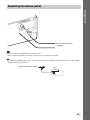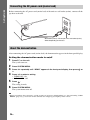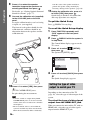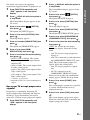
1
4-122-223-12(1)
DVD Home Theatre
System
Operating Instructions
DAV-DZ290K
©2009 Sony Corporation
Precautions
WARNING
On power sources
Caution – The use of optical instruments
with this product will increase eye
hazard.
Do not install the appliance in a confined space, such
as a bookcase or built-in cabinet.
To reduce the risk of fire, do not cover the ventilation
opening of the apparatus with newspapers, tablecloths,
curtains, etc. Do not place the naked flame sources
such as lighted candles on the apparatus.
To reduce the risk of fire or electric shock, do not
expose this apparatus to dripping or splashing, and do
not place objects filled with liquids, such as vases, on
the apparatus.
Do not expose batteries or apparatus with batteryinstalled to excessive heat such as sunshine, fire or the
like.
To prevent injury, this apparatus must be securely
attached to the floor/wall in accordance with the
installation instructions.
Indoor use only.
This appliance is
classified as a CLASS 1
LASER product. This
marking is located on the
rear exterior.
Disposal of Old
Electrical & Electronic
Equipment (Applicable
in the European Union
and other European
countries with separate
collection systems)
This symbol on the product or
on its packaging indicates that
this product shall not be treated as household waste.
Instead it shall be handed over to the applicable
collection point for the recycling of electrical and
electronic equipment. By ensuring this product is
disposed of correctly, you will help prevent potential
negative consequences for the environment and human
health, which could otherwise be caused by
inappropriate waste handling of this product. The
recycling of materials will help to conserve natural
resources. For more detailed information about
recycling of this product, please contact your local
Civic Office, your household waste disposal service or
the shop where you purchased the product.
2GB
• The unit is not disconnected from the mains as long
as it is connected to the AC outlet, even if the unit
itself has been turned off.
• As the main plug is used to disconnect the unit from
the mains, connect the unit to an easily accessible AC
outlet. Should you notice an abnormality in the unit,
disconnect the main plug from the AC outlet
immediately.
About These Operating
Instructions
“DVD-RW,” “DVD-R,” “DVD+RW,”
“DVD+R,” “DVD VIDEO,” and the “CD”
logos are trademarks.
• The instructions in these Operating
Instructions describe the controls on the
remote. You can also use the controls on the
unit if they have the same or similar names as
those on the remote.
• The Control Menu items may vary depending
on the area.
• “DVD” may be used as a general term for a
DVD VIDEO, DVD+RW/DVD+R, and DVDRW/DVD-R.
• Measurements are expressed in feet (ft) for
North American models.
• The default setting is underlined.
“BRAVIA” is a trademark of Sony Corporation.
Copyrights
This product incorporates copyright protection
technology that is protected by U.S. patents and
other intellectual property rights. Use of this
copyright protection technology must be
authorized by Macrovision, and is intended for
home and other limited viewing uses only unless
otherwise authorized by Macrovision. Reverse
engineering or disassembly is prohibited.
This system incorporates with Dolby* Digital
and Dolby Pro Logic (II) adaptive matrix
surround decoder and the DTS** Digital
Surround System.
* Manufactured under license from Dolby
Laboratories.
Dolby, Pro Logic, and the double-D symbol are
trademarks of Dolby Laboratories.
** Manufactured under license under U.S. Patent #’s:
5,451,942; 5,956,674; 5,974,380; 5,978,762;
6,487,535 & other U.S. and worldwide patents
issued & pending. DTS and DTS Digital Surround
are registered trademarks and the DTS logos and
Symbol are trademarks of DTS, Inc. © 1996-2008
DTS, Inc. All Rights Reserved.
“PLAYSTATION” is a trademark of Sony
Computer Entertainment Inc.
“WALKMAN” and “WALKMAN” logo are
registered trademarks of Sony Corporation.
DivX® is a video file compression technology,
developed by DivX, Inc.
DivX, DivX Certified, and associated logos are
trademarks of DivX, Inc. and are used under
license.
About MPEG-4 Visual
THIS PRODUCT IS LICENSED UNDER THE
MPEG-4 VISUAL PATENT PORTFOLIO
LICENSE FOR THE PERSONAL AND NONCOMMERCIAL USE OF A CONSUMER FOR
DECODING VIDEO IN COMPLIANCE
WITH THE MPEG-4 VISUAL STANDARD
(“MPEG-4 VIDEO”) THAT WAS ENCODED
BY A CONSUMER ENGAGED IN A
PERSONAL AND NON-COMMERCIAL
ACTIVITY AND/OR WAS OBTAINED
FROM A VIDEO PROVIDER LICENSED BY
MPEG LA TO PROVIDE MPEG-4 VIDEO.
NO LICENSE IS GRANTED OR SHALL BE
IMPLIED FOR ANY OTHER USE.
ADDITIONAL INFORMATION INCLUDING
THAT RELATING TO PROMOTIONAL,
INTERNAL AND COMMERCIAL USES
AND LICENSING MAY BE OBTAINED
FROM MPEG LA, LLC. SEE HTTP://
WWW.MPEGLA.COM
This system incorporates High-Definition
Multimedia Interface (HDMITM) technology.
HDMI, the HDMI logo and High-Definition
Multimedia Interface are trademarks or
registered trademarks of HDMI Licensing LLC.
3GB
Table of Contents
About These Operating Instructions ....... 3
Playable Discs......................................... 5
Getting Started
Step 1: Installing the System .......10
Step 2: Connecting the System ...17
Step 3: Performing the Quick
Setup ........................................25
Step 4: Selecting the Source .......28
Step 5: Enjoying Surround
Sound .......................................29
Disc
Playing a Disc ....................................... 32
Using Play Mode................................... 37
Searching/Selecting Disc Contents ....... 40
Playing MP3 Files/JPEG Image Files... 42
Enjoying Video Files ............................ 46
Adjusting the Delay Between the Picture
and Sound ....................................... 48
Restricting Playback of the Disc........... 48
Changing the System Settings by Using
the Setup Display............................ 50
Tuner
Presetting Radio Stations ...................... 58
Listening to the Radio........................... 59
Control for HDMI/External
Audio Device
Using the Control for HDMI Function for
“BRAVIA” Sync ............................ 61
Playing Back Files of a USB Device .... 63
Transferring Songs onto a USB
Device............................................. 71
Using a Sony Ericsson Mobile
Phone .............................................. 75
Using the DIGITAL MEDIA PORT
Adapter ........................................... 75
4GB
Other Operations
Getting Optimal Surround Sound for a
Room .............................................. 77
Calibrating the Appropriate Settings
Automatically................................. 78
Controlling the TV with the Supplied
Remote ........................................... 79
Enjoying Karaoke ................................. 80
Using the Sound Effect......................... 83
Selecting the Effect to Suit
the Source....................................... 84
Changing the Input Level of the Sound
from Connected Components......... 85
Using the Sleep Timer .......................... 85
Changing the Brightness of the Front
Panel Display.................................. 86
Viewing Information About the Disc ... 86
Returning to the Default Settings ......... 89
Additional Information
Precautions ........................................... 90
Notes about the Discs ........................... 91
Troubleshooting.................................... 92
Self-diagnosis Function ...................... 101
Specifications ..................................... 102
Glossary .............................................. 103
Playback priority of file types ............ 106
Language Code List............................ 107
Index to Parts and Control .................. 108
Guide to the Control Menu Display ... 112
Index ................................................... 116
Playable Discs
Type
Disc logo
Characteristics
DVD VIDEO
• DVD VIDEO
• DVD-R/DVD-RW in DVD VIDEO
format or video mode
• DVD+R/DVD+RW in DVD VIDEO
format
VR (Video
Recording) mode
• DVD-R/DVD-RW in VR (Video
Recording) mode (except for DVD-R
DL)
VIDEO CD
• VIDEO CD (Ver. 1.1 and 2.0 discs)
• Super VCD
• CD-R/CD-RW/CD-ROM in video CD
format or Super VCD format
Super Audio CD
• Super Audio CD
CD
• Audio CD
• CD-R/CD-RW in audio CD format
DATA CD
–
• CD-R/CD-RW/CD-ROM in DATA CD
format, containing MP3 files1), JPEG
image files2), DivX video files, and
MPEG4 video files, and conforming to
ISO 96603) Level 1/Level 2, or Joliet
(extended format)
DATA DVD
–
• DVD-ROM/DVD-R/DVD-RW/
DVD+R/DVD+RW in DATA DVD
format, containing MP3 files1), JPEG
image files2), DivX video files, and
MPEG4 video files, and conforming to
UDF (Universal Disk Format)
Icon
1)MP3
(MPEG1 Audio Layer 3) is a standard format defined by ISO/MPEG for compresses audio data. MP3 files
must be in MPEG1 Audio Layer 3 format.
2)
JPEG image files must conform to the DCF image file format. (DCF “Design rule for Camera File system”: Image
standards for digital cameras regulated by Japan Electronics and Information Technology Industries Association
(JEITA).)
5GB
3)
A logical format of files and folders on CD-ROMs, defined by ISO (International Organization for
Standardization).
Notes on discs
This product is designed to playback discs that conform to the Compact Disc (CD) standard.
DualDiscs and some of the music discs encoded with copyright protection technologies do not conform
to the Compact Disc (CD) standard, therefore, these discs may not be playable by this product.
Example of discs that the system cannot play
The system cannot play the following discs:
• CD-ROM/CD-R/CD-RW other than those recorded in the formats listed on page 5
• CD-ROM recorded in PHOTO CD format
• Data part of CD-Extra
• CD Graphics disc
• DVD Audio
• DATA CD/DATA DVD that does not contain MP3 files, JPEG image files, DivX video files, or
MPEG4 video files
• DVD-RAM
• Blu-ray Disc
Also, the system cannot play the following discs:
• A DVD VIDEO with a different region code (page 7)
• A disc that has a non-standard shape (e.g., card, heart)
• A disc with paper or stickers on it
• A disc that has the adhesive of cellophane tape or a sticker still left on it
Note about CD-R/CD-RW/DVD-R/DVD-RW/DVD+R/DVD+RW
In some cases, CD-R/CD-RW/DVD-R/DVD-RW/DVD+R/DVD+RW cannot be played on this system
due to the recording quality or physical condition of the disc, or the characteristics of the recording
device and authoring software.
The disc will not play if it has not been correctly finalized. For more information, refer to the operating
instructions for the recording device.
Note that some playback functions may not work with some DVD+RWs/DVD+Rs, even if they have
been correctly finalized. In this case, view the disc by normal playback. Also some DATA CDs/DATA
DVDs created in Packet Write format cannot be played.
About Multi Session CD
• This system can play a Multi Session CD when an MP3 file is contained in the first session. Any
subsequent MP3 files recorded in later sessions can also be played back.
• This system can play a Multi Session CD when a JPEG image file is contained in the first session.
Any subsequent JPEG image files recorded in later sessions can also be played back.
• If MP3 files and JPEG image files in music CD format or video CD format are recorded in the first
session, only the first session will be played back.
6GB
Region code
Your system has a region code printed on the rear of the unit and will only play a DVD labeled with
the same region code.
A DVD VIDEO labeled ALL will also play on this system.
If you try to play any other DVD VIDEO, the message [Playback prohibited by area limitations.] will
appear on the TV screen. Depending on the DVD VIDEO, no region code indication may be given even
though playing the DVD VIDEO is prohibited by area restrictions.
Note about playback operations of a DVD or VIDEO CD
Some playback operations on a DVD or VIDEO CD may be intentionally set by software producers.
Since this system will play a DVD or VIDEO CD according to the disc contents the software producers
designed, some playback features may not be available. Be sure to read the operating instructions
supplied with the DVD or VIDEO CD.
7GB
Getting Started
Getting Started
Unpacking
• Front speakers (2)
• Video cord (1)
• Center speaker (1)
• Remote commander
(remote) (1)
For Singapore, Indonesian,
Malaysian, Hong Kong,
Filipino, Mexican, Argentine,
and Latin American models
• HDMI cable (1)
• R6 (size AA) batteries (2)
• Surround speakers (2)
For Australian models
• Calibration mic (1)
• DIGITAL MEDIA PORT
adapter (TDM-iP20) (1)
• Subwoofer (1)
• Foot pads (1 set)
• Stand bases (2)
• FM wire antenna (aerial) (1)
or
• Screws (2)
• Speaker cords (6, red/white/
green/gray/blue/purple)
• Operating Instructions
• Quick Setup Guide
8GB
• Operating Instructions for
the DIGITAL MEDIA
PORT adapter (TDM-iP20)
Inserting batteries into the remote
Note
• Do not leave the remote in an extremely hot or humid place.
• Do not use a new battery with an old one.
• Do not drop any foreign object into the remote casing, particularly when replacing the batteries.
• Do not expose the remote sensor to direct sunlight or lighting apparatus. Doing so may cause a malfunction.
• If you do not intend to use the remote for an extended period of time, remove the batteries to avoid possible damage
from battery leakage and corrosion.
9GB
Getting Started
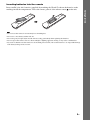
Insert two R6 (size AA) batteries (supplied) by matching the 3 and # ends on the batteries to the
markings inside the compartment. To use the remote, point it at the remote sensor on the unit.
Getting Started
Step 1: Installing the System
Positioning the system
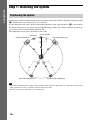
For the best possible surround sound, place all speakers at the same distance from the listening position
(A). The distance can be between 1.0 to 7.0 meters.
If you cannot place the center speaker and surround speakers at the same distance as (A), you can move
the center speaker up to 1.6 meters closer to the listening position (B), and the surround speakers up
to 5.0 meters closer to the listening position (C).
The subwoofer can be placed anywhere in the room.
Subwoofer
Center speaker
Front left speaker (L)
Front right speaker (R)
B
A
A
A
A
C
Surround left speaker (L)
A
C
Surround right speaker (R)
Note
• Use caution when placing the speakers and/or speaker stands attached to the speakers on a specially treated (waxed,
oiled, polished, etc.) floor, as staining or discoloration may result.
• Do not lean or hang on a speaker, as it may fall down.
10GB
Attaching the foot pads to the subwoofer
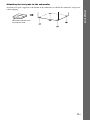
,
Remove the foot pads from
the protective cover.
11GB
Getting Started
Attach the foot pads (supplied) to the bottom of the subwoofer to stabilize the subwoofer and prevent
it from slipping.
Getting Started
Assembling the speakers
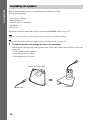
Before connecting the speakers, attach the speaker stand to the speaker.
(For the front speakers)
Use the parts as follows:
• Front speakers (2)
• Speaker cords (2, red/white)
• Stand bases (2)
• Screws (2)
For details of how to connect the speaker cords to the SPEAKER jacks, see page 17.
Note
• Spread a cloth on the floor to avoid damaging the floor when you assemble the speakers.
Tip
• You can use the speaker without the speaker stand by installing it on the wall (page 15).
1
Thread the speaker cord through the hole in the stand base.
The connector and color tube of the speaker cords are the same color as the label of the jacks to be
connected.
Use the speaker cords as follows:
• Front left speaker (L): White
• Front right speaker (R): Red
Bottom of the stand base
,
Speaker cord
12GB
Stand base
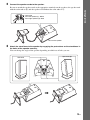
2
Connect the speaker cords to the speaker.
Color tube
Front left speaker (L): White
Front right speaker (R): Red
Rear of the speaker
3
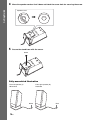
Attach the stand base to the speaker by engaging the protrusions on the stand base in
the holes of the speaker securely.
You can change the angle of the speaker depending on which set of holes you use.
Upward angle
Horizontal
,
13GB
Getting Started
Be sure to match the speaker cords to the appropriate terminals on the speakers: the speaker cord
with the color tube to 3, and the speaker cord without the color tube to #.
Move the speaker cord so that it does not block the screw hole for securing the screw.
Getting Started
4
Speaker cord
,
5
Secure the stand base with the screw.
Screw
Fully-assembled illustration
Front right speaker (R):
Red label
Front left speaker (L):
White label
White
14GB
Red
Installing the speakers on a wall
• Contact a screw shop or installer for information regarding the wall material or screws to be used.
• Use screws that are suitable for the wall material and strength. As a plaster board wall is especially fragile, attach
the screws securely to a beam. Install the speakers on a vertical and flat wall where reinforcement is applied.
• Sony is not responsible for accidents or damage caused by improper installation, insufficient wall strength or
improper screw installation, natural calamity, etc.
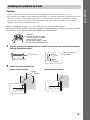
Before installing the speakers on a wall, connect the speaker cord to the speaker.
Be sure to match the speaker cords to the appropriate terminals on the speakers: the speaker cord with
the color tube to 3, and the speaker cord without the color tube to #.
Color tube
Front left speaker (L): White
Front right speaker (R): Red
Center speaker: Green
Surround left speaker (L): Blue
Surround right speaker (R): Gray
1
Prepare screws (not supplied) that are suitable for the hole on the back of each speaker.
See the illustrations below.
4 mm (5/32 inch)
30 mm (1 3/16 inches)
2
5 mm
(7/32 inch)
Hole on the back of
the speaker
10 mm
(13/32 inch)
Fasten the screws to the wall.
For the other speakers
For the center speaker
145 mm
(5 3/4 inches)
8 to 10 mm
(11/32 to 13/32 inch)
8 to 10 mm
(11/32 to 13/32 inch)
15GB
Getting Started
Caution
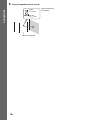
3
Hang the speakers on the screws.
Getting Started
5 mm
(7/32 inch)
10 mm
(13/32 inch)
Rear of the speaker
16GB
Hole on the back of
the speaker
Step 2: Connecting the System
Note
• When you connect another component with a volume control, turn down the volume of the other components to a
level where sound is not distorted.
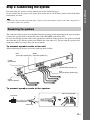
Connecting the speakers
The connector of the speaker cords and the color tube are color-coded depending on the type of speaker.
Connect the speaker cords to match the color of the SPEAKER jacks of the unit.
Be sure to match the speaker cords to the appropriate terminals on the speakers: the speaker cord with
the color tube to 3, and the speaker cord without the color tube to #. Do not catch the speaker cord
insulation (rubber covering) in the speaker terminals.
To connect speaker cords to the unit
When connecting to the unit, insert the connector until it clicks.
White
Red
(Front right speaker (R)) (Front left speaker (L))
NNA
ANTE
IAL 75
COAXFM
Purple
(Subwoofer)
KER
SPEA
RR
FRONT
R
FRONT
L
SUR L
SU
PR/CR
PB/CB EO OUT
T VID
ONEN
COMP
Y
OUT
HDMI
RT
DMPO
DC5V X
0.7A MA
R
L
DIO IN
R AU DEO
TV/VI
Blue
(Surround left speaker (L))
Gray
(Surround right speaker (R))
KER
SPEA
CENTE
VIDEO
OUT
OFER
SUBWO
Green
(Center speaker)
To connect speaker cords to the speaker
Rear of the speaker
Connector
(–)
Color tube
(+)
17GB
Getting Started
For connecting the system, read the information on the following pages.
Do not connect the AC power cord (mains lead) of the unit to a wall outlet (mains) until all the other
connections are made.
Getting Started
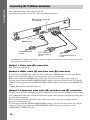
Connecting the TV (Video connection)
This connection sends a video signal to the TV.
Depending on the jacks on your TV, select the connection method.
C Component video cable
(not supplied)
NNA
ANTE
IAL 75
COAXFM
KER
SPEA
RR
FRONT
R
FRONT
L
SUR L
SU
PR/CR
T
EO OU
T VID
Y
ONEN
COMP
PB/CB
OUT
HDMI
RT
DMPO
VIDEO
OUT
L
DIO IN
R AU DEO
TV/VI
A Video cord (supplied)
DC5V X
0.7A MA
KER
SPEA
CENTE
R
OFER
SUBWO
B HDMI cable*
To the HDMI IN jack
of the TV.
To the component
video input jacks of
the TV.
To the video input jack of
the TV.
* The HDMI cable is supplied with Singapore, Indonesian, Malaysian, Hong Kong, Filipino, Mexican, Argentine,
and Latin American models only.
Method 1: Video cord (A) connection
This is the basic connection.
Method 2: HDMI* cable (B) and video cord (A) connection
If your TV has an HDMI jack, connect to the TV both with an HDMI cable and video cord. Picture
quality will be improved compared to using only the video cord connection.
When connecting with the HDMI cable, you need to select the type of output signal (page 26).
To view images from the DIGITAL MEDIA PORT adapter, you need to connect to the TV with the
video cord. Video signals from the DIGITAL MEDIA PORT adapter are not output via the HDMI OUT
jack.
* HDMI (High-Definition Multimedia Interface)
Method 3: Component video cable (C) and video cord (A) connection
If your TV does not have an HDMI jack, but has component video input jacks, connect to the TV both
with a component video cable and video cord. Picture quality will be improved compared to using only
the video cord connection.
When connecting with the component video cable, you need to set the type of output signal to
progressive format (page 26).
To view images from the DIGITAL MEDIA PORT adapter, you need to connect to the TV with the
video cord. Video signals from the DIGITAL MEDIA PORT adapter are not output via the
COMPONENT VIDEO OUT jack.
18GB
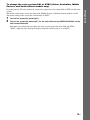
To change the color system (PAL or NTSC) (Asian, Australian, Middle
Eastern, and South African models only)
1
2
Turn off the system by pressing "/1.
Turn on the system by pressing "/1 on the unit while turning OPERATION DIAL on the
unit counterclockwise.
Each time you perform this operation, the color system toggles between PAL and NTSC.
“NTSC” lights up in the front panel display when the color system is set to NTSC.
19GB
Getting Started
Depending on the TV to be connected, you may be required to select either PAL or NTSC for the color
system.
The initial setting of the system for Australian, Middle Eastern, and South African models is PAL.
The initial setting of the system for Asian models is NTSC.
Getting Started
Connecting the TV (Audio connection)
This connection sends an audio signal to the unit from the TV. To listen to TV sound via the system,
perform this connection.
NNA
ANTE
IAL
COAXFM
KER
SPEA
RR
FRONT
R
FRONT
L
SUR L
SU
PR/CR
VIDEO
OUT
75
L
DIO IN
R AU DEO
TV/VI
T
EO OU
T VID
ONEN
COMP
PB/CB
Y
OUT
HDMI
RT
DMPO
KER
SPEA
CENTE
R
DC5V X
0.7A MA
D Audio cord (not supplied)
OFER
SUBWO
To the audio out jacks of
the TV.
Audio cord (D) connection
This connection sends an analog audio signal.
Tip
• You can connect another component, such as a VCR, digital satellite receiver, or PlayStation, to the TV/VIDEO
(AUDIO IN R/L) jacks instead of the TV.
20GB
Connecting the other components
F Connect a USB
device (page 63).
E Stereo mini-plug cord
(not supplied)
NNA
ANTE
To a portable audio source
IAL 75
COAXFM
KER
SPEA
RR
FRONT
R
FRONT
L
SUR L
SU
PR/CR
VIDEO
OUT
L
DIO IN
R AU DEO
TV/VI
PB/CB EO OUT
T VID
ONEN
COMP
Y
OUT
HDMI
RT
DMPO
DC5VMAX
0.7A
G DIGITAL MEDIA PORT
adapter (page 75)
KER
SPEA
CENTE
R
OFER
SUBWO
Note
• Connect the DIGITAL MEDIA PORT
adapter so that the V marks are aligned.
When disconnecting, pull out while
pressing
.
Tip
• You can connect another component, such as a VCR, digital satellite receiver, or PlayStation, to the TV/VIDEO
(AUDIO IN R/L) jacks instead of the TV.
21GB
Getting Started
You can enjoy connected components via the system’s speakers.
Portable audio source (not supplied): E
USB device (not supplied): F
DIGITAL MEDIA PORT adapter: G (TDM-iP20 is supplied with Australian models. You can also
use other DIGITAL MEDIA PORT adapters.)
Getting Started
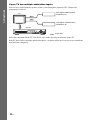
If your TV has multiple audio/video inputs
You can enjoy sound with the speakers of the system through the connected TV. Connect the
components as follows.
VCR, digital satellite receiver,
PlayStation, etc.
TV
VCR, digital satellite receiver,
PlayStation, etc.
System
:Signal flow
Select the component on the TV. For details, refer to the operating instructions of the TV.
If the TV does not have multiple audio/video inputs, a switcher will be necessary to receive sound from
more than one component.
22GB
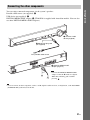
Connecting the antenna (aerial)
Getting Started
NNA
ANTE
5
IAL 7
COAXFM
or
FM wire antenna (aerial)
(supplied)
Note
• Be sure to fully extend the FM wire antenna (aerial).
• After connecting the FM wire antenna (aerial), keep it as horizontal as possible.
Tip
• If you have poor FM reception, use a 75-ohm coaxial cable (not supplied) to connect the unit to an outdoor FM
antenna (aerial) as shown below.
Outdoor FM antenna (aerial)
Unit
ANTENNA
COAXIAL 75
FM
23GB
Getting Started
Connecting the AC power cord (mains lead)
Before connecting the AC power cord (mains lead) of the unit to a wall outlet (mains), connect all the
speakers to the unit.
Wall outlet (mains): The shape of the wall outlet (mains)
differs depending on the area.
About the demonstration
After connecting the AC power cord (mains lead), the demonstration appears in the front panel display.
Setting the demonstration mode to on/off
1
Press [/1 on the unit.
The system turns on.
2
3
4
Press SYSTEM MENU.
Press X/x repeatedly until “DEMO” appears in the front panel display, then press
c.
or
Press X/x to select a setting.
• “DEMO ON”: On.
• “DEMO OFF”: Off.
5
Press
.
The setting is made.
6
Press SYSTEM MENU.
The system menu turns off.
Tip
• When you purchase the system new, or if the system is at its factory default settings (ex., after performing “COLD
RESET” (page 89)), you can turn off the demonstration simply by pressing [/1 on the remote.
24GB
Press X/x to select a language, then
press
.
The Setup Display for selecting the aspect
ratio of the TV to be connected appears.
Follow the Steps below to make the basic
adjustments for using the system.
Displayed items vary depending on the area.
VIDEO SETUP
16:9
TV TYPE:
16:9
PROGRESSIVE (COMPONENT OUT):
4:3 LETTER BOX
4:3 OUTPUT:
: PAN SCAN
COLOR SYSTEM (VIDEO CD)4:3
AUTO
PAUSE MODE:
"/1
6
Press X/x to select the setting that
matches your TV type, then press
.
• [16:9]: For a wide-screen TV or a 4:3
standard TV with a wide-screen mode
(page 52)
• [4:3 LETTER BOX] or [4:3 PAN SCAN]:
For a 4:3 standard TV (page 52)
C/X/x/c,
DISPLAY
The Setup Display for the Control for
HDMI function appears.
1
2
Turn on the TV.
HDMI SETUP
HDMI RESOLUTION:
CONTROL FOR HDMI:
VOLUME LIMIT:
YCBCR/RGB(HDMI):
AUDIO(HDMI):
JPEG RESOLUTION:
Press [/1.
Note
• Make sure that the function is set to “DVD”
(page 28).
3
Switch the input selector on your TV so
that the signal from the system
appears on the TV screen.
[Press [ENTER] to run QUICK SETUP.]
appears at the bottom of the TV screen. If
this message does not appear, recall the
Quick Setup display (page 26).
4
Press
without inserting a disc.
The Setup Display for selecting the
language used in the on-screen display
appears.
LANGUAGE SETUP
OSD:
MENU:
AUDIO:
SUBTITLE:
7
AUTO(1920x1080p)
ON
ON
OFF
OFF
SD
Press X/x to select the setting, then
press
.
• [ON]: The Control for HDMI function
(page 61) is set to on.
• [OFF]: The Control for HDMI function is
set to off.
The Setup Display for selecting the speaker
formation appears.
SPEAKER FORMATION
ENGLISH
ENGLISH
FRENCH
SPANISH
PORTUGUESE
STANDARD
25GB
Getting Started
Step 3: Performing the
Quick Setup
5
Getting Started
8
Press C/c to select the speaker
formation image as the speakers are
actually positioned, then press
.
For details, see “Getting Optimal Surround
Sound for a Room” (page 77).
9
from the status of the speaker installation,
perform the speaker settings manually by
following “Settings for the speakers” (page 56).
11 Unplug the calibration mic, press C/c
to select [YES], then press
Connect the calibration mic (supplied)
to the A.CAL MIC jack on the front
panel.
Set up the calibration mic at ear level using
a tripod, etc. (not supplied).
The front of each speaker should face the
calibration mic, and there should be no
obstruction between the speakers and the
calibration mic.
.
Quick Setup is finished. All connections
and setup operations are complete.
To quit the Quick Setup
Press
DISPLAY in any Step.
To recall the Quick Setup display
1
2
Press FUNCTION repeatedly until
“DVD” appears in the front panel
display.
Press
DISPLAY while the system is
in stop mode.
The Control Menu display appears on the
TV screen.
3
Press X/x to select
then press
.
[SETUP],
The options for [SETUP] appear.
94( 99)
1( 1)
0: 01: 08
DVD VIDEO
T
Calibration mic
CUSTOM
CUSTOM
QUICK
4
Press X/x to select [QUICK], then press
.
The Quick Setup display appears.
10 Press C/c to select [YES], then press
.
[AUTO CALIBRATION] starts.
Be quiet during the measurement.
Note
• Loud test sounds are output when [AUTO
CALIBRATION] starts. You cannot turn the
volume down. Give consideration to children
and neighbors.
• The environment of the room in which the
system is installed may affect measurements.
When the measurements differ considerably
26GB
Setting the type of video
output to match your TV
Depending on the connection of the TV
(page 18), select the type of video output of the
system.
To select the type of video signal
output from the HDMI OUT jack
When you connect the unit and the TV with an
HDMI cable, select the type of video signals
output from the HDMI OUT jack.
For details, refer also to the operating
instructions supplied with the TV/projector, etc.
2
Press FUNCTION repeatedly until
“DVD” appears in the front panel
display.
3
Press X/x to select
then press
.
Press X/x to select [CUSTOM], then
press
.
Press X/x to select [HDMI SETUP], then
press
.
4
7
Press X/x to select [HDMI
RESOLUTION], then press
6
7
• [AUTO (1920 × 1080p)]: The system
outputs the optimal video signal for the
connected TV.
• [1920 × 1080i]: The system outputs 1920
× 1080i* video signals.
• [1280 × 720p]: The system outputs 1280 ×
720p* video signals.
• [720 × 480p]**: The system outputs 720 ×
480p* video signals.
8
Press FUNCTION repeatedly until
“DVD” appears in the front panel
display.
Press X/x to select [PROGRESSIVE
(COMPONENT OUT)], then press
.
Press X/x to select the desired setting,
then press
.
Press C/c to select [START], then
press
.
The system outputs a progressive signal for
5 seconds. Check that the screen is
displayed correctly.
Does your TV accept progressive
signals?
1
Press X/x to select [VIDEO SETUP],
then press
.
[OFF]: The system does not output
progressive signals. Select this setting
when:
– your TV does not accept progressive
signals, or,
– your TV is connected via jacks other than
the COMPONENT VIDEO OUT jacks.
[ON]: The system outputs progressive
signals. Select this setting when:
– your TV accepts progressive signals,
and,
– the TV is connected via the
COMPONENT VIDEO OUT jacks.
When you select [ON], the confirmation
display appears. Follow the Steps below.
Press X/x to select the desired setting,
then press
.
Progressive is a method for displaying TV
images which reduces flickering and sharpens
the image. To use this method, you need to
connect to a TV that accepts progressive signals.
Press X/x to select [CUSTOM], then
press
.
The options for [VIDEO SETUP] appear.
.
* i: interlace, p: progressive
** Depending on the area, [720 × 480/576p] may
appear.
[SETUP],
The Setup Display appears.
The options for [HDMI SETUP] appear.
6
Press X/x to select
then press
.
The options for [SETUP] appear.
5
The Setup Display appears.
5
3
[SETUP],
The options for [SETUP] appear.
4
The Control Menu display appears on the
TV screen.
Press
DISPLAY while the system is
in stop mode.
The Control Menu display appears on the
TV screen.
Press
DISPLAY while the system is
in stop mode.
9
Press C/c to select [YES], then press
.
The system outputs a progressive signal.
When you select [NO], the system does not
output a progressive signal.
27GB
Getting Started
1
2
Getting Started
Step 4: Selecting the
Source
You can select the playback source.
FUNCTION
Press FUNCTION repeatedly until the
desired function appears in the front panel
display.
Each time you press FUNCTION, the function
changes as follows.
“DVD” t “TUNER FM” t “USB” t “TV/
VIDEO” t “DMPORT” t “AUDIO” t …
Function
Source
“DVD”
Disc that is played by the
system
“TUNER FM”
FM radio (page 58)
“USB”
USB device (page 63)
“TV/VIDEO”
TV or component that is
connected to the TV/
VIDEO jacks on the rear
panel
“DMPORT”
DIGITAL MEDIA PORT
adapter (page 75)
“AUDIO”
Portable audio source that
is connected to the AUDIO
IN jack on the front panel
28GB
Step 5: Enjoying Surround Sound
SYSTEM MENU
X/x/c,
Enjoying TV sound with the 5.1 channel surround sound effect
1
2
3
4
Press SYSTEM MENU.
Press X/x repeatedly until “DEC. MODE” appears in the front panel display, then press
or c.
Press X/x repeatedly until “PRO LOGIC” appears in the front panel display.
Press
.
The setting is made.
5
Press SYSTEM MENU.
The system menu turns off.
Note
• When TV program sound is monaural, sound is output only from the center speaker.
Selecting surround sound effects based on your listening preference
1
2
3
Press SYSTEM MENU.
Press X/x repeatedly until “DEC. MODE” appears in the front panel display, then press
or c.
Press X/x repeatedly until the surround sound effect you want appears in the front panel
display.
See the table below for surround sound effect descriptions.
29GB
Getting Started
You can enjoy surround sound simply by selecting one of the system’s pre-programmed decoding
modes. They bring the exciting and powerful sound of movie theaters into your home.
4
Press
.
Getting Started
The setting is made.
5
Press SYSTEM MENU.
The system menu turns off.
About speaker output
The table below describes the options when you connect all the speakers to the unit and you set
[SPEAKER FORMATION] to [STANDARD] (page 77).
For Australian models, the default setting is “A.F.D. STD.” For other models, the default setting is
“A.F.D. MULTI” (when connecting the headphones to the unit, the default setting is “HP 2CH”).
Sound from
Surround effect
Effect
Depending on the source.
“A.F.D. STD”
The system discriminates the sound format of the source and
presents sound as it was recorded/encoded.
(AUTO FORMAT
DIRECT STANDARD)
“A.F.D. MULTI”
(AUTO FORMAT
DIRECT MULTI)
“PRO LOGIC”
“PLII MOVIE”
“PLII MUSIC”
• 2 channel source: The system simulates surround sound
from 2 channel sources and outputs sound from all the
speakers.
– “PRO LOGIC” performs Dolby Pro Logic decoding.
– “PLII MOVIE” performs Dolby Pro Logic II movie
mode decoding.
– “PLII MUSIC” performs Dolby Pro Logic II music mode
decoding.
• Multi-channel source: The system outputs sound from the
speakers depending on the number of channels of the
source.
“2CH STEREO”
The system outputs the sound from the front speakers and
subwoofer regardless of sound format or number of channels.
Multi-channel surround formats are downmixed to 2
channels.
“HP 2CH”
The system outputs the sound from the headphones
regardless of sound format or number of channels. Multichannel surround formats are downmixed to 2 channels.
(HEADPHONE 2
CHANNEL STEREO)
30GB
• 2 channel source: The system outputs 2 channel sound from
the front and surround speakers by assigning the 2 channel
sound to the surround left and right channels.
• Multi-channel source: The system outputs sound from the
speakers depending on the number of channels of the
source.
Sound from
Surround effect
“HP VIRTUAL”
The system outputs the sound from the headphones by
adding a surround effect regardless of sound format or
number of channels.
Getting Started
(HEADPHONE
VIRTUAL)
Effect
To turn the surround effect off
Select “A.F.D. STD,” “2CH STEREO,” or “HP 2CH” for “DEC. MODE.”
Note
• When the bilingual broadcast sound is input, “PRO LOGIC,” “PLII MOVIE,” and “PLII MUSIC” are not effective.
• You cannot select the decoding mode while the system is loading a disc.
• You cannot select the decoding mode during karaoke mode.
• You cannot select the decoding mode when the unit is reading the files in a USB device or transferring songs.
• Depending on the input stream, the decoding mode may not be effective.
• When you select “A.F.D. MULTI,” the surround or stereo effect may not be effective. In this case, select “A.F.D.
STD,” “PRO LOGIC,” “PLII MOVIE,” or “PLII MUSIC.”
31GB
4
Disc
Press Z on the unit to open the disc
tray, and place a disc on the tray.
Place one disc on the tray, and then press Z.
Playing a Disc
Depending on the DVD VIDEO or VIDEO CD,
some operations may be different or restricted.
Refer to the operating instructions supplied with
your disc.
With the label side up.
Note
Adjust the volume
"/1
Z
N
• When you play an 8 cm disc, place it on the
inner circle of the tray. Be careful that the disc is
not skewed on the inner circle of the tray.
• Do not place more than one disc on the tray.
FUNCTION
5
OPERATION DIAL
The system starts playback (continuous
play).
Disc tray
Connect
headphones
Press H.
6
"/1
Adjust the volume by using VOLUME +/
– on the remote or the VOLUME control
on the unit.
The volume level appears on the TV screen
and in the front panel display.
FUNCTION
Note
MUTING
STEP
/
/
VOLUME +/–
,
./>
H
/m/
M/
3
Turn on your TV.
Switch the input selector on the TV to
this system.
Press "/1.
The system turns on.
Unless the system is set to “DVD,” press
FUNCTION to select “DVD.”
32GB
To turn the system off
Press "/1 while the system is on. The system
enters standby mode.
x
X
1
2
• When you set the Control for HDMI function to on,
the TV that is connected to the system with an HDMI
cable can be sync-operated with the system. For
details, see “Using the Control for HDMI Function
for “BRAVIA” Sync” (page 61).
To save power in standby mode
Press "/1 while the system is on.
To enter power saving mode, make sure that the
system is in the following status.
– “DEMO” is set to “OFF” (page 24).
– [CONTROL FOR HDMI] is set to [OFF]
(page 61).
To use the headphones
Connect the headphones to the PHONES jack on
the unit. The sound of the system is muted.
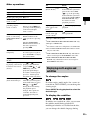
Other operations
To
Press
Stop
x
Pause
X
Resume play after pause X or H
>
Go back to the
preceding chapter,
track, or scene1)
. twice in a second.
When you press . once,
you can go to the beginning
of the current chapter,
track, or scene.
Find the desired chapter,
track, or scene using
OPERATION DIAL on
the unit1)
Turning OPERATION
DIAL clockwise is the
same operation as pressing
>.
Turning OPERATION
DIAL counterclockwise is
the same operation as
pressing ..
Turn off the sound
temporarily
MUTING.
To cancel, press it again or
press VOLUME + to adjust
the sound volume.
Stop play and remove
the disc
Z on the unit.
Locate a point quickly
by playing a disc in fast
forward or fast reverse
(Scan)1)
M/
or
/m while
playing a disc. Each time
you press M/
or
/
m during scan, the
playback speed changes.
To return to normal speed,
press H. Actual speeds
may differ with some discs.
Watch frame by frame
(Slow-motion Play)2)
M/
or
/m3)
while the system is in pause
mode. Each time you press
M/
or
/m3)
during Slow-motion Play,
the playback speed
changes. Two speeds are
available. To return to
normal playback speed,
press H.
Press
Play one frame at a time STEP
to go to the next
(Freeze Frame)2)4)5)
frame while the system is in
pause mode. Press STEP
to go to the preceding
frame while the system is in
pause mode (DVD VIDEO/
DVD-R/DVD-RW only).
To return to normal
playback, press H.
Replay the previous
scene (10 seconds
before)6)
(instant replay) during
playback.
Disc
Go to the next chapter,
track, or scene1)
To
(instant advance)
Briefly fast forward the
during playback.
current scene (30
seconds ahead)7)
1)
Except for JPEG image files.
2)
DVD VIDEO/DVD-R/DVD-RW/VIDEO CD only.
3)Except
for VIDEO CDs.
4)
You cannot search for a still picture on a DVD-VR.
5)For
a DATA CD/DATA DVD, this function works
only for video files.
6)
DVD VIDEO/DVD-RW/DVD-R only. The button
can be used except for DivX/MPEG4 video files.
7)DVD
VIDEO/DVD-RW/DVD-R/DVD+RW/
DVD+R only. The button can be used except for
DivX/MPEG4 video files.
Displaying multi-angles and
subtitles
To change the angles
If various angles (multi-angles) for a scene are
recorded on a DVD VIDEO, you can change the
viewing angle.
Press ANGLE during playback to select the
desired angle.
To display the subtitles
If subtitles are recorded on a disc, you can turn
the subtitles on/off during playback. If
multilingual subtitles are recorded on the disc,
you can change the subtitle language during
33GB
playback, or turn the subtitles on/off whenever
you want.
• [2: SUB]
• [2: MAIN+SUB]
Press SUBTITLE during playback to select
the desired subtitle language.
x VIDEO CD/CD/DATA CD (MP3 file)/DATA
DVD (MP3 file)
Note
• You can select the subtitles if the DivX video file has
an “.avi” or “.divx” extension and contains subtitle
information within the same file.
Changing the sound
When the system is playing a DVD VIDEO or
DATA CD/DATA DVD (DivX video files)
recorded in multiple audio formats (PCM,
Dolby Digital, MPEG audio, or DTS), you can
change the audio format. If the DVD VIDEO is
recorded with multilingual tracks, you can also
change the language.
With a VIDEO CD, CD, DATA CD, or DATA
DVD, you can select the sound from the right or
left channel and listen to the sound of the
selected channel through both the right and left
speakers.
You cannot change the sound for a Super Audio
CD.
• [STEREO]: The standard stereo sound.
• [1/L]: The sound of the left channel
(monaural).
• [2/R]: The sound of the right channel
(monaural).
x DATA CD (DivX video file)/DATA DVD
(DivX video file)
The choice of DATA CD or DATA DVD audio
signal formats differs, depending on the DivX
video file contained on the disc. The format
appears on the TV screen.
x Super VCD
• [1:STEREO]: The stereo sound of audio track
1.
• [1:1/L]: The sound of the left channel of audio
track 1 (monaural).
• [1:2/R]: The sound of the right channel of
audio track 1 (monaural).
• [2:STEREO]: The stereo sound of audio track
2.
• [2:1/L]: The sound of the left channel of audio
track 2 (monaural).
• [2:2/R]: The sound of the right channel of
audio track 2 (monaural).
Press AUDIO repeatedly during playback to
select the desired audio signal.
x DVD VIDEO
Depending on the DVD VIDEO, the choice of
language varies.
When 4 digits are displayed, they indicate a
language code. See “Language Code List”
(page 107) to confirm which language the code
represents. When the same language is
displayed two or more times, the DVD VIDEO
is recorded in multiple audio formats.
x DVD-VR
The types of sound tracks recorded on a disc are
displayed.
Example:
• [1: MAIN] (main sound)
• [1: SUB] (sub sound)
• [1: MAIN+SUB] (main and sub sound)
• [2: MAIN]
34GB
Checking the audio signal
format
If you press AUDIO repeatedly during
playback, the format of the current audio signal
(PCM, Dolby Digital, DTS, etc.) appears as
shown below.
1
x DVD
Example:
The Control Menu display appears on the
TV screen.
Dolby Digital 5.1 channel
LFE (Low
Frequency Effect)
Surround (L/R)
Press
DISPLAY while the system is
in stop mode.
2
Press X/x to select
2CH], then press
.
[MULTI/
The options for [MULTI/2CH] appear.
3
DOLBY DIGITAL 3 / 2 .1
L
Front (L/R) +
Center
C
R
LFE
LS
Press X/x to select the desired setting
and press
.
Disc
1: ENGLISH
• [MULTI]: You can play the multi-channel
playback area.
• [2CH]: You can play the 2 channel
playback area.
RS
Currently playing program format
Note
Example:
• When the Super Audio CD does not have a multichannel playback area, you cannot select the
playback area.
Dolby Digital 3 channel
Surround
(Monaural)
Front (L/R)
1:SPANISH
Changing a playback layer for
a hybrid Super Audio CD
DOLBY DIGITAL 2 / 1
L
R
S
Currently playing program format
x DATA CD (video file)/DATA DVD (video
file)
Some Super Audio CDs consist of a Super
Audio CD layer and a CD layer. You can change
the playback layer you want to listen to.
1
Example:
The Control Menu display appears on the
TV screen.
MP3 audio
2
1:MP3
Press
DISPLAY while the system is
in stop mode.
128k
Press X/x to select
[SUPER
AUDIO CD/CD LAYER], then press
.
x When the current layer is the CD
layer
Bit rate
[SUPER AUDIO CD] appears.
Selecting a playback area for a
Super Audio CD
Some Super Audio CDs consist of a 2 channel
playback area and a multi-channel playback
area. You can select the playback area you want
to listen to.
x When the current layer is the Super
Audio CD layer
[CD] appears.
3
Press
to change the layer.
• [SUPER AUDIO CD]: You can play the
Super Audio CD layer.
When the system is playing a Super Audio
CD layer, “SA-CD” lights up in the front
panel display.
35GB
• [CD]: You can play the CD layer.
When the system is playing a CD layer,
“CD” lights up in the front panel display.
mode to select a track, then press H or
. The
system starts playback. You cannot play still pictures
such as a menu. To return to PBC playback, press x
twice, then press H.
Note
• Each play mode function works only within the
selected layer or playback area.
• When you select a CD layer, you cannot change
playback areas.
• Super Audio CD audio signals are not output from the
HDMI OUT jack.
Resuming playback from the
point where you stopped the
disc
(Resume Play)
Playing a VIDEO CD with PBC
functions (Ver. 2.0)
(PBC Playback)
With PBC (Playback Control) functions, you
can enjoy simple interactive operations, search
functions, and other such operations.
PBC playback allows you to play a VIDEO CD
interactively by following the menu on the TV
screen.
1
Start playing a VIDEO CD with PBC
functions.
When you stop the disc, the system remembers
the point where you pressed x and “RESUME”
appears in the front panel display. As long as
you do not remove the disc, Resume Play will
work even if the system is set to standby mode
by pressing "/1.
1
“RESUME” appears in the front panel
display.
2
Select the item number you want using
the number buttons.
If you make a mistake, press CLEAR to
cancel the number.
3
4
Press
.
Follow the instructions in the menu for
interactive operations.
Refer to the operating instructions supplied
with the disc, as the operating procedure
may differ depending on the VIDEO CD.
To go back to the menu
Press O RETURN.
Note
• Depending on the VIDEO CD, [Press ENTER] in
Step 3 may appear as [Press SELECT] in the
operating instructions supplied with the disc. In this
case, press H.
Tip
• To play without using the PBC function, press ./
> or the number buttons while the system is in stop
36GB
Press H.
The system starts playback from the point
where you stopped the disc in Step 1.
The menu for your selection appears.
2
While playing a disc, press x to stop
playback.
Note
• Depending on where you stop the disc, the system
may not resume playback from exactly the same
point.
• The point where you stopped playing may be cleared
when:
– you eject the disc.
– the system enters standby mode (DATA CD/
DATA DVD only).
– you change or reset the settings on the Setup
Display.
– you change the parental control level.
– you change the function by pressing FUNCTION.
– you disconnect the AC power cord (mains lead).
• For a DVD-VR, VIDEO CD, Super Audio CD, CD,
DATA CD, or DATA DVD, the system remembers
the resume playback point for the current disc.
• Resume Play does not work during Program Play and
Shuffle Play.
• This function may not work properly with some
discs.
Tip
• To play from the beginning of the disc, press x twice,
then press H.
To enjoy a disc that you played
before with resume playback
Using Play Mode
Creating your own program
(Program Play)
This system recalls the point where you stopped
the disc the last time it was played and resumes
playback from that point the next time you insert
the same disc. When the resume playback
memory is full, the resume playback point for
the earliest disc is deleted.
To activate this function, set [MULTI-DISC
RESUME] in [SYSTEM SETUP] to [ON]. For
details, see “[MULTI-DISC RESUME] (DVD
VIDEO/VIDEO CD only)” (page 55).
You can play the contents of a disc in the order
you want by arranging the order of the tracks on
the disc to create your own program. You can
program up to 99 tracks.
Note
• This system stores the resume points in memory for
up to 10 discs.
1
Press
Disc
(Multi-disc Resume)
DISPLAY.
The Control Menu display appears on the
TV screen.
2
Press X/x to select
then press
.
[PROGRAM],
The options for [PROGRAM] appear.
3
Tip
Press X/x to select [SET
press
.
t], then
Total time of the programmed tracks
• To play from the beginning of the disc, press x twice,
then press H.
PROGRAM
ALL CLEAR
1. TRACK
2. TRACK
3. TRACK
4. TRACK
5. TRACK
6. TRACK
7. TRACK
0: 00:00
T
––
––
––
––
––
––
––
––
01
02
03
04
05
06
Tracks recorded on a disc
4
Press c.
The cursor moves to the track row [T] (in
this case, [01]).
PROGRAM
ALL CLEAR
1. TRACK
2. TRACK
3. TRACK
4. TRACK
5. TRACK
6. TRACK
7. TRACK
5
0: 00:00
T
––
––
––
––
––
––
––
––
01
02
03
04
05
06
Select the track you want to program.
For example, select track [02].
Press X/x to select [02] under [T], then
press .
37GB
To cancel all of the tracks in the
programmed order
Selected track
PROGRAM
ALL CLEAR
1. TRACK
2. TRACK
3. TRACK
4. TRACK
5. TRACK
6. TRACK
7. TRACK
0: 03:51
T
02
––
––
––
––
––
––
––
01
02
03
04
05
06
Total time of the programmed tracks
6
To program other tracks, repeat Steps
4 to 5.
The programmed tracks are displayed in the
selected order.
7
1
2
3
Follow Steps 1 to 3 of “Creating your
own program.”
Press X and select [ALL CLEAR].
Press
.
Note
• When you press CLEAR to return to normal play,
Shuffle Play and Repeat Play are also canceled.
Playing in random order
(Shuffle Play)
Press H to start Program Play.
Program Play starts.
When the program ends, you can restart the
same program again by pressing H.
You can play the contents on a disc in random
order. Subsequent Shuffle Play may produce a
different playing order.
Note
To return to normal play
Press CLEAR while the display for the program
setting is not displayed on the TV screen, or
select [OFF] in Step 3. To play the same
program again, select [ON] in Step 3 and press
.
• The same song may be played repeatedly when you
are playing MP3 files.
1
2
Press X/x to select
then press
.
[SHUFFLE],
The options for [SHUFFLE] appear.
3
Press X/x to select the item to be
shuffled.
To change or cancel a program
x VIDEO CD/Super Audio CD/CD
1
Follow Steps 1 to 3 of “Creating your
own program.”
• [OFF]: Off.
• [TRACK]: You can shuffle tracks on the
disc.
Press X/x to select the program
number of the track you want to
change or cancel.
x During Program Play
2
If you want to delete the track from the
program, press CLEAR.
3
Follow Step 5 for new programming.
To cancel a program, select [--] under [T],
then press
.
38GB
DISPLAY during playback.
The Control Menu display appears on the
TV screen.
To turn off the Control Menu
display
Press
DISPLAY repeatedly until the Control
Menu display is turned off.
Press
• [OFF]: Off.
• [ON]: You can shuffle tracks selected in
Program Play.
x DATA CD (except for video files)/
DATA DVD (except for video files)
• [OFF]: Off.
• [ON (MUSIC)]: You can shuffle MP3
files in the folder on the current disc.
When no folder is selected, the first folder
will play in random order.
4
Press
.
• [TRACK]: You can repeat the current
track.
Shuffle Play starts.
x DATA CD/DATA DVD
To return to normal play
To turn off the Control Menu
display
Press
DISPLAY repeatedly until the Control
Menu display is turned off.
Note
• You cannot use Shuffle Play with a VIDEO CD or
Super VCD with PBC playback.
• When you press CLEAR to return to normal play,
Program Play and Repeat Play are also canceled.
4
Press
Disc
• [OFF]: Off.
• [DISC]: You can repeat all of the folders
on the disc.
• [FOLDER]: You can repeat the current
folder.
• [TRACK] (MP3 files only): You can
repeat the current file.
• [FILE] (video files only): You can repeat
the current file.
Press CLEAR, or select [OFF] in Step 3.
.
The item is selected.
To return to normal play
Playing repeatedly
Press CLEAR, or select [OFF] in Step 3.
(Repeat Play)
To turn off the Control Menu
display
Press
DISPLAY repeatedly until the Control
Menu display is turned off.
You can play the contents on a disc repeatedly.
You can use a combination of Shuffle Play or
Program Play modes.
1
Press
DISPLAY during playback.
The Control Menu display appears on the
TV screen.
2
Press X/x to select
then press
.
[REPEAT],
Note
• You cannot use Repeat Play with a VIDEO CD or
Super VCD with PBC playback.
• When the system is playing a DATA CD/DATA
DVD which contains MP3 files and JPEG image
files, and their playing time is not the same, the audio
sound will not match the image.
• When you press CLEAR to return to normal play,
Program Play and Shuffle Play are also canceled.
The options for [REPEAT] appear.
3
Press X/x to select the item to be
repeated.
x DVD VIDEO/DVD-VR
• [OFF]: Off.
• [DISC]: You can repeat all of the titles on
the disc.
• [TITLE]: You can repeat the current title
on a disc.
• [CHAPTER]: You can repeat the current
chapter on a disc.
x VIDEO CD/Super Audio CD/CD
• [OFF]: Off.
• [DISC]: You can repeat all of the tracks
on the disc.
39GB
Searching/Selecting
Disc Contents
Using the DVD’s menu
Selecting an original title or
edited title on a DVD-VR
This function is only available for DVD-VRs
with a playlist created.
1
A DVD is divided into many sections, which
make up a picture or music feature. These
sections are called “titles.” When you play a
DVD which contains several titles, you can
select the title you want using DVD TOP
MENU.
When you play a DVD that allows you to select
items such as the language for the subtitles and
the language for the sound, select these items
using DVD MENU.
1
2
3
The Control Menu display appears on the
TV screen.
2
Press C/X/x/c or the number buttons to
select the item you want to play or
change.
Press
.
Press X/x to select
PLAY LIST], then press
[ORIGINAL/
.
The options for [ORIGINAL/PLAY LIST]
appear.
3
Press X/x to select a setting.
• [PLAY LIST]: You can play the titles in
the order of the existing playlist.
• [ORIGINAL]: You can play the titles
originally recorded.
Press DVD TOP MENU or DVD MENU.
The disc’s menu appears on the TV screen.
The contents of the menu vary depending
on the disc.
Press
DISPLAY while the system is
in stop mode.
4
Press
.
Searching for a title/chapter/
track/scene, etc.
To display the DVD’s menu on the
Control Menu display
1
Press
DISPLAY during playback.
The Control Menu display appears on the
TV screen.
2
Press X/x to select
MENU], then press
[DISC
.
The options for [DISC MENU] appear.
3
4
Press X/x to select [MENU] or [TOP
MENU].
Press
.
You can search a DVD VIDEO/DVD-VR by
title or chapter, and you can search a VIDEO
CD/Super Audio CD/CD/DATA CD/DATA
DVD by track, index, or scene. For a DATA CD/
DATA DVD, you can search by folder or file.
As titles and tracks are assigned unique numbers
on the disc, you can select the desired title or
track by entering its number. Or, you can search
for a scene using the time code.
1
To turn off the Control Menu
display
Press
DISPLAY repeatedly until the Control
Menu display is turned off.
Press
DISPLAY. (If [MEDIA] is set to
[MUSIC/PHOTO], press
DISPLAY
twice.)
The Control Menu display appears on the
TV screen.
2
Press X/x to select the search method.
Example:
[CHAPTER]
[** (**)] is selected (** refers to a number).
40GB
The number in parentheses indicates the
total number of titles, chapters, tracks,
indexes, scenes, folders, or files.
98( 99)
13( 99)
T
0: 03: 17
DVD VIDEO
3
Input the time code using the number
buttons.
For example, to find a scene at 2 hours, 10
minutes, and 20 seconds after the
beginning: press 2, 1, 0, 2, 0 ([2:10:20]).
4
Press
.
Note
Selected row
3
Press
Disc
• You cannot search for a scene on a DVD+RW using
the time code.
.
[** (**)] changes to [– – (**)].
98( 99)
13( 99)
T
0: 03: 17
4
DVD VIDEO
Press X/x or the number buttons to
select the desired number of the title,
chapter, track, index, scene, etc.
If you make a mistake, press CLEAR to
cancel the number.
5
Press
.
The system starts playback from the
selected number.
Tip
• When the Control Menu display is turned off, you can
search for a chapter (DVD VIDEO/DVD-R/DVDRW), track (VIDEO CD/Super Audio CD/CD), or
file (DATA CD/DATA DVD (video file)) by
pressing the number buttons and
.
To search for a scene using the
time code
1
In Step 2, select
[TIME].
[T **:**:**] (playing time of the current
title) is selected.
2
Press
.
[T **:**:**] changes to [T --:--:--].
41GB
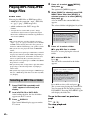
Playing MP3 Files/JPEG
Image Files
4
Press X/x to select
then press
.
The options for [MEDIA] appear.
5
You can play MP3 files or JPEG image files:
– which have the extension “.mp3” (MP3 file)
or “.jpg”/“.jpeg” (JPEG image file).
– which conform to the DCF* image file
format.
When [MUSIC] is selected, press DVD
MENU. When other than [MUSIC] is
selected, press X/x to select [MUSIC],
then press
.
A list of folders that contain MP3 files
appears.
The selected folder is highlighted in yellow.
FOLDER LIST
* “Design rule for Camera File system”: Image
standards for digital cameras regulated by Japan
Electronics and Information Technology Industries
Association (JEITA).
01
02
03
04
05
06
07
08
Note
• The system will play any files with the extension
“.mp3,” “.jpg,” or “.jpeg” even if they are not in MP3
or JPEG format. Playing these files may generate a
loud noise which could damage your speaker system.
• The system does not play back audio in MP3PRO
format.
• The system can recognize up to 200 folders, and will
not play any folders beyond the 200th. (Depending on
the folder configuration, the number of folders that
can be recognized by the system may decrease.)
• The system can recognize up to 150 MP3 files/JPEG
image files in a folder.
• The system may take a longer time to play files when
progressing to the following folder or jumping to
other folders.
• The system may not play certain types of JPEG image
files (ex. a JPEG image file that is less than 8 (width)
× 8 (height)).
6
2
Press FUNCTION repeatedly until
“DVD” appears in the front panel
display.
Load a DATA CD or DATA DVD.
After loading the disc, the list of folders
appears on the TV screen.
3
Press
DISPLAY.
The Control Menu display appears on the
TV screen.
x To play MP3 files in a folder
Press H to start playing the selected
folder.
x To select an MP3 file
Press
.
The list of files contained in the folder
appears.
TRACK LIST
03 In the Middle of Nowher...
01_Geronimo_s_Cadillac
02_Riding_On_A_White_Swan
03_Give_Me_Peace_On_Earth
04_Sweet_Little_Shella
05_Ten_Thousand_Lonely_Drums
06_Lonely_Tears_In_Chinatown
07_In_Shaire
Press X/x to select a file and press
.
The system starts playing the selected file.
You can turn the file list off by pressing
DVD MENU. Pressing DVD MENU again
will display the folder list.
To go to the next or previous
page
Press
/
.
To stop playback
Press x.
42GB
Let's Talk About Love (1985)
1st Album (1986)
In the Middle of Nowhere (1986)
Ready for Romance (1986)
In the Garden of Venus (1987)
Romantic Warriors (1987)
Back for Good (1988)
Alone (1999)
Press X/x to select a folder.
Selecting an MP3 file or folder
1
[MEDIA],
To play the next or previous MP3
file
To return to the previous display
Press O RETURN.
To turn on/off the display
Press DVD MENU.
Other operations
See “Other operations” (page 33).
2
Press FUNCTION repeatedly until
“DVD” appears in the front panel
display.
Load a DATA CD or DATA DVD.
After loading the disc, the list of folders
appears on the TV screen.
3
Press
DISPLAY.
The Control Menu display appears on the
TV screen.
4
Press X/x to select
then press
.
[MEDIA],
The options for [MEDIA] appear.
5
6
Happy birthday
Travelling 01
2003.08.20
Flowers
Travelling 02
Animals
2003.11.16
2003.12.03
Press X/x to select a folder.
x To go to the next or previous page
Press
/
.
x To play JPEG image files in a folder
Press H to start playing the selected
folder.
The JPEG images are played as a slide
show. You can change the interval of the
slide show (page 44), and add effects to the
slide show (page 44).
x To select a JPEG image file by
displaying the image browser
Selecting a JPEG image file or
folder
1
01
02
03
04
05
06
07
08
Disc
Press > to play the next MP3 file. Press .
twice to play the previous MP3 file.
When you press . once, you can go to the
beginning of the current MP3 file.
Note that you can select the next folder by
continuing to press > after the last file on the
current folder, but that you cannot return to the
previous folder by pressing .. To return to
the previous folder, select the folder from the
folder list.
FOLDER LIST
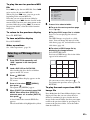
When [PHOTO] is selected, press DVD
MENU. When other than [PHOTO] is
selected, press X/x to select [PHOTO],
then press
.
A list of folders that contain JPEG files
appears.
The selected folder is highlighted in yellow.
Press PICTURE NAVI.
Previews of JPEG image files in the folder
appear in 16 subscreens.
1
2
3
4
5
6
7
8
9
10
11
12
13
14
15
16
Press C/X/x/c to select the JPEG image
file you want to view, then press
.
To return to the previous screen, press O
RETURN.
To play the next or previous JPEG
image file
Press c/C when the Control Menu display is not
displayed. Note that you can select the next
folder by continuing to press c after the last
image on the current folder, but that you cannot
return to the previous folder by pressing C. To
return to the previous folder, select the folder
from the folder list.
43GB
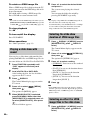
To rotate a JPEG image file
6
When a JPEG image file is displayed on the TV
screen, you can rotate the JPEG image file in 90
degree increments.
Press X/x while viewing a JPEG image file.
Press CLEAR to return to normal view.
Press X/x to select the desired folder
and press H.
The system starts playing the selected
folder.
You can turn the folder list on/off by
pressing DVD MENU repeatedly.
Note
Note
• You cannot rotate the JPEG image file when you set
[JPEG RESOLUTION] in [HDMI SETUP] to [(1920
× 1080i) HD
] or [(1920 × 1080i) HD] (page 54).
• If you play a large MP3 file and JPEG image file at
the same time, the sound may skip. Sony
recommends that you set the MP3 bit rate to 128 kbps
or lower when creating the file. If the sound still
skips, reduce the size of the JPEG image file.
To stop playback
Press x.
To turn on/off the display
Press DVD MENU.
1
Other operations
See “Other operations” (page 33).
Playing a slide show with
sound
You can play a slide show with sound by first
placing both MP3 files and JPEG image files in
the same folder on a DATA CD or DATA DVD.
1
2
Selecting the slide show
duration of JPEG image files
The Control Menu display appears on the
TV screen.
2
4
Load a DATA CD or DATA DVD.
DISPLAY.
4
Press X/x to select
then press
.
• Some JPEG image files may take longer to display
than the option you selected. Especially progressive
JPEG image files or JPEG image files of 3,000,000
pixels or more.
Press
.
Note
[MEDIA],
When [MUSIC/PHOTO] is selected,
press DVD MENU. When other than
[MUSIC/PHOTO] is selected, press X/x
to select [MUSIC/PHOTO], then press
.
The list of folders appears.
44GB
Press X/x to select a setting.
The Control Menu display appears on the
TV screen.
The options for [MEDIA] appear.
5
[INTERVAL],
• [NORMAL]: You can set to the standard
duration.
• [FAST]: You can set the duration shorter
than [NORMAL].
• [SLOW 1]: You can set the duration
longer than [NORMAL].
• [SLOW 2]: You can set the duration
longer than [SLOW 1].
Press FUNCTION repeatedly until
“DVD” appears in the front panel
display.
Press
Press X/x to select
then press
.
The options for [INTERVAL] appear.
3
After loading the disc, the list of folders
appears on the TV screen.
3
Press
DISPLAY. (If [MEDIA] is set to
[MUSIC/PHOTO], press
DISPLAY
twice.)
Selecting an effect for JPEG
image files in the slide show
1
Press
DISPLAY. (If [MEDIA] is set to
[MUSIC/PHOTO], press
DISPLAY
twice.)
The Control Menu display appears on the
TV screen.
2
Press X/x to select
then press
.
5
Press X/x to select a setting.
• [MODE 1]: The JPEG image file sweeps
in from top to bottom.
• [MODE 2]: The JPEG image file stretches
out from left to right of the TV screen.
• [MODE 3]: The JPEG image file stretches
out from the center of the TV screen.
• [MODE 4]: The JPEG image files
randomly cycle through the effects.
• [MODE 5]: The next JPEG image file
slides over the previous image.
• [OFF]: Off.
4
Press
.
• The [EFFECT] setting is not effective when you set
[JPEG RESOLUTION] in [HDMI SETUP] to [(1920
× 1080i) HD
] or [(1920 × 1080i) HD] (page 54).
Selecting playback priority of
the file type
You can select playback priority when mixed
media (MP3 files, JPEG image files, or video
files) are in the disc.
2
Press FUNCTION repeatedly until
“DVD” appears in the front panel
display.
Load a DATA CD or DATA DVD.
After loading the disc, the list of folders
appears on the TV screen.
3
Press
Press
.
For details of the playback priority of file
types under the [MEDIA] setting, see
“Playback priority of file types” (page 106).
Displaying a list of MP3 files/
JPEG image files
1
Note
1
6
Disc
• [MUSIC/PHOTO]: You can play both
JPEG image files and MP3 files in the
same folder as a slide show.
• [MUSIC]: MP3 file playback has priority.
• [VIDEO]: Video file playback has
priority.
• [PHOTO]: JPEG image file playback has
priority. You can play JPEG image files as
a slide show.
[EFFECT],
The options for [EFFECT] appear.
3
Press X/x to select a setting.
Press
DISPLAY during playback.
The Control Menu display appears on the
TV screen.
2
Press X/x to select
[BROWSING], then press
.
The options for [BROWSING] appear.
3
Press X/x to select the desired list,
then press
.
• [FOLDER LIST]: The list of folders
appears. Follow Step 6 of “Selecting an
MP3 file or folder” (page 42) or
“Selecting a JPEG image file or folder”
(page 43).
• [PICTURE LIST] (JPEG image files
only): Previews of JPEG image files in the
folder appear in 16 subscreens. Follow
Step 6 of “Selecting a JPEG image file or
folder” (page 43).
DISPLAY.
The Control Menu display appears on the
TV screen.
4
Press X/x to select
then press
.
[MEDIA],
The options for [MEDIA] appear.
45GB
Enjoying Video Files
About video files
You can play DivX video files and MPEG4
video files.
DivX® is a video file compression technology,
developed by DivX, Inc. This product is an
official DivX® Certified product.
You can play a DATA CD or DATA DVD that
contains DivX® video files.
A DATA CD or DATA DVD that the
system can play
The system only plays a DATA CD of format
ISO 9660 Level 1/Level 2 or Joliet, and a DATA
DVD of Universal Disk Format (UDF).
Refer to the operating instructions supplied with
the disc drives and the recording software (not
supplied) for details on the recording format.
About playback order of data on a
DATA CD or DATA DVD
MPEG4 video files that the
system can play
The system can play data that is recorded in
MP4 file format, and which has the extension
“.mp4” or “.m4v.” The system will not play files
with the extension “.mp4” or “.m4v” if they do
not contain a MPEG4 video.
Note
• Compatibility with all MPEG4 video encoding/
writing software, recording devices, and recording
media cannot be guaranteed.
Selecting a folder
Note that the playback order may not be
applicable, depending on the software used for
creating the video file, or if there are more than
200 folders and 150 video files in each folder.
1
Note
2
• The system may not be able to play some DATA
CDs/DATA DVDs created in the Packet Write
format.
DivX video files that the system
can play
The system can play data that is recorded in
DivX format, and which has the extension “.avi”
or “.divx.” The system will not play files with
the extension “.avi” or “.divx” if they do not
contain a DivX video.
Note
• The system may not play a DivX video file when the
file has been combined from two or more DivX video
files.
• The system cannot play a DivX video file of size
more than 720 (width) × 576 (height) or 2GB.
46GB
• Depending on the DivX video file, sound may skip or
not match the pictures on the TV screen.
• The system cannot play some DivX video files that
are longer than 3 hours.
• Depending on the DivX video file, the picture may
pause or be unclear, in which case it is recommended
that you create the file at a lower bit rate. If the sound
is still noisy, MP3 is the recommended audio format.
Note, however, this system does not conform to
WMA (Windows Media Audio) format for playing
DivX files.
• Because of the compression technology used for
DivX video files, it may take some time after you
press H for the picture to appear.
Press FUNCTION repeatedly until
“DVD” appears in the front panel
display.
Load a DATA CD or DATA DVD.
After loading the disc, the list of folders
appears on the TV screen.
3
Press
DISPLAY.
The Control Menu display appears on the
TV screen.
4
Press X/x to select
then press
.
[MEDIA],
The options for [MEDIA] appear.
5
When [VIDEO] is selected, press DVD
MENU. When other than [VIDEO] is
selected, press X/x to select [VIDEO],
then press
.
A list of folders that contain video files
appears.
The selected folder is highlighted in yellow.
To go to the next or previous
page
FOLDER LIST
SUMMER 2003
NEW YEAR'S DAY
MY FAVOURITES
Press
/
.
To return to the previous display
Press O RETURN.
To stop playback
7
Press X/x to select the folder you want
to play.
Press H.
The system starts playing the selected
folder.
To select video files, see “Selecting a video
file” (page 47).
To go to the next or previous
page
Press
/
.
Disc
6
Press x.
To play the next or previous video
file without turning on the above
file list
You can select the next or previous video file in
the same folder by pressing >/..
You can also select the first file of the next
folder by pressing > during playback of the
last file of the current folder. Note that you
cannot return to the previous folder by pressing
.. To return to the previous folder, select it
from the folder list.
To stop playback
Tip
Press x.
• If the number of viewing times is preset, you can play
a DivX video file as many times as the preset number.
The following occurrences are counted:
– when the system is turned off.
– when another file is played.
– when the disc tray is opened.
To turn on/off the display
Press DVD MENU.
Other operations
See “Other operations” (page 33).
Displaying a list of video files
Selecting a video file
1
1
After Step 6 of “Selecting a folder,”
press
.
Press
DISPLAY during playback.
The Control Menu display appears on the
TV screen.
The list of files in the folder appears.
2
FILE LIST
MY FAVOURITES
Press X/x to select
[BROWSING], then press
.
The options for [BROWSING] appear.
3
HAWAII 2004
VENUS
Press X/x to select [FOLDER LIST],
then press
.
The list of folders appears. Follow Step 6 of
“Selecting a folder” (page 46).
2
Press X/x to select a file and press
.
The selected file starts playing.
47GB
Adjusting the Delay
Between the Picture and
Sound
Restricting Playback of
the Disc
[PARENTAL CONTROL]
[A/V SYNC]
When the sound does not match the pictures on
the TV screen, you can adjust the delay between
the picture and sound.
1
Press
DISPLAY.
The Control Menu display appears on the
TV screen.
2
Press X/x to select
then press
.
[A/V SYNC],
The [PARENTAL CONTROL] function allows
you to restrict playback of DVDs that have
ratings. Scenes may be blocked or replaced with
different scenes.
You can set the playback restriction by
registering a password. When you set the
[PARENTAL CONTROL] function to on, you
need to enter the password to play restricted
discs.
1
The options for [A/V SYNC] appear.
3
Press X/x to select a setting.
• [OFF]: Off.
• [ON]: You can adjust the delay between
picture and sound.
4
Press
.
2
Press
DISPLAY while the system is
in stop mode.
The Control Menu display appears on the
TV screen.
3
Note
• Depending on the input stream, [A/V SYNC] may not
be effective.
Press FUNCTION repeatedly until
“DVD” appears in the front panel
display.
Press X/x to select
then press
.
[SETUP],
The options for [SETUP] appear.
4
Press X/x to select [CUSTOM], then
press
.
The Setup Display appears.
5
Press X/x to select [SYSTEM SETUP],
then press
.
The options for [SYSTEM SETUP] appear.
6
Press X/x to select [PARENTAL
CONTROL t], then press
.
x If you have not entered a password
The display for registering a new password
appears.
PARENTAL CONTROL
Enter a new 4-digit password,
then press ENTER .
48GB
Enter a 4-digit password using the number
buttons, then press .
The display for confirming the password
appears.
x When you have already registered a
password
7
Enter or re-enter your 4-digit password
using the number buttons, then press
.
Set [LEVEL] to [OFF] in Step 11.
To play a disc for which
[PARENTAL CONTROL] is set
1
Load the disc and press H.
The display for entering your password
appears.
2
The display for setting the playback
limitation level appears.
Disc
The display for entering the password
appears.
To turn off the [PARENTAL
CONTROL] function
Enter your 4-digit password using the
number buttons, then press
.
The system starts playback.
Tip
PARENTAL CONTROL
LEVEL:
STANDARD:
CHANGE PASSWORD:
8
OFF
USA
Press X/x to select [STANDARD], then
press
.
The selection items for [STANDARD] are
displayed.
9
• If you forget your password, remove the disc and
repeat Steps 1 to 6 of “Restricting Playback of the
Disc” (page 48). When you are asked to enter your
password, enter “199703” using the number buttons,
then press
. The display will ask you to enter a new
4-digit password. After you enter a new 4-digit
password, replace the disc in the unit and press H.
When the display for entering your password appears,
enter your new password.
Press X/x to select a geographic area
as the playback limitation level, then
press
.
The area is selected.
When you select [OTHERS t], select and
enter a standard code from “Parental
Control Area Code List” (page 107) using
the number buttons.
10 Press X/x to select [LEVEL], then press
Changing the password
1
2
Press
DISPLAY while the system is
in stop mode.
The Control Menu display appears on the
TV screen.
3
Press X/x to select
then press
.
[SETUP],
The options for [SETUP] appear.
.
The selection items for [LEVEL] are
displayed.
4
11 Press X/x to select the desired level,
then press
Press FUNCTION repeatedly until
“DVD” appears in the front panel
display.
.
[PARENTAL CONTROL] setting is
complete.
The lower the value, the stricter the
limitation.
Press X/x to select [CUSTOM], then
press
.
The Setup Display appears.
5
Press X/x to select [SYSTEM SETUP],
then press
.
The options for [SYSTEM SETUP] appear.
6
Press X/x to select [PARENTAL
CONTROL t], then press
.
The display for entering the password
appears.
49GB
7
8
9
Enter your 4-digit password using the
number buttons, then press
.
Press X/x to select [CHANGE
PASSWORD t], then press
.
Enter a new 4-digit password using the
number buttons, then press
.
10 To confirm your password, re-enter it
using the number buttons, then press
.
If you make a mistake entering
your password
Press C before you press
correct number.
, then input the
Changing the System
Settings by Using the
Setup Display
You can make various adjustments to items such
as picture and sound.
Displayed items vary depending on the area.
Note
• Playback settings stored in the disc take priority over
the Setup Display settings and not all the functions
described may work.
1
2
Press FUNCTION repeatedly until
“DVD” appears in the front panel
display.
Press
DISPLAY while the system is
in stop mode.
The Control Menu display appears on the
TV screen.
3
Press X/x to select
then press
.
[SETUP],
The options for [SETUP] appear.
4
Press X/x to select [CUSTOM], then
press
.
The Setup Display appears.
5
Press X/x to select the setup item, then
press
.
•
•
•
•
•
•
[LANGUAGE SETUP] (page 51)
[VIDEO SETUP] (page 51)
[HDMI SETUP] (page 53)
[AUDIO SETUP] (page 54)
[SYSTEM SETUP] (page 55)
[SPEAKER SETUP] (page 56)
Example: [VIDEO SETUP]
Selected item
VIDEO SETUP
TV TYPE:
PROGRESSIVE (COMPONENT OUT):
4:3 OUTPUT:
COLOR SYSTEM (VIDEO CD):
PAUSE MODE:
Setup items
50GB
16:9
OFF
FULL
AUTO
AUTO
6
Press X/x to select an item, then press
.
The options for the selected item appear.
Example: [TV TYPE]
Options
7
Press X/x to select a setting, then
press
.
The setting is selected and setup is
complete.
Example: [4:3 LETTER BOX]
VIDEO SETUP
4:3 LETTER BOX
TV TYPE:
PROGRESSIVE (COMPONENT OUT):
OFF
4:3 OUTPUT:
FULL
AUTO
COLOR SYSTEM (VIDEO CD):
PAUSE MODE:
AUTO
Selected setting
To reset all of the [SETUP]
settings
To reset all of the [SETUP] settings, see
“Returning the [SETUP] settings to the default”
(page 89).
Setting the display or sound
track language
[LANGUAGE SETUP]
x [MENU] (DVD VIDEO only)
You can switch the language for the disc’s
menu.
x [AUDIO] (DVD VIDEO only)
You can switch the language of the sound track.
When you select [ORIGINAL], the language
given priority on the disc is selected.
x [SUBTITLE] (DVD VIDEO only)
You can switch the language of the subtitles
recorded on the DVD VIDEO.
When you select [AUDIO FOLLOW], the
language for the subtitles changes according to
the language you selected for the sound track.
Note
• When you select a language in [MENU], [AUDIO],
or [SUBTITLE] that is not recorded on the DVD
VIDEO, one of the recorded languages will be
automatically selected (depending on the disc, the
language may not be selected automatically).
Tip
• If you select [OTHERS t] in [MENU], [AUDIO],
and [SUBTITLE], select and enter a language code
from “Language Code List” (page 107) using the
number buttons.
Settings for the display
[VIDEO SETUP]
Select settings according to the TV to be
connected.
Set various languages for the on-screen display
or sound track.
LANGUAGE SETUP
OSD:
MENU:
AUDIO:
SUBTITLE:
You can switch the display language on the TV
screen.
Disc
VIDEO SETUP
16:9
TV TYPE:
16:9
PROGRESSIVE (COMPONENT OUT):
OFF
4:3 LETTERFULL
BOX
4:3 OUTPUT:
AUTO
COLOR SYSTEM (VIDEO CD)4:3
: PAN SCAN
PAUSE MODE:
AUTO
x [OSD] (On-Screen Display)
ENGLISH
ENGLISH
ORIGINAL
AUDIO FOLLOW
VIDEO SETUP
TV TYPE:
PROGRESSIVE (COMPONENT OUT):
4:3 OUTPUT:
COLOR SYSTEM (VIDEO CD):
PAUSE MODE:
16:9
OFF
FULL
AUTO
AUTO
51GB
The system outputs a progressive signal for
5 seconds. Check that the screen is
displayed correctly.
x [TV TYPE]
You can select the aspect ratio of the connected
TV.
3
[16:9]: Select this when you connect a widescreen TV or a TV with a wide mode function.
Press C/c to select [YES], then press
.
The system outputs a progressive signal. If
you select [NO], the system will not output
a progressive signal.
Note
[4:3 LETTER BOX]: Select this when you
connect a 4:3 standard TV. The system displays
a wide picture with bands on the upper and
lower portions of the TV screen.
[4:3 PAN SCAN]: Select this when you connect
a 4:3 standard TV. The system automatically
displays a wide picture on the entire screen and
cuts off the portions that do not fit.
• [PROGRESSIVE (COMPONENT OUT)] is
effective only when you connect the unit and TV with
a component video cable (page 18).
x [4:3 OUTPUT]
When you use a 16:9 aspect ratio TV, you can
adjust the aspect ratio to watch 4:3 aspect ratio
signals. If you can change the aspect ratio on
your TV, change the setting on your TV, not the
system.
[FULL]: Select this when you can change the
aspect ratio on your TV.
[NORMAL]: Select this when you cannot
change the aspect ratio on your TV. A 16:9
aspect ratio signal with black bands on left and
right sides of the image appears.
Note
• Depending on the DVD, [4:3 LETTER BOX] may be
selected automatically instead of [4:3 PAN SCAN] or
vice versa.
16:9 aspect ratio TV
Note
x [PROGRESSIVE (COMPONENT OUT)]
• [4:3 OUTPUT] is effective only when you set [TV
TYPE] in [VIDEO SETUP] to [16:9].
You can set the progressive signal that is output
from the COMPONENT VIDEO OUT jacks to
on/off. For details, see “Does your TV accept
progressive signals?” (page 27).
x [COLOR SYSTEM (VIDEO CD)]
[OFF]: The system outputs interlace signals.
[ON]: The system outputs progressive signals.
When you select [ON], follow the Steps below.
1
Select [ON], then press
.
The confirmation display appears.
2
52GB
Press C/c to select [START], then
press
.
(Asian, Australian, Middle Eastern, and
South African models only)
You can select the color system when you play a
VIDEO CD.
[AUTO]: The system outputs the disc’s video
signal, either PAL or NTSC. If your TV uses a
DUAL system, select [AUTO].
[PAL]: The system changes the video signal of
an NTSC disc and outputs it in the PAL system.
[NTSC]: The system changes the video signal of
a PAL disc and outputs it in the NTSC system.
Note
• You cannot change the color system of the disc itself.
• You can change the color system of this system
according to the connected TV (page 18).
x [BLACK LEVEL]
(North American, Mexican, and Latin
American models only)
[ON]: The standard level.
[OFF]: You can lower the standard black level.
Use this when the picture becomes too white.
x [BLACK LEVEL (COMPONENT OUT)]
(North American, Mexican, and Latin
American models only)
You can select the black level (setup level) for
the video signals output from the
COMPONENT VIDEO OUT jacks.
You cannot select this and the setting is not
effective when the system outputs a progressive
signal.
[OFF]: You can set the black level of the output
signal to the standard level.
[ON]: You can raise the standard black level.
Use this when the picture becomes too black.
x [PAUSE MODE] (DVD VIDEO/DVD-R/
DVD-RW only)
You can select the picture in pause mode.
[AUTO]: The picture, including subjects that
move dynamically, is output with no jitter. This
setting is for normal usage.
[FRAME]: The picture, including subjects that
do not move dynamically, is output in high
resolution.
[HDMI SETUP]
HDMI SETUP
HDMI RESOLUTION:
CONTROL FOR HDMI:
VOLUME LIMIT:
YCBCR/RGB(HDMI):
AUDIO(HDMI):
JPEG RESOLUTION:
AUTO(1920x1080p)
ON
LEVEL2
YCBCR
OFF
SD
Disc
You can select the black level (setup level) for
the video signals output from the jacks other
than COMPONENT VIDEO OUT/HDMI OUT.
Settings for HDMI
x [HDMI RESOLUTION]
You can select the type of video signal that is
output from the HDMI OUT jack. For details,
see “To select the type of video signal output
from the HDMI OUT jack” (page 26).
[AUTO (1920 × 1080p)]: The system outputs
the optimal video signal for the connected TV.
[1920 × 1080i]: The system outputs 1920 ×
1080i* video signals.
[1280 × 720p]: The system outputs 1280 ×
720p* video signals.
[720 × 480p]**: The system outputs 720 ×
480p* video signals.
* i: interlace, p: progressive
** Depending on the area, [720 × 480/576p] may
appear.
x [CONTROL FOR HDMI]
You can set the [CONTROL FOR HDMI]
function to on/off. This function is available
when you connect the system and TV with an
HDMI cable. For details, see “Using the Control
for HDMI Function for “BRAVIA” Sync”
(page 61).
[ON]: On. You can operate mutually between
components that are connected with an HDMI
cable.
[OFF]: Off.
x [VOLUME LIMIT]
If you change the output method of the TV to the
system speakers via the TV menu (or by
pressing THEATRE), the System Audio Control
53GB
(page 62) is activated and loud sound may be
output depending on the volume level of the
system. You can prevent this by limiting the
maximum level of the volume.
[LEVEL3]: Maximum volume level is set to 10.
[LEVEL2]: Maximum volume level is set to 15.
[LEVEL1]: Maximum volume level is set to 20.
[OFF]: Off.
Note
• This function is available only when [CONTROL
FOR HDMI] is set to [ON].
x [YCBCR/RGB (HDMI)]
You can select the type of HDMI signal output
from the HDMI OUT jack.
[YCBCR]: The system outputs YCBCR signals.
[RGB]: The system outputs RGB signals.
Note
• If the playback picture becomes distorted, set
[YCBCR] to [RGB].
• If the HDMI OUT jack is connected to a component
with a DVI jack, [RGB] signals will be automatically
output even when you select [YCBCR].
x [AUDIO (HDMI)]
You can select the audio output status from the
HDMI OUT jack.
[OFF]: The system does not output sound from
the HDMI OUT jack.
[ON]: The system outputs audio signals by
converting Dolby Digital, DTS, or 96 kHz/24bit PCM signals to 48 kHz/16-bit PCM.
]: The system outputs standard
[SD
resolution with a black frame.
[HD
]: The system outputs HD resolution
with a black frame.
[HD]: The system outputs the HD resolution
without a black frame.
]: The system outputs
[(1920 × 1080i) HD
full size HD resolution with a black frame.
[(1920 × 1080i) HD]: The system outputs full
size HD resolution without a black frame.
Note
• [JPEG RESOLUTION] is effective only when you
set [TV TYPE] in [VIDEO SETUP] to [16:9], and
you set [HDMI RESOLUTION] in [HDMI SETUP]
to other than [720 × 480p] or [720 × 480/576p].
• You can select [(1920 × 1080i) HD
] or [(1920 ×
1080i) HD] only when you set [HDMI
RESOLUTION] in [HDMI SETUP] to [1920 ×
1080i].
• The HDMI signal will stop momentarily when:
– the system is loading or unloading a DATA CD or
DATA DVD.
– you connect or remove a USB device.
Settings for the audio
[AUDIO SETUP]
AUDIO SETUP
SPEAKER FORMATION:
AUTO CALIBRATION:
AUDIO DRC:
TRACK SELECTION:
OFF
OFF
Note
• When you connect the unit and TV with an HDMI
cable and [ON] is selected, [AUDIO DRC], [A/V
SYNC], DYNAMIC BASS, “DEC. MODE,” and
sound mode are not applied to the sound that is output
from the TV.
• When you set the function to other than “DVD” or
“USB,” the system does not output the sound from
the HDMI OUT jack even if you set [AUDIO
(HDMI)] to [ON].
x [JPEG RESOLUTION]
You can select the resolution of JPEG image
files output from the HDMI OUT jack.
54GB
x [SPEAKER FORMATION]
You can select the position of the speakers for
better surround sound. For details, see “Getting
Optimal Surround Sound for a Room”
(page 77).
x [AUTO CALIBRATION]
You can calibrate the appropriate settings
automatically. For details, see “Calibrating the
Appropriate Settings Automatically” (page 78).
x [SCREEN SAVER]
You can compress the dynamic range of the
sound track. [AUDIO DRC] is useful for
watching movies at low volume late at night.
You can reduce the damage to the display device
(ghosting). Press any button (e.g., H) to cancel
the screen saver.
[OFF]: No compression of dynamic range.
[STANDARD]: The system reproduces the
sound track with the kind of dynamic range that
the recording engineer intended.
[MAX]: The system compresses dynamic range
fully.
[ON]: The screen saver image appears if you do
not operate the system for about 15 minutes.
[OFF]: Off.
Note
Disc
x [AUDIO DRC] (DVD VIDEO only)
x [BACKGROUND]
You can select the background color or picture
on the TV screen.
• [AUDIO DRC] works only for Dolby Digital.
x [TRACK SELECTION] (DVD VIDEO only)
You can give the sound track which contains the
highest number of channels priority when you
play a DVD VIDEO on which multiple audio
formats (PCM, DTS, Dolby Digital, or MPEG
audio) are recorded.
[OFF]: Off.
[AUTO]: The system selects the sound track
automatically according to the priority.
[JACKET PICTURE]: The jacket picture (still
picture) appears, but only when the jacket
picture is already recorded on the disc (CDEXTRA, etc.). If the disc does not contain a
jacket picture, the [GRAPHICS] picture
appears.
[GRAPHICS]: A preset picture stored in the
system appears.
[BLUE]: The background is blue.
[BLACK]: The background is black.
x [PARENTAL CONTROL]
Note
• When you set the item to [AUTO], the language may
change. The [TRACK SELECTION] setting has
higher priority than the [AUDIO] settings in
[LANGUAGE SETUP] (page 51). (Depending on
the disc, this function may not work.)
• If PCM, DTS, Dolby Digital sound, and MPEG audio
have the same number of channels, the system selects
PCM, DTS, Dolby Digital sound, and MPEG audio in
this order.
Other Settings
[SYSTEM SETUP]
SYSTEM SETUP
ON
SCREEN SAVER:
JACKET PICTURE
BACKGROUND:
PARENTAL CONTROL:
Registration Code
DivX:
MULTI-DISC RESUME:
ON
RESET:
You can set the playback restrictions. For
details, see “Restricting Playback of the Disc”
(page 48).
x [DivX]
You can display the registration code for this
system.
For more information, go to
http://www.divx.com on the Internet.
x [MULTI-DISC RESUME] (DVD VIDEO/
VIDEO CD only)
You can set the [MULTI-DISC RESUME]
function to on/off.
[ON]: The system stores the resume points in
memory for up to 10 discs.
[OFF]: The system does not store the resume
points in memory. Playback restarts at the
resume point only for the current disc in the unit.
x [RESET]
You can return the [SET UP] settings other than
[PARENTAL CONTROL] to the default
55GB
settings. For details, see “Returning the
[SETUP] settings to the default” (page 89).
Settings for the speakers
[SPEAKER SETUP]
To obtain the best possible surround sound, set
connection of the speakers and their distance
from your listening position. Then use the test
tone to adjust the level and the balance of the
speakers to the same level.
SPEAKER SETUP
CONNECTION:
DISTANCE(FRONT):
DISTANCE(SURROUND):
LEVEL(FRONT):
LEVEL(SURROUND):
TEST
TONE
FRONT:
CENTER:
SURROUND:
SUBWOOFER:
x [DISTANCE (FRONT)]
When you move the front speakers and center
speaker, be sure to set the parameters of the
distance (A) from the listening position to the
speakers.
You can set the parameters from 1.0 to 7.0
meters1) (3 to 23 ft) for the front speakers, from
0.0 to 7.0 meters2) (0 to 23 ft) for the center
speaker.
A
YES
YES
YES
YES
x [CONNECTION]
If you do not connect center or surround
speakers, set the parameters for [CENTER] and
[SURROUND]. Since the front speaker and
subwoofer settings are fixed, you cannot change
them.
[FRONT]
[L/R] 3.0 m/10 ft3): Set the front speaker
distance.
[CENTER] 3.0 m/10 ft3)4): Set the center speaker
distance (up to 1.6 meters (5 ft) closer to the
front speakers).
[YES]
1)0.9
to 6.9 meters for North American models.
[CENTER]
2)0.0
to 6.9 meters for North American models.
[YES]: Normally select this.
[NONE]: Select this if no center speaker is used.
3)When
[SURROUND]
[YES]: Normally select this.
[NONE]: Select this if no surround speakers are
used.
[SUBWOOFER]
[YES]
Note
• When you change the [CONNECTION] setting, the
[STANDARD] of [SPEAKER FORMATION]
setting remains the same, but the other settings of
[SPEAKER FORMATION] return to
[STANDARD].
56GB
you perform the Quick Setup (page 25), the
default settings are changed.
4)
This item appears when you set [CENTER] to [YES]
in the [CONNECTION] setting.
x [DISTANCE (SURROUND)]
When you move the surround speakers, be sure
to set the parameters of the distance (B) from
the listening position to the speakers.
You can set the parameters from 0.0 to 7.0
meters1) (0 to 23 ft).
x [LEVEL (SURROUND)]
You can adjust the sound level of the surround
speakers. You can set the parameter from –6.0
dB to +6.0 dB. Be sure to set [TEST TONE] to
[ON] for easy adjustment.
B
[L/R] 0.0 dB*: Set the surround speaker level.
Disc
* This item appears when you set [SURROUND] to
[YES] in the [CONNECTION] setting.
x [TEST TONE]
The speakers will emit a test tone to adjust
[LEVEL (FRONT)] and [LEVEL
(SURROUND)].
[L/R] 3.0 m/10 ft2)3): Set the surround speaker
distance (up to 5.0 meters (16 ft) closer to the
front speakers).
1)0.0
to 6.9 meters for North American models.
2)When
you perform the Quick Setup (page 25), the
default settings are changed.
3)
This item appears when you set [SURROUND] to
[YES] in the [CONNECTION] setting.
Note
• If all front and surround speakers are not placed at an
equal distance from your listening position, set the
distance according to the closest speaker.
• Do not place the surround speakers farther away from
your listening position than the front speakers.
• Depending on the input stream, the [DISTANCE]
setting may not be effective.
[OFF]: The test tone is not emitted from the
speakers.
[ON]: The test tone is emitted from each speaker
in sequence while adjusting the level. When you
select one of the [SPEAKER SETUP] items, the
test tone is emitted from each speaker in
sequence.
Adjust the sound level as follows.
1
2
3
4
5
x [LEVEL (FRONT)]
You can adjust the sound level of the front
speakers, center speaker, and subwoofer. You
can set the parameters from –6.0 dB to 0 dB for
[L/R], and from –6.0 dB to +6.0 dB for
[CENTER] and [SUBWOOFER]. Be sure to set
[TEST TONE] to [ON] for easy adjustment.
[L/R] 0.0 dB: Set the front speaker level.
[CENTER] 0.0 dB*: Set the center speaker
level.
[SUBWOOFER] +2.0 dB: Set the subwoofer
level.
Set the [TEST TONE] to [ON].
Press C/X/x/c repeatedly to select the
desired speaker and the level.
Press
.
Repeat Steps 1 to 3.
Press C/X/x/c repeatedly to set [TEST
TONE] to [OFF] after adjusting the
speaker level.
Note
• You cannot perform [TEST TONE] during karaoke
mode.
Tip
• To adjust the volume of all the speakers at one time,
turn the VOLUME control on the unit, or press
VOLUME +/– on the remote.
• To return to the default setting when changing a
setting, select the item, then press CLEAR. Note that
only the [CONNECTION] setting does not return to
the default setting.
* This item appears when you set [CENTER] to
[YES] in the [CONNECTION] setting.
57GB
7
Press
.
“COMPLETE” appears in the front panel
display, and the station is stored.
Tuner
Presetting Radio
Stations
8
9
Repeat Steps 2 to 7 to store other
stations.
Press SYSTEM MENU.
The system menu turns off.
You can preset 20 FM stations. Before tuning,
make sure to turn down the volume to minimum.
Current station
Current band and preset number
FM
FM 10 : 88.00 MHz
SONY RADIO
Station name
1
2
Press FUNCTION repeatedly until
“TUNER FM” appears in the front panel
display.
Press and hold TUNING +/– until the
auto scanning starts.
Scanning stops when the system tunes in a
station. “TUNED” and “ST” (stereo
program) appear in the front panel display.
3
4
5
Press SYSTEM MENU.
Press X/x repeatedly until “MEMORY”
appears in the front panel display.
Press
or c.
A preset number appears in the front panel
display.
6
Press X/x to select the preset number
you want.
Tip
• You can select the preset number directly by
pressing the number buttons.
58GB
To change the preset number
Select the desired preset number by pressing
PRESET +/– (page 59), then perform the
procedure from Step 3.
Listening to the Radio
2
Press X/x repeatedly until “FM MODE”
appears in the front panel display.
Preset radio stations in the system’s memory
first (see “Presetting Radio Stations” (page 58)).
1
Press FUNCTION repeatedly until
“TUNER FM” appears in the front panel
display.
3
4
5
Each time you press the button, the system
tunes in one preset station.
6
Adjust the volume by pressing
VOLUME +/–.
To turn off the radio
Press "/1.
To listen to non-preset radio
stations
Use manual or automatic tuning in Step 2.
For manual tuning, press TUNING +/–
repeatedly.
For automatic tuning, press and hold TUNING
+/–. The automatic tuning stops automatically
when the system receives the radio station. To
stop the automatic tuning manually, press
TUNING +/– or x.
To listen to radio stations when
you know the frequencies
.
The setting is made.
Press SYSTEM MENU.
The system menu turns off.
Tip
3
Press
Tuner
Press PRESET +/– repeatedly to select
the preset station.
• You can select the preset station number directly
by pressing the number buttons.
Press X/x to select “MONO.”
• “STEREO”: Stereo reception.
• “MONO”: Monaural reception.
The last received station is tuned in.
2
or c.
Press
Naming preset stations
You can enter a name for preset stations. These
names (for example, “ABC”) appear in the front
panel display when a station is selected.
Only one name can be entered for each preset
station.
1
Press FUNCTION repeatedly until
“TUNER FM” appears in the front panel
display.
The last received station is tuned in.
2
3
4
Press PRESET +/– repeatedly to select
the preset station you want to create an
index name for.
Press SYSTEM MENU.
Press X/x repeatedly until “NAME IN”
appears in the front panel display.
Press D.TUNING in Step 2, press the number
buttons to select the frequencies, then press
.
Tip
• To improve reception, reorient the connected
antennas (aerials).
If an FM program is noisy
5
6
Press
or c.
Create a name by using C/X/x/c.
Press X/x to select a character, then press c
to move the cursor to the next position.
If an FM program is noisy, you can select
monaural reception. There will be no stereo
effect, but reception will improve.
1
Press SYSTEM MENU.
You can input letters, numbers, and other
symbols for a radio station.
59GB
If you make a mistake
Press C/c repeatedly until the character to
be changed flashes, then press X/x to select
the desired character.
To erase the character, press C/c
repeatedly until the character to be erased
flashes, then press CLEAR.
7
Press
.
“COMPLETE” appears in the front panel
display, and the station name is stored.
8
Press SYSTEM MENU.
The system menu turns off.
Viewing the station name or
frequency in the front panel
display
When the system is set to “TUNER FM,” you
can check the frequency using the front panel
display.
Press DISPLAY.
Each time you press DISPLAY, the display
changes:
1 t 2 t .... t 1 t ....
When the station name is set
1 Station name
Ex. “SONY RADIO”
2 Frequency
Ex. “FM1 87.50”
3 The “FM MODE” setting
Ex. “STEREO”
When the station name is not set
1 Frequency
Ex. “FM1 87.50”
2 The “FM MODE” setting
Ex. “STEREO”
60GB
Note
Control for HDMI/External Audio
Device
Using the Control for
HDMI Function for
“BRAVIA” Sync
Control for HDMI is a mutual control function
standard used by CEC (Consumer Electronics
Control) for HDMI (High-Definition
Multimedia Interface).
The Control for HDMI function will not work in
the following cases:
– When you connect this system to a
component which is not compatible with the
Control for HDMI function.
– A component does not have an HDMI jack.
Preparing the Control for HDMI
function
(Control for HDMI - Easy Setting)
The system is compatible with the Control for
HDMI - Easy Setting function. If the TV is
compatible with the Control for HDMI - Easy
Setting function, you can set the system’s
[CONTROL FOR HDMI] function
automatically by setting the TV. For details,
refer to the operating instructions of the TV.
If the TV is not compatible with the Control for
HDMI - Easy Setting function, set the Control
for HDMI function of the system and TV
manually.
1
2
3
4
There are convenient buttons on the system’s
remote for operating the TV, such as
THEATRE, ONE-TOUCH PLAY, TV [/1. For
details, see “Controlling the TV with the
Supplied Remote” (page 79) and refer to the
operating instructions of the TV.
THEATRE
ONE-TOUCH
PLAY
BRAVIA Sync
TV
Make sure that the system and the TV
are connected with an HDMI cable.
Turn on the TV and press [/1 to turn on
the system.
Control for HDMI/External Audio Device
This function is available on TVs with the
“BRAVIA” Sync function only.
By connecting Sony components that are
compatible with the Control for HDMI function
with an HDMI cable, operation is simplified as
below:
– Theatre Mode (page 62)
– One-Touch Play (page 62)
– System Power Off (page 62)
– System Audio Control (page 62)
– Volume Limit (page 63)
– Language Follow (page 63)
• Depending on the connected component, the Control
for HDMI function may not work. Refer to the
operating instructions supplied with the component.
• The Control for HDMI function may not work if you
connect a component other than a Sony component,
even if the component is compatible with the Control
for HDMI function.
Switch the input selector on your TV so
that the signal from the system through
the HDMI input appears on the TV
screen.
Set the Control for HDMI function of the
system and TV.
For details of the system settings, see the
following Steps. For details of the setting of
the TV, refer to the operating instructions of
the TV (depending on the TV, the default
setting of the Control for HDMI function
may be set to off).
To set the [CONTROL FOR HDMI]
function to on/off
1
Press FUNCTION repeatedly until
“DVD” appears in the front panel
display.
61GB
2
Press
DISPLAY while the system is
in stop mode.
The Control Menu display appears on the
TV screen.
3
Press X/x to select
then press
.
[SETUP],
The options for [SETUP] appear.
4
Press X/x to select [CUSTOM], then
press
.
This system
TV
Turns on. (If not already
turned on.)
r
Switches to “DVD”
function.
r
Starts playing the disc and
outputs the sound.
Turns on. (If not already
turned on.)
r
Switches to HDMI input.
r
Minimizes sound level.
(System Audio Control)
The Setup Display appears.
5
Press X/x to select [HDMI SETUP], then
press
.
The options for [HDMI SETUP] appear.
6
7
Press X/x to select [CONTROL FOR
HDMI], then press
.
Press X/x to select the setting, then
press
.
• [ON]: On.
• [OFF]: Off.
Using the Theatre Mode
(Theatre Mode)
If your TV is compatible with the Theatre Mode,
you can enjoy optimal image and sound quality
suited for movies, and sound is output from the
system’s speakers automatically by pressing
THEATRE.
Watching a DVD by a single
button press
(One-Touch Play)
By only pressing ONE-TOUCH PLAY, the TV
turns on, the TV is set for DVD input mode, and
the system starts playing a disc automatically.
Note
• One-Touch Play does not work when you press H.
Turning the system off in sync
with the TV
(System Power Off)
When you turn the TV off by using the POWER
button on the TV’s remote or TV [/1 on the
system’s remote, the system turns off
automatically.
Note
• Before using the System Power Off function, set the
function for TV power. For details, refer to the
operating instructions of the TV.
• Depending on the status of the system (ex. while
using other than “DVD,” “TV/VIDEO,” or “USB”
functions, or playing a CD), the system may not turn
off automatically.
Enjoying TV sound from the
speakers by this system
(System Audio Control)
You can enjoy TV sound via this system easily.
To use this function, connect the system and the
TV with an audio cord and an HDMI cable
(pages 18, 20).
Depending on the TV, when you set the system
to the “TV/VIDEO” function, the System Audio
Control function is activated. TV sound is output
from the system speakers, and the volume of the
TV speakers is minimized automatically.
The system and TV work as follows (e.g.):
You can use the System Audio Control function
as follows:
• While you are watching the TV and the
function of the system is switched to “TV/
62GB
VIDEO,” TV sound is output from the system
speakers automatically.
• While you are watching the TV and the
function of the system is switched to “DVD”
or “USB,” sound of the selected system
function is output from the system speakers;
TV sound is not output via the TV speakers.
• You can control the system’s volume by the
remote of the TV.
• If you turn the system off or set the function of
the system to other than “TV/VIDEO,”
“DVD,” or “USB,” TV sound is output from
the TV speakers.
You can play audio files (MP3/WMA/AAC
files)/JPEG image files/video files (DivX/
MPEG4 video files) stored in a USB device such
as the digital music player or USB storage media
(not supplied) by connecting the USB device to
the unit.
For a list of USB devices that can be connected
to the unit, see “Playable USB Devices”
(supplement).
The audio formats that can be played back by the
system are MP3/WMA/AAC files* only.
* Files with copyright protection (Digital Rights
Management) cannot be played by the system.
Note
• While the TV is in PAP (picture and picture) mode,
the System Audio Control function will not work.
When the TV exits PAP mode, the output method of
the TV returns to the one before PAP mode.
• While transferring songs on an audio CD onto a USB
device, the System Audio Control function will not
work.
Setting the Maximum Volume
Level of the System
(Volume Limit)
If you change the output method of the TV to the
system speakers via the TV menu (or by
pressing THEATRE), loud sound may be output
depending on the volume level of the system.
You can prevent this by limiting the maximum
level of the volume. For details, see “[VOLUME
LIMIT]” (page 53).
Changing the language for the
on-screen display of the TV
(Language Follow)
When you change the language for the on-screen
display of the TV, the system’s on-screen
display language is also changed. However,
when the system’s on-screen display is
displayed, this function does not work.
Note
• The system cannot play WMA/AAC files on a DATA
CD/DATA DVD.
About playable USB devices
• Do not use USB devices other than these USB
devices. Operation of models not listed here is
not guaranteed.
• Operation may not always be ensured even
when using these USB devices.
• Some of these USB devices may not be
available for purchase in certain areas.
• During playback or transferring of files, there
is a small possibility that these operations may
be stopped due to excess static buildup in the
system or the USB device. In this case, remove
the USB device and reconnect it, then retry the
operation from the beginning.
• When formatting a USB device, be sure to do
so using the device itself, or dedicated
formatting software for the device. Otherwise,
you may be unable to properly transfer from
the USB device to this system.
• Some files supported by the Walkman® are not
supported by this system.
• When connecting a Walkman® to the system,
be sure to connect after the display “Creating
Library” or “Creating Database” on the
Walkman® has disappeared.
• When transferring music to a Walkman® using
“Media Manager for WALKMAN,” be sure to
transfer in MP3 format. For details, refer to the
Control for HDMI/External Audio Device
You can also operate the System Audio Control
function via the TV menu. For details, refer to
the operating instructions of the TV.
Playing Back Files of a
USB Device
63GB
operating manual supplied with the
Walkman®.
• The system can play back the following files.
Connecting the USB device
USB device
1
2
Press FUNCTION repeatedly until
“USB” appears in the front panel
display.
Connect a USB device (digital music
player or USB storage media) to the
(USB) port.
When you connect the USB device,
“READING” appears in the front panel
display until the system reads all data of the
USB device.
To remove the USB device
1
2
3
•
•
•
•
•
•
Remove the USB device.
Notes on the USB device
• The system can play back up to 200 folders,
including albums (folders) that do not contain
audio files and JPEG image files. When more
than 200 folders are in the USB device, folders
that are recognized by the system differ
depending on the folder configuration.
64GB
•
Press x to stop playback.
Press [/1 to turn off the system.
Extension of the file
MP3 file
“.mp3”
WMA file
“.wma”
AAC file
“.m4a”
JPEG image file
“.jpg” or “.jpeg”
DivX video file
“.avi” or “.divx”
MPEG4 video file
“.mp4” or “.m4v”
The system will play back any data with the
extension above, even if it is not MP3/WMA/
AAC/JPEG/DivX/MPEG4 format. Playing
this data may generate a loud noise which
could damage your speaker system.
• The following USB devices/situations can
increase the time it takes to start playback:
– a USB device recorded with a complicated
tree structure.
Note
• Do not forcibly insert the USB device, as this may
cause the device to be damaged.
• Do not connect any devices or objects other than a
USB device.
• It may take about 10 seconds before “READING”
appears in the front panel display depending on the
type of the USB device.
File
•
•
– when the audio files, JPEG image files, or
video files in another folder have just been
played back.
Some USB devices cannot be played back on
the system depending on the file format.
The system can play back to a depth of 8
folders only.
The system may not be able to play an audio
file, JPEG image file, or video file depending
on the file type.
When the USB device is inserted, the system
reads all the files on the USB device. If there
are many folders or files on the USB device, it
may take a long time to finish reading the USB
device.
Do not connect the system and the USB device
through a USB hub.
With some connected USB devices, after an
operation is performed, there may be a delay
before it is performed by this system.
This system does not necessarily support all
the functions provided in a connected USB
device.
Files recorded by a device such as a computer
may not be played back in the order in which
they were recorded.
The playback order for the system may differ
from the playback order of the connected USB
device.
FOLDER LIST
01
02
03
04
05
06
07
08
6
Press X/x to select a folder.
x To play audio files in a folder
Press H to start playing the selected
folder.
x To select an audio file
Press
.
The list of files contained in the folder
appears.
TRACK LIST
03 In the Middle of Nowher...
Selecting an audio file or
folder
1
2
01_Geronimo_s_Cadillac
02_Riding_On_A_White_Swan
03_Give_Me_Peace_On_Earth
04_Sweet_Little_Shella
05_Ten_Thousand_Lonely_Drums
06_Lonely_Tears_In_Chinatown
07_In_Shaire
Press FUNCTION repeatedly until
“USB” appears in the front panel
display.
Connect a USB device to the
port.
Press X/x to select a file and press
.
The system starts playing the selected file.
You can turn the file list off by pressing
DVD MENU. Pressing DVD MENU again
will display the folder list.
(USB)
After reading all data of the USB device,
the list of folders appears on the TV screen.
3
Press
Tip
DISPLAY.
The Control Menu display appears on the
TV screen.
4
5
Press X/x to select
then press
.
Let's Talk About Love (1985)
1st Album (1986)
In the Middle of Nowhere (1986)
Ready for Romance (1986)
In the Garden of Venus (1987)
Romantic Warriors (1987)
Back for Good (1988)
Alone (1999)
Control for HDMI/External Audio Device
• Always turn off the system before removing
the USB device. Removing the USB device
while the system is on may corrupt the data on
the USB device.
• Do not save other types of files or unnecessary
folders on a USB device that has audio files,
JPEG image files, or video files.
• Folders that have no audio files, JPEG image
files, or video files are skipped.
• Compatibility with all MP3/WMA/AAC
encoding/writing software, recording devices,
and recording media cannot be guaranteed. An
incompatible USB device may produce noise
or interrupted audio or may not play at all.
• Compatibility with all MPEG4 video
encoding/writing software, recording devices,
and recording media cannot be guaranteed.
• Before using the USB device, make sure that
no virus-ridden files are on the USB device.
[MEDIA],
• The system can recognize up to 150 audio files in a
single folder.
To go to the next or previous
page
The options for [MEDIA] appear.
Press
When [MUSIC] is selected, press DVD
MENU. When other than [MUSIC] is
selected, press X/x to select [MUSIC],
then press
.
To stop playback
A list of folders that contain audio files
appears.
The selected folder is highlighted in yellow.
/
.
Press x.
To play the next or previous
audio file
Press > to play the next audio file. Press .
twice to play the previous audio file.
When you press . once, you can go to the
beginning of the current audio file.
65GB
Note that you can select the next folder by
continuing to press > after the last file on the
current folder, but that you cannot return to the
previous folder by pressing .. To return to
the previous folder, select the folder from the
folder list.
To return to the previous display
Press O RETURN.
To turn on/off the display
Press DVD MENU.
See “Other operations” (page 33).
Selecting a JPEG image file or
folder
2
Press FUNCTION repeatedly until
“USB” appears in the front panel
display.
Connect a USB device to the
port.
(USB)
After reading all data of the USB device,
the list of folders appears on the TV screen.
3
Press
DISPLAY.
The Control Menu display appears on the
TV screen.
4
Press X/x to select
then press
.
[MEDIA],
The options for [MEDIA] appear.
5
When [PHOTO] is selected, press DVD
MENU. When other than [PHOTO] is
selected, press X/x to select [PHOTO],
then press
.
A list of folders that contain JPEG files
appears.
The selected folder is highlighted in yellow.
FOLDER LIST
01
02
03
04
05
06
07
08
66GB
Happy birthday
Travelling 01
2003.08.20
Flowers
Travelling 02
Animals
2003.11.16
2003.12.03
Press X/x to select a folder.
x To go to the next or previous page
Press
/
.
x To play JPEG image files in a folder
as a slide show
Press H to start playing the selected
folder.
The JPEG images are played as a slide
show. You can change the interval of the
slide show (page 67), and add effects to the
slide show (page 67).
x To select a JPEG image file by
displaying the image browser
Other operations
1
6
Press PICTURE NAVI.
Previews of JPEG image files in the folder
appear in 16 subscreens.
1
2
3
4
5
6
7
8
9
10
11
12
13
14
15
16
Press C/X/x/c to select the JPEG image
file you want to view, then press
.
To return to previous screen, press O
RETURN.
Tip
• The system can recognize up to 150 JPEG
image files in a single folder.
To play the next or previous JPEG
image file
Press c/C when the Control Menu display is not
displayed. Note that you can select the next
folder by continuing to press c after the last
image on the current folder, but that you cannot
return to the previous folder by pressing C. To
return to the previous folder, select the folder
from the folder list.
To rotate a JPEG image file
When a JPEG image file is displayed on the TV
screen, you can rotate the JPEG image file in 90
degree increments.
Press X/x while viewing a JPEG image file.
Press CLEAR to return to normal view.
3
Note
To stop playback
Press x.
To turn on/off the display
Press DVD MENU.
Other operations
See “Other operations” (page 33).
1
Press
DISPLAY.
The Control Menu display appears on the
TV screen.
2
Press X/x to select
then press
.
[INTERVAL],
The options for [INTERVAL] appear.
3
Press
.
Selecting a video file or folder
1
2
1
Press
DISPLAY.
The Control Menu display appears on the
TV screen.
2
Press X/x to select
then press
.
Press FUNCTION repeatedly until
“USB” appears in the front panel
display.
Connect a USB device to the
port.
(USB)
After reading all data of the USB device,
the list of folders appears on the TV screen.
3
Press
DISPLAY.
The Control Menu display appears on the
TV screen.
4
To select an effect for JPEG
image files in the slide show
.
Note
Note
• Some JPEG image files may take longer to display
than the option you selected. Especially progressive
JPEG image files or JPEG image files of 3,000,000
pixels or more.
Press
• The [EFFECT] setting is not effective when you set
[JPEG RESOLUTION] in [HDMI SETUP] to [(1920
× 1080i) HD
] or [(1920 × 1080i) HD] (page 54).
Press X/x to select a setting.
• [NORMAL]: You can set to the standard
duration.
• [FAST]: You can set the duration shorter
than [NORMAL].
• [SLOW 1]: You can set the duration
longer than [NORMAL].
• [SLOW 2]: You can set the duration
longer than [SLOW 1].
4
4
Control for HDMI/External Audio Device
To select the slide show duration
of JPEG image files
Press X/x to select a setting.
• [MODE 1]: The JPEG image file sweeps
in from top to bottom.
• [MODE 2]: The JPEG image file stretches
out from left to right of the TV screen.
• [MODE 3]: The JPEG image file stretches
out from the center of the TV screen.
• [MODE 4]: The JPEG image files
randomly cycle through the effects.
• [MODE 5]: The next JPEG image file
slides over the previous image.
• [OFF]: Off.
• You cannot rotate the JPEG image file when you set
[JPEG RESOLUTION] in [HDMI SETUP] to [(1920
× 1080i) HD
] or [(1920 × 1080i) HD].
Press X/x to select
then press
.
[MEDIA],
The options for [MEDIA] appear.
5
When [VIDEO] is selected, press DVD
MENU. When other than [VIDEO] is
selected, press X/x to select [VIDEO],
then press
.
A list of folders that contain video files
appears.
The selected folder is highlighted in yellow.
[EFFECT],
The options for [EFFECT] appear.
67GB
FOLDER LIST
SUMMER 2003
NEW YEAR'S DAY
MY FAVOURITES
the previous folder, select the folder from the
folder list.
To return to the previous display
Press O RETURN.
To turn on/off the display
Press DVD MENU.
6
Press X/x to select a folder.
x To play video files in a folder
Press H to start playing the selected
folder.
Other operations
See “Other operations” (page 33).
Note
• For details on video files, see “Enjoying Video Files”
(page 46).
x To select a video file
Press
.
The list of files contained in the folder
appears.
FILE LIST
MY FAVOURITES
HAWAII 2004
VENUS
Selecting playback priority of
the file type
You can select playback priority when mixed
media (audio files, JPEG image files, or video
files) are in the USB device.
1
Press X/x to select a file and press
.
The system starts playing the selected file.
You can turn the file list off by pressing
DVD MENU. Pressing DVD MENU again
will display the folder list.
To go to the next or previous
page
Press
/
.
2
To play the next or previous video
file
Press > to play the next video file. Press .
twice to play the previous video file.
When you press . once, you can go to the
beginning of the current video file.
Note that you can select the next folder by
continuing to press > after the last file on the
current folder, but that you cannot return to the
previous folder by pressing .. To return to
68GB
Connect a USB device to the
port.
(USB)
After reading all data of the USB device,
the list of folders appears on the TV screen.
3
Press
DISPLAY.
The Control Menu display appears on the
TV screen.
4
To stop playback
Press x.
Press FUNCTION repeatedly until
“USB” appears in the front panel
display.
Press X/x to select
then press
.
[MEDIA],
The options for [MEDIA] appear.
5
Press X/x to select a setting.
• [MUSIC]: Audio file playback has
priority.
• [VIDEO]: Video file playback has
priority.
• [PHOTO]: JPEG image file playback has
priority. You can play JPEG image files as
a slide show.
6
Press
.
• [MEMORY]: You can repeat all of the
folders on the USB device.
• [FOLDER]: You can repeat the current
folder.
• [TRACK] (audio files only): You can
repeat the current file.
• [FILE] (video files only): You can repeat
the current file.
For details of the playback priority of file
types under the [MEDIA] setting, see
“Playback priority of file types” (page 106).
Displaying the list of audio
files/JPEG image files/video
files
1
.
Press X/x to select the desired list,
then press
.
(Repeat Play)
You can play the audio files/JPEG image files/
video files on the USB device repeatedly.
DISPLAY during playback.
The Control Menu display appears on the
TV screen.
2
Press X/x to select
then press
.
[REPEAT],
The options for [REPEAT] appear.
3
Press CLEAR, or select [OFF] in Step 3.
To turn off the Control Menu
display
Press
DISPLAY repeatedly until the Control
Menu display is turned off.
Searching for a file or folder
You can search a USB device by audio file,
JPEG image file, video file, or folder. As audio
files, JPEG image files, and video files are
assigned unique numbers on the USB device,
you can select the desired audio file, JPEG
image file, or video file by entering its number.
1
Press
DISPLAY.
The Control Menu display appears on the
TV screen.
2
Playing repeatedly
Press
To return to normal play
Control for HDMI/External Audio Device
Press X/x to select
[BROWSING], then press
• [FOLDER LIST]: The list of folders
appears. Follow Step 6 of “Selecting an
audio file or folder” (page 65), “Selecting
a JPEG image file or folder” (page 66), or
“Selecting a video file or folder”
(page 67).
• [PICTURE LIST] (JPEG image files
only): Previews of JPEG image files in the
folder appear in 16 subscreens. Follow
Step 2 of “Selecting a JPEG image file or
folder” (page 66).
1
.
DISPLAY during playback.
The options for [BROWSING] appear.
3
Press
The item is selected.
Press
The Control Menu display appears on the
TV screen.
2
4
Press X/x to select the search method.
• [TRACK]: Audio files.
• [FILE]: JPEG image files/video files.
• [FOLDER]: Folders.
[** (**)] is selected (** refers to a number).
The number in parentheses indicates the
total number of audio files, JPEG image
files, video files, or folders.
1(
1)
1( 144)
T
0: 23
USB
Press X/x to select the item to be
repeated.
• [OFF]: Off.
Selected row
69GB
3
Press
.
[** (**)] changes to [– – (**)].
T
1(
1)
1( 144)
1: 31
USB
Viewing the information of an
audio file/video file on the TV
screen
You can display the information of an audio file/
video file such as time information, name of the
folder/audio file/video file, and the audio bit rate
(the amount of data per second of the current
audio) on the TV screen.
4
Press X/x or the number buttons to
select the desired number.
If you make a mistake, press CLEAR to
cancel the number.
5
Press
Press DISPLAY during playback.
The information of an audio file appears on the
TV screen.
Example for playback of an audio file
.
Bit rate*
The system starts playback from the
selected number.
T
0: 13
192k MP3
Viewing the information of an
audio file in the front panel
display
2002_Remixes
Soul_Survivor_rap_version
Press DISPLAY repeatedly.
Each time you press DISPLAY while playing
the USB device, the display changes:
1y2
1 Playing time and current track number
2 Track (file) name*
* If an MP3 file has the ID3 tag, the system will
display a folder name/track (file) name from the ID3
tag information.
The system can support ID3 ver 1.0/1.1/2.2/2.3.
ID3 ver 2.2/2.3 tag information display has priority
when both ID3 ver 1.0/1.1 and ver 2.2/2.3 tags are
used for a single MP3 file.
Note
• If a file name of the audio file cannot be displayed,
“*” will appear in the front panel display instead.
• The file name may not be displayed depending on the
text.
• Playing time of audio files may not be displayed
correctly.
70GB
Folder name**
Audio file**/video file
name
* Appears when playing an audio file.
** If an MP3 file has an ID3 tag, the system will
display a folder name/track (file) name from the ID3
tag information.
The system can support ID3 ver 1.0/1.1/2.2/2.3.
ID3 ver 2.2/2.3 tag information display has priority
when both ID3 ver 1.0/1.1 and ver 2.2/2.3 tags are
used for a single MP3 file.
Note
• Characters/marks may not be displayed in some
languages.
• Depending on the type of file being played, the
system can only display a limited number of
characters. Also, depending on the file, not all text
characters will be displayed.
Checking the date information
of a JPEG image file
You can check the date information during
playback when the Exif* tag is recorded in the
JPEG image file.
Press
DISPLAY during playback.
The Control Menu display appears on the TV
screen.
USB IMAGE
Date information
* “Exchangeable Image File Format” is a digital
camera image format defined by the Japan
Electronics and Information Technology Industries
Association (JEITA).
You can transfer songs on an audio CD onto a
USB device by encoding to MP3 format. You
can also transfer MP3 files on a DATA CD/
DATA DVD onto a USB device.
For connecting the USB device, see
“Connecting the USB device” (page 64).
The transferred music is limited to private use
only. Use of the music beyond this limit requires
permission of the copyright holders.
Notes on USB transferring
• Do not connect the unit and the USB device
through a USB hub.
• Make sure there is enough space in the USB
device for transferring.
• Do not remove the USB device during
transferring.
• When you are transferring tracks from a CD,
the tracks are recorded as 128 kbps MP3 files.
• When you are transferring MP3 files from a
DATA CD/DATA DVD, the MP3 files are
transferred with the same bit rate as the
original MP3 files.
• CD text information is not transferred in the
created MP3 files.
• If you stop a transfer halfway, the MP3 file that
was being created is deleted.
• Transferring stops automatically if:
– The USB device runs out of space during
transfer.
– The number of MP3 files on the USB
device reaches the limit for the number that
the system can recognize.
• You can store up to 150 files in a folder.
• You can store up to 199 folders in a single
USB device.
• If a folder or file that you are trying to transfer
already exists on the USB device with the
same name, a sequential number is added after
the name without overwriting the original
folder or file.
Control for HDMI/External Audio Device
2(
2)
6( 30)
2002/9/16
Transferring Songs onto
a USB Device
71GB
The system starts transferring and the status
of transferring appears.
To cancel transferring, press x.
Transferring tracks on an
audio CD onto a USB device
1
2
Load an audio CD.
Press
DISPLAY while the system is
in stop mode.
The Control Menu display appears on the
TV screen.
3
4
Press X/x to select
TRANSFER], then press
Press
1
2
[USB
.
.
3
Note
4
• It takes several minutes to display the tracks
depending on the number of tracks.
Remaining space of the USB device
USB TRANSFER
2
3
TRACK
TRACK
TRACK
TRACK
TRACK
TRACK
TRACK
TRACK
01
02
03
04
05
06
07
08
Press
DISPLAY while the system is
in stop mode.
Press X/x to select
TRANSFER], then press
[USB
.
Press X/x to select [TRACK] or
[FOLDER], then press
.
• [TRACK]: The tracks recorded on the
DATA CD/DATA DVD appear. You can
transfer the desired MP3 files.
• [FOLDER]: The folders recorded on the
DATA CD/DATA DVD appear. You can
transfer all MP3 files in the folder. Go to
Step 6.
“READING” appears in the front panel
display until the tracks/folders appear on
the TV screen.
Select a track that you want to transfer.
1
Load a DATA CD/DATA DVD.
The Control Menu display appears on the
TV screen.
“READING” appears in the front panel
display until the tracks recorded on the
audio CD appear on the TV screen.
5
Transferring MP3 files on a
DATA CD/DATA DVD onto a USB
device
START
ALL
ALL
Note
Tracks to be transferred.
• It takes several minutes to display the tracks/
folders depending on the number of tracks/
folders.
x To select the desired track
Press X/x to select the track, then press
.
The tracks are marked in the order that you
select.
5
x To select all tracks on the audio CD
6
Press C/X/x/c to select [x ALL], then
press
.
x To cancel the track
Press X/x to select the track, then press
The mark on the track is removed.
x To cancel all the tracks
Press C/X/x/c to select [s ALL], then
press
.
6
72GB
Press C/X/x/c to select [START], then
press
.
.
Press X/x to select the desired folder,
then press
.
The MP3 files in the selected folder appear.
Select an MP3 file/folder that you want
to transfer.
Remaining space of the USB device
3
REC TO USB lights up and “READING”
appears in the front panel display. Then,
“PUSH PLAY” and the remaining space of
the USB device appear alternately in the
front panel display.
USB TRANSFER
2002_Remixes
01_Back_Seat_O...
02_One_Nights_...
03_Are_You_Ma...
04_I_Can_Lose_...
05_Soul_Survivo...
06_Strangers_B...
07_Stay_maxi_ve...
START
ALL
ALL
4
x To select the desired MP3 file/folder
Press C/X/x/c to select [
press
.
ALL], then
x To cancel the MP3 file/folder
Press X/x to select the MP3 file/folder, then
press
. The mark on the MP3 file/folder
is removed.
x To cancel all MP3 files/folders
Press C/X/x/c to select [
press
.
7
ALL], then
Press C/X/x/c to select [START], then
press
.
The system starts transferring and the
transferring status appears.
To cancel transferring, press x.
Transferring by single button
press
You can transfer tracks/MP3 files simply onto a
USB device by using REC TO USB.
To transfer all tracks on an audio
CD or all MP3 files onto a USB
device
To transfer a single track on an
audio CD or a single MP3 file onto
a USB device
You can transfer the track/MP3 file that is
currently playing back. A track on an audio CD
is transferred onto a USB device by encoding to
MP3 format.
1
2
Load an audio CD/DATA CD/DATA
DVD.
Select the desired track/MP3 file, then
press H.
Playback of the selected track/MP3 file
starts.
3
Control for HDMI/External Audio Device
x To select all MP3 files/folders
Press H.
Transferring starts.
When transferring is completed,
“COMPLETE” appears in the front panel
display and the disc and the USB device
stop automatically.
To cancel transferring, press x.
MP3 files/folders to be transferred.
Press X/x to select the MP3 file/folder, then
press
.
The MP3 files/folders are marked.
Press REC TO USB on the unit.
Press REC TO USB on the unit.
REC TO USB lights up and “READING”
appears in the front panel display. Then,
“PUSH PLAY” and the remaining space of
the USB device appear alternately in the
front panel display.
4
Press H.
Transferring of the selected track/MP3 file
starts.
When transferring is completed,
“COMPLETE” appears in the front panel
display and the disc and the USB device
stop automatically.
To cancel transferring, press x.
Tracks on an audio CD are transferred onto a
USB device by encoding to MP3 format.
1
2
Load an audio CD/DATA CD/DATA
DVD.
Press x.
73GB
The list of files contained in the folder
appears.
Press X/x to select the desired audio file,
then press CLEAR.
Folder and file generation
rules
When transferring onto a USB device, a
“MUSIC” folder is created directly below the
“ROOT”. Folders and files are generated within
this “MUSIC” folder as follows according to the
transferring method and source.
• When transferring all tracks on an audio CD or
all MP3 files on a DATA CD/DATA DVD
Source
Folder name
MP3
Same as the transferring source1)
File name
Audio CD
“FLDR001”2)
“TRACK001”3)
• When transferring a single track on an audio
CD or a single MP3 file on a DATA CD/
DATA DVD
Source
Folder name
File name
MP3
“REC1-MP3”4)
Audio CD
“REC1-CD”4)
Same as the
transferring
source1)
“TRACK001”3)
1)
Up to 64 characters of the name are assigned
(including the extension).
2)
Folders are assigned in numeric order thereafter.
3)Files
are assigned in numeric order thereafter.
4)A
new file is transferred in the “REC1-MP3” or
“REC1-CD” folder each time REC1 transferring is
performed.
Erasing audio files on a USB
device
You can erase audio files (“.mp3,” “.wma,” or
“.m4a”) on the USB device.
1
2
Press FUNCTION repeatedly until
“USB” appears in the front panel
display.
Press X/x to select a folder.
x To erase all audio files in a folder
Press CLEAR.
x To erase an audio file
Press
74GB
.
3
Press C/c to select [YES], then press
.
To cancel, select [NO], then press
.
Note
• Do not remove the USB device while erasing.
• If the folder to be erased contains non-audio format
files or sub folders, these are erased from the list on
the TV screen, but are not erased from the USB
device.
Using the DIGITAL MEDIA
PORT Adapter
You can connect a Sony Ericsson mobile phone
to the system and enjoy music from it via this
system, or transfer music from this system to the
mobile phone.
The DIGITAL MEDIA PORT (DMPORT)
adapter is for enjoying sound from a portable
audio source or computer. By connecting a
DIGITAL MEDIA PORT adapter, you can
enjoy sound from the connected component on
the system.
Available DIGITAL MEDIA PORT adapters
vary in each area.
For details on connecting the DIGITAL MEDIA
PORT adapter, see page 21.
1
2
Connect the mobile phone to the
(USB) port.
Set the data transfer mode of your
mobile phone to File Transfer (Mass
Storage).
For details, refer to the operating
instructions supplied with the mobile
phone.
3
Perform playback or transfer via the
system.
• Playback: See “Playing Back Files of a
USB Device” (page 63).
• Transferring: See “Transferring Songs
onto a USB Device” (page 71)
Note
• Connect to this system with the mobile phone turned
on.
• Use the USB cable supplied with the mobile phone
when connecting to the system.
• While the mobile phone is connected to this system,
do not insert or detach the memory card.
• Some files supported by the mobile phone may not be
supported by the system.
• When a song is registered in a music playlist on your
mobile phone and you erase the song via this system,
the playlist entry is not modified.
Note
• Do not connect an adapter other than the DIGITAL
MEDIA PORT adapter.
• Do not connect or disconnect the DIGITAL MEDIA
PORT adapter to/from the unit while the system is
turned on.
Playing the connected
component on the system
1
2
Press FUNCTION repeatedly until
“DMPORT” appears in the front panel
display.
Control for HDMI/External Audio Device
Using a Sony Ericsson
Mobile Phone
Start playback of the connected
component.
The sound and images from the connected
component are played on the system or
connected TV.
For operation details, refer to the operating
instructions of the DIGITAL MEDIA
PORT adapter.
Note
• Depending on the type of DIGITAL MEDIA PORT
adapter, images are also output. In this case, the
system outputs the composite video signal only,
regardless of the type of video signal.
75GB
Tip
• Depending on the type of DIGITAL MEDIA PORT
adapter, you may be able to operate a connected
component using either the buttons on the remote or
the unit. The following illustration shows an example
of buttons that can be used in this case.
./>
H
x
X
76GB
7
Getting Optimal
Surround Sound for a
Room
[SPEAKER FORMATION]
Depending on the shape of the room, you cannot
install some speakers. For better surround
sound, Sony recommends that first you decide
the position of the speakers.
2
Press FUNCTION repeatedly until
“DVD” appears in the front panel
display.
Press
DISPLAY while the system is
in stop mode.
The Control Menu display appears on the
TV screen.
3
Press X/x to select
then press
.
[SETUP],
The options for [SETUP] appear.
4
Press X/x to select [CUSTOM], then
press
.
The Setup Display appears.
5
8
Press
.
The setting is made and the confirmation
display appears.
9
Press C/c to select [YES] or [NO], then
press
.
Other Operations
• [STANDARD]: Select this when you
install all the speakers normally.
• [NO CENTER]: Select this when you
install the front and surround speakers
only.
• [NO SURROUND]: Select this when you
install the center and front speakers only.
• [FRONT ONLY]: Select this when you
install the front speakers only.
• [ALL FRONT]: Select this when you
install all the speakers in front of the
listening position.
• [ALL FRONT - NO CENTER]: Select
this when you install the front and
surround speakers in front of the listening
position.
Other Operations
1
Press C/c to select a setting.
• [YES]: Continue with [AUTO
CALIBRATION]. Follow the procedure
from Step 7 of “Calibrating the
Appropriate Settings Automatically”
(page 78).
• [NO]: Exit [SPEAKER FORMATION].
Press X/x to select [AUDIO SETUP],
then press
.
The options for [AUDIO SETUP] appear.
6
Press X/x to select [SPEAKER
FORMATION], then press
.
The options for [SPEAKER
FORMATION] appear.
SPEAKER FORMATION
STANDARD
77GB
Calibrating the
Appropriate Settings
Automatically
[AUTO CALIBRATION]
D. C. A. C. (Digital Cinema Auto Calibration)
can set the appropriate surround sound
automatically.
Note
• The system outputs a loud test sound when [AUTO
CALIBRATION] starts. You cannot turn the volume
down. Give consideration to children and neighbors.
1
2
Calibration mic
Press FUNCTION repeatedly until
“DVD” appears in the front panel
display.
Press
DISPLAY while the system is
in stop mode.
The Control Menu display appears on the
TV screen.
3
Press X/x to select
then press
.
[SETUP],
The options for [SETUP] appear.
4
Press X/x to select [CUSTOM], then
press
.
Press X/x to select [AUDIO SETUP],
then press
.
The options for [AUDIO SETUP] appear.
6
Press X/x to select [AUTO
CALIBRATION], then press
.
The options for [AUTO CALIBRATION]
appear.
7
Connect the calibration mic (supplied)
to the A.CAL MIC jack on the front
panel.
Set up the calibration mic at ear level using
a tripod, etc. (not supplied).
The front of each speaker should face the
calibration mic, and there should be no
obstruction between the speakers and the
calibration mic.
78GB
Press C/c to select [YES].
Press
.
[AUTO CALIBRATION] starts.
Be quiet during the measurement.
Note
The Setup Display appears.
5
8
9
• The environment of the room in which the
system is installed may affect measurements.
When the measurements differ considerably
from the status of the speaker installation,
perform the speaker settings manually by
following “Settings for the speakers” (page 56).
10 Press C/c to select [YES] or [NO], then
press
.
x The measurement is OK.
Disconnect the calibration mic, then select
[YES]. The result is implemented.
When you want to cancel the measurement
and retry [AUTO CALIBRATION], select
[NO].
x The measurement is not OK.
Follow the message, then select [YES] to
retry.
Note
• While the Auto Calibration function is working, do
not operate the system.
• The measurement for [SUBWOOFER] is always
[YES] since the system does not perform subwoofer
calibration, but the [SUBWOOFER] level in
[SPEAKER SETUP] returns to the default setting
when you perform [AUTO CALIBRATION].
Controlling the TV with
the Supplied Remote
You can control the TV (Sony only) by using the
following buttons. Use these buttons (other than
TV [/1 and THEATRE) while pressing the TV
button.
Note
• Depending on the TV, you may not be able to control
your TV or to use some of the buttons.
By pressing
You can
Turn the TV on/off.
THEATRE
Enjoy optimal image quality
suited for movies.
INPUT*
Switch the TV’s input source
between the TV and other input
sources.
VOLUME +/–*
Adjust the TV volume.
PROG +/–*
Select the TV channel.
Number
buttons*, -*
ENTER*
Select the TV channel.
TOOLS*
Displays the operation menu for
the current display.
RETURN*
Return to the previous channel or
layer on the menu of the TV.
MENU*
Display the menu of the TV.
MUTING*
Turn off the TV sound
temporarily.
C/X/x/c*,
Other Operations
TV [/1
* Select the item on the menu.
* Use these buttons while pressing the TV button.
79GB
Enjoying Karaoke
To set the system to karaoke
mode on the Control Menu
display
1
Press
DISPLAY.
The Control Menu display appears.
You can enjoy karaoke (singing along with a
disc) by setting the system to karaoke mode.
Tip
• You can also enjoy the karaoke function with an
audio file in the USB device. In this case, some
functions may not work.
Setting the system to karaoke
mode
1
2
Press FUNCTION repeatedly until
“DVD” appears in the front panel
display.
Plug a microphone into the MIC jack.
ES
PHON
/
/ MIC
O IN MIC
AUDI A.CAL
Note
• The Control Menu display will not appear if no
disc is in the unit.
2
Press X/x repeatedly to select
[KARAOKE MODE], then press
.
The options for [KARAOKE MODE]
appear.
3
Press X/x to select [ON], then press
.
The system enters karaoke mode.
To cancel karaoke mode, select [OFF].
Note
• Before connecting, press MIC VOL – to set the
microphone volume to minimum.
• If you play the Super Audio CD layer of a Super
Audio CD (page 35), karaoke mode will be set to off
automatically. In this case, the beginning of the sound
may be cut off. To avoid the sound cutting, play the
Super Audio CD after you set [KARAOKE MODE]
to [OFF].
• In karaoke mode, the overall volume may drop.
• Microphone sound is not output when:
– the microphone is not connected to the unit
properly.
– the microphone volume is set to minimum.
– you use a microphone other than the monaural
dynamic type.
Tip
The system enters karaoke mode.
“
” lights up in the front panel display.
3
Start music playback.
Sing along to the music.
The microphone sound is output from the
system’s speakers.
To cancel karaoke mode
Disconnect the microphones.
• The karaoke play is performed with the audio channel
you selected using AUDIO (page 34).
Adjusting the microphone
You can adjust the microphone volume and
level of the echo effect.
To adjust the microphone volume
Press MIC VOL +/– to adjust the
microphone volume.
To add the echo effect
Press ECHO.
80GB
Each time you press ECHO, the echo level
changes as follows:
“ECHO OFF” t “ECHO 1”
R
r
“ECHO 3” T “ECHO 2”
Speaker output in Dolby Digital
Karaoke format
Accompaniment
Accompaniment
Front
(L)
Front
(R)
Center
To cancel the echo effect, select “ECHO OFF.”
Guide melody
Note
• If howling occurs:
– move the microphone away from the speakers.
– lower the microphone volume or echo level.
– lower the overall volume.
Dolby Digital format, which reproduces
surround sound using 5 channels, can also
contain the “Dolby Digital Karaoke” format
which is specialized for karaoke. In the Dolby
Digital Karaoke format discs, guide melody and
guide vocal tracks are recorded in addition to the
accompaniment. You can select them when the
system is in karaoke mode.
Guide vocal 1
Center
speaker
Guide vocal 2
You can select any of these. These are output
from the respective speakers.
You can check the audio information by
pressing AUDIO (page 34). When playing a
Dolby Digital Karaoke disc, “ ” appears as the
current audio format.
Example:
1: ENGLISH
DOLBY DIGITAL 3 / 2
2/0: Recorded only with
accompaniment.
3/0: Recorded with guide
melody.
3/1: Recorded with guide melody
and one guide vocal.
3/2: Recorded with guide melody
and two guide vocals.
Speaker output in normal Dolby
Digital format (5 channel
surround)
Front left
speaker (L)
Surround
(R)
Other Operations
Dolby Digital Karaoke format
Surround
(L)
Front right
speaker (R)
Changing the key of a song
(Key Control)
Surround left
speaker (L)
Surround right
speaker (R)
You can change the key to suit your vocal range,
except when the system is in stop mode.
Press KEYCON #/2 to suit your vocal range
in karaoke mode.
You can adjust the key higher or lower in
13 steps (26 – #6).
Note
• Depending on the disc, you may not be able to change
the key.
81GB
• The key automatically returns to the original key
when:
– you turn off the power.
– you change the function.
– the disc tray is opened.
– you stop playback.
– the title or track changes.
– you change the album.
– the play item is changed during PBC playback.
– you perform Scan Play.
– you cancel karaoke mode.
– the DVD layer is changed.
• This function does not affect TV sound if the system
and TV are connected with the HDMI cable and
system sound is output from the TV.
Selecting the vocals (Vocal
Select)
When playing a DVD with the Dolby Digital
Karaoke format in karaoke mode, you can turn
on or off the guide vocal recorded in the karaoke
track.
When playing a VIDEO CD/CD in karaoke
mode, you can listen to the vocals.
You can also change the guide vocal channel.
You can select different kinds of vocals.
1
Playing karaoke with any
stereo disc (Karaoke Pon)
You can enjoy karaoke with a stereo-recorded
disc, even if it is a non-karaoke disc, by reducing
the sound of the vocals.
DISPLAY in karaoke mode.
The Control Menu display appears.
2
Press X/x repeatedly to select
[VOCAL SELECT], then press
.
The options for [VOCAL SELECT] appear.
3
Press X/x repeatedly to select the
desired vocal channel.
Press KARAOKE PON in karaoke mode.
The output channel changes as follows.
To cancel Karaoke Pon mode
x DVD VIDEO
•
•
•
•
Press KARAOKE PON again.
Note
• This function may not work well in the following
cases:
– Only a few instruments are playing
– A duet is playing
– The vocals on the disc deviate from the center
– Monaural-recorded discs (the accompaniment is
also reduced)
– Multiplex
• During Karaoke Pon mode, the stereo effect is
reduced.
• Karaoke Pon mode is automatically canceled when:
– you turn off the power.
– you change the function.
– the disc tray is opened.
– AUDIO stream is changed.
– you set [VOCAL SELECT] to other than [OFF].
– you cancel karaoke mode.
[OFF]: The guide vocal is canceled.
[1+2]: Guide vocal 1+2
[1]: Guide vocal 1
[2]: Guide vocal 2
x VIDEO CD/CD
• [OFF]: The guide vocal is canceled.
• [L+R]: Same sound is output from both
speakers.
• [STEREO]: The standard stereo sound
x Super VCD
• [OFF]: The guide vocal is canceled.
• [1:L+R]: Same sound of the audio track 1
is output from both speakers.
• [1:STEREO]: The stereo sound of the
audio track 1
• [2:L+R]: Same sound of the audio track 2
is output from both speakers.
• [2:STEREO]: The stereo sound of the
audio track 2
4
82GB
Press
Press
.
Note
• Depending on the discs, you may not be able to
change the guide vocal channel.
• The channel returns to the default setting when:
– you turn off the power.
– you change the function.
– the disc tray is opened.
– AUDIO stream is changed.
– you cancel karaoke mode.
– you set Karaoke Pon mode to on.
Using the Sound Effect
Reinforcing bass frequencies
You can reinforce bass frequencies.
Press DYNAMIC BASS.
“D. BASS ON” appears in the front panel
display and bass frequencies are effectively
reinforced.
To turn off the sound effect
Press DYNAMIC BASS again.
You can enjoy sound effects or dialogue, as you
would in a movie theater, even at low volume. It
is useful for watching movies at night.
Other Operations
Enjoying the sound at low
volume
Press NIGHT.
“NIGHT ON” appears in the front panel display
and the sound effect is activated.
Note
• This effect does not work for a Super Audio CD.
When you load a Super Audio CD during “NIGHT
ON,” the sound effect turns off automatically.
• When sound is output from the center speaker, this
effect is more pronounced, as speech (movie dialog,
etc.) is easy to hear. When sound is not output from
the center speaker, or you are using the headphones,
the system optimally adjusts the volume.
To turn off the sound effect
Press NIGHT again.
Enhancing compressed sound
You can enhance compressed sound such as an
MP3 audio file.
This effect is activated automatically when all
the following conditions are satisfied:
– The function is set to “DMPORT,”
“AUDIO,” or “USB”.
83GB
– “DEC. MODE” is set to “A.F.D. STD” or
“A.F.D. MULTI.”
– Headphones are not connected.
– Karaoke mode is off.
To turn off the sound effect
Select other than “A.F.D. STD” or “A.F.D.
MULTI” for “DEC. MODE” (page 29).
Selecting the Effect to
Suit the Source
You can select a suitable sound mode for movies
or music.
Press SOUND MODE repeatedly during
playback until the desired mode appears in
the front panel display.
• “AUTO”: The system automatically selects
“MOVIE” (the MOVIE indicator lights up) or
“MUSIC” (the MUSIC indicator lights up) to
produce the sound effect depending on the
source.
• “MOVIE”: The system provides the sound for
movies. The MOVIE indicator lights up.
• “MUSIC”: The system provides the sound for
music. The MUSIC indicator lights up.
Note
• When you play a Super Audio CD, this function does
not work.
• You cannot operate these setup items when you
connect headphones to the unit.
84GB
Changing the Input Level
of the Sound from
Connected Components
Distortion may occur when you listen to a
component connected to the TV/VIDEO jacks
on the rear panel, or to the AUDIO IN jack on
the front panel. Distortion is not a malfunction
and will depend on the component connected.
To prevent distortion, reduce the input level on
the unit.
1
4
Press SYSTEM MENU.
Press X/x repeatedly until
“ATTENUATE” appears in the front
panel display, then press
or c.
Press X/x to select a setting.
• “ATT ON”: You can attenuate the input
level. The output level is changed.
• “ATT OFF”: Normal input level.
5
Press
.
The setting is made.
6
Press SYSTEM MENU.
You can set the system to turn off at a preset
time, so you can fall asleep listening to music.
You can preset the time in 1 or 10-minute
increments.
Press SLEEP.
Each time you press SLEEP, the minutes display
(the remaining time) changes by 10 minutes.
When you set the sleep timer, “SLEEP” flashes
in the front panel display.
To check the remaining time
Press SLEEP once.
To change the remaining time
Press SLEEP repeatedly to select the desired
time.
To cancel the sleep timer
function
Press SLEEP repeatedly until “SLEEP OFF”
appears in the front panel display.
Other Operations
2
3
Press FUNCTION repeatedly until “TV/
VIDEO” or “AUDIO” appears in the
front panel display.
Using the Sleep Timer
To set the sleep timer using the
system menu
1
2
The system menu turns off.
3
Press SYSTEM MENU.
Press X/x repeatedly until “SLEEP”
appears in the front panel display, then
press
or c.
Press X/x to select a setting.
The minutes display (the remaining time)
changes by 10 minutes.
Tip
• You can select the remaining time by pressing
the number buttons. In this case, you can preset
the time in 1-minute increments.
4
Press
.
The setting is made and “SLEEP” flashes in
the front panel display.
5
Press SYSTEM MENU.
The system menu turns off.
85GB
Changing the Brightness
of the Front Panel
Display
You can set the brightness of the front panel
display to either of 2 levels.
1
2
3
Press SYSTEM MENU.
Press X/x repeatedly until “DIMMER”
appears in the front panel display, then
press
or c.
Press X/x to select the brightness of
the front panel display.
• “DIMMER OFF”: The front panel display
is bright.
• “DIMMER ON”: The front panel display
is dark.
4
Press
.
The setting is made.
5
Press SYSTEM MENU.
The system menu turns off.
Viewing Information
About the Disc
Viewing the playing time and
remaining time in the front
panel display
Press DISPLAY repeatedly.
Each time you press DISPLAY while playing
the disc, the display changes:
1 t 2 t ... t 1 t ...
Some displayed items may disappear after a few
seconds.
x DVD VIDEO/DVD-VR
1 Playing time of the current title
2 Remaining time of the current title
3 Playing time of the current chapter
4 Remaining time of the current chapter
5 Disc name
6 Title and chapter
x VIDEO CD (without PBC functions)/
Super Audio CD/CD
1 Playing time of the current track
2 Remaining time of the current track
3 Playing time of the disc
4 Remaining time of the disc
5 Track name
6 Track and index*
* VIDEO CD/Super Audio CD only.
x Super VCD
1 Playing time of the current track
2 Track text
3 Track and index number
x DATA CD (MP3 file)/DATA DVD (MP3 file)
1 Playing time and current track number
2 Track (file) name*
* If an MP3 file has an ID3 tag, the system will
display an album name or title name from the ID3
tag information.
The system can support ID3 ver 1.0/1.1/2.2/2.3.
ID3 ver 2.2/2.3 tag information display has priority
when both ID3 ver 1.0/1.1 and ver 2.2/2.3 tags are
used for a single MP3 file.
86GB
x DATA CD (video file)/DATA DVD (video
file)
x VIDEO CD (without PBC functions)/
Super Audio CD/CD
1 Playing time of the current file
2 Current file name
3 Current album and file number
• T **:**
Playing time of the current track
• T-**:**
Remaining time of the current track
• D **:**
Playing time of the current disc
• D-**:**
Remaining time of the current disc
Note
• The system can only display the first level of the
DVD/CD text, such as the disc name or title.
• If a file name of the MP3 file cannot be displayed, “*”
will appear in the front panel display instead.
• The disc name or track name may not be displayed
depending on the text.
• Playing time of MP3 files and video files may not be
displayed correctly.
x DATA CD (MP3 file)/DATA DVD (MP3
file)
• T **:**
Playing time of the current track
Tip
• **:**:**
Playing time of the current file
Viewing the playing time and
remaining time on the TV
screen
1
Press DISPLAY during playback.
The following display appears on the TV
screen.
T
1: 01: 40
Note
• Characters/marks may not be displayed in some
languages.
• Depending on the type of disc being played, the
system can only display a limited number of
characters. Also, depending on the disc, not all text
characters will be displayed.
Other Operations
x DATA CD (video file)/DATA DVD
(video file)
• When the system is playing a VIDEO CD with PBC
functions, the playing time is displayed.
Checking the play information
of the disc
Time information
2
Press DISPLAY repeatedly to change
the time information.
The display and the kinds of time that you
can check depend on the disc you are
playing.
x DVD VIDEO/DVD-VR
• T **:**:**
Playing time of the current title
• T-**:**:**
Remaining time of the current title
• C **:**:**
Playing time of the current chapter
• C-**:**:**
Remaining time of the current chapter
To check DVD/Super Audio CD/CD
text
Press DISPLAY repeatedly during playback to
display text recorded in the DVD/Super Audio
CD/CD.
The DVD/Super Audio CD/CD text appears
only when text is recorded in the disc. You
cannot change the text. If the disc does not
contain text, “NO TEXT” appears.
Dvorak/Tchaikovsky /NedPho/Kreizberg
Adagio - Allegro molto
x VIDEO CD (with PBC functions)
• **:**
Playing time of the current scene
87GB
To check DATA CD/DATA DVD
(MP3 file/video file) text
By pressing DISPLAY while playing MP3 files
or video files on a DATA CD/DATA DVD, you
can display the name of the folder/MP3 file/
video file, and the audio bit rate (the amount of
data per second of the current audio) on the TV
screen.
Example for playback of an audio file
Bit rate*
T
0: 13
192k MP3
2002_Remixes
Soul_Survivor_rap_version
Folder name**
MP3 file**/video file name
* Appears when playing an MP3 file on a DATA CD/
DATA DVD.
** If an MP3 file has the ID3 tag, the system will
display an album name or title name from the ID3
tag information.
The system can support ID3 ver 1.0/1.1/2.2/2.3.
ID3 ver 2.2/2.3 tag information display has priority
when both ID3 ver 1.0/1.1 and ver 2.2/2.3 tags are
used for a single MP3 file.
Checking the date information
of a JPEG image file
You can check the date information during
playback when the Exif* tag is recorded in the
JPEG image file.
Press
DISPLAY during playback.
The Control Menu display appears on the TV
screen.
5(
8)
10( 15)
2002/9/18
Date information
88GB
DATA CD
* “Exchangeable Image File Format” is a digital
camera image format defined by the Japan
Electronics and Information Technology Industries
Association (JEITA).
Returning to the Default
Settings
Returning the system
parameters, such as preset
stations, to the default
settings
"/1
N
5
Press X/x to select [SYSTEM SETUP],
then press
.
The options for [SYSTEM SETUP] appear.
6
7
Press X/x to select [RESET] and press
c.
Press C/c to select [YES].
You can also quit the process and return to
the Control Menu display by selecting [NO]
here.
8
Press
.
Do not press [/1 while resetting the system
as it takes a few seconds to complete.
x
Note
1
2
Press "/1 to turn on the system.
Press x, N, and "/1 on the unit at the
same time.
“COLD RESET” appears in the front panel
display and the system returns to default
settings.
Other Operations
• The [MEDIA], [INTERVAL], [EFFECT], and
[MULTI/2CH] settings also return to the default
settings.
Returning the [SETUP] settings
to the default
You can return the [SETUP] settings (page 50)
other than [PARENTAL CONTROL] to the
default settings.
1
2
Press FUNCTION repeatedly until
“DVD” appears in the front panel
display.
Press
DISPLAY while the system is
in stop mode.
The Control Menu display appears on the
TV screen.
3
Press X/x to select
then press
.
[SETUP],
The options for [SETUP] appear.
4
Press X/x to select [CUSTOM], then
press
.
The Setup Display appears.
89GB
On adjusting volume
Additional Information
Precautions
On power sources
• Unplug the unit from the wall outlet (mains) if you do
not intend to use it for an extended period of time. To
disconnect the cord, pull it out by the plug, never by
the cord.
On placement
• Place the system in a location with adequate
ventilation to prevent heat build-up in the system.
• At high volume, over long periods of time, the cabinet
becomes hot to the touch. This is not a malfunction.
However, touching the cabinet should be avoided. Do
not place the system in a confined space where
ventilation is poor as this may cause overheating.
• Do not block the ventilation slots by putting anything
on the system. The system is equipped with a high
power amplifier. If the ventilation slots are blocked,
the system can overheat and malfunction.
• Do not place the system on surfaces (rugs, blankets,
etc.) or near materials (curtains, draperies) that may
block the ventilation slots.
• Do not install the system near heat sources such as
radiators, or air ducts, or in a place subject to direct
sunlight, excessive dust, mechanical vibration, or
shock.
• Do not install the system in an inclined position. It is
designed to be operated in a horizontal position only.
• Keep the system and discs away from components
with strong magnets, such as microwave ovens, or
large loudspeakers.
• Do not place heavy objects on the system.
On operation
• If the system is brought directly from a cold to a warm
location, or is placed in a very damp room, moisture
may condense on the lenses inside the unit. Should
this occur, the system may not operate properly. In
this case, remove the disc and leave the system turned
on for about half an hour until the moisture
evaporates.
• When you move the system, take out any disc. If you
don’t, the disc may be damaged.
• If anything falls into the cabinet, unplug the unit and
have it checked by qualified personnel before
operating it any further.
90GB
• Do not turn up the volume while listening to a section
with very low level inputs or no audio signals. If you
do, the speakers may be damaged when a peak level
section is suddenly played.
On cleaning
• Clean the cabinet, panel, and controls with a soft cloth
slightly moistened with a mild detergent solution. Do
not use any type of abrasive pad, scouring powder or
solvent such as alcohol or benzine.
If you have any questions or problems concerning
your system, please consult your nearest Sony dealer.
On cleaning discs, disc/lens
cleaners
• Do not use cleaning discs or disc/lens cleaners
(including wet or spray types). These may cause
the apparatus to malfunction.
On your TV’s color
• If the speakers should cause the TV screen to have
color irregularity, turn off the TV then turn it on after
15 to 30 minutes. If color irregularity should persist,
place the speakers further away from the TV set.
IMPORTANT NOTICE
Caution: This system is capable of holding a still
video image or on-screen display image on your
television screen indefinitely. If you leave the still
video image or on-screen display image displayed
on your TV for an extended period of time you risk
permanent damage to your television screen.
Projection televisions are especially susceptible to
this.
On moving the system
Before moving the system, make sure that there is no
disc inserted, and remove the AC power cord (mains
lead) from the wall outlet (mains).
Notes about the Discs
On handling discs
• To keep the disc clean, handle the disc by its
edge. Do not touch the surface.
• Do not stick paper or tape on the disc.
On cleaning
• Before playing, clean the disc with a cleaning
cloth.
Wipe the disc from the center out.
Additional Information
• Do not expose the disc to direct sunlight or
heat sources such as hot air ducts, or leave it in
a car parked in direct sunlight as the
temperature may rise considerably inside the
car.
• After playing, store the disc in its case.
• Do not use solvents such as benzine, thinner,
commercially available cleaners, or anti-static
spray intended for vinyl LPs.
This system can only play back a standard
circular disc. Using neither standard nor circular
discs (e.g., card, heart, or star shape) may cause
a malfunction.
Do not use a disc that has a commercially
available accessory attached, such as a label or
ring.
91GB
Troubleshooting
If you experience any of the following difficulties while using the system, use this troubleshooting
guide to help remedy the problem before requesting repairs. Should any problem persist, consult your
nearest Sony dealer.
Note that if service personnel changes some parts during repair, these parts may be retained.
Power
92GB
Symptom
Remedy
The power is not turned on.
• Check that the AC power cord (mains lead) is connected securely.
• Press "/1 after “STANDBY” disappears from the front panel display.
If “PROTECTOR” and “PUSH
POWER” appear alternately in
the front panel display.
Press "/1 to turn off the system, and check the following items after
“STANDBY” disappears.
• Are the + and – speaker cords short-circuited?
• Are you using only the specified speakers?
• Is anything blocking the ventilation holes of the system?
• After checking the above items and fixing any problems, turn on the system. If
the cause of the problem cannot be found even after checking all the above
items, consult your nearest Sony dealer.
Picture
Remedy
There is no picture.
• The video connecting cords are not connected securely.
• The video connecting cords are damaged.
• The unit is not connected to the correct TV input jack (page 18).
• The video input on the TV is not set so that you can view pictures from the
system.
• Check the output method on your system (page 18).
• You have set progressive format but your TV cannot accept the signal in
progressive format. In this case, return the setting to interlace format (the
default setting) (page 27).
• Even if your TV is compatible with progressive format (525p/625p) signals, the
image may be affected when you set progressive format. In this case, return the
setting to interlace format (the default setting) (page 27).
• Re-connect the connecting cord securely.
• The unit is connected to an input device that is not HDCP (High-bandwidth
Digital Content Protection) compliant (“HDMI” on the front panel does not
light up) (page 18).
• If the HDMI OUT jack is used for video output, change the type of video signal
output from the HDMI OUT jack. It may solve the problem (page 26).
Connect the TV and the unit using a video jack other than the HDMI OUT, and
switch the TV’s input to the connected video input so that you can see the onscreen displays. Change the type of video signal output from the HDMI OUT
jack, and switch the TV’s input back to HDMI. If the picture still does not
appear, repeat the Steps and try other options.
• You have set [PROGRESSIVE (COMPONENT OUT)] in [VIDEO SETUP] to
[ON] (page 52) even though your TV cannot accept the progressive signal. In
this case, disconnect the HDMI cable from the unit and then set it to [OFF].
• If you are using the “DMPORT” function, the video signal is output from the
VIDEO OUT jack only.
Picture noise appears.
• The disc is dirty or flawed.
• If the picture output from your system goes through your VCR to get to your
TV, the copy-protection signal applied to some DVD programs could affect
picture quality. If you experience problems when you connect your unit through
your VCR, try connecting your unit to your TV’s video input directly (page 18).
Additional Information
Symptom
Even though you set the aspect • The aspect ratio on the disc is fixed.
ratio in [TV TYPE] of [VIDEO
SETUP], the picture does not fill
the TV screen.
Color irregularity occurs on the
TV screen.
The system’s speakers contain magnet parts, so magnetic distortion may occur.
When color irregularity occurs on the TV screen, check the following items.
• If the speakers are used with a CRT-based TV or projector, install the speakers
at least 0.3 meters (1.0 ft) from the TV set.
• If the color irregularity persists, turn off the TV set once, then turn it on after 15
to 30 minutes.
• If howling occurs, reposition the speakers farther away from the TV set.
• Make sure that no magnetic object (magnetic latch on a TV stand, health care
device, toy, etc.) is placed near the speakers.
93GB
Sound
Symptom
Remedy
There is no sound.
• The speaker cord is not connected securely.
• Press MUTING on the remote if “MUTING ON” is displayed in the front panel
display.
• The system is in pause mode or in Slow-motion Play mode. Press H to return
to normal play mode.
• Fast forward or fast reverse is being performed. Press H to return to normal
play mode.
• Check the speaker settings (page 56).
• Super Audio CD audio signals are not output from the HDMI OUT jack.
• The component connected to the HDMI OUT jack does not conform to the
audio signal format, in this case set [AUDIO (HDMI)] in [HDMI SETUP] to
[ON] (page 54).
No sound is output from the
HDMI OUT jack.
• Set [AUDIO (HDMI)] in [HDMI SETUP] to [ON] (page 54).
• The HDMI OUT jack is connected to a DVI (Digital Visual Interface) device
(DVI (Digital Visual Interface) jacks do not accept audio signals).
• The HDMI OUT jack does not output Super Audio CD sound.
• Try the following: 1 Turn the system off and on again. 2 Turn the connected
component off and on again. 3 Disconnect and then connect the HDMI cable
again.
The left and right sounds are
unbalanced or reversed.
• Check that the speakers and components are connected correctly and securely.
There is no sound from the
subwoofer.
• Check the speaker connections and settings (pages 17, 56).
Severe hum or noise is heard.
• Check that the speakers and components are connected securely.
• Check that the connecting cords are away from a transformer or motor, and at
least 3 meters (10 ft) away from your TV set or a fluorescent light.
• Move your TV away from the audio components.
• The plugs and jacks are dirty. Wipe them with a cloth slightly moistened with
alcohol.
• Clean the disc.
The sound loses stereo effect
when you play a VIDEO CD, a
CD, or an MP3 file.
• Select stereo sound by pressing AUDIO (page 34).
• Make sure the unit is connected properly.
The surround effect is difficult to • Check the “DEC. MODE” setting (page 29).
hear when you are playing a
• Check the speaker connections and settings (pages 17, 56).
sound track of Dolby Digital,
• Depending on the DVD, the output signal may not be the entire 5.1 channel. It
DTS, or MPEG audio.
may be monaural or stereo even if the sound track is recorded in Dolby Digital
or MPEG audio format.
The sound comes from the center • Depending on the disc, the sound may come from the center speaker only.
speaker only.
No sound is heard from the
center speaker.
94GB
• Check the speaker connections and settings (pages 17, 56).
• Check the “DEC. MODE” setting (page 29).
• Depending on the source, the effect of the center speaker may be less
noticeable.
• A 2 channel source is being played.
Symptom
Remedy
No sound or only a very lowlevel sound is heard from the
surround speakers.
• Check the speaker connections and settings (pages 17, 56).
• Check the “DEC. MODE” setting (page 29).
• Depending on the source, the effect of the surround speakers may be less
noticeable.
• A 2 channel source is being played.
Microphone sound is not output. • Set the karaoke mode to on (page 80).
• Connect the microphone to the unit properly.
• Connect a monaural dynamic microphone.
Operation
Remedy
Radio stations cannot be tuned
in.
• Check that the antenna (aerial) is connected securely. Adjust the antenna
(aerial) or connect an external antenna (aerial) if necessary.
• The signal strength of the stations is too weak (when tuning in with automatic
tuning). Use direct tuning.
• No stations have been preset or the preset stations have been cleared (when
tuning by scanning preset stations). Preset the stations (page 58).
The remote does not function.
• There are obstacles between the remote and the unit.
• The distance between the remote and the unit is too far.
• The remote is not pointed at the remote sensor on the unit.
• The batteries in the remote are weak.
The disc does not play.
• There is no disc inserted.
• The disc is upside down.
Insert the disc with the playback side facing down.
• The disc is skewed on the disc tray.
• The system cannot play CD-ROMs, etc. (page 5).
• The region code on the DVD does not match the system.
• Moisture has condensed inside the unit and may cause damage to the lenses.
Remove the disc and leave the unit turned on for about half an hour.
The MP3 file cannot be played.
• The DATA CD is not recorded in ISO 9660 Level 1/Level 2, or Joliet.
• The DATA DVD is not recorded in UDF (Universal Disk Format).
• The MP3 file does not have the extension “.mp3.”
• The data is not formatted in MP3 even though it has the extension “.mp3.”
• The data is not MPEG1 Audio Layer 3 data.
• The system cannot play audio tracks in MP3PRO format.
• Check the [MEDIA] setting (page 45).
The JPEG image file cannot be
played.
• The DATA CD is not recorded in ISO 9660 Level 1/Level 2, or Joliet.
• The DATA DVD is not recorded in UDF (Universal Disk Format).
• It has an extension other than “.jpeg” or “.jpg.”
• It is larger than 3,072 (width) × 2,048 (height) in normal mode, or more than
2,000,000 pixels in progressive JPEG image file which is mainly used on
Internet Web sites.
• It does not fit the TV screen (those images are reduced).
• Check the [MEDIA] setting (page 45).
Additional Information
Symptom
95GB
Symptom
Remedy
The video file cannot be played. • The file is not created in DivX format or MP4 file format.
• The file has an extension other than “.avi,” “.divx,” “.mp4,” or “.m4v.”
• The DATA CD/DATA DVD is not created in ISO 9660 Level 1/Level 2, or
Joliet/UDF.
• The video file is larger than 720 (width) × 576 (height).
• Check the [MEDIA] setting (page 45).
The titles of folder/file/file name • The system can only display numbers and letters of the alphabet. Other
are not displayed correctly.
characters are displayed as [*].
A disc does not start playing
from the beginning.
• Program Play, Shuffle Play, or Repeat Play has been selected.
Press CLEAR to cancel these functions before playing a disc.
• Resume Play has been selected.
During stop, press x on the unit or the remote and then start playback
(page 36).
• The title, DVD or PBC menu automatically appears on the TV screen.
The system starts playing the
disc automatically.
• The DVD features an auto playback function.
Playback stops automatically.
• Some discs may contain an auto pause signal. While playing such a disc, the
system stops playback at the auto pause signal.
You cannot perform some
functions such as stop, search,
Slow-motion Play, or Repeat
Play.
• Depending on the disc, you may not be able to perform some of these
operations. Refer to the operating instructions supplied with the disc.
Messages do not appear on the
TV screen in the language you
want.
• In the Setup Display, select the desired language for the on-screen display in
[OSD] under [LANGUAGE SETUP] (page 51).
The language for the sound track • Multilingual tracks are not recorded on the DVD being played.
cannot be changed.
• The DVD prohibits changing the language for the sound track.
The subtitle language cannot be • Multilingual subtitles are not recorded on the DVD being played.
changed.
• The DVD prohibits changing the subtitles.
The subtitle cannot be turned off. • The DVD prohibits turning off subtitles.
The angles cannot be changed.
• Multi-angles are not recorded on the DVD being played (page 33).
• The DVD prohibits changing the angles.
A disc cannot be ejected and
• Contact your Sony dealer or local authorized Sony service facility.
“LOCKED” appears in the front
panel display.
96GB
[Data error] appears on the TV
screen when playing a DATA
CD or DATA DVD.
• The MP3 file/JPEG image file/video file you want to play is broken.
• The data is not MPEG1 Audio Layer 3 data.
• The JPEG image file format does not conform to DCF.
• The file has the extension “.jpg” or “.jpeg,” but is not in JPEG format.
• The file you want to play has the extension “.avi” or “.divx” but is not in DivX
format, or is in DivX format but does not conform to DivX Certified profiles.
• The file you want to play has the extension “.mp4” or “.m4v” but is not in MP4
format, or is in MP4 format but does not conform to MPEG4 Simple Profiles.
The system does not work
normally.
• Disconnect the AC power cord (mains lead) from the wall outlet (mains), then
reconnect after several minutes.
Symptom
Remedy
The Control for HDMI function • When “HDMI” does not light up in the front panel display, check the HDMI
does not work.
connection (page 18).
• Set [CONTROL FOR HDMI] in [HDMI SETUP] to [ON] (page 53).
• Make sure that the connected component is compatible with the [CONTROL
FOR HDMI] function.
• Check that the AC power cord (mains lead) of the connected component is
connected securely.
• Check the connected component’s setting for the Control for HDMI function.
Refer to the operating instructions supplied with the component.
• If you change the HDMI connection, connect and disconnect the AC power
cord (mains lead), or have a power failure, set [CONTROL FOR HDMI] in
[HDMI SETUP] to [OFF], then set [CONTROL FOR HDMI] in [HDMI
SETUP] to [ON] (page 53).
• For details, see “Using the Control for HDMI Function for “BRAVIA” Sync”
(page 61).
USB device
Symptom
Remedy
“OVERLOAD,” “REMOVE
• A problem has been detected with the level of electrical current from the
USB,” then “PUSH POWER”
(USB) port. Turn off the system and remove the USB device from the
appear in the front panel display. (USB) port. Make sure there is no problem with the USB device. If this display
pattern persists, contact your nearest Sony dealer.
Additional Information
No sound is output from the
• Set [AUDIO (HDMI)] in [HDMI SETUP] to [ON] (page 54).
system and TV while using the • Make sure that the connected TV is compatible with the System Audio Control
System Audio Control function. function.
• For details, see “Using the Control for HDMI Function for “BRAVIA” Sync”
(page 61).
Are you using a supported USB • If you connect an unsupported USB device, the following problems may occur.
device?
See “Playable USB Devices” (supplement) for the supported device types.
– The USB device is not recognized.
– File or folder names are not displayed on this system.
– Playback is not possible.
– The sound skips.
– There is noise.
– A distorted sound is output.
– Transferring stops before it is finished.
There is no sound.
• The USB device is not connected correctly. Turn off the system, then reconnect
the USB device.
The sound is distorted.
• The bit rate used when encoding the audio files was low. Transfer audio files
encoded with higher bit rates onto the USB device.
There is noise or the sound skips. • Turn off the system, then reconnect the USB device.
• Noise may have entered during the transferring process. Delete the file, and try
transferring again.
• Copy the files to your computer, format the USB device in FAT12, FAT16, or
FAT32 format, and transfer the files to the USB device again.*
* This system supports FAT12, FAT16, and FAT32, but some USB devices
may not support all of these. For details, refer to the operating instructions of
each USB device or contact the manufacturer.
97GB
Symptom
Remedy
The USB device cannot be
connected into the
(USB)
port.
• The USB device is being connected backwards. Connect the USB device in the
correct orientation.
The USB device which has been • It may be recorded in an unsupported format. If so, first take the precaution of
used on another device does not backing up important files on the USB device by copying them to your
work.
computer hard disk. Next, format the USB device in FAT12, FAT16, or FAT32
format, and transfer the files to the USB device again.*
* This system supports FAT12, FAT16, and FAT32, but some USB devices
may not support all of these. For details, refer to the operating instructions of
each USB device or contact the manufacturer.
“READING” is displayed for a
long time.
• The reading process can take a long time in the following cases.
– There are many folders or files on the USB device.
– The file structure is extremely complex.
– The memory capacity is excessive.
– The internal memory is fragmented.
• Sony recommends following these guidelines.
– Total folders on the USB device: 200 or less
– Total files per folder: 150 or less
File names are not displayed
properly.
• Transfer the music data onto the USB device again, as the data stored in the
USB device may have been corrupted.
• The character codes that can be displayed by this system are numbers and letters
only. Other characters are not displayed correctly.
“DATA ERROR” appears in the • The audio file/JPEG image file/video file you want to play is broken.
front panel display during
• The data is not MPEG1 Audio Layer 3 data.
playback of a USB device.
• The JPEG image file format does not conform to DCF.
• The file has the extension “.jpg” or “.jpeg,” but is not in JPEG format.
• The file you want to play has the extension “.avi” or “.divx” but is not in DivX
format, or is in DivX format but does not conform to DivX Certified profiles.
• The file you want to play has the extension “.mp4” or “.m4v” but is not in MP4
format, or is in MP4 format but does not conform to MPEG4 Simple Profiles.
Playback does not start.
• Turn off the system, then reconnect the USB device.
• Connect the USB device that this system can play. See “Playable USB Devices”
(supplement).
• Press H to start play.
Playback does not start from the • Program Play, Shuffle Play, or Repeat Play has been selected.
first track.
Press CLEAR to cancel these functions before playing a USB device.
• Resume Play has been selected.
During stop, press x on the unit or the remote and then start playback.
It takes time until playback
starts.
98GB
• The system is playing an audio file in AAC format.
Remedy
The USB device (audio file/
JPEG image file/video file)
cannot be played back.
• USB devices formatted with file systems other than FAT12, FAT16, or FAT32
are unsupported.*
• Files that are encrypted or protected by passwords, etc. cannot be played back.
• The MP3 file does not have the extension “.mp3.”
• The WMA file does not have the extension “.wma.”
• The AAC file does not have the extension “.m4a.”
• The DivX video file does not have the extension “.avi” or “.divx.”
• The MPEG4 video file does not have the extension “.mp4” or “.m4v.”
• The data is not stored in the desired format.
• The MP3 files in formats other than MPEG 1 Audio Layer 3 cannot be played
back.
• If you use a partitioned USB device, only audio files on the first partition can
be played.
• The system can playback to a depth of 8 folders only.
• Check the [MEDIA] setting (page 68).
• The number of folders has exceeded 200.
• For audio files/JPEG image files, the folder contains more than 150 files.
• The JPEG image file does not have the extension “.jpg” or “.jpeg.”
• The JPEG image file is larger than 3,072 (width) × 2,048 (height) in normal
mode, or more than 2,000,000 pixels in progressive JPEG mode which is
mainly used on Internet Web sites.
• JPEG image files with a high width to length ratio cannot be played back.
• The system cannot play audio tracks in MP3PRO format.
• A WMA file that is in WMA DRM, WMA Lossless, or WMA PRO format
cannot be played back.
• An AAC file that is in AAC DRM or AAC Lossless format cannot be played
back.
* This system supports FAT12, FAT16, and FAT32, but some USB devices
may not support all of these. For details, refer to the operating instructions of
each USB device or contact the manufacturer.
Additional Information
Symptom
Audio files or JPEG image files • After the system reads all files on the USB device, playback may take more
take longer to play back than
time than usual if:
others.
– the number of folders or files is very large.
– the folder or file organization structure is very complex.
– the memory capacity is very large.
– the file size is extremely large.
– the physical structure within the memory is fragmented.
• Sony recommends following these guidelines.
– Total folders on the USB device: 200 or less
– Total files per folder: 150 or less
You cannot start transferring
onto a USB device.
• The following problems may have occurred.
– The USB device is full.
– The number of audio files and folders on the USB device has reached the
upper limit.
– The USB device is write-protected.
99GB
100GB
Symptom
Remedy
Transferring stops before it is
finished.
• The communication speed of the USB device is extremely slow. Connect a
USB device that this system can play.
• If the transferring and erasing operations are repeated multiple times, the file
structure within the USB device becomes complex. Follow the procedure in the
operating instructions of the USB device to format the USB device. If the
problem persists, contact your nearest Sony dealer.
Transferring to a USB device
results in an error.
• You are using an unsupported USB device. See “Playable USB Devices”
(supplement).
• The USB device was disconnected or the power was turned off during
transferring. The USB device may be broken. Follow the procedure in the
operating instructions of the USB device to format the USB device. If the
problem persists, contact your nearest Sony dealer.
Audio files or folders on the
USB device cannot be erased.
• Check if the USB device is write-protected.
• The USB device was disconnected or the power was turned off during erasing.
Delete the partially-erased file. If this does not fix the problem, the USB device
may be broken. Follow the procedure in the operating instructions of the USB
device to format the USB device. If the problem persists, contact your nearest
Sony dealer.
Self-diagnosis Function
(When letters/numbers appear in the
display)
When the self-diagnosis function is activated to
prevent the system from malfunctioning, a 5character service number (e.g., C 13 50) with a
combination of a letter and 4 digits appears on
the TV screen or front panel display. In this case,
check the following table.
When the version number
appears on the TV screen
When you turn on the system, the version
number [VER.X.XX] (X is a number) may
appear on the TV screen. Although this is not a
malfunction and for Sony service use only,
normal system operation will not be possible.
Turn off the system, and then turn on the system
again to operate.
VER.X.XX
C:13:50
Cause and/or corrective action
C 13
The disc is dirty.
,Clean the disc with a soft cloth
(page 91).
C 31
The disc is not inserted correctly.
,Restart the system, then re-insert
the disc correctly.
E XX
(XX is a
number)
To prevent a malfunction, the
system has performed the selfdiagnosis function.
,Contact your nearest Sony
dealer or local authorized Sony
service facility and give the 5character service number.
Example: E 61 10
Additional Information
First 3
characters of
the service
number
101GB
PB/CB, PR/CR: 0.7 Vp-p
75 ohms
Specifications
HDMI OUT: Type A (19
pin)
Amplifier Section
Stereo mode (rated)
108 W + 108 W (at 3 ohms,
1 kHz, 1% THD)
Surround mode (reference) RMS output power
FL/FR/C/SL/SR*: 142
watts (per channel at 3
ohms, 1 kHz, 10% THD)
Subwoofer*: 140 watts (at
3 ohms, 80 Hz, 10% THD)
Speakers
Front (SS-TS92)
Speaker system
Speaker unit
Rated impedance
Dimensions (approx.)
* Depending on the decoding mode settings and the
source, there may be no sound output.
Inputs (Analog)
TV/VIDEO (AUDIO IN) Sensitivity: 450/250 mV
AUDIO IN/MIC
Sensitivity: AUDIO IN
250/125 mV/MIC 1 mV
Outputs (Analog)
Phones
Accepts low- and highimpedance headphones.
Center (SS-CT91)
Super Audio CD/DVD System
Mass (approx.)
Laser Diode Properties
Surround (SS-TS92)
Emission Duration:
Continuous
Laser Output: Less than
44.6μW
* This output is the value measurement at a distance
of 200mm from the objective lens surface on the
Optical Pick-up Block with 7mm aperture.
Signal format system
Mexican and Latin American models:
NTSC
Other models:
NTSC/PAL
USB Section
(USB) port:
Maximum current:
500 mA
System
PLL quartz-locked digital
synthesizer
FM Tuner section
Tuning range
North American models:
87.5 MHz - 108.0 MHz
(100 kHz step)
Other models:
87.5 MHz - 108.0 MHz (50
kHz step)
Antenna (aerial)
FM wire antenna (aerial)
Antenna (aerial) terminals 75 ohms, unbalanced
Intermediate frequency
10.7 MHz
Video Section
Outputs
Speaker system
Speaker unit
Rated impedance
Dimensions (approx.)
Speaker system
Speaker unit
Rated impedance
Dimensions (approx.)
Mass (approx.)
Full range Bass reflex,
Magnetically Shielded
65 mm cone type
3 ohms
265 mm × 94 mm × 77 mm
(w/h/d)
0.7 kg
Full range Bass reflex
65 mm cone type
3 ohms
103 mm × 164 mm × 94
mm (w/h/d)
0.5 kg
Subwoofer (SS-WS92)
Speaker system
Speaker unit
Rated impedance
Dimensions (approx.)
Mass (approx.)
Subwoofer Bass reflex
180 mm cone type
3 ohms
225 mm × 395 mm × 335
mm (w/h/d)
6.5 kg
General
Tuner Section
102GB
Mass (approx.)
Full range Bass reflex
65 mm cone type
3 ohms
103 mm × 194 mm × 106
mm (103 mm × 164 mm ×
94 mm speaker only for
reference) (w/h/d)
0.6 kg
VIDEO: 1 Vp-p 75 ohms
COMPONENT:
Y: 1 Vp-p 75 ohms
Power requirements
North American and Mexican models:
120 V AC, 60 Hz
Taiwan models:
120 V AC, 50/60 Hz
Argentine models:
220 V - 240 V AC,
50/60 Hz
Latin American models: 110 V - 240 V AC,
50/60 Hz
Saudi Arabian models:
127 V - 240 V AC,
50/60 Hz
Other models:
220 V - 240 V AC,
50/60 Hz
Power consumption
On: 165 W
Standby: 0.3 W (at the
Power Saving mode)
Output voltage (DIGITAL MEDIA PORT)
DC 5 V
Output current (DIGITAL MEDIA PORT)
700 mA
Dimensions (approx.)
430 mm × 66 mm × 390
mm (w/h/d) incl.
projecting parts
Mass (approx.)
4.3 kg
Supported file format
Glossary
Digital Cinema Auto Calibration
Digital Cinema Auto Calibration was developed
by Sony to automatically measure and adjust the
speaker settings to your listening environment in
a short period of time.
Dolby Digital
File Extension:
Bitrate:
Sampling frequencies:
This movie theater sound format is more
advanced than Dolby Surround Pro Logic. In
this format, the surround speakers output stereo
sound with an expanded frequency range, and a
subwoofer channel for deep bass is
independently provided. This format is also
called “5.1” with the subwoofer channel
designed as the 0.1 channel (since it functions
only when a deep bass effect is needed). All six
channels in this format are recorded separately
for superior channel separation. Furthermore,
since all the signals are processed digitally, less
signal degradation occurs.
mp3
32 kbps - 320 kbps
32/44.1/48 kHz
WMA (USB device only)
File Extension:
Bitrate:
Sampling frequencies:
wma
48 kbps - 192 kbps
44.1 kHz
AAC (USB device only)
File Extension:
Bitrate:
Sampling frequencies:
m4a
48 kbps - 320 kbps
44.1 kHz
DivX
File Extension:
Video codec:
Bitrate:
Frame rate:
Resolution:
Audio codec:
avi/divx
DivX video
8 Mbps (MAX)
30 fps
720 × 576
MP3
MPEG4
File format:
File Extension:
Video codec:
Bitrate:
Frame rate:
Resolution:
Audio codec:
DRM:
MP4 File Format
mp4/m4v
MPEG4 Simple Profile
(AVC is not compatible.)
4 Mbps
30 fps
720 × 576
AAC-LC (HE-AAC is not
compatible.)
Not compatible
Design and specifications are subject to change
without notice.
Dolby Pro Logic II
Dolby Pro Logic II creates five full-bandwidth
output channels from 2 channel sources. This is
done using an advanced, high-purity matrix
surround decoder that extracts the spatial
properties of the original recording without
adding any new sounds or tonal colorations.
Additional Information
MP3 (MPEG 1 Audio Layer-3)
x Movie mode
The Movie mode is for use with stereo television
shows and all programs encoded in Dolby
Surround. The result is enhanced sound field
directionality that approaches the quality of
discrete 5.1-channel sound.
x Music mode
The Music mode is for use with any stereo music
recordings, and provides a wide and deep sound
space.
Dolby Surround Pro Logic
As one method of decoding Dolby Surround,
Dolby Surround Pro Logic produces four
channels from 2 channel sound. Compared with
the former Dolby Surround system, Dolby
Surround Pro Logic reproduces left-to-right
panning more naturally and localizes sounds
more precisely. To take full advantage of Dolby
Surround Pro Logic, you should have one pair of
103GB
surround speakers and a center speaker. The
surround speakers output monaural sound.
DTS
Digital audio compression technology
developed by DTS, Inc. This technology
conforms to 5.1-channel surround. This format
is comprised of a stereo rear channel and a
discrete subwoofer channel. DTS provides the
same 5.1 discrete channels of high quality digital
audio. The good channel separation is realized
due to the all channel data being recorded
discretely and processed digitally.
HDMI (High-Definition Multimedia
Interface)
HDMI is an interface that supports both video
and audio on a single digital connection,
allowing you to enjoy high quality digital
picture and sound. The HDMI specification
supports HDCP (High-bandwidth Digital
Content Protection), a copy protection
technology that incorporates coding technology
for digital video signals.
Super Audio CD
Super Audio CD is a new high-quality audio
disc standard where music is recorded in the
DSD (Direct Stream Digital) format
(conventional CD is recorded in the PCM
format). The DSD format, using a sampling
frequency 64 times higher than that of a
conventional CD, and with 1-bit quantization,
achieves both a wide frequency range and a wide
dynamic range across the audible frequency
range, and so provides music reproduction
extremely faithful to the original sound.
x Super Audio CD types
There are two types of discs, depending on the
Super Audio CD layer and CD layer
combination.
• Super Audio CD layer: A high-density
signal layer for Super Audio CD
• CD layer1): A layer that is readable by a
conventional CD player
Single layer disc
(a disc with a single Super Audio CD layer)
Interlace format
(Interlaced scanning)
The interlace format is the NTSC standard
method for displaying TV images at 30 frames
per second. Each frame is scanned twice alternately between the even numbered scanning
lines and then odd numbered scanning lines, at
60 times per second.
Super Audio CD
layer
Hybrid disc2)
(a disc with a Super Audio CD layer and a CD layer)
Parental Control
A function of the DVD to limit playback of the
disc by the age of users according to the
limitation level in each country. The limitation
varies from disc to disc; when it is activated,
playback is completely prohibited, violent
scenes are skipped or replaced with other scenes
and so on.
Progressive format
(sequential scanning)
In contrast to the interlace format, the
progressive format can reproduce 50 - 60 frames
per second by reproducing all scanning lines
(525 lines for the NTSC system). The overall
picture quality increases and still images, text
and horizontal lines appear sharper. This format
is compatible with the 525 or 625 progressive
format.
104GB
CD layer3)
Super Audio CD
layer3)
A Super Audio CD layer consists of the 2
channel area or the multi-channel area.
• 2 channel area: An area in which 2 channel
stereo tracks are recorded
• Multi-channel area: An area in which multichannel (up to 5.1 channels) tracks are
recorded
2 channel area4)
Multi-channel area4)
Super Audio CD
layer
1)You
can play the CD layer on a conventional CD
player.
2)
Since both layers are on one side, it is not necessary
to turn the disc over.
3)To
4)To
select an area, see “Selecting a playback area for
a Super Audio CD” (page 35).
Additional Information
select a layer, see “Changing a playback layer for
a hybrid Super Audio CD” (page 35).
105GB
Playback priority of file types
The table below describes the playback priority of file types under the [MEDIA] setting.
File type on a disc or USB
device
[MEDIA] setting
[VIDEO]
[PHOTO]
[MUSIC]
Disc
USB device
Disc
Disc/USB
device
Disc/USB
device
Video files only
Video files
Video files
Video files
Video files
Video files
JPEG image files only
JPEG image
files
JPEG image
files
JPEG image
files
JPEG image
files
JPEG image
files
Audio files only
MP3 files
Audio files
MP3 files
Audio files*
Audio files*
Video files and JPEG image Video files
files
Video files
JPEG image
files
JPEG image
files
Video files
Video files and audio files
Video files
MP3 files
Audio files*
Audio files*
Audio files and JPEG image MP3 files and
files
JPEG image
files with slide
show
Video files
Audio files
MP3 files and
JPEG image
files with slide
show
JPEG image
files
Audio files*
Video files, audio files, and Video files
JPEG image files
Video files
MP3 files and
JPEG image
files with slide
show
JPEG image
files
Audio files*
* When using a disc, you can play MP3 files only.
106GB
[MUSIC/
PHOTO]
Language Code List
The language spellings conform to the ISO 639: 1988 (E/F) standard.
Code Language
Code Language
Code Language
1027
1028
1032
1039
1044
1045
1051
1052
1053
1057
1059
1060
1061
1066
1183
1186
1194
1196
1203
1209
1217
1226
1229
1233
1235
1239
1245
1248
1253
1254
1257
1261
1269
1283
1287
1297
1298
1299
1300
1301
1305
1307
1311
1313
1326
1327
1332
1334
1347
1349
1350
1352
1353
1356
1357
1358
1363
1365
1369
1376
1379
1393
1403
1408
1417
1428
1435
1507
1508
1509
1511
1512
1513
1514
1515
1516
1517
1521
1525
1527
1528
1529
1531
1532
1534
1535
1538
1539
1540
1543
1557
1564
1572
1581
1587
1613
1632
1665
1684
1697
1067
1070
1079
1093
1097
1103
1105
1109
1130
1142
1144
1145
1149
1150
1151
1157
1165
1166
1171
1174
1181
Afar
Abkhazian
Afrikaans
Amharic
Arabic
Assamese
Aymara
Azerbaijani
Bashkir
Byelorussian
Bulgarian
Bihari
Bislama
Bengali;
Bangla
Tibetan
Breton
Catalan
Corsican
Czech
Welsh
Danish
German
Bhutani
Greek
English
Esperanto
Spanish
Estonian
Basque
Persian
Finnish
Fiji
Faroese
French
Frisian
Irish
Scots Gaelic
Galician
Guarani
Gujarati
Hausa
Hindi
Croatian
Hungarian
Armenian
Interlingua
Interlingue
Inupiak
Indonesian
Icelandic
Italian
Hebrew
Japanese
Yiddish
Javanese
Georgian
Kazakh
Greenlandic
Cambodian
Kannada
Korean
Kashmiri
Kurdish
Kirghiz
Latin
Lingala
Laothian
Lithuanian
Latvian;
Lettish
1345 Malagasy
1436
1463
1481
1482
1483
1489
1491
1495
1498
1501
1502
1503
1505
1506
Maori
Macedonian
Malayalam
Mongolian
Moldavian
Marathi
Malay
Maltese
Burmese
Nauru
Nepali
Dutch
Norwegian
Occitan
(Afan)Oromo
Oriya
Punjabi
Polish
Pashto;
Pushto
Portuguese
Quechua
RhaetoRomance
Kirundi
Romanian
Russian
Kinyarwanda
Sanskrit
Sindhi
Sangho
SerboCroatian
Singhalese
Slovak
Slovenian
Samoan
Shona
Somali
Albanian
Serbian
Siswati
Sesotho
Sundanese
Swedish
Swahili
Tamil
Telugu
Tajik
Thai
Tigrinya
Turkmen
Tagalog
Setswana
Tonga
Turkish
Tsonga
Tatar
Twi
Ukrainian
Urdu
Uzbek
Vietnamese
Volapük
Wolof
Xhosa
Yoruba
Chinese
Zulu
Additional Information
Code Language
1703 Not specified
Parental Control Area Code List
Code Area
Code Area
Code Area
Code Area
2044
2047
2046
2057
2070
2079
2090
2092
2115
2165
2174
2109
2248
2238
2254
2276
2304
2363
2362
2376
2390
2379
2427
2424
2436
2489
2501
2149
2499
2086
2528
2184
Argentina
Australia
Austria
Belgium
Brazil
Canada
Chile
China
Denmark
Finland
France
Germany
India
Indonesia
Italy
Japan
Korea
Malaysia
Mexico
Netherlands
New Zealand
Norway
Pakistan
Philippines
Portugal
Russia
Singapore
Spain
Sweden
Switzerland
Thailand
United
Kingdom
107GB
Index to Parts and Control
For more information, refer to the pages indicated in parentheses.
Front panel
A "/1 (on/standby) (25, 89)
I
B Z (open/close) (32)
J OPERATION DIAL (32)
C Front panel display (110)
K PHONES jack (32)
D FUNCTION (28)
L AUDIO IN/MIC/A.CAL MIC jack (21, 25,
78, 80)
E
(remote sensor) (9)
F MOVIE/MUSIC indicator (84)
M Play operation buttons (32)
G VOLUME control (32)
N Disc tray (32)
H REC TO USB (73)
108GB
(USB) port (64)
Rear panel
ANTENNA
SPEAKER
FRONT R
FRONT L
SUR R
SUR L
COAXIAL 75
FM
SPEAKER
HDMI OUT
DMPORT
CENTER
SUBWOOFER
DC5V
0.7A MAX
Y
PB/CB
PR/CR
COMPONENT VIDEO OUT
VIDEO
OUT
R AUDIO IN
L
TV/VIDEO
E COMPONENT VIDEO OUT jacks (18)
B COAXIAL 75Ω FM jack (23)
C TV/VIDEO (AUDIO IN R/L) jacks (20)
F DMPORT (DIGITAL MEDIA PORT) jack
(21, 75)
D VIDEO OUT jack (18)
G HDMI OUT jack (18)
Additional Information
A SPEAKER jacks (17)
109GB
Front panel display
About the indications in the front panel display
A Lights up when the karaoke mode is
on. (80)
B Flashes when the sleep timer is set.
(85)
C Displays the system’s status such as
chapter, title, or track number, time
information, radio frequency, playing
status, decoding mode, etc.
D Lights up when a station is received.
(Radio only) (58)
E Stereo/Monaural effect (Radio only)
(59)
F Lights up when the HDMI OUT jack is
correctly connected to HDCP (High-
110GB
bandwidth Digital Content Protection)
compliant device with HDMI or DVI
(Digital Visual Interface) input. (18)
G Current surround format (Except for
JPEG image file)
H Lights up when the color system is set
to NTSC. (Asian, Australian, Middle
Eastern, and South African models
only)
I Lights up when a Super Audio CD/CD
is loaded. (35)
J Playing status
Remote control
ALPHABETICAL ORDER
N–Z
ANGLE ws (33)
AUDIO qg (34)
CLEAR es (37, 59)
D.TUNING qh (59)
DISPLAY 3 (60, 70, 86)
DVD MENU wg (40)
DVD TOP MENU qd (40)
DYNAMIC BASS wd (83)
ECHO ed (80)
ENTER wf (79)
FUNCTION 2 (28, 32)
INPUT qg (79)
KARAOKE PON wa (82)
KEYCON #/2 w; (81)
MEMORY SELECT1) ws
MENU wg (79)
MIC VOL +/– ef (80)
MUTING 7 (32)
NIGHT 5 (83)
ONE-TOUCH PLAY eg (62)
PICTURE NAVI 6 (43, 66)
PRESET +/– wj (59)
PROG +/– wj (79)
SLEEP qj (85)
SOUND MODE 4 (84)
SUBTITLE qh (33)
SYSTEM MENU wf (24, 29, 58,
85)
THEATRE qk (61)
TOOLS wh (79)
TUNING +/– 0 (58)
TV wl (79)
VOLUME +/– 8 (32)
Number buttons qf (36, 58, 79)
[/1 (on/standby) 1 (24, 25, 32)
TV [/1 (on/standby) ql (79)
C/X/x/c/
qs (24, 25, 35, 37,
58, 77)
REPLAY/ADVANCE
9 (32)
./> wj (32)
m/M 0 (32)
STEP
/
9 (32)
SLOW
/
0 (32)
H (play) e; (32)
x (stop) wk (32)
X (pause) qa (32)
DISPLAY2) wh (25, 35, 37, 50,
77, 112)
O RETURN ea (36, 79)
-/-- es (79)
1)See
2)
the included supplement.
This button is available for
the “DVD,” “USB,” or
“DMPORT” function.
Depending on the DIGITAL
MEDIA PORT adapter, this
button may not work.
Additional Information
A–M
BUTTON DESCRIPTIONS
111GB
Guide to the Control Menu Display
You can use the Control Menu display to select a function and to view related information.
DISPLAY
Press
DISPLAY repeatedly.
Each time you press
DISPLAY, the Control Menu display changes:
1 t 2 t ... t 1 t ...
1 Control Menu display 1
2 Control Menu display 2 (appears when available)
3 Control Menu display off
Note
• The Control Menu Display appears during the “DVD” or “USB” function.
Control Menu display
The Control Menu display 1 and 2 will show different items depending on the disc type. For details,
see the pages in parentheses.
112GB
Example: Control Menu display 1 when playing a DVD VIDEO.
Currently playing title number
Currently playing chapter number
Total number of titles
Total number of chapters
Control Menu items
98( 99)
13( 99)
T
0: 04: 17
OFF
OFF
DISC
TITLE
CHAPTER
Selected item
Playback status
(N Playback,
X Pause,
x Stop, etc.)
DVD VIDEO
Type of disc being
played
Playing time
Current setting
Options
REPEAT
ENTER
Quit:
DISPLAY
Operation message
To turn off the display
Press
DISPLAY.
List of Control Menu items
Item
Item Name, Function, Relevant Disc Type
Additional Information
Function name of selected
Control Menu item
[TITLE] (page 40)/[SCENE] (page 40)/[TRACK] (page 40)
You can select the title, scene, or track to be played.
[CHAPTER] (page 40)/[INDEX] (page 40)
You can select the chapter or index to be played.
[INDEX] (page 40)
You can display the index and select the index to be played.
[TRACK] (page 40)
You can select the track to be played.
[ORIGINAL/PLAY LIST] (page 40)
You can select the type of titles (DVD-RW/DVD-R) to be played, the [ORIGINAL] one, or
an edited [PLAY LIST].
[TIME] (page 41)
You can check the elapsed time and the remaining playback time.
You can play from a desired point by inputting the time code (DVD VIDEO/DVD-VR only).
[MULTI/2CH] (page 35)
You can select the playback area on a Super Audio CD when available.
[SUPER AUDIO CD/CD LAYER] (page 35)
You can select the playback layer on a Super Audio CD when available.
[PROGRAM] (page 37)
You can select the track to play in the order you want.
113GB
[SHUFFLE] (page 38)
You can play the tracks/files in random order.
[REPEAT] (page 39)
You can play the entire disc (all titles/all tracks/all folders/all files) repeatedly or one title/
chapter/track/folder/file repeatedly.
[A/V SYNC] (page 48)
You can adjust the delay between the picture and sound.
[DISC MENU] (page 40)
You can display the DVD’s menu.
[BROWSING] (page 45)
You can display the list of folders/JPEG image files.
[SETUP] (page 50)
[QUICK] (page 25)
You can make the basic adjustments. Use Quick Setup to select the desired language of the
on-screen display, the aspect ratio of the TV, and select yes or no to start the Auto Calibration.
[CUSTOM]
In addition to the Quick Setup setting, you can adjust various other settings.
[FOLDER] (page 40)
You can select the folder to be played.
[FILE] (page 40)
You can select the JPEG image file or video file to be played.
*
[DATE] (page 88)
You can display the date the picture was taken by a digital camera.
*
[INTERVAL] (page 44)
You can select the duration for which the slides are displayed on the TV screen.
*
[EFFECT] (page 44)
You can select the effects to be used for changing slides during a slide show.
[MEDIA] (page 45)
You can select the data type (MP3 file, JPEG image file, video file, or both MP3 file and JPEG
image file) to be played on a DATA CD/DATA DVD.
* These items are not displayed when playing a DATA CD/DATA DVD with video files.
List of Control Menu Items for USB device
Item
Item Name, Function, Relevant Disc Type
[REPEAT] (page 69)
You can play the entire USB device (all folders/all files) repeatedly or one folder/file
repeatedly.
[BROWSING] (page 69)
You can display the list of folders/JPEG image files.
[DATE] (page 71)
You can display the date the picture was taken by a digital camera.
[INTERVAL] (page 67)
You can select the duration for which the slides are displayed on the TV screen.
114GB
[EFFECT] (page 67)
You can select the effects to be used for changing slides during a slide show.
[MEDIA] (page 68)
You can select the data type (MP3/AAC/WMA file, JPEG image file, or video file) on a USB
device.
[USB TRANSFER] (page 71)
You can transfer tracks on an audio CD or MP3 files on a CD/DATA CD/DATA DVD onto
a USB device.
[SHUFFLE]
You can play files in random order.
[TRACK]
You can select the track to be played.
[FOLDER]
You can select the folder to be played.
[FILE]
You can select the JPEG image file to be played.
[TIME]
You can check the elapsed time and the remaining playback time.
You can adjust the delay between the picture and sound.
List of Control Menu Items for karaoke
Item
Item Name, Function, Relevant Disc Type
[KARAOKE MODE] (page 80)
Set karaoke mode to on and off.
Additional Information
[A/V SYNC]
[VOCAL SELECT] (page 82)
Selects different kind of vocals recorded in the disc.
Tip
• The Control Menu icon indicator lights up in yellow
t
when you select any item except [OFF]
([PROGRAM], [SHUFFLE], [REPEAT], [A/V SYNC], [KARAOKE MODE], and [VOCAL SELECT] only). The
[ORIGINAL/PLAY LIST] indicator lights up in yellow when you select [PLAY LIST] (default setting). The
[MULTI/2CH] indicator lights up in yellow when you select the multi-channel playback area on a Super Audio CD.
115GB
Index
Numerics
E
O
4:3 OUTPUT 52
5.1 Channel Surround 34
EFFECT 45, 67
OSD 51
F
P
FM MODE 59
Front panel 108
Front panel display 86, 110
PARENTAL CONTROL 48,
55, 104
PAUSE MODE 53
PBC Playback 36
PICTURE NAVI 43, 66
Playable discs 5
Program Play 37
PROGRESSIVE
(COMPONENT OUT) 52
Progressive format 27, 104
A
A/V SYNC 48
AAC file 63
ANGLE 33
ATTENUATE 85
AUDIO 51
AUDIO (HDMI) 54
AUDIO DRC 55
Audio file 63
AUDIO SETUP 54
AUTO CALIBRATION 54, 78,
103
B
BACKGROUND 55
BLACK LEVEL 53
BLACK LEVEL
(COMPONENT OUT) 53
C
COLD RESET 89
COLOR SYSTEM (VIDEO
CD) 52
CONTROL FOR HDMI 53
Control for HDMI 61
Control Menu Display 112
CUSTOM 50, 89
D
D. C. A. C. (Digital Cinema
Auto Calibration) 78, 103
DATA CD 46
DATA DVD 46
DEMO 24
DIGITAL MEDIA PORT 75
DIMMER 86
DISPLAY 60
DivX 63
DivX® 46, 55
Dolby Digital 34, 103
Dolby Pro Logic II 103
Dolby Surround Pro Logic 103
DTS 34, 104
DVD’s menu 40
DYNAMIC BASS 83
116GB
H
HDMI
YCBCR/RGB (HDMI) 54
HDMI (High-Definition
Multimedia Interface) 104
HDMI RESOLUTION 53
HDMI SETUP 53
I
Instant Advance 33
Instant Replay 33
Interlace format 104
INTERVAL 44, 67
Q
Quick Setup 25
R
JPEG image file 42, 63
JPEG RESOLUTION 54
Rear panel 109
Region Code 7
Remote 9
Repeat Play 39
RESET 55, 89
Resume Play 36
K
S
Karaoke 80
ECHO 80
Karaoke Pon 82
Key Control 81
Vocal Select 82
SCREEN SAVER 55
SETUP 50, 89
Shuffle Play 38
SLEEP 85
Slide Show 44
SPEAKER FORMATION 54,
77
SPEAKER SETUP 56
CONNECTION 56
DISTANCE 56
LEVEL 57
SUBTITLE 34, 51
Super Audio CD 35, 104
SYSTEM MENU 24, 29, 59,
85, 86
SYSTEM SETUP 55
J
L
Language Code List 107
LANGUAGE SETUP 51
M
MEDIA 42, 43, 44, 45, 46, 65,
66, 67, 68
MENU 51
MP3 file 42, 63
MPEG4 46, 63
Multi Session CD 6
MULTI-DISC RESUME 55
N
Naming preset stations 59
NIGHT 83
T
TEST TONE 57
TIME 41
TRACK SELECTION 55
TV TYPE 52
U
USB device 63
V
VIDEO SETUP 51
VOLUME LIMIT 53
W
WMA file 63
117GB
(1)
Sony Corporation Printed in China