1
MS1-SCAN Protocol Converter
User Manual
ISI
Instrumental Solutions, Inc.
WWW.ISIDEV.NET
Introduction
The MS1-SCAN protocol converter can take readings from 1 or more
ModBus registers on a single ModBus instrument using an RS232 or RS485
interface, and make that data available on a SDI12 network. It is
preconfigured to read the device status register and the first seven parameter
data registers on the S::CAN spectrometer probes.
For special situations, the unit can be reconfigured via the text-based user
interface using most any terminal software.
Getting Started
All wiring connections are made inside the weatherproof enclosure, with the
wires passing through the waterproof fitting on the rear panel of the
enclosure.
Remove the rear panel by removing the 4 retaining screws and slide the
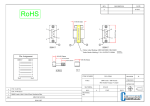
circuit board out to gain access to the connectors (see Figure 1). The DB9P
connector labeled “RS-232” is used for connecting to RS-232 devices, as
well as for configuring the protocol converter via the text-based user
interface. Permanent installations using the RS-232 interface should use
screw terminals 4-6 labeled “GND”, “232 TX”, and “232 RX”, respectively.
SDI12 and RS-485 connections are made on terminals 1 & 2, and 7 & 8,
respectively. When connecting the S::CAN probe to the converter, the “A+”
terminal on the probe should connect to the “RS-485 A” terminal on the
converter, and the “B-” terminal on the probe should connect to the “RS-485
B” terminal on the converter. See Tables 1 & 2 for more information on
making electrical connections. When configuring the MS1-SCAN, a nullmodem serial cable (included) and terminal program such as Hyperterm is
required. When configuring the MS1-SCAN, any other RS-232 devices must
be disconnected from the converter. The MS1-SCAN is preconfigured to
operate with the S::CAN spectrometer probe, and configuration is not
normally required.
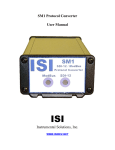
The converter has 2 multi-color LED indicators on the front panel for
indicating SDI12 and Modbus data activity. The indicators light up green
when the converter is receiving data on the associated interface, and red
when the converter is sending data on the interface. These can be used to
help diagnose communication problems.
© Copyright 2010 Instrumental Solutions, Inc. All Rights Reserved
Figure 1
© Copyright 2010 Instrumental Solutions, Inc. All Rights Reserved
Pin 1
Pin 2
Pin 3
Pin 4
Pin 5
Pin 6
Pin 7
Pin 8
Pin 9
Table 1 - DB9P Connections
No connection
Receive data – RS232 input
Transmit data – RS232 output
DTR – internally tied to pin 6 for flow control loopback
Signal ground
DSR – internally tied to pin 4 for flow control loopback
RTS – internally tied to pin 8 for flow control loopback
CTS – internally tied to pin 7 for flow control loopback
No connection
Table 2 – Terminal Connections
#1
SDI12 data line
#2
SDI12 ground
#3
+12VDC input
#4
Ground
#5 Transmit data – RS232 output
#6 Receive data – RS232 input
#7
RS485 line A
#8
RS485 line B
Table 3 – Jumper J6
Jumper installed on 1 & 2 Enable RS-232 operation
Jumper installed on 2 & 3 Enable RS-485 operation
Default Configuration
To view the current configuration or configure the MS1-SCAN, it is first
necessary to move the jumper on header J6 (which is located immediately
behind the screw-terminal block) from its normal 2-3 position to position 12. This jumper must be returned to position 2-3 for the ModBus interface to
work. Please refer to Table 3 above and the highlighted portion in Figure 1,
where the jumper is shown in position 2-3.
© Copyright 2010 Instrumental Solutions, Inc. All Rights Reserved
Next, plug one end of a null-modem cable into the DB9P connector on the
converter, and the other end into an available serial port on a PC. Terminal
software should be set for 9600 baud, 8 data bits, no parity, and no flow
control.
To enter configuration mode, quickly type 3 question-mark characters. The
MS1-SCAN should respond with the following screen:
NOTE: If the converter fails to respond, try again, typing as quickly as you
can. If still no response, remove and re-apply power to the converter while
watching the front panel LEDs. Both LEDs should immediately light up red,
then turn green after about half a second, then go out after another halfsecond. If this doesn’t happen, check the power wiring for proper voltage
and polarity. The MS1-SCAN operates on 9-14 volts DC.
If the LEDs don’t light when power is applied, there is a problem with the
converter. If the LEDs light but there is still no response after typing
question marks, make sure that you are using a null-modem serial cable,
which crosses pins 2 & 3 between ends. If the unit fails to respond, there
may be a problem with the converter.
© Copyright 2010 Instrumental Solutions, Inc. All Rights Reserved
The default configuration returns fields to the SDI12 master in the following
order:
Parameter 1, Parameter 2.
To change a configuration setting, type the number of the setting followed
by the Enter key. The configuration mode has an inactivity timeout of 1
minute. If at any point during configuration the user goes 1 minute without
typing anything, the converter automatically returns to normal online
operation. Setting changes are saved as they are entered, so any changes
completed during the configuration session will not be lost if a inactivity
timeout occurs.
The following section describes each setting in detail.
1. SDI12 address
This is the address that the MS1-SCAN will answer to on the SDI12
network. The default value is 0. This value must match the address that
the SDI12 master uses when attempting to communicate with the MS1SCAN. If the SDI12 master has the ability to scan the network for
sensors, this is the address that will be associated with MS1-SCAN on
the SDI12 master.
2. SDI12 data-ready time
This is the maximum length of time in seconds that the Modbus device
should take to have data available after a measurement request. The
default value is 60. The MS1-SCAN reports this value back to the SDI12
master in response to a measurement request. The SDI12 master must
wait this length of time before requesting data from the MS1-SCAN.
However, if the SDI12 master issues a non-concurrent measurement
request (recommended), the MS1-SCAN will issue a Service Request to
the SDI12 master as soon as data is available from the Modbus device.
This causes the SDI12 master to immediately issue a data retrieval
request, even if the data-ready time has not been reached. This can
significantly speed up the data retrieval cycle.
For more information concerning the SDI12 protocol, see
http://www.sdi-12.org.
© Copyright 2010 Instrumental Solutions, Inc. All Rights Reserved
3. Modbus address
This is the address that the MS1-SCAN will send Modbus requests to on
the RS232 and RS-485 interface. The default value is 4, which matches
the default address of the S::CAN probe.
4. Modbus mode
This sets the Modbus operating mode. The choices are ASCII and RTU.
Modbus RTU is the default, which matches the default setting of the
S::CAN probe.
5. Modbus read function
This sets the function code that will be sent to the Modbus device to read
the data registers on the Modbus device. This must be set to 4 for the
S::CAN probe.
6. Modbus operations 1-8
Upon receiving a measurement request from the SDI12 master, the MS1SCAN executes a series of Modbus operations, as defined by these
settings. An operation can be 1 of 3 types: a Read type (which reads a
Modbus register on the attached sensor), a Write type (which writes a
Modbus register on the attached sensor), or a Test type (which repeatedly
reads a Modbus register on the attached sensor until the value read
matches a “test” value specified in the operation).
For example, before reading the data registers on the S::CAN probe, it’s a
good idea to read the device status held in input register 121, and wait
until it returns a value of 0. Operation #1 accomplishes this:
6.
Modbus operation 1:
[*][T] Test device status = 0
The [*] indicates that this particular operation is enabled. A disabled
operation appears as [ ].
The [T] indicates that this is a Test operation.
“Test device status = 0” is a free-form text description of what the
operation does.
To view or modify the details of a Modbus operation, type its menuselection number and hit Enter. For example, to view/modify operation
#1 (menu selection 6), type 6 and hit Enter. You will be led through the
following dialog:
© Copyright 2010 Instrumental Solutions, Inc. All Rights Reserved
6. Modbus operation 1:
Enabled: Yes (Spacebar to change, Enter to accept)
The spacebar will toggle this setting between Yes and No. Press the
ENTER key to accept the setting and take you to the next step:
Modbus register:
Current setting: 121
New setting:
Enter a new value for the Modbus register, or hit Enter with no entry to
keep the current setting. In this case, we are operating on register 121,
which is the device status register in the S::CAN probe.
Data type: 16-bit unsigned integer
accept)
(Spacebar to change, Enter to
The spacebar steps through all of the data types supported by the MS1SCAN. This setting must agree with the data type of the Modbus register
being referenced. In this case, register number 121 in the S::CAN probe
has a data type of bitmask, which translates just fine to a 16-bit unsigned
integer. Press the ENTER key to accept the setting and take you to the
next step:
Number of registers:
Current setting: 1
New setting:
Enter a new value for the number of Modbus registers that this operation
is to operate on, or hit Enter with no entry to keep the current setting. In
this case, we want to operate on a single register.
Type of operation: Test
(Spacebar to change, Enter to accept)
The spacebar steps through the available types for this operation. In this
case, we want to Test to the specified register on the S::CAN probe.
Operation data:
Current setting: 0
New setting:
Enter the data value to compare the probe value to, which in this case
will be 0. This means that the MS1-SCAN will continuously read the
probe until the returned value is equal to 0 or until it times-out waiting
for the probe to return 0. The timeout value is approximately 2 minutes.
© Copyright 2010 Instrumental Solutions, Inc. All Rights Reserved
Operation name:
Current setting: Test device status = 0
New setting:
This is a free-form text description of what the operation does. Hit Enter
with no entry to keep the current setting.
After the Test operation finishes (whether due to the test condition
becoming true or a timeout occurring), the converter continues with
Operations 2 – 3, which are Read-type operations. These operations are
what get each data field from the S::CAN probe, making it available via
SDI12.
The remaining operations, 4 – 8, are not enabled by default, but they are
preconfigured to read parameters 3 – 7 in the S::CAN probe. They can be
enabled or modified as required.
14. Restore default settings
This selection resets all configuration parameters to the factory-default
settings.
15. Resume normal operation
This selection exits configuration mode and returns the converter to
online operation. Configuration mode has an inactivity timeout of 1
minute; if at any time after entering configuration mode no characters are
typed for 1 minute, the converter will automatically return to normal
online operation. If this occurs in the middle of configuring a Modbus
operation, no changes will be made to the configuration. Modbus
operation changes are not saved until the user has stepped through all of
the settings for the operation.
© Copyright 2010 Instrumental Solutions, Inc. All Rights Reserved
Specifications
SDI-12 interface:
Modbus interface:
Text interface:
Operating system:
Indicators:
Connections:
Temperature range:
Power requirements:
Enclosure:
External dimensions:
Weight:
SDI-12 v1.3 compliant
Modbus ASCII, 9600 baud, 8-bit, no parity
9600 baud, 8-bit, no parity, no handshake
Instrumental Solutions ISOS-11
2 bicolor LEDs for transmit/receive indication
Internal screw terminals, DB9 male (DTE)
-40°C to +85°C
12VDC 35ma idle, 35 ma avg, 55ma max
Extruded aluminum, IP65 rated
7.52” (19.1cm) L, 3.48” (8.84cm) W, 1.85” (4.7cm) H
15 ounces
© Copyright 2010 Instrumental Solutions, Inc. All Rights Reserved