1
Tiling/Poster Printing
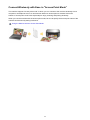
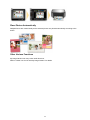
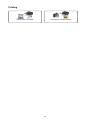
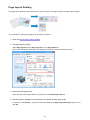
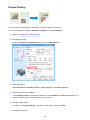
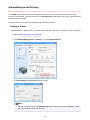
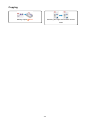
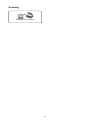
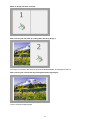
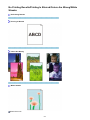
The tiling/poster printing function allows you to enlarge image data, divide it into several pages, and print
these pages on separate sheets of paper. You can also paste the pages together to create a large print like
a poster.
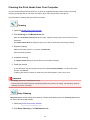
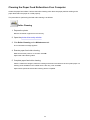
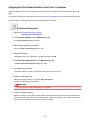
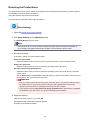
The procedure for performing tiling/poster printing is as follows:
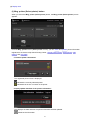
Setting Tiling/Poster Printing
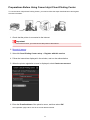
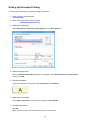
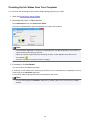
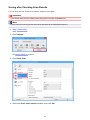
1. Open the printer driver setup window
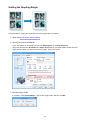
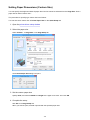
2. Set tiling/poster printing
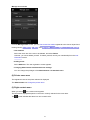
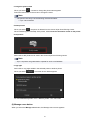
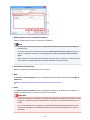
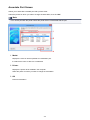
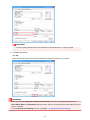
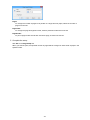
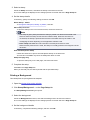
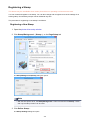
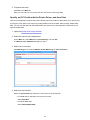
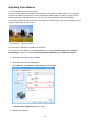
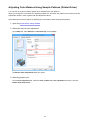
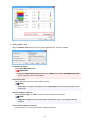
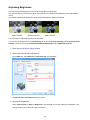
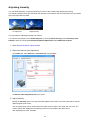
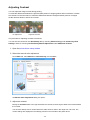
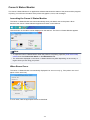
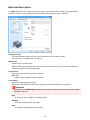
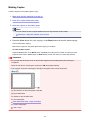
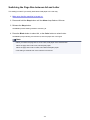
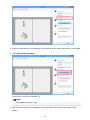
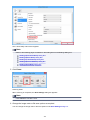
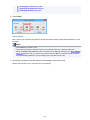
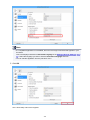
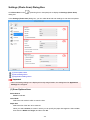
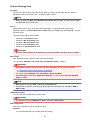
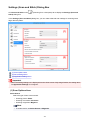
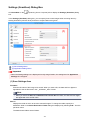
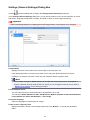
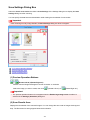
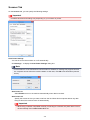
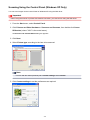
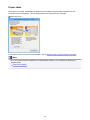
Select Tiling/Poster from the Page Layout list on the Page Setup tab.
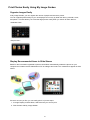
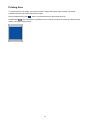
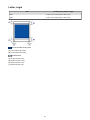
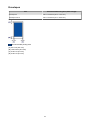
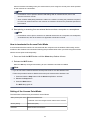
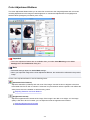
The current settings are displayed in the settings preview on the left side of the printer driver.
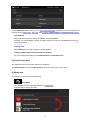
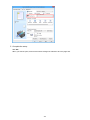
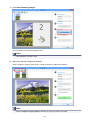
3. Select the print paper size
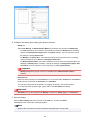
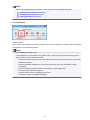
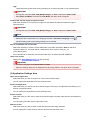
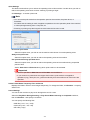
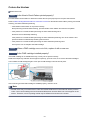
Select the size of the paper loaded in the printer from the Printer Paper Size list.
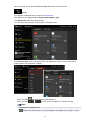
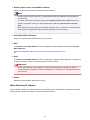
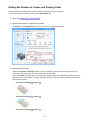
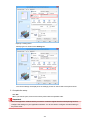
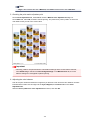
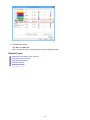
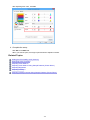
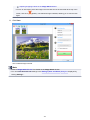
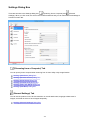
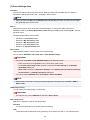
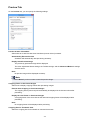
4. Set the number of image divisions and the pages to be printed
288