1
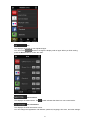
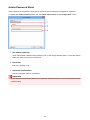
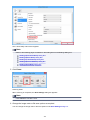
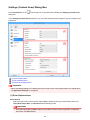
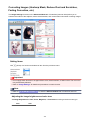
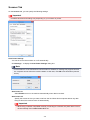
Flexible
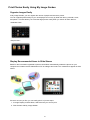
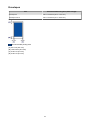
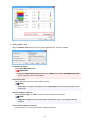
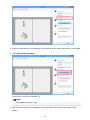
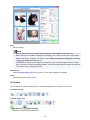
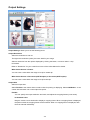
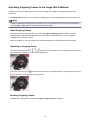
Allows you to freely adjust the cropping frames (scan areas).
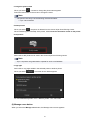
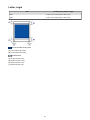
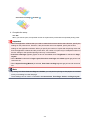
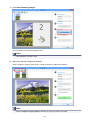
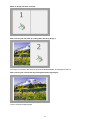
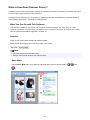
In thumbnail view:
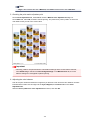
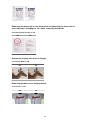
Drag the mouse over a thumbnail to display a cropping frame. When a cropping frame is
displayed, the portion within the cropping frame will be scanned. When no cropping frame is
displayed, each frame is scanned individually.
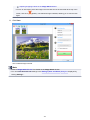
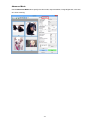
In whole image view:
When no cropping frame is displayed, the entire Preview area will be scanned. When a cropping
frame is displayed, the portion within the cropping frame will be scanned.
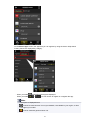
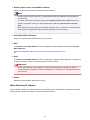
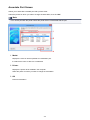
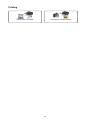
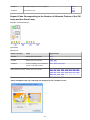
Paper Size (L, A4, etc.)
Select an output paper size. The portion within the cropping frame will be scanned at the size of
the selected paper size. You can drag the cropping frame to enlarge/reduce it while maintaining
the aspect ratio.
Monitor Size (1024 x 768 pixels, etc.)
Select an output size in pixels. A cropping frame of the selected monitor size will be displayed
and the portion within the cropping frame will be scanned. You can drag the cropping frame to
enlarge/reduce it while maintaining the aspect ratio.
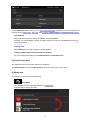
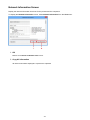
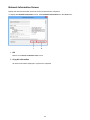
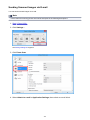
Add/Delete...
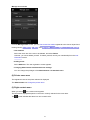
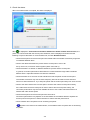
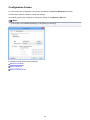
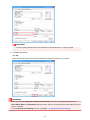
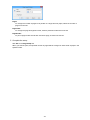
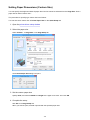
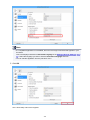
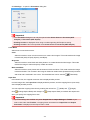
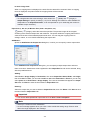
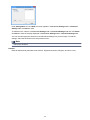
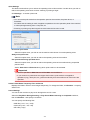
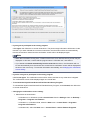
Opens the Add/Delete the Output Size dialog box, in which you can specify custom output
sizes. You can select this option when Destination is Print or Image display.
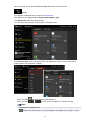
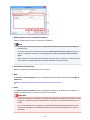
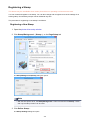
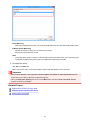
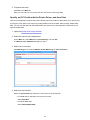
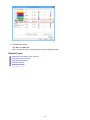
In the Add/Delete the Output Size dialog box, you can specify multiple output sizes and save
them at one time. Saved items will be registered to the Output Size list and can be selected,
along with the predefined items.
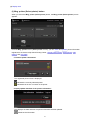
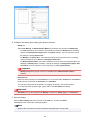
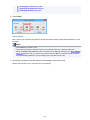
Adding:
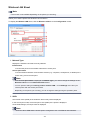
Enter Output Size Name, Width, and Height, then click Add. For Unit, you can select inches or
mm when Destination is Print but you can only select pixels when Destination is Image
display. The name of the added size appears in Output Size List. Click Save to save the items
listed in Output Size List.
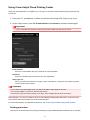
Deleting:
Select the output size you want to delete in Output Size List, then click Delete. Click Save to
save the items listed in Output Size List.
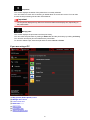
Important
• You cannot delete predefined output sizes such as A4 and 1024 x 768 pixels.
513